
Watch Quick Video

Website Product Call For Price
Our all-inclusive
Odoo – Website Product Call For Price
module improves the Odoo website by replacing product prices
and Add to Cart buttons with a Call for Price option. Customers
can easily request product pricing through a simple form available
on the website. All submitted requests are recorded and managed
from the backend, where administrators can review inquiries and
respond with pricing details via email. This module applies price
hiding across shop, product, wishlist, and comparison pages, providing
consistent control over price visibility and supporting inquiry-based sales.
Website Product Call For Price
- Hide product prices and Add to Cart buttons on website.
- Show Call for Price button on product pages.
- Allow customers to submit price requests using form.
- Manage customer requests directly from backend.
- Send price responses to customers via email.
- Hide price across Product, Wishlist, and Compare pages.
Complete Workflow for Website Product Call For Price
First, customers visit the website and view products where price and Add to Cart buttons are hidden replaced with a Call for Price option. Customers click the Call for Price button and submit a request using a simple inquiry form with their details. Once submitted, the request is stored in the backend and administrator show request. Administrator review the request and send the response via email. Customers receive the price information directly in their email, enabling inquiry-based selling.
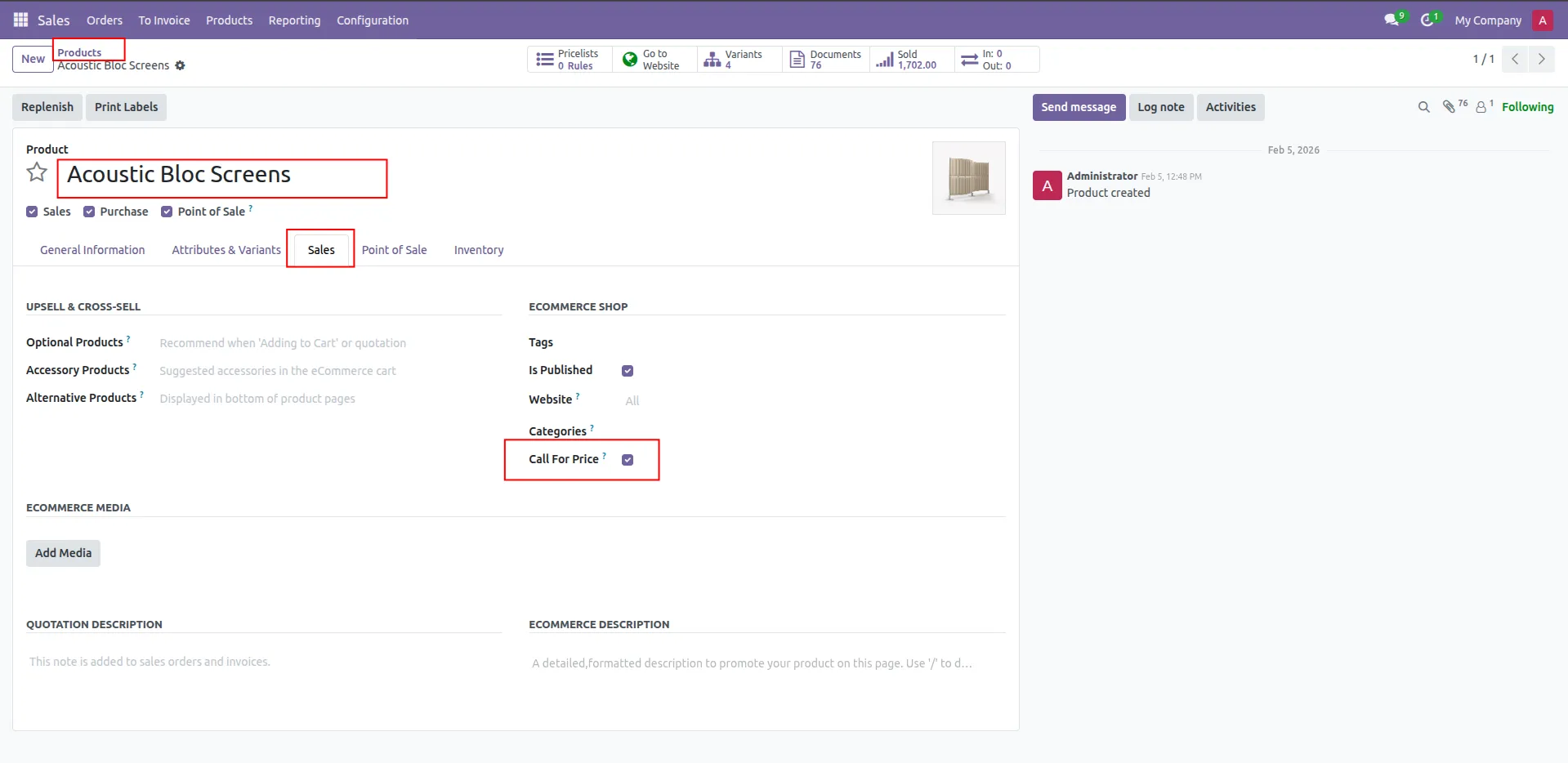
1.Added Call For Price checkbox in product sales tab to control price visibility from backend.
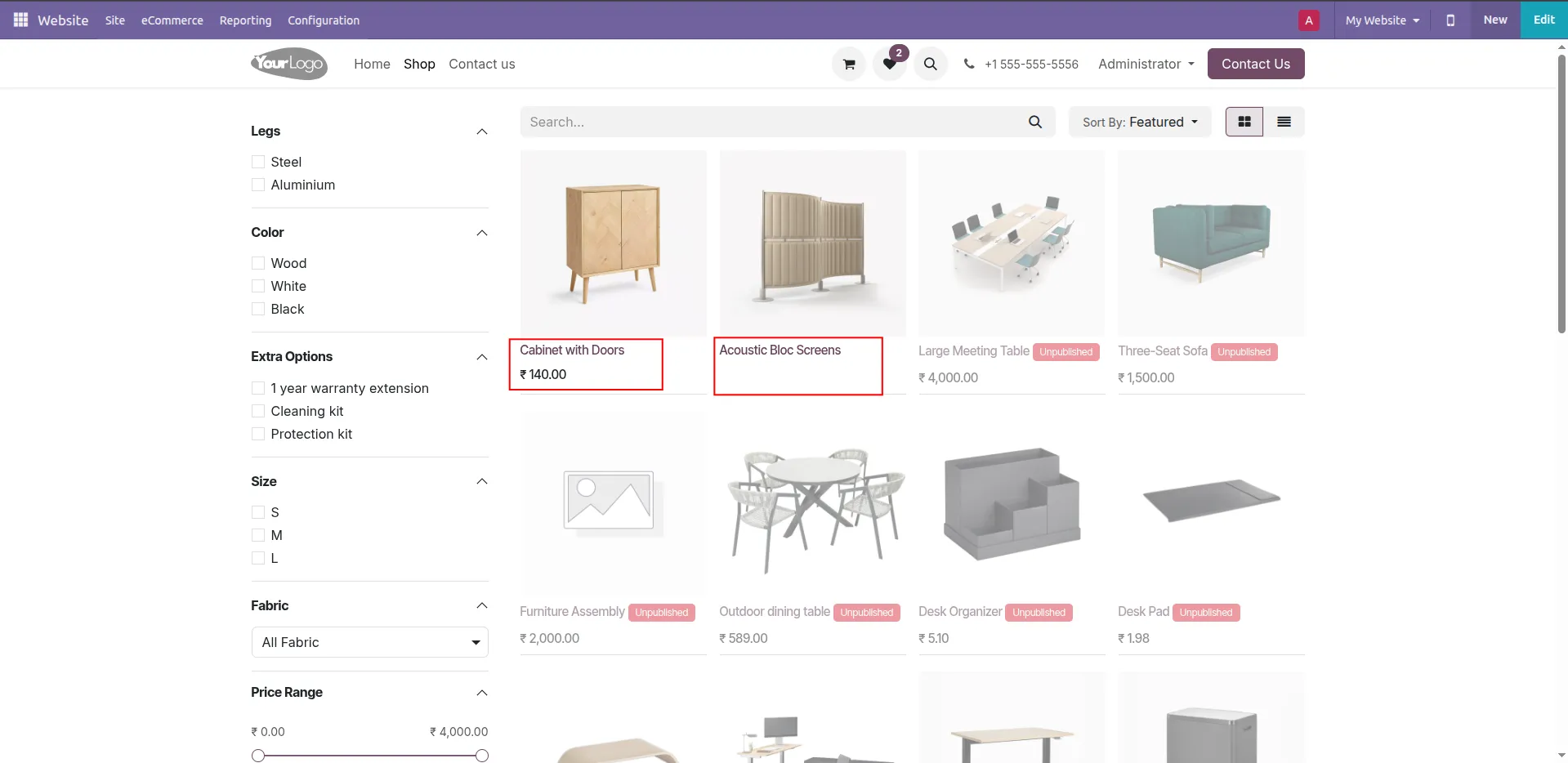
2.Products price hide on shop page product listing.
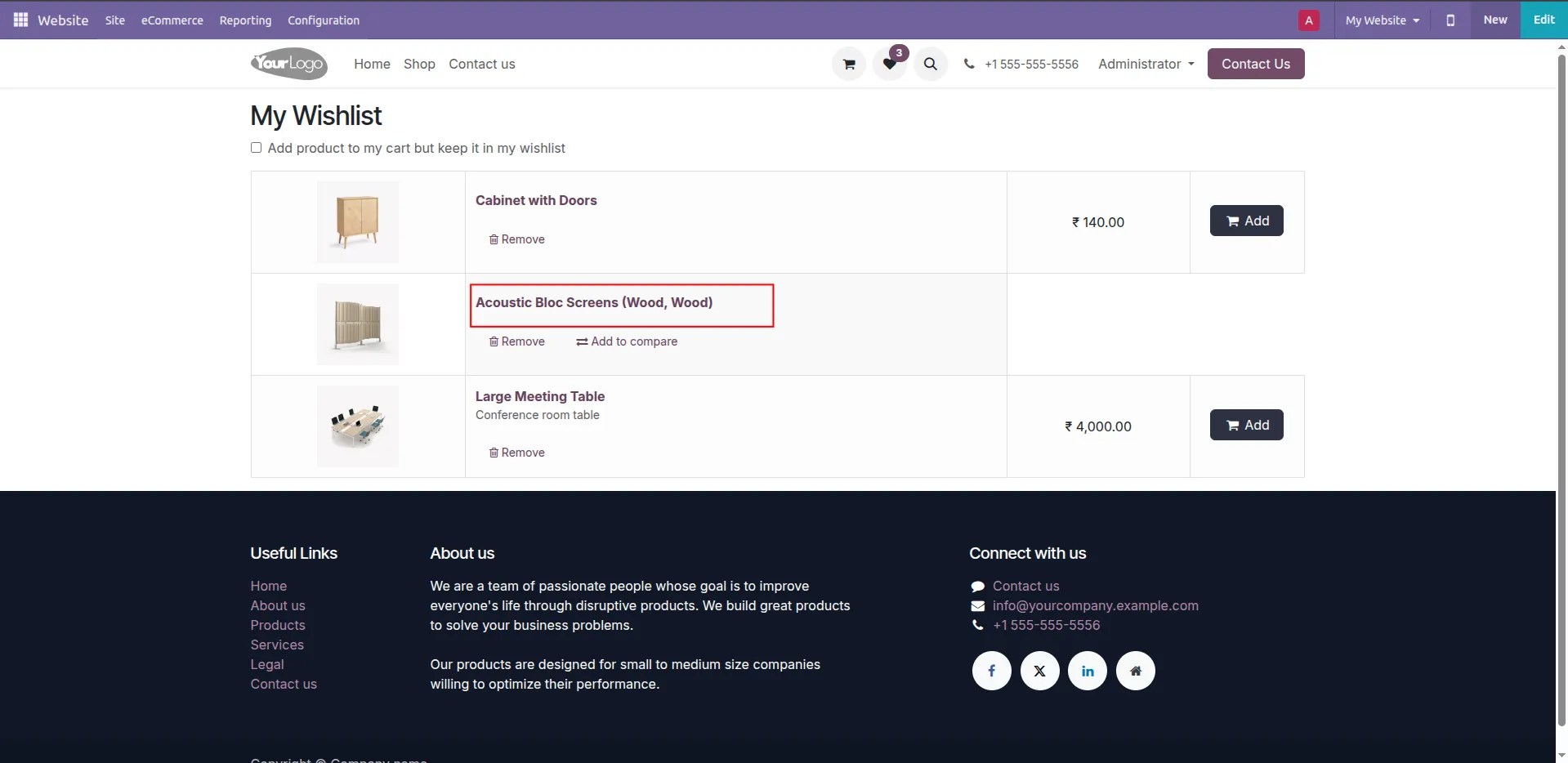
3.products price & Add To Cart Button Hide in wishlist page.
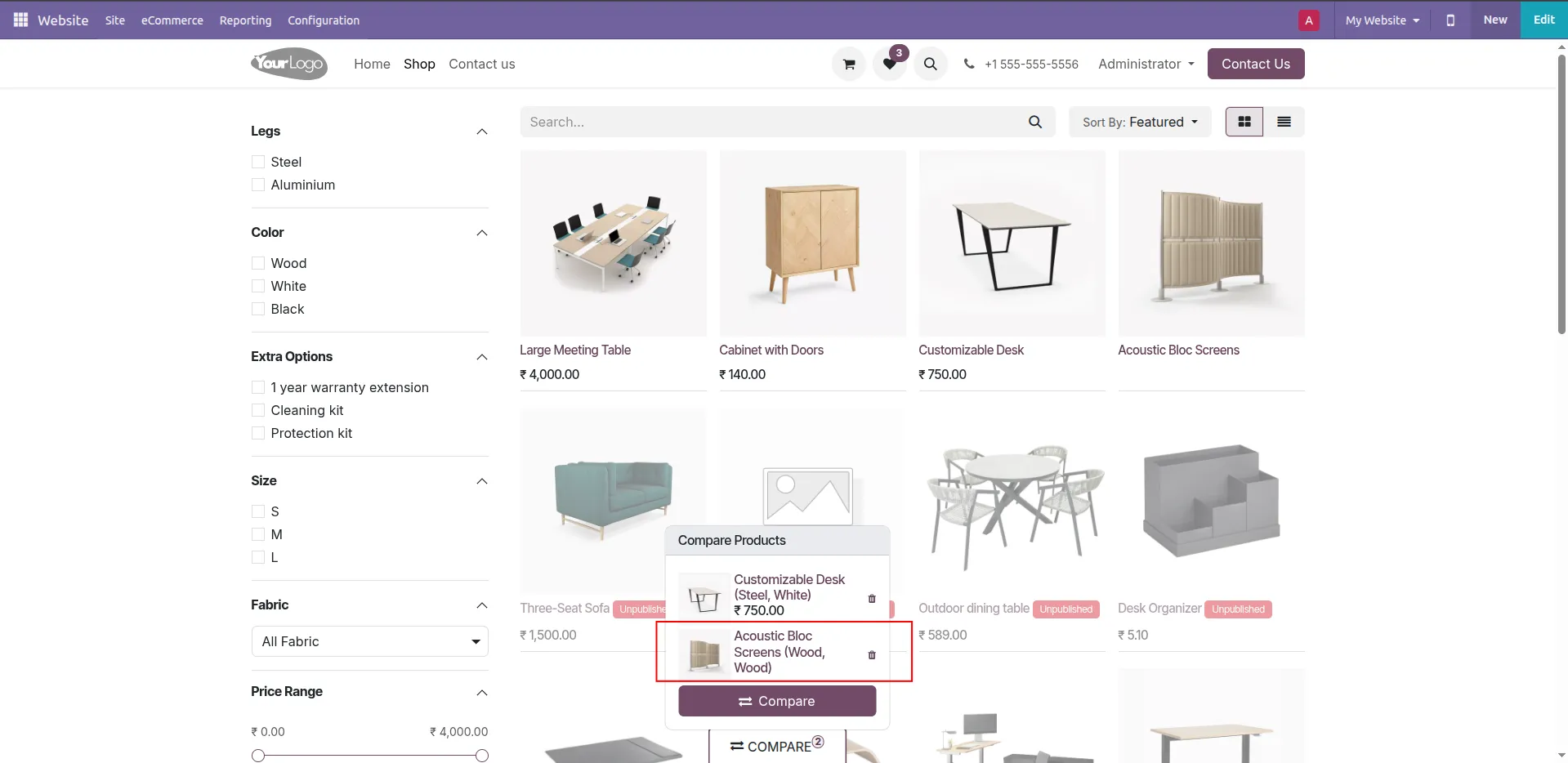
4.products Price hidden in compare popup window.
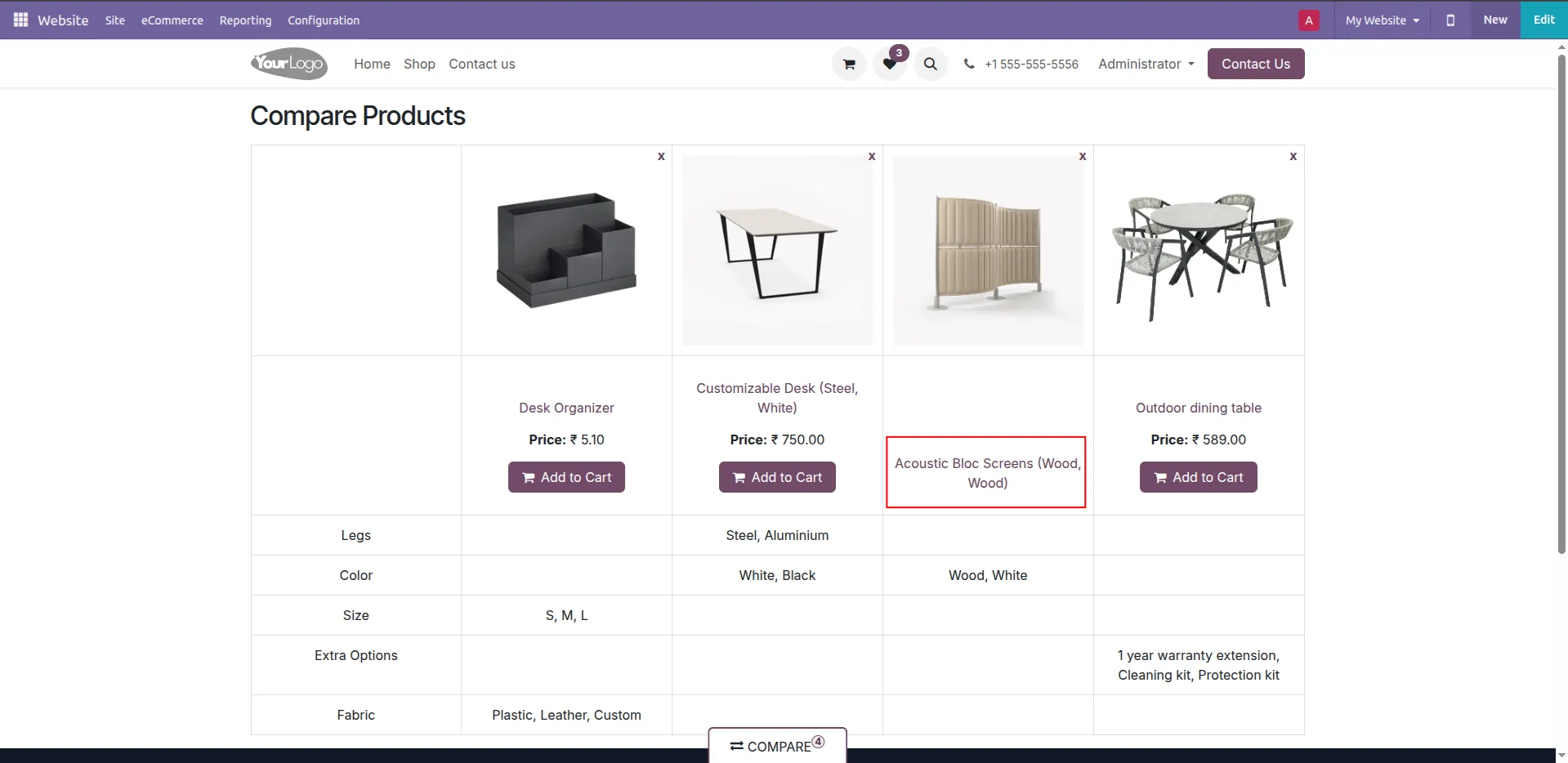
5.In Compare products page hide product price & Add to cart button.
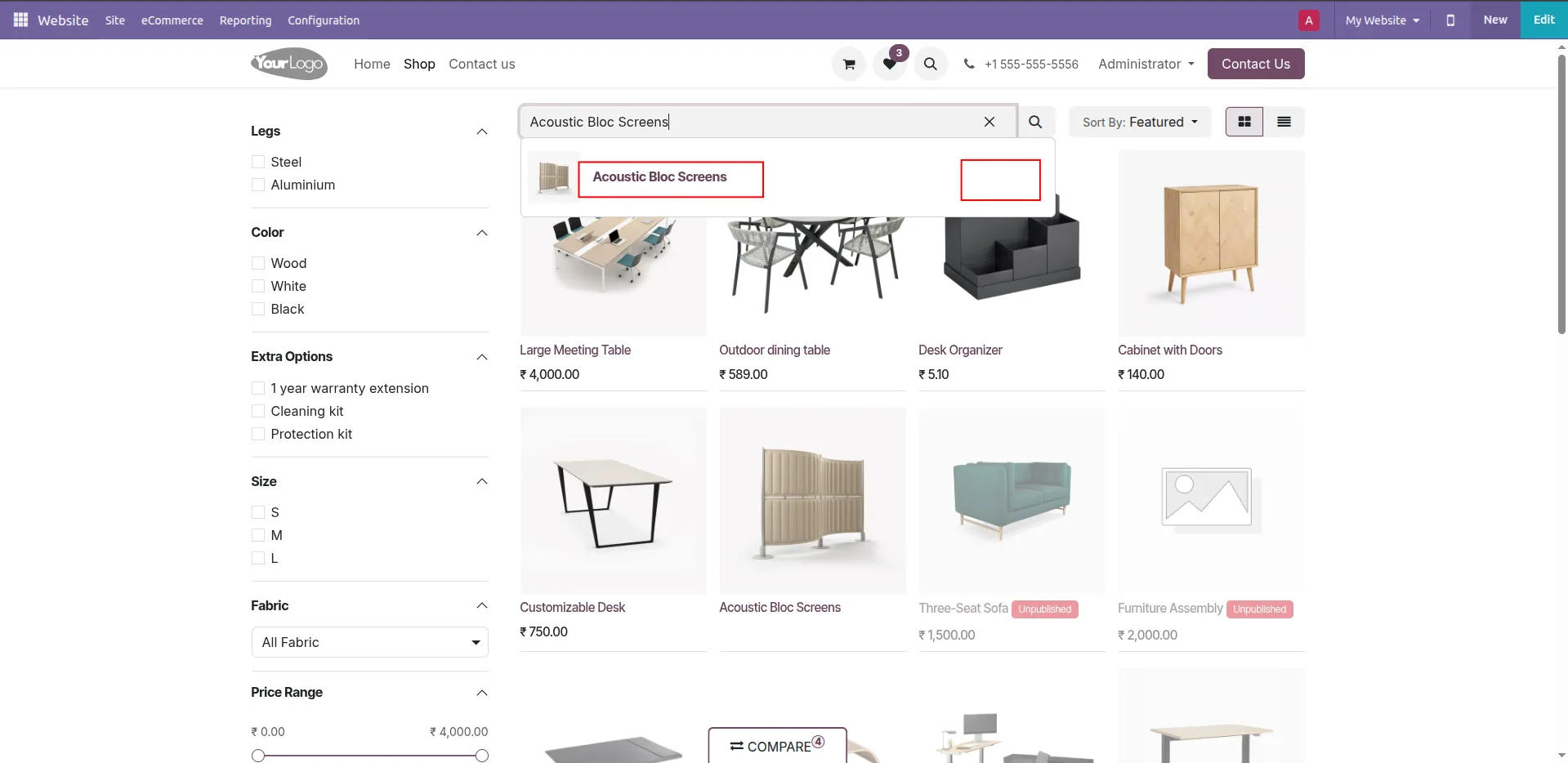
6.while searching product price hide.
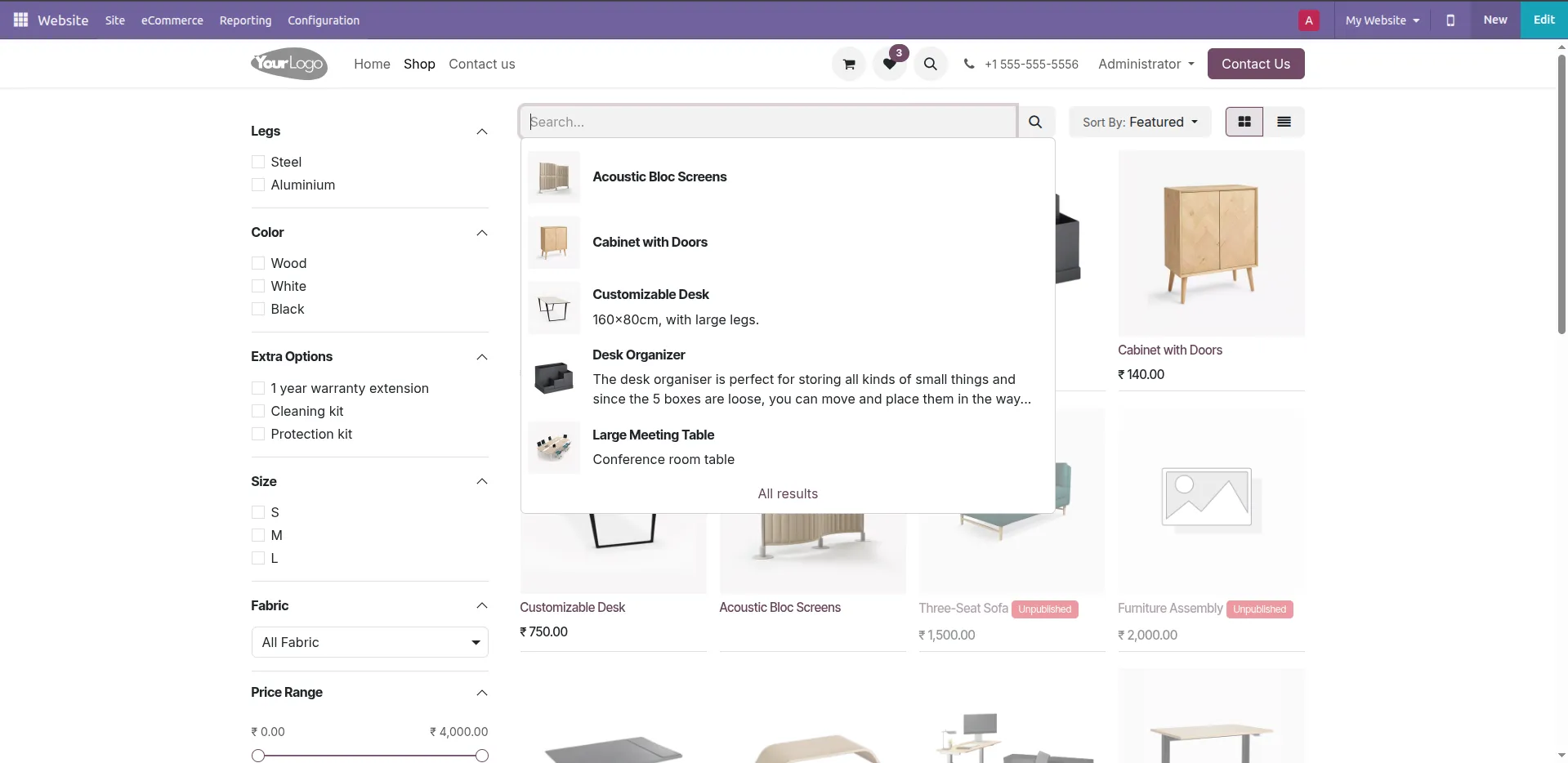
7.Important Note:- When our module is Activated, product prices are hidden in the search for all products.
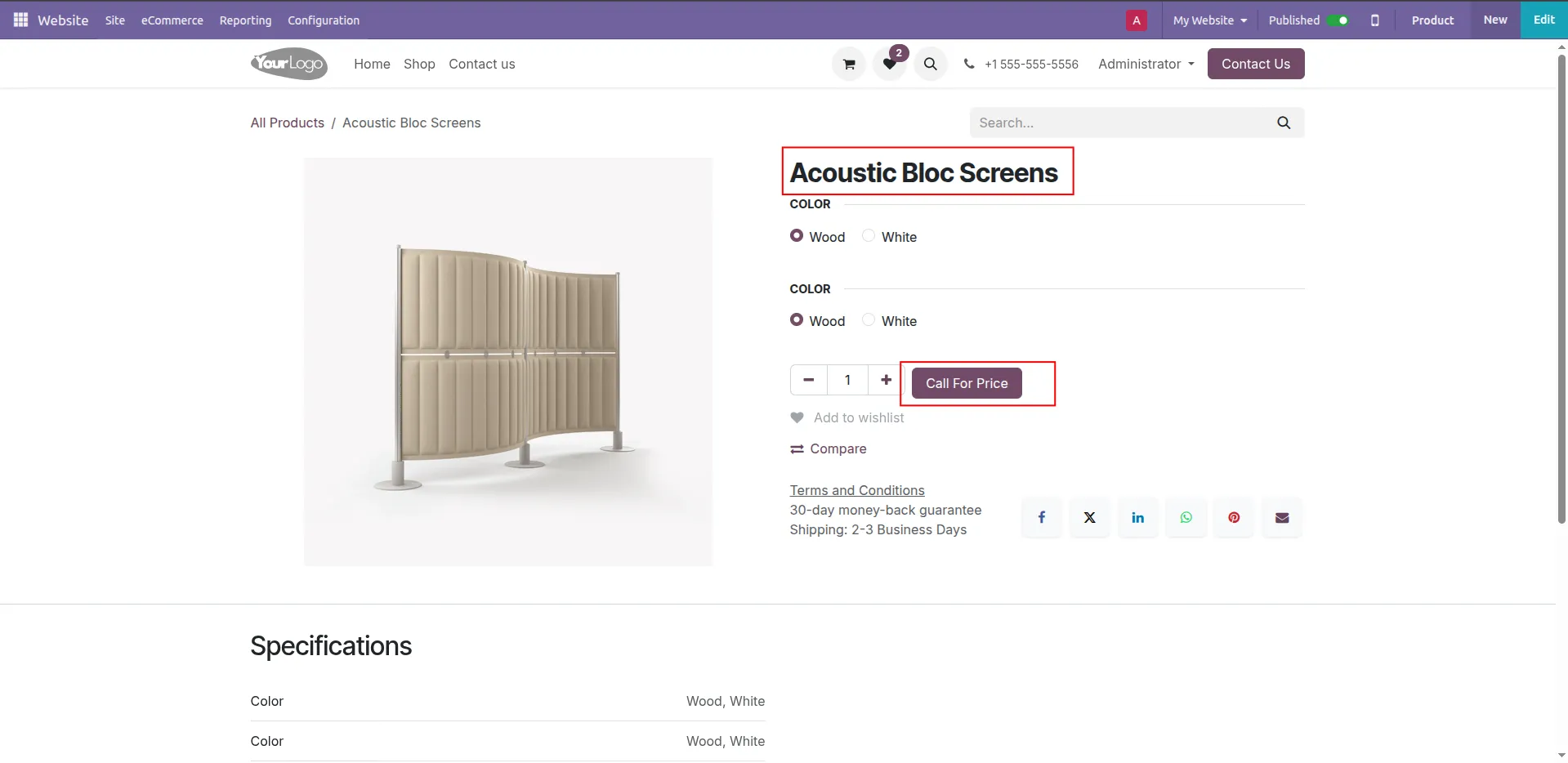
8.In Product detail page displays Call For Price button instead of Product Price & Add to Cart.
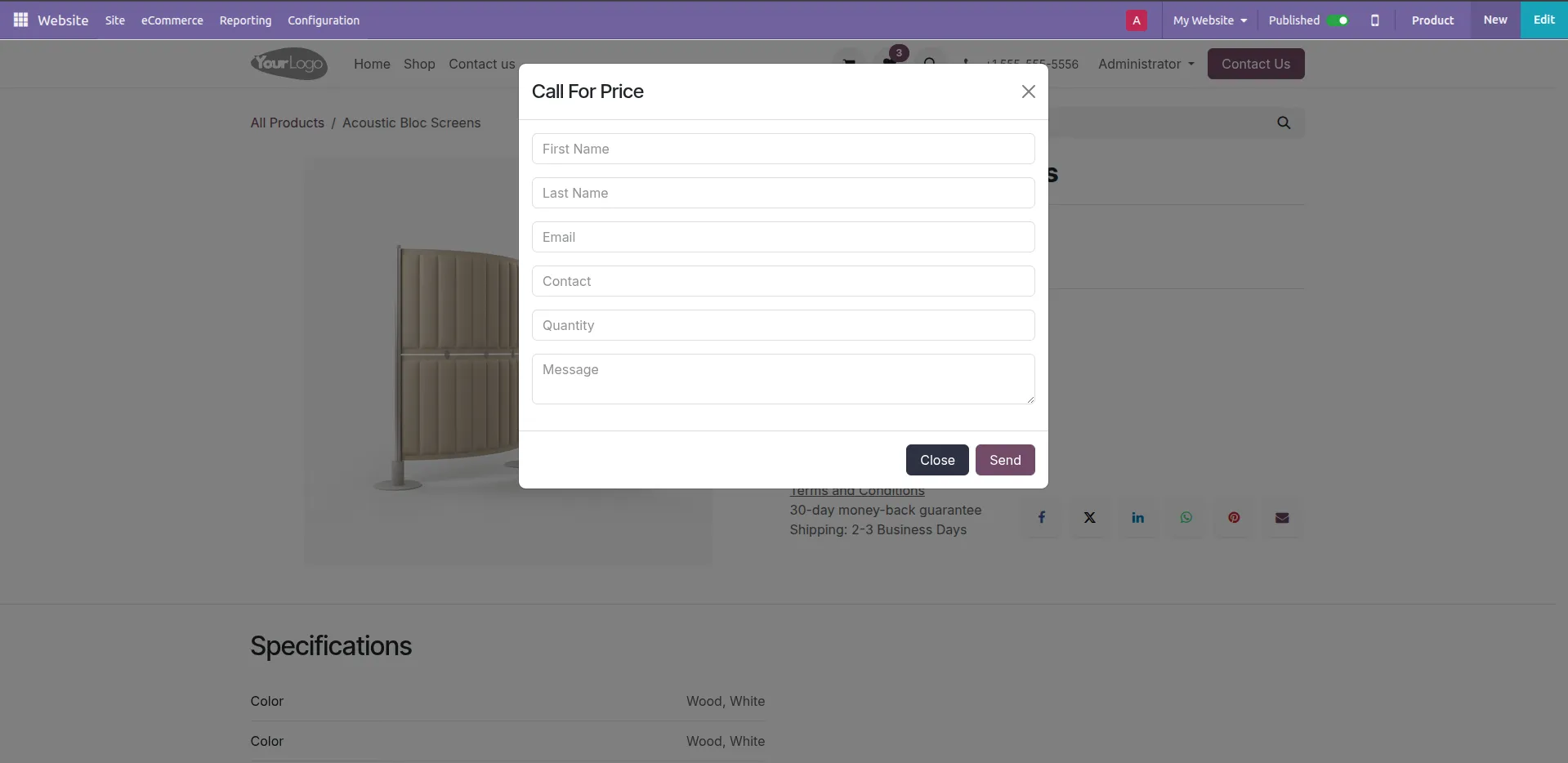
9.Call For Price popup form opens with customer details fields and quantity input.
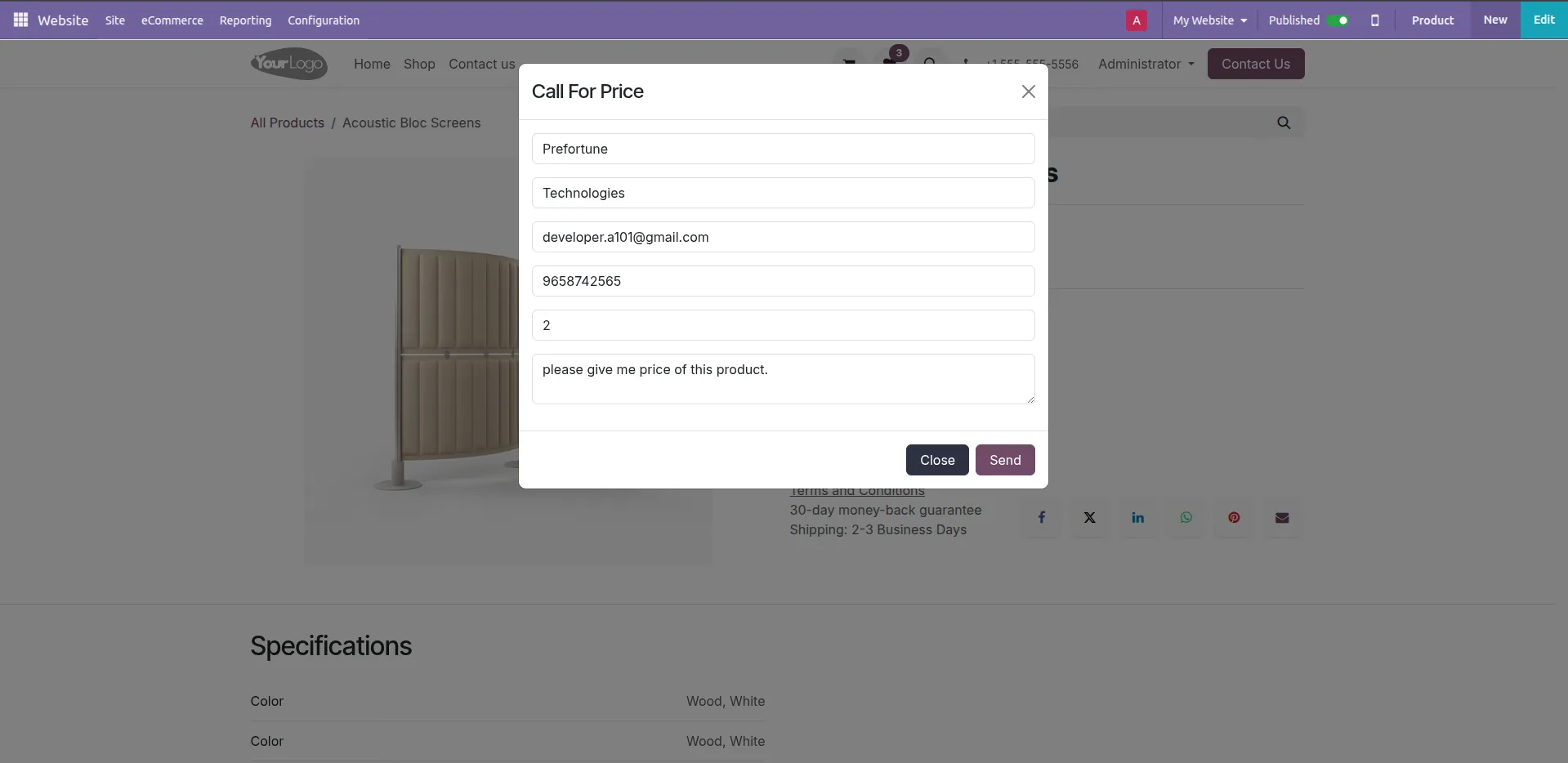
10.Customer fills Call For Price form with product inquiry details.
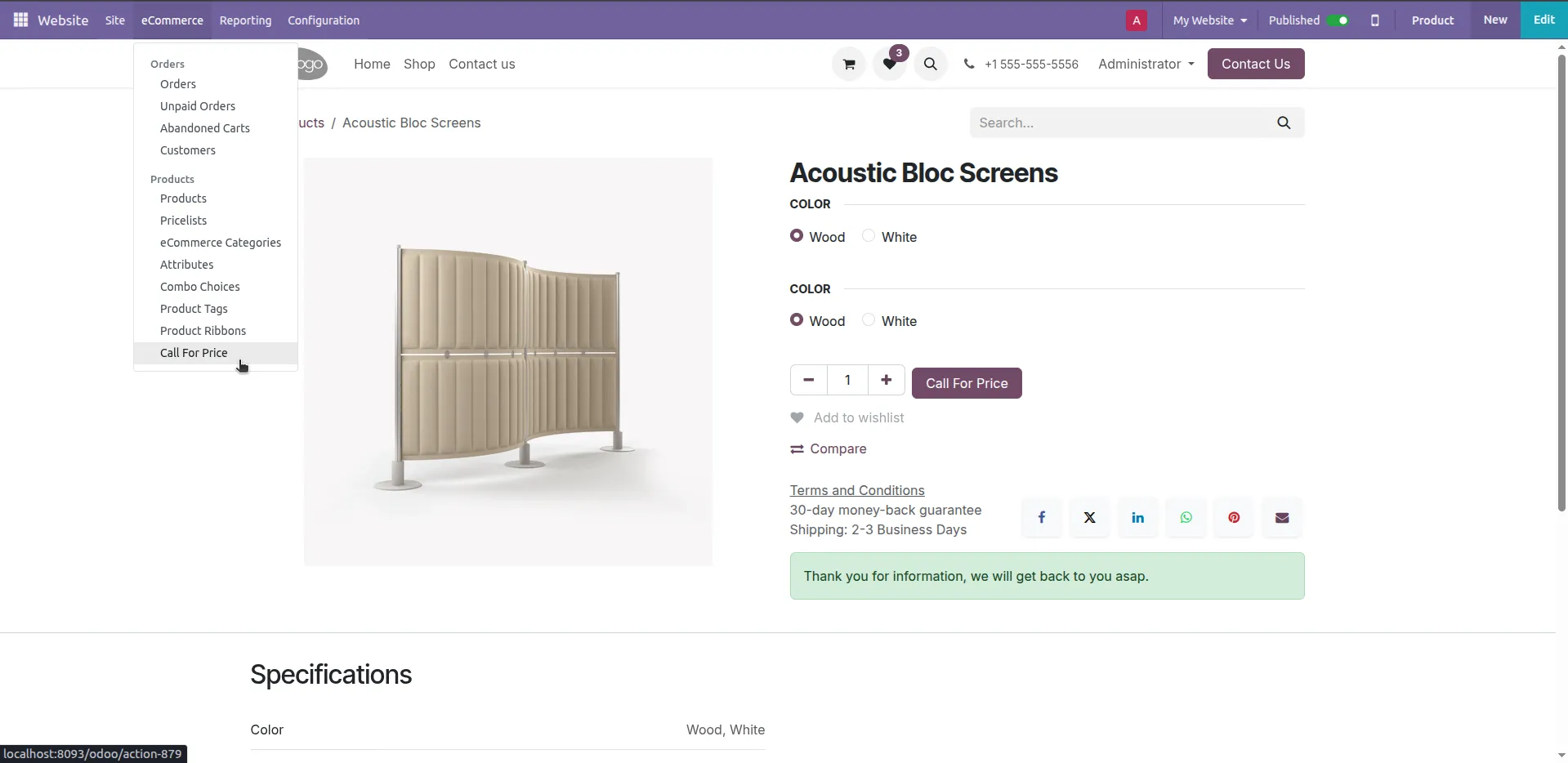
11.Success message displayed after submitting Call For Price request & Call For Price menu added under Website eCommerce configuration for managing customer price requests.
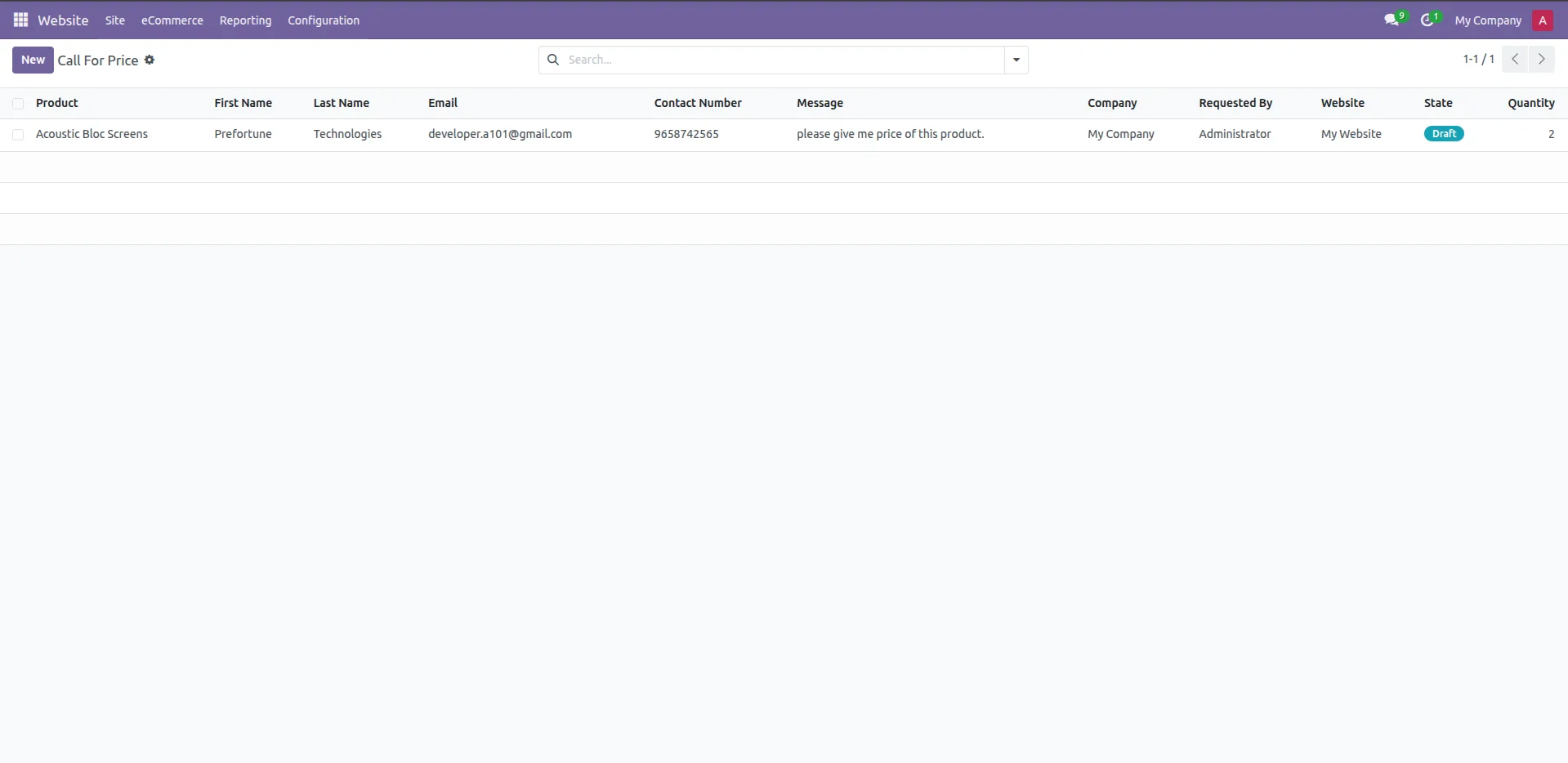
12.Call For Price requests stored in backend list view with customer details.
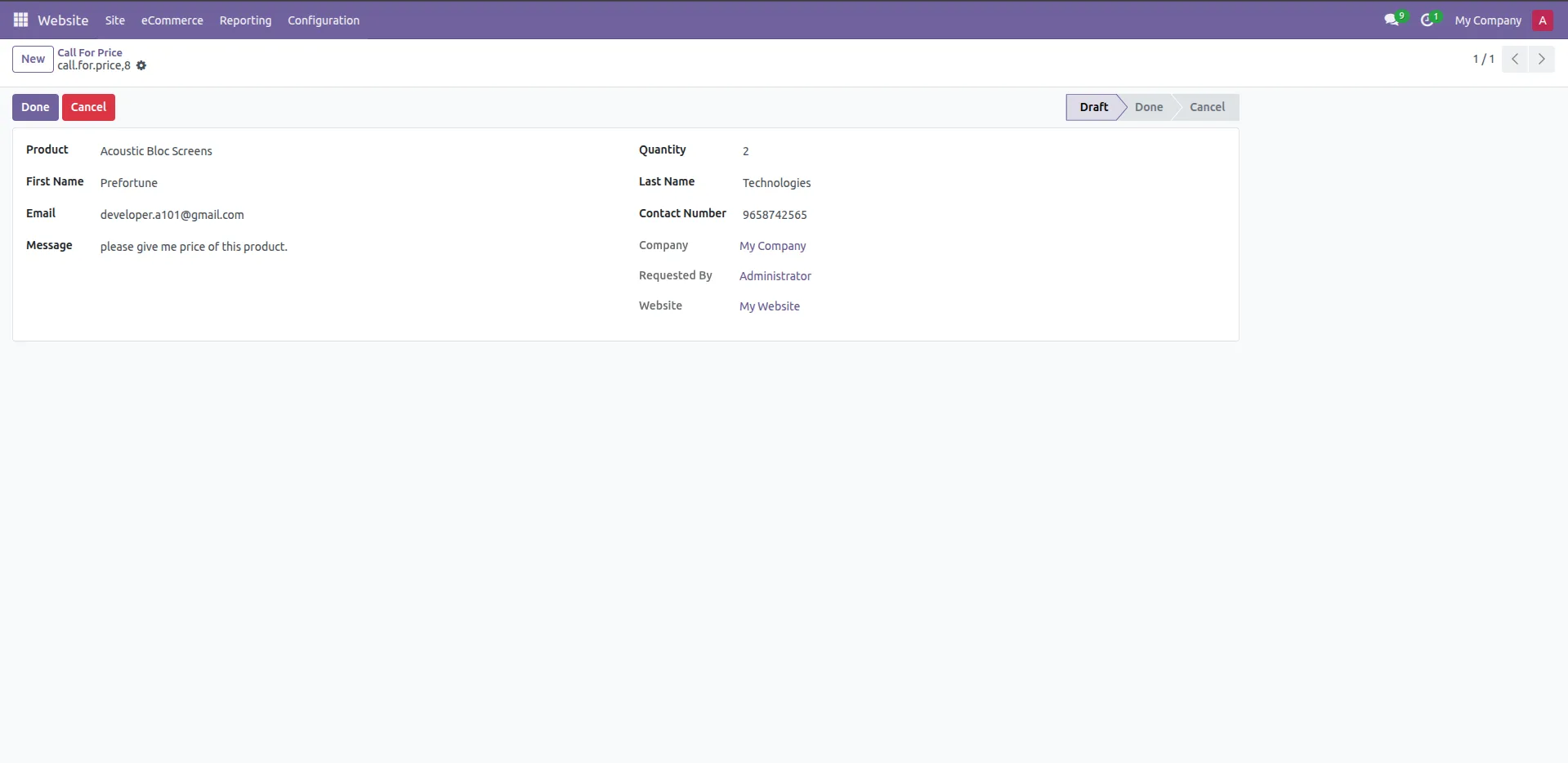
13.Backend form view displays complete Call For Price request information.
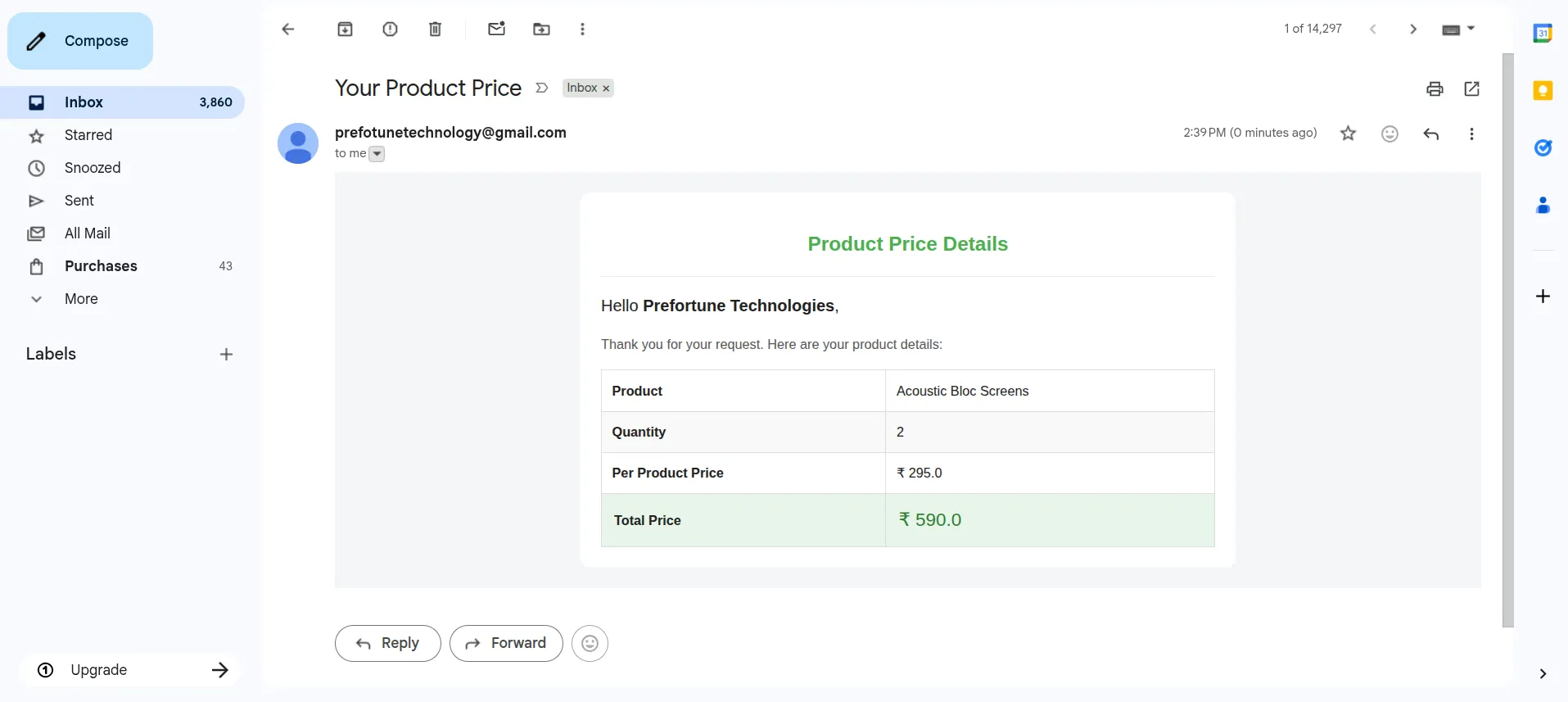
14.When the admin clicks the "Done" button, the customer receives an email with product price details and total calculation.
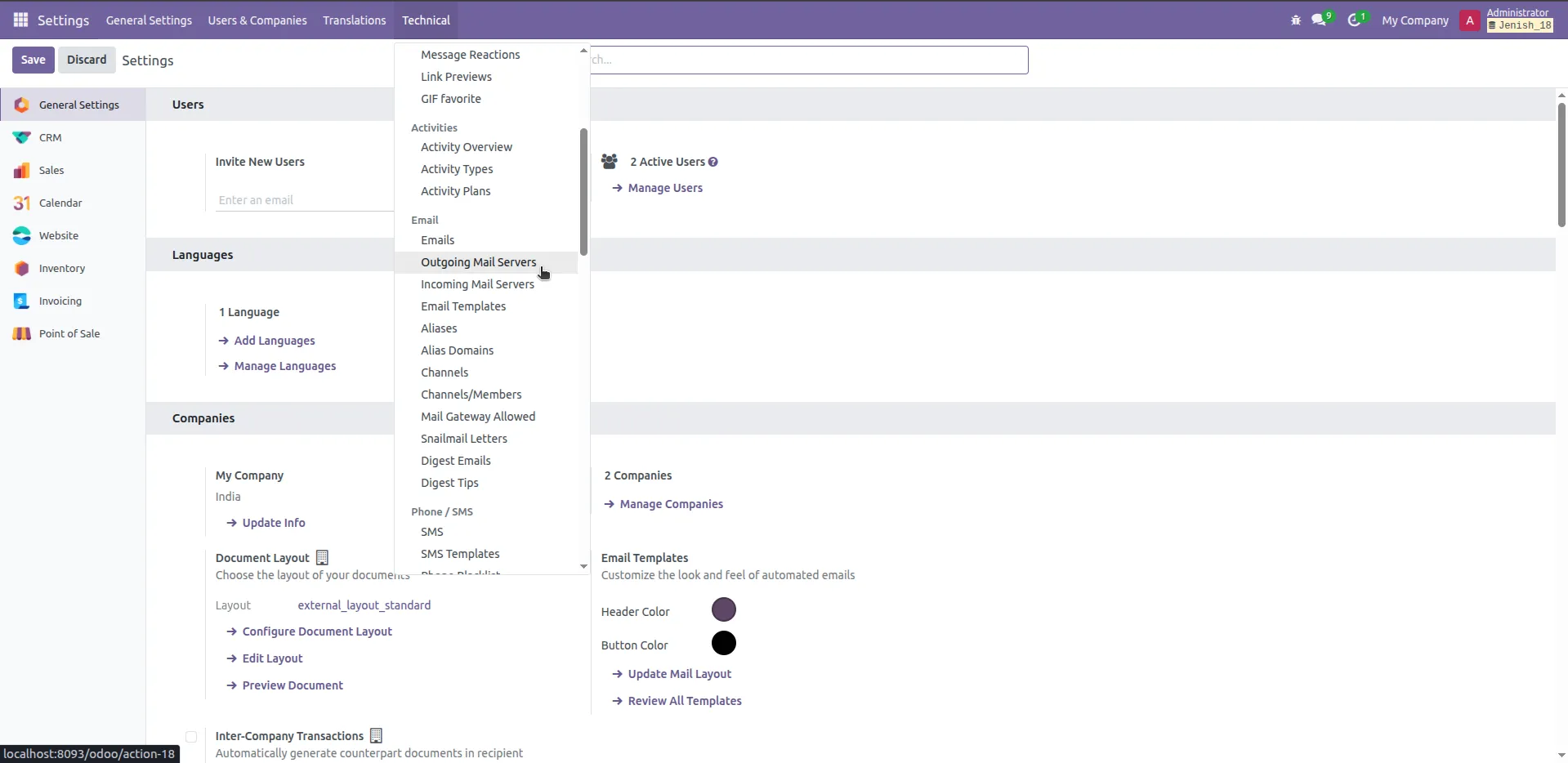
15.Go to setting -> Technical -> Outgoing Mail server ( IMP For email notification ).
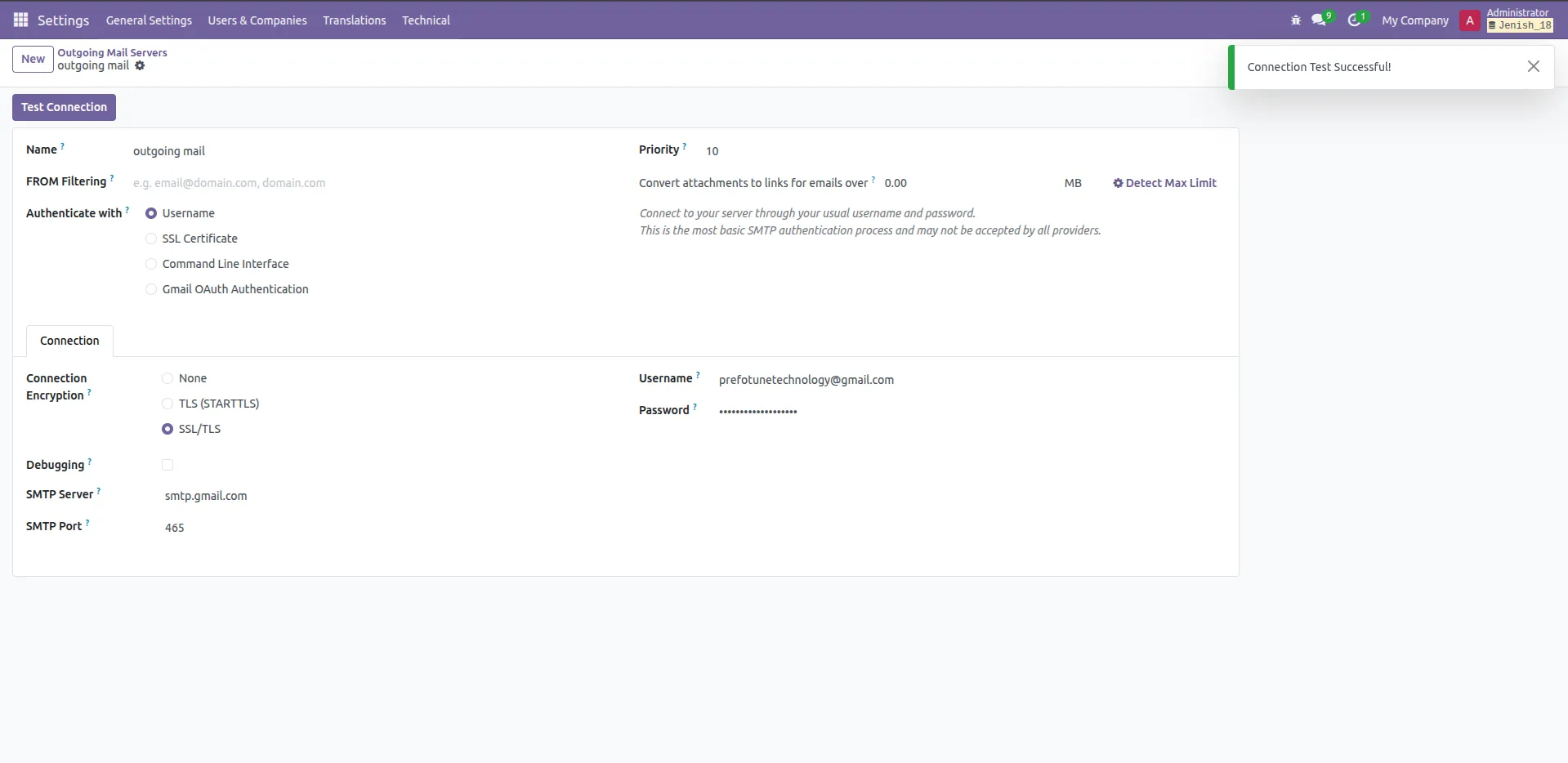
16.This setup is required to enable email notifications for sending product price details and total calculations to customers.
Our solutions focus on your problems
- Odoo Implementation
- Odoo Customization
- ERP Development and Implementation
- Odoo Ipass Cloud
- AI for Odoo
- Odoo Apps
- Aws Marketplace Products
- Business Engines
Our Pricing includes User Manual, 90 Days Support (Monday-Friday 10am to 7pm IST) and One time Setup
• Works & tested on standard installations of Odoo with no third party apps,
• Free support only for odoo installations with no third party apps,
• Paid support available for Odoo installations with third party apps.

Prefortune is a Odoo Official Partner, Odoo Development company. Our philosophy is to use Open Source tools and technologies to provide cost effective and green solutions for our customers.
Prefortune Technologies LLP is working on web development, Mobile development, and Odoo ERP.
If you need any help or want more additional features, you may contact us through:
Alternative Products
These other products might interest you
Specifications
| Version | 19.0, 18.0, 17.0, 16.0, 15.0, 14.0 |