Watch Quick Video
Website Event Custom Tab Odoo App
Our all-inclusive Odoo – Website Event Custom Tab app helps businesses enhance their event pages by adding custom information tabs, making event details more organized, attractive, and easier for visitors to explore. This module allows users to create event custom tabs by defining a tab name, writing content, or even pasting HTML code, while also giving the option to mark tabs as active so only the required information appears on the website. Users can create tabs from the Event Custom Tab configuration menu as well as directly from a particular event using the “Add a line” option, making it simple to manage schedules, descriptions, venue details, FAQs, speaker information, or any other important event content in a clean tabbed layout.
To improve presentation further, the module provides multiple event tab styles that can be selected from website settings, supports setting a main heading for the tab section, and also includes Global tabs so commonly used tabs can be made available across all events. In addition, users can assign icons to tabs for better visual clarity and user experience. Once configured, the selected tabs are displayed directly on the event website page, ensuring visitors can quickly access organized information without scrolling through long descriptions. Seamlessly integrated with standard Odoo Events, this app improves event presentation, simplifies content management, and gives your website a more user-friendly and professional event browsing experience without changing your existing workflow.
Website Event Custom Tab Odoo App
- Create custom event tabs with tab name, content, or pasted HTML in a few clicks.
- Active option available on each tab to quickly enable or disable it.
- Add custom tabs directly from a specific event using the “Add a line” option.
- Choose from multiple website tab styles to match your event page design.
- Create global tabs and assign icons for better visibility and reuse across all events.
Complete Workflow for Manage Website Event Custom Tab Odoo App
First we need to activate Website Event Custom Tab then create the required tabs from Event Custom Tab configuration or directly inside a specific event using Add a line. After that, enter the Tab Name, Content/HTML, Active option, Icon, and Global settings as needed, then choose the preferred Website Tab Style for display. Create Tab, Configure Content, Set Style, Save Event, Publish on Website once confirmed, the system will display the selected custom tabs on the event website page and make event information easier to access in a structured tabbed format for visitors—without changing the normal Odoo Events workflow.
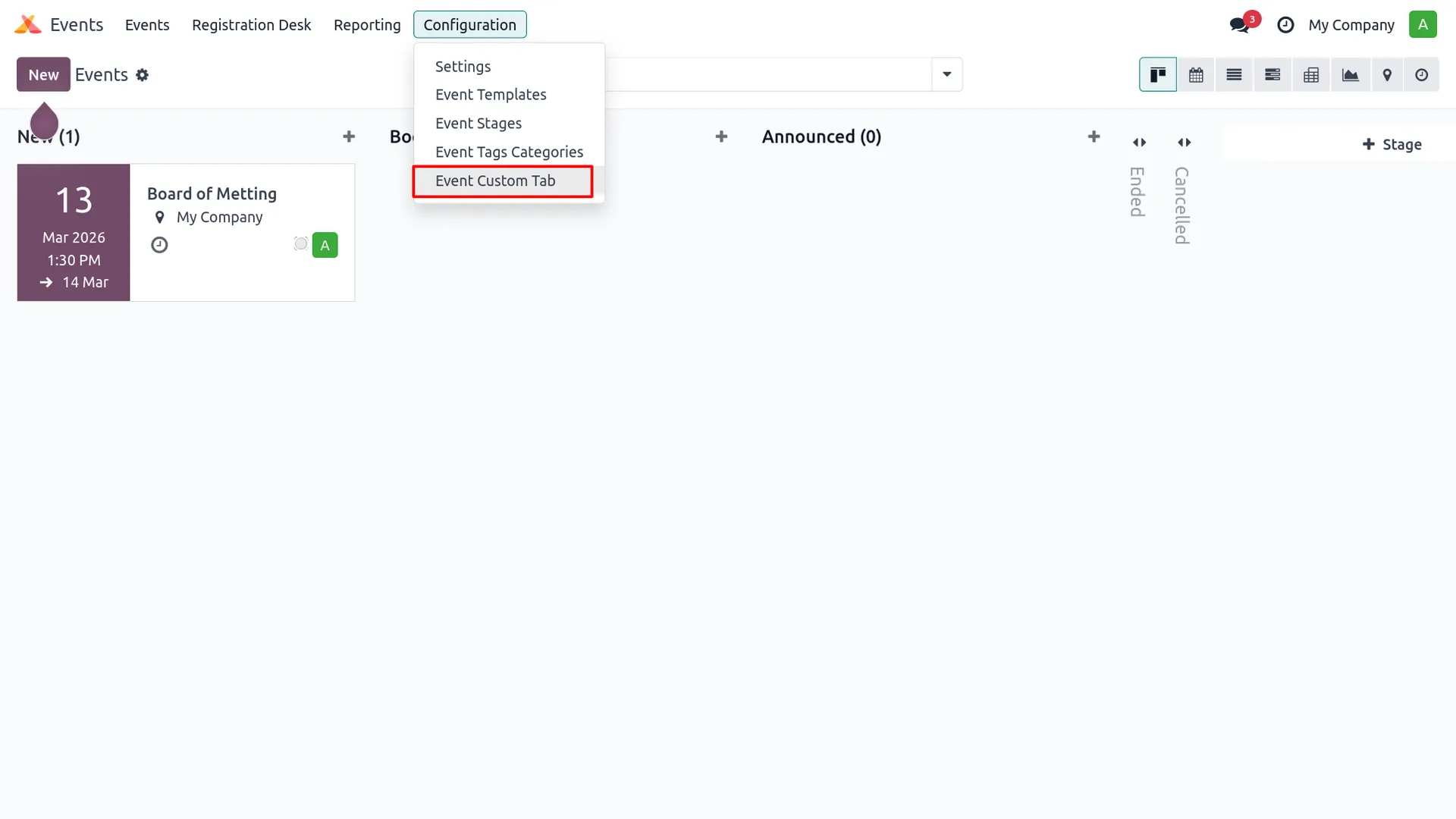
1. Go to Events → Configuration → Event Custom Tab to manage custom tabs for events.
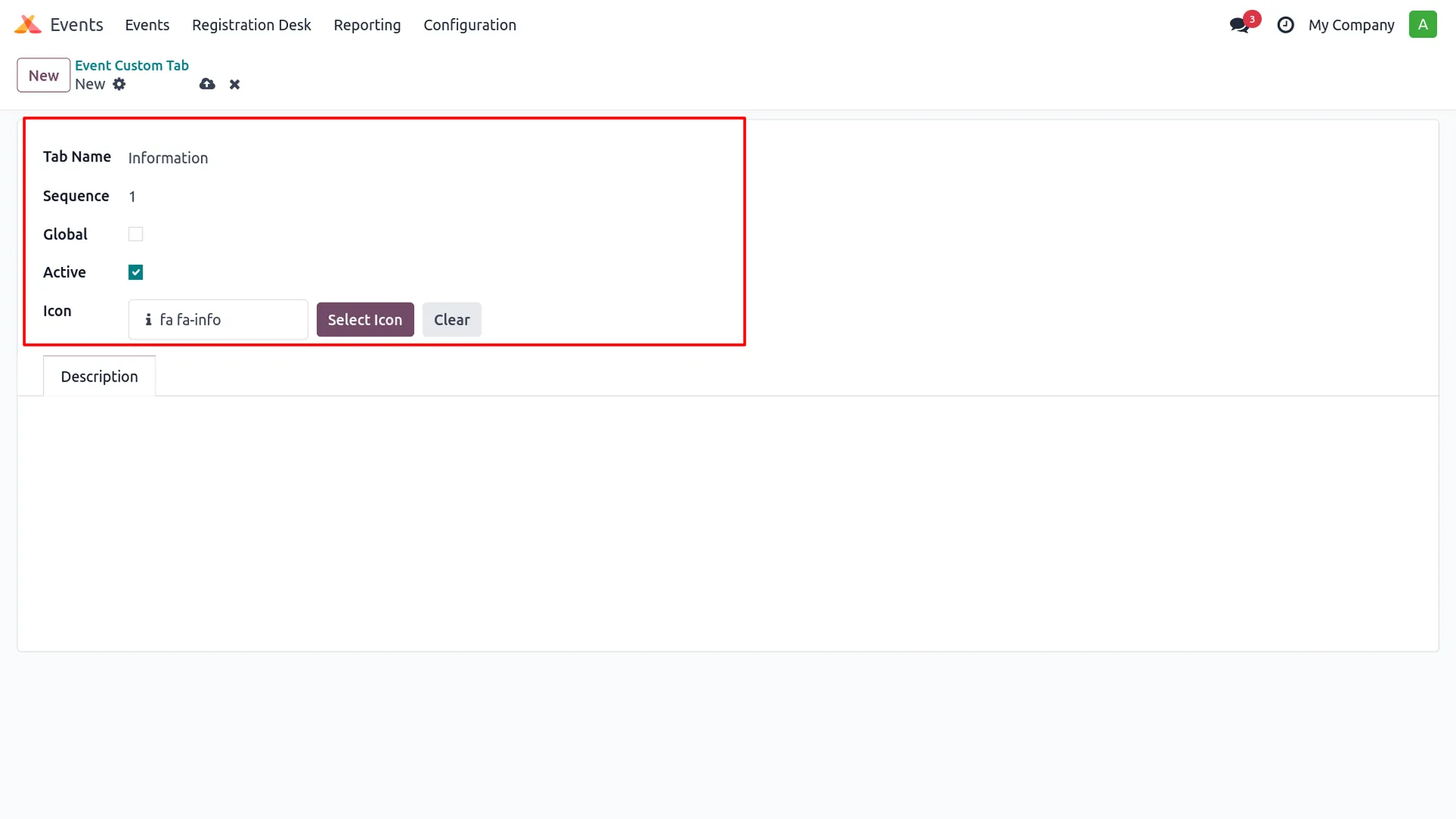
2. Open a new custom tab form and enter the Tab Name, Sequence, Global option, Active option, and select an Icon.
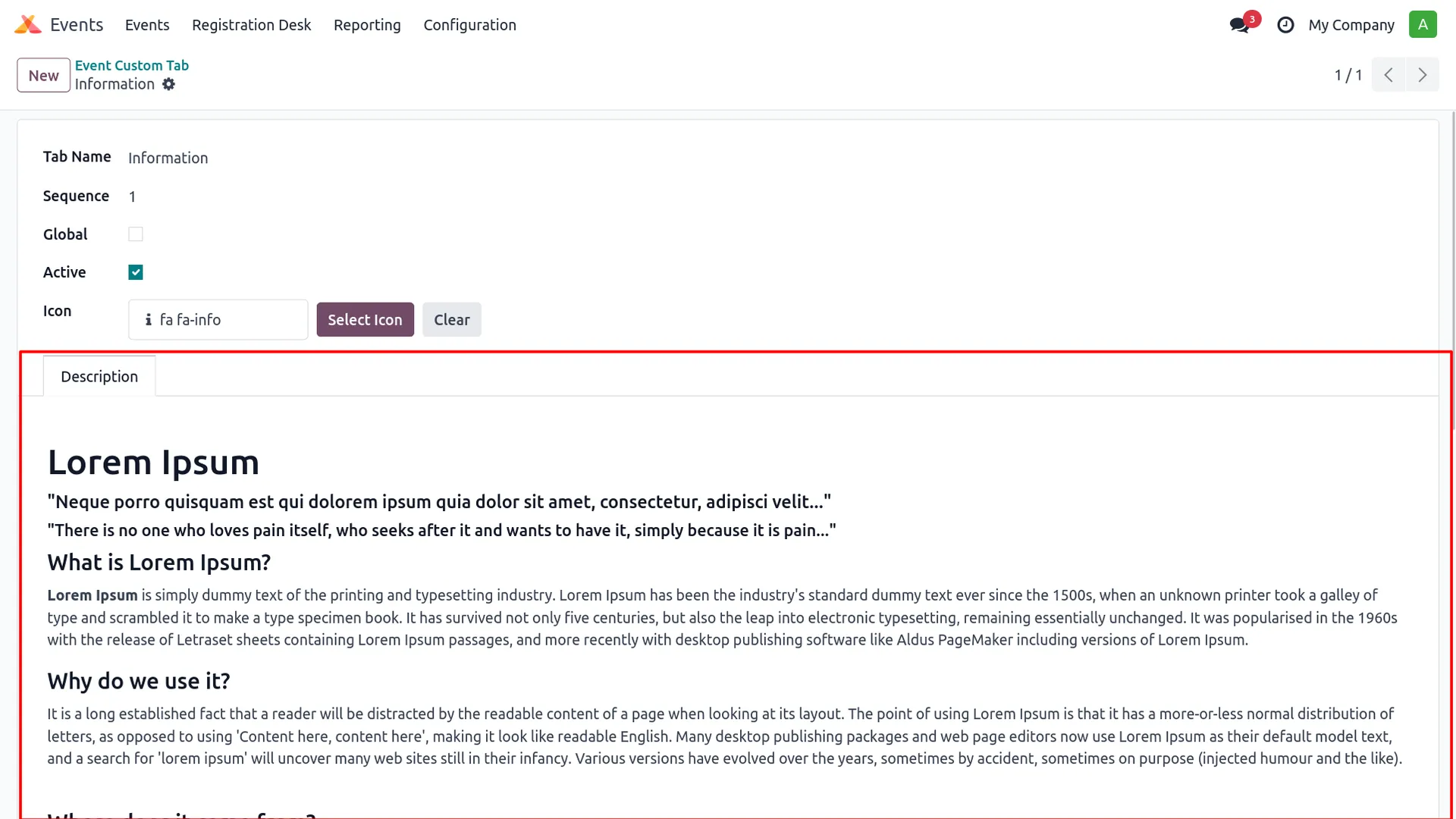
3. Add the Description content or paste any HTML code for the custom tab.
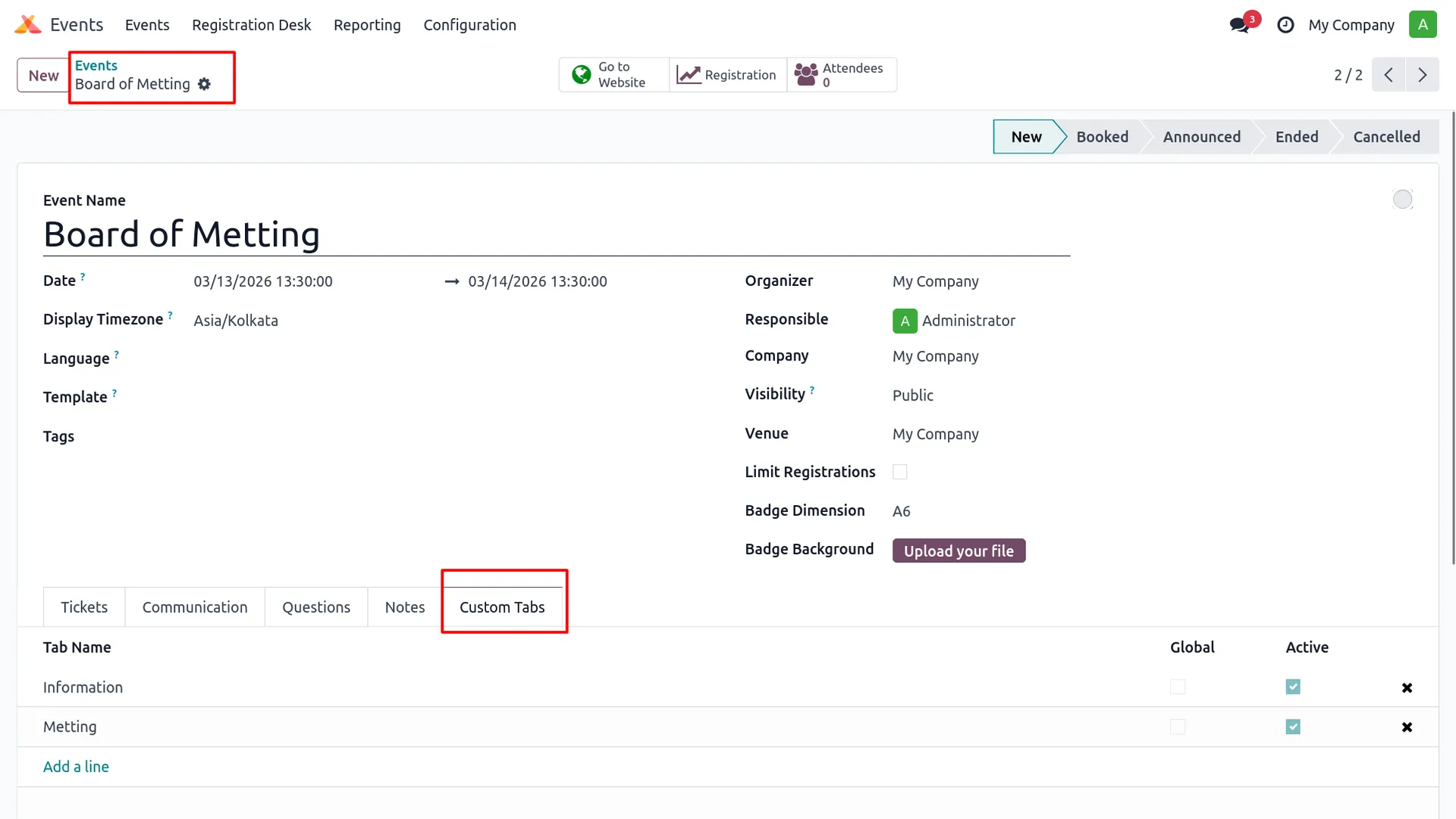
4. Open the event form and go to the Custom Tabs page to add or review tabs linked to that event.
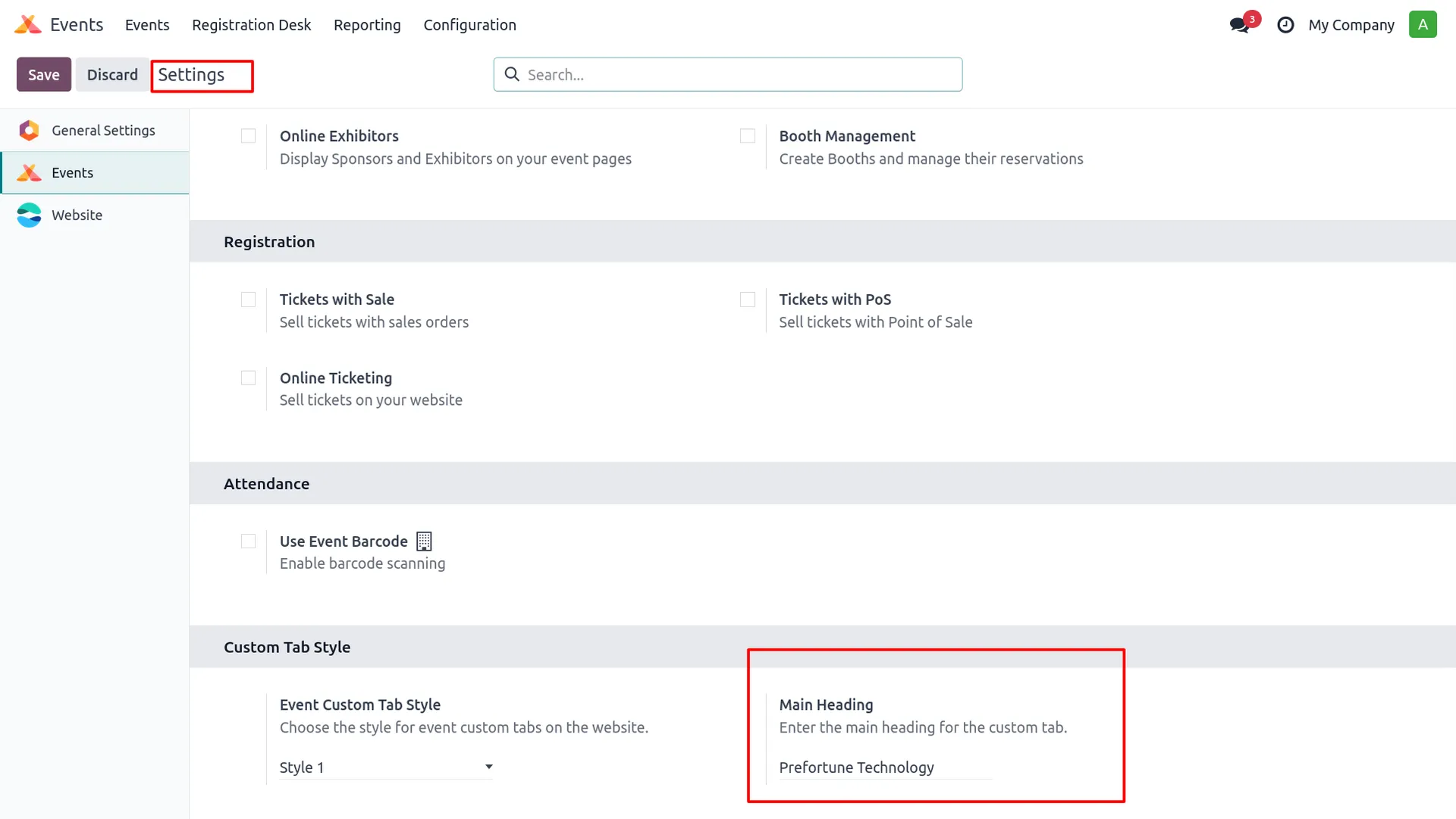
5. Go to Events Settings to configure the Event Custom Tab Style and Main Heading.
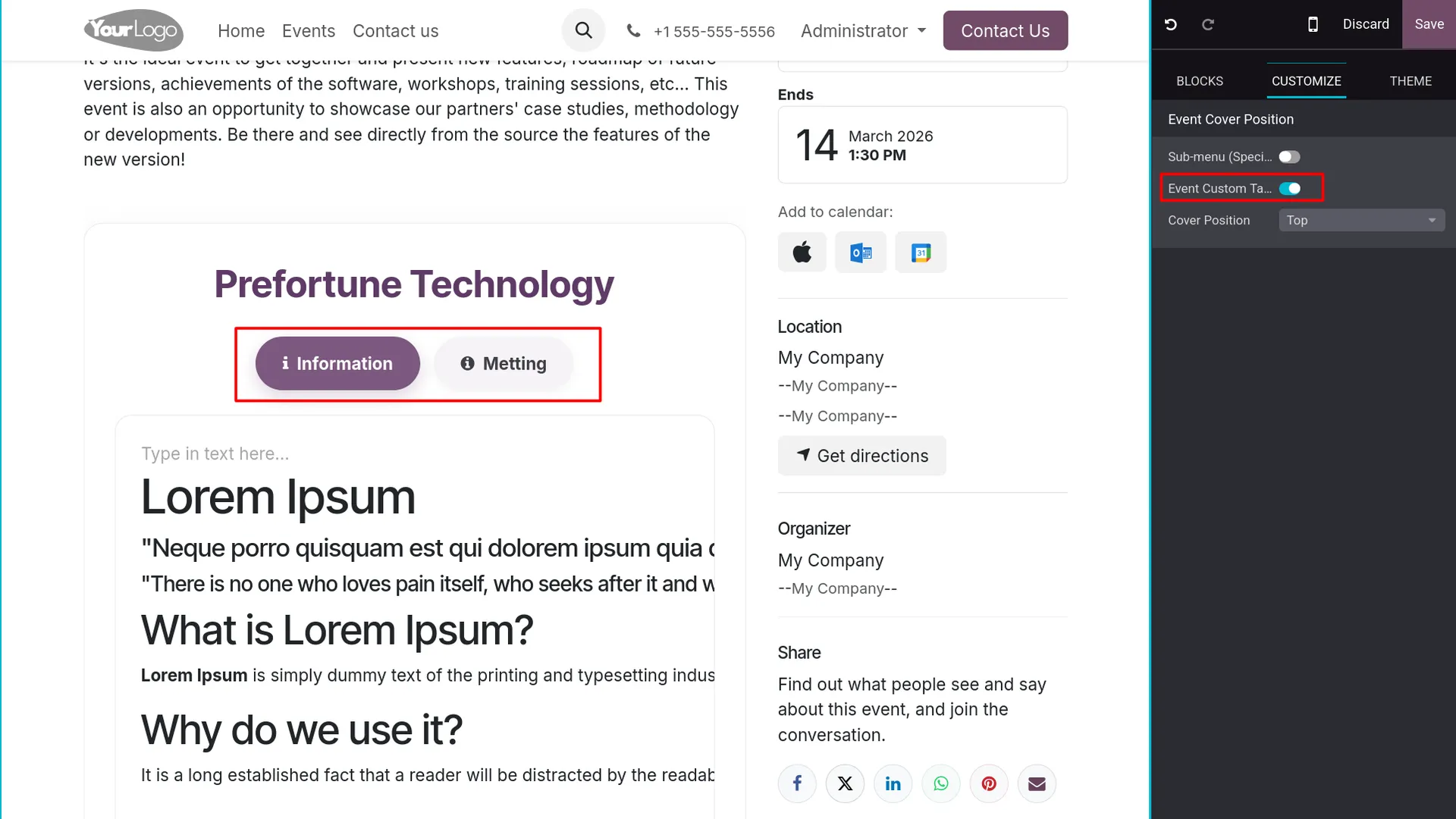
6. Open the event website page in Edit mode and enable the Event Custom Tab option to display tabs on the frontend.
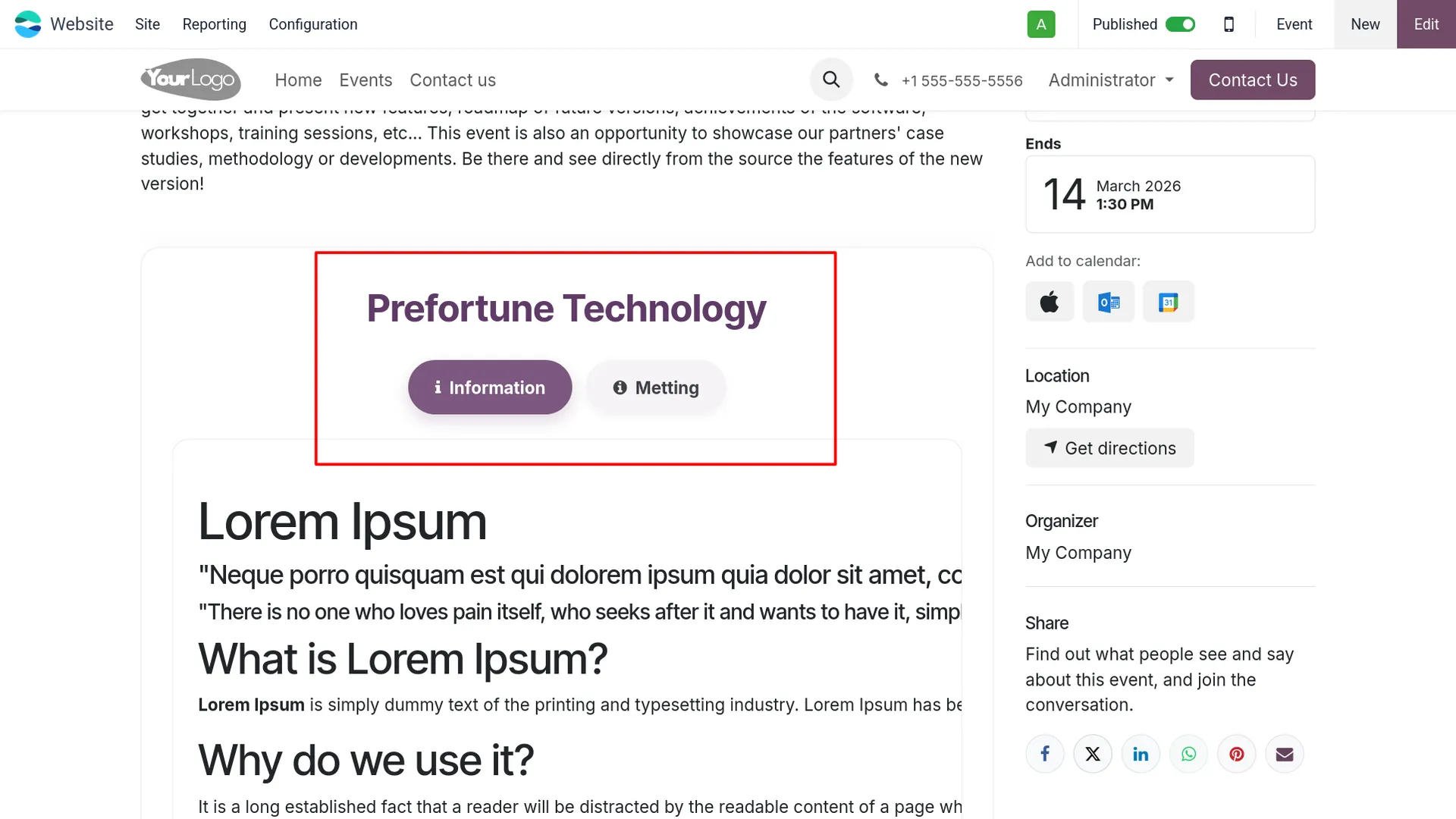
7. Save the page and view Style 1 on the event website.
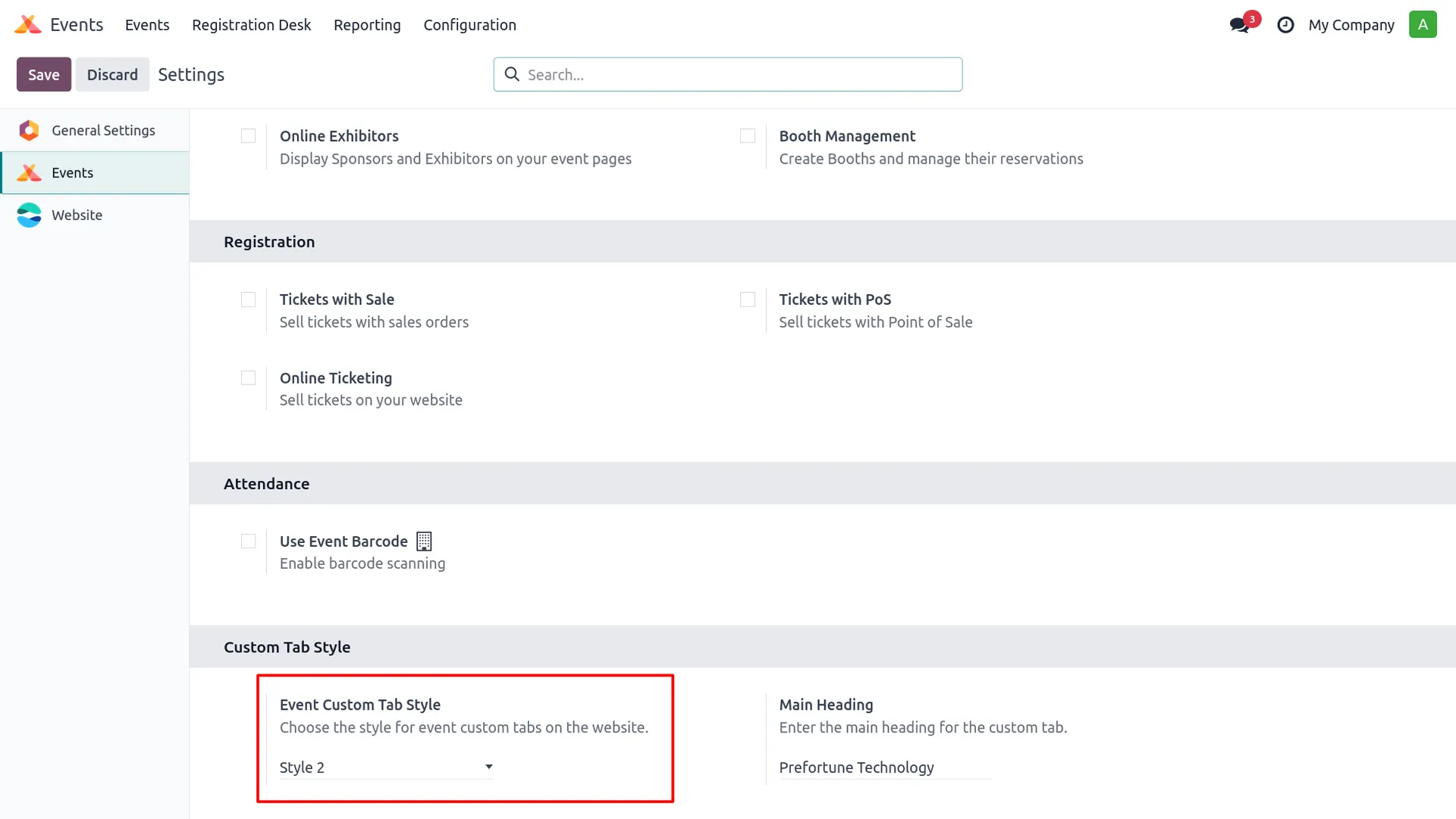
8. Select Style 2 from Events Settings.
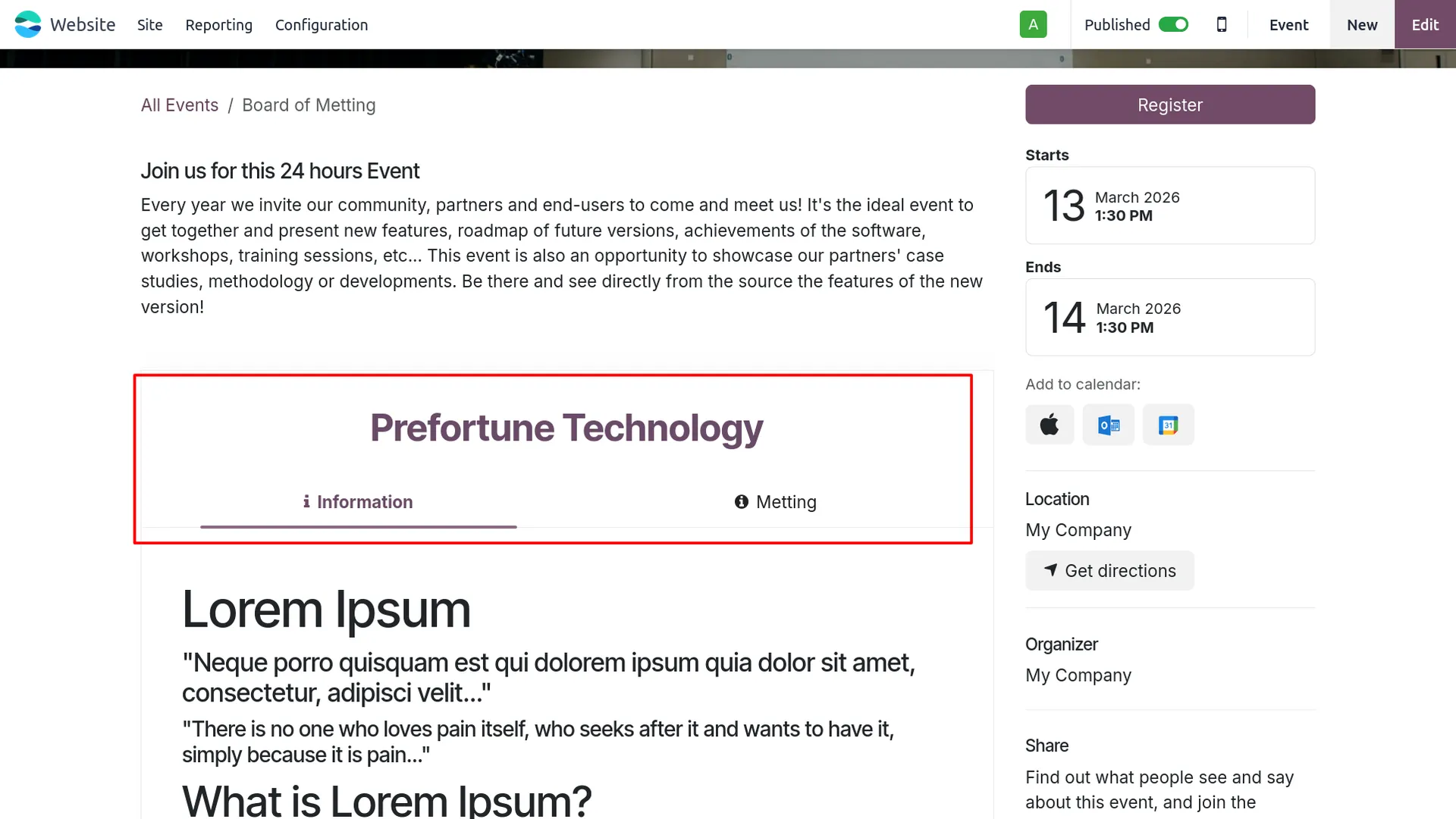
9. View Style 2 on the event website page.
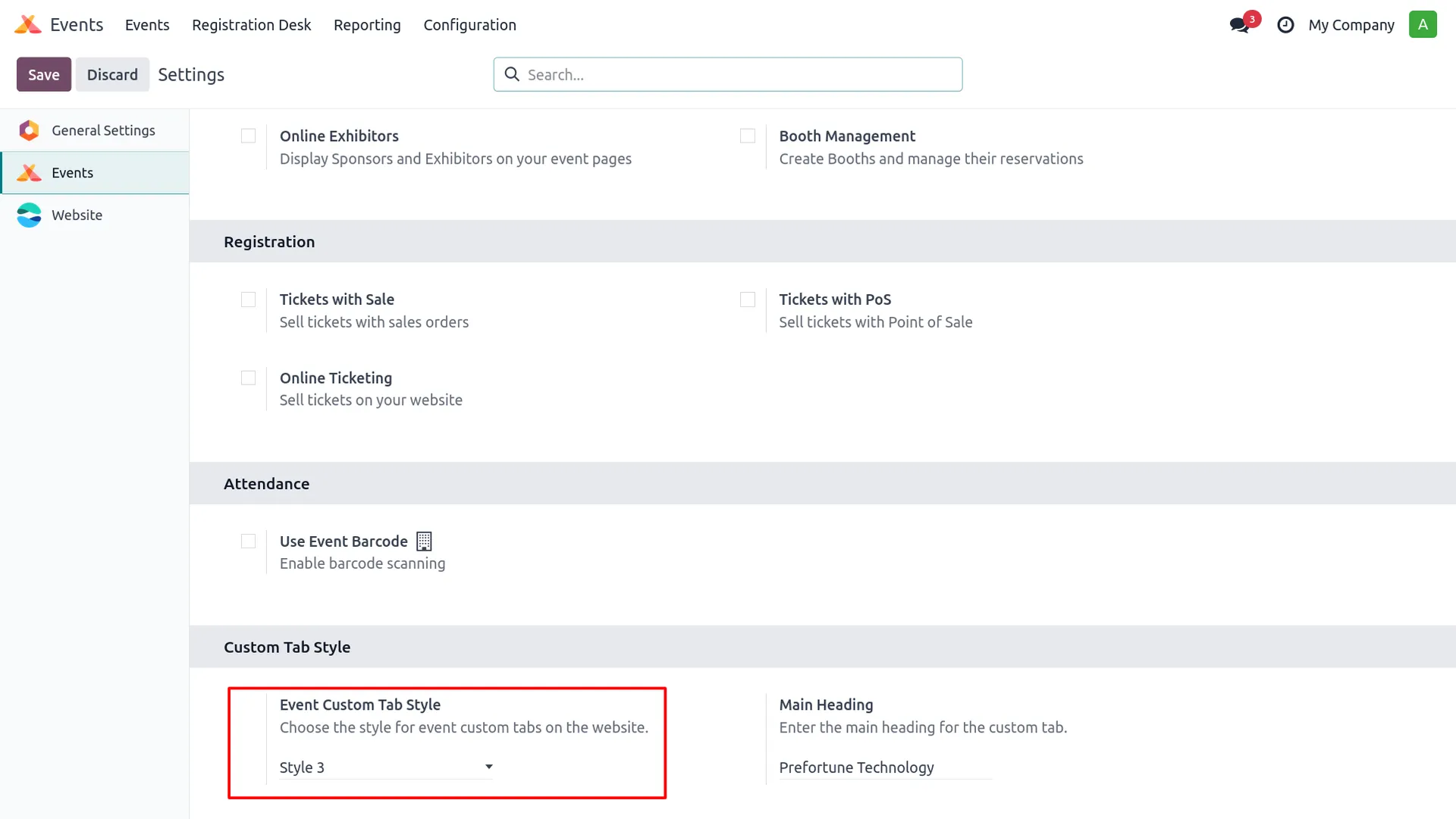
10. Select Style 3 from Events Settings.
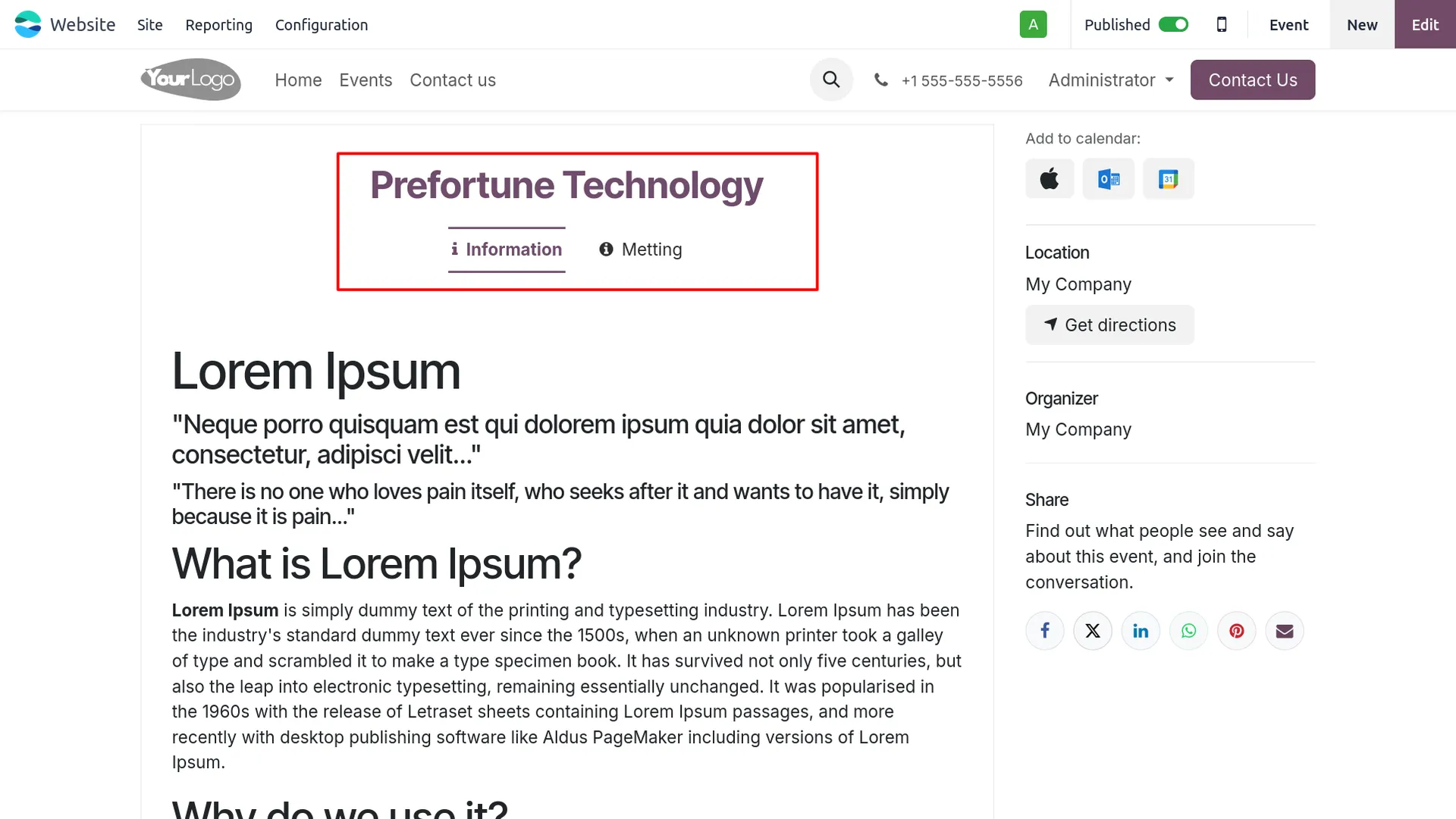
11. View Style 3 on the event website page.
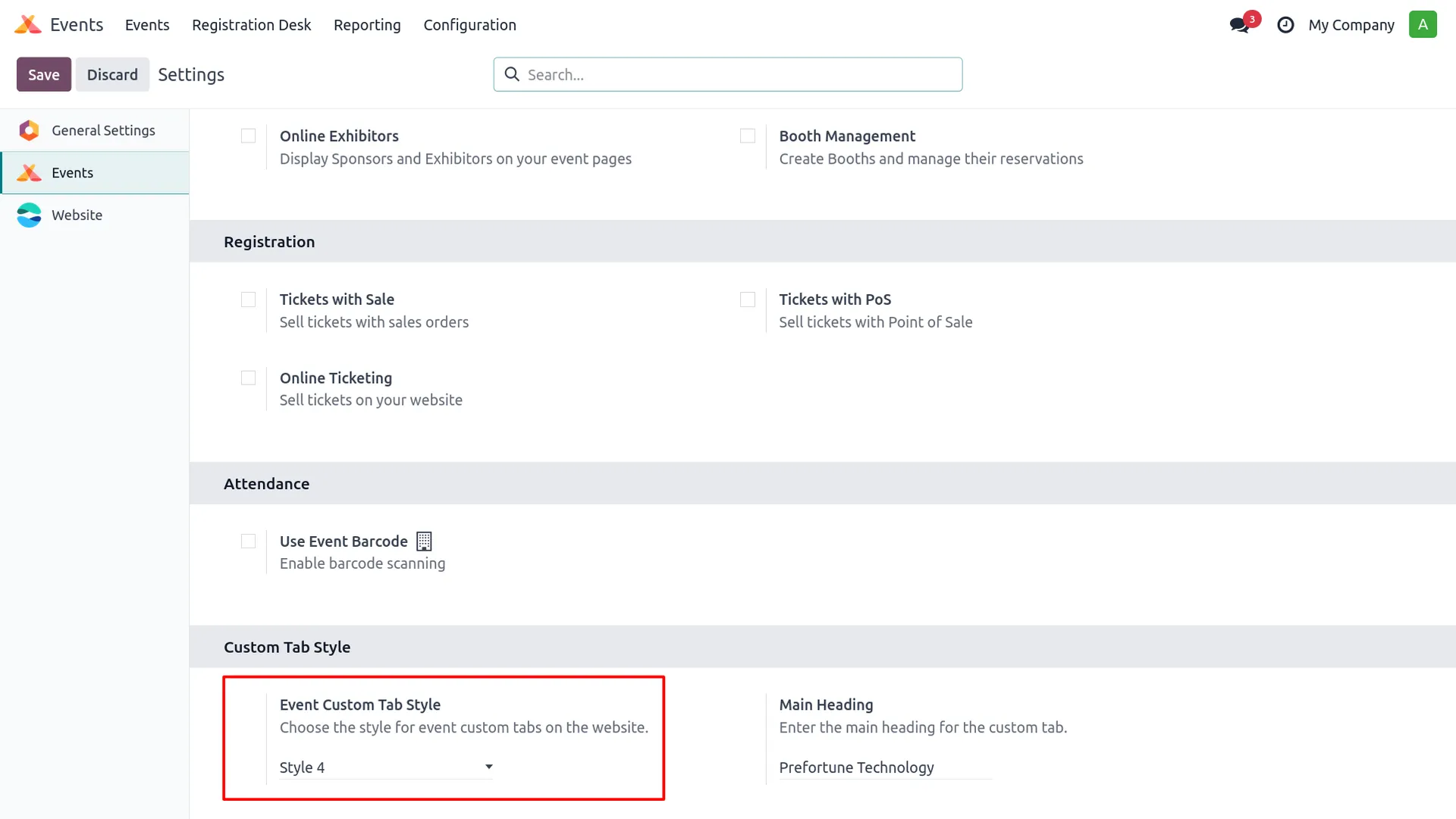
12. Select Style 4 from Events Settings.
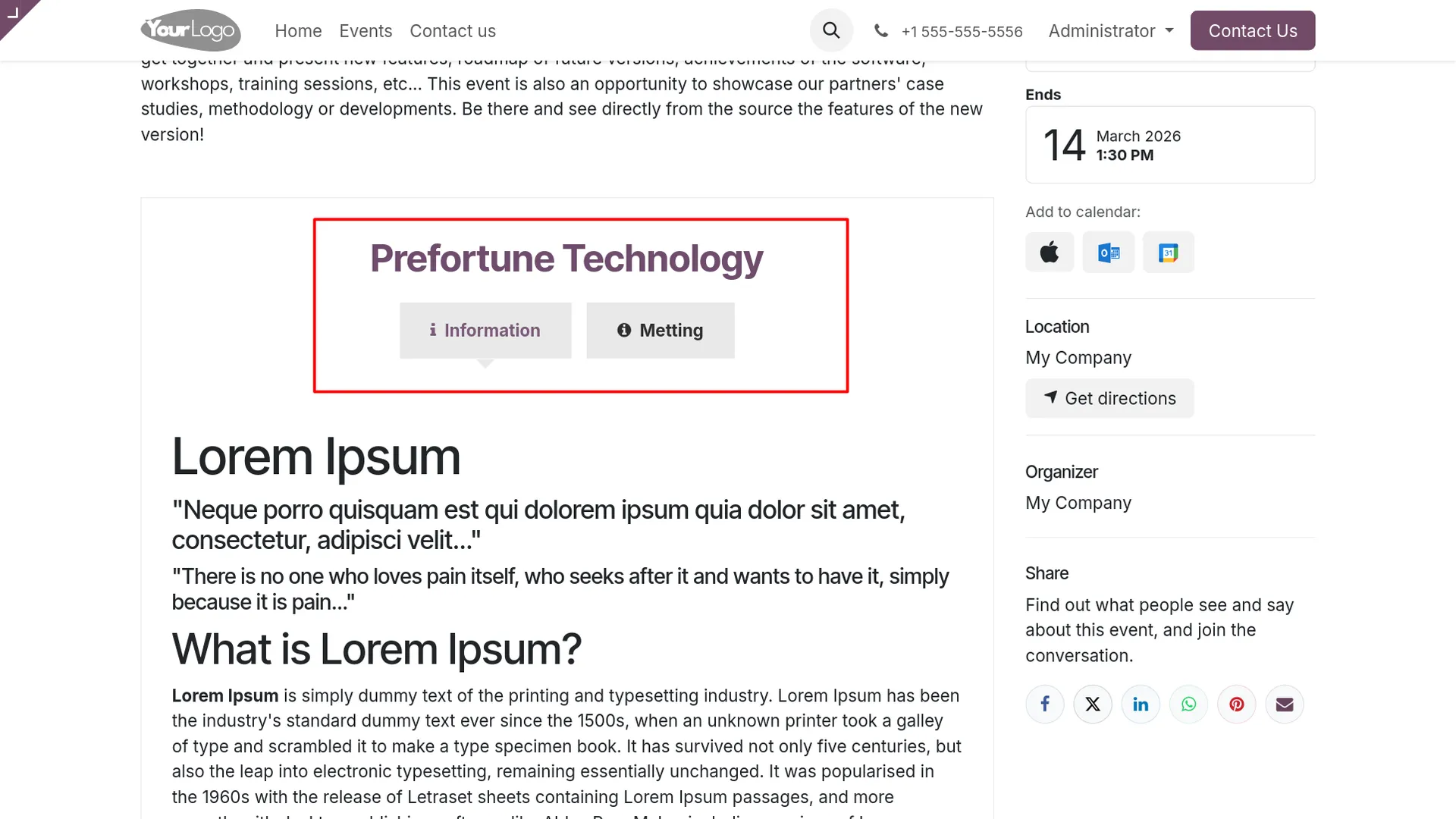
13. View Style 4 on the event website page.
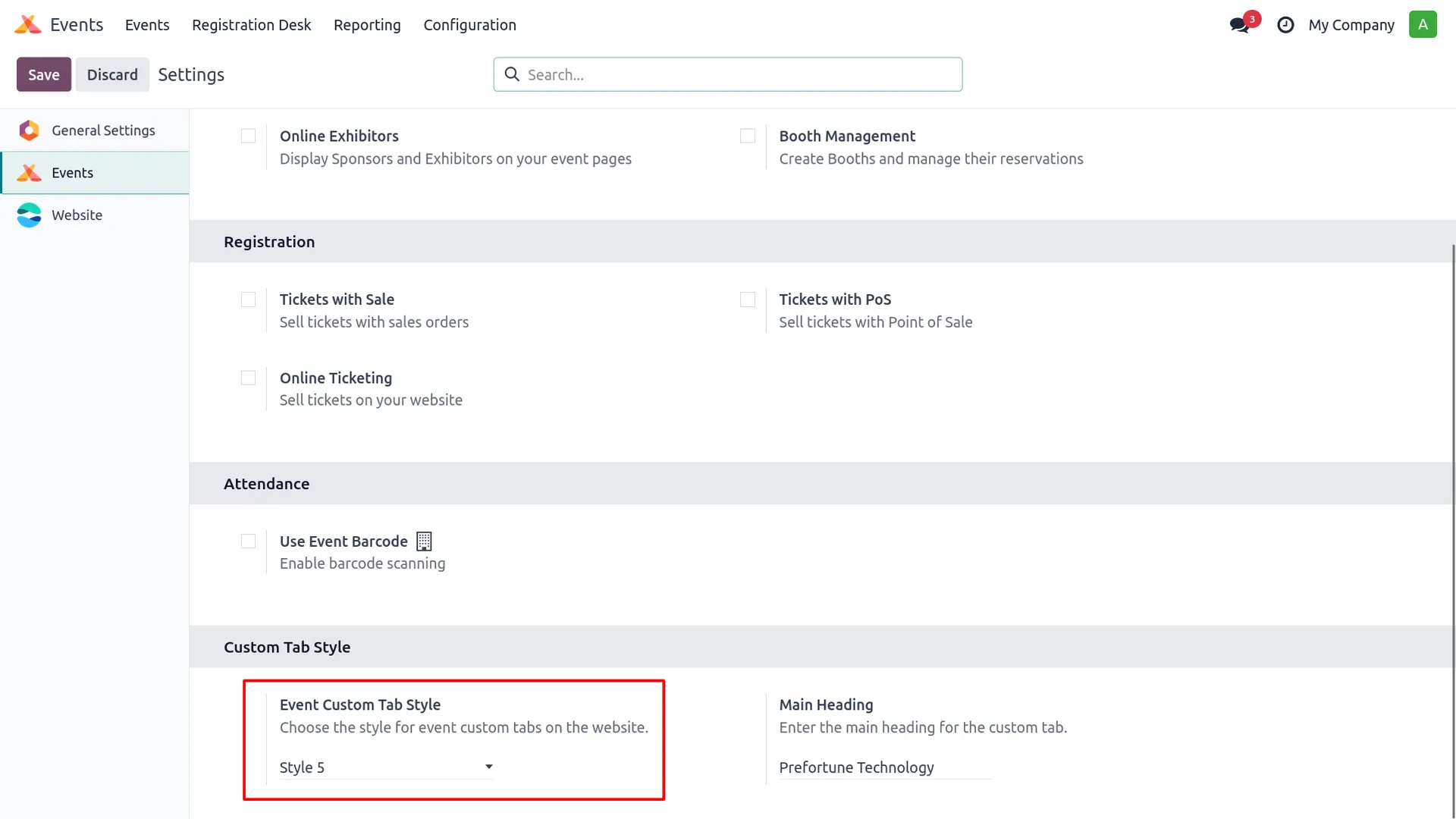
14. Select Style 5 from Events Settings.
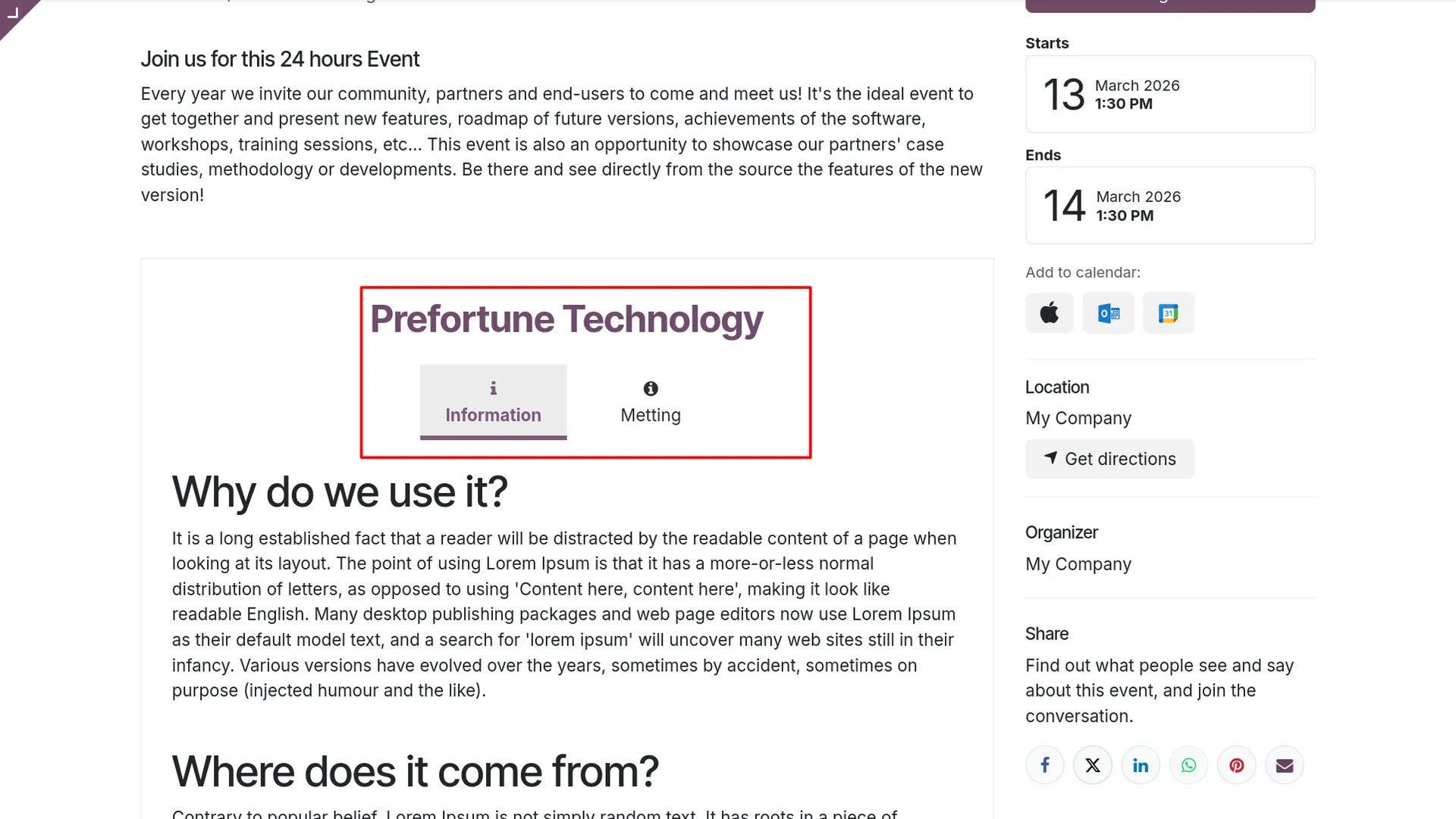
15. View Style 5 on the event website page.
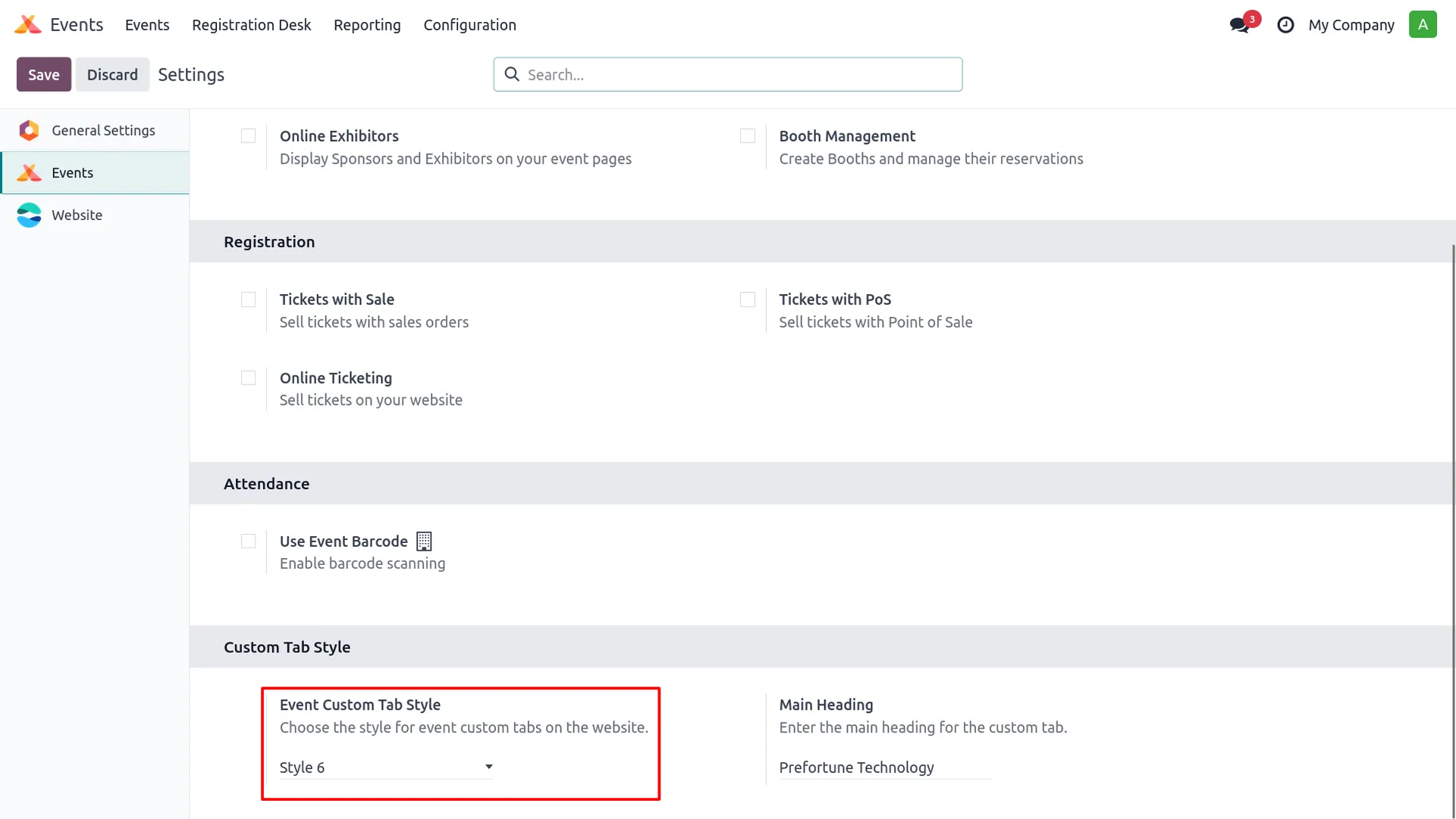
16. Select Style 6 from Events Settings.
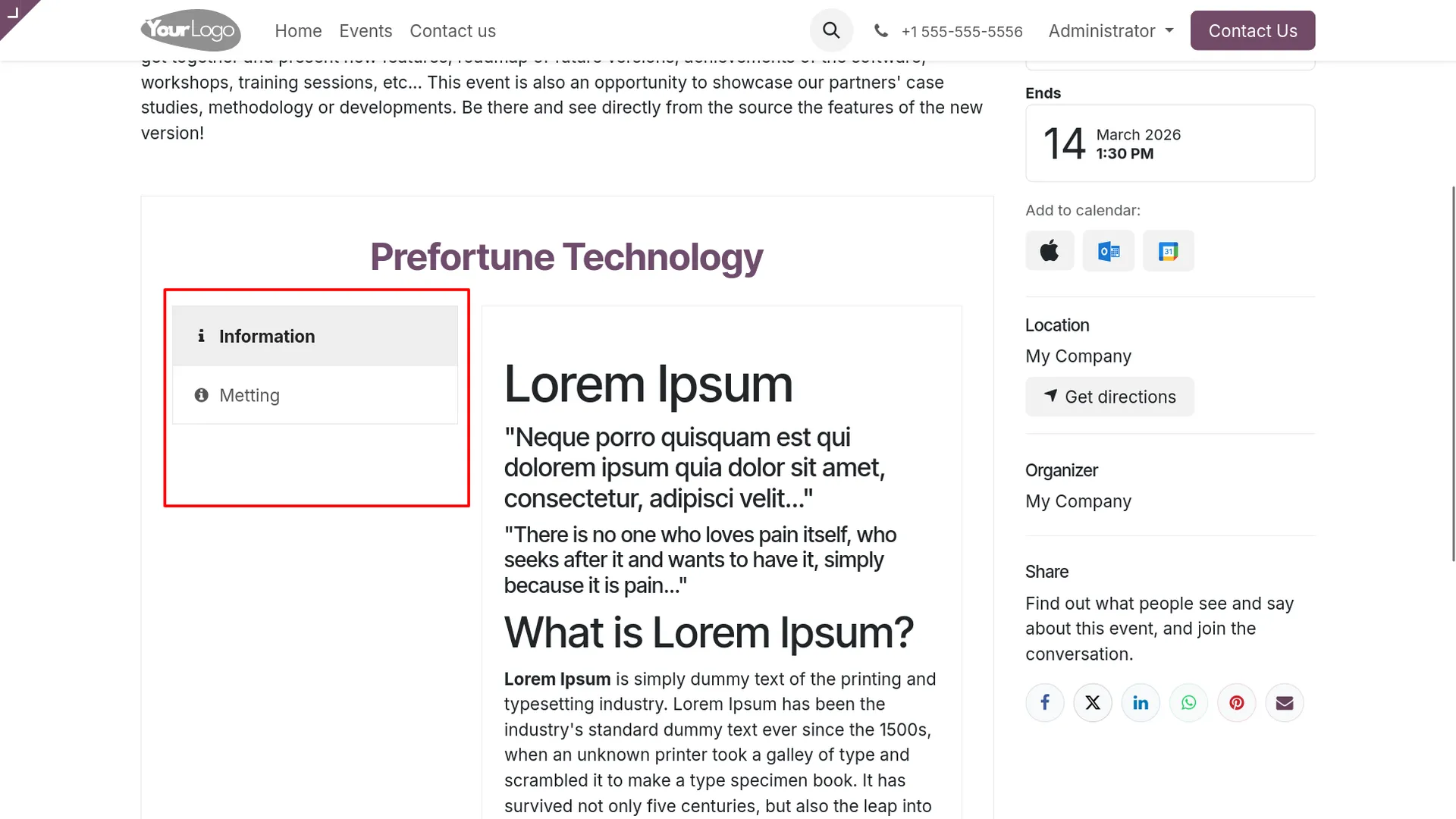
17. View Style 6 on the event website page.
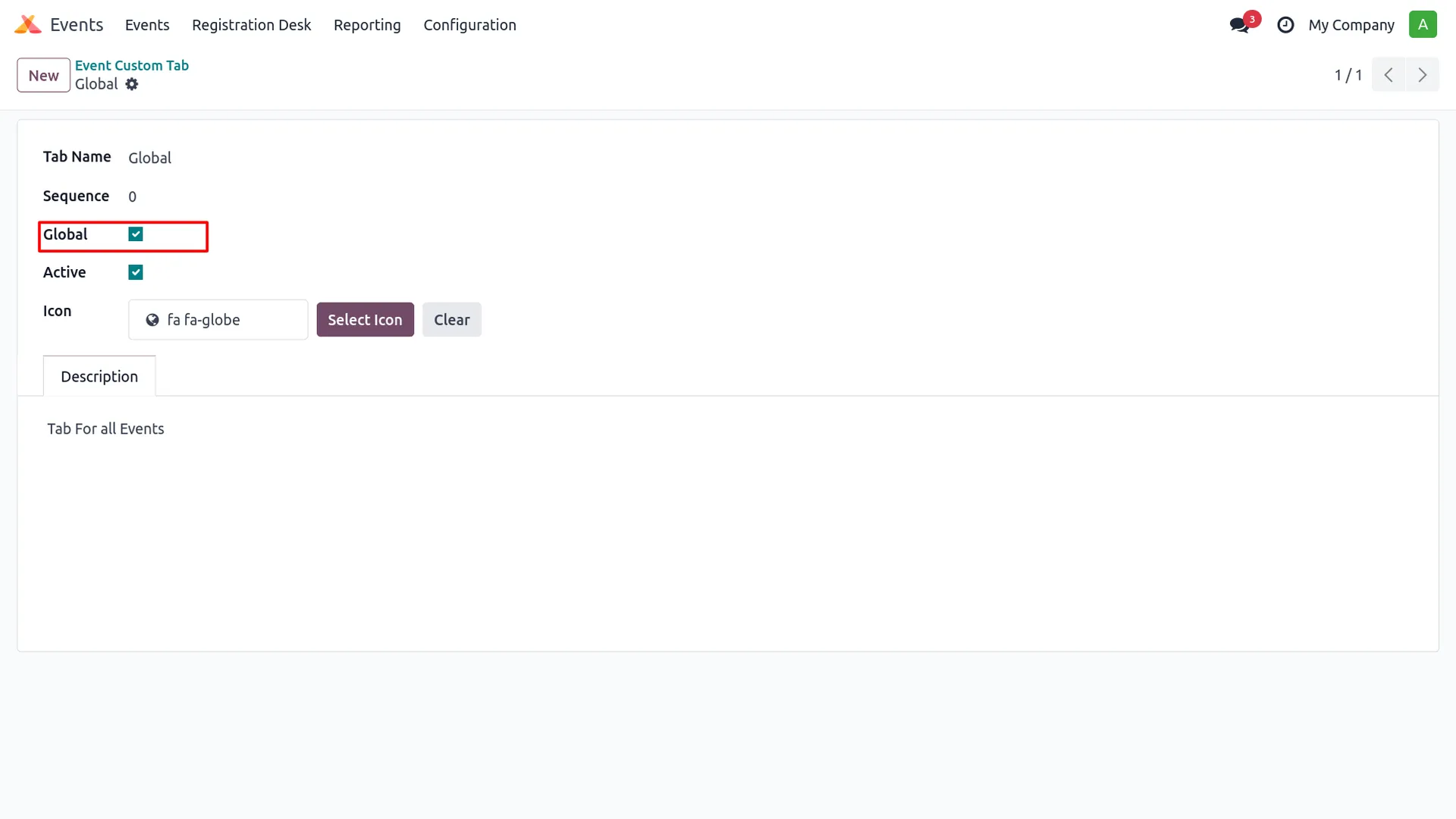
18. Open the custom tab form and tick the Global option to make the tab available for all events.
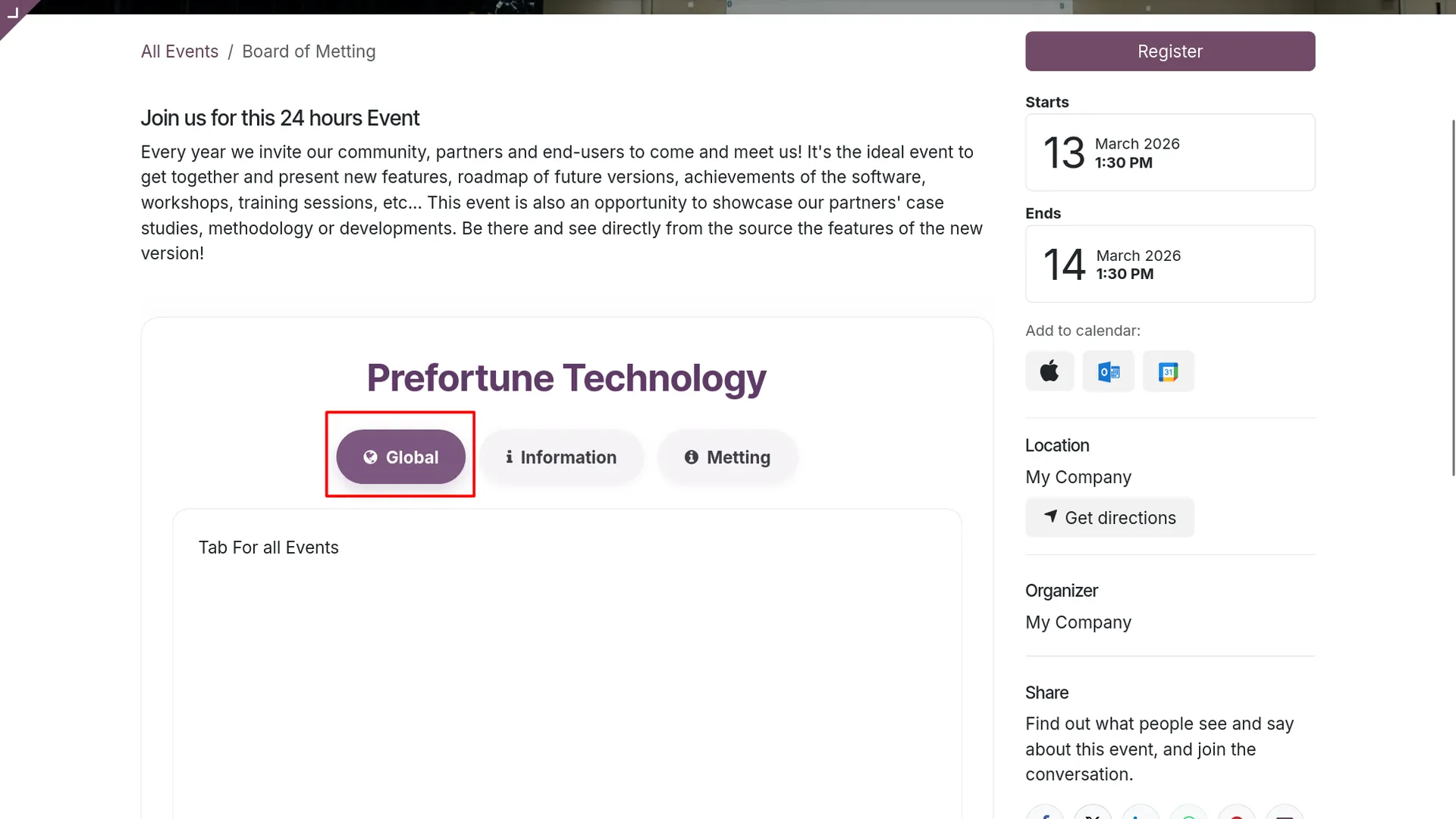
19. Open the event website page and verify that the Global tab is displayed successfully with the other event tabs.
Our solutions focus on your problems
- Odoo Implementation
- Odoo Customization
- ERP Development and Implementation
- Odoo Ipass Cloud
- AI for Odoo
- Odoo Apps
- Aws Marketplace Products
- Business Engines
Our Pricing includes User Manual, 90 Days Support (Monday-Friday 10am to 7pm IST) and One time Setup
• Works & tested on standard installations of Odoo with no third party apps,
• Free support only for odoo installations with no third party apps,
• Paid support available for Odoo installations with third party apps.

Prefortune is a Odoo Official Partner, Odoo Development company. Our philosophy is to use Open Source tools and technologies to provide cost effective and green solutions for our customers.
Prefortune Technologies LLP is working on web development, Mobile development, and Odoo ERP.
If you need any help or want more additional features, you may contact us through:
Alternative Products
These other products might interest you
Specifications
| Version | 19.0, 18.0, 17.0, 16.0, 15.0, 14.0 |