Watch Quick Video
Survey Form Builder Odoo App
Our Complete
Survey Form Builder Odoo App
allows users to customize surveys in Odoo by giving them the ability to customize survey forms using a variety of pre-designed themes and styles right from the configuration settings. Design beautiful professional survey forms with 5 different theme styles 5 unique section styles and 5 button styles. There are also five unique styles for form elements, radio buttons and check boxes to further customize the module. With the module, the user can set the survey background image or color, select the primary color and secondary color according to the preferred theme, and the questions and answers can be arranged in Bootstrap Grid layout for a cleaner and attractive presentation. Survey Form Builder Odoo App With its simple and flexible approach, the Survey Form Builder Odoo App helps improve the visual appearance of survey forms while offering users an easy way to create more engaging and professionally styled surveys without complex customization.
Survey Form Builder Odoo App Features
- 5 pre-made theme styles to quickly customize the look of your survey.
- Professional Survey Design 5 Different Styles Sections & Buttons Customization Extra.
- 5 Unique Styles Form Elements Radio Buttons & Checkboxes Customization Flexibility
- Select background images or colors for surveys and select primary and secondary colors to match your theme.
- Use the Bootstrap Grid to help organize questions and answers into a cleaner, prettier survey form.
Complete Workflow for Manage Survey Form Builder Odoo App
Install the Survey Form Builder Odoo App module and access the survey configuration settings to customize the appearance of your Odoo survey forms. The module provides multiple ready-made theme and styling options that can be selected according to your requirements. Open the Survey Theme Configuration and select from the available 5 theme styles to customize the overall appearance of the survey form. You can also configure 5 section styles and 5 button styles to create a consistent and professional survey design. Customize individual survey elements by selecting from 5 unique styles for form elements, radio buttons, and checkboxes. These options allow you to control the appearance of different interactive elements used throughout the survey form. Configure the survey background by choosing a background image or color, and set suitable primary and secondary colors to match the selected theme and make the survey form more attractive. Finally, use the Bootstrap Grid option to arrange questions and answers in a clean and organized layout. Once the required styles and colors are configured, the survey form can be presented with the selected theme and customized appearance, providing a more attractive and engaging survey experience.
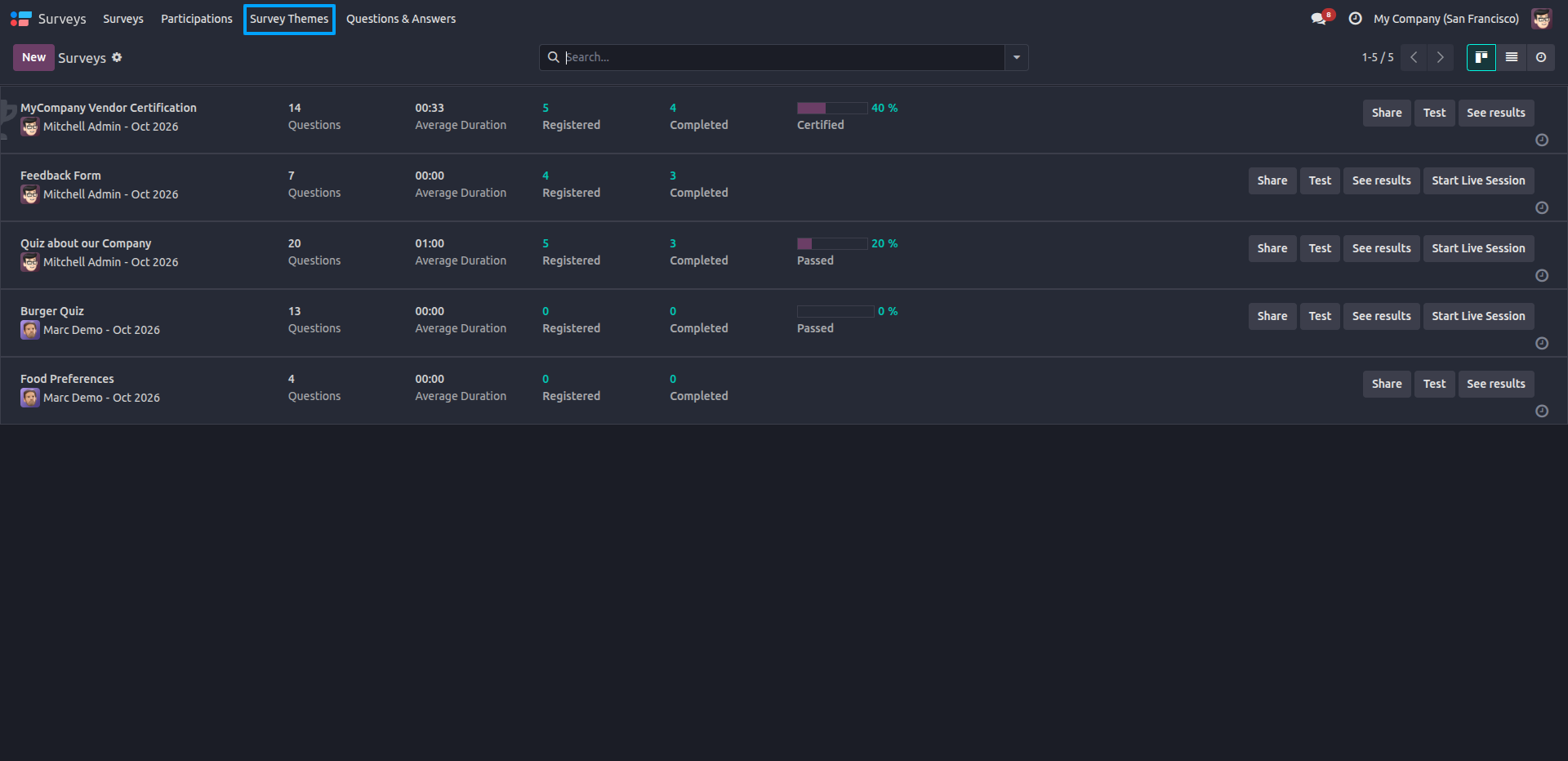
1.Open the Surveys app and click the Survey Themes menu to see the list of available themes.
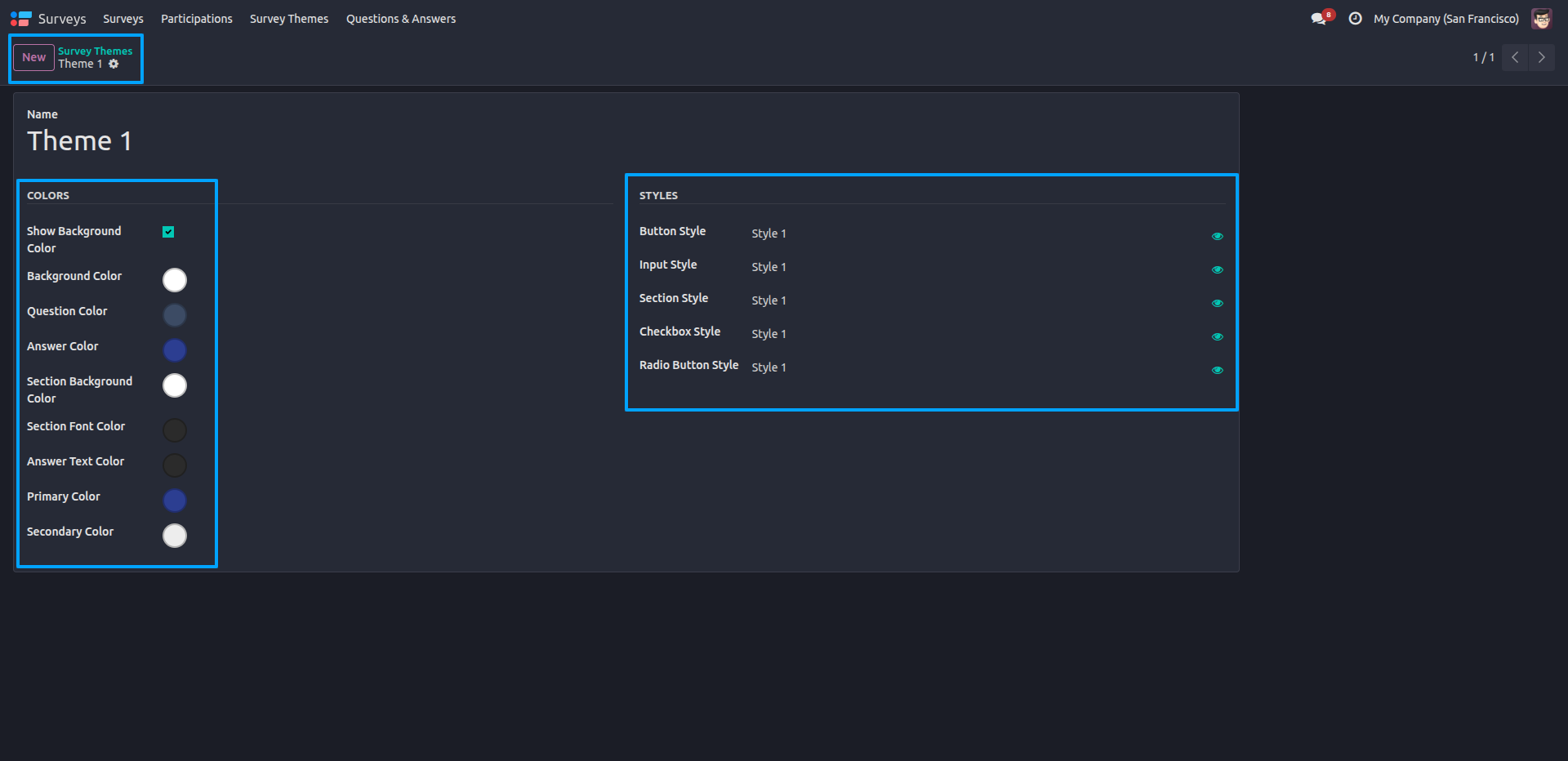
2.Open a theme (e.g., Theme 1) to set the Colors (background, question, answer, section, primary and secondary) and choose the Styles (button, input, section, checkbox and radio button).
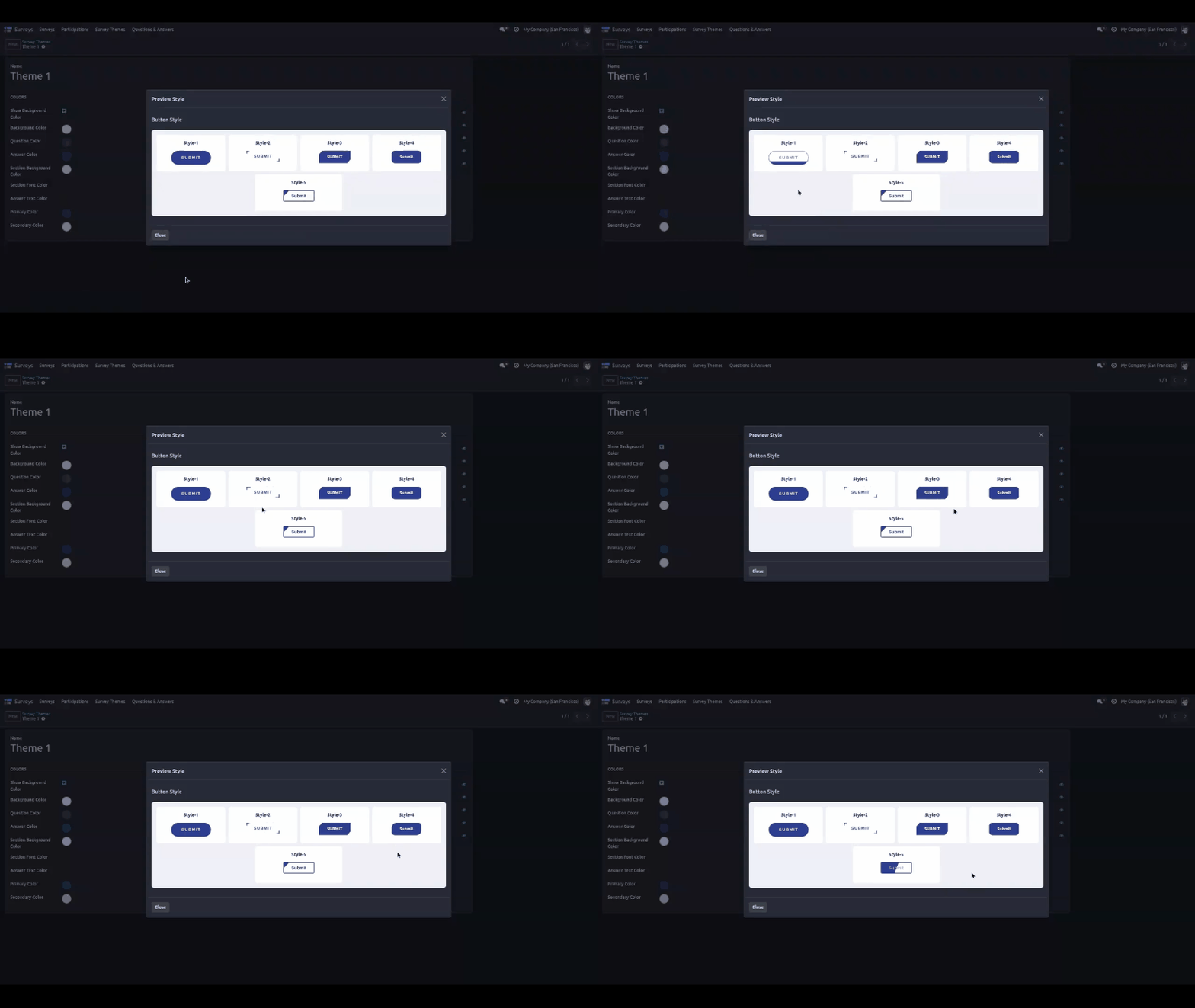
3.Click the eye icon next to Button Style to preview all five button designs (Style-1 to Style-5) and pick the one you like.
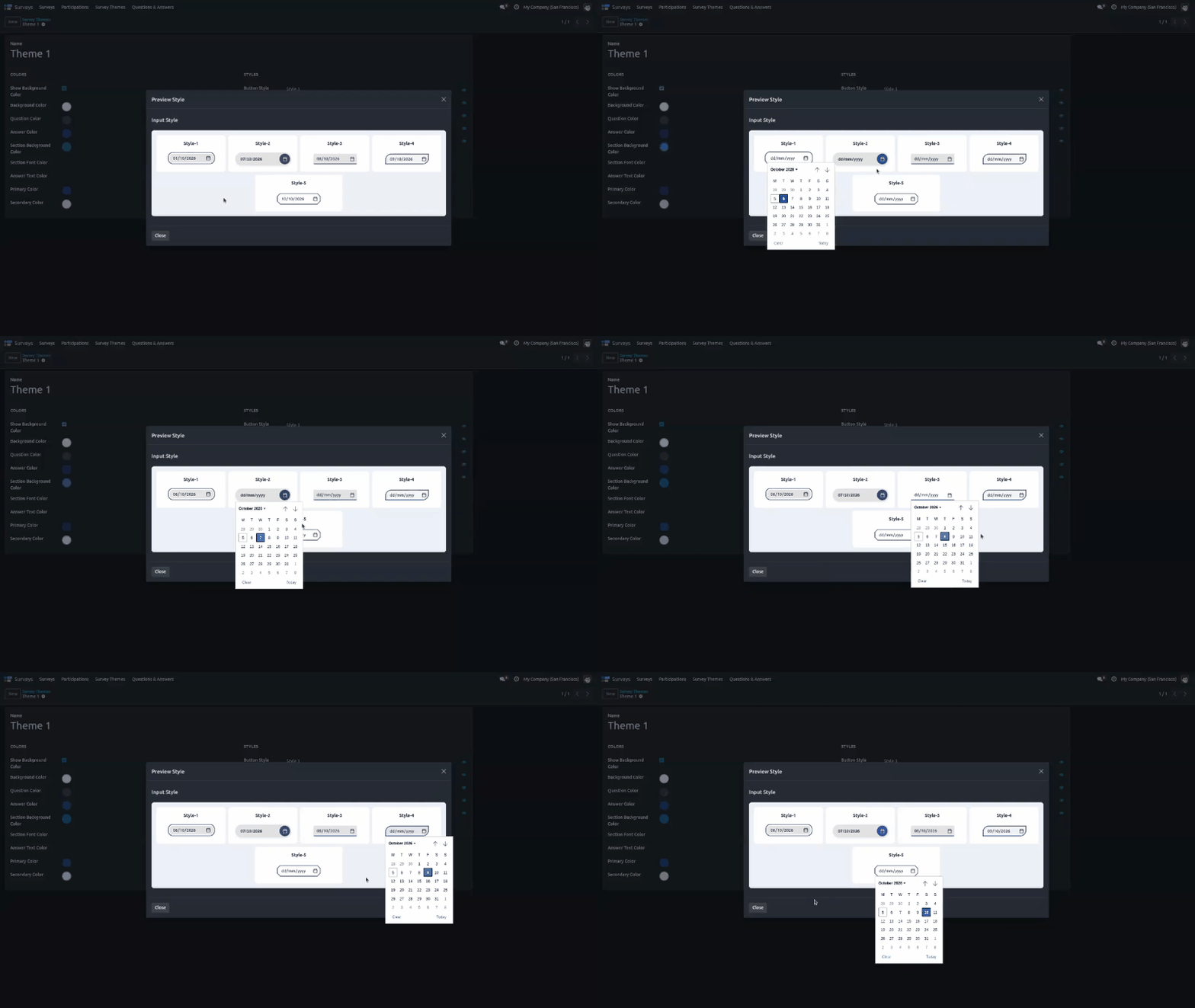
4.Click the eye icon next to Input Style to preview all five date input designs with custom calendar icons (Style-1 to Style-5).
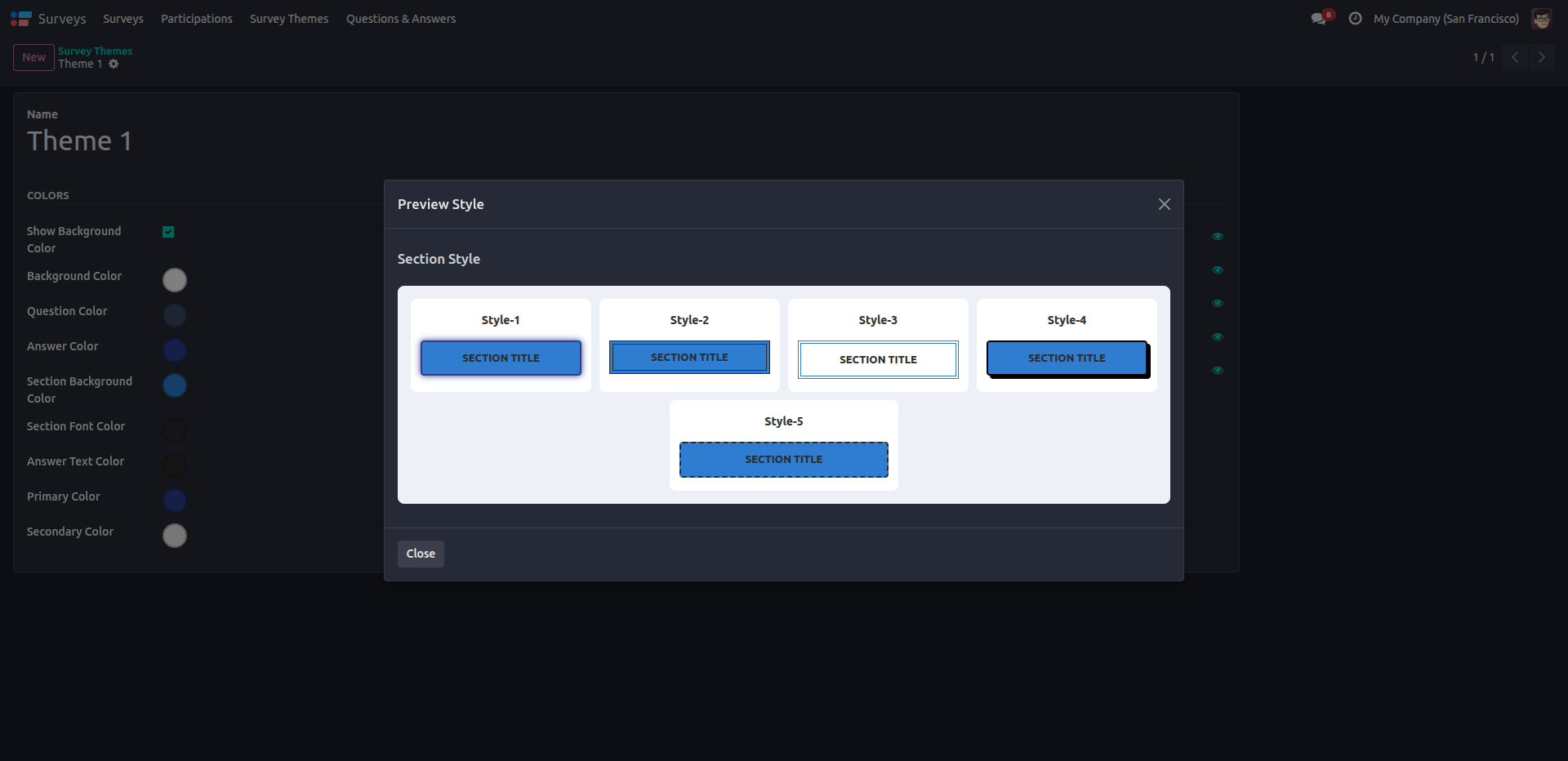
5.Click the eye icon next to Section Style to preview all five section title designs with different borders and shadows (Style-1 to Style-5).
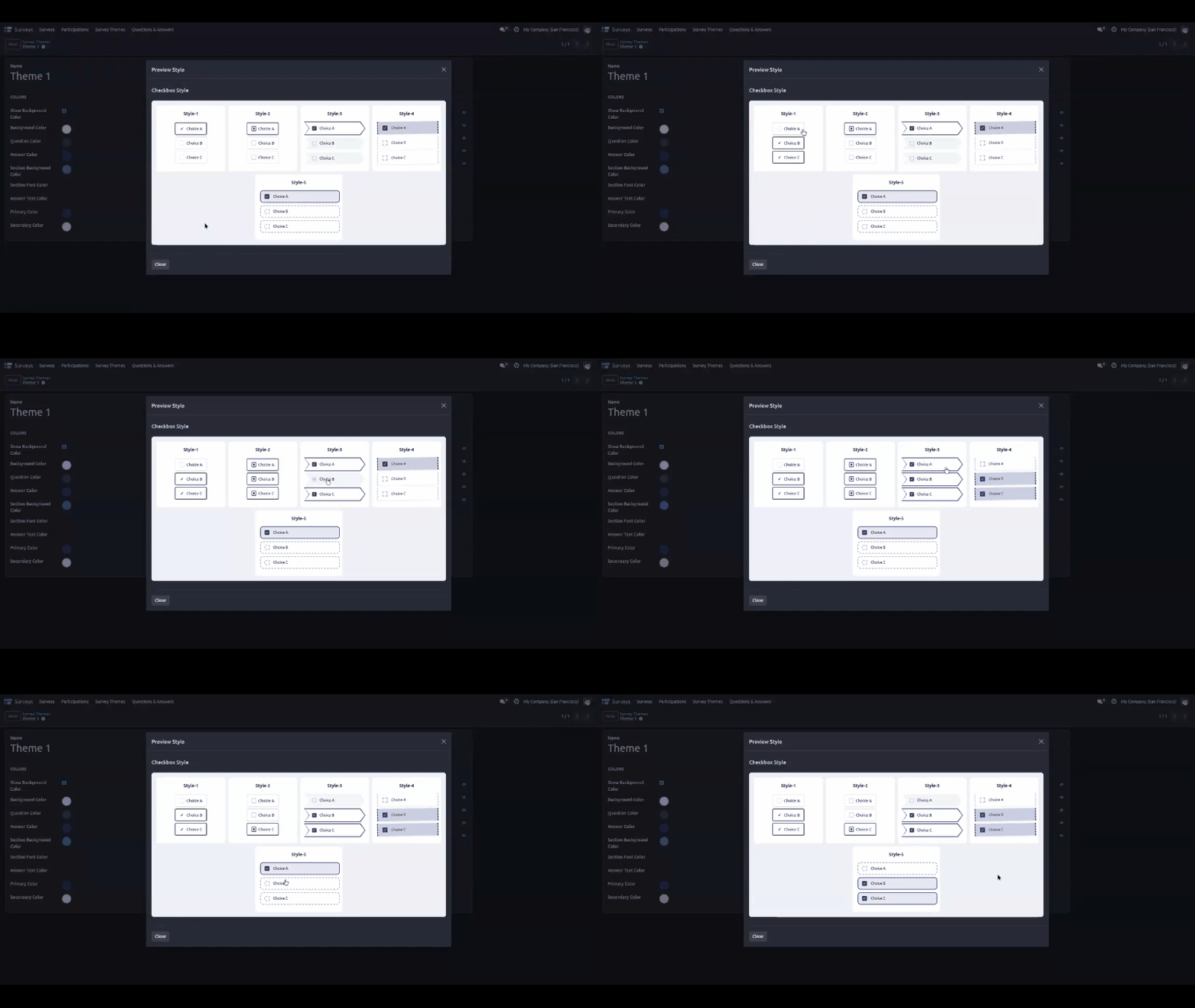
6.Click the eye icon next to Checkbox Style to preview all five checkbox designs (Style-1 to Style-5) with Choice A, B and C examples.
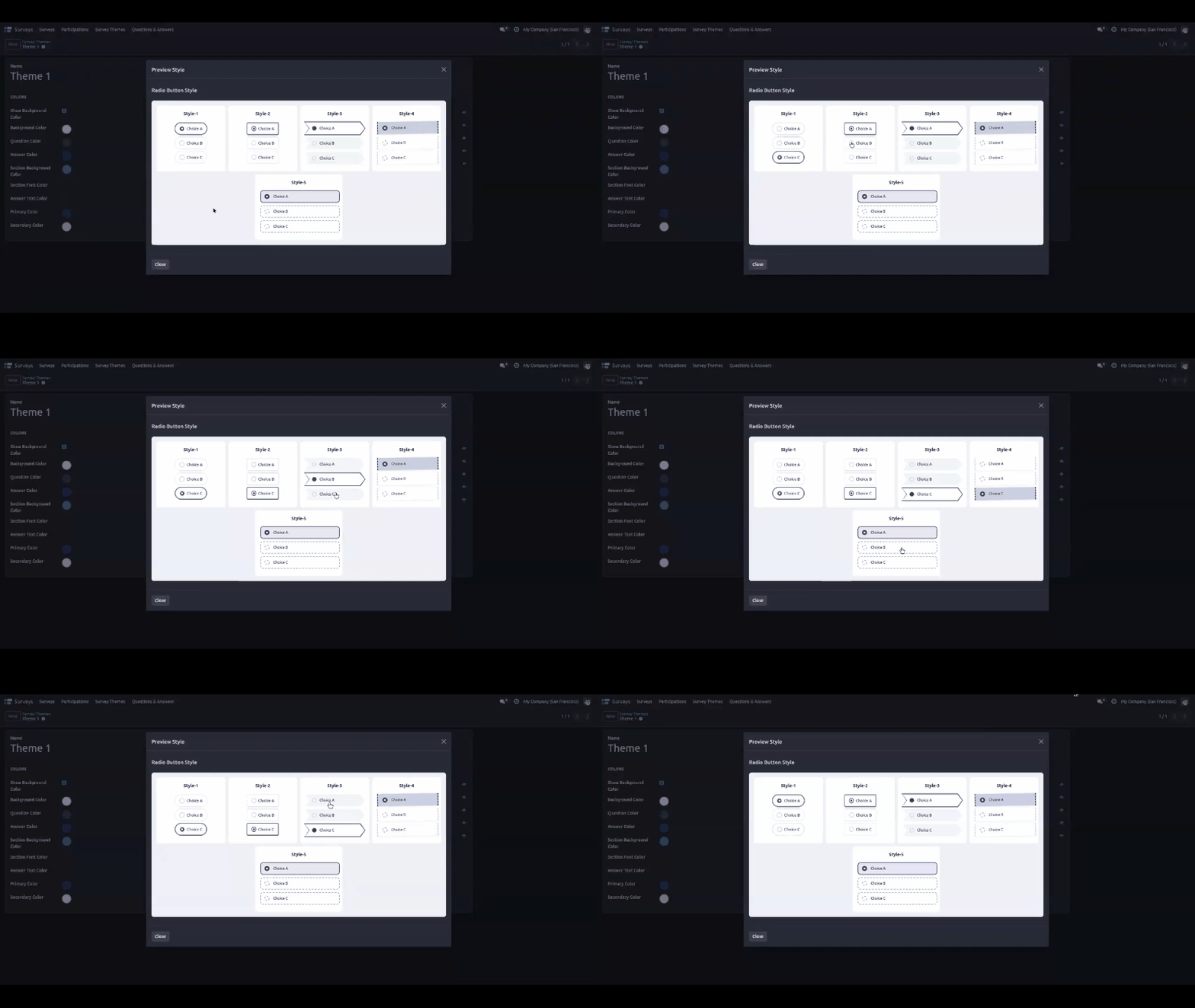
7.Click the eye icon next to Radio Button Style to preview all five radio button designs (Style-1 to Style-5) and pick the one you like.
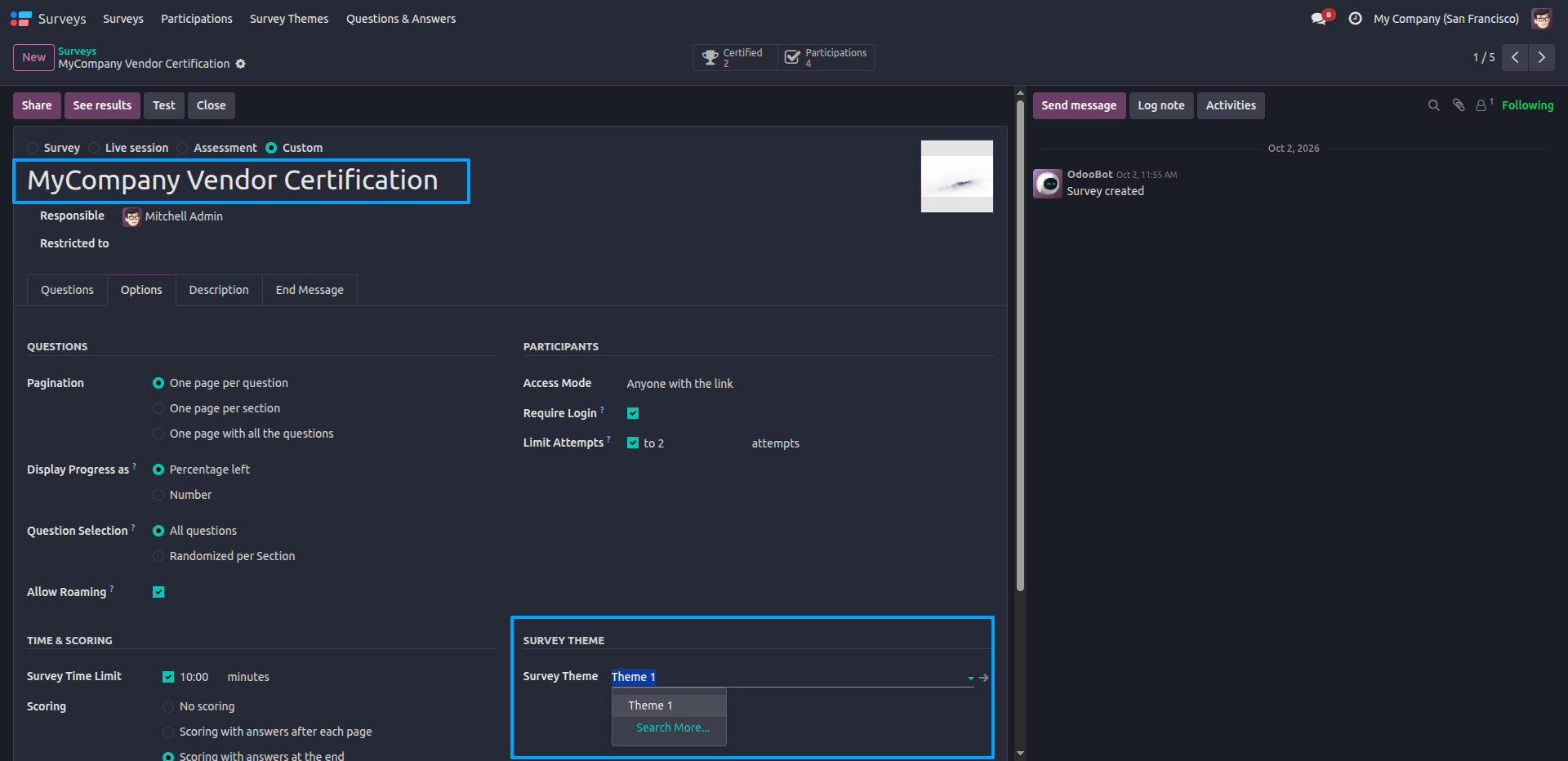
8.Open a survey (e.g., MyCompany Vendor Certification), go to the Options tab and, under Survey Theme, select the theme (e.g., Theme 1) you want to apply.
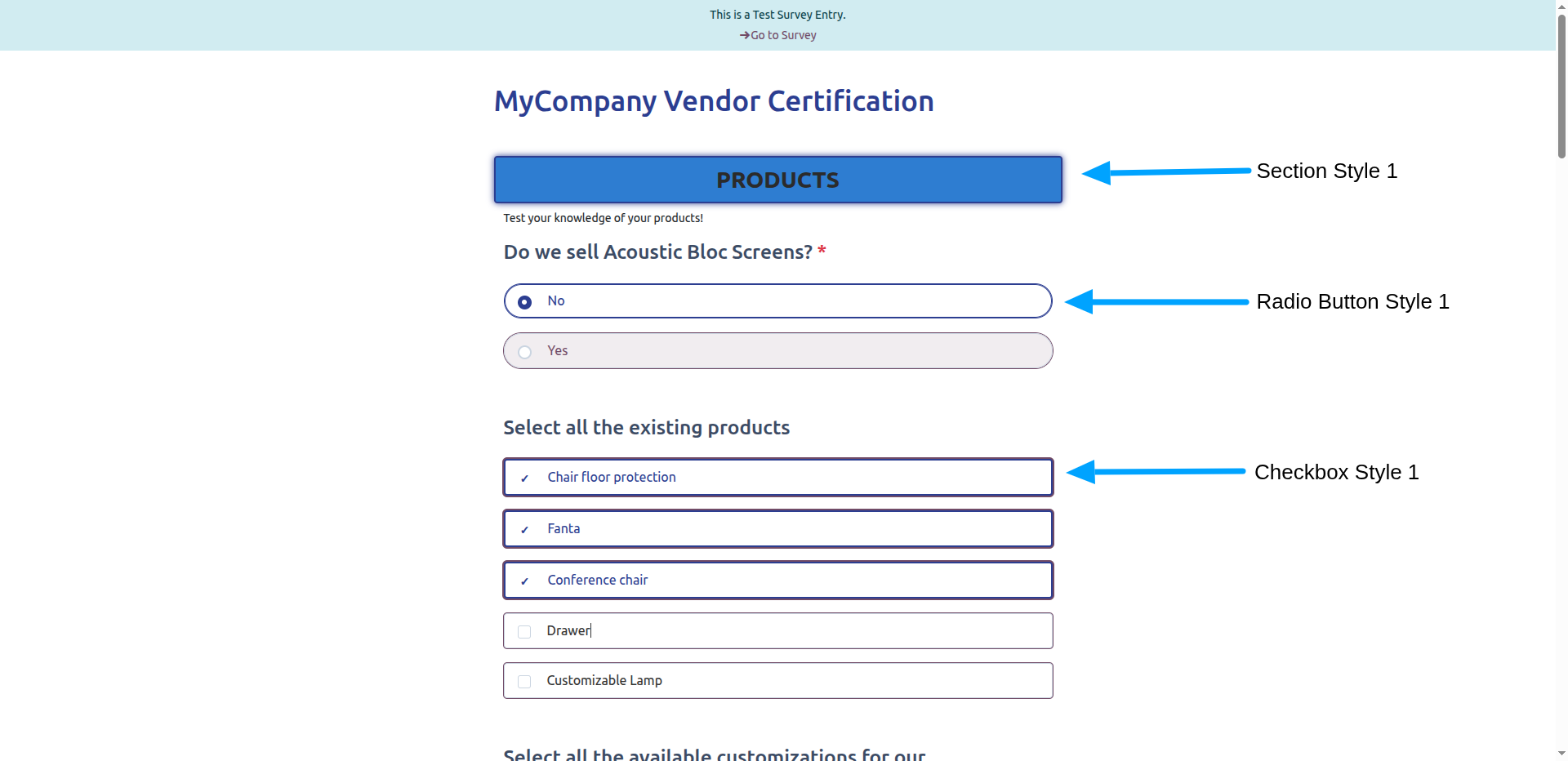
9.Click Test to open the survey and see the theme on the page: Section Style 1 on the section title, Radio Button Style 1 on the single-choice answers, and Checkbox Style 1 on the multiple-choice answers.
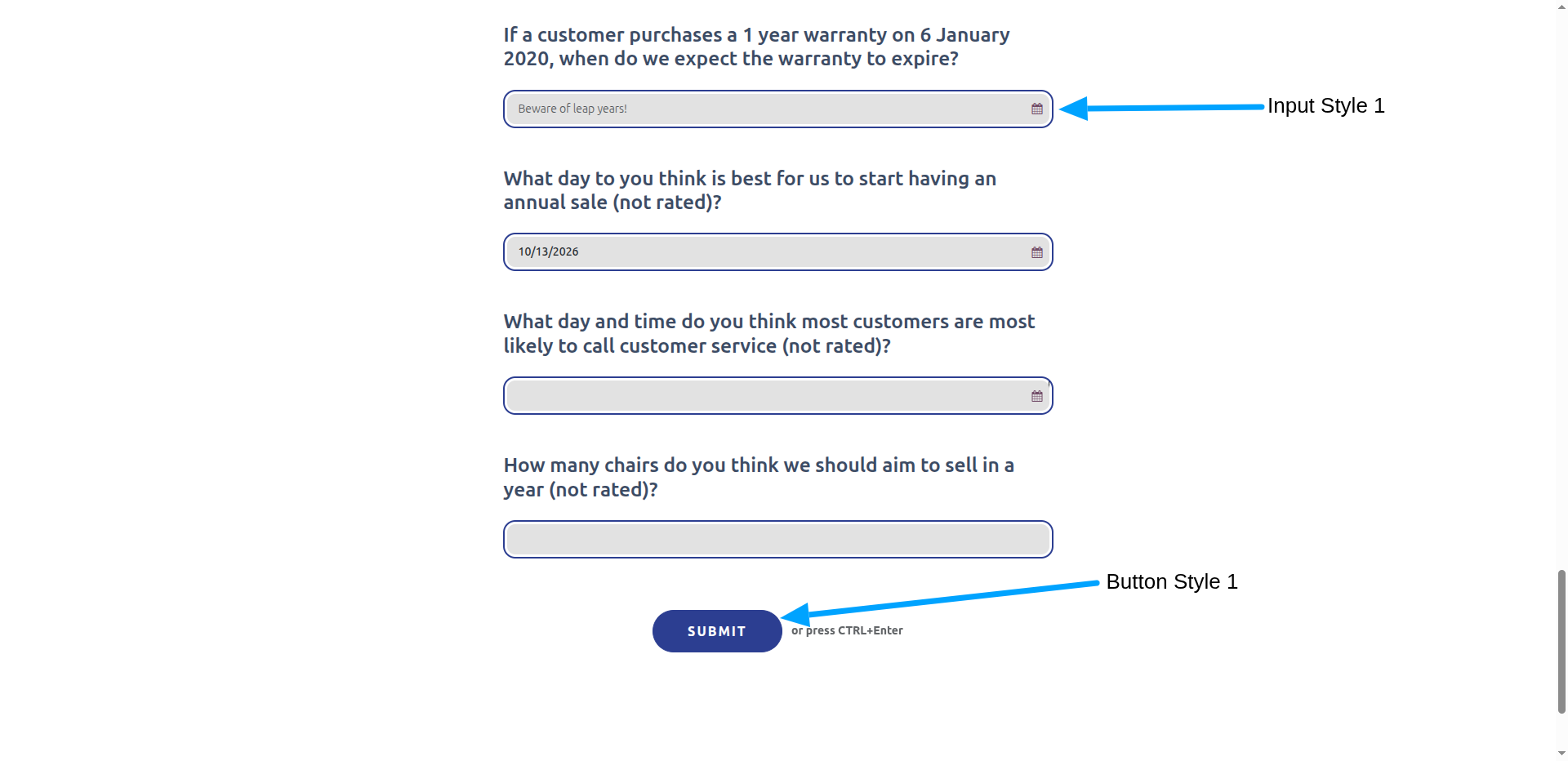
10.Scroll down to see Input Style 1 on the date and number fields, and Button Style 1 on the Submit button.
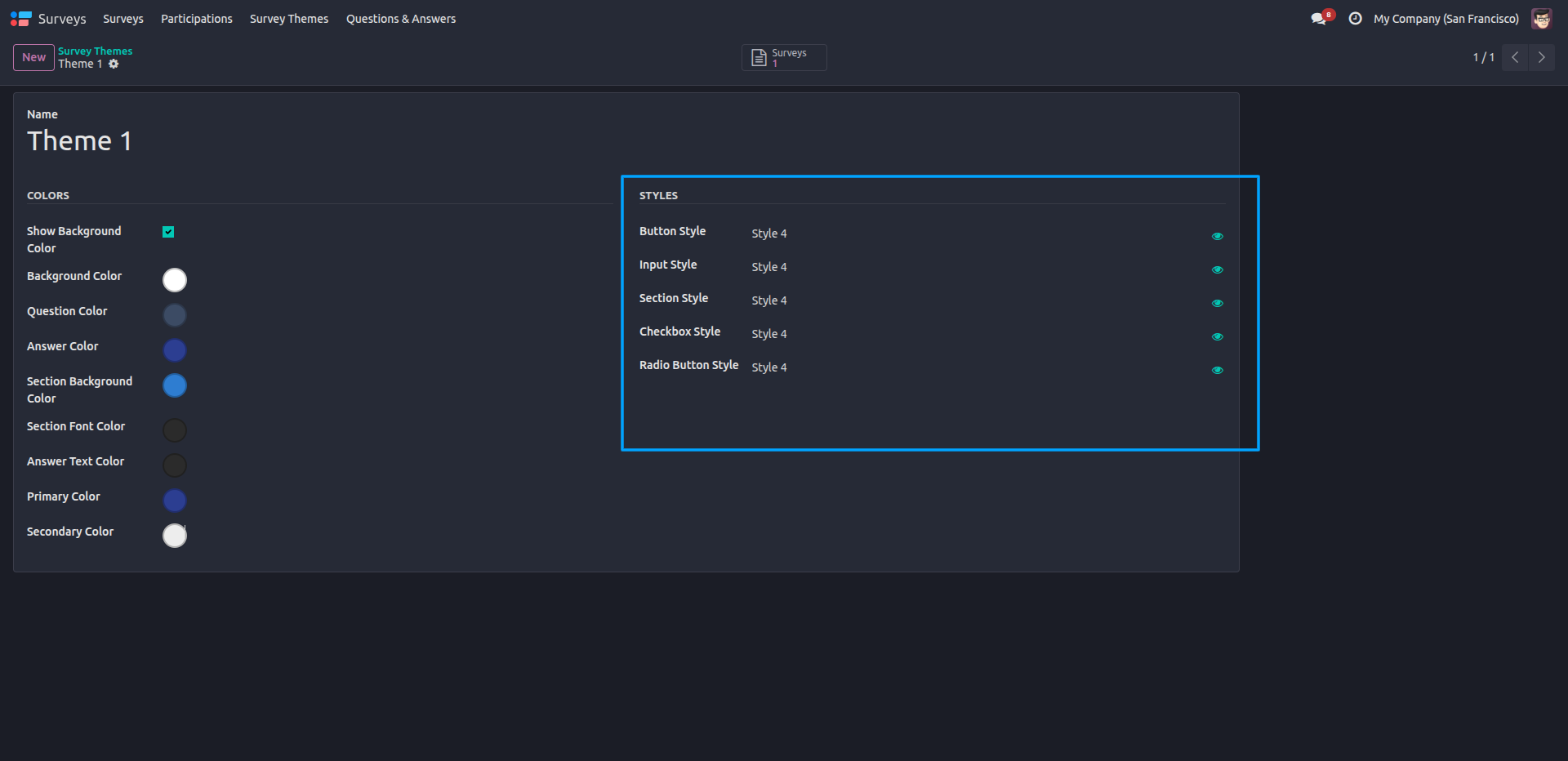
11.Open a theme (e.g., Theme 1) and change the Styles (Button, Input, Section, Checkbox and Radio Button) to Style 4, then save it.
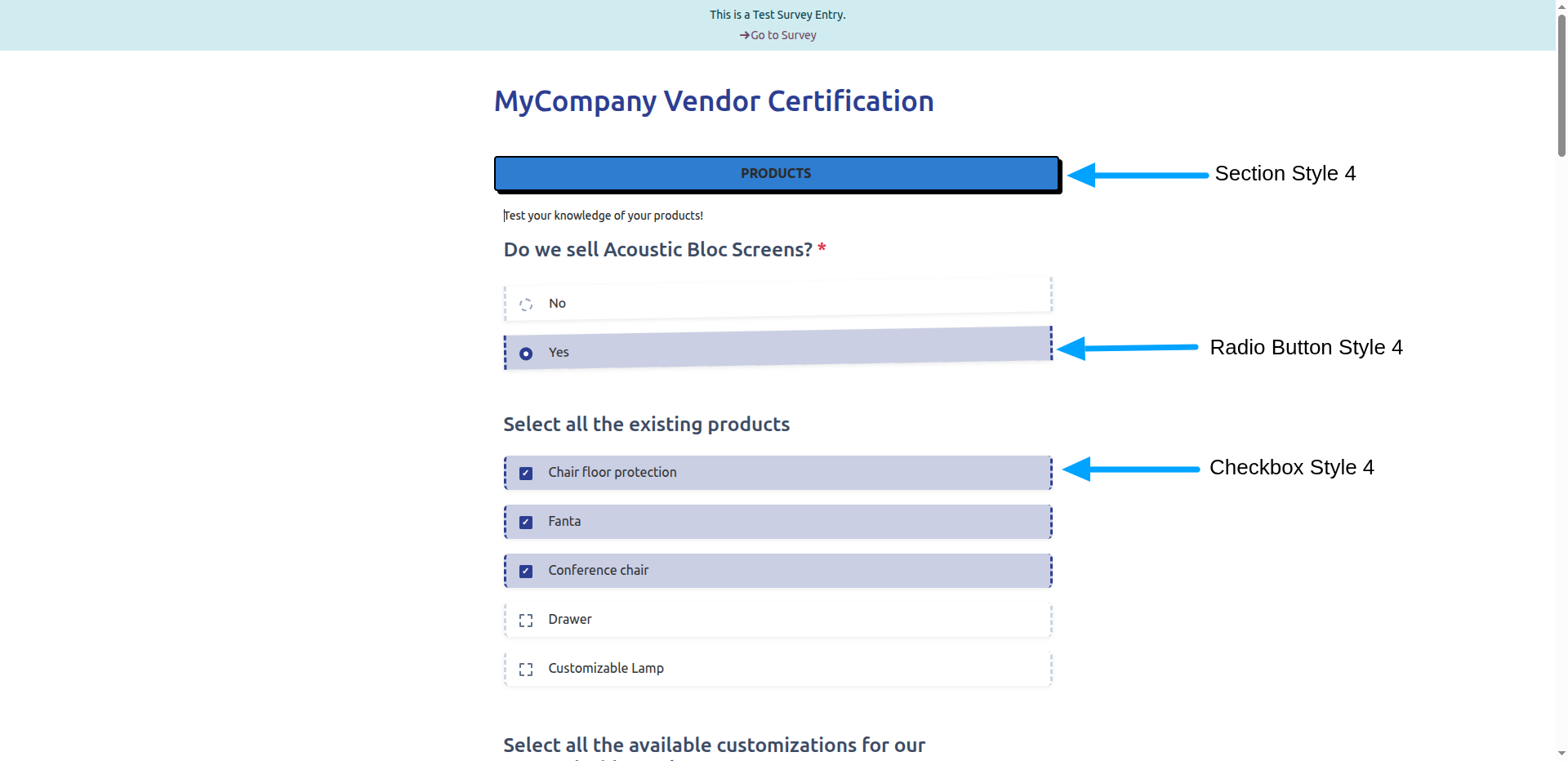
12.Click Test on the survey to open it with the new theme: Section Style 4 on the section title, Radio Button Style 4 on the single-choice answers, and Checkbox Style 4 on the multiple-choice answers.
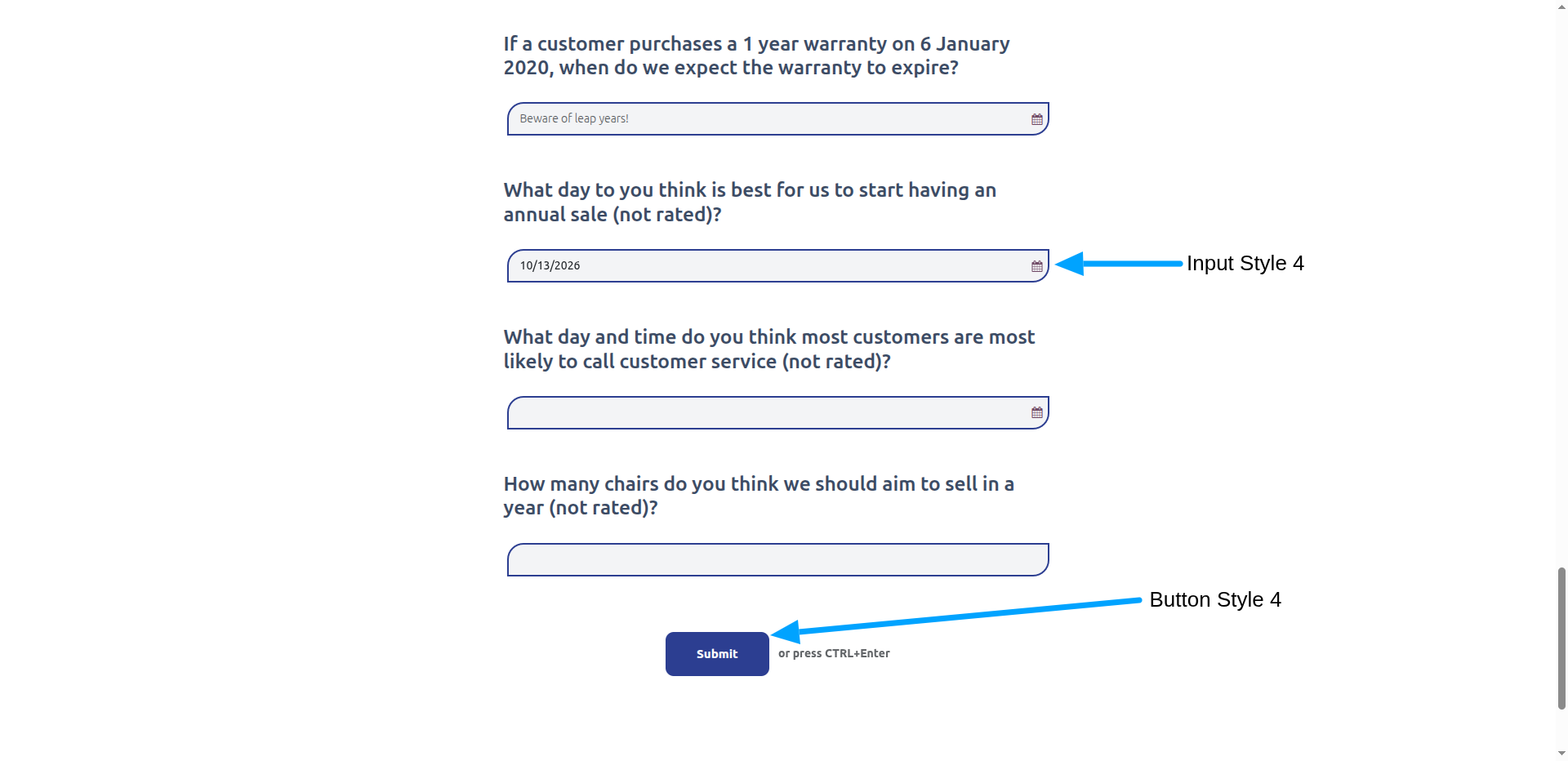
13.Scroll down to see Input Style 4 on the date and number fields, and Button Style 4 on the Submit button.
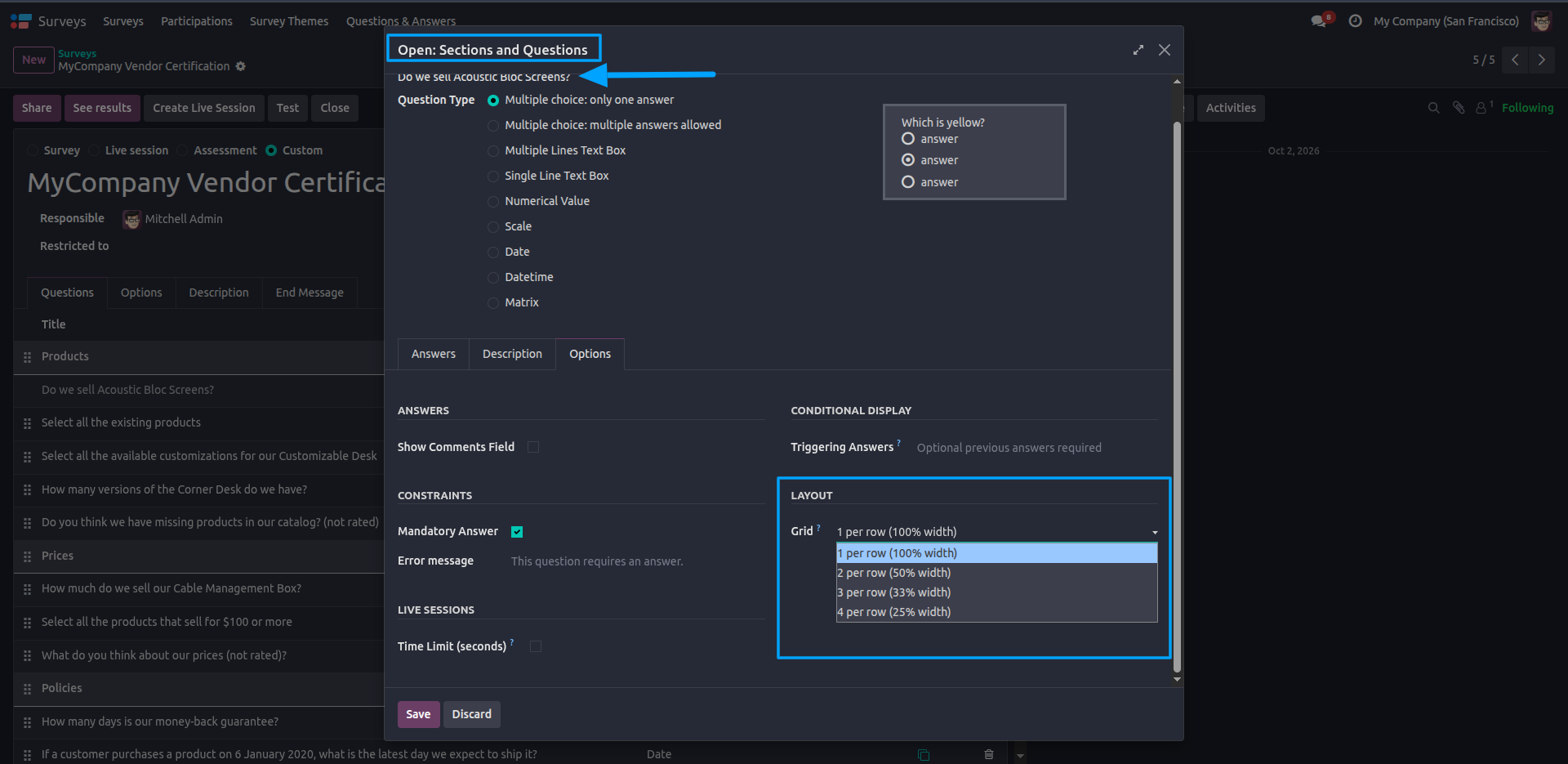
14.Open a question (e.g., Do we sell Acoustic Bloc Screens?), go to the Options tab and, under Layout, use the Grid field to choose how many answers appear per row: 1 per row (100% width), 2 per row (50% width), 3 per row (33% width) or 4 per row (25% width).
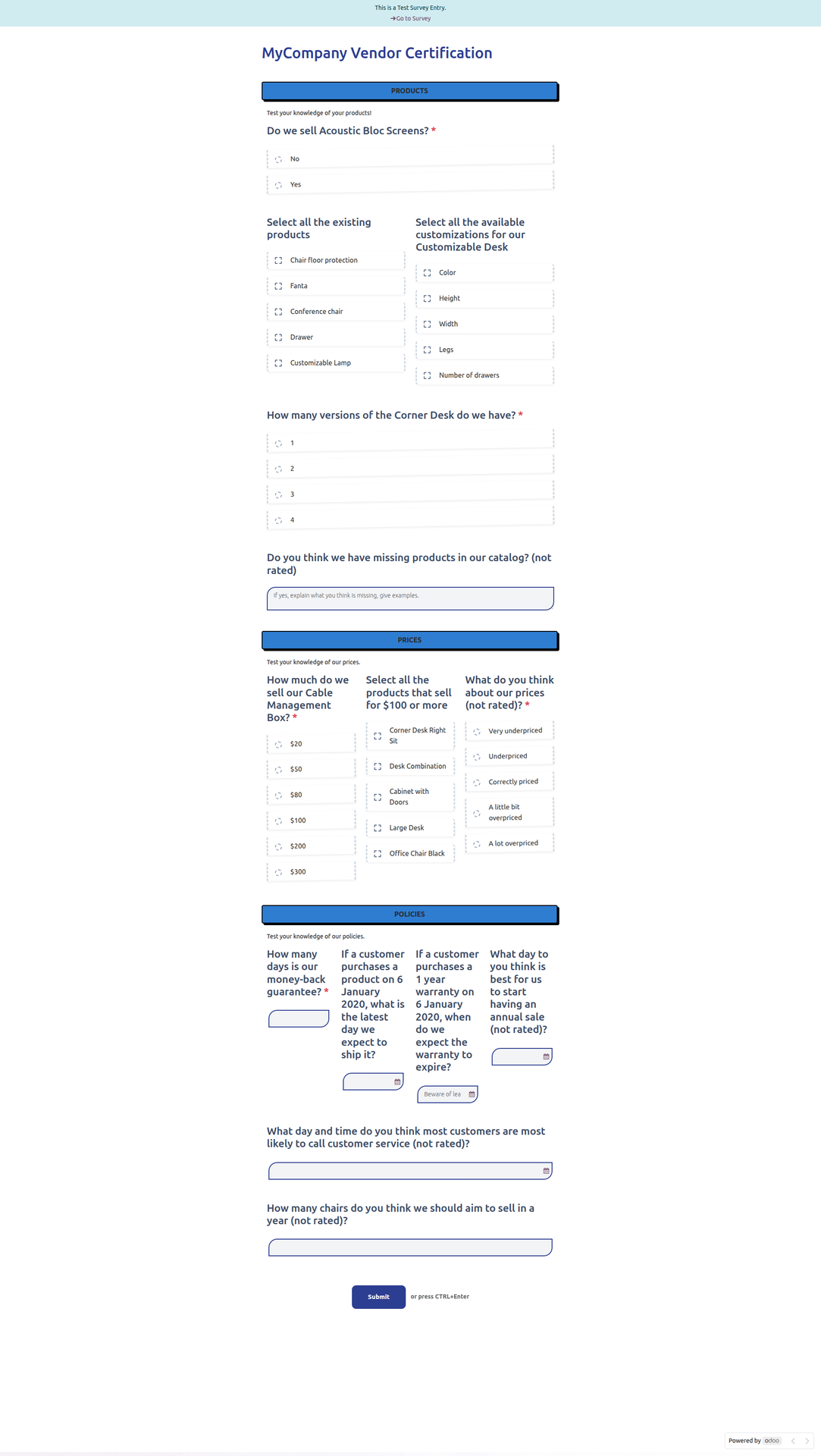
15.Open the survey again to see the grid layout applied with the selected theme styles, with questions and answers shown side by side across the Products, Prices and Policies sections.
Our solutions focus on your problems
- Odoo Implementation
- Odoo Customization
- ERP Development and Implementation
- Odoo Ipass Cloud
- AI for Odoo
- Odoo Apps
- Aws Marketplace Products
- Business Engines
Our Pricing includes User Manual, 90 Days Support (Monday-Friday 10am to 7pm IST) and One time Setup
• Works & tested on standard installations of Odoo with no third party apps,
• Free support only for odoo installations with no third party apps,
• Paid support available for Odoo installations with third party apps.

Prefortune is a Odoo Official Partner, Odoo Development company. Our philosophy is to use Open Source tools and technologies to provide cost effective and green solutions for our customers.
Prefortune Technologies LLP is working on web development, Mobile development, and Odoo ERP.
If you need any help or want more additional features, you may contact us through:
Alternative Products
These other products might interest you
Specifications
| Version | 20.0, 19.0, 18.0, 17.0, 16.0, 15.0, 14.0 |