Watch Quick Video
Square Payment Connector Odoo App
Square Payment Connector Odoo App Module Will Improve Your Odoo Website. Square Payment Connector Odoo App The Square payment gateway integration with Odoo Website and the customer can pay online securely directly on the checkout page. The administrator can easily configure the payment provider by entering the Square Application ID, Access Token and Location ID from the Odoo backend and customising the payment status messages sent to the customer. Once set up, customers can choose Square as their preferred payment method, securely enter their card details on Square’s hosted payment page and complete the transaction without ever leaving your site. The module will automatically generate and record payment transactions in Odoo. It will store the Square Payment ID for easy payment tracking. This will sync payment statuses to the related sales order and link each payment to the related sales order. Refund process is smooth and maintains updated transaction records. It allows for full and partial payment refunds directly from Odoo. This module provides a secure, reliable and seamless payment experience for the customer and eases the payment management for the administrators. Once set up there is no additional configuration required and it is easy to deploy and use .
Square Payment Connector Odoo App Messages
- Odoo Website Square Payment Gateway Accept online payments directly on your checkout page without any hassle.
- Square payment form. Let your customers make safe transactions on the Odoo Website.
- It also automatically saves the Square payment id for every successful payment which helps in easier tracking and management of payment transactions.
- Full Partial Payments Direct Refunds, Quick and easy refunds by administrators.
- Sync your Square payment statuses to Odoo to keep your transaction records accurate and up-to-date.
Complete Workflow for Square Payment Connector App
Install the Square Payment Connector App module and configure the payment provider by entering the Square Application ID, Access Token, and Location ID in Odoo. Once the payment provider is enabled, customers can select Square as their payment method during the website checkout process. Customers can securely enter their card details using Square's embedded payment form and complete the payment without leaving the website. After a successful transaction, Odoo automatically creates the payment transaction, stores the Square Payment ID, synchronizes the payment status, and links the payment to the corresponding Sales Order. If required, administrators can also process full or partial refunds directly from Odoo, with the refund status automatically synchronized with Square.
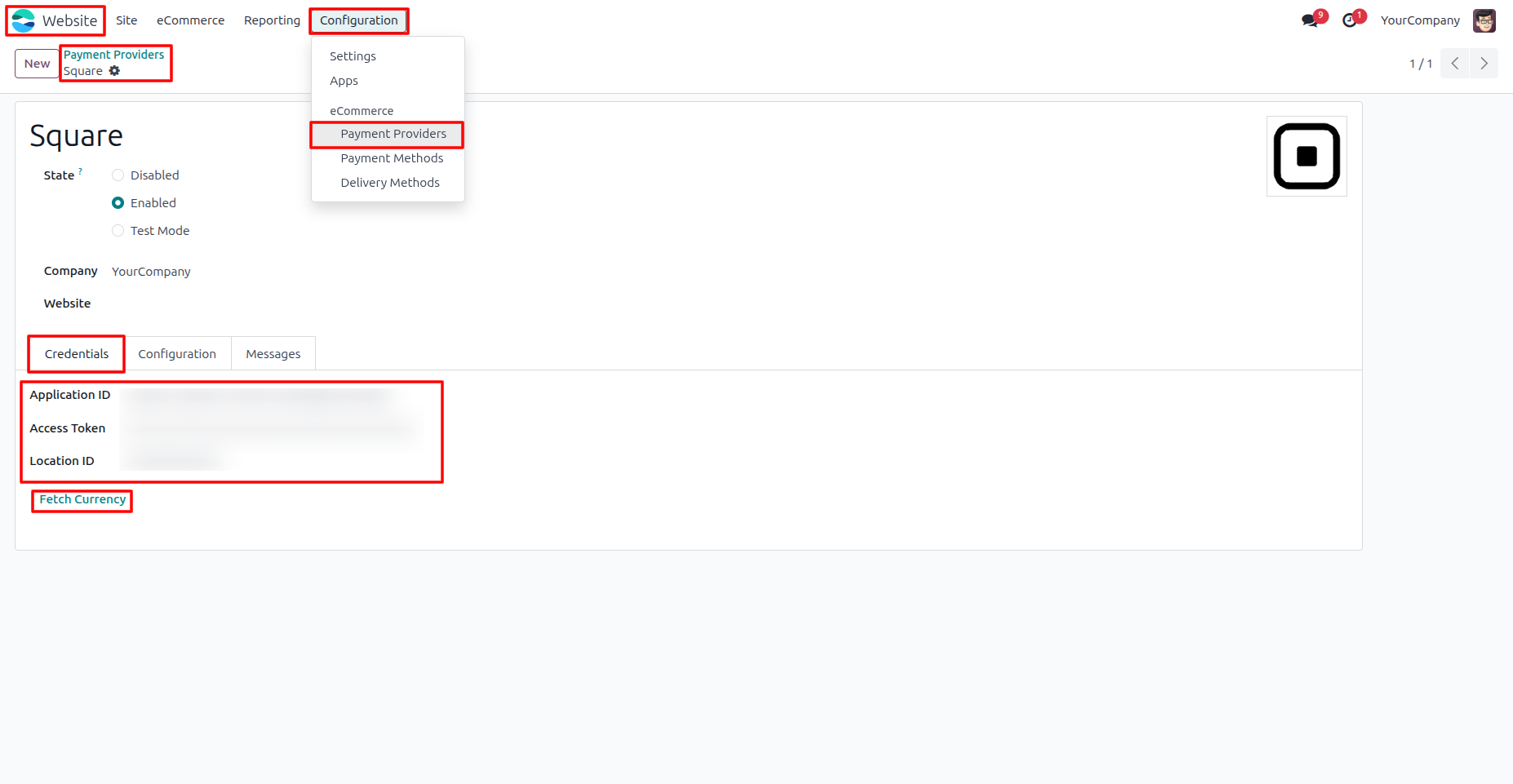
1. Go to Website → Configuration → Payment Providers → Square, then enter your Application ID, Access Token, and Location ID to configure the Square Payment Connector App.
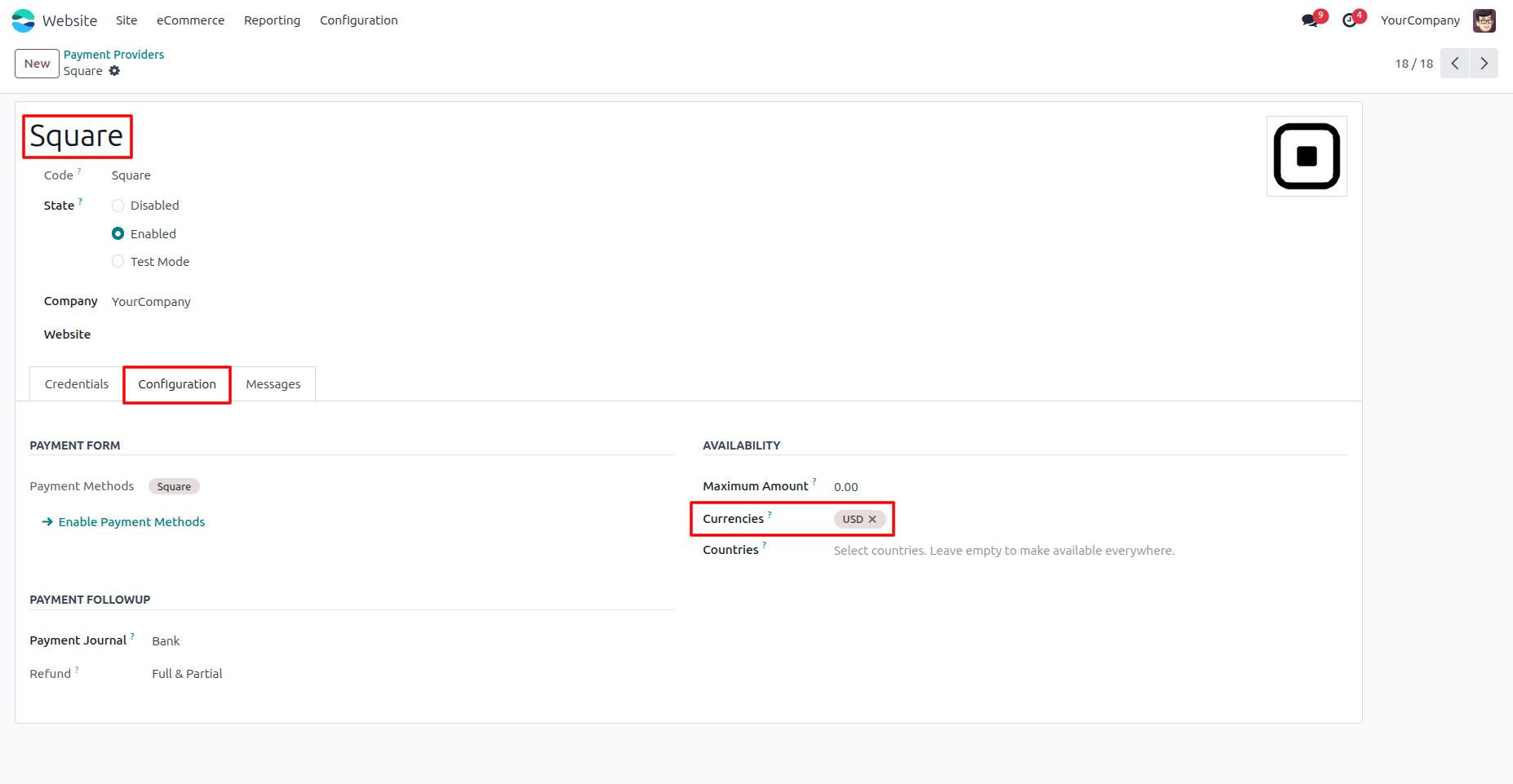
2. After adding the Square credentials, save the configuration. The payment provider will automatically fetch and set the currency based on the configured Square account.
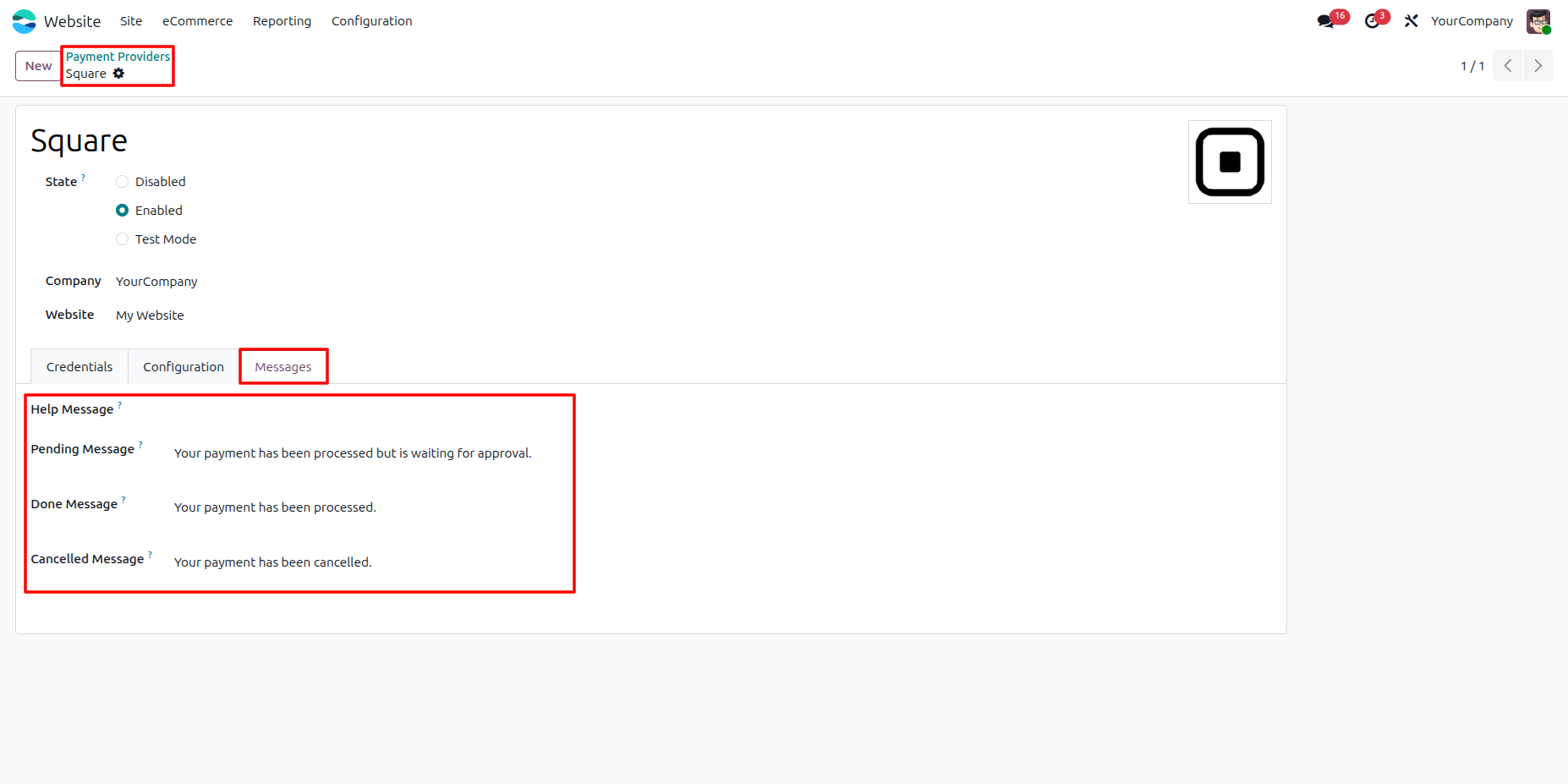
3. Go to the Messages tab to customize the payment messages displayed to customers during the payment process, including Pending, Successful, and Cancelled payment notifications.
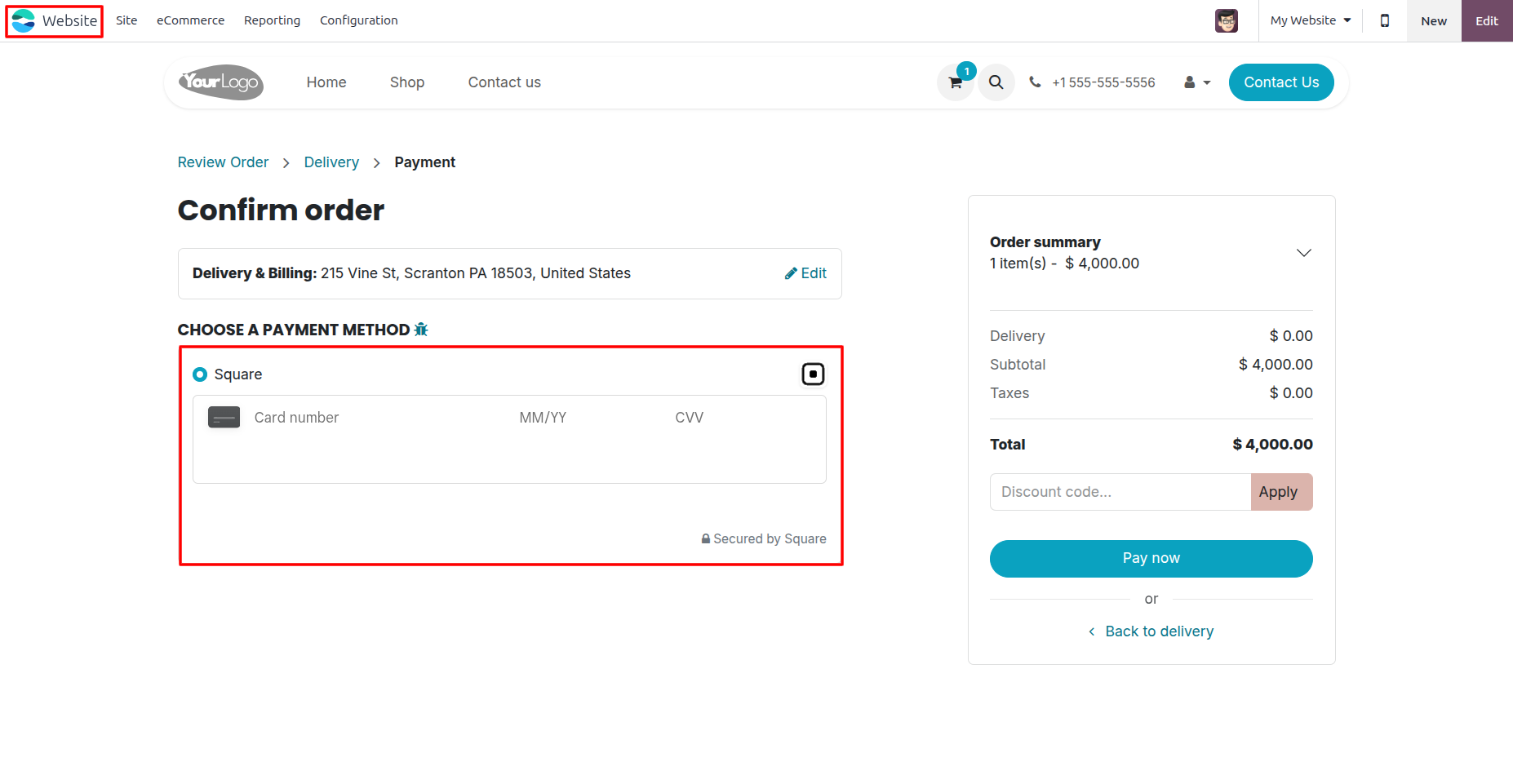
4. After adding products to the cart and proceeding to checkout, select Square as the payment method. Enter your card details.
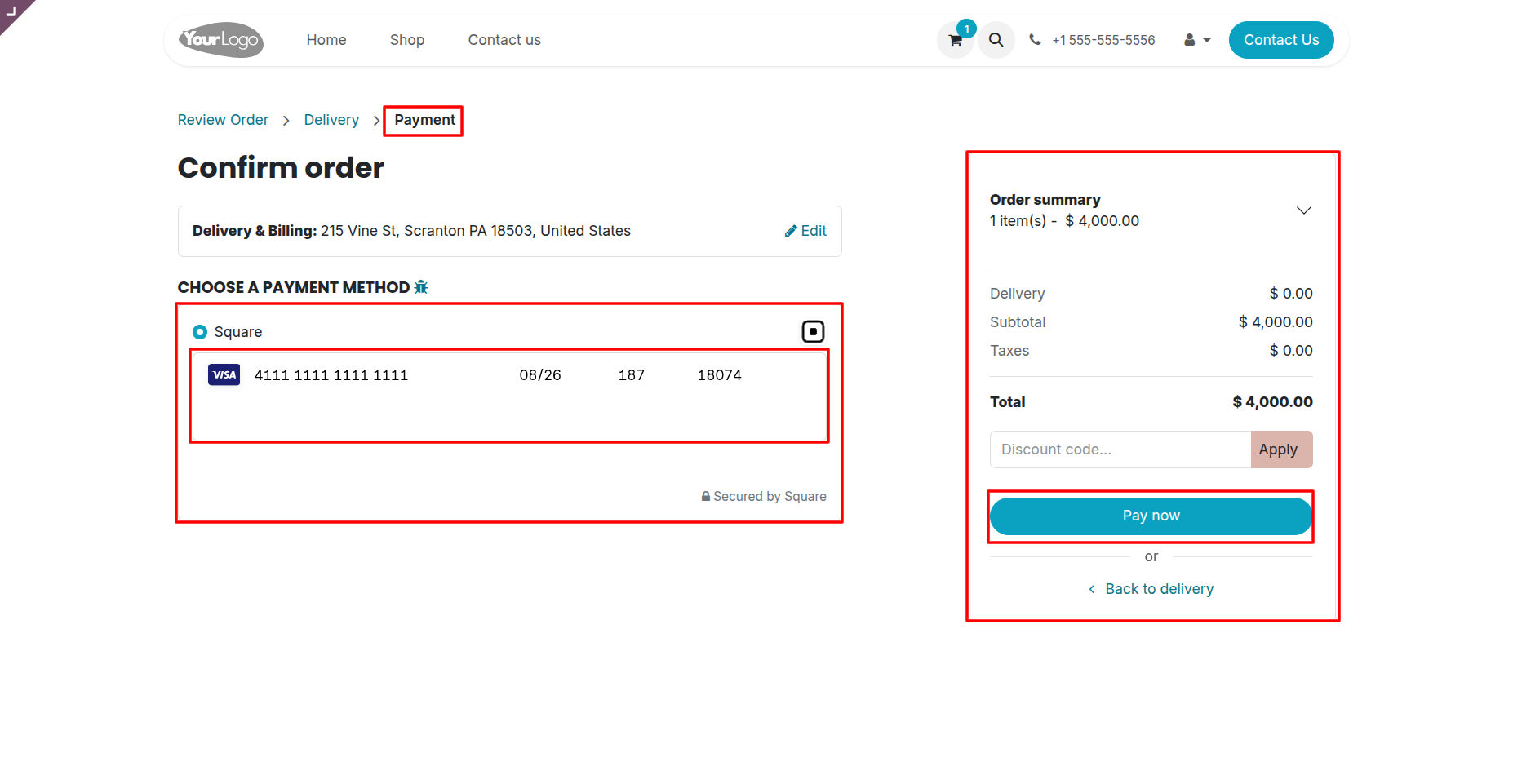
5. On the Payment page, verify your card details and order summary, then click Pay Now to securely complete the payment.
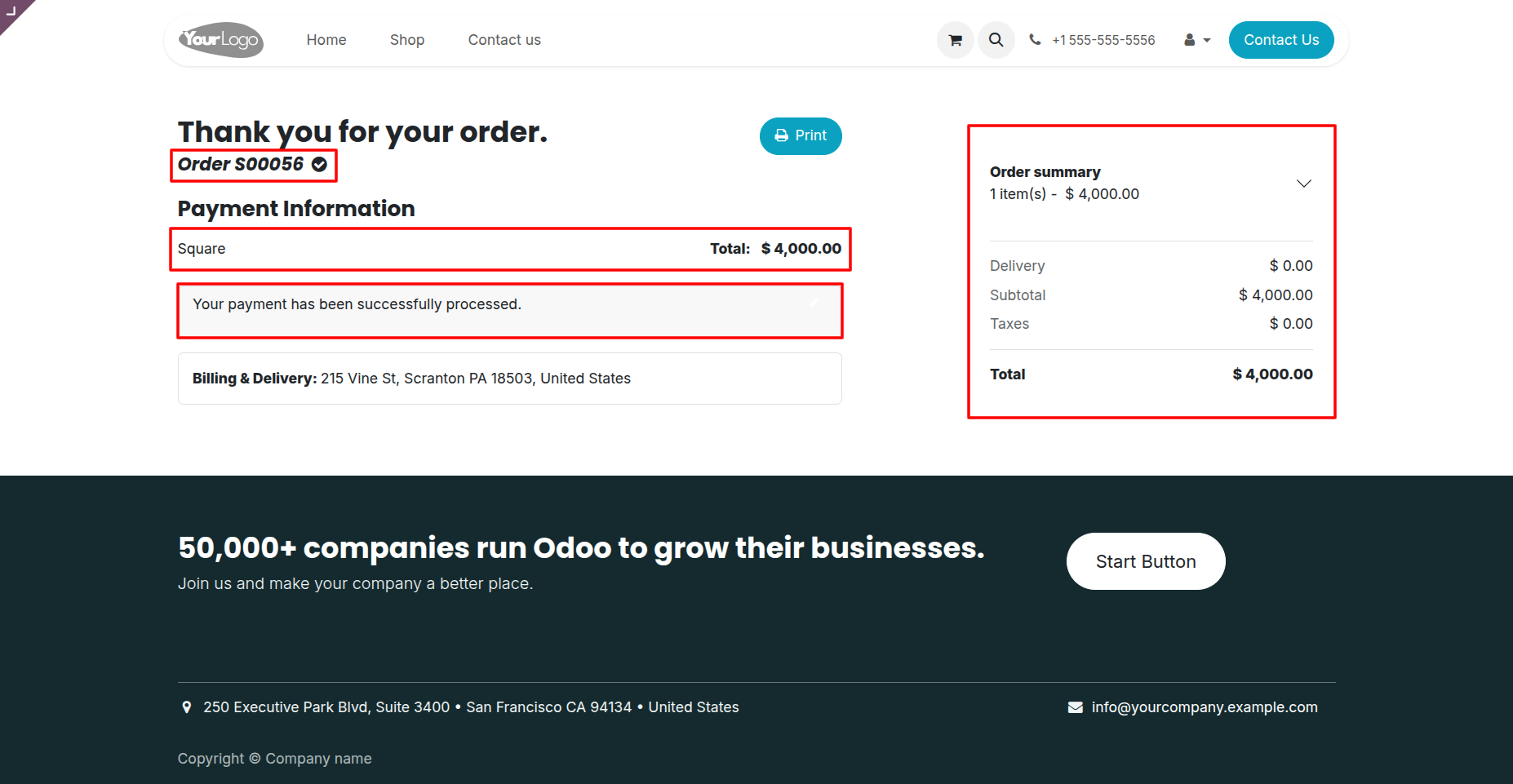
6. After the payment is completed successfully, the customer can view the order confirmation along with the payment details and order summary.
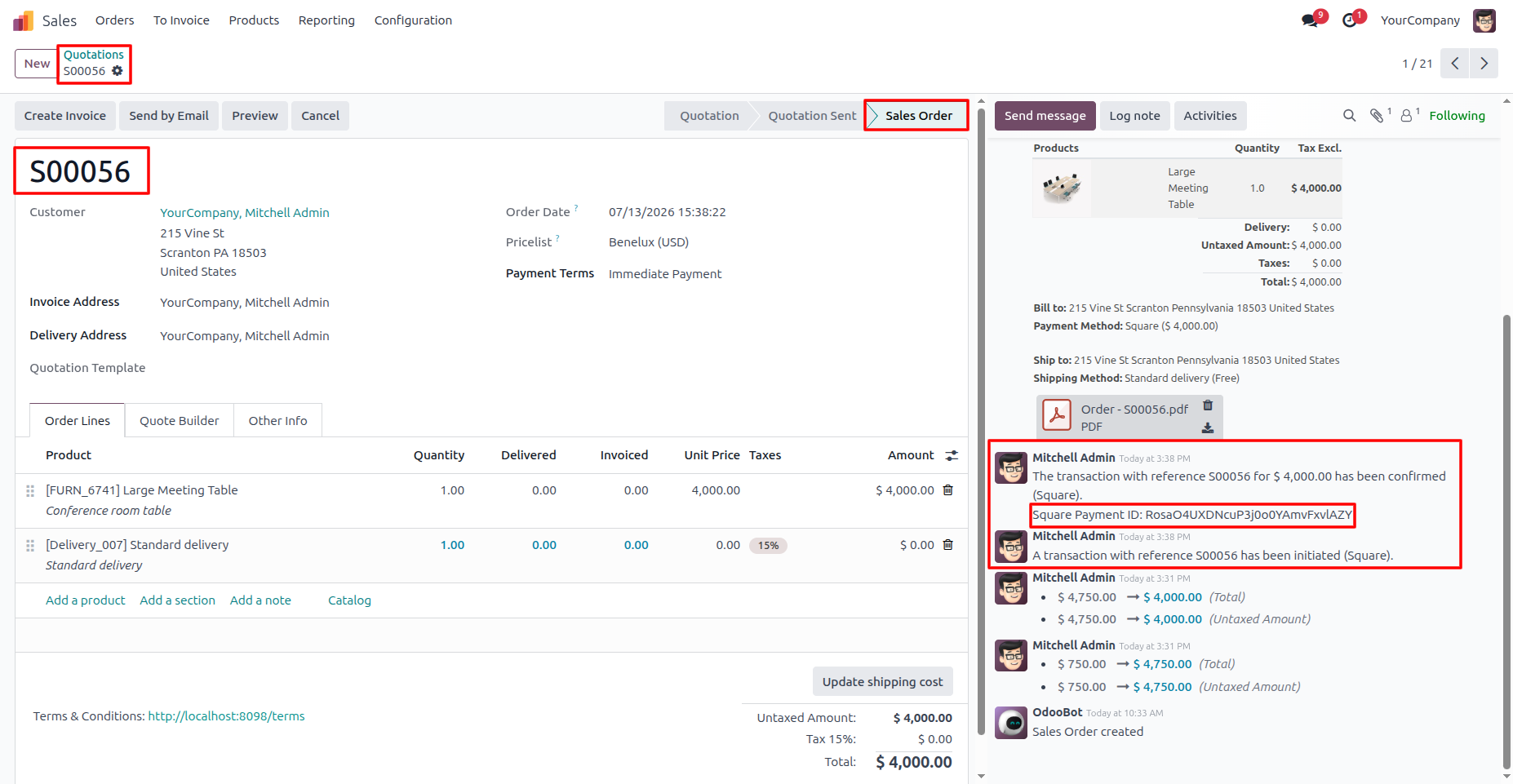
7. After the payment is successfully processed, the Sales Order is automatically confirmed. The payment transaction, including the Square Payment ID, is recorded in the chatter for future reference.
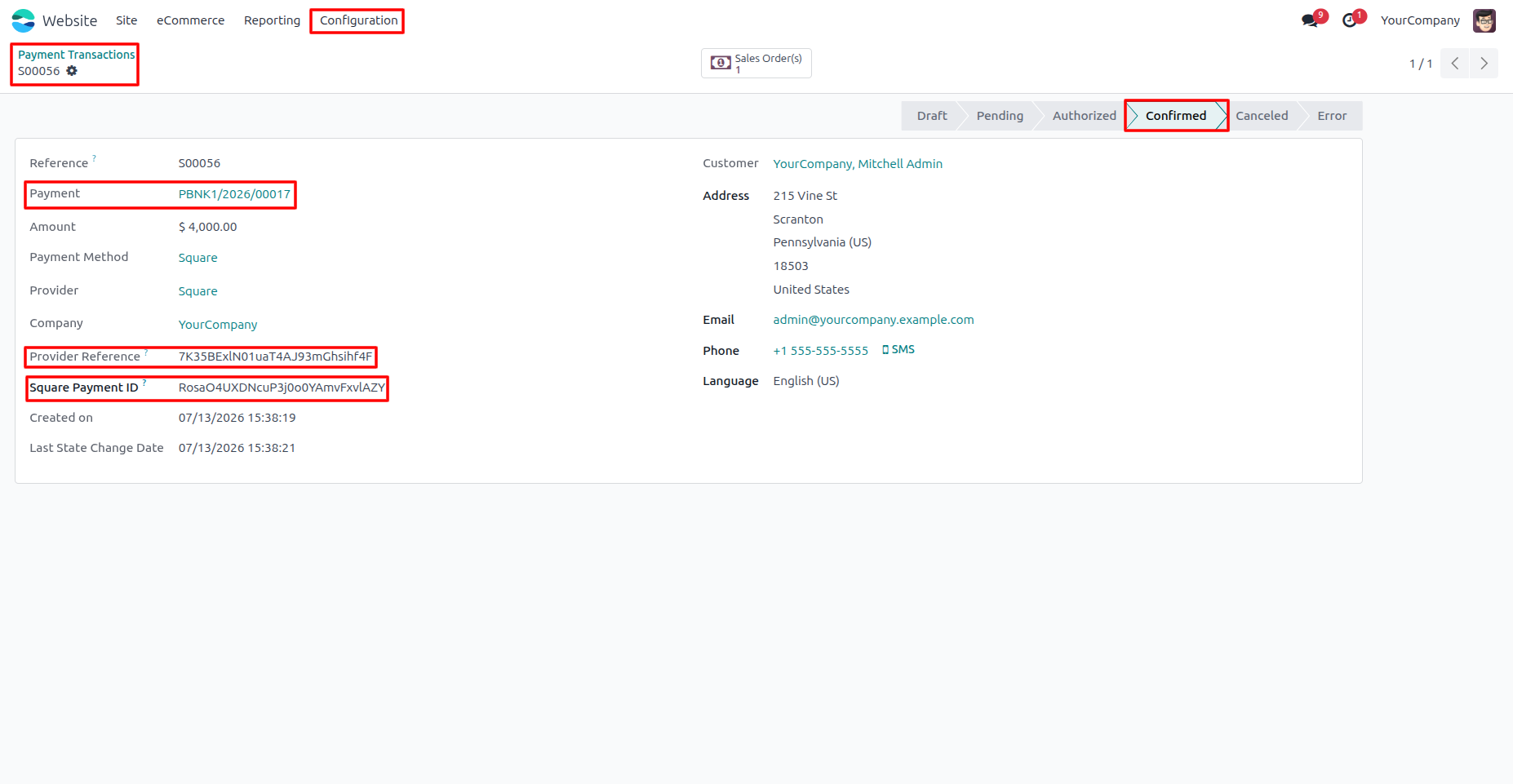
8. Navigate to Website → Configuration → Payment Transactions to view the payment details, Square Payment ID, Provider Reference, and transaction status.
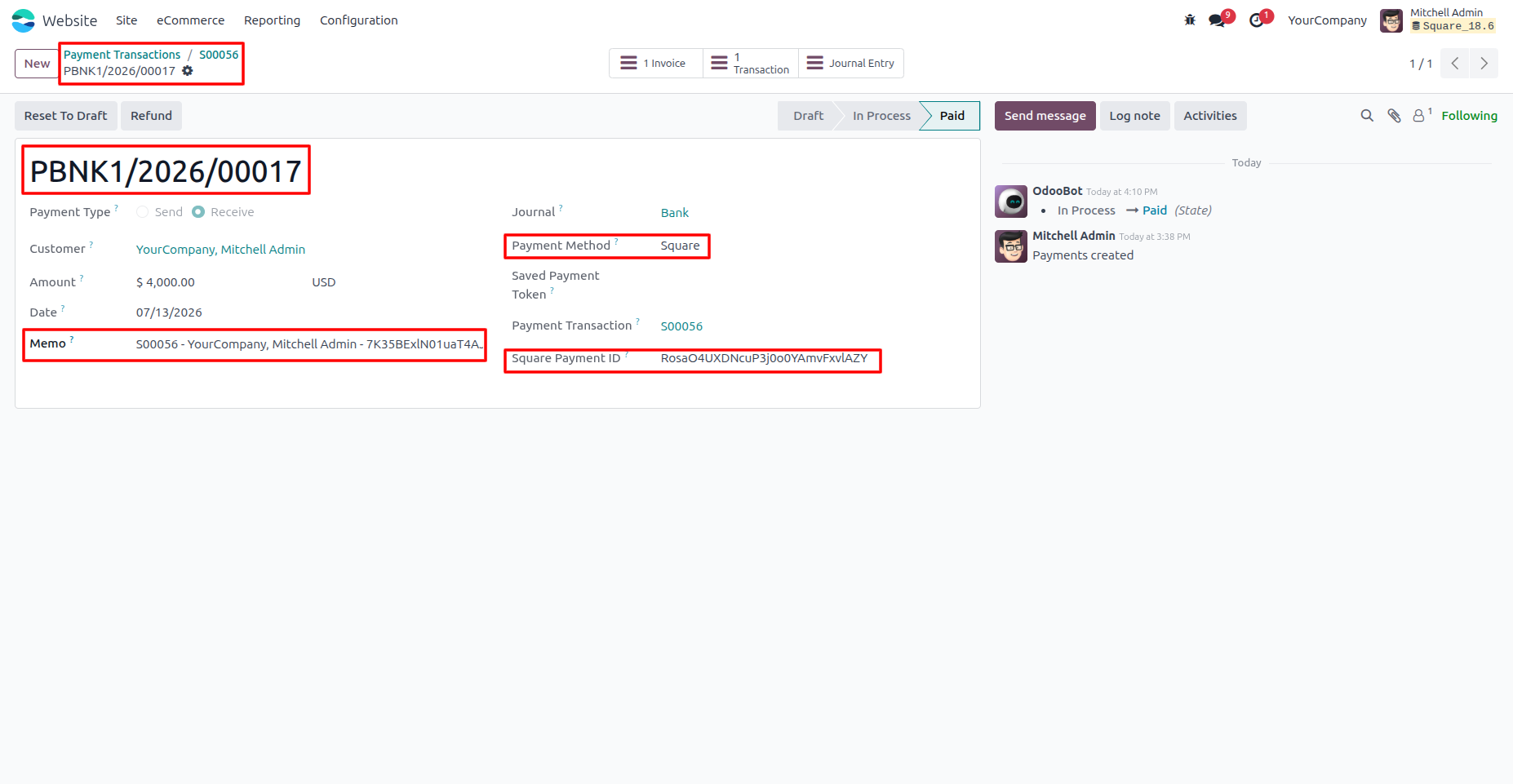
9. After a successful payment, the payment record is automatically created with the Paid status, including the Square Payment ID and payment details.
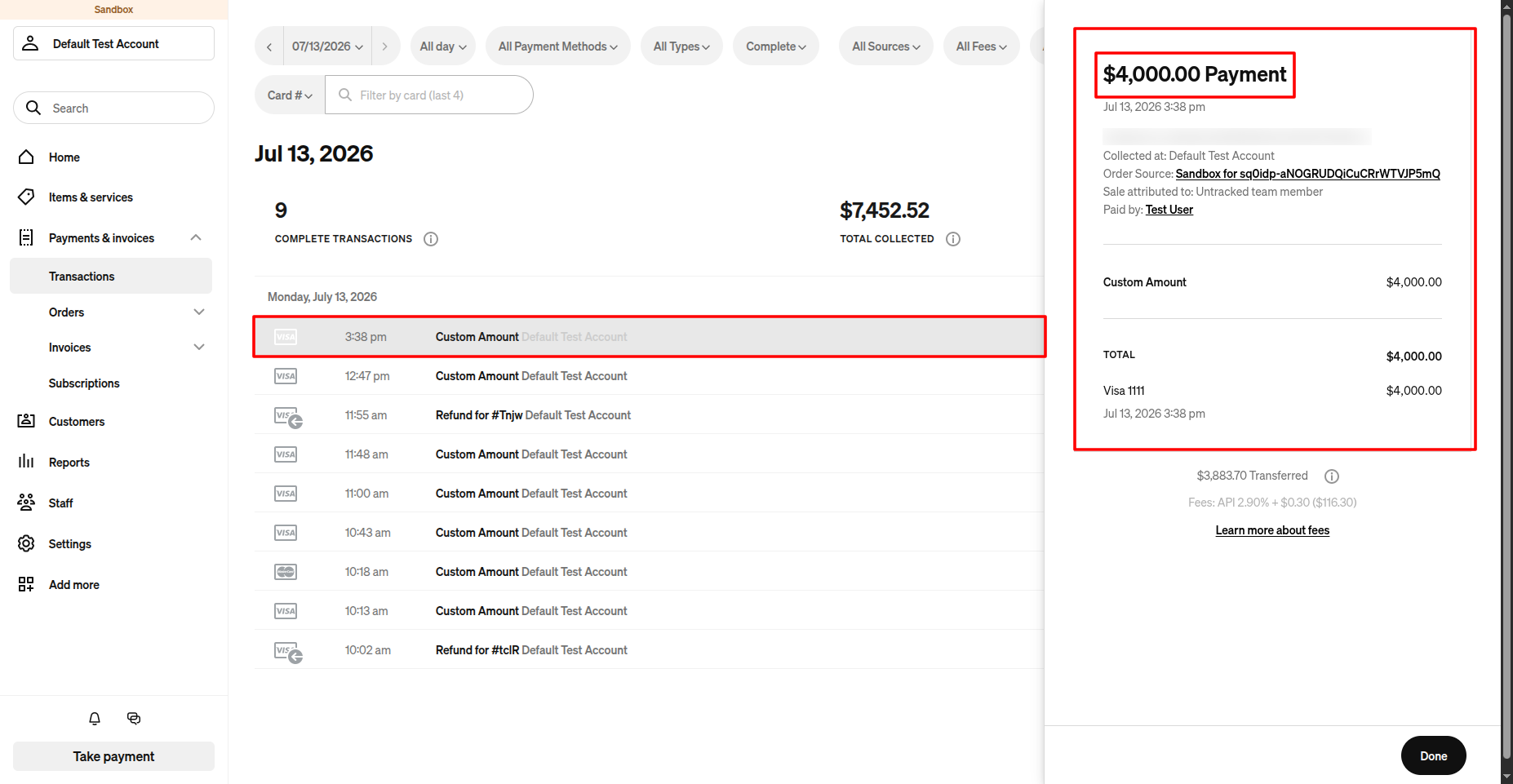
10. In the Square Dashboard, open Payments & Invoices → Transactions to verify the completed payment and review its transaction details.
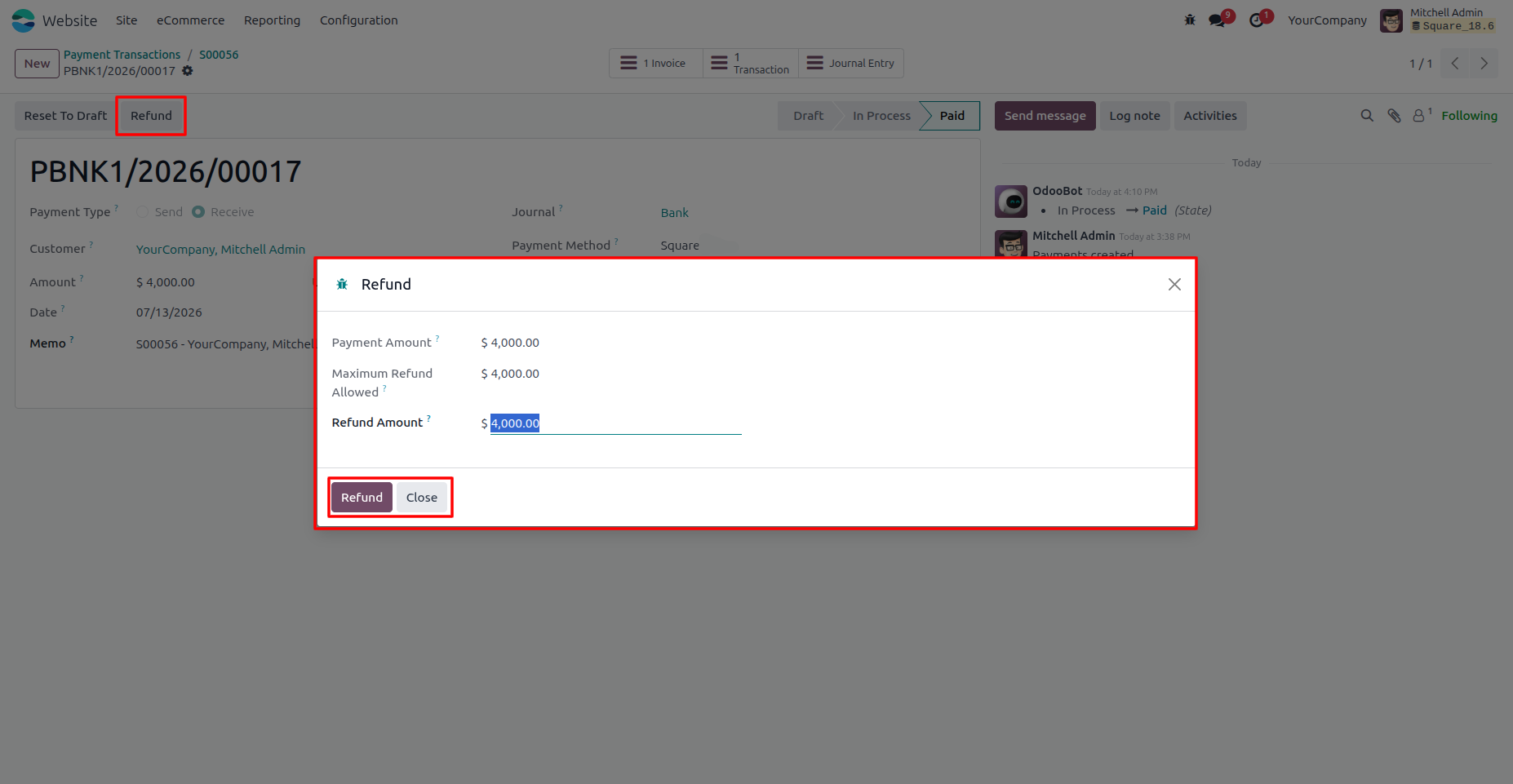
11. To process a refund, open the Payment record and click Refund. Enter the refund amount and click Refund to process a full or partial refund through Square.
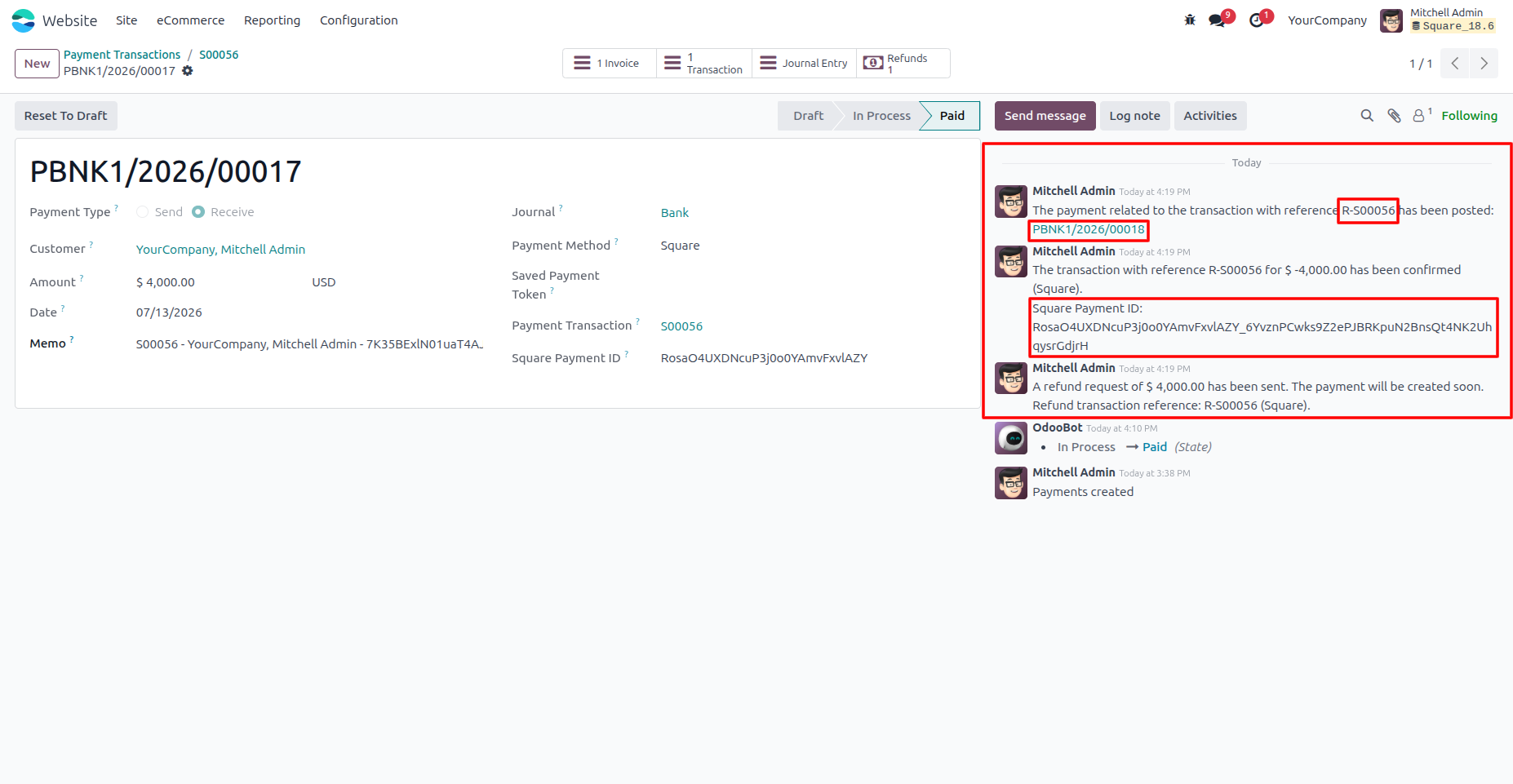
12. After the refund is processed, the payment chatter is automatically updated with the Refund Reference, Payment Reference, Refund Status, and the Square Refund Payment ID for tracking and verification.
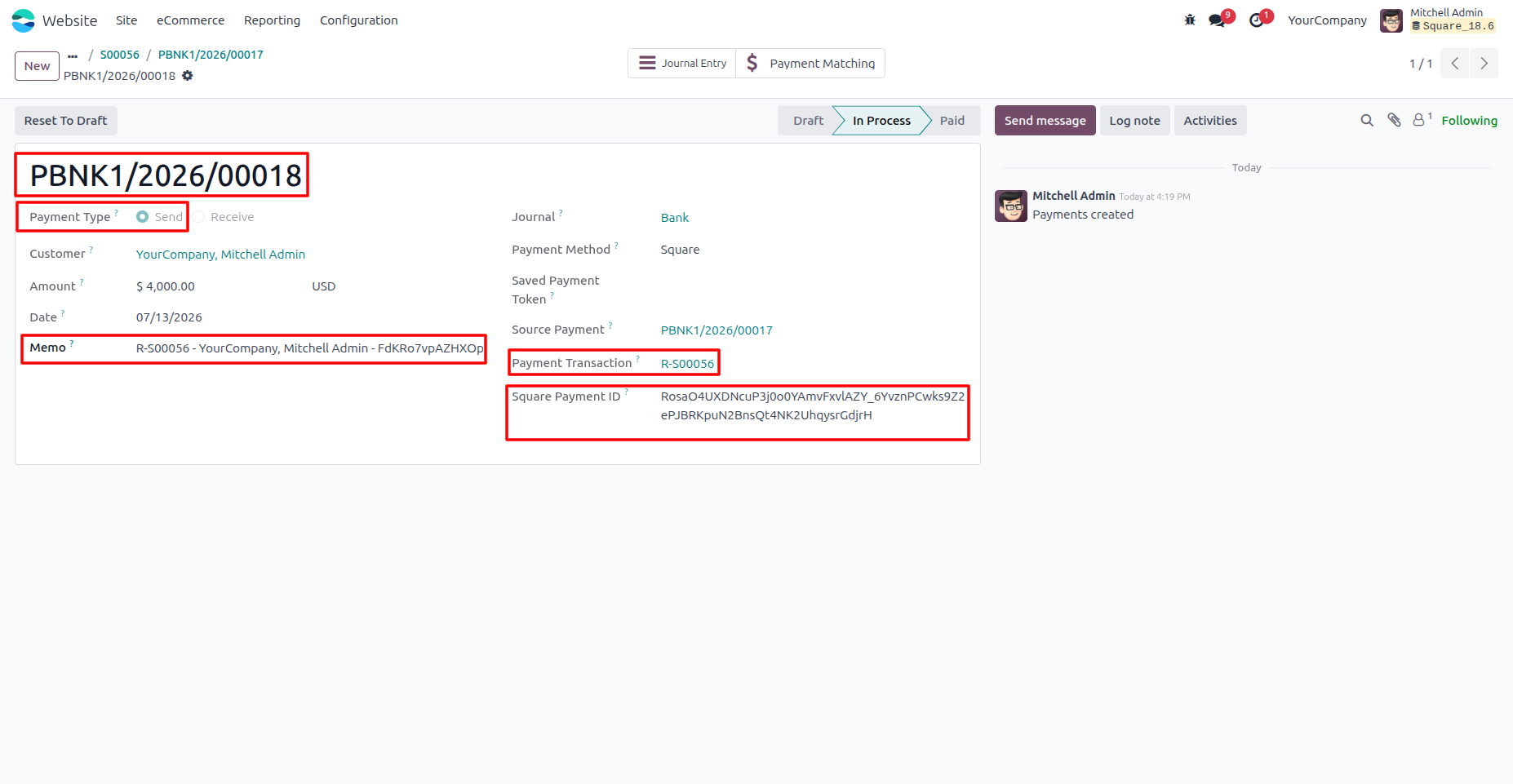
13. When a refund is processed, a Refund Payment record is automatically created. The record contains the Refund Reference, Source Payment, Refund Transaction, and Square Refund Payment ID for complete refund tracking.
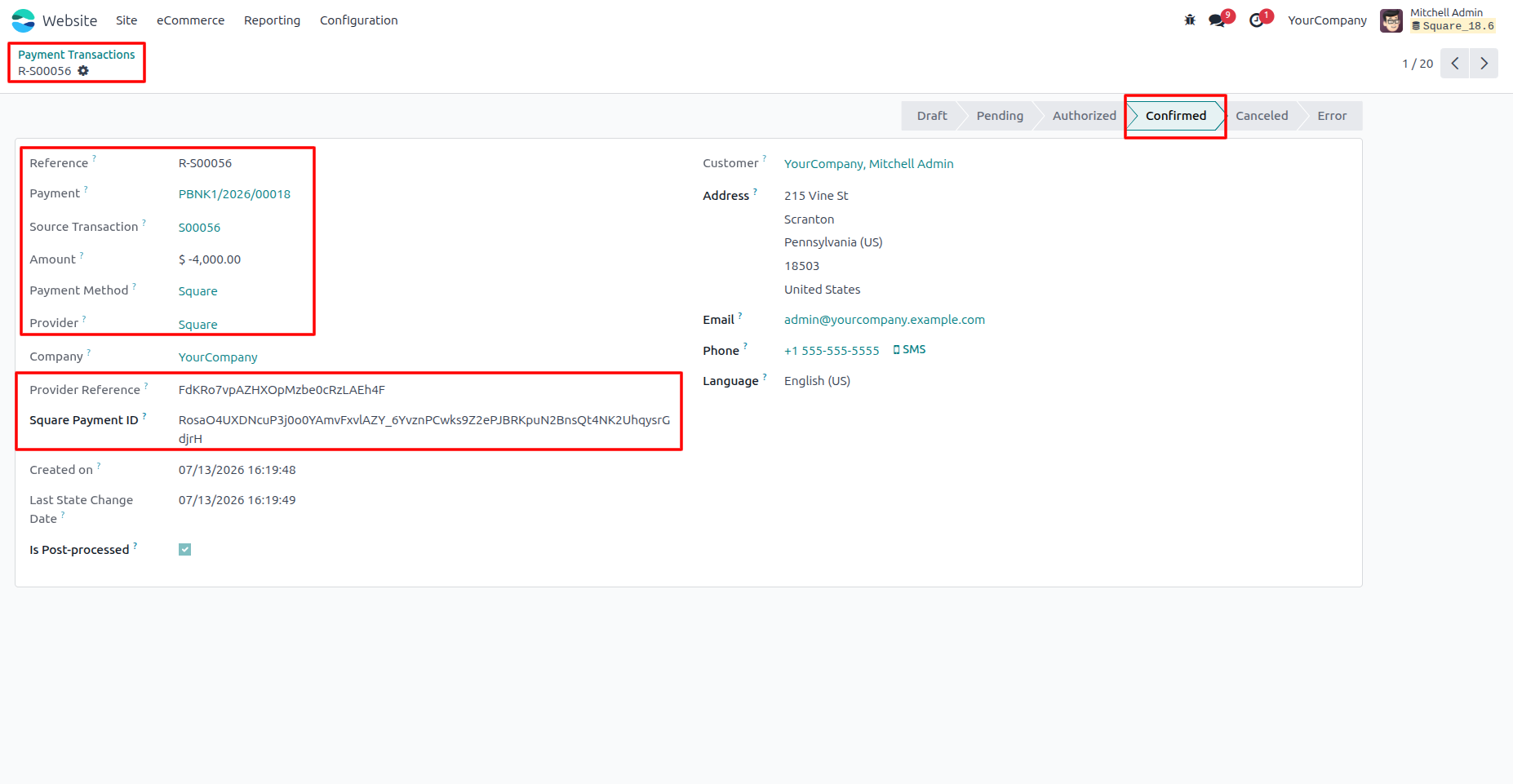
14. After the refund is successfully processed, navigate to Website → Configuration → Payment Transactions to view the Refund Transaction. The transaction displays the Refund Reference, Source Transaction, Provider Reference, Square Refund Payment ID, and the Confirmed status.
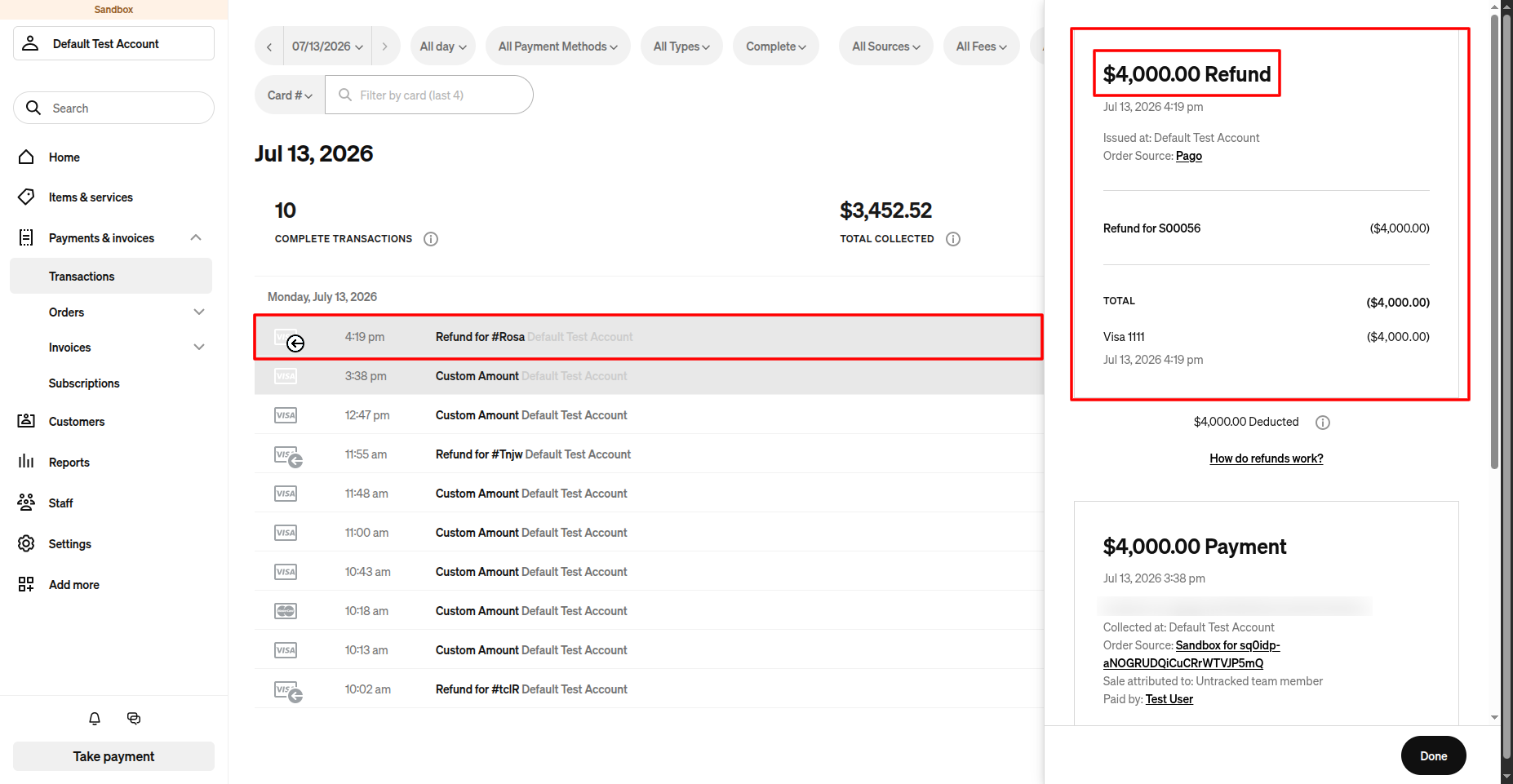
15. In the Square Dashboard, open Payments & Invoices → Transactions to view the completed refund and verify its transaction details.
Our solutions focus on your problems
- Odoo Implementation
- Odoo Customization
- ERP Development and Implementation
- Odoo Ipass Cloud
- AI for Odoo
- Odoo Apps
- Aws Marketplace Products
- Business Engines
Our Pricing includes User Manual, 90 Days Support (Monday-Friday 10am to 7pm IST) and One time Setup
• Works & tested on standard installations of Odoo with no third party apps,
• Free support only for odoo installations with no third party apps,
• Paid support available for Odoo installations with third party apps.

Prefortune is a Odoo Official Partner, Odoo Development company. Our philosophy is to use Open Source tools and technologies to provide cost effective and green solutions for our customers.
Prefortune Technologies LLP is working on web development, Mobile development, and Odoo ERP.
If you need any help or want more additional features, you may contact us through:
Alternative Products
These other products might interest you
Specifications
| Version | 19.0, 18.0, 17.0, 16.0, 15.0, 14.0 |