Watch Quick Video
Sales Credit Limit - Backend and Portal
Our all-inclusive
Odoo – Sales Credit Limit - Backend and Portal
provides a complete credit control workflow in Odoo by allowing
businesses to configure customer credit limits, set warning amounts,
and automatically validate credit when quotations or sales orders are
created. The system displays warnings when orders approach the defined
threshold and automatically moves orders to an On Hold stage when the
credit limit is exceeded, with a dedicated menu to manage and review
held orders. Email notifications can be configured to inform approval
users or sales teams, and an approval workflow allows orders and credit
limit increase requests to be approved, partially approved, or refused
with proper reasons and status tracking. Sales users can request credit
limit increases directly from sales orders, track requested customers,
and manage credit rules based on due amount or percentage, while also
having the ability to manually place customers on hold when required.
From the customer portal, users can submit credit limit increase requests,
edit and confirm request details, track request status in real time,
view approval or refusal decisions with reasons, and review updated
credit details, delivering a complete end-to-end backend and portal
solution for effective credit management.
Sales Credit Limit - Backend and Portal
- Configure customer credit limits and warning thresholds.
- Automatic credit validation on quotations and sales orders.
- On Hold workflow with email notifications and approvals.
- Credit limit increase request and approval process.
- Dedicated menu to manage On Hold sales orders.
- Customer portal request and decision visibility.
Complete Workflow for Sales Credit Limit – Backend & Portal
First, enable the Sales Credit Limit Admin feature and configure approval users and email notifications from Sales settings. Set customer credit limits and warning amounts the customer form, then create quotations or sales orders where the system automatically checks available credit. If the order exceeds the limit, it moves to the On Hold stage and sends notifications to approvers, who can approve, partially approve, or refuse the request. Users can request a credit limit increase from the sales order, while customers can also submit and track credit increase requests directly from the portal, ensuring a smooth and controlled credit management workflow.
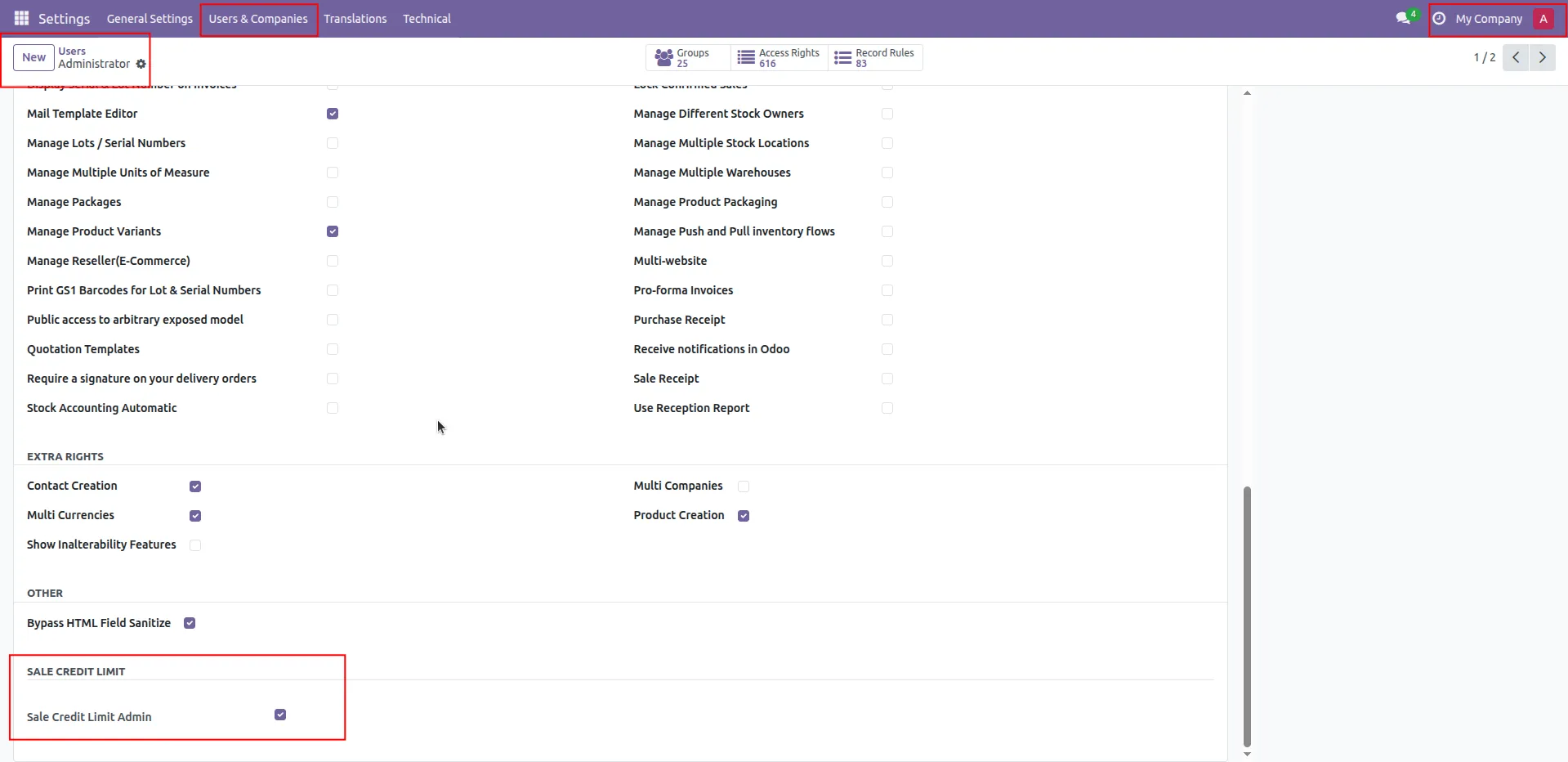
1.Open user settings and enable Sale Credit Limit Admin for the selected user. This permission allows the user to manage credit limits and approvals.
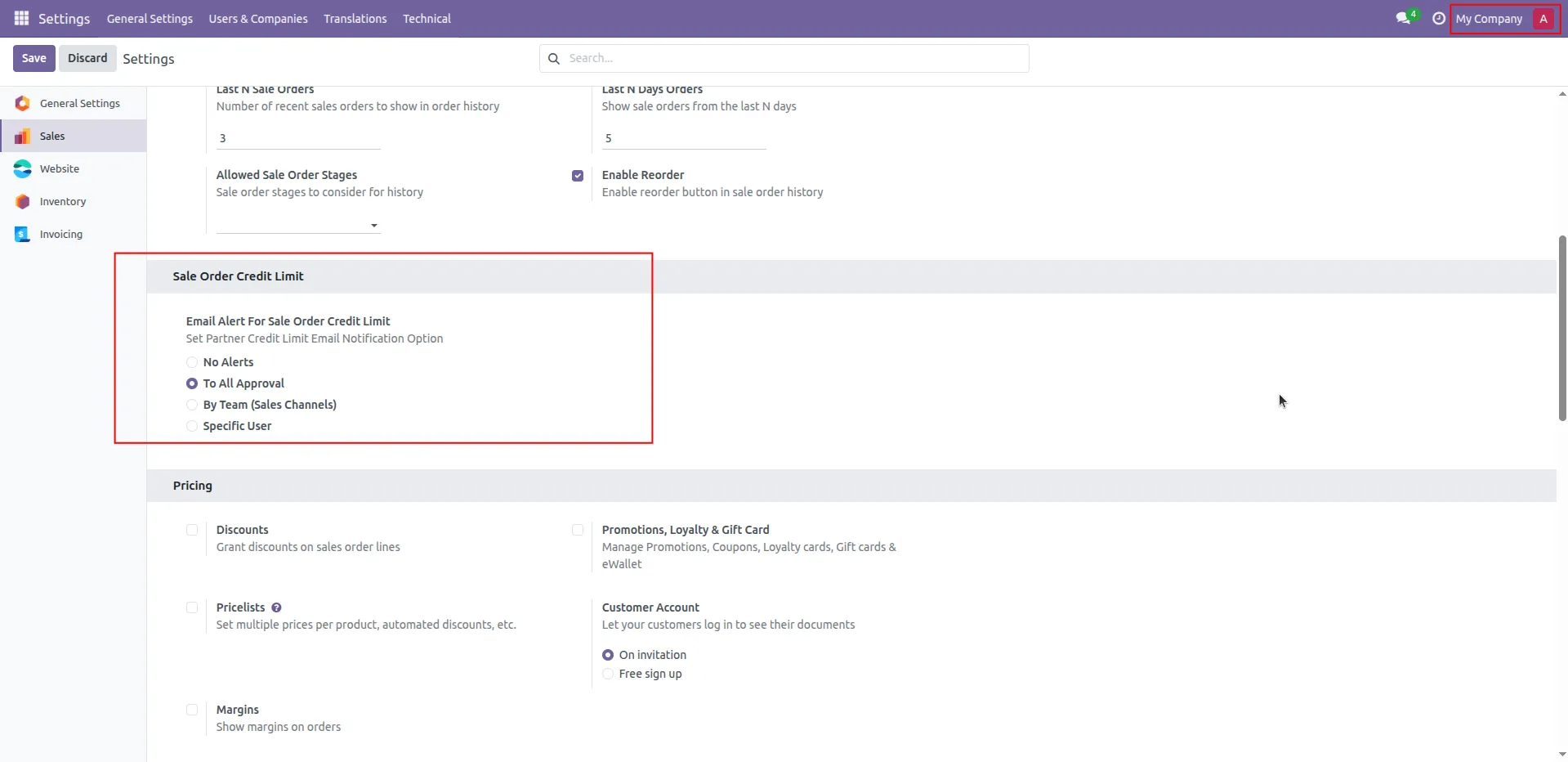
2.Go to Sales settings and configure email alerts.
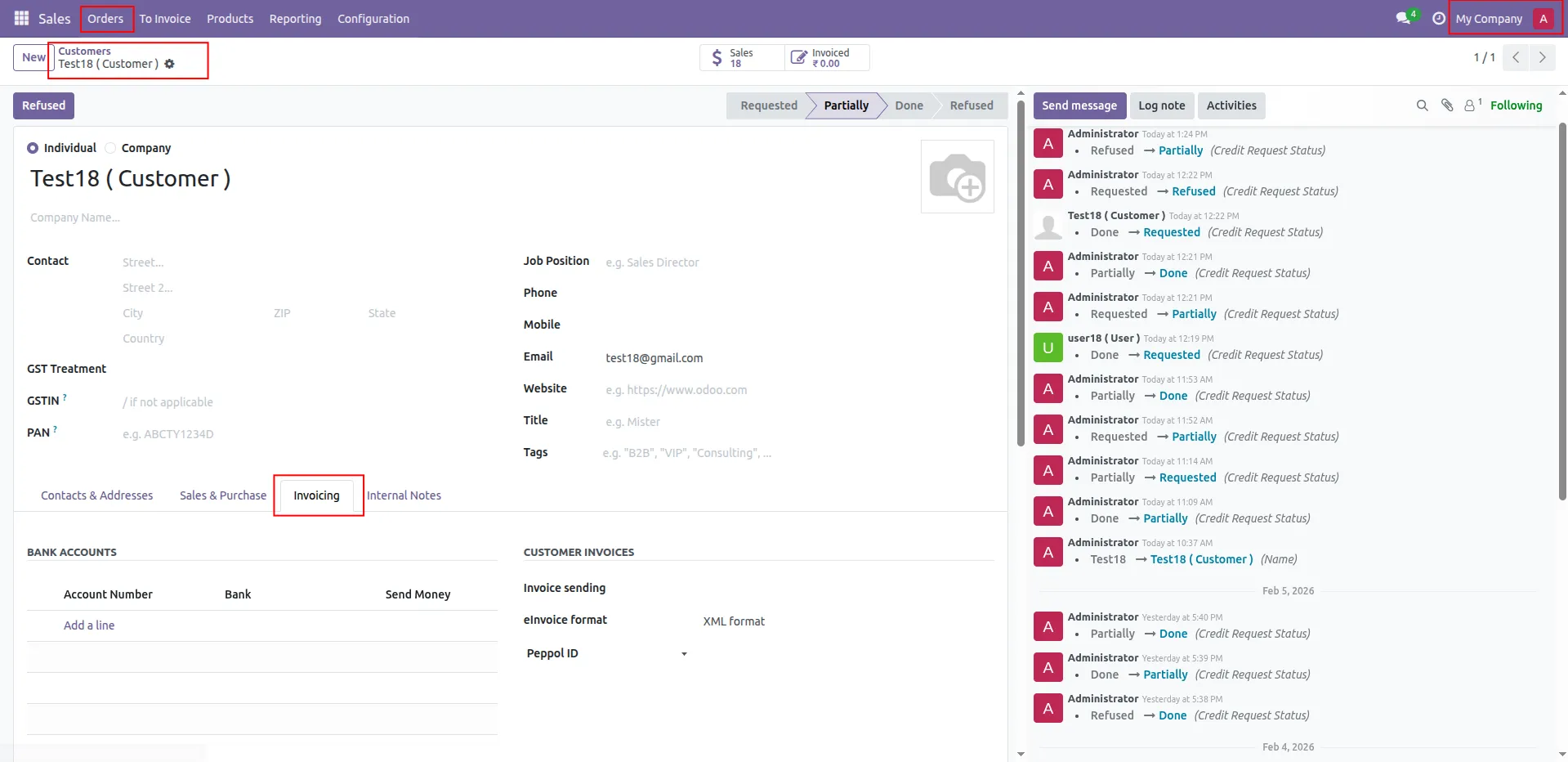
3.Open the customer form and go to the Invoicing tab.
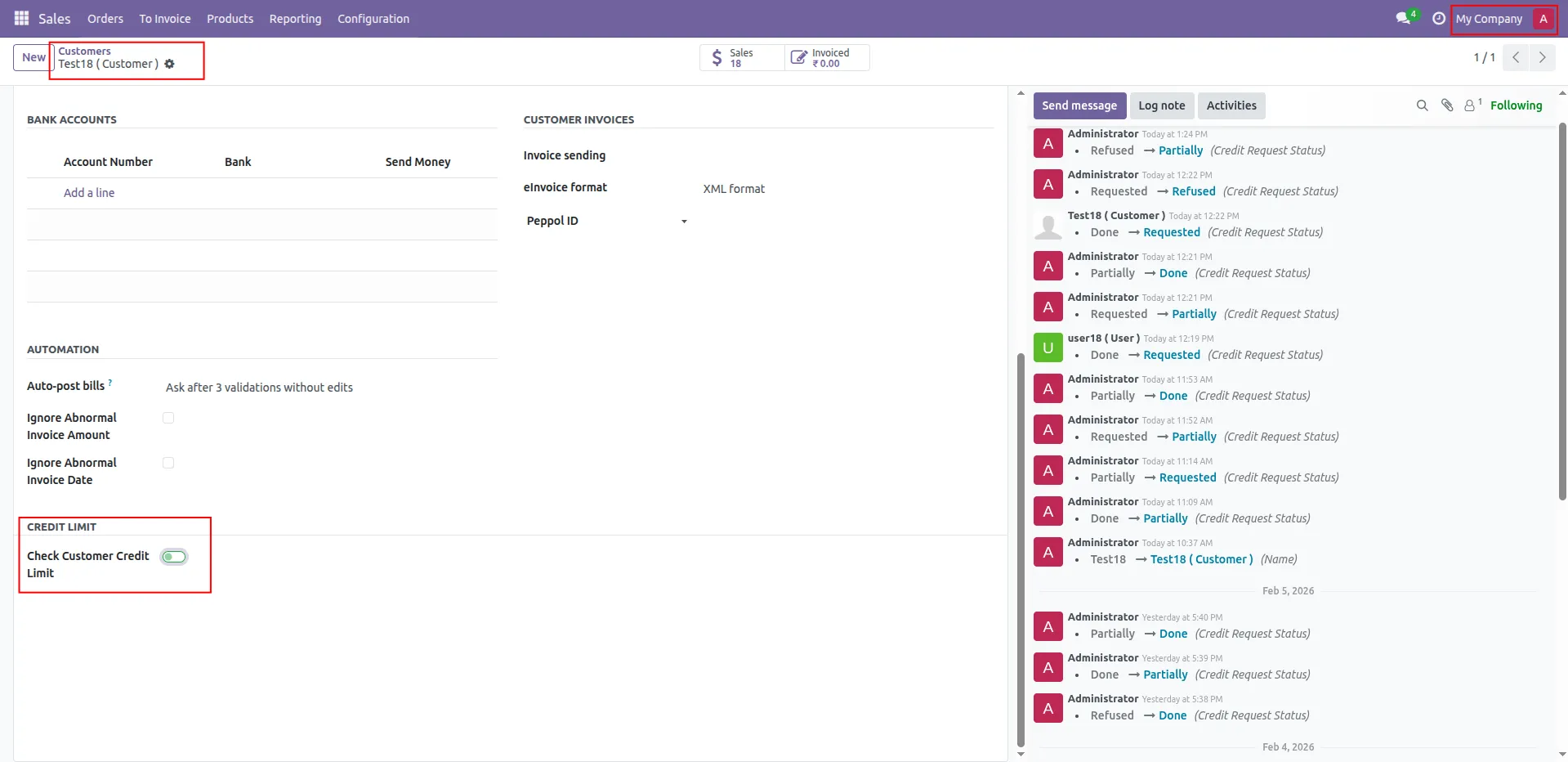
4.Enable Check Customer Credit Limit
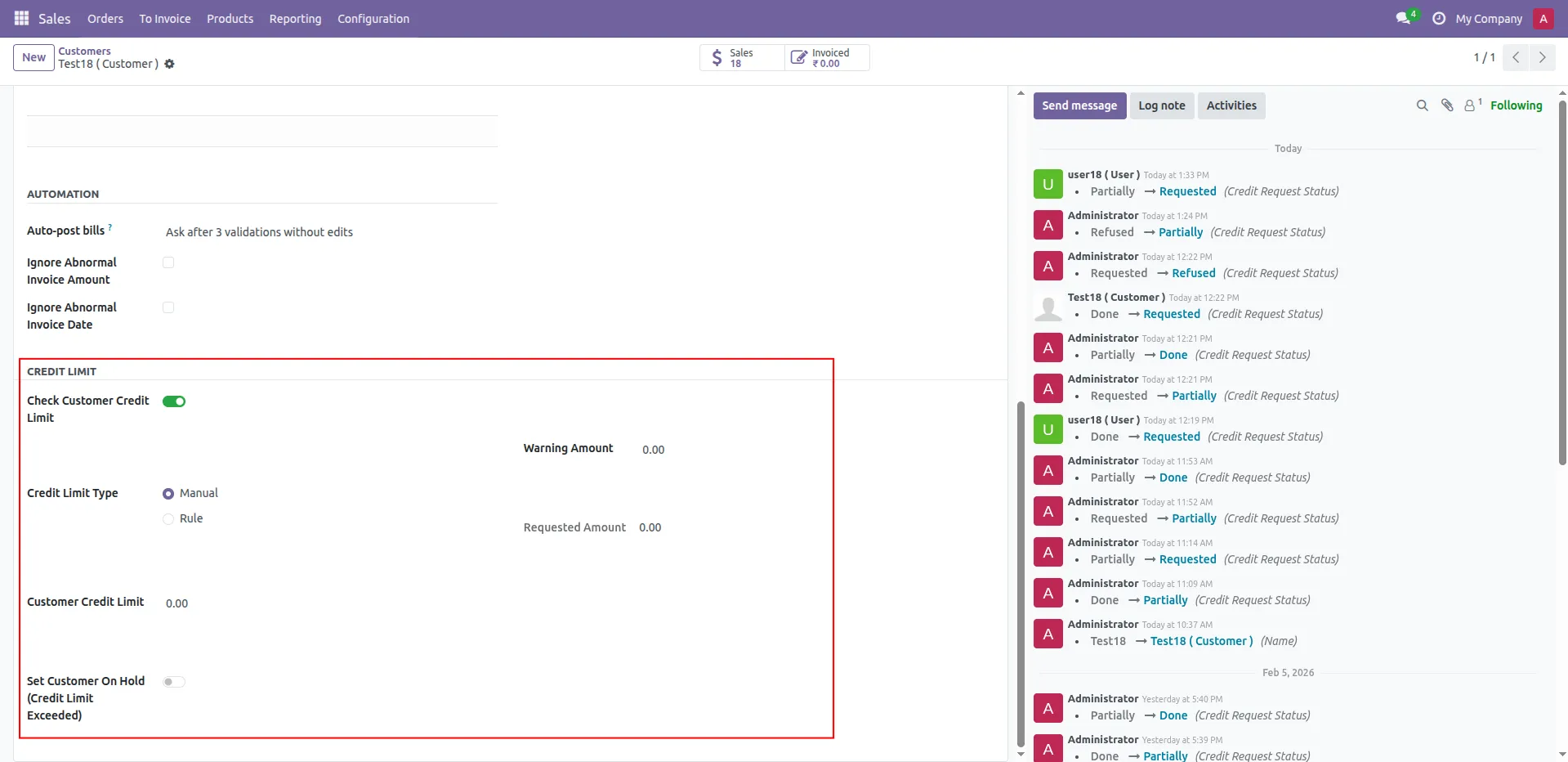
5.Enter the customer’s credit limit amount.
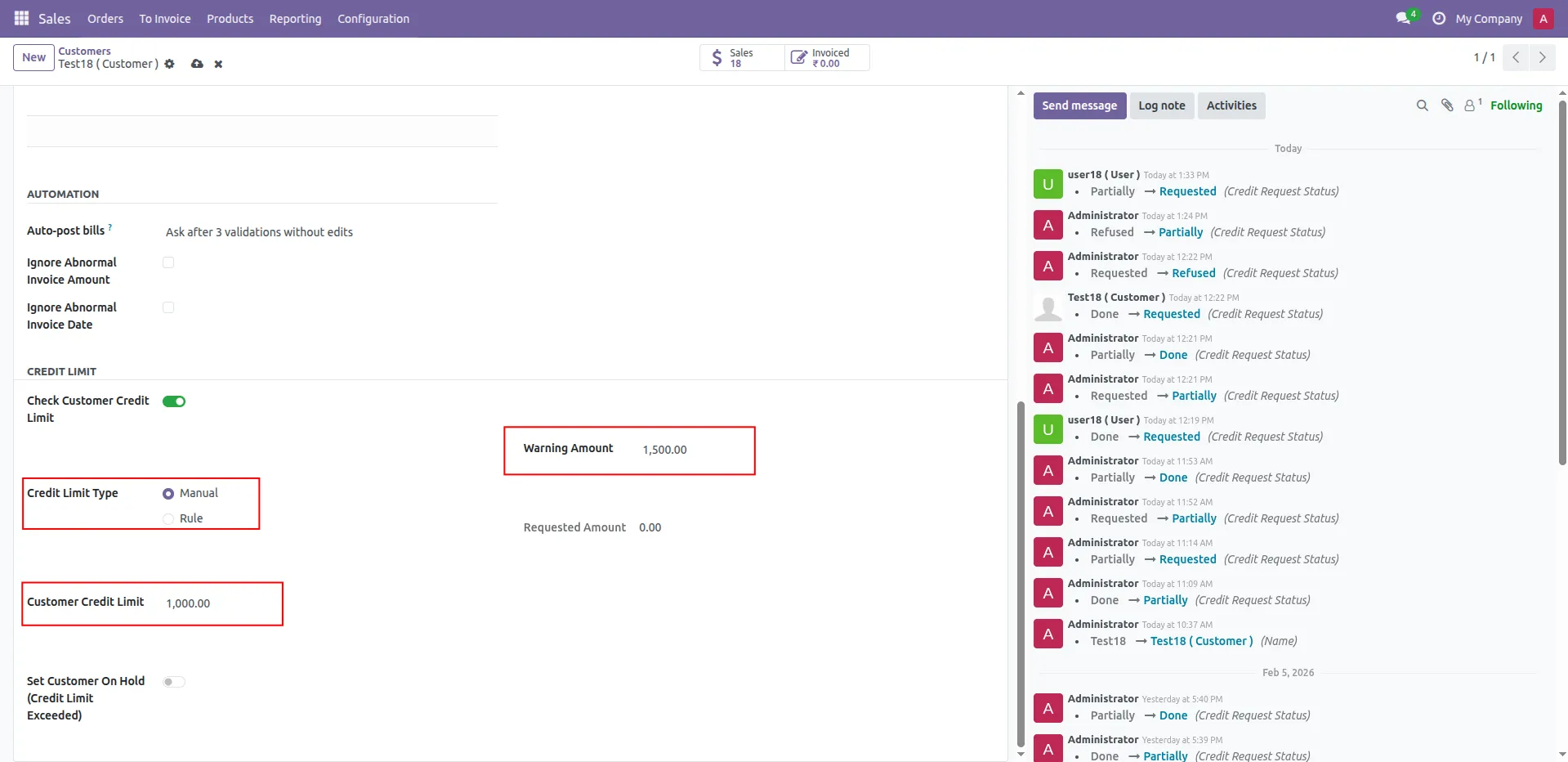
6.Enter the Warning Amount.
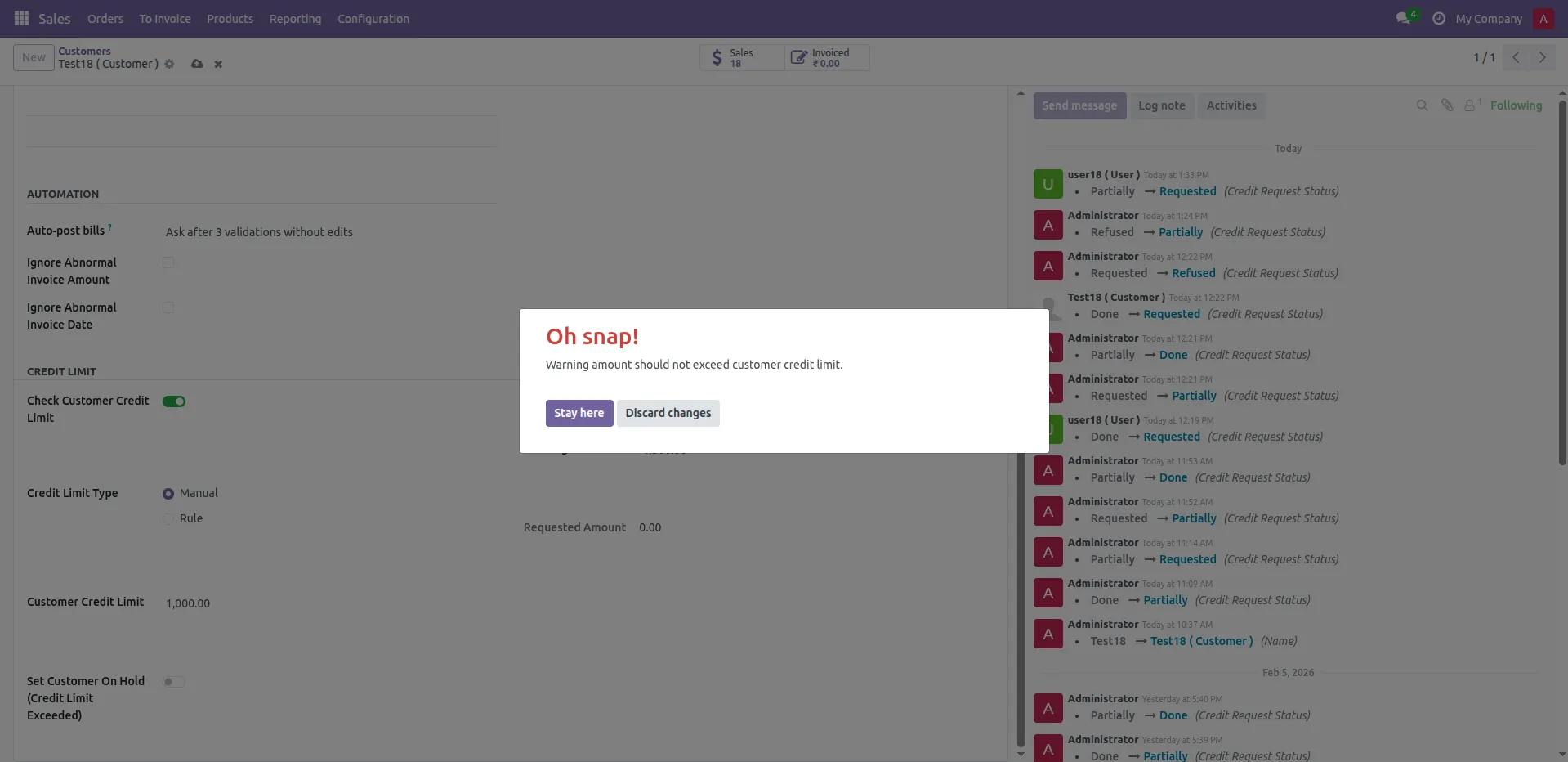
7 If warning amount exceeds the credit limit, a validation error appears.
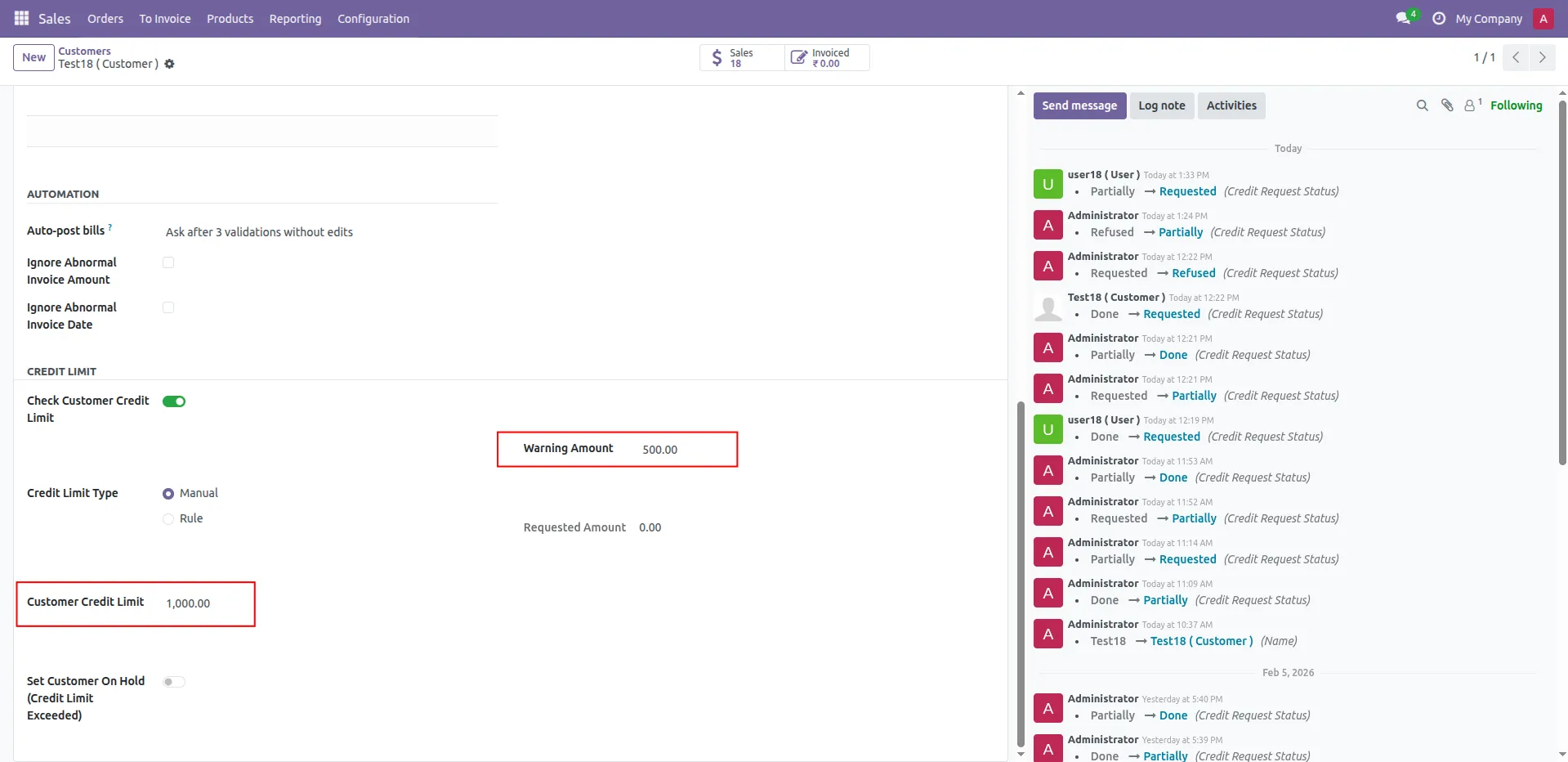
8.Only positive values.
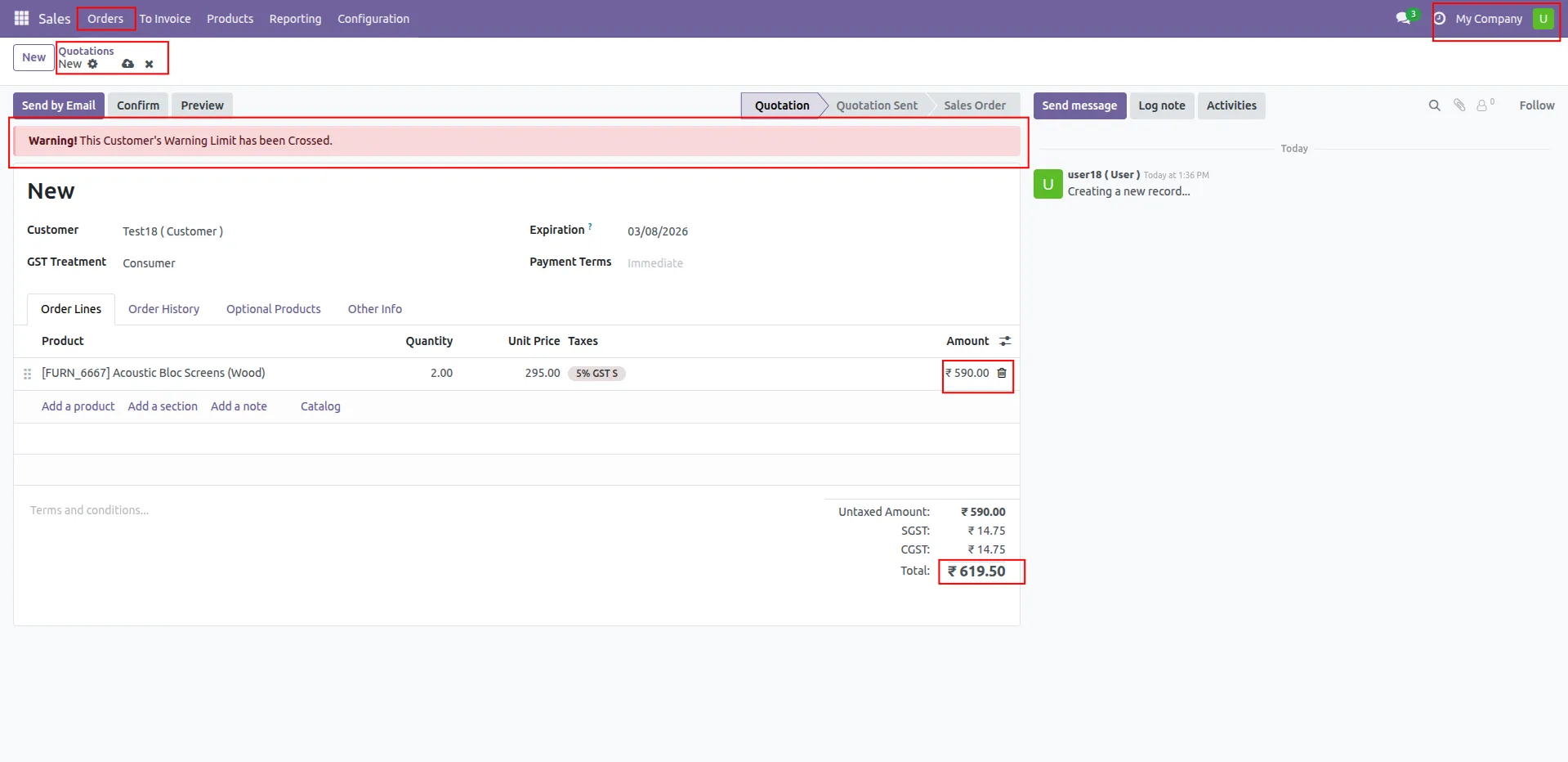
9.If subtotal exceeds the warning amount, a warning message appears.
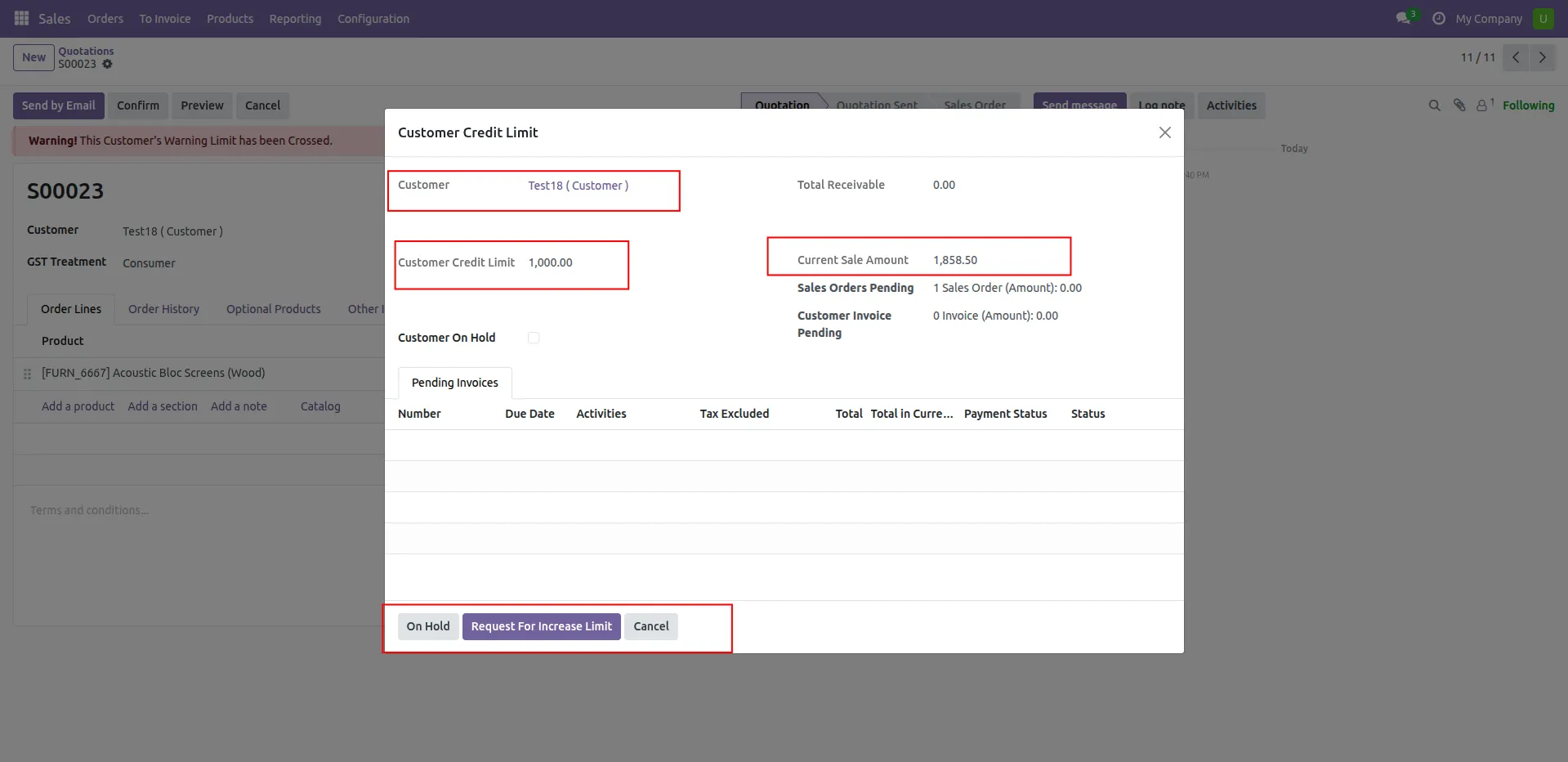
10.After clicking Confirm, the Customer Credit wizard opens.
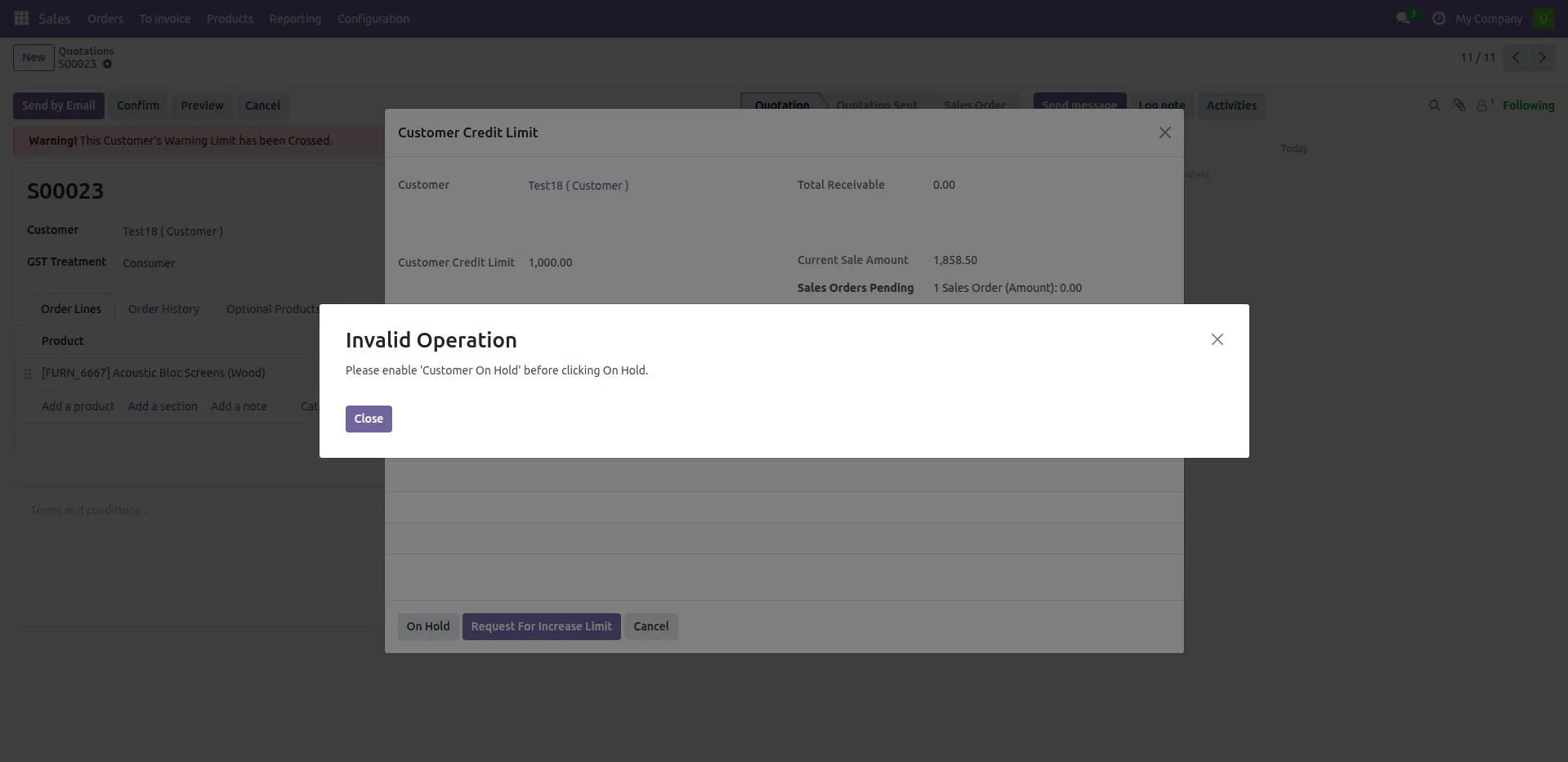
11.enable customer on hold.
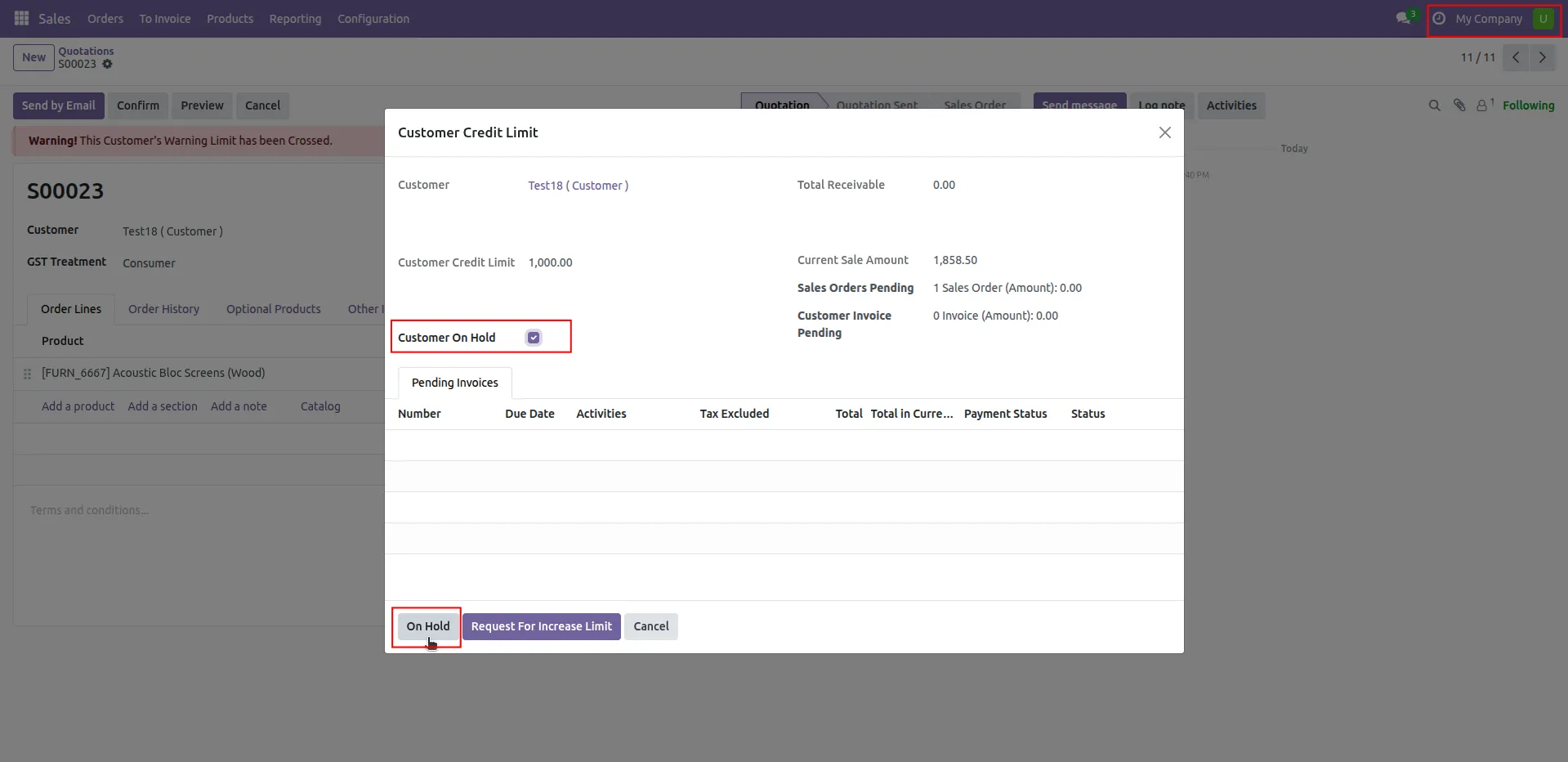
12.click on hold button.
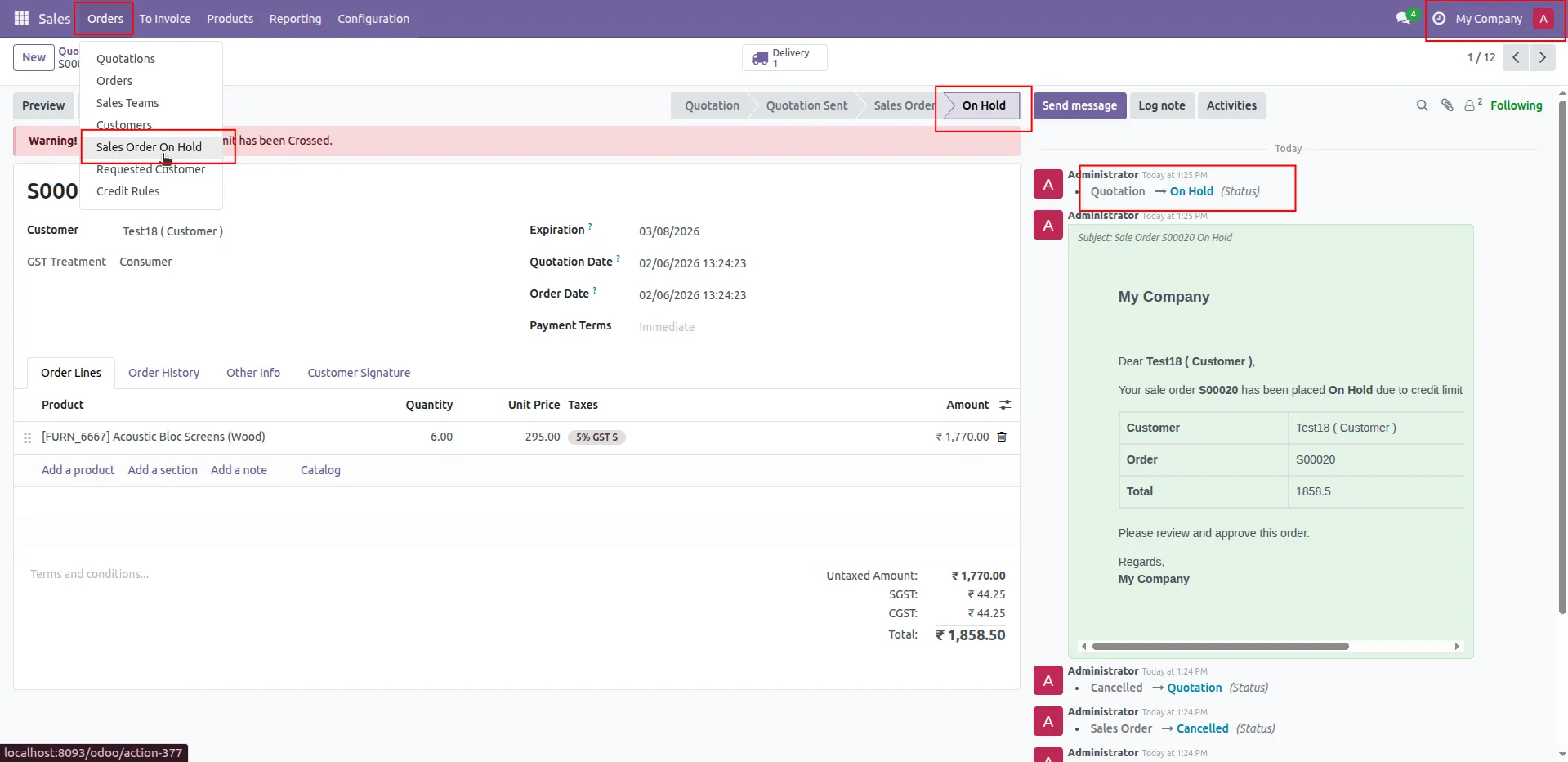
13.The sales order moves to On Hold stage automatically.
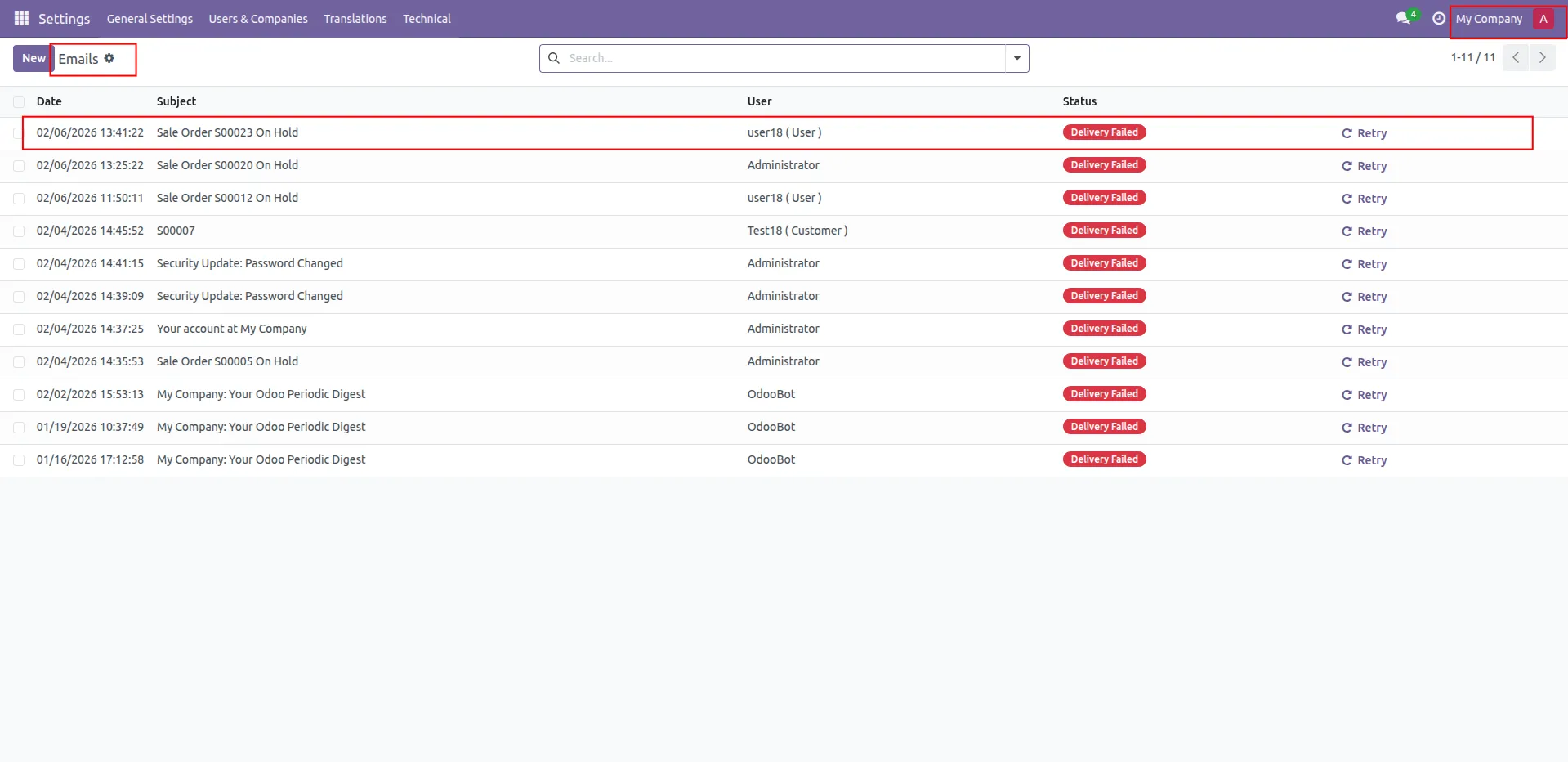
14.Email notifications are sent based on configured settings.
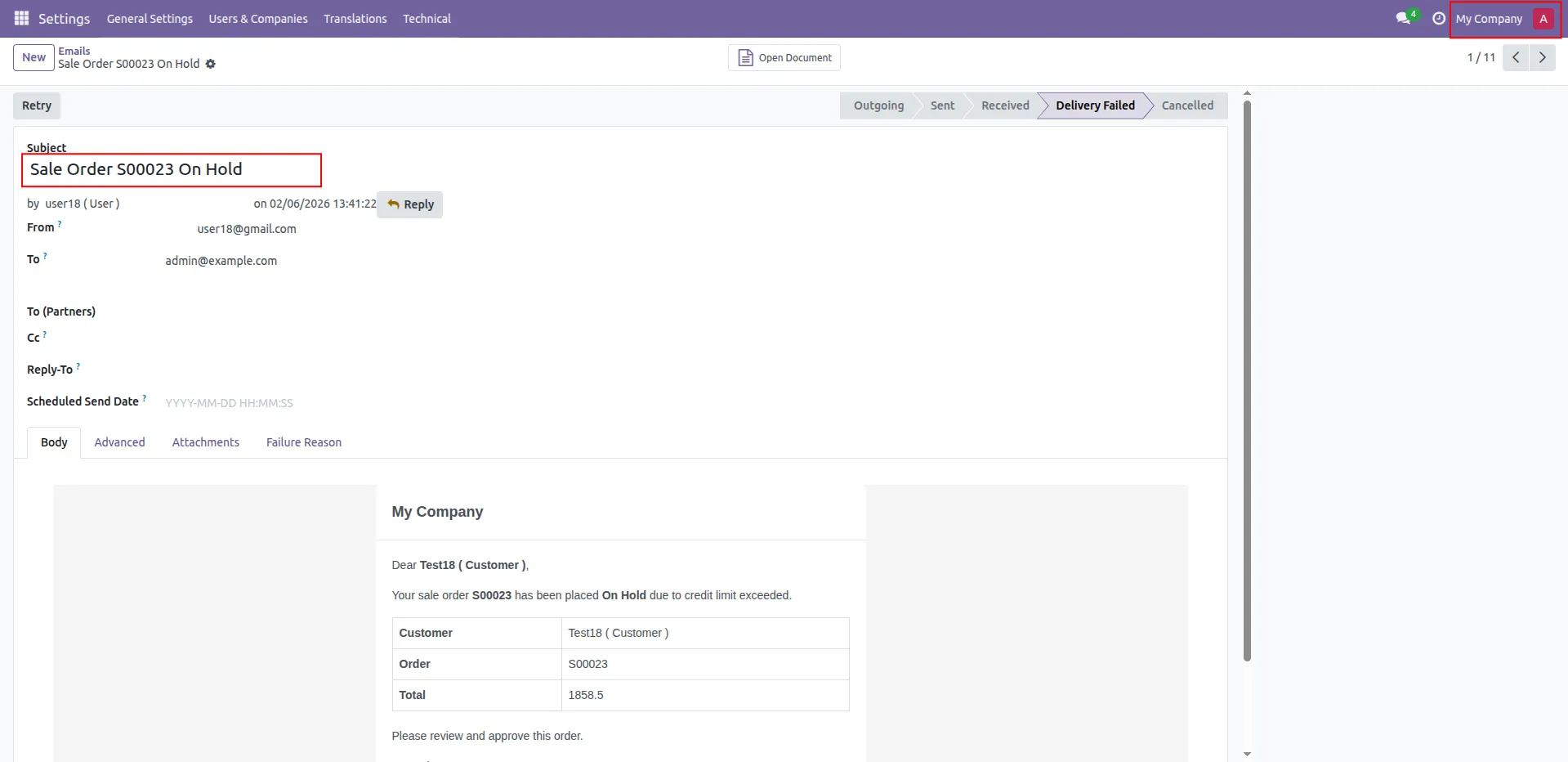
15.Configured users receive an email about the On-Hold order..
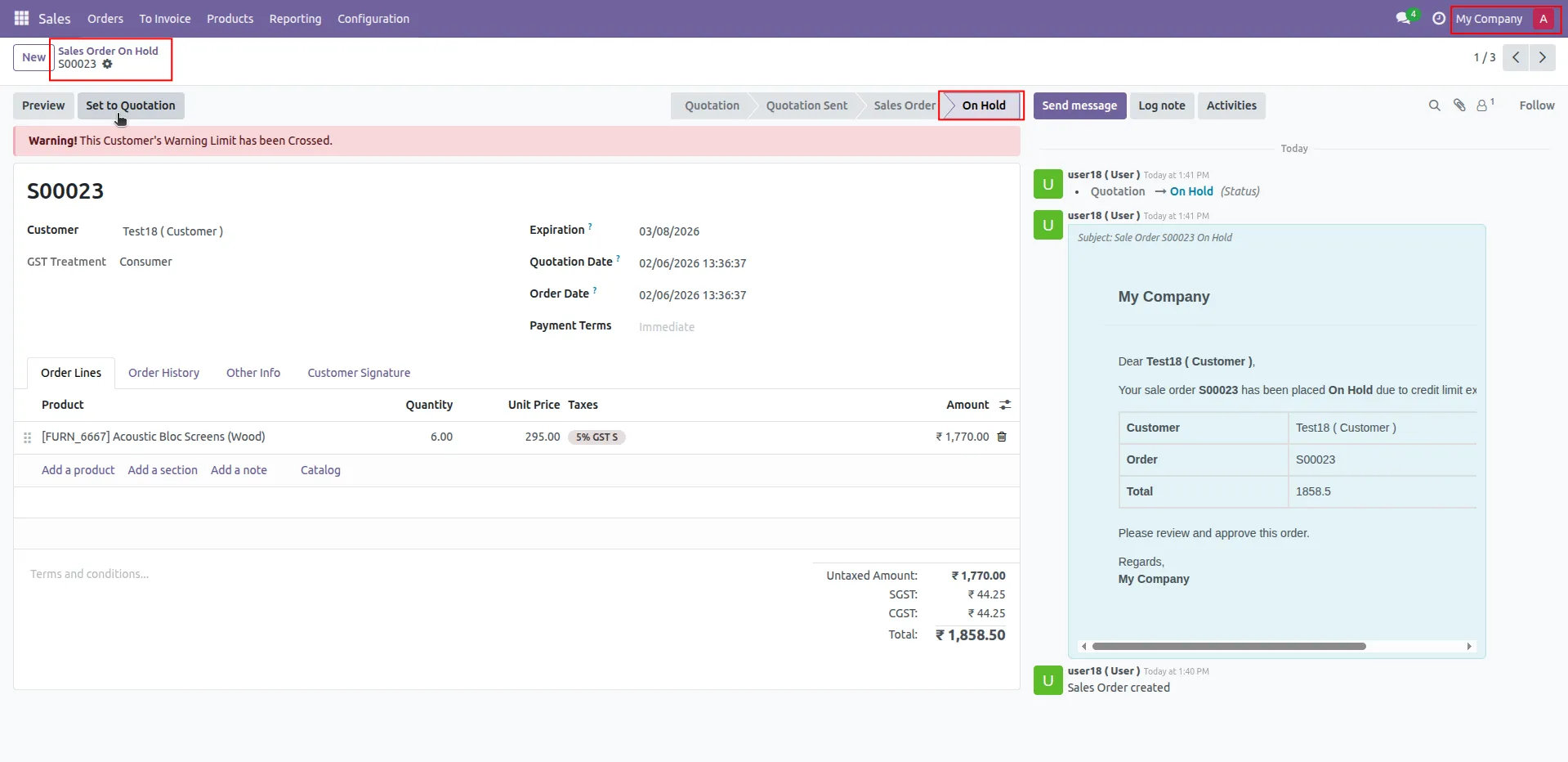
16.Go to Sales → Orders → Sales Orders On Hold. All on-hold quotations are visible in the list view.
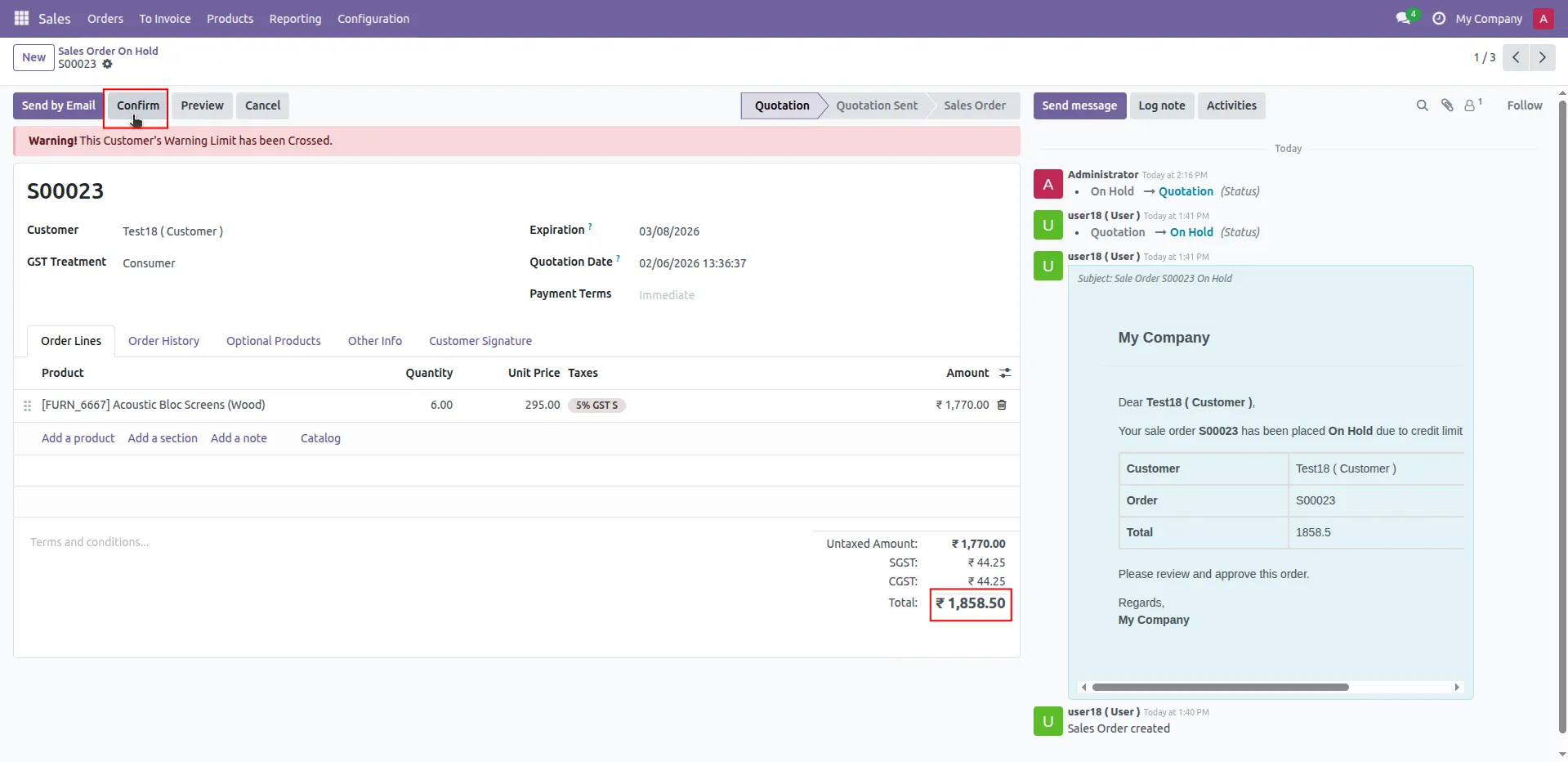
17.Admin opens the order and clicks Confirm.
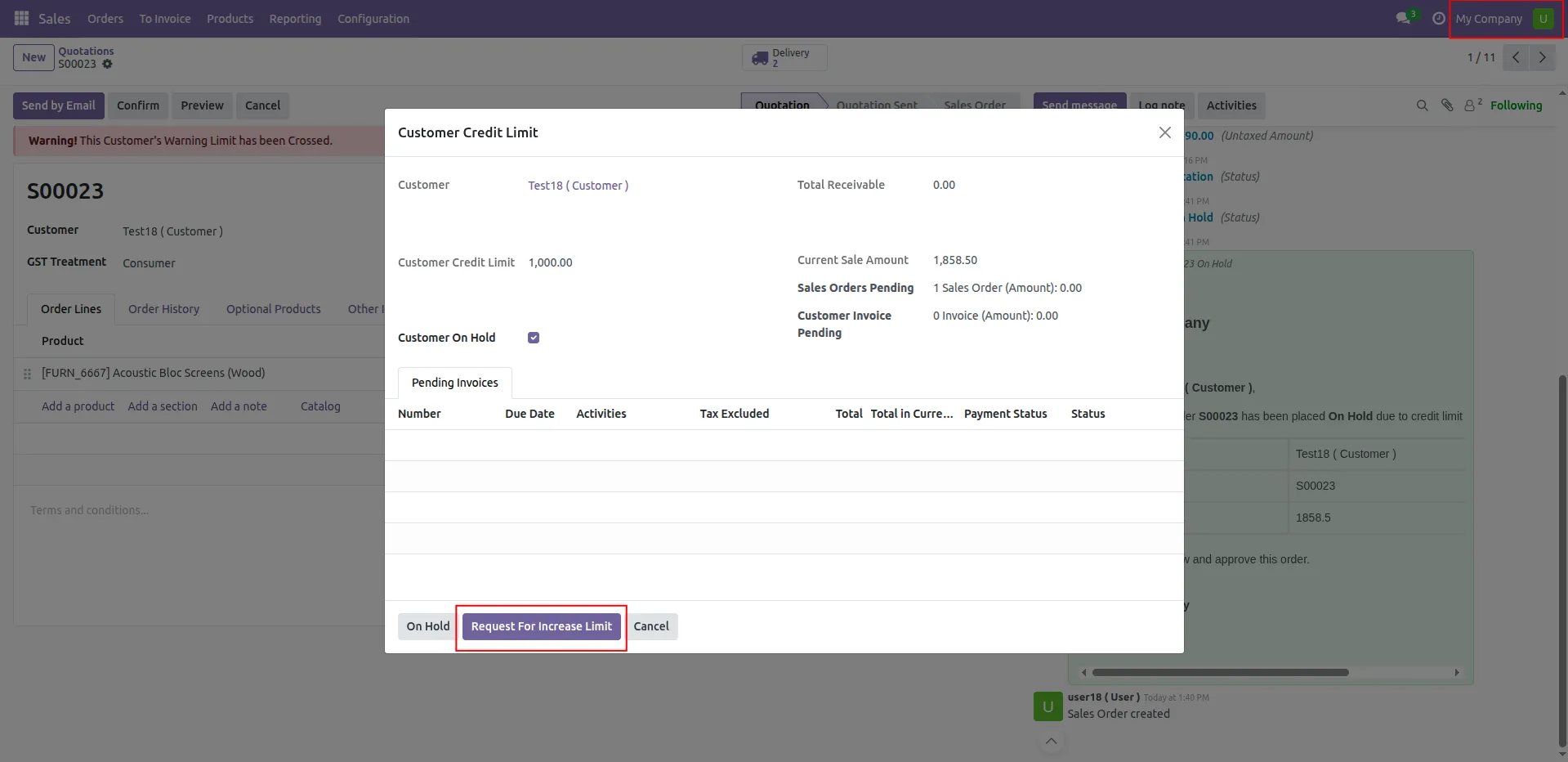
18.Customer Credit wizard shows credit is less than order amount. User clicks Request For Increase Limit.
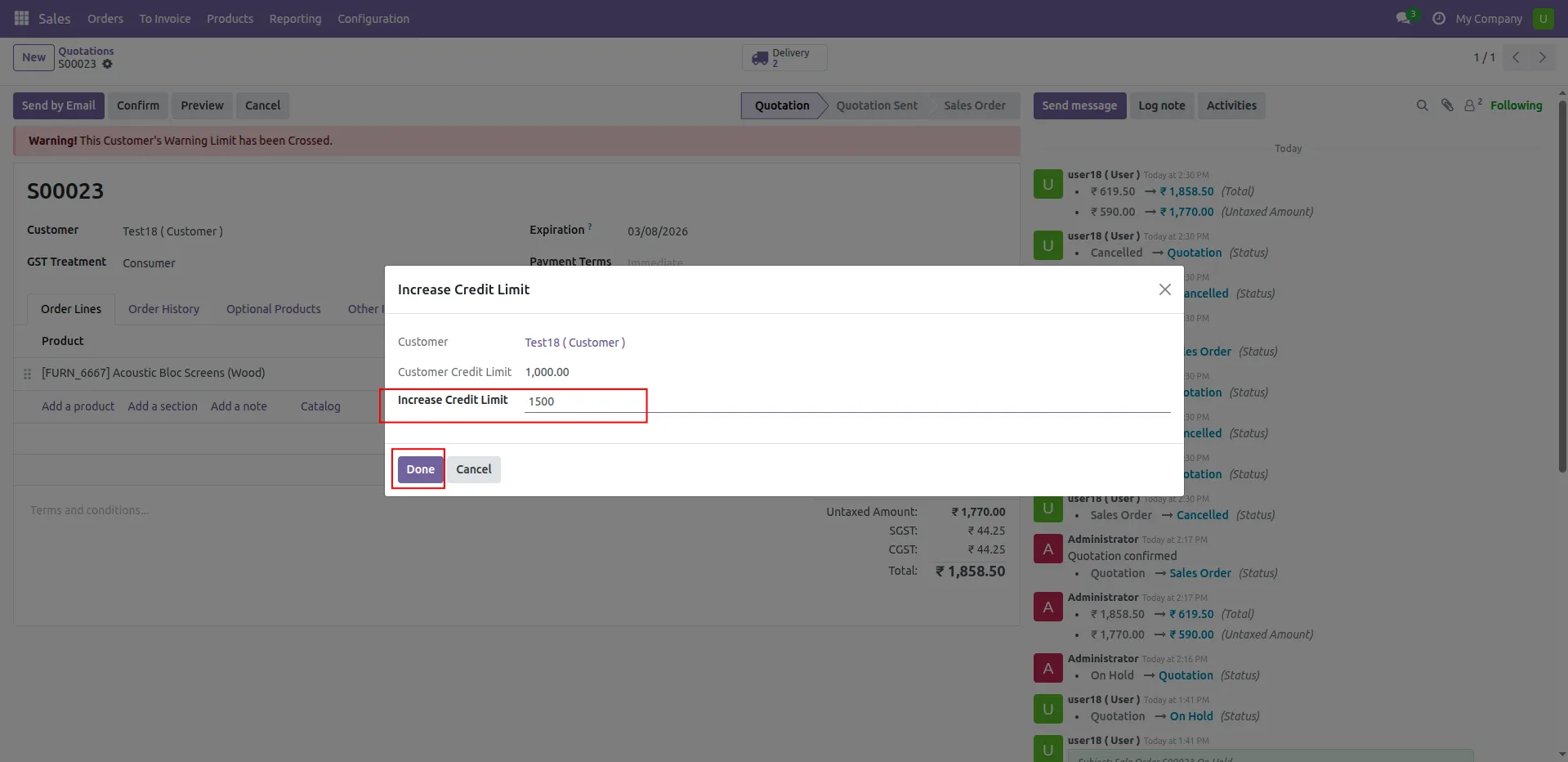
19.Increase Amount wizard opens to enter extra credit value. Click Done to send the request.
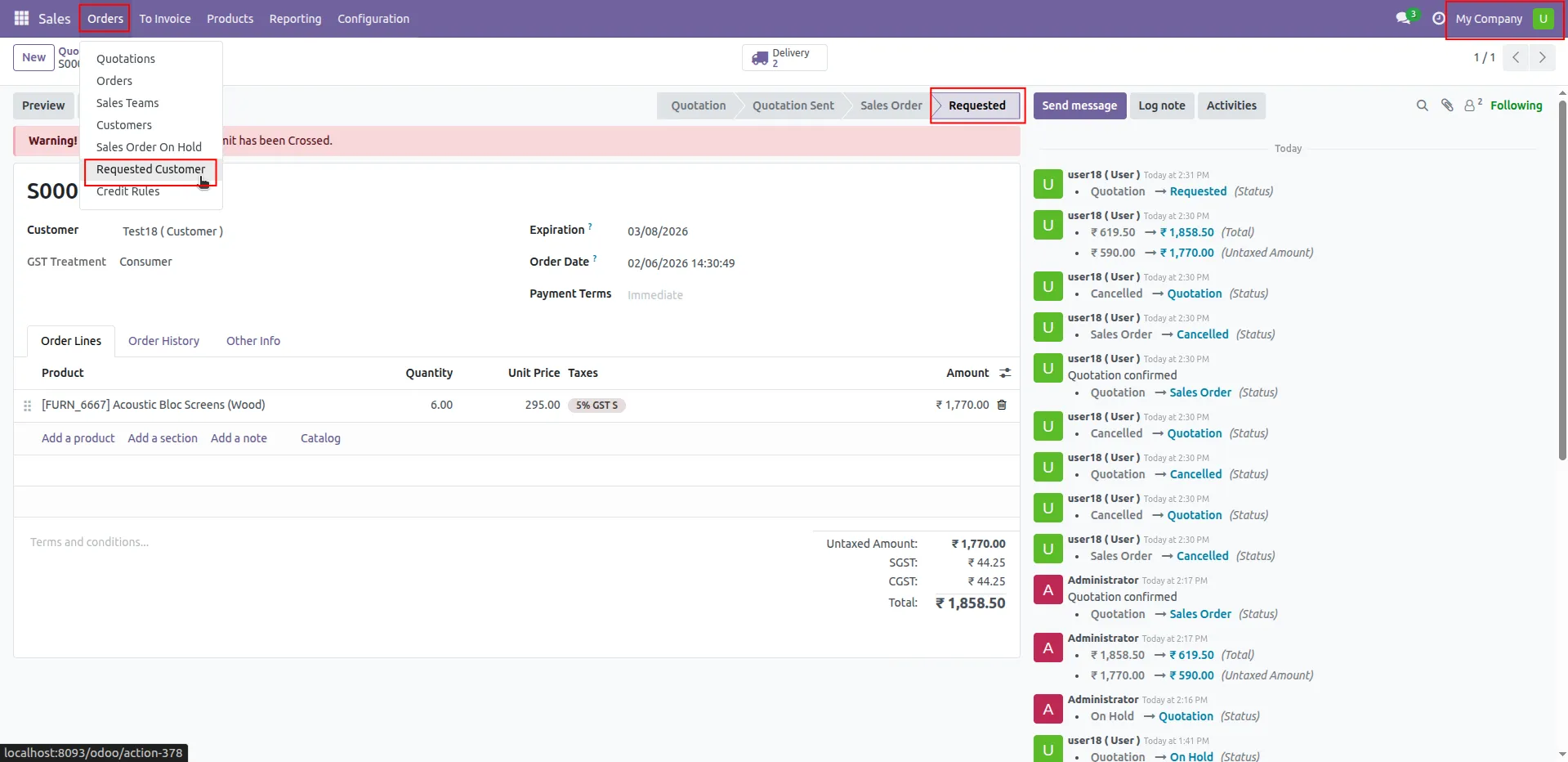
20.The quotation moves to Requested stage. Go to Sales → Orders → Requested Customer.
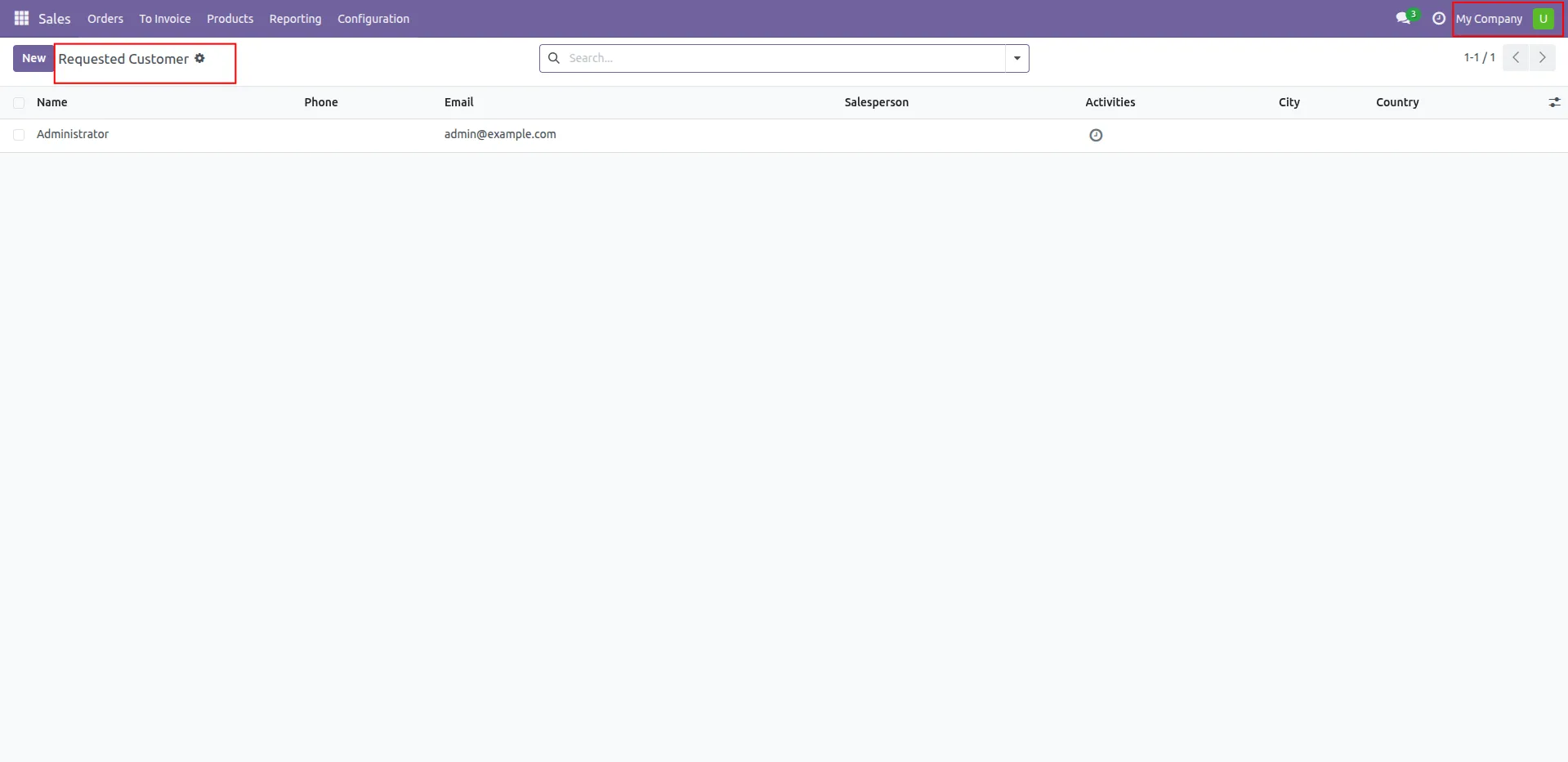
21.All customers with pending credit requests are listed.
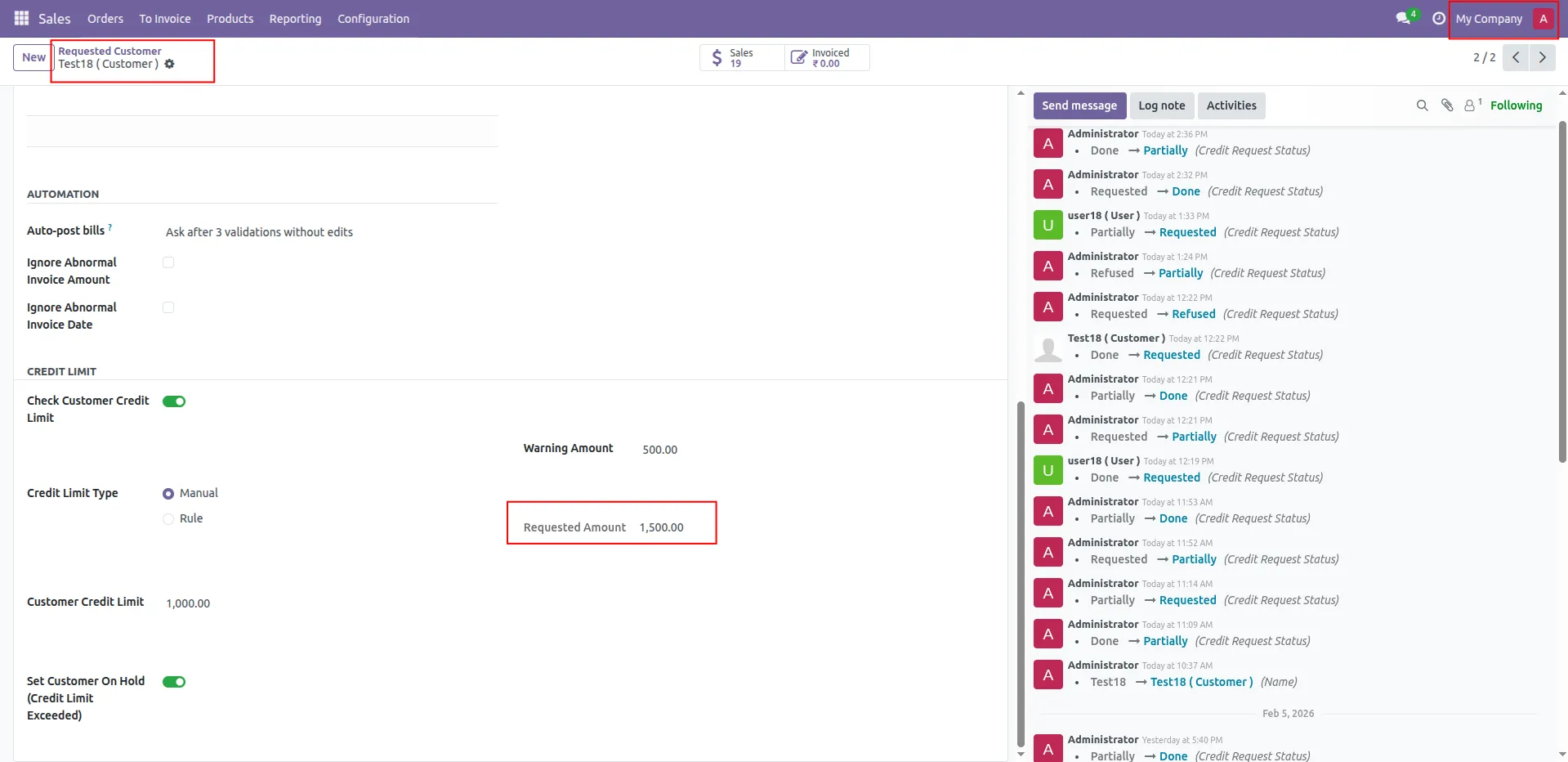
22.Open the customer record from requested list. Requested amount are displayed.
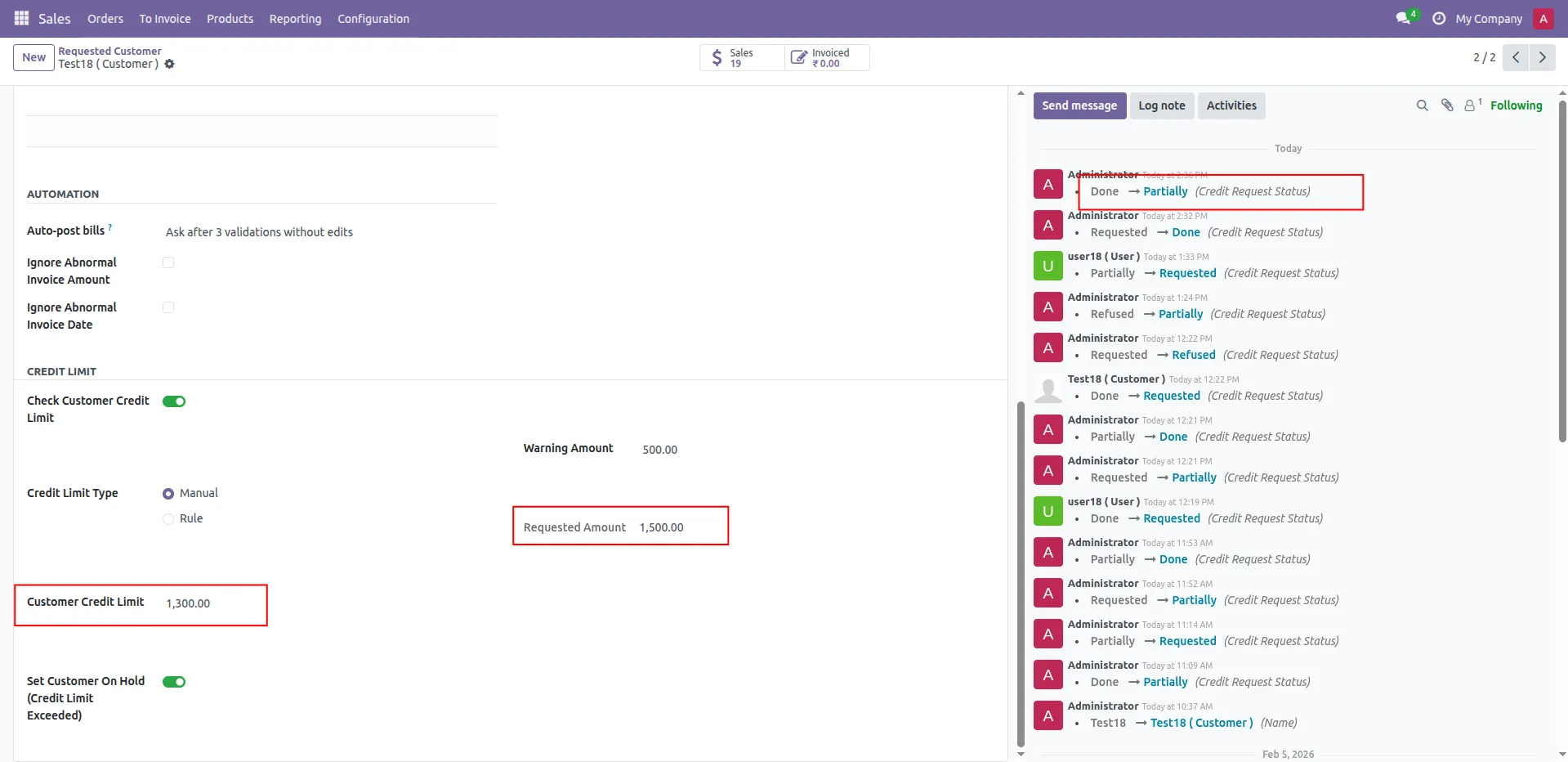
23.Admin increases the customer credit limit. If still less than requested amount.
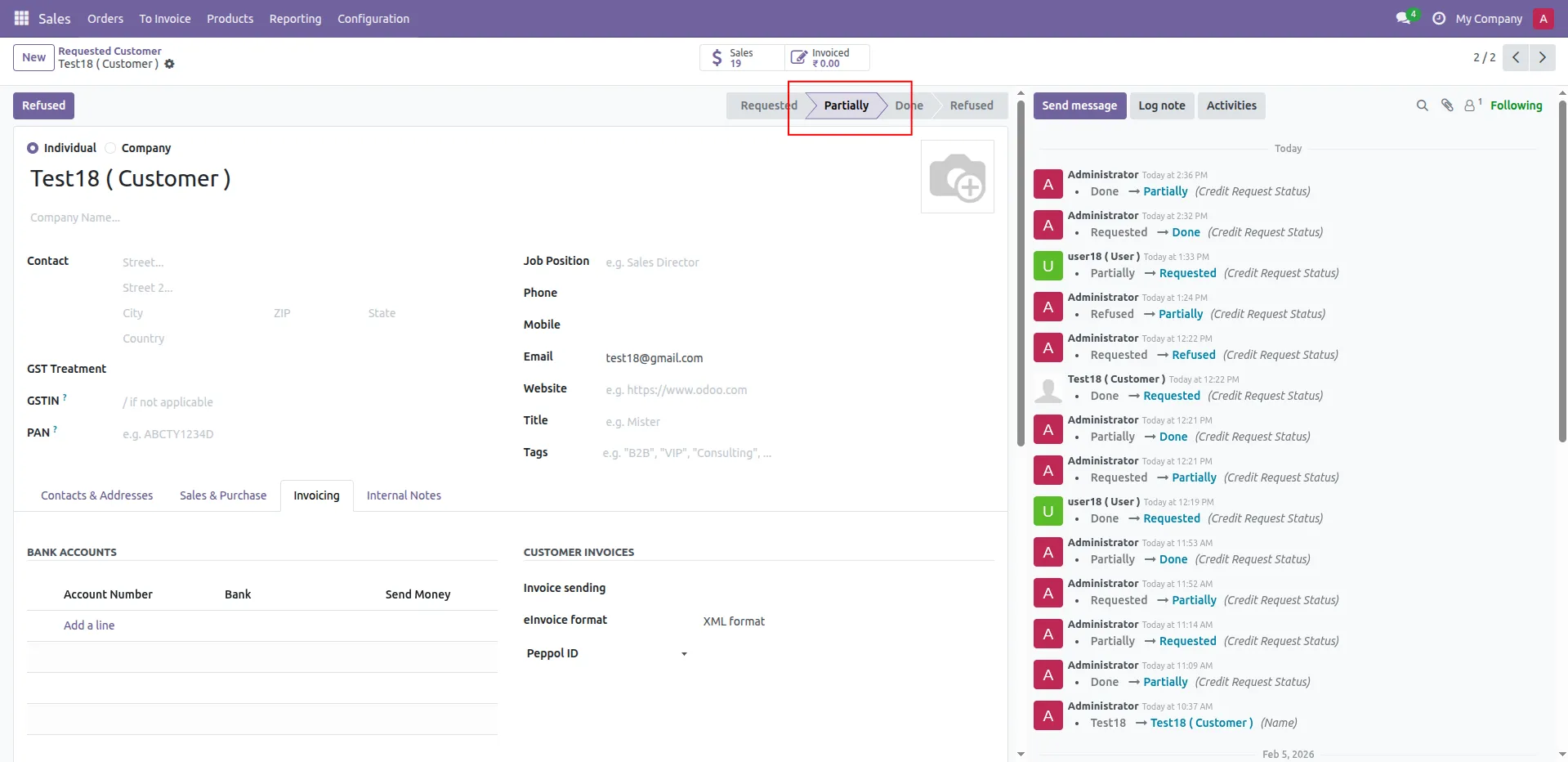
24.order moves to Partial stage.
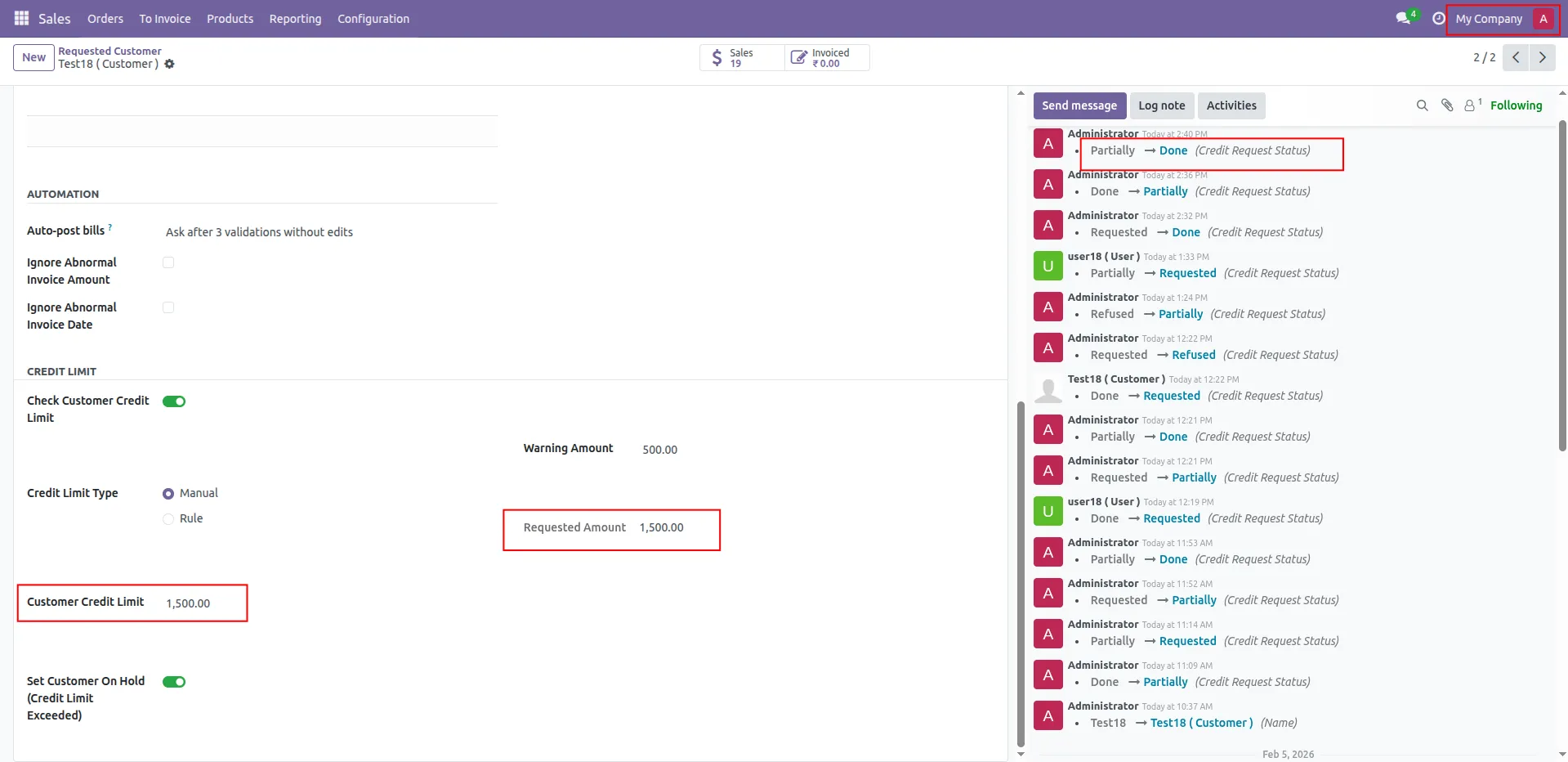
25.When credit limit matches requested amount.
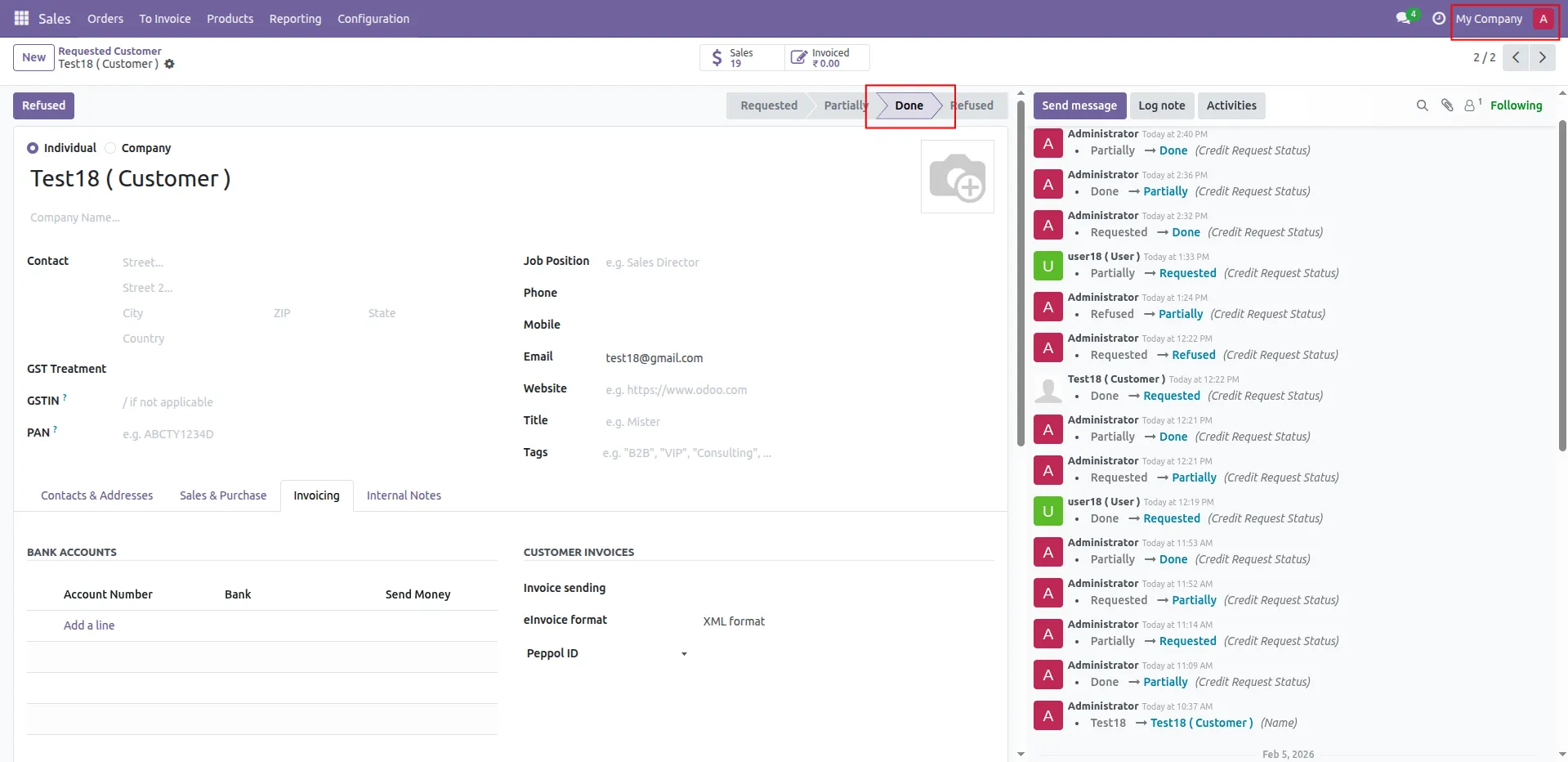
26.Request is completed. Customer moves to Done stage.
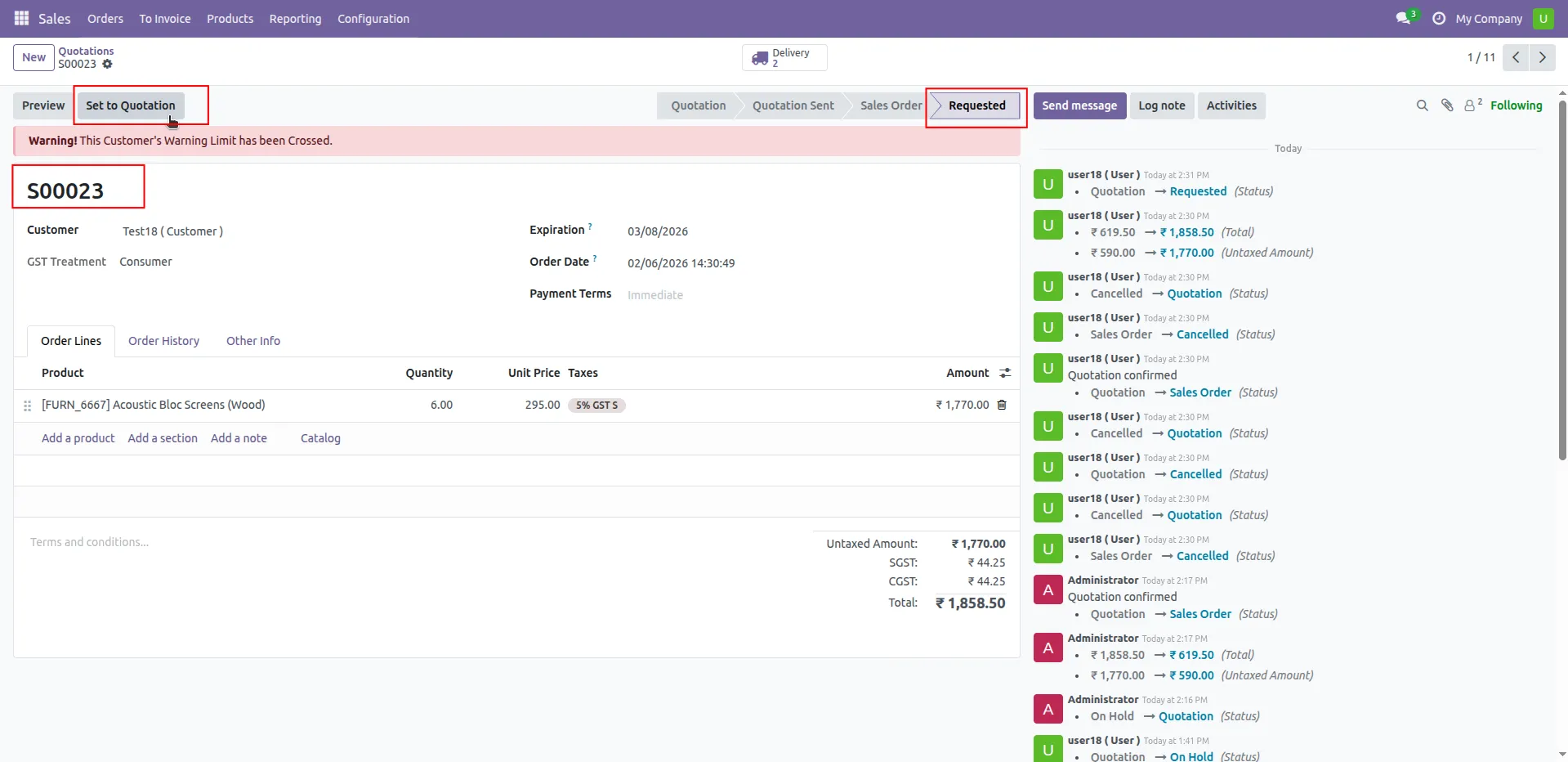
27.User clicks Set to Quotation to move the order back to quotation stage.
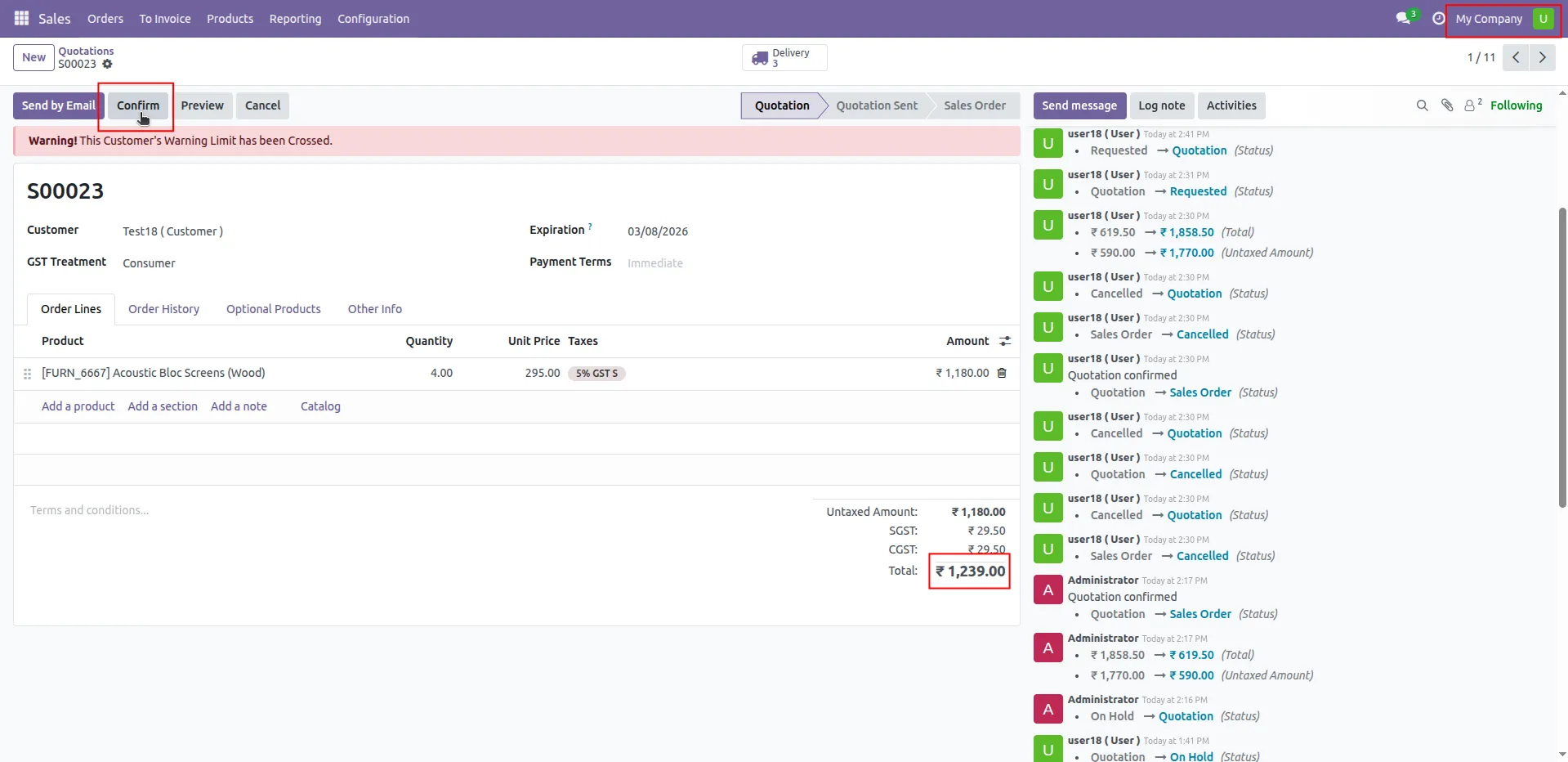
28.User clicks Confirm to proceed with quotation confirmation.
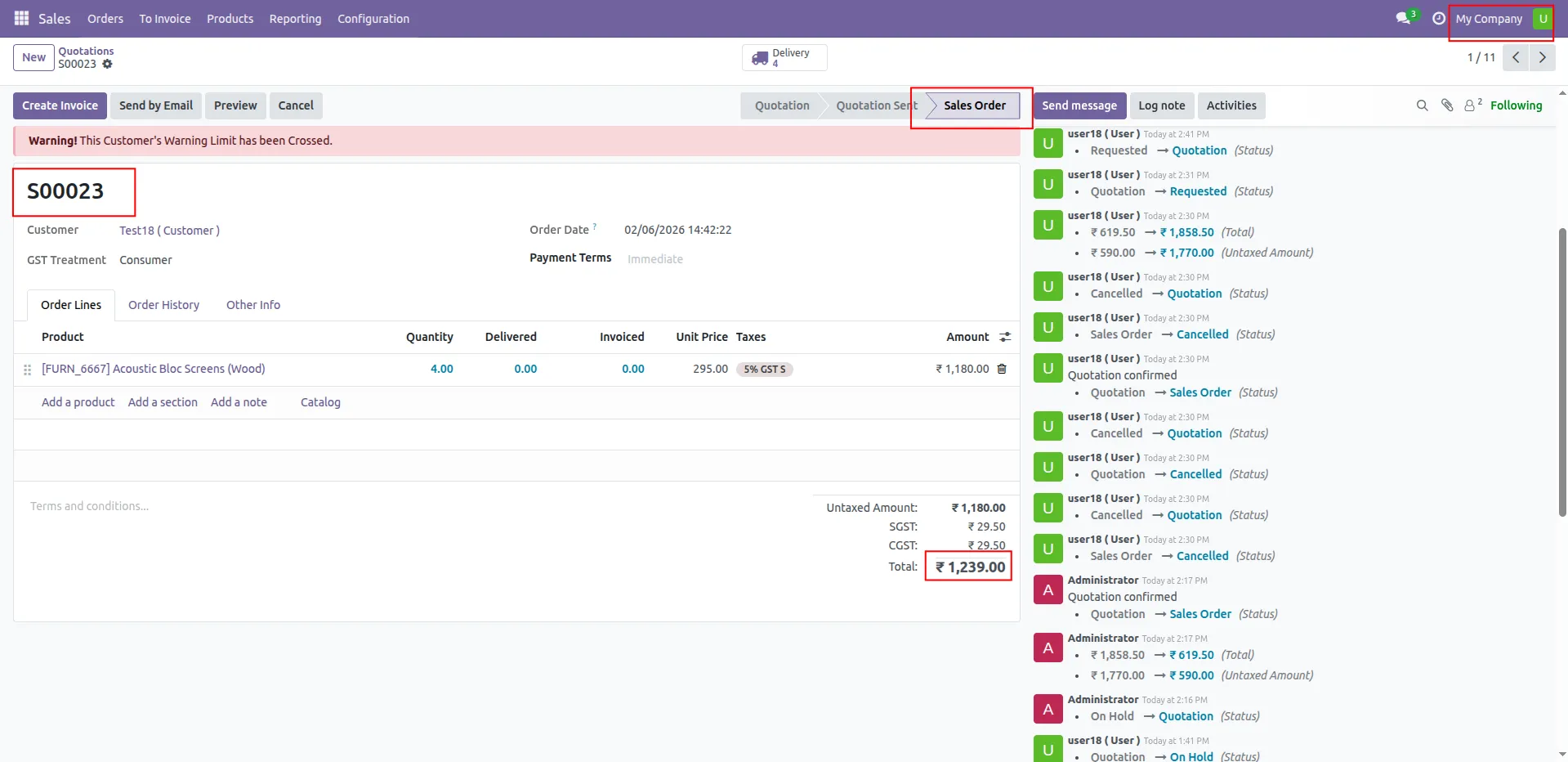
29.The quotation is successfully converted into a Sales Order.
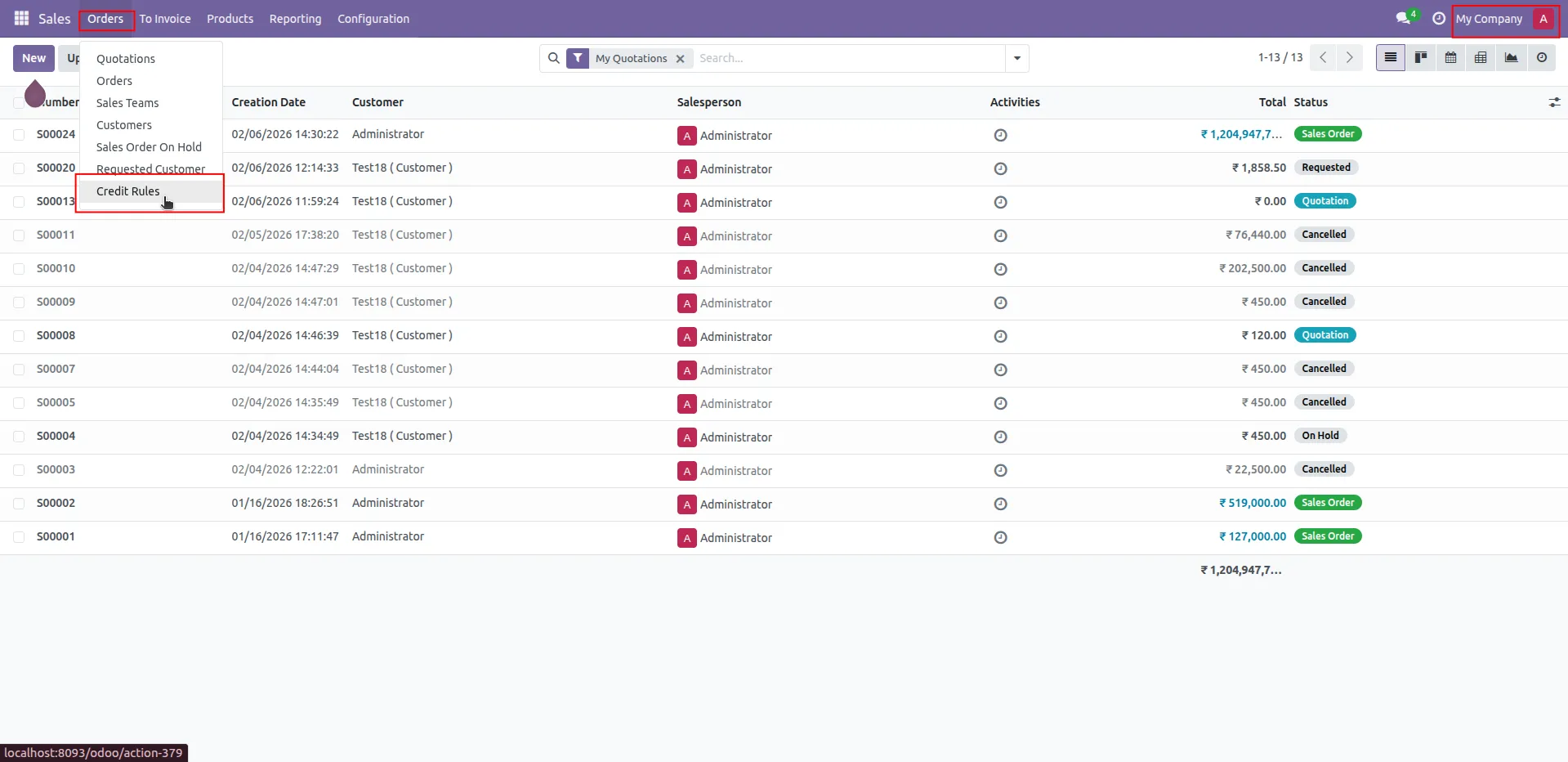
30.Create rule menu open.
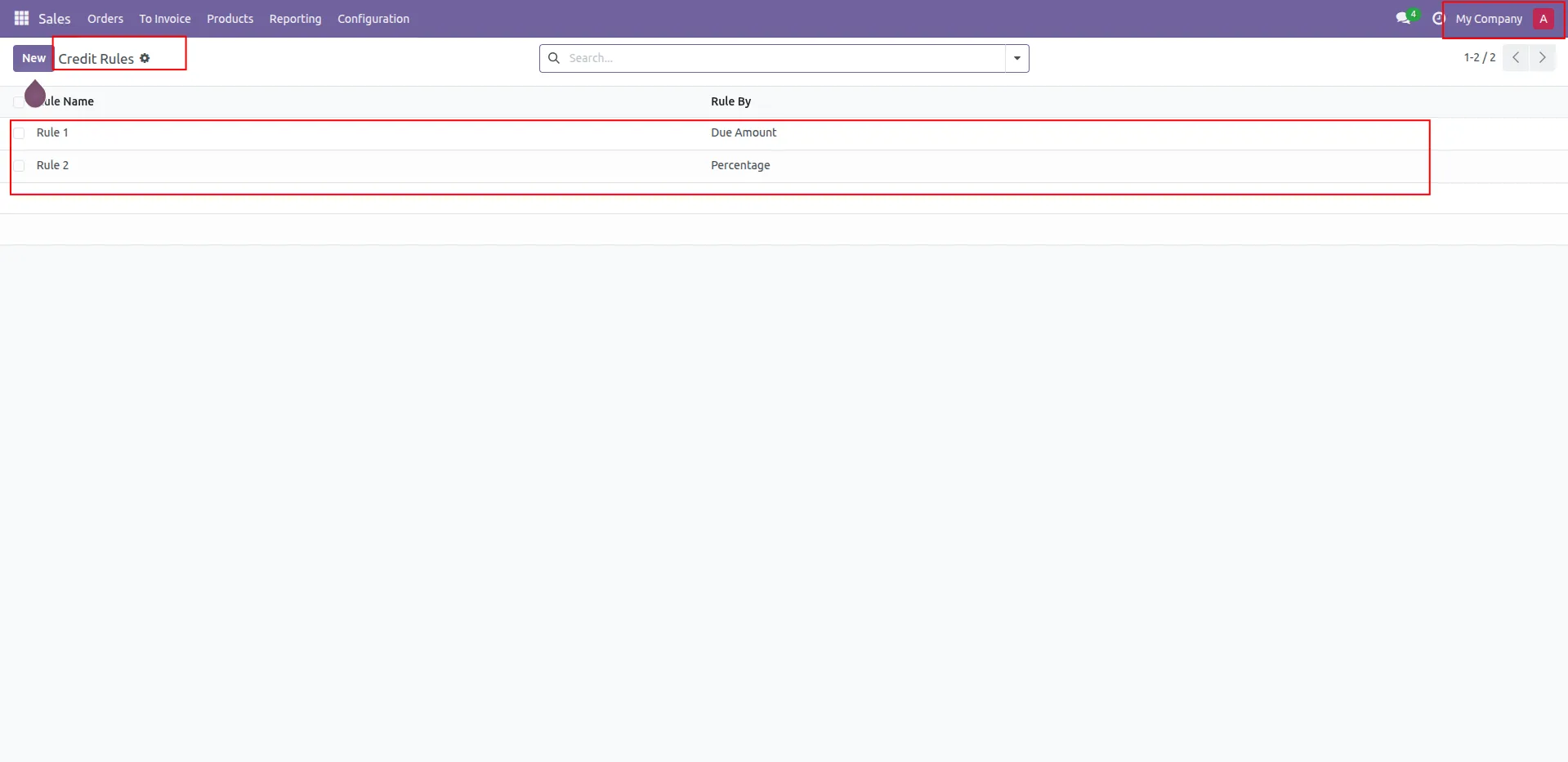
31.Create rule with Due Amount and percentage
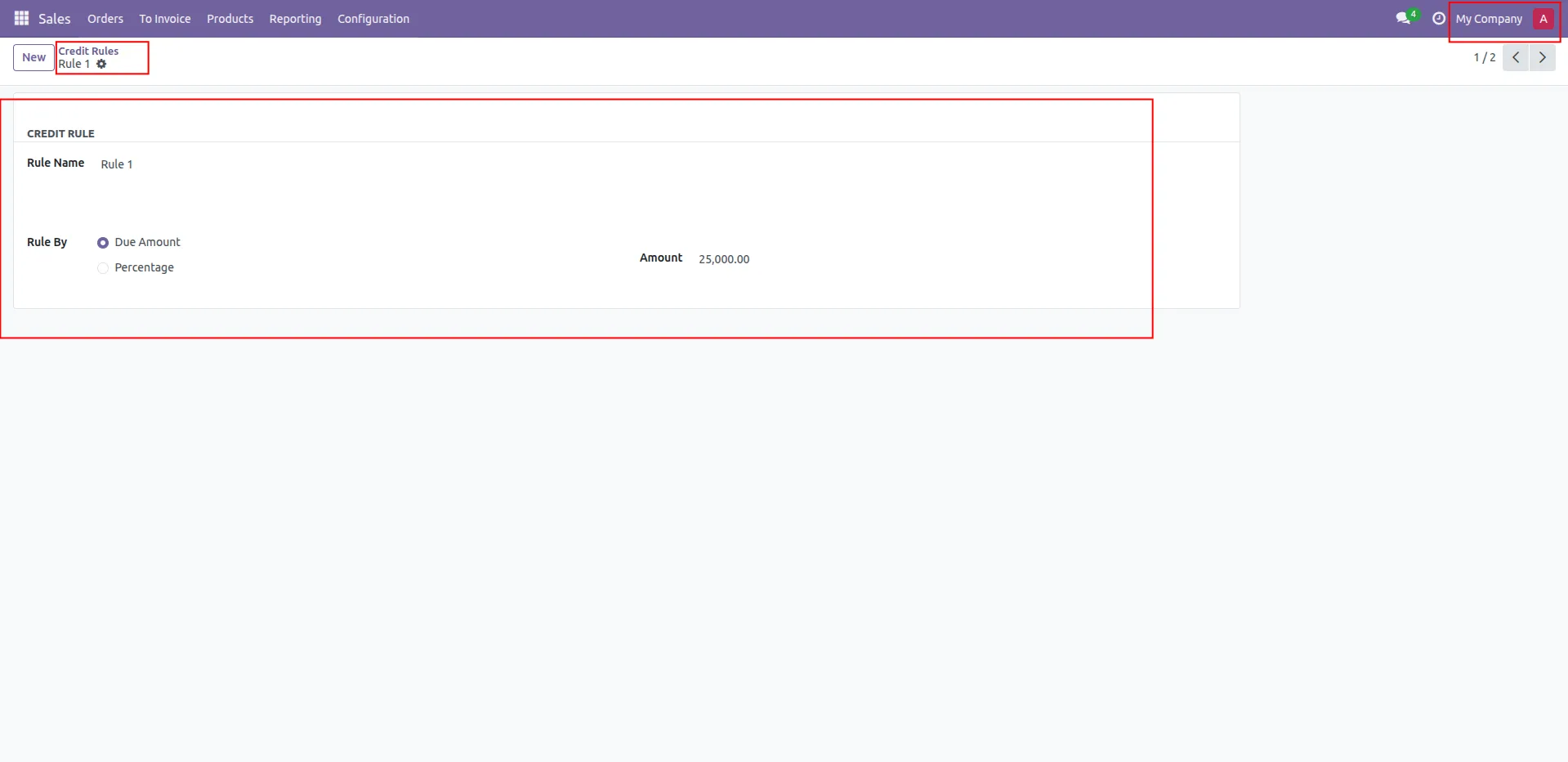
32.Create rule using Due Amount option. Set the desired due amount value.
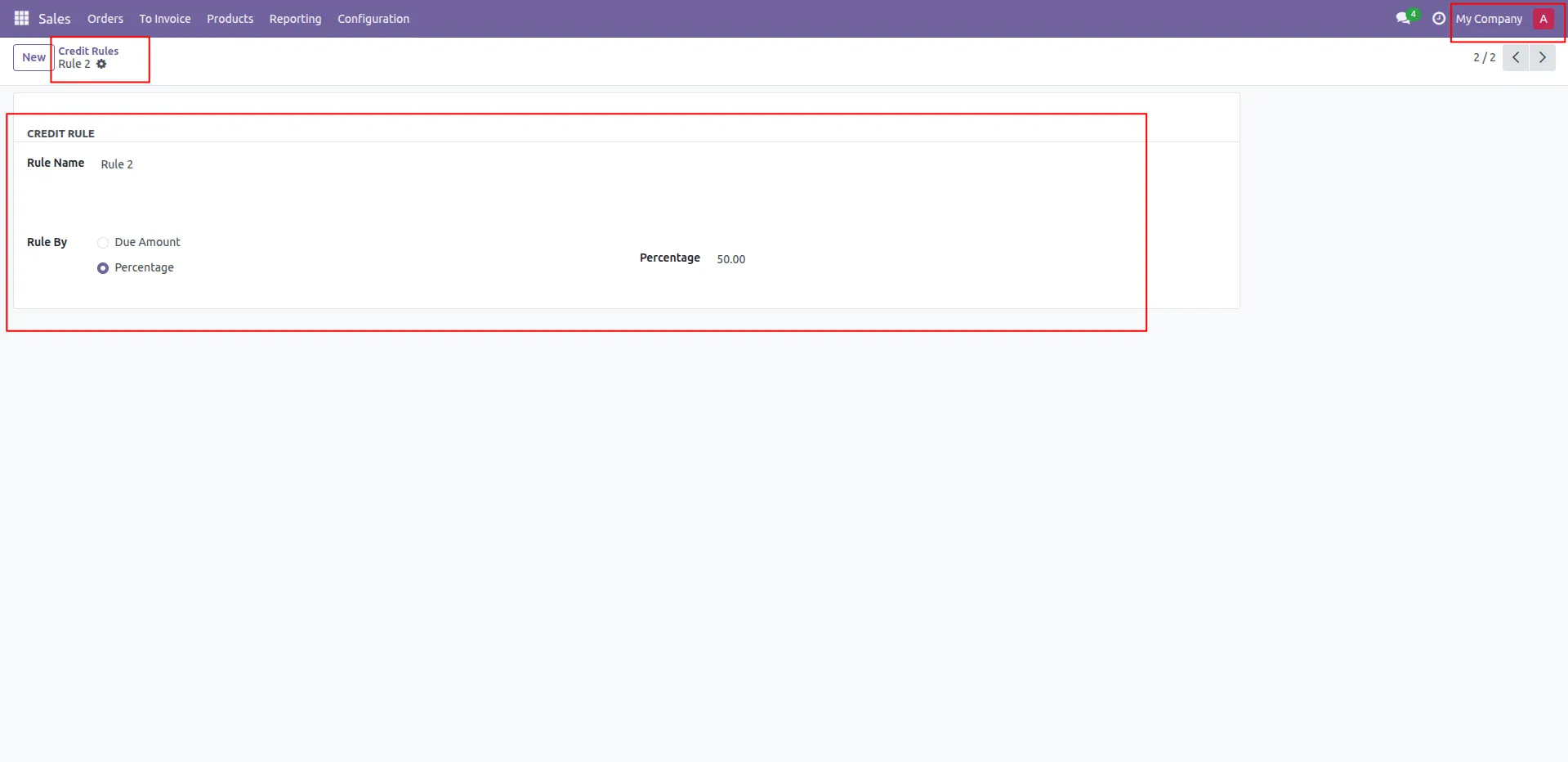
33.Create rule using Percentage option. Set the percentage value for rule.
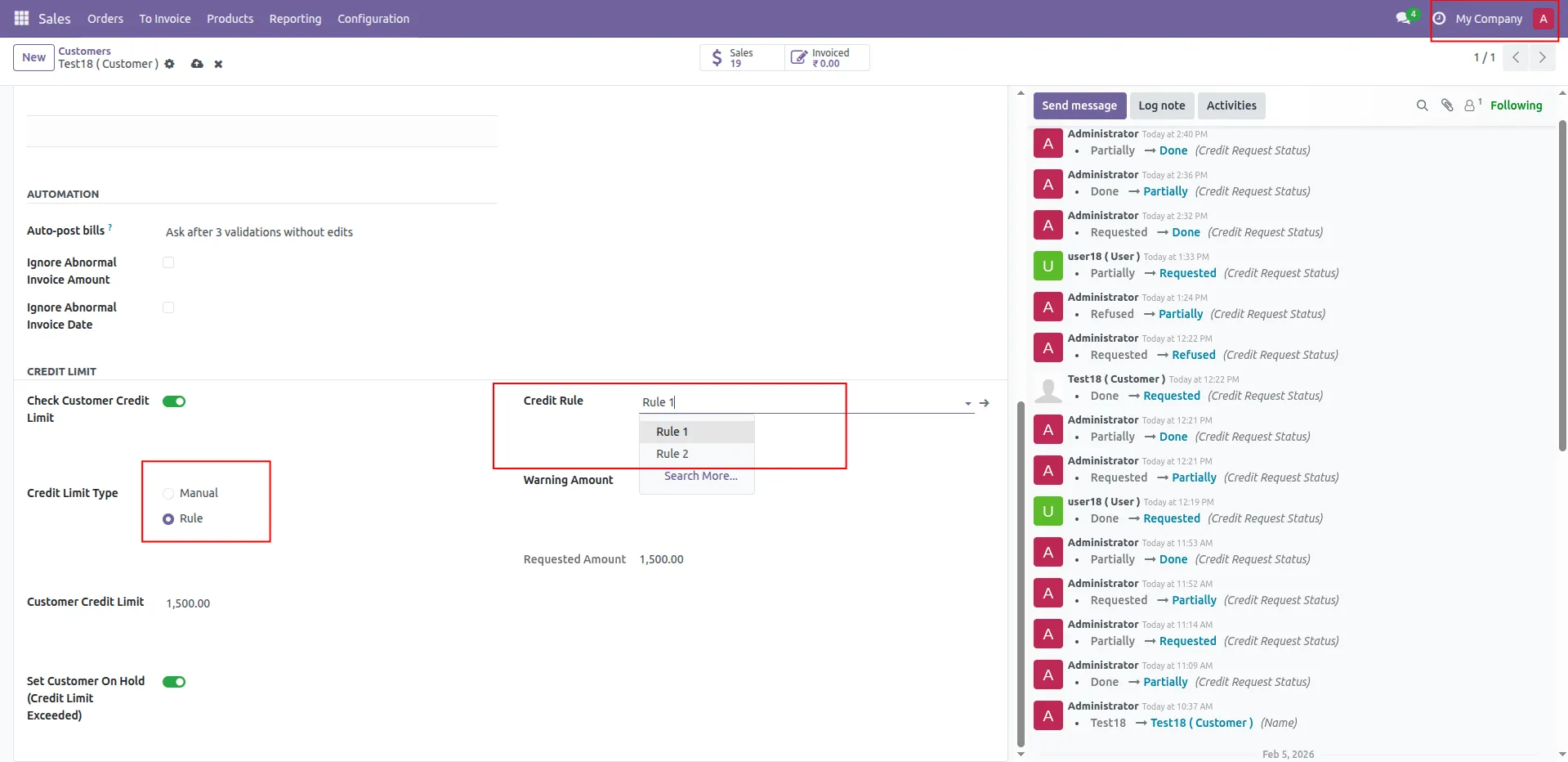
34.select credit limit type rule and select any rule
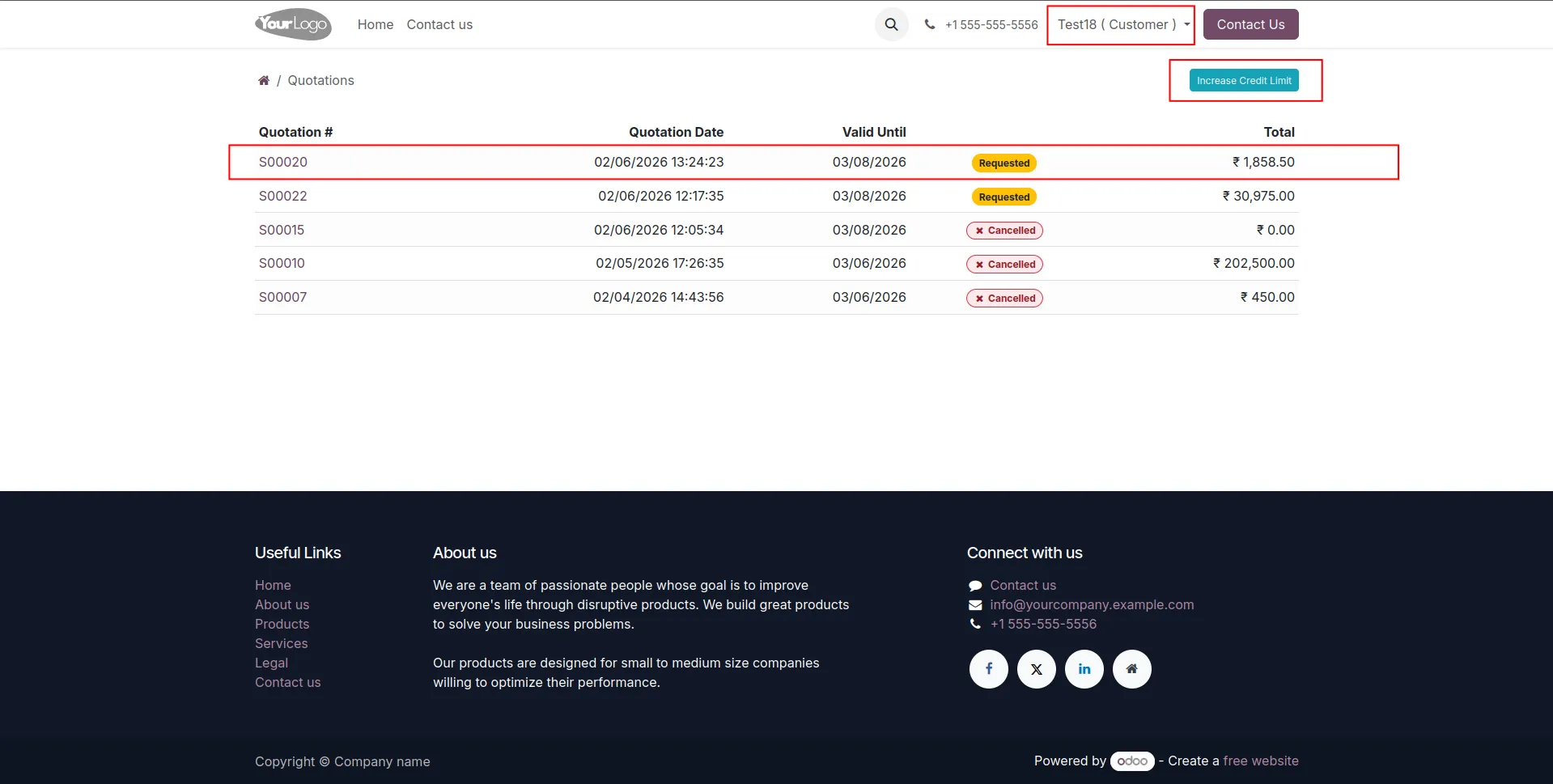
35.Portal users click Increase Credit Limit from portal. This allows customers to request credit directly.
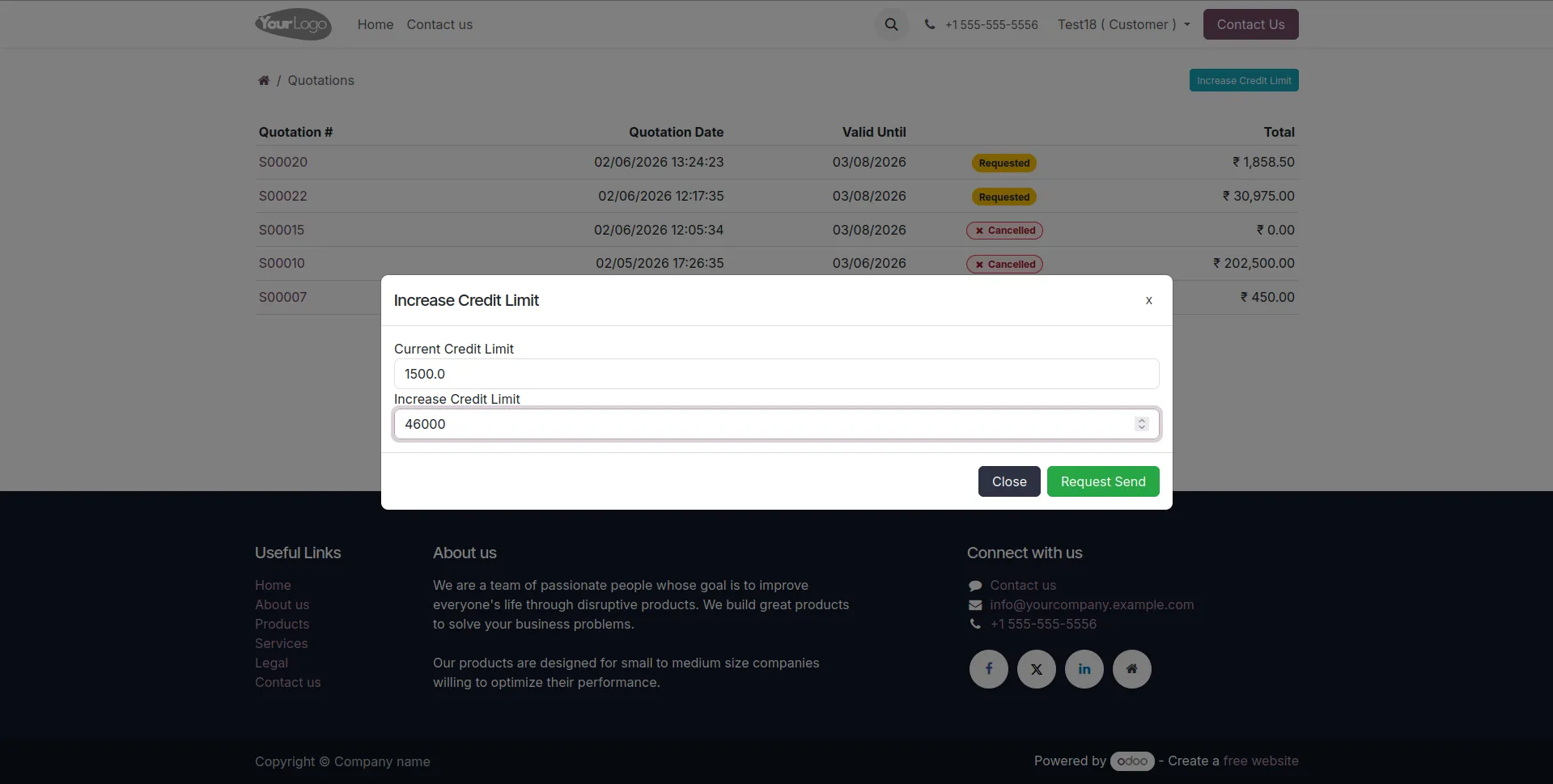
36.Customer enters required credit increase amount. Click Request Send to submit the request.
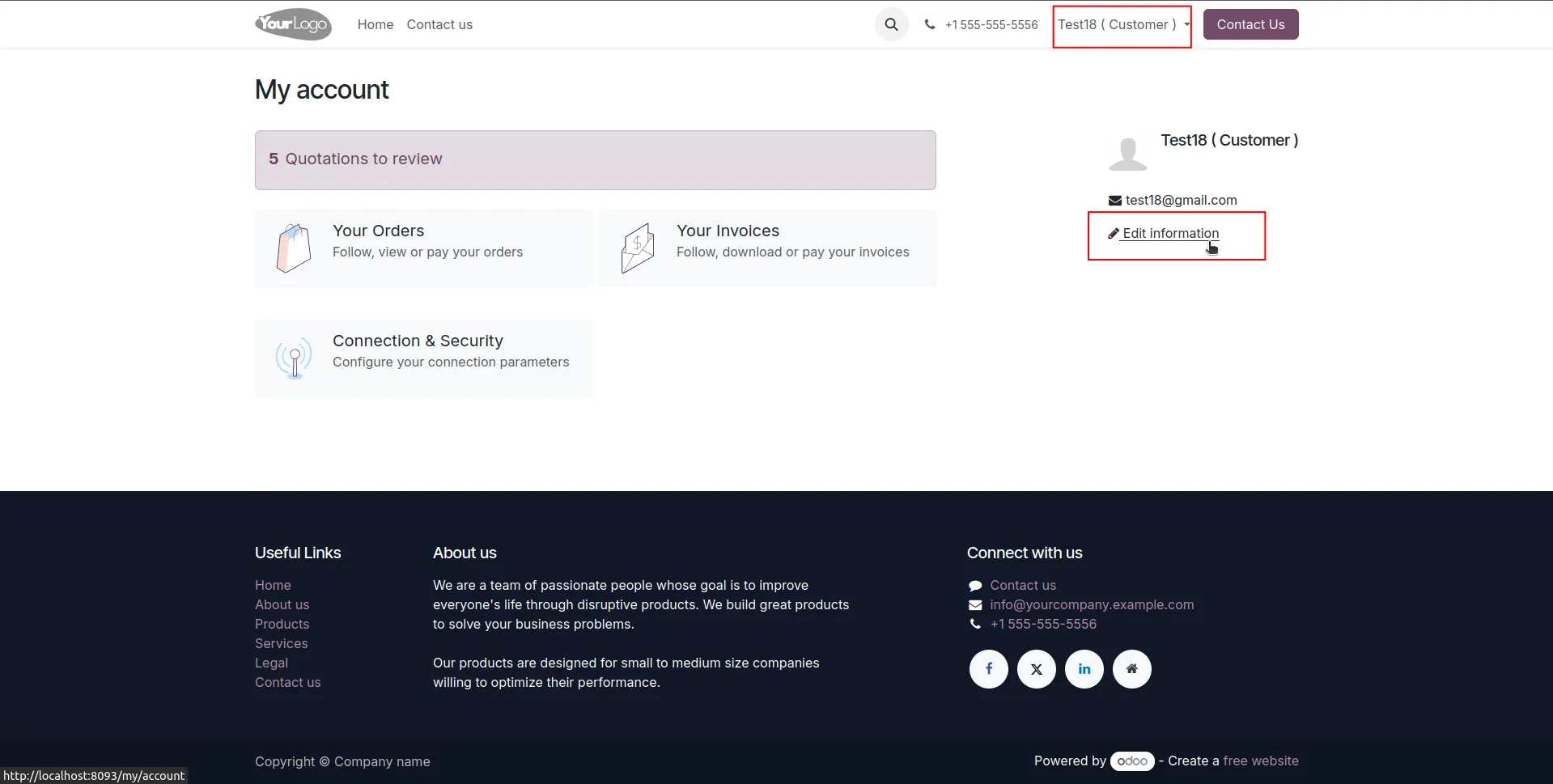
37.in portal go to the edit information section.
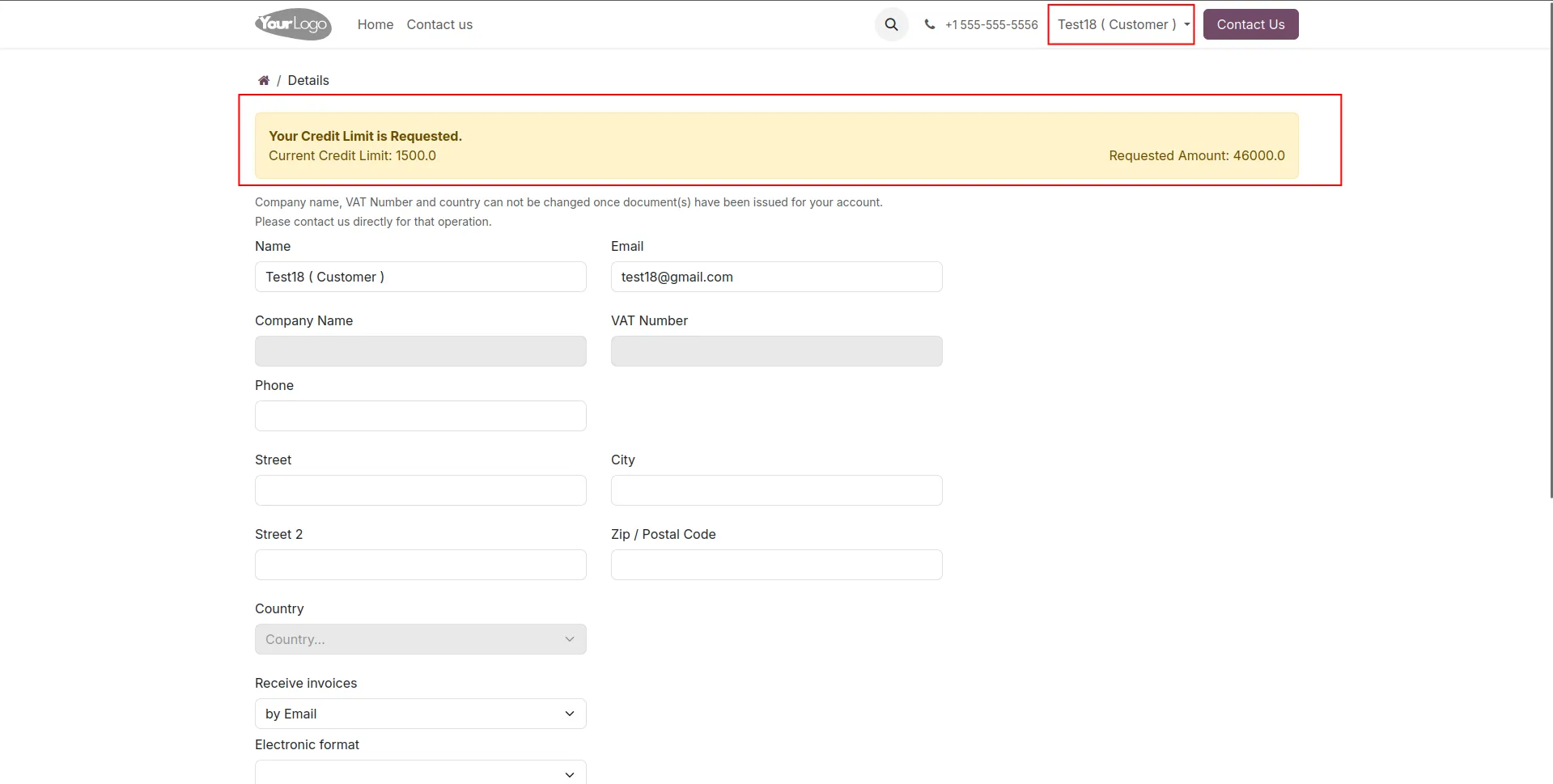
38.Then review the requested amount and current amount.
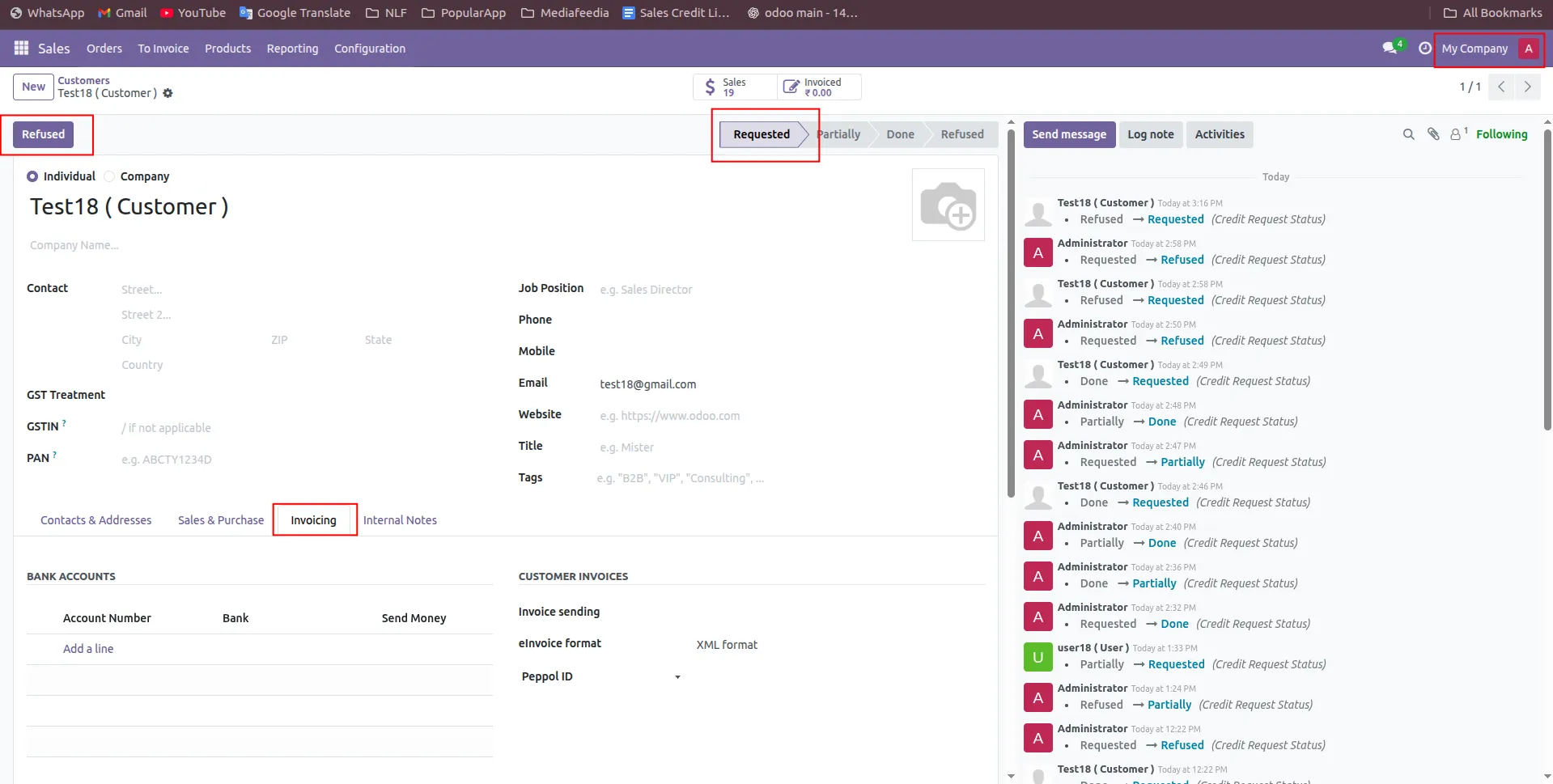
39.Approver can click Refuse to reject the request. This stops the credit increase process.
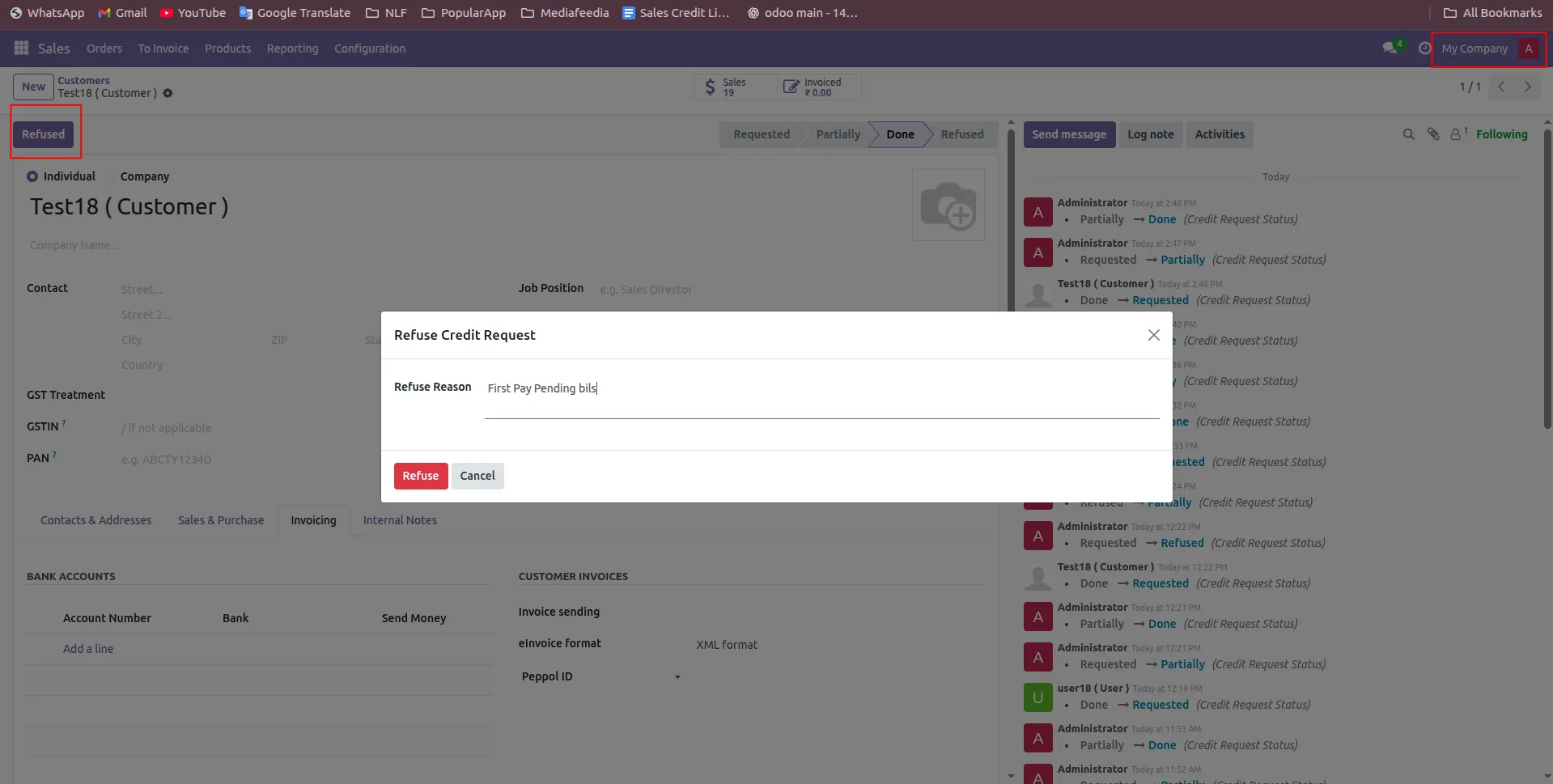
40.Approver enters reason for rejection. The request is officially refused.
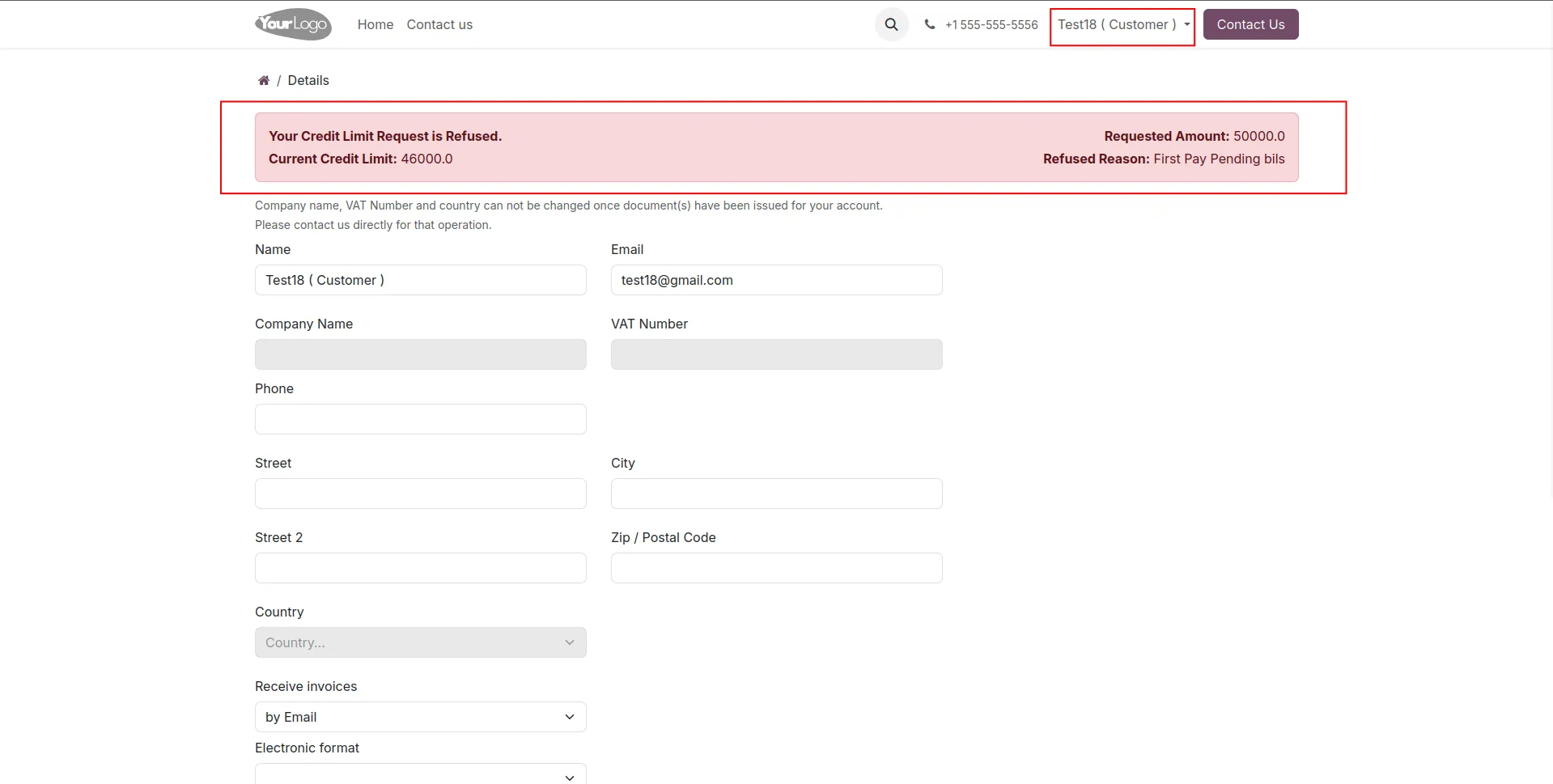
41.Customer request moves to Refused stage. Customer can review refusal details.
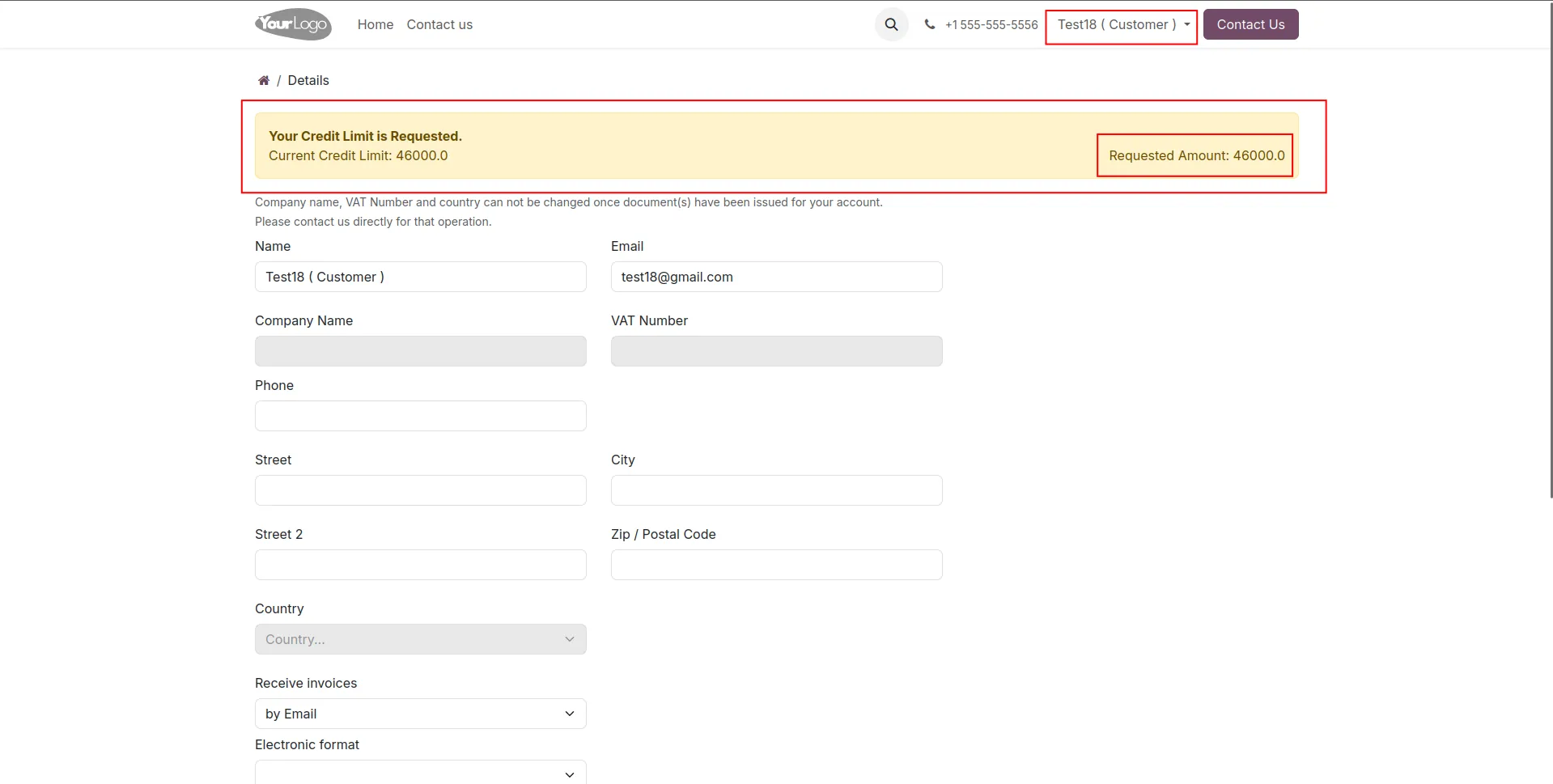
42.requested amount show.
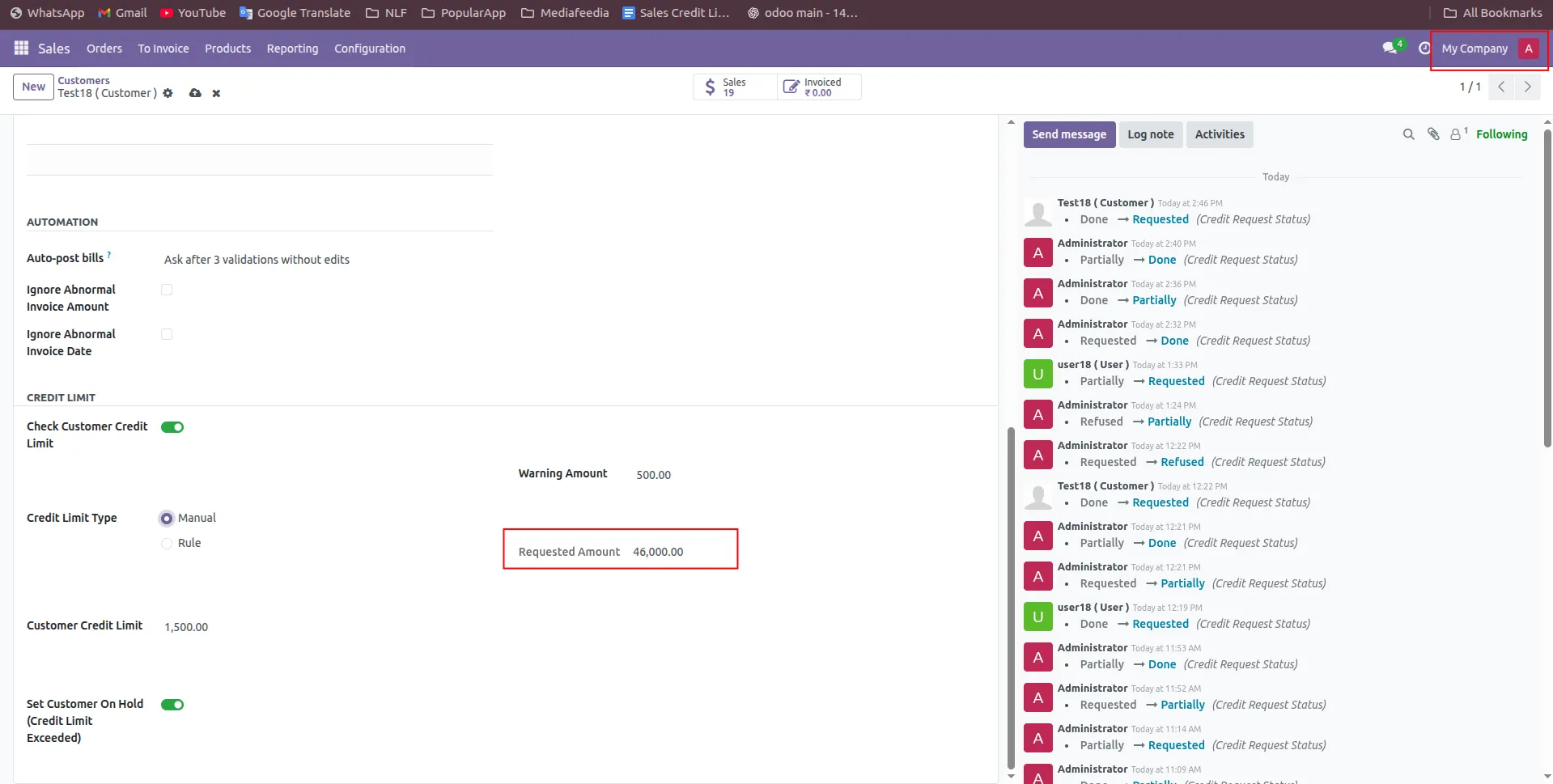
43.requested amount show in customer section.
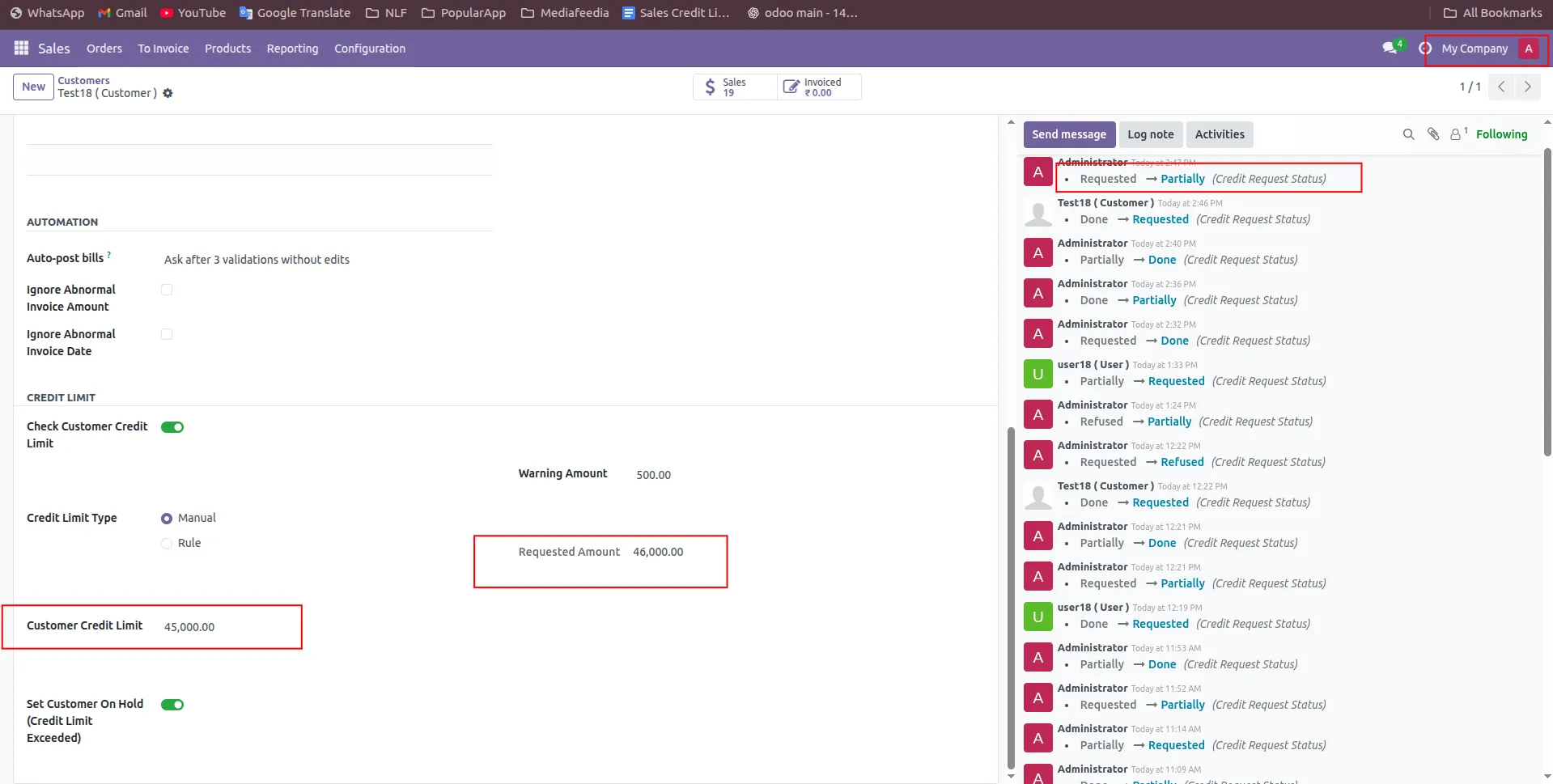
44.Admin increases the customer credit limit. If still less than requested amount.
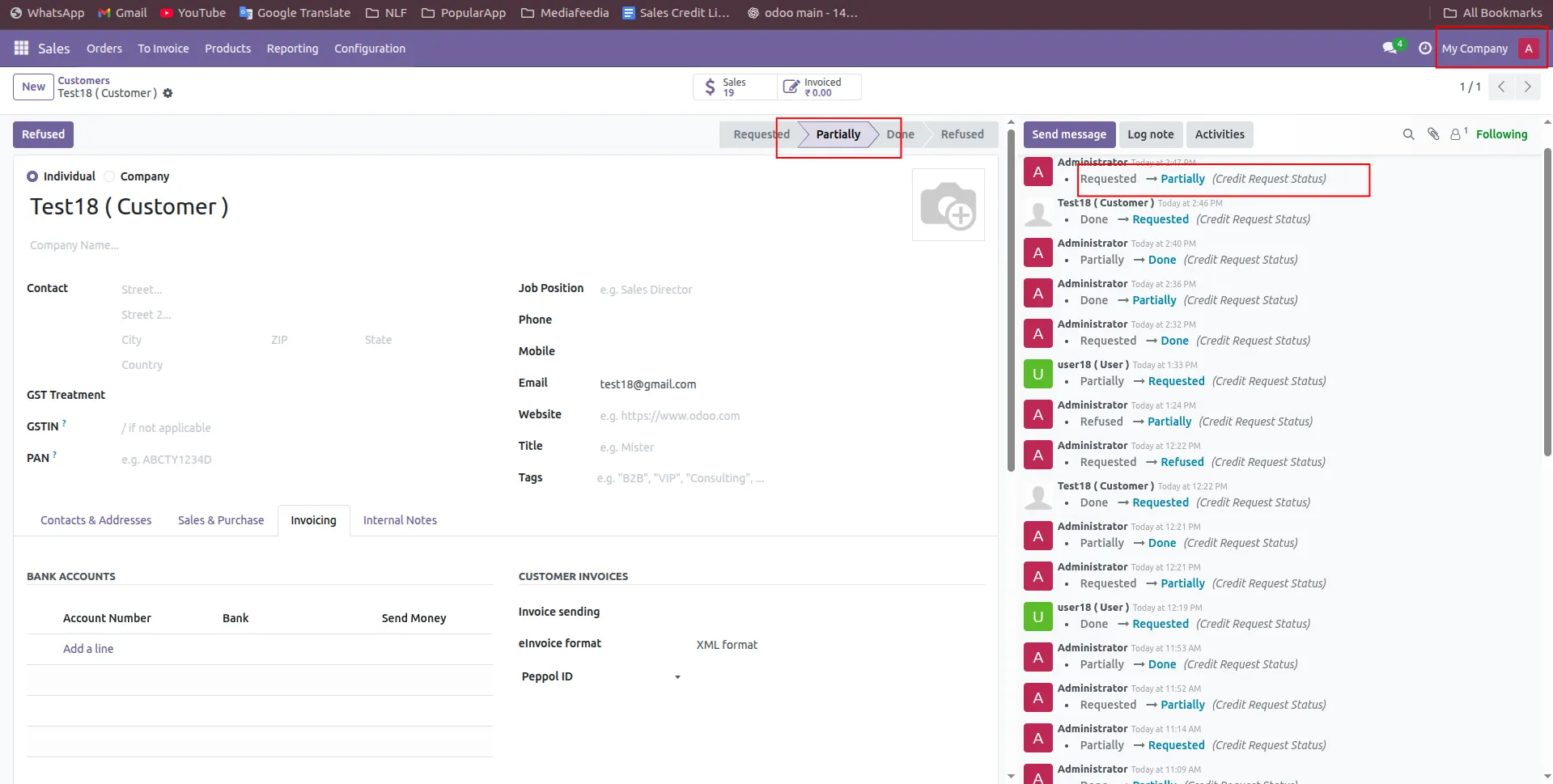
45.order moves to Partial stage.
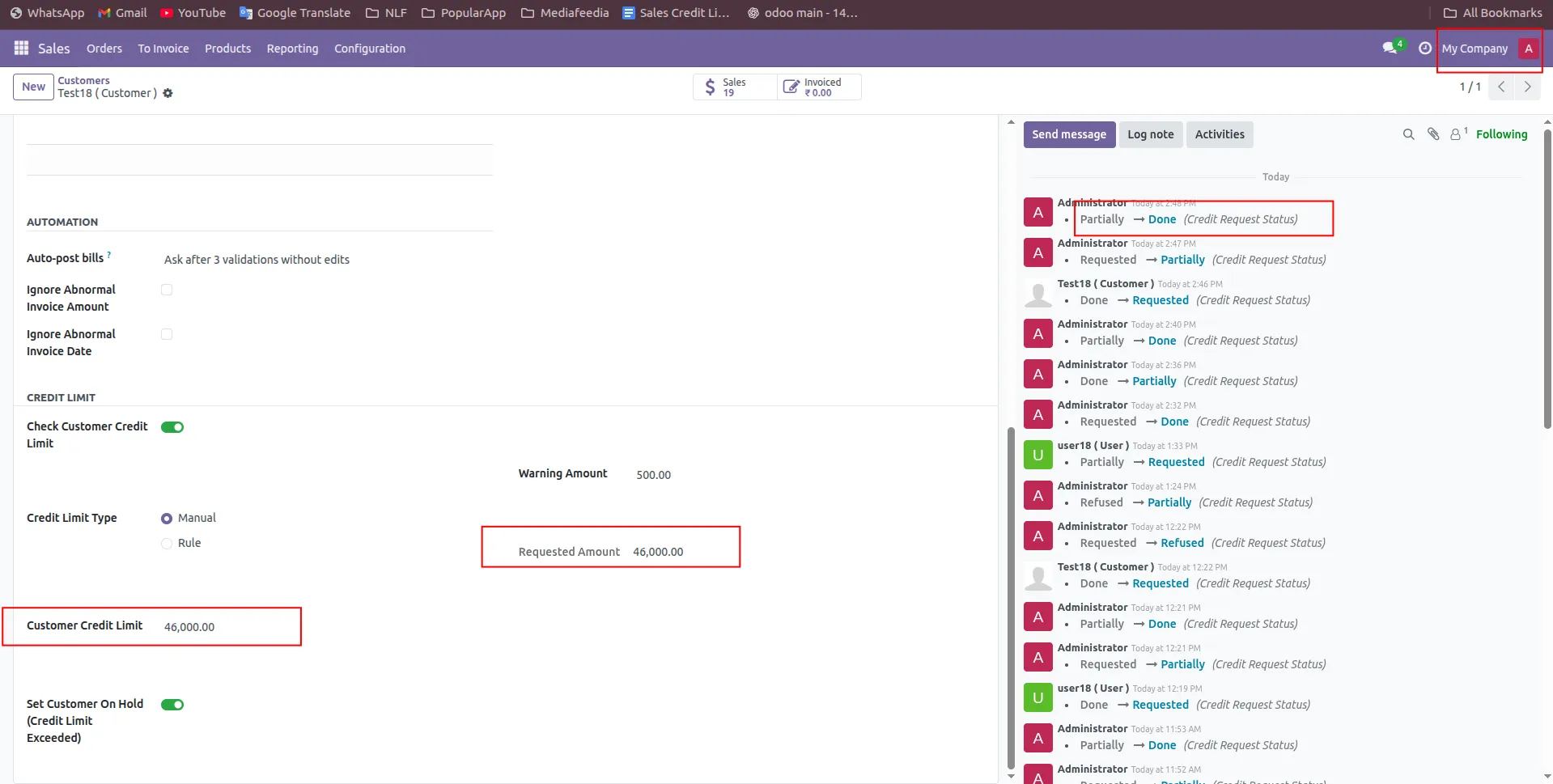
46.When credit limit matches requested amount.
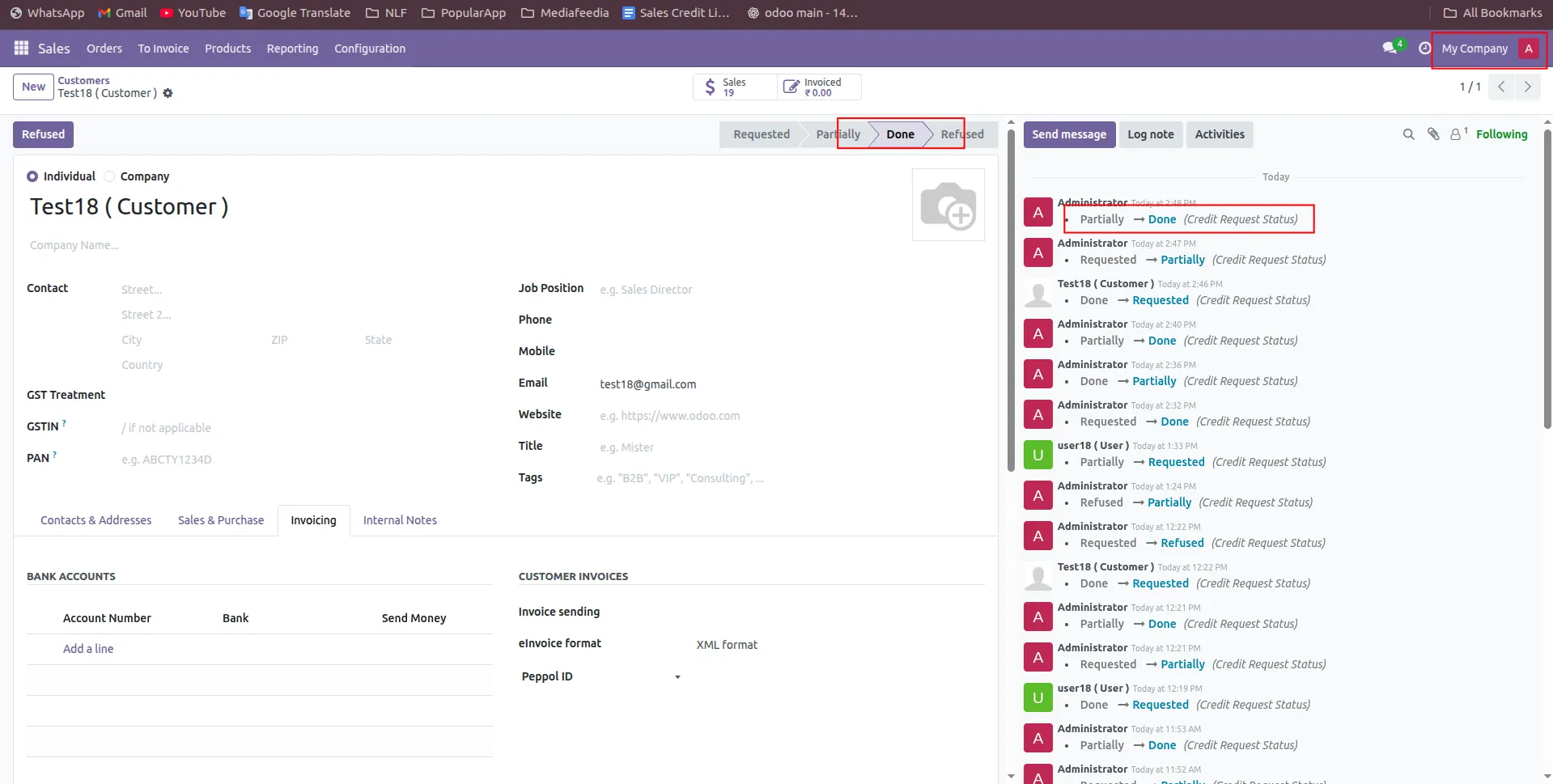
47.request is completed. Customer moves to Done stage.
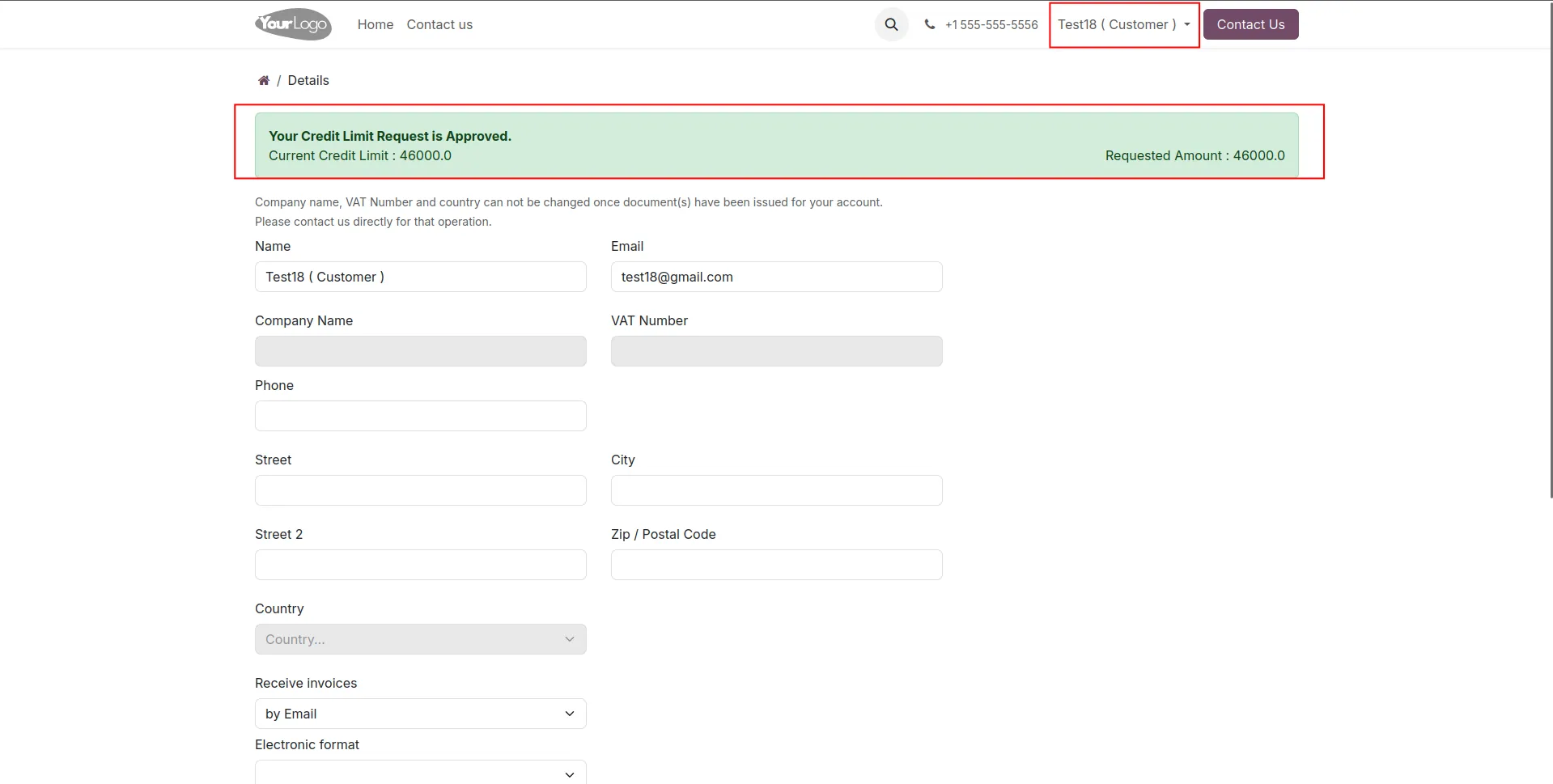
48.Requested amount is approved show updated credit limit.
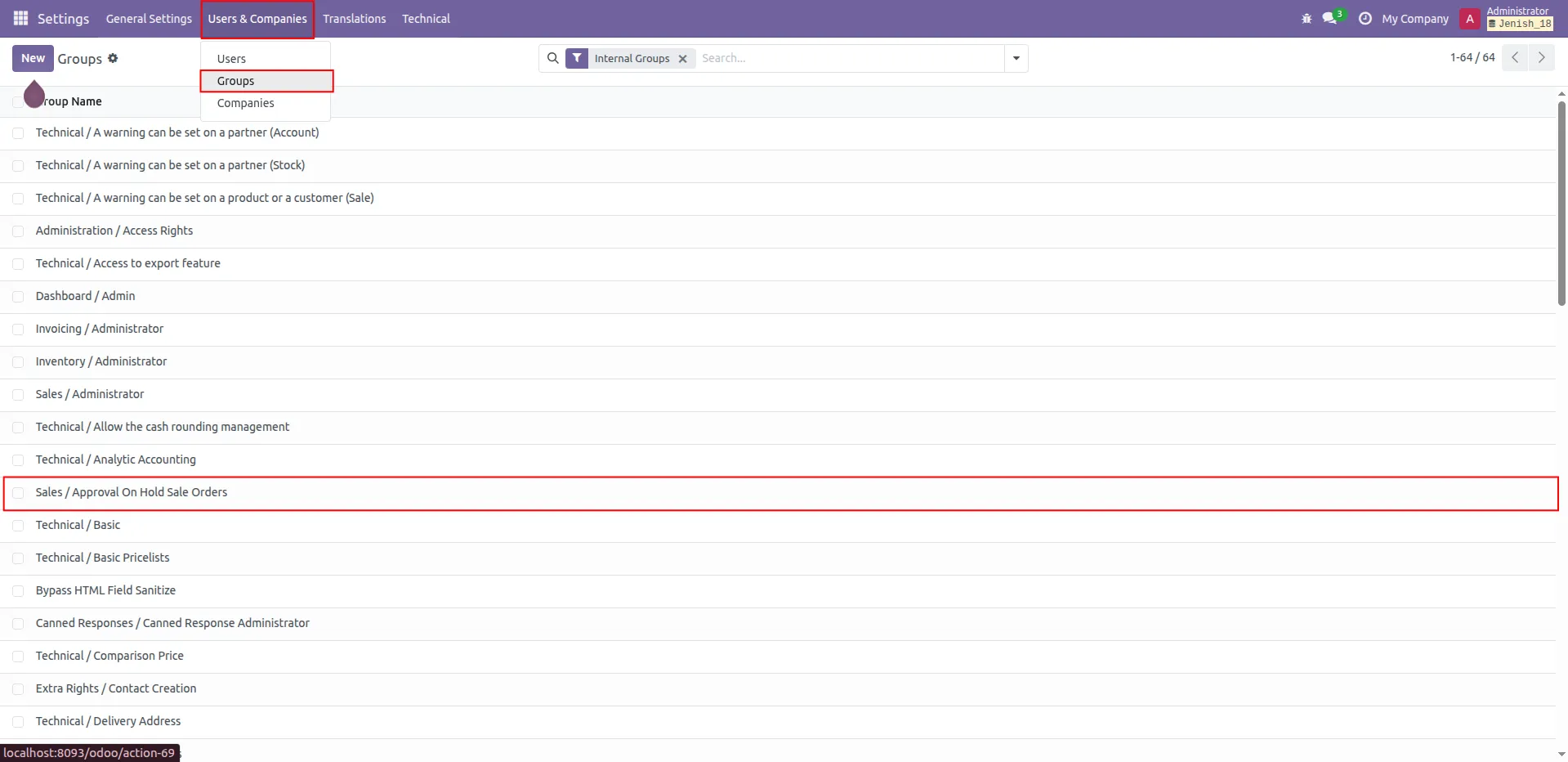
49.Go to User & companies -> sales/approval on hold sale orders.
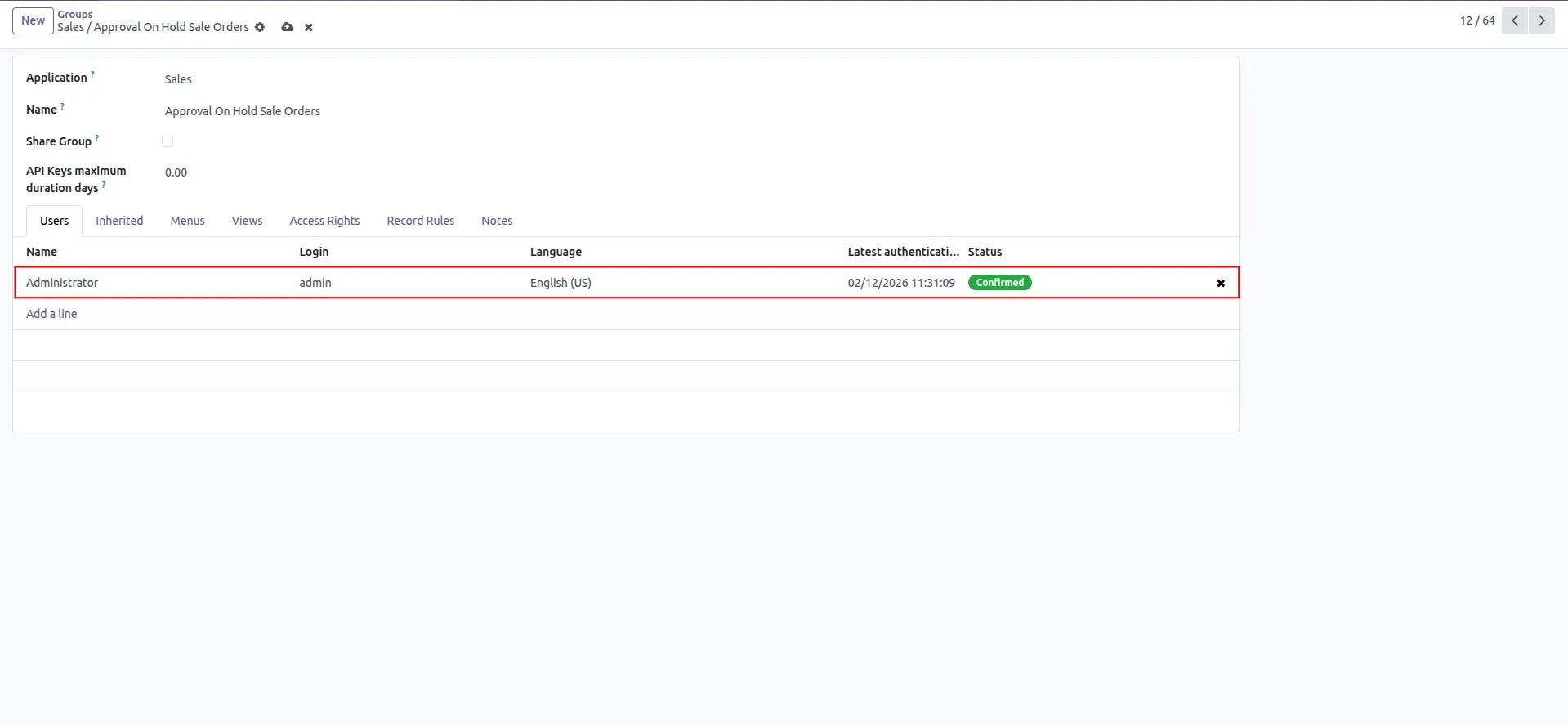
50.Add a user for email notifications (Email will be sent to that user)..
Our solutions focus on your problems
- Odoo Implementation
- Odoo Customization
- ERP Development and Implementation
- Odoo Ipass Cloud
- AI for Odoo
- Odoo Apps
- Aws Marketplace Products
- Business Engines
Our Pricing includes User Manual, 90 Days Support (Monday-Friday 10am to 7pm IST) and One time Setup
• Works & tested on standard installations of Odoo with no third party apps,
• Free support only for odoo installations with no third party apps,
• Paid support available for Odoo installations with third party apps.

Prefortune is a Odoo Official Partner, Odoo Development company. Our philosophy is to use Open Source tools and technologies to provide cost effective and green solutions for our customers.
Prefortune Technologies LLP is working on web development, Mobile development, and Odoo ERP.
If you need any help or want more additional features, you may contact us through:
Alternative Products
These other products might interest you
Specifications
| Version | 19.0, 18.0, 17.0, 16.0, 15.0, 14.0 |