Watch Quick Video
Reply Option in Chatter Odoo App
Reply Option in Chatter Odoo App
is an extension of Odoo Chatter, which provides a Reply button to users, so that they can reply to
individual messages and Log Notes directly. This helps keep conversations organised and lets you reply to
the right message without having to manually create a new chatter message.
Users can select any chatter message and click on Reply option to reply to it directly. The reply is
included in the original message so that the user can see the conversation and see what message he/she is
replying to.
The module also allows to reply to Log Notes. This gives users the ability to have internal conversations
directly from individual notes. This provides an easy and efficient way to handle the conversations and
keep the related replies together in the Odoo Chatter.
Reply Option in Chatter Odoo App
- Use the handy Reply button to reply to individual chatter messages directly.
- No it’s not an original but it’s a very good copy! The detail is perfect and it looks the real thing.
- Reply to Log Notes directly from the chatter with Reply option.
- Make it easier to reply to specific messages, so you don't have to make a separate unrelated chatter message.
- Organise replies in a structured manner, so that they are linked to their messages and Log Notes.
Complete Workflow for Manage Reply Option in Chatter Odoo App
Install the Reply Option in Chatter Odoo App module and open any Odoo record that contains the chatter. Post a Message or Log Note in the chatter. Click the Reply button on the message or Log Note you want to respond to. Enter your response in the chatter composer and post it. The reply will remain associated with the selected message or Log Note, making it easy to identify the message being addressed. Users can use the Reply option for both regular chatter messages and Log Notes, helping keep conversations organized and improving communication within Odoo records.
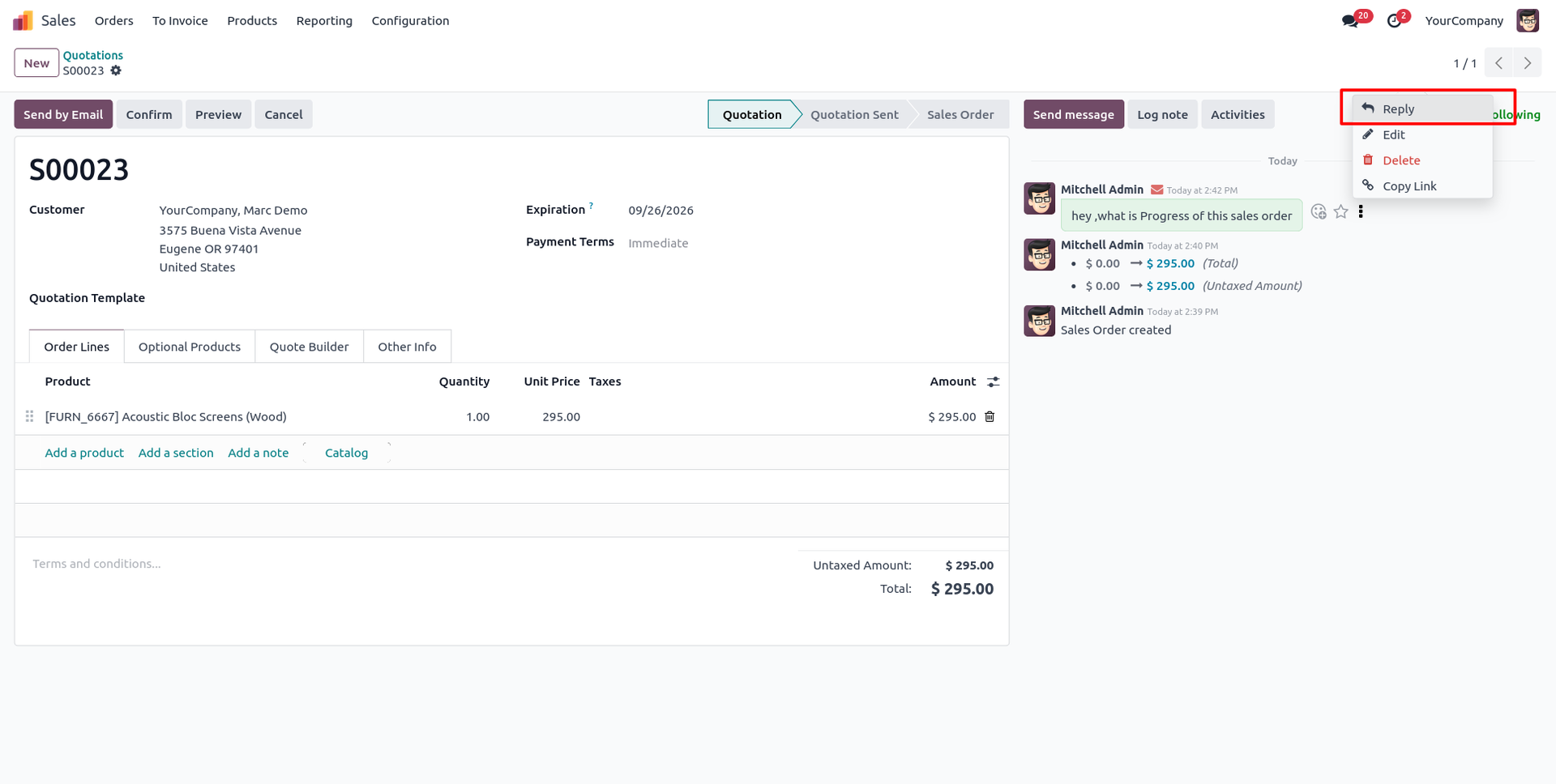
1. Open the chatter of an Odoo record to view messages and use the Reply button to respond to a specific message.
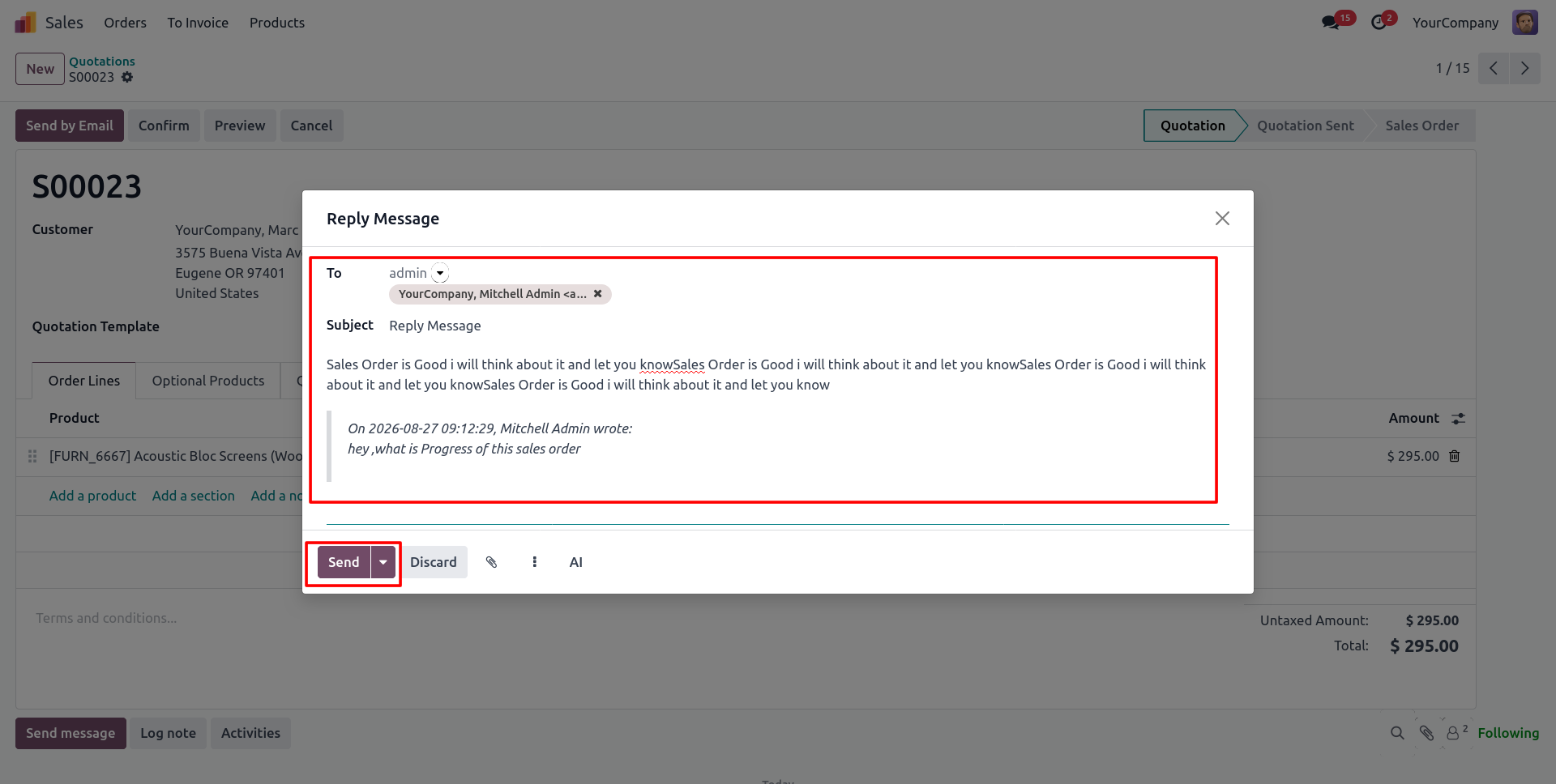
2. Click the Reply button to open the reply wizard, enter your response, and click Send to post the reply.
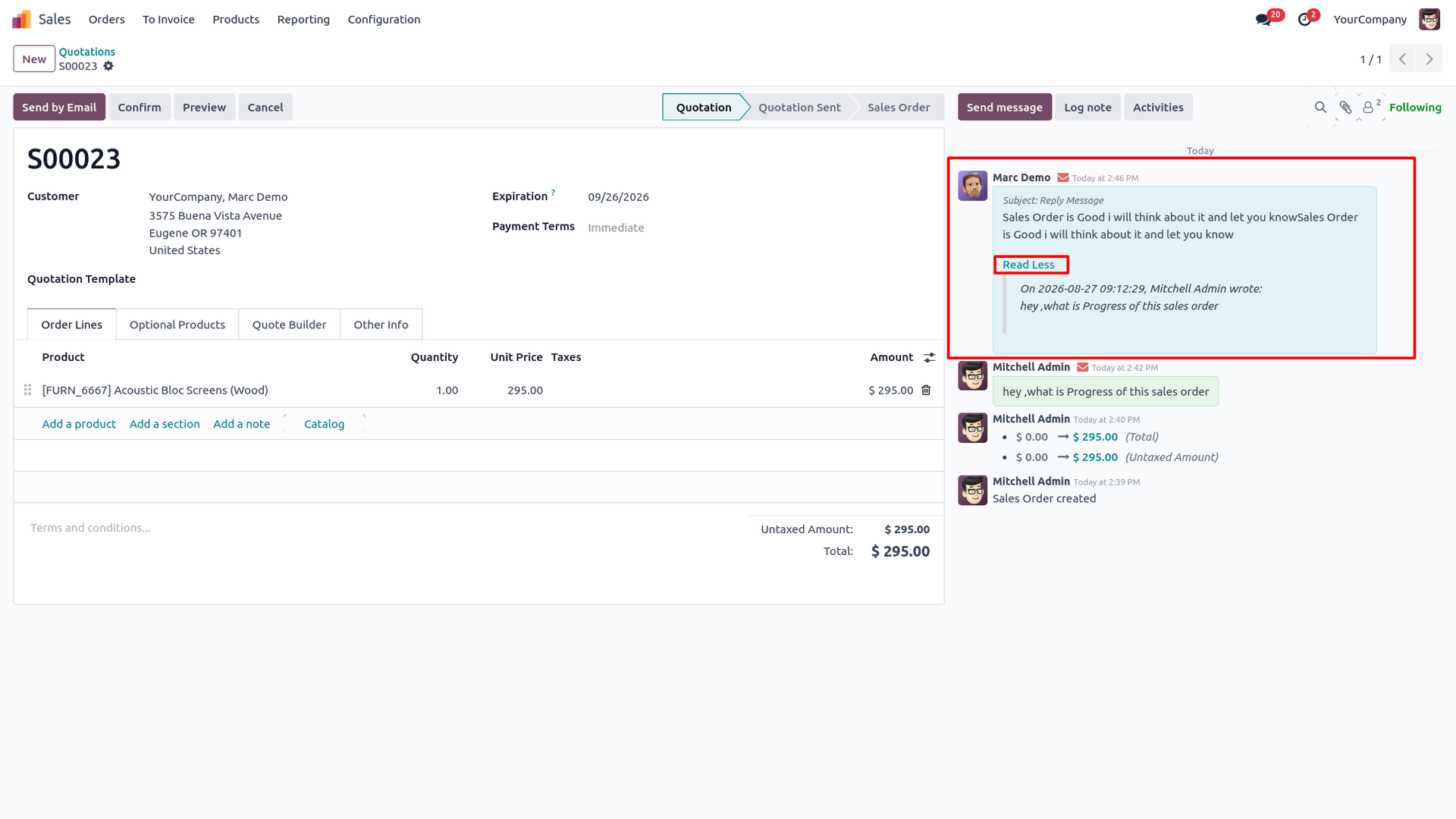
3. View the posted Reply in the chatter and click Read More to view the original message being replied to.
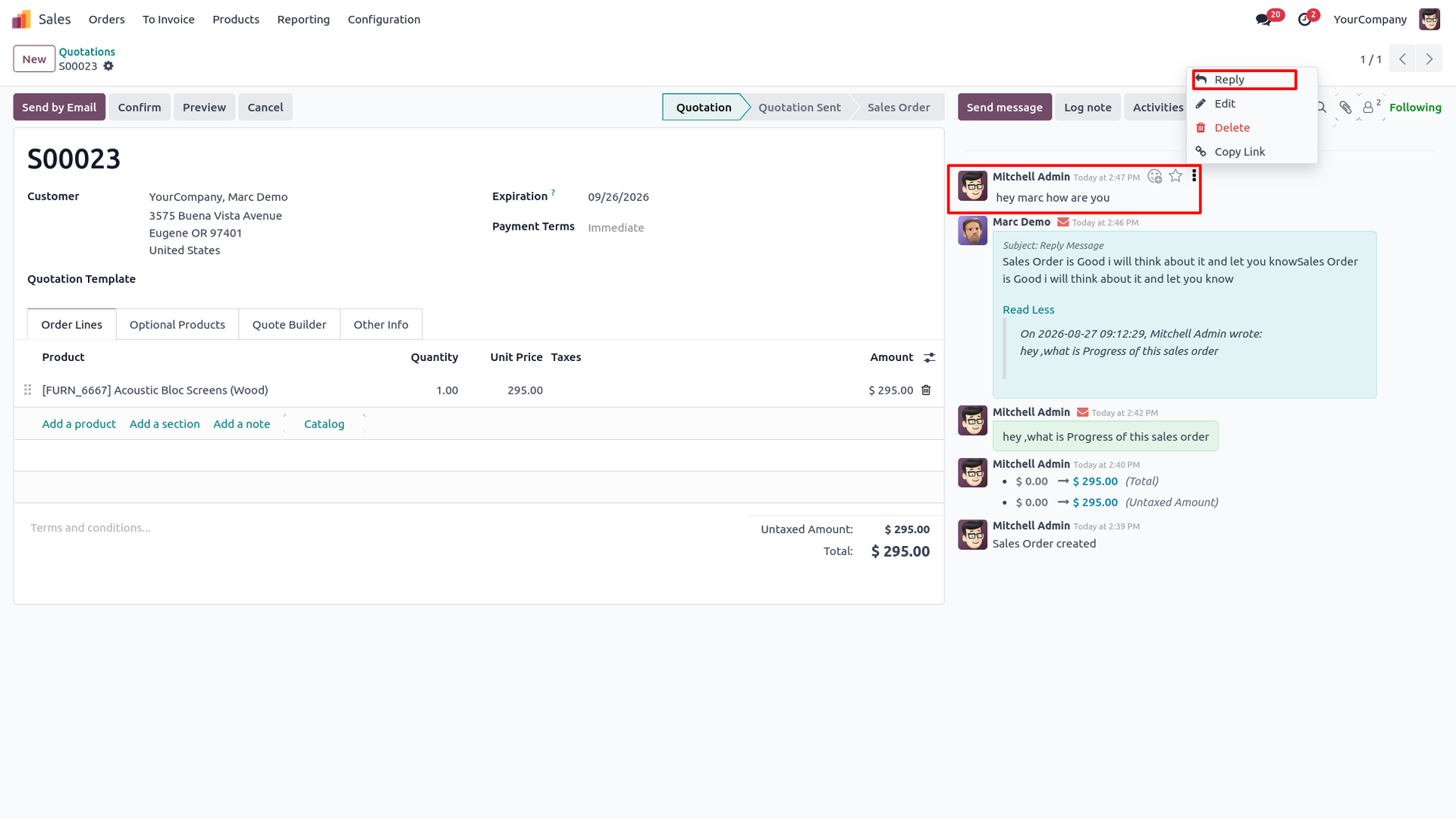
4. Open a Log Note in the chatter and use the Reply button to respond directly to the selected Log Note.
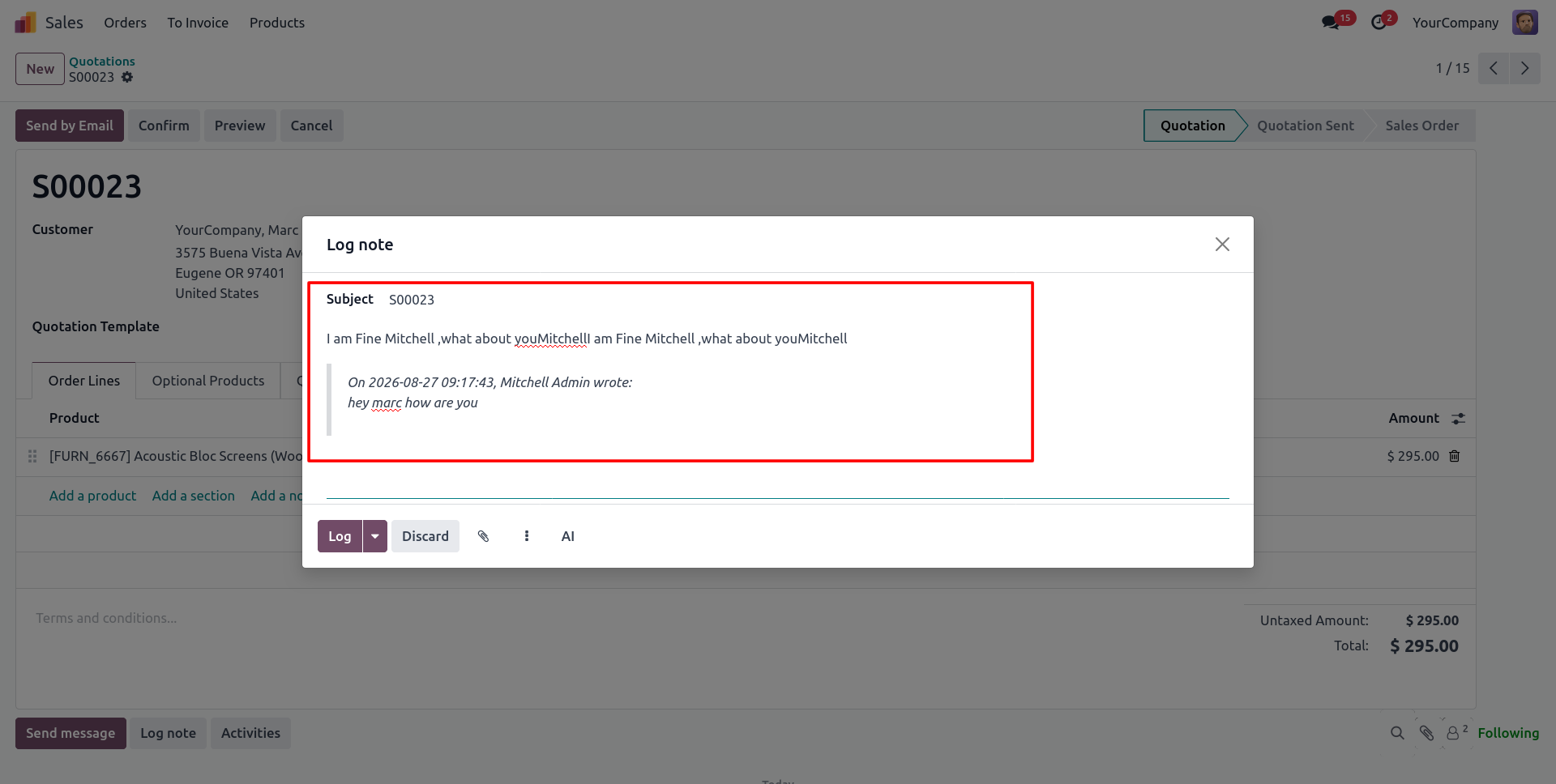
5. The Reply wizard opens for the selected Log Note. Enter the reply message and click Log to post it.
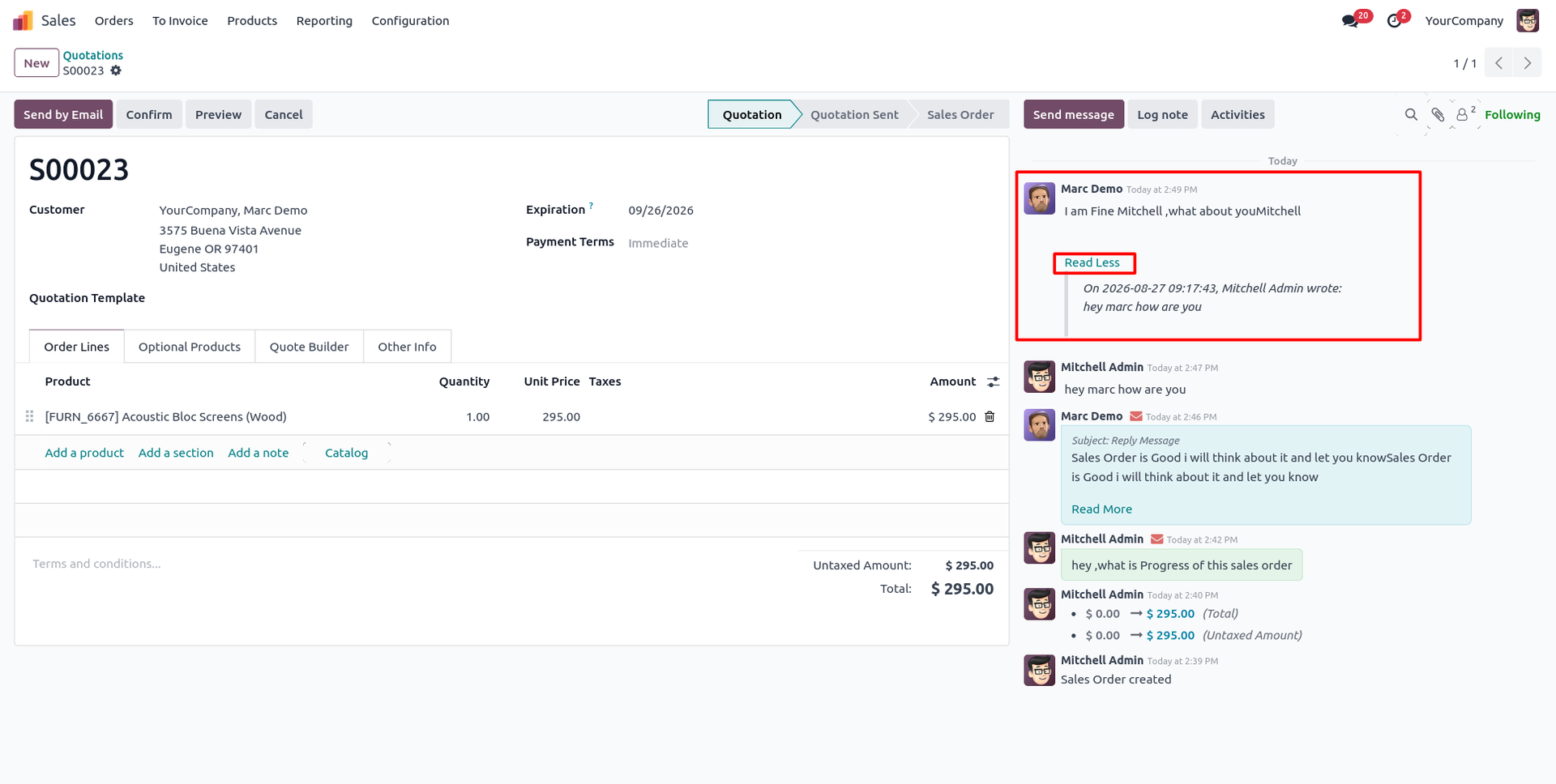
6. View the Log Note Reply in the chatter and click Read More to view the original Log Note associated with the reply.
Our solutions focus on your problems
- Odoo Implementation
- Odoo Customization
- ERP Development and Implementation
- Odoo Ipass Cloud
- AI for Odoo
- Odoo Apps
- Aws Marketplace Products
- Business Engines
Our Pricing includes User Manual, 90 Days Support (Monday-Friday 10am to 7pm IST) and One time Setup
• Works & tested on standard installations of Odoo with no third party apps,
• Free support only for odoo installations with no third party apps,
• Paid support available for Odoo installations with third party apps.

Prefortune is a Odoo Official Partner, Odoo Development company. Our philosophy is to use Open Source tools and technologies to provide cost effective and green solutions for our customers.
Prefortune Technologies LLP is working on web development, Mobile development, and Odoo ERP.
If you need any help or want more additional features, you may contact us through:
Alternative Products
These other products might interest you
Specifications
| Version | 19.0, 18.0, 17.0, 16.0, 15.0, 14.0 |