Watch Quick Video
purchase order down payment
With our
Odoo – purchase order down payment
module, you can easily manage vendor advance payments right from your purchase orders. It keeps everything simple and organized, so handling down payments gets faster, more accurate, and much easier to follow. This really streamlines your purchase payment workflow.
It provides flexible options for managing purchase down payments:
1. Percentage-Based Down Payment: Create a purchase order down payment by picking a percentage of the total amount.
2. Fixed Amount Down Payment: Generate a vendor advance payment by entering a specific amount manually.
3. Remaining Balance Tracking: Automatically calculate and display the remaining payable balance after deduction.
4. Down Payment Status Tracking: Keep track of your payment stages with updates like Draft or Sent.
5. Vendor Payment Records: Maintain organized vendor payment tracking with payment dates and current payment states.
This module lets businesses keep payment records accurate while cutting down on manual work in vendor payment management.
purchase order down payment
- Create a purchase order down payment with either a percentage or a fixed amount — it’s your choice.
- If you want to make a vendor advance payment, just enter the fixed amount manually.
- Automatically calculate advance amount for percentage-based down payments.
- Once the deduction happens, you can see the remaining payable balance right away.
- Manage vendor payment tracking with payment date and status details.
Complete Workflow for purchase order down payment
Open the Purchase Order and click on the Create Bill option to create a purchase order down payment. In the popup wizard, select the down payment method as Percentage or Fixed Amount and enter the required value. The module automatically creates the vendor advance payment, tracks the payment amount, and displays the remaining balance after deduction. Users can also manage vendor payment tracking with payment date and status details like Draft or Sent directly from the purchase order.
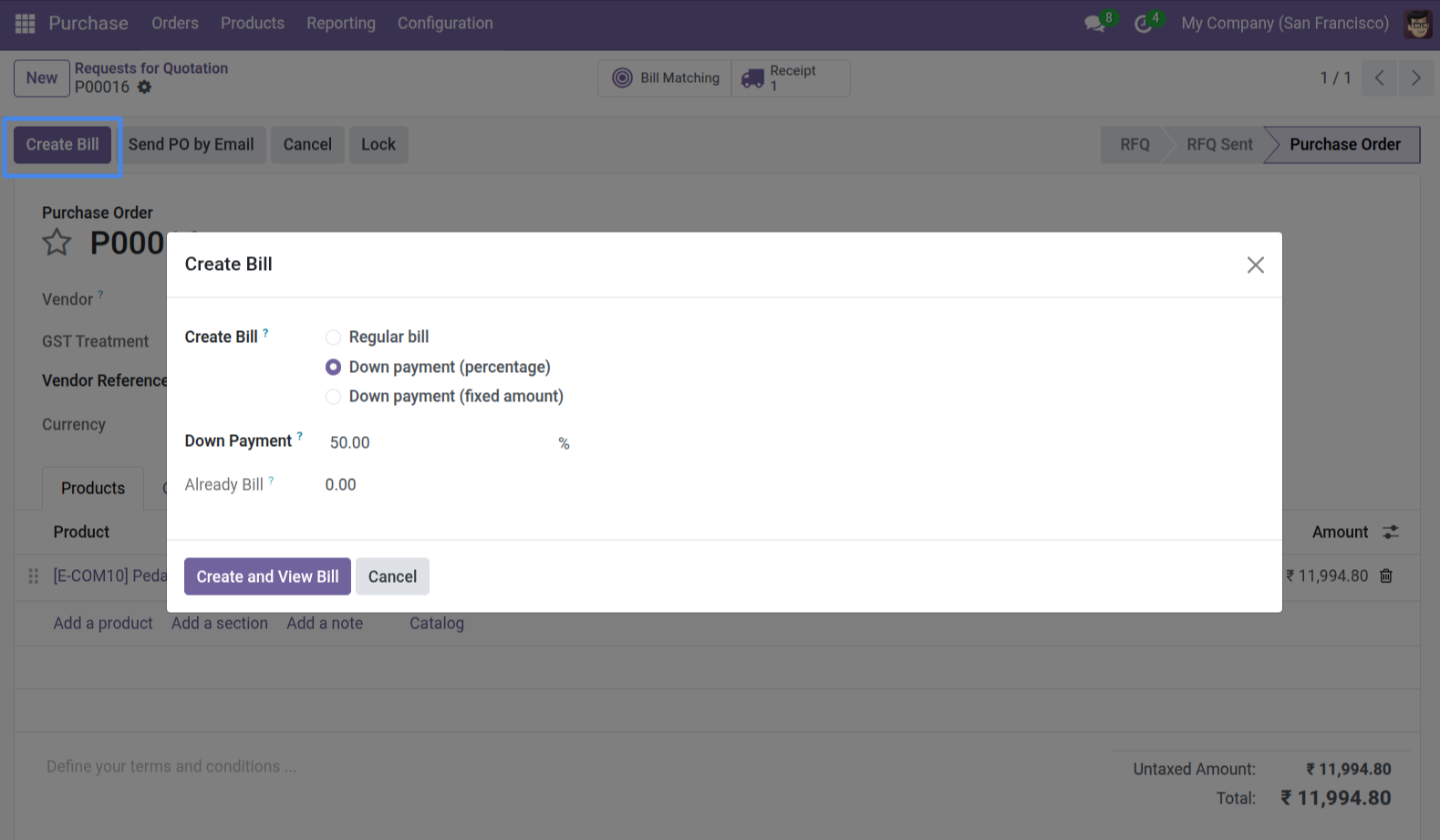
1. Open a Purchase Order and click "Create Bill". Choose "Down payment (percentage)" to bill a percentage of the total.
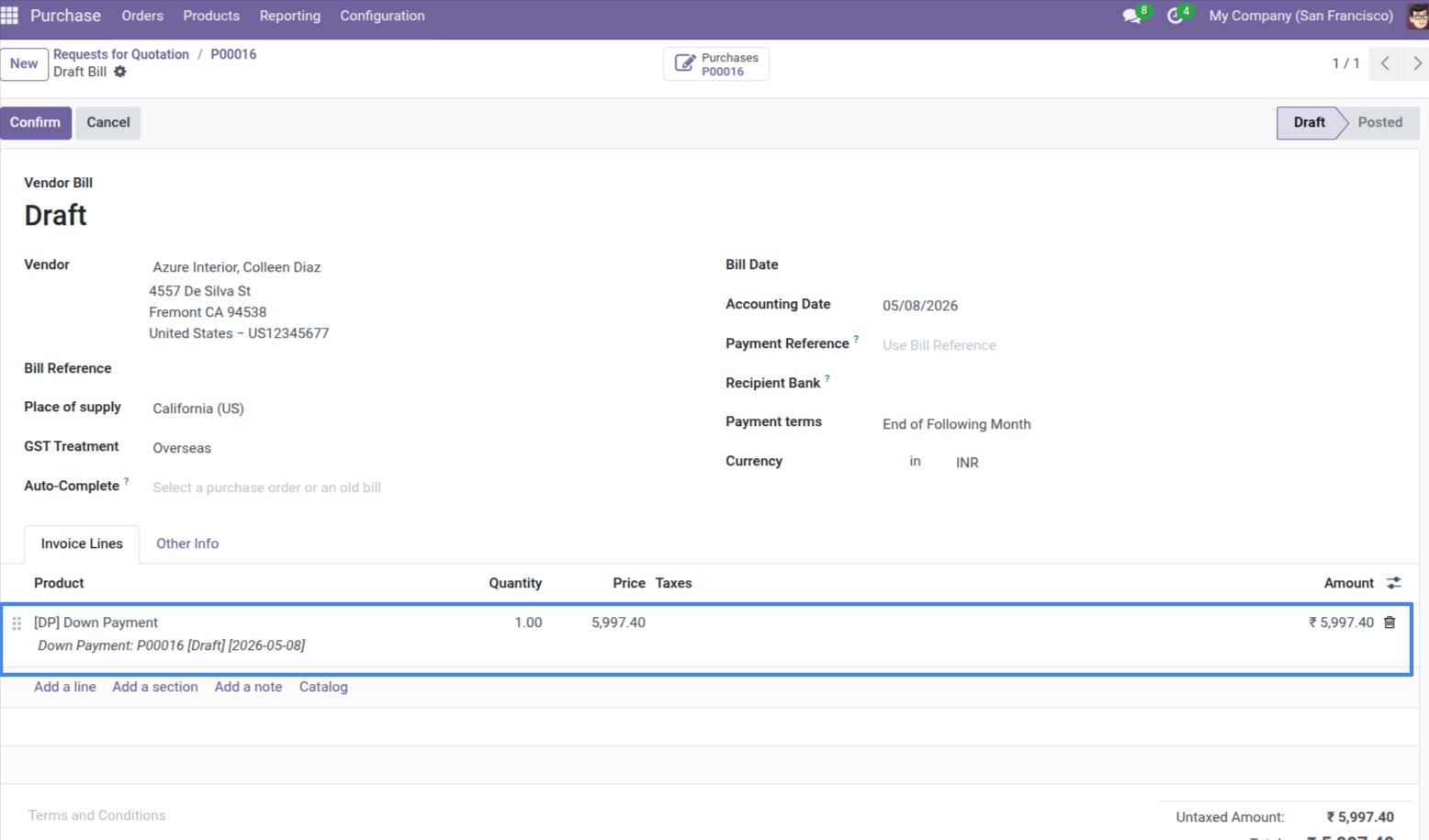
2. A draft vendor bill is automatically generated with a dedicated down payment product line.
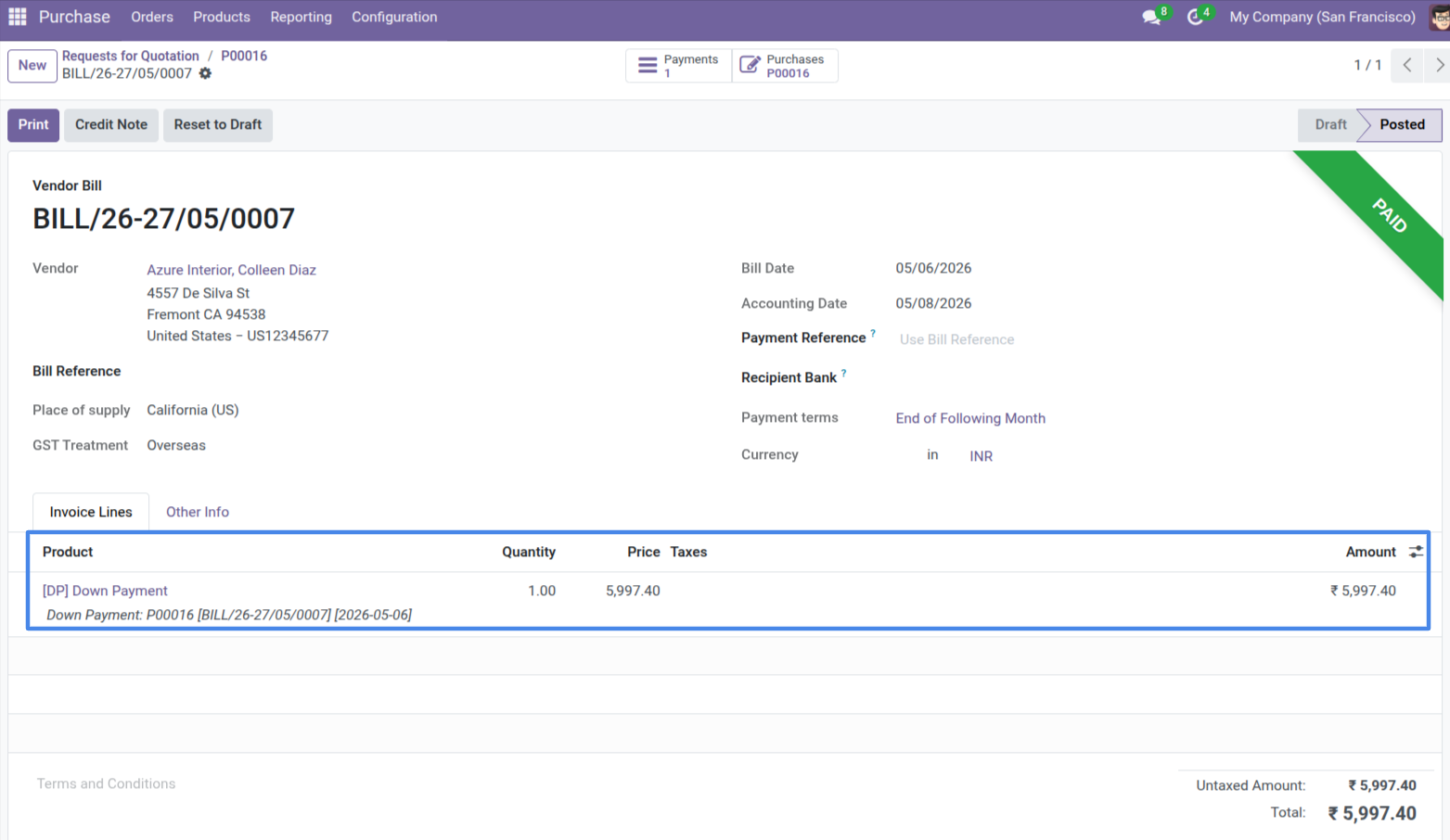
3. Once posted, the down payment line description updates to include the Bill number and date for full traceability.
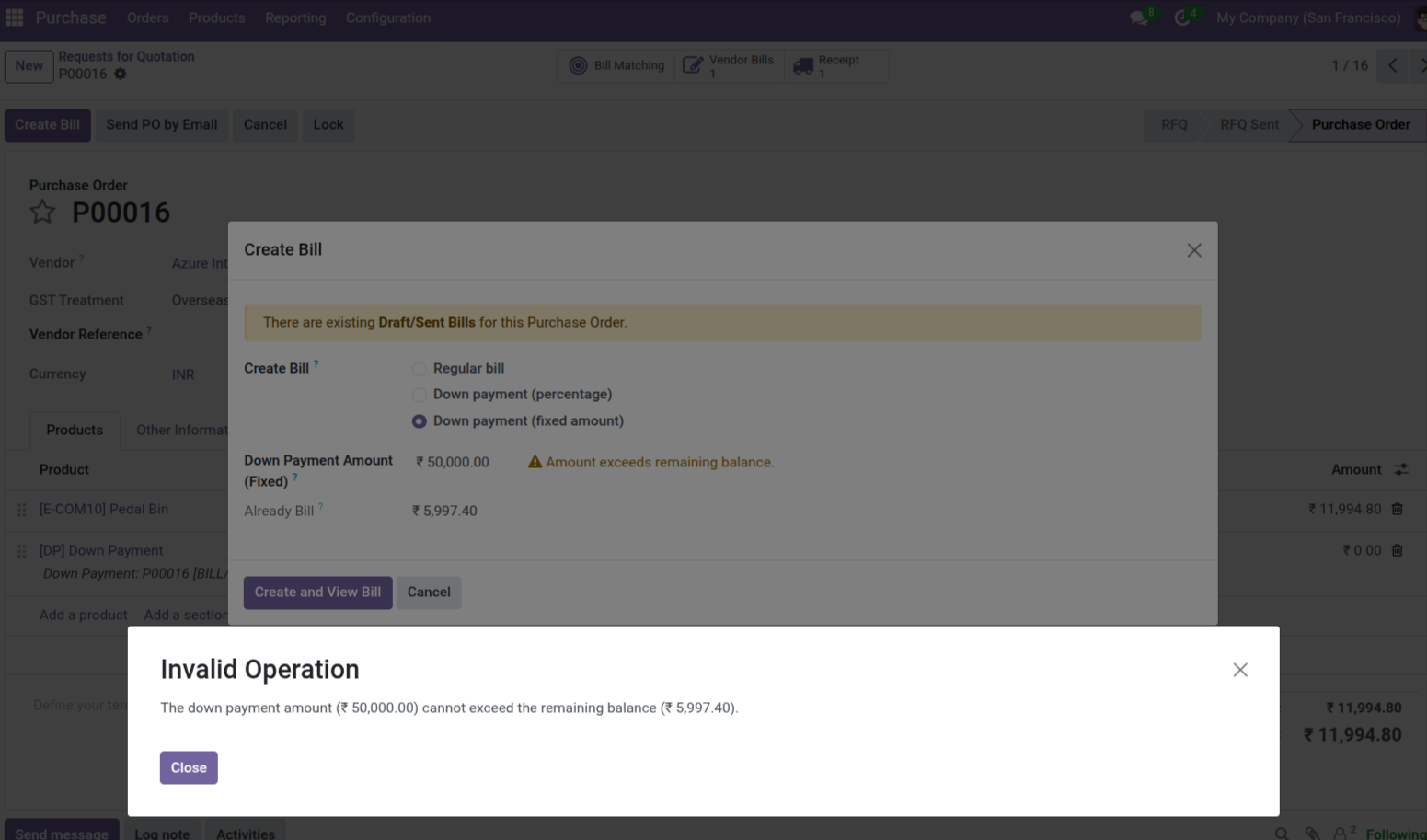
4. Validation ensures that the down payment amount does not exceed the remaining balance of the order.
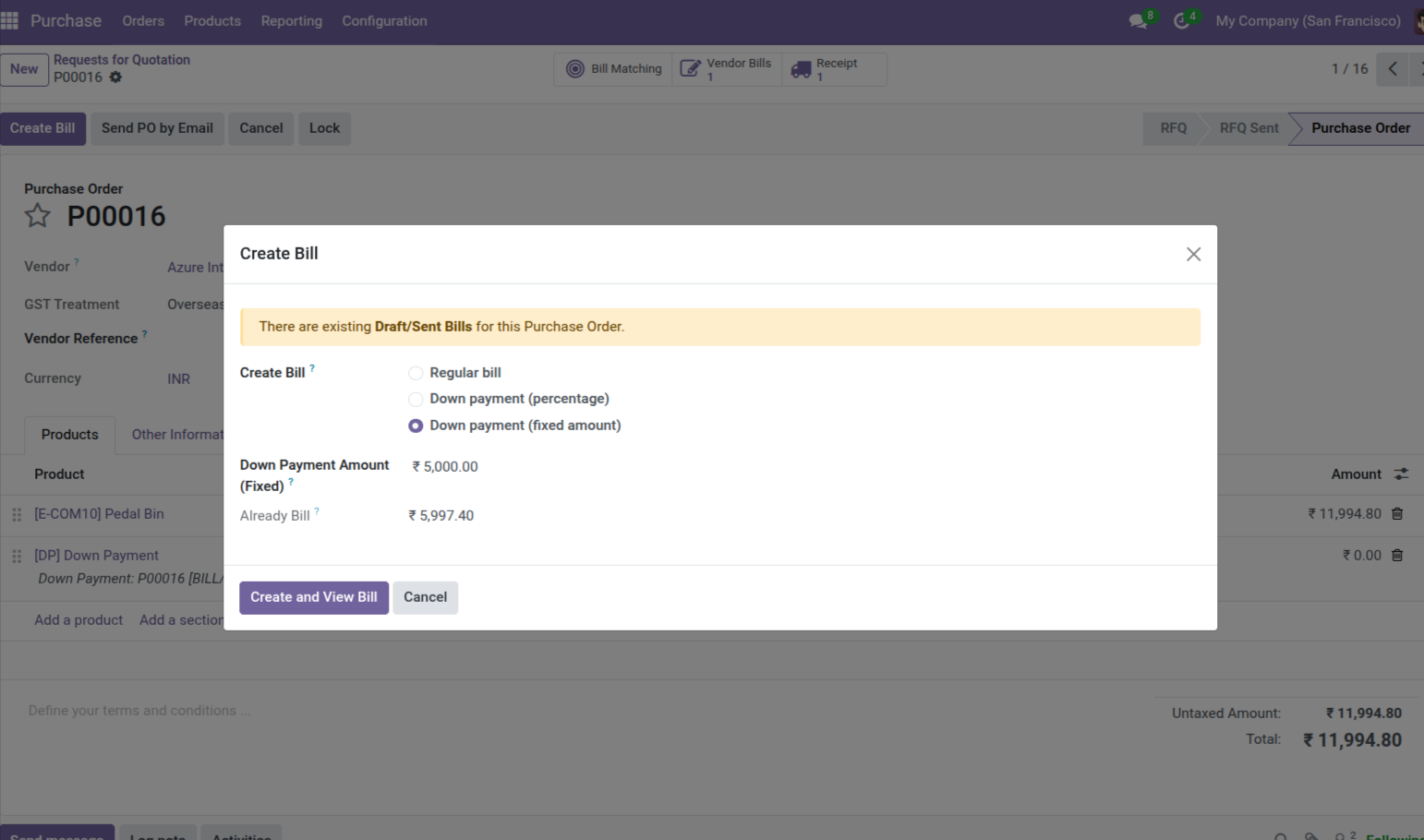
5. The wizard will notify you if there are any existing draft or sent bills for the current Purchase Order.
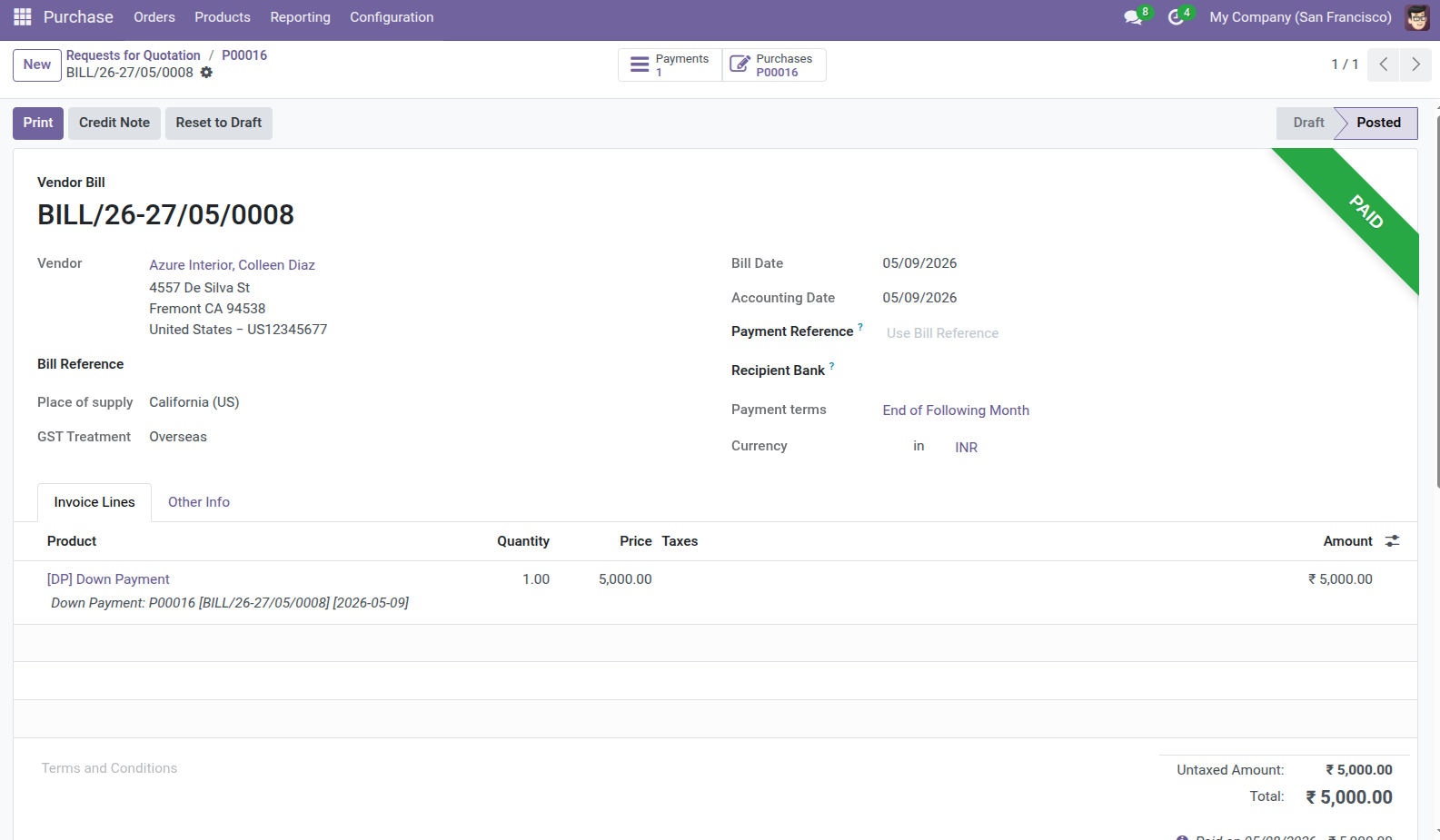
6. You can also choose the "Fixed amount" option to create a down payment for a specific value.
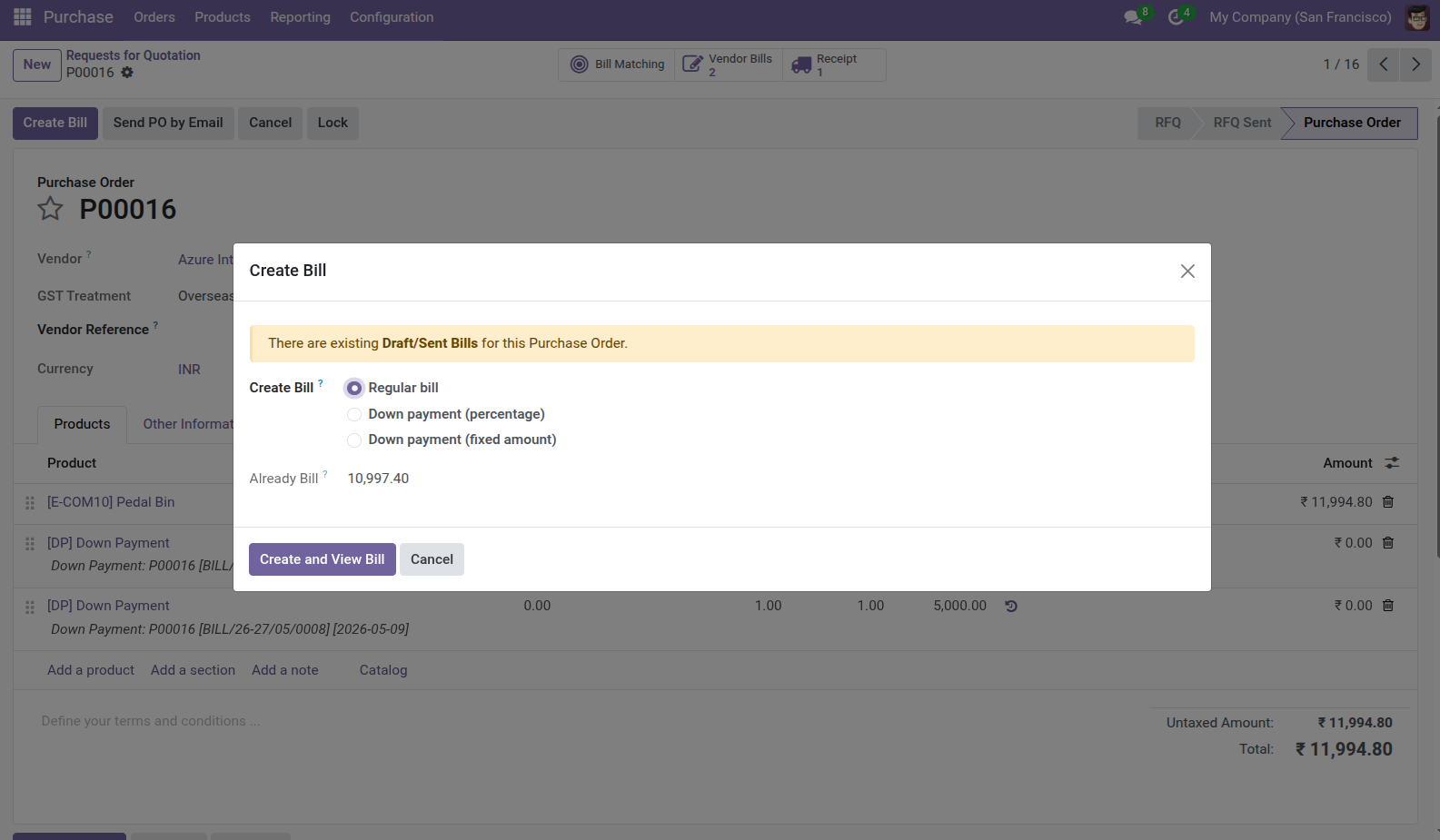
7. When creating a "Regular bill", the system shows the total amount already billed through down payments.
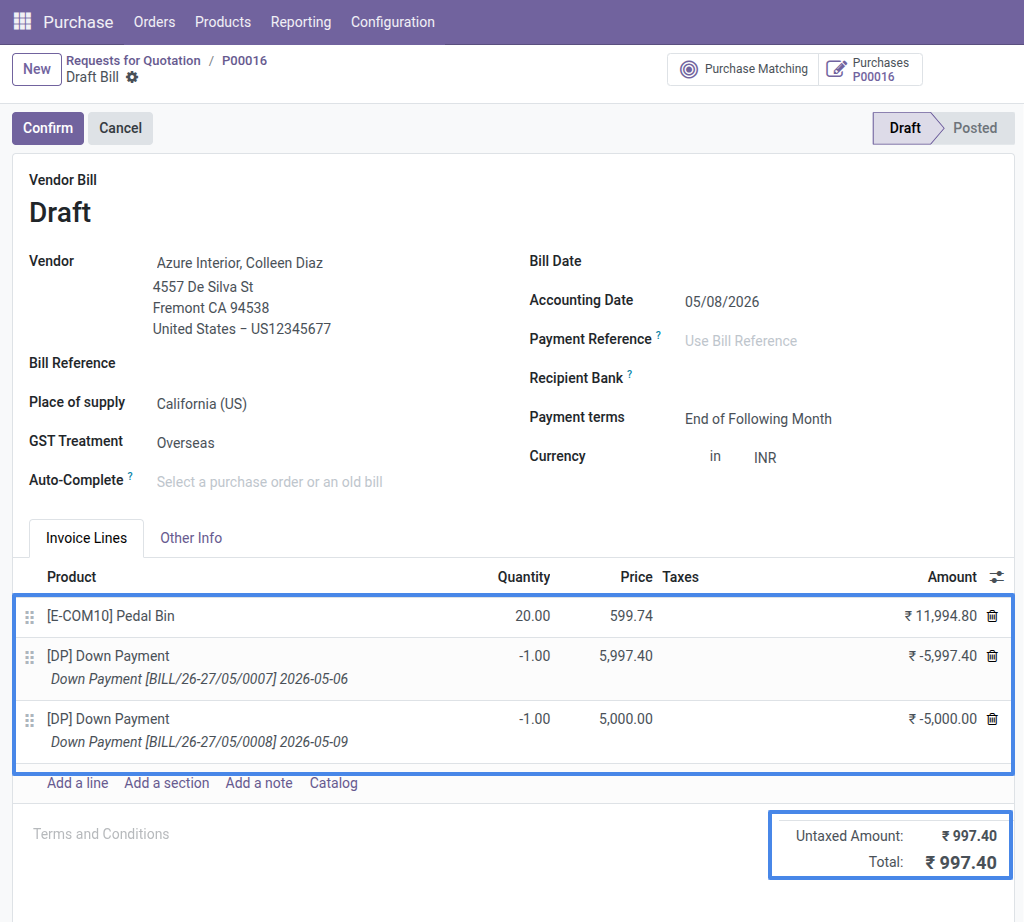
8. The final bill automatically deducts all previously posted down payments from the total, showing them as negative lines.
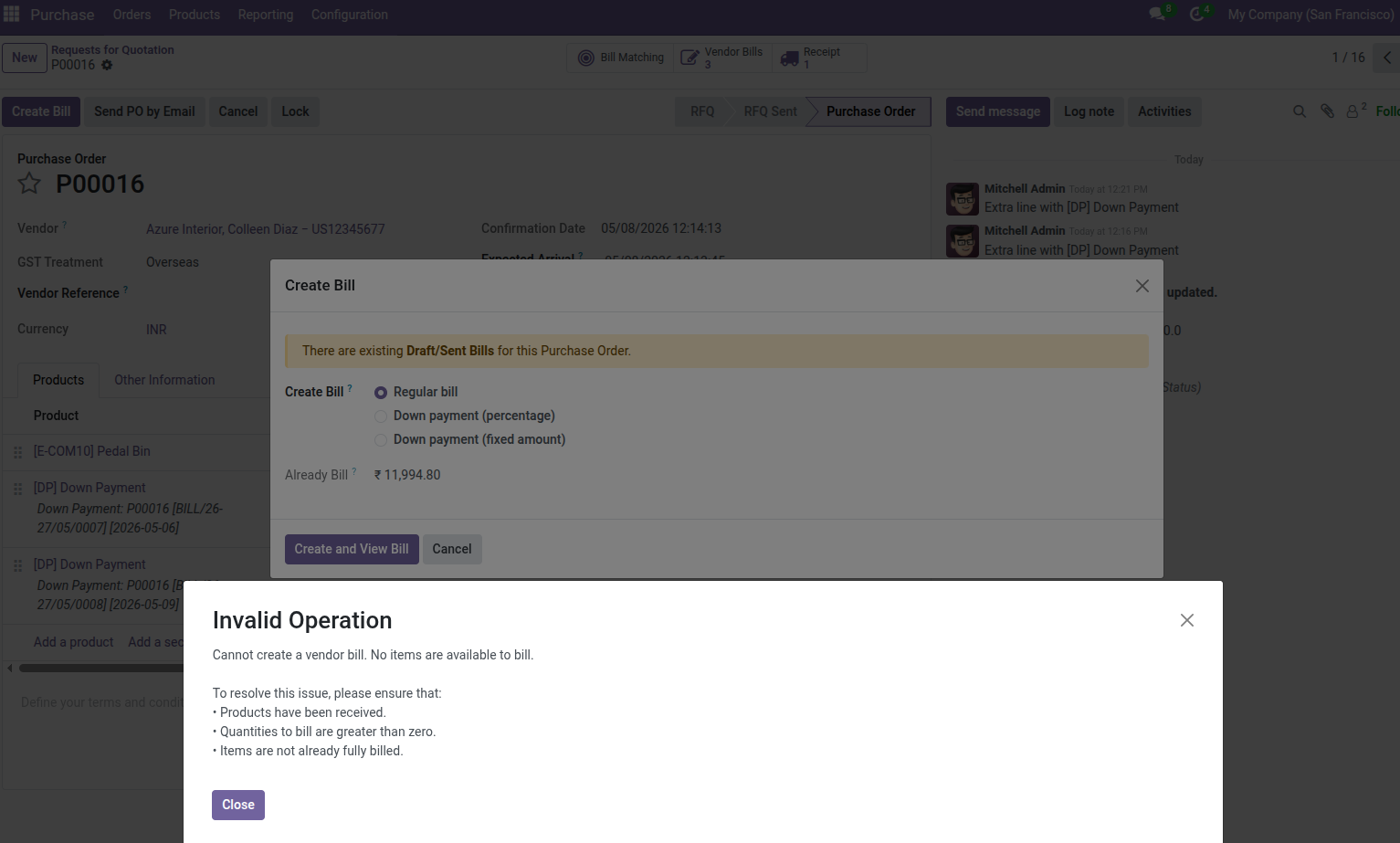
9. The system prevents creating empty bills if no items are available to be billed or everything is already fully invoiced.
Our solutions focus on your problems
- Odoo Implementation
- Odoo Customization
- ERP Development and Implementation
- Odoo Ipass Cloud
- AI for Odoo
- Odoo Apps
- Aws Marketplace Products
- Business Engines
Our Pricing includes User Manual, 90 Days Support (Monday-Friday 10am to 7pm IST) and One time Setup
• Works & tested on standard installations of Odoo with no third party apps,
• Free support only for odoo installations with no third party apps,
• Paid support available for Odoo installations with third party apps.

Prefortune is a Odoo Official Partner, Odoo Development company. Our philosophy is to use Open Source tools and technologies to provide cost effective and green solutions for our customers.
Prefortune Technologies LLP is working on web development, Mobile development, and Odoo ERP.
If you need any help or want more additional features, you may contact us through:
Alternative Products
These other products might interest you
Specifications
| Version | 19.0, 18.0, 17.0, 16.0, 15.0, 14.0 |