Watch Quick Video

Product Availability Management
Hide Out of Stock Products on Website
Product Availability Management | Hide Out of Stock Products on Website
Boost your Odoo online store with intelligent stock visibility and inventory control. The app allows you to create custom stock rules from a central Custom Website Stock Configuration panel, to display stock badges such as In Stock, Out of Stock, Only Few Items Left or any custom message according to your business needs. These stock indicators can be shown on the shop page and product detail page, helping customers to make informed purchasing decisions. The app can also disable the Add to Cart button for products that are out of stock, and prevent customers from ordering more than what is available, which can help prevent overselling and improve customer satisfaction. All stock behaviour on the website is fully controlled by the store administrator, through configurable rules.
Product Availability Management | Hide Out of Stock Products Features
- Gives real-time, transparent product availability to build customer’s confidence.
- Customisable stock badges and notifications enhance the shopping experience.
- Enhances the shopping experience with customizable stock badges and notifications.
- Reduces order cancellations and inventory-related issues by preventing overselling.
- It doesn’t over-sell, which decreases cancellations of orders and inventory issues.
Product Availability Management | Hide Out of Stock Products Workflow
To configure the app, go to Website → Website Stock Configuration → Stock Configuration and create a new configuration record. Type a name for the configuration and select the website where you want to use the stock configuration rules. Then, select the Out of Stock behaviour. When you choose Hide Out of Stock Products, a new Stock Update Method field will appear. Update Dynamically is the default update method, and updates product availability dynamically. Or, you can choose Update Through Cron to update stock visibility at scheduled intervals. If you select this option, two smart buttons will appear: Configure Cron – opens the scheduled action form to configure the frequency for updates Availability Update – Instantly updates product stock availability and applies the latest stock visibility rules If this setting is enabled, out of stock products will be automatically hidden from the shop on the website depending on the chosen update method.
When you select Show Custom Stock Message as the out-of-stock behaviour, you can set up custom stock badges and messages for various stock statuses. Set custom text, background colours and text colours for In Stock and Out of Stock statuses. You can also enable the Extra Custom Message option to display more messages related to inventory like “Only a Few Items Left” or any custom message as per your business requirements. The Other Settings section gives you additional stock management controls: Deny Out-of-Stock Orders – blocks customers from purchasing products when inventory is unavailable. Display Quantity on Product – Displays the available stock quantity on the product page on the website. Save Settings on Product – Sets the product to Allow Orders or Deny Orders when out of stock based on the ordering policy you select.
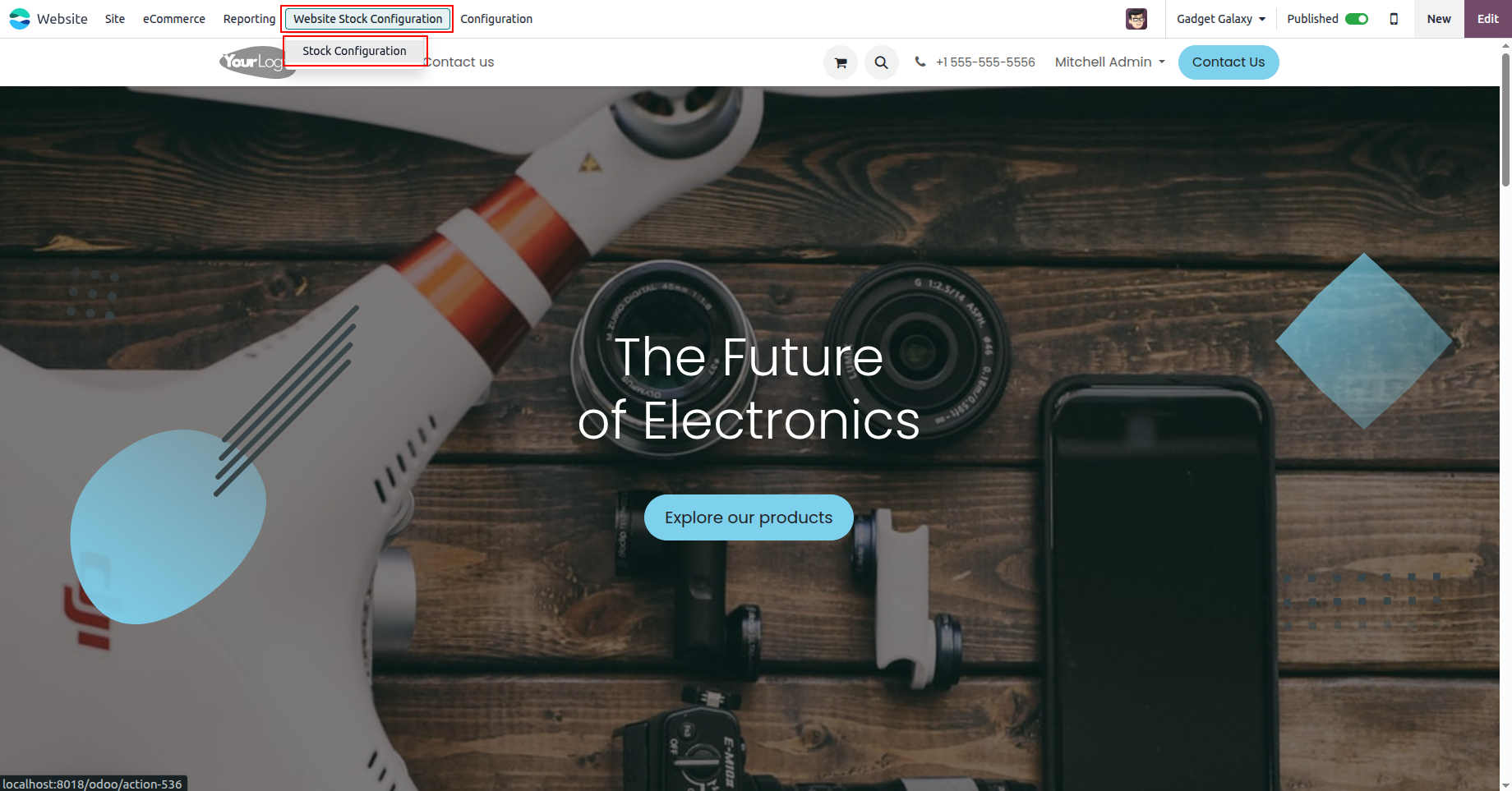
1.Go to Website → Website Stock Configuration → Stock Configuration.
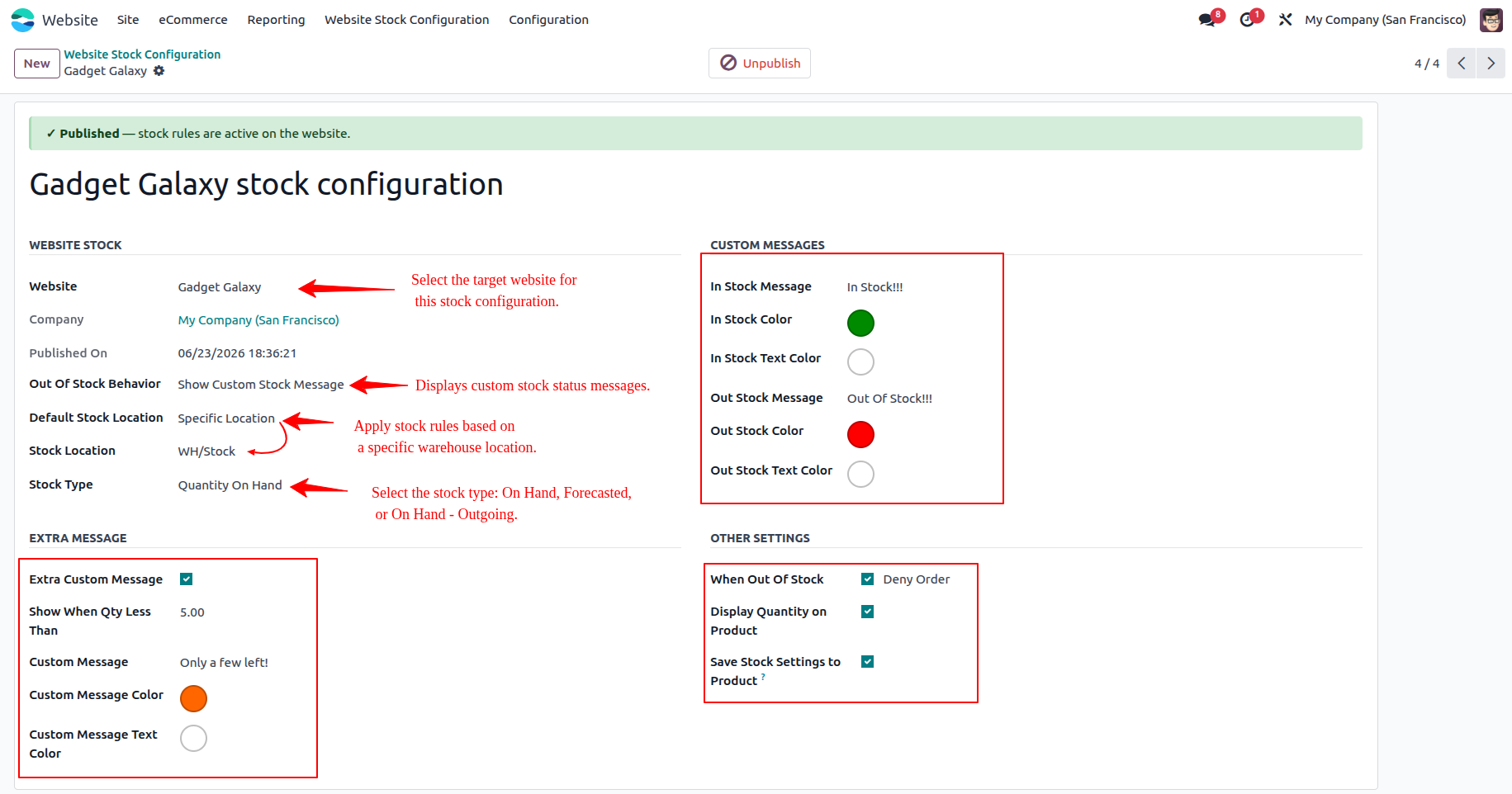
2.Create or configure the stock settings according to your business requirements.
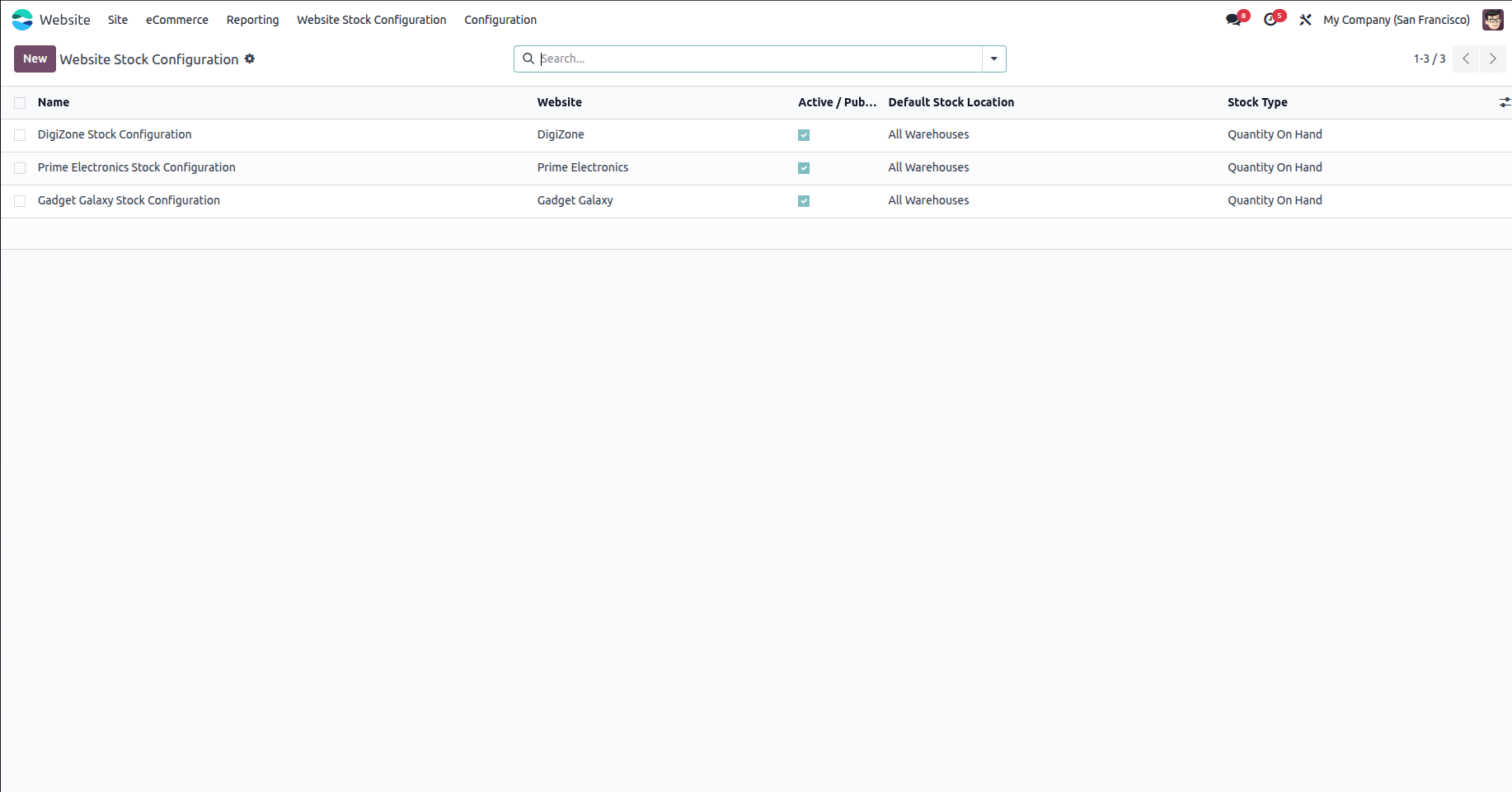
3.You can create multiple stock configurations for different websites.
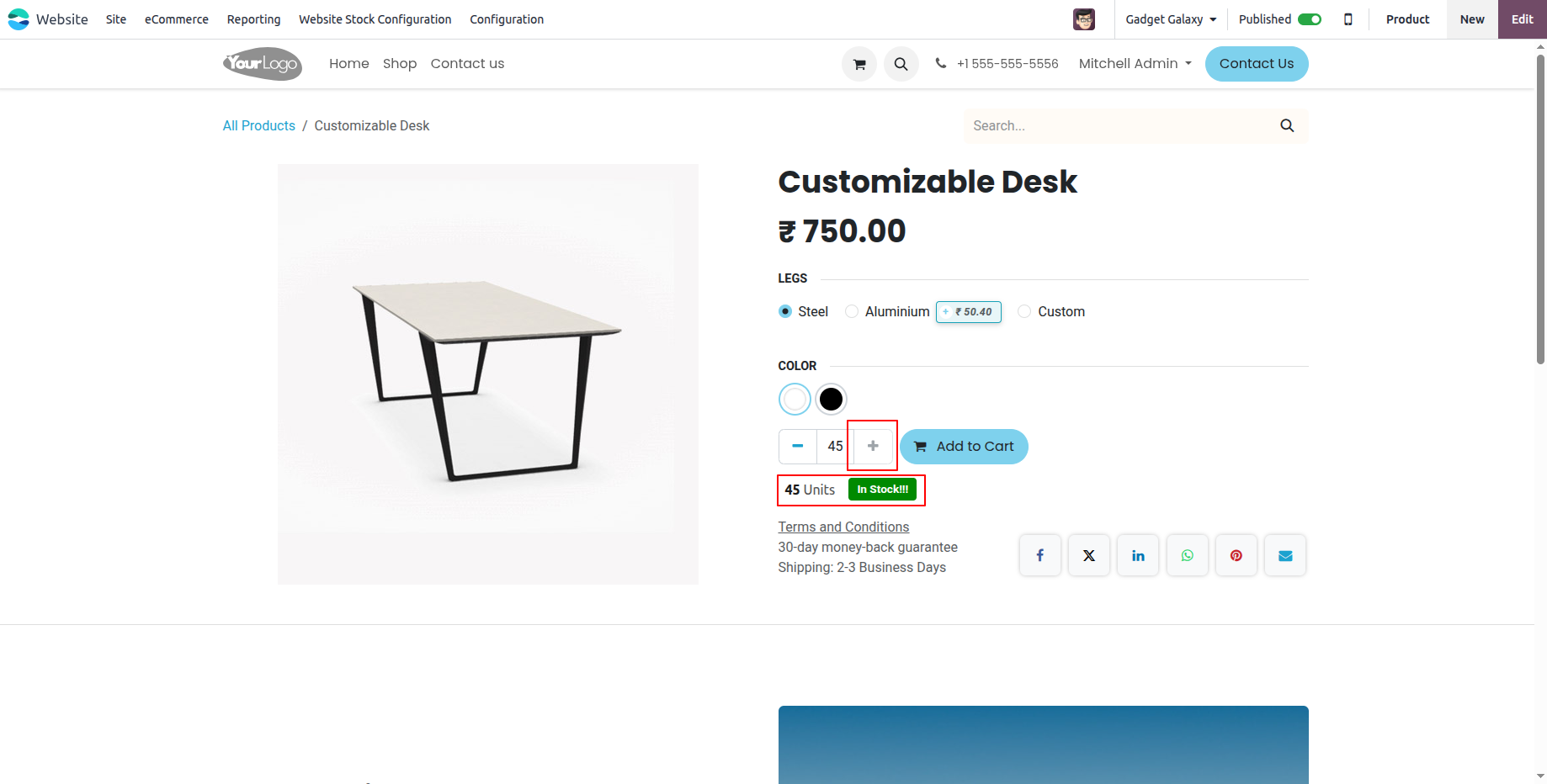
4.If Show Custom Message is enabled and Display Quantity on Product Page is enabled, the product page will display both the custom stock message and the available quantity.
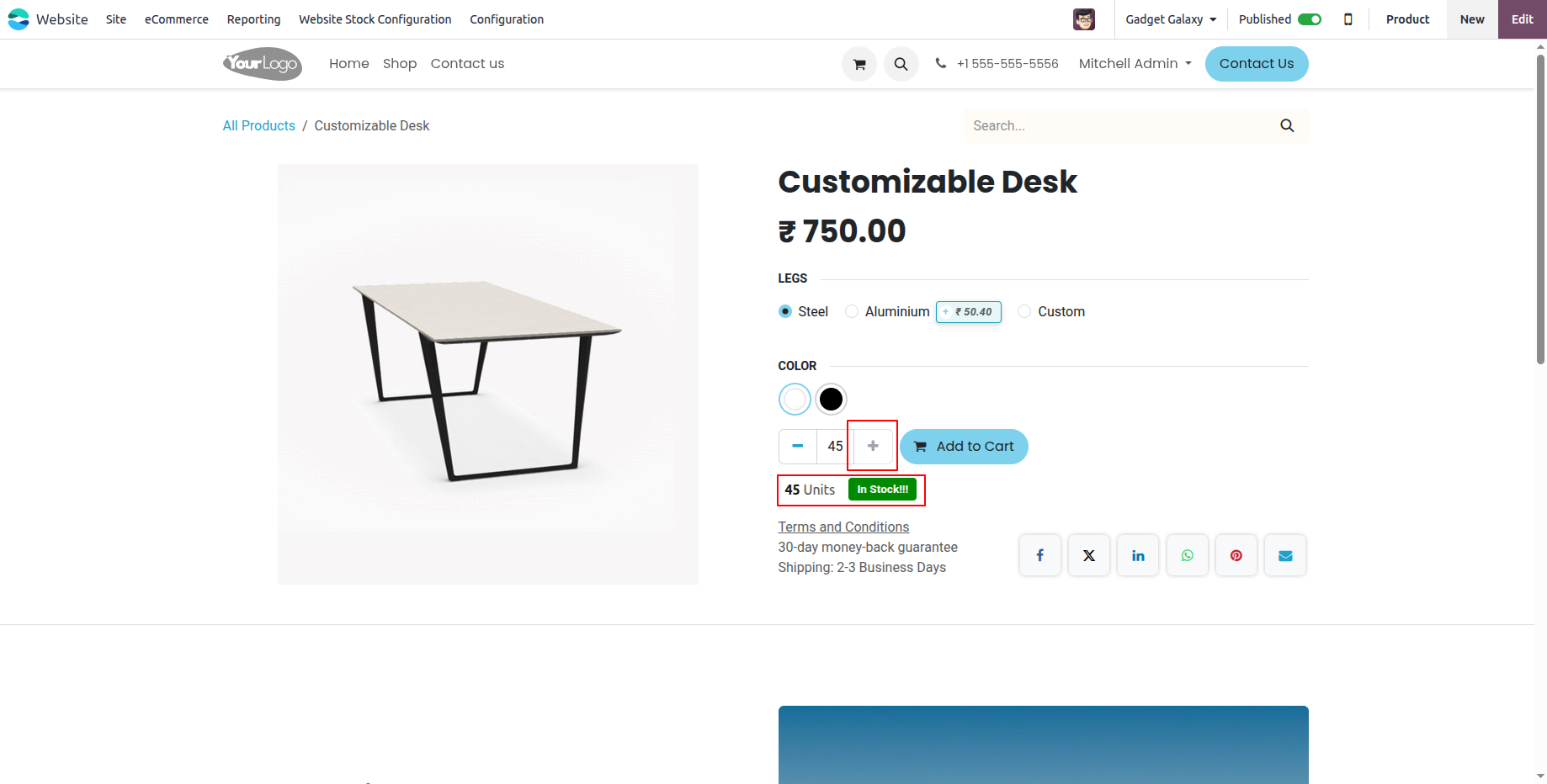
5.The same stock information is displayed on the product page. If When Out of Stock is set to Deny Orders, customers cannot add more than the available quantity. If they try, the quantity is automatically adjusted to the available stock, and the Increase Quantity (+) button is disabled.
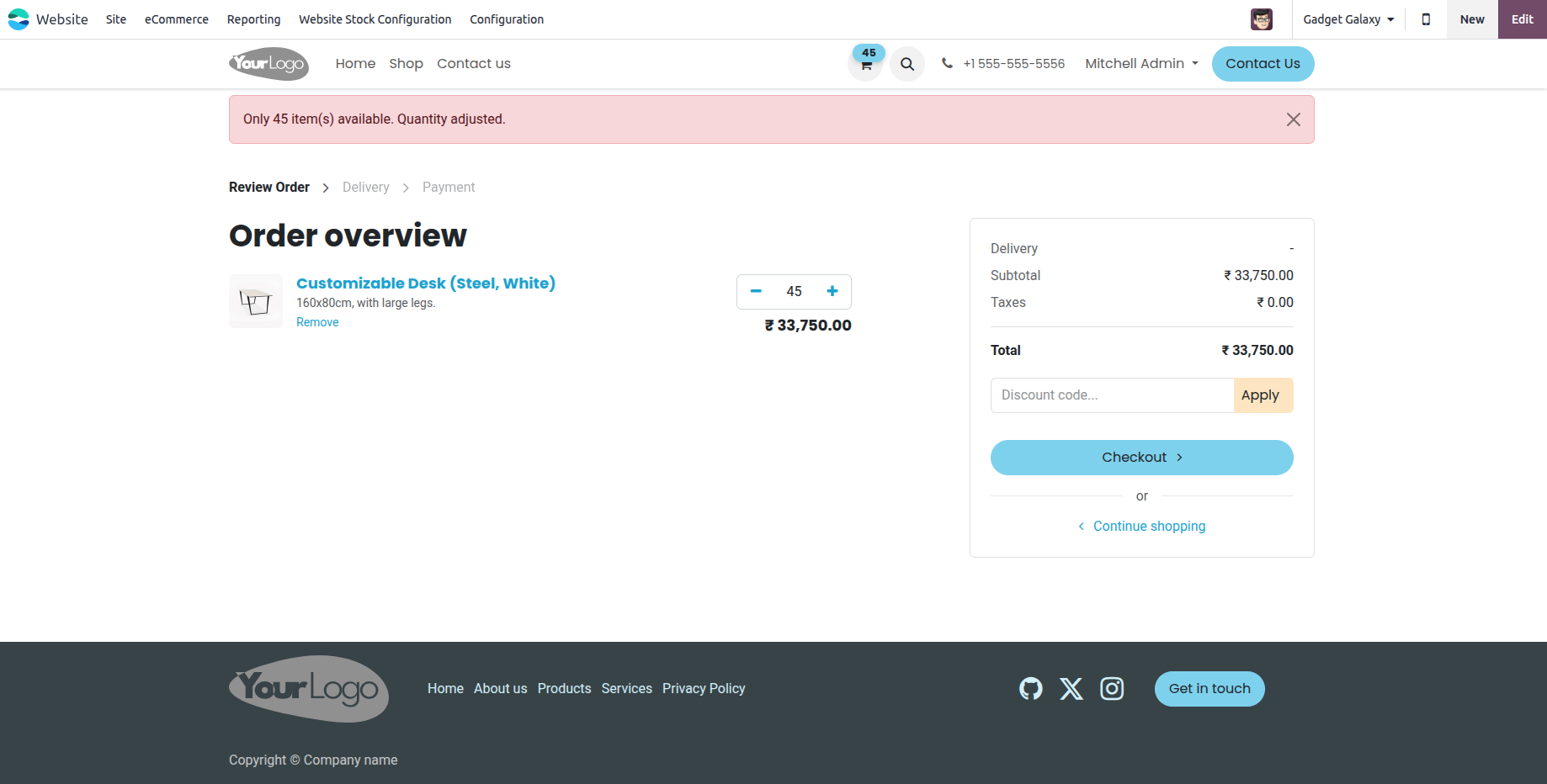
6.On the cart page, if a customer tries to increase the quantity beyond the available stock, the quantity is automatically reset to the available quantity and an appropriate warning message is displayed.
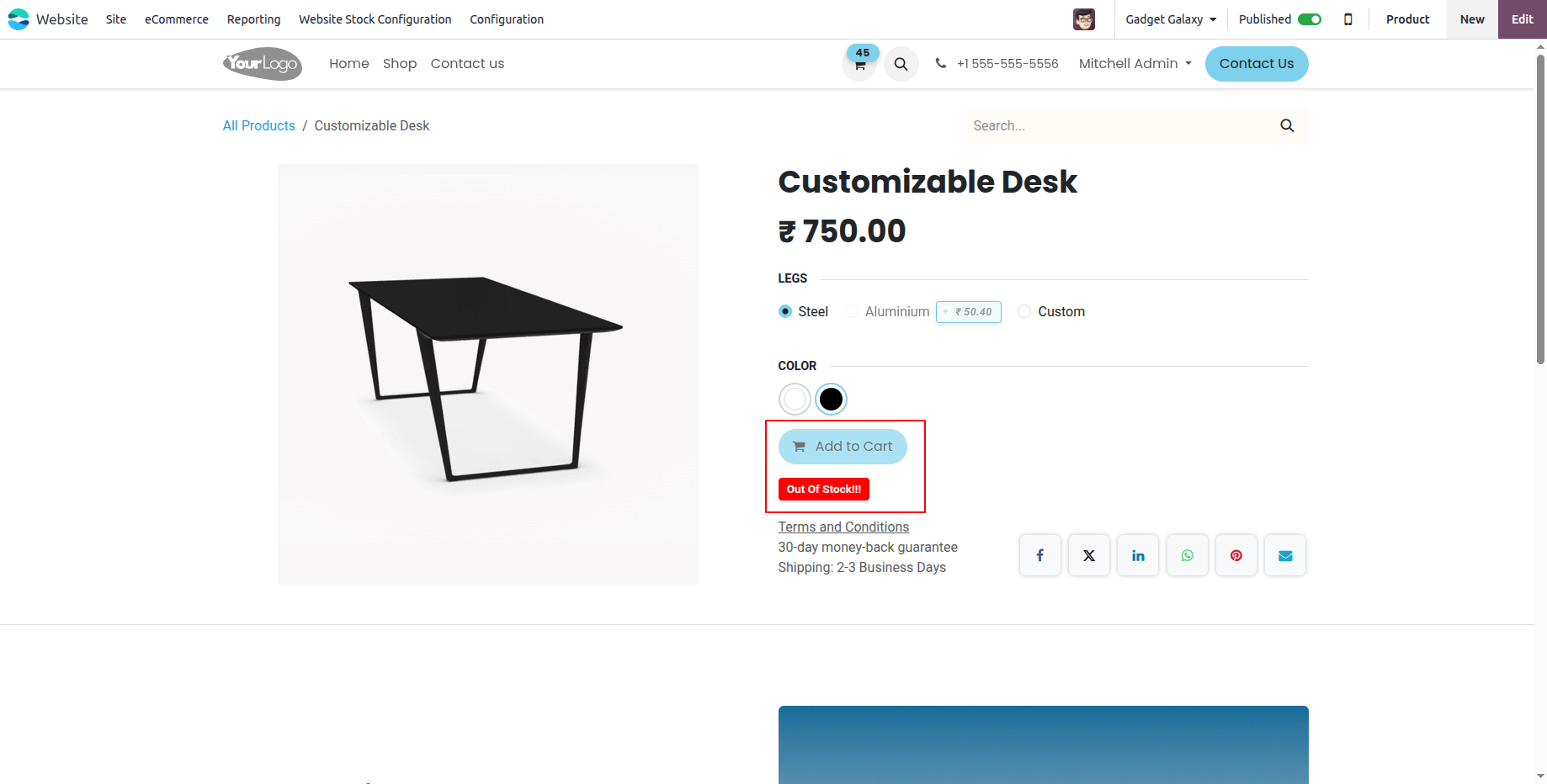
7.Stock rules are applied when a product or product variant becomes out of stock.
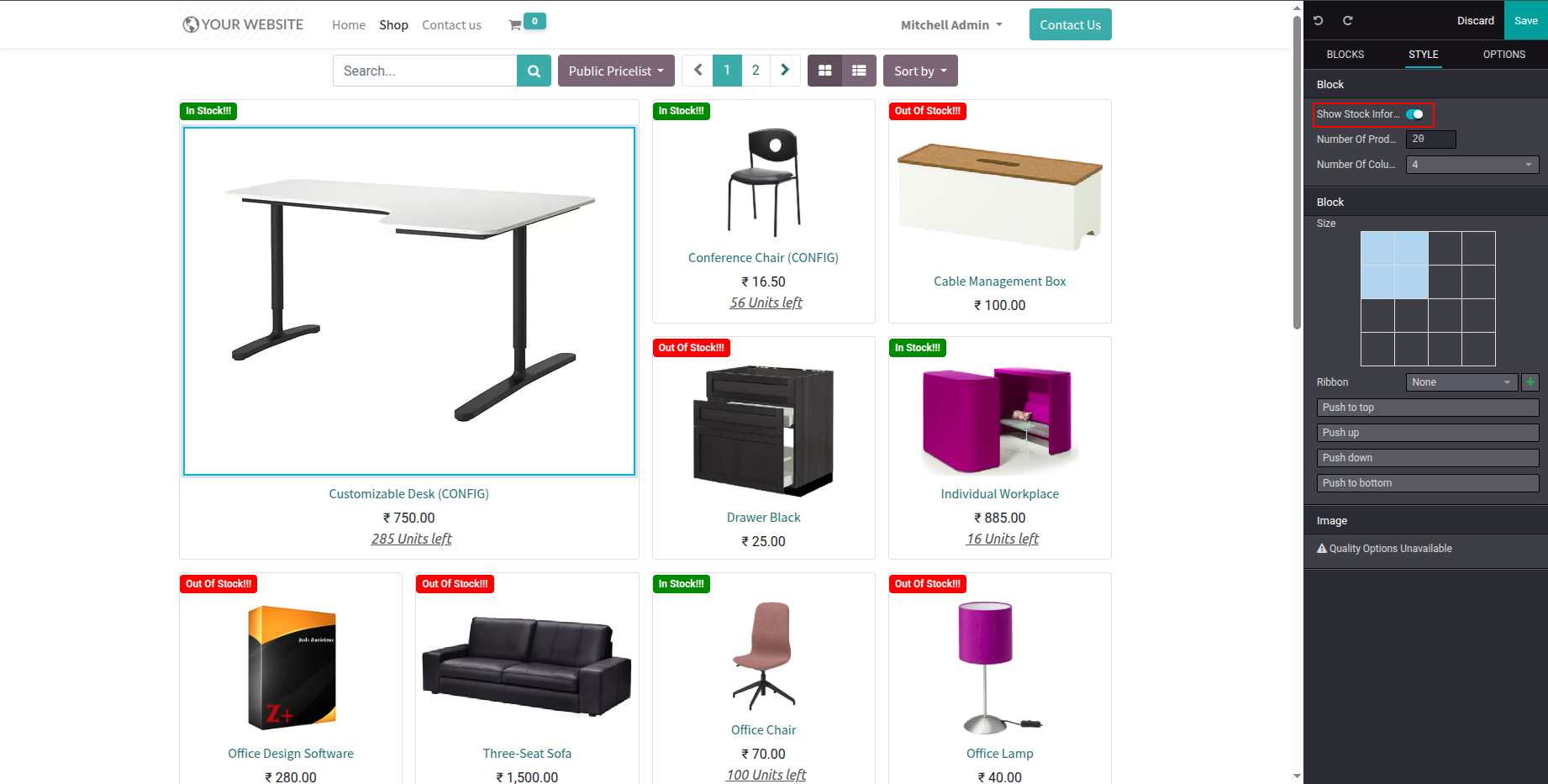
8.You can enable or disable website stock information on the product grid view page using the Show Stock Information option available in the Customize panel while editing the website.
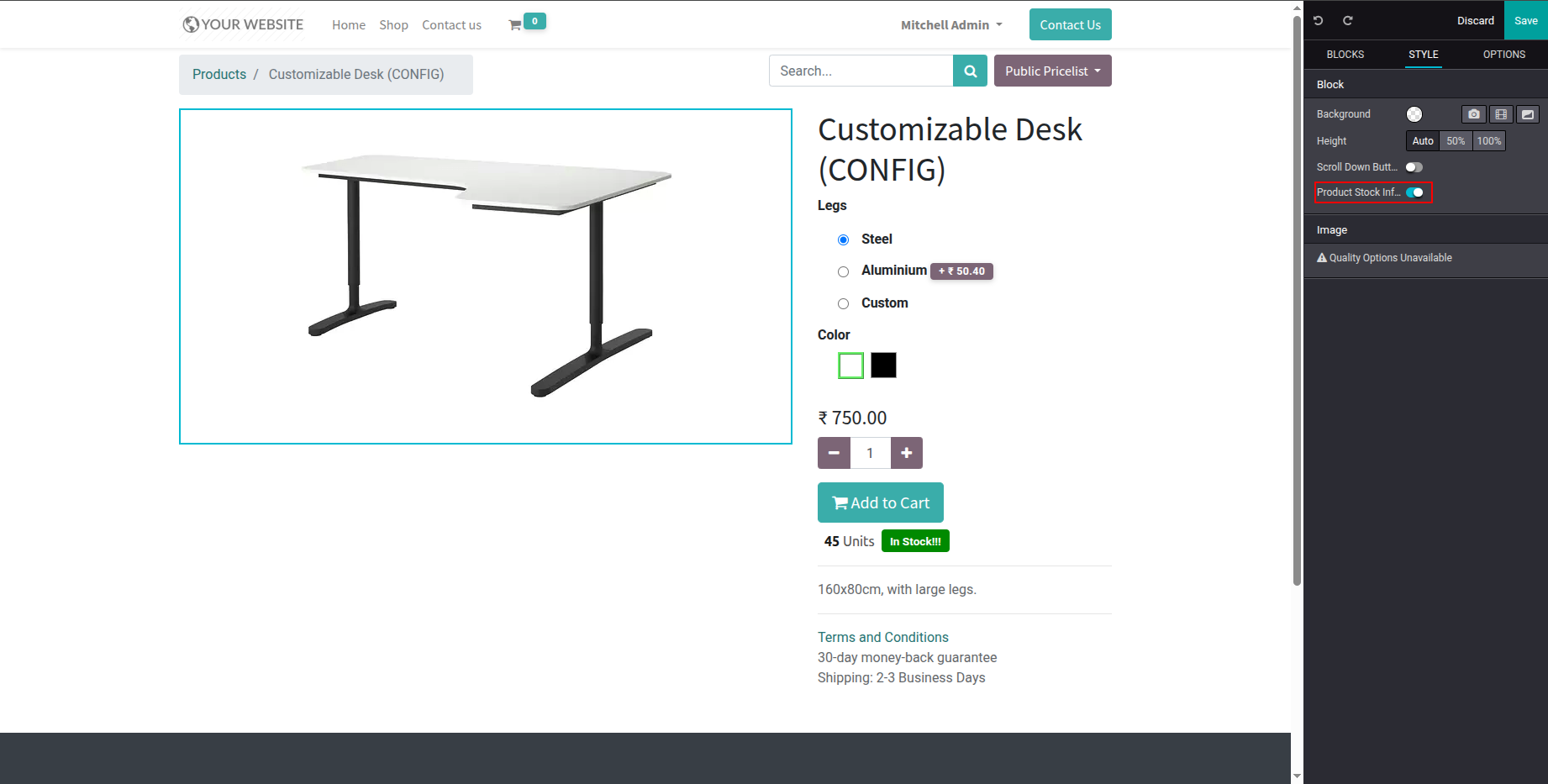
9.Hide/Show Stock Information on the Product Page
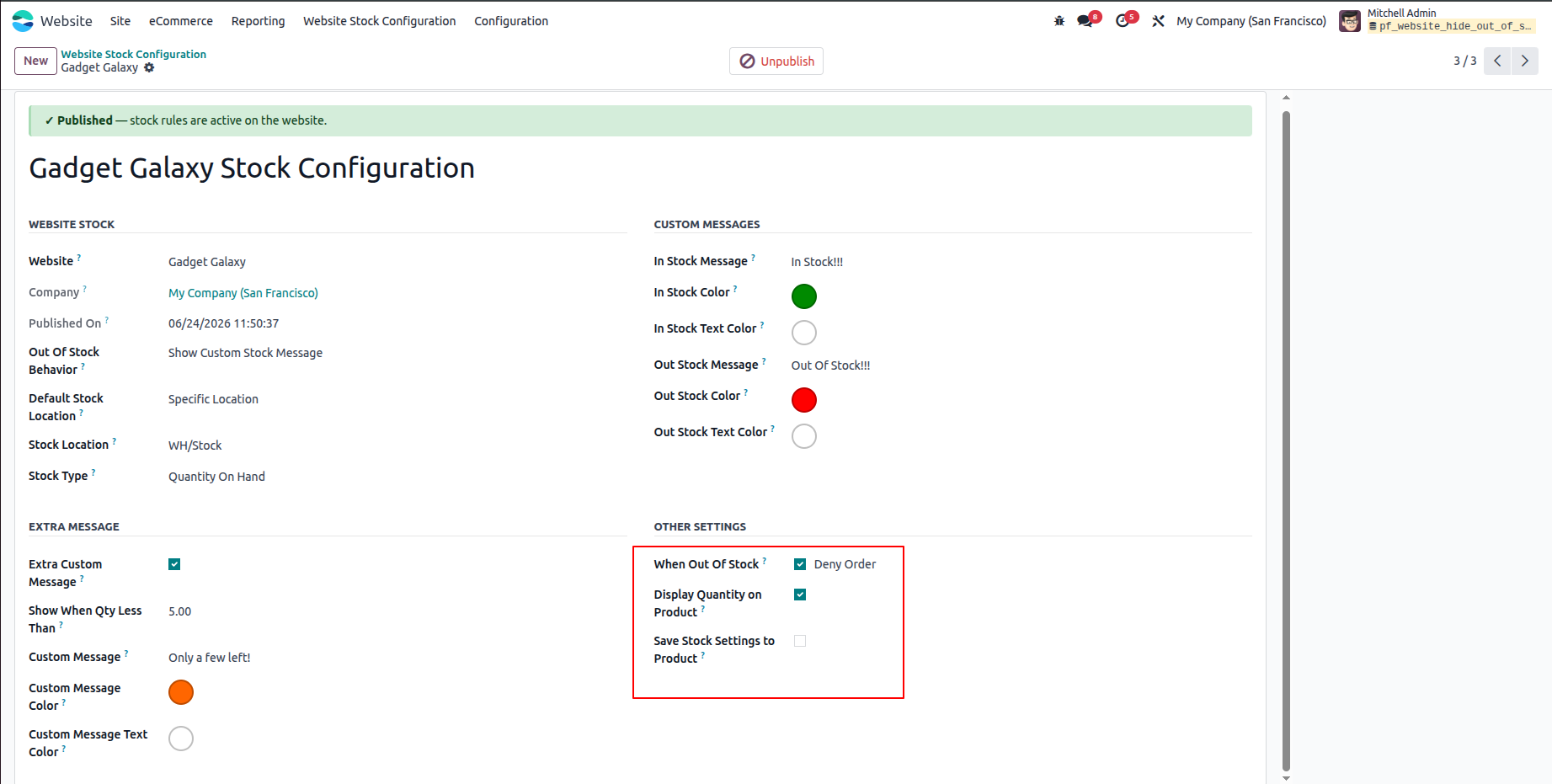
10.If Save Stock Settings to Product is disabled, the website stock configuration will not update the When Out of Stock setting on the product's Stock Settings page.
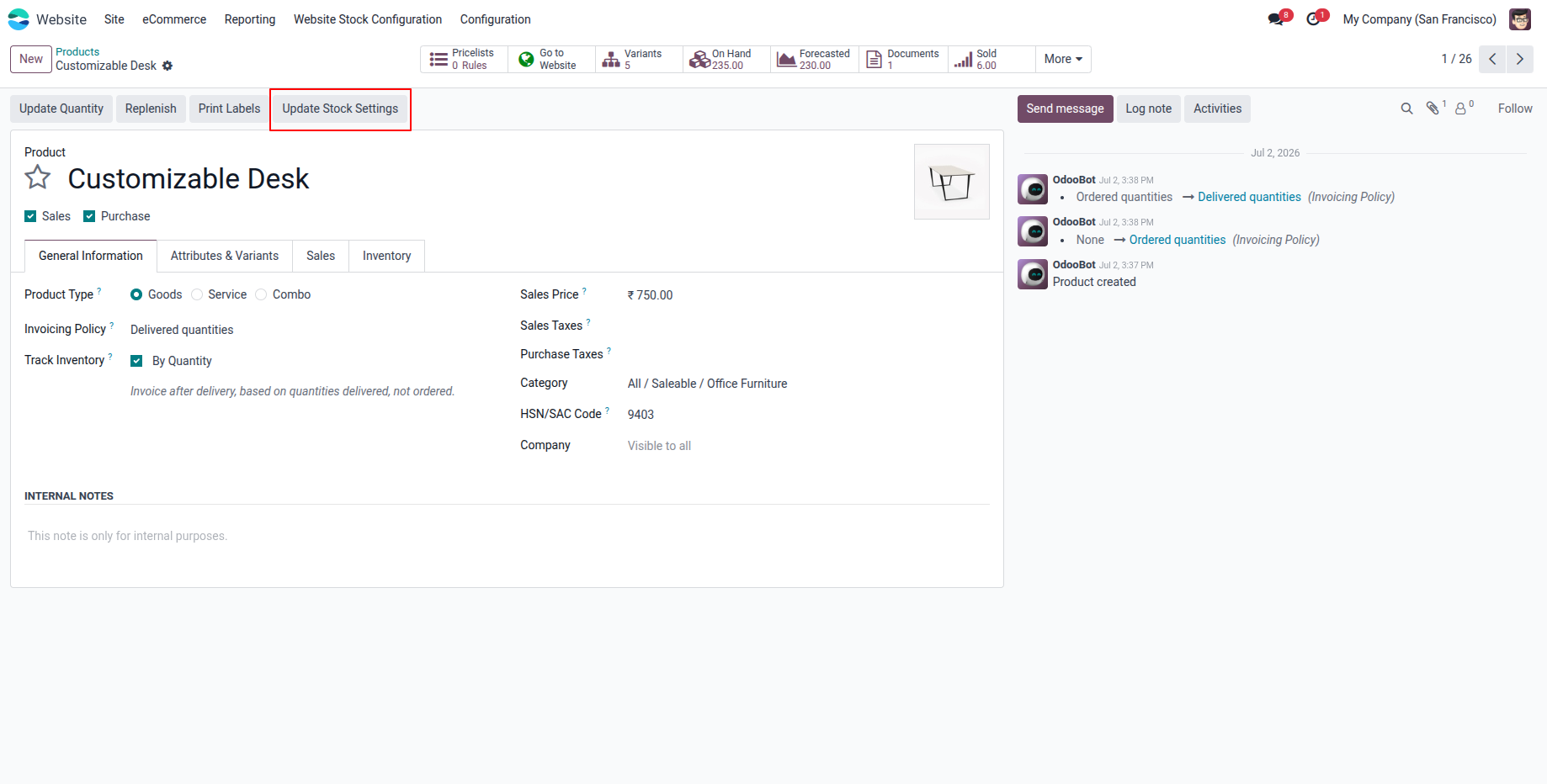
11.Open any product and click the Update Stock Settings button in the header.
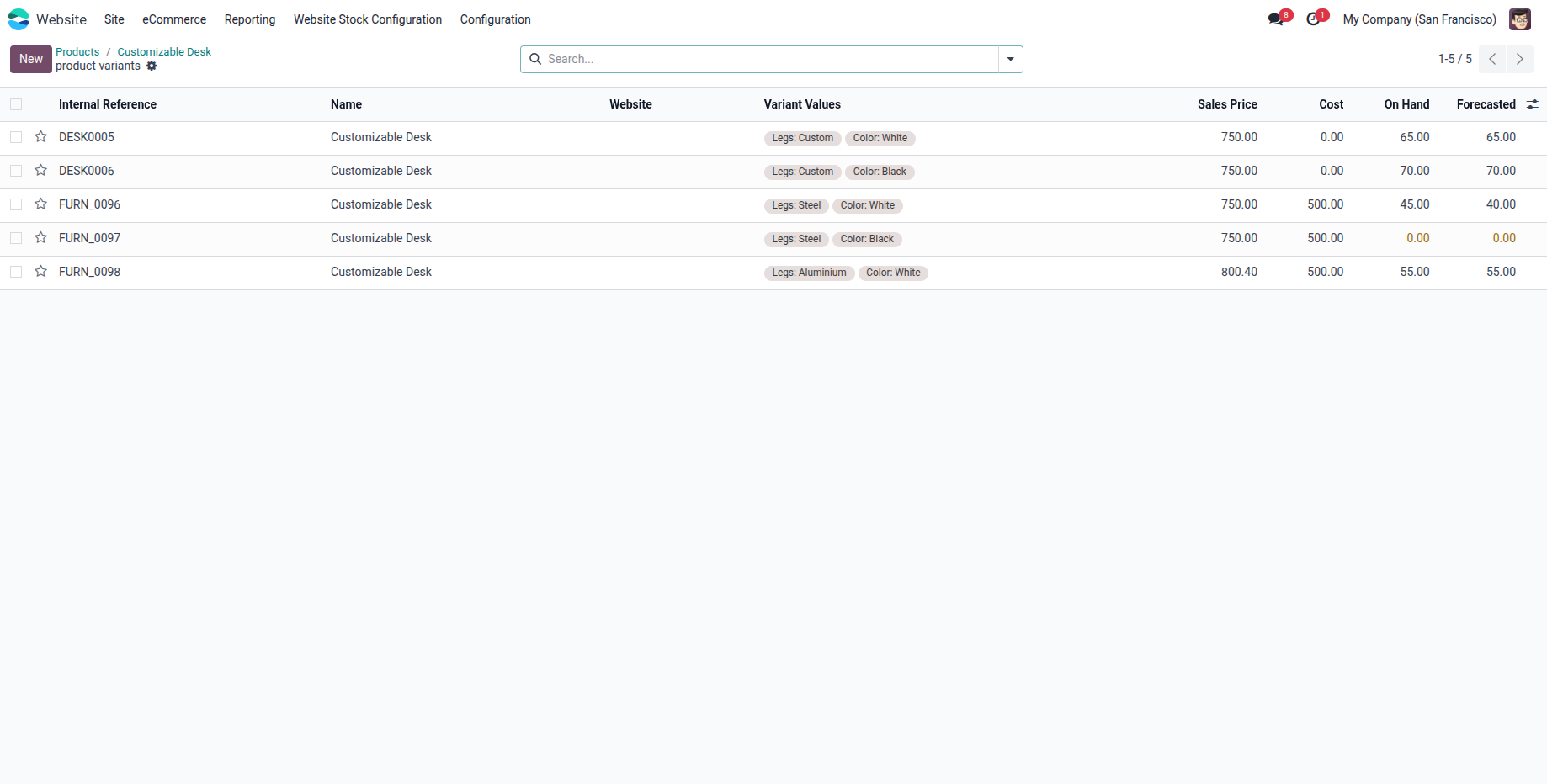
12.If the product has variants, all variants will be displayed. Otherwise, the Product Stock Settings page for that product will open.
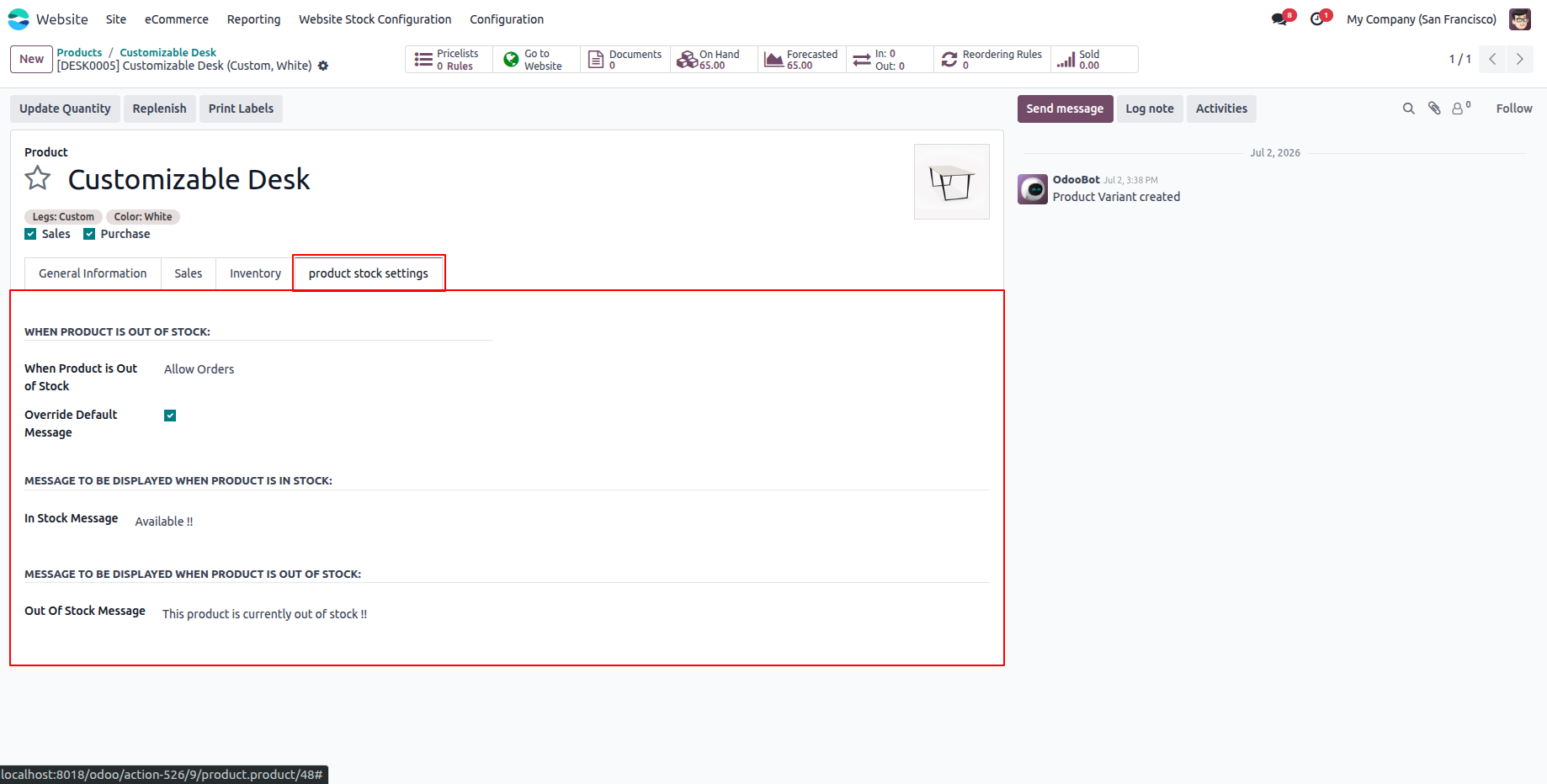
13.For products with variants, each variant has its own Stock Settings page where you can override the default stock behavior and custom message.
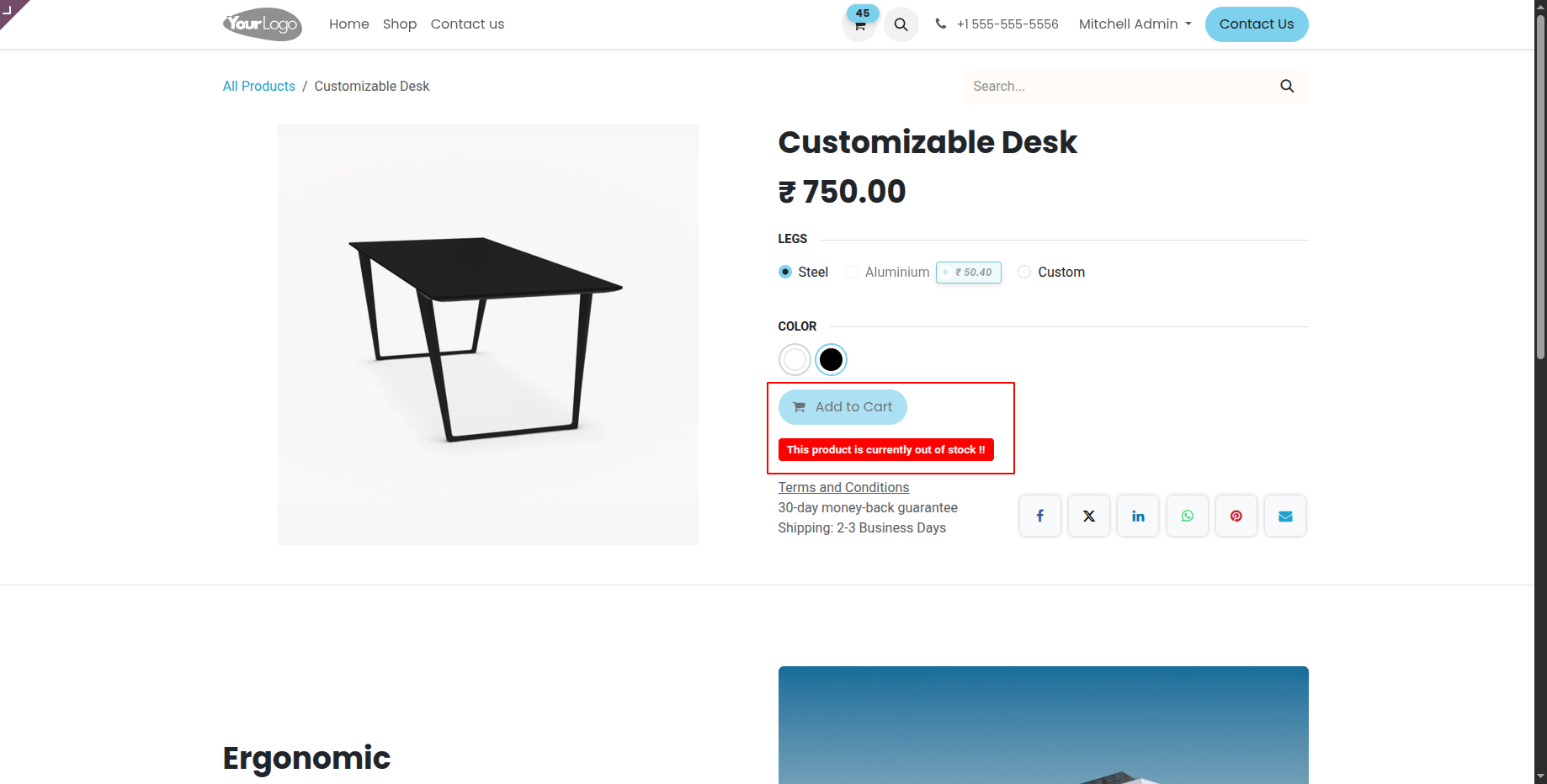
14.You can define a custom out-of-stock message specifically for an individual product or variant.
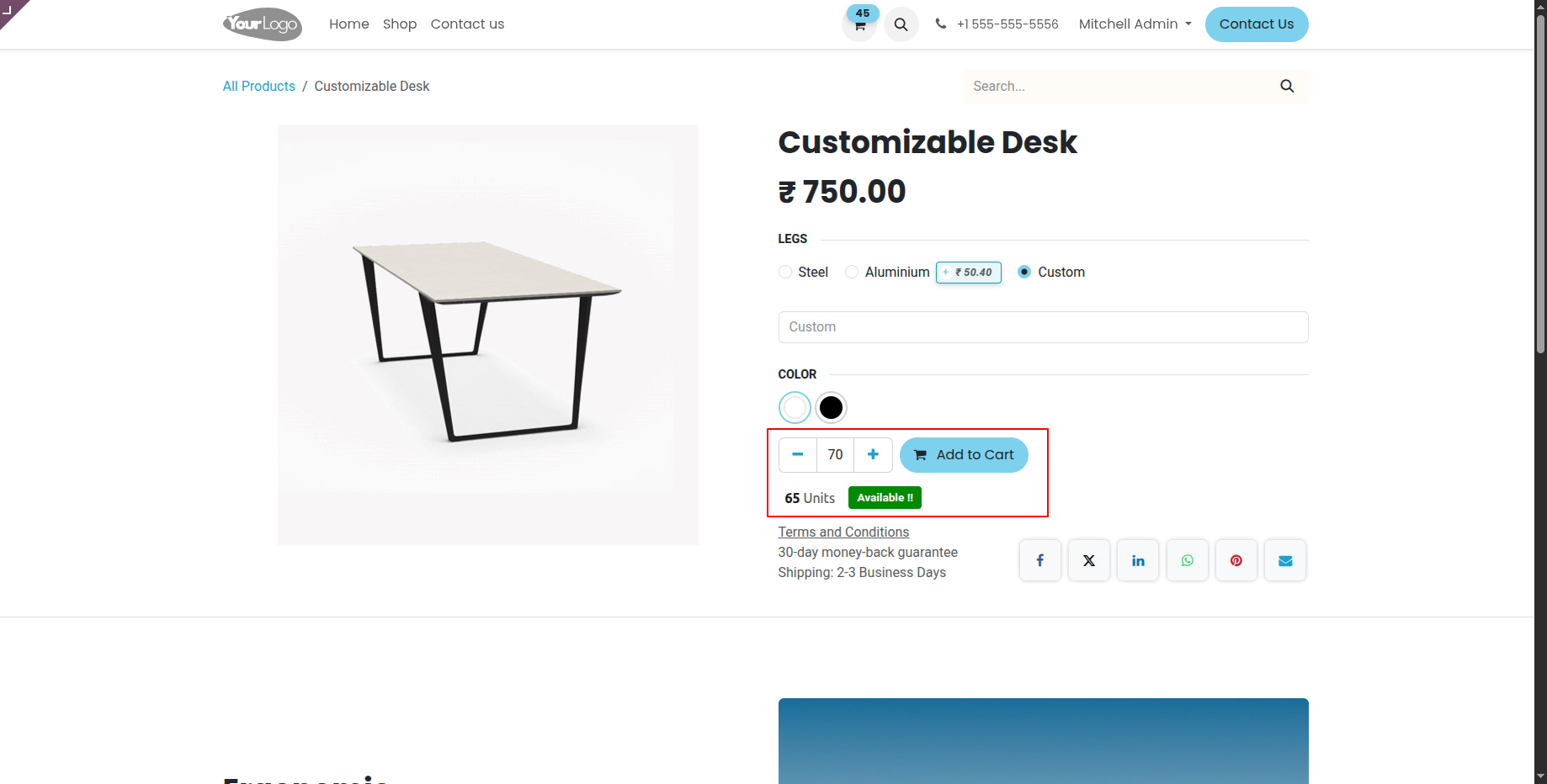
15.If When Out of Stock is set to Allow Orders in the Product Stock Settings, customers can add quantities greater than the available stock.
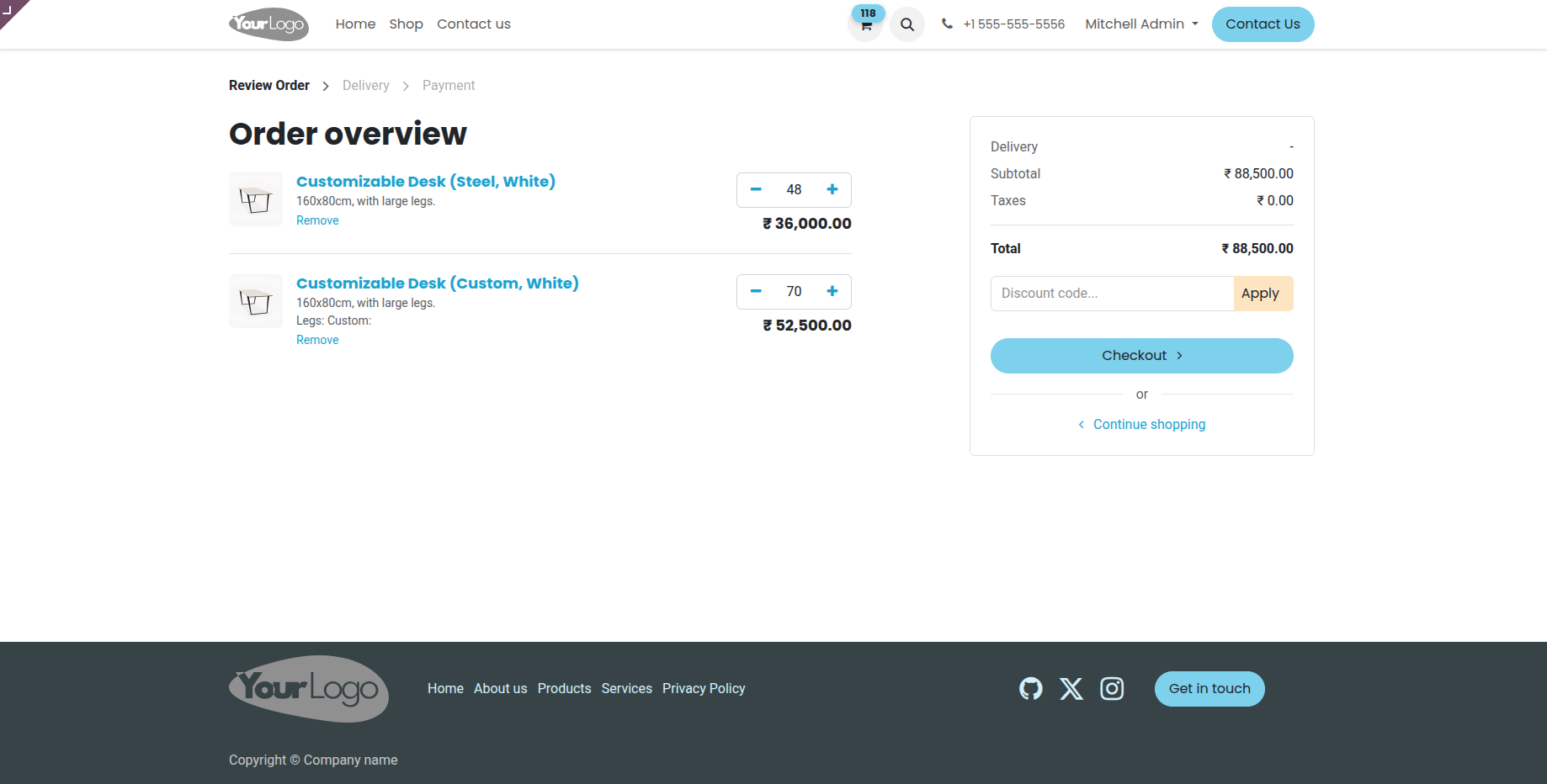
16.The same behavior is applied on the cart page, allowing customers to purchase quantities beyond the available stock for that product or variant.
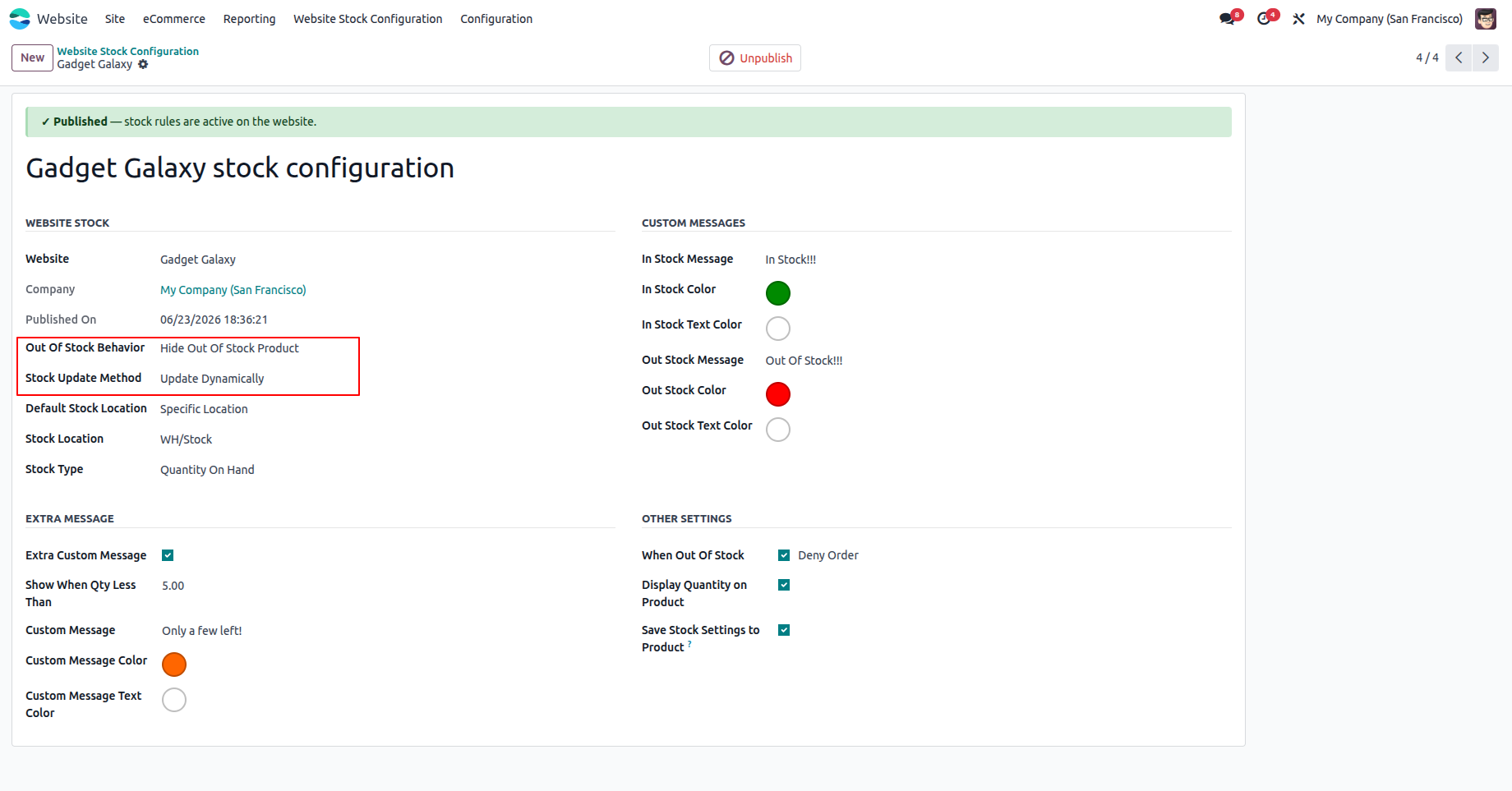
17.If Out of Stock Behavior is set to Hide Out-of-Stock Products and Stock Update Method is set to Update Dynamically, stock quantities are updated in real time and the configuration is applied immediately.
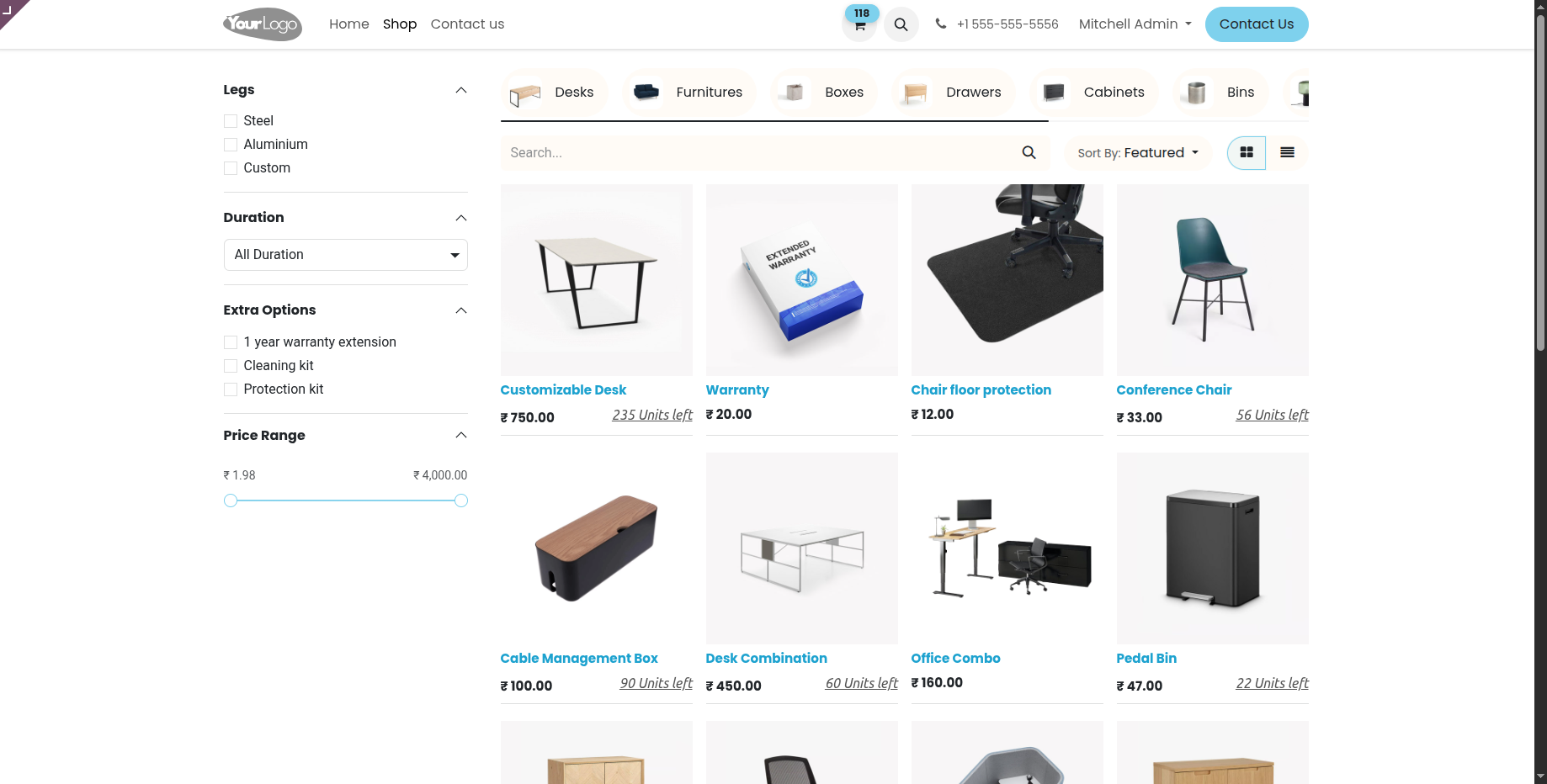
18.Out-of-stock products are automatically hidden, and only in-stock products are displayed on the website.
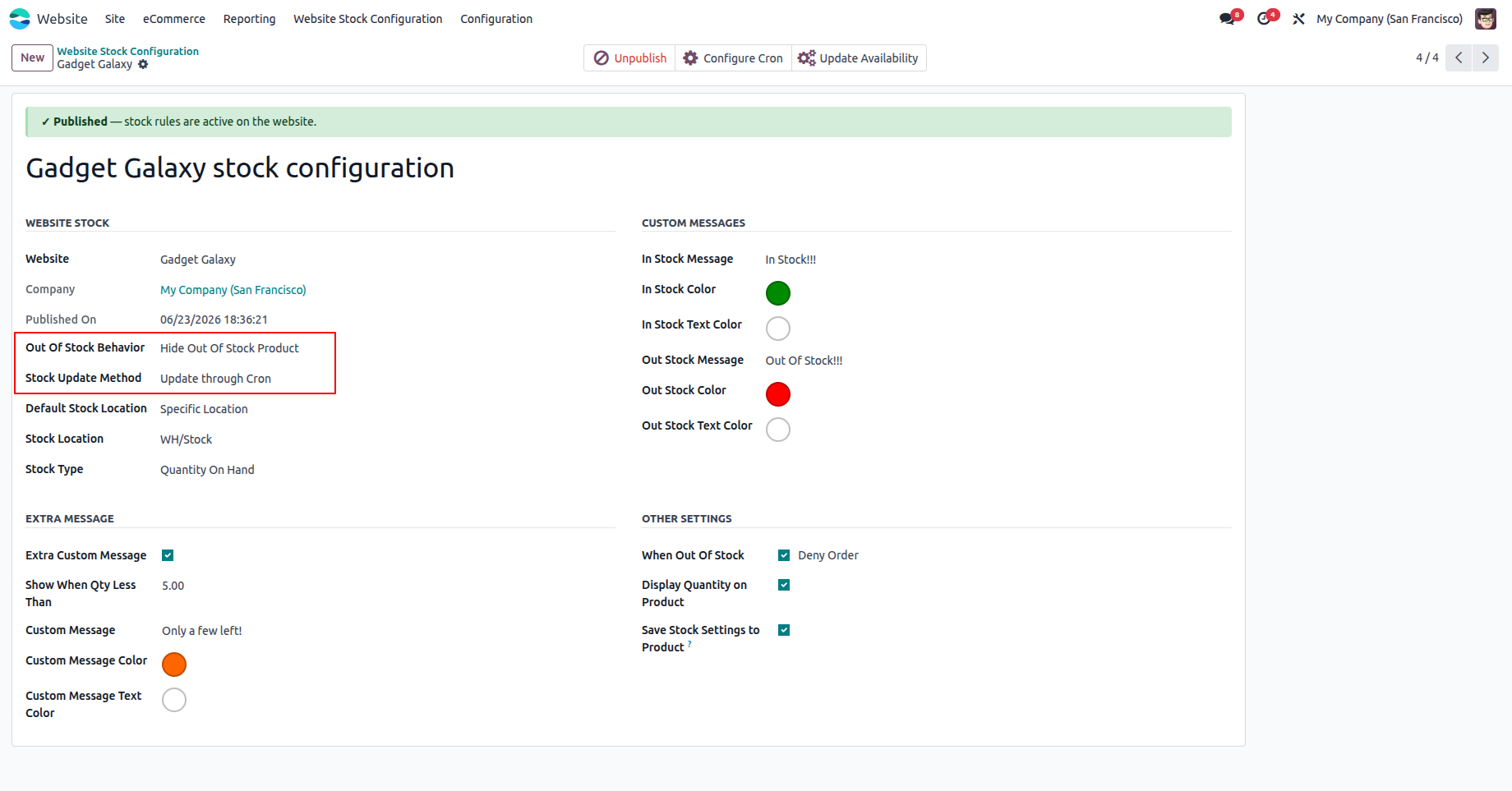
19.If Stock Update Method is set to Update Through Cron, product availability is updated according to the configured cron schedule. You can also click Update Availability to manually refresh the availability of all products, or click Configure Cron to modify the cron schedule.
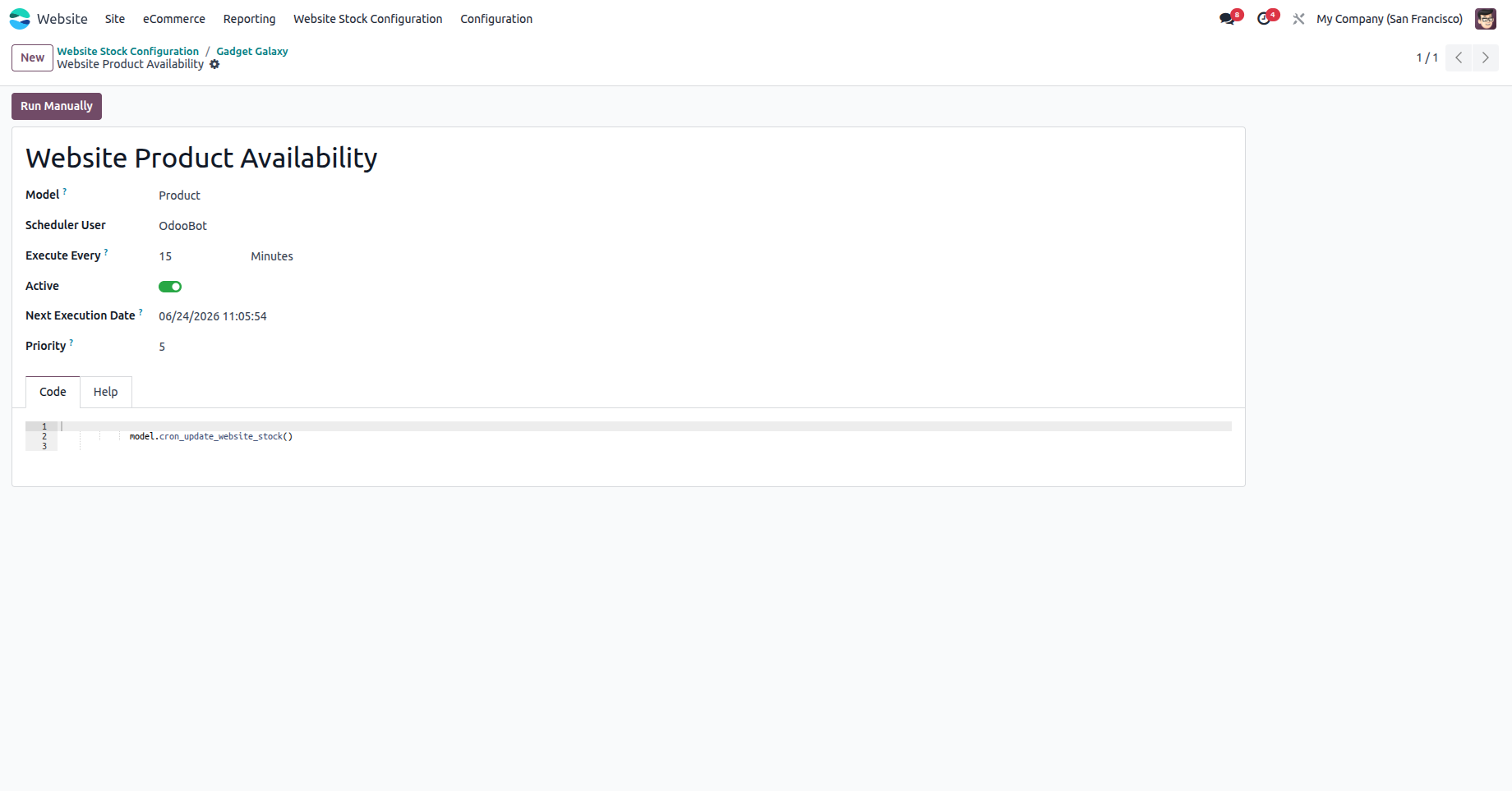
20.Configure the cron job according to your preferred update frequency.
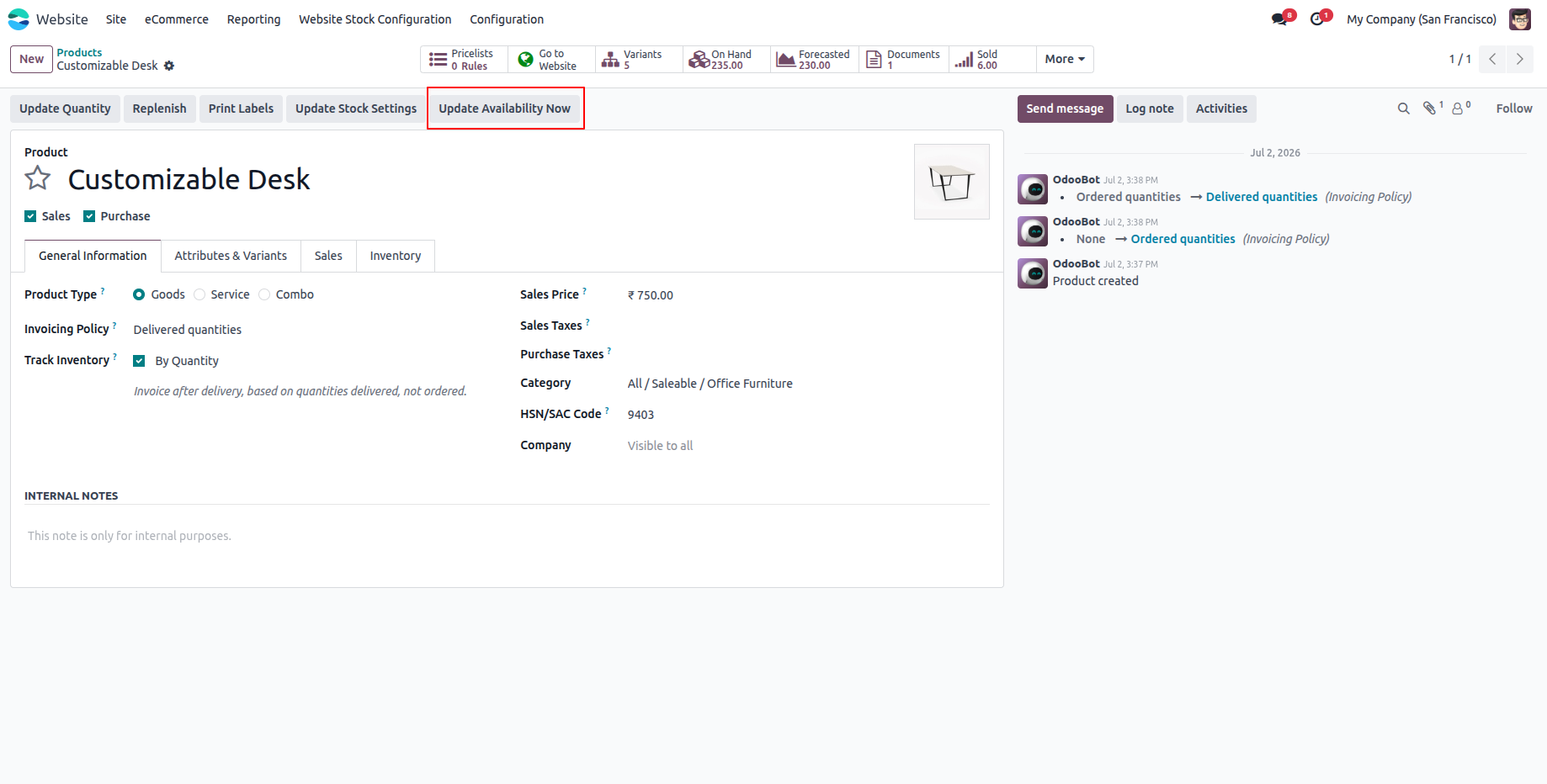
21.Click Update Availability Now at any time to immediately refresh the stock availability of all products.
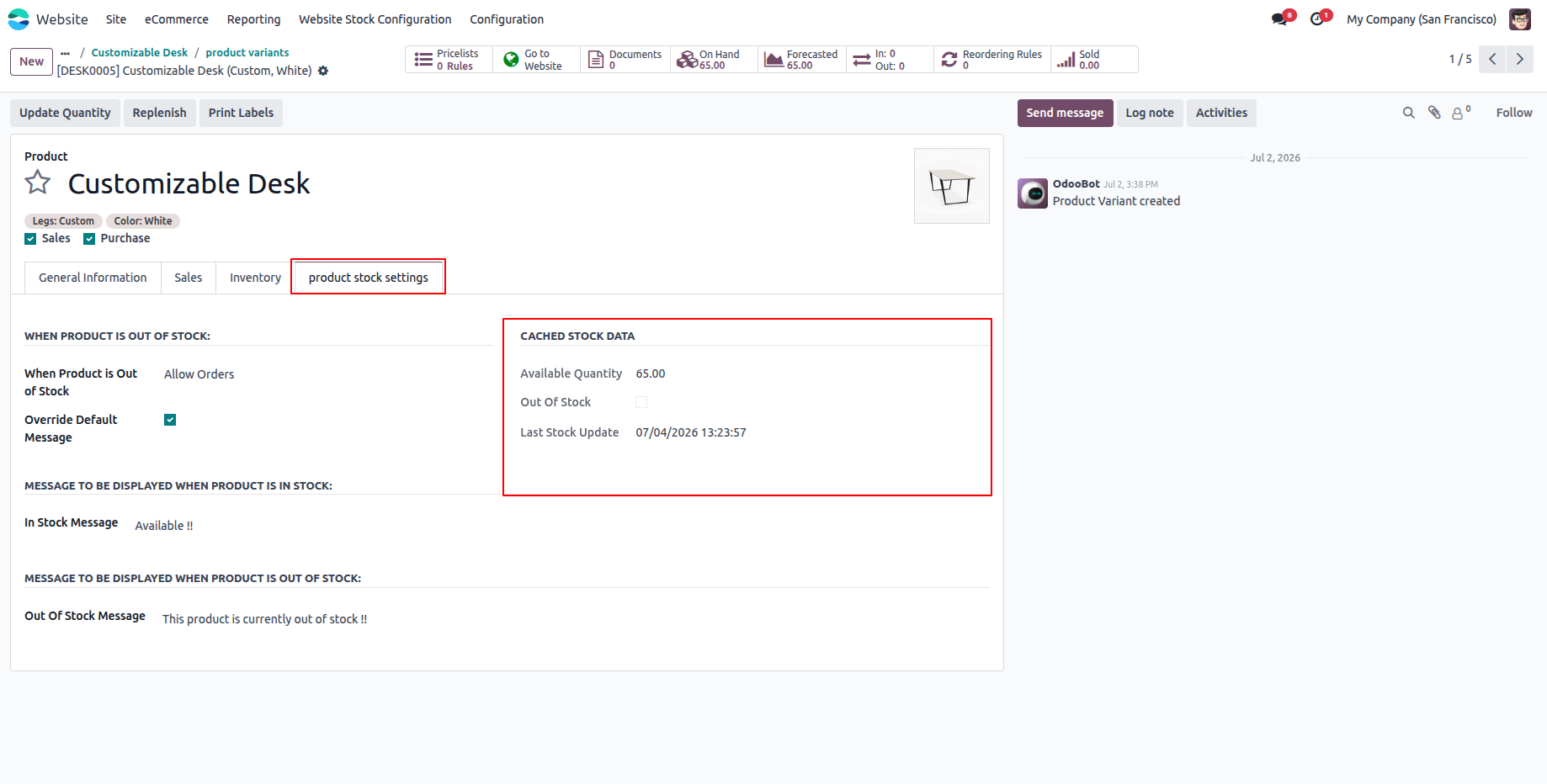
22.The system maintains cached stock data to efficiently track product availability changes when using the cron-based update method.
Our solutions focus on your problems
- Odoo Implementation
- Odoo Customization
- ERP Development and Implementation
- Odoo Ipass Cloud
- AI for Odoo
- Odoo Apps
- Aws Marketplace Products
- Business Engines
Our Pricing includes User Manual, 90 Days Support (Monday-Friday 10am to 7pm IST) and One time Setup
• Works & tested on standard installations of Odoo with no third party apps,
• Free support only for odoo installations with no third party apps,
• Paid support available for Odoo installations with third party apps.

Prefortune is a Odoo Official Partner, Odoo Development company. Our philosophy is to use Open Source tools and technologies to provide cost effective and green solutions for our customers.
Prefortune Technologies LLP is working on web development, Mobile development, and Odoo ERP.
If you need any help or want more additional features, you may contact us through:
Alternative Products
These other products might interest you
Specifications
| Version | 19.0, 18.0, 17.0, 16.0, 15.0, 14.0 |