Watch Quick Video

POS Workflow Automation for Sales & Purchase
Our all-inclusive POS Workflow Automation for Sales & Purchase
module helps businesses manage sales and purchase processes directly from the Odoo POS screen. Using flexible automation rules and automated document creation, cashiers can create sale orders, purchase orders, customer invoices, and vendor bills based on predefined settings. The module also supports real-time internal notes from POS, multi-tier order actions, and automated document processing.
It automatically synchronizes POS transactions with backend sales and purchase records, making daily operations easier to manage. By providing clear transaction history and streamlined order processing, the module helps improve cashier productivity, reduce manual work, and increase operational efficiency.
POS Workflow Automation for Sales & Purchase
- Display automated sales pipelines and purchase processes directly on POS screens.
- Manage multi-tier order creation and customer invoice validations.
- Send internal transaction notes from the POS pop-up to backend records.
- Create purchase orders, RFQs, and vendor bills directly from the POS.
- Simplify bulk billing and help cashiers process transactions faster.
Complete Workflow for Manage POS Workflow Automation for Sales & Purchase
Activate the POS Workflow Automation for Sales & Purchase module and configure POS Workflow Management Configurations under the Point of Sale settings. Enable "Sale / Customer Invoice Workflow" and "Purchase / Vendor Bill Workflow" directly for your POS shop. The module automatically displays a dedicated action pop-up on the POS screen and generates backend records in real time when users select their preferred options, add internal notes, or manage multi-tier sales and purchase processes. It automatically creates and synchronizes related documents such as sale orders, purchase orders, customer invoices, vendor bills, and RFQs with the backend. This helps businesses improve operational management, increase cashier checkout speed, and simplify document tracking through POS order automation and automated document processing.
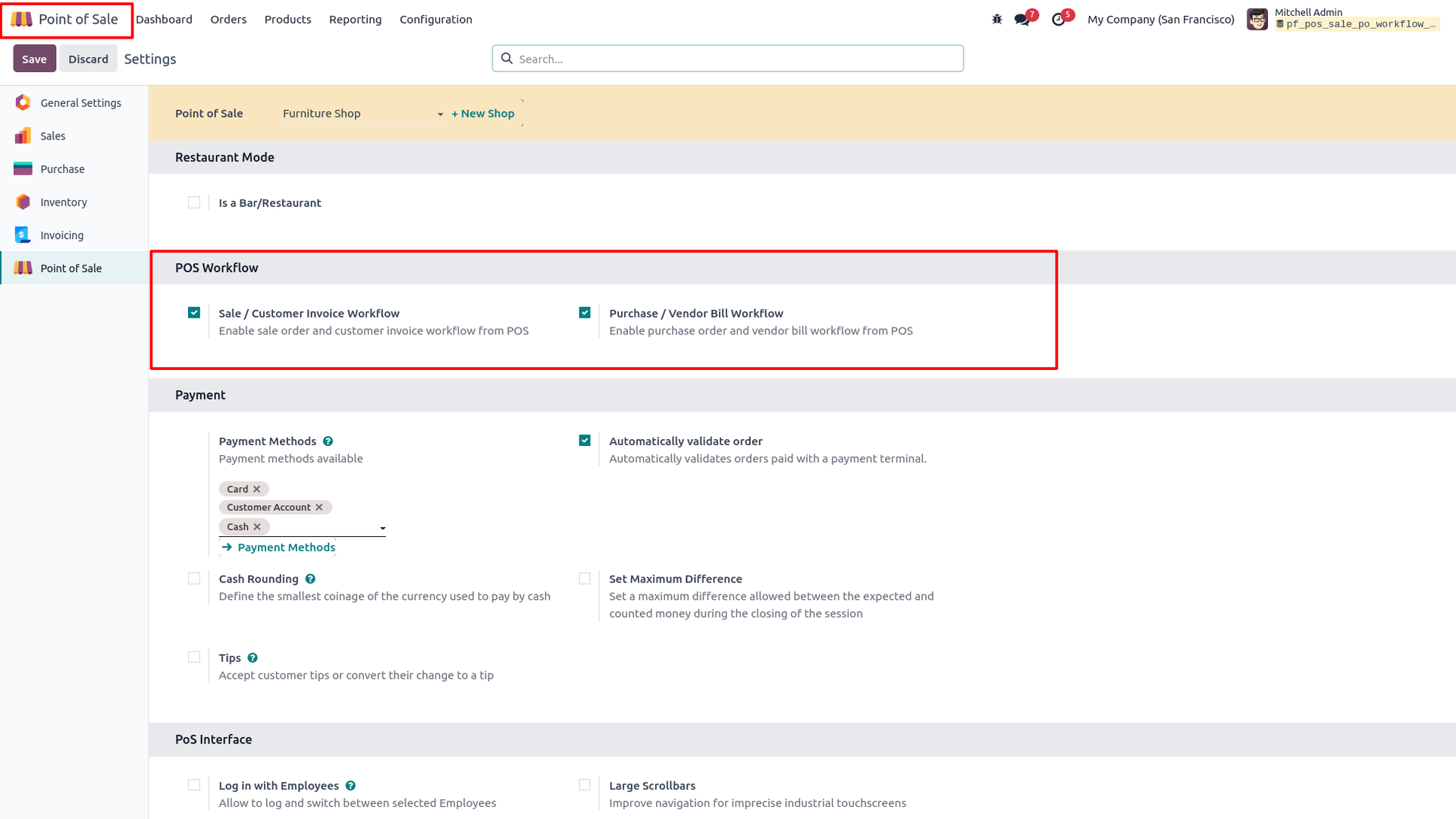
1. Configure and enable "Sale / Customer Invoice Workflow" and "Purchase / Vendor Bill Workflow" in Point of Sale settings.
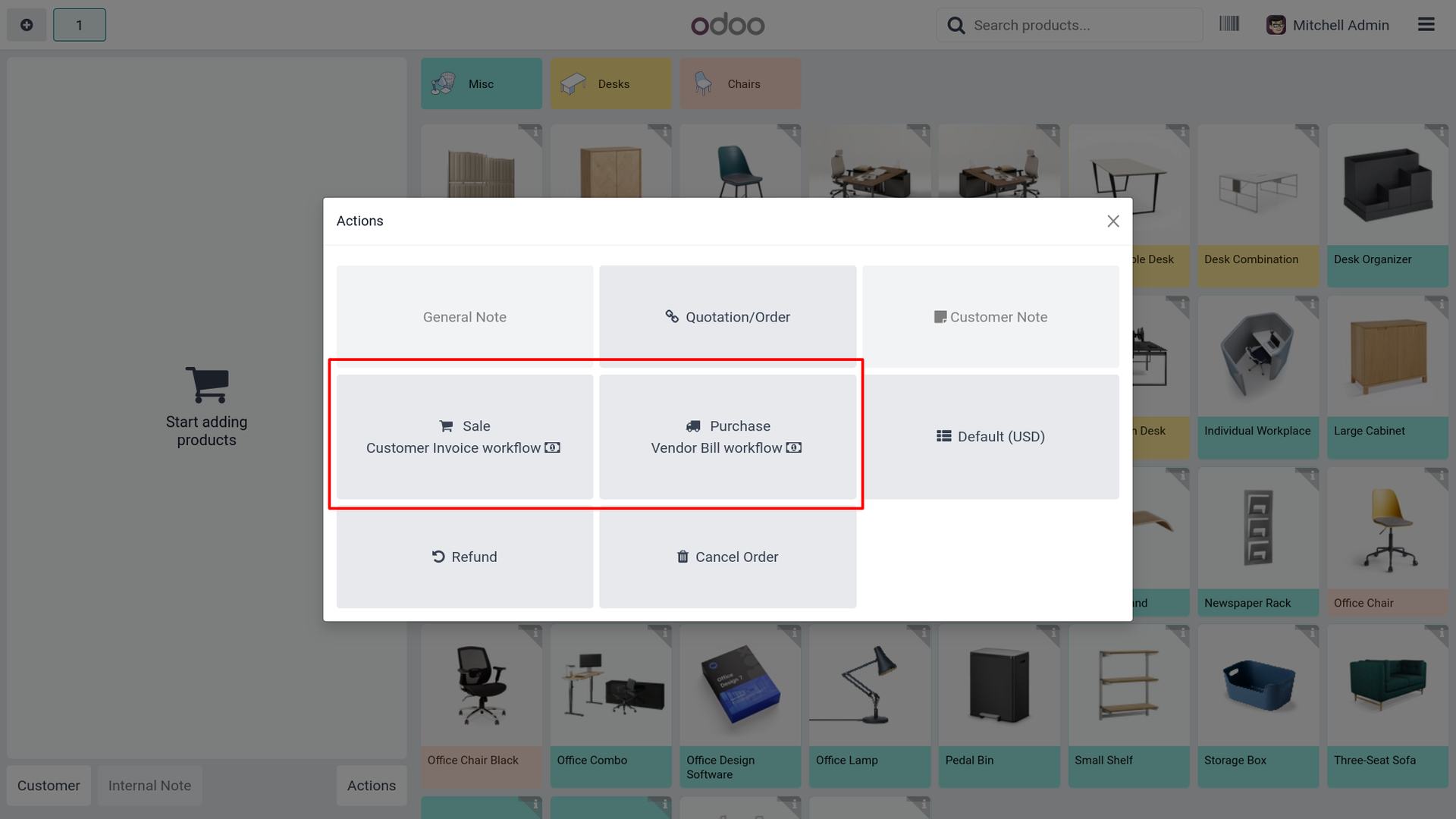
2. View the newly added "Sale / Customer Invoice Workflow" and "Purchase / Vendor Bill Workflow" action buttons on the POS Actions screen.
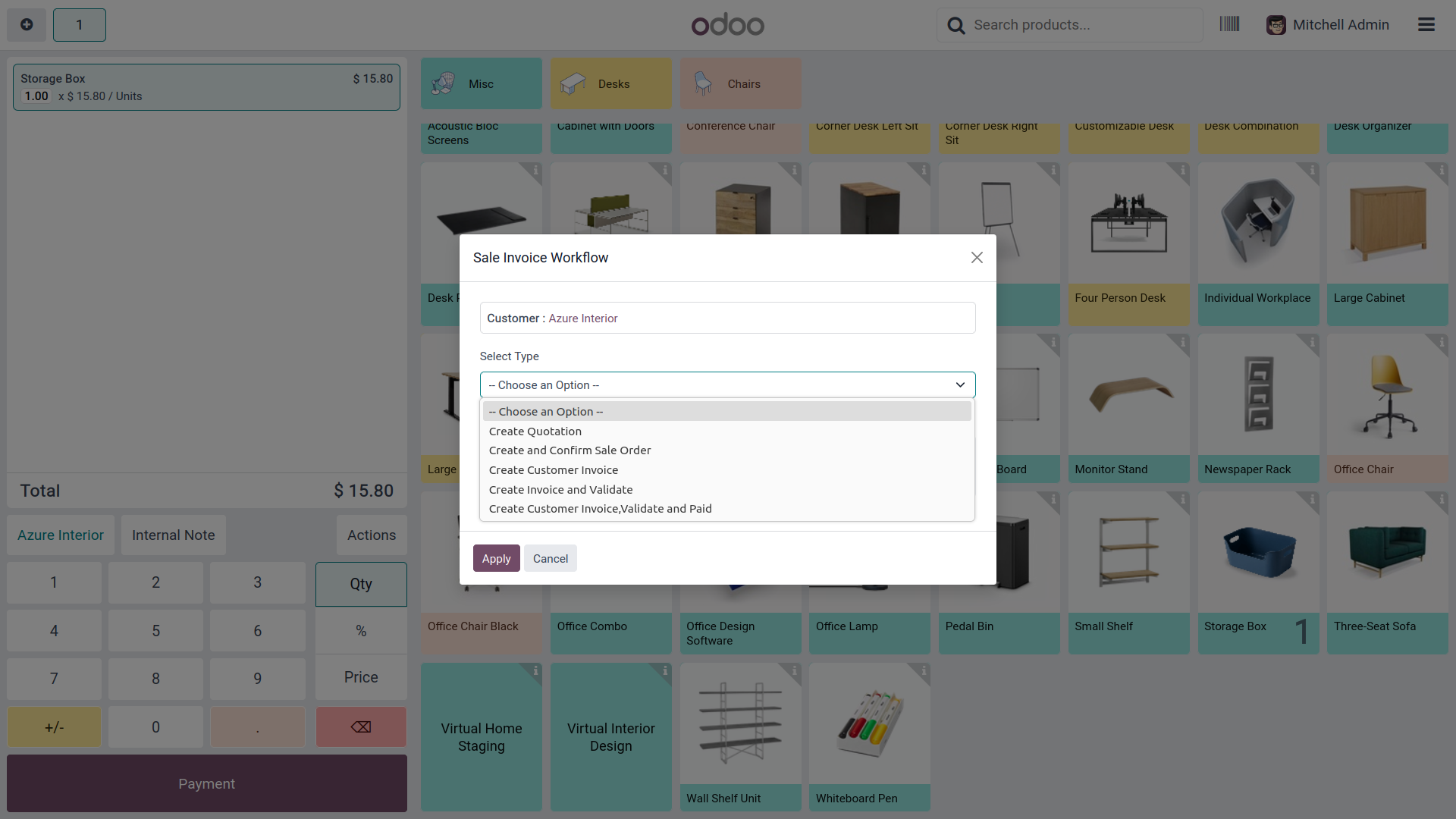
3. Open the Sale Invoice Workflow pop-up and view all available workflow type options from the dropdown selection list.
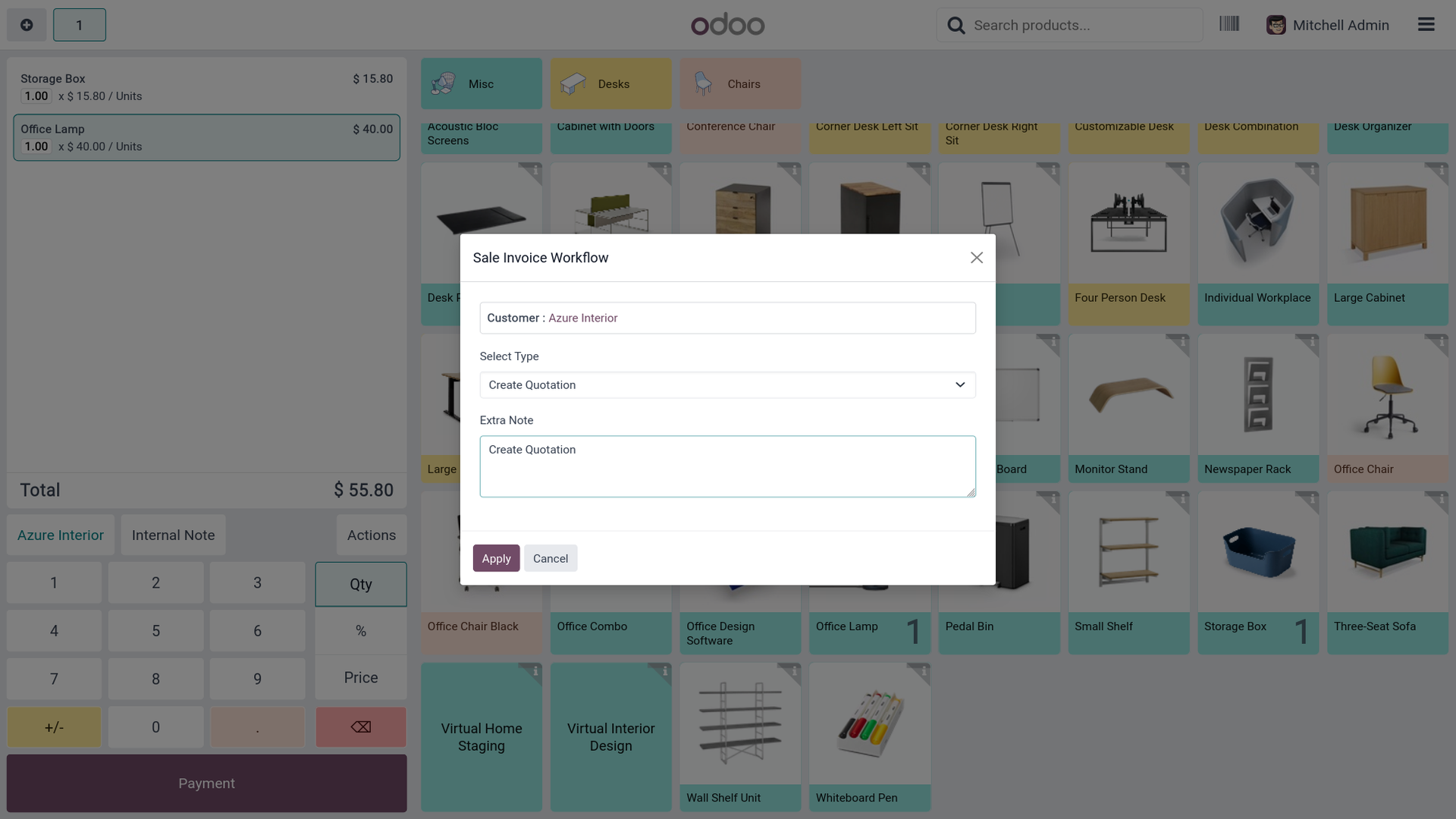
4. Select the "Create Quotation" option from the Sale Invoice Workflow pop-up, add an extra note, and click Apply to generate a draft quotation from POS.
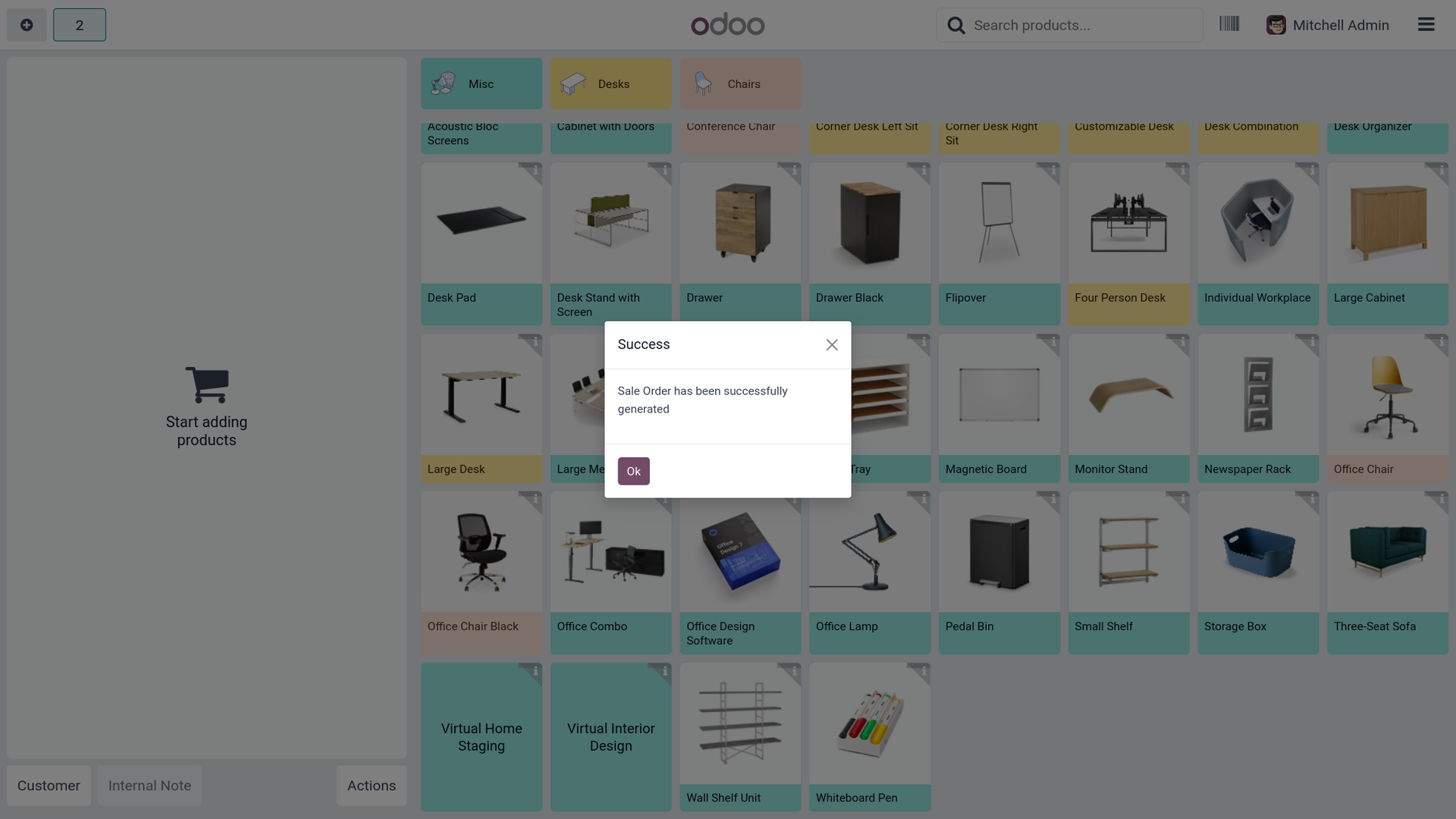
5. A success confirmation dialog displays instantly after a Sale Order has been successfully generated from the POS
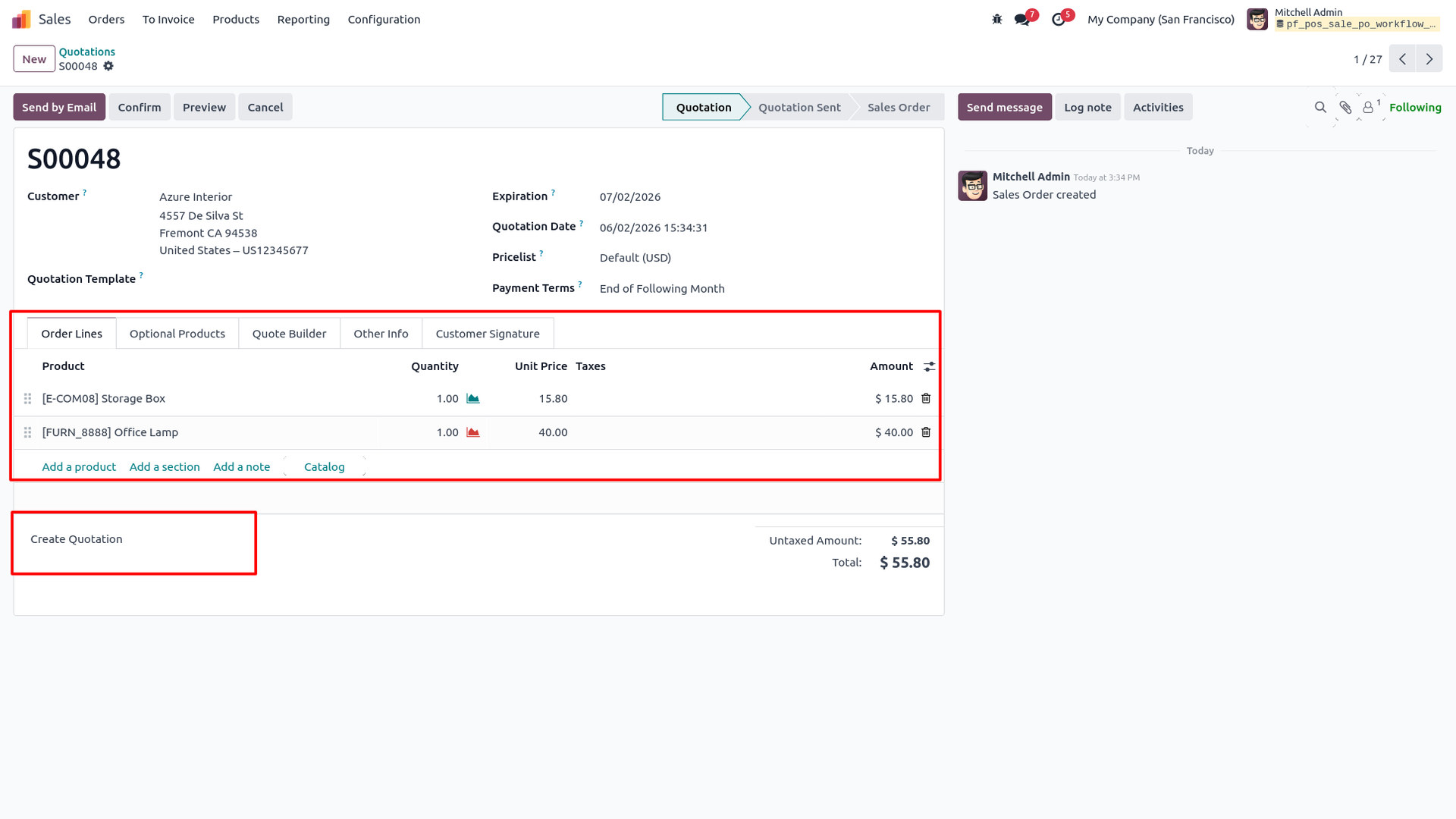
6. Review the automatically created draft sale quotation (S00048) in the backend Sales app with assigned customer, products, and order lines.
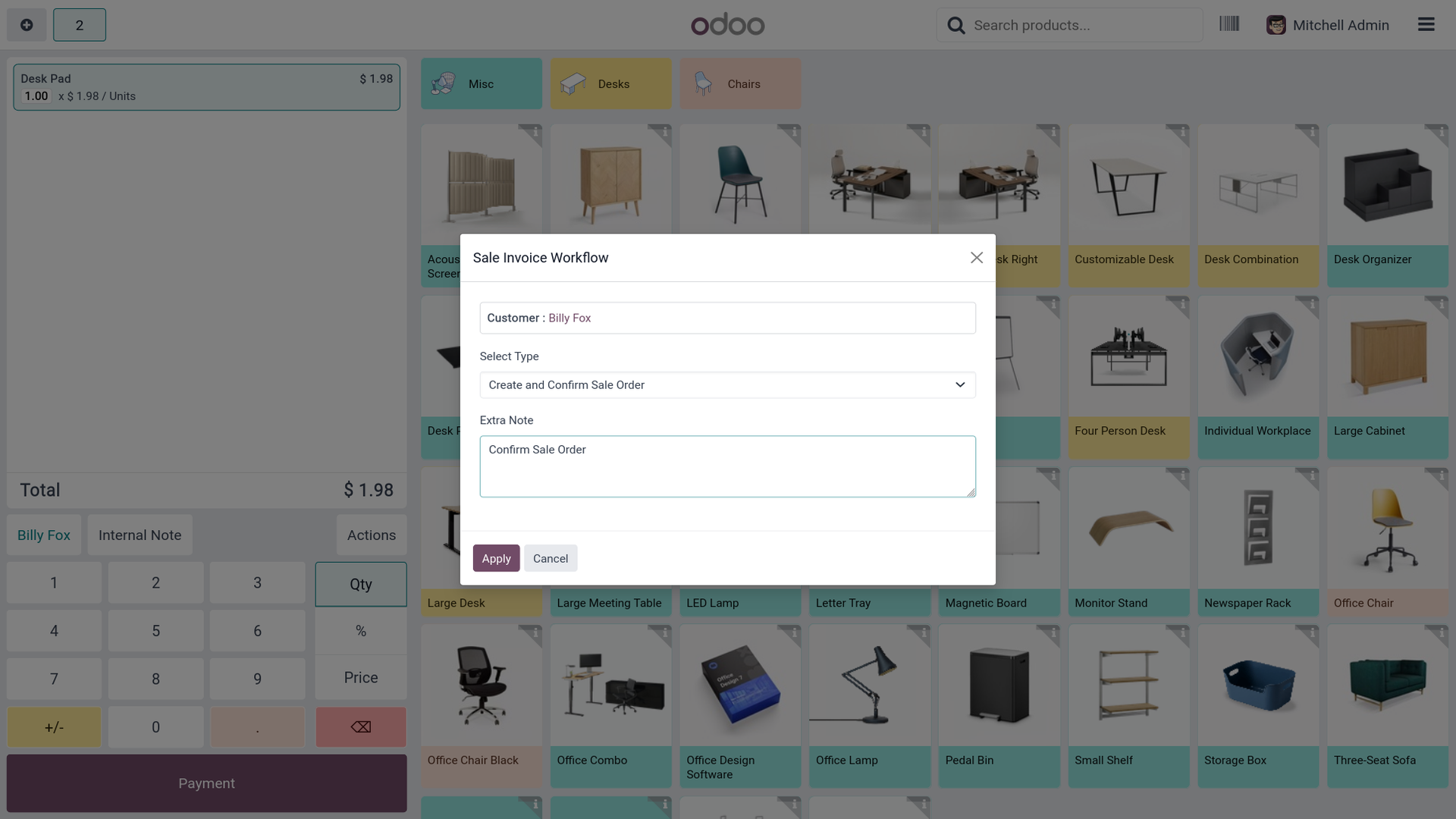
7. Select the "Create and Confirm Sale Order" option from the Sale Invoice Workflow pop-up and click Apply to confirm the order directly from POS.
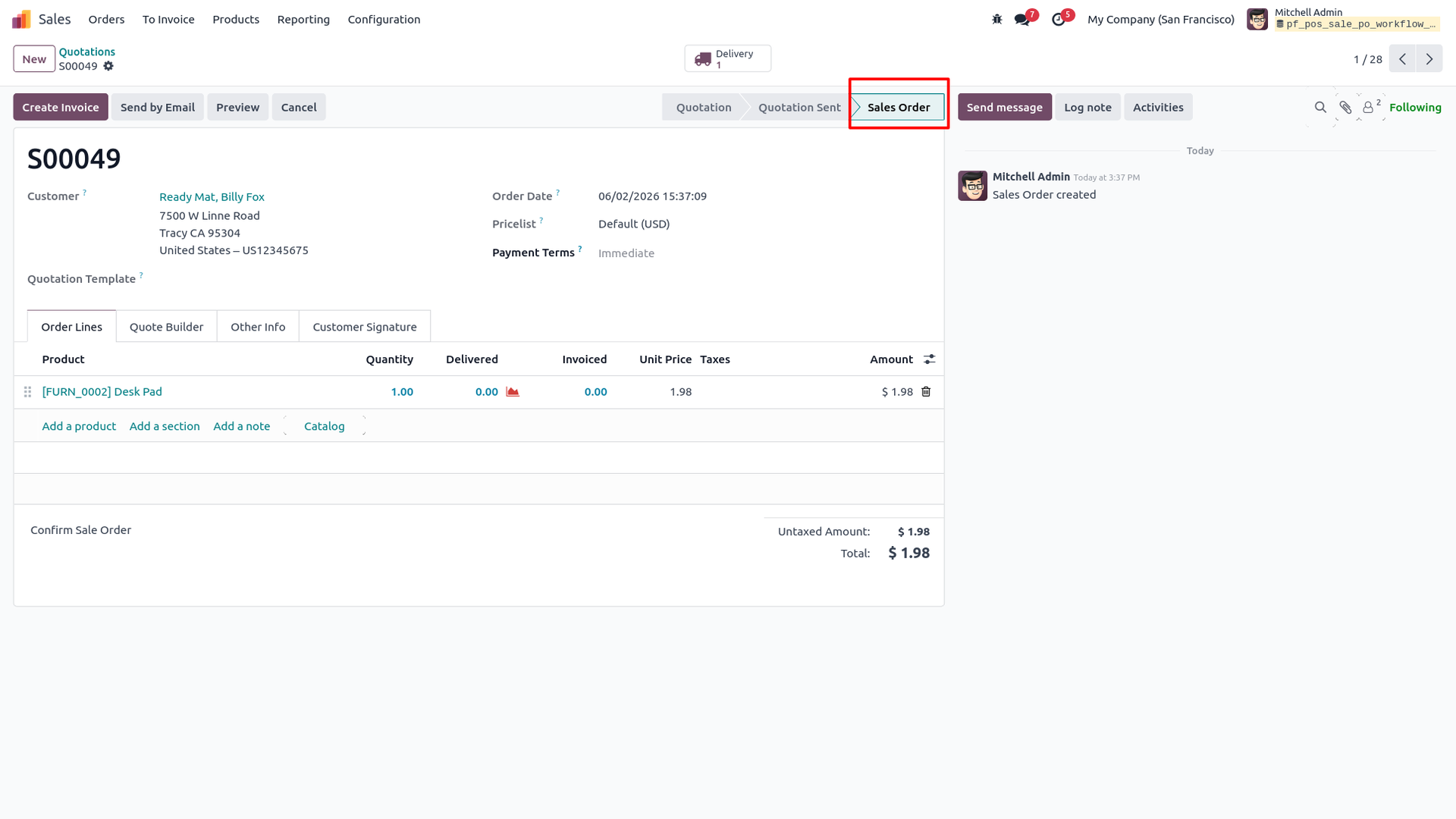
8. Review the automatically created and fully confirmed Sales Order (S00049) in "Sales Order" status with delivery linked and order lines populated in the backend.
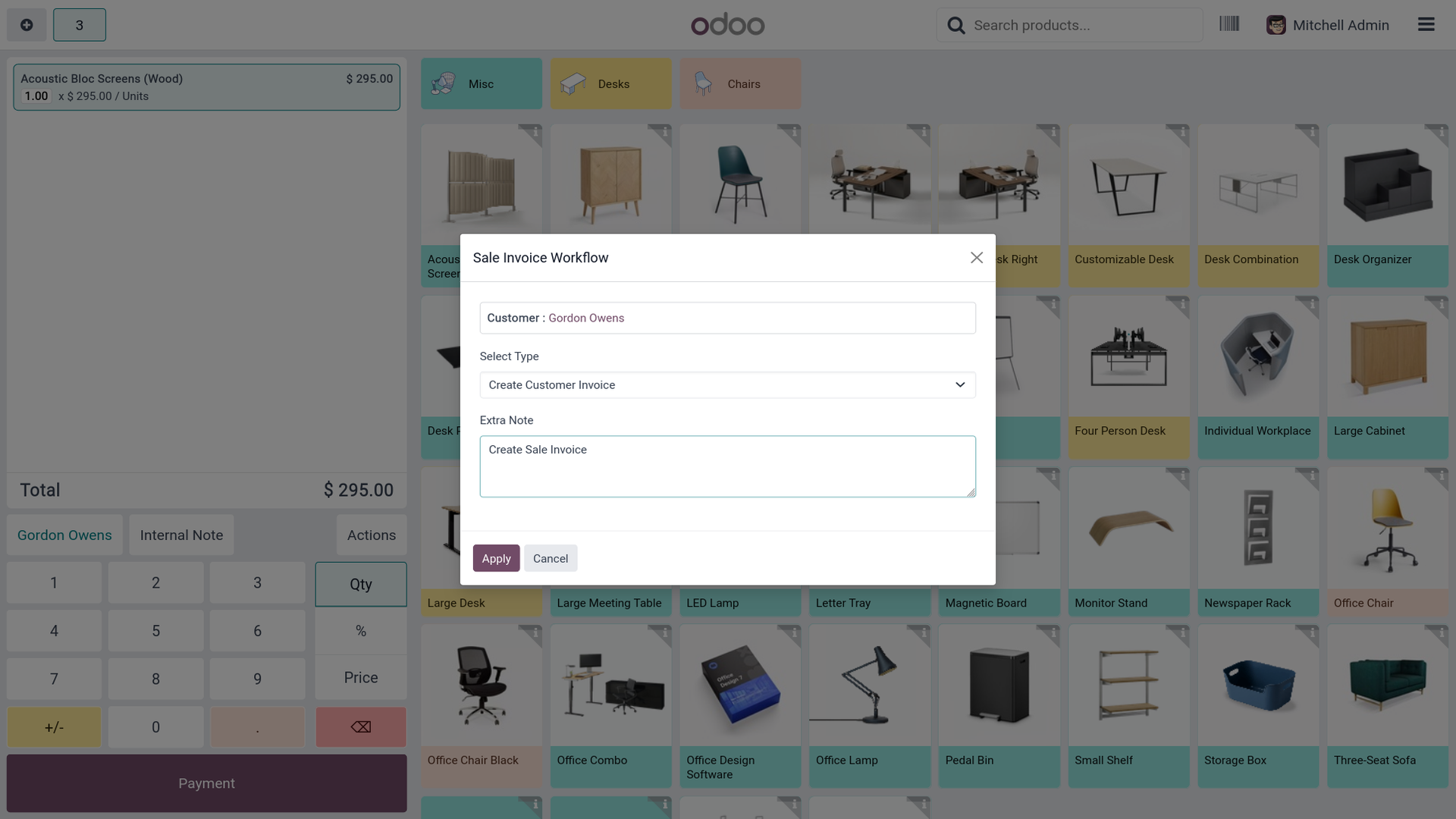
9. Select the "Create Customer Invoice" option from the Sale Invoice Workflow pop-up to generate a draft invoice directly from the POS session.
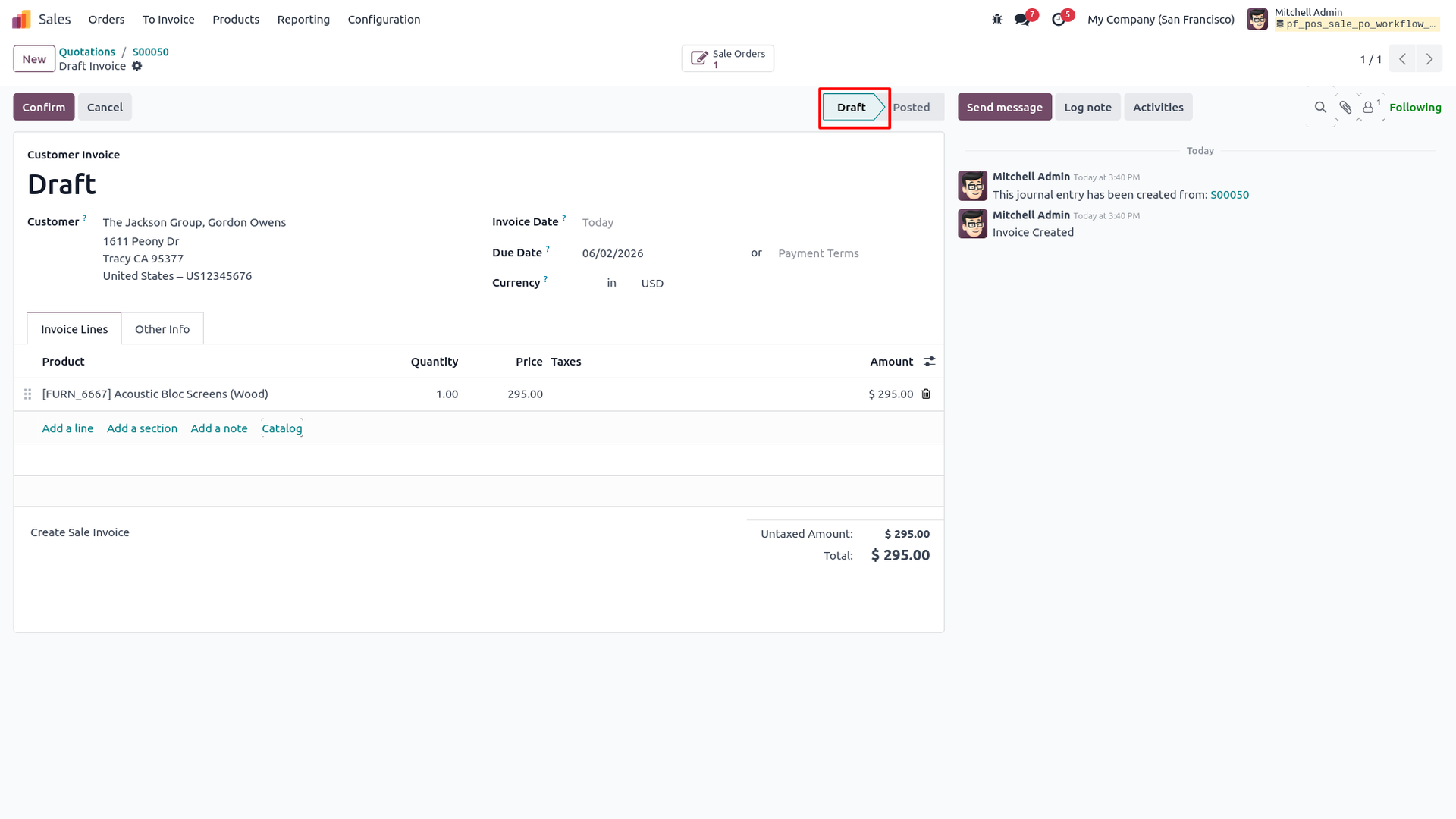
10. Track the generated customer invoice created in "Draft" state in the backend Sales app with product lines and linked Sale Order reference.
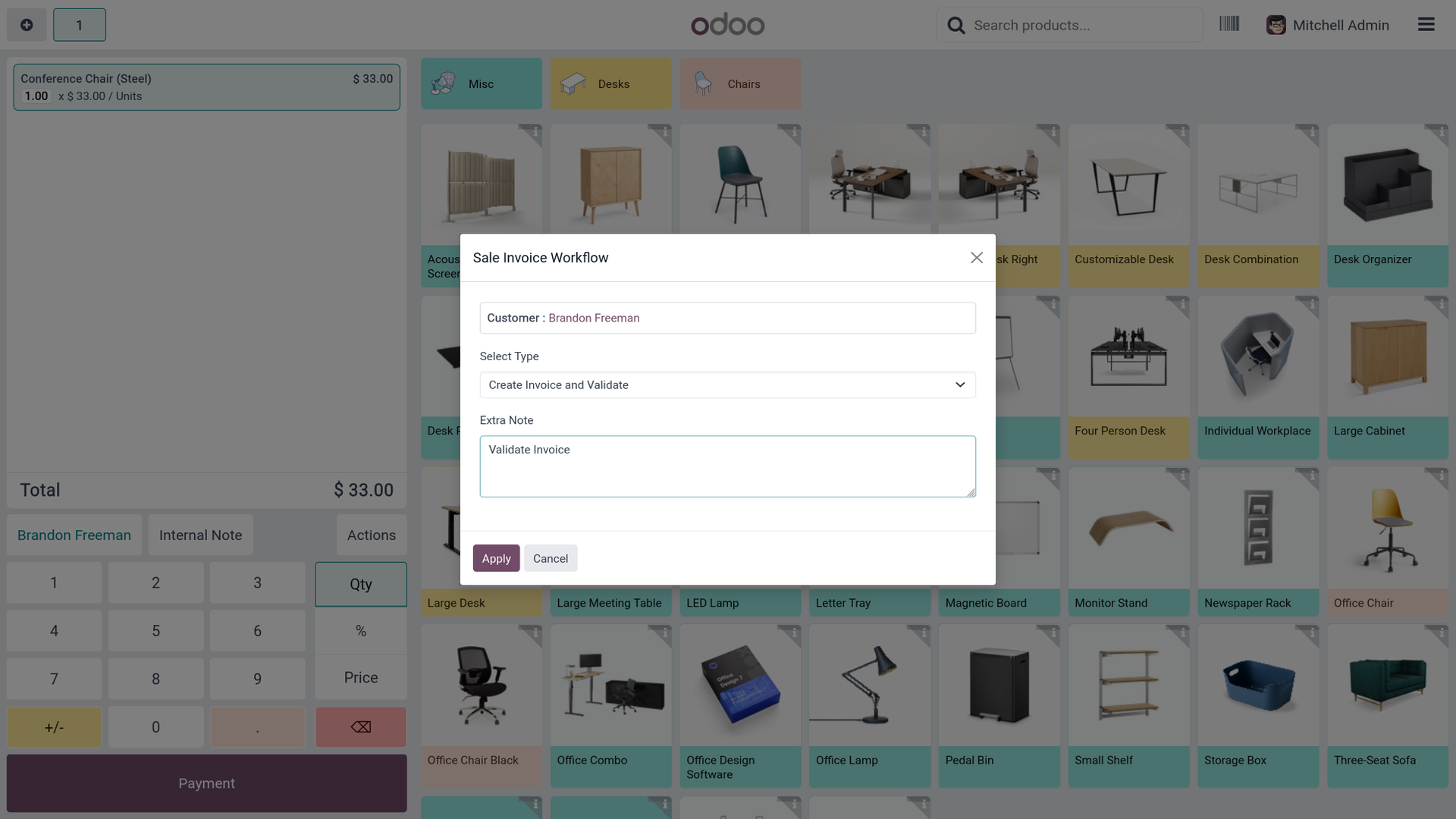
11. Select the "Create Invoice and Validate" option from the Sale Invoice Workflow pop-up to simultaneously generate and post the invoice from POS.
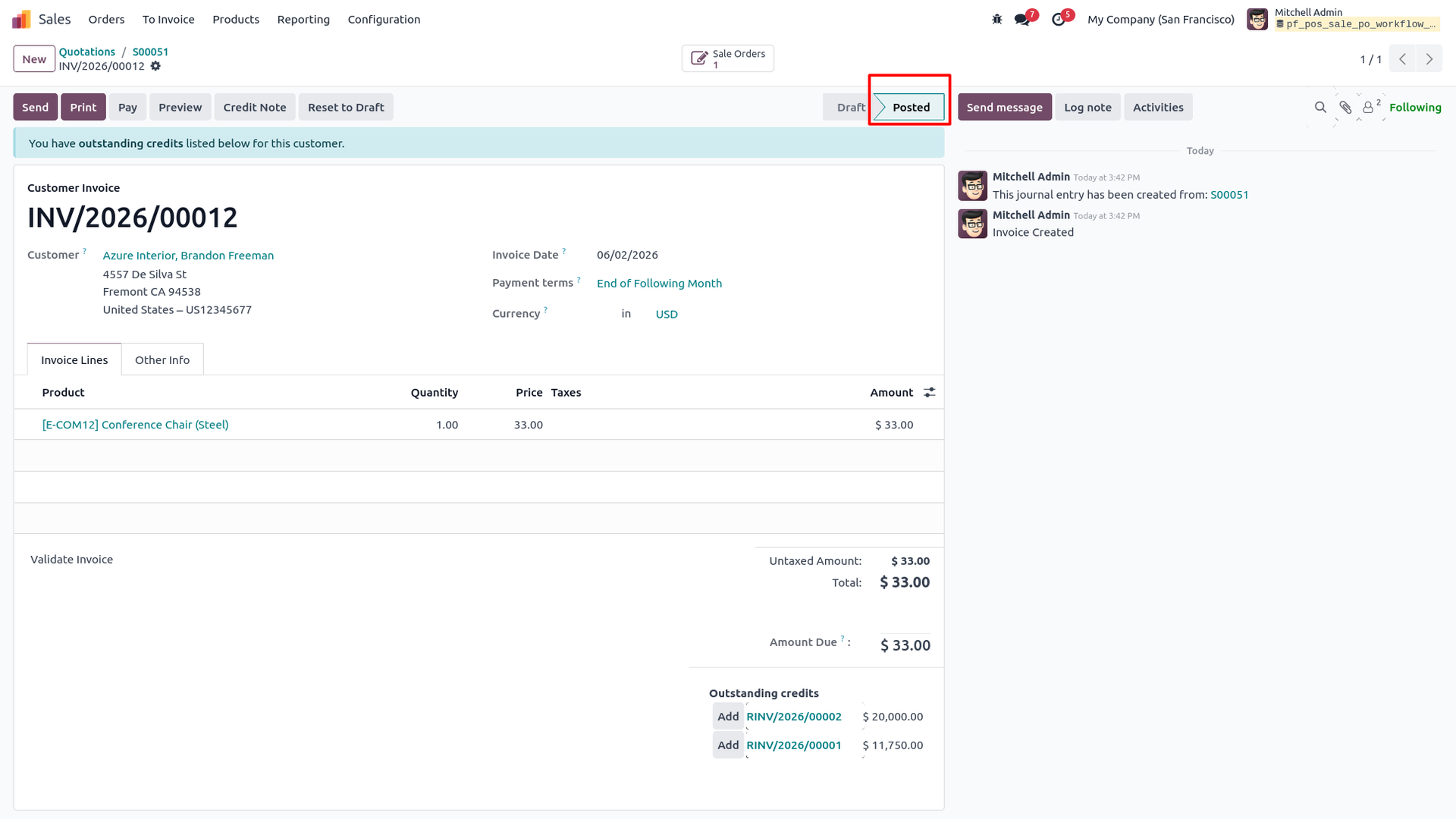
12. Verify the customer invoice (INV/2026/00012) posted automatically in "Posted" state with outstanding credits listed and awaiting payment in the backend.
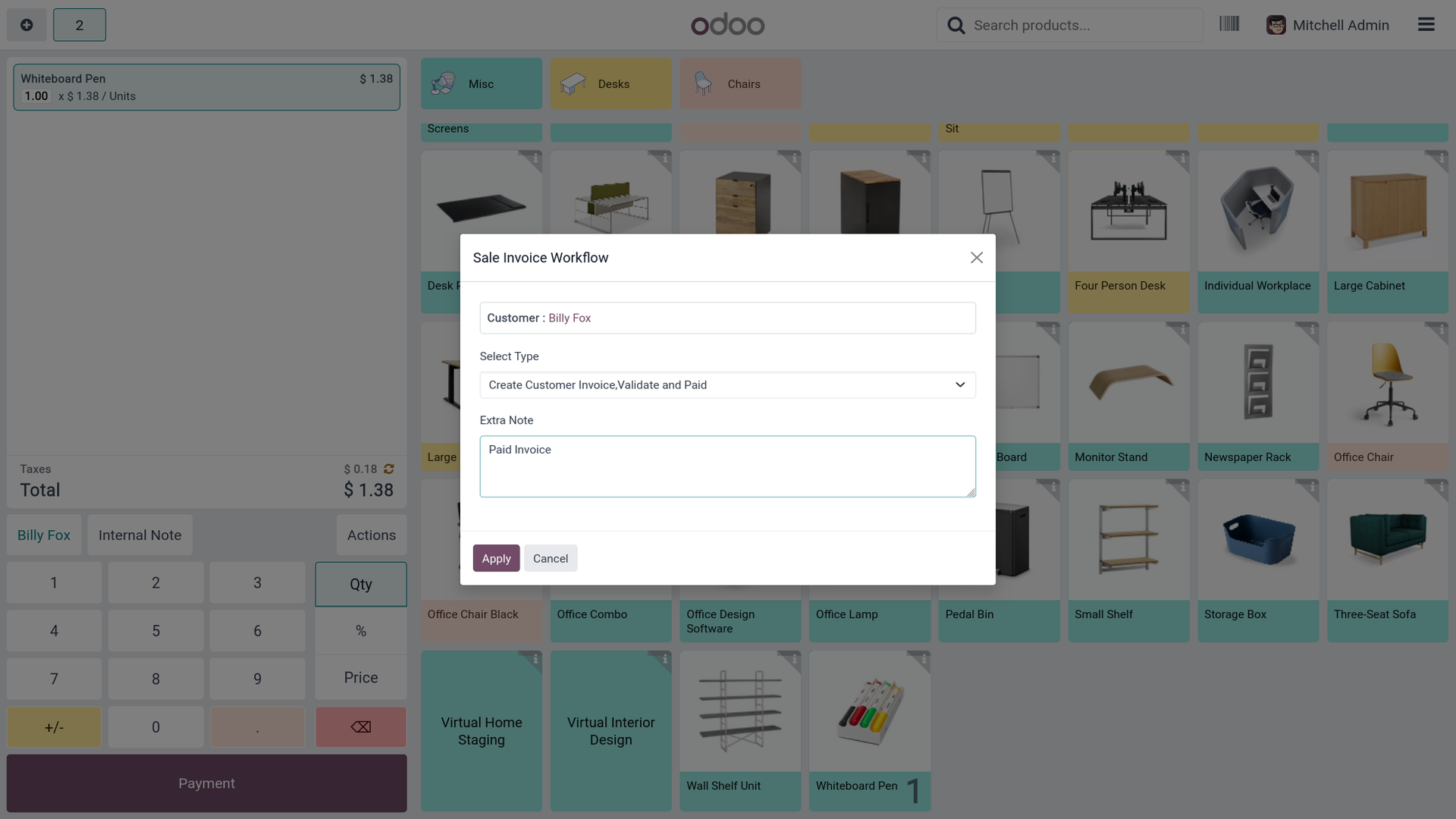
13. Select the "Create Customer Invoice, Validate and Paid" option from the Sale Invoice Workflow pop-up to complete the full invoice payment cycle from POS.
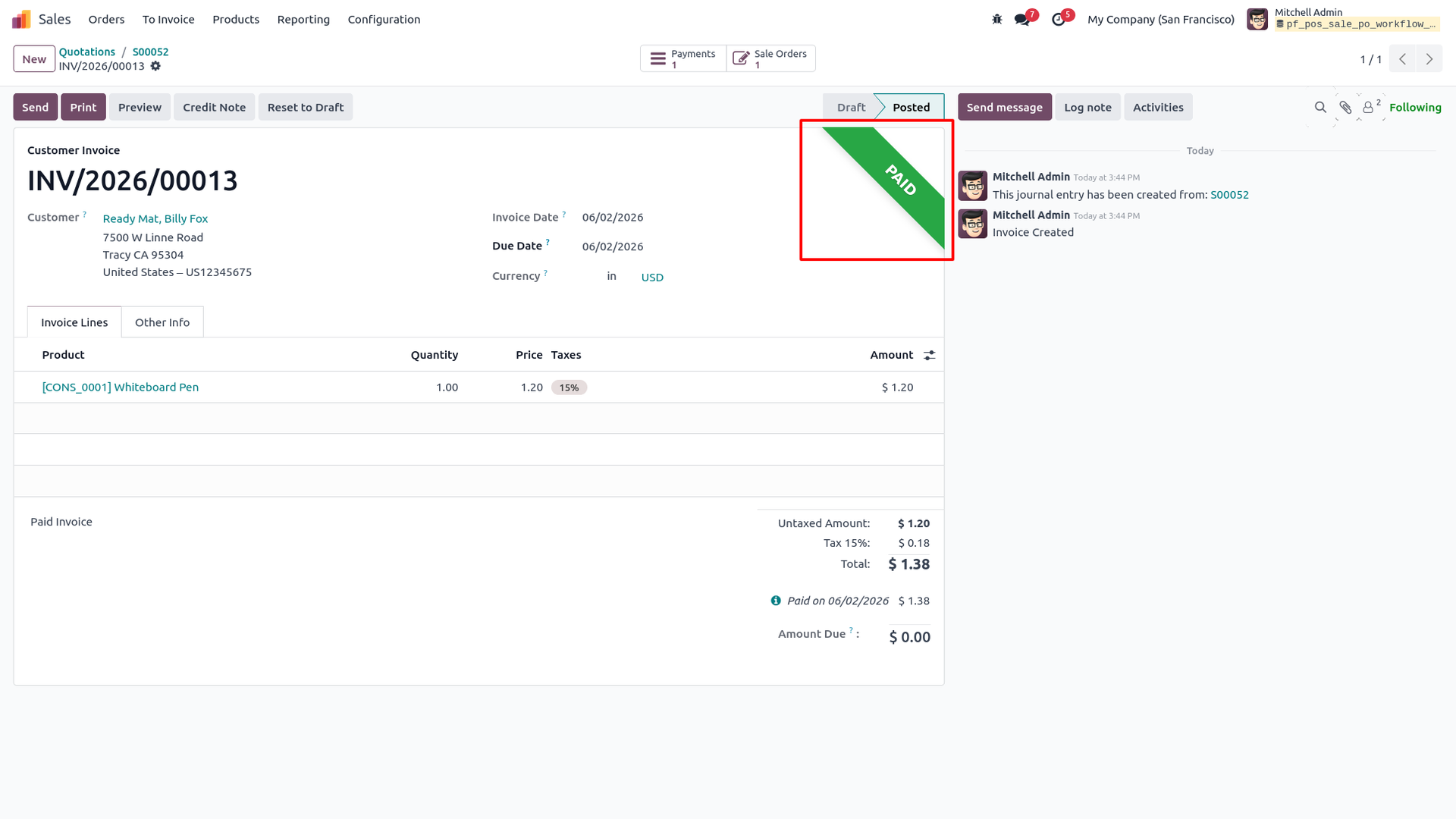
14. Verify the finalized customer invoice (INV/2026/00013) marked as fully "Paid" with payment registered
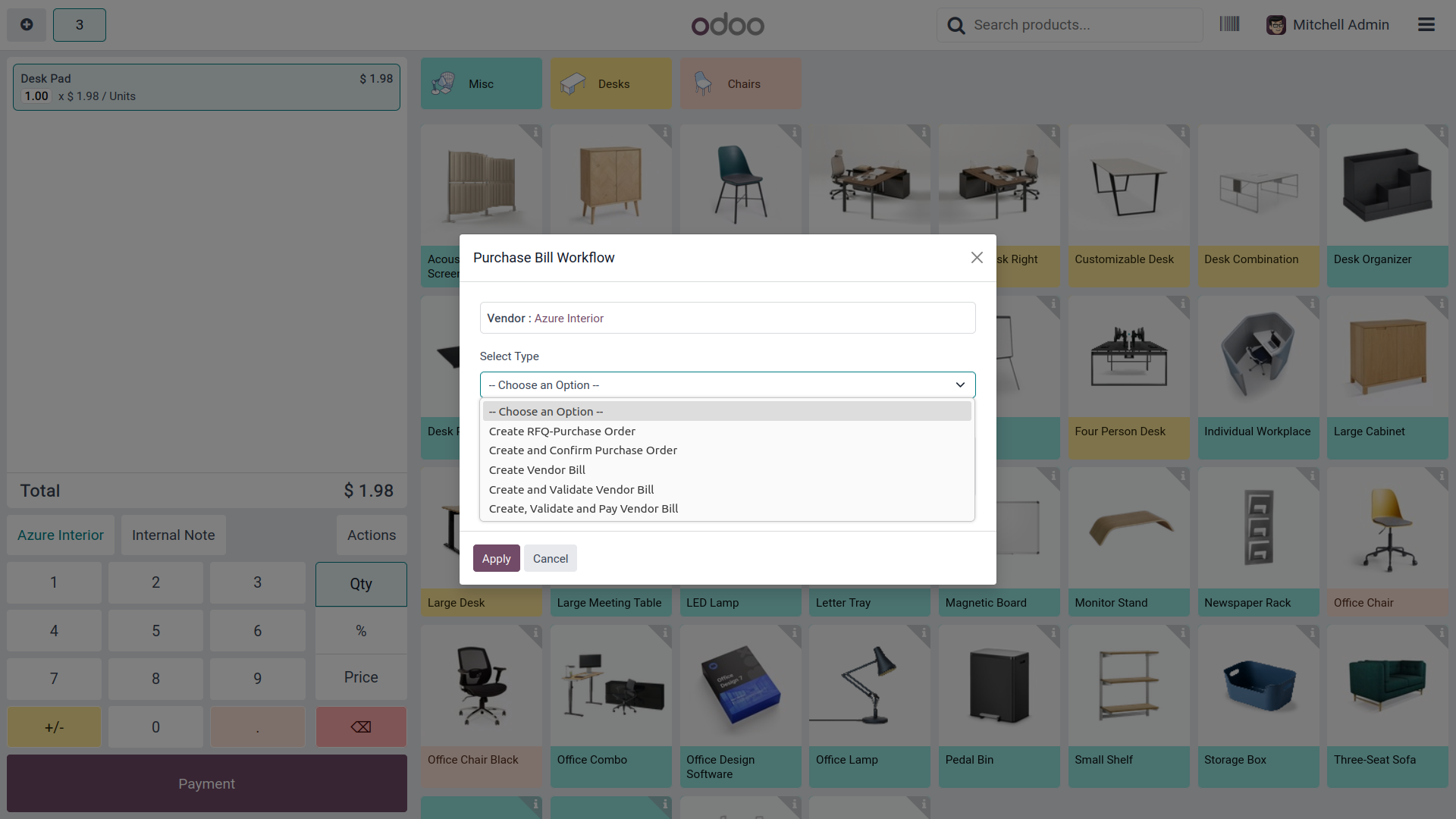
15. Open the Purchase Bill Workflow pop-up from the POS Actions menu and view all available procurement workflow type options in the dropdown.
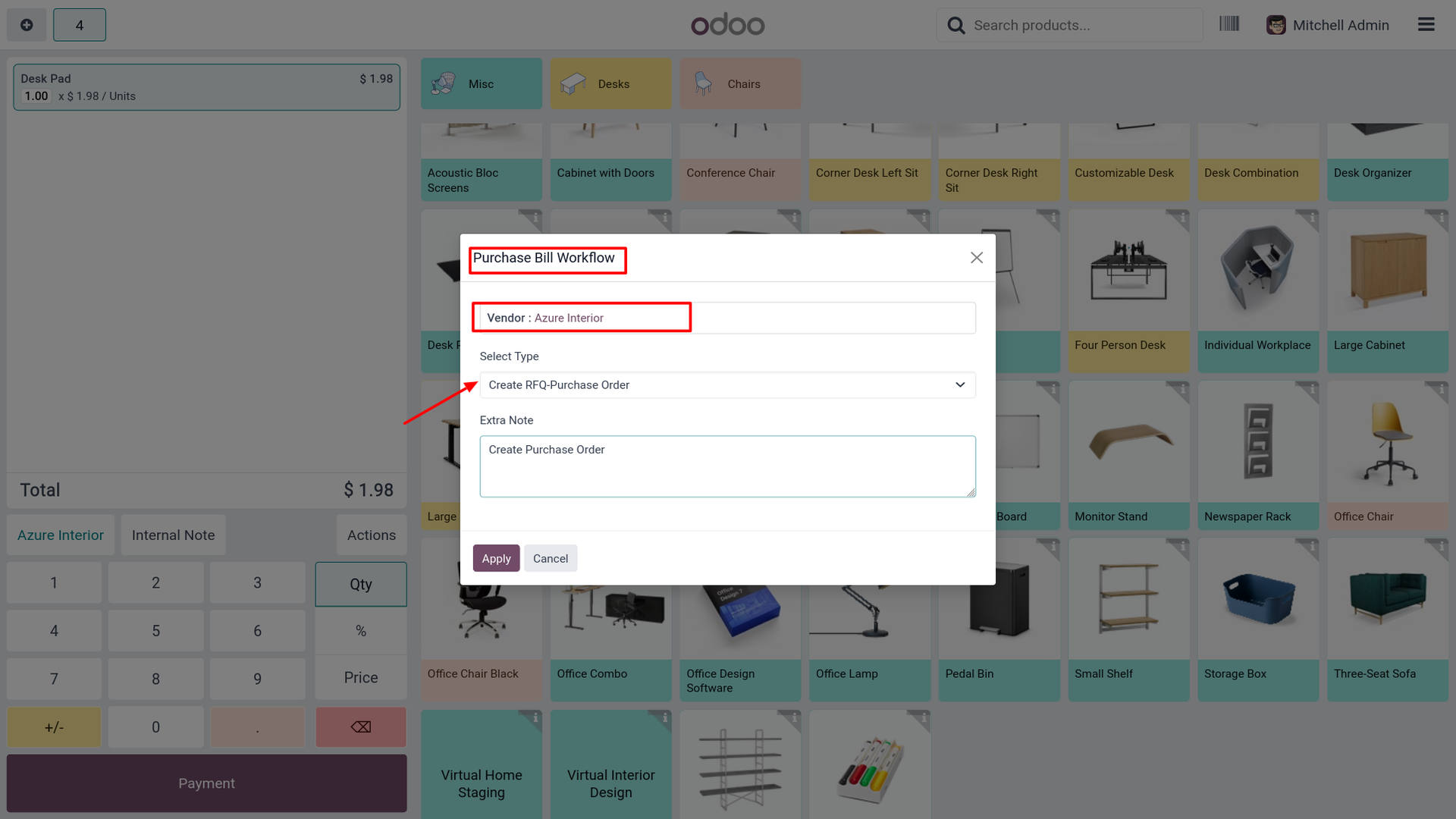
16. Select the "Create RFQ-Purchase Order" option from the Purchase Bill Workflow pop-up to generate a Request for Quotation directly from POS.
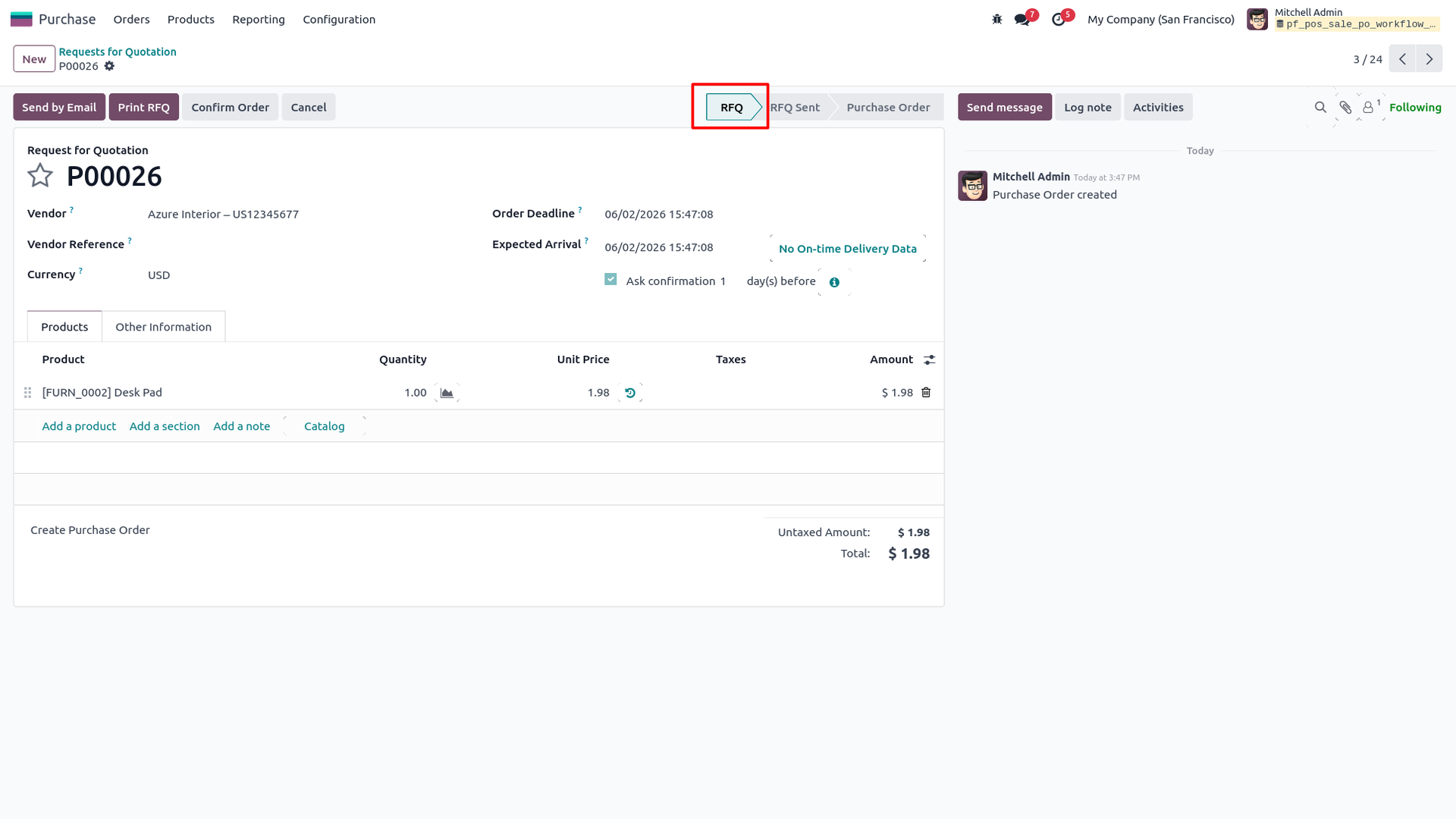
17. Check the generated Request for Quotation (P00026) created in "RFQ" state in the backend Purchase app with vendor, products, and order notes mapped.
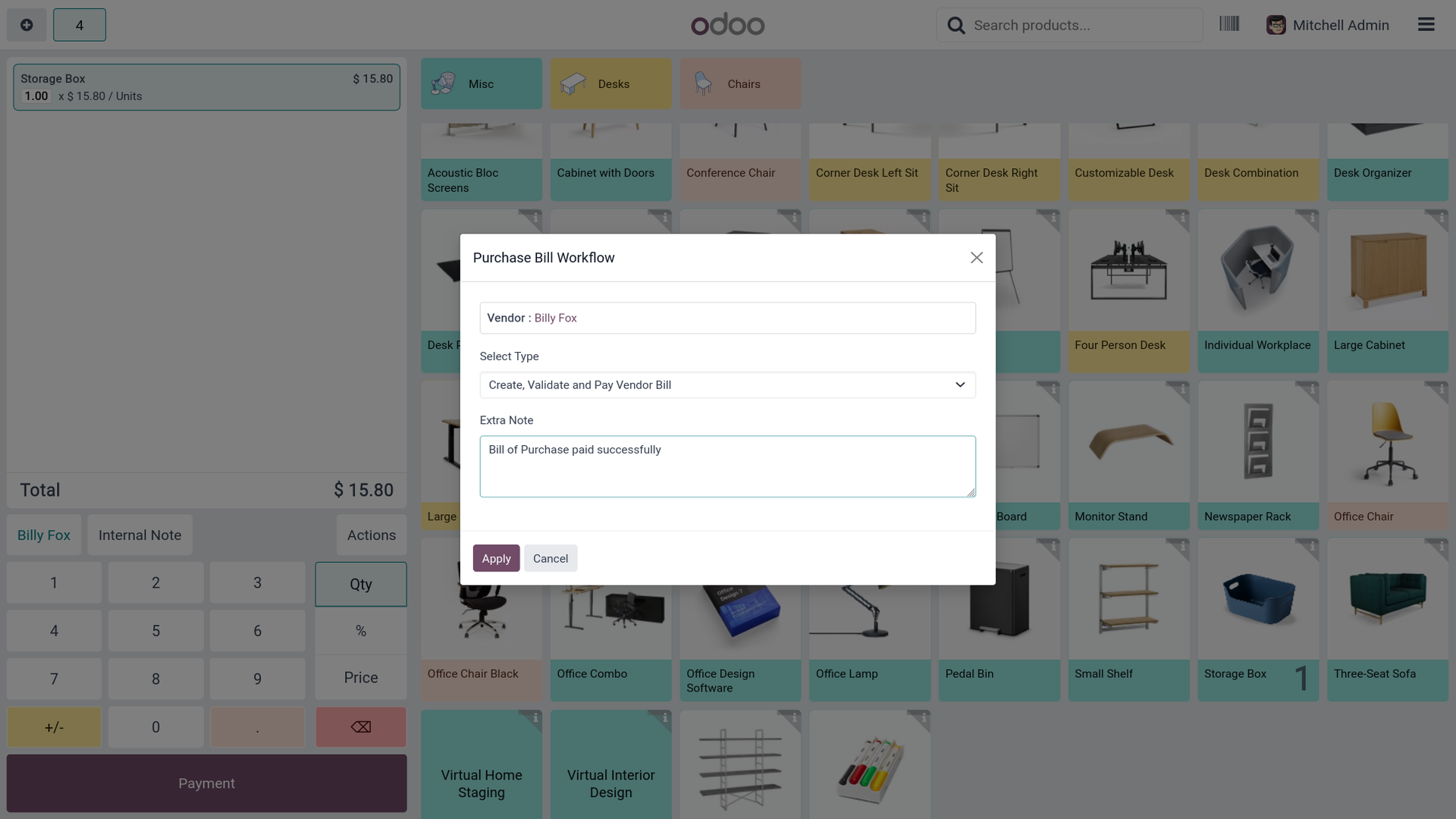
18. Select the "Create, Validate and Pay Vendor Bill" option from the Purchase Bill Workflow pop-up to complete the full vendor payment cycle from POS.
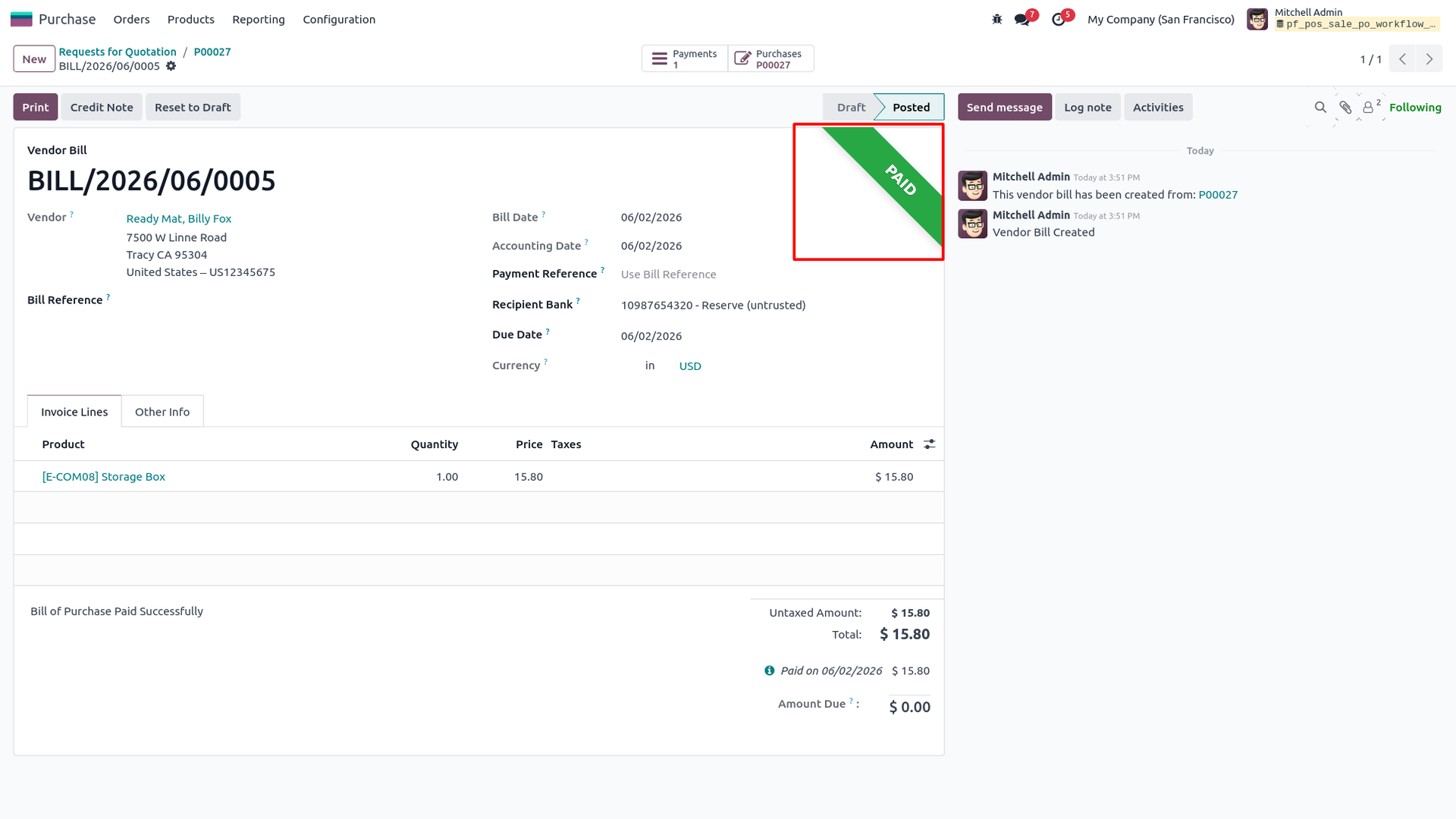
19. Verify the vendor bill (BILL/2026/06/0005) marked as fully "Paid" with payment registered and Amount Due $0.00 in the backend Purchase app.
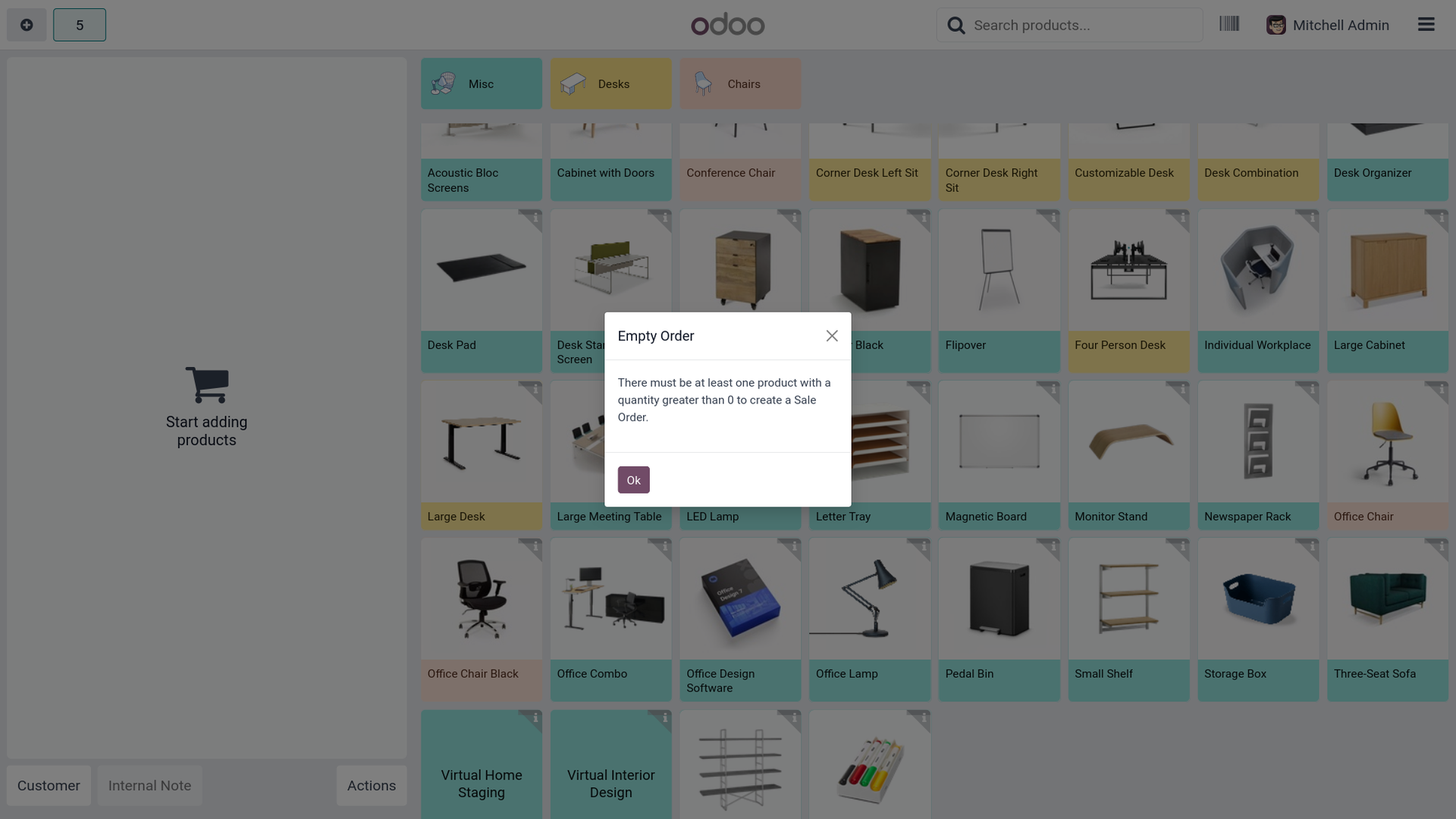
20. Trigger a system alert warning if a cashier attempts to execute a workflow operation with an empty product order line on the POS screen.
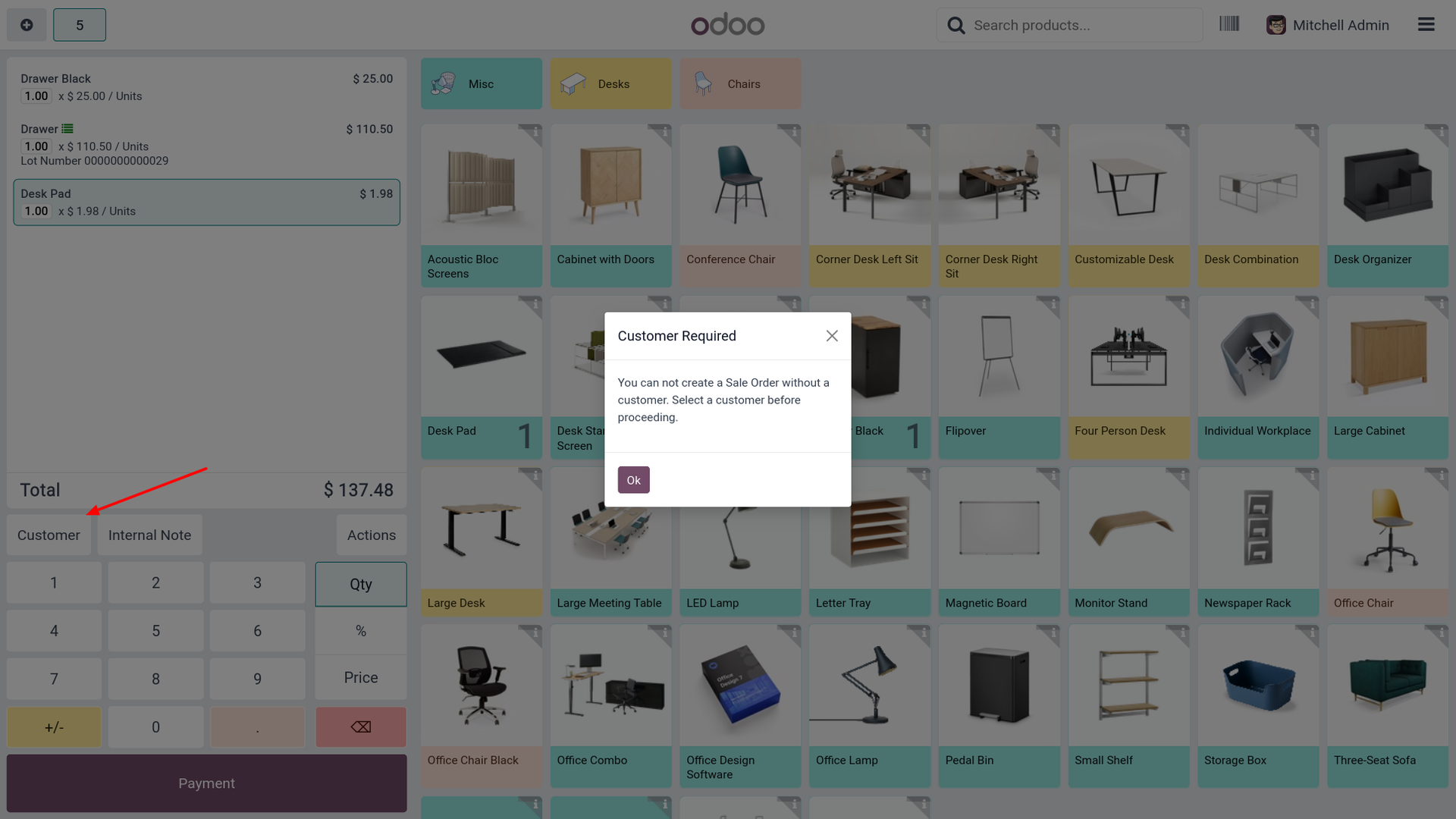
21. Trigger a "Customer Required" alert warning if a cashier attempts to process a workflow operation without selecting a customer before proceeding.
Our solutions focus on your problems
- Odoo Implementation
- Odoo Customization
- ERP Development and Implementation
- Odoo Ipass Cloud
- AI for Odoo
- Odoo Apps
- Aws Marketplace Products
- Business Engines
Our Pricing includes User Manual, 90 Days Support (Monday-Friday 10am to 7pm IST) and One time Setup
• Works & tested on standard installations of Odoo with no third party apps,
• Free support only for odoo installations with no third party apps,
• Paid support available for Odoo installations with third party apps.

Prefortune is a Odoo Official Partner, Odoo Development company. Our philosophy is to use Open Source tools and technologies to provide cost effective and green solutions for our customers.
Prefortune Technologies LLP is working on web development, Mobile development, and Odoo ERP.
If you need any help or want more additional features, you may contact us through:
Alternative Products
These other products might interest you
Specifications
| Version | 19.0, 18.0, 17.0, 16.0, 15.0, 14.0 |