Watch Quick Video
POS Wallet Management Odoo App
POS Wallet Management Odoo App
provides a store credit wallet for each customer and can be used as a payment method at the Point of Sale.
Every customer has a live wallet balance visible on their contact form and on the POS screen, which they
can top up (recharge) at any time and spend against future orders.
The user can see the current Wallet Balance from the customer contact form and click on Wallet Recharge to
open a wizard where they choose a payment journal and enter the amount to add. A similar recharge action
can also be done directly from the POS screen for a selected customer.
If a customer has a balance, cashiers can choose Wallet as the payment method at checkout and pay for the
order in full or in part, and the remaining balance is paid with a different payment method. All recharge
and spend transactions are recorded under Wallet Management and an Account Payment and journal entry is
automatically generated so the wallet is fully reconciled with your accounting.
POS Wallet Management Odoo App
- View customer wallet balances and add funds directly from the customer contact form.
- Recharge the wallet of the currently selected customer on the POS screen.
- You can use available wallet balance to pay for POS orders in full or in part.
- Point of Sale > Wallet Management for all wallet transactions, credit and debit.
- Automatic reconciled accounting payment entries for every recharge and spend. No manual bookkeeping.
Complete Workflow for Manage POS Wallet Management Odoo App
Install the POS Wallet Management Odoo App module, then create a Wallet Payment Method and enable the Wallet Journal option, linking it to the journal that should record wallet transactions. Add this payment method to your POS configuration so it becomes available at checkout. From a customer's contact form, click Wallet Recharge, choose a payment journal, and enter the amount to add to their balance. The same recharge action is available on the POS screen for the customer currently selected in an order. At checkout, select Wallet as the payment method to pay an order fully or partially from the customer's balance. The module validates that a customer is selected and that their balance is sufficient before accepting the payment. Every recharge and every wallet payment is logged under Point of Sale > Wallet Management > Wallet Transactions, with a matching Account Payment and journal entry created automatically, keeping the wallet balance fully reconciled with your accounting records.
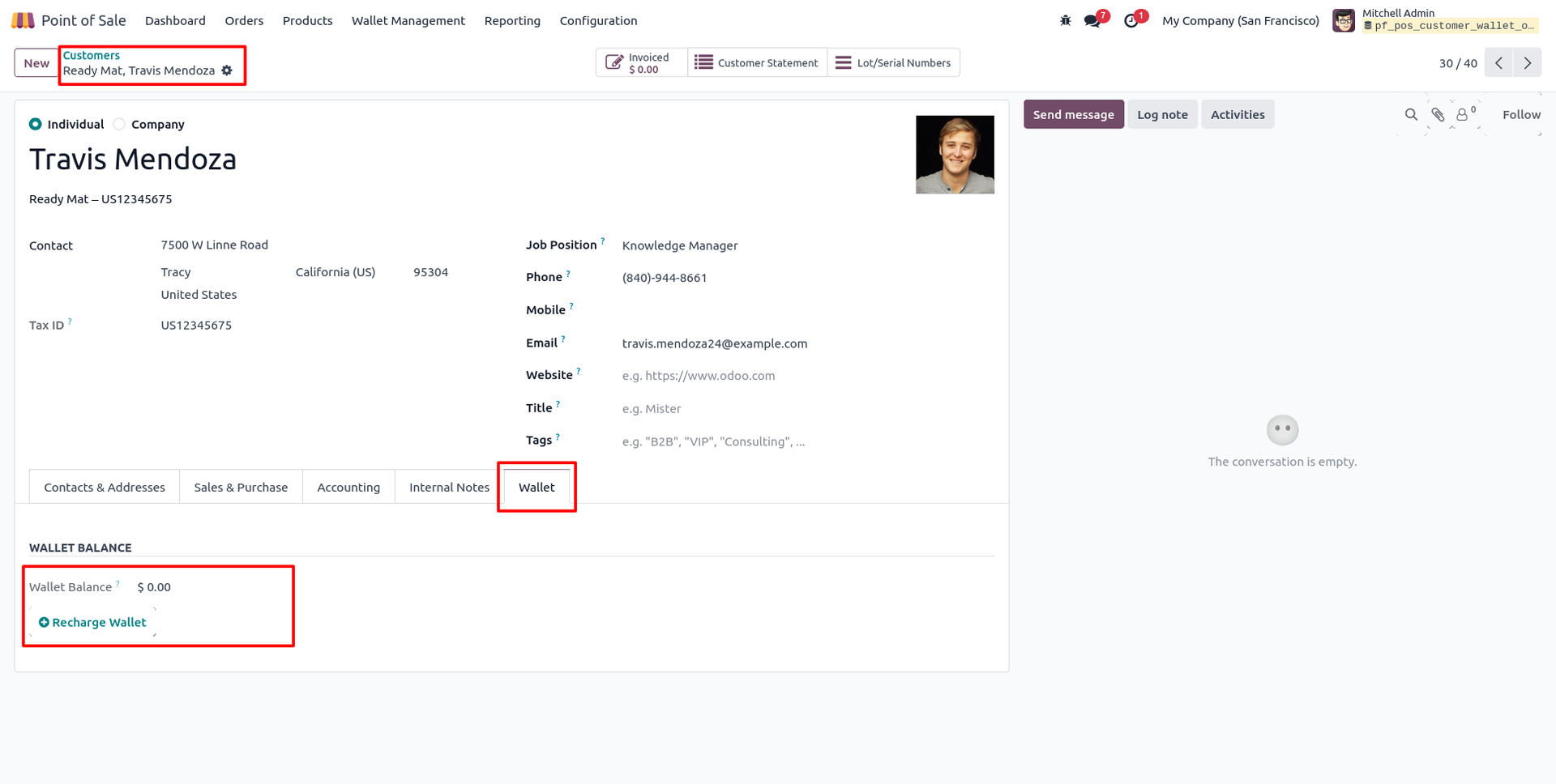
1. Open customer's Wallet tab on contact form, see current Wallet Balance, click Recharge Wallet to add funds.
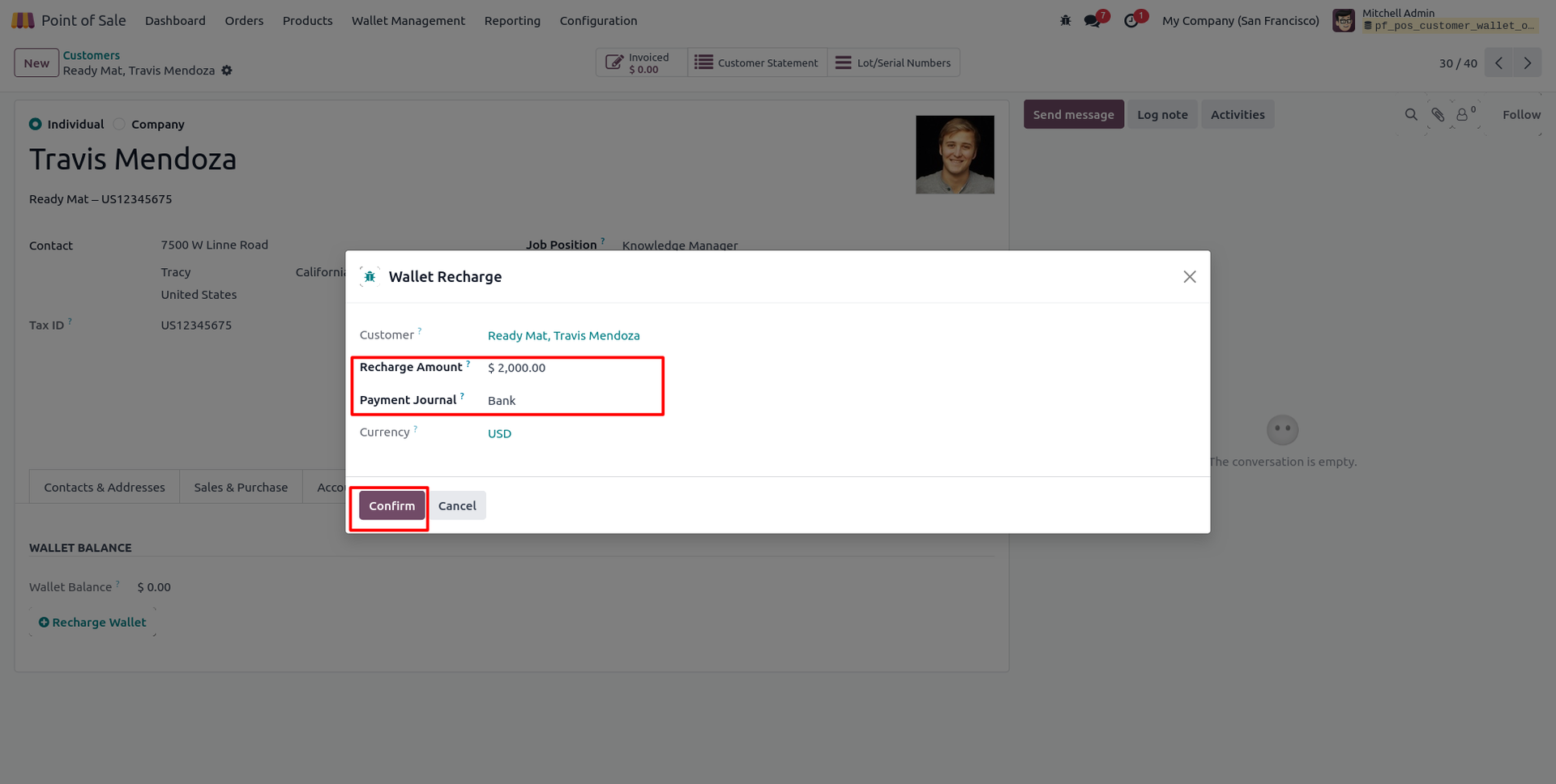
2. In Wallet Recharge popup, enter Recharge Amount, pick Payment Journal, click Confirm.
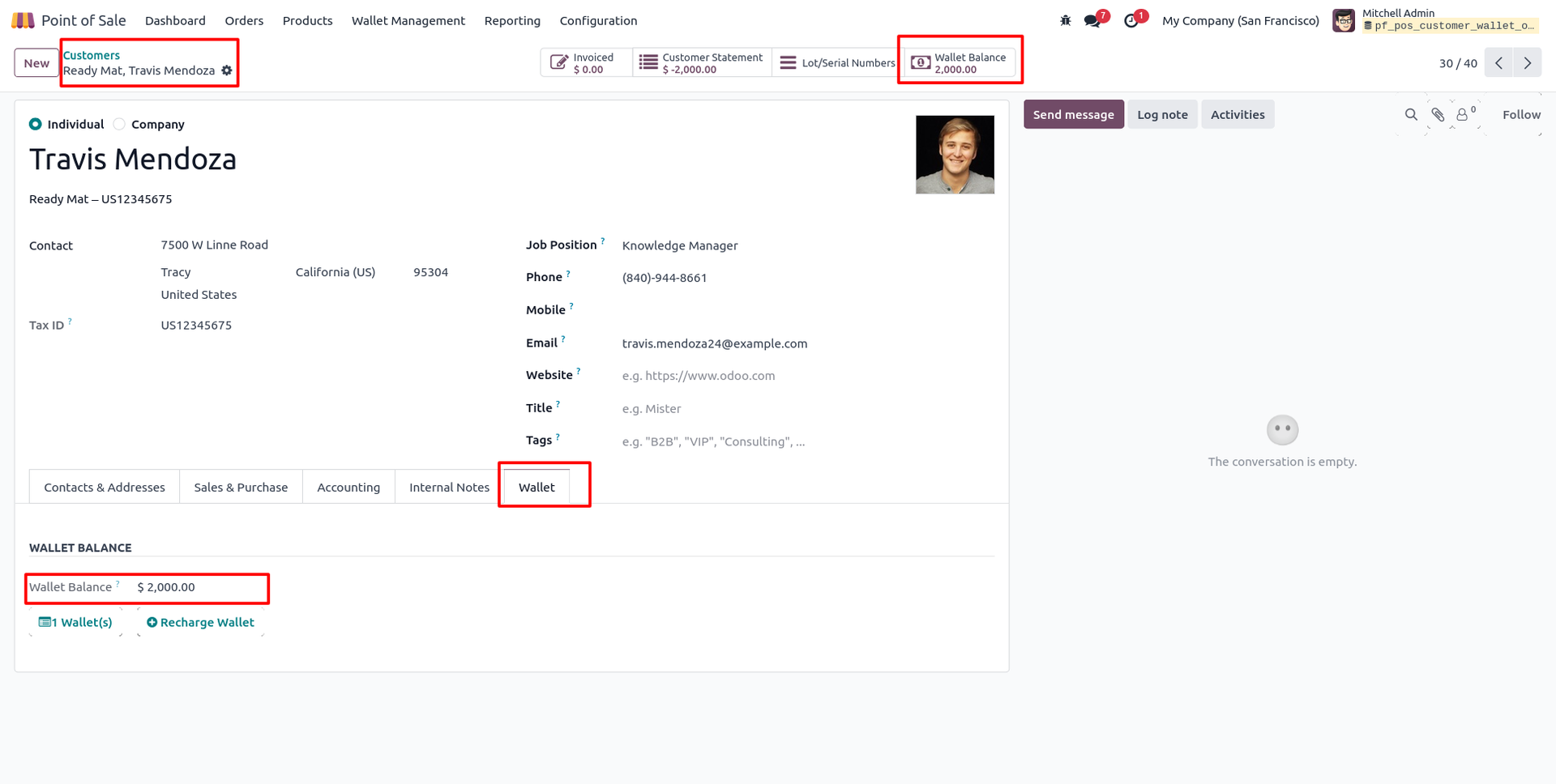
3. Updated Wallet Balance shows on contact form and as smart button at top, ready to use.
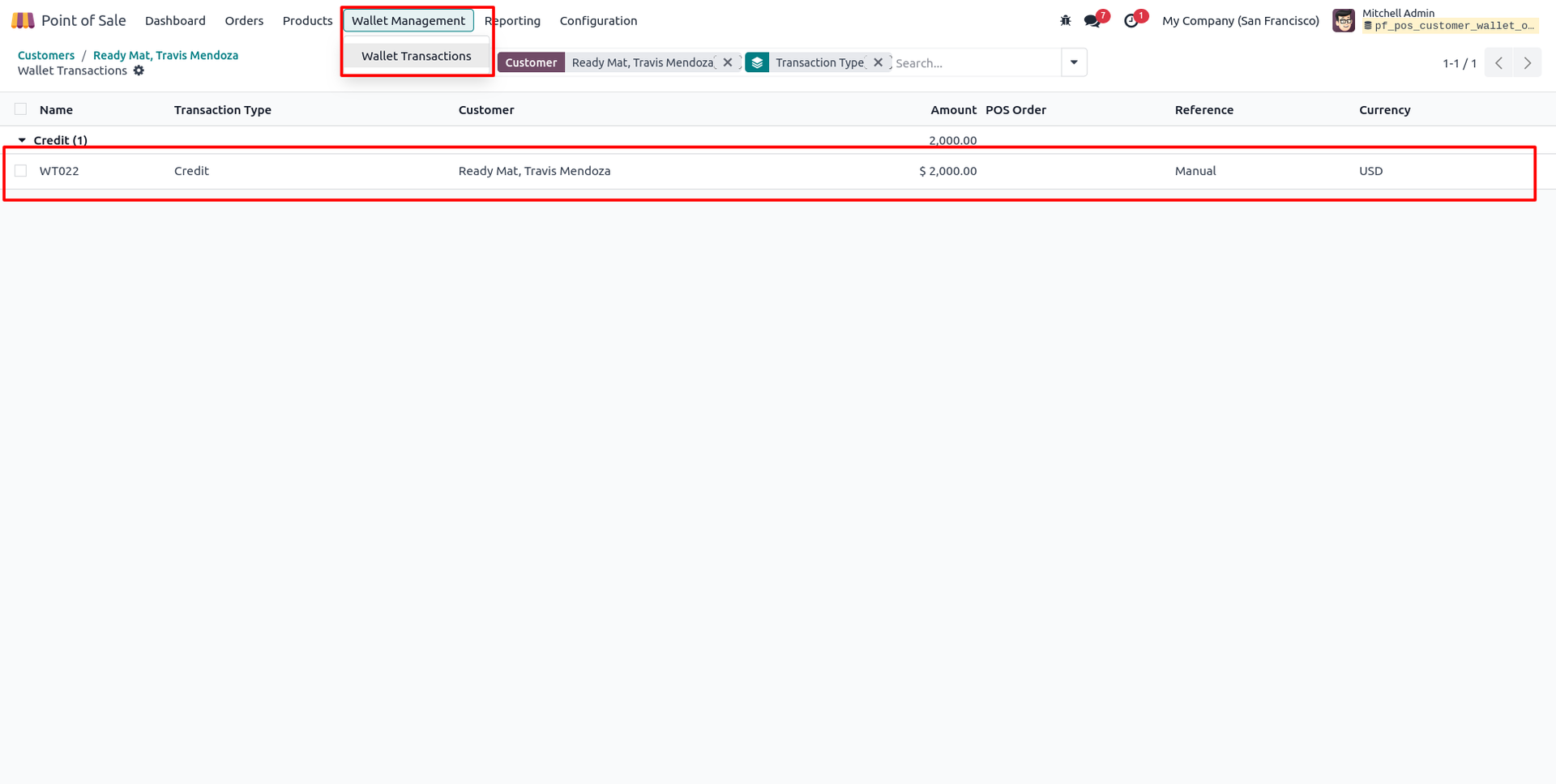
4. Go to Point of Sale > Wallet Management > Wallet Transactions to view all credit/debit records per customer.
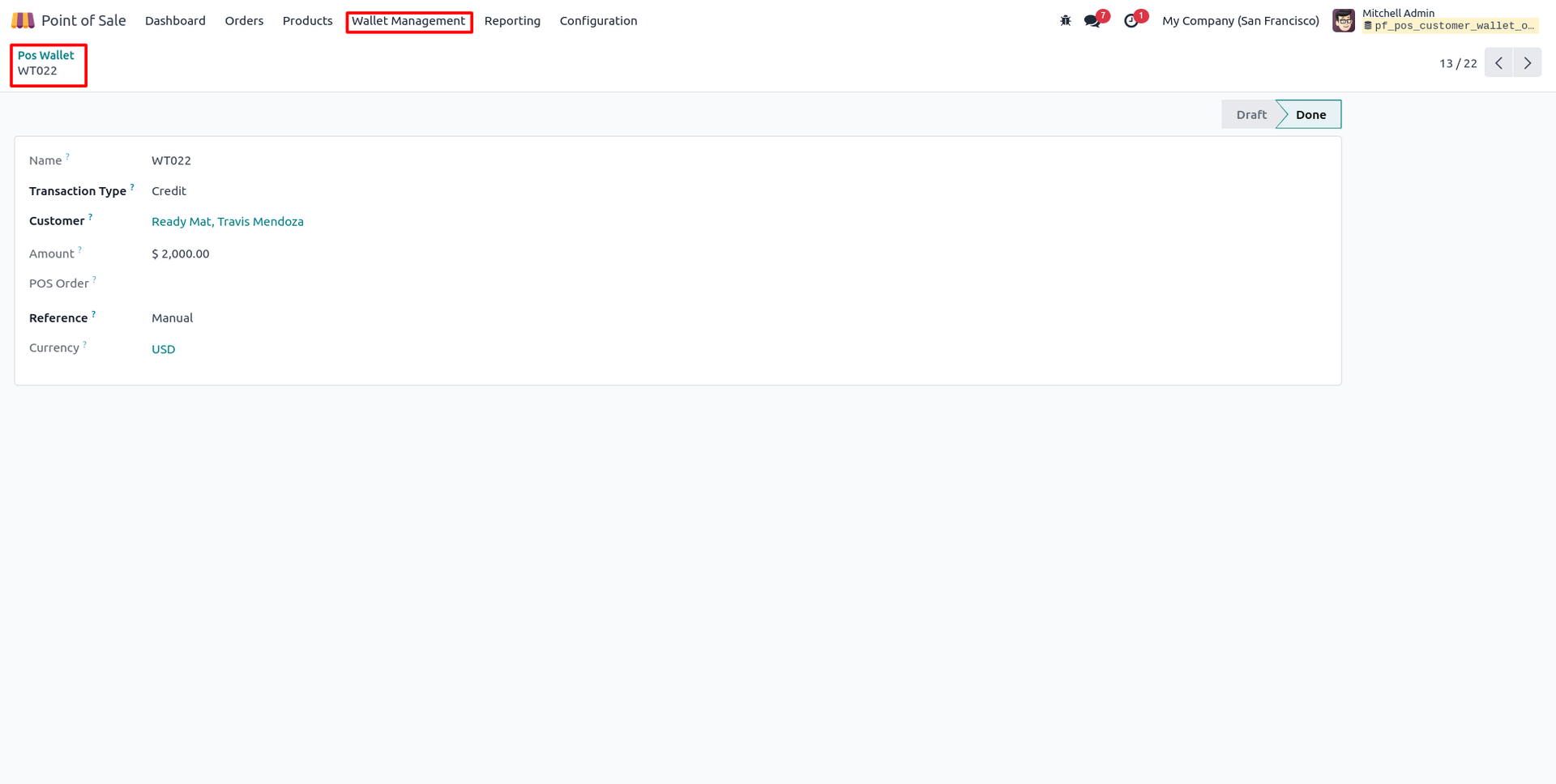
5. Open single Wallet Transaction record to check Type, Customer, Amount, Reference and Status (Draft/Done).
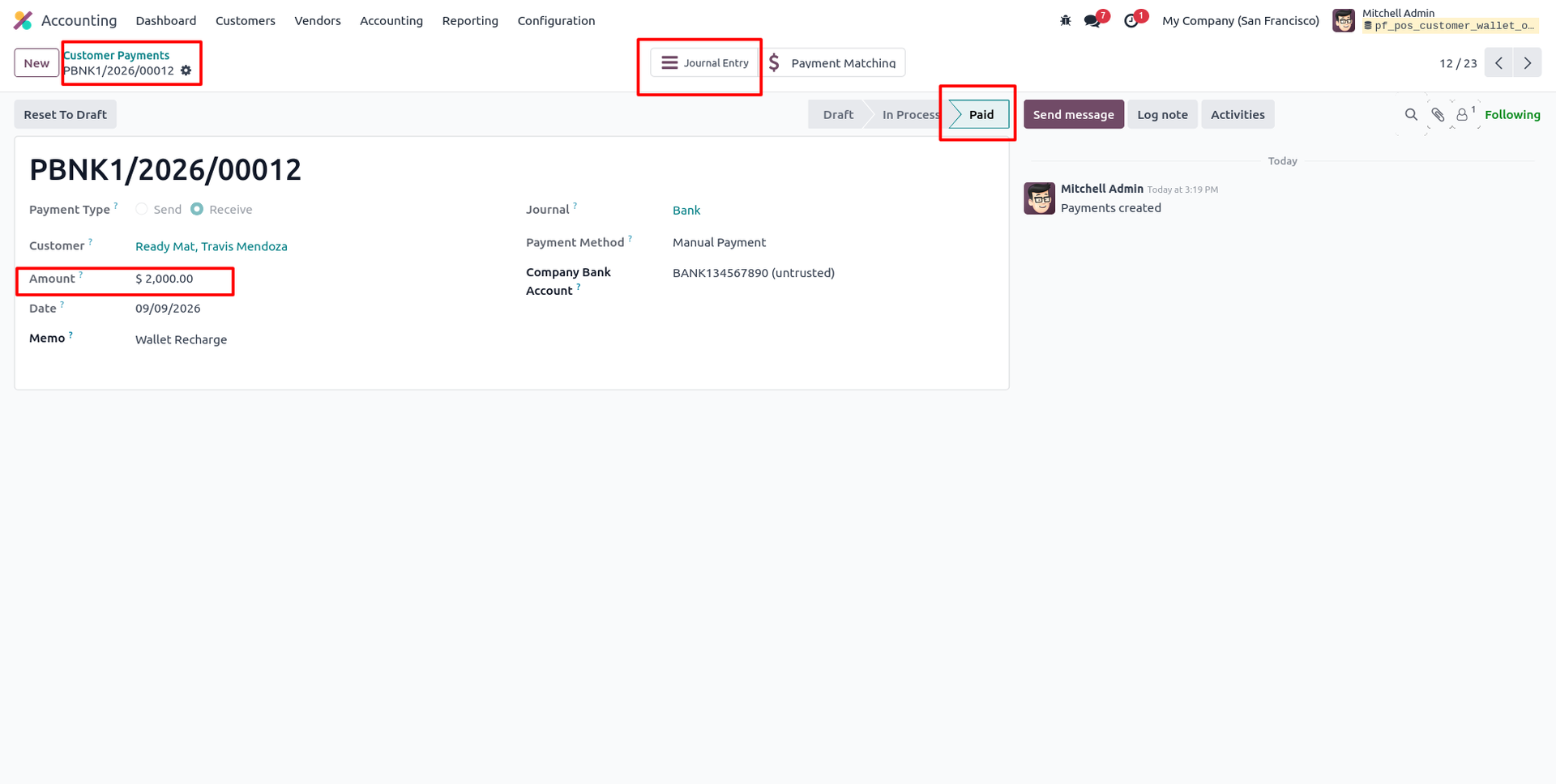
6. Matching Customer Payment entry auto-generated in Accounting, marked Paid, linked to Bank journal.
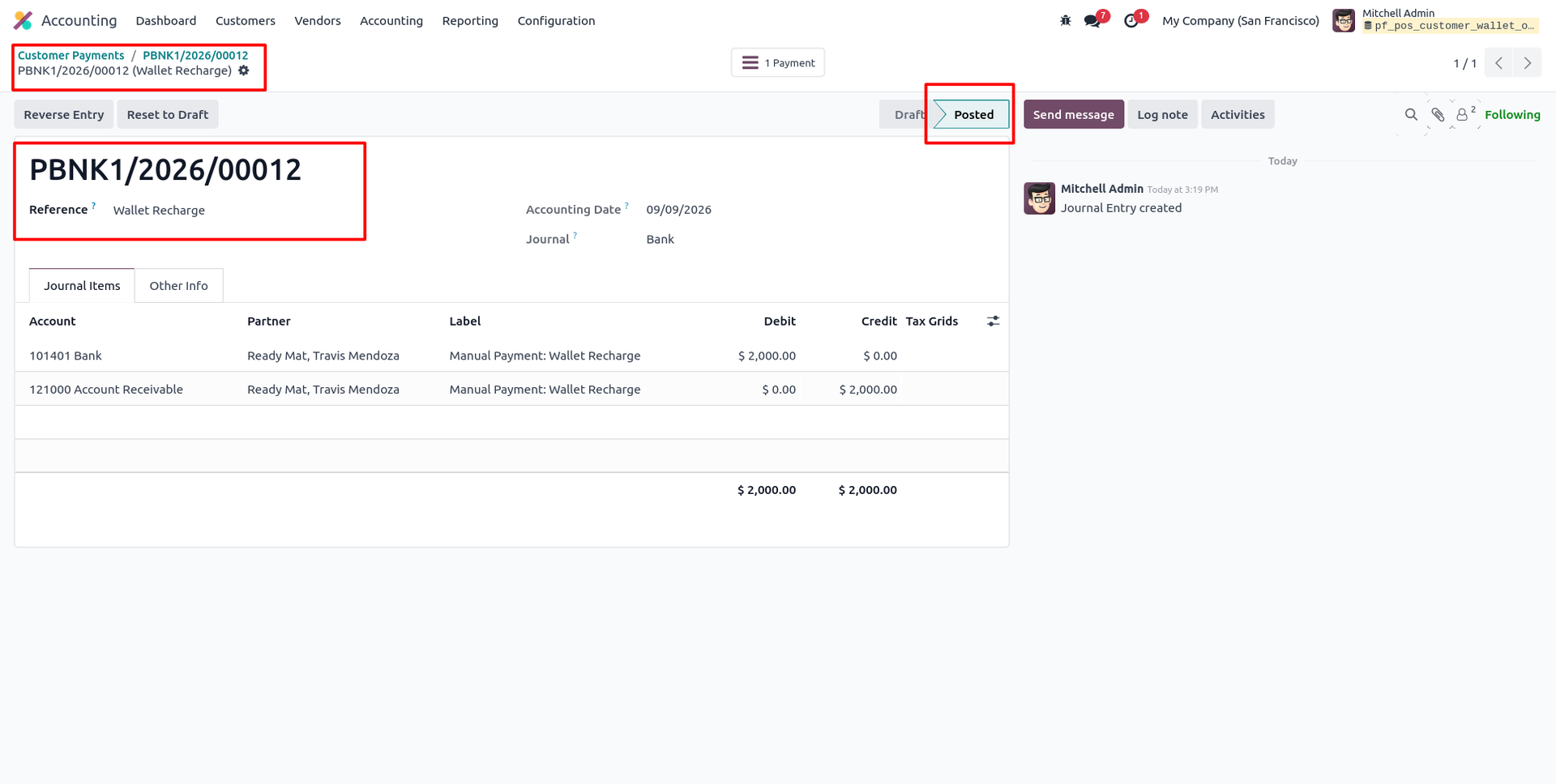
7. Posted Journal Entry for wallet recharge shows Debit to Bank and Credit to Account Receivable, both $2,000.00.
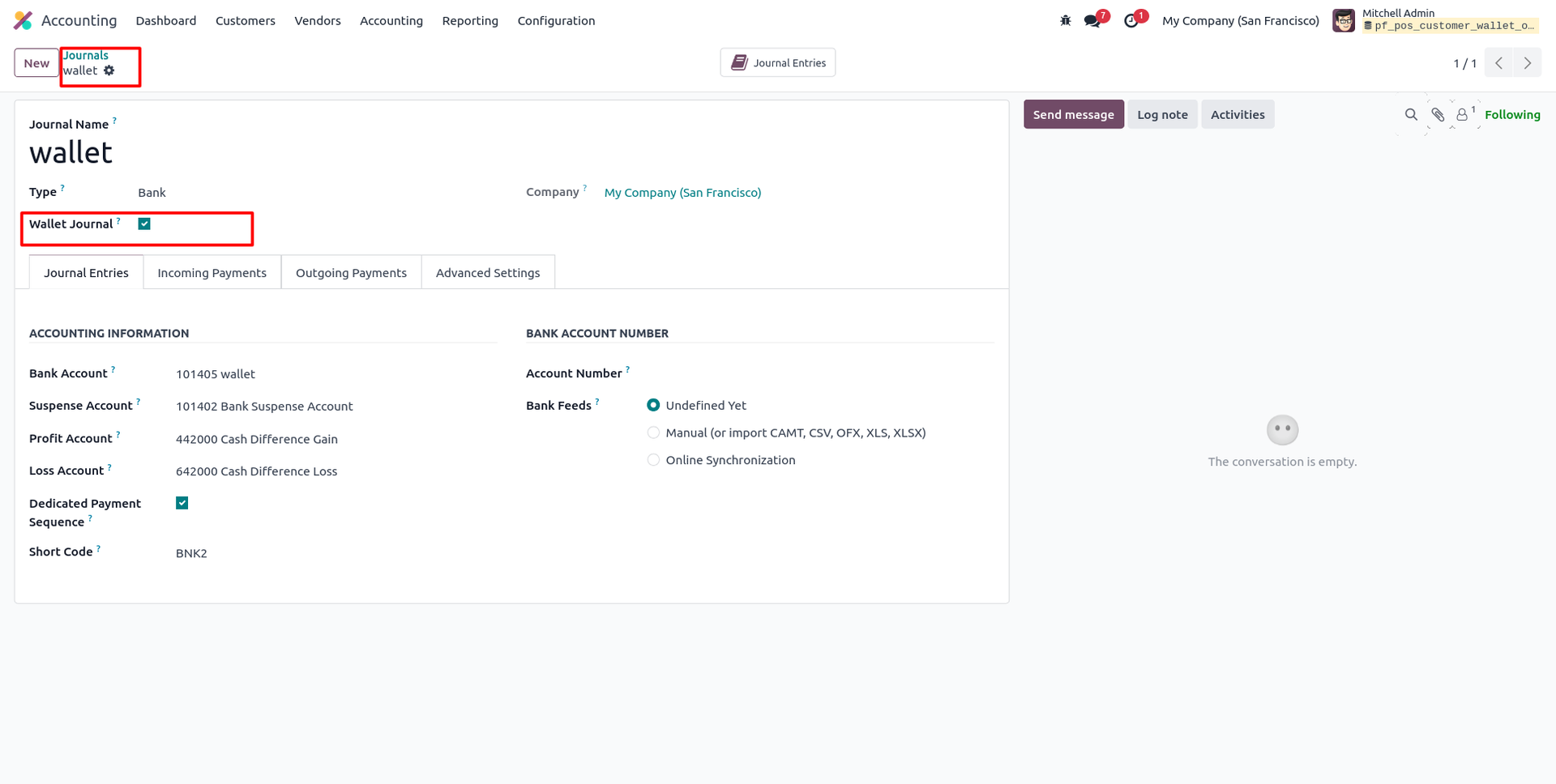
8. Enable Wallet Journal checkbox on a Bank type journal to use it for wallet transactions.
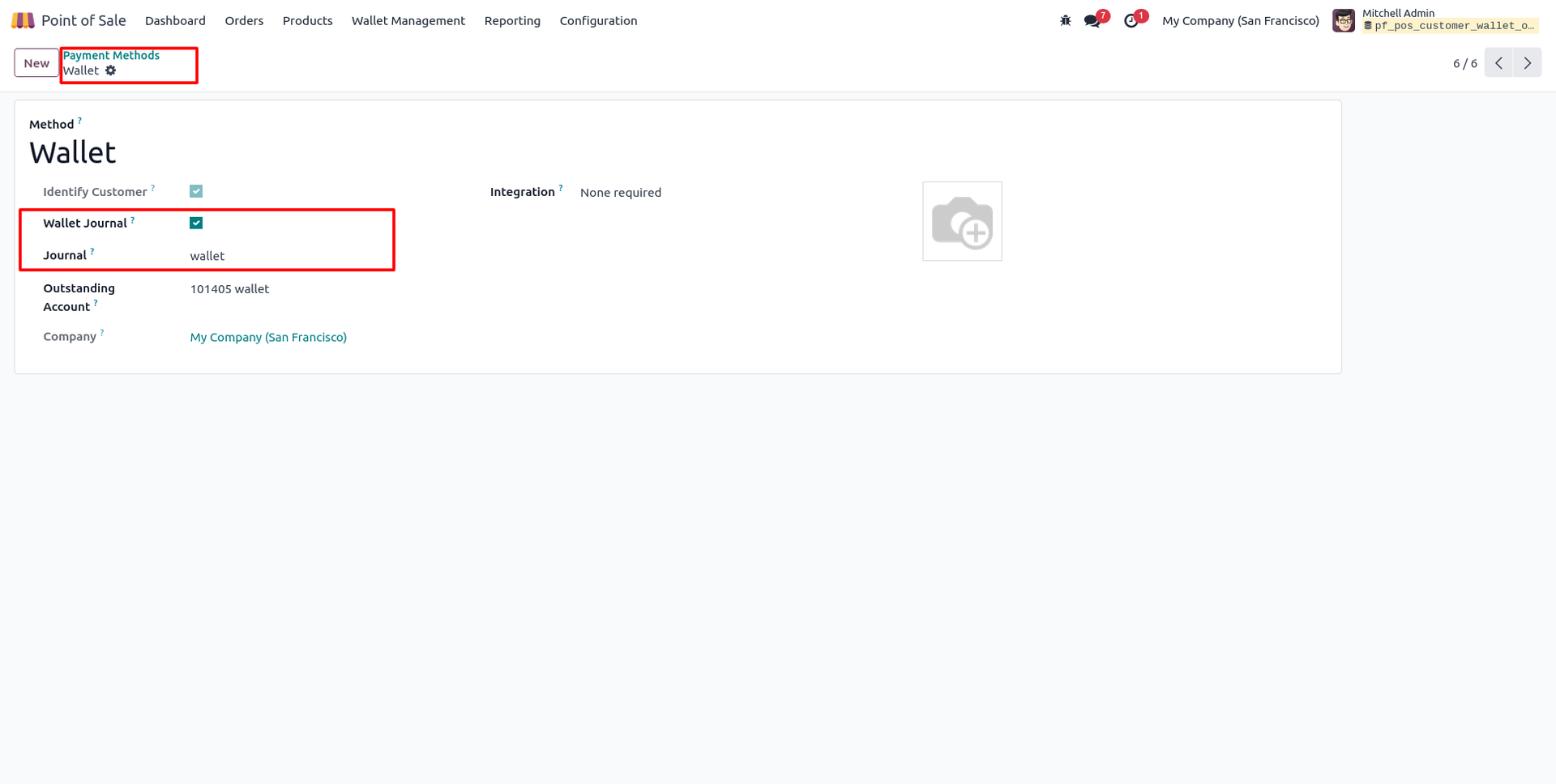
9. On Payment Methods, enable Wallet Journal and select the linked Journal to set up the Wallet payment method.
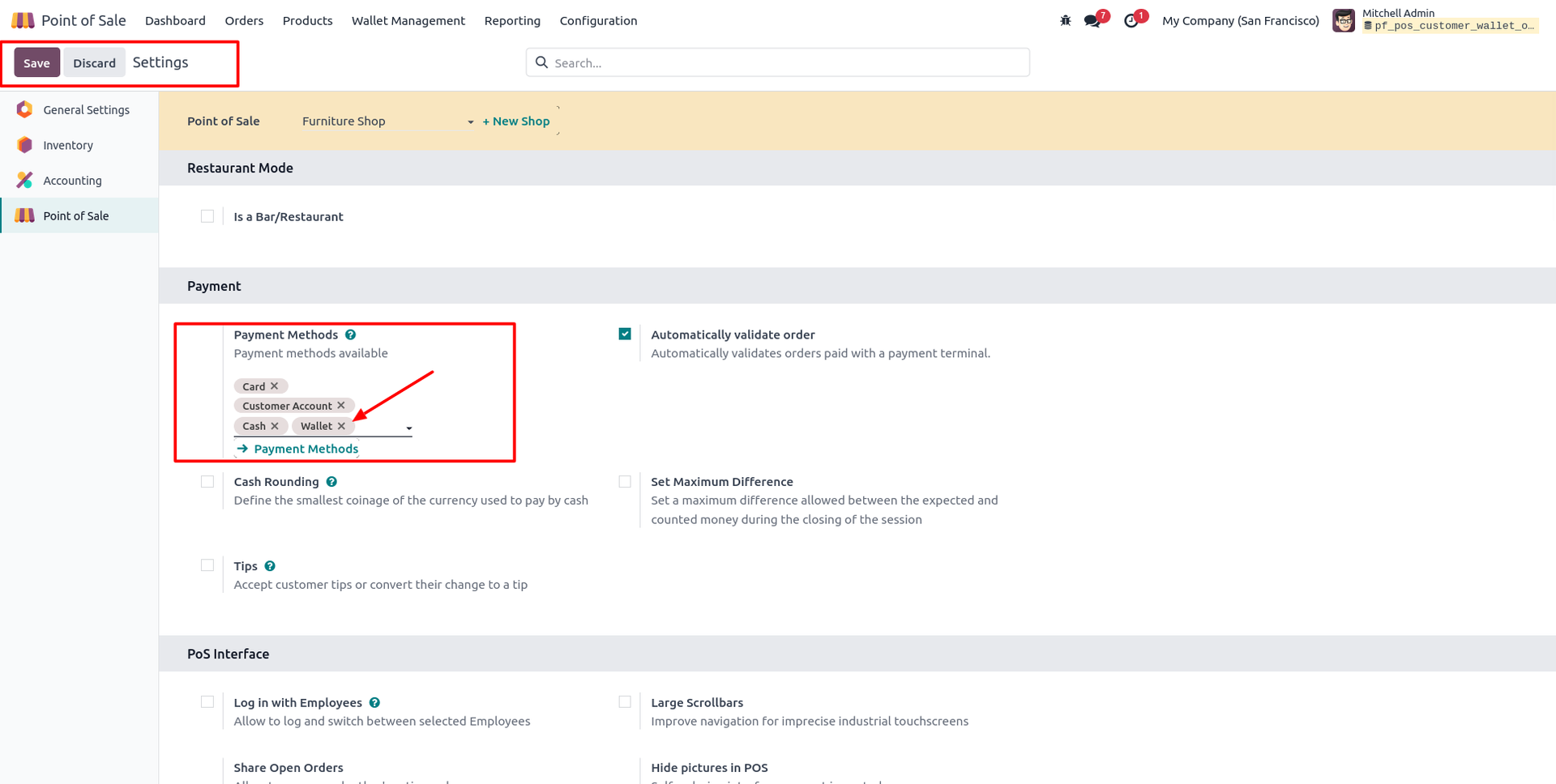
10. Add Wallet to Payment Methods under Point of Sale Settings so it's available at the POS session.
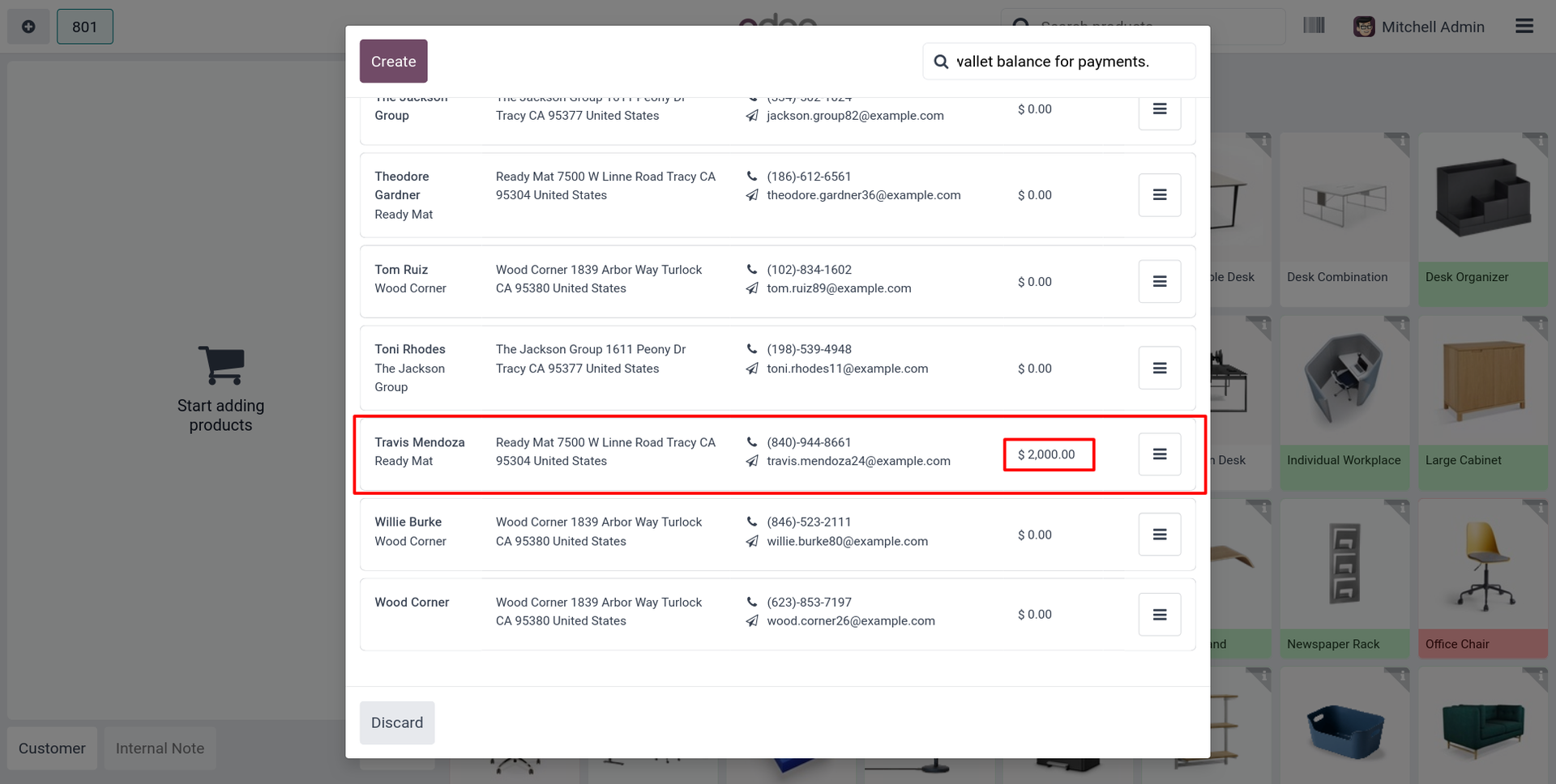
11. Customer's Wallet Balance shows right in the customer list on POS screen.
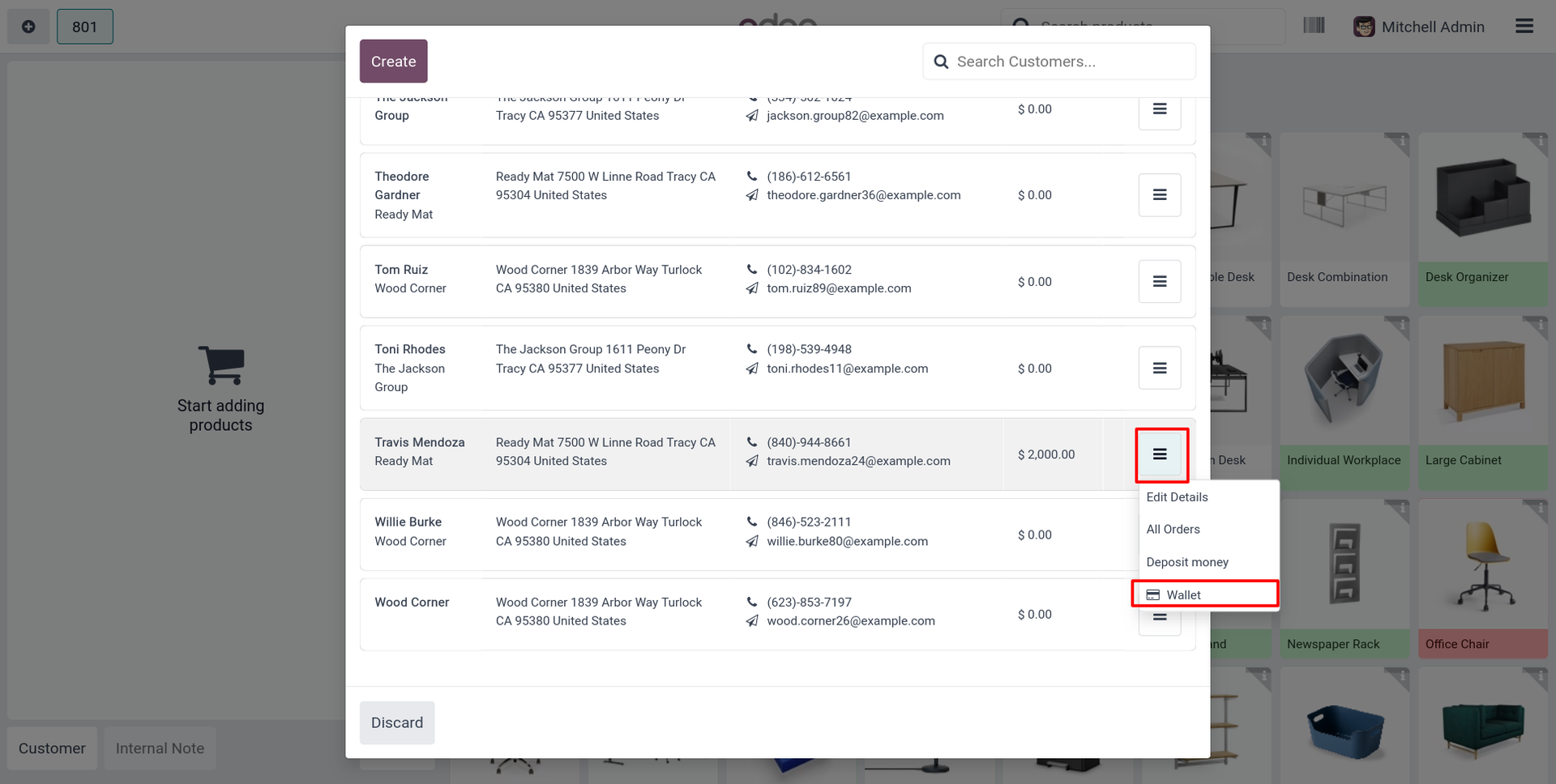
12. Click customer's menu icon on POS screen and select Wallet to open their wallet directly.
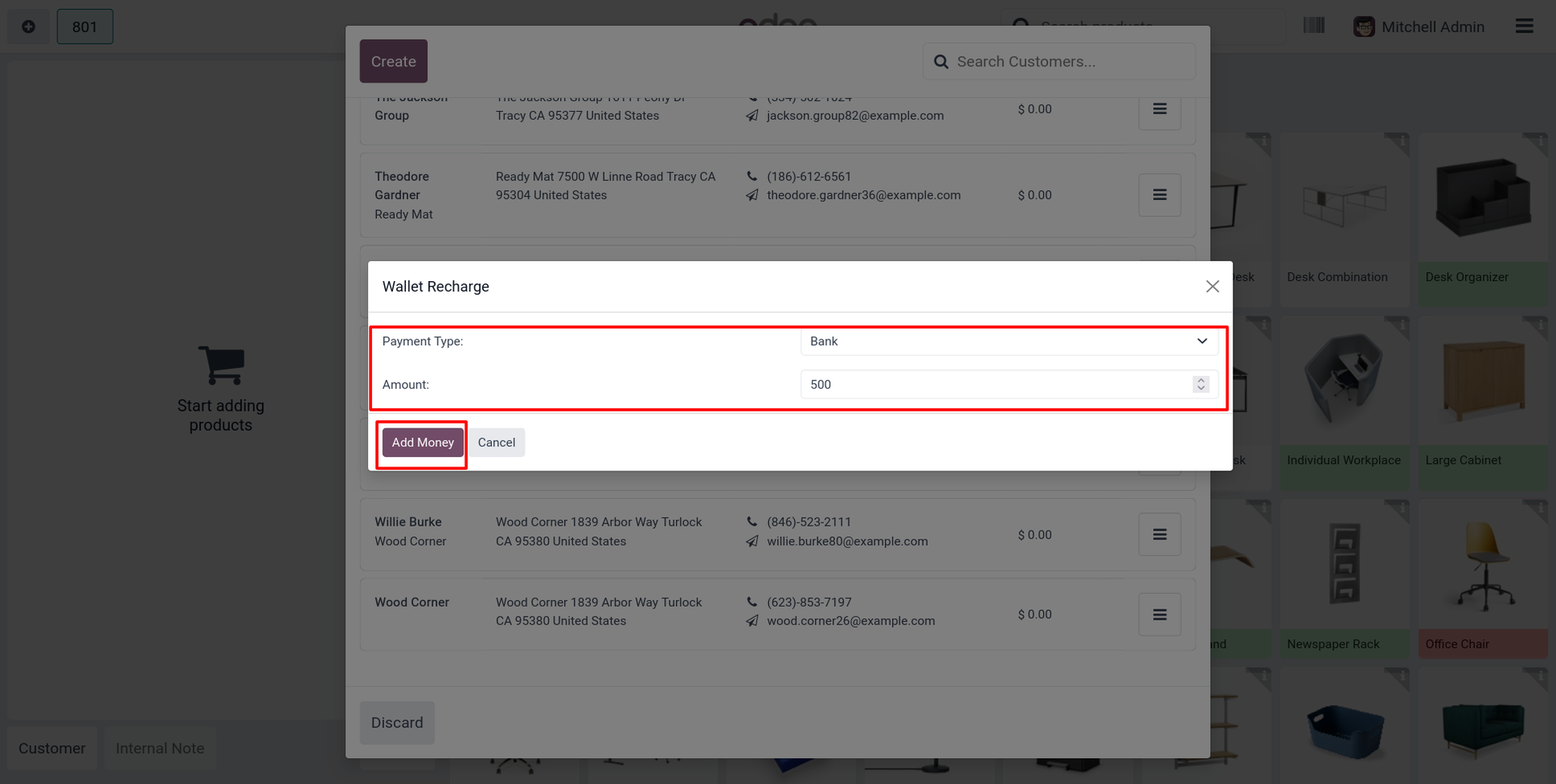
13. On POS Wallet Recharge popup, select Payment Type, enter Amount, click Add Money.
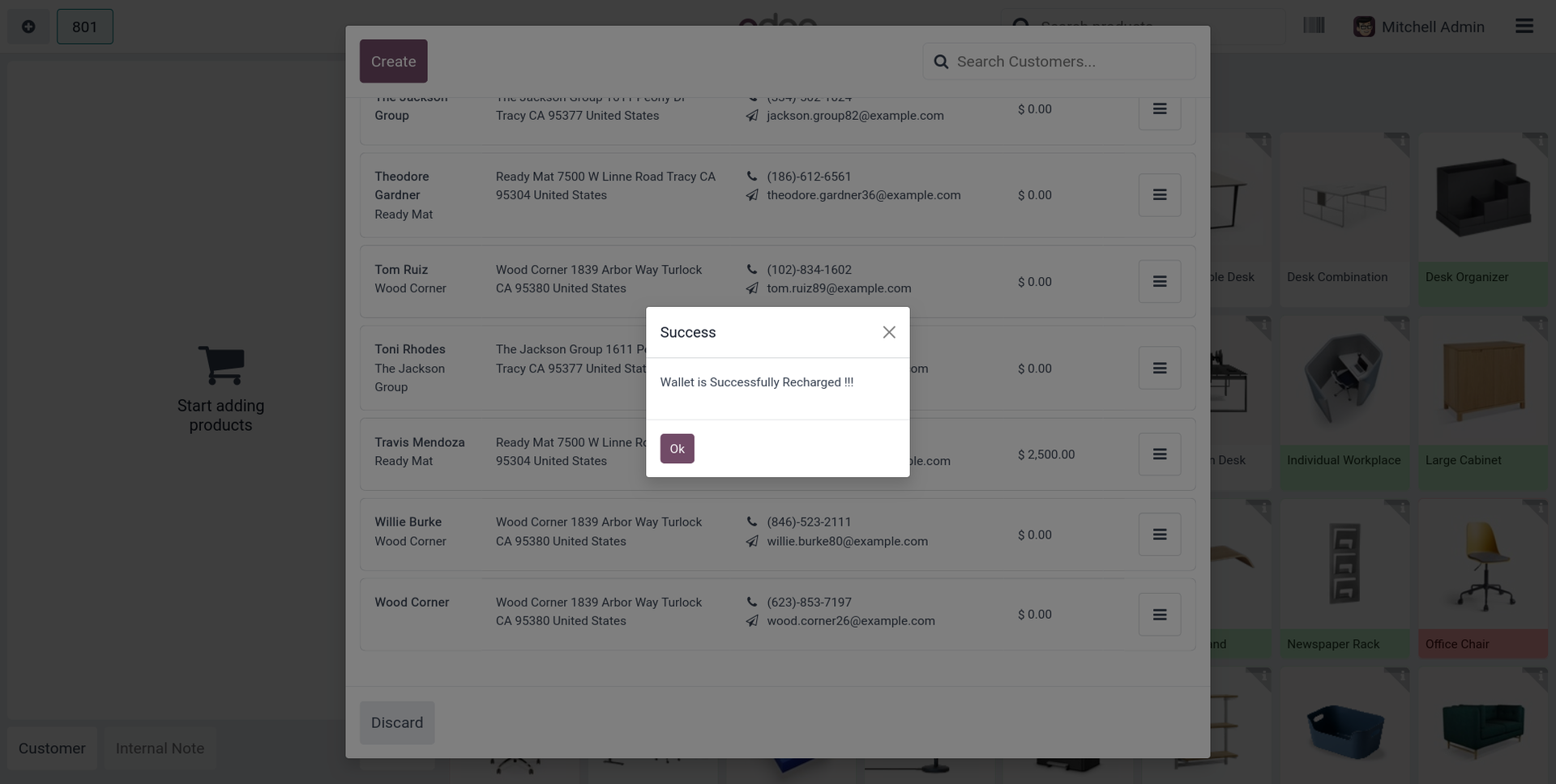
14. Success popup confirms "Wallet is Successfully Recharged !!!" and updated balance shows against the customer.
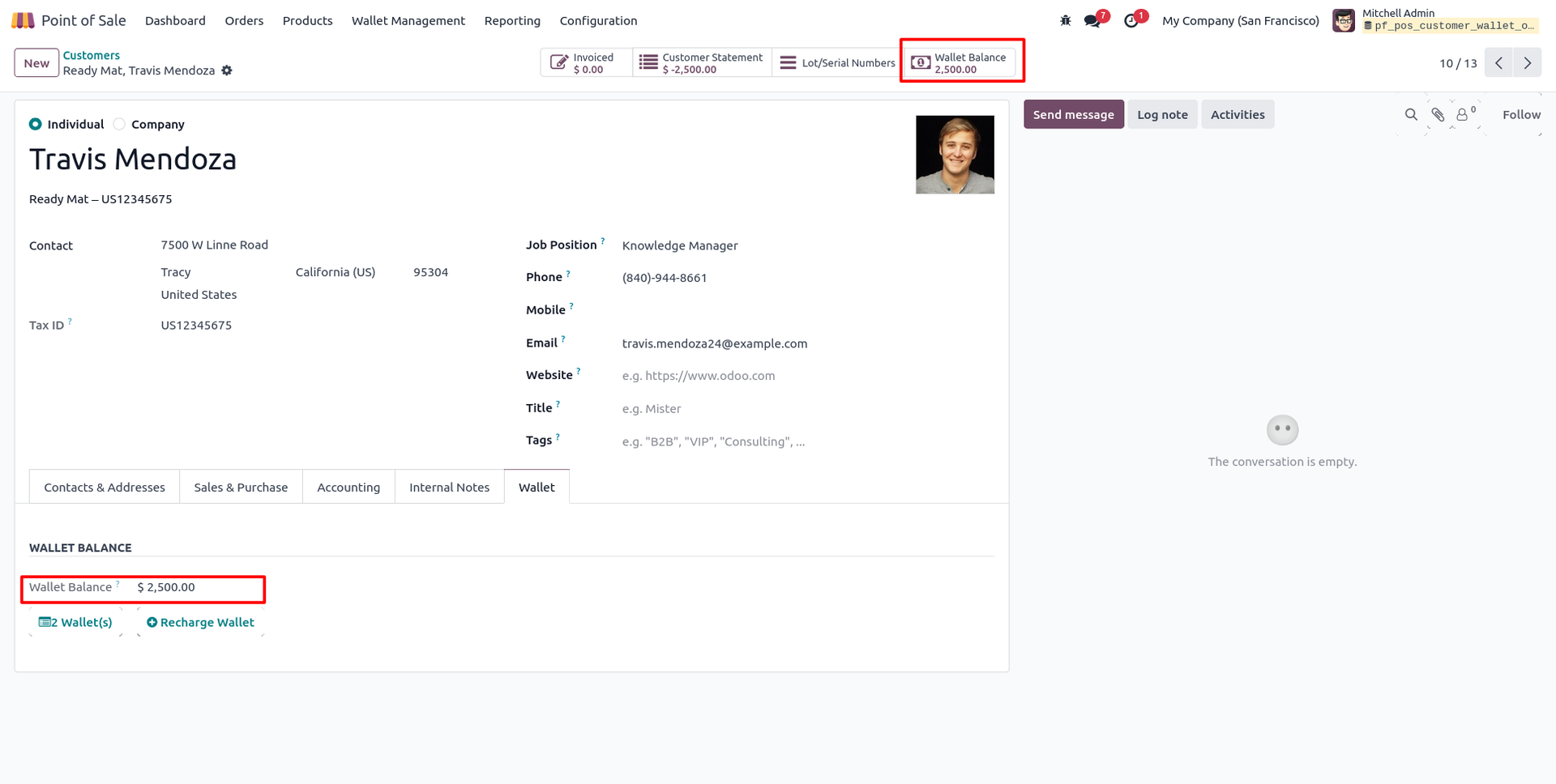
15. Backend contact form's Wallet Balance reflects the POS recharge instantly, alongside updated Wallet(s) count.
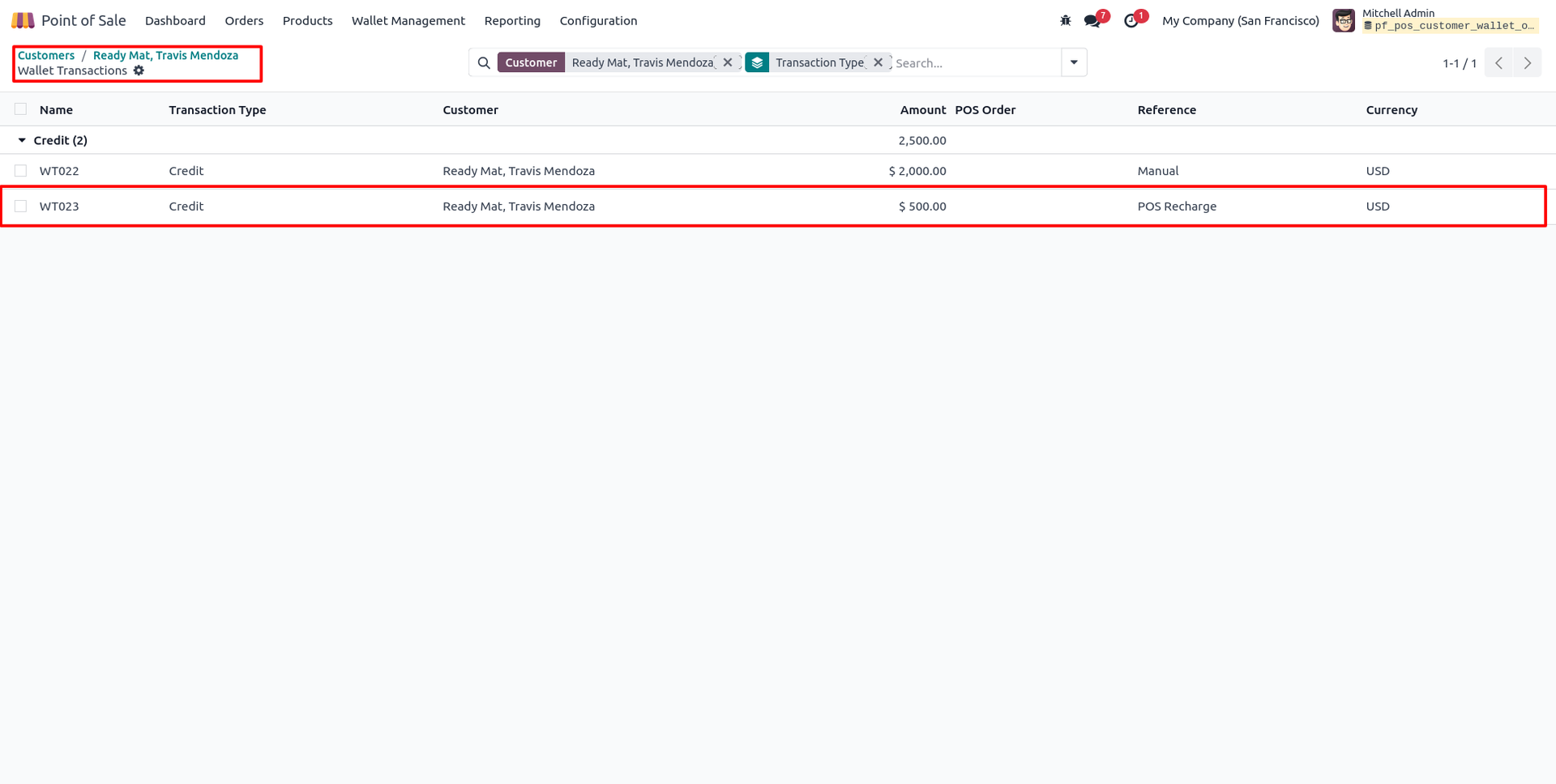
16. Wallet Transactions list logs the new entry with Reference as "POS Recharge" alongside earlier manual credits.
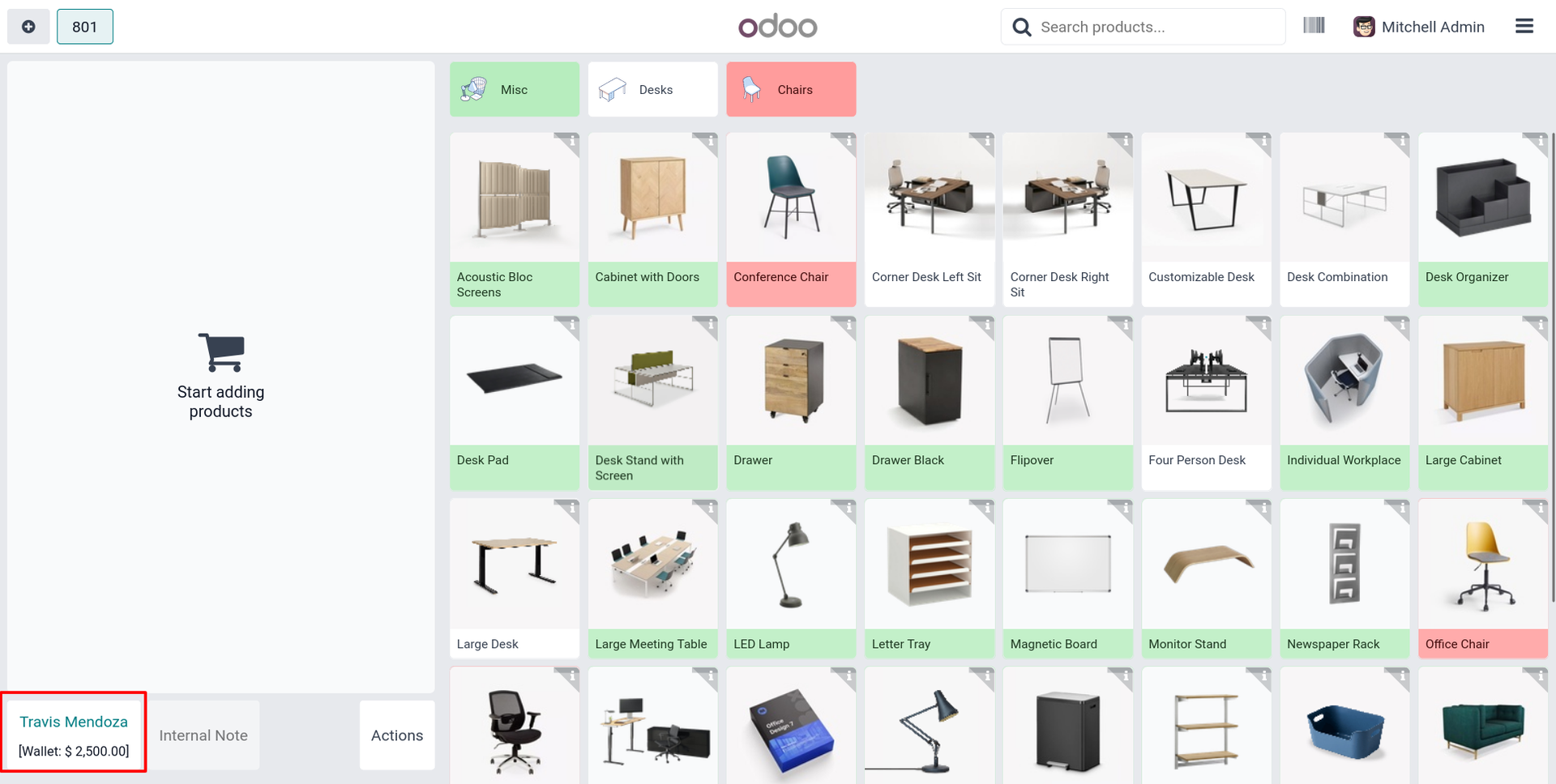
17. Selected customer's Wallet balance displays right on the POS order screen for quick reference.
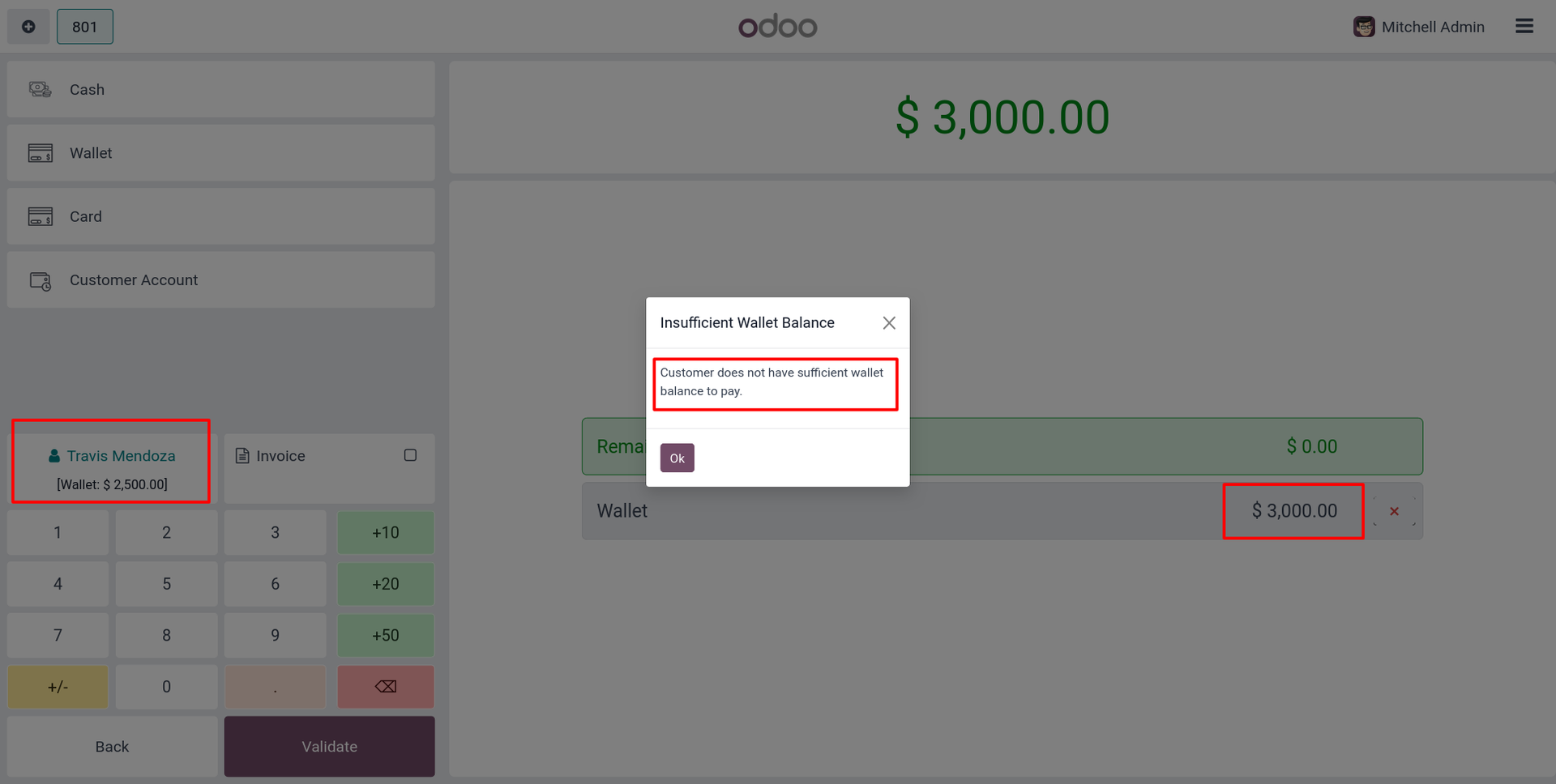
18. If order amount exceeds balance, Insufficient Wallet Balance warning blocks payment until amount is adjusted.
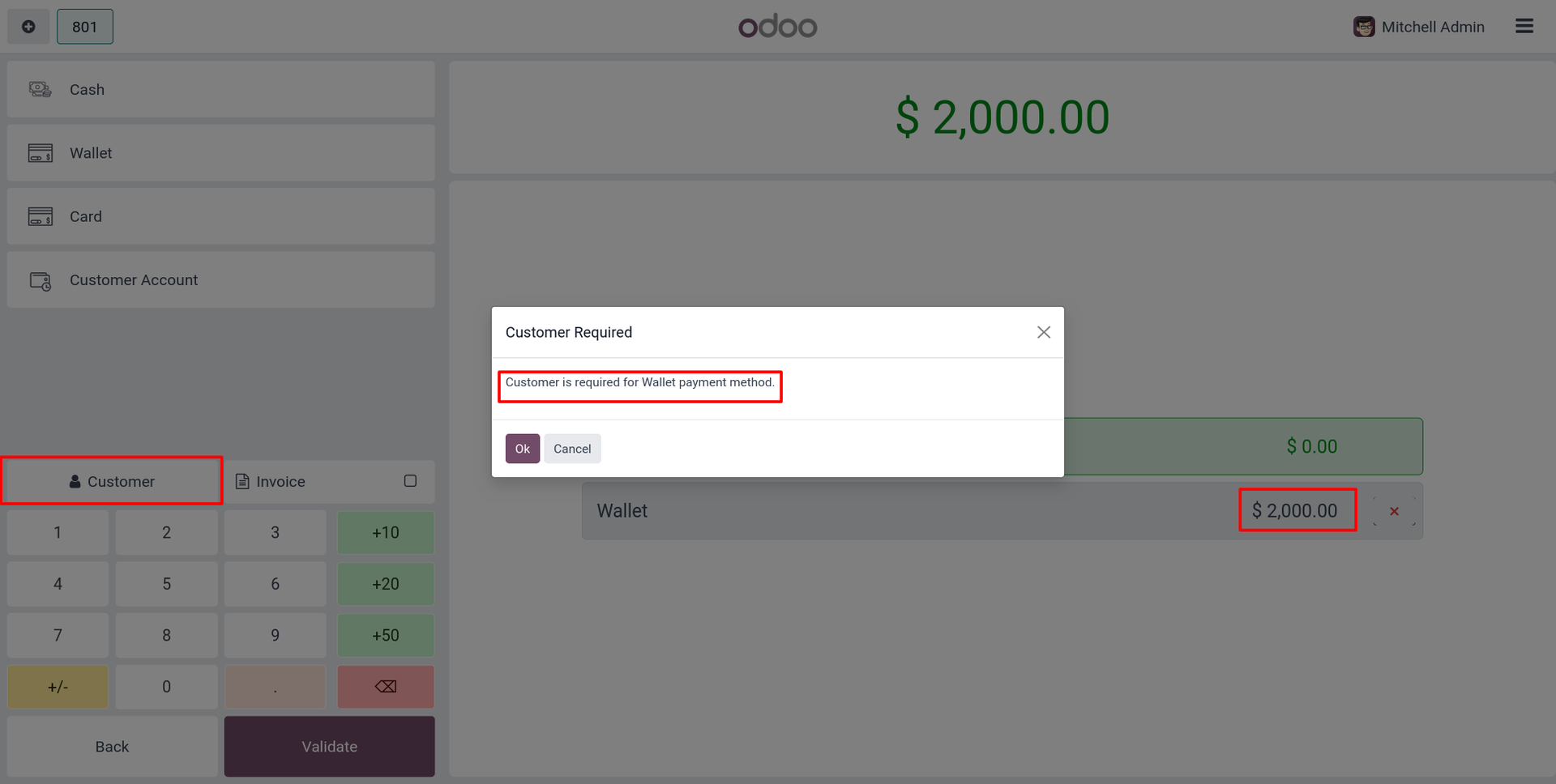
19. Selecting Wallet payment without a customer set triggers Customer Required warning.
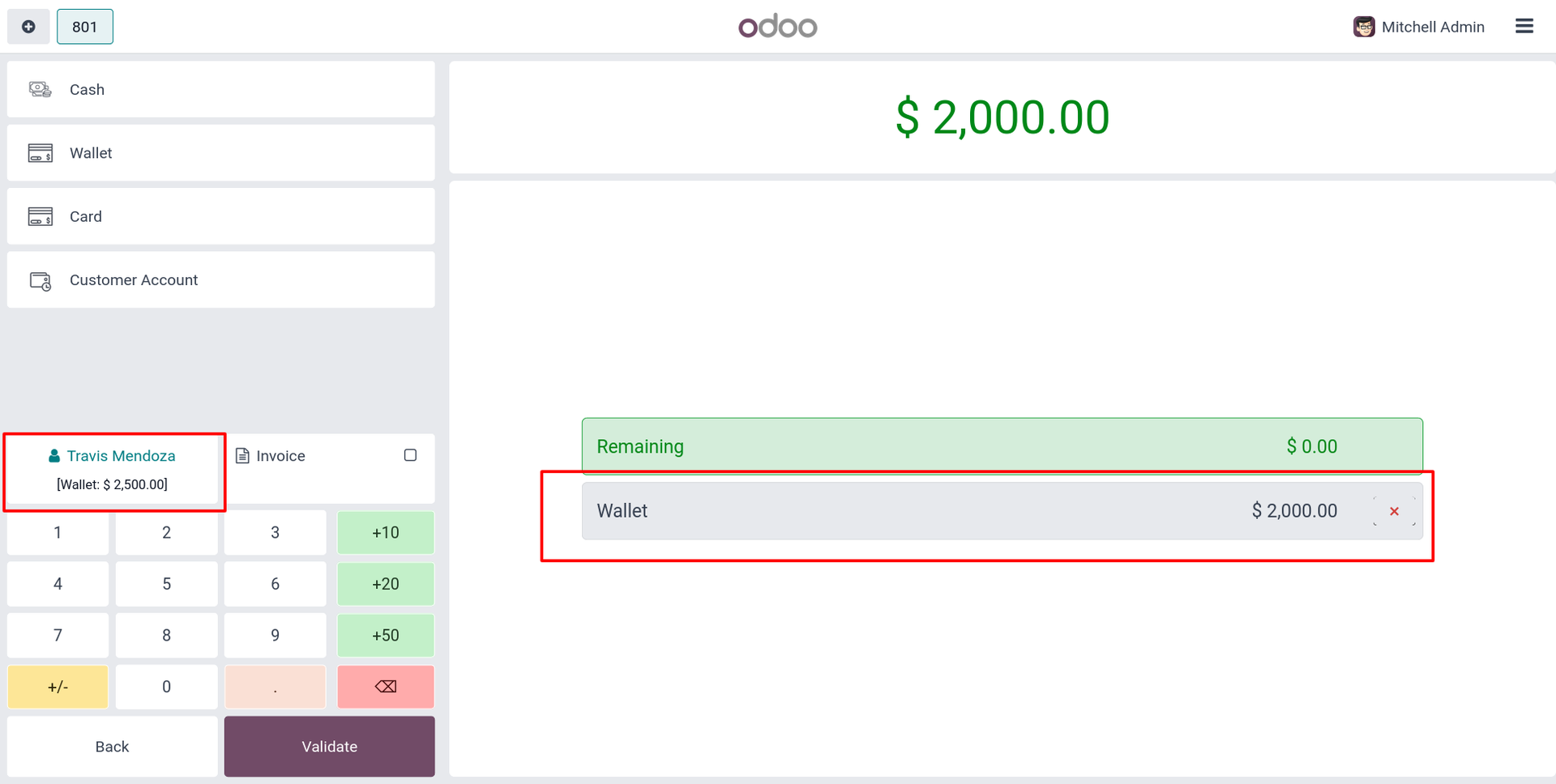
20. With customer selected, Wallet amount is applied and Remaining balance shows $0.00, ready to Validate.
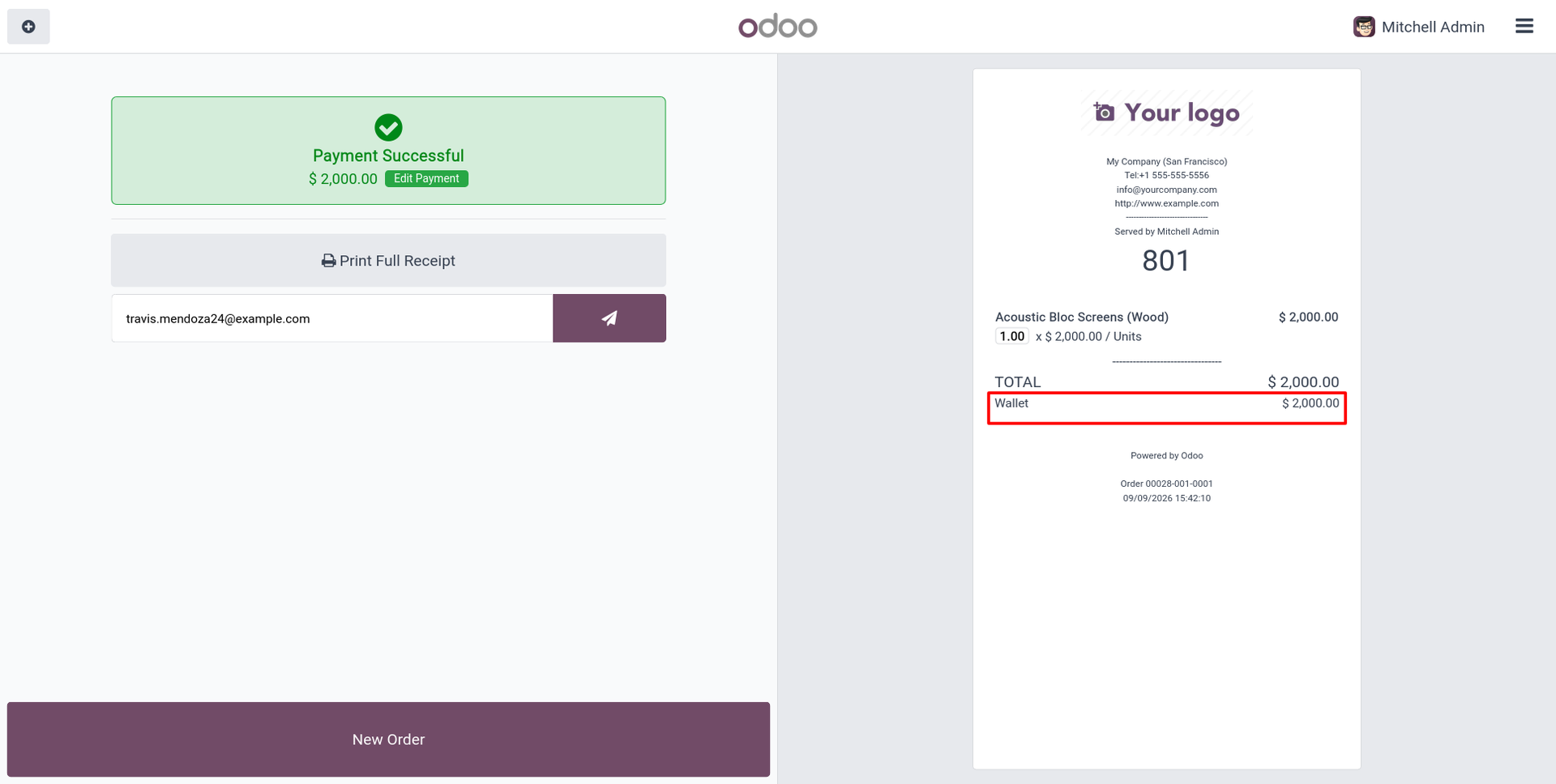
21. Payment Successful screen and printed receipt both show Wallet as the payment method used.
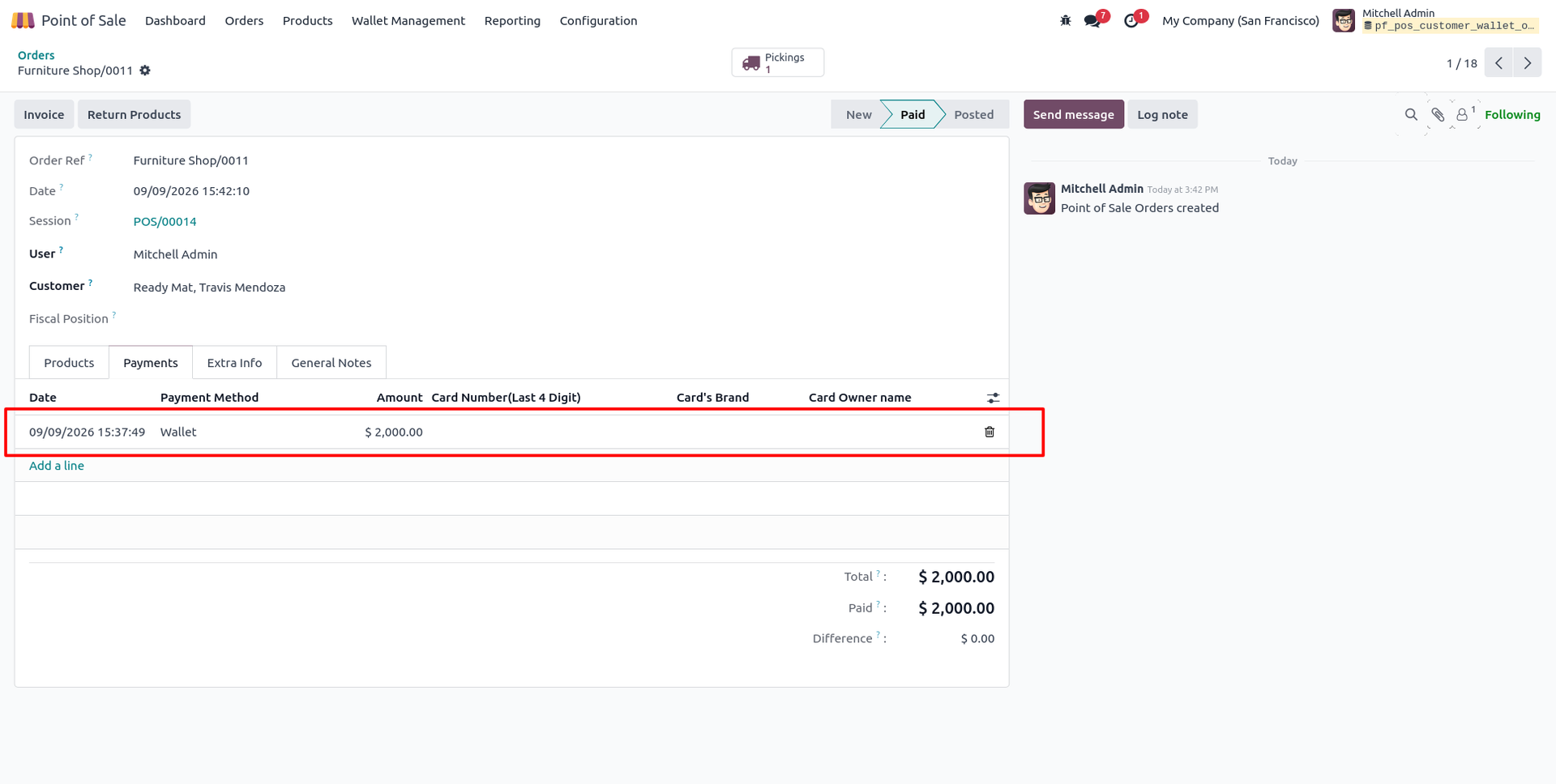
22. Backend POS Order Payments tab logs the Wallet payment line with amount and timestamp.
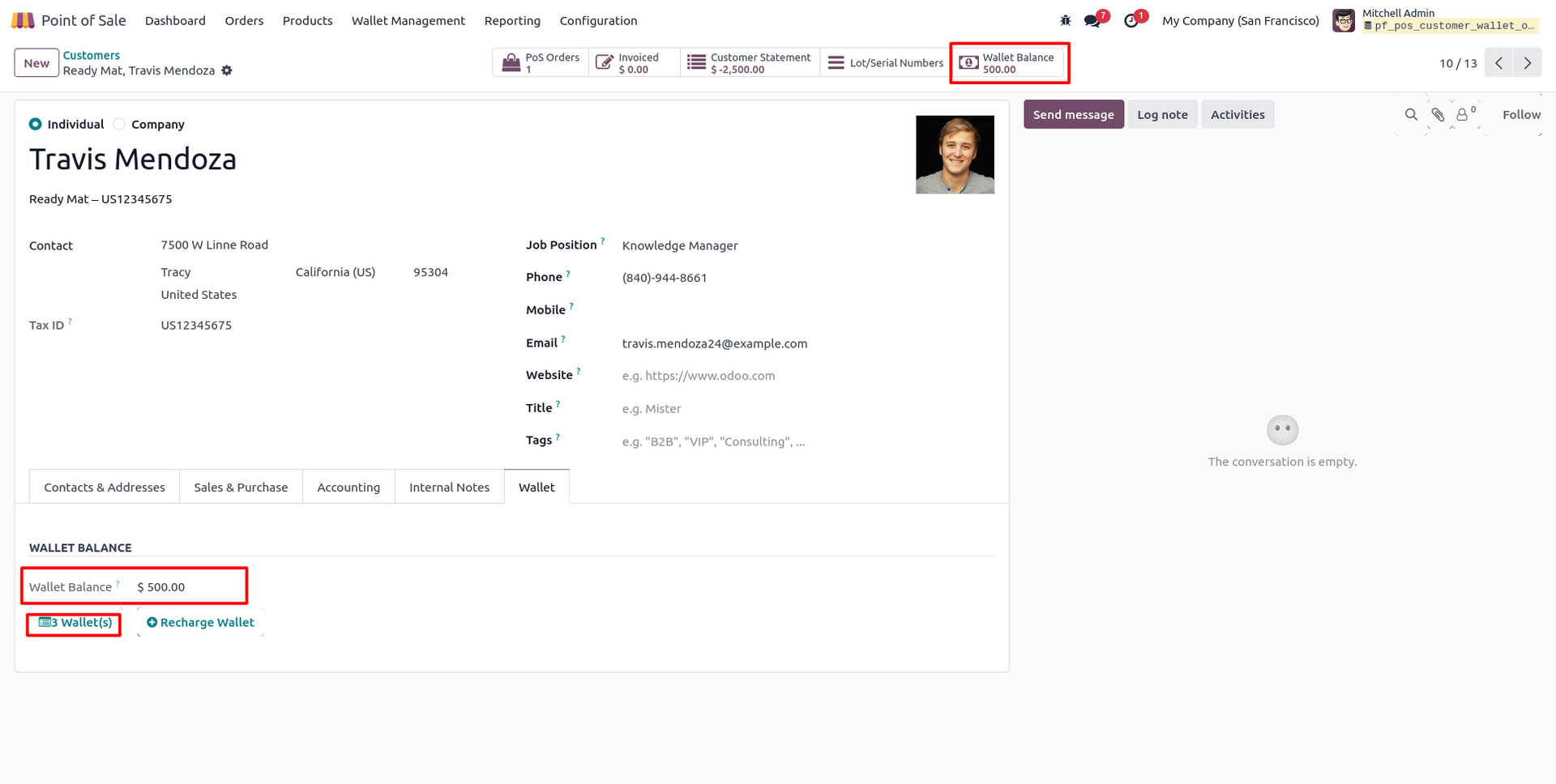
23. Customer's Wallet Balance is deducted after the order, with updated Wallet(s) count on the contact form.
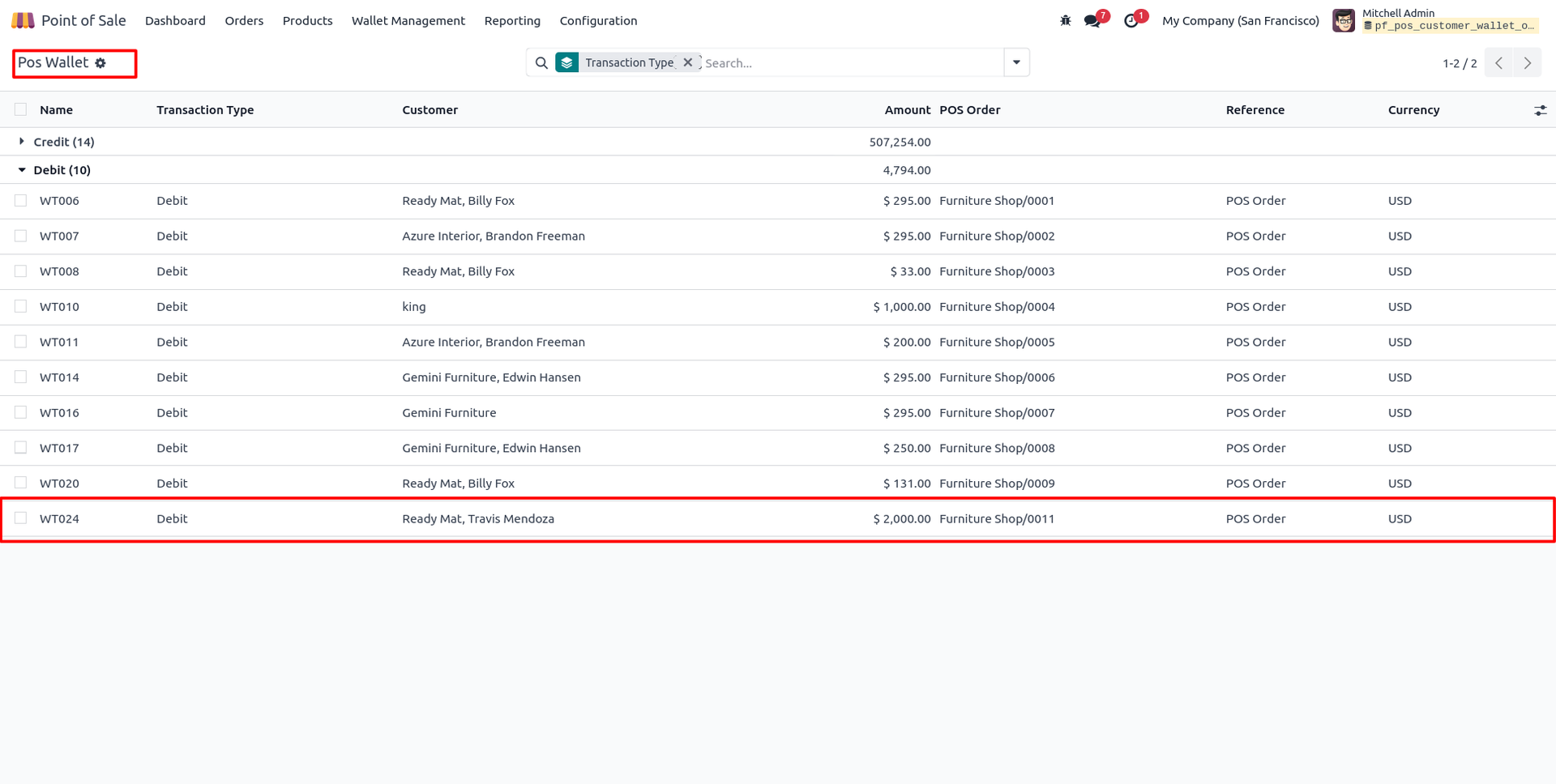
24. All debit entries for wallet payments made across orders are grouped and viewable under POS Wallet transactions.
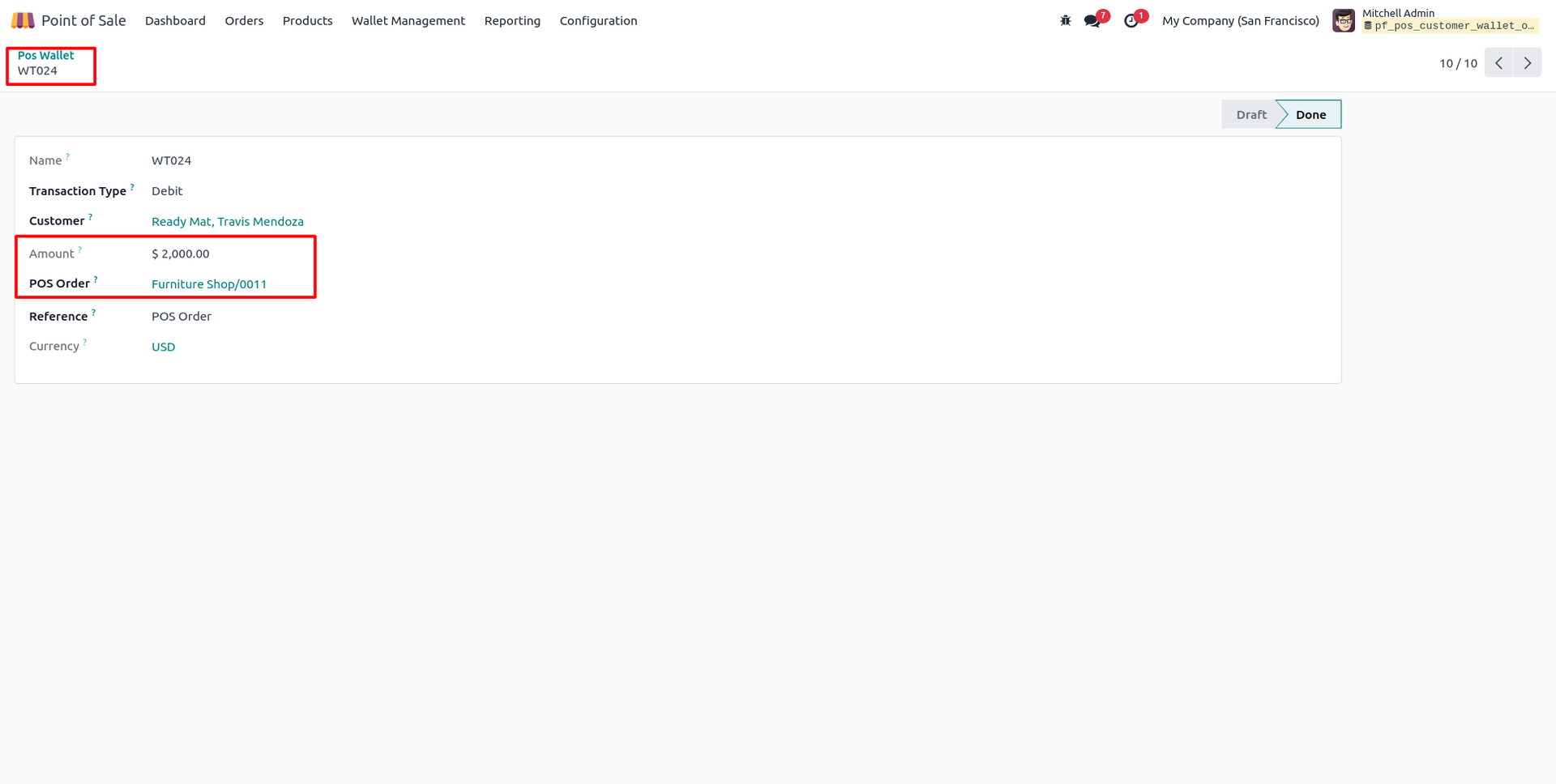
25. Opening a debit record shows Transaction Type, Customer, Amount, and the linked POS Order.
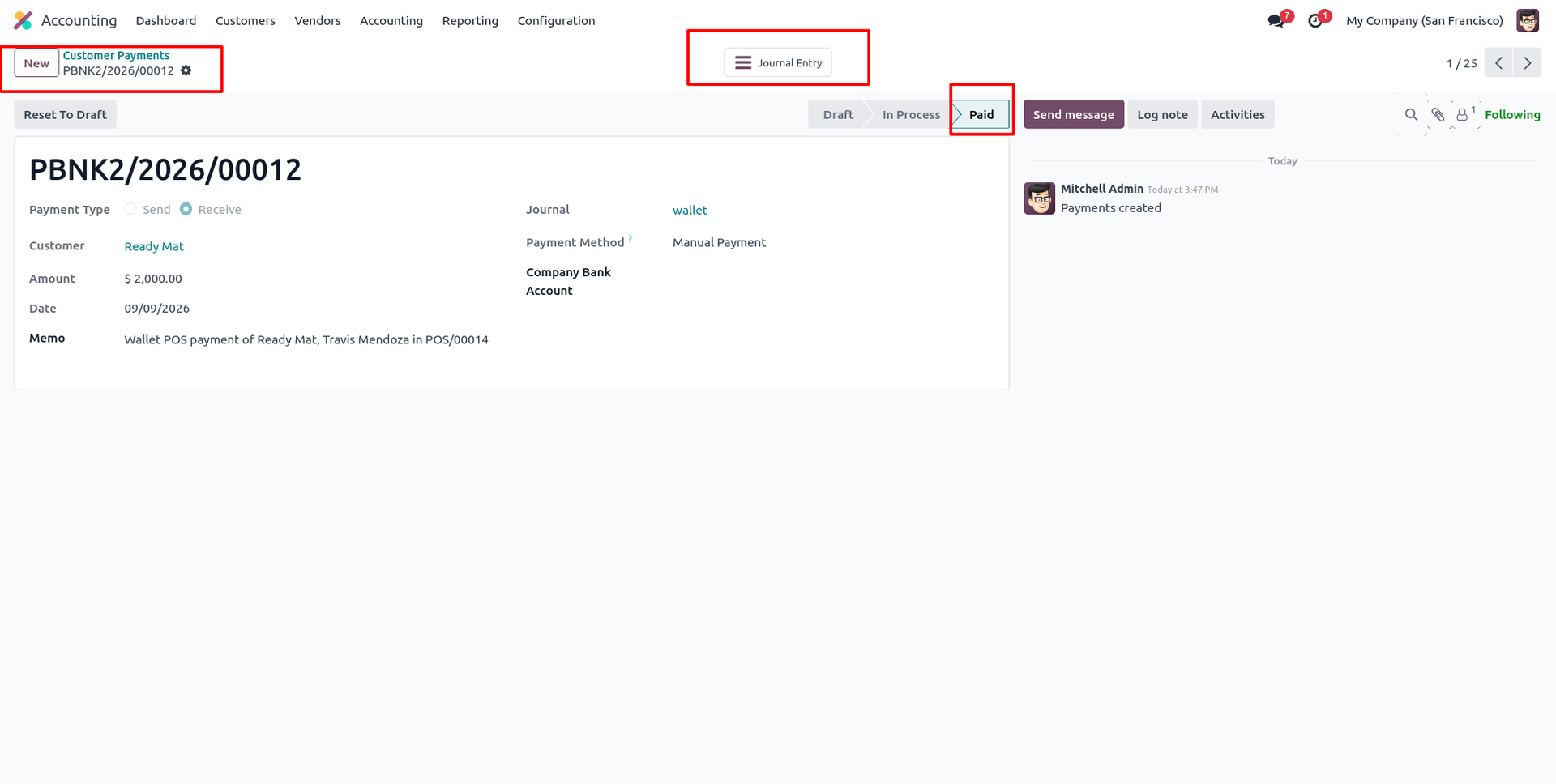
26. Matching Customer Payment for the wallet debit is auto-created and marked Paid, referencing the POS order.
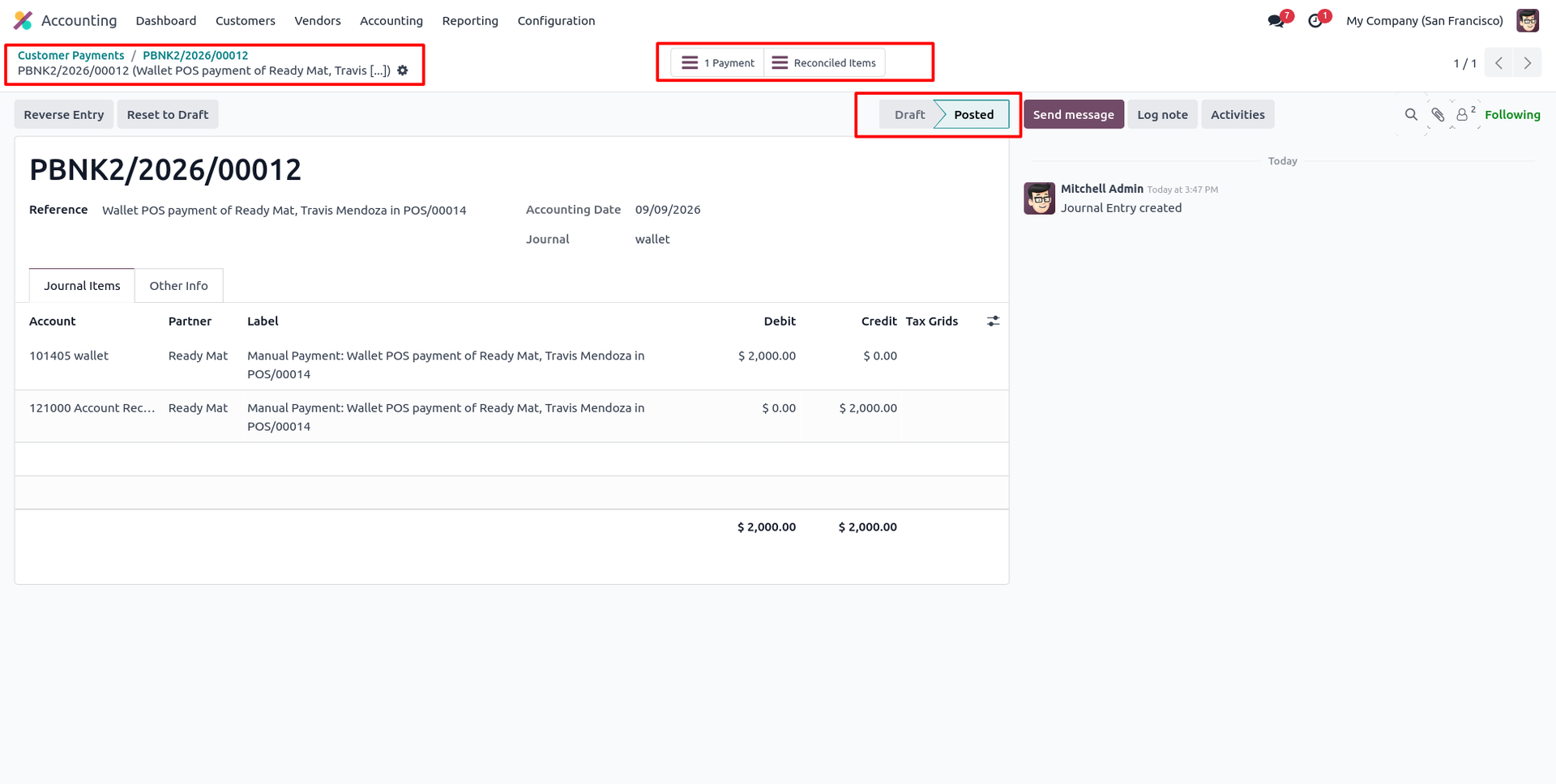
27. Its Journal Entry is Posted, debiting Wallet account and crediting Account Receivable for $2,000.00.
Our solutions focus on your problems
- Odoo Implementation
- Odoo Customization
- ERP Development and Implementation
- Odoo Ipass Cloud
- AI for Odoo
- Odoo Apps
- Aws Marketplace Products
- Business Engines
Our Pricing includes User Manual, 90 Days Support (Monday-Friday 10am to 7pm IST) and One time Setup
• Works & tested on standard installations of Odoo with no third party apps,
• Free support only for odoo installations with no third party apps,
• Paid support available for Odoo installations with third party apps.

Prefortune is a Odoo Official Partner, Odoo Development company. Our philosophy is to use Open Source tools and technologies to provide cost effective and green solutions for our customers.
Prefortune Technologies LLP is working on web development, Mobile development, and Odoo ERP.
If you need any help or want more additional features, you may contact us through:
Alternative Products
These other products might interest you
Specifications
| Version | 19.0, 18.0, 17.0, 16.0, 15.0, 14.0 |