Watch Quick Video
POS Restaurant Waiter Management - table wise order management
Our all-inclusive
POS Restaurant Waiter Management - table wise order management
by letting users to easily assign waiter to table & handle table wise order management straightaway from the POS system.
Waiters can be allocate, changed, or altered with choices like default layout and waiter lock / unlock control, promising smooth restaurant table management during roles.
The system supports fast updates, filtering, and clear waiter order tracking, helping staff manage multiple tables efficiently. Each order includes proper waiter details for better visibility and responsibility.
With a systematic flow and easy controls, it enhances restaurant waiter workflow management and keeps operations organized without extra trouble.
POS Restaurant Waiter Management - table wise order management
- Default waiters can be assigned table wise from the POS restaurant floor configuration for better restaurant table management.
- Waiter lock or unlock control can be enabled to manage waiter access control on specific tables.
- Waiters can be quickly selected or changed using a popup, making assign waiter to table fast and simple.
- Waiter details are automatically shown on POS and PDF receipts, ensuring accurate waiter order tracking.
- Backend orders include waiter information with filtering, helping in smooth restaurant waiter workflow management.
Complete Workflow for Manage POS Restaurant Waiter Management - table wise order management
Go to Point of Sale → Settings and enable the feature, then select available waiters for the POS setup. Open Restaurant Floors and configure default waiter assignment along with waiter lock settings for each table based on your operation needs. During POS usage, any table can be opened and the assigned waiter will be visible directly on the floor screen. For unlocked or unassigned tables, waiters can be quickly selected or changed using the available popup. Waiter details are automatically stored and displayed in POS orders, backend records, receipts, and printable PDFs, with filtering options available for easier tracking and management.
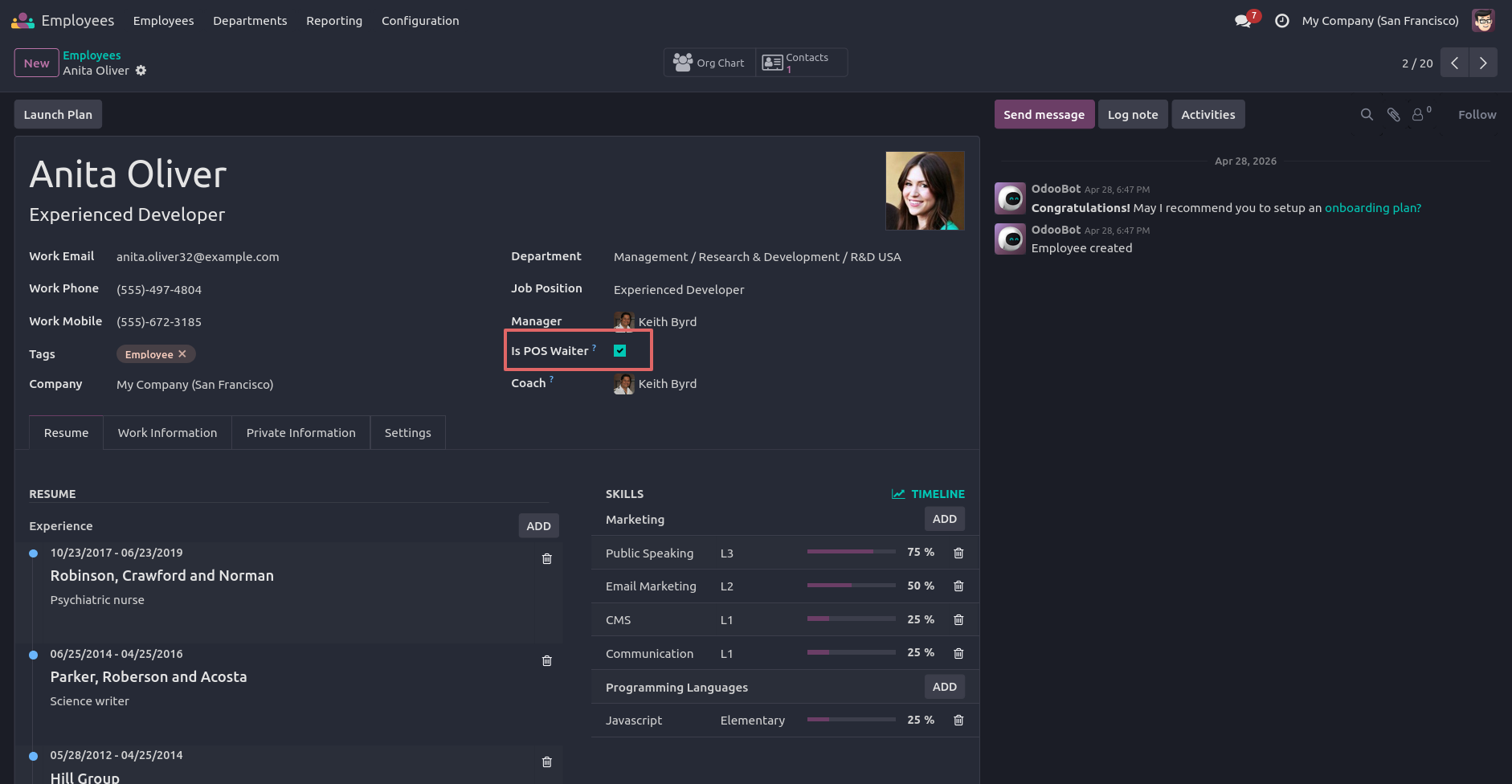
1.Opening a specific employee's record to configure their settings (such as designating them as a POS Waiter).
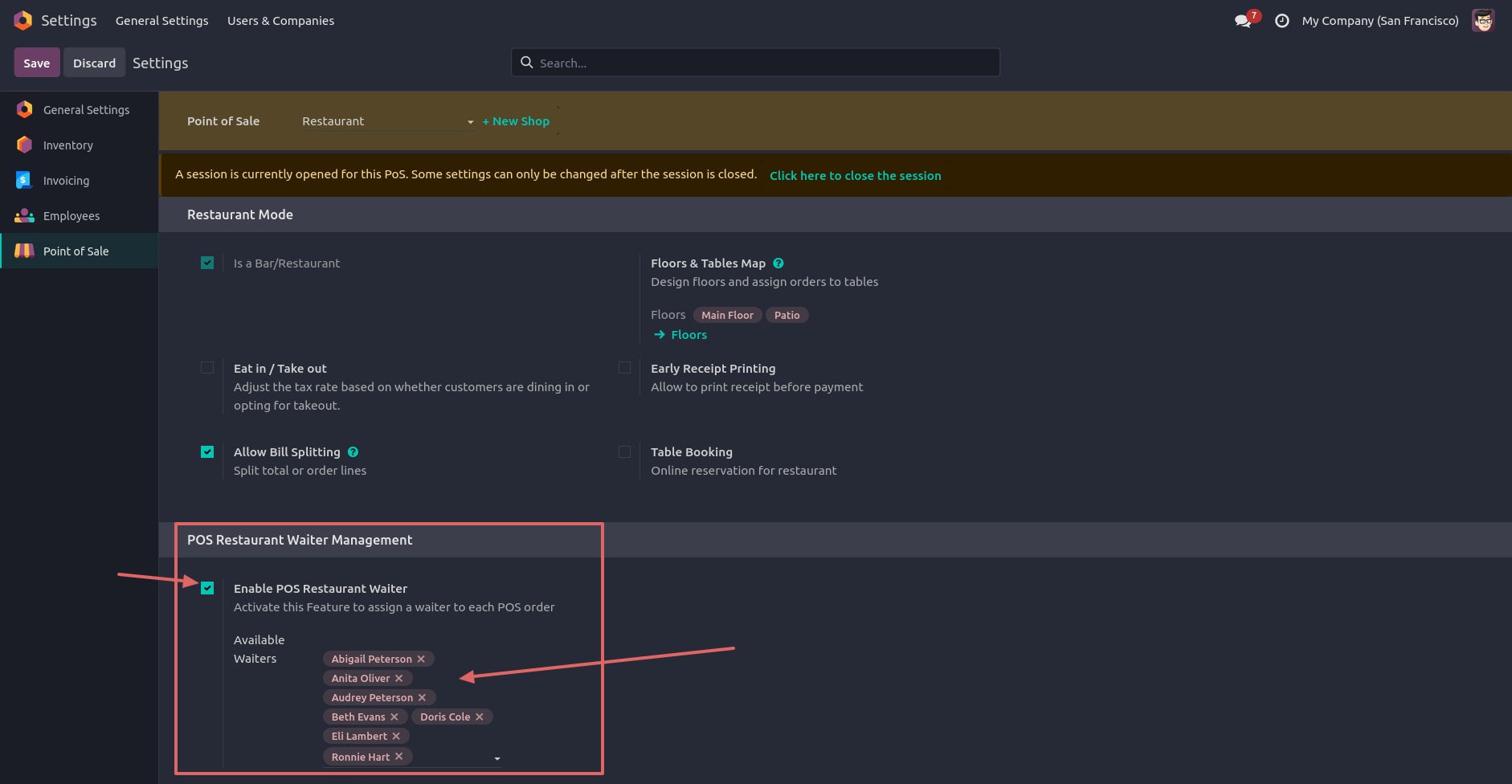
2.Accessing the Point of Sale configuration settings to enable and manage waiter features for the restaurant.
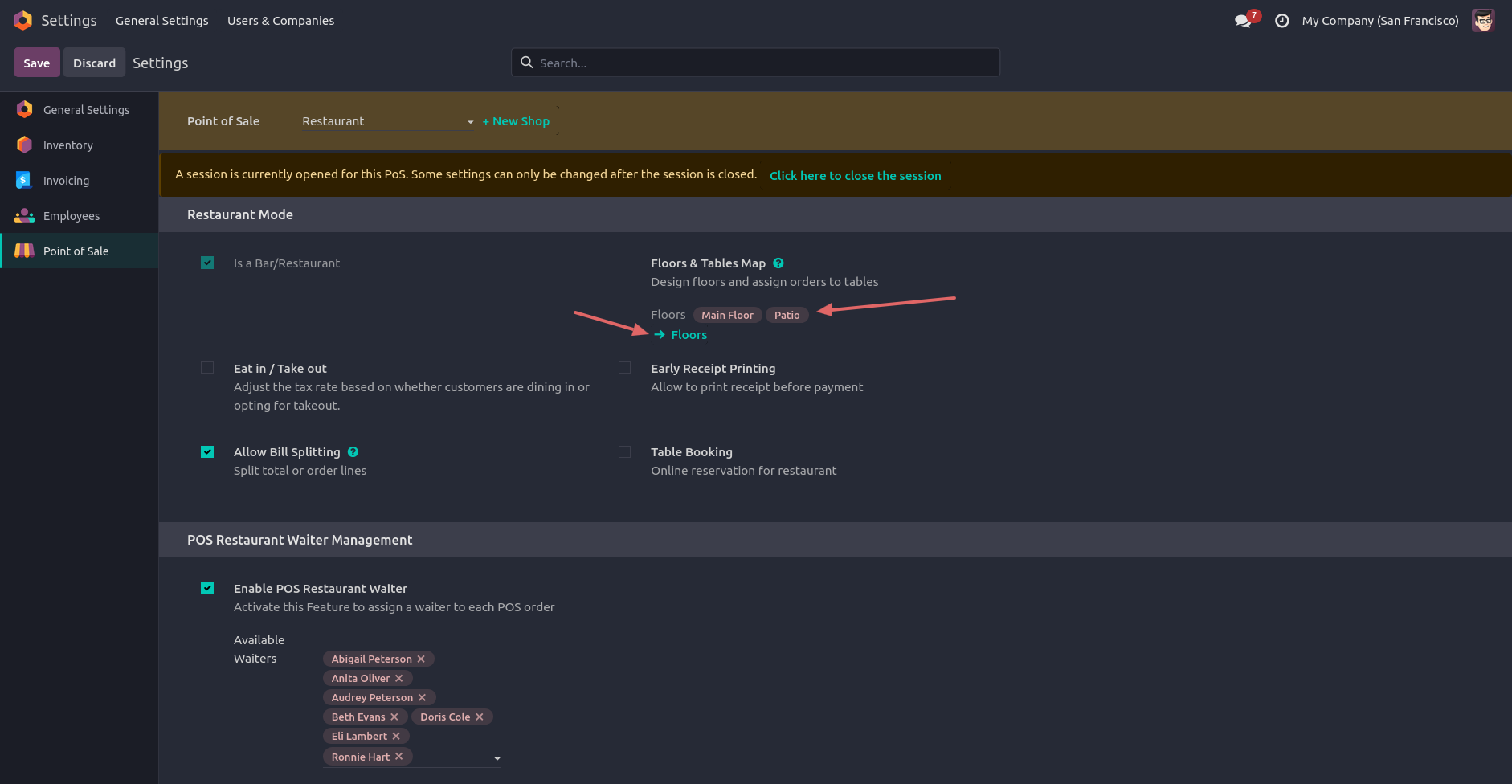
3.Viewing the POS dashboard or floor plan settings, which is the step just before configuring individual tables and assigning default waiters.
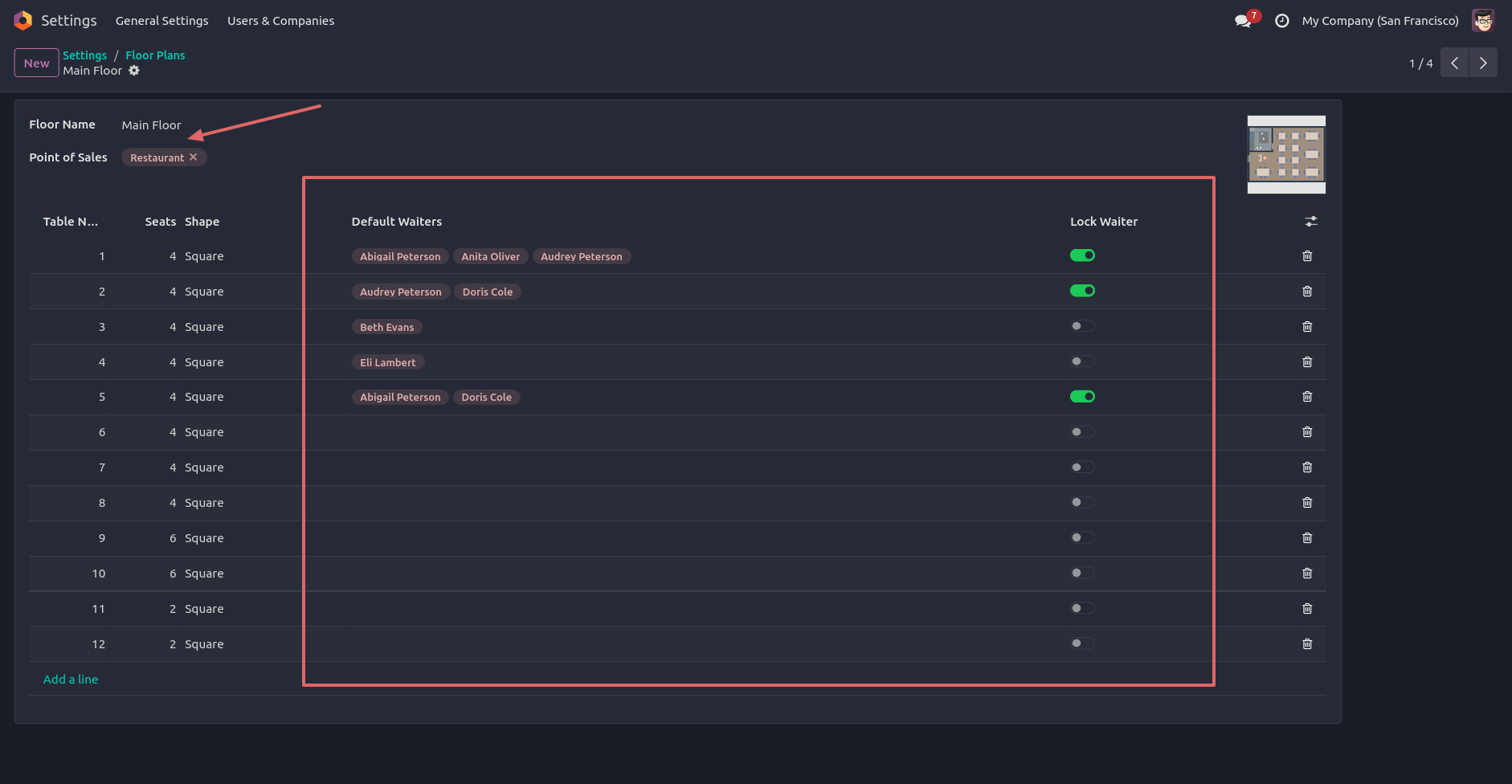
4.Setting up a table in the floor plan by assigning a Default Waiter and configuring the Lock Waiter toggle.
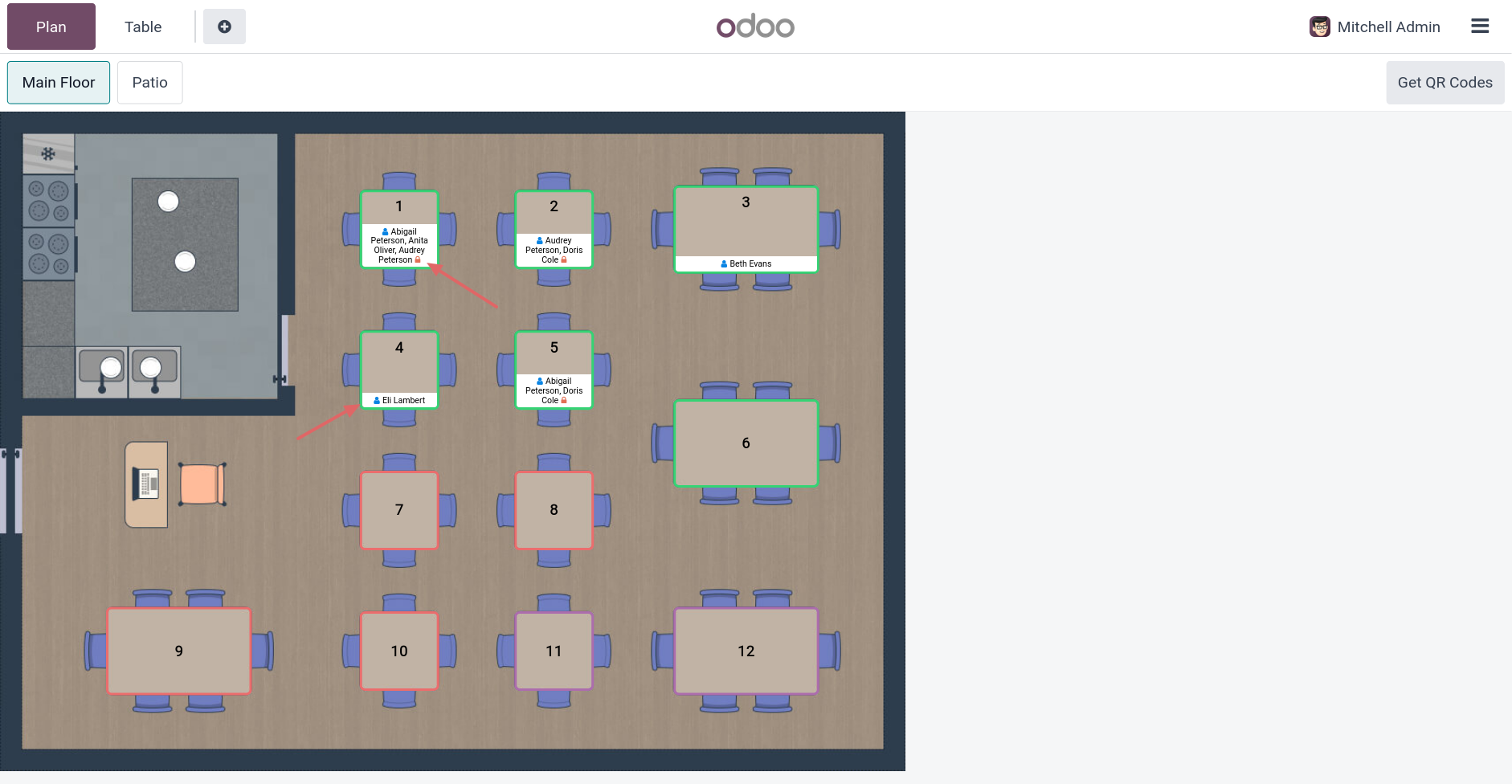
5.Opening a table from the floor plan that has a default waiter assigned and the "Lock Waiter" option enabled.
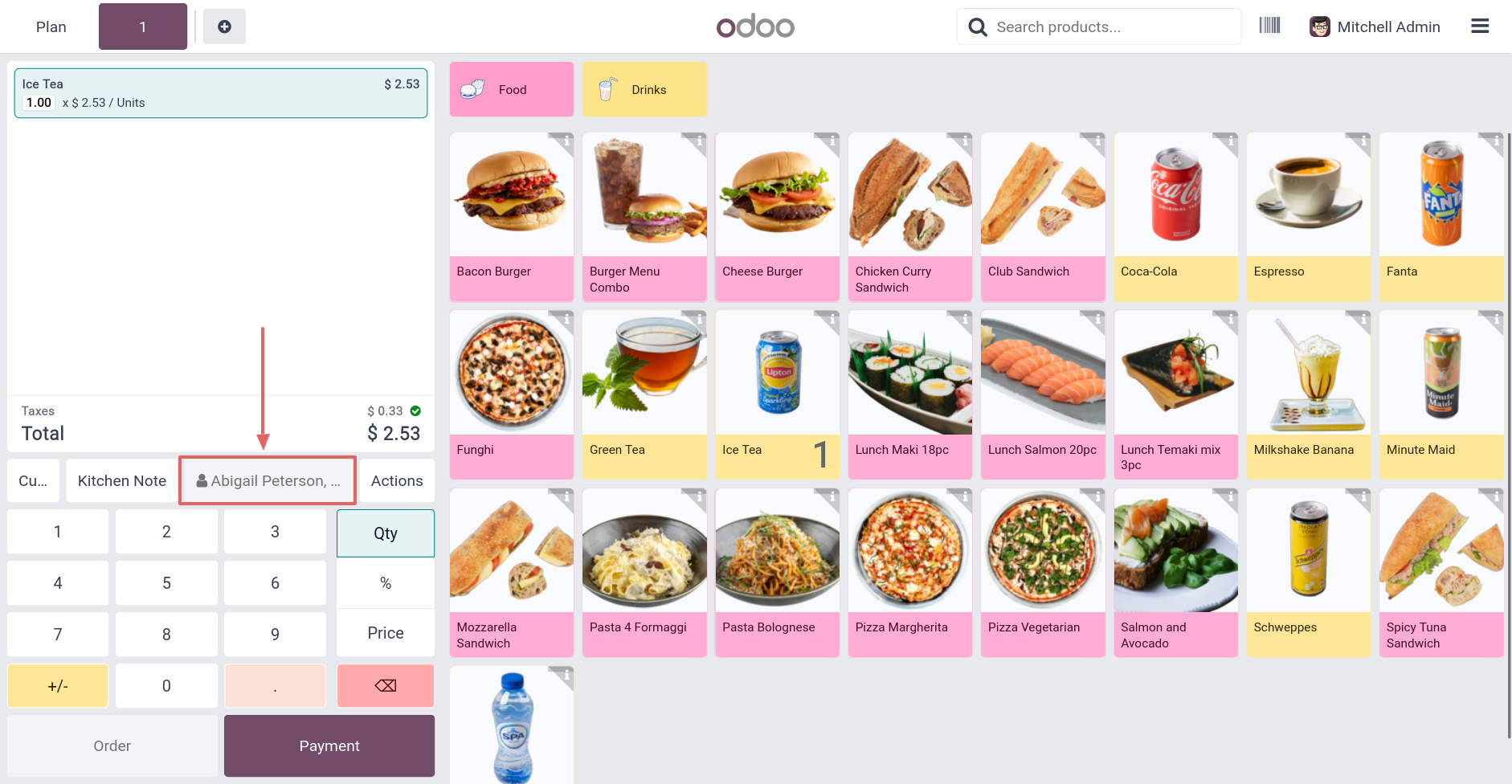
6.Inside a locked table's order. The assigned waiter's name is displayed at the top and cannot be clicked or changed.
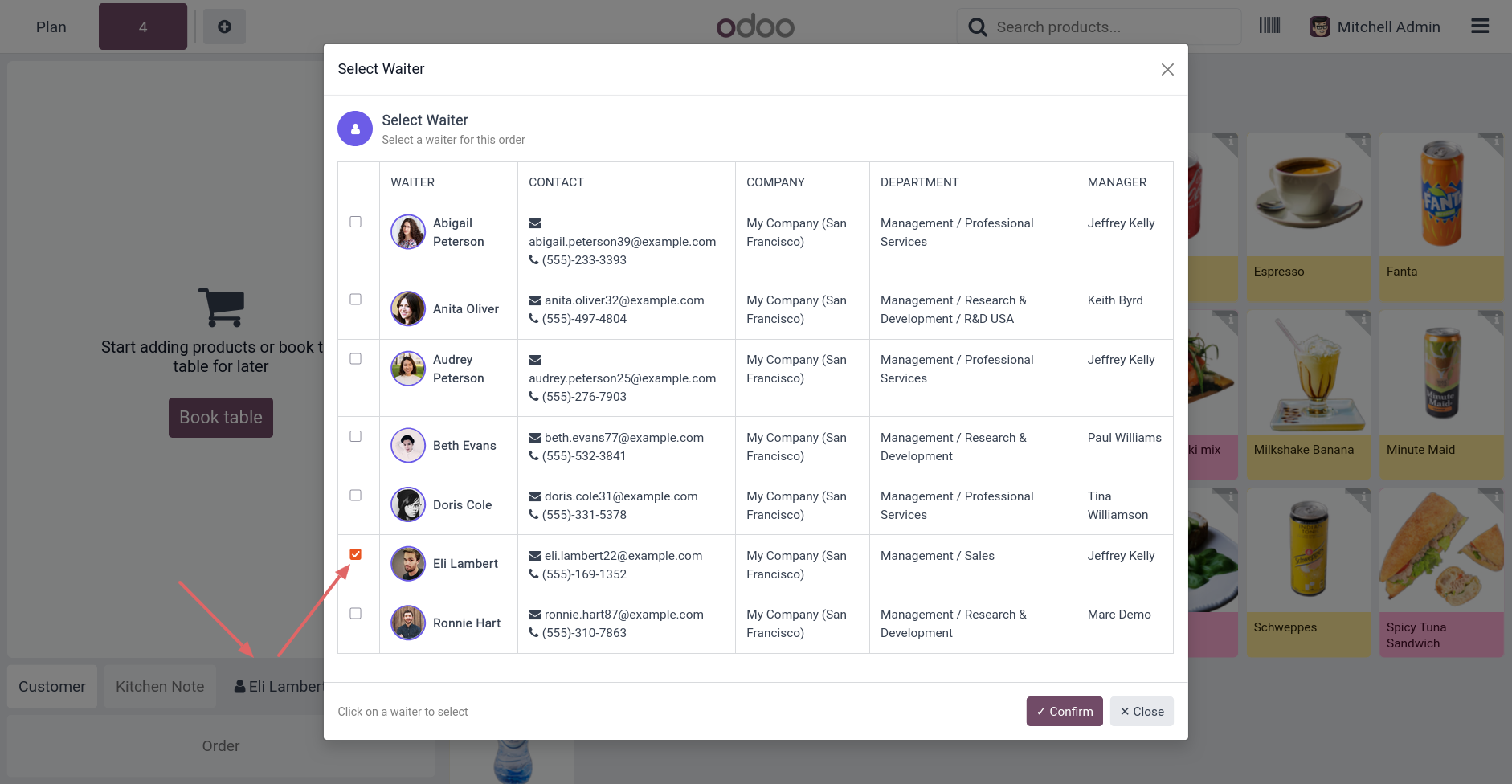
7.Opening a table from the floor plan that has a default waiter assigned, but the "Lock Waiter" option is disabled, so you can also choose a different waiter.
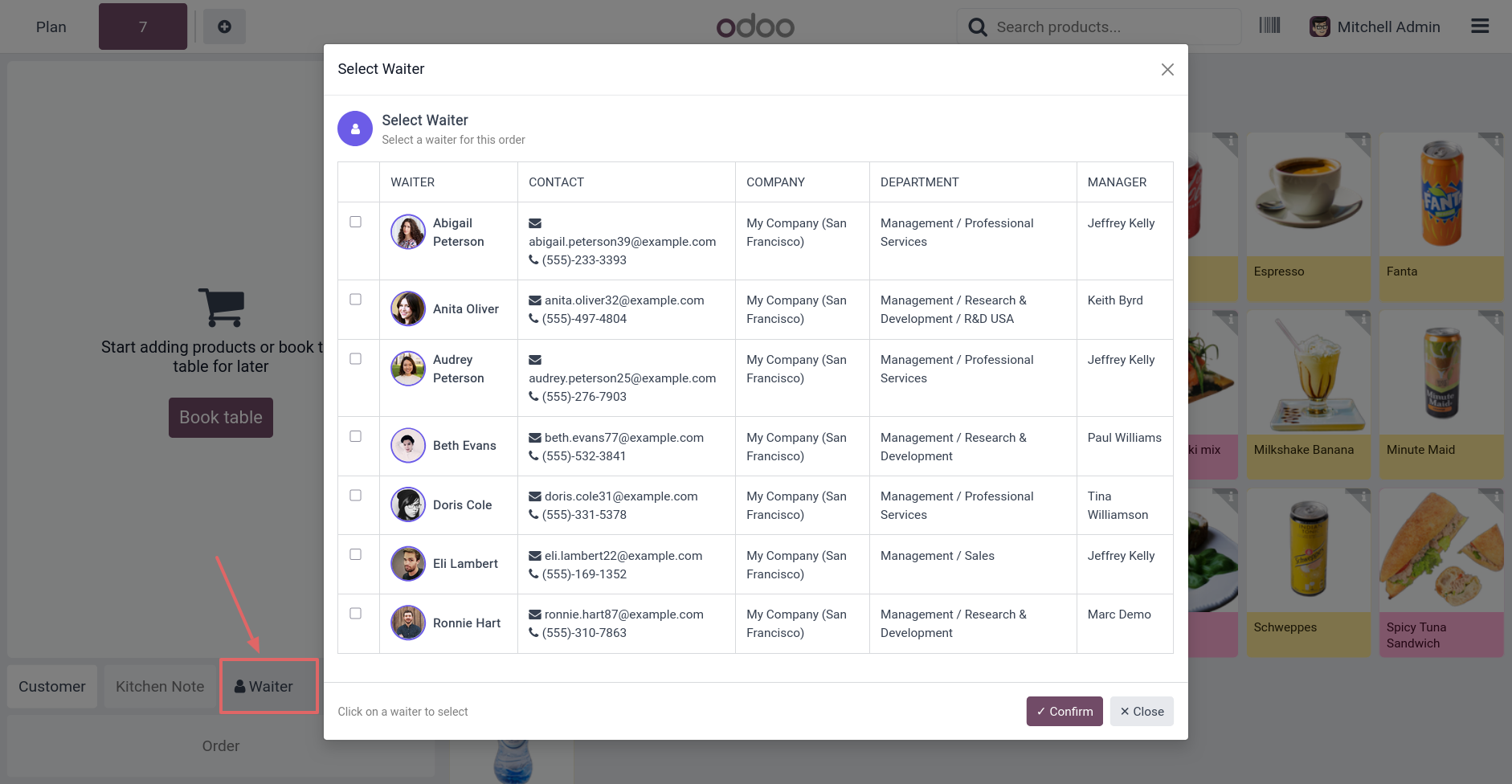
8.If a table has no default waiter assigned, no name is displayed, so you can choose a waiter using the "Select Waiter" button.
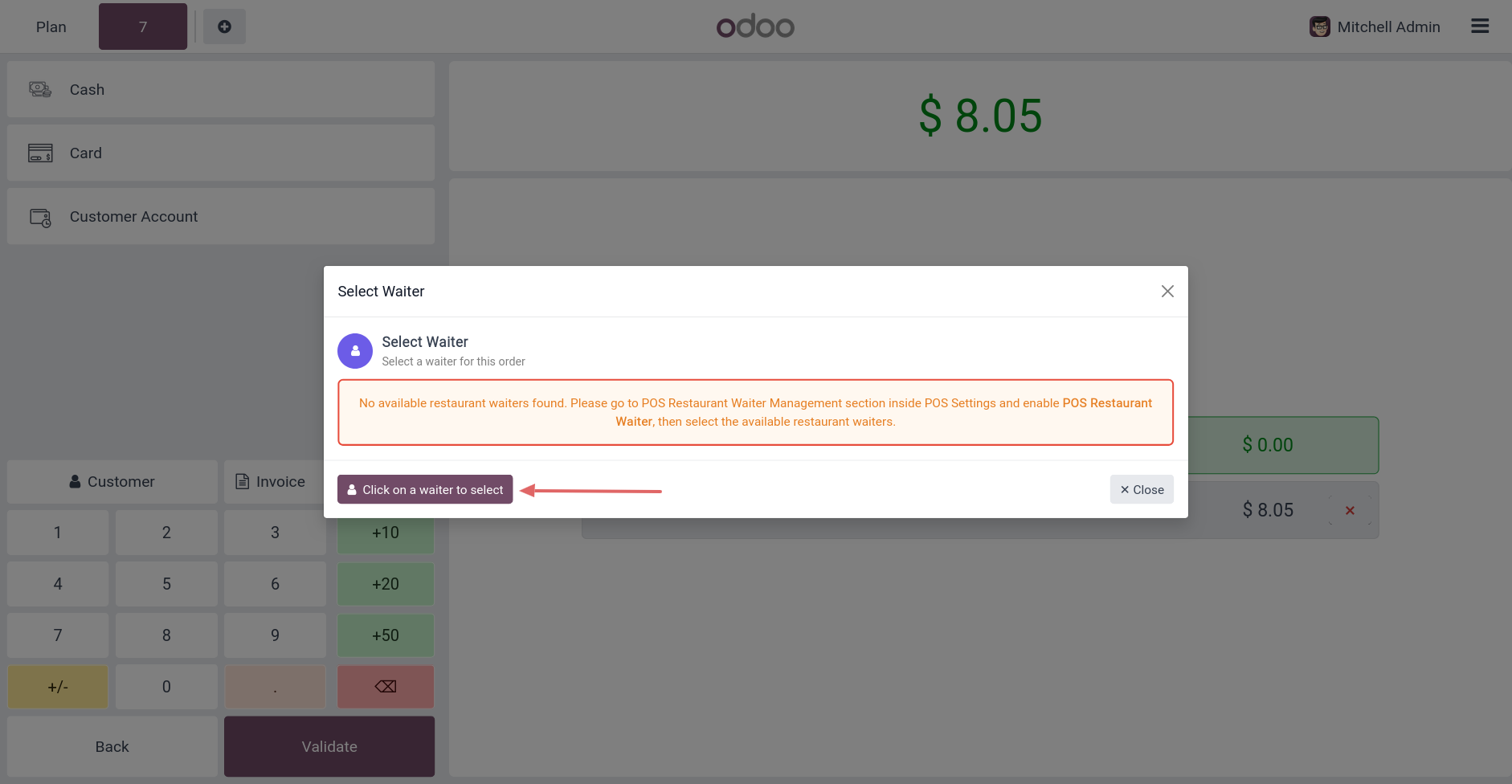
9.Payment Warning: If no waiter is assigned to the table, a warning message will pop up requiring you to select one before you can proceed to payment.
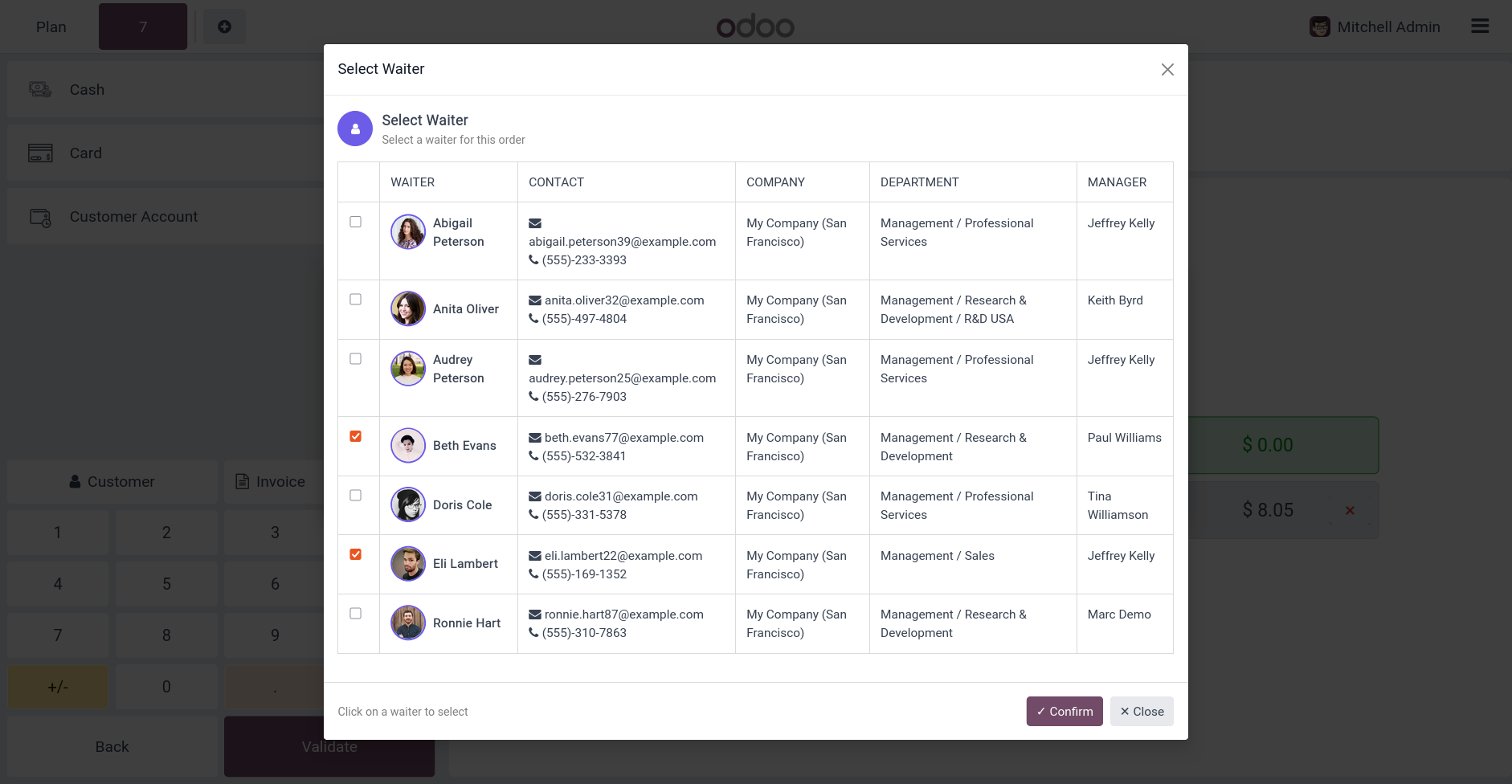
10.Waiter Selection Dialog: A popup dialog displaying all available restaurant waiters, allowing you to select and assign one to the table.
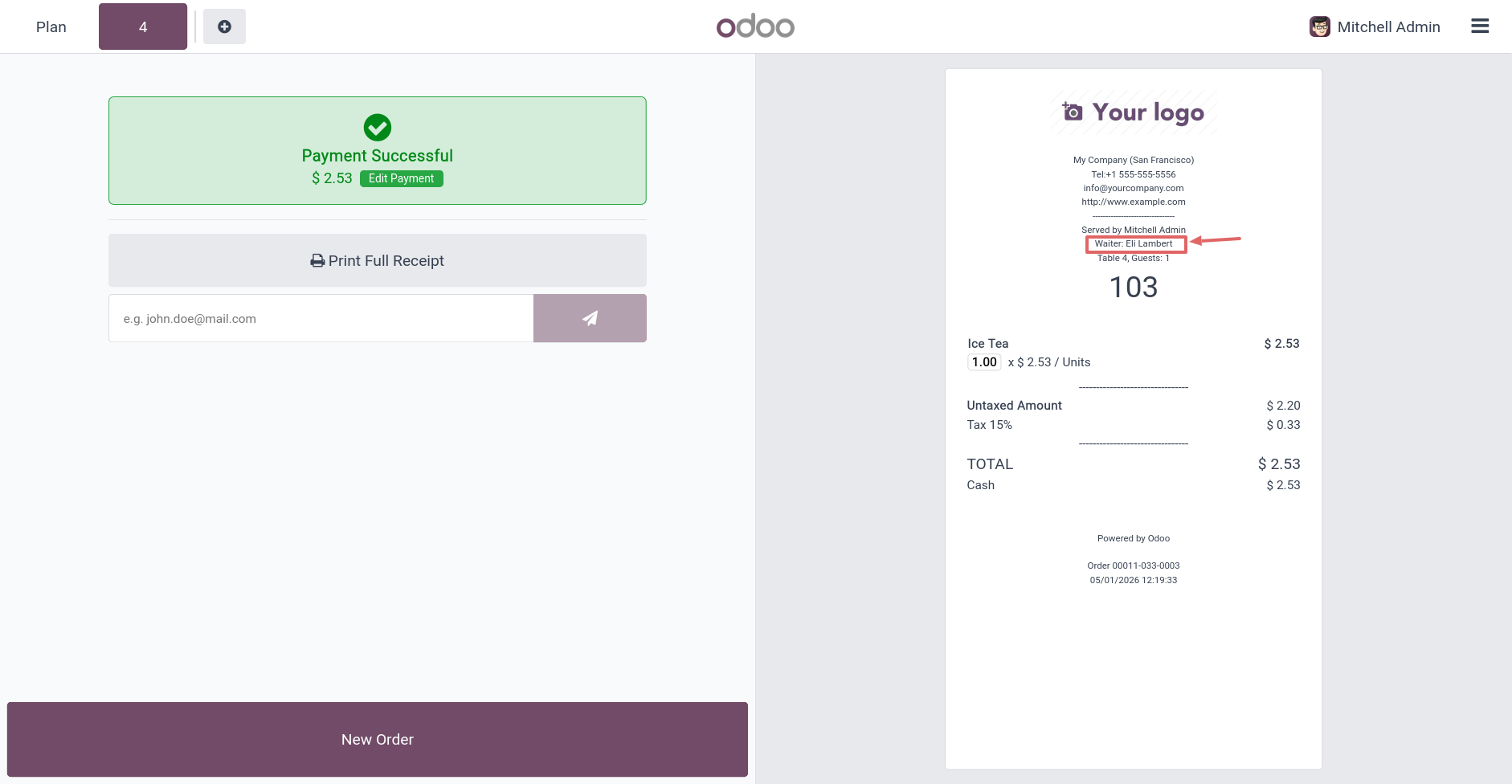
11.The waiter name is displayed on the POS Receipt.
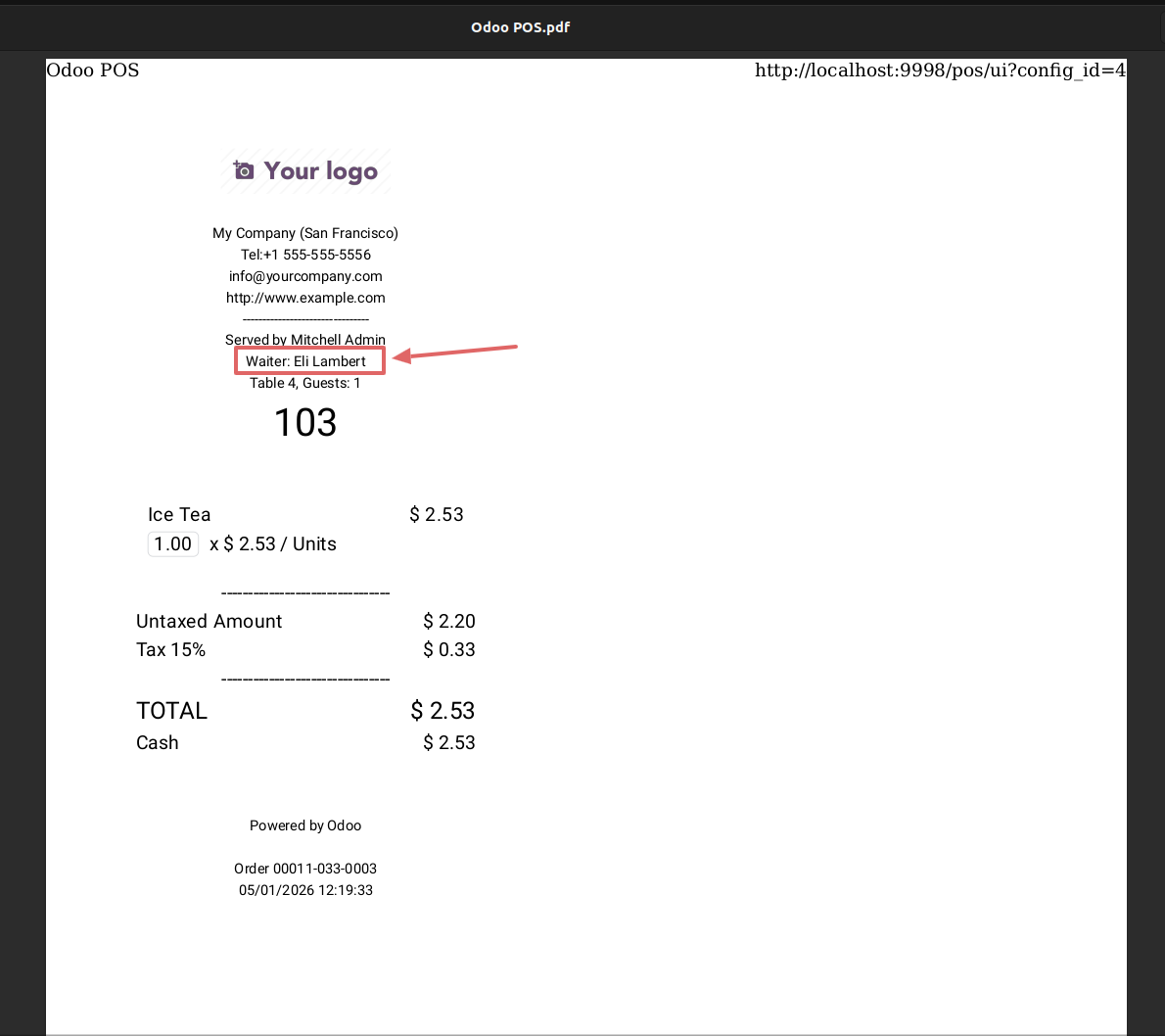
12.The waiter name is also displayed on the printable PDF version of the POS Receipt.
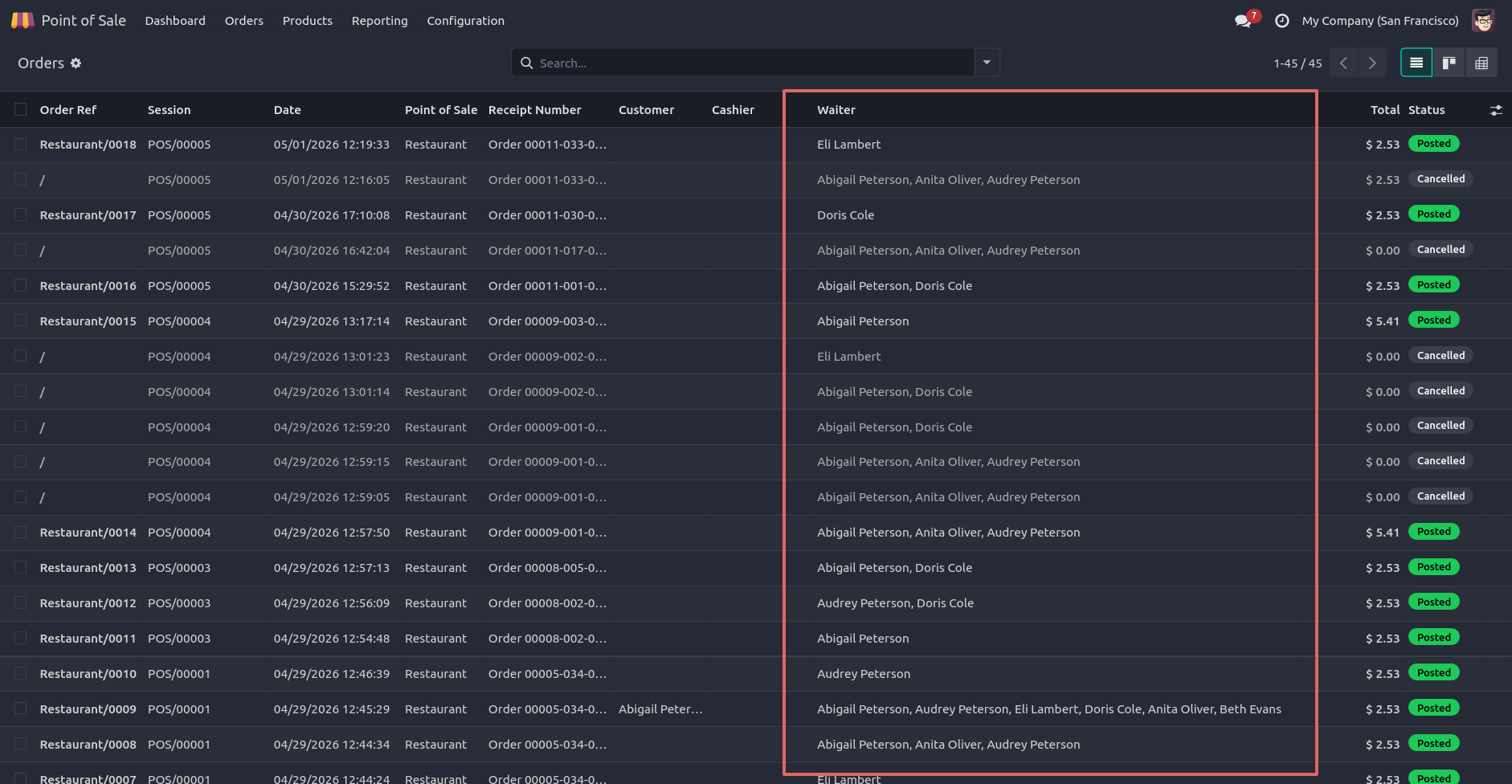
13.Backend Tracking: The assigned waiter's name is visible on all orders in the backend POS order list.
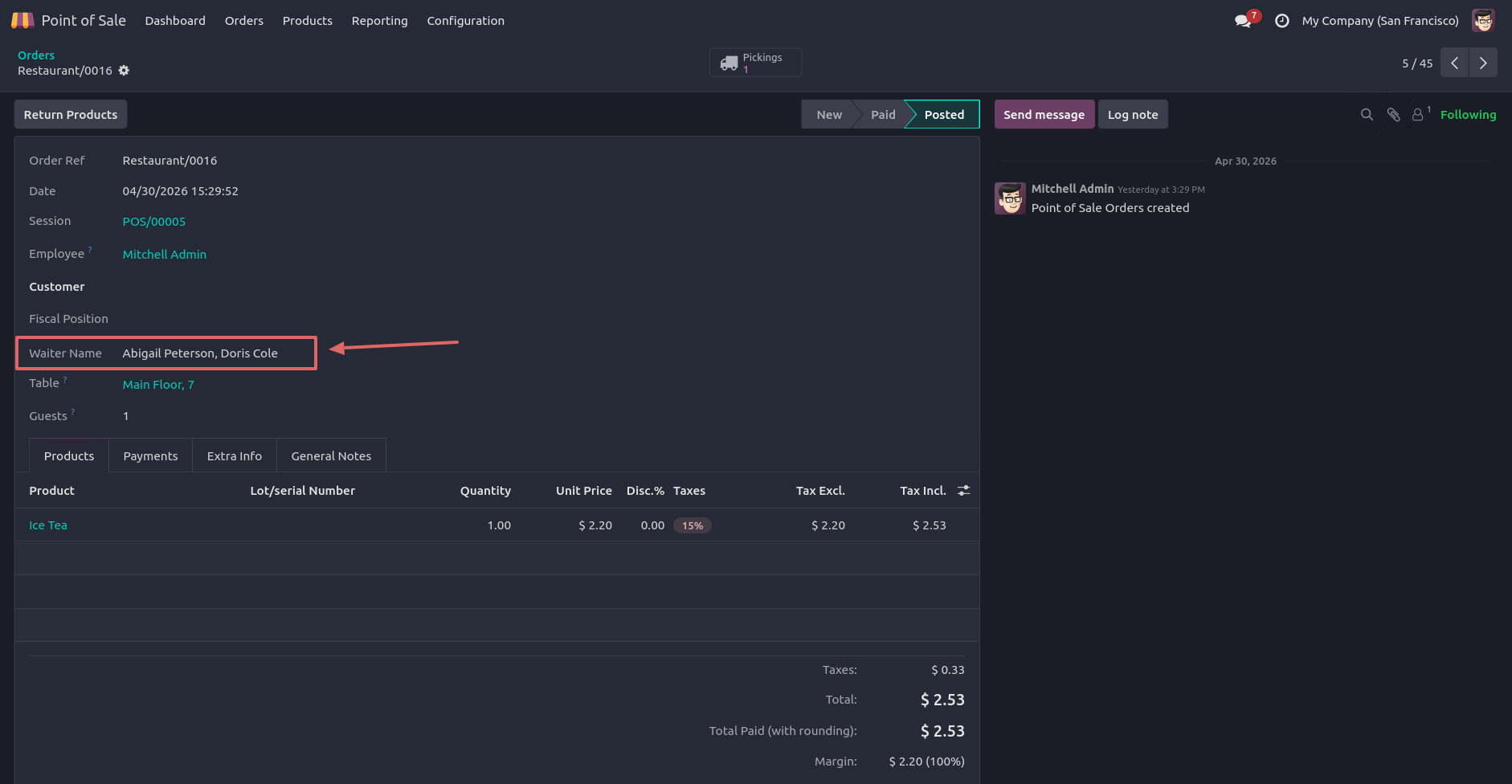
14.POS Receipt: The assigned waiter's name is clearly printed on the final POS receipt alongside the order and table details.
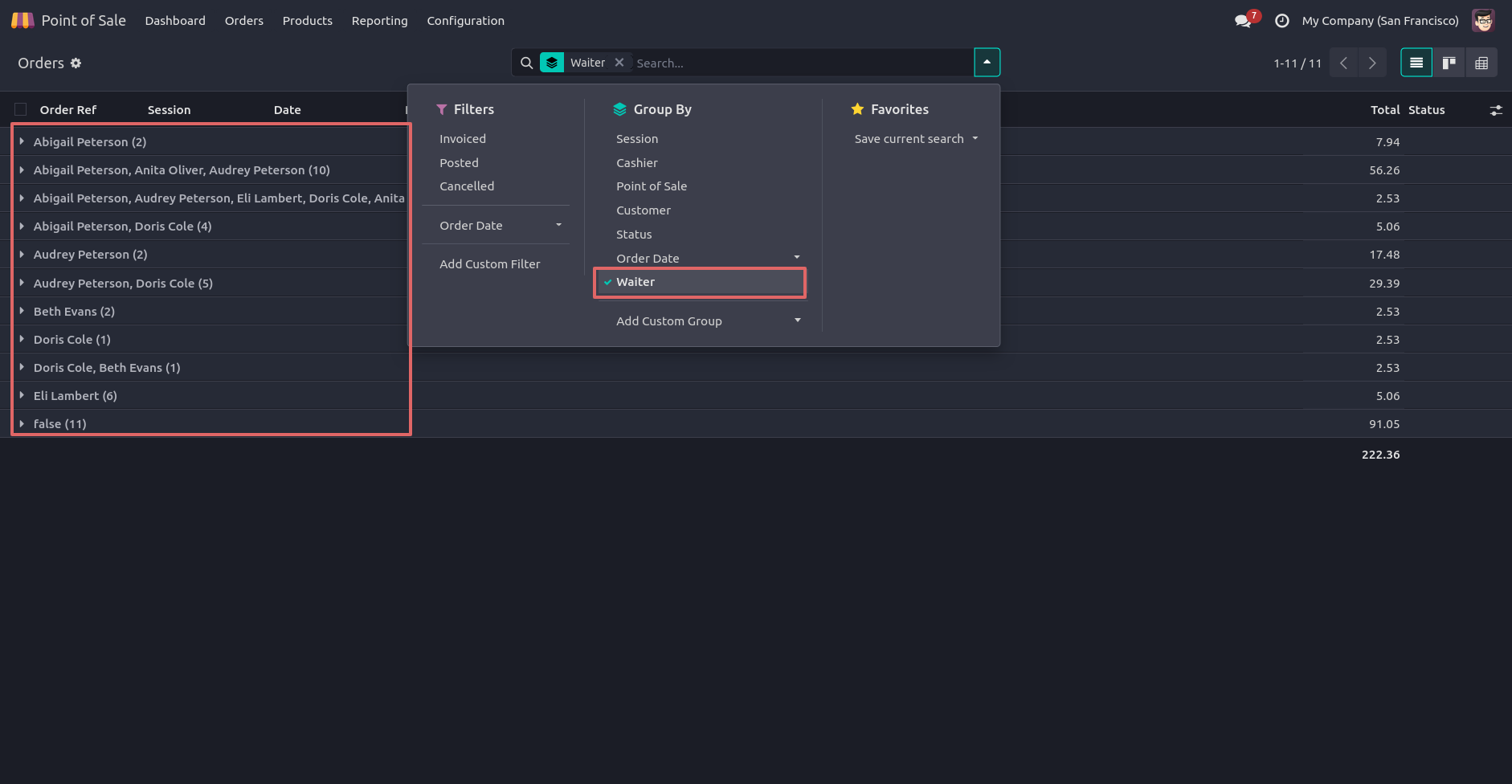
15.Click on the waiter to filter records by Waiter Name.
Our solutions focus on your problems
- Odoo Implementation
- Odoo Customization
- ERP Development and Implementation
- Odoo Ipass Cloud
- AI for Odoo
- Odoo Apps
- Aws Marketplace Products
- Business Engines
Our Pricing includes User Manual, 90 Days Support (Monday-Friday 10am to 7pm IST) and One time Setup
• Works & tested on standard installations of Odoo with no third party apps,
• Free support only for odoo installations with no third party apps,
• Paid support available for Odoo installations with third party apps.

Prefortune is a Odoo Official Partner, Odoo Development company. Our philosophy is to use Open Source tools and technologies to provide cost effective and green solutions for our customers.
Prefortune Technologies LLP is working on web development, Mobile development, and Odoo ERP.
If you need any help or want more additional features, you may contact us through:
Alternative Products
These other products might interest you
Specifications
| Version | 19.0, 18.0, 17.0, 16.0, 15.0, 14.0 |