Watch Quick Video
POS Pay Later | POS Partial Payment Odoo App
Revolutionise Your Odoo Internal Transfer With Our
All-In-One Date & Time Feature
POS Partial Payments | POS Pay Later Odoo App enables customers to pay part of their bill now and the rest
later. You can also confirm orders without taking any payment, useful for credit customers and B2B sales.
Cashiers can easily keep track of the total amount, amount paid and the balance due remaining on each
receipt. Customers can make multiple payments on different days to settle their entire balance. The module
also brings a powerful “Orders & Partial Payments” screen directly inside the POS frontend. Then cashiers
can look through previous orders and filter them by date and payment status to quickly find the order they
need. All orders have three handy action buttons: Pay, which allows cashiers to collect any outstanding
balance; Reorder, which adds the same products from that order to a new cart automatically; and Print,
which allows cashiers to print the order receipt at any time. Cashiers can collect remaining balances,
process refunds, reprint past receipts and instantly duplicate an old order into a new cart. All these
actions can be performed directly on the POS without opening the Odoo backend. Simply put, it makes
partial payments, credit sales and order management easy and convenient to manage right from your Point Of
Sale interface.
POS Pay Later | POS Partial Payment Odoo App Features
- Enable partial payments on POS orders to allow the customer to pay part now and the rest later.
- It shows the amount due on the POS, so that the cashiers can see instantly what is left to be paid.
- The Orders Browser popup built into the POS makes it simple to view and manage orders from previous days.
- Get the outstanding due balances from the POS itself. Easy pending payments.
- One click re-order from previous transactions makes it easy to create a new order with the same products.
Complete Workflow for POS Pay Later | POS Partial Payment Odoo App
Install the POS Pay Later | POS Partial Payment Odoo App
module and enable the feature from POS Configuration
Settings
by checking "Allow Partial Payment" and "Show POS Orders". Once enabled, cashiers can process
transactions
as usual, but can now validate orders even if only a partial amount is collected. The order will
automatically
be assigned a custom Partially Paid status and its
remaining
balance will be tracked seamlessly.
To manage these orders, an Orders button appears in the
POS.
Clicking this opens a powerful Orders Browser popup,
where cashiers
can search, filter, and view historical orders across past sessions. If an order has a remaining
balance,
the cashier can simply click the Pay button to jump
directly to the
payment screen and collect the remaining due amount. Users can also click Print
to reprint old receipts or Re-Order lets you instantly
add the products from an old order to a new cart — directly from the POS frontend.
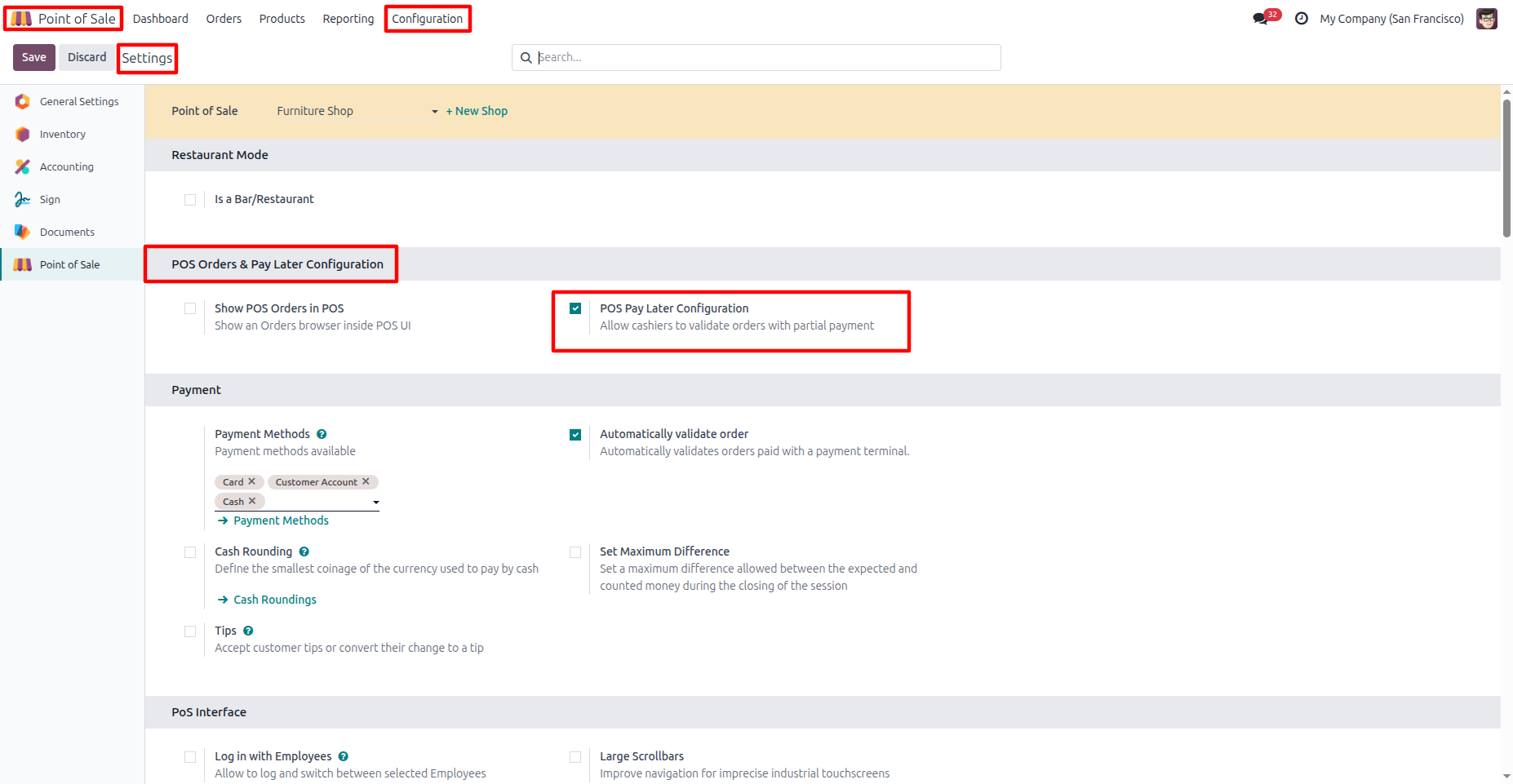
1. Go to POS → Configuration → Settings, User needs to enable "POS Pay Later Configuration" to allow cashiers to validate orders with partial payments.
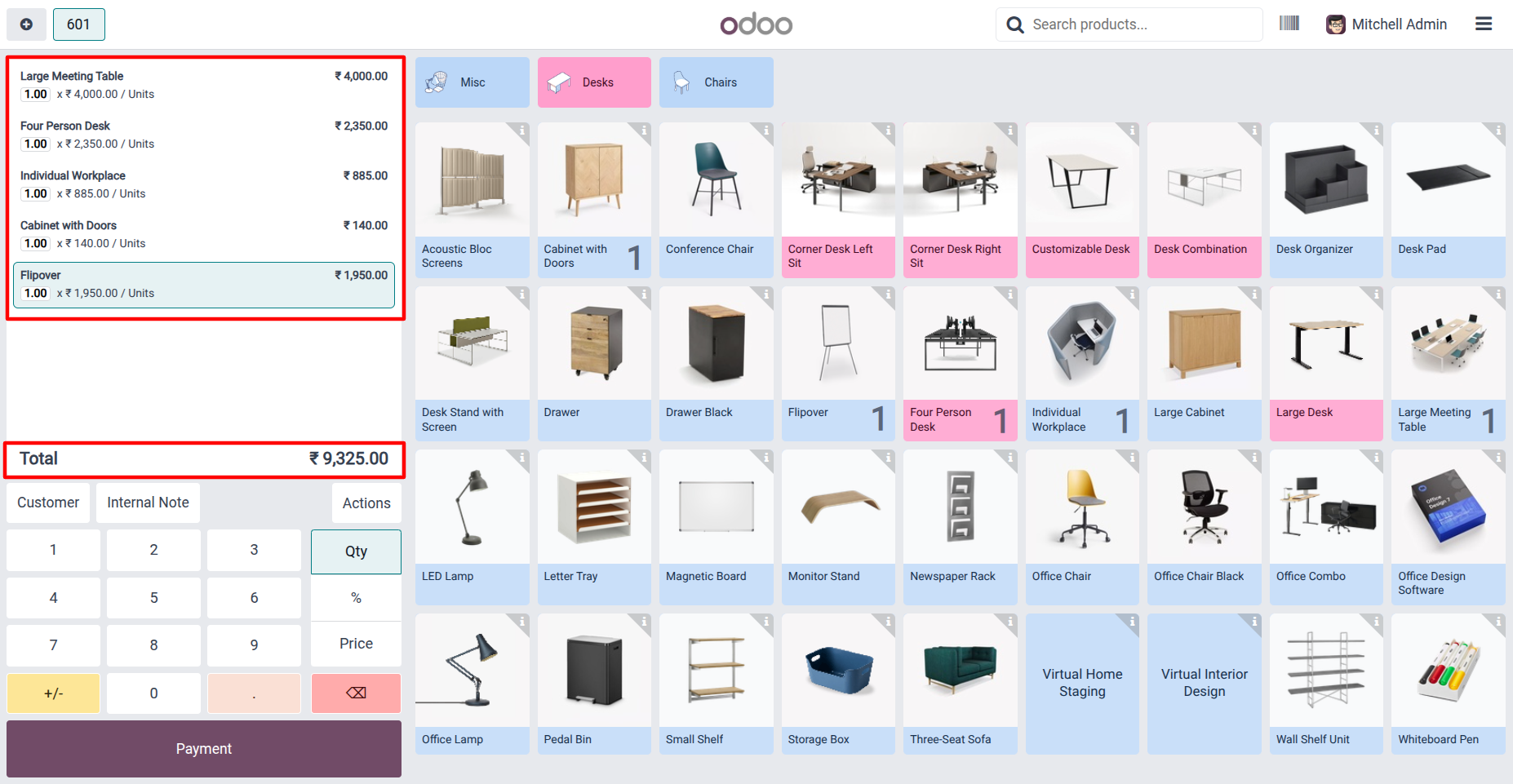
2. Create a POS order by selecting products and adding them to the order.
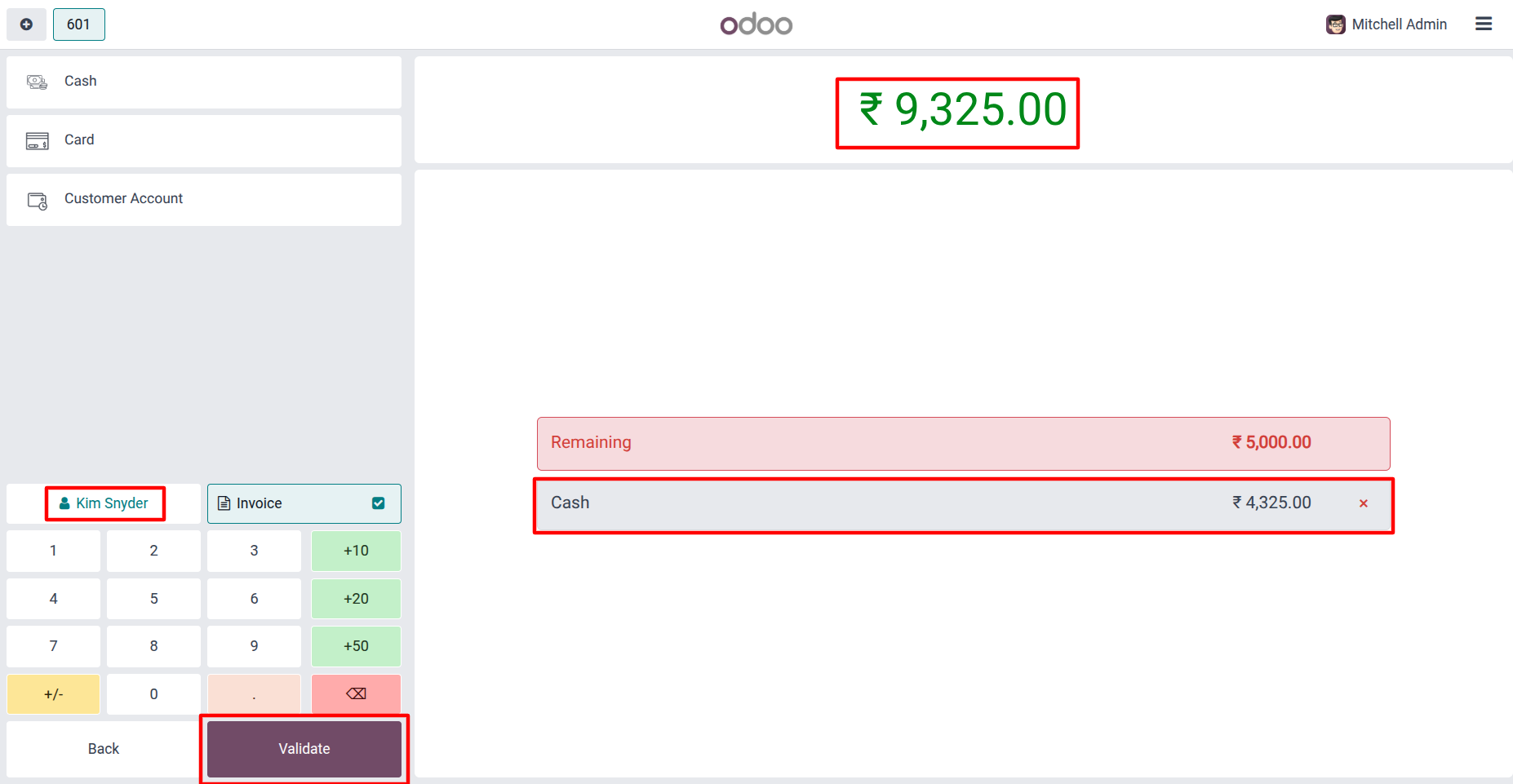
3. Select the customer. Cashier can make a partial payment and see the remaining amount before validating the order.
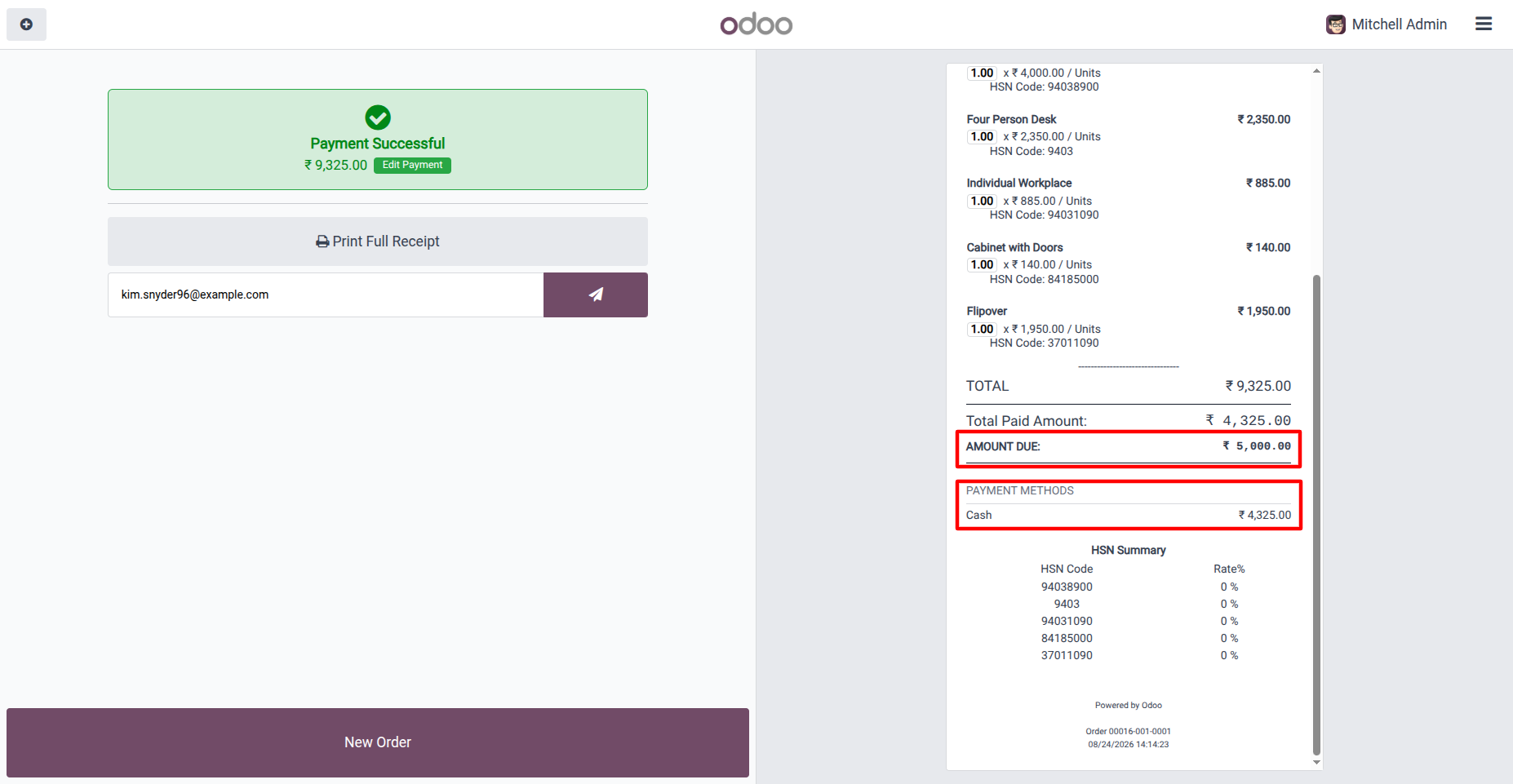
4. Customers can clearly see the amount paid, remaining balance, and payment method on the receipt.
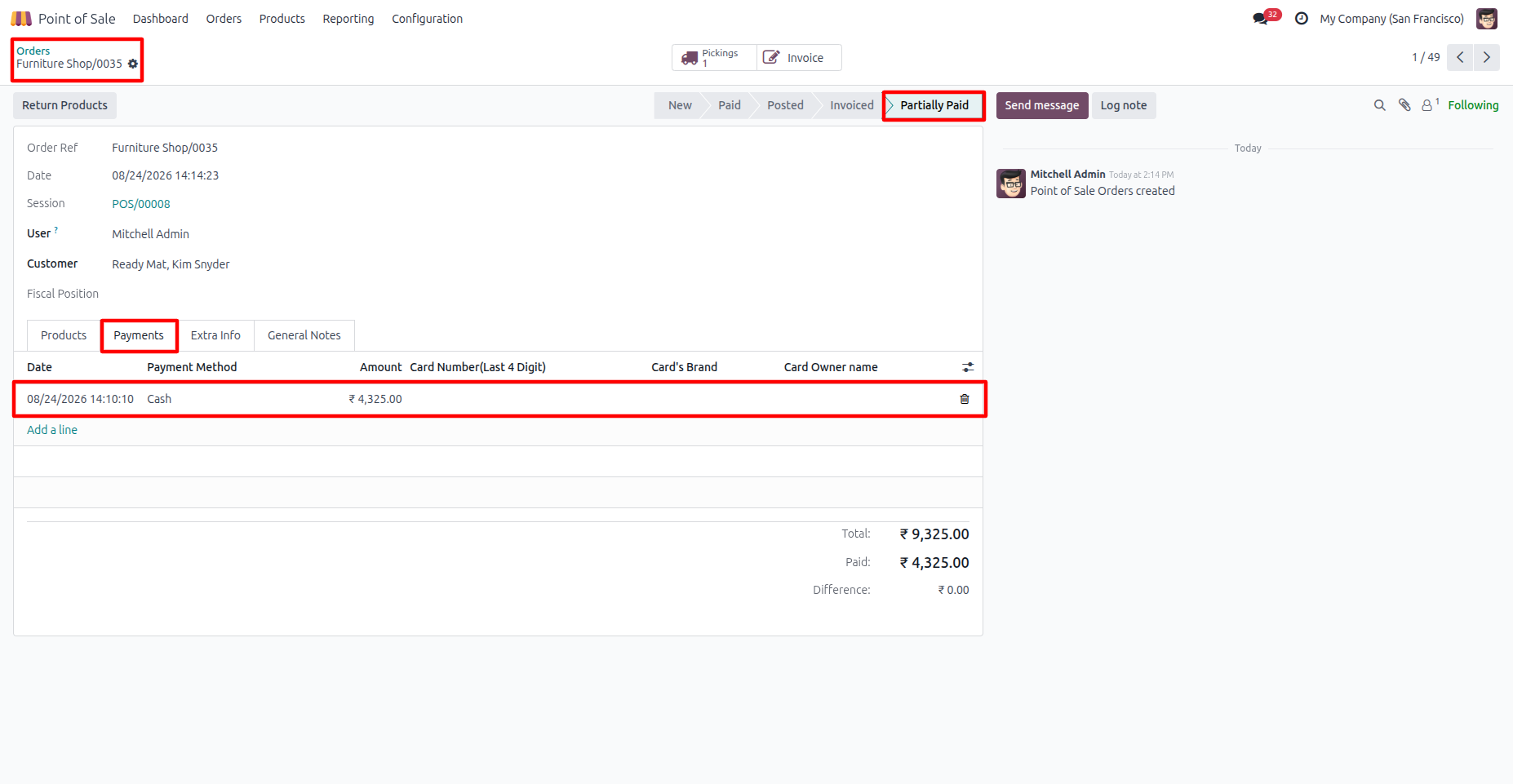
5. Partial Payment Entry in Backend users can view the payment details and amount recorded for a partially paid POS order.
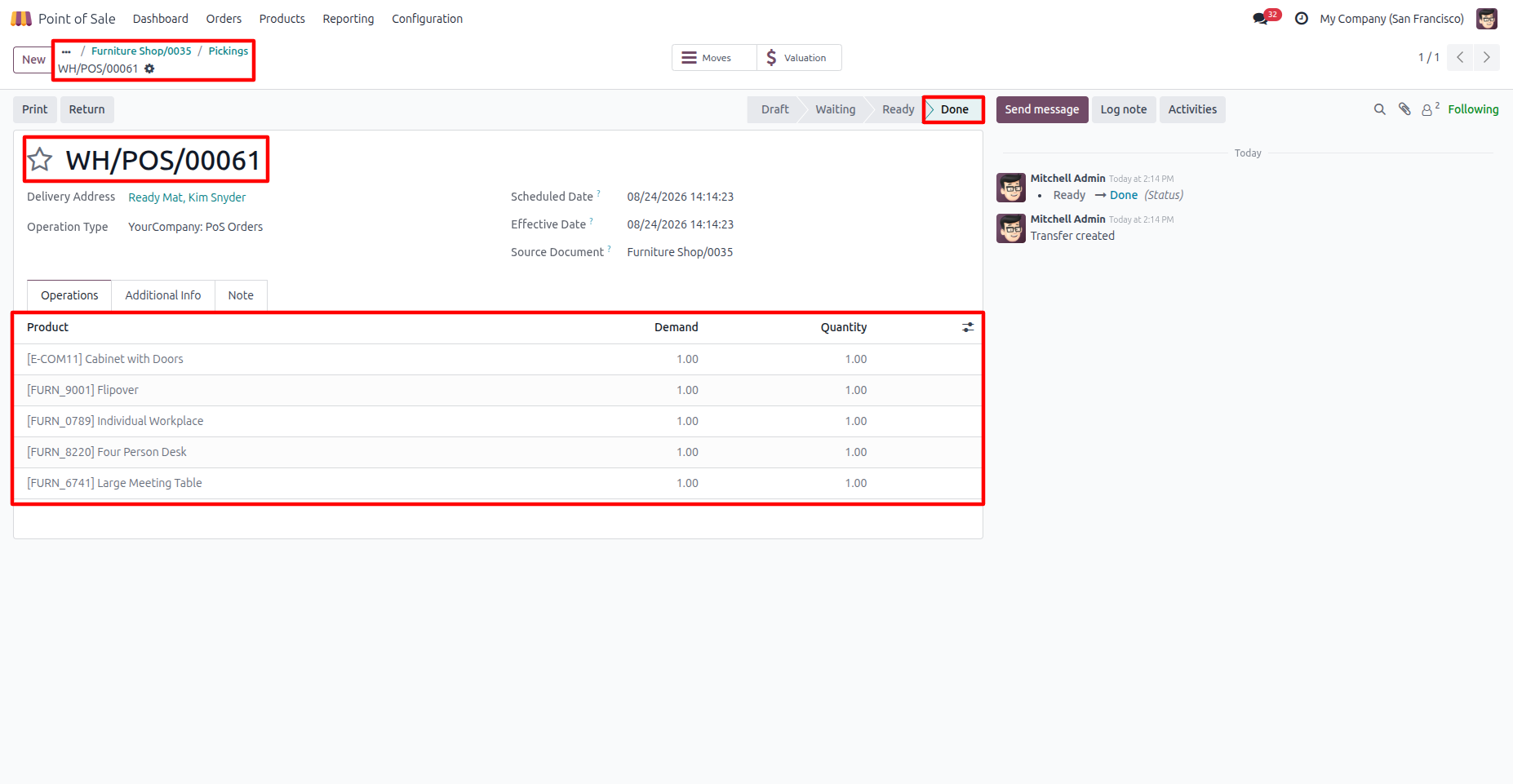
6. A picking order is automatically created for partially paid POS orders.
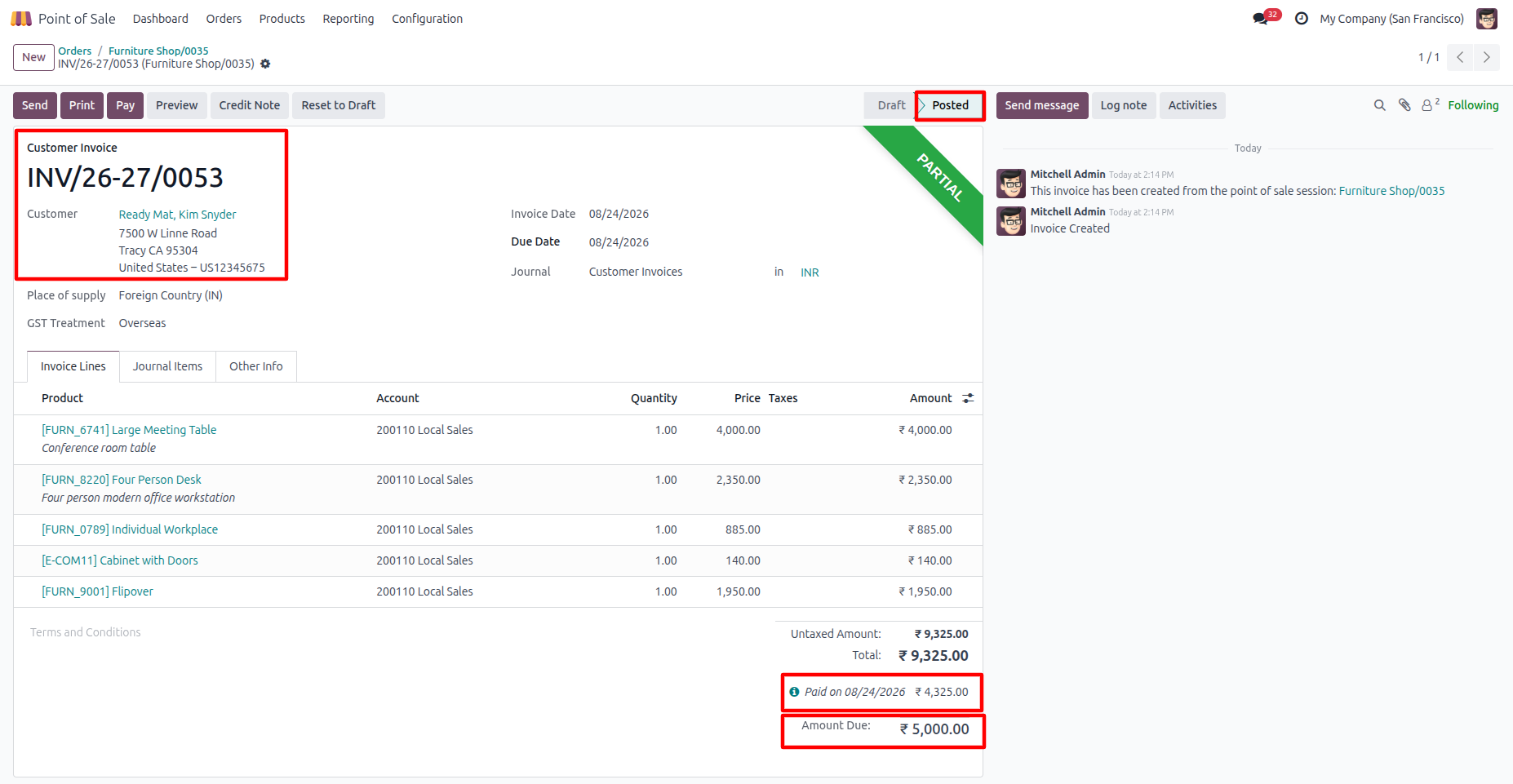
7. A customer partial invoice is created with the paid amount and remaining due amount clearly shown.
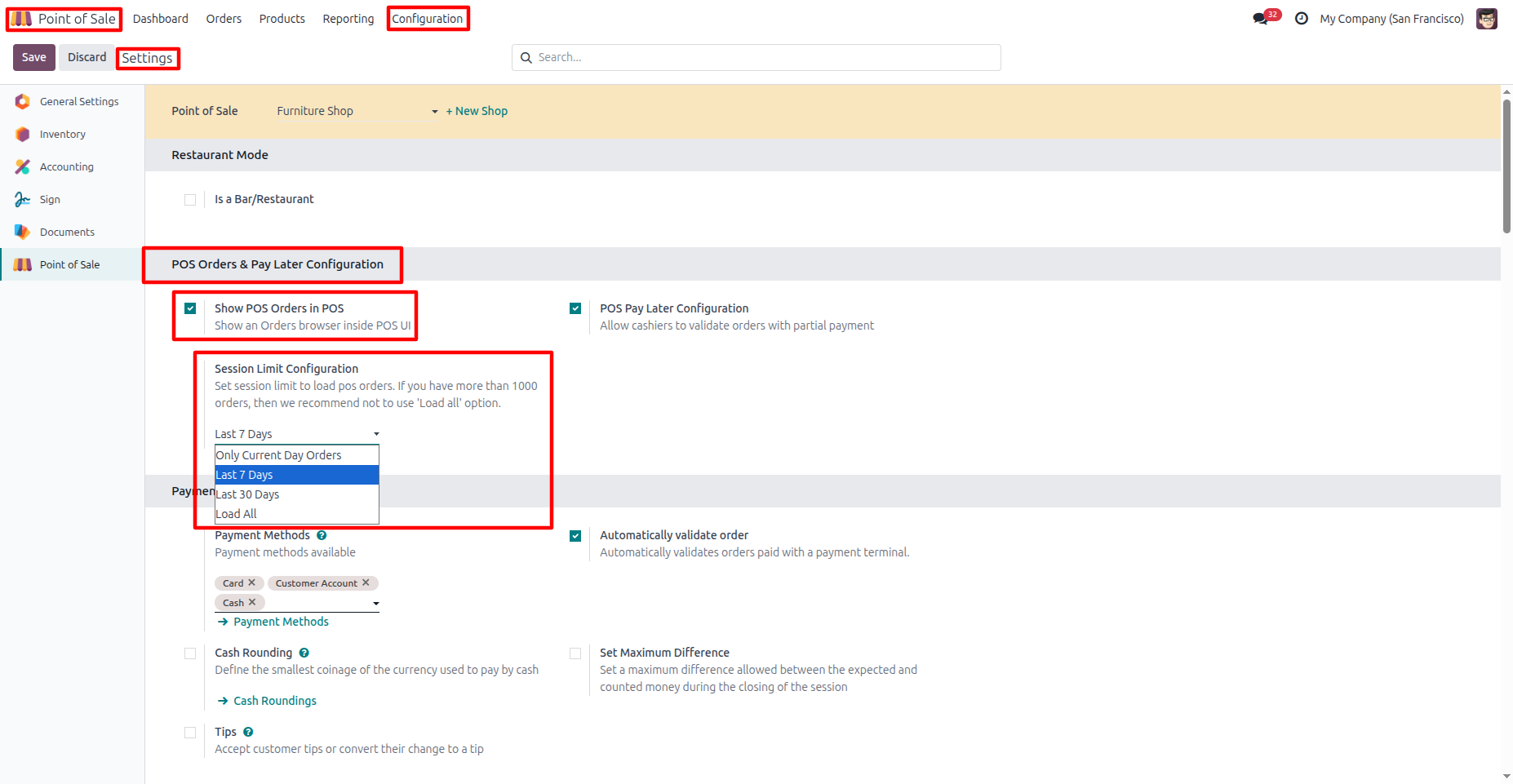
8. Go to Point of Sale → Configuration → Settings, enable "Show POS Orders in POS", and select the required Session Limit for loading orders.
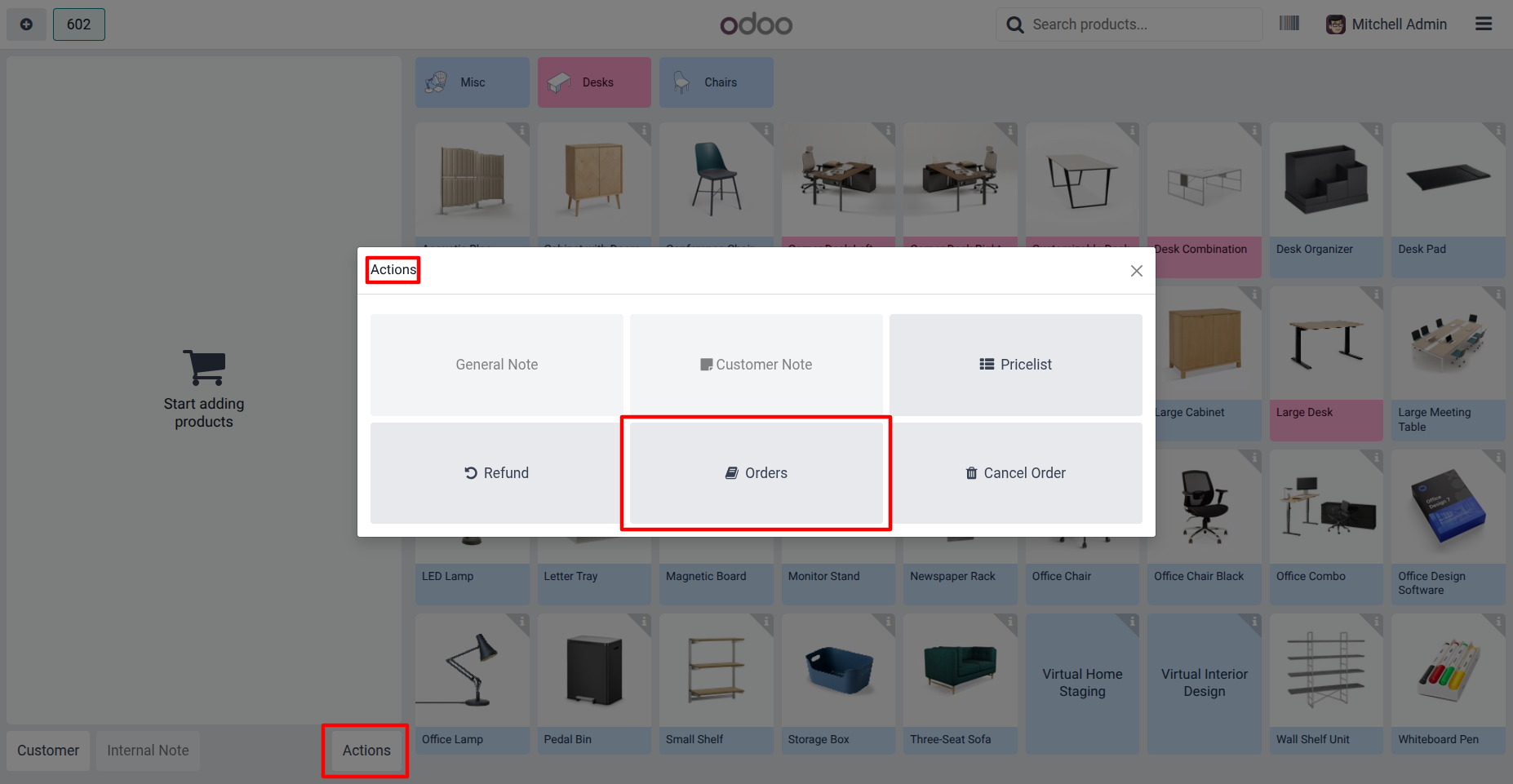
9. From Actions → Orders, users can see the Orders screen directly from the POS.
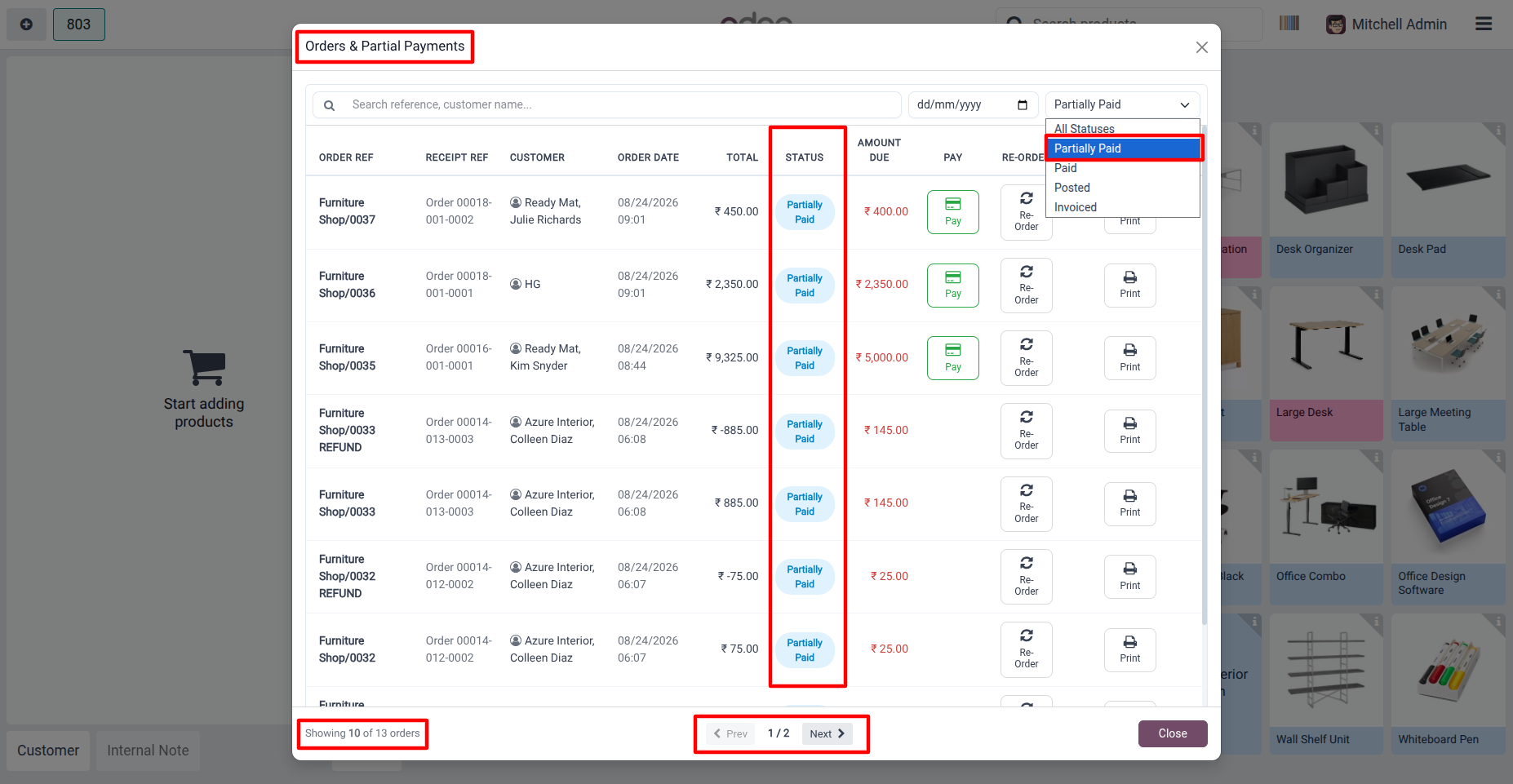
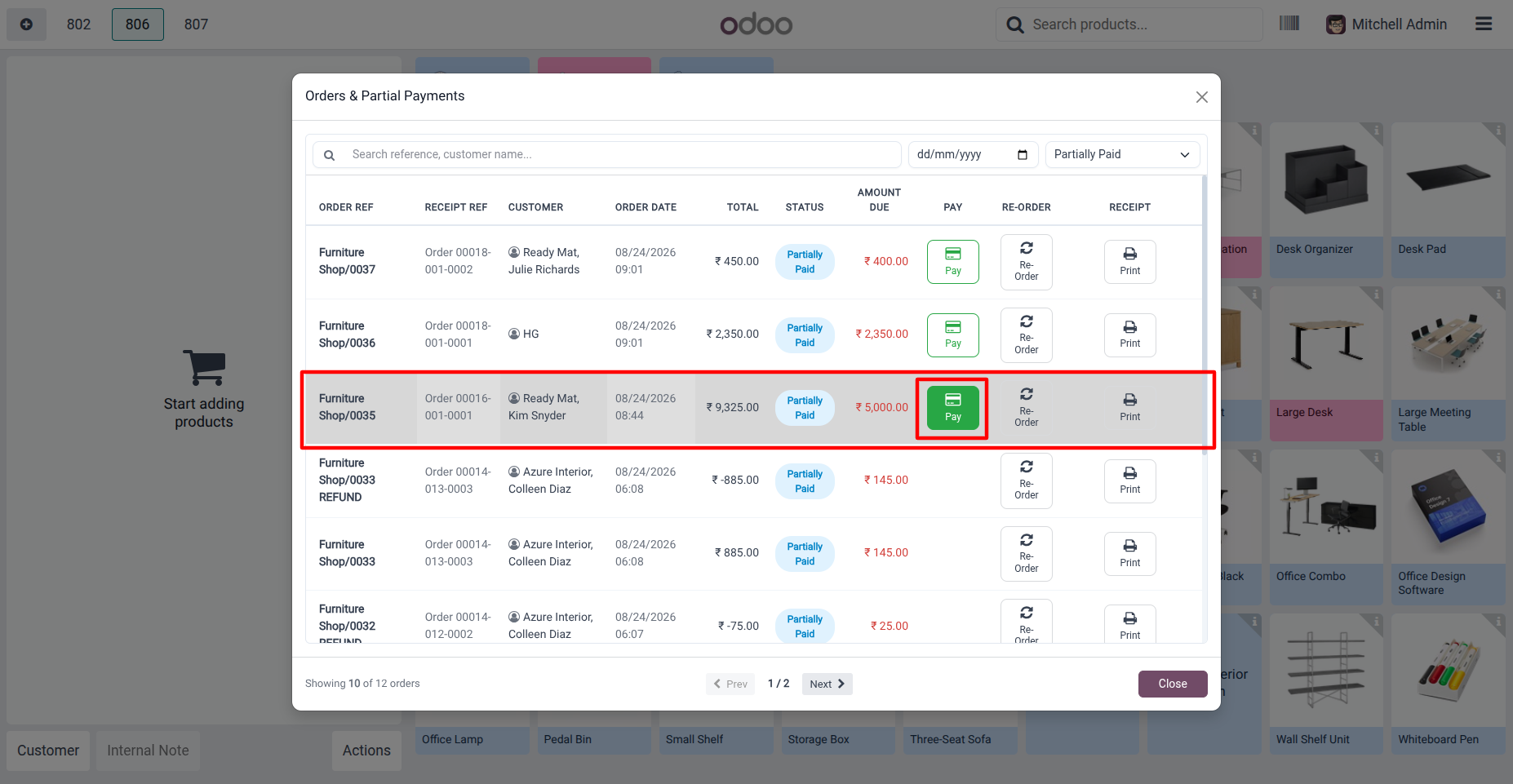
10. Cashiers can view partially paid orders, check the amount due, and filter orders by Partially Paid status.
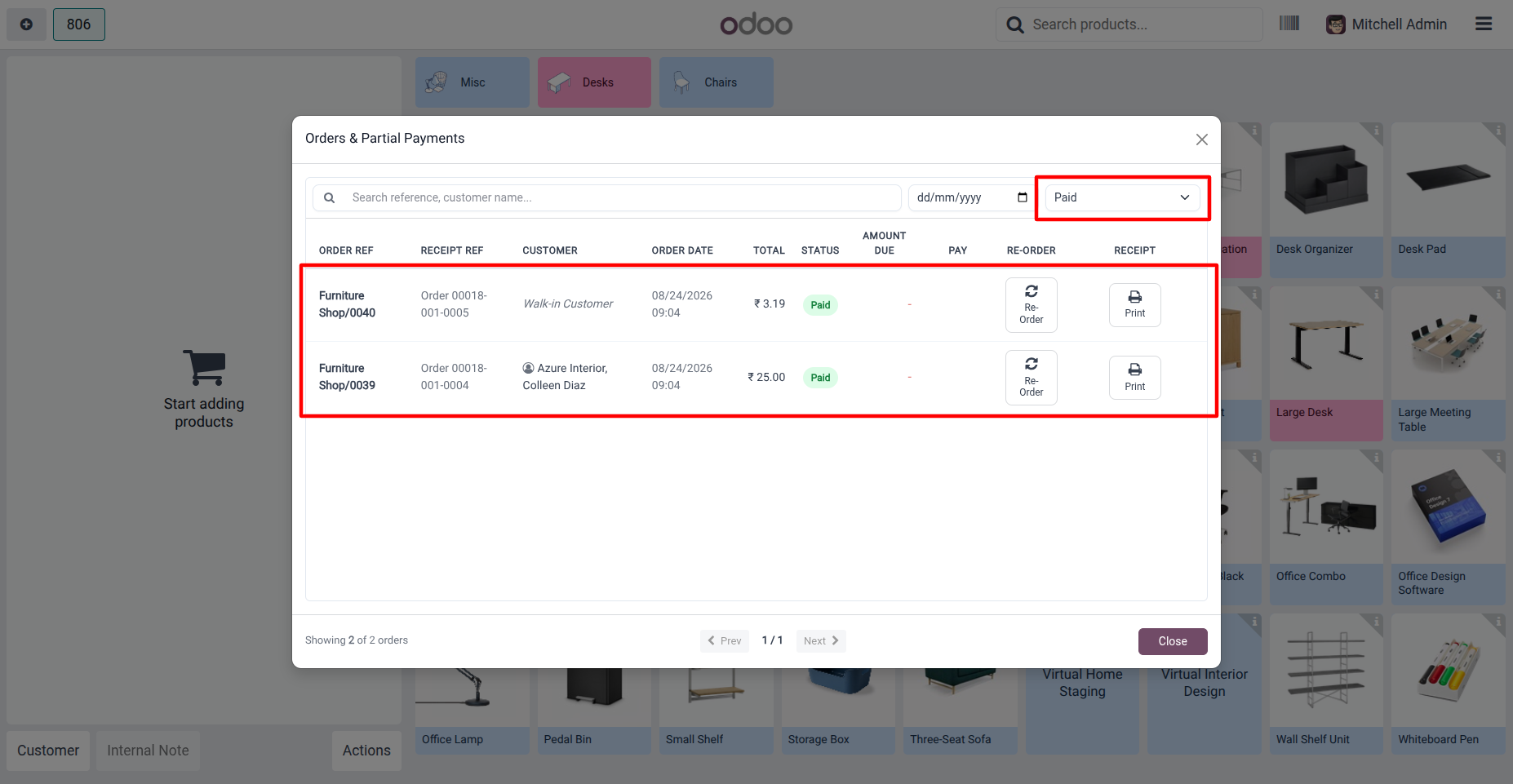
11. Cashiers can view fully paid orders, check the order details, and reprint receipts or reorder products directly from the POS.
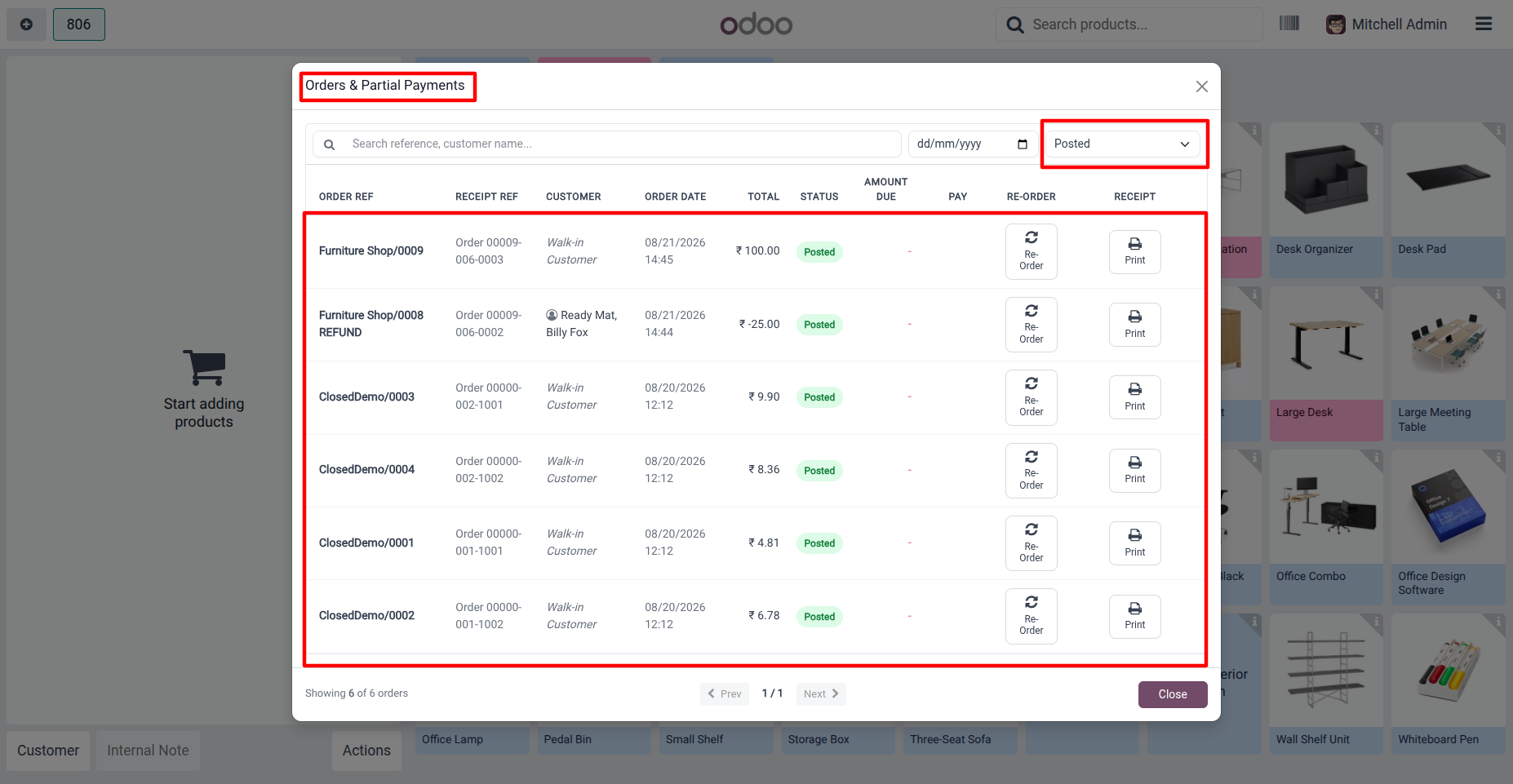
12. Cashiers can view posted orders, check their details, and reprint receipts or reorder products directly from the POS.
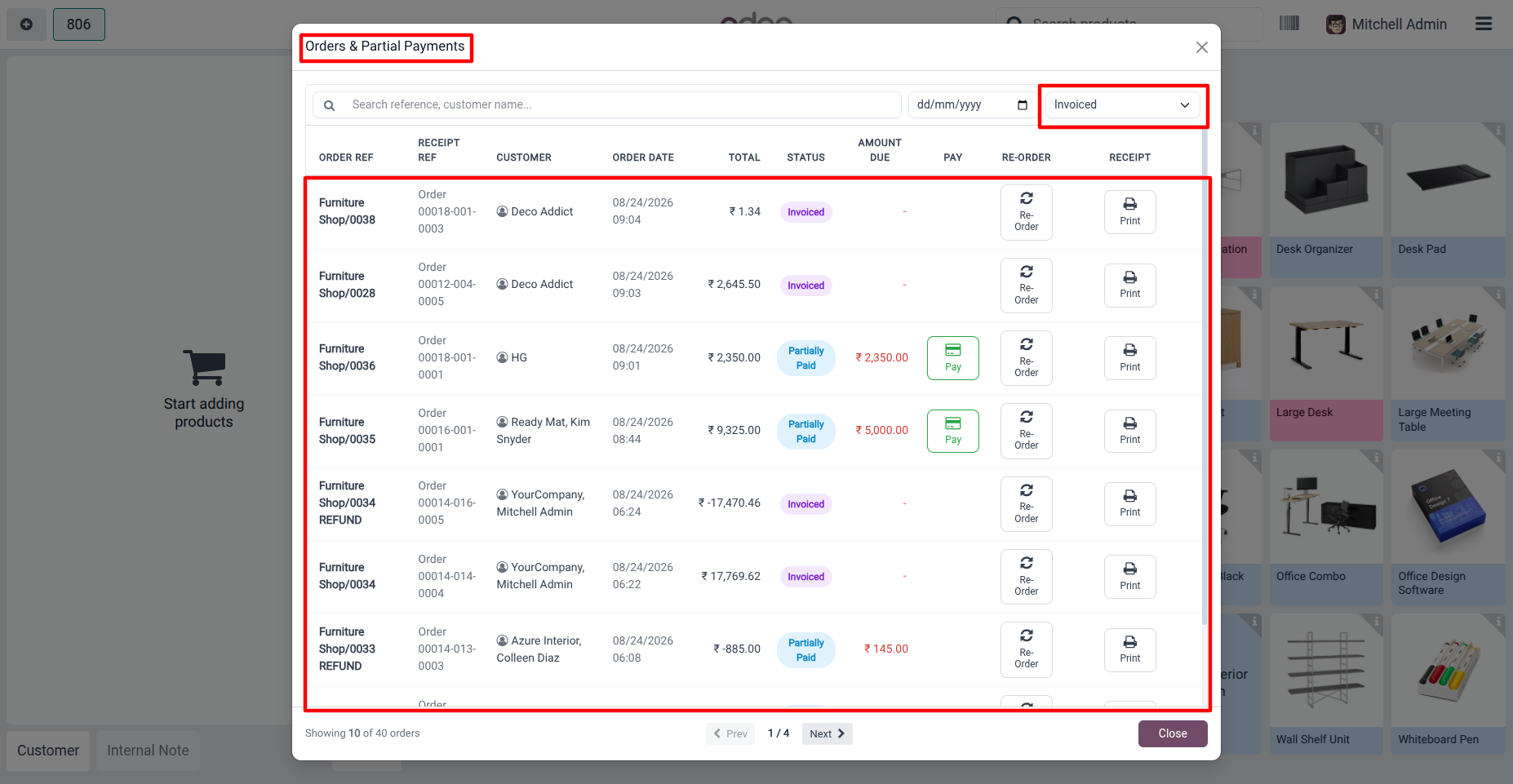
13. Cashiers can view fully invoiced and partially paid orders where an invoice has been created, along with their payment status and due amount.
14. Customers can make multiple payments toward the same POS order until the full amount is paid.
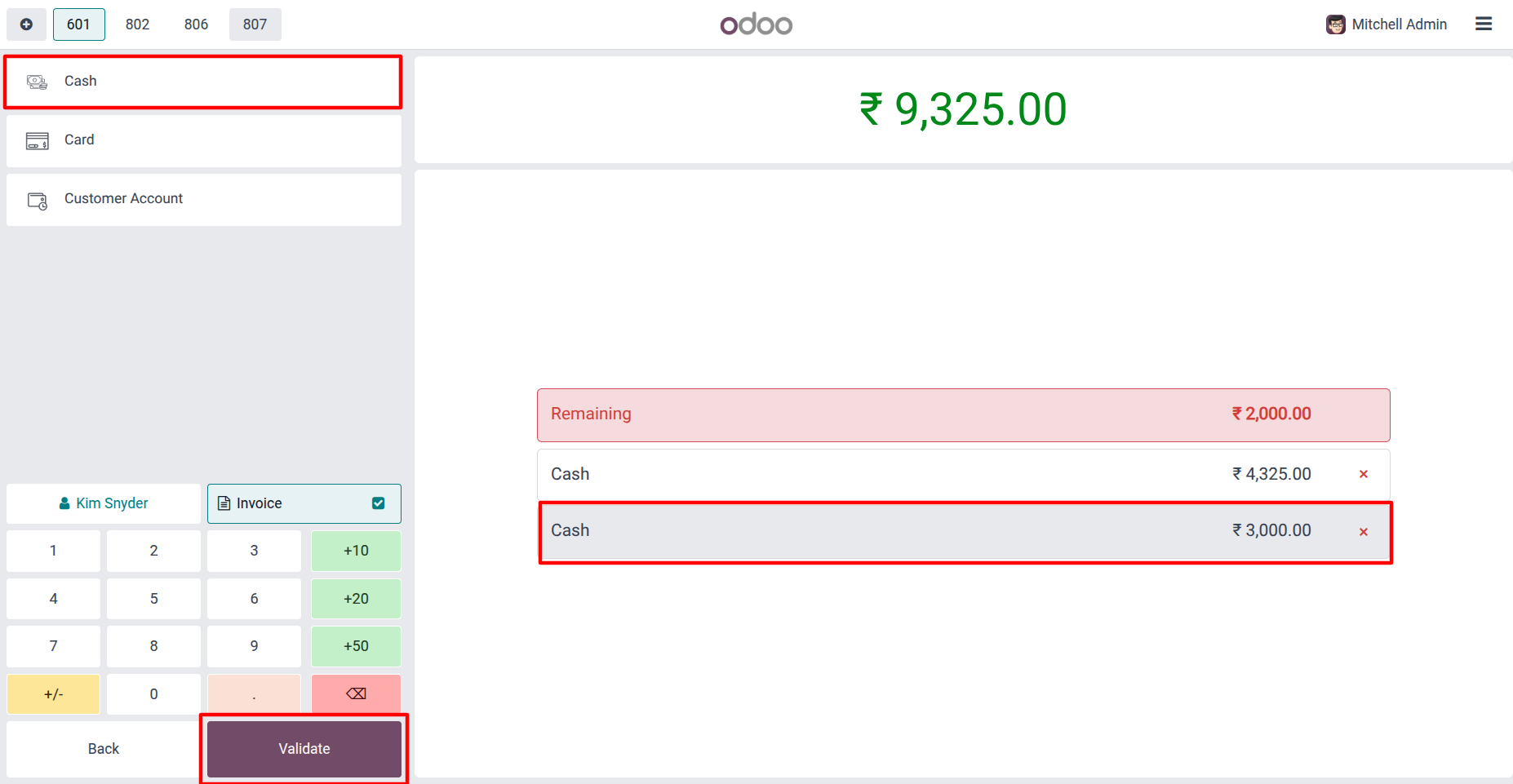
15. Select a payment method and enter the amount the customer wants to pay.
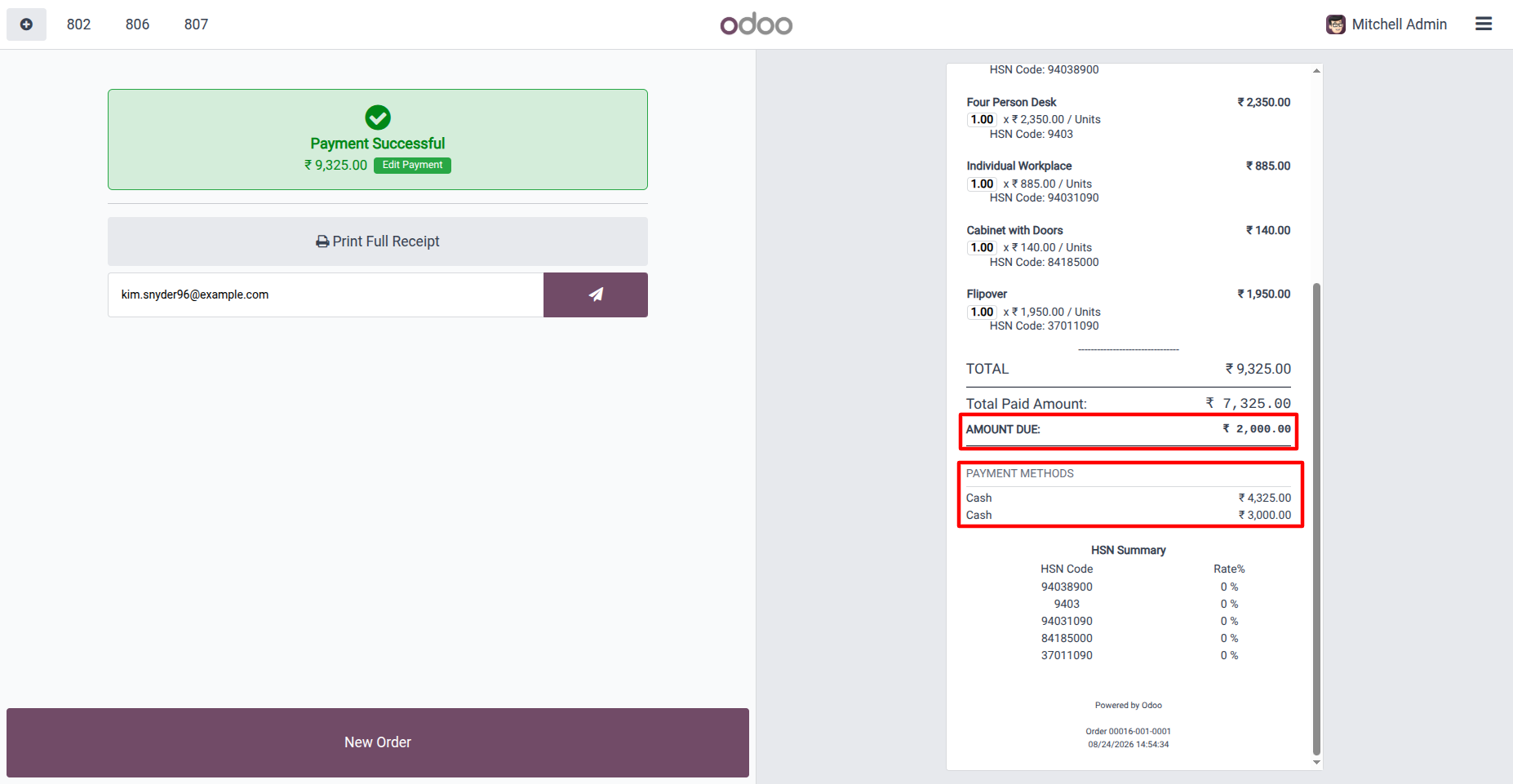
16. The receipt shows the total paid amount, remaining due amount, and payment details for the order.
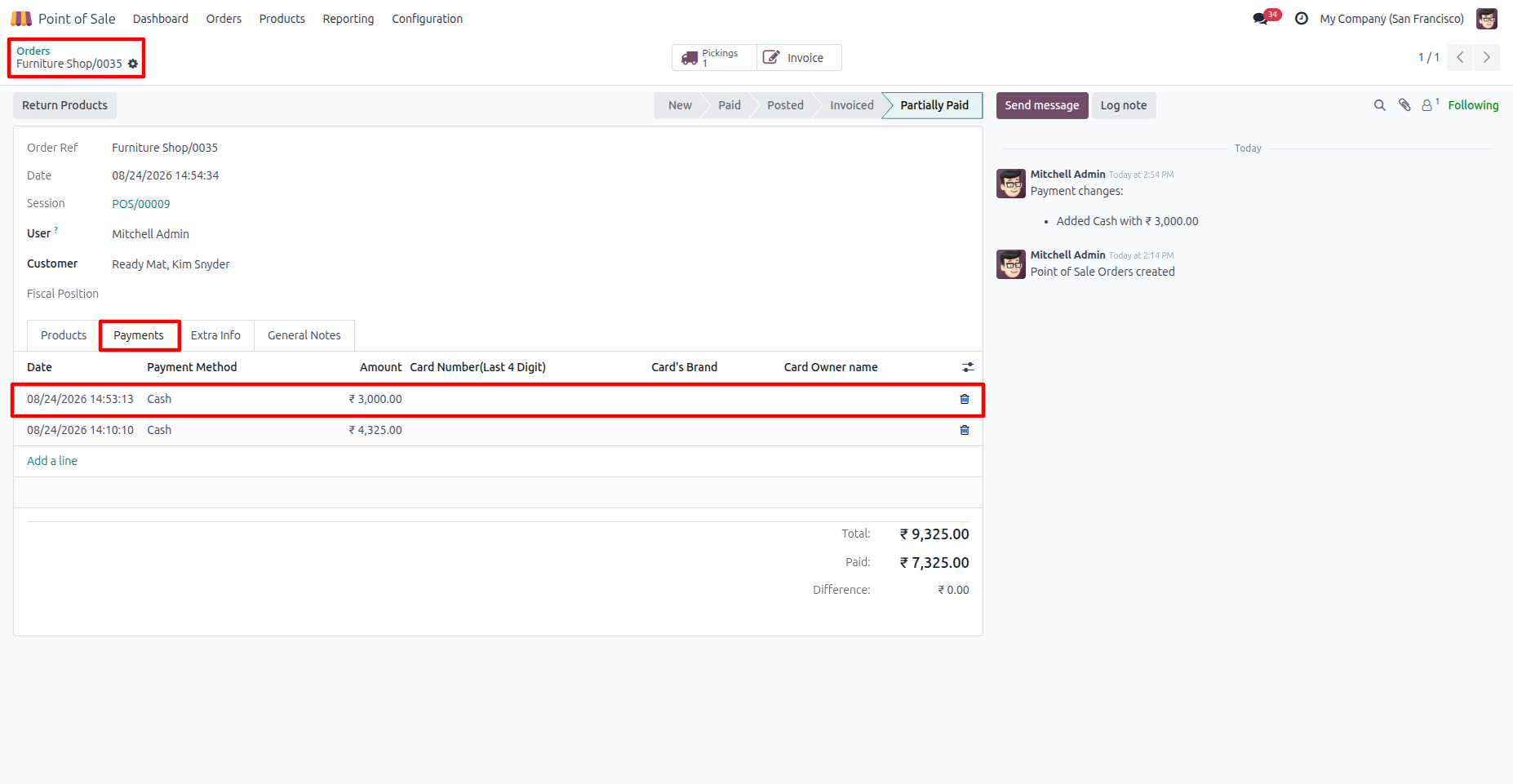
17. Users can view all payments made for the POS order, including the payment date, method, and amount.
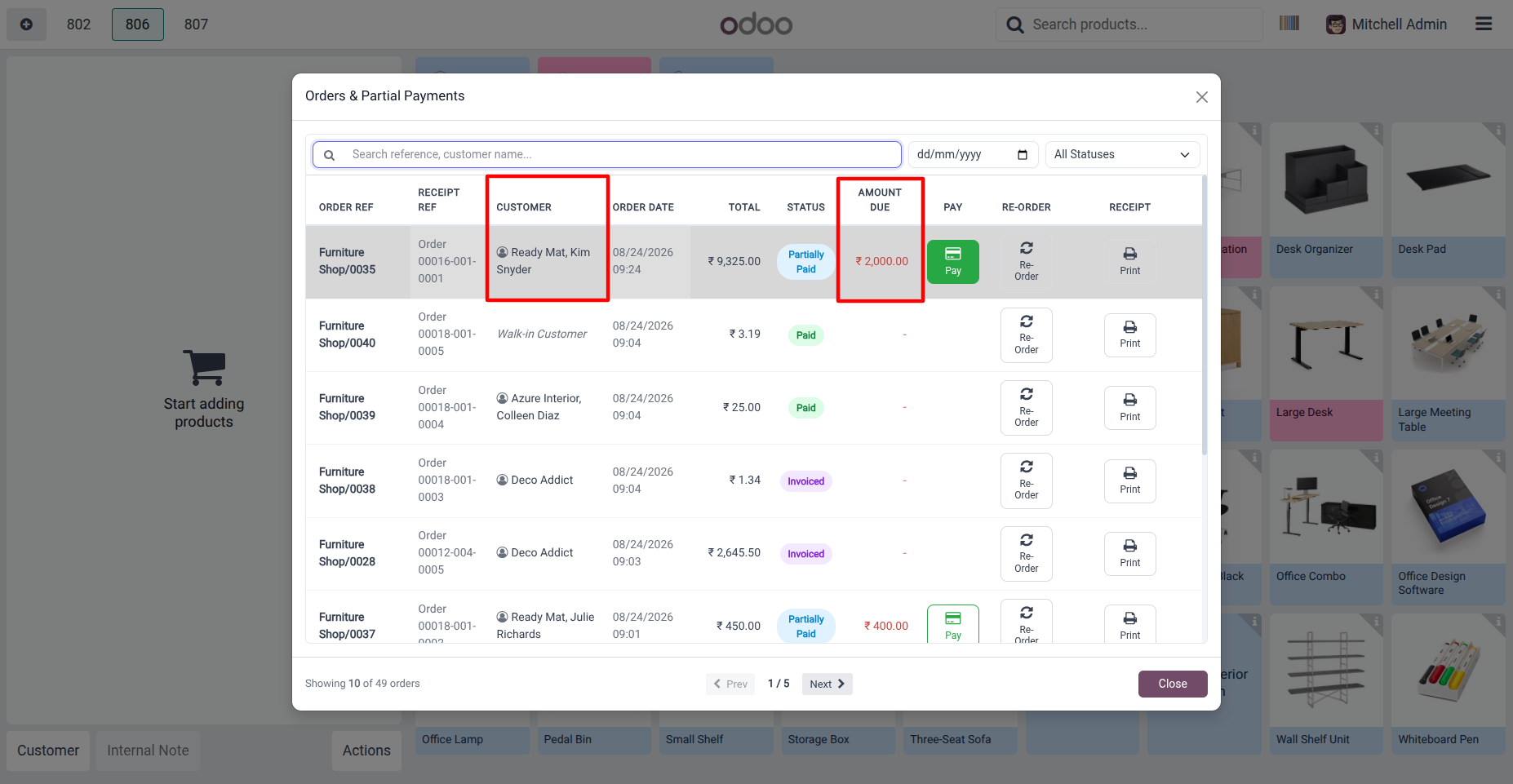
18. Cashiers can search orders by customer name or receipt reference, filter by date and status, and quickly view the amount due.
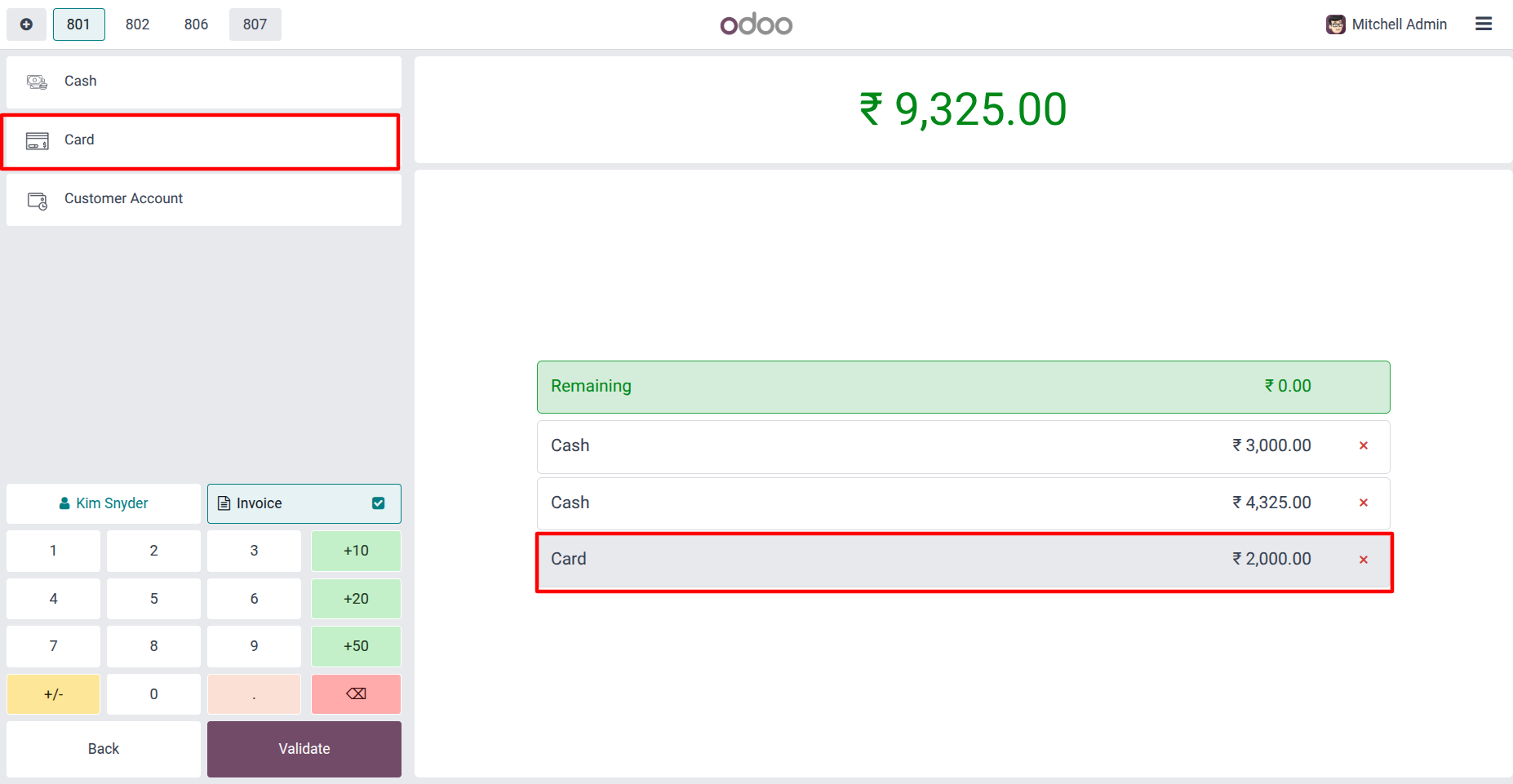
19. Cashiers can select a payment method and pay the remaining balance to complete the order.
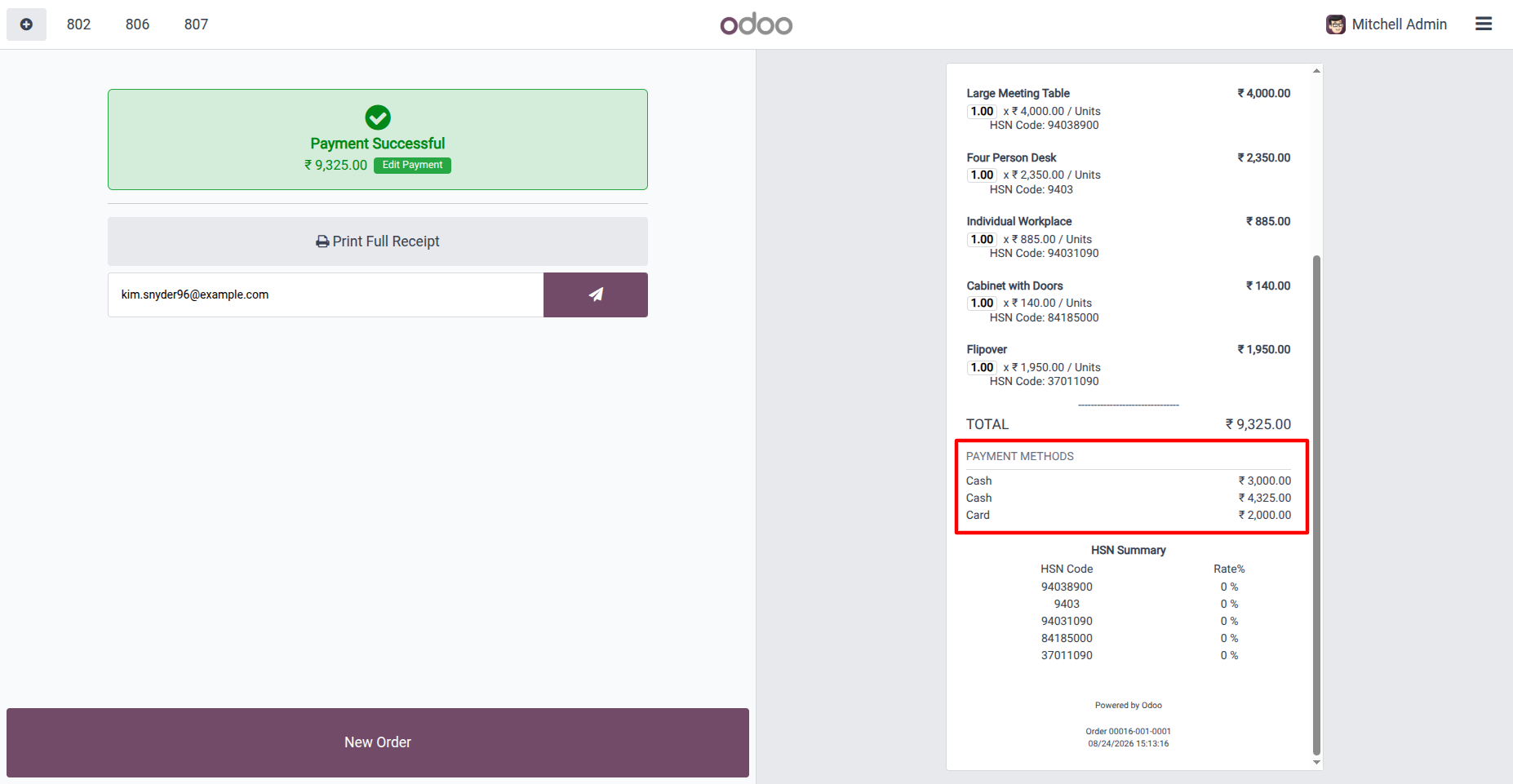
20. After the remaining amount is paid, the receipt shows the complete payment details and all payment methods used.
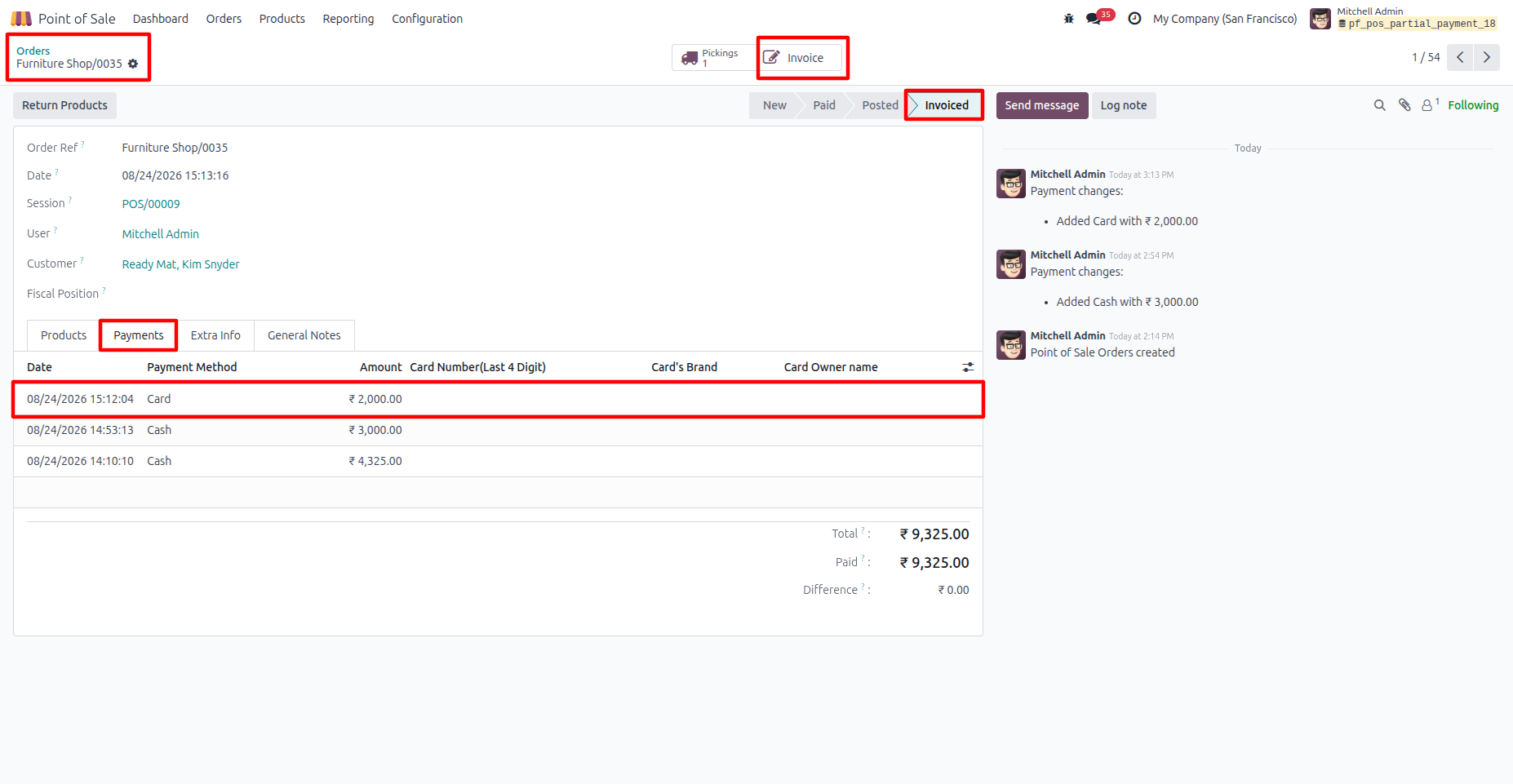
21. Once the outstanding amount is cleared, the POS order moves to Invoiced status, and the Payments tab records all payments made, including the latest payment method and amount.
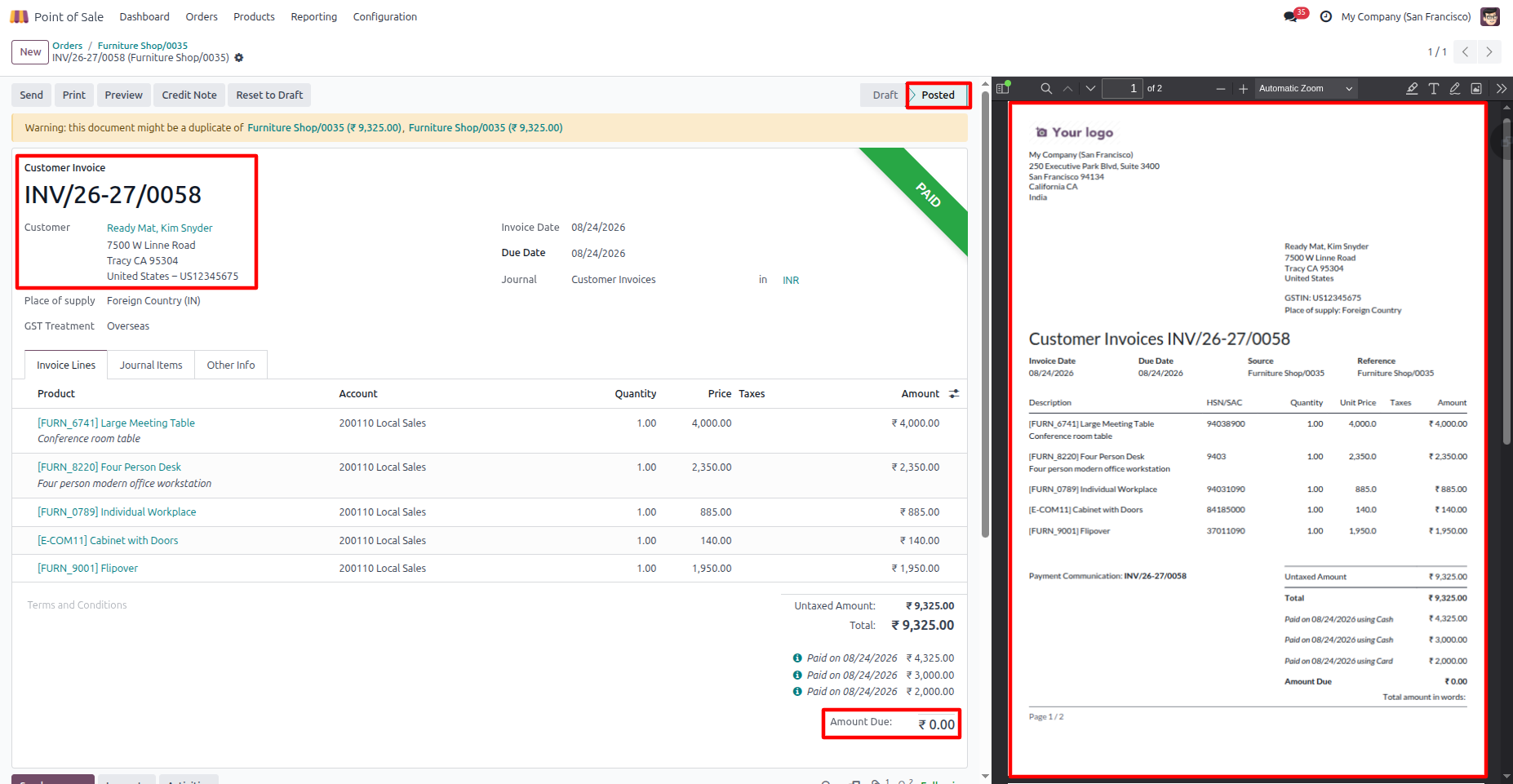
22. Once the order is fully paid, the invoice is marked Posted and Paid, with the Amount Due reduced to 0. The generated invoice can then be sent directly to the customer, including the complete payment details and payment history.
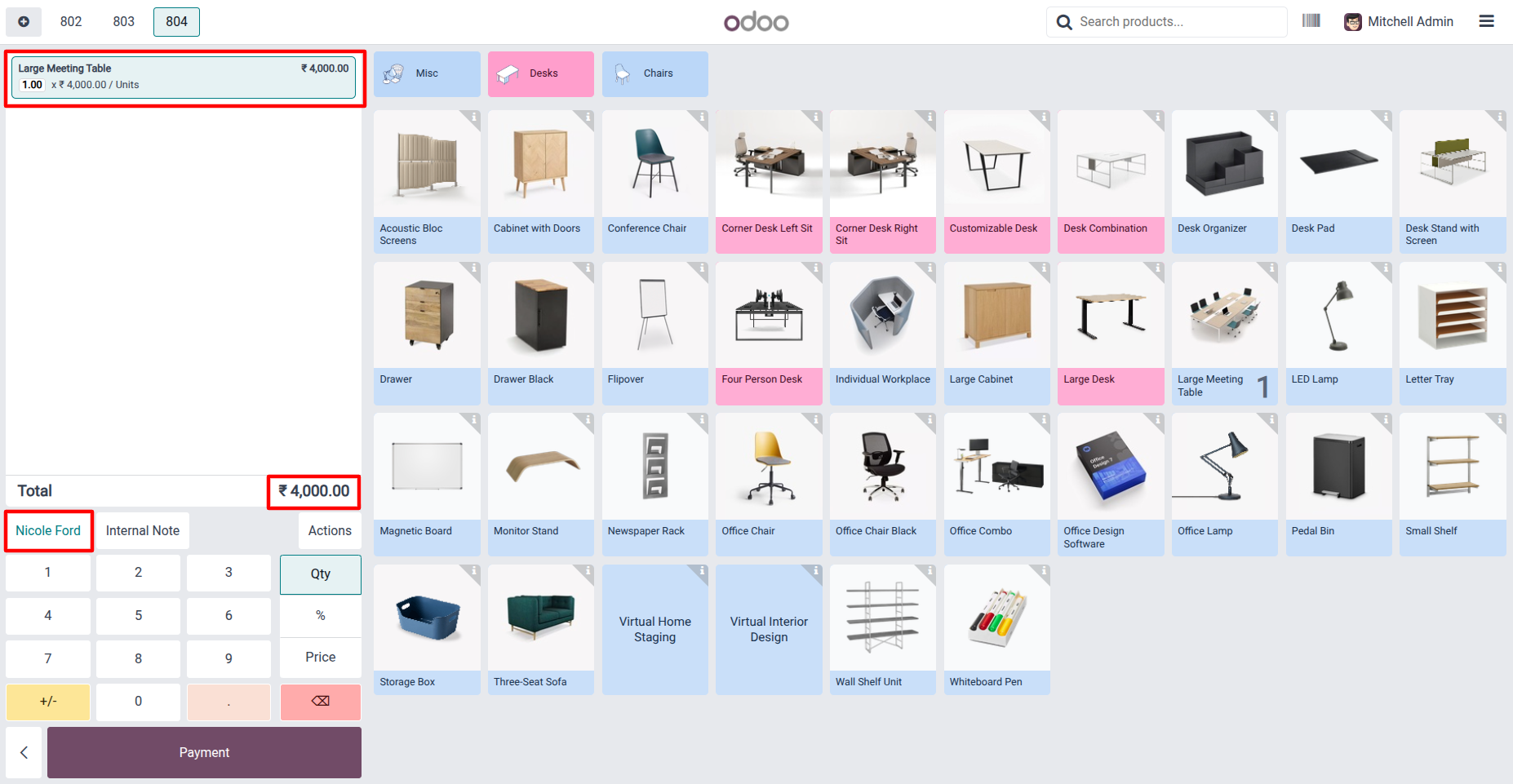
23. Start a fresh POS order by selecting the required products and adding them to the order. The selected customer and order total are displayed before proceeding to payment.
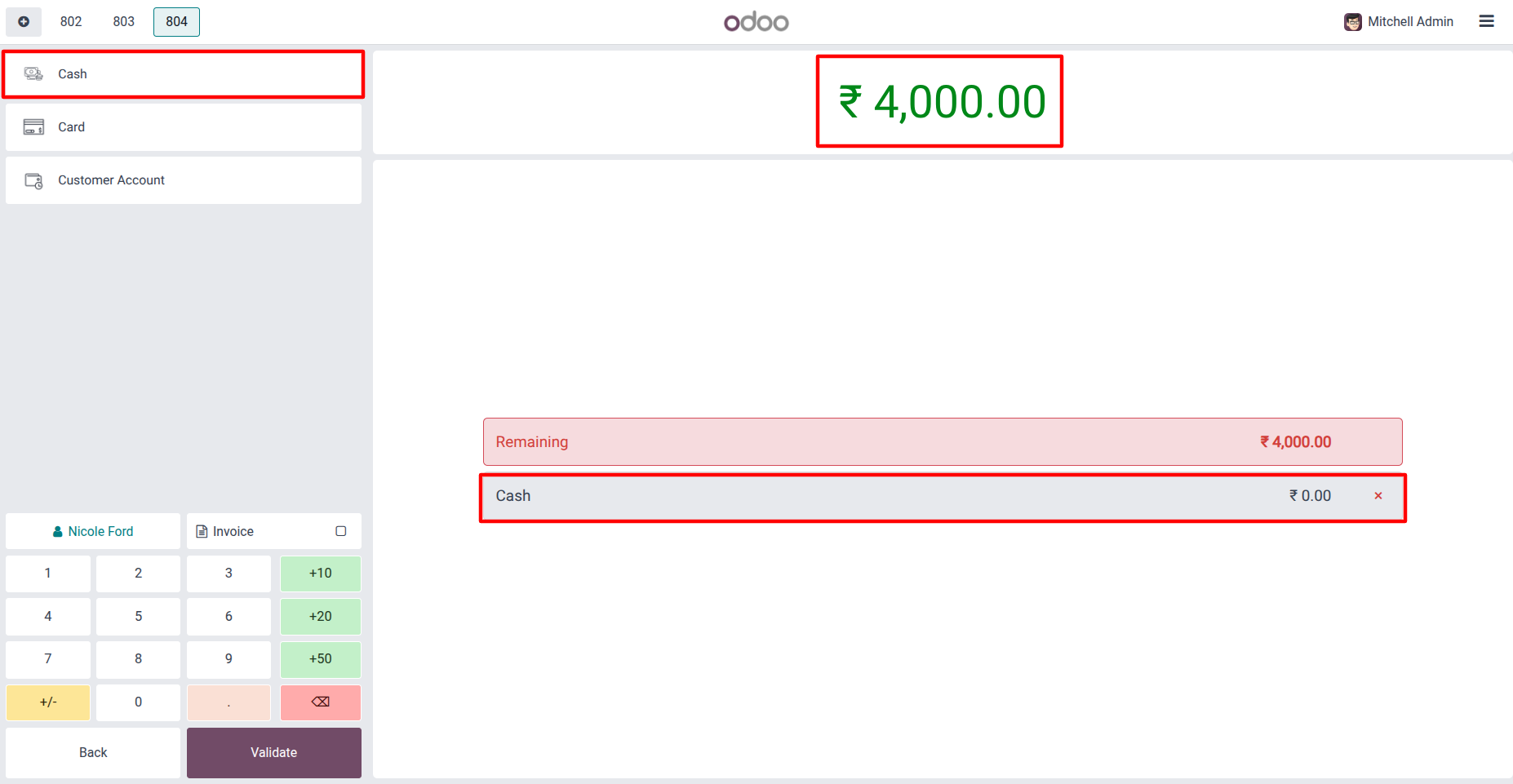
24. The customer can take the items without paying upfront. The cashier selects a payment method and enters 0, making it a 100% credit order with the full amount due later.
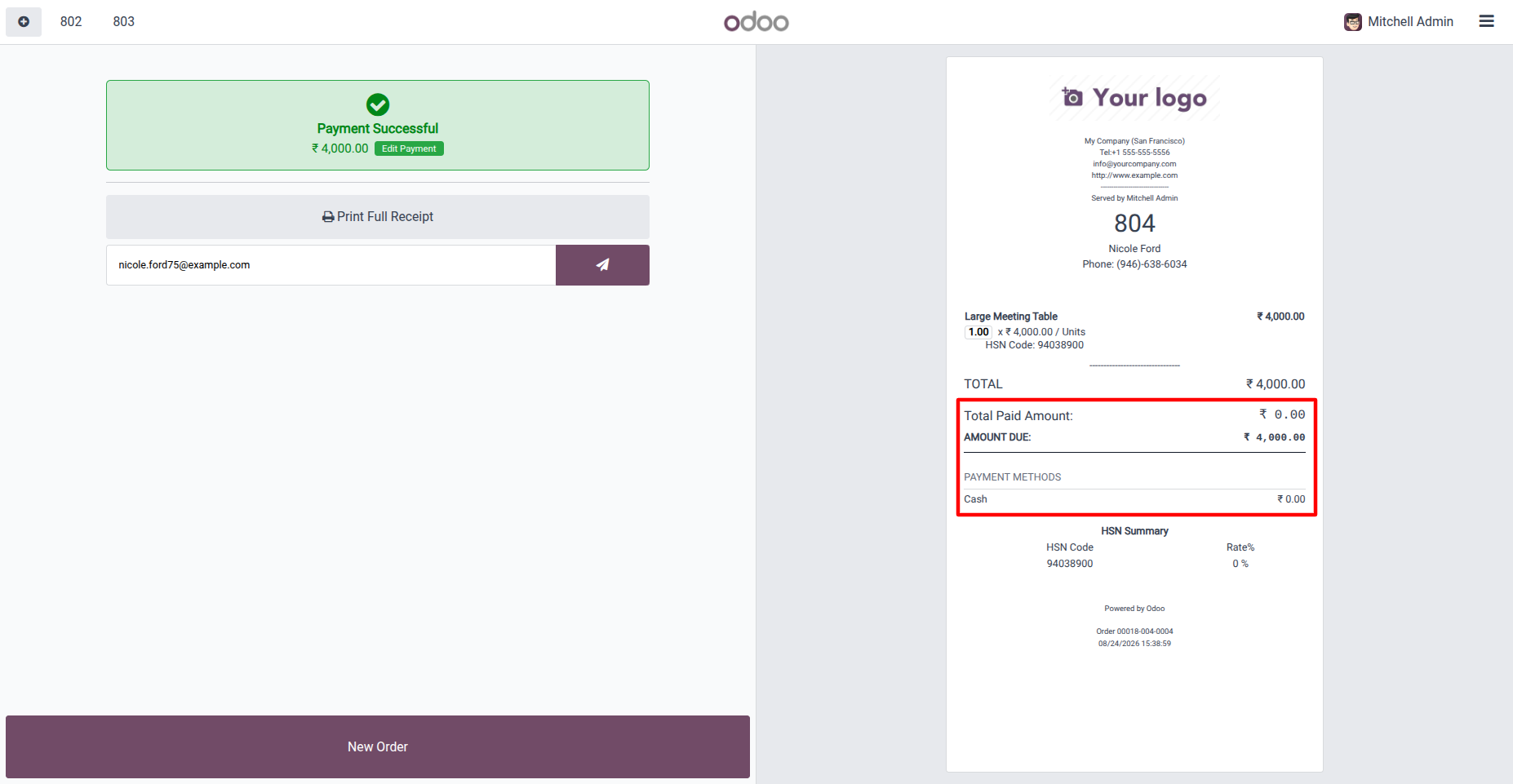
25. The receipt shows 0 paid, due amount, and the selected payment method with 0, confirming the order was placed on 100% credit.
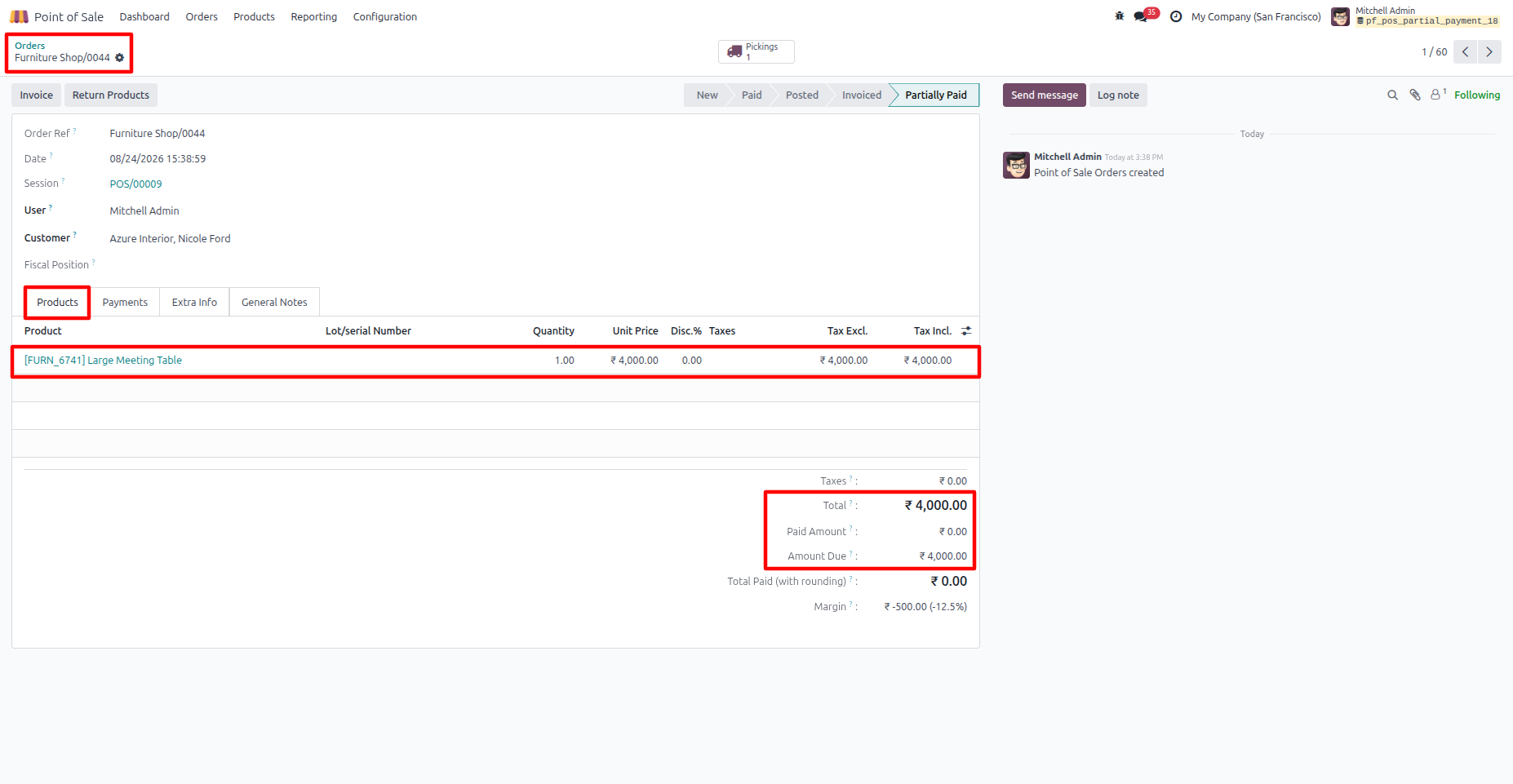
26. The POS order is saved with 0 paid and the full due amount remaining. The order stays in Partially Paid status until the customer makes the payment.
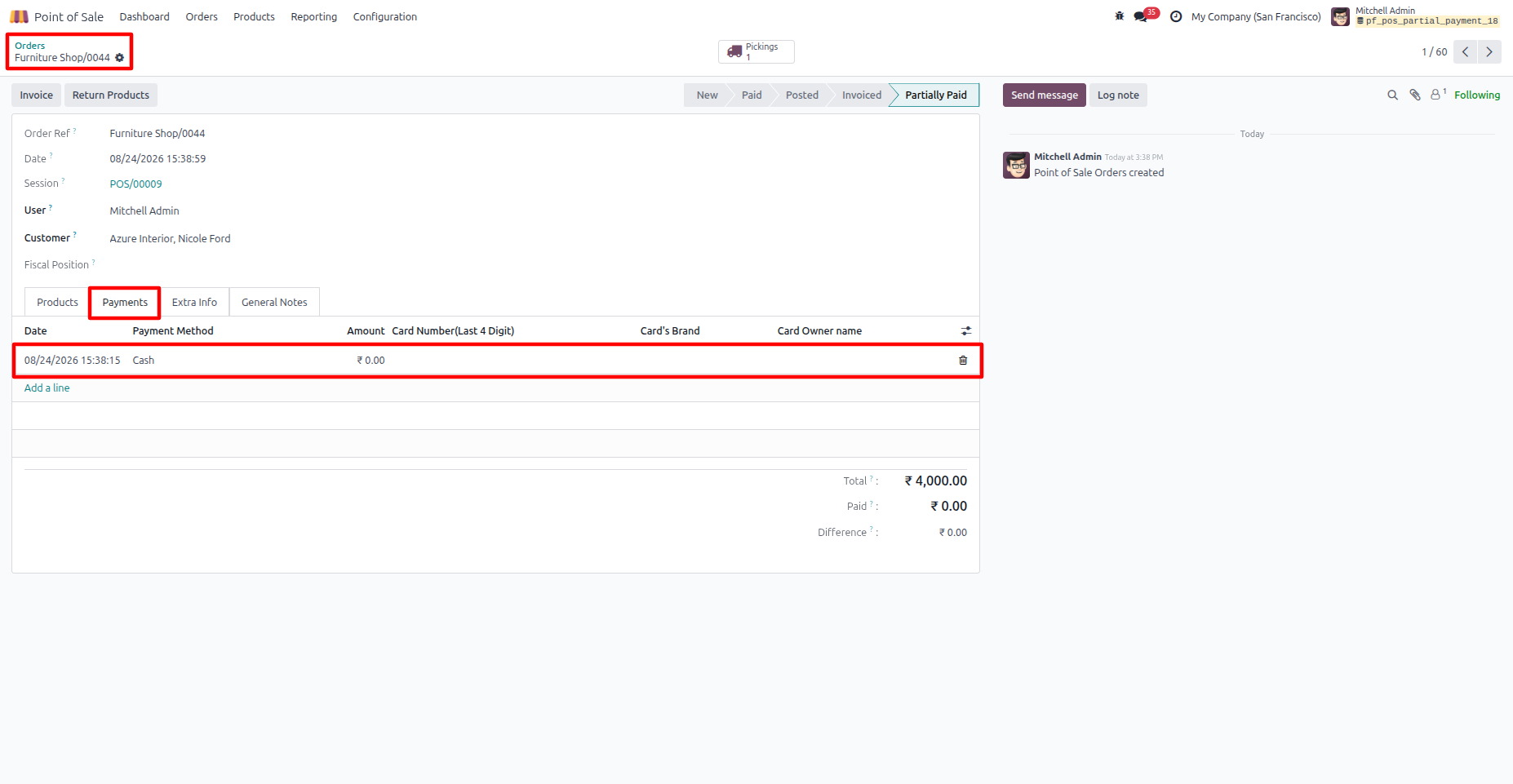
27. The backend records the 0 paid and full due amount. The order remains Partially Paid with the full amount still due.
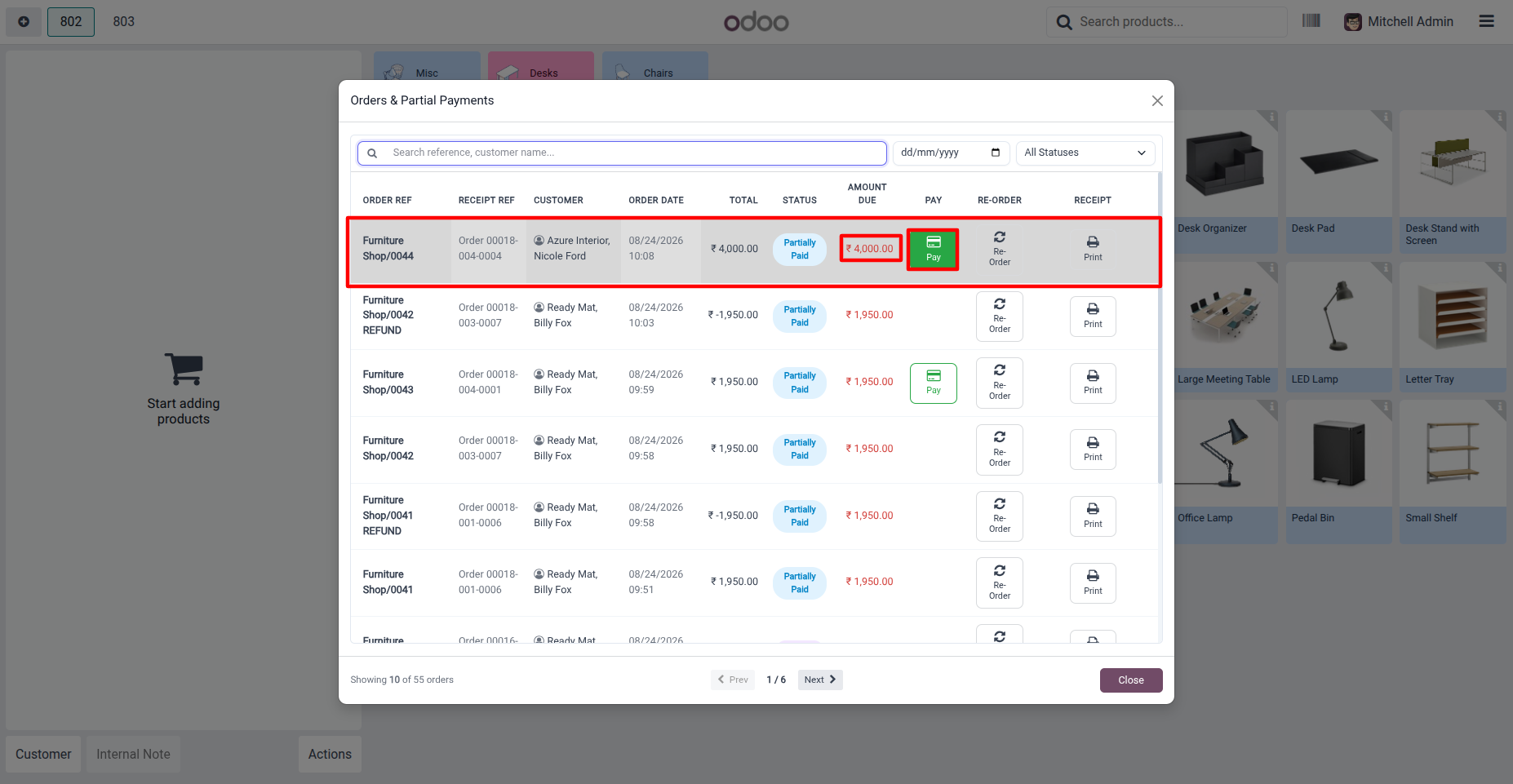
28.From the Orders & Partial Payments list, select the partially paid order and click Pay to collect the remaining amount
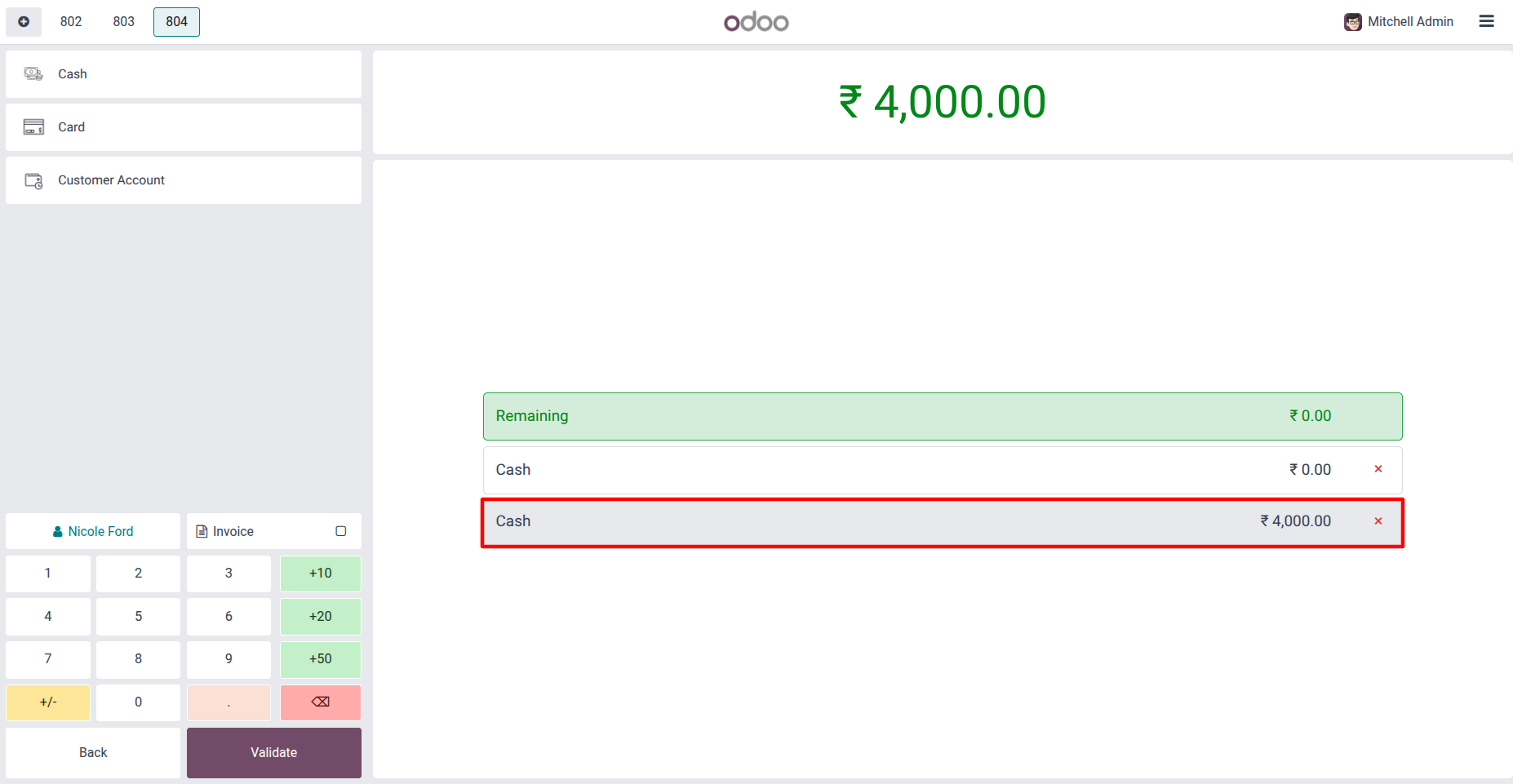
29. Select the payment method and enter the remaining amount. Once the remaining amount reaches 0, click Validate to complete the payment.
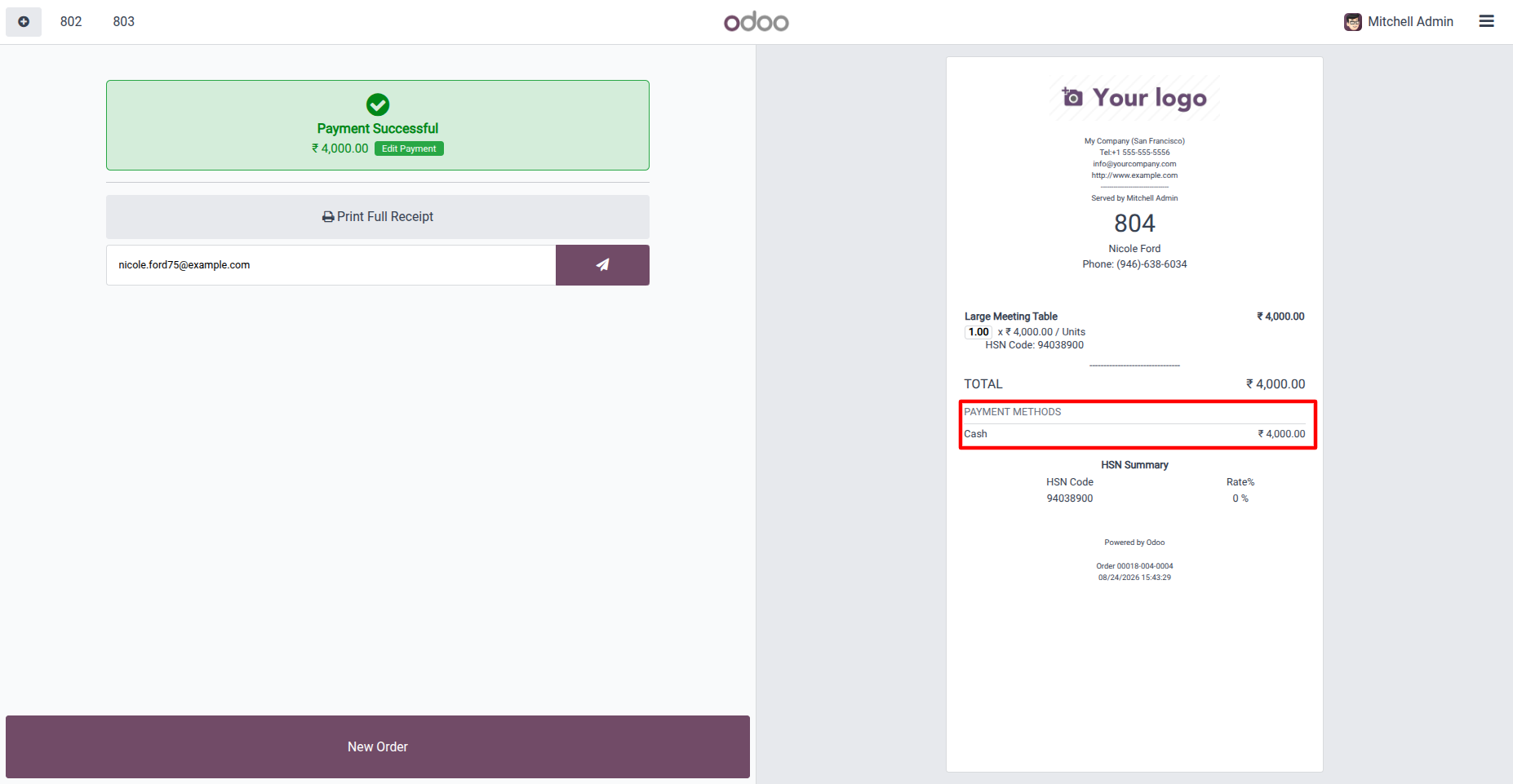
30. The receipt confirms the customer’s payment through Cash, completing the order with the full amount paid.
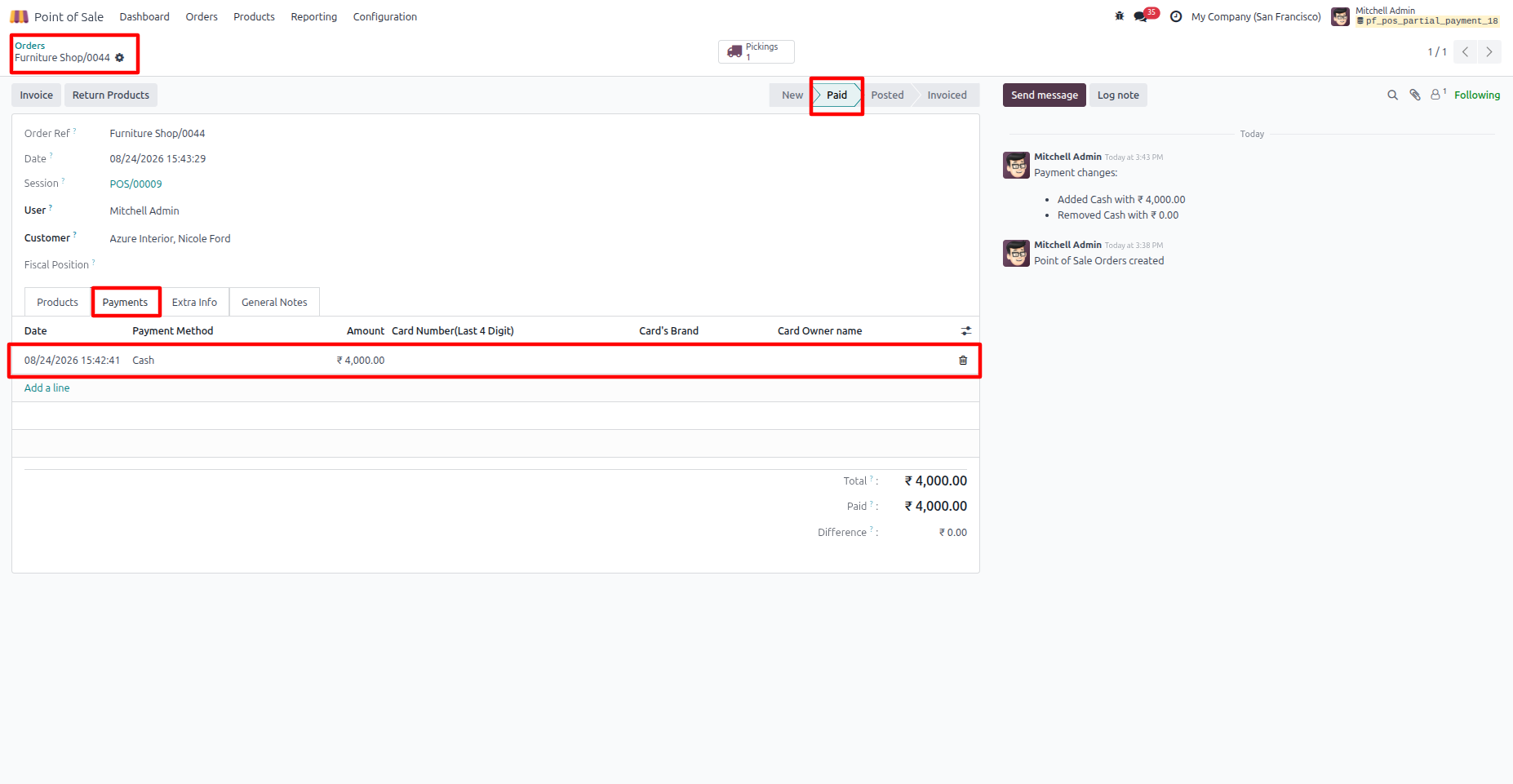
31. The backend order is now marked as Paid. The Payments tab shows the Cash payment, with amount paid and amount due.
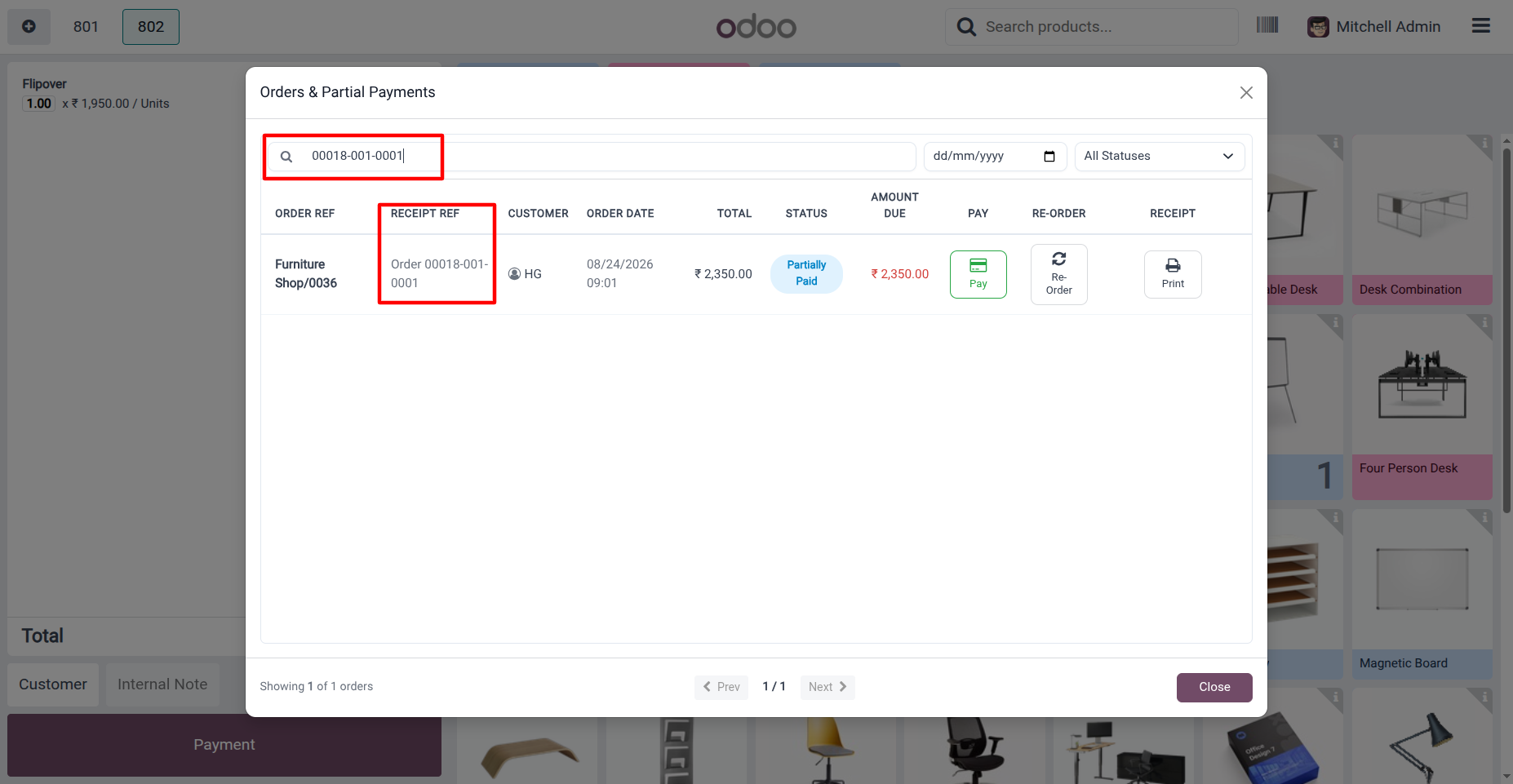
32. Search orders using the Receipt Reference or Customer Name.
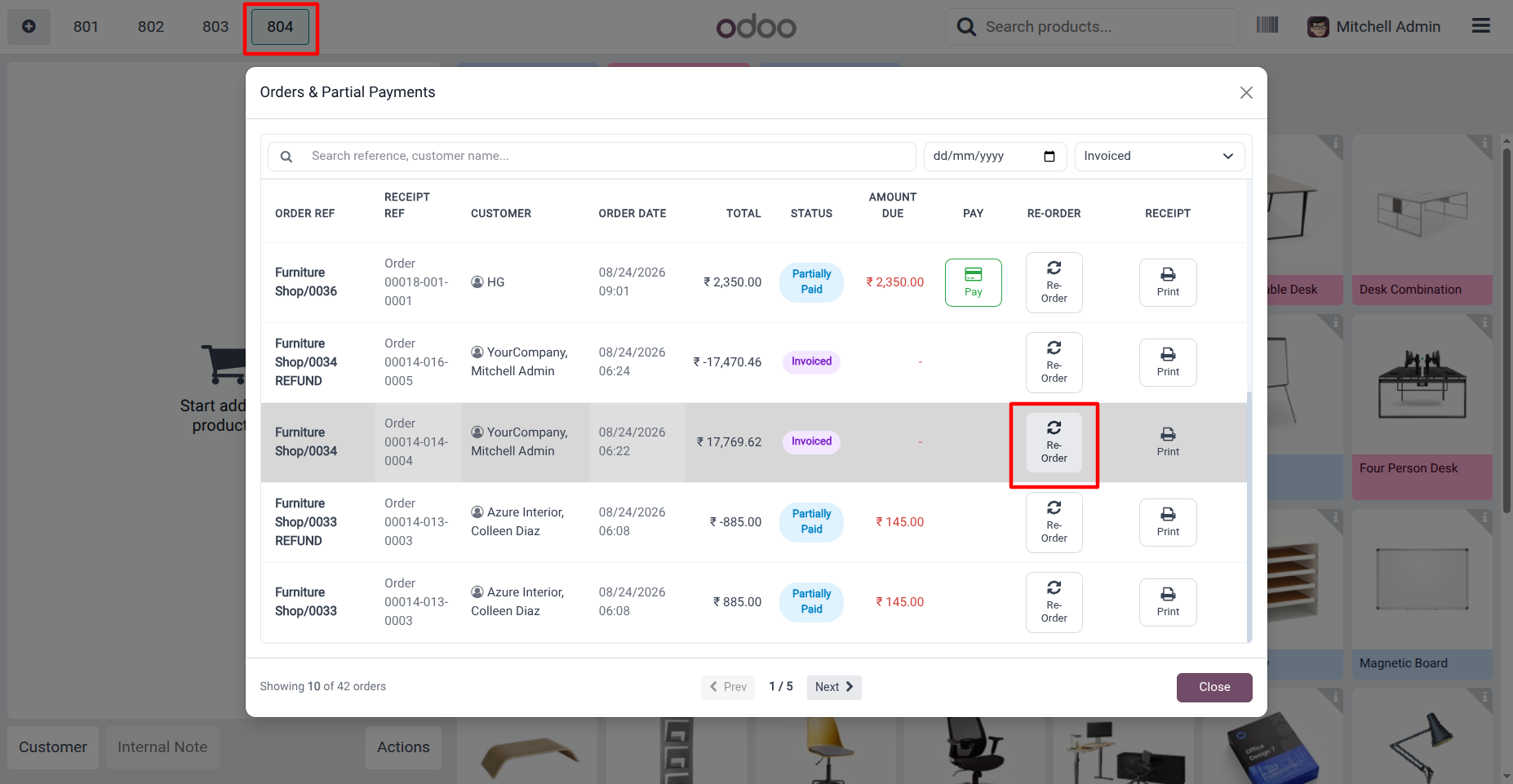
33. Click Re-Order to create a new order with the same products and quantities as the selected previous order.
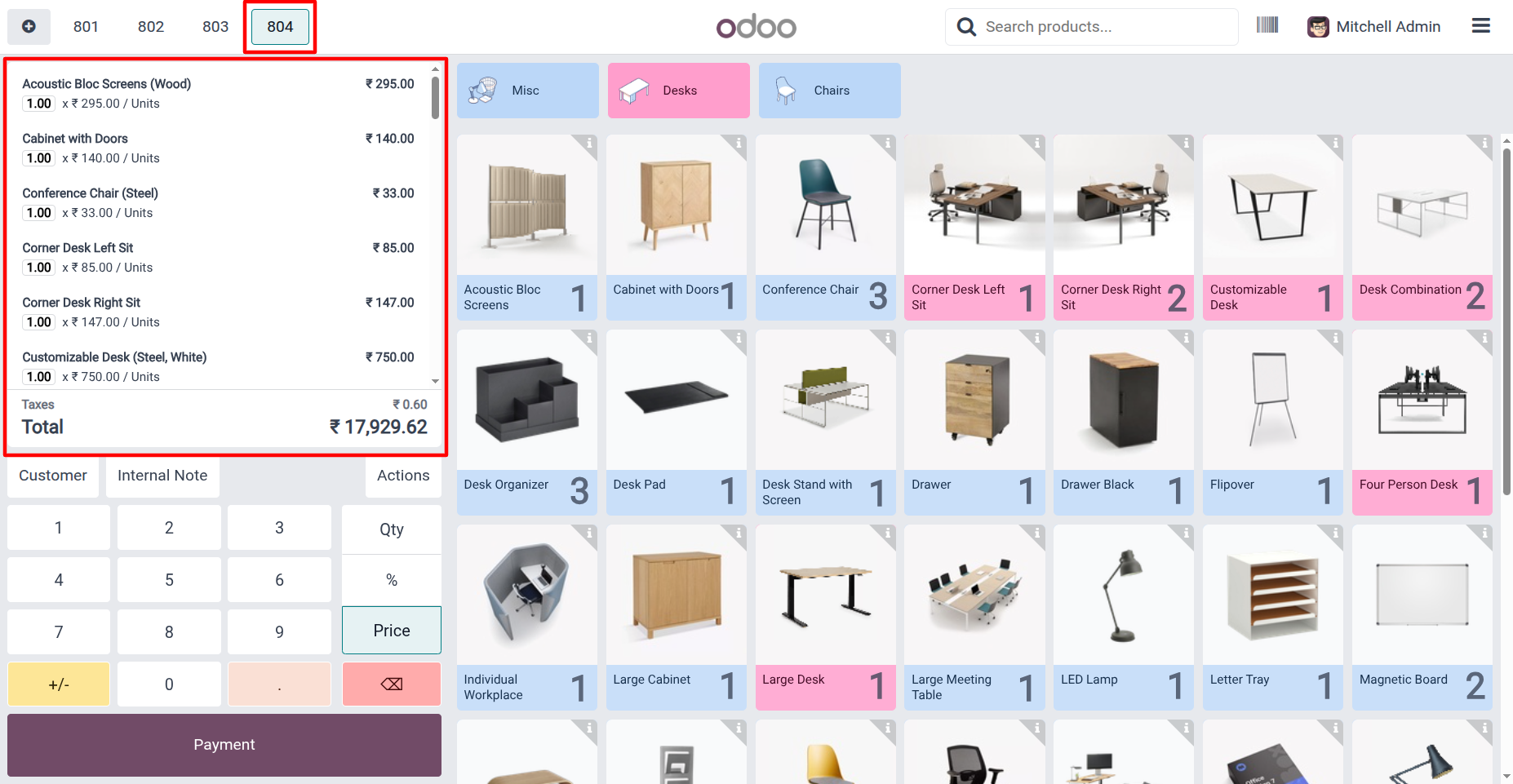
34. The new order is created with all products and quantities from the previous order.
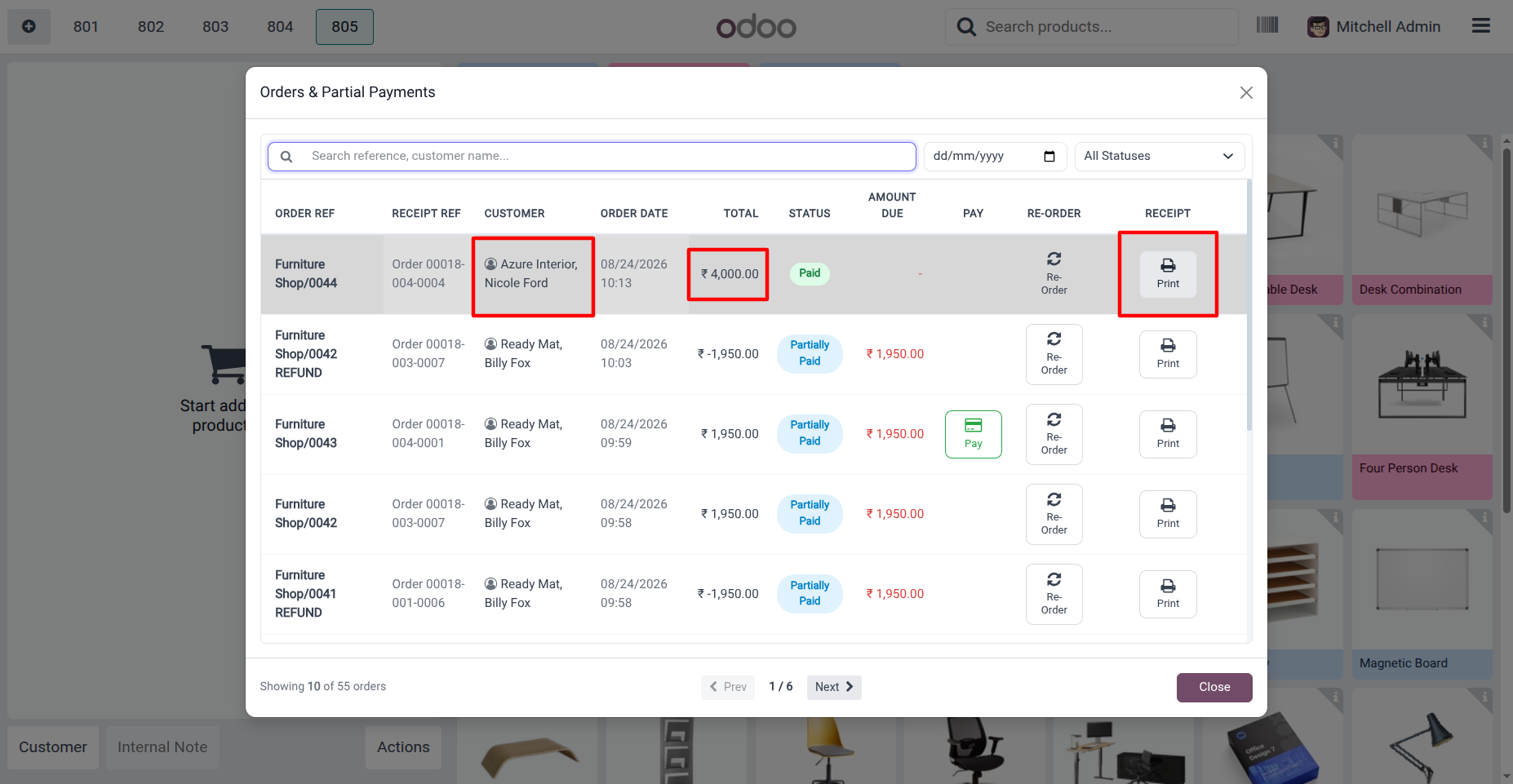
35. From the orders list, users can click Print to view and print the receipt for the selected order.
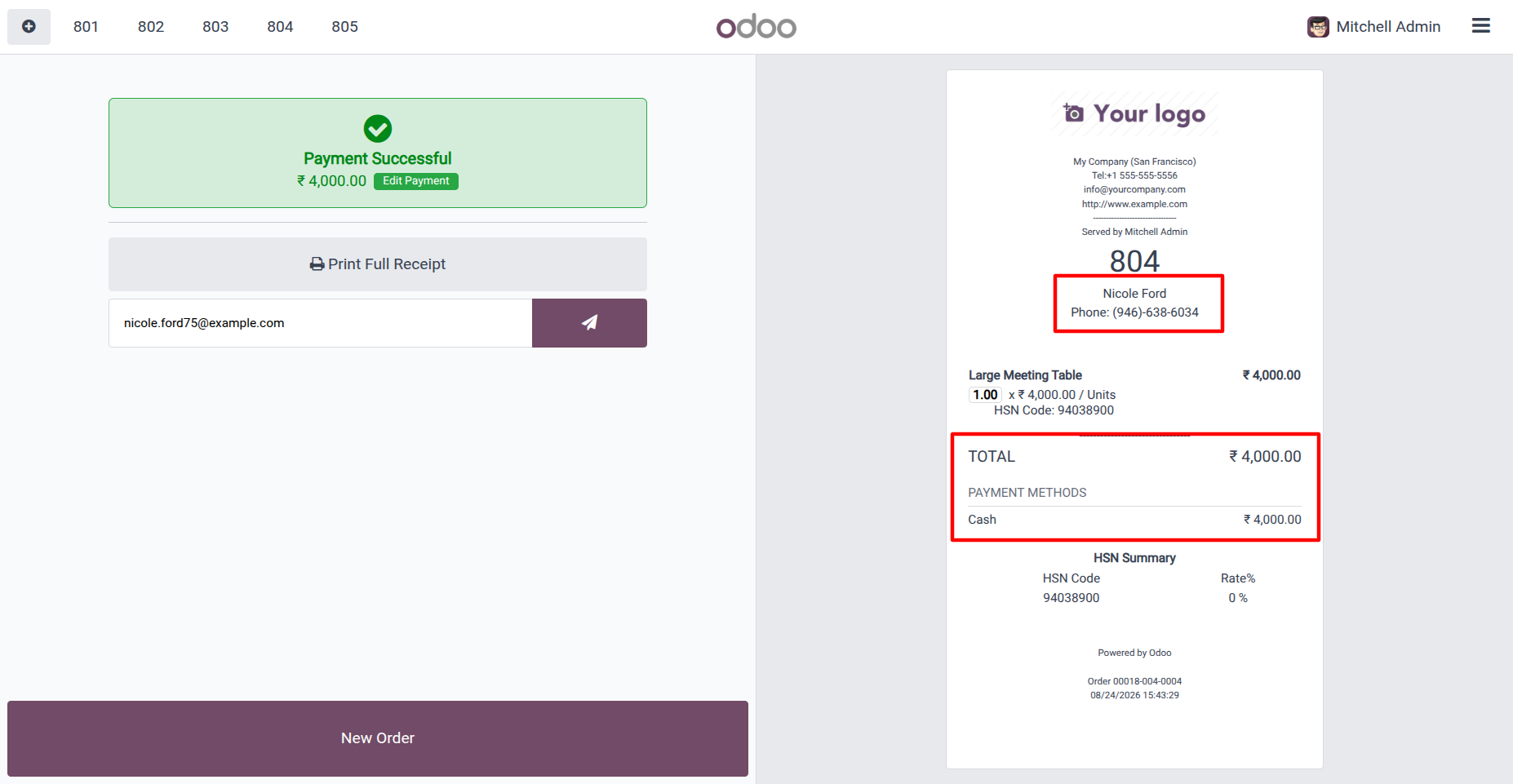
36. The receipt is displayed with all order details and payment information.
Our solutions focus on your problems
- Odoo Implementation
- Odoo Customization
- ERP Development and Implementation
- Odoo Ipass Cloud
- AI for Odoo
- Odoo Apps
- Aws Marketplace Products
- Business Engines
Our Pricing includes User Manual, 90 Days Support (Monday-Friday 10am to 7pm IST) and One time Setup
• Works & tested on standard installations of Odoo with no third party apps,
• Free support only for odoo installations with no third party apps,
• Paid support available for Odoo installations with third party apps.

Prefortune is a Odoo Official Partner, Odoo Development company. Our philosophy is to use Open Source tools and technologies to provide cost effective and green solutions for our customers.
Prefortune Technologies LLP is working on web development, Mobile development, and Odoo ERP.
If you need any help or want more additional features, you may contact us through:
Alternative Products
These other products might interest you
Specifications
| Version | 19.0, 18.0, 17.0, 16.0, 15.0 |