Watch Quick Video
POS Multi Layout Odoo App
Our efficient
Odoo–POS Multi Layout
module is a well designed module to enhance and simplify the Point of Sale interface. You can use the
flexibility of setting the POS buttons and numpad in different layouts. The module allows users to
customise the POS screen according to their working style and business needs. POS buttons can be arranged
in multiple column grid layouts to maximise available display space. You can also choose to have the
button panel appear on the default, left or right side of the POS screen. Users can hide/show the numpad
as they wish thus giving them more control on the POS interface. Flexible layout options are provided by
the module to design a clean, organised and user friendly POS screen. It is especially useful for
companies that want to improve the cash register interface and make the daily work of a cashier more
comfortable.
It provides you with powerful capabilities to easily manage POS screen layouts:
1. POS Screen Layout Configuration: User can set the layout of the POS screen (button and
numpad) as per requirement. So you can build a handy and organised POS interface for your daily work.
2. Hide & Show Numpad: Users who don’t need the numpad can easily hide it by clicking the
downward arrow. If you need the numpad again, click the up arrow to display it.
3. Multiple Button Column Layouts: The module supports POS buttons multi column layout,
Default, 1, 2 and 3 columns. Users can select their preferred column format to organise the buttons in an
orderly fashion on the POS screen.
4. Default, Left & Right Button Layout: Users can choose the position of the POS button panel
such as Default, Left Side & Right Side. This way the user can position the button panel in the most
convenient position for his/her favourite method of working.
5. Optimized POS Screen Space: Flexible layout settings help businesses to make the most out
of the available space on the POS screen. Users can configure the button columns, panel position and
numpad visibility to help clean up the interface and improve cashier productivity.
Multi Layout in POS Odoo App Features
- Customise the POS screen to suit your business by placing the buttons and numpad where you want. This provides a flexible and convenient interface for day to day POS operations.
- Down arrow to hide the numpad if you want more room on your screen. Use the up arrow to bring back the numpad when you need it.
- Layout option to set Default, 1, 2 or 3 column to layout POS buttons. This helps keep the button layout well-organised and easily discoverable.
- Select Default, Left Side or Right Side for Button Panel Position. It allows the user to position the buttons where it works best for their workflow.
Complete Workflow for POS Multi Layout Odoo App
The POS user opens the POS Interface and selects the required layout configuration. They can arrange buttons using Multi-Column Layoutsand choose the preferred button panel position. Users can also control the Numpad Visibilityto show or hide the numpad when required. The configured layout optimizes the POS Screen Space and provides a convenient interface for daily POS operations.
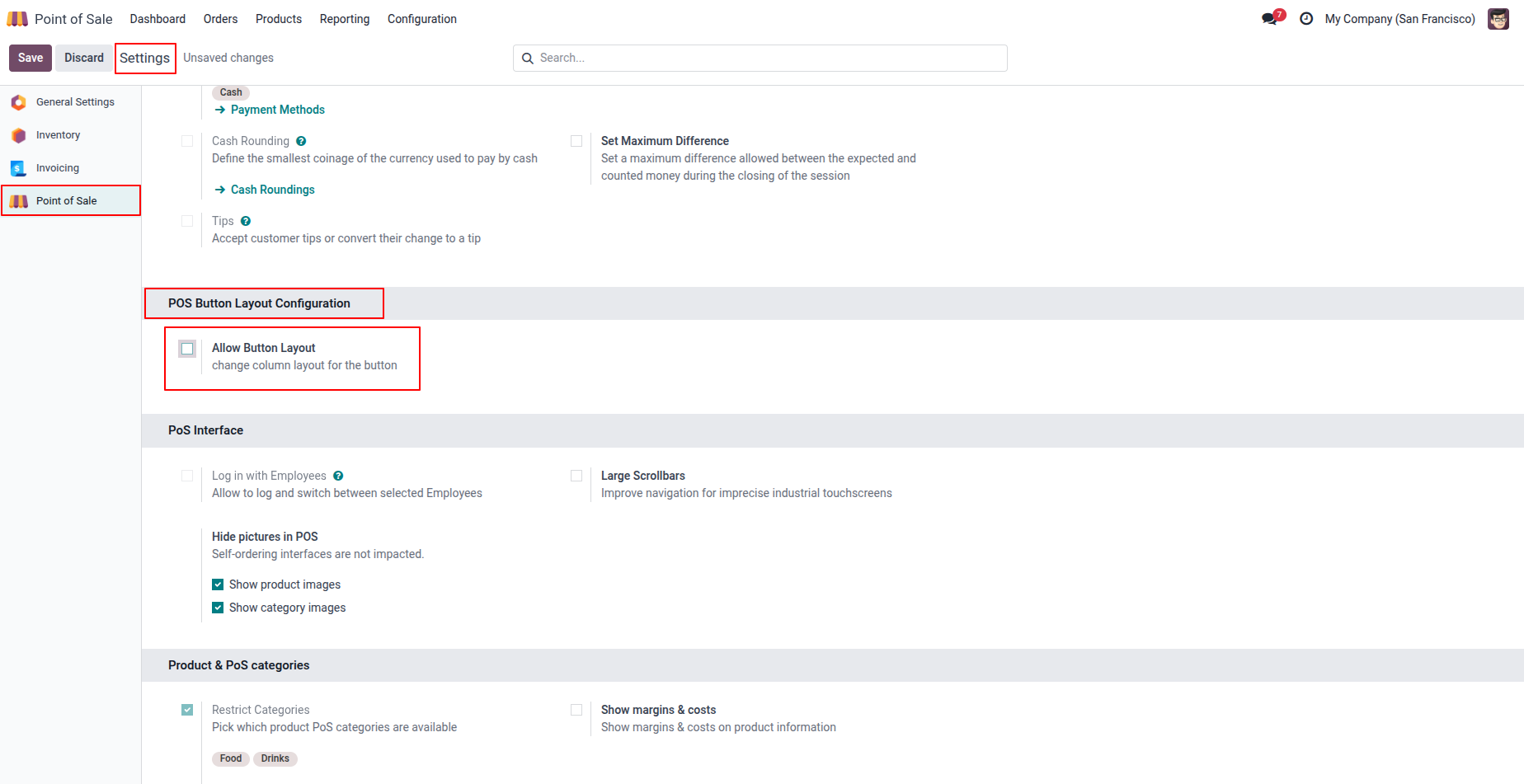
1. Under the POS Configuration, users can enable the “Allow Button Layout” option by selecting the checkbox.
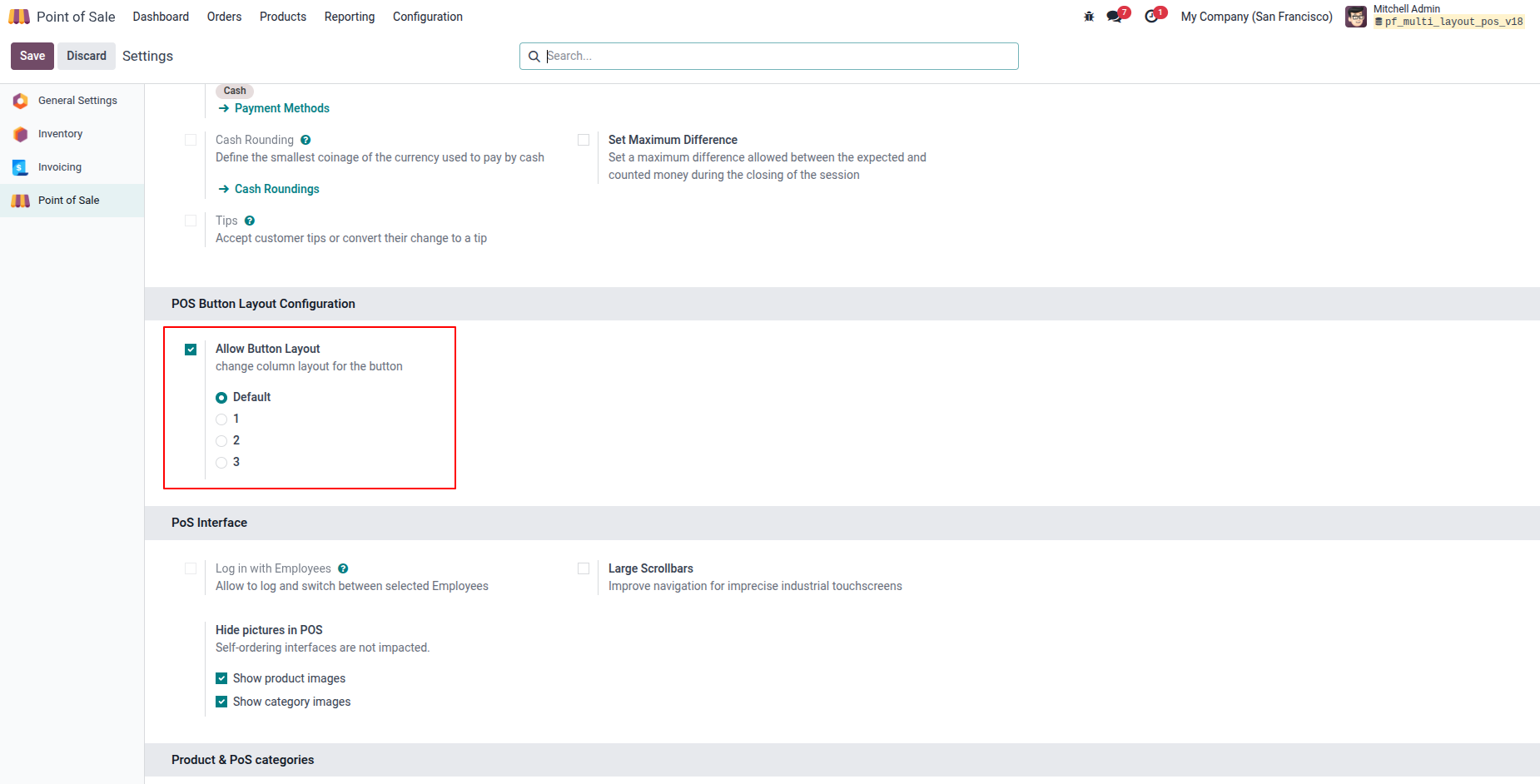
2. After enabling “Allow Button Layout,” users can access the button layout options and customize the screen layout by selecting 1, 2, or 3 columns, with Default panel placement options.
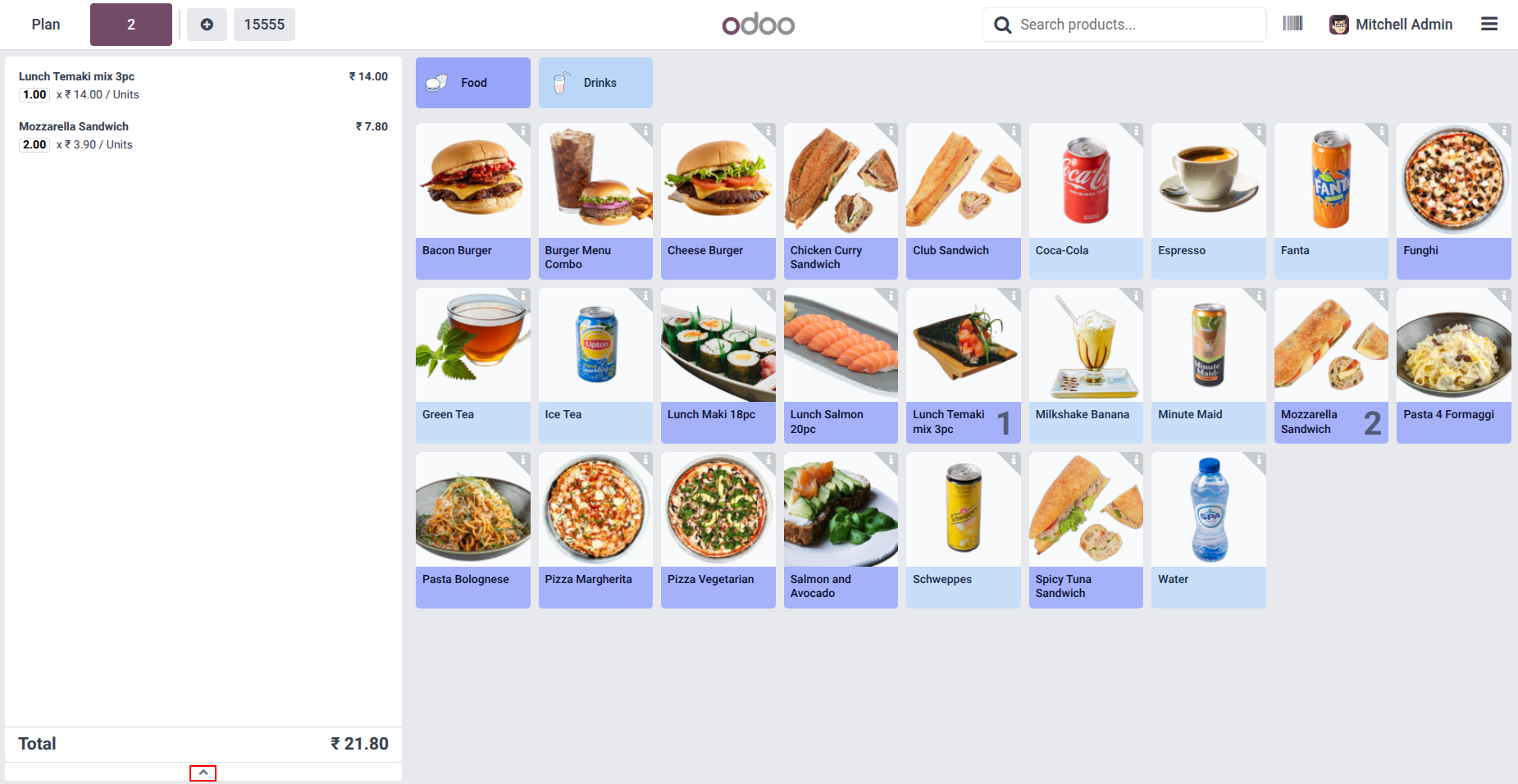
3. Users can view the default button screen layout in the POS, with options to hide or show the numpad using the downward or upward arrow.
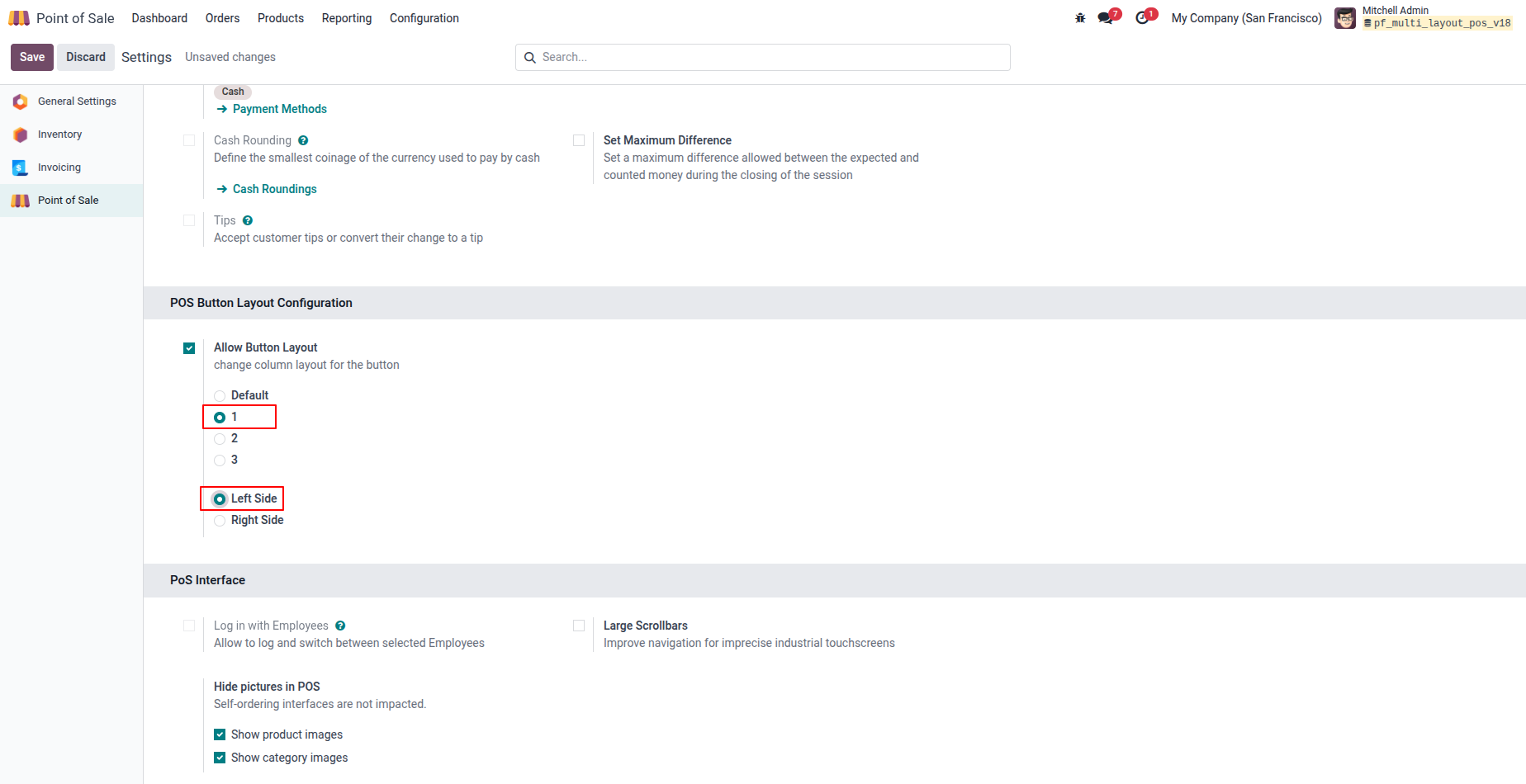
4. When 1 Column and Left Side are selected, all action buttons are displayed in a single column on the left side of the POS screen.
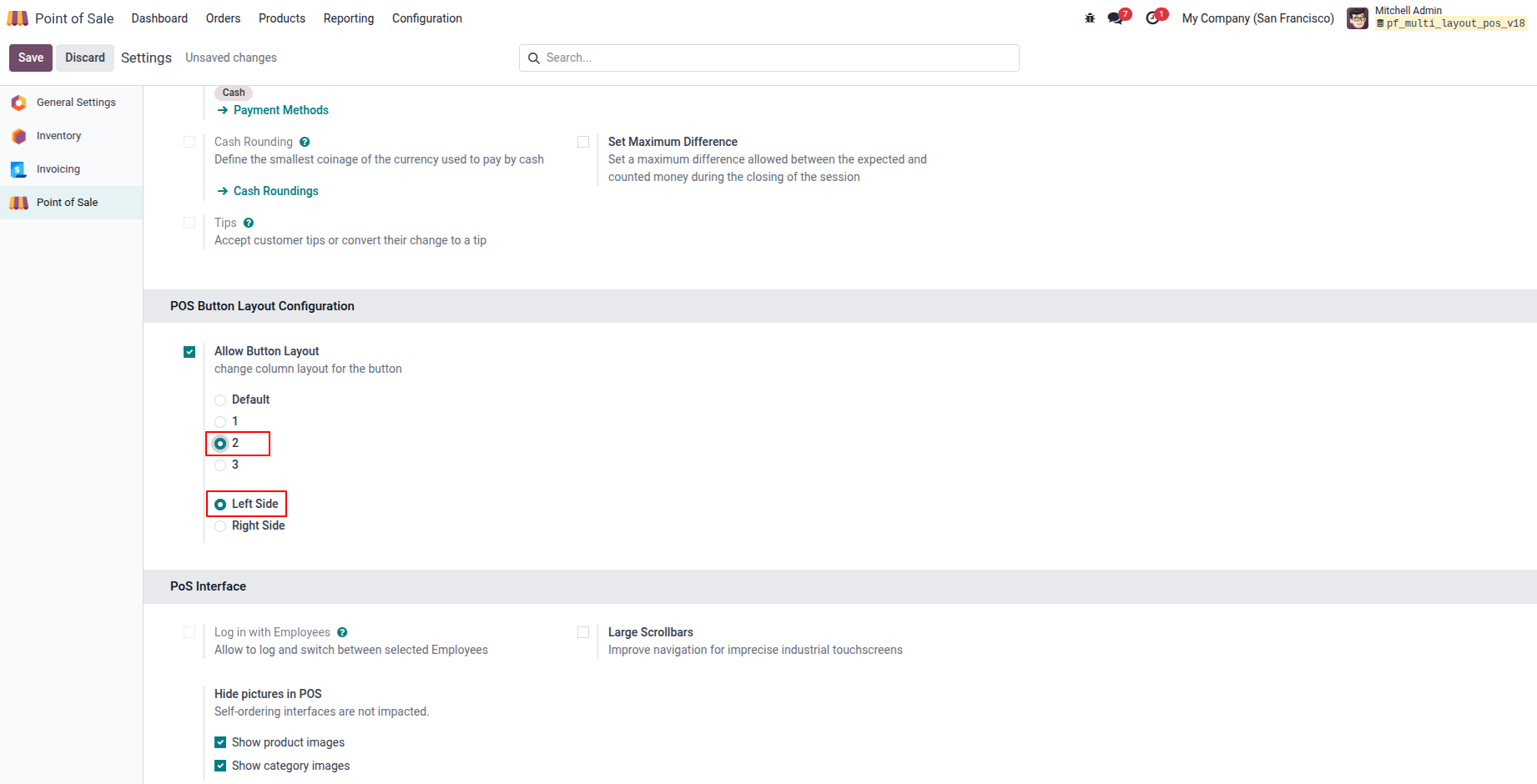
5. When 2 Columns and Left Side are selected, all action buttons are displayed in two columns on the left side of the POS screen.
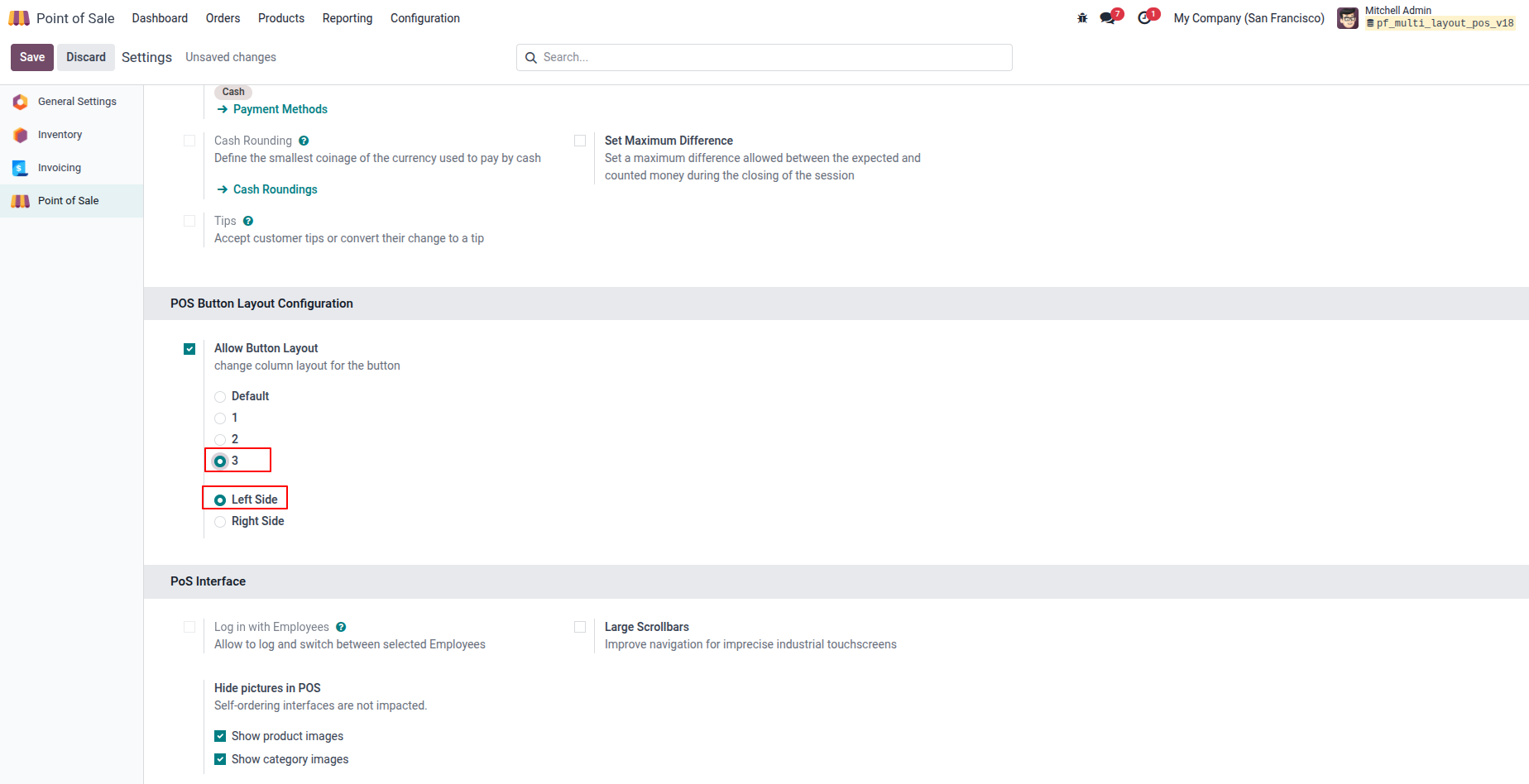
6. When 3 Columns and Left Side are selected, all action buttons are displayed in three columns on the left side of the POS screen.
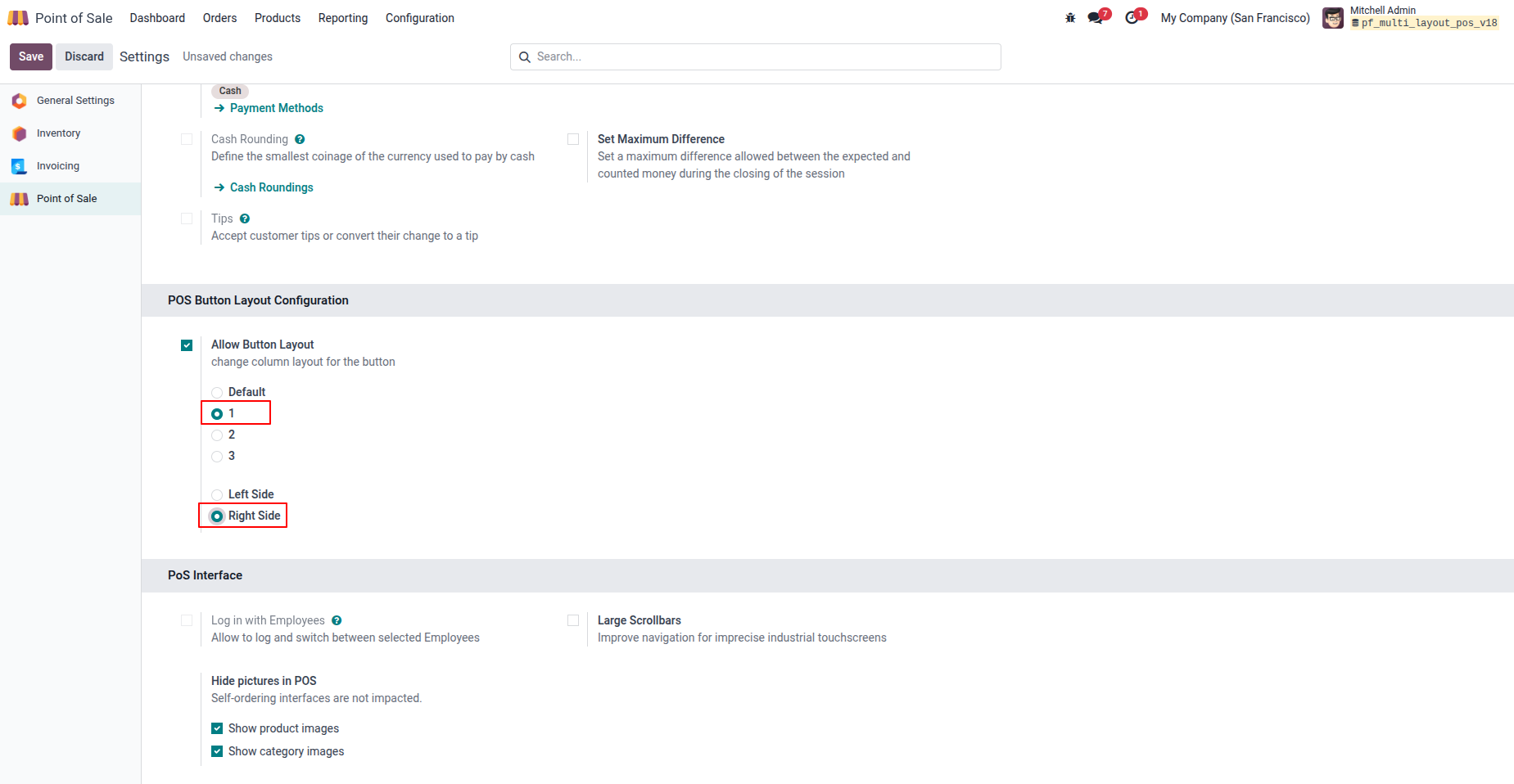
7. When 1 Column and Right Side are selected, all action buttons are displayed in a single column on the right side of the POS screen.
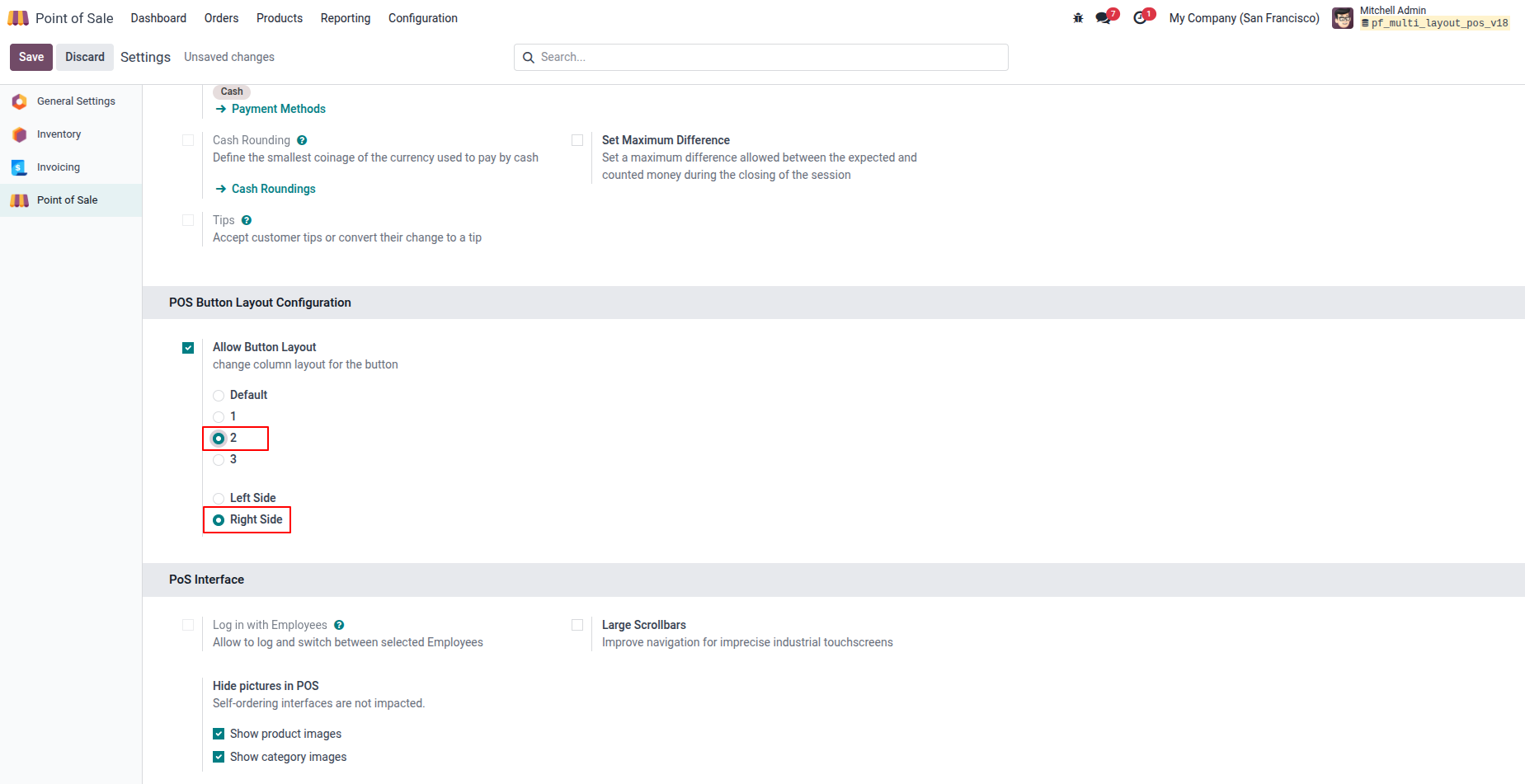
8. When 2 Column and Right Side are selected, all action buttons are displayed in a two column on the right side of the POS screen.
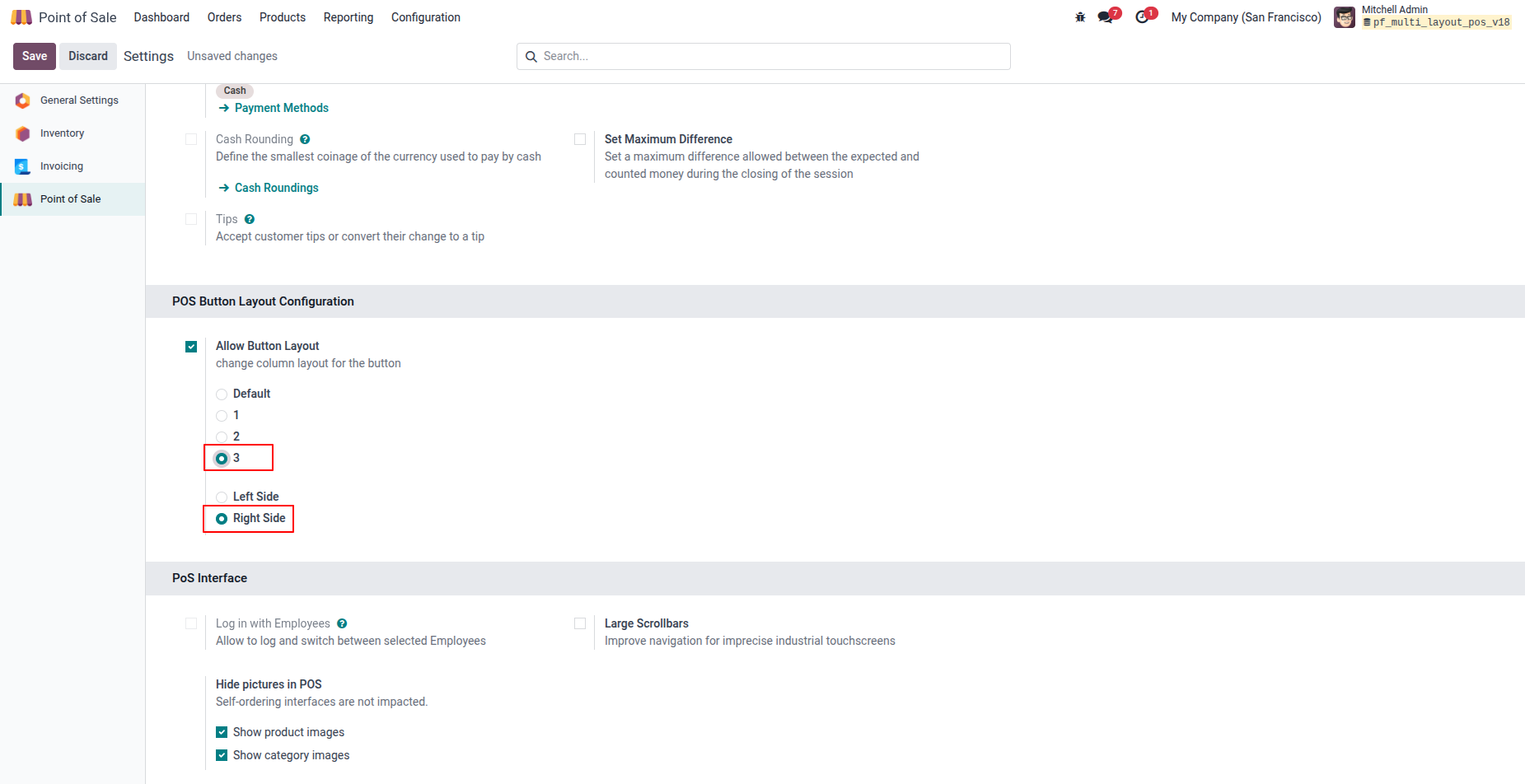
9. When 3 Column and Right Side are selected, all action buttons are displayed in a three column on the right side of the POS screen.
Our solutions focus on your problems
- Odoo Implementation
- Odoo Customization
- ERP Development and Implementation
- Odoo Ipass Cloud
- AI for Odoo
- Odoo Apps
- Aws Marketplace Products
- Business Engines
Our Pricing includes User Manual, 90 Days Support (Monday-Friday 10am to 7pm IST) and One time Setup
• Works & tested on standard installations of Odoo with no third party apps,
• Free support only for odoo installations with no third party apps,
• Paid support available for Odoo installations with third party apps.

Prefortune is a Odoo Official Partner, Odoo Development company. Our philosophy is to use Open Source tools and technologies to provide cost effective and green solutions for our customers.
Prefortune Technologies LLP is working on web development, Mobile development, and Odoo ERP.
If you need any help or want more additional features, you may contact us through:
Alternative Products
These other products might interest you
Specifications
| Version | 19.0, 18.0, 17.0, 16.0, 15.0, 14.0 |