Watch Quick Video
POS Hide Refund Button Pro Odoo App
Our all-inclusive
Odoo – POS Hide Refund Button Pro Odoo App
for Odoo is a powerful solution designed to enhance refund control and security within the Point of Sale (POS) system. It allows administrators to completely hide the refund button or restrict refund access based on user roles, ensuring only authorized personnel can process refunds. Businesses can enable refund permissions exclusively for managers or even define specific cashiers who are allowed to handle refund operations. This helps prevent unauthorized refunds, reduces financial risks, and improves overall POS transaction security. The module supports multi-employee POS sessions, making it ideal for retail environments with multiple users. It integrates seamlessly with the Odoo POS interface without affecting existing workflows. With easy configuration and flexible access control, it strengthens user accountability and ensures efficient retail and store management.
POS Hide Refund Button Pro Odoo App
- Easily hide the refund button in Odoo POS with simple and flexible configuration settings.
- Completely hide the refund button for all POS users to prevent unauthorized refund actions.
- Allow only managers to access and process refund transactions with controlled permissions.
- Ensure only selected cashiers or managers can view and perform refund operations securely.
Complete Workflow for POS Hide Refund Button Pro App
To get started with the POS Hide Refund Button Pro module, first install it from the Apps menu. After installation, navigate to Point of Sale > Configuration > Point of Sale and open your POS configuration. Here, you can enable the Hide Refund Button option to remove the refund button for all users. If required, enable Refund Access for Managers to allow only managers to view and process refunds. Additionally, you can activate Enable Restrict Refund For Specific Manager and select authorized users who are allowed to access the refund functionality. Once configured, open a POS session, and the Refund button will be visible only to selected users while remaining hidden for others. This ensures secure refund handling, prevents unauthorized actions, and maintains better control over POS operations.
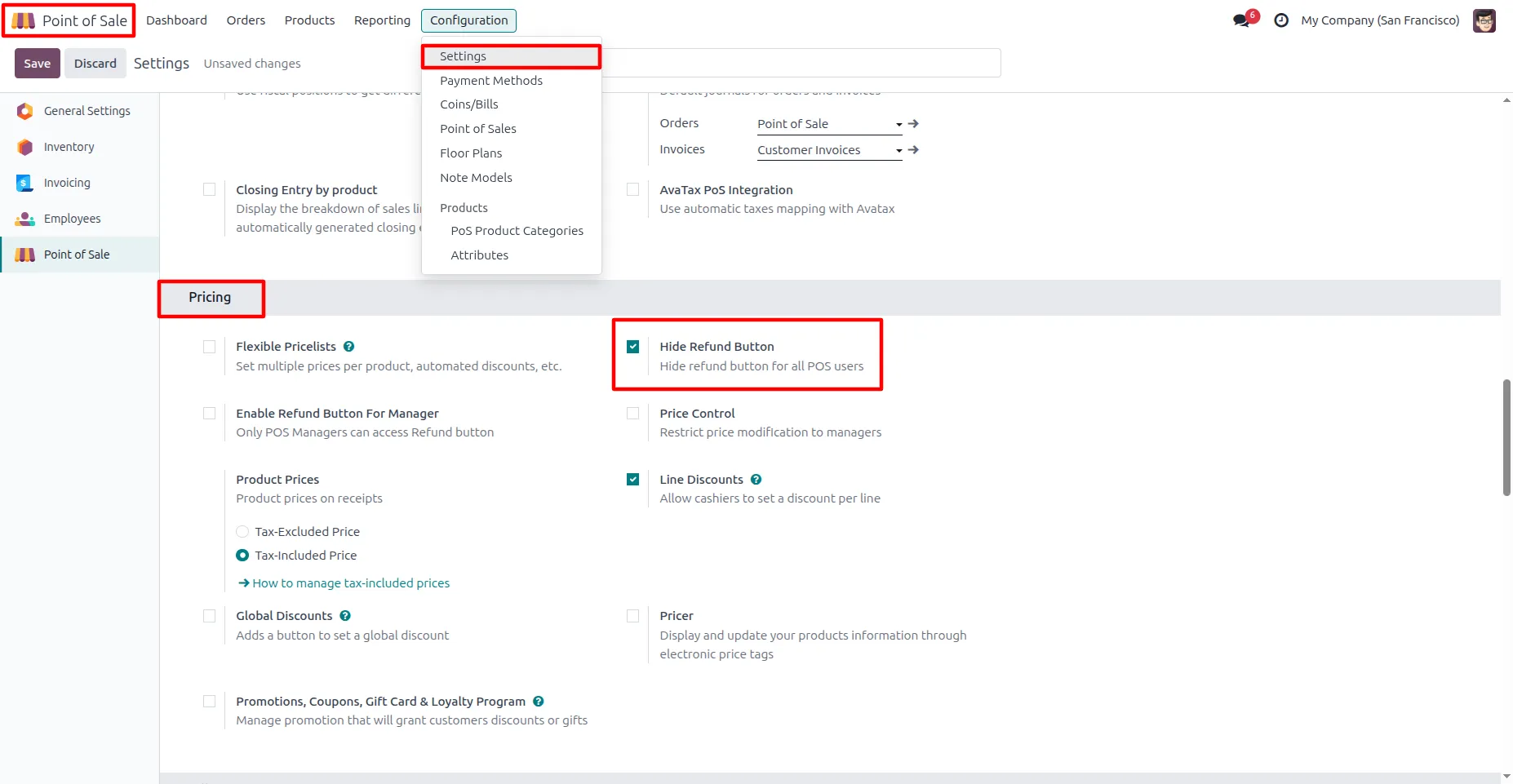
1. Go to Point of Sale → Configuration → Settings and enable the "Hide Refund Button" option to hide the refund functionality for all POS users.
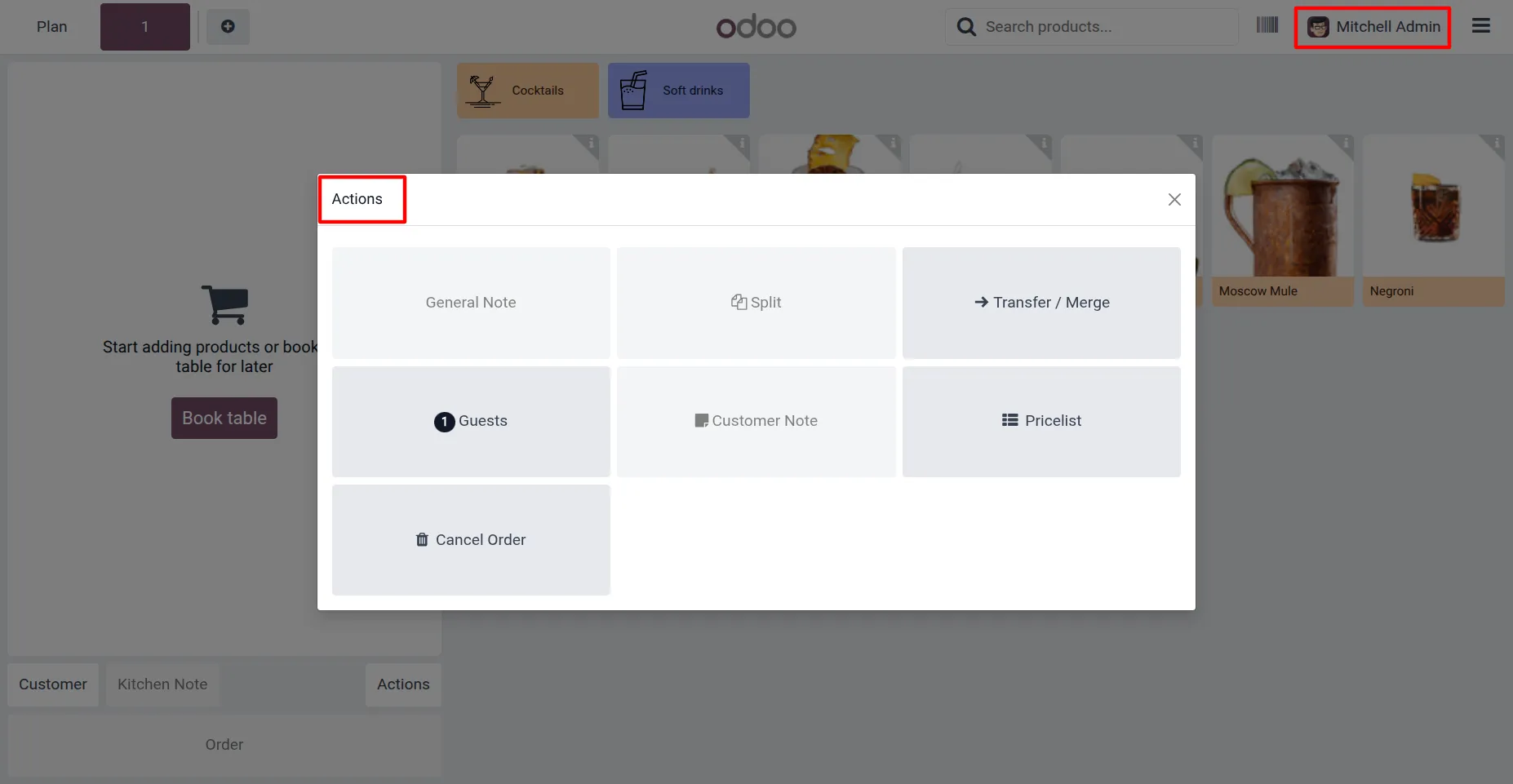
2. Even when logged in as an administrator (e.g., Mitchell Admin), enabling the "Hide Refund Button" option will hide the refund functionality from the POS interface
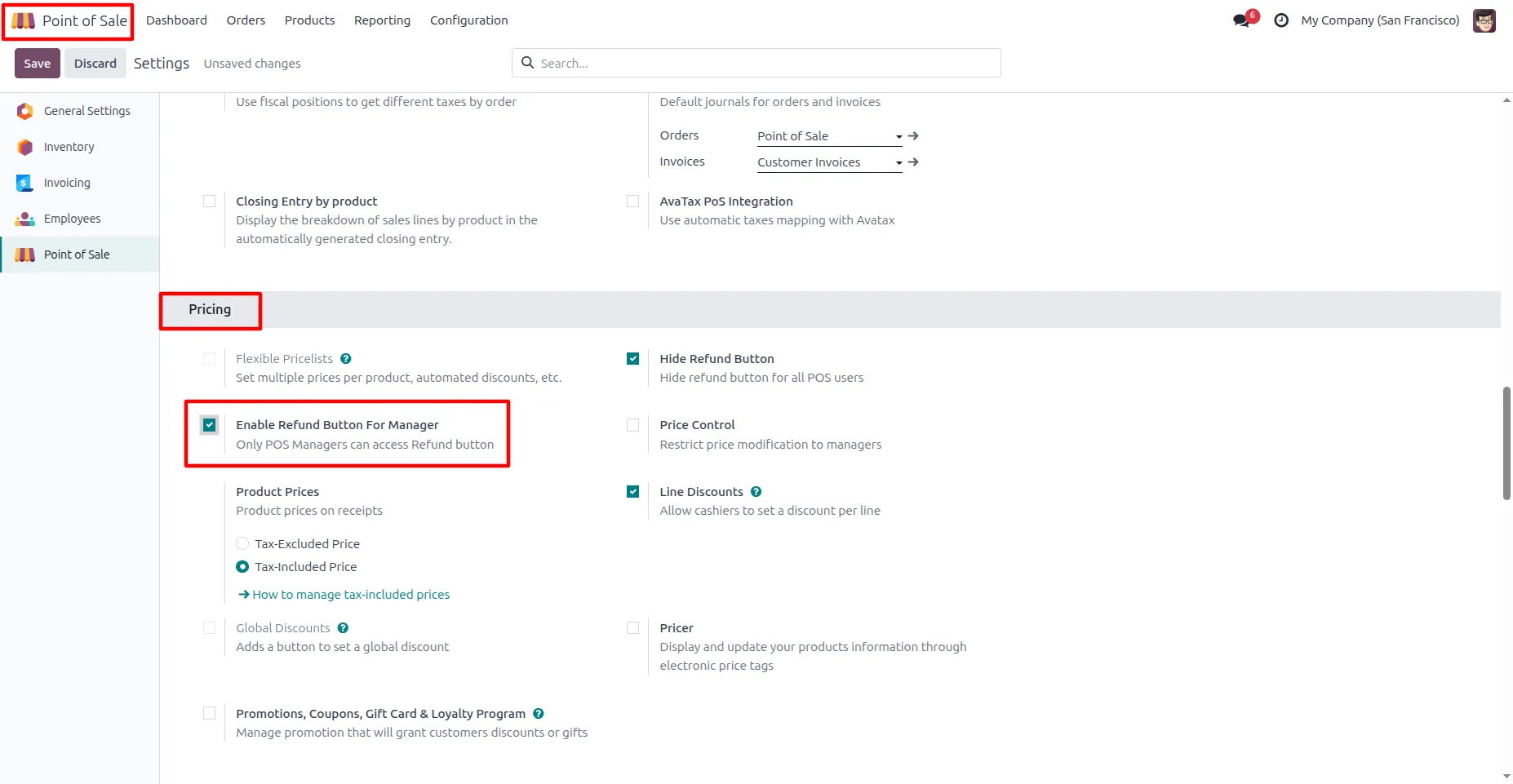
3. When enabled, "Enable Refund Button For Manager" only POS managers can access and perform refunds.
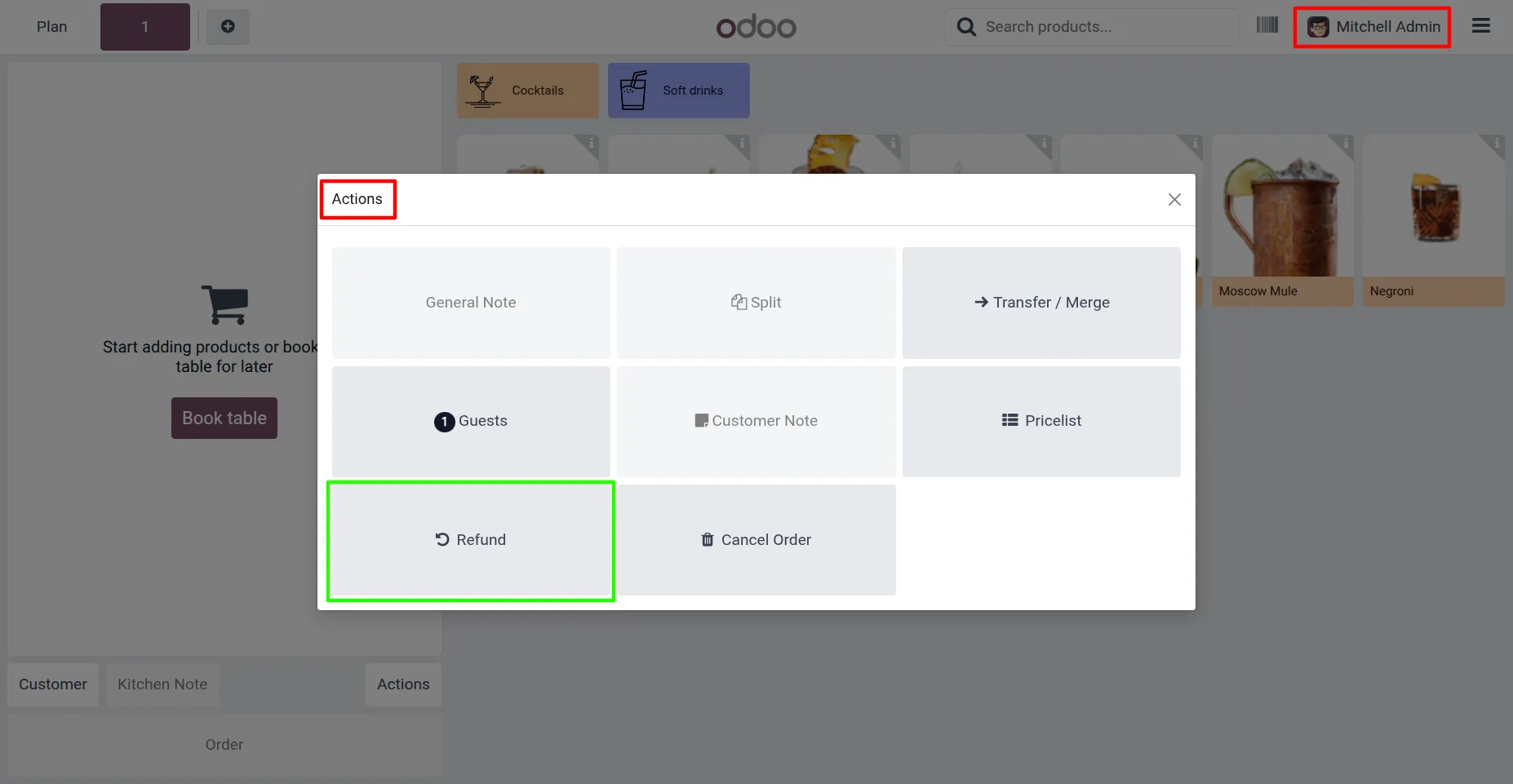
4. After enabling this option, POS managers can see and use the refund button and its functionalities.
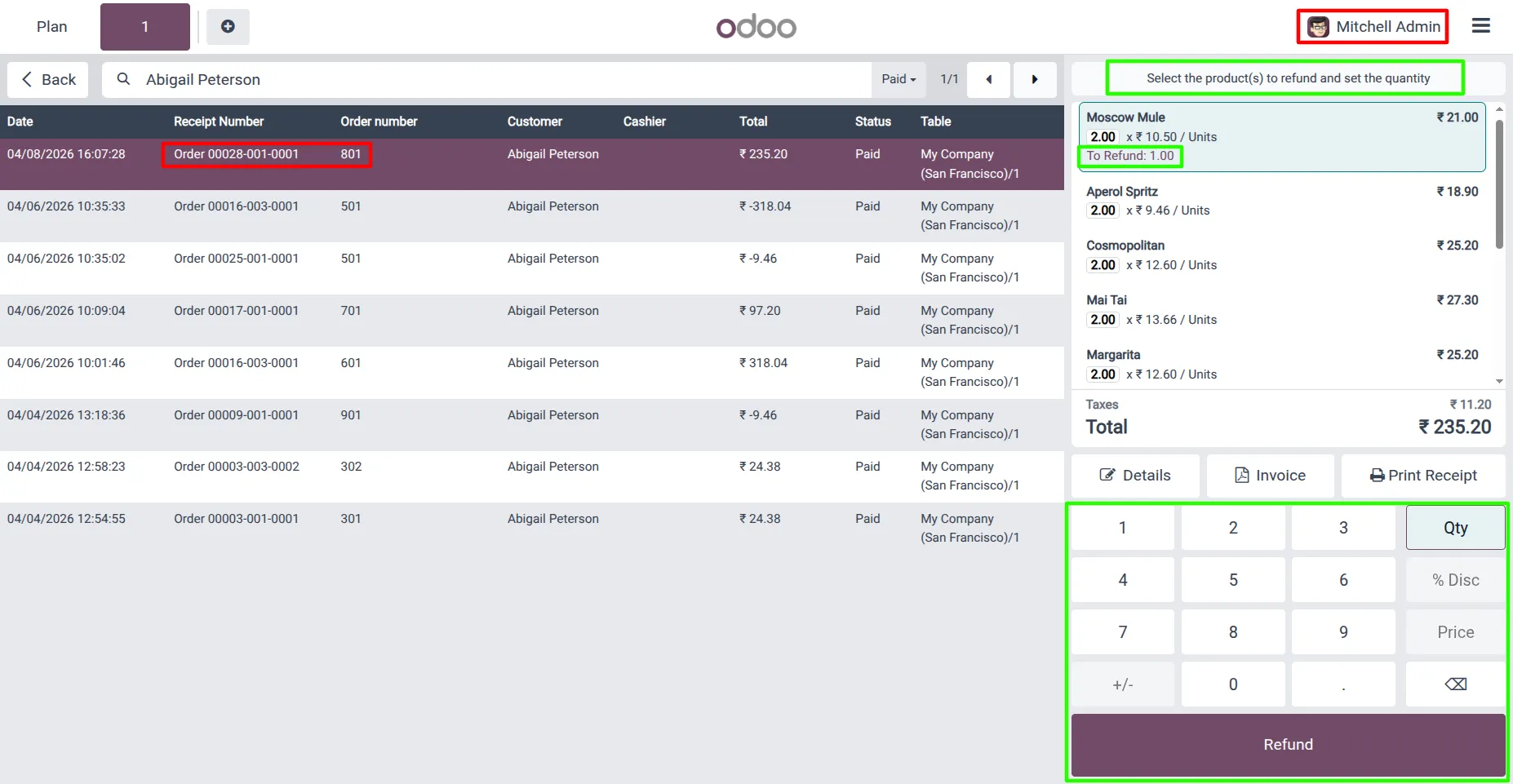
5. Manager (Mitchell Admin) can access the refund numpad and perform refund operations.
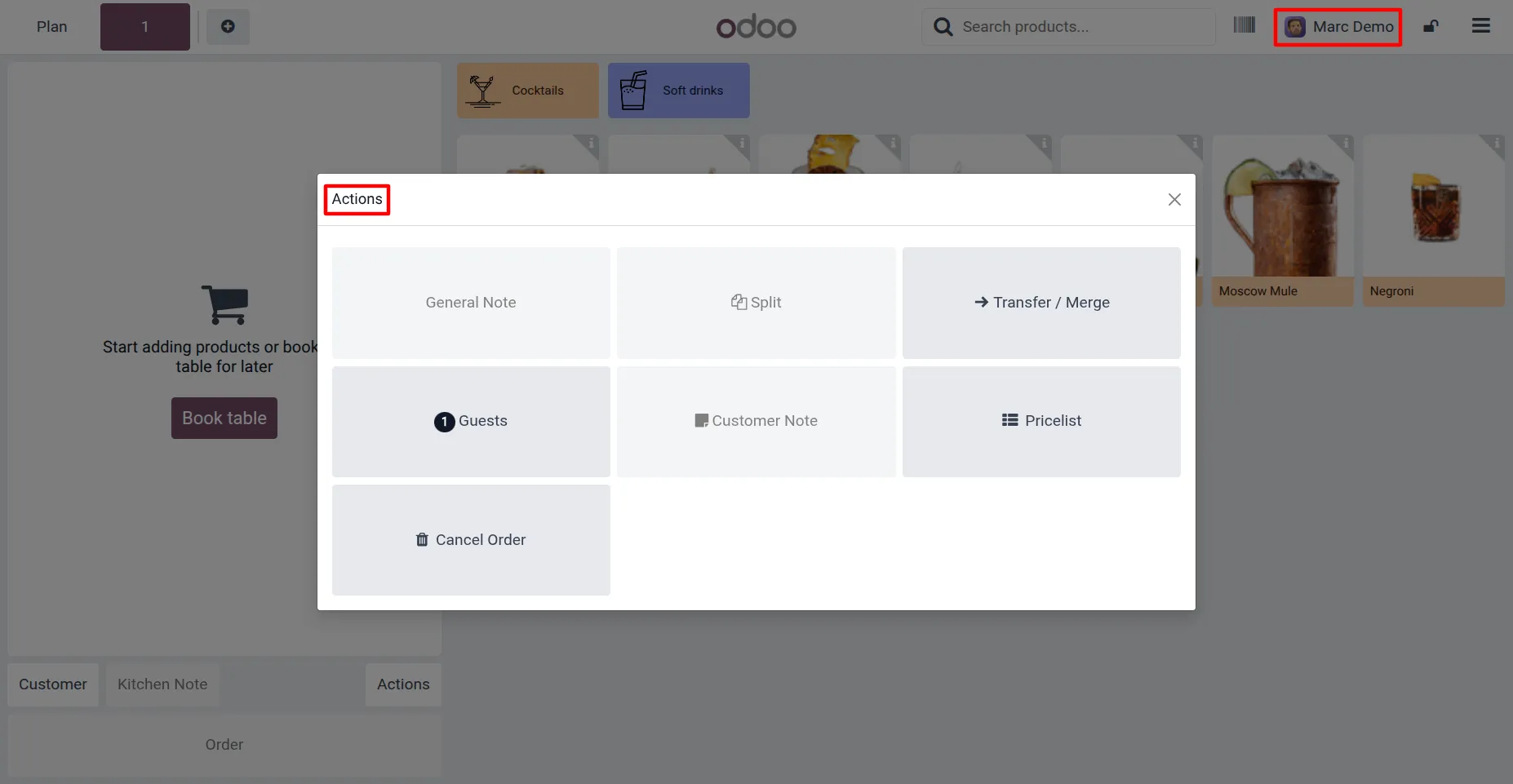
6. While a non-manager user (Marc Demo) cannot see the refund options.
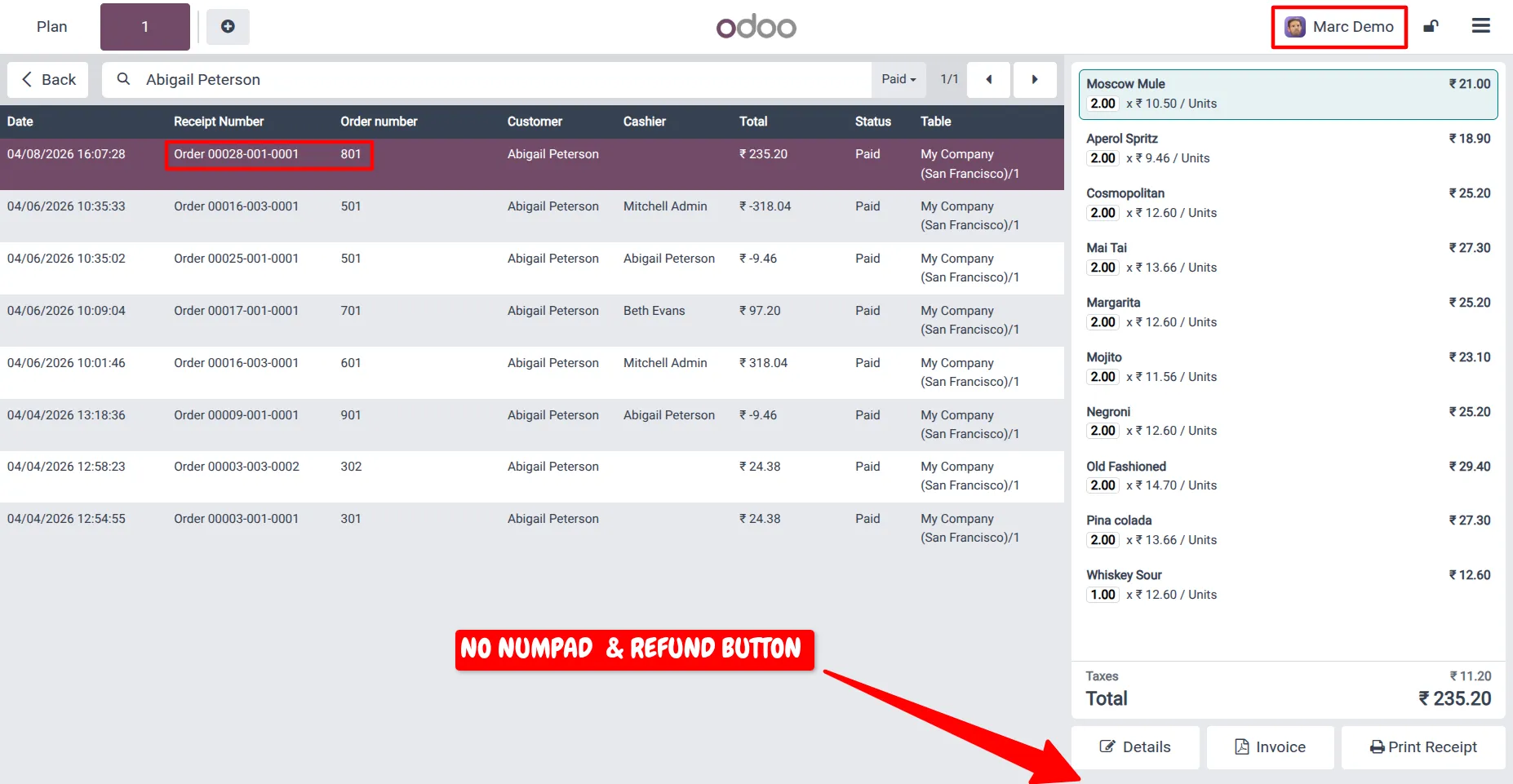
7. While a non-manager user (Marc Demo) cannot see the refund numpad or options.
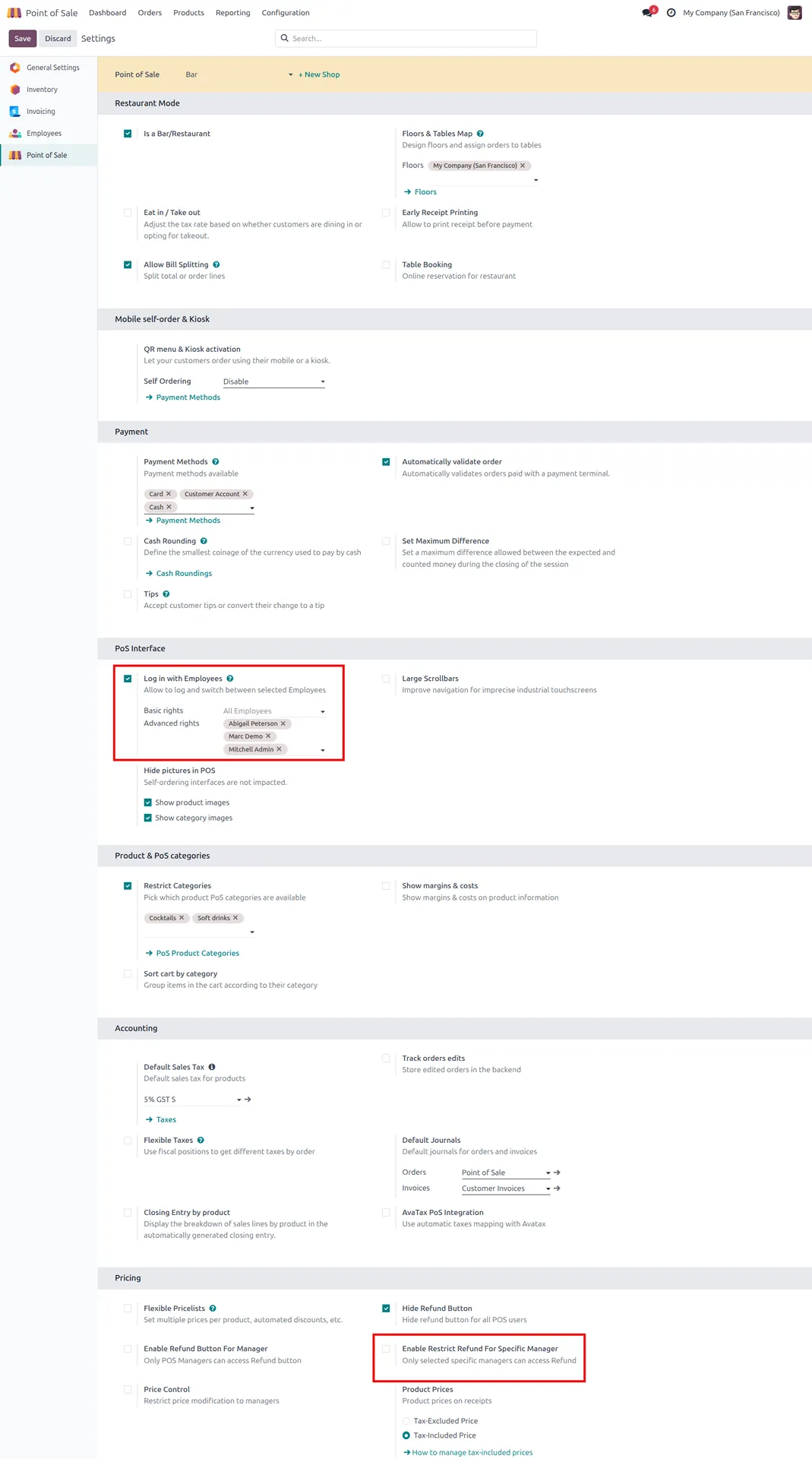
8. Enable Log in with Employees and select the employees who are allowed to use the refund option. & When "Log in with Employee" is enabled, the "Enable Restrict Refund for Specific Manager" option becomes available.
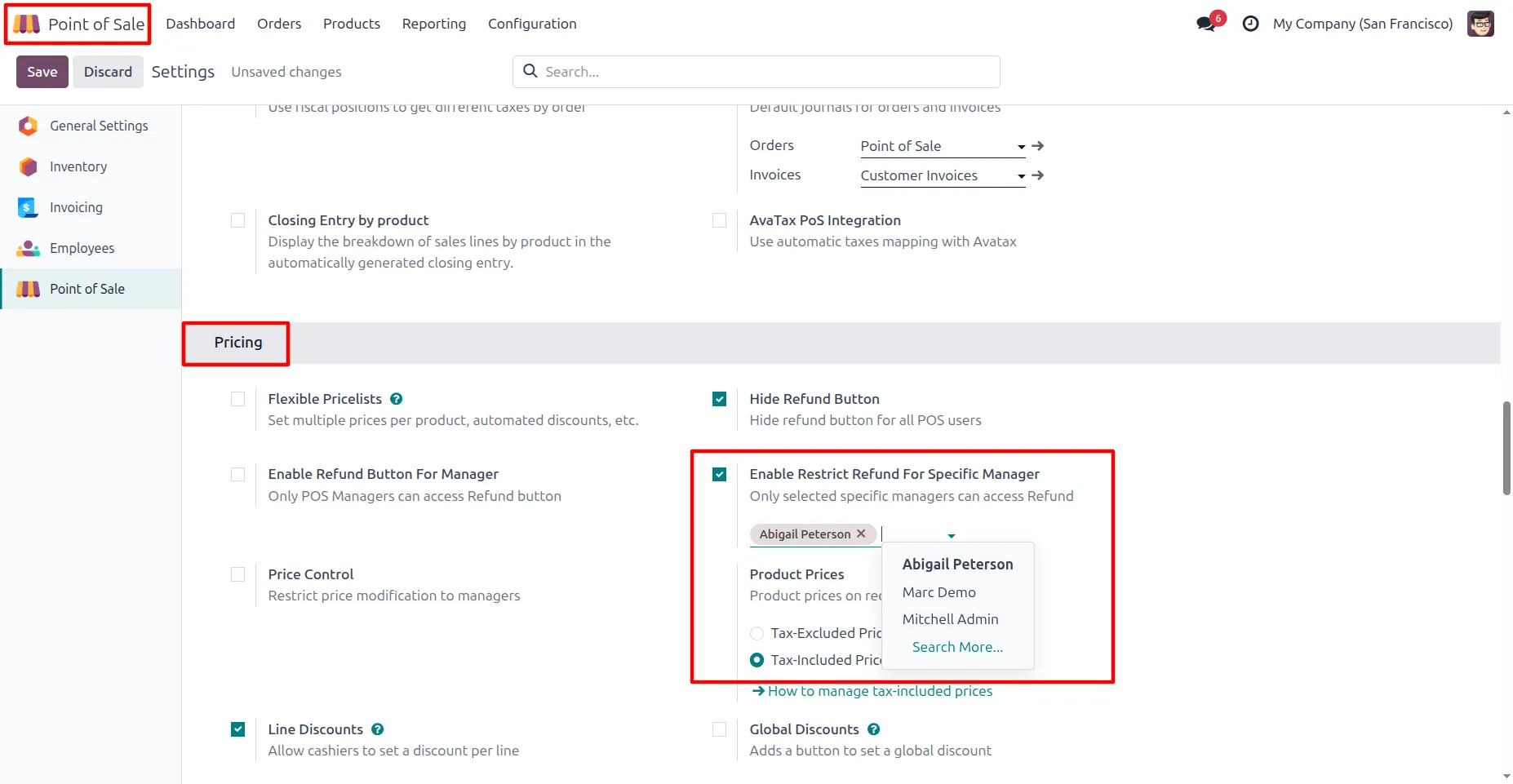
9. Admin can choose specific employees who are allowed to use the refund option.
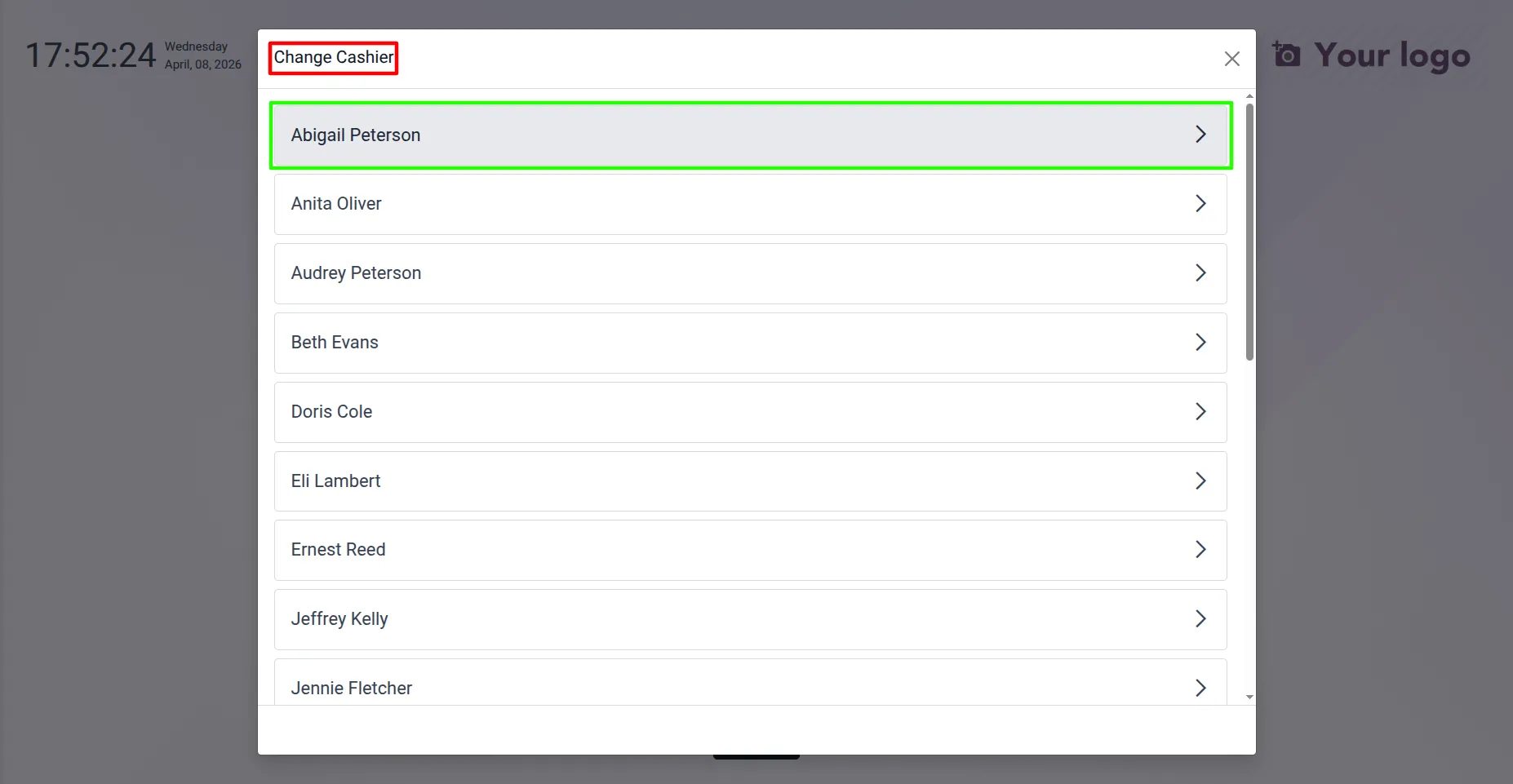
10. When logged in with selected employees, only those specific managers can see and use the refund button and its functionalities.
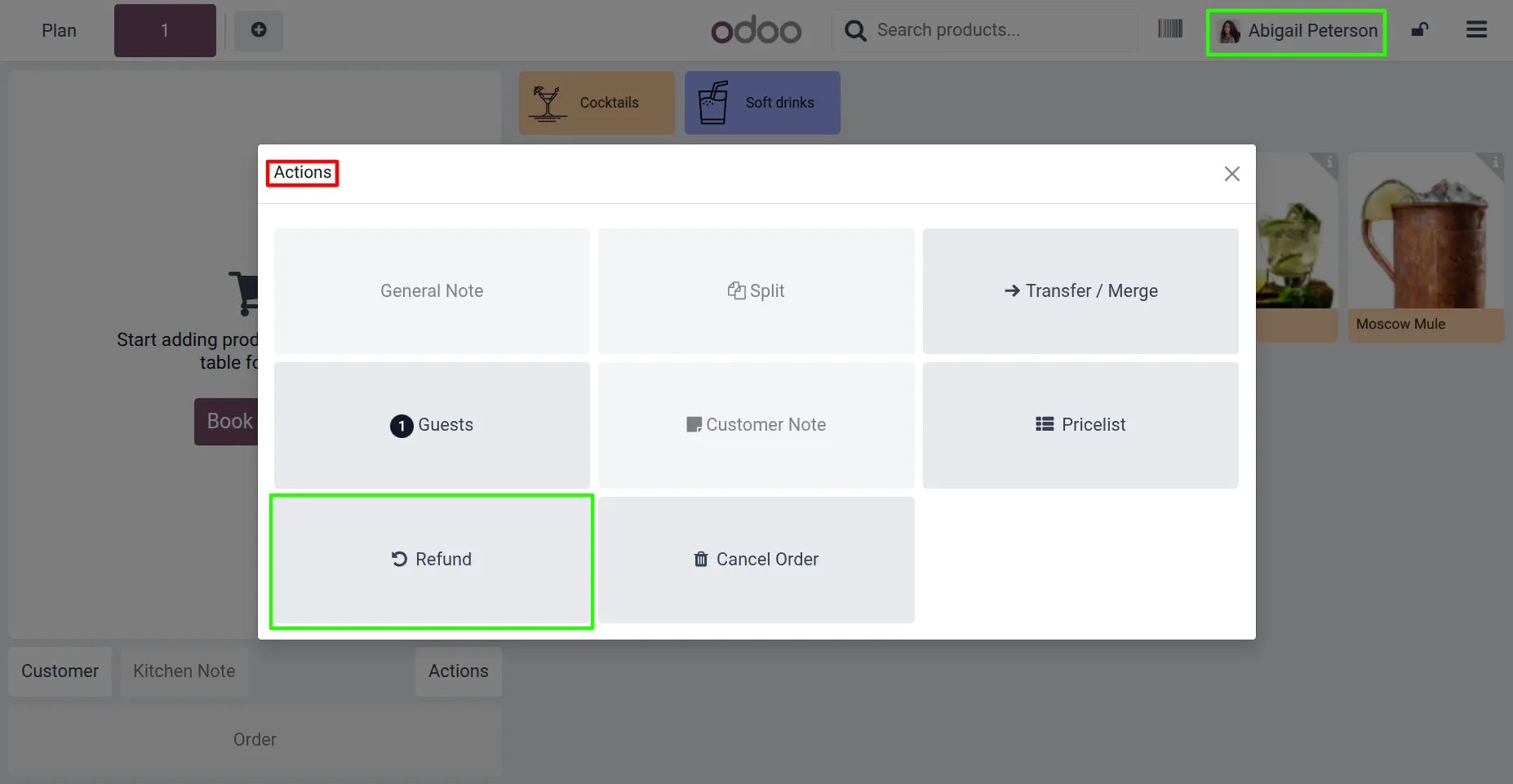
11. Only selected specific managers have the access to Refund Button to create Refund order.
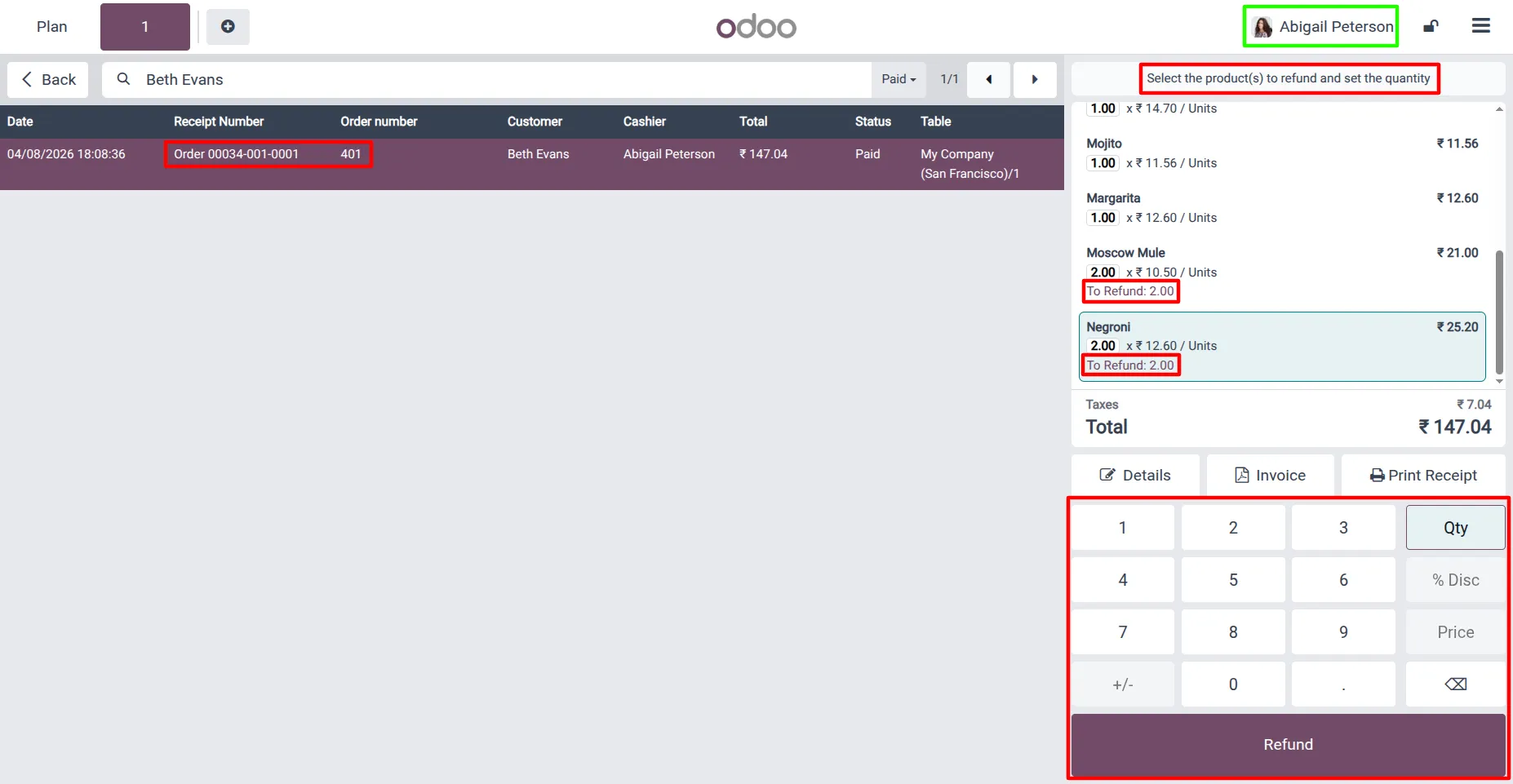
12. Only selected specific managers have the access to Refund Button to create Refund order.[Numpad], [Refund Button], [Refund Message]
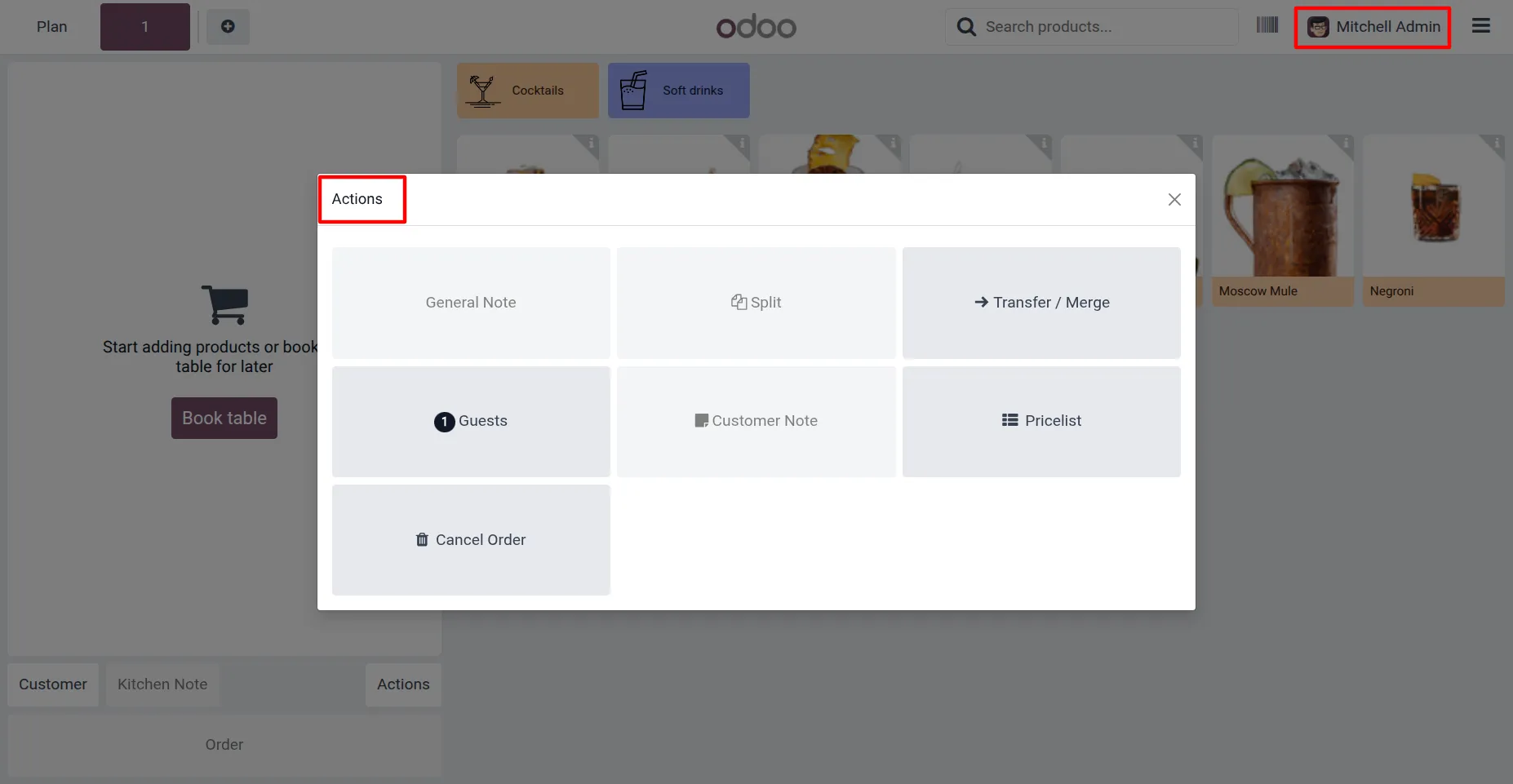
13. Since (Mitchell Admin) is not selected in the "Enable Restrict Refund for Specific Manager" option, the refund options are not visible.
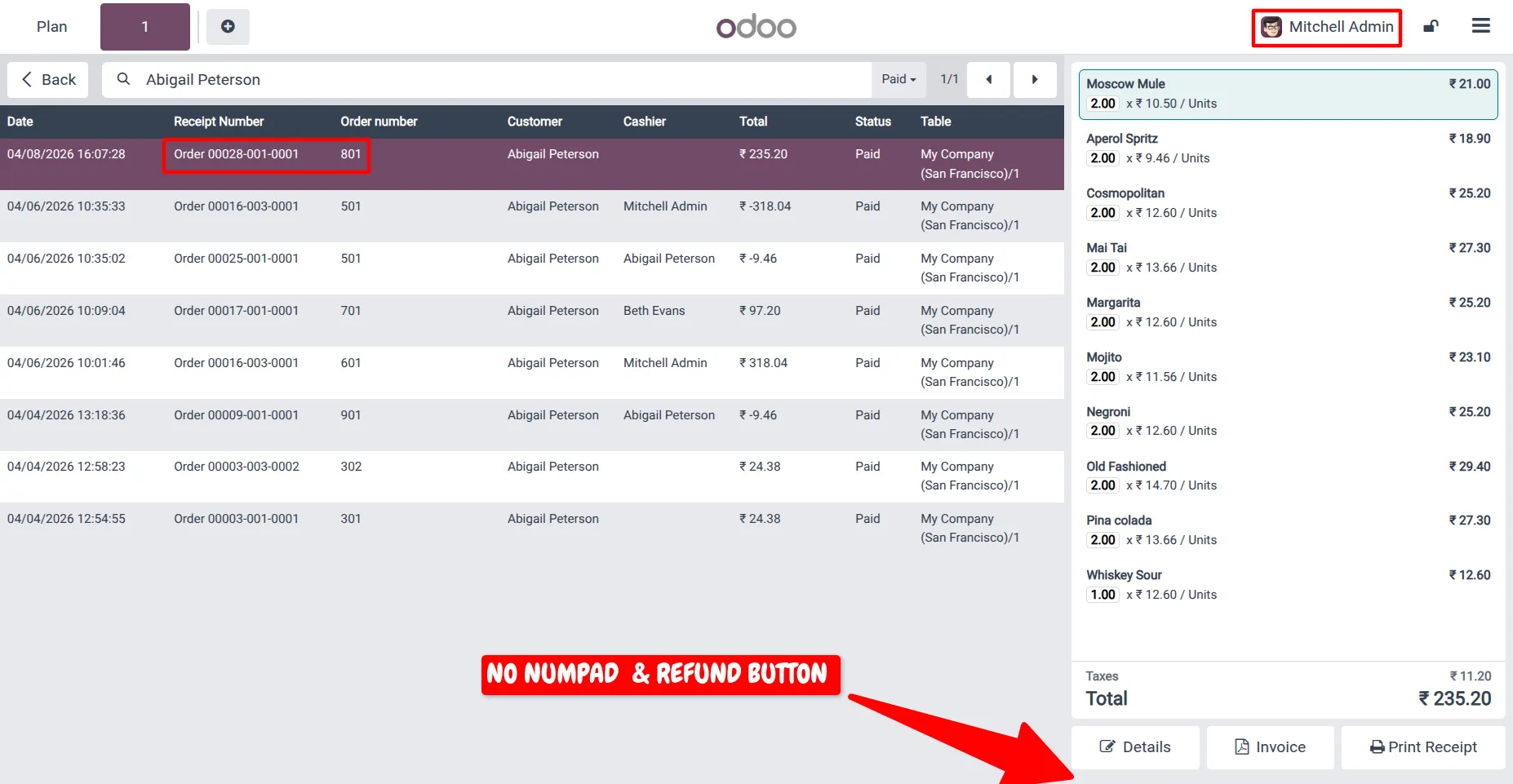
14. Since (Mitchell Admin) is not selected in the "Enable Restrict Refund for Specific Manager" option, the refund button, refund numpad are not visible.
Our solutions focus on your problems
- Odoo Implementation
- Odoo Customization
- ERP Development and Implementation
- Odoo Ipass Cloud
- AI for Odoo
- Odoo Apps
- Aws Marketplace Products
- Business Engines
Our Pricing includes User Manual, 90 Days Support (Monday-Friday 10am to 7pm IST) and One time Setup
• Works & tested on standard installations of Odoo with no third party apps,
• Free support only for odoo installations with no third party apps,
• Paid support available for Odoo installations with third party apps.

Prefortune is a Odoo Official Partner, Odoo Development company. Our philosophy is to use Open Source tools and technologies to provide cost effective and green solutions for our customers.
Prefortune Technologies LLP is working on web development, Mobile development, and Odoo ERP.
If you need any help or want more additional features, you may contact us through:
Alternative Products
These other products might interest you
Specifications
| Version | 19.0, 18.0, 17.0, 16.0, 15.0 |