Watch Quick Video
PDF Attachment Merger Pro Odoo App
PDF Attachment Merger Pro Odoo App
Simple and effective solution to merge important PDF attachments directly with Odoo Reports. From Odoo settings, users can configure the merging of PDF reports for Sales Orders, Purchase Orders, Invoices and Inventory. Automatically merge the required PDF attachments from the record with the generated report. Users can print or email reports with all selected attachments merged into a single PDF. It provides users and businesses a faster, cleaner and more convenient Odoo experience to keep related documents together, reduce manual work and easily share complete reports.
PDF Attachment Merger Pro Odoo App Features
- Configure PDF report merging from Odoo Settings for Sales, Purchase, Invoice and Inventory modules.
- Users can email merged PDF attachments in one shot without having to manually merge and attach multiple PDF files.
- Combine selected attachments automatically with generated reports when printing.
- Send reports with attached merged PDF directly through e-mail.
- Easily share and manage related documents by grouping them into one PDF.
- Simple and efficient PDF attachment management for Odoo users.
Complete Workflow for PDF Attachment Merger Pro Odoo App
Users can easily merge PDF attachments with Odoo reports directly from supported Odoo records. Configure PDF report merging from the Odoo Settings for Sales Orders, Purchase Orders, Invoices and Inventory, then select the required PDF attachments from the Attachment Merge field. The module automatically combines the selected PDF attachments with the generated report when users print the document. Users can also send reports with merged PDF attachments by email. It keeps related documents together in a single PDF, providing a simple, efficient, and more convenient experience for Odoo users and businesses.
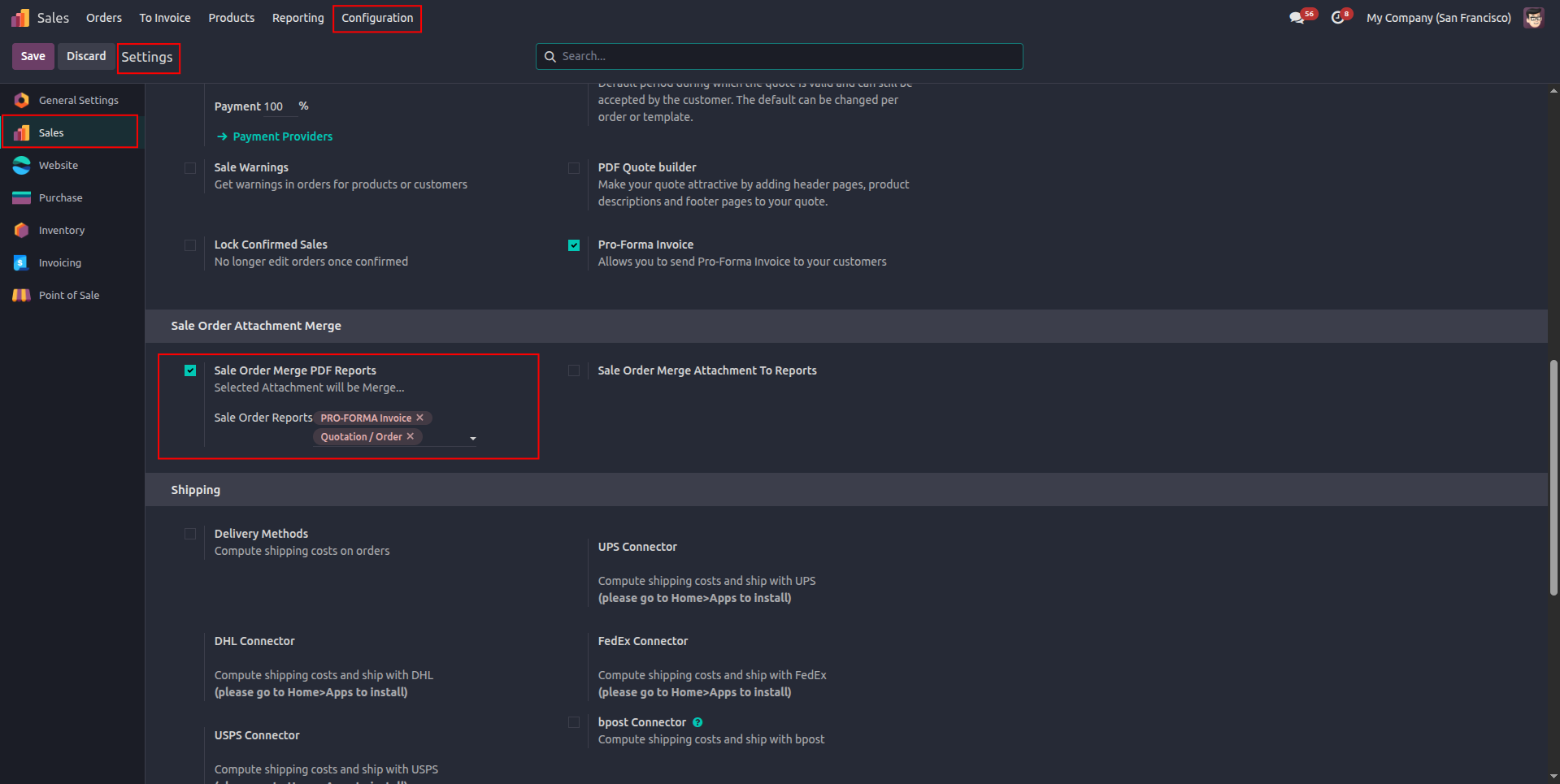
1. Go to Sales → Configuration → Settings and enable “Sale Order Merge PDF Reports,” then select the required Sale Order reports for PDF attachment merging.
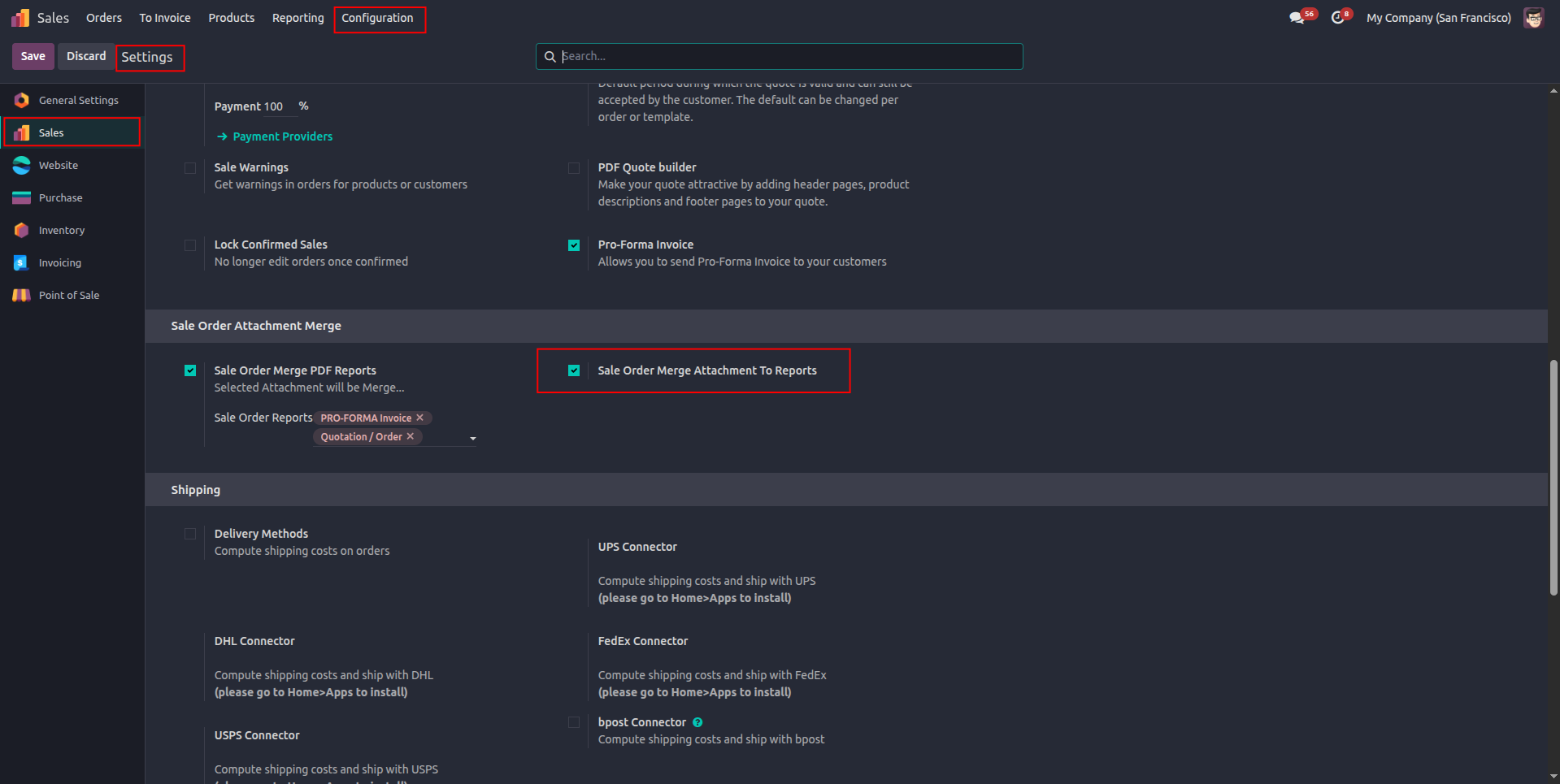
2. Enable “Sale Order Merge Attachment To Reports” to automatically merge the selected PDF attachments with the configured Sale Order reports.
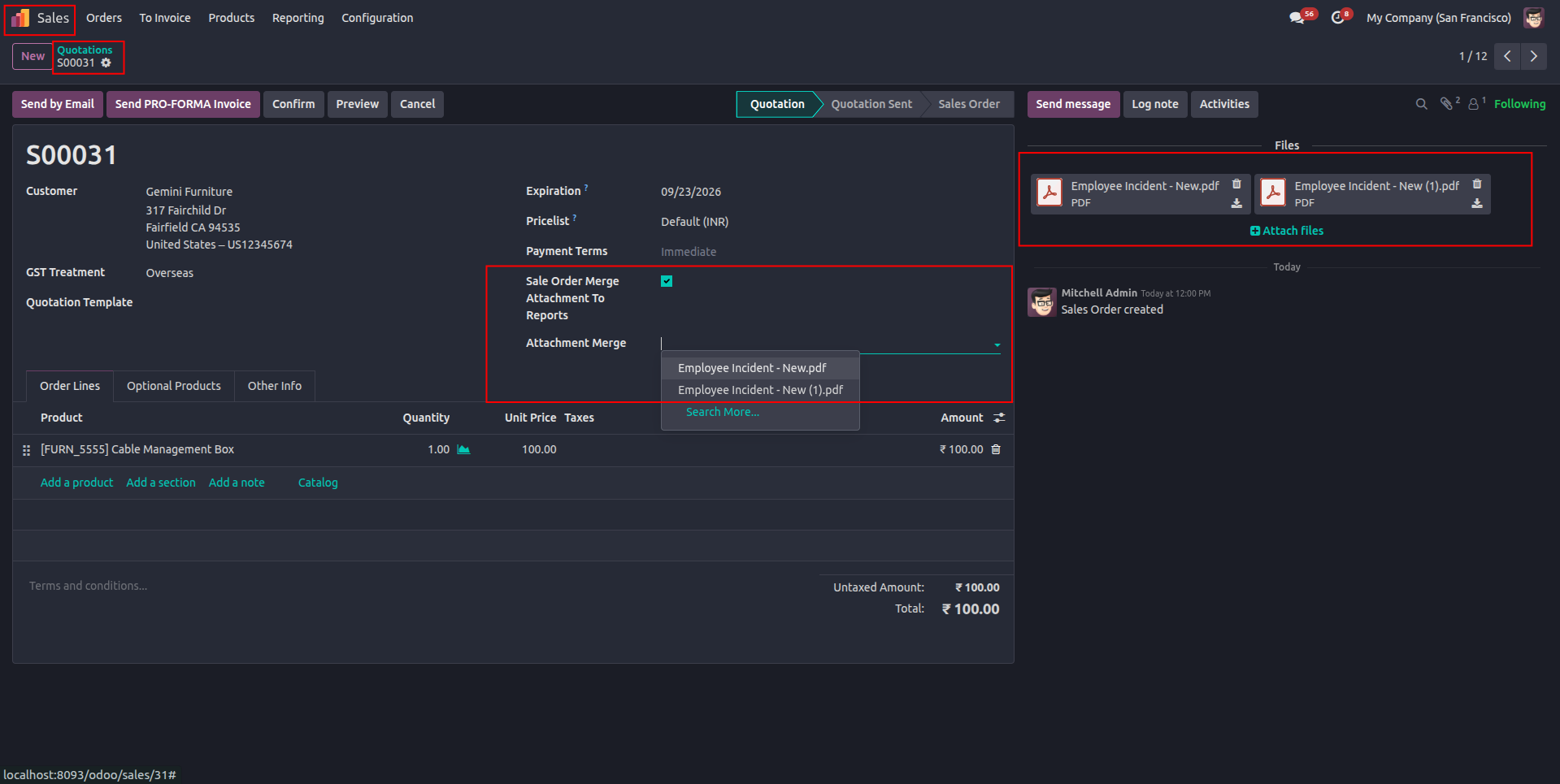
3. On the Quotation, enable “Sale Order Merge Attachment To Reports” Add the required PDF attachments to the quotation, then select the added PDF files from the “Attachment Merge” field to merge them with the Sale Order report.
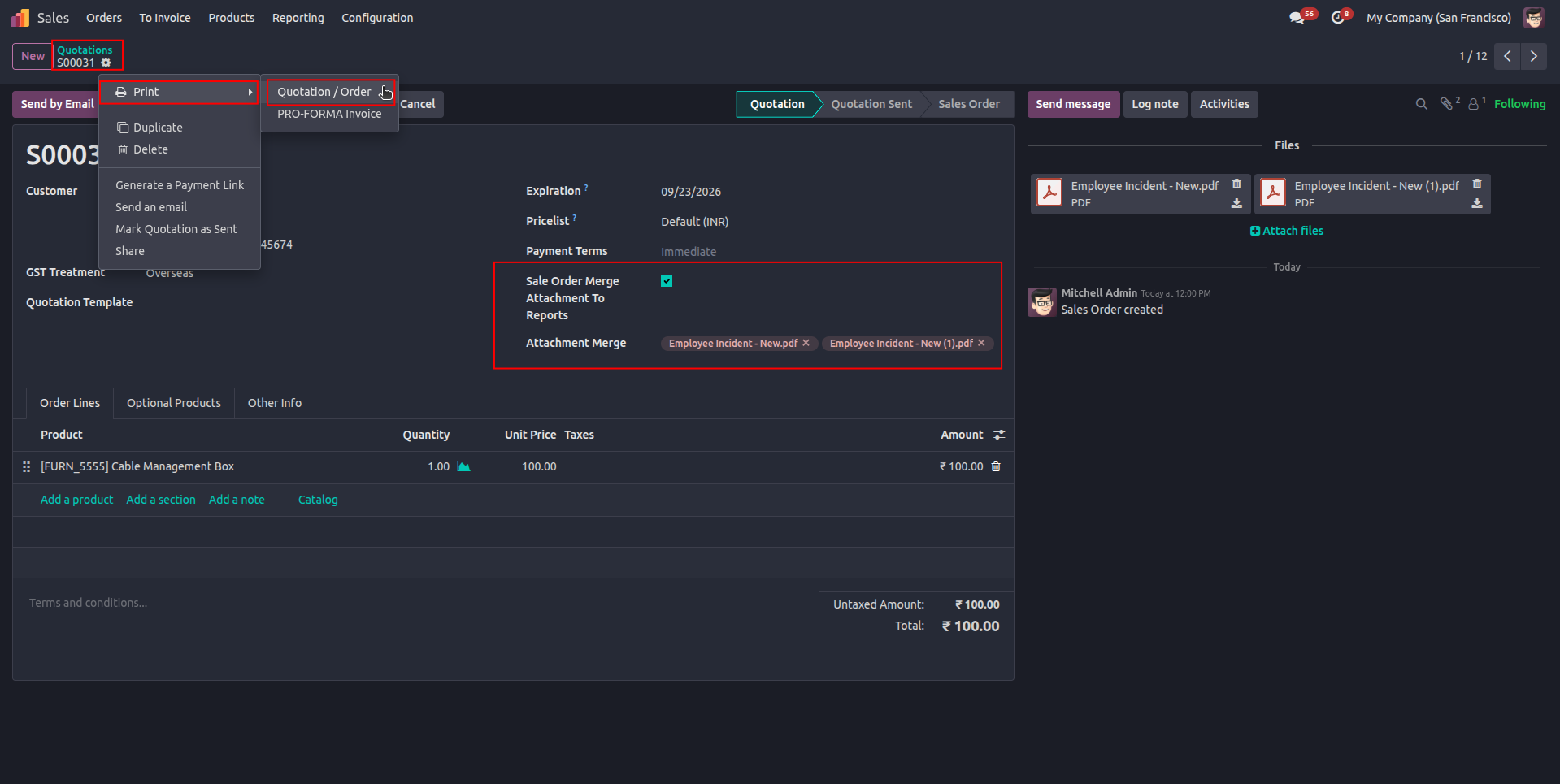
4. Open the Print menu from the Sale Order and select Quotation / Order OR Selected PDF report from setting to generate the report with the selected PDF attachments merged into it.
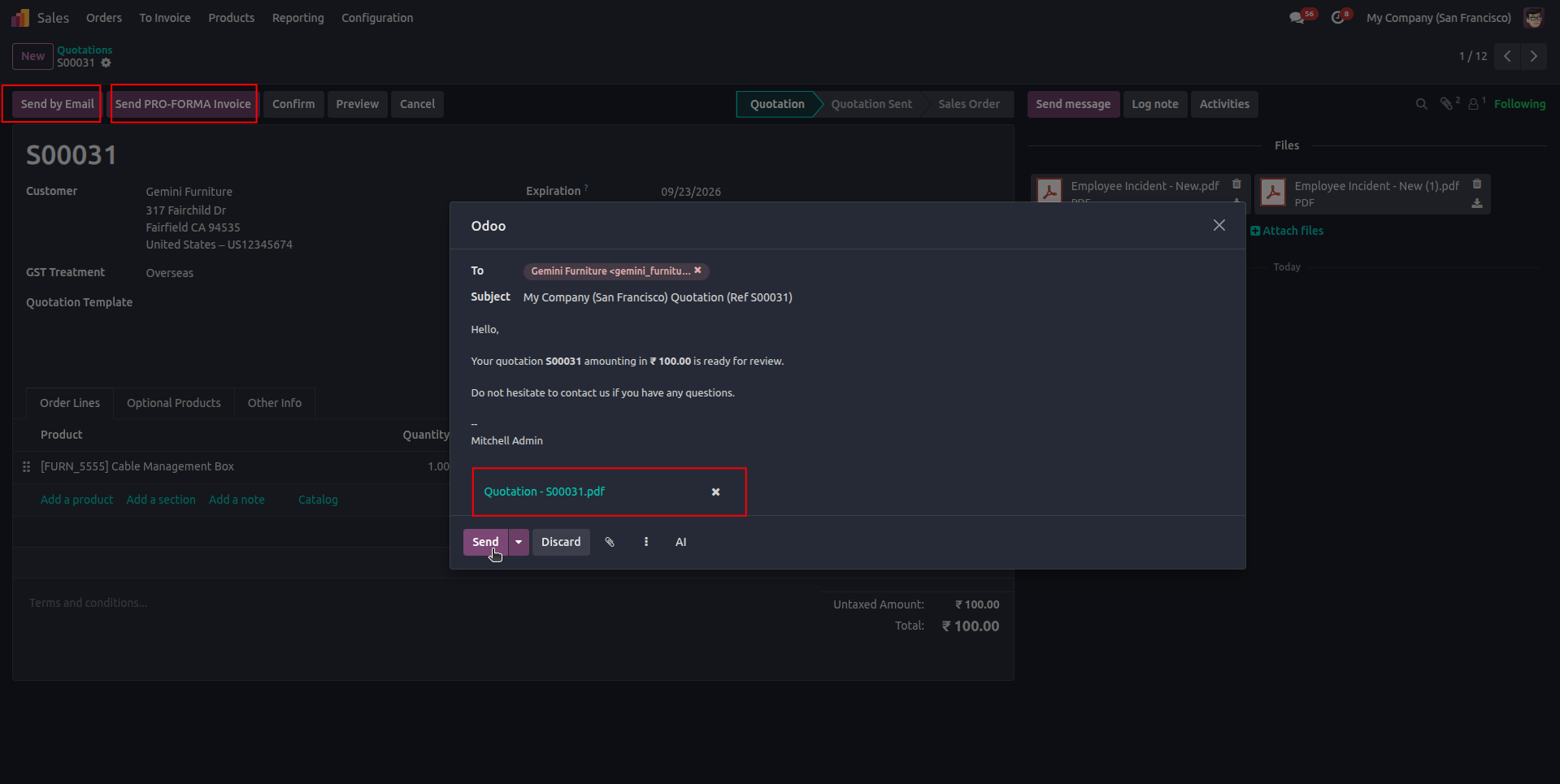
5. Click Send by Email to open the email composer, where the generated Quotation PDF with the merged attachments is automatically included and ready to be sent to the customer.
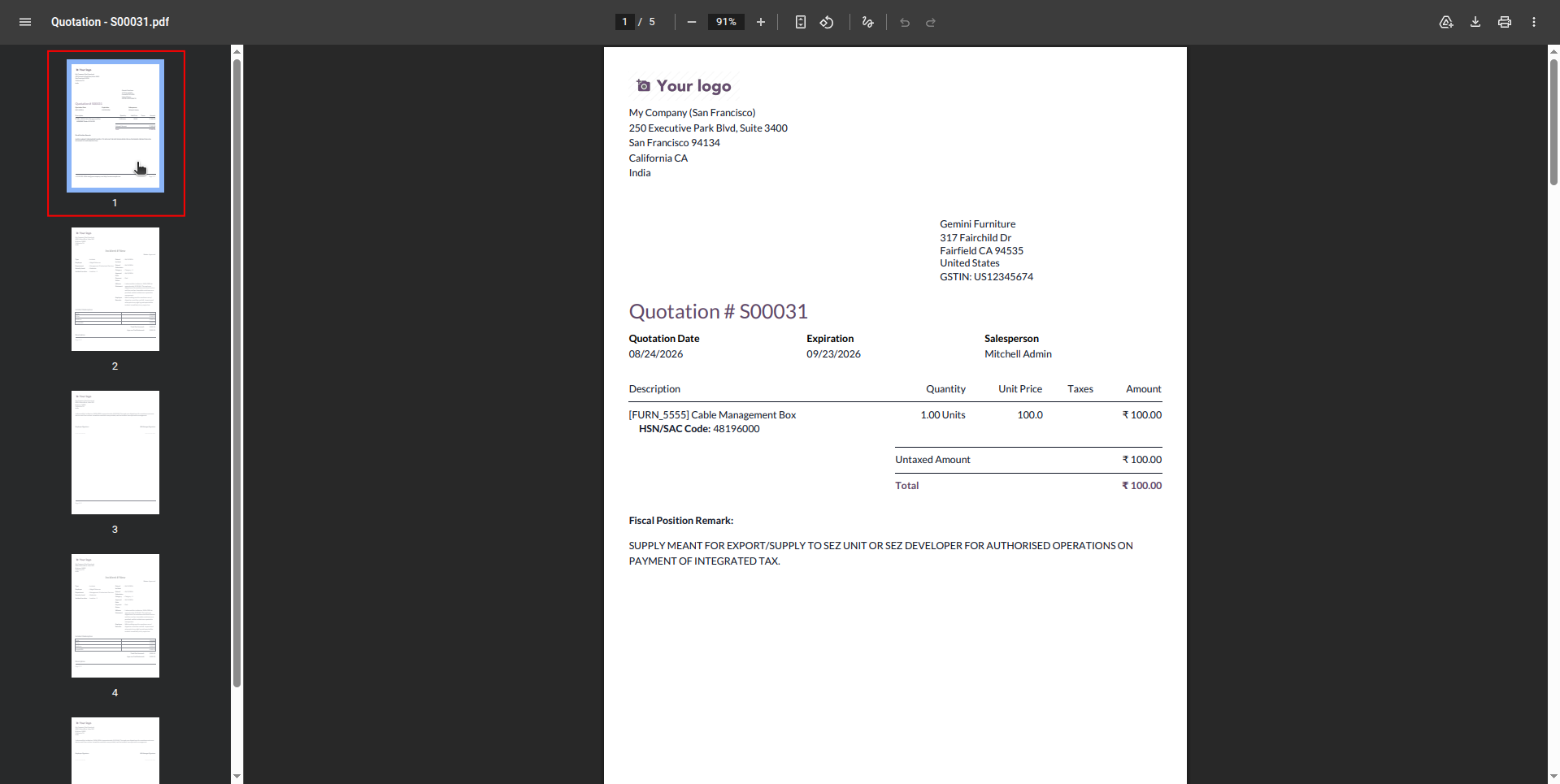
6. The generated Quotation PDF now contains the original Sale Order report together with the selected PDF attachments, combined into a single PDF document with all pages included.
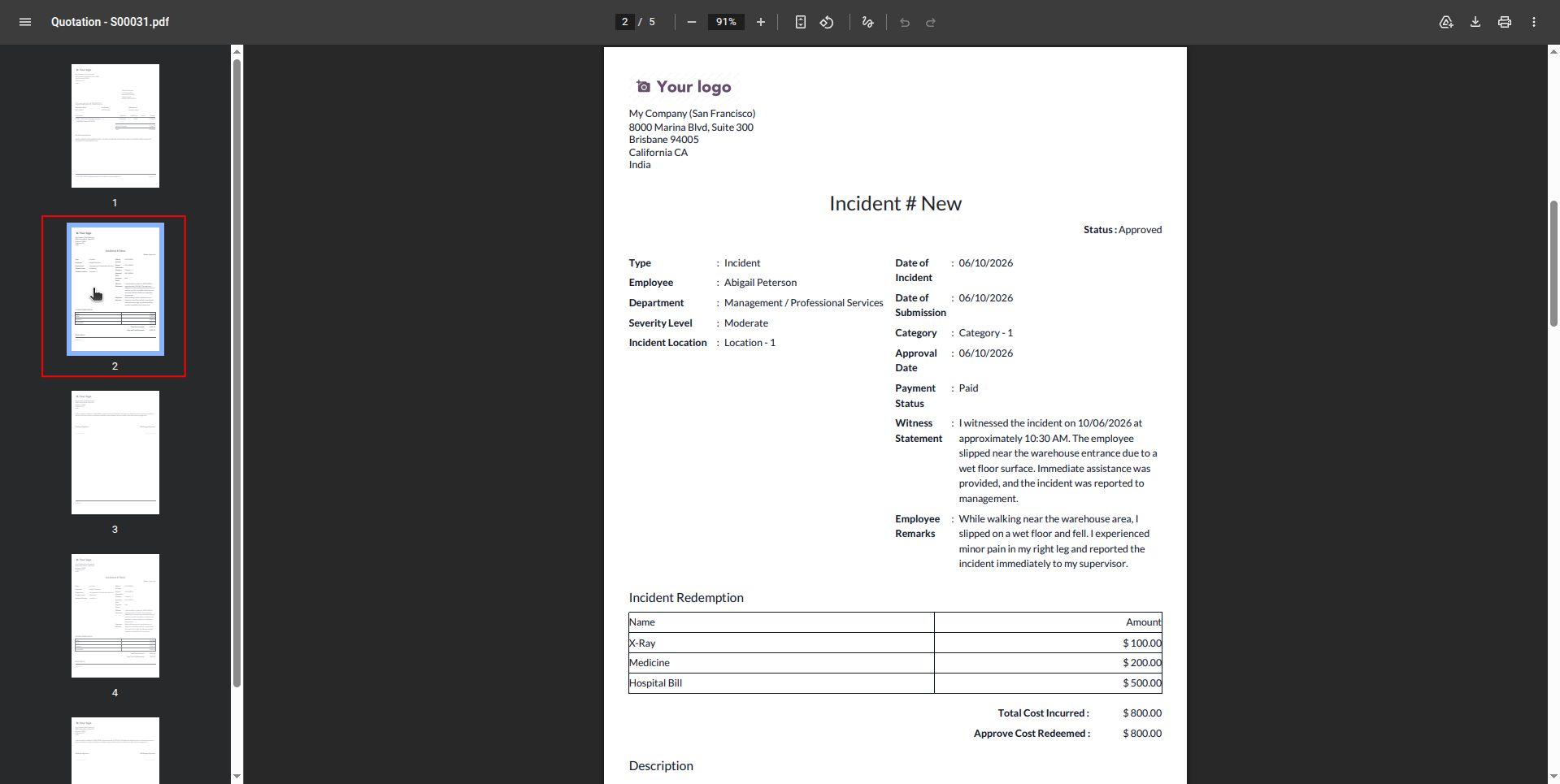
7. The selected PDF attachment is successfully merged with the Quotation report, appearing as the next page in the combined PDF document.
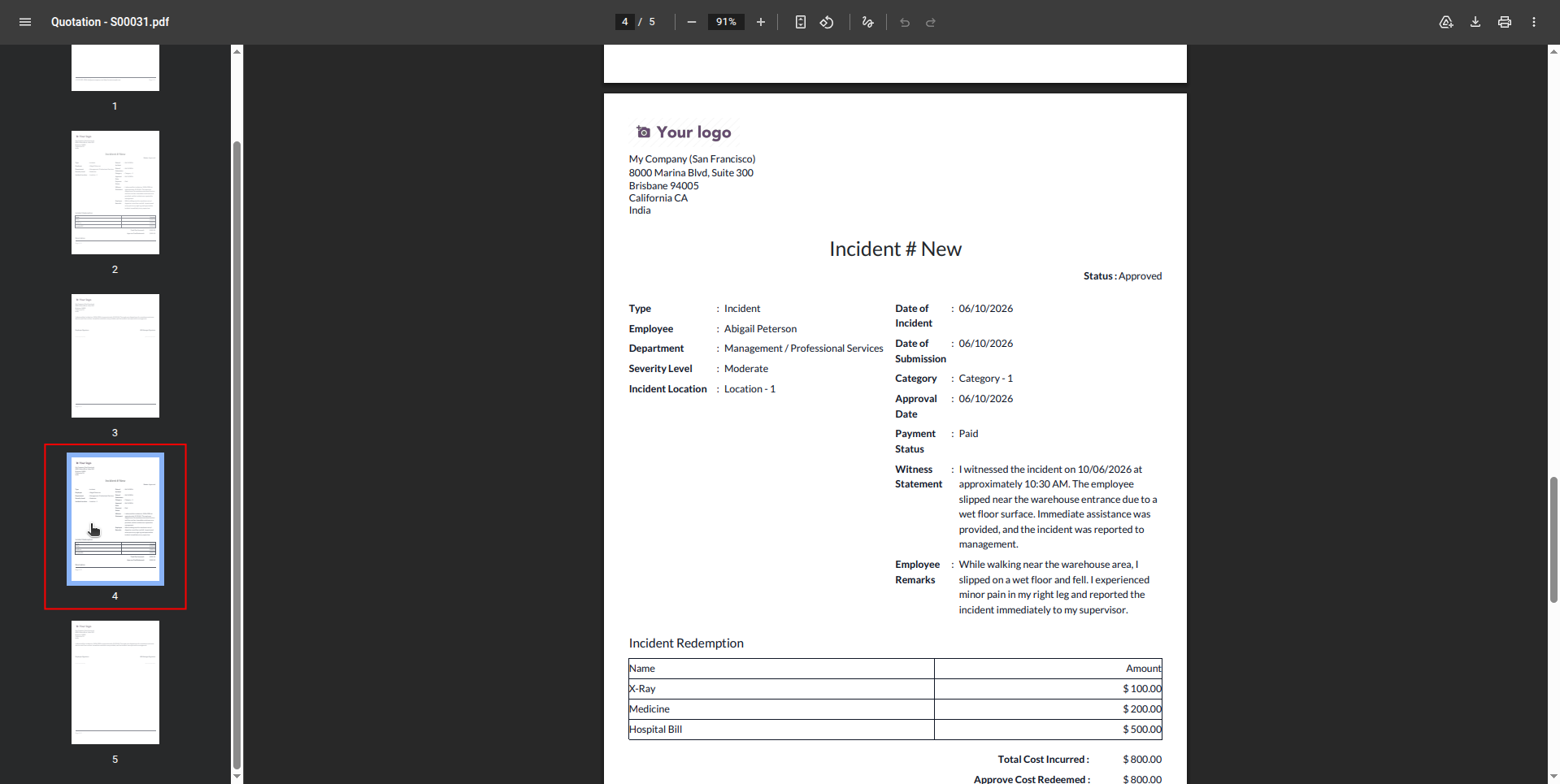
8. The additional selected PDF attachment is also included in the combined Quotation PDF, demonstrating that multiple PDF attachments can be merged together with the original report in a single document.
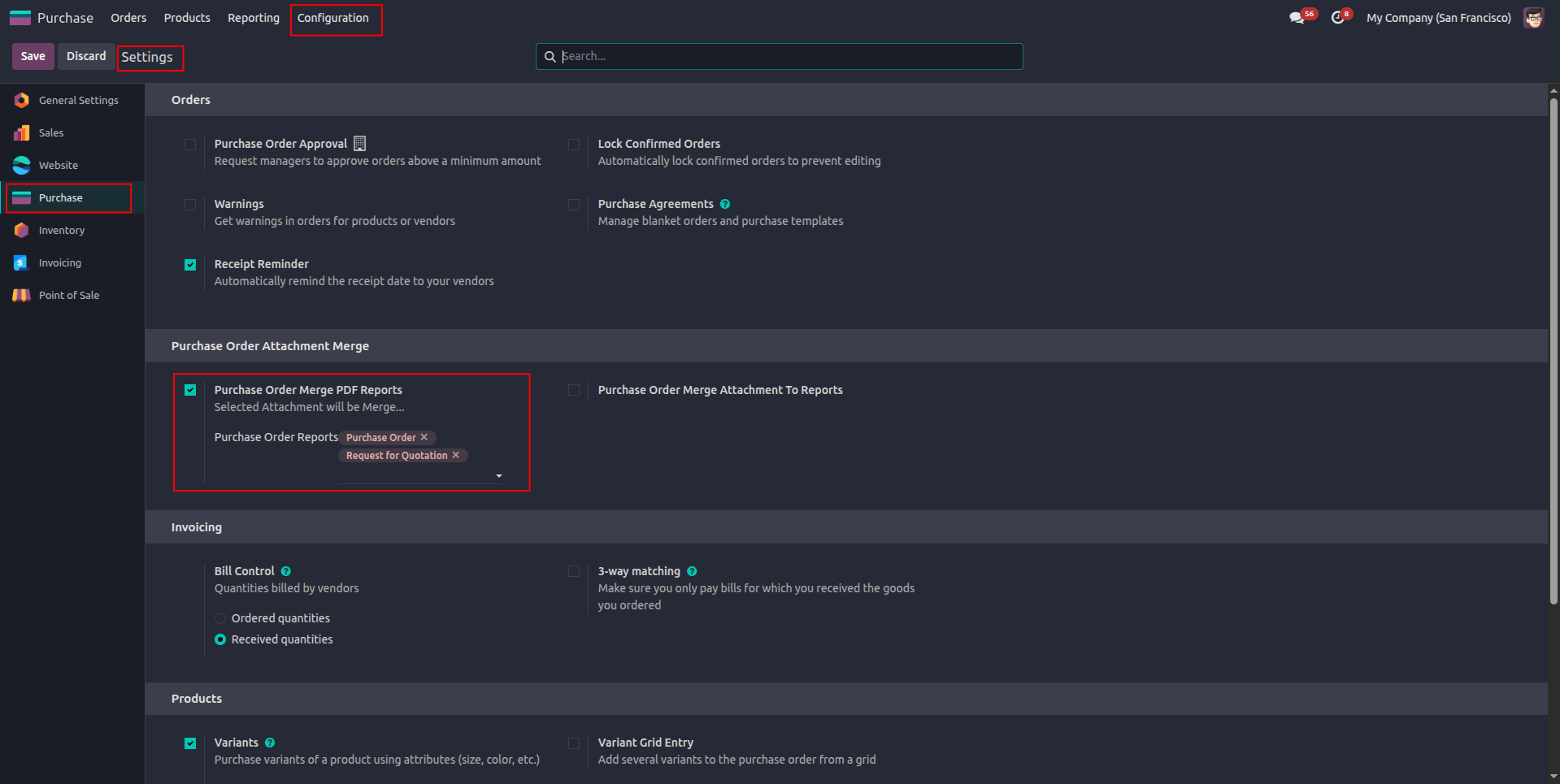
9. Go to Purchase → Configuration → Settings, enable Purchase Order Merge PDF Reports, and select the required Purchase Order reports for PDF attachment merging.
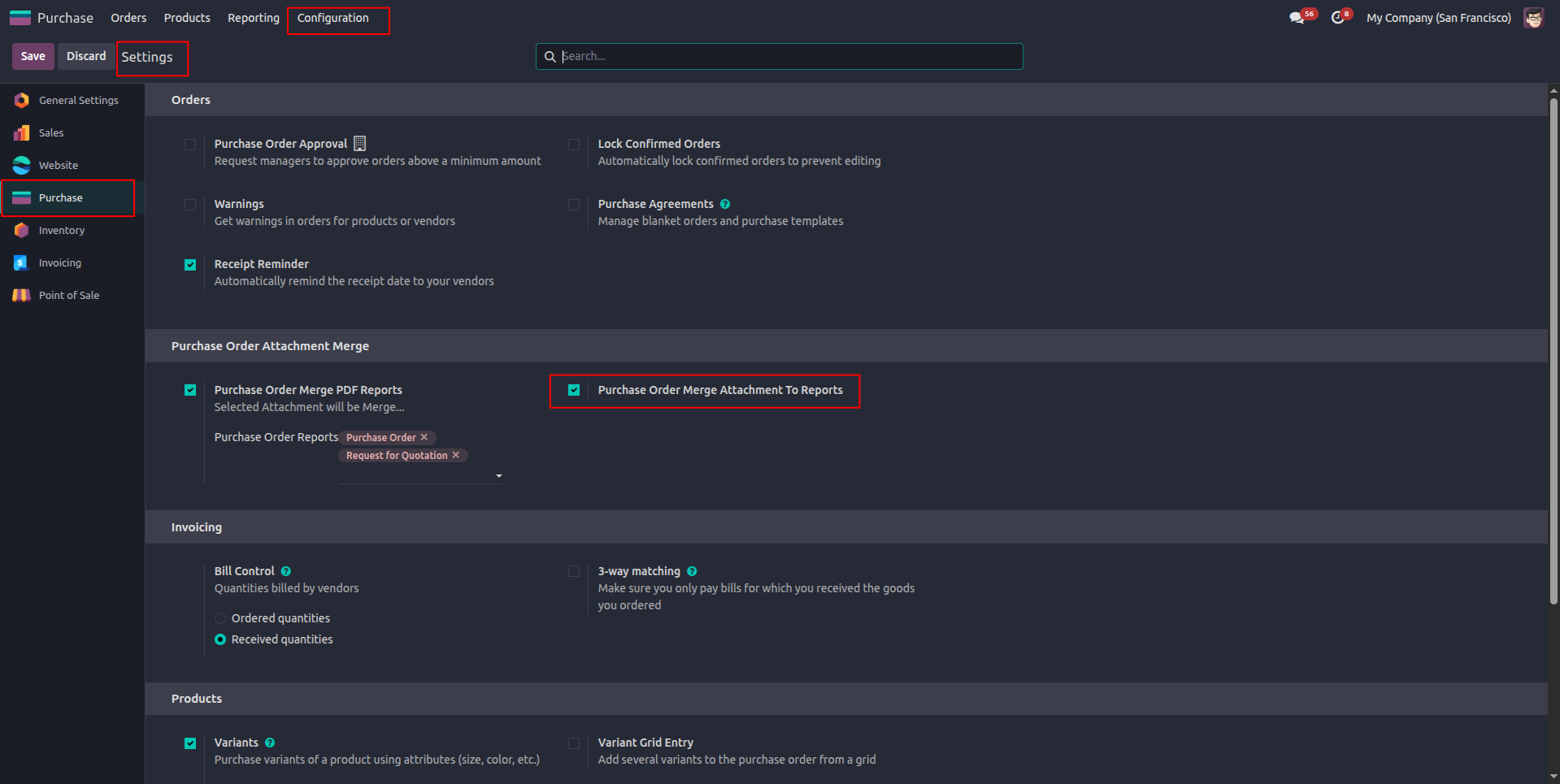
10. Enable “Purchase Order Merge Attachment To Reports” to automatically merge the selected PDF attachments with the configured Purchase Order reports.
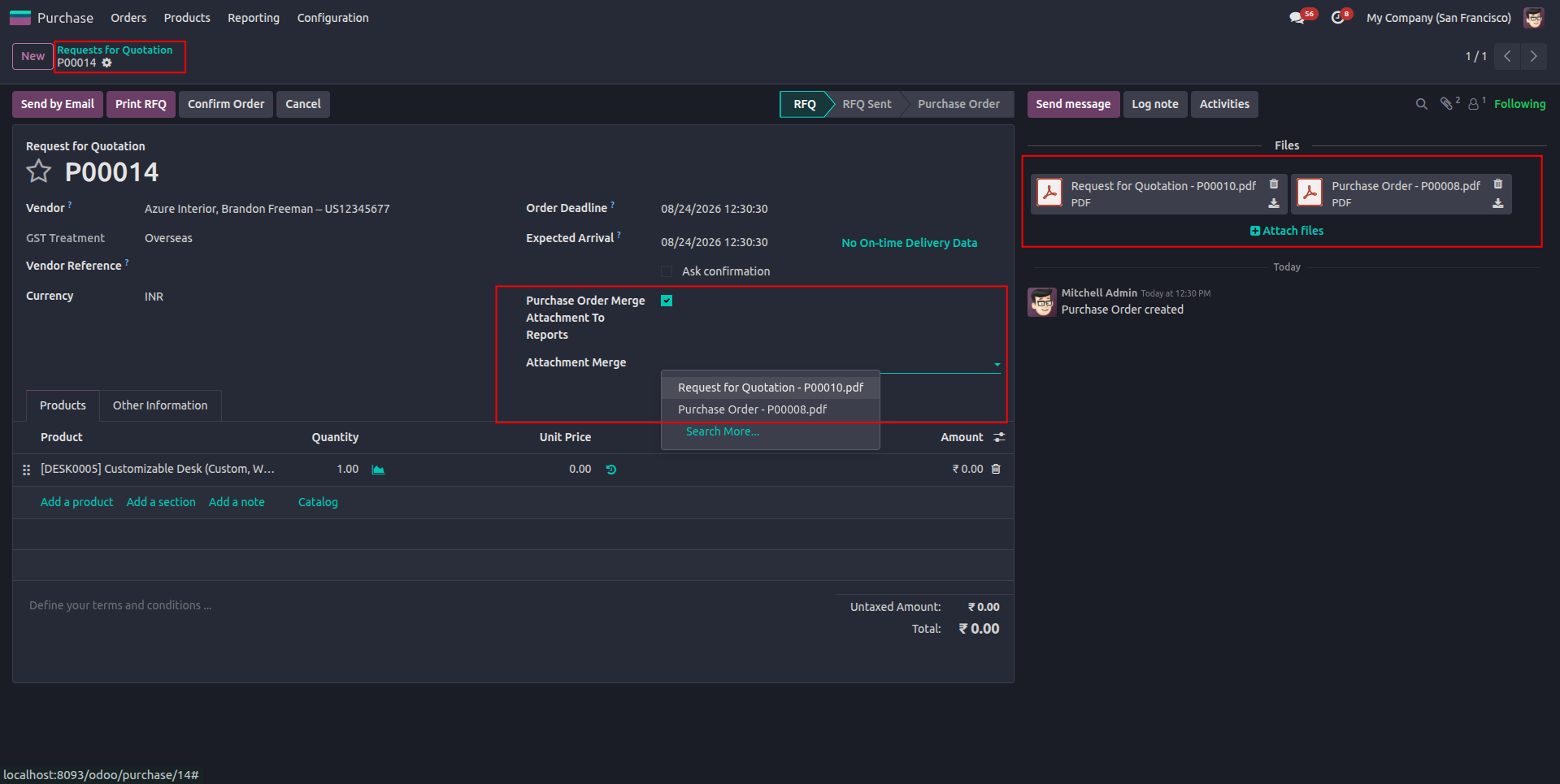
11. Add the required PDF attachments to the Request for Quotation, then select the added PDF files from the “Attachment Merge” field to merge them with the Purchase Order report.
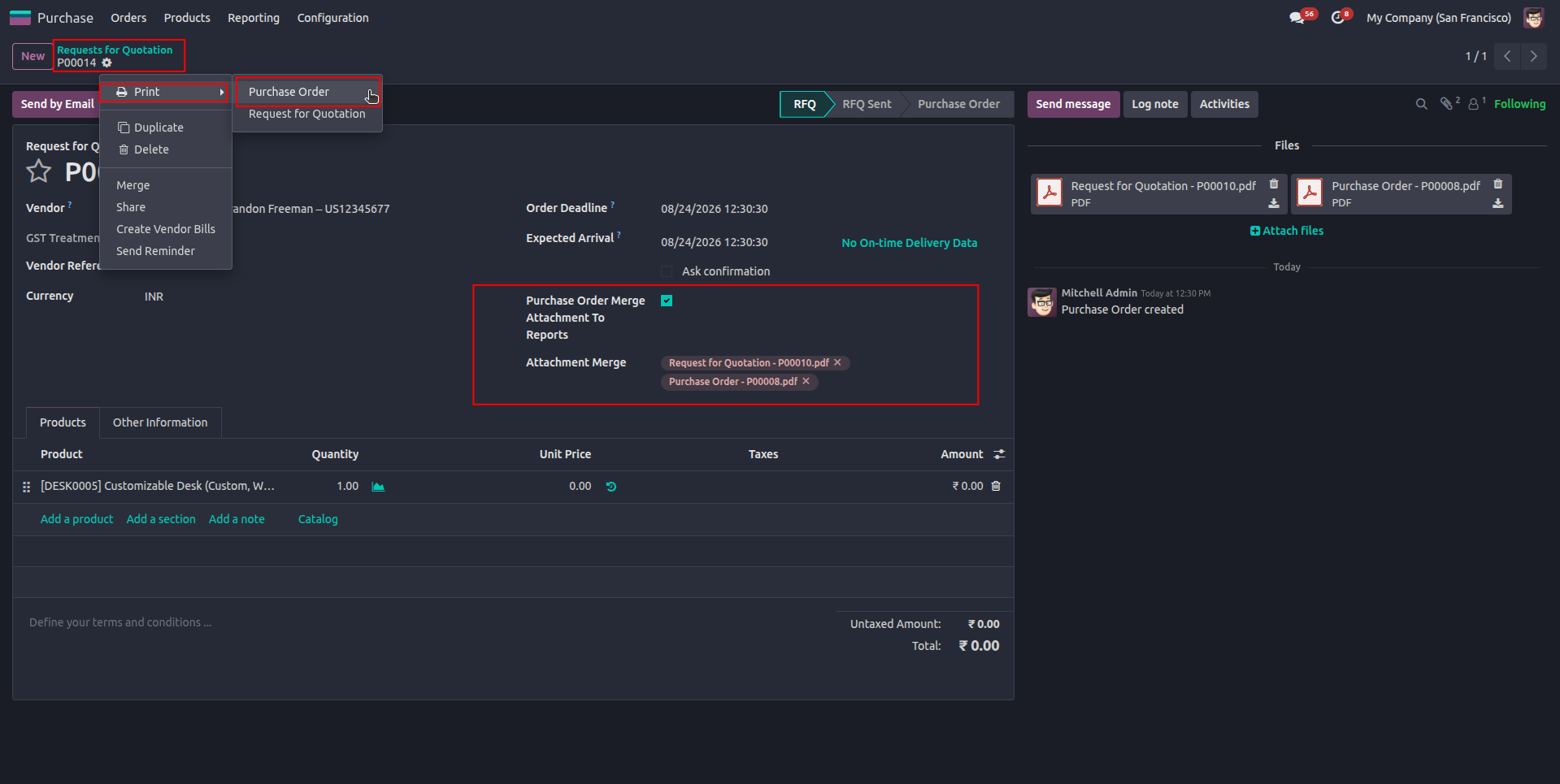
12. Open the Print menu from the Request for Quotation and select Purchase Order to generate the report with the selected PDF attachments merged into it.
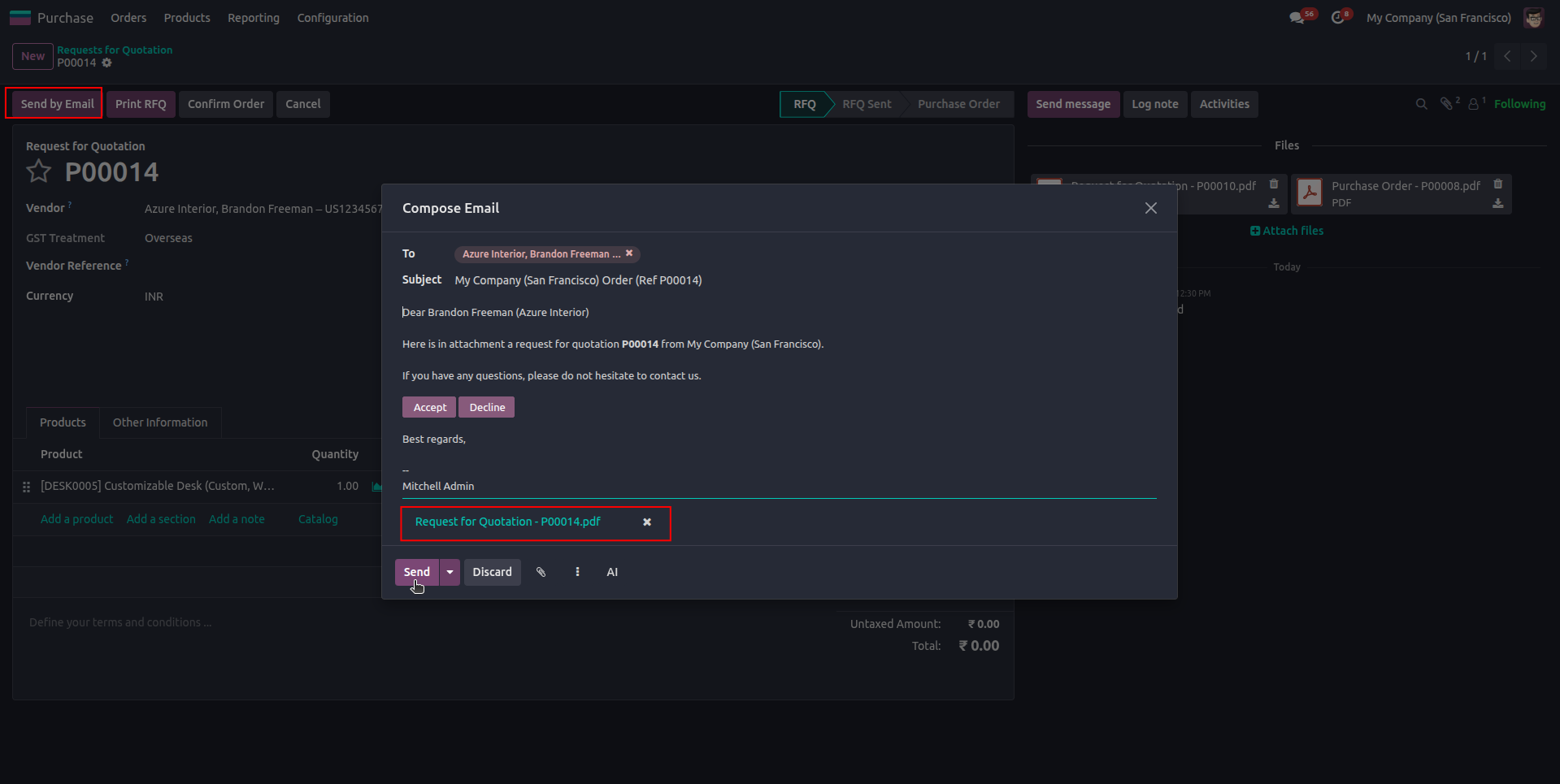
13. Click Send by Email to open the email composer, where the generated Request for Quotation PDF with the merged attachments is automatically included and ready to be sent to the vendor.
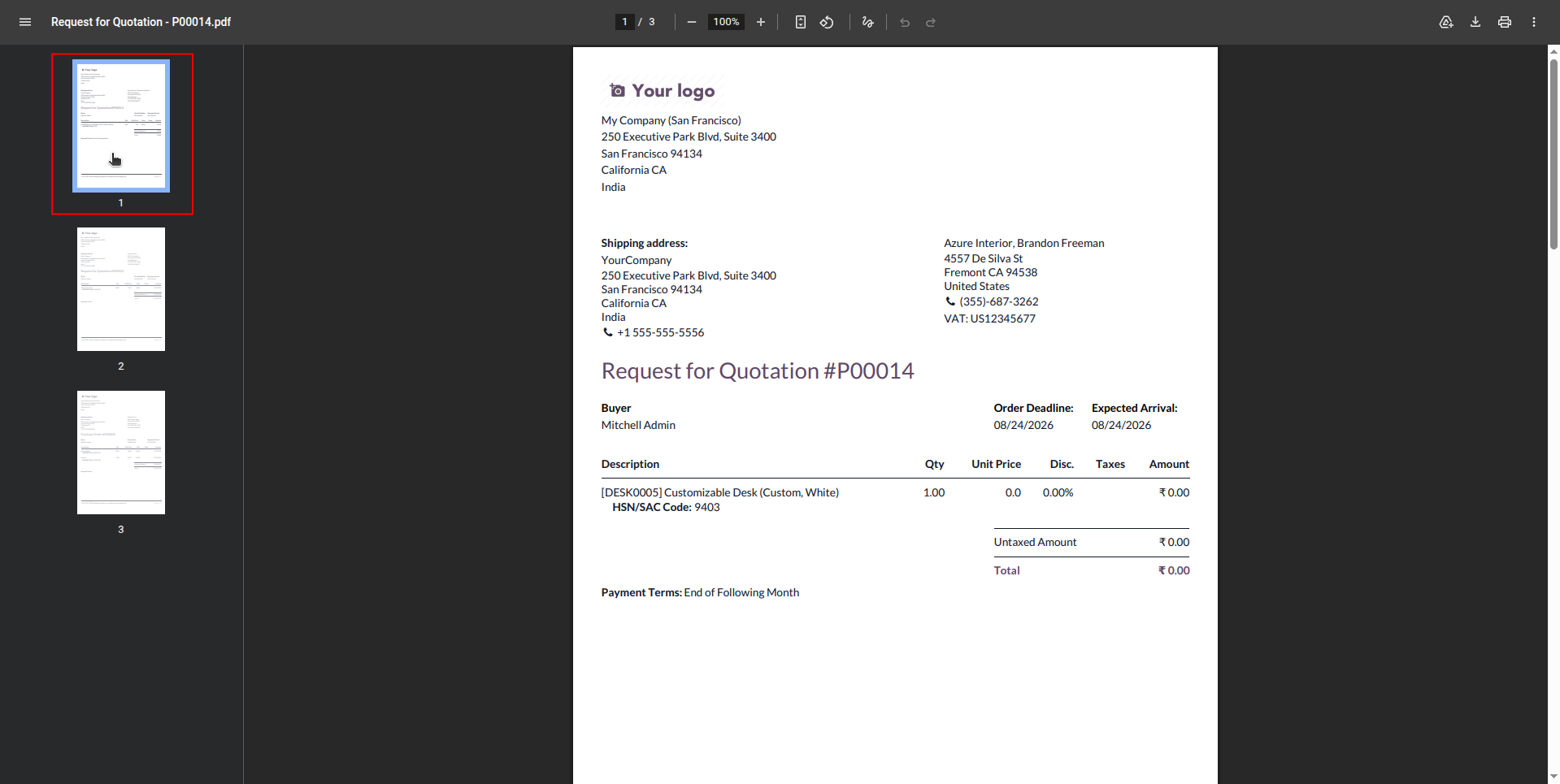
14. The generated PDF now contains the original report together with the selected PDF attachments, combined into a single PDF document with all pages included.
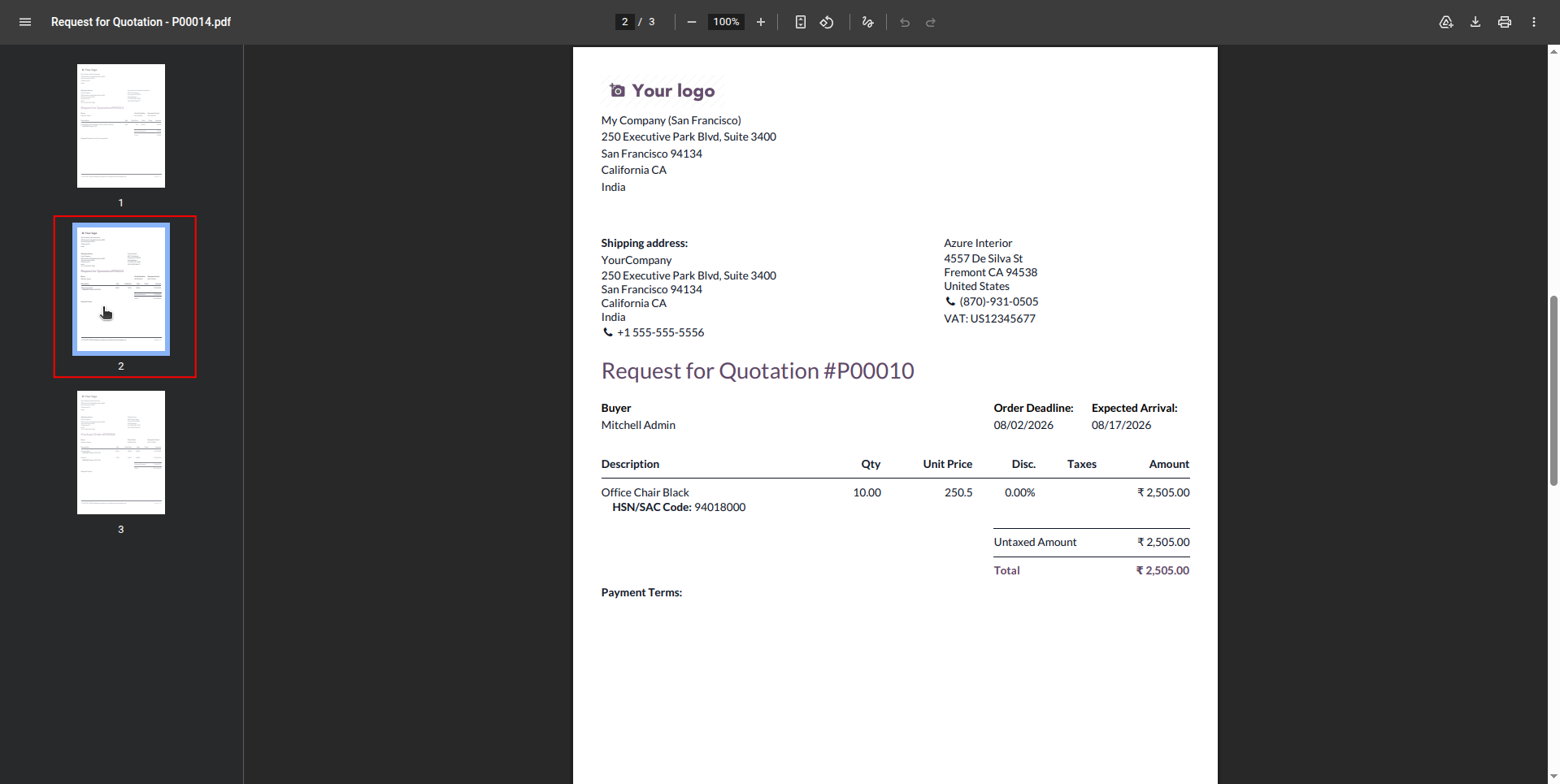
15. The selected PDF attachment is successfully merged with the Quotation report, appearing as the next page in the combined PDF document.
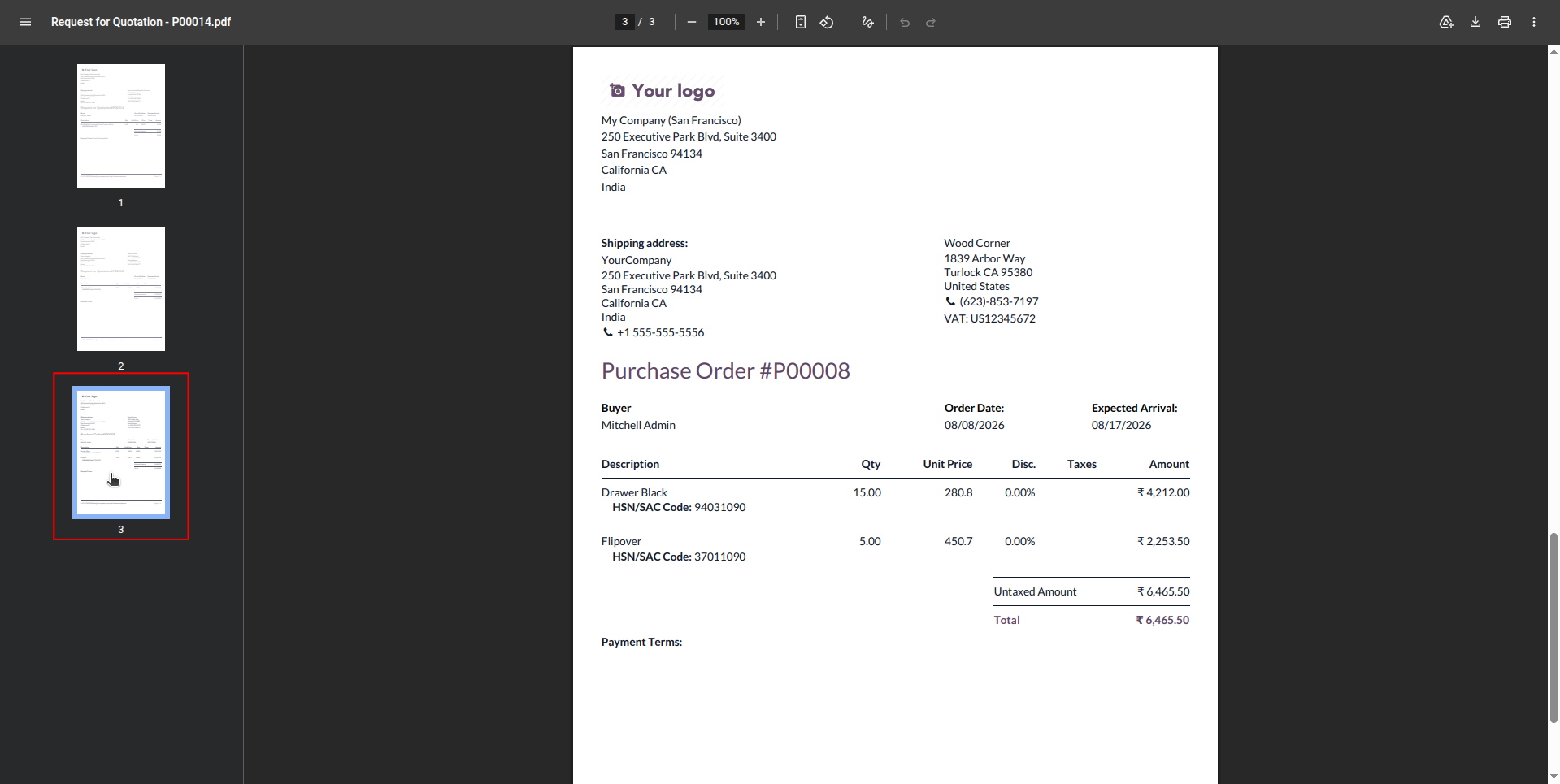
16. The additional selected PDF attachment is also included in the combined Quotation PDF, demonstrating that multiple PDF attachments can be merged together with the original report in a single document.
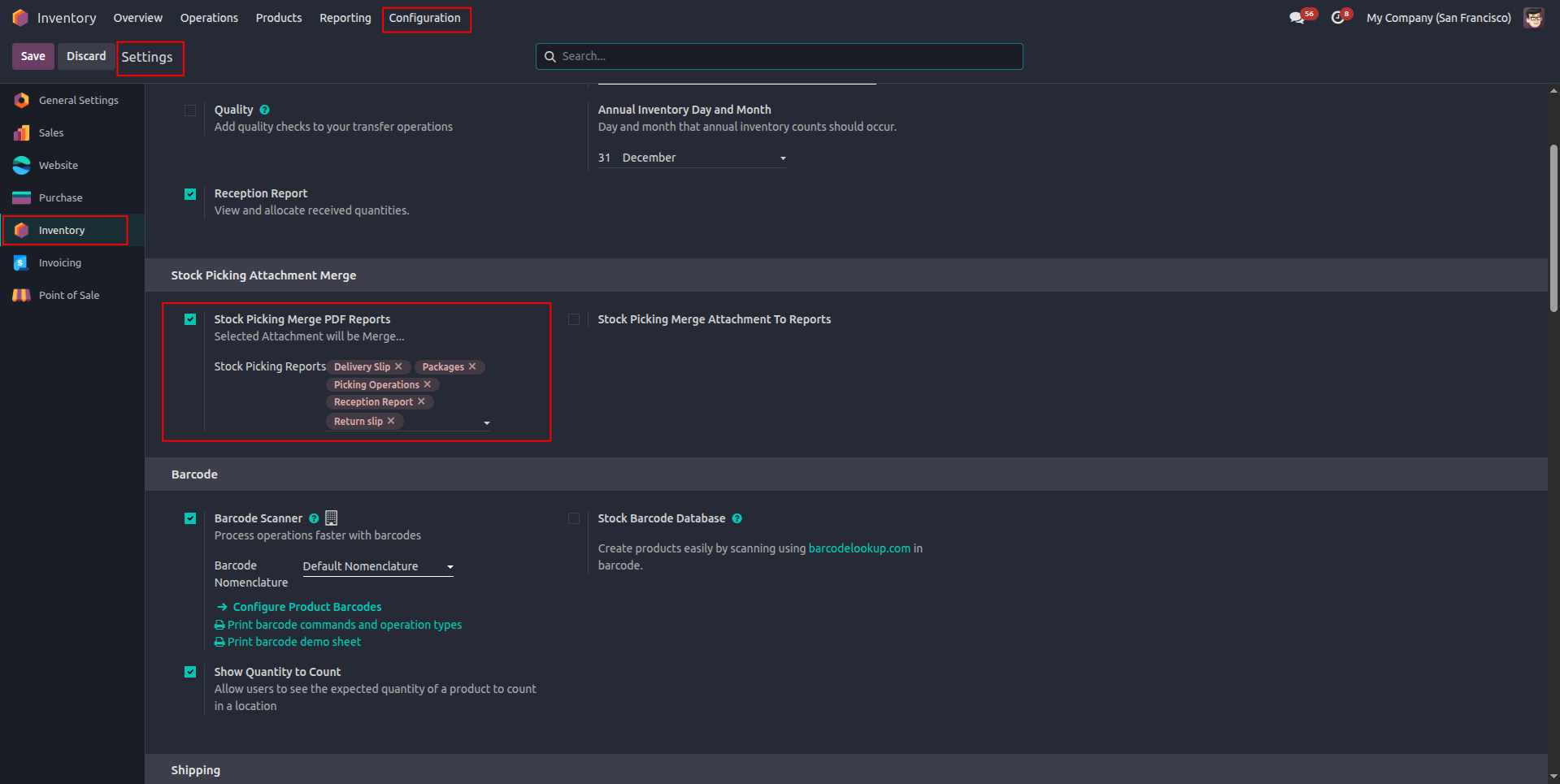
17. Go to Inventory → Configuration → Settings, enable “Stock Picking Merge PDF Reports,” and select the required Stock Picking reports for PDF attachment merging.
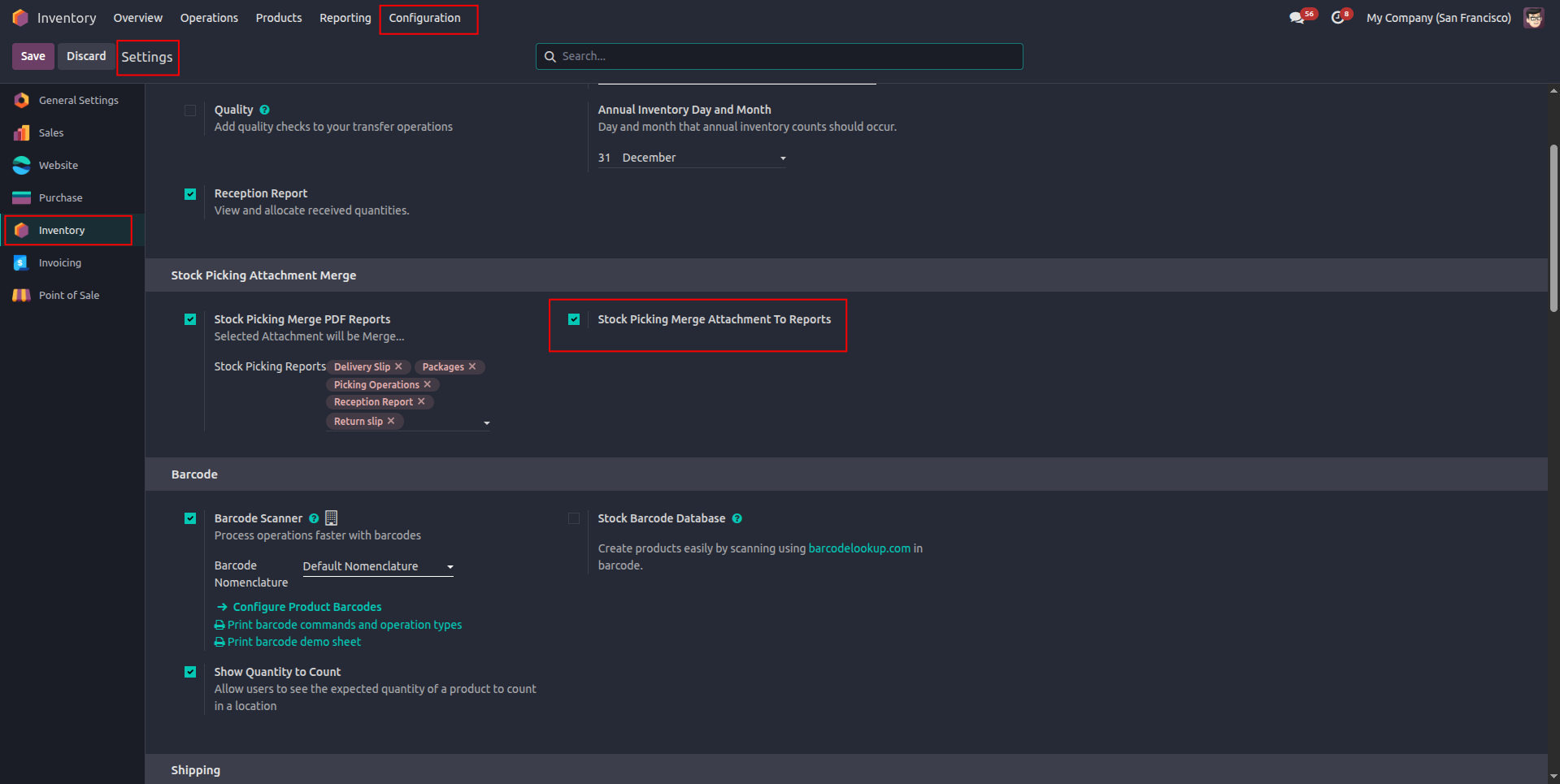
18. Enable “Stock Picking Merge Attachment To Reports” to automatically merge the selected PDF attachments with the configured Stock Picking reports.
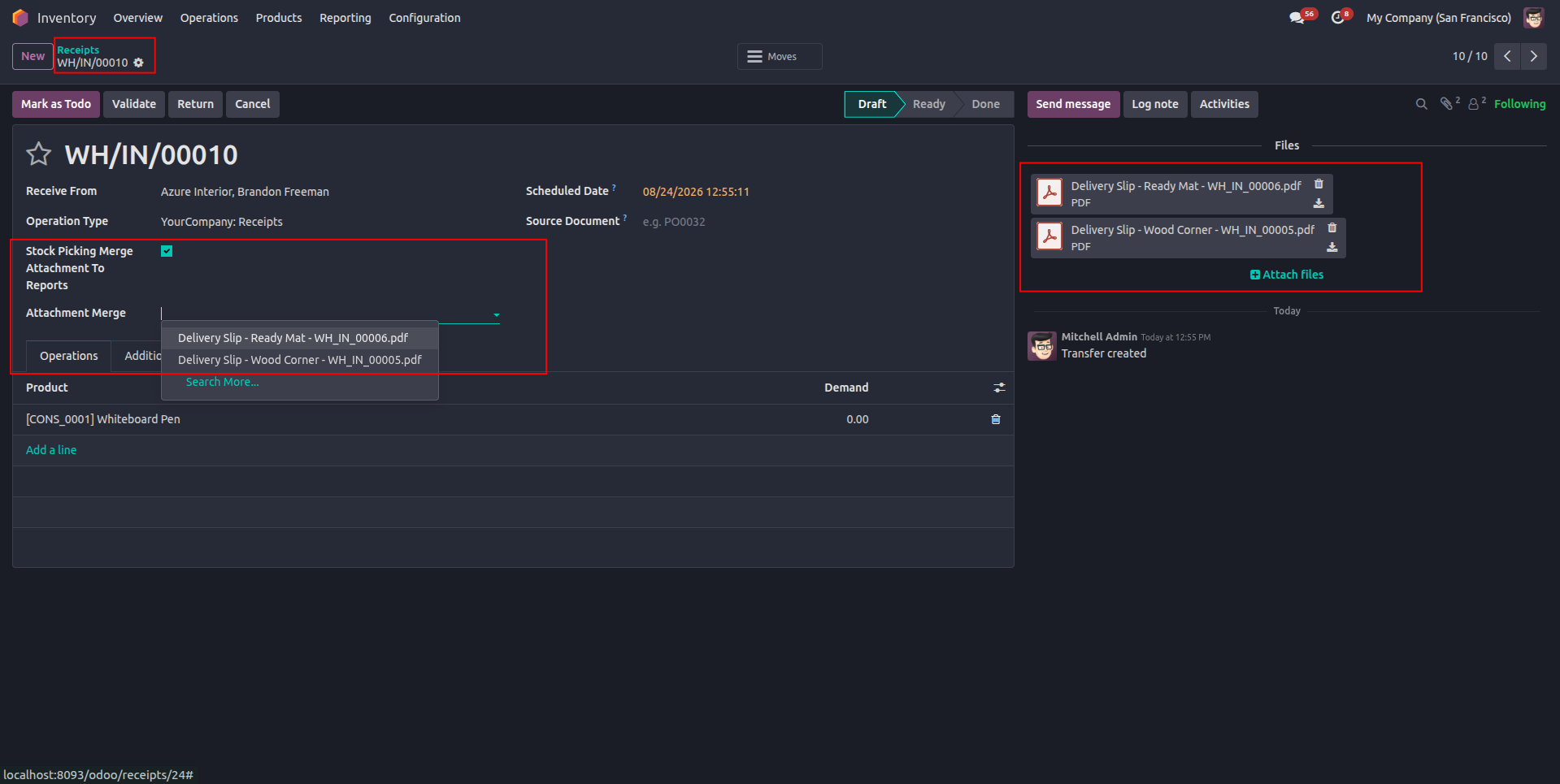
19. On the Stock Picking record, enable “Stock Picking Merge Attachment To Reports” and select the required PDF attachments from the “Attachment Merge” field.
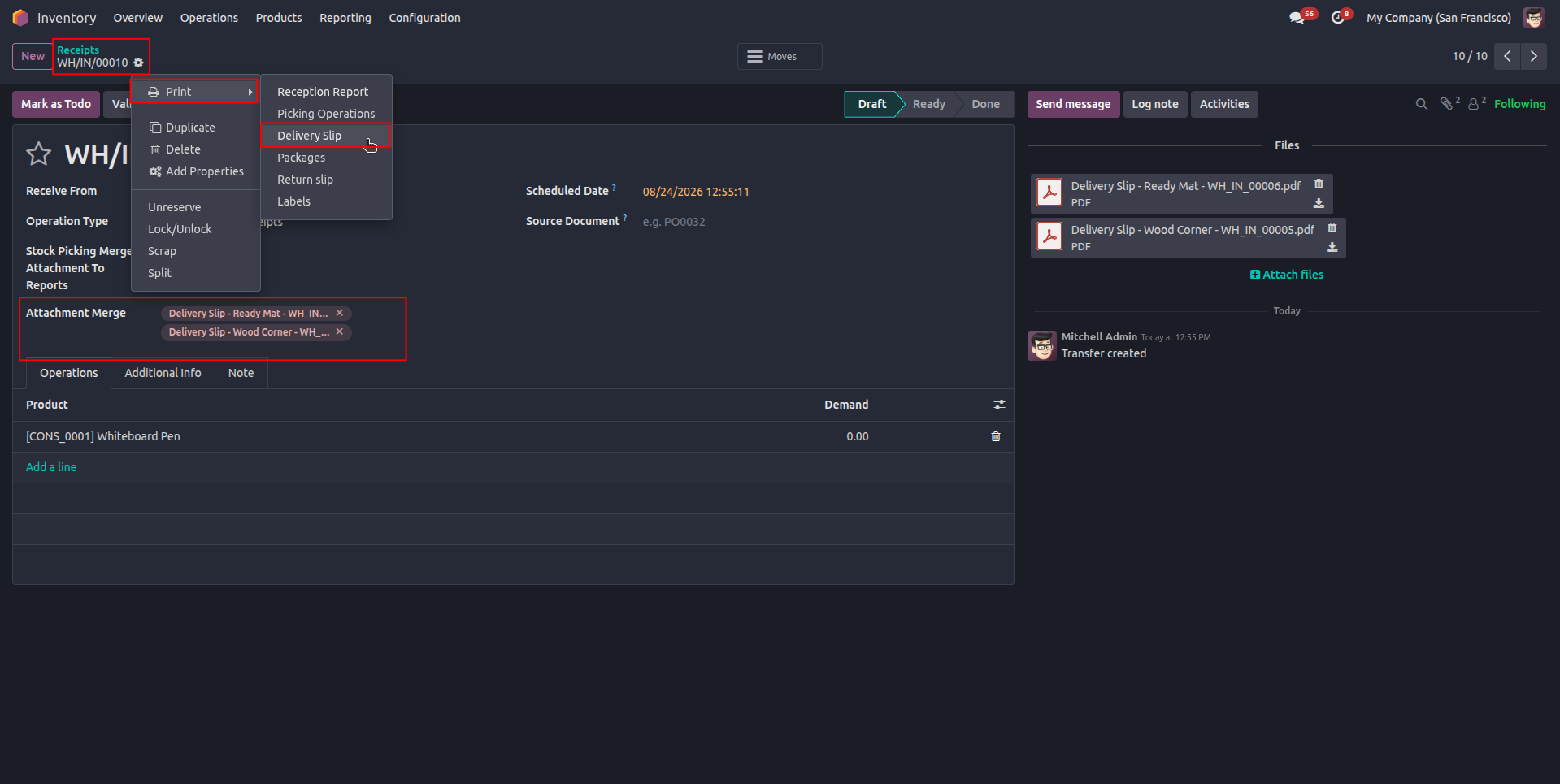
20. From the Stock Picking record, open Print and select the required report, such as “Delivery Slip,” to generate the report with the selected PDF attachments merged.
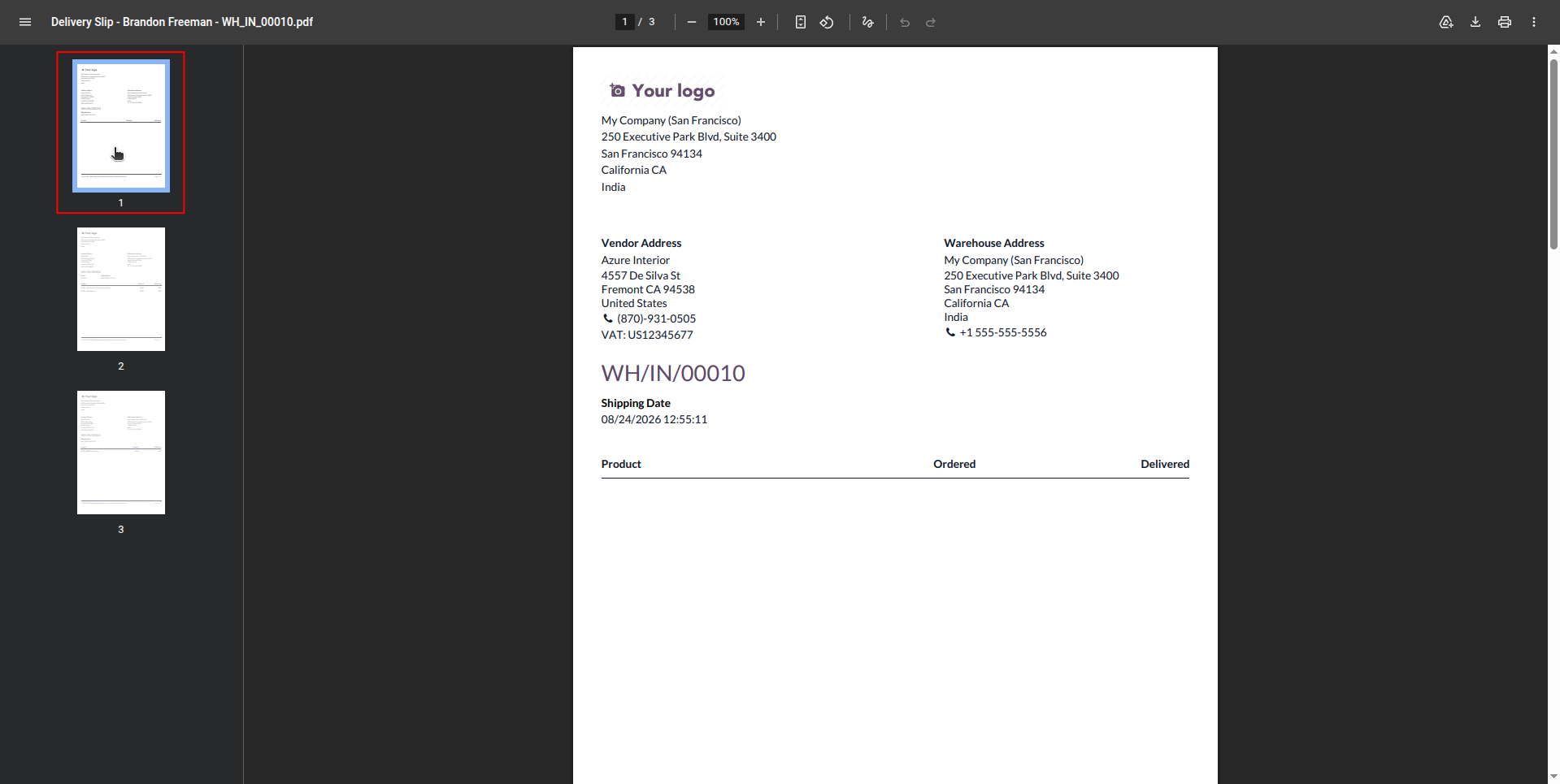
21. The generated PDF now contains the original report together with the selected PDF attachments, combined into a single PDF document with all pages included.
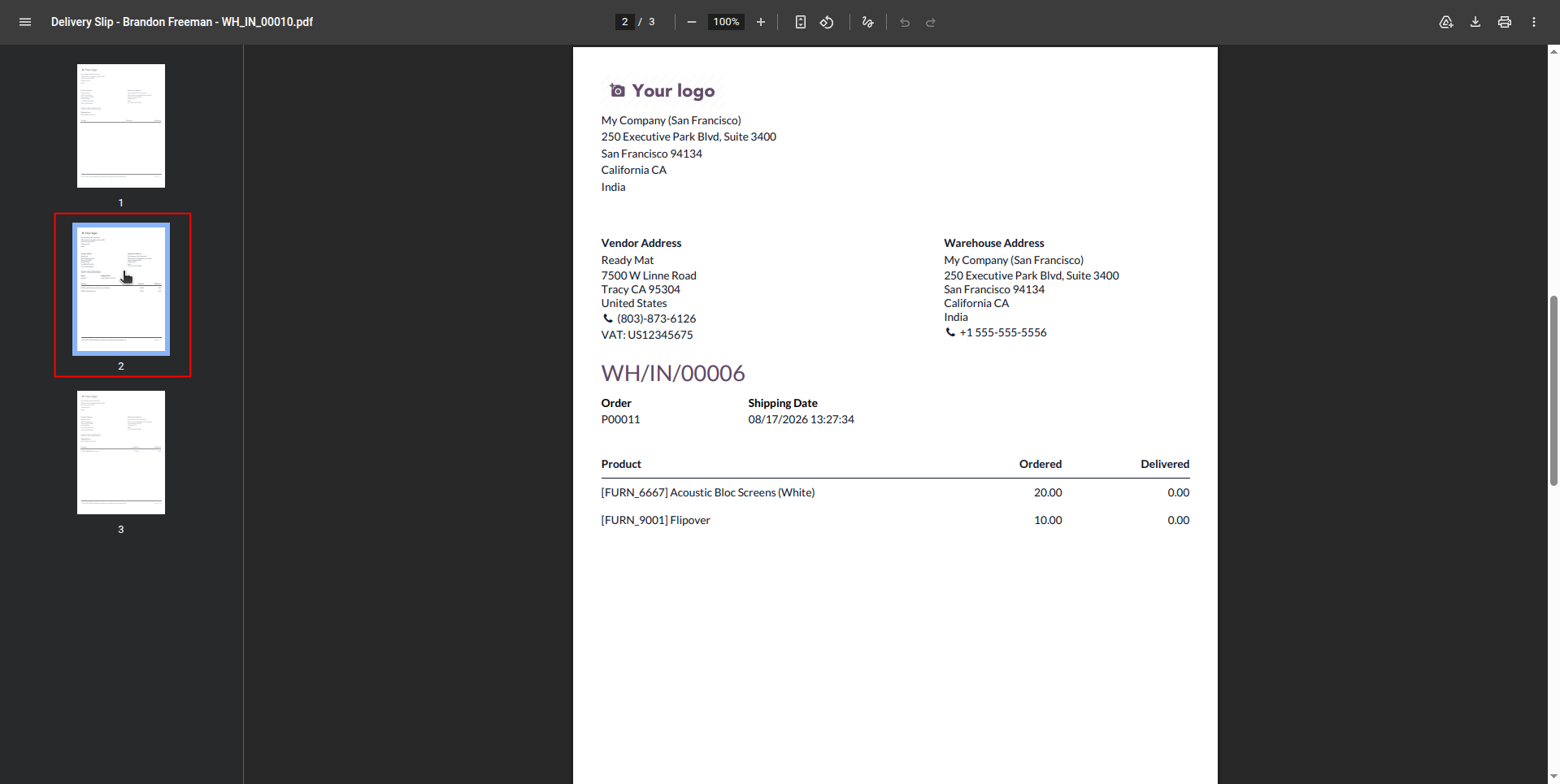
22. The selected PDF attachment is successfully merged with the Quotation report, appearing as the next page in the combined PDF document.
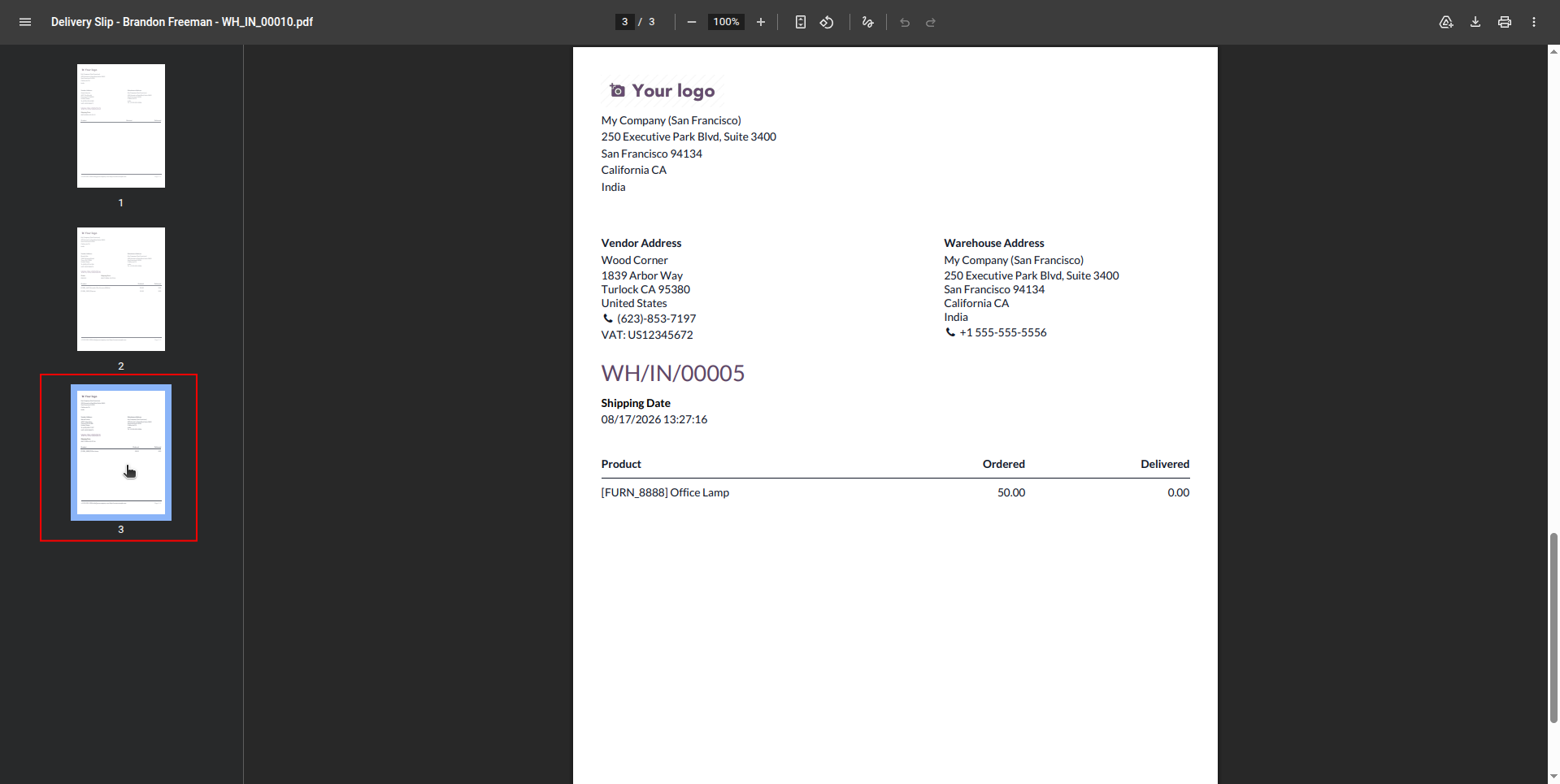
23. The additional selected PDF attachment is also included in the combined Quotation PDF, demonstrating that multiple PDF attachments can be merged together with the original report in a single document.
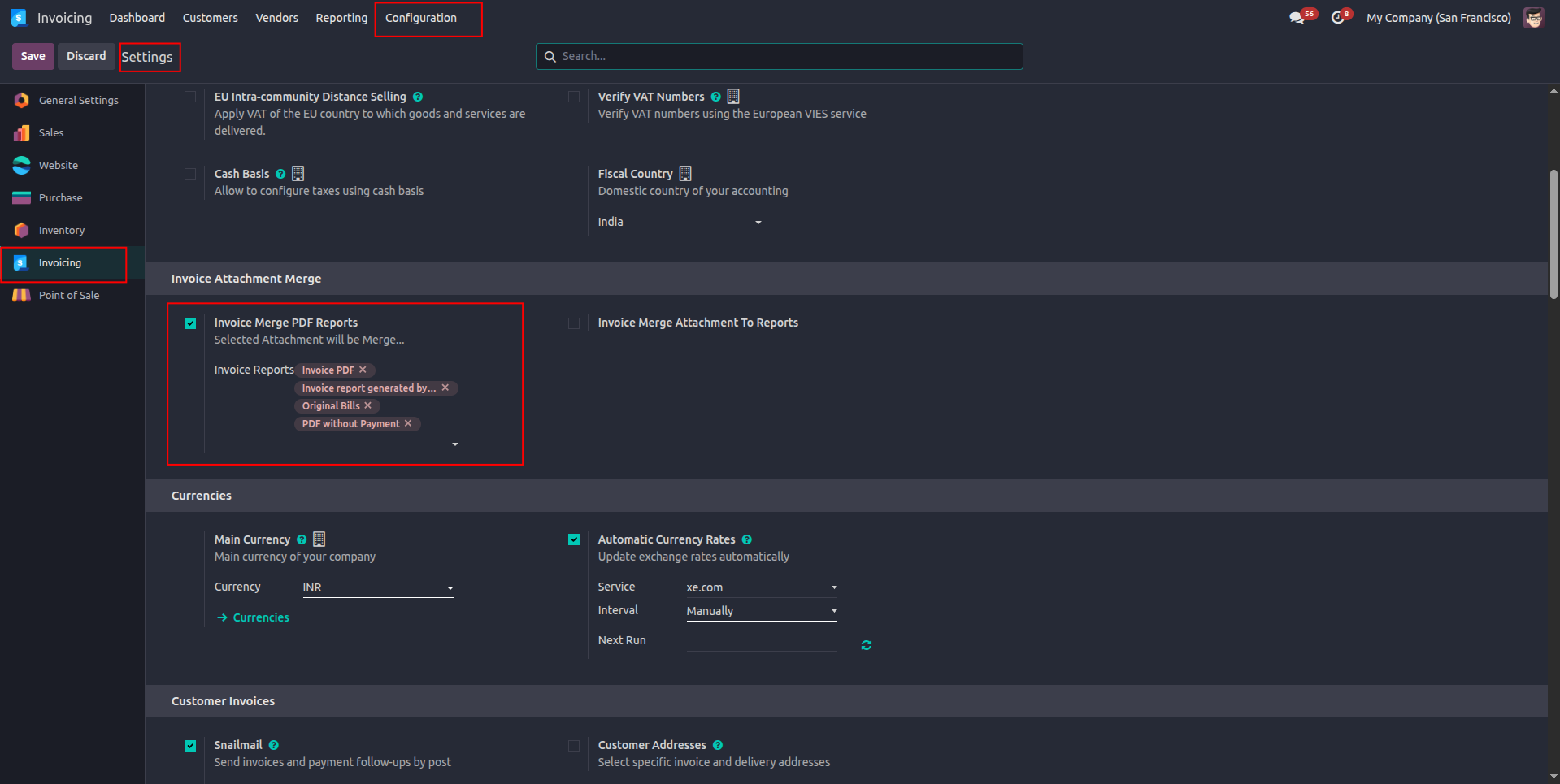
24. Go to Invoicing → Configuration → Settings, enable “Invoice Merge PDF Reports,” and select the required Invoice reports for PDF attachment merging.
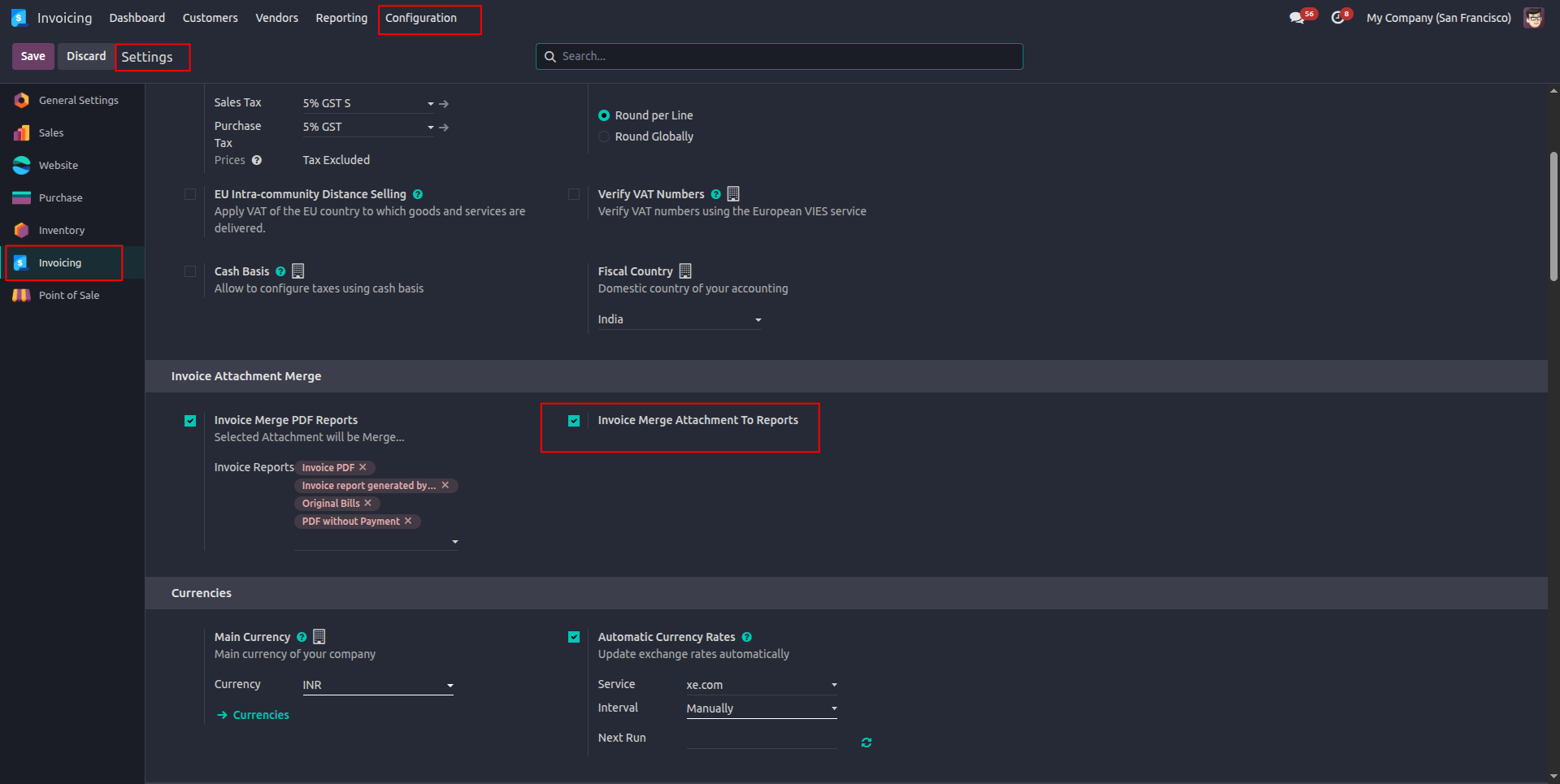
25. Enable “Invoice Merge Attachment To Reports” to automatically merge the selected PDF attachments with the configured Invoice reports.
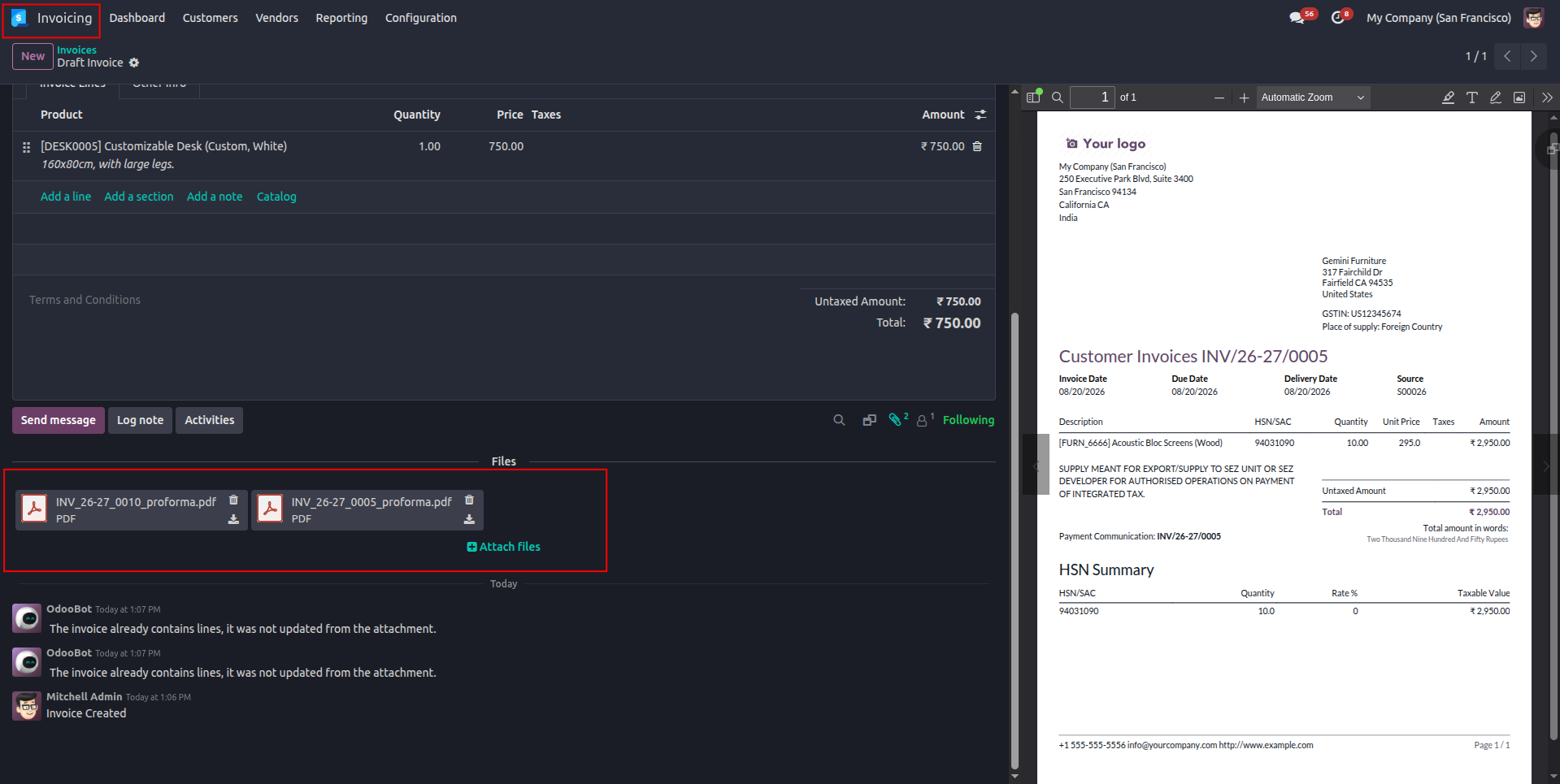
26. On the Invoice record, attach the required PDF files to the invoice so they can be selected for merging with the configured Invoice report.
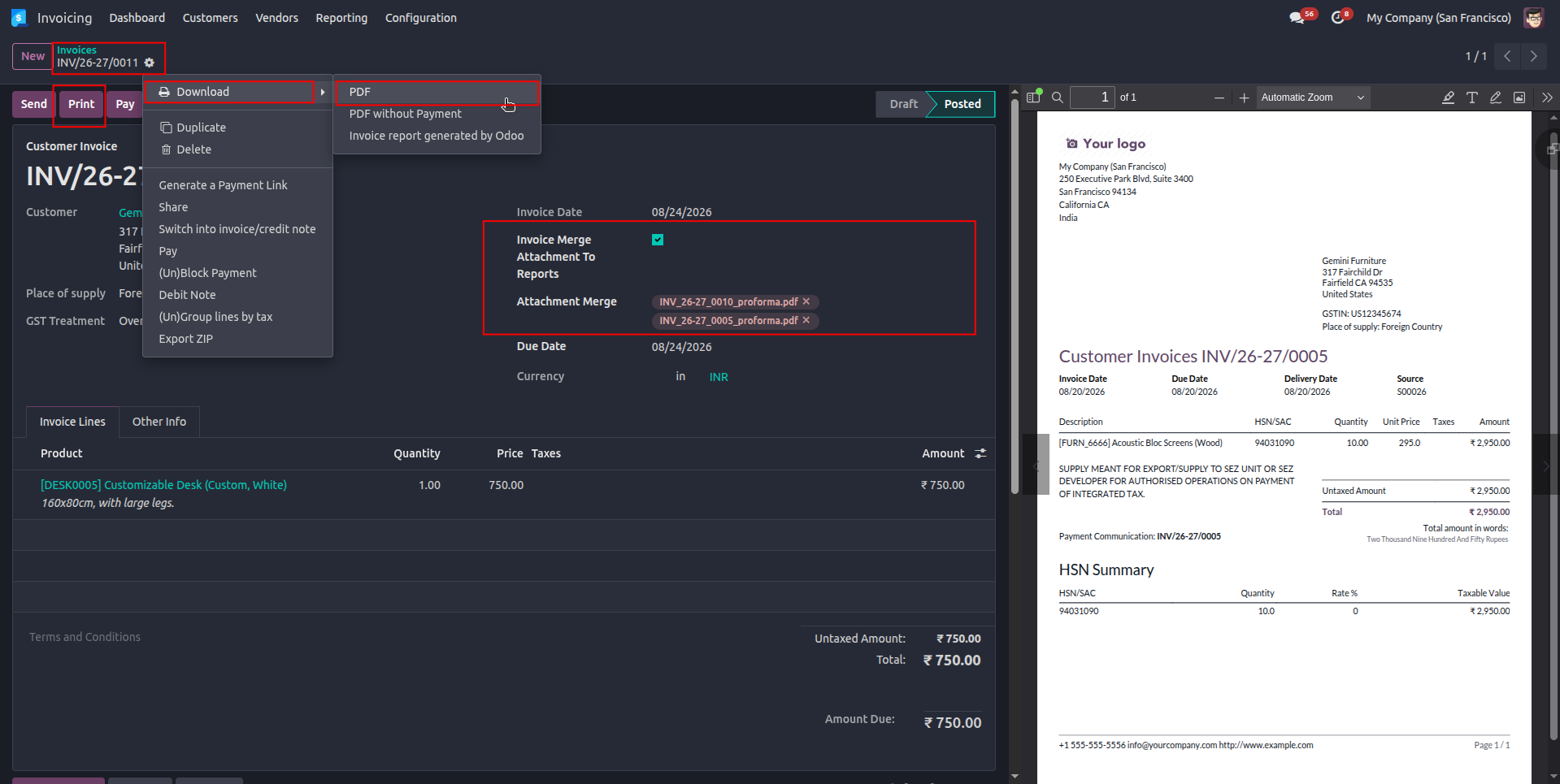
27. From the Invoice record, select Print → Download → PDF to generate the invoice with the selected PDF attachments merged into the report.
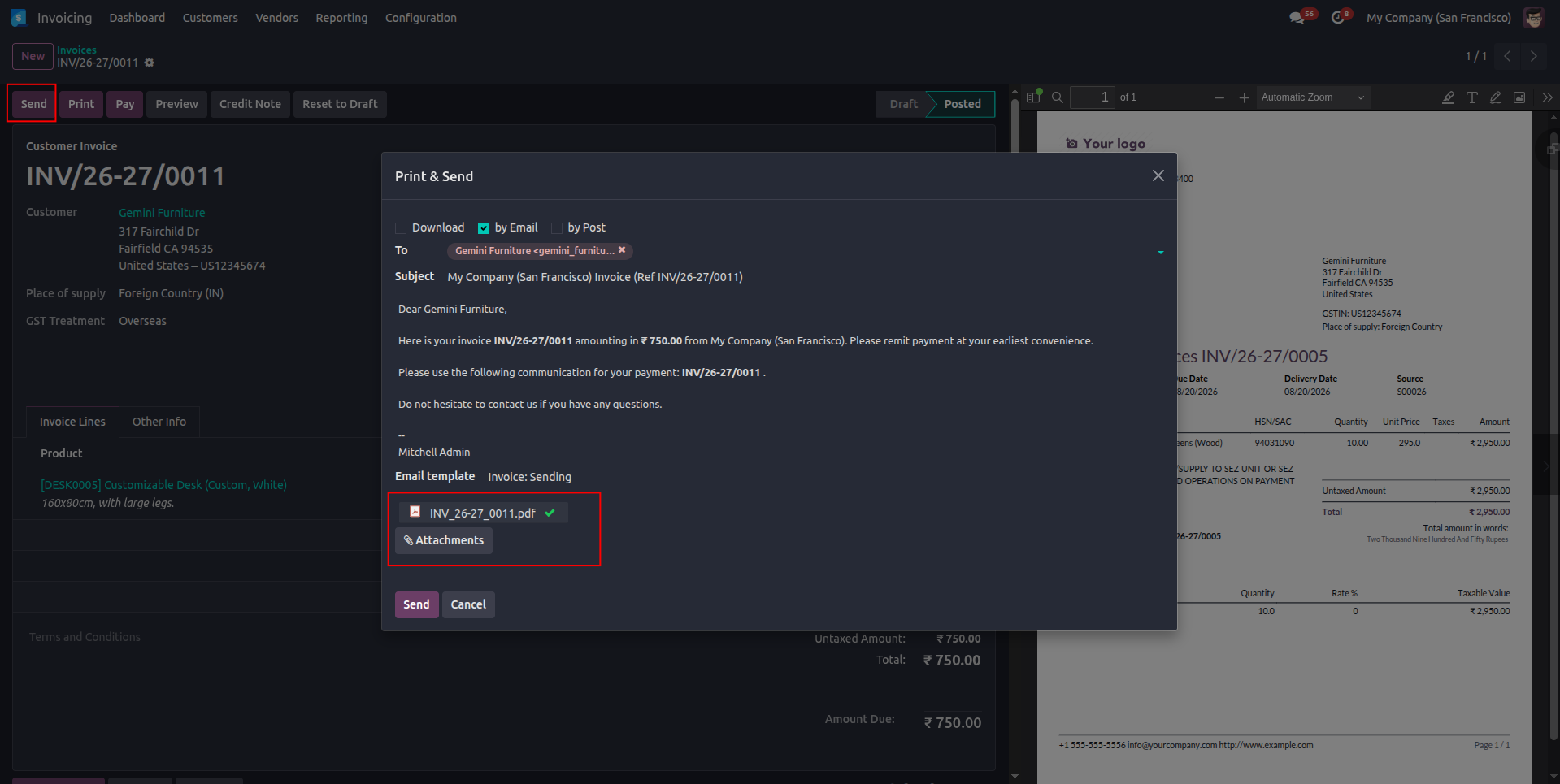
28. Click “Send” on the Invoice and select “by Email” to send the generated invoice PDF with the merged attachments directly to the customer.
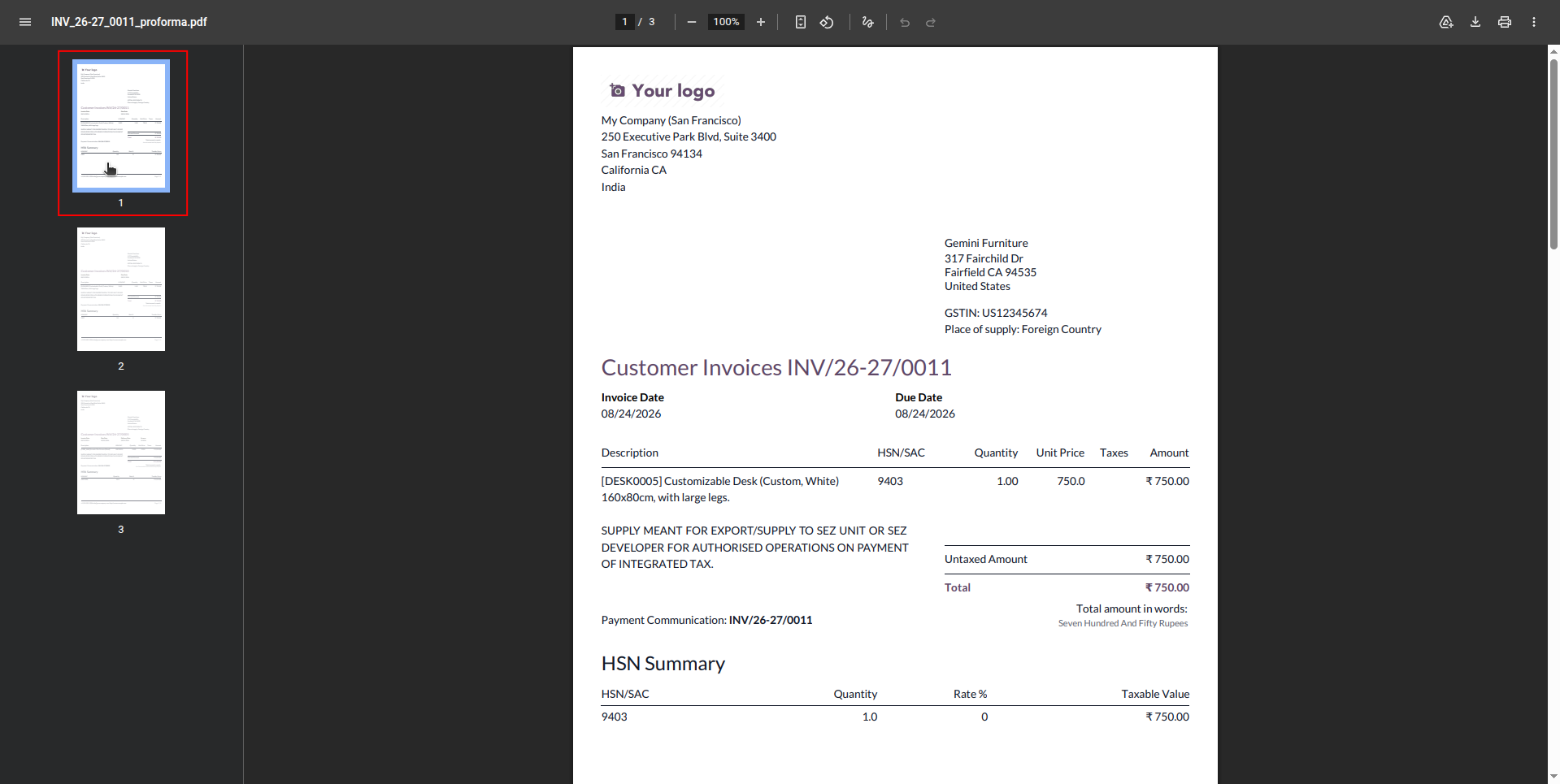
29. The generated PDF now contains the original report together with the selected PDF attachments, combined into a single PDF document with all pages included.
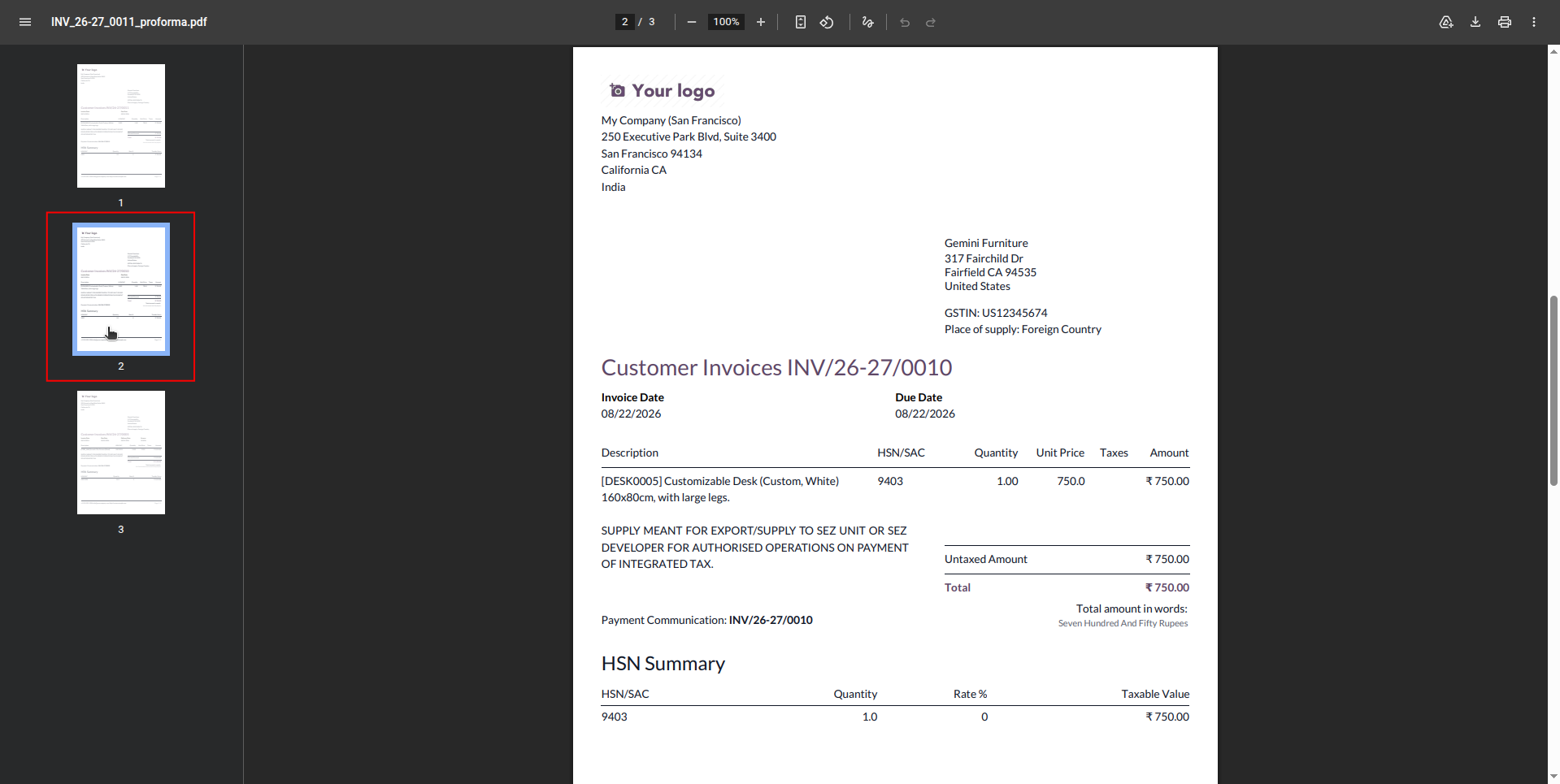
30. The selected PDF attachment is successfully merged with the Quotation report, appearing as the next page in the combined PDF document.
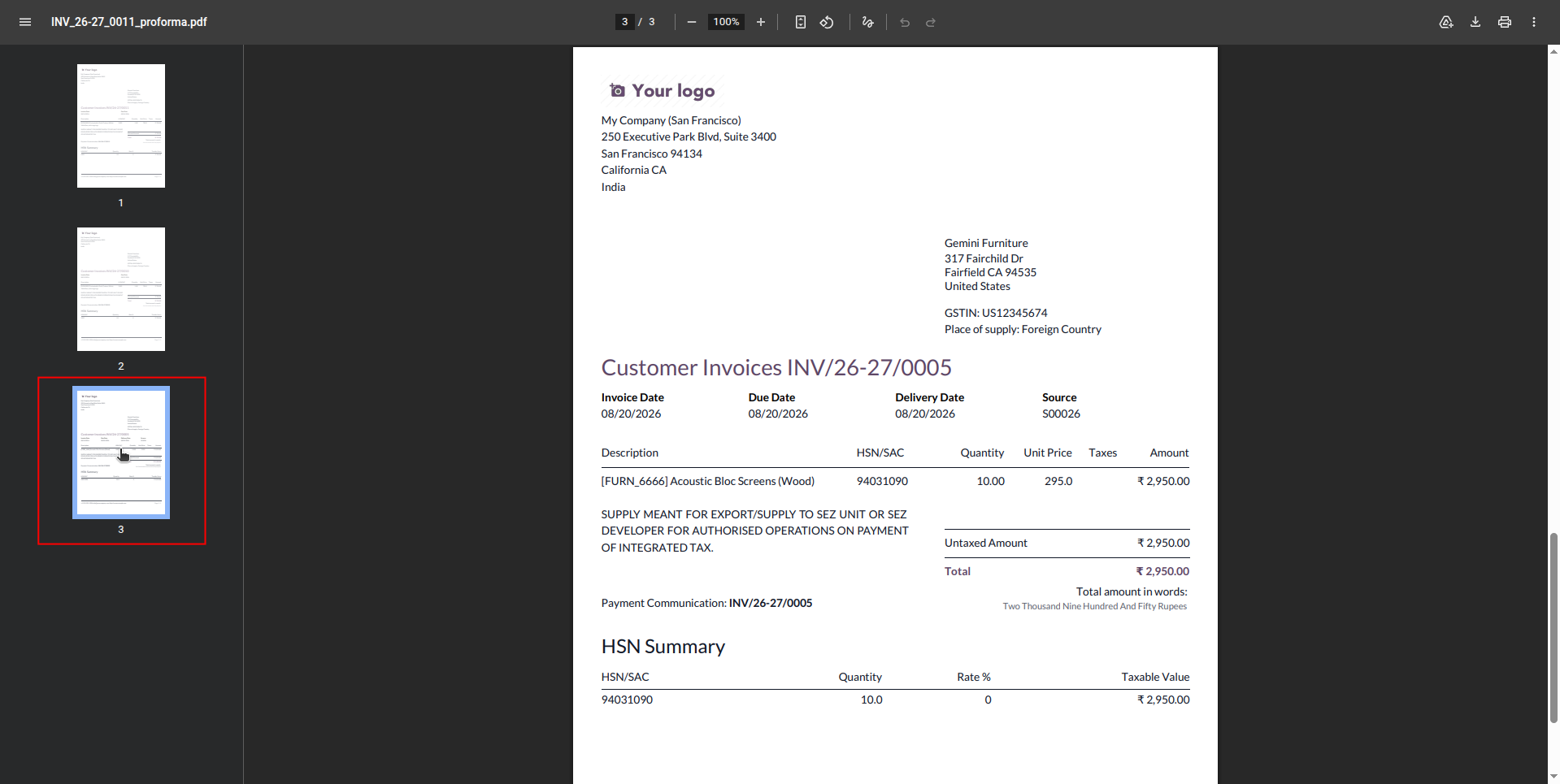
31. The additional selected PDF attachment is also included in the combined Quotation PDF, demonstrating that multiple PDF attachments can be merged together with the original report in a single document.
Our solutions focus on your problems
- Odoo Implementation
- Odoo Customization
- ERP Development and Implementation
- Odoo Ipass Cloud
- AI for Odoo
- Odoo Apps
- Aws Marketplace Products
- Business Engines
Our Pricing includes User Manual, 90 Days Support (Monday-Friday 10am to 7pm IST) and One time Setup
• Works & tested on standard installations of Odoo with no third party apps,
• Free support only for odoo installations with no third party apps,
• Paid support available for Odoo installations with third party apps.

Prefortune is a Odoo Official Partner, Odoo Development company. Our philosophy is to use Open Source tools and technologies to provide cost effective and green solutions for our customers.
Prefortune Technologies LLP is working on web development, Mobile development, and Odoo ERP.
If you need any help or want more additional features, you may contact us through:
Alternative Products
These other products might interest you
Specifications
| Version | 19.0, 18.0, 17.0, 16.0, 15.0 |