Watch Quick Video
Odoo Website Order Split with Multiple Delivery Address
Our all-inclusive
Odoo Website Order Split with Multiple Delivery Address
helps guests place a single order and deliver products to multiple addresses with ease. During checkout,
users can select the split delivery option and continue the standard Odoo website order process.
After order confirmation, a secure portal link is shared where guests can enter multiple delivery
addresses and assign product amounts for each shipment. The system validates quantities across all split
orders to ensure accuracy and prevent mismatches.
Each split delivery automatically creates separate delivery orders, all linked to the original deals order
for better tracking and management. The sales team can cover order split status and delivery progress
directly from the backend.
Completely integrated with Odoo website, inventory, and delivery features, this module ensures a smooth
and efficientmulti-address order split experience.
Odoo Website Order Split with Multiple Delivery Address
- Enables split delivery option on delivery carriers with a simple configuration, allowing businesses to manage order split shipments directly from the Odoo website.
- Provides a secure client portal page where users can enter multiple delivery addresses and assign product quantities per payload without login.
- Automatically creates separate delivery orders( stock pickings) for each split payload, ensuring accurate inventory and order management.
- Displays real time order split delivery status Not Filed, Filed, or Delivered in a dedicated tab within the sales order for easy tracking
- Validates product amounts across all split deliveries to match the original order, preventing errors in multi-address order fulfillment.
Complete Workflow for Odoo Website Order Split with Multiple Delivery Address
First, Enable the split delivery option in Odoo → Customer selects a split delivery shipping method during website checkout and chooses the number of deliveries → After order confirmation, a secure portal link is shared to add multiple delivery addresses and assign product quantities → The system validates quantities across the order → Separate delivery orders are created automatically for each address → Split delivery status is updated in real time within the sales order for easy tracking.
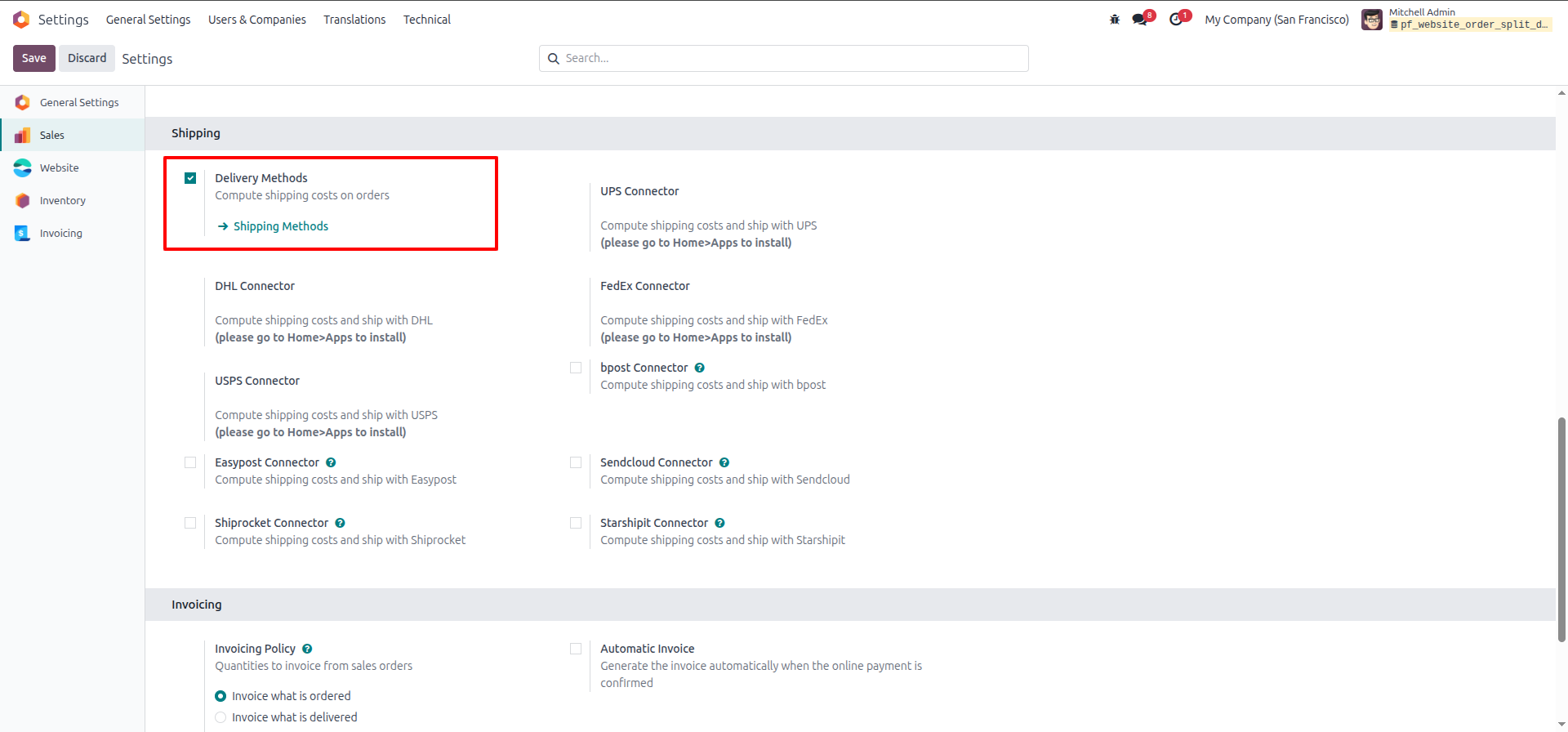
1. Enable Delivery Methods Go to Sales → Configuration → Settings, scroll to the Shipping section, enable Delivery Methods, and click Save.
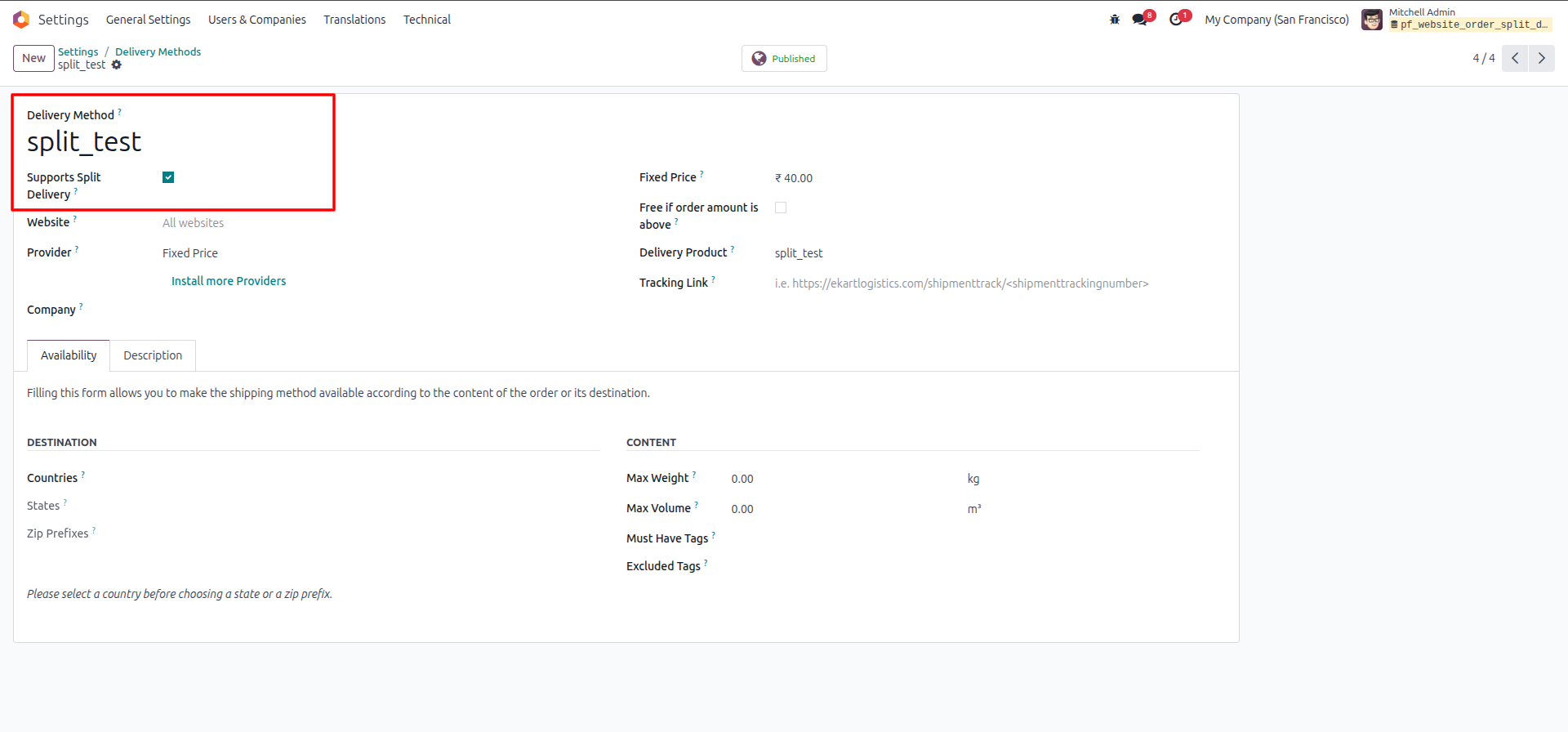
2.Enable Split Delivery on Carrier Go to Settings → Delivery Methods, open your desired carrier, and check the Supports Split Delivery checkbox to allow that carrier to handle split shipments.
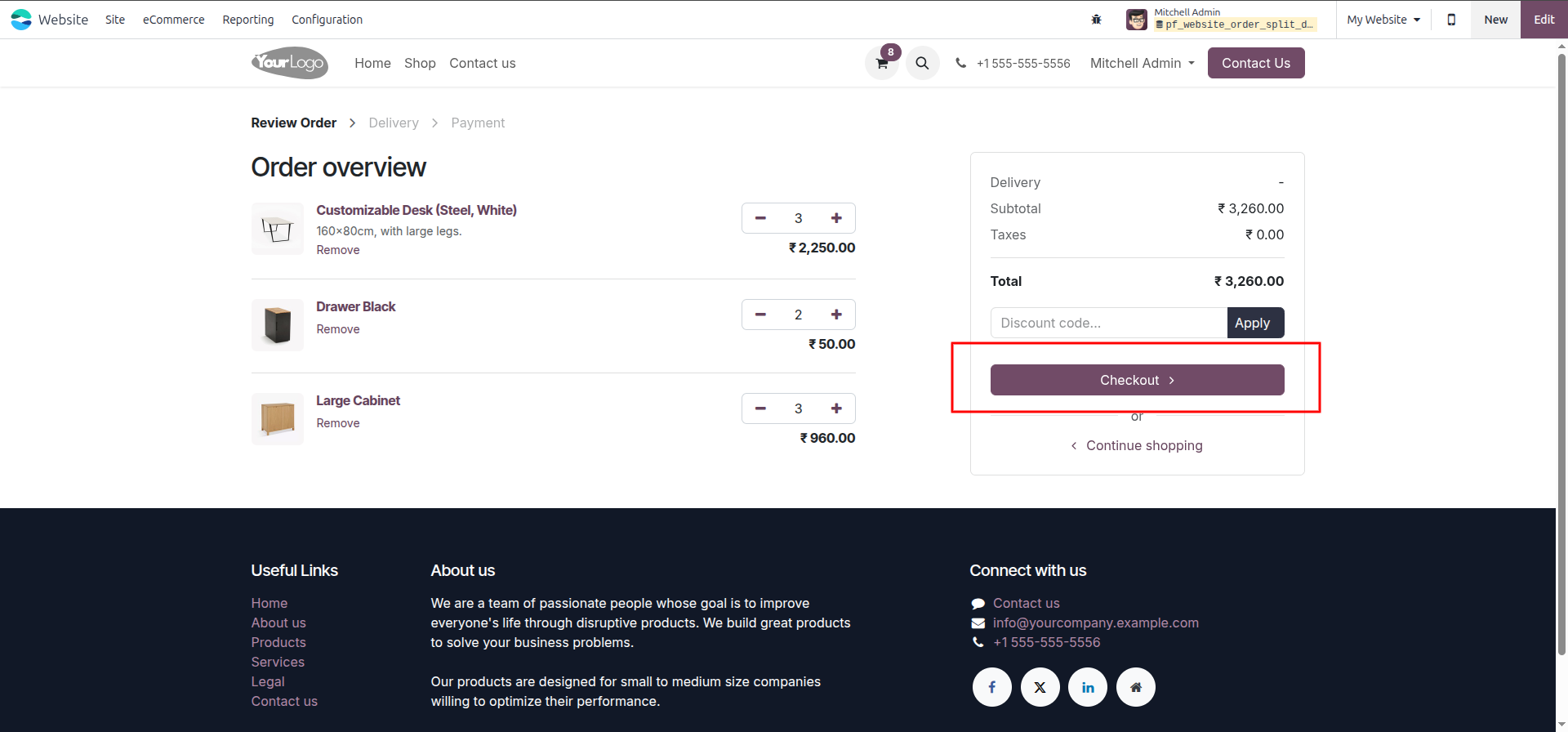
3.Add Products to Cart & Checkout Customer adds products to the cart from the website shop and clicks the Checkout button to proceed to the delivery step.
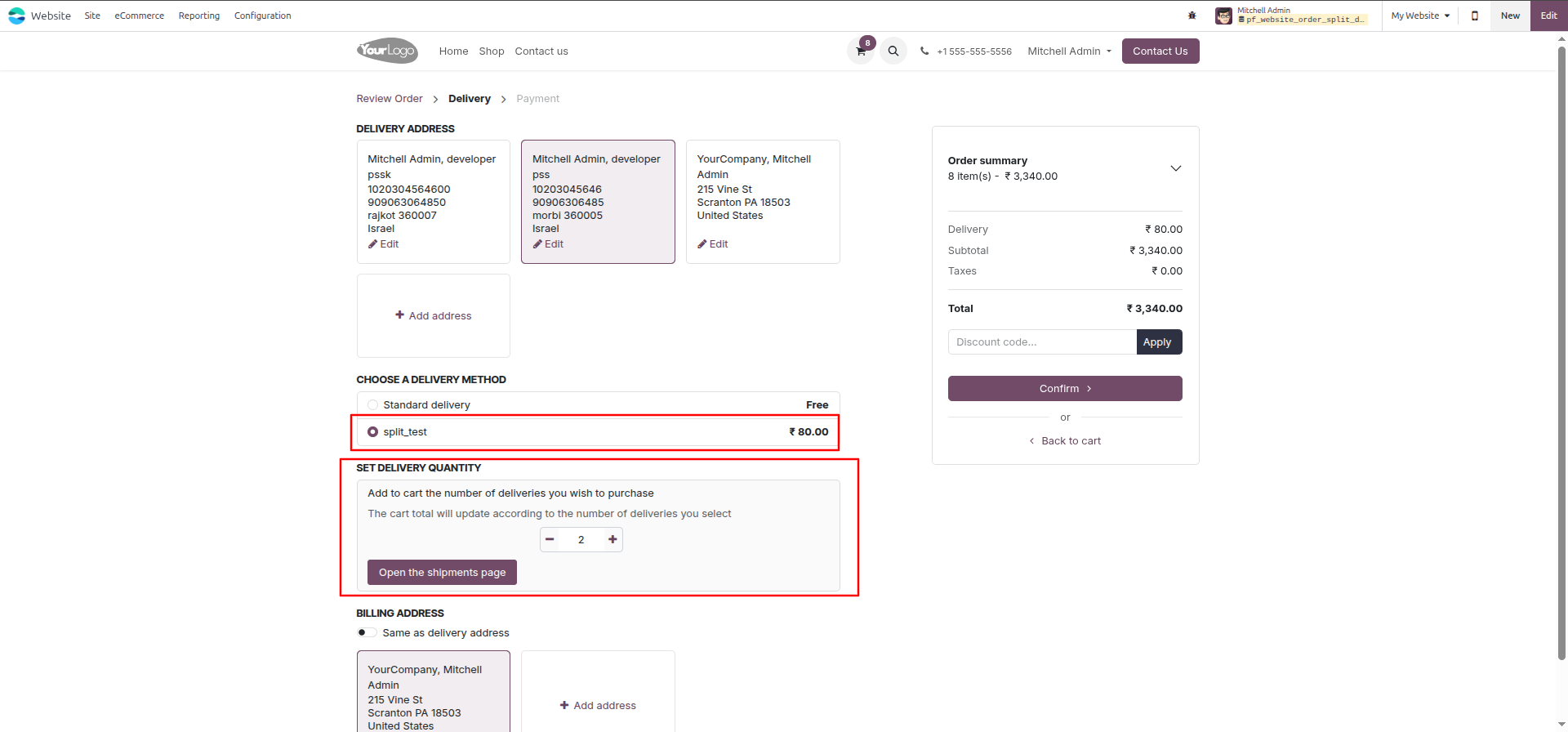
4.Select Split Delivery Method & Set Quantity On the Delivery page, customer selects the split-enabled delivery method, sets the number of deliveries using the +/- counter, and clicks Open the shipments page.
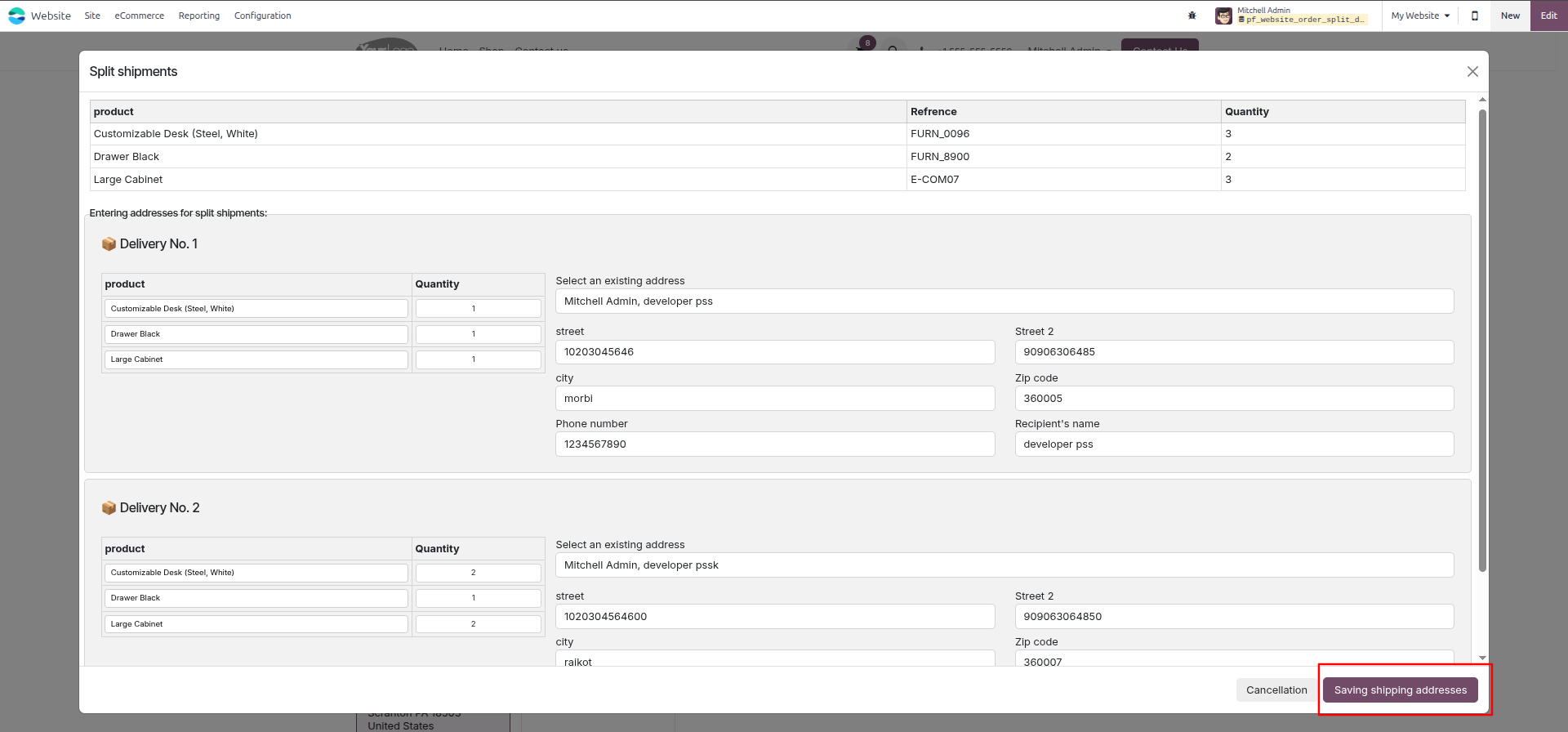
5.Fill Split Shipment Addresses in Modal A modal opens showing all ordered products. Customer assigns quantities per delivery and fills in the address details for each shipment, then clicks Saving shipping addresses.
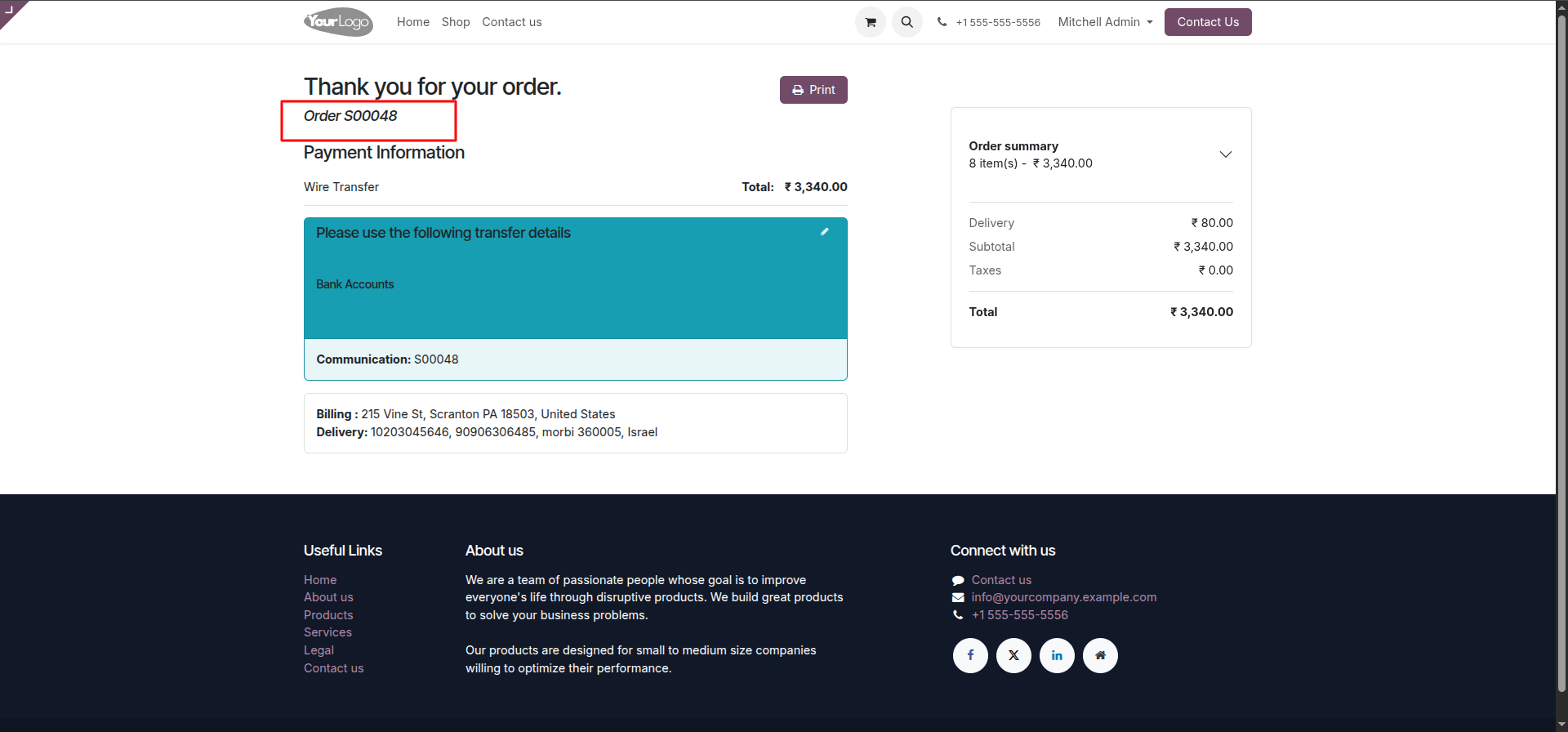
6.Order Confirmation & Thank You Page After payment, the customer sees the Thank You page with the confirmed order number, payment method, and the primary delivery address displayed.
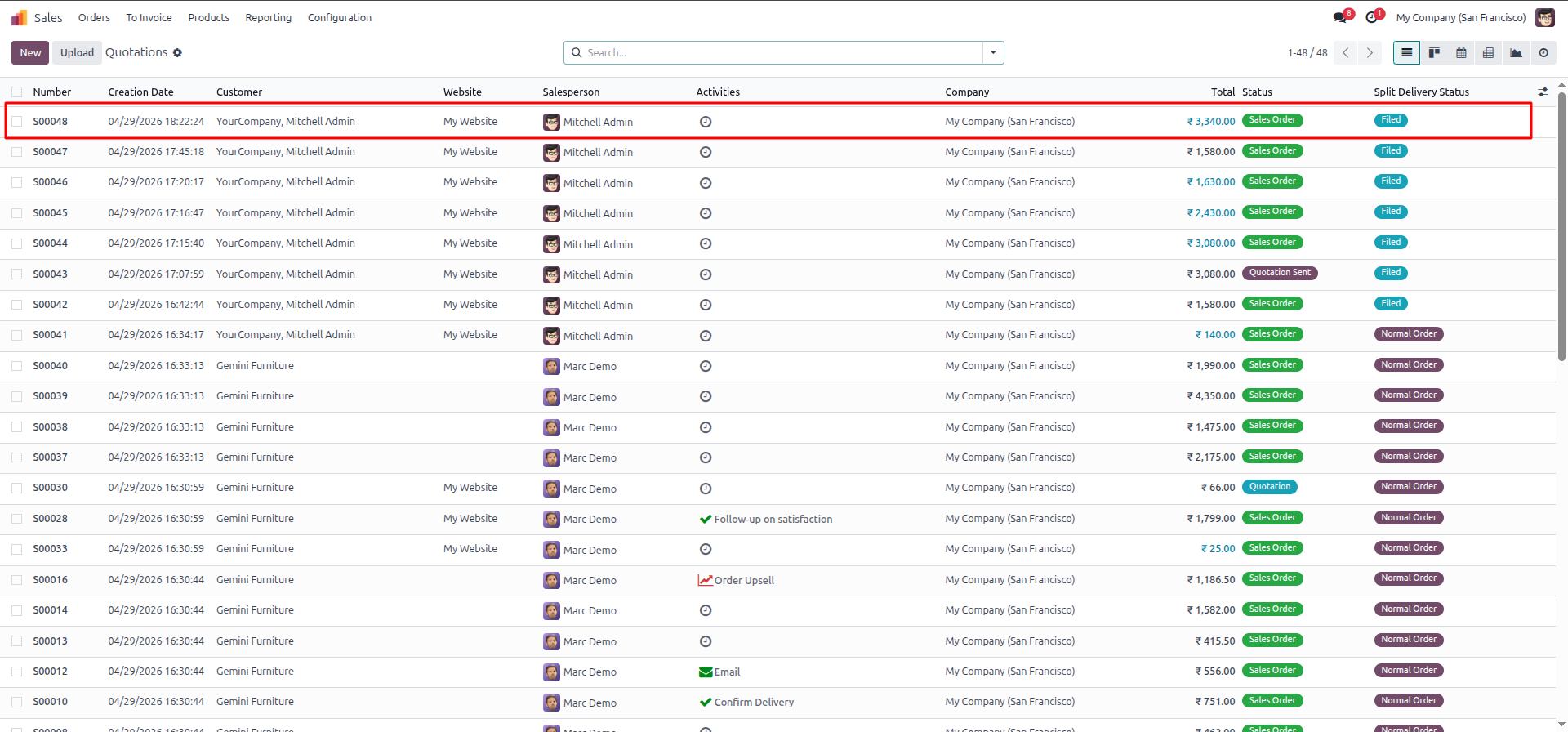
7.Split Delivery Status Visible in Order List In Sales → Quotations, the order list now shows a Split Delivery Status column — orders with completed address filing show Filed in teal.
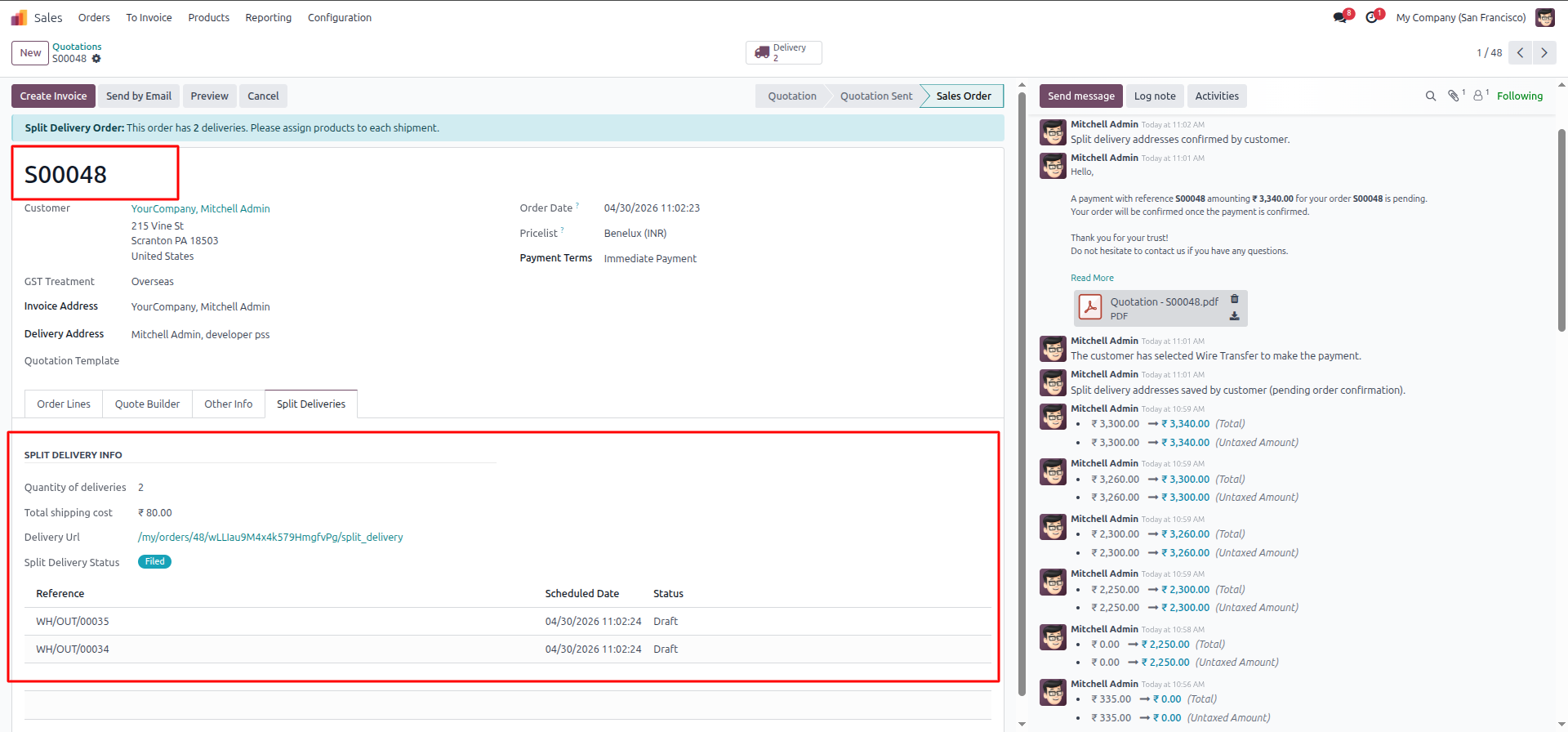
8.Split Deliveries Tab on Sales Order Opening the confirmed sales order shows the Split Deliveries tab with delivery count, total shipping cost, the secure delivery URL, status badge Filed, and both warehouse pickings listed with their scheduled dates and draft status.
Our solutions focus on your problems
- Odoo Implementation
- Odoo Customization
- ERP Development and Implementation
- Odoo Ipass Cloud
- AI for Odoo
- Odoo Apps
- Aws Marketplace Products
- Business Engines
Our Pricing includes User Manual, 90 Days Support (Monday-Friday 10am to 7pm IST) and One time Setup
• Works & tested on standard installations of Odoo with no third party apps,
• Free support only for odoo installations with no third party apps,
• Paid support available for Odoo installations with third party apps.

Prefortune is a Odoo Official Partner, Odoo Development company. Our philosophy is to use Open Source tools and technologies to provide cost effective and green solutions for our customers.
Prefortune Technologies LLP is working on web development, Mobile development, and Odoo ERP.
If you need any help or want more additional features, you may contact us through:
Alternative Products
These other products might interest you
Specifications
| Version | 19.0, 18.0, 17.0, 16.0, 15.0, 14.0 |