
Watch Quick Video

Odoo Secondary Unit of Measure | Additional UOM
Our all-inclusive
Odoo Secondary Unit of Measure | Additional UOM
Overseeing items in distinctive units gets to be less demanding with the
Secondary Unit of Measure | Additional UOM Odoo module.
It permits you to characterize a secondary unit of measure Odoo with adaptable
unit of measure conversion Odoo, making a difference keep up precision over operations.
This double unit of measure Odoo setup works over RFQs, deals orders,
conveyances, and solicitations, guaranteeing reliable secondary quantity in Odoo
following at each organize.
It too makes strides perceivability in reports with proper secondary UOM in reporting Odoo.
With back for multiple UOM Odoo and clear following in stock, businesses can handle
complex estimations more proficiently and make strides overall unit of measure
management Odoo.
Key Features
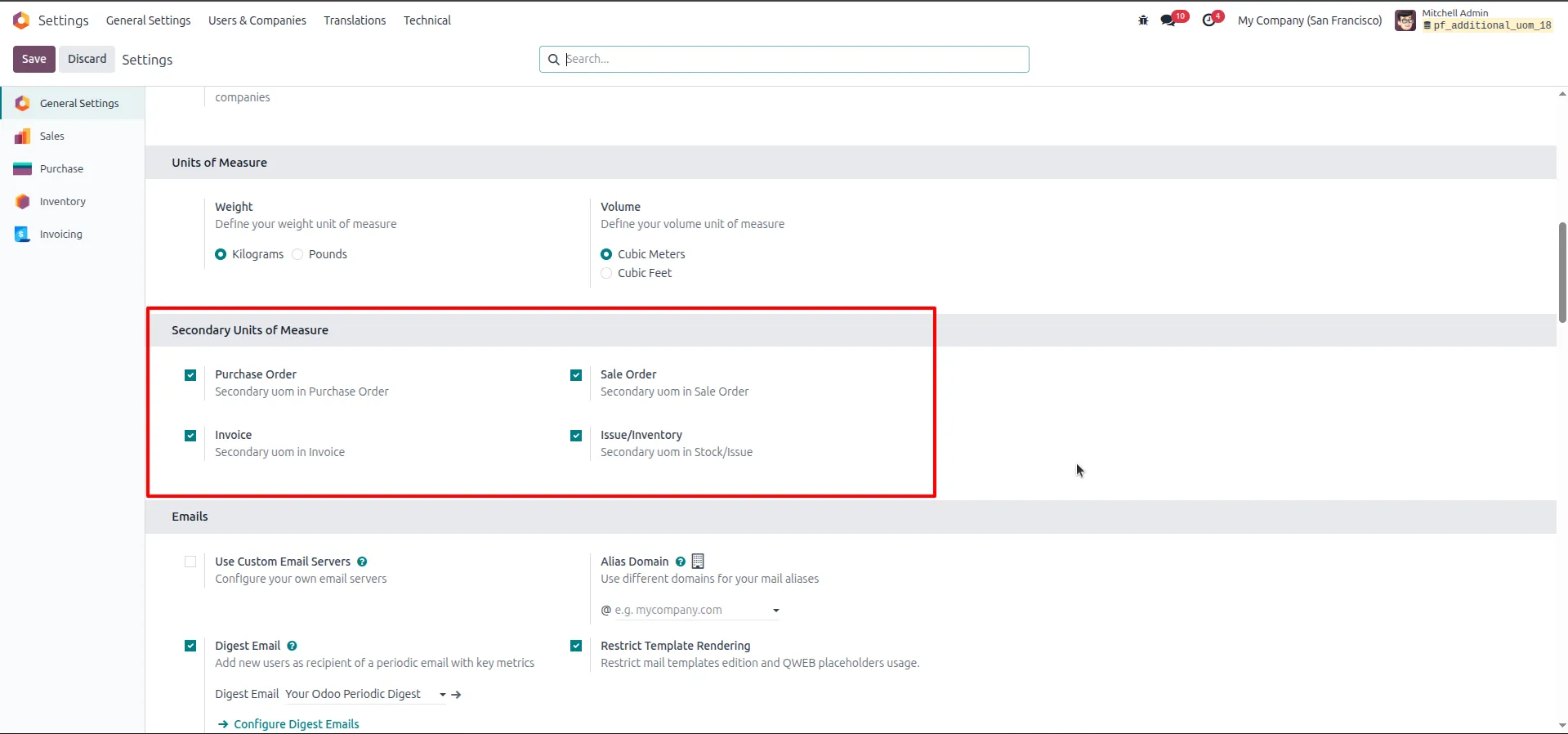
1.Go to Settings → General Settings. Under the Secondary Units of Measure section, enable the checkboxes for Purchase Order, Sale Order, Invoice, and Issue/Inventory to activate secondary UOM across all relevant documents.
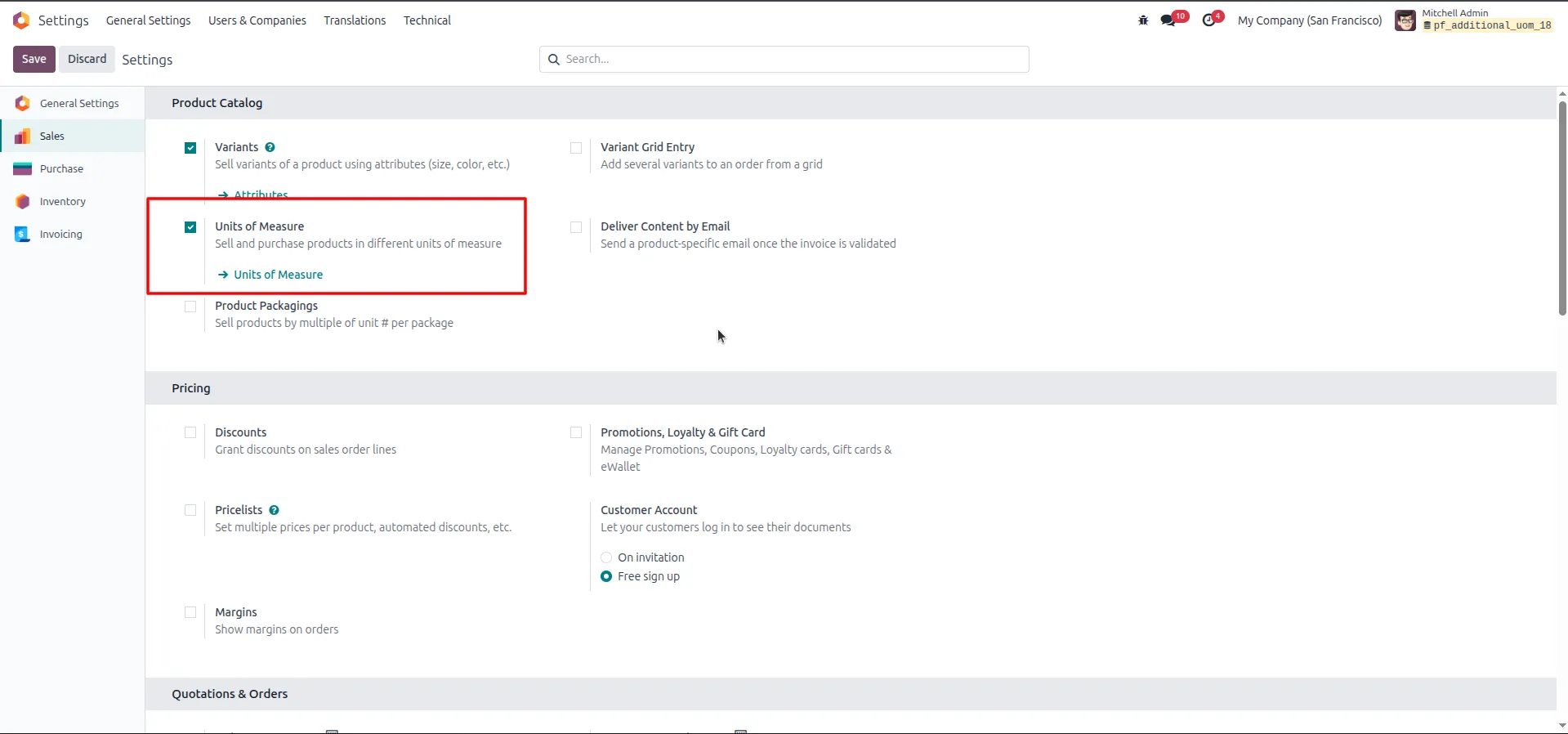
2.Go to Settings → Sales. Under the Product Catalog section, enable the Units of Measure checkbox to allow selling and purchasing products in different units of measure.
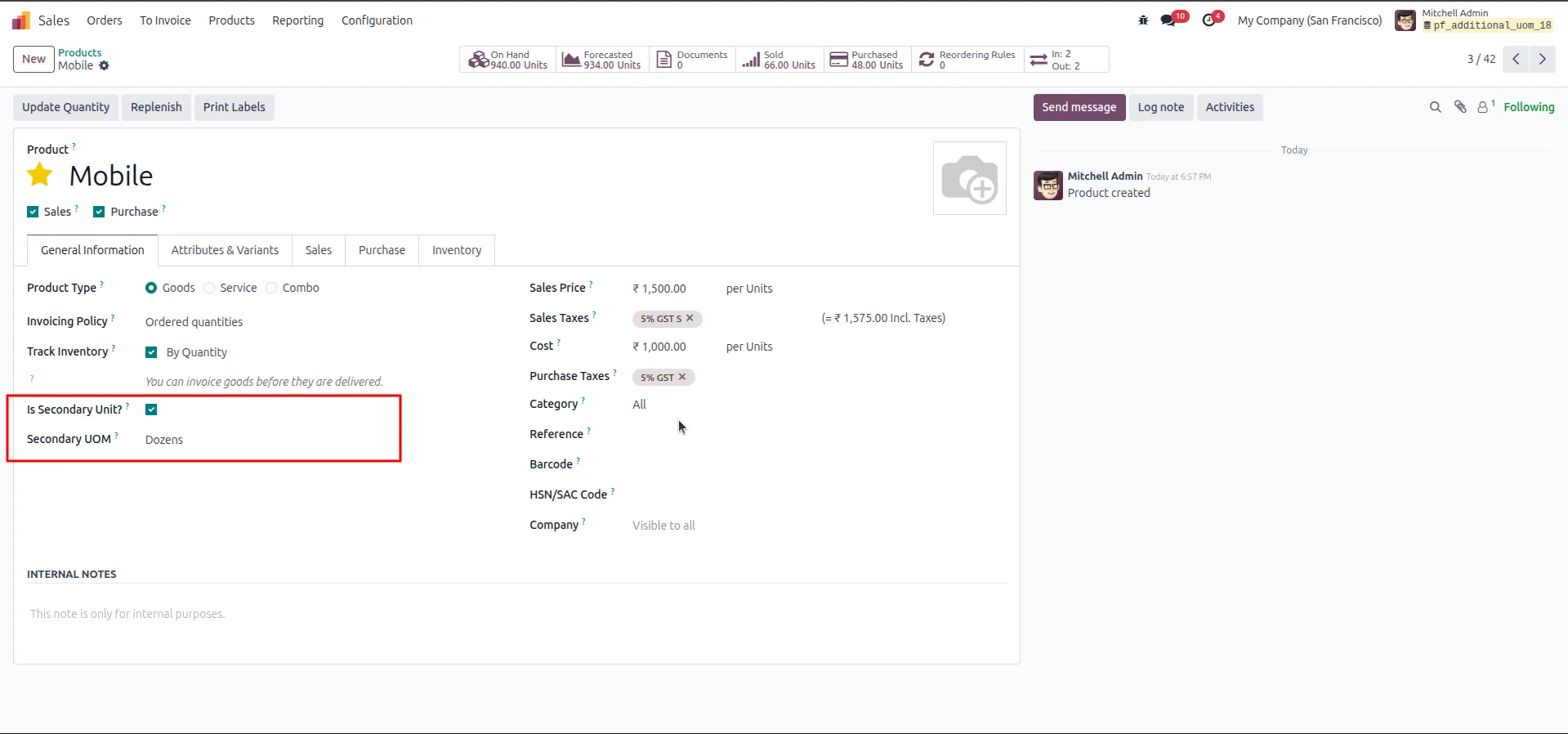
3.Open product "Mobile" → enable "Is Secondary Unit?" → set Secondary UOM to Dozens. Since the primary UOM (Units) and Dozens are in the same UOM category, no Ratio field appears.
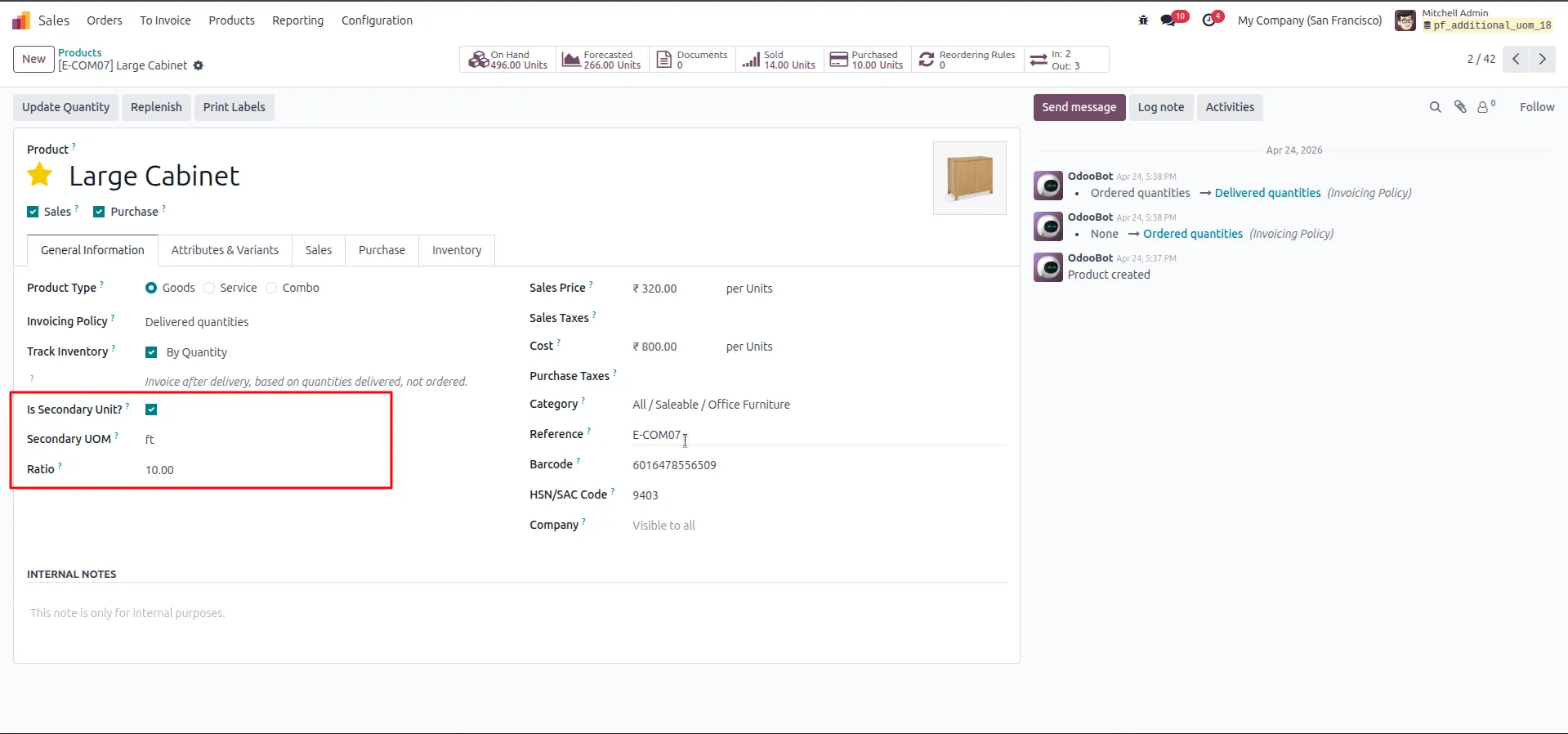
4.Open product "Large Cabinet" → enable "Is Secondary Unit?" → set Secondary UOM to ft → set Ratio = 10.00. Since Units and ft are from different UOM categories, the Ratio field appears and must be filled manually.
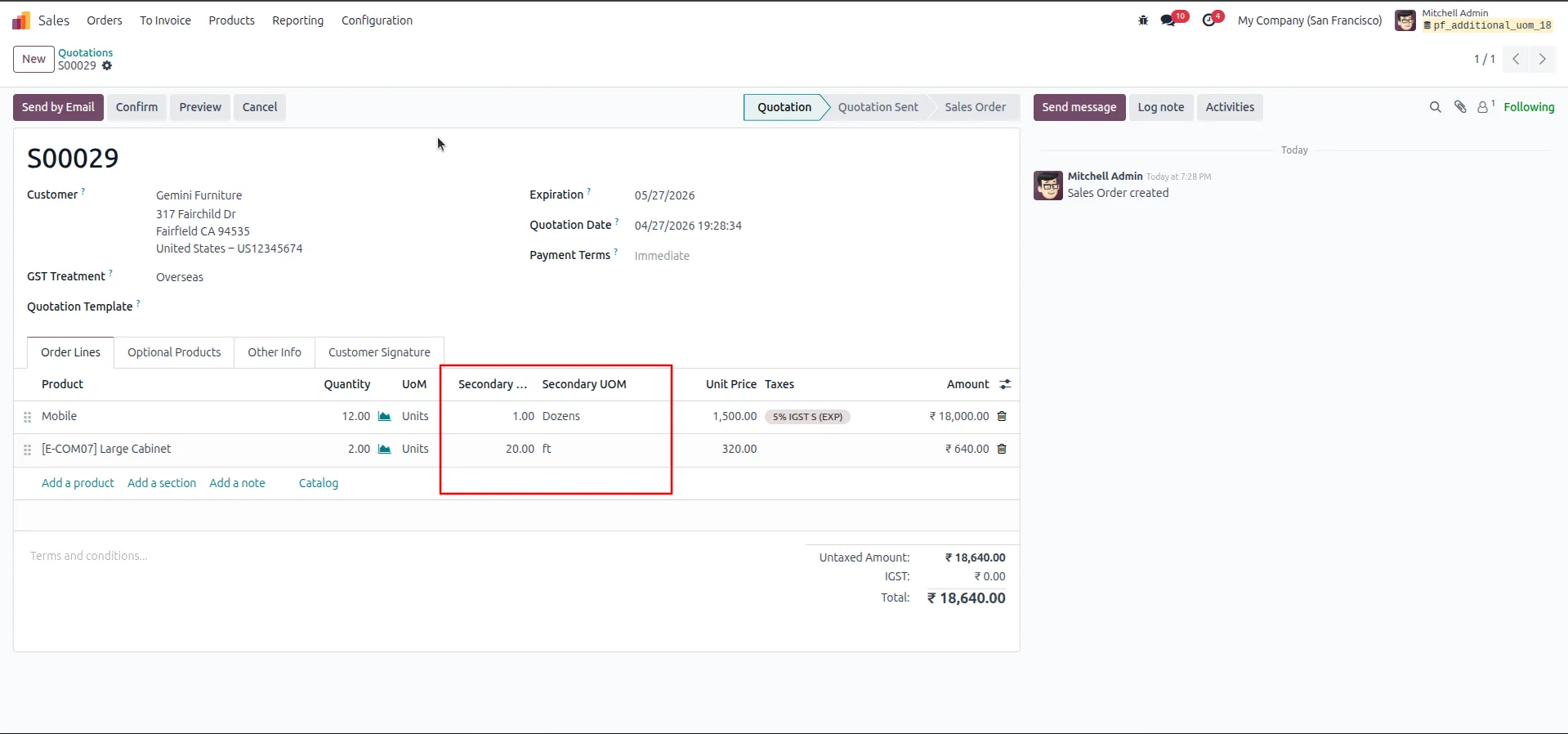
5.Go to Sales → Orders → Quotations and create a new quotation. Add the products Mobile and Large Cabinet. Verify the Secondary Qty and Secondary UOM columns appear on the order lines.
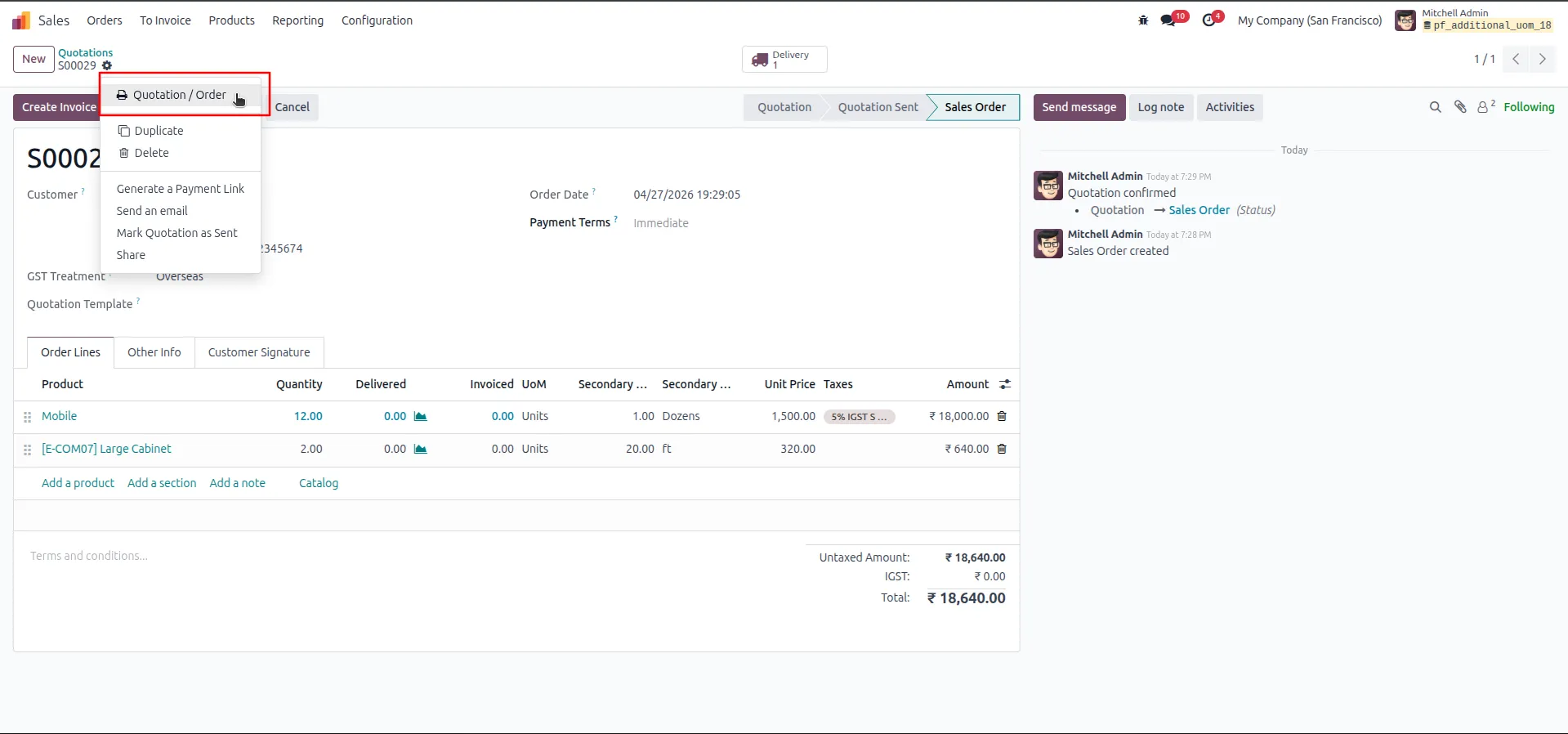
6.On the confirmed Sales Order S00029, click the Print button (gear/dropdown) and select "Quotation / Order" to print the sales order document.
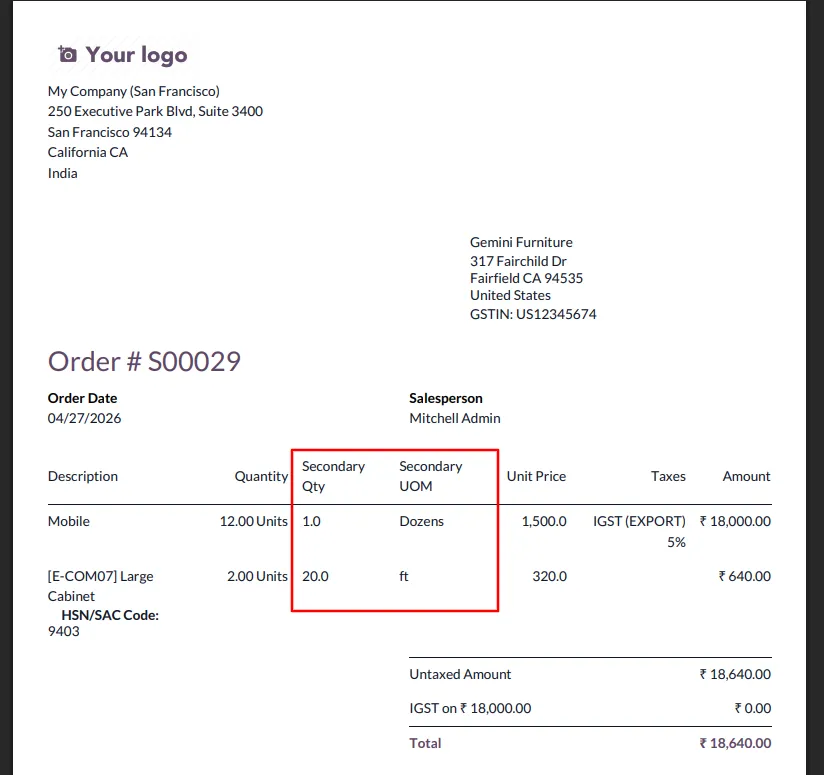
7.Review the printed Sales Order PDF (S00029). Confirm that the Secondary Qty and Secondary UOM columns are visible on the printed document.
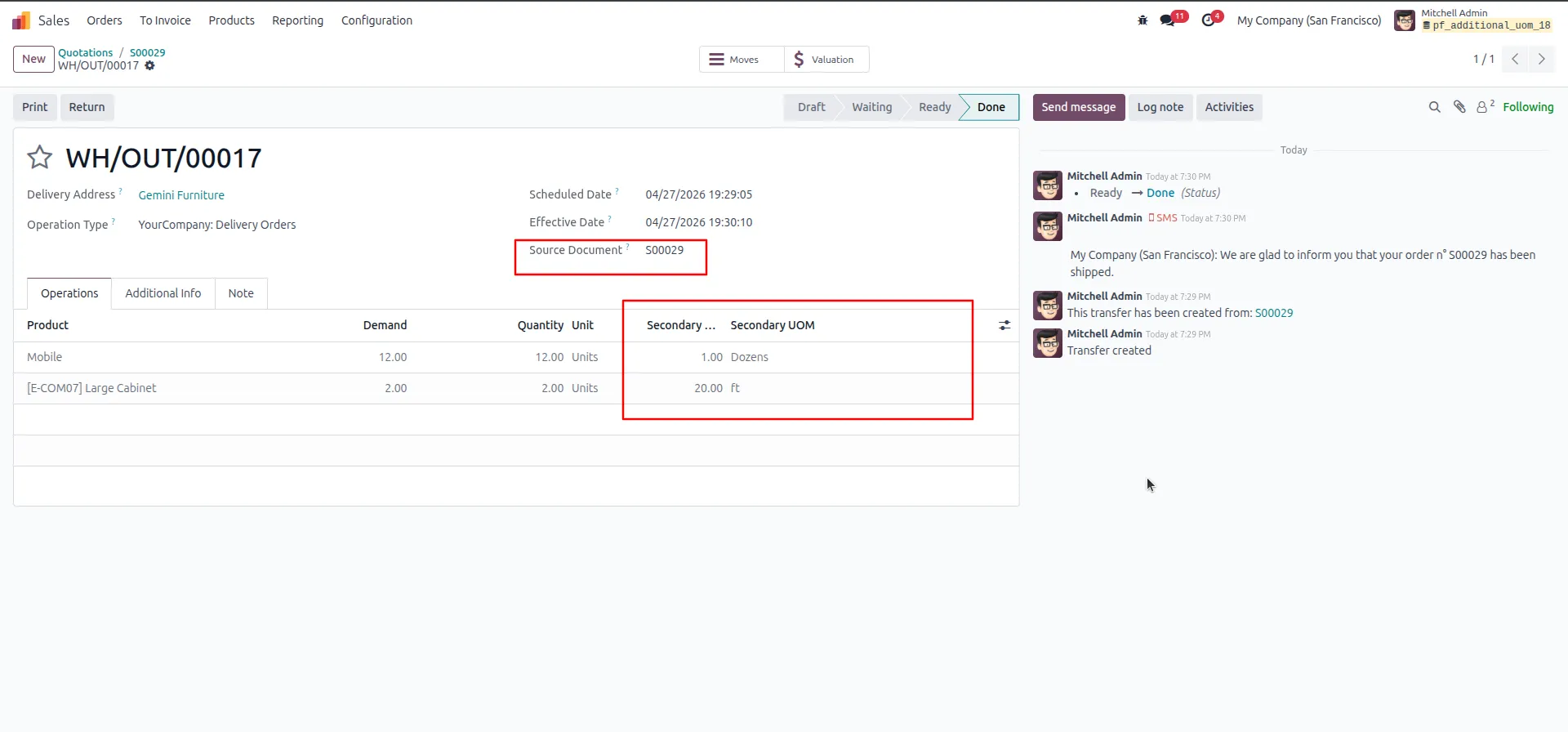
8. Navigate to the delivery order WH/OUT/00017 linked to sales order S00029. Verify that the Secondary Qty and Secondary UOM columns are displayed correctly on the delivery operations, and that the status is Done.
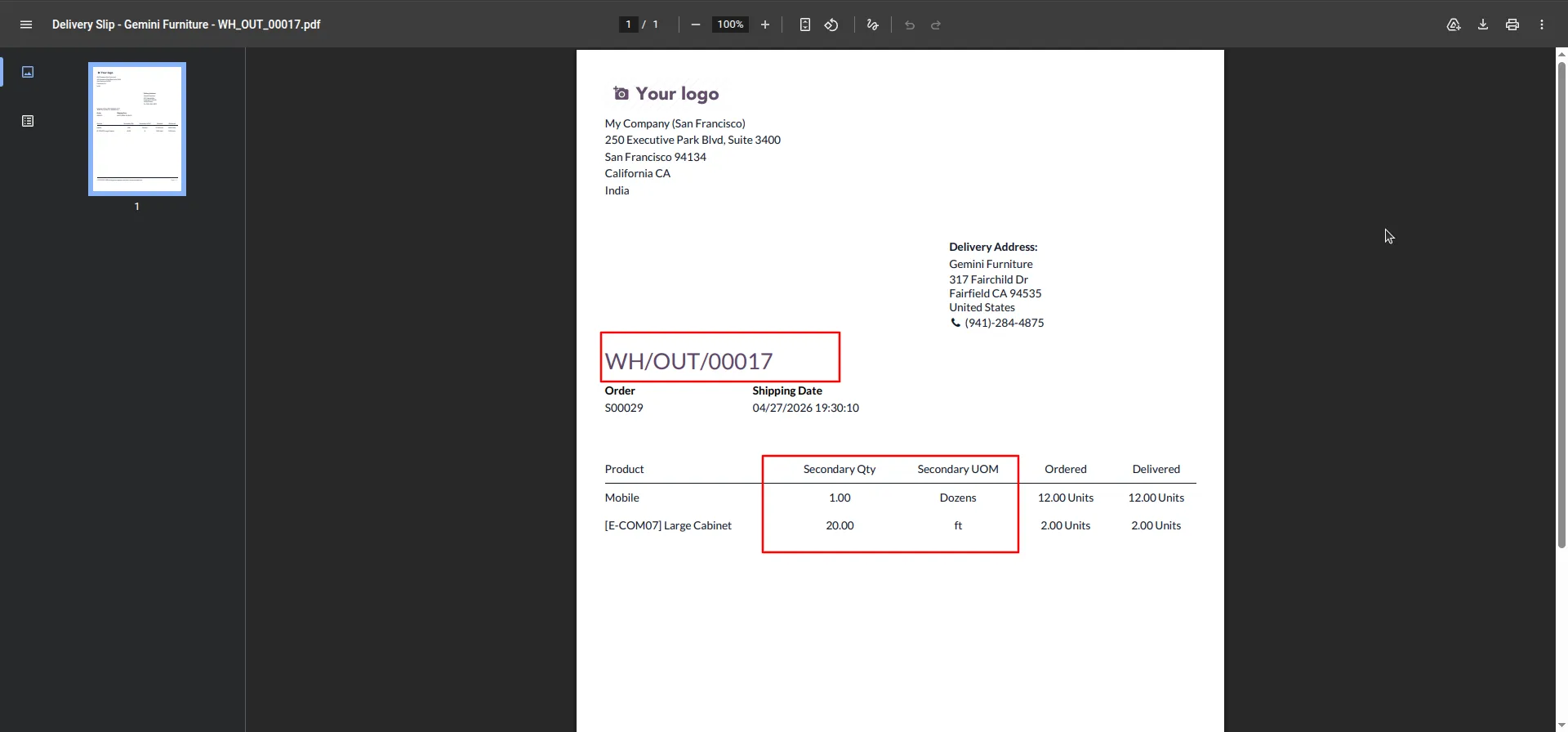
9.Open the printed Delivery Slip PDF (WH/OUT/00017). Confirm the Secondary Qty and Secondary UOM columns appear in the slip, showing the correct secondary quantities alongside the ordered and delivered units.
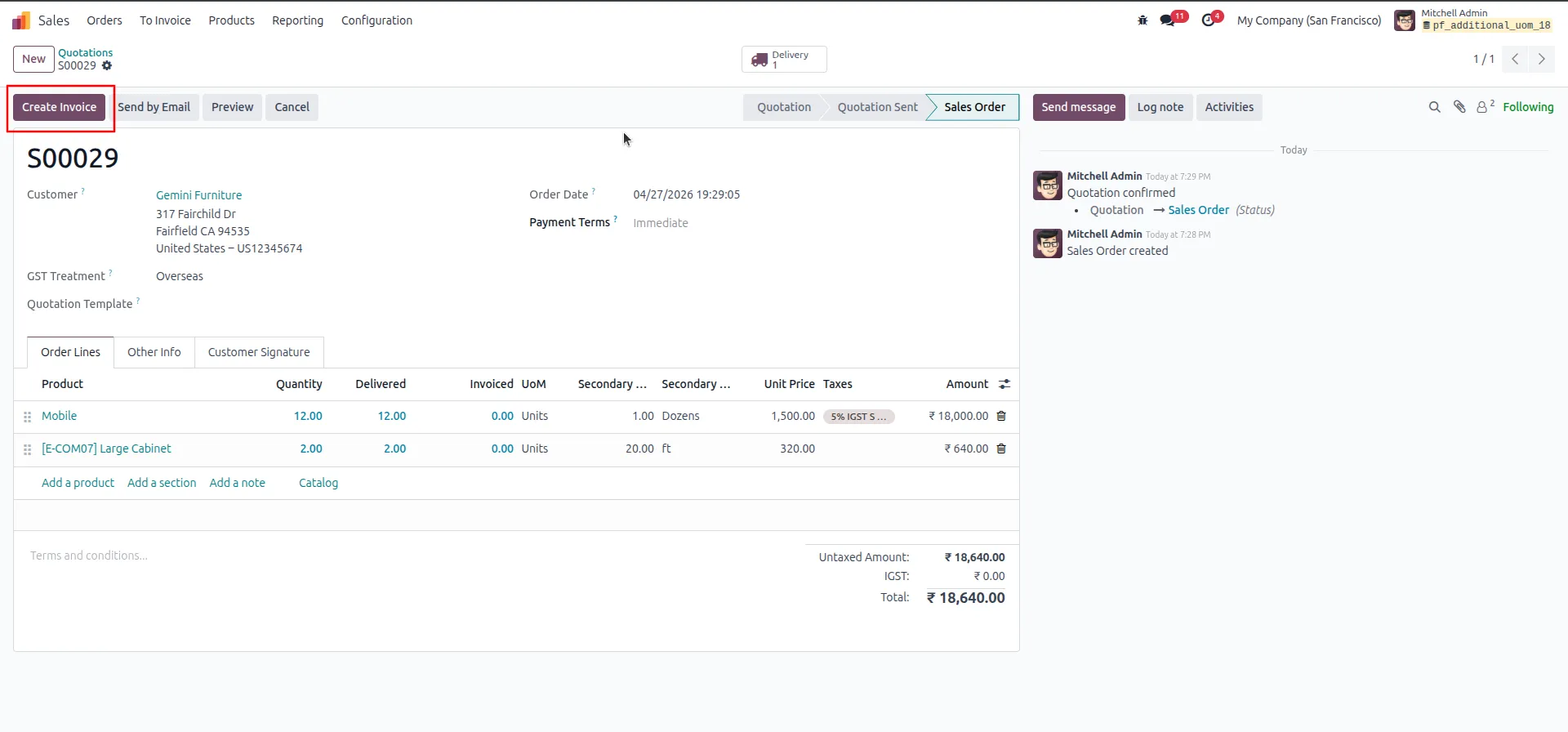
10. Return to Sales Order S00029 . Click the "Create Invoice" button to generate a customer invoice for the delivered goods.
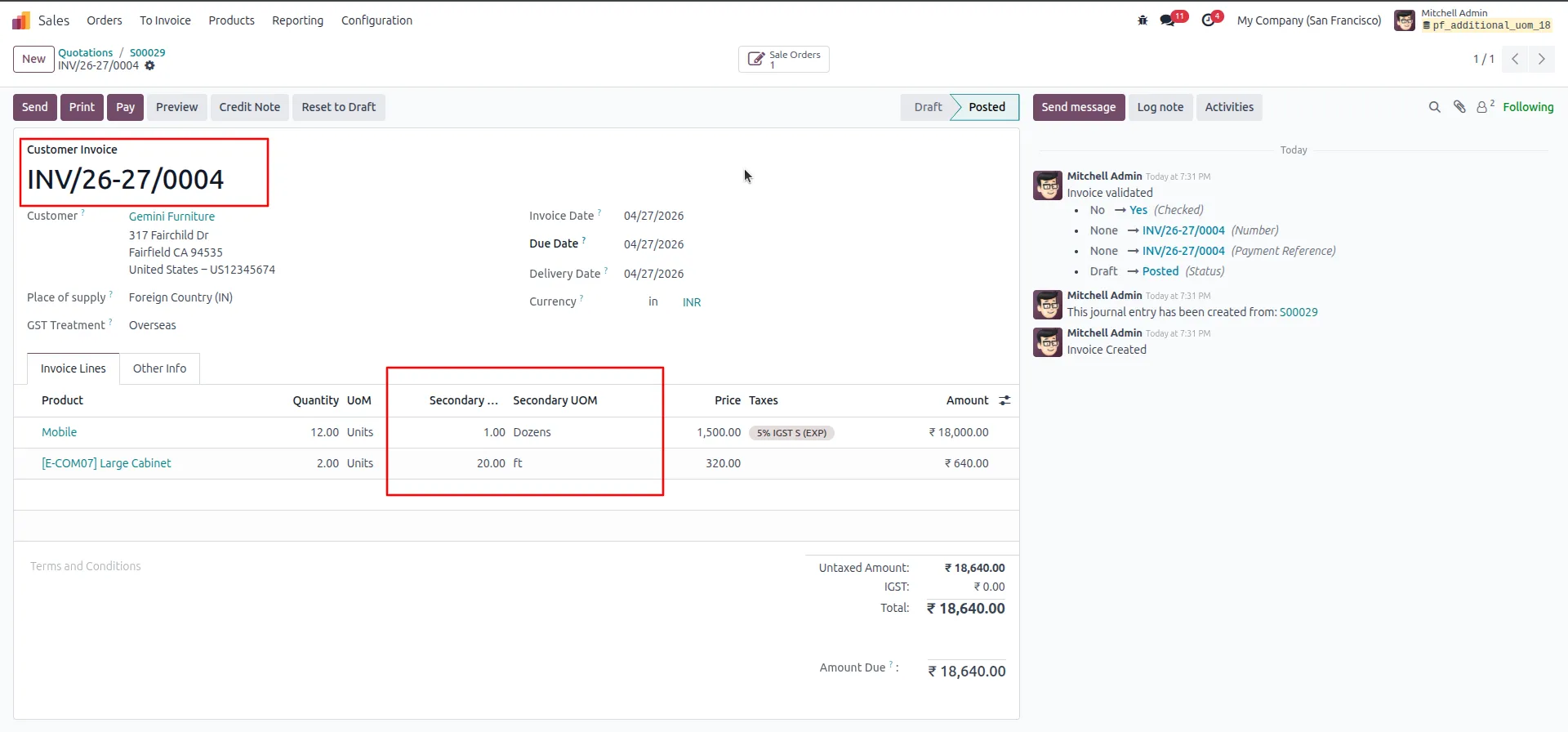
11.Review the created and validated Customer Invoice INV/26-27/0004. Confirm that the Secondary Qty and Secondary UOM columns are visible on the invoice lines, and the status is Posted.
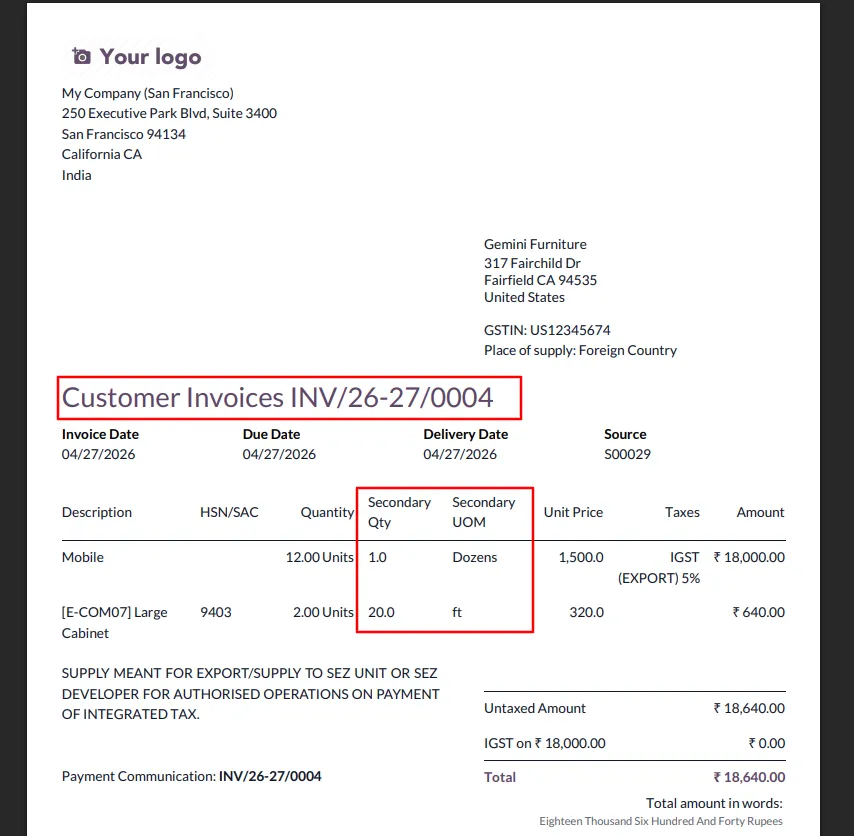
12.Open the printed Customer Invoice PDF (INV/26-27/0004). Verify that the Secondary Qty and Secondary UOM columns are properly printed on the invoice document.
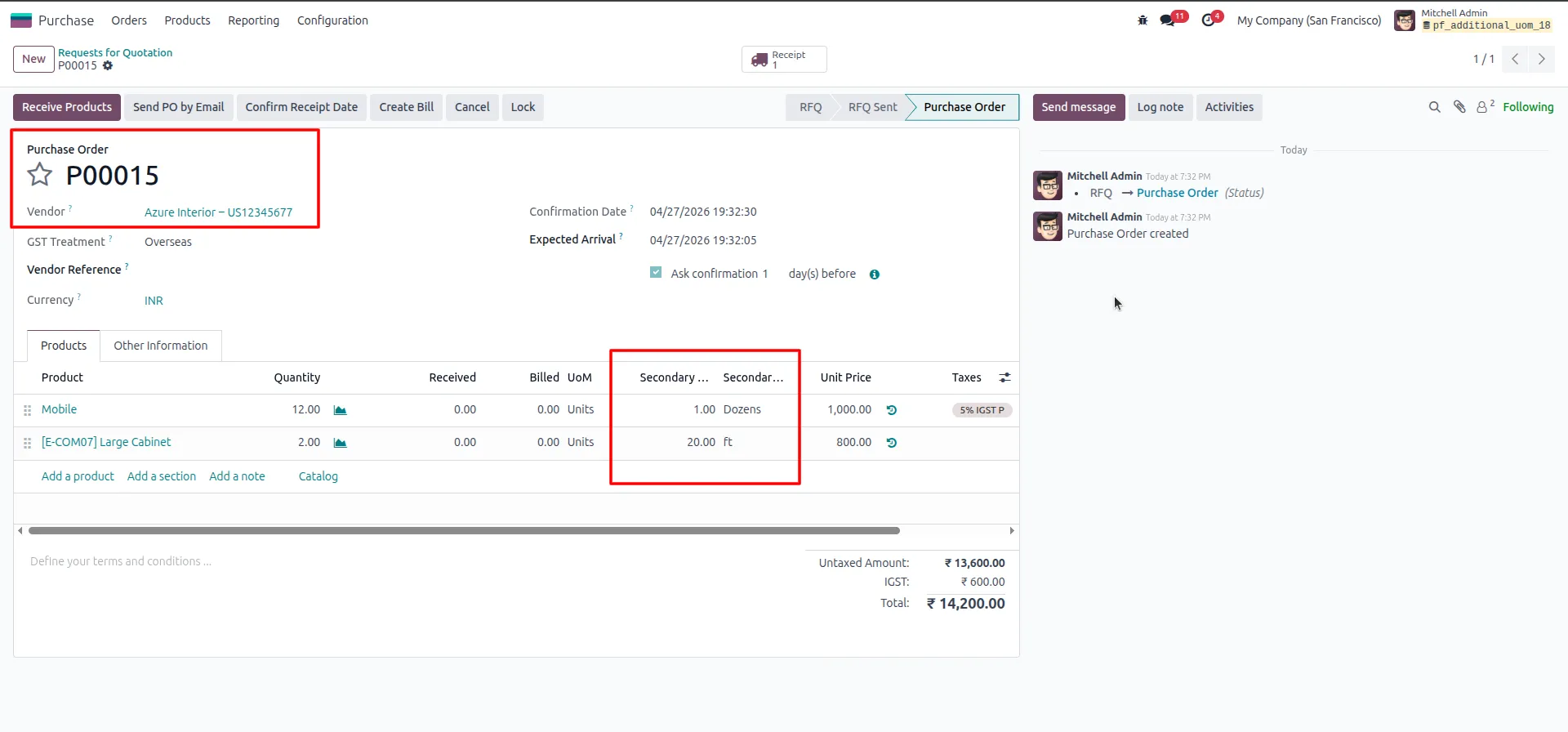
13.Go to Purchase → Orders and open Purchase Order P00015. Confirm that the Secondary Qty and Secondary UOM columns appear on the purchase order lines.
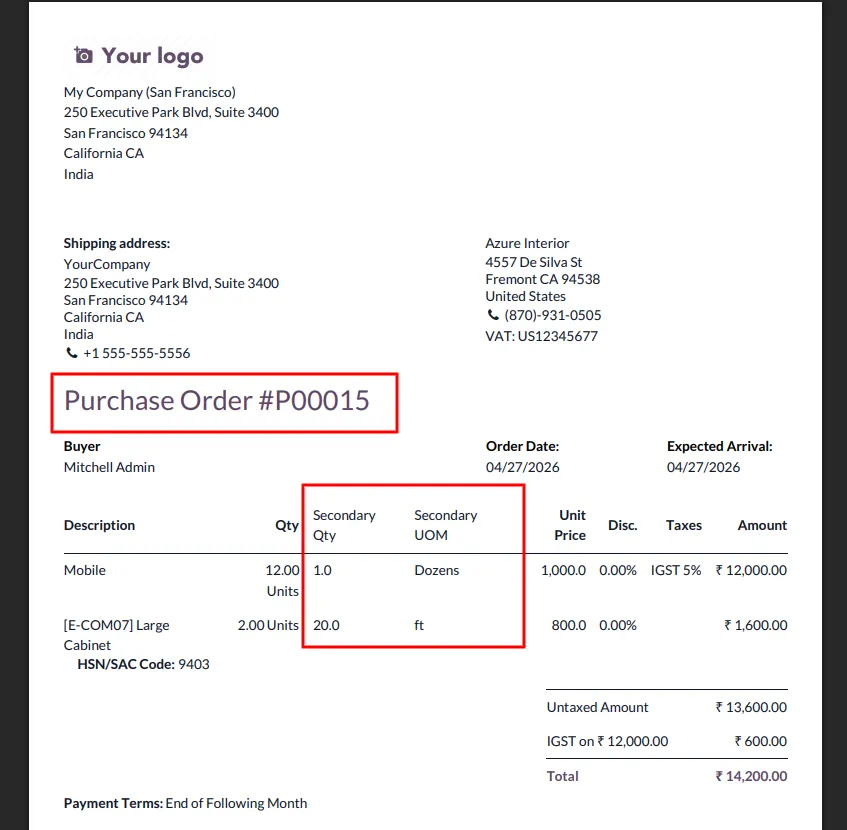
14.Open the printed Purchase Order PDF (P00015). Verify that the Secondary Qty and Secondary UOM columns are displayed on the printed purchase order document.
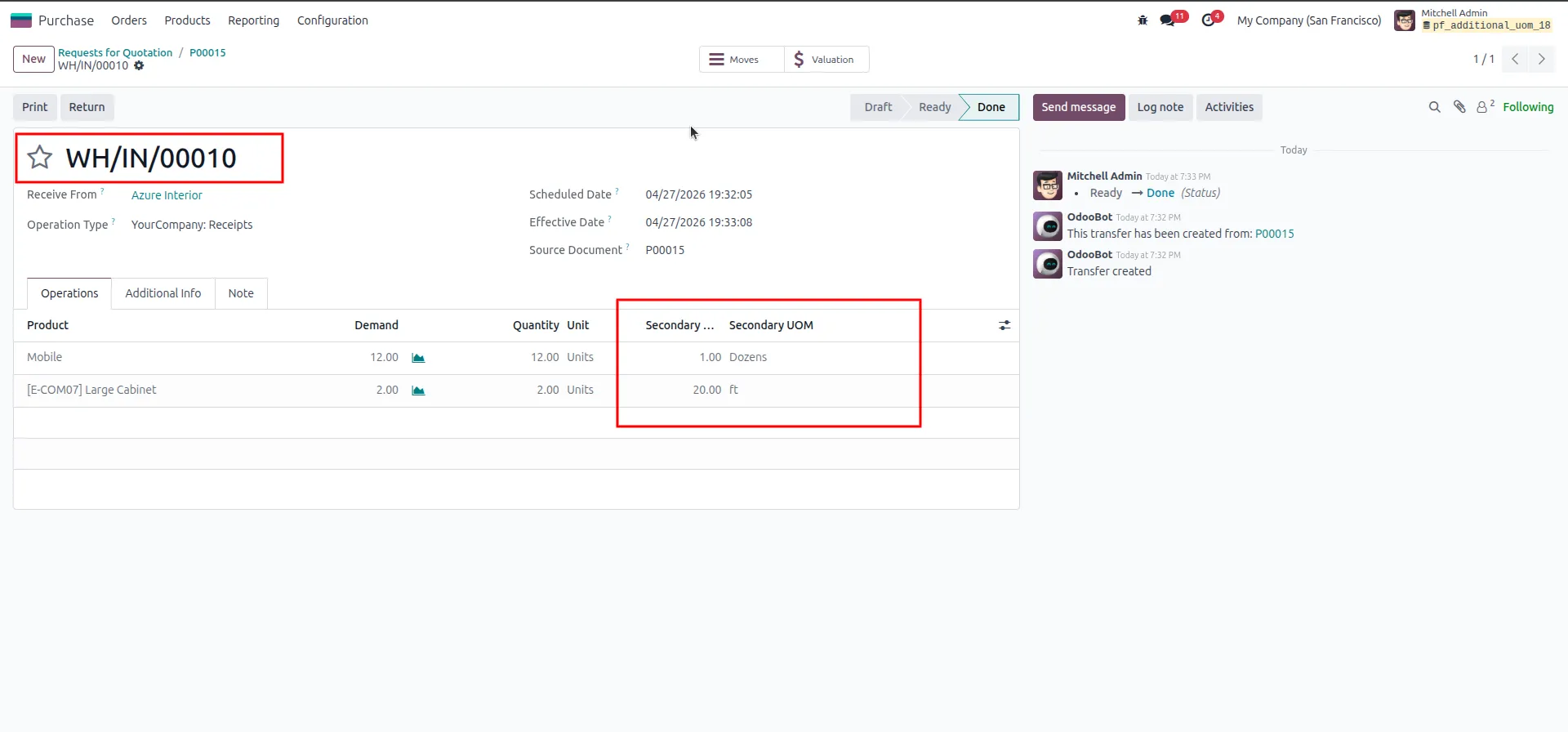
15.Open the warehouse receipt WH/IN/00010 linked to Purchase Order P00015. Verify that the Secondary Qty and Secondary UOM columns are visible in the receipt operations, and that the status is Done.
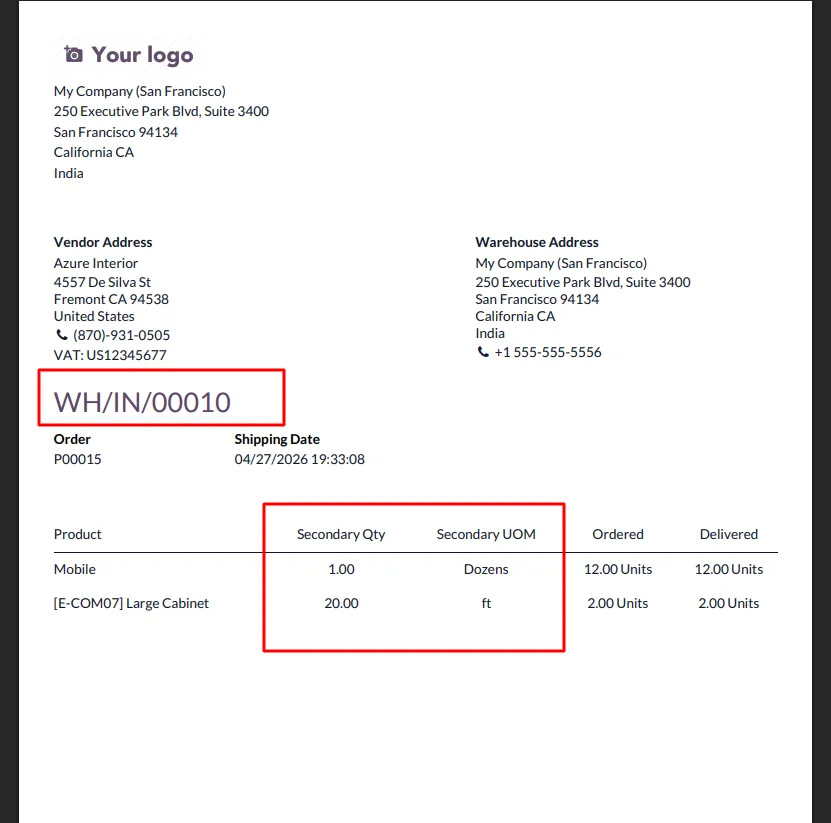
16.Open the printed Receipt/Delivery Slip PDF (WH/IN/00010). Confirm the Secondary Qty and Secondary UOM columns are printed correctly alongside ordered and delivered quantities.
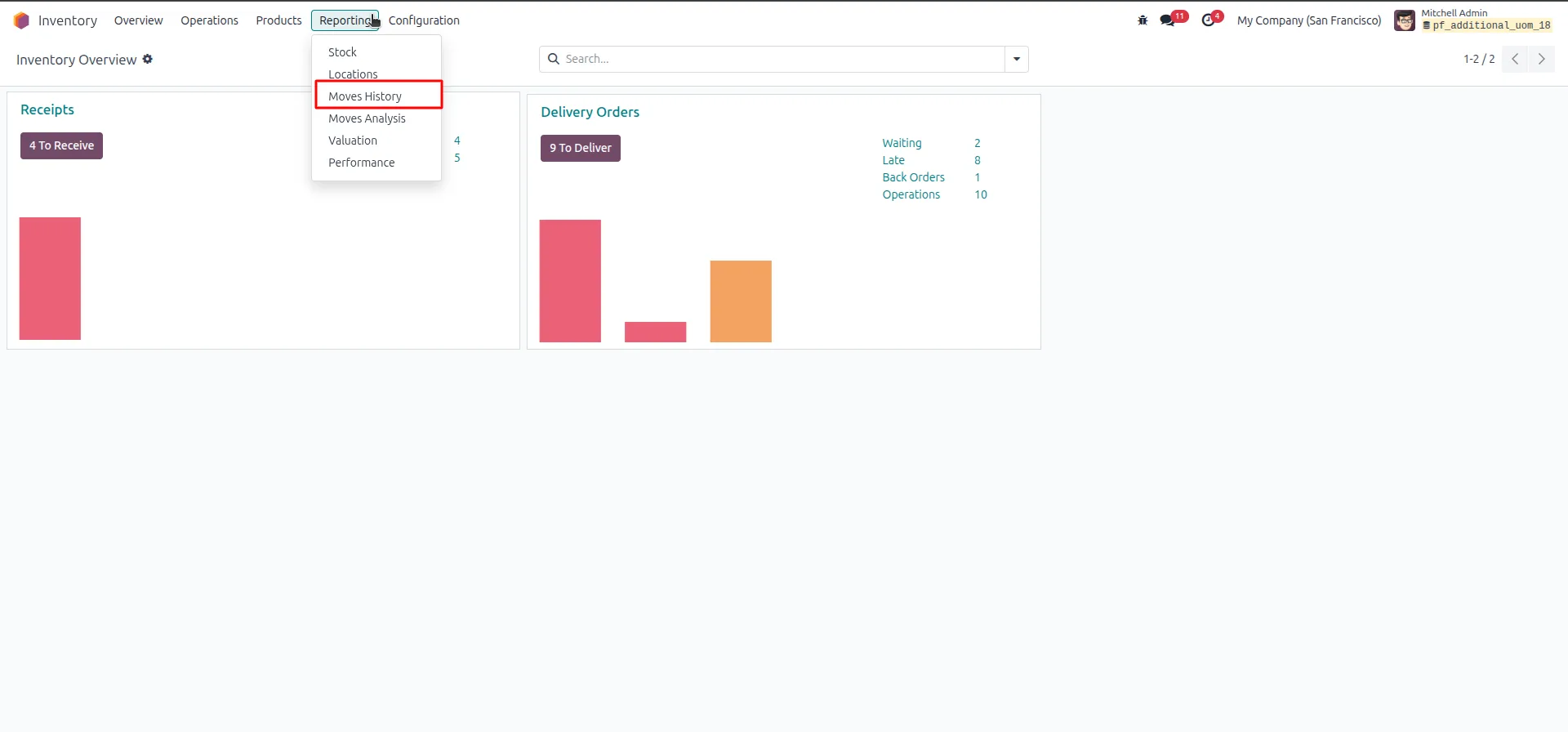
17.Go to Inventory → Reporting menu and click on "Moves History" to view the complete stock move history with secondary UOM data.
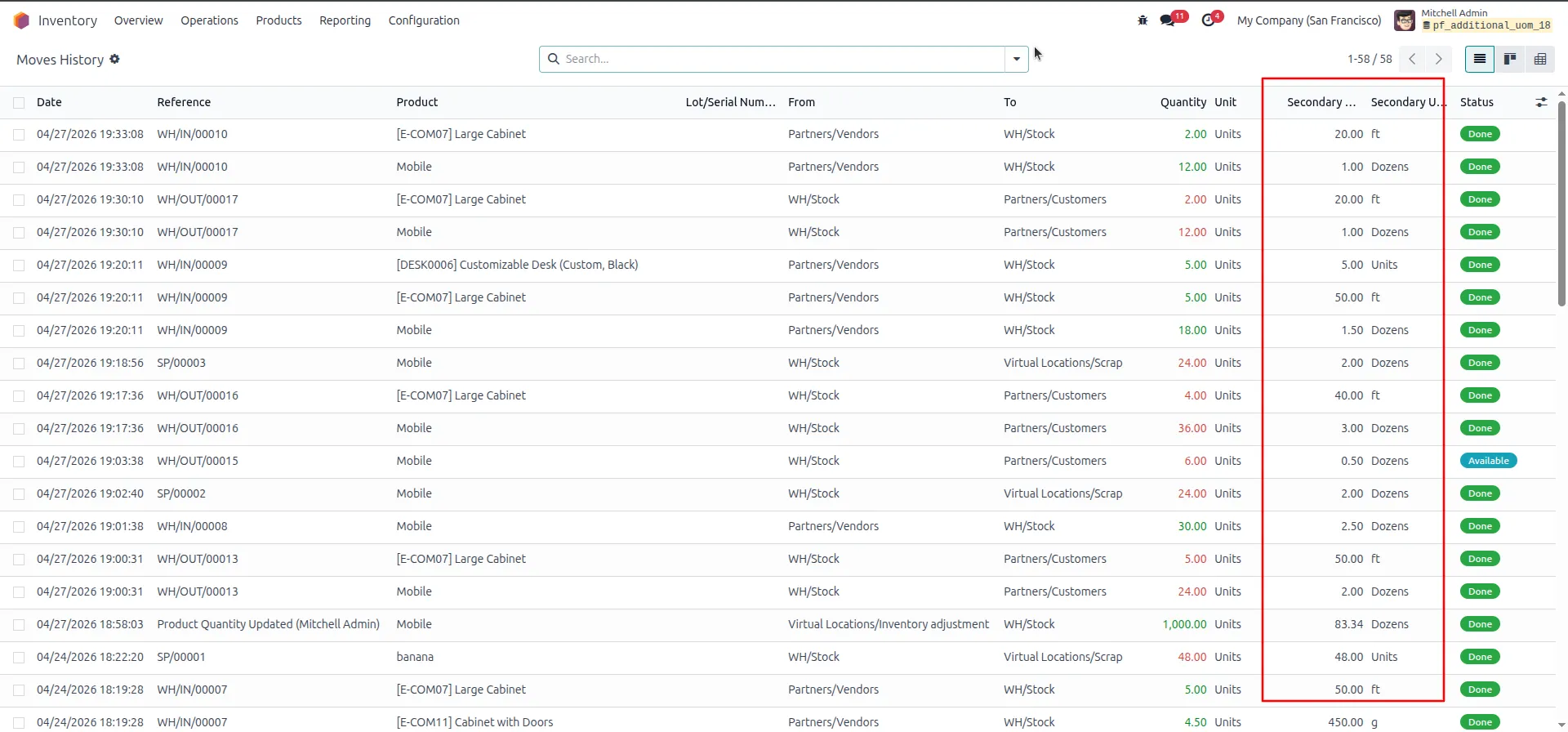
18.In the Moves History report, review all stock movements. Confirm that the Secondary Qty and Secondary UOM columns are visible for all relevant moves.
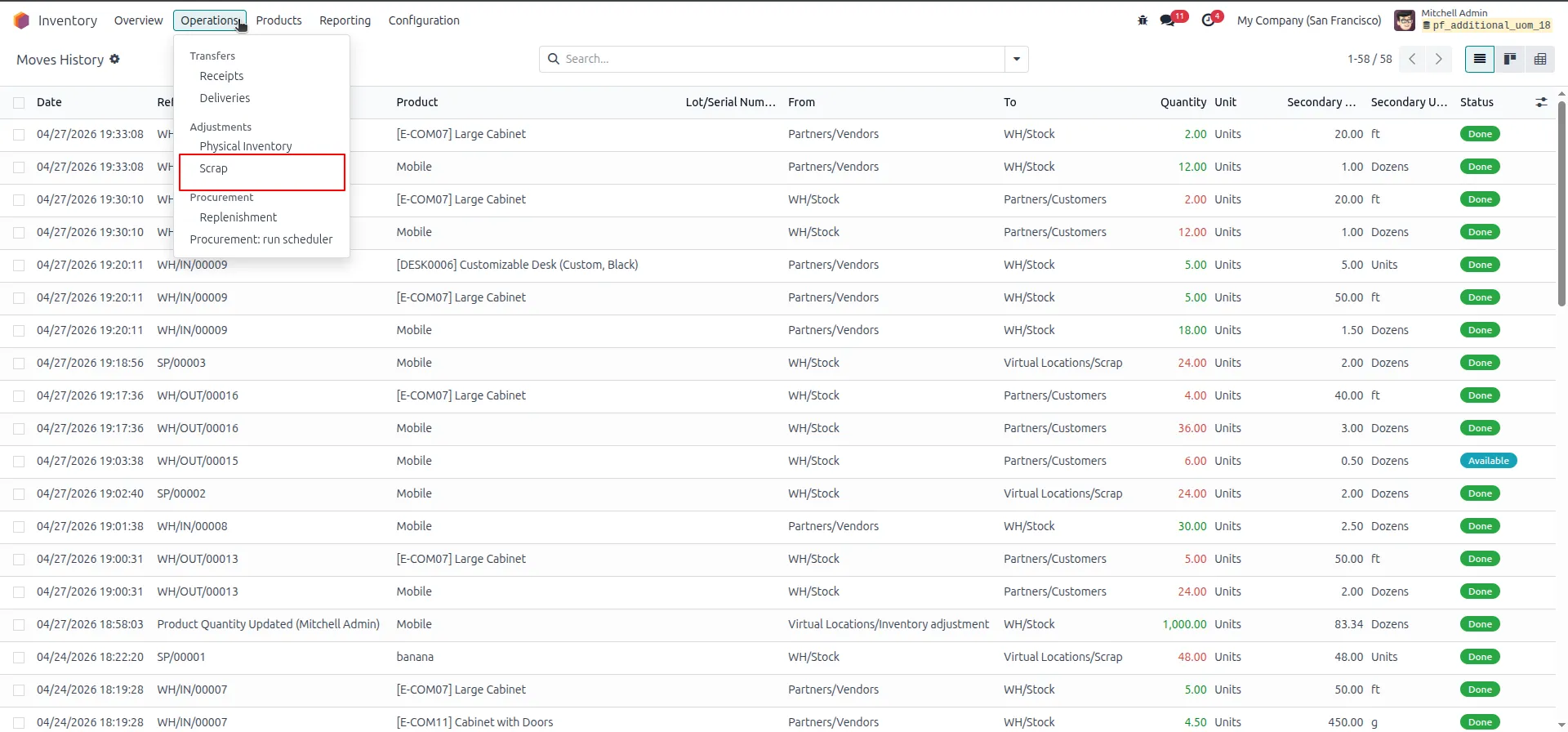
19.Go to Inventory → Operations menu and click "Scrap" to create a new scrap order for scrapping products with secondary UOM tracking.
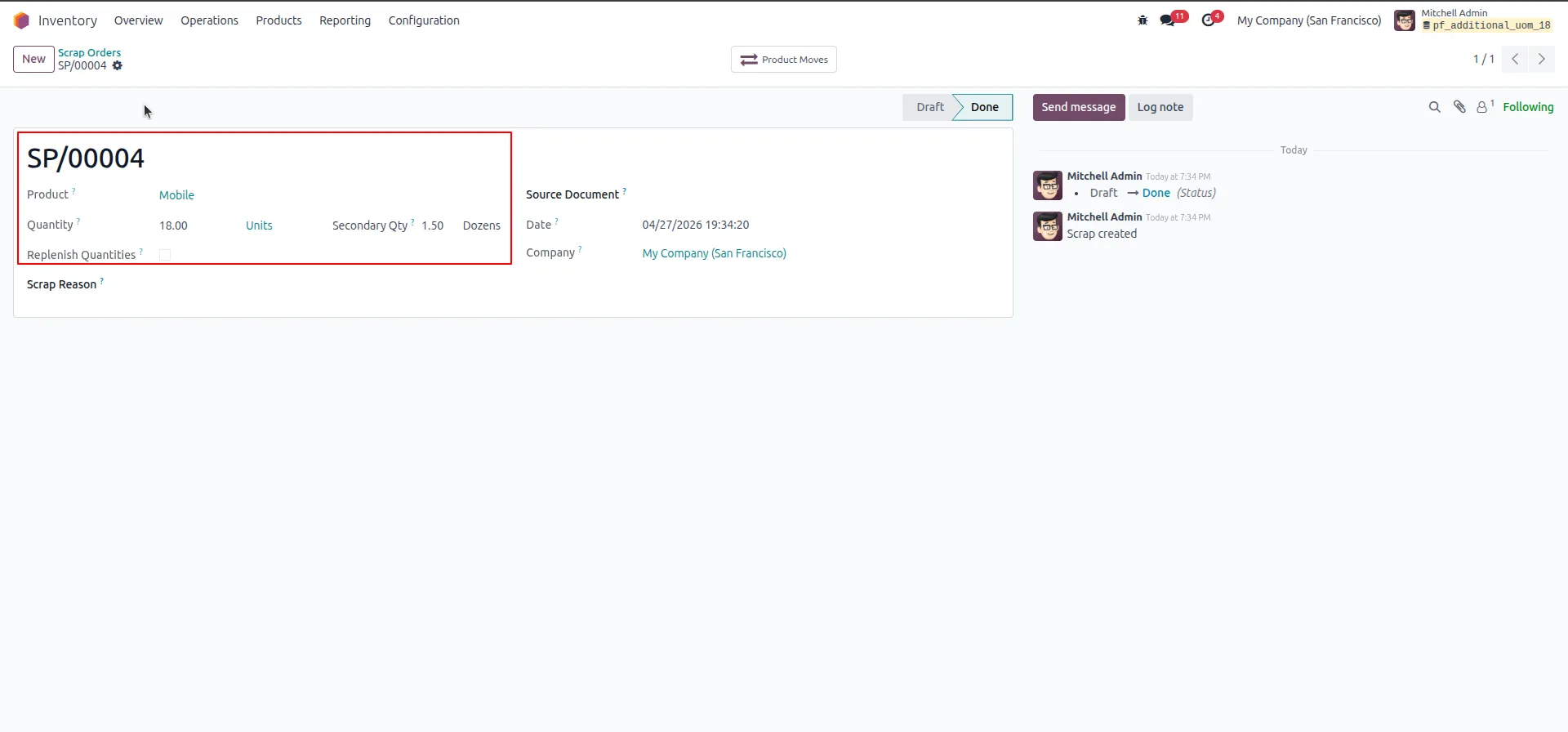
20.Review the completed Scrap Order SP/00004 for product Mobile. Confirm that the Secondary Qty field shows 1.50 Dozens, demonstrating that secondary UOM is correctly reflected in scrap operations as well.
Our solutions focus on your problems
- Odoo Implementation
- Odoo Customization
- ERP Development and Implementation
- Odoo Ipass Cloud
- AI for Odoo
- Odoo Apps
- Aws Marketplace Products
- Business Engines
Our Pricing includes User Manual, 90 Days Support (Monday-Friday 10am to 7pm IST) and One time Setup
• Works & tested on standard installations of Odoo with no third party apps,
• Free support only for odoo installations with no third party apps,
• Paid support available for Odoo installations with third party apps.

Prefortune is a Odoo Official Partner, Odoo Development company. Our philosophy is to use Open Source tools and technologies to provide cost effective and green solutions for our customers.
Prefortune Technologies LLP is working on web development, Mobile development, and Odoo ERP.
If you need any help or want more additional features, you may contact us through:
Alternative Products
These other products might interest you
Specifications
| Version | 19.0, 18.0, 17.0, 16.0, 15.0, 14.0 |