7 Odoo Apps for Aerospace Component Traceability
Track aerospace components from sourcing to delivery with lot and serial number management, country-of-origin tracking, barcode and QR labeling, and advanced inventory reporting.
The Odoo Advanced Stock Card Report makes it much easier to understand what’s really passing with your force in Odoo. rather of jumping between different defenses, you get a complete view of stock movements in one place.
You can see how stock changes over time for each product or order. You can see what came in, what went out, and what's left after each sale. It also shows where each movement came from, like a delivery, damage, transfer, or adaptation, so everything is clear and connected.
Setting up the report does n’t take much effort moreover. You can easily pick a time period, use filters like company, storehouse, or position, and see the data in a way that makes sense.But if you want to, you can put together a report with more than one product instead of doing it the same way over and over again.
You can download the report in PDF format for quick sharing or in Excel format if you want to look at the data more closely. It's easy to use, useful, and helps you keep track of your stock without making things too complicated.
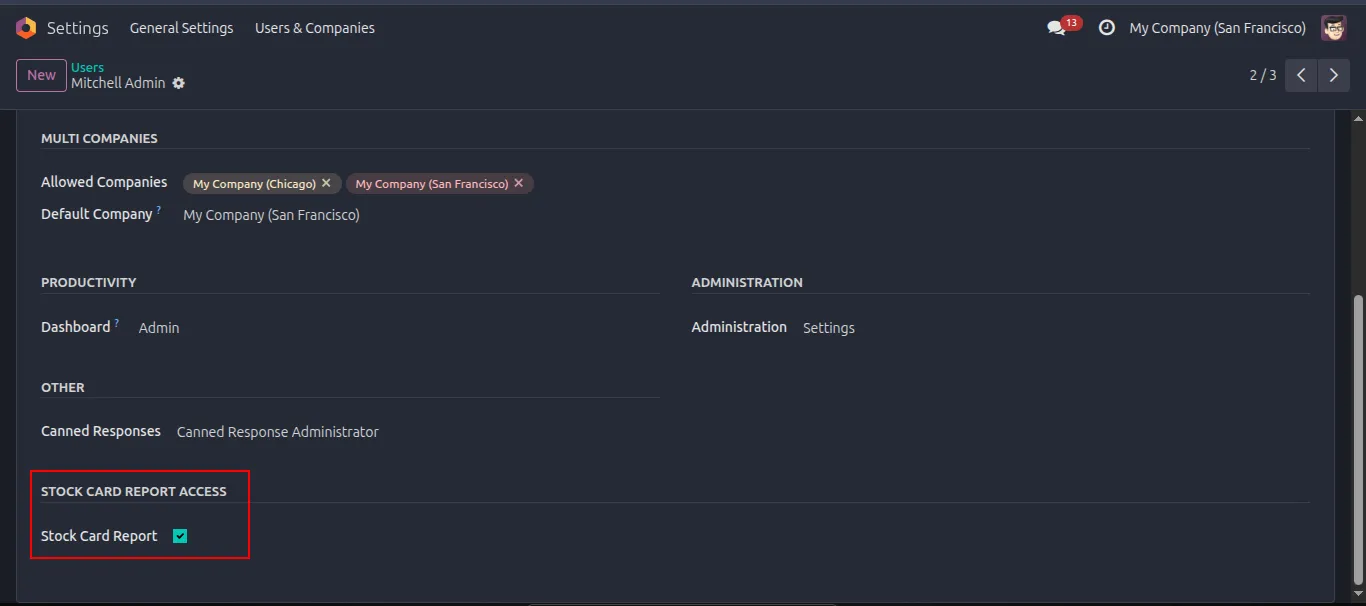
1. Enable Stock Card Report access for a user by checking the 'Stock Card Report' checkbox under the 'Stock Card Report Access' section in Settings > Users.
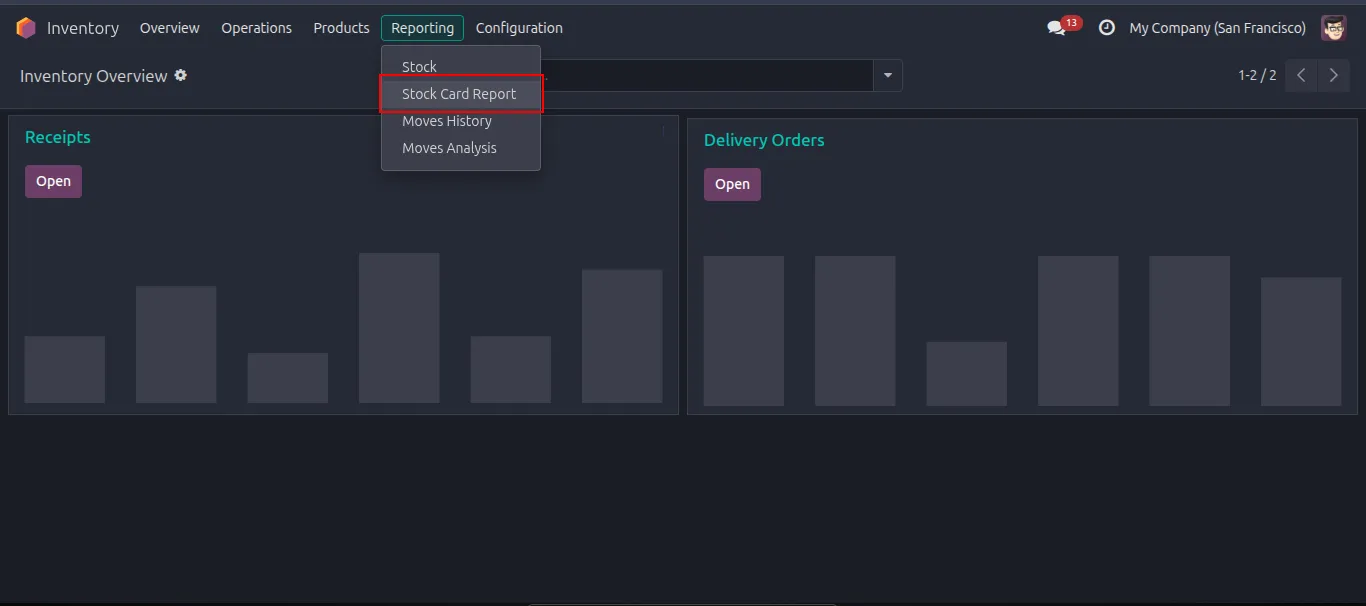
2. Access the Stock Card Report from Inventory > Reporting > Stock Card Report in the top navigation menu.
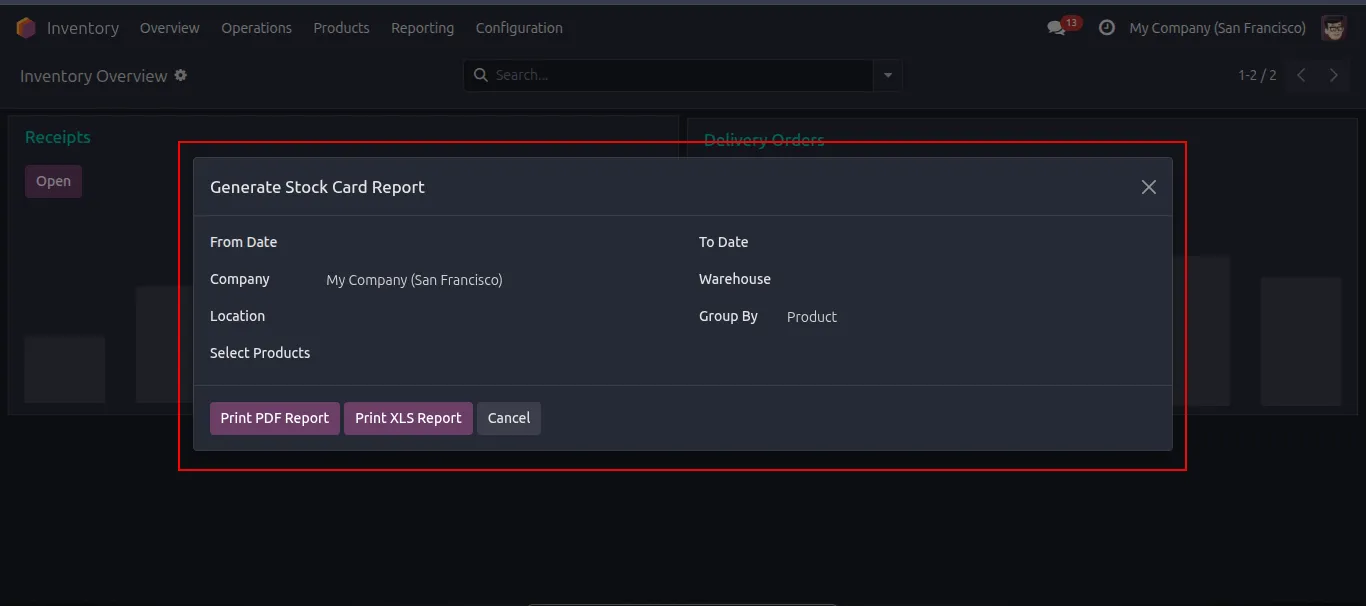
3. Configure the report by selecting From Date, To Date, Company, Warehouse, Location, Group By (Product/Category), and specific products before printing.
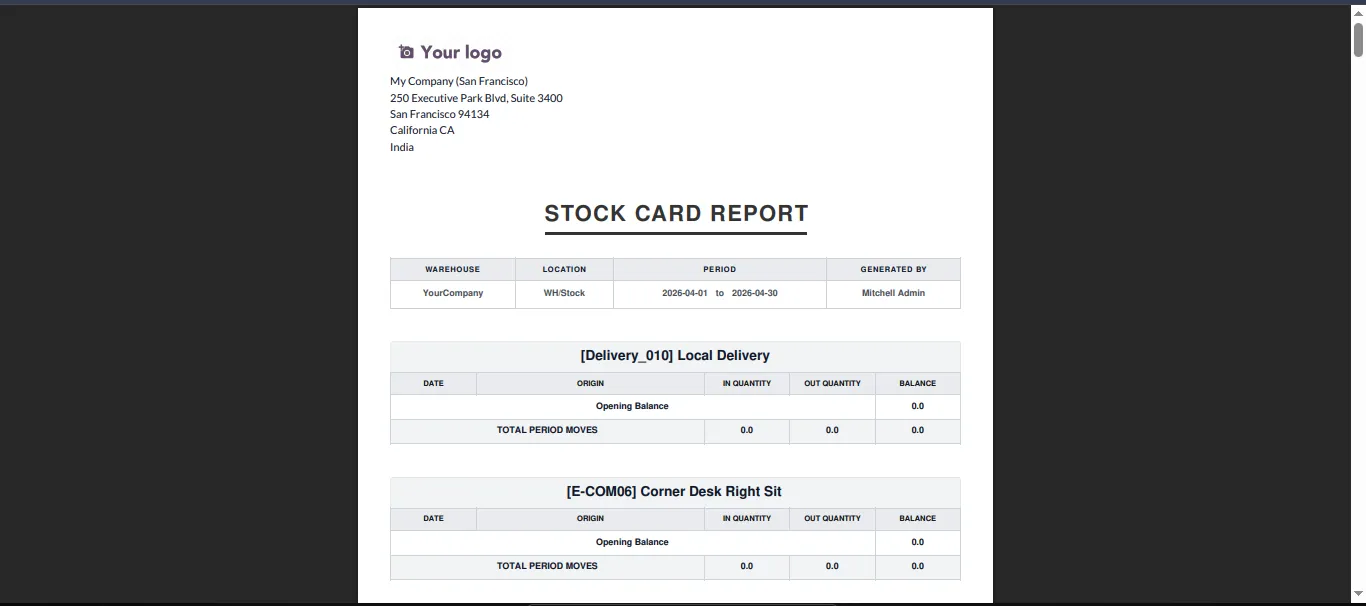
4. The generated PDF displays the company header, warehouse/location/period summary table, and individual product stock cards with Opening Balance, In/Out quantities, and Balance.
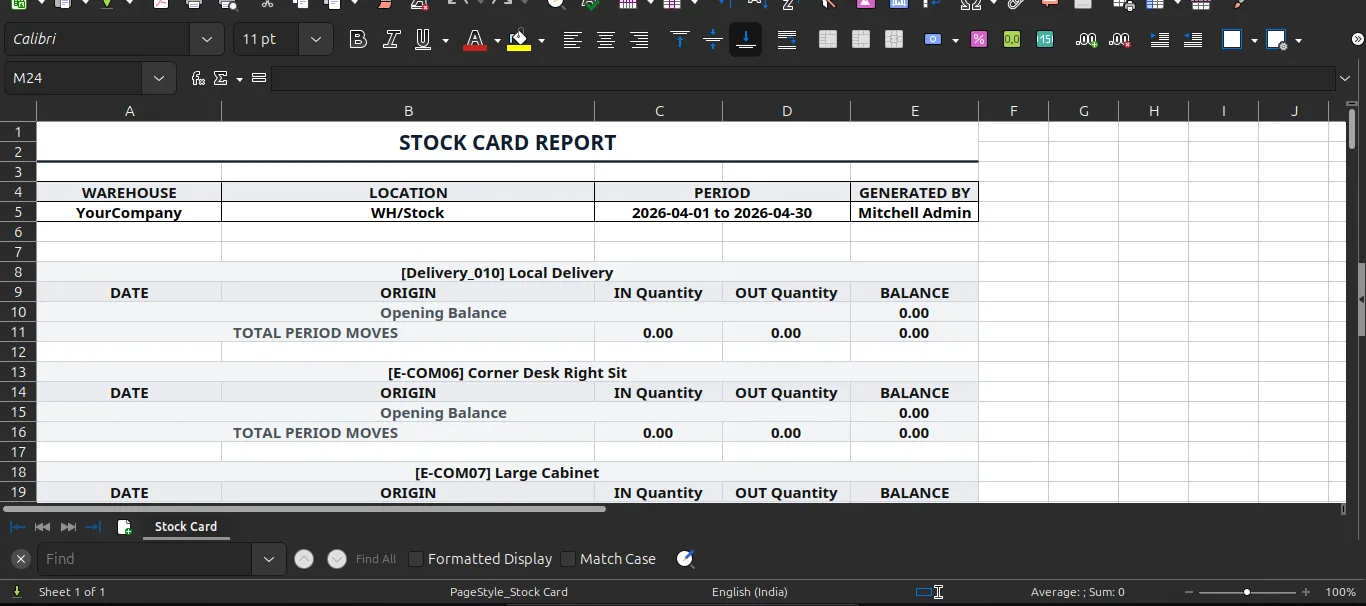
5. The Excel export shows the stock card data in a clean spreadsheet layout, grouped by product with Opening Balance, Total Period Moves, and final Balance rows.
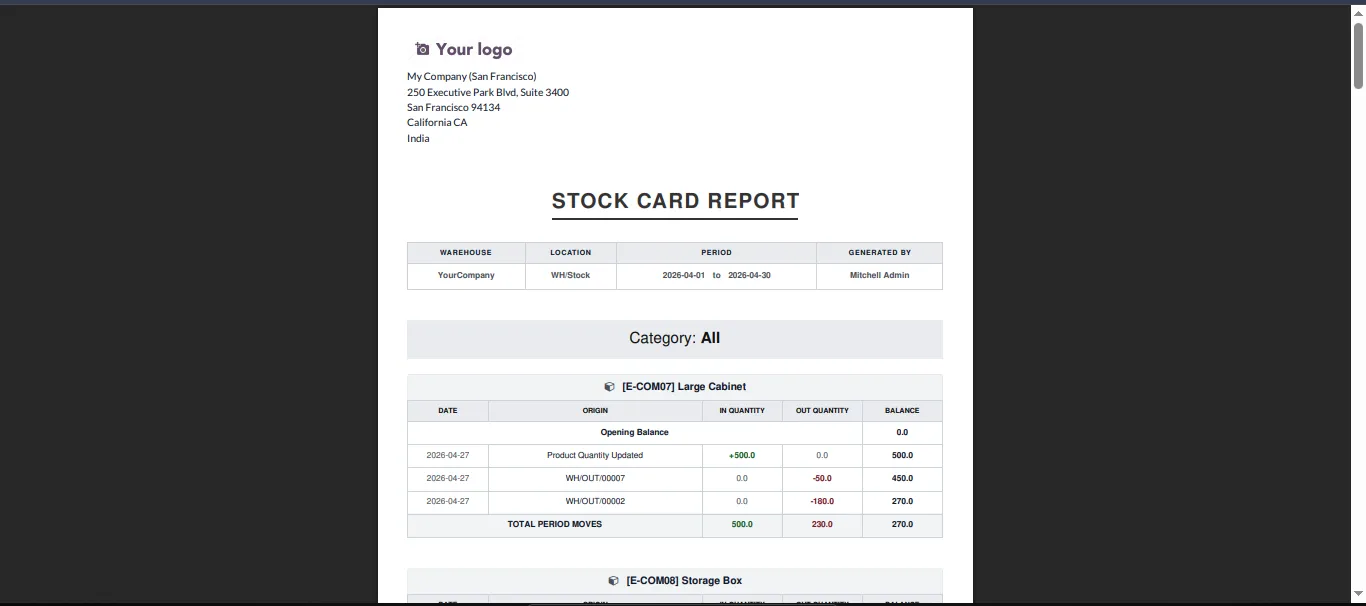
6. When grouped by Product Category, the PDF report includes a 'Category: All' header row and lists all products within each category with their full stock movement details.
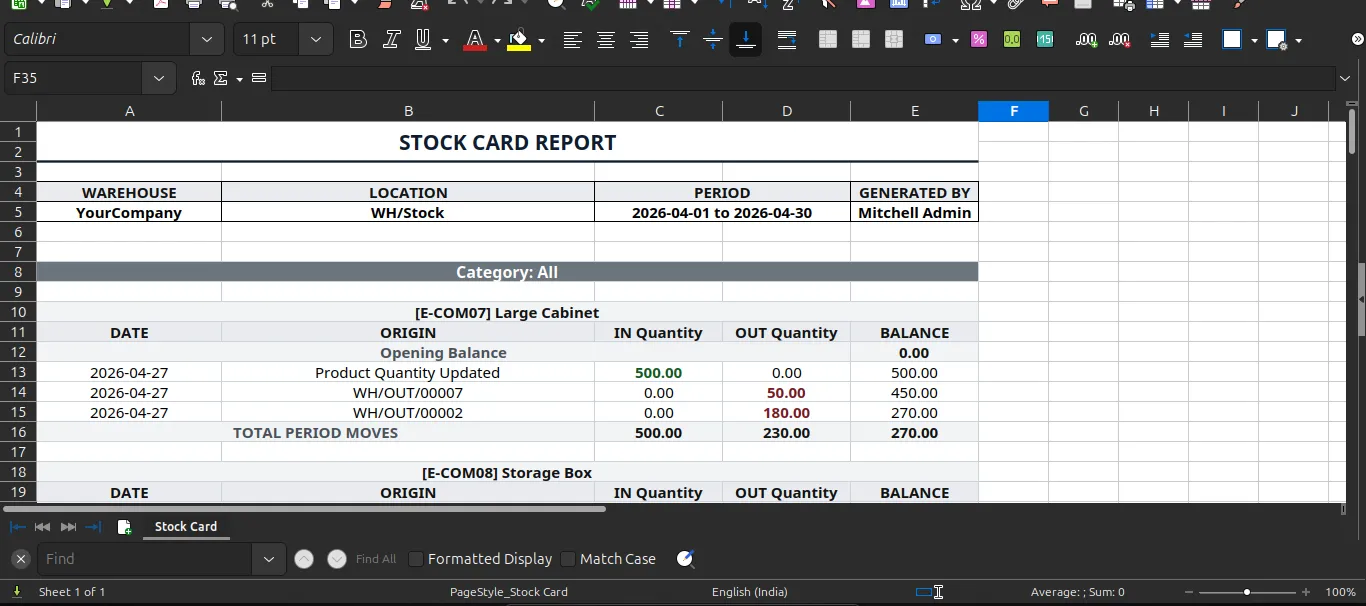
7. The category-grouped Excel report uses a dark highlighted row for the category name, with colored IN/OUT quantities (green for in, red for out) and bold totals.
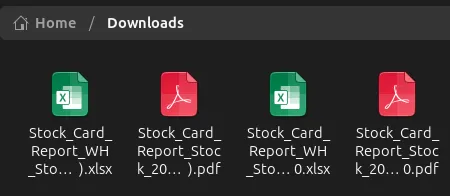
8. After printing, both the PDF and XLS report files are saved to the downloads folder, named with the warehouse and date range for easy identification.
Our Pricing includes User Manual, 90 Days Support (Monday-Friday 10am to 7pm IST) and One time Setup
• Works & tested on standard installations of Odoo with no third party apps,
• Free support only for odoo installations with no third party apps,
• Paid support available for Odoo installations with third party apps.

Prefortune is a Odoo Official Partner, Odoo Development company. Our philosophy is to use Open Source tools and technologies to provide cost effective and green solutions for our customers.
Prefortune Technologies LLP is working on web development, Mobile development, and Odoo ERP.
If you need any help or want more additional features, you may contact us through:
These other products might interest you
| Version | 19.0, 18.0, 17.0, 16.0, 15.0, 14.0 |