Watch Quick Video
Multi Company Inventory Transfer
Our efficient
Odoo – Multi Company Inventory Transfer
The multi company force transfer process in Odoo becomes more structured and effective with this module. It's designed to simplify inter company stock transfer while maintaining accurate following across different companies and storehouse locales. The system ensures smooth stock movement following Odoo with minimum homemade trouble.This module helps businesses transfer inventory between companies in Odoo using a clear and intuitive workflow. It manages vacuity checks, creates linked operations, and maintains proper synchronization to assure dependable and error-free transfers.
It provides comprehensive features for managing multi-company transfers:
1. Transfer Creation: Define transfers between companies with source and destination
locations, adding multiple product lines with quantities.
2. Availability Validation: Automatically verify stock availability in the source
location before confirming transfers, preventing over-allocation.
3. Dual Picking System: Creates coordinated outgoing and incoming pickings using transit
locations, ensuring smooth handoff between companies.
4. State Management: Tracks transfer progress from Draft → Ready → Done, with state
updates triggered by picking completion.
5. Stock Tracking: Monitor available quantities and completed quantities on each transfer
line for full visibility.
6. Smart Navigation: Quick access to related pickings and transfer details through
intuitive smart buttons and stat buttons.
7. Draft Control: Ability to reset transfers to draft status (when in Ready state) and
protect completed transfers from unauthorized modifications.
Key Features
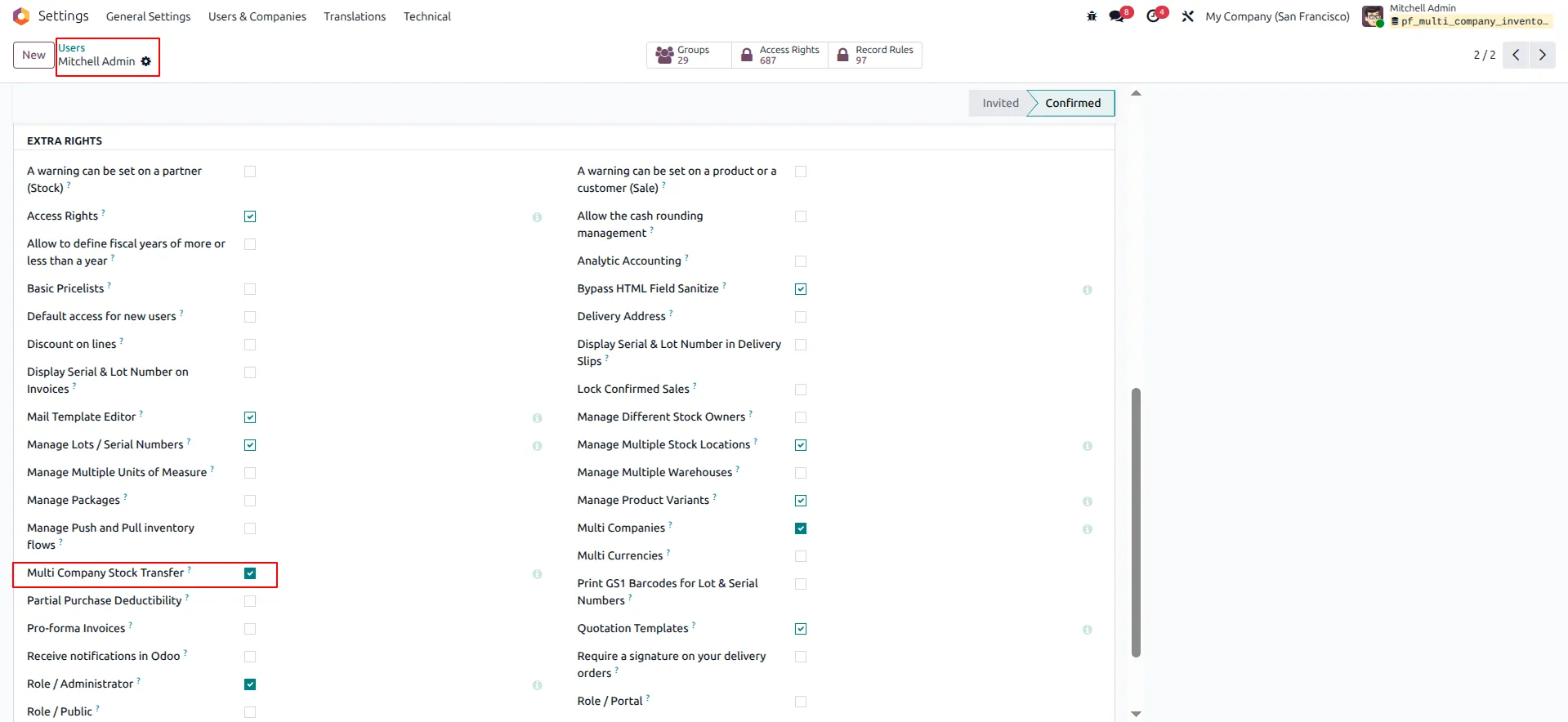
1. User Configuration. After installing a module goto Setting -> Users and Companies -> Users Enable Multi-Company Stock Transfer for the users who need to transfer product stock between companies.
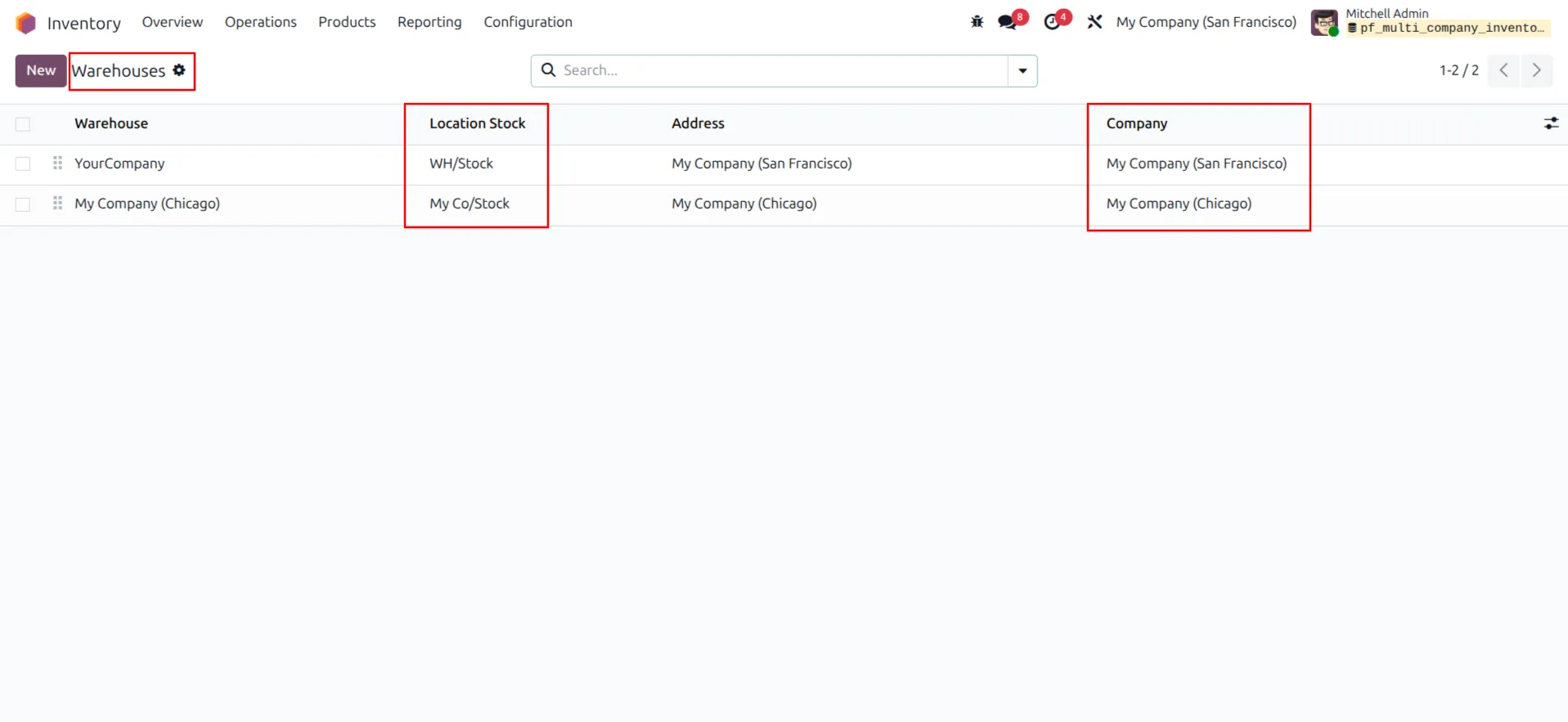
2. Warehouse. After activating the module, navigate to Inventory > Configuration > Warehouses It displays multiple warehouses along with their Location Stock, Address, and Company. Each warehouse is clearly linked to its respective company (for example, My Company - San Francisco and My Company - Chicago), highlighting Odoo's multi-company warehouse management.
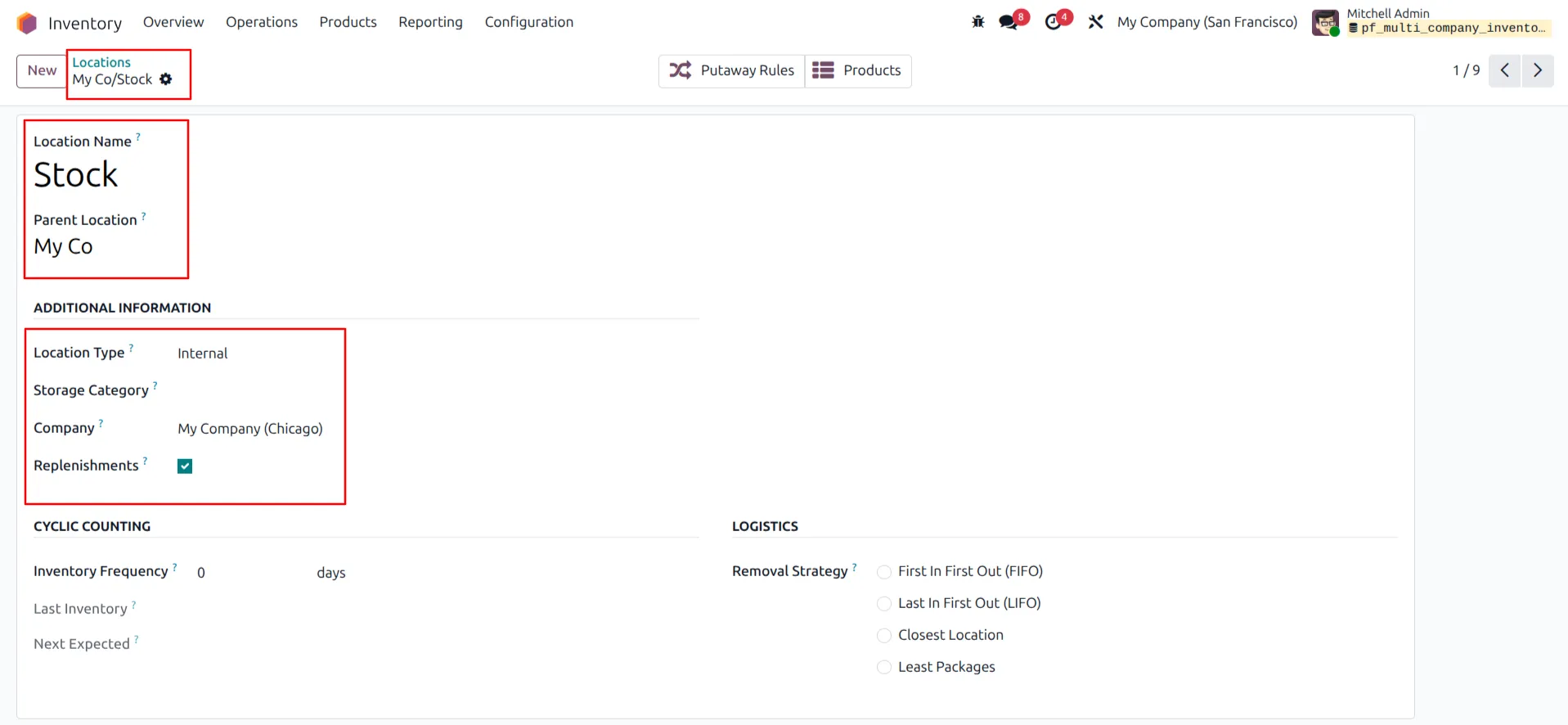
3. Create or Update Inventory Location. Navigate to Inventory -> Configuration -> Locations Create a new location or open an existing one. Enter the Location Name as Stock, select the appropriate Parent Location, and assign the Company as My Company (Chicago). Once the details are filled in, save the record to apply the changes.
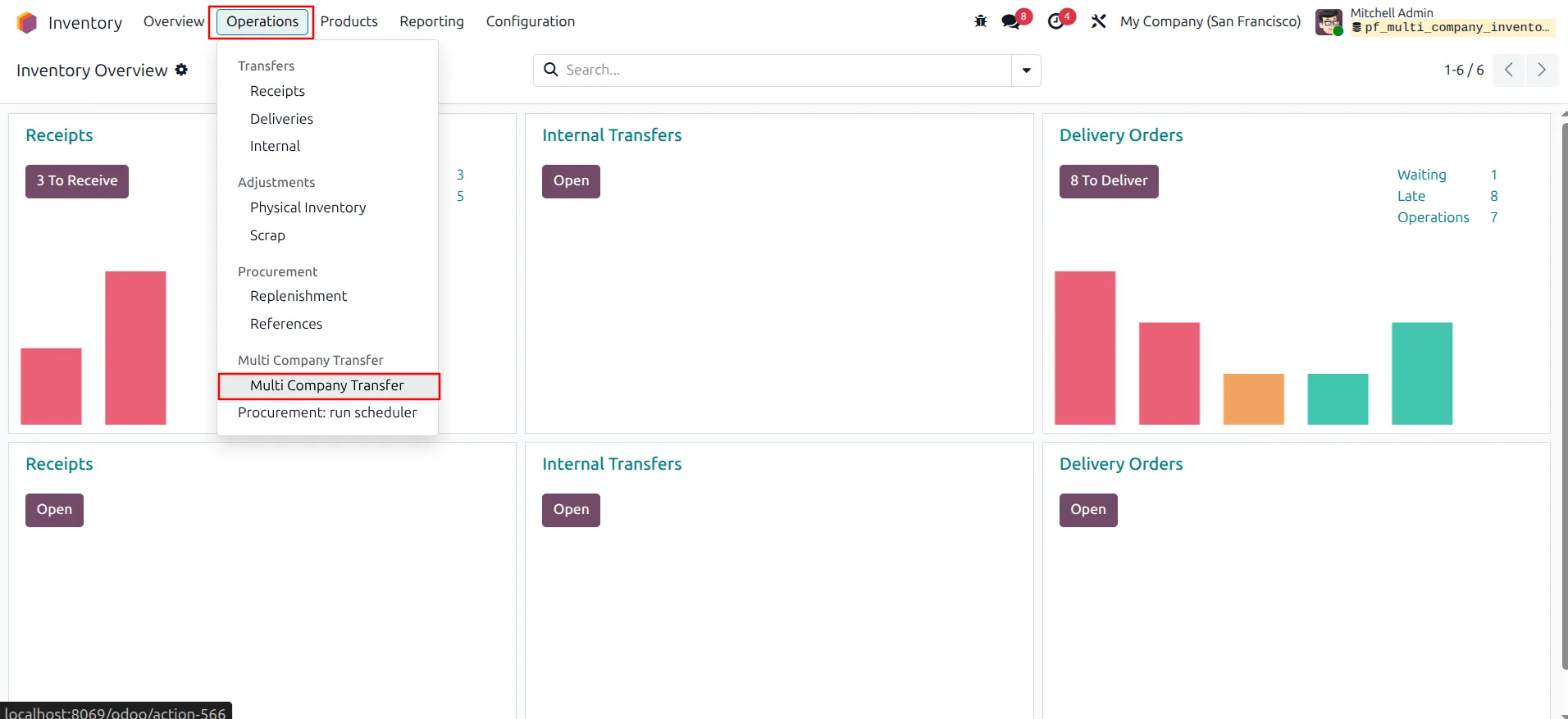
4. Access Multi Company Transfer. Navigate to Inventory -> Operations, and scroll to the bottom of the menu. You will find the Multi Company Transfer option available, as shown in the image. This menu allows users to initiate and manage inventory transfers between different companies within the system.
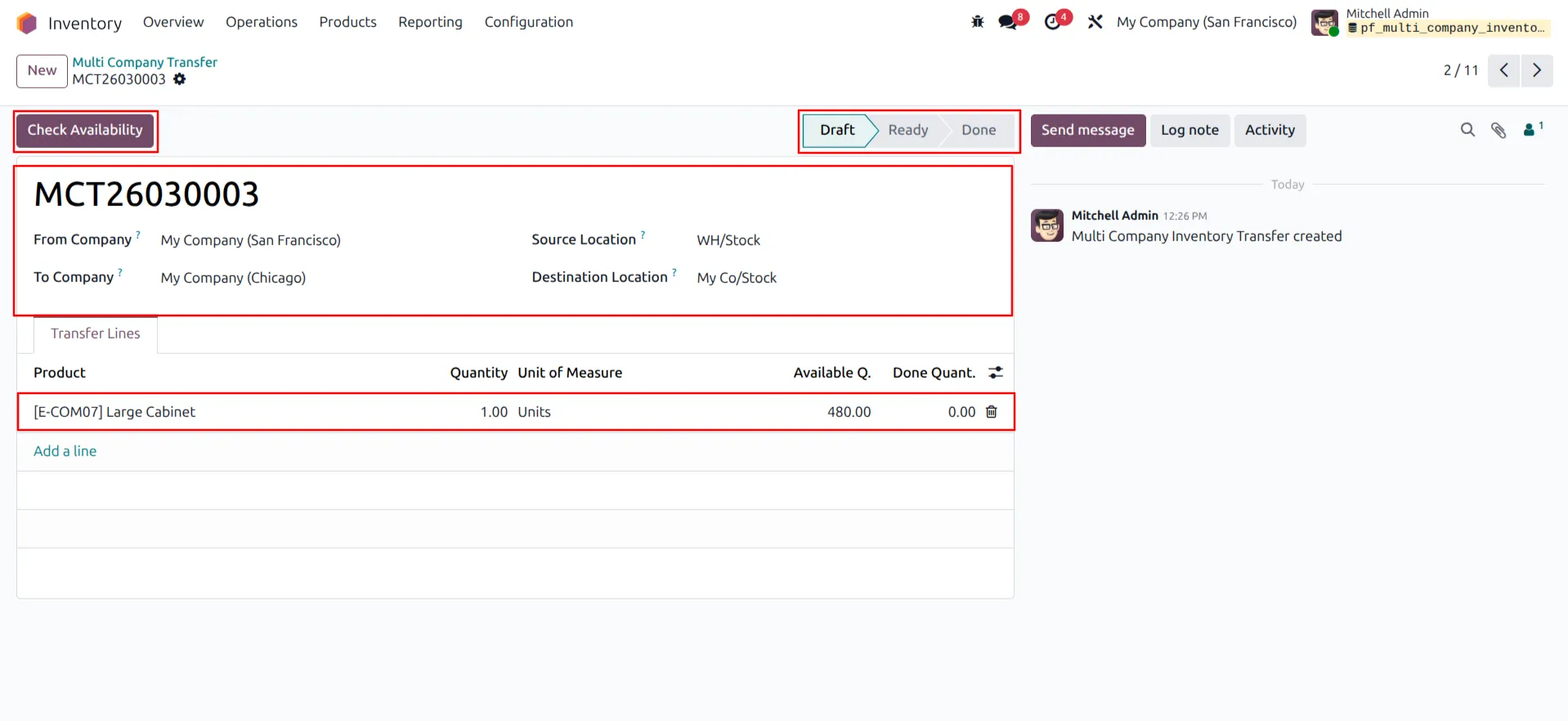
5. Create a Multi Company Stock Transfer. Click on New to create a transfer record. Select the From Company and To Company, choose the appropriate Source Location and Destination Location, and add the required products with quantities. After completing all details as shown in the image, save the record to proceed with the transfer.
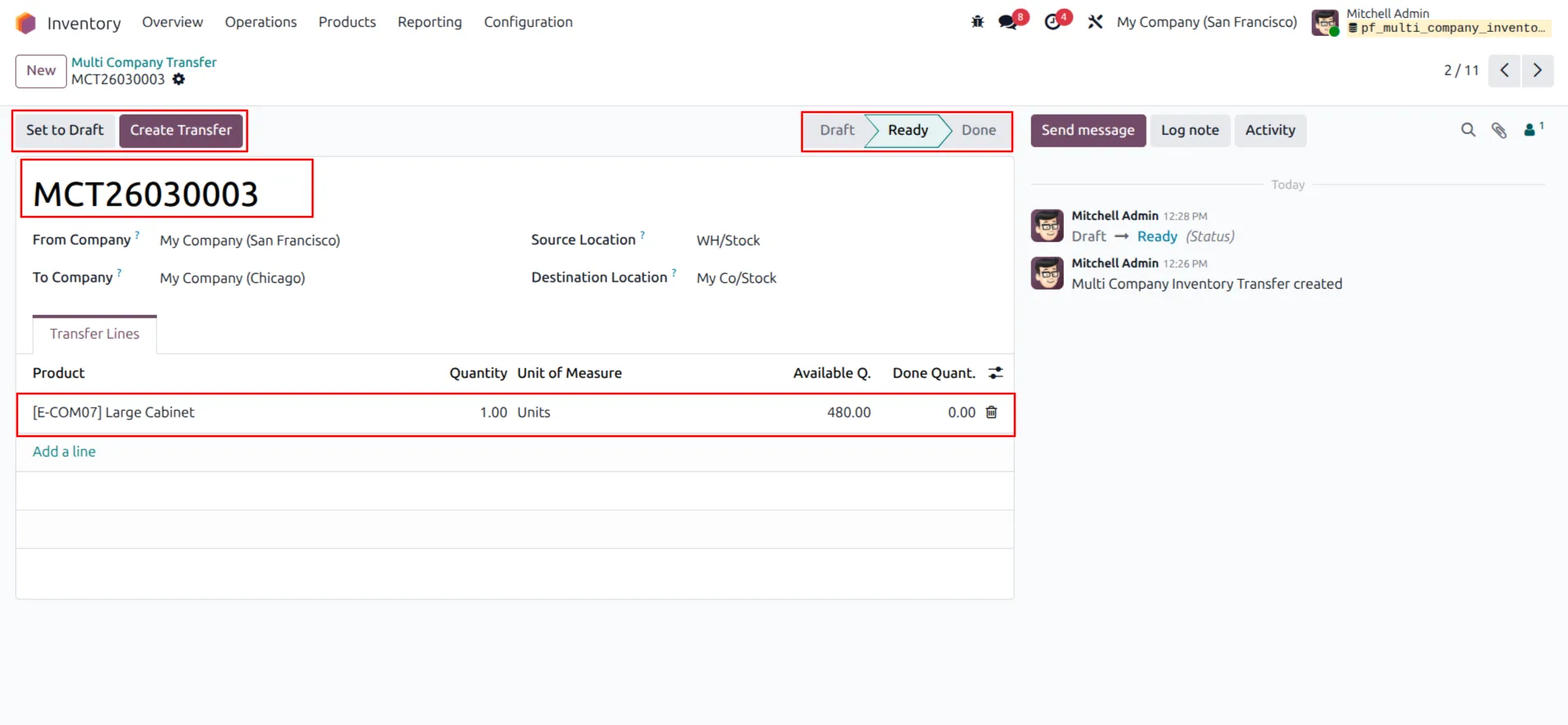
6. Check Stock Availability. After saving the transfer record, click on Check Availability to verify whether the required product quantities are available at the source location. If sufficient stock is not available, the system will raise a User Error and prevent further processing. It is recommended to check availability before creating the transfer to ensure a smooth operation, and then click on Create Transfer to create multi company transfer.
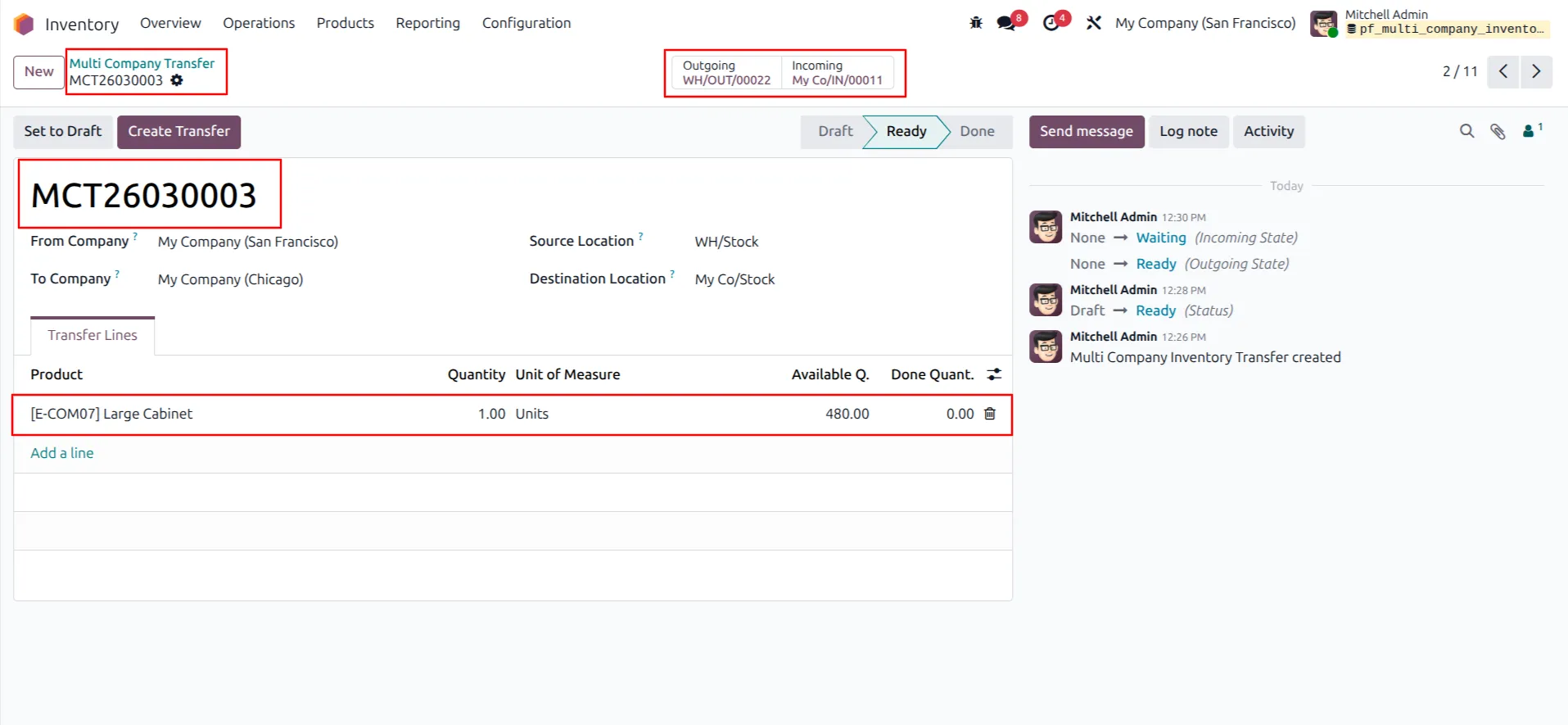
7. Transfer Creation and Delivery Orders. After clicking Create Transfer, the system automatically generates both the Outgoing Delivery Order and the Incoming Delivery Order. These are visible through the smart buttons in the header as well as in the related fields on the form. This confirms that the inter-company transfer has been created successfully and is ready for further processing.
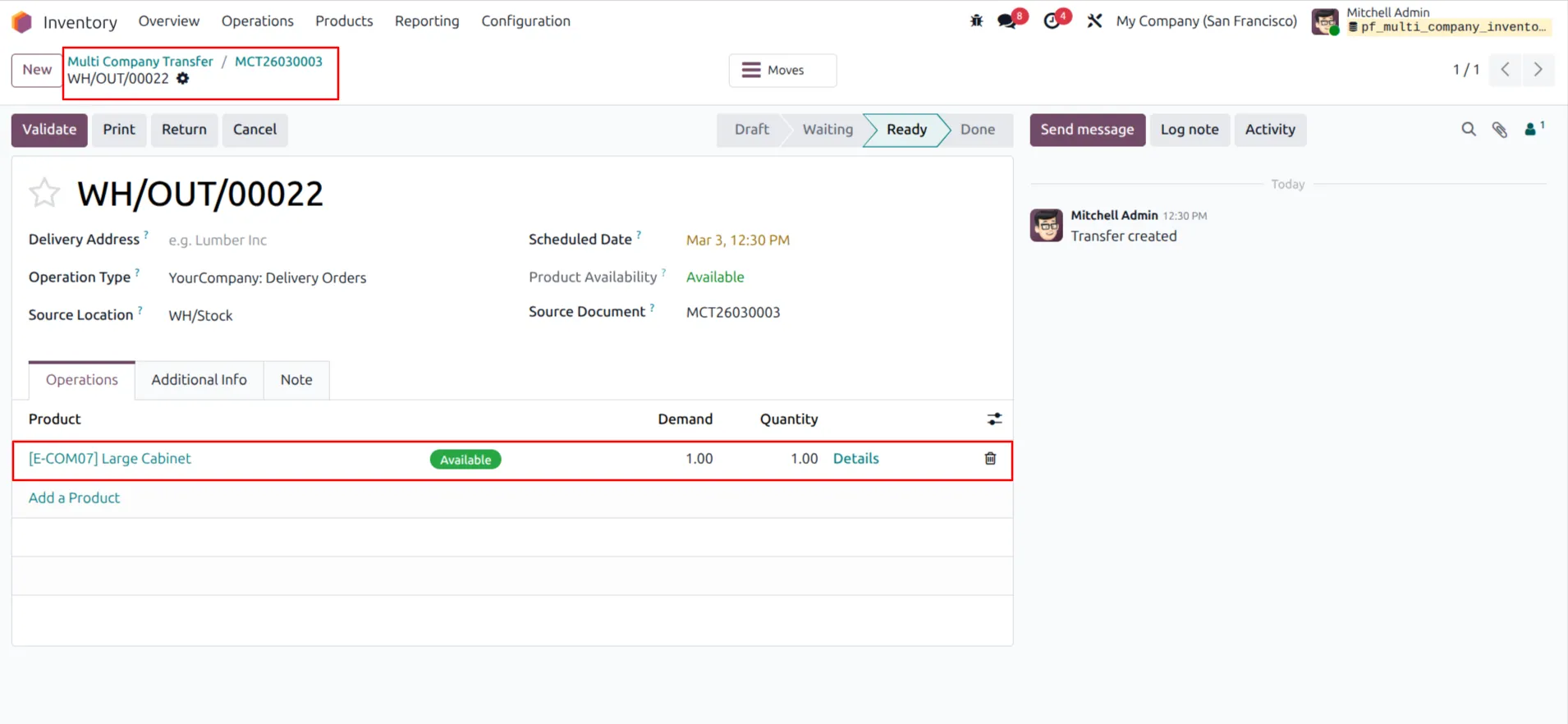
8. Outgoing Delivery Order - Ready to Validate. Click on the Outgoing Delivery smart button to open the delivery order. On this screen, you can see that the transfer has been successfully created and the delivery is in Ready to Validate status. This indicates that the required quantities are reserved and the outgoing shipment is prepared for validation.
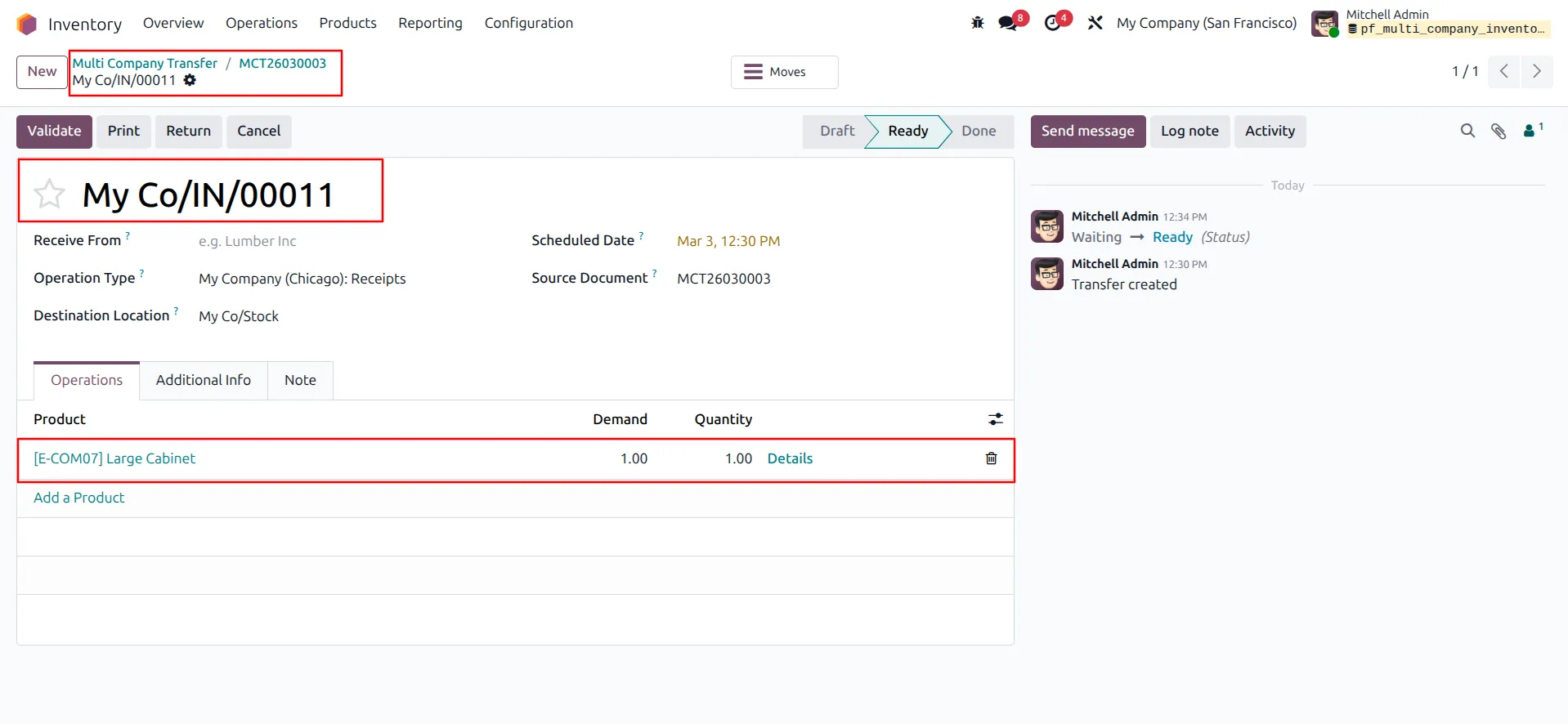
9. Incoming Delivery Order - Ready to Validate. Click on the Incoming Delivery smart button to open the delivery order. On this screen, you can see that the transfer has been successfully created and the delivery is in Ready to Validate status. This indicates that the required quantities are reserved and the incoming shipment is prepared for validation.
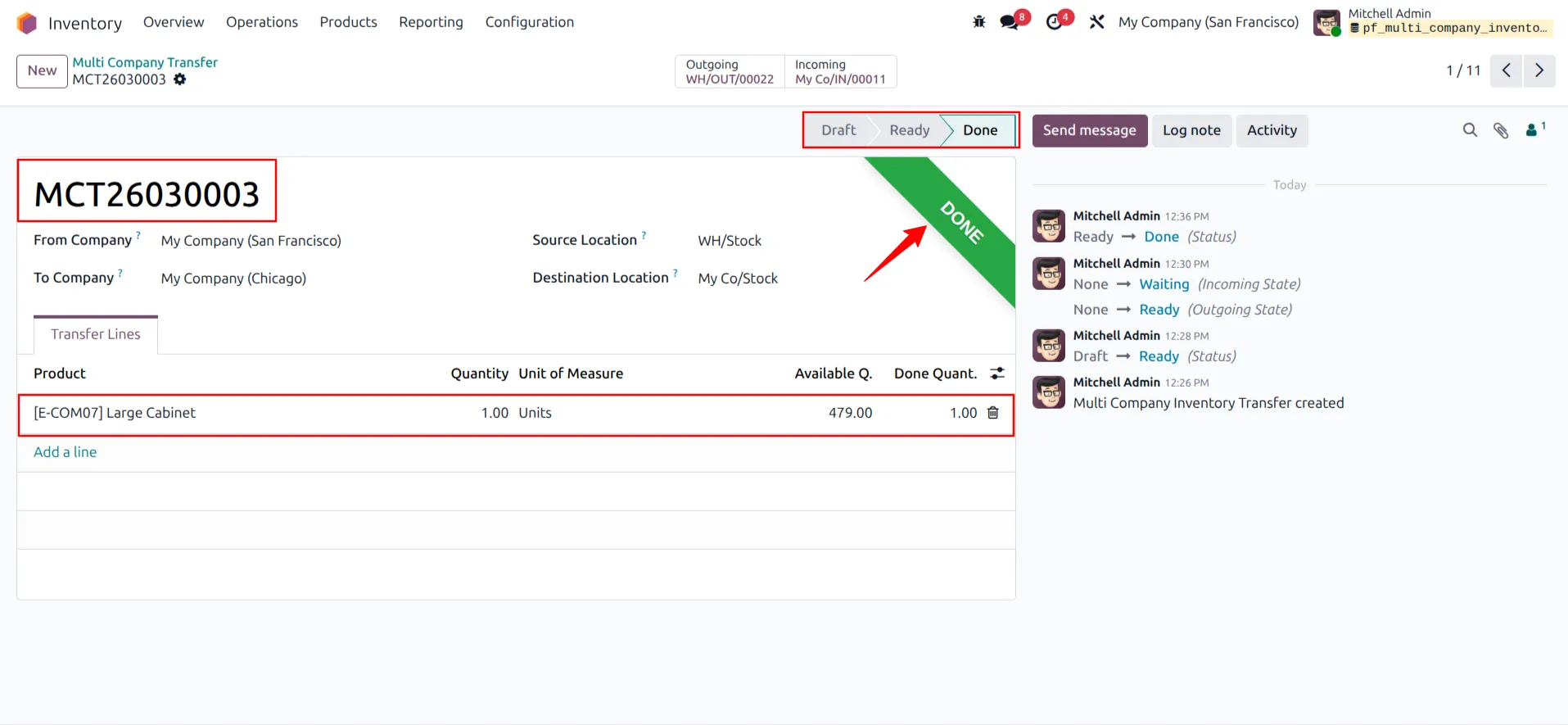
10. Product Stock Transfer. Once both the Outgoing and Incoming Delivery Orders have been validated, the product quantities will be successfully transferred to the configured company.
Our solutions focus on your problems
- Odoo Implementation
- Odoo Customization
- ERP Development and Implementation
- Odoo Ipass Cloud
- AI for Odoo
- Odoo Apps
- Aws Marketplace Products
- Business Engines
Our Pricing includes User Manual, 90 Days Support (Monday-Friday 10am to 7pm IST) and One time Setup
• Works & tested on standard installations of Odoo with no third party apps,
• Free support only for odoo installations with no third party apps,
• Paid support available for Odoo installations with third party apps.

Prefortune is a Odoo Official Partner, Odoo Development company. Our philosophy is to use Open Source tools and technologies to provide cost effective and green solutions for our customers.
Prefortune Technologies LLP is working on web development, Mobile development, and Odoo ERP.
If you need any help or want more additional features, you may contact us through:
Alternative Products
These other products might interest you
Specifications
| Version | 19.0, 18.0, 17.0, 16.0, 15.0, 14.0 |