Watch Quick Video
Moneris Gateway App
Our all-in-one Moneris Gateway App
module allows organisations to handle and automate online payment processing directly in Odoo, integrated
via Moneris’ Developer Portal API. Merchants can set up secure credentials and integrations with Hosted
Tokenisation and take card payments without sensitive card data ever touching their server; support
standard purchases, authorize-and-capture workflows, and manual settlement based on business needs. The
application also supports manual capture and void of authorised transactions, full or partial refunds, and
secure saved payment methods for a faster repeat checkout.
It enables easy tracking of all transactions with real-time status updates & clear Provider Reference
records, making daily payment reconciliation easy to manage. The application provides a clear transaction
history and simplifies the management of authorisations, captures, voids and refunds, allowing it to
improve payment visibility, reduce manual reconciliation effort and increase overall checkout
reliability.
Moneris Gateway App Features
- Accept secure online payments through Moneris' Hosted Tokenization.
- Authorize payments now and capture the exact amount later.
- Manually capture or void authorized transactions from Odoo.
- Process full or partial refunds directly from Odoo.
- Save payment methods securely for faster future checkout.
Complete Workflow for Manage Moneris Gateway App
Activate the Moneris Gateway App module and configure your Moneris Gateway App settings under Odoo's Payment Providers menu. Enter your Client ID, Client Secret, Store ID, Merchant ID (MID), and Hosted Tokenization Profile ID, then choose whether to capture payments automatically or enable "Capture Amount Manually" for authorize-now, capture-later control — directly for your business. The module automatically connects to Moneris' Hosted Tokenization iframe during checkout and processes payments in real time when customers click the Pay button, securely handling authorization, capture, and status updates based on your active configuration. Merchants can manually capture or void an authorized transaction directly from the invoice or sale order, and process refunds without ever leaving Odoo. It automatically records and displays each transaction's outcome in Pending, Authorized, Confirmed, Canceled, or Error status based on the response received. This helps businesses improve payment reliability, increase transaction transparency, and simplify reconciliation through Moneris Gateway App automation and secure backend transaction handling.
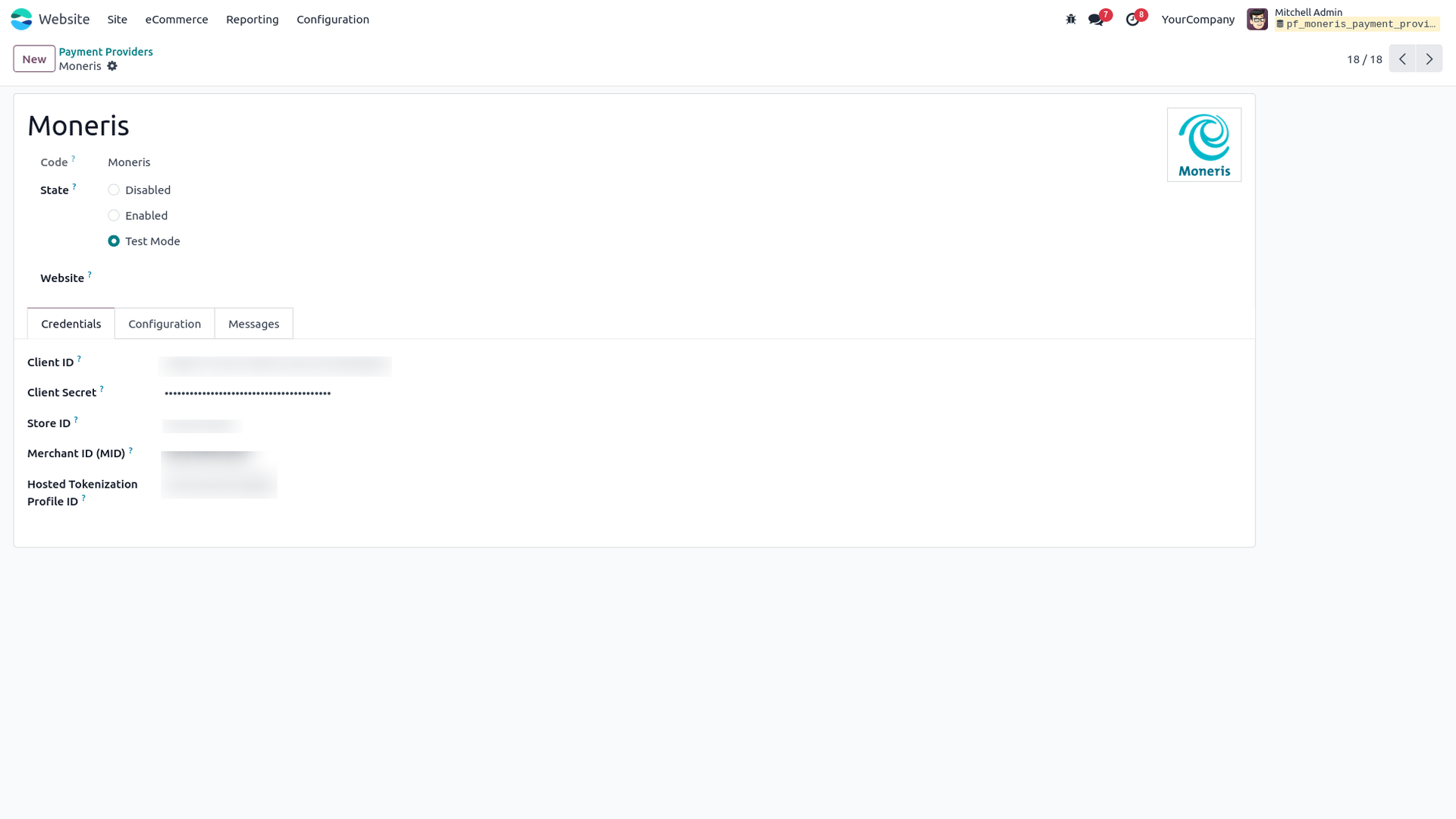
1. Go to Payment Providers → Moneris and enter your Client ID, Client Secret, Store ID, Merchant ID (MID), and Hosted Tokenization Profile ID, obtained from your Moneris Developer Portal account.
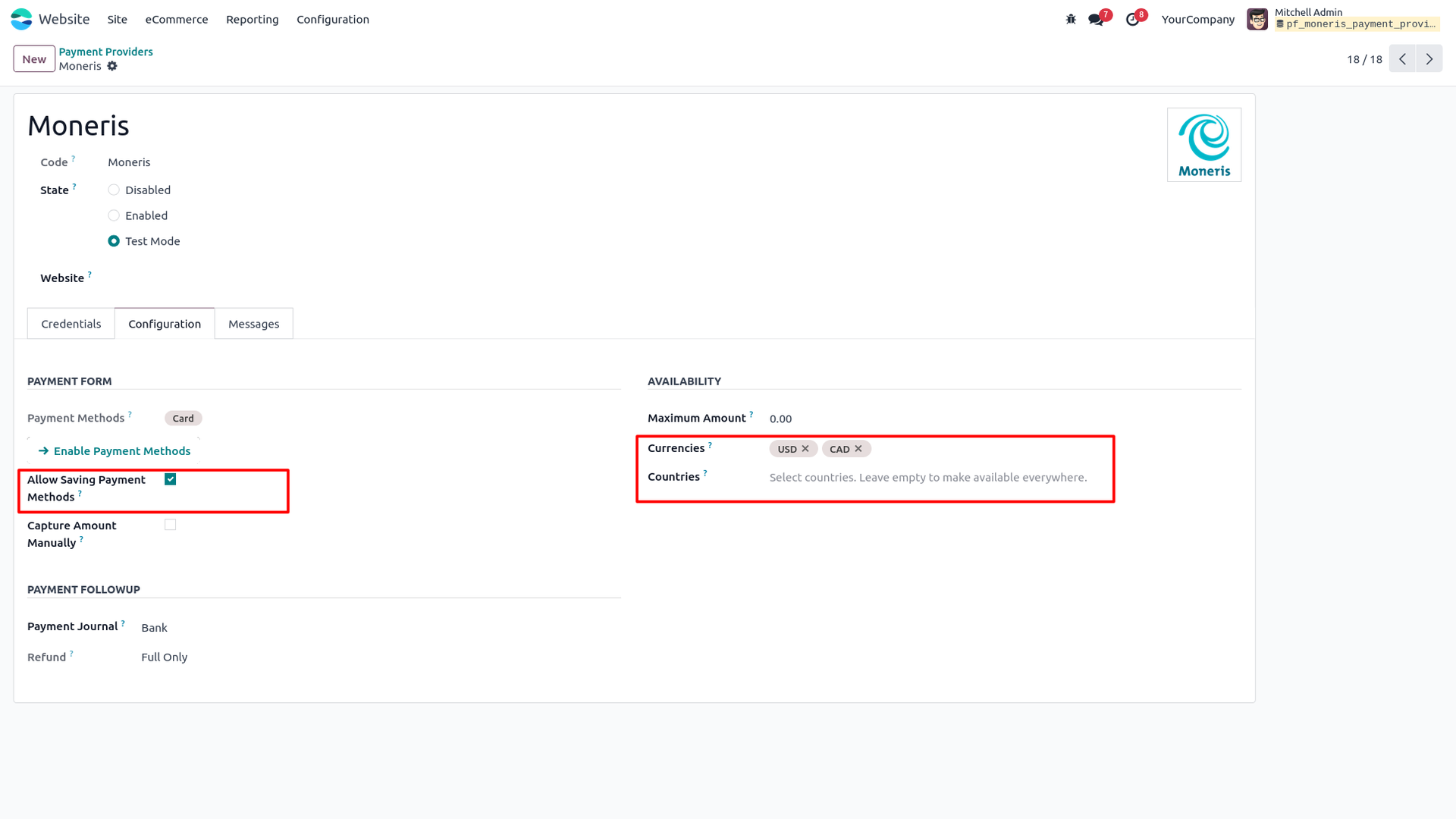
2. Enable "Allow Saving Payment Methods" and select the currencies and countries for which Moneris should be available, based on your business needs.
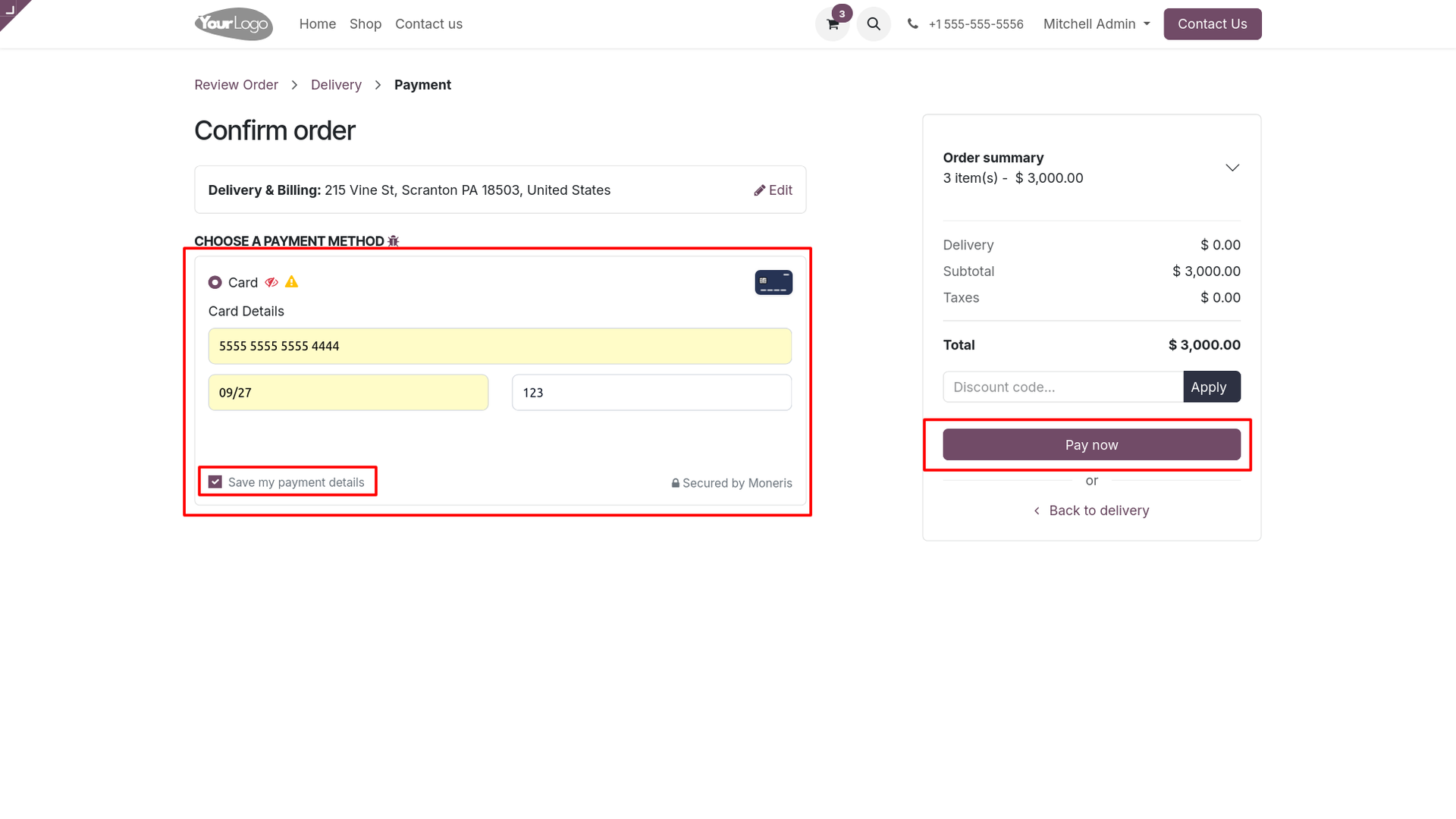
3. On checkout, enter the card details, tick "Save payment details" if desired, and click "Pay Now" to submit the payment.
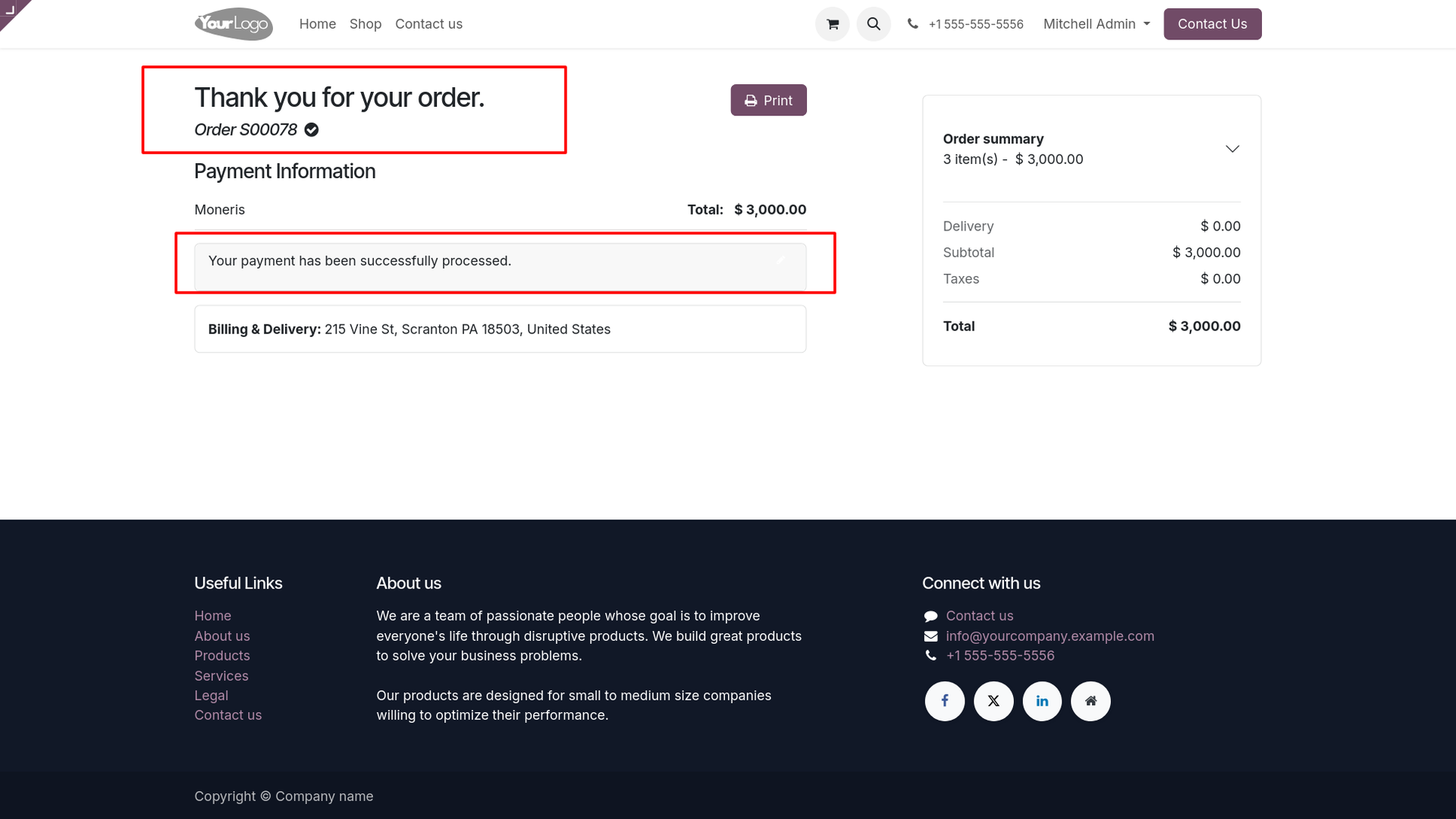
4. Once processed, a "Thank You" confirmation message is displayed along with the transaction reference number.
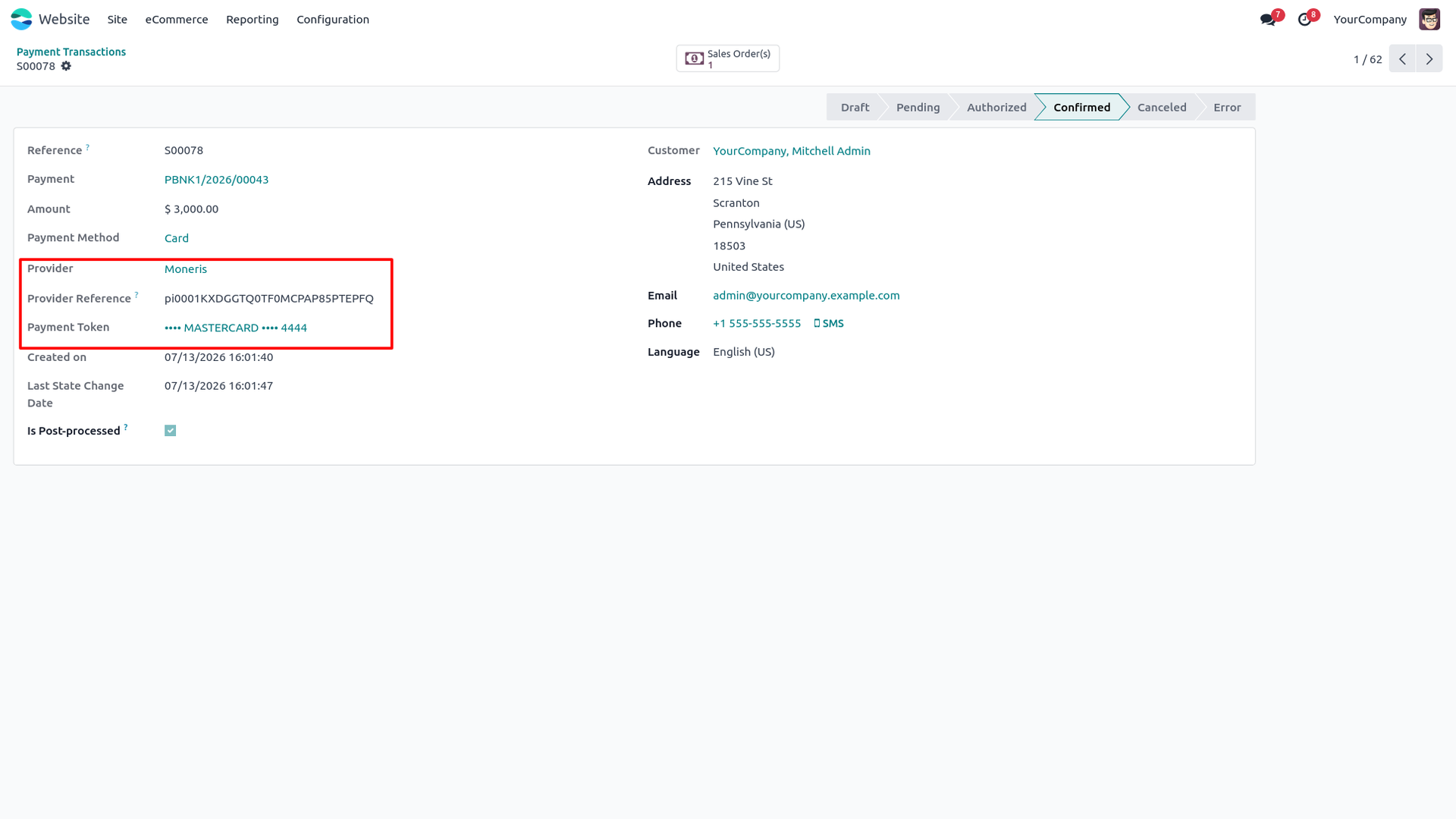
5. The Payment Transaction record in Odoo displays the Provider Reference, saved Payment Token, and other transaction details.
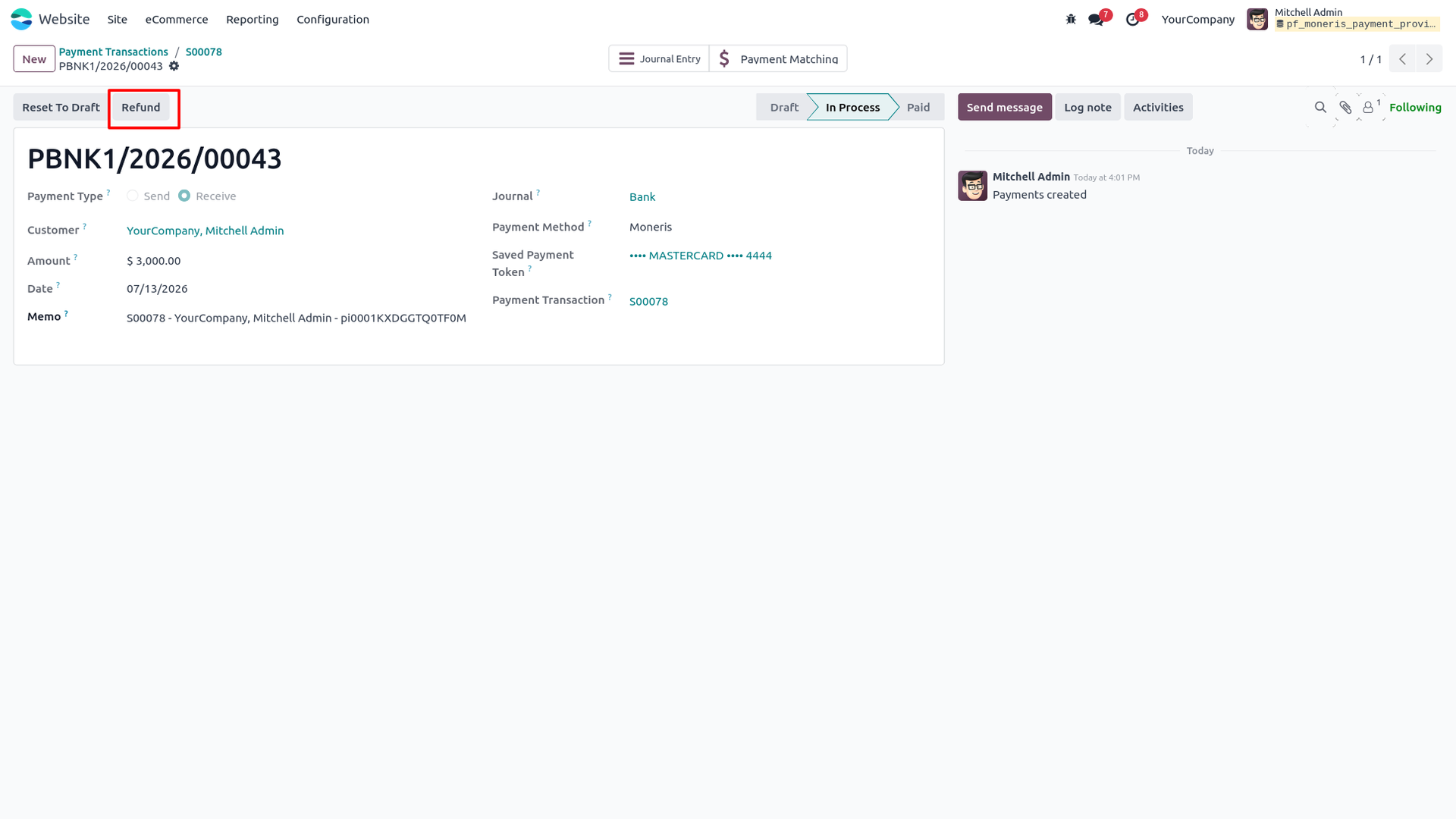
6. A "Refund" button is available directly on the confirmed payment for issuing refunds without leaving Odoo.
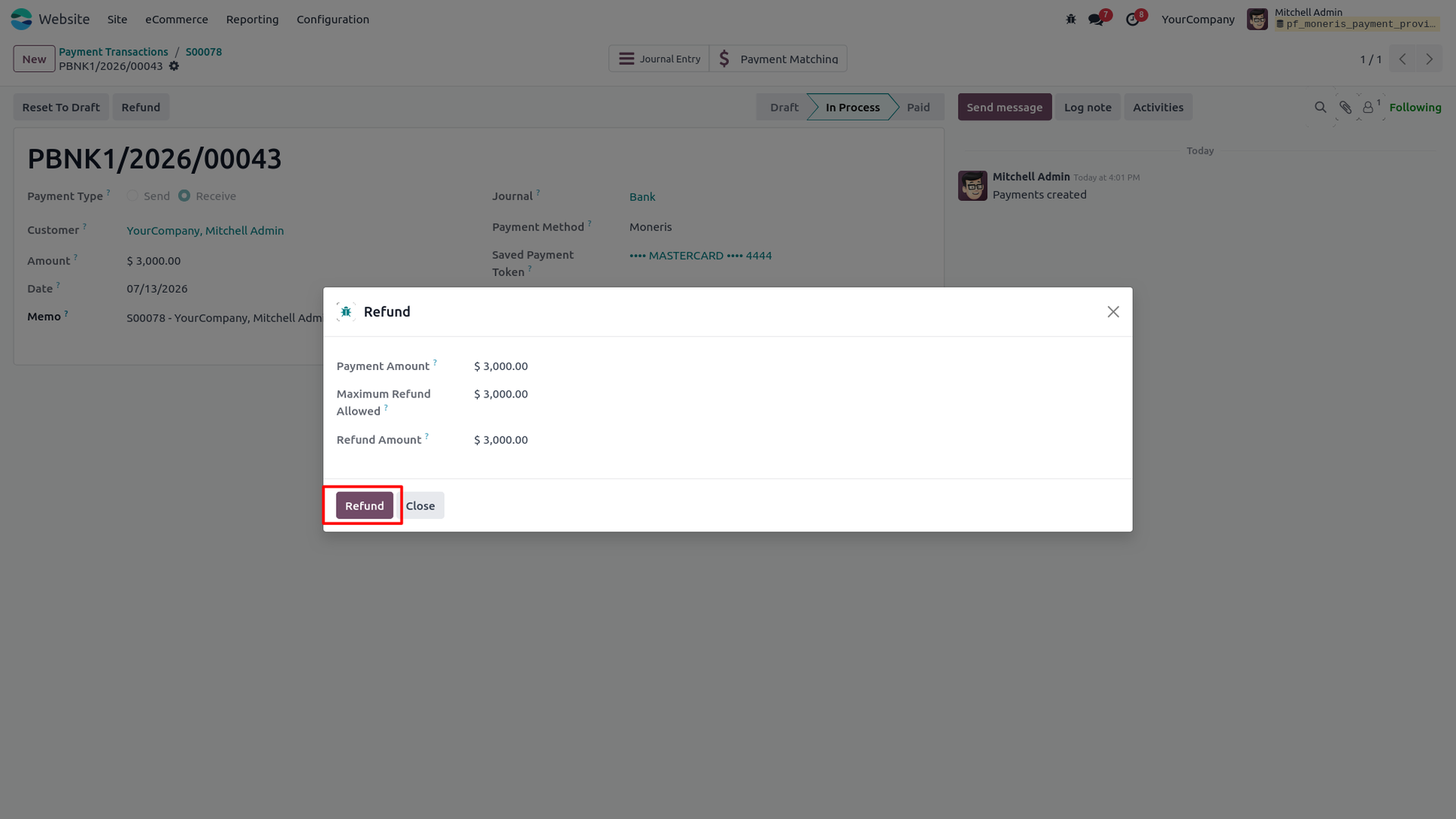
7. Clicking "Refund" opens a popup wizard — enter the refund details and click "Refund" to process it.
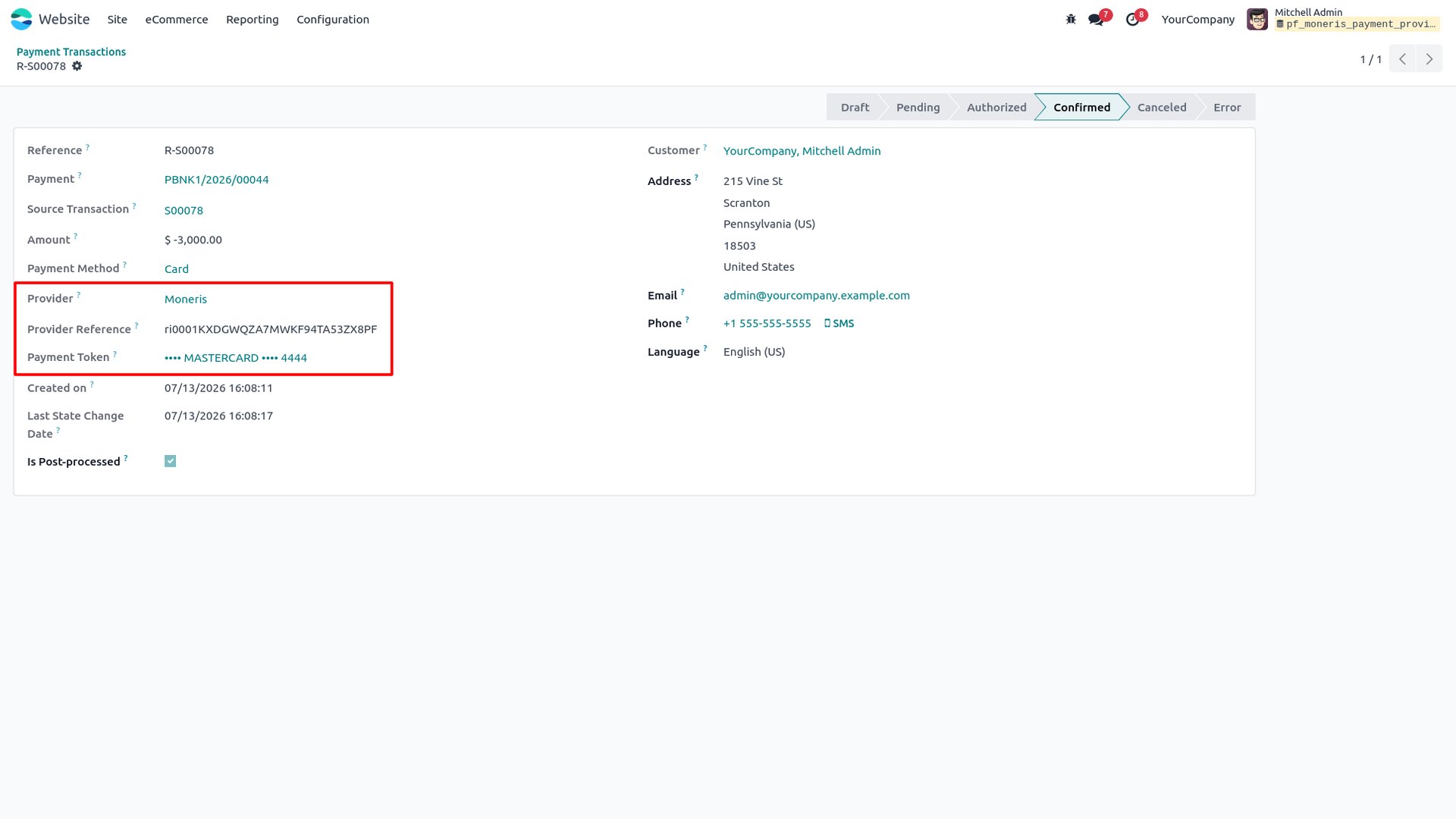
8. The refunded payment transaction is created in Odoo, displaying the Moneris refund ID for tracking.
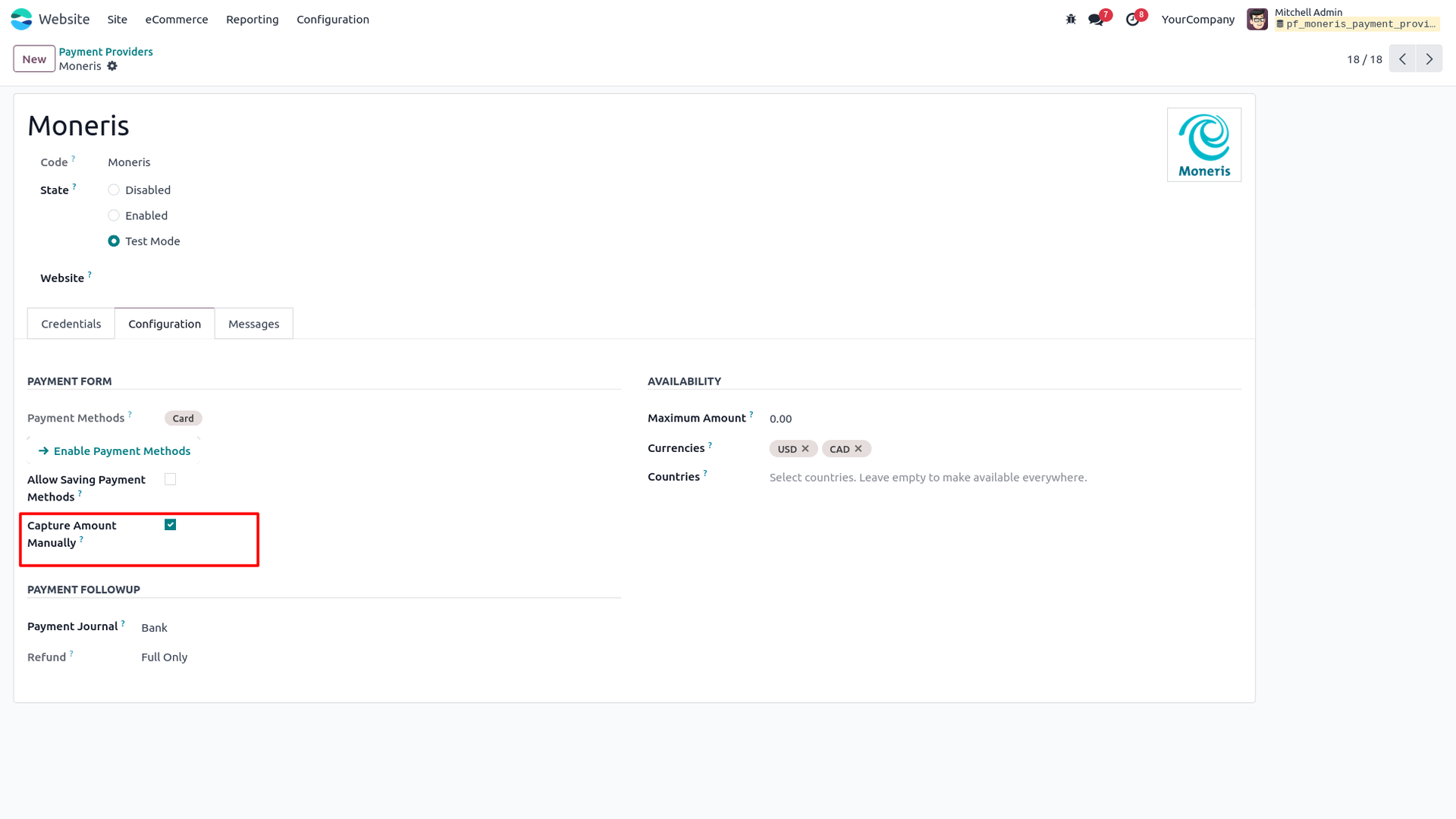
9. To authorize now and capture later, enable "Capture Amount Manually" on the Moneris Gateway App for Odoo configuration.
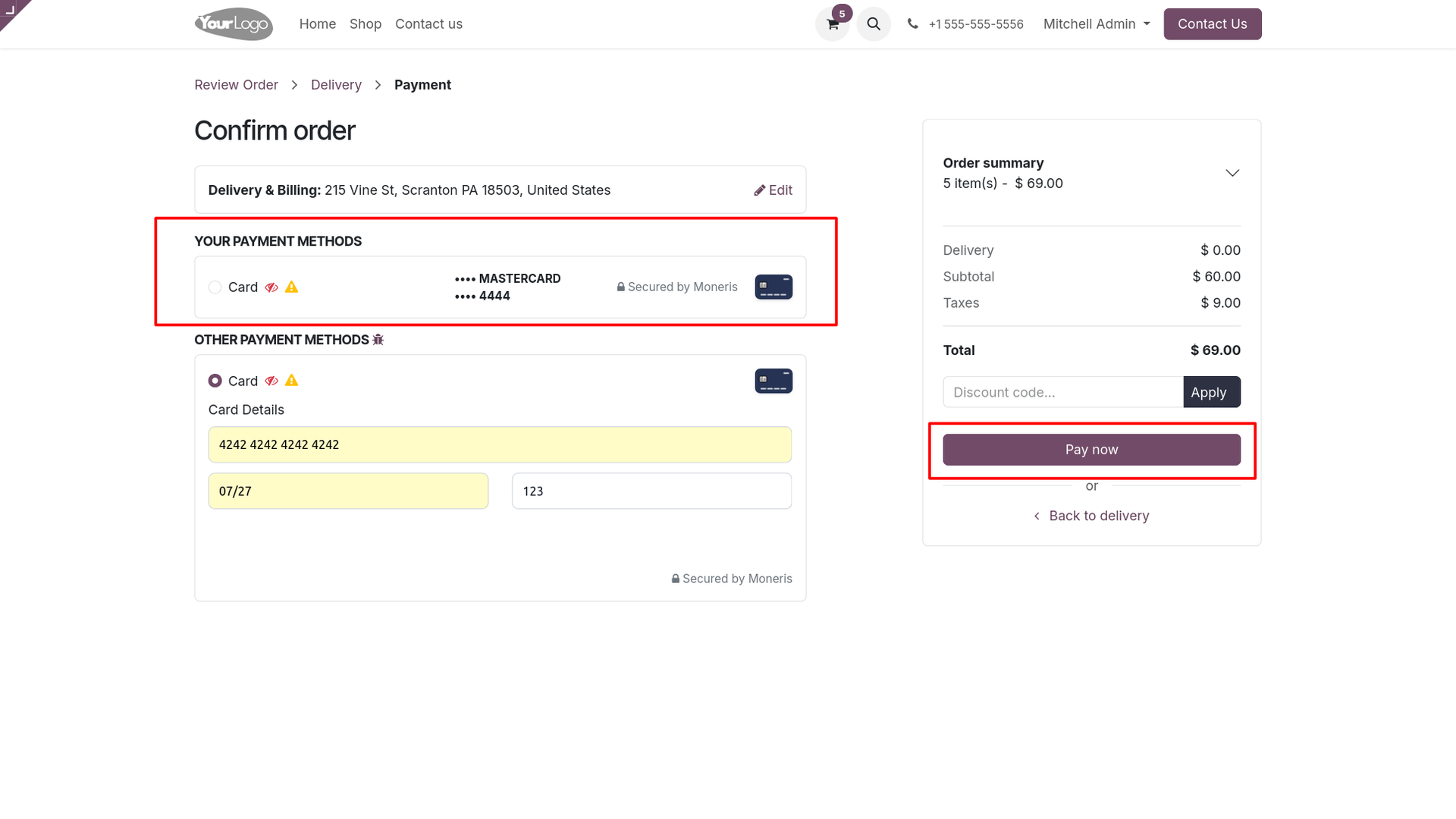
10. Select the saved payment token and fill in the payment details in the Pay wizard to process a manual authorization.
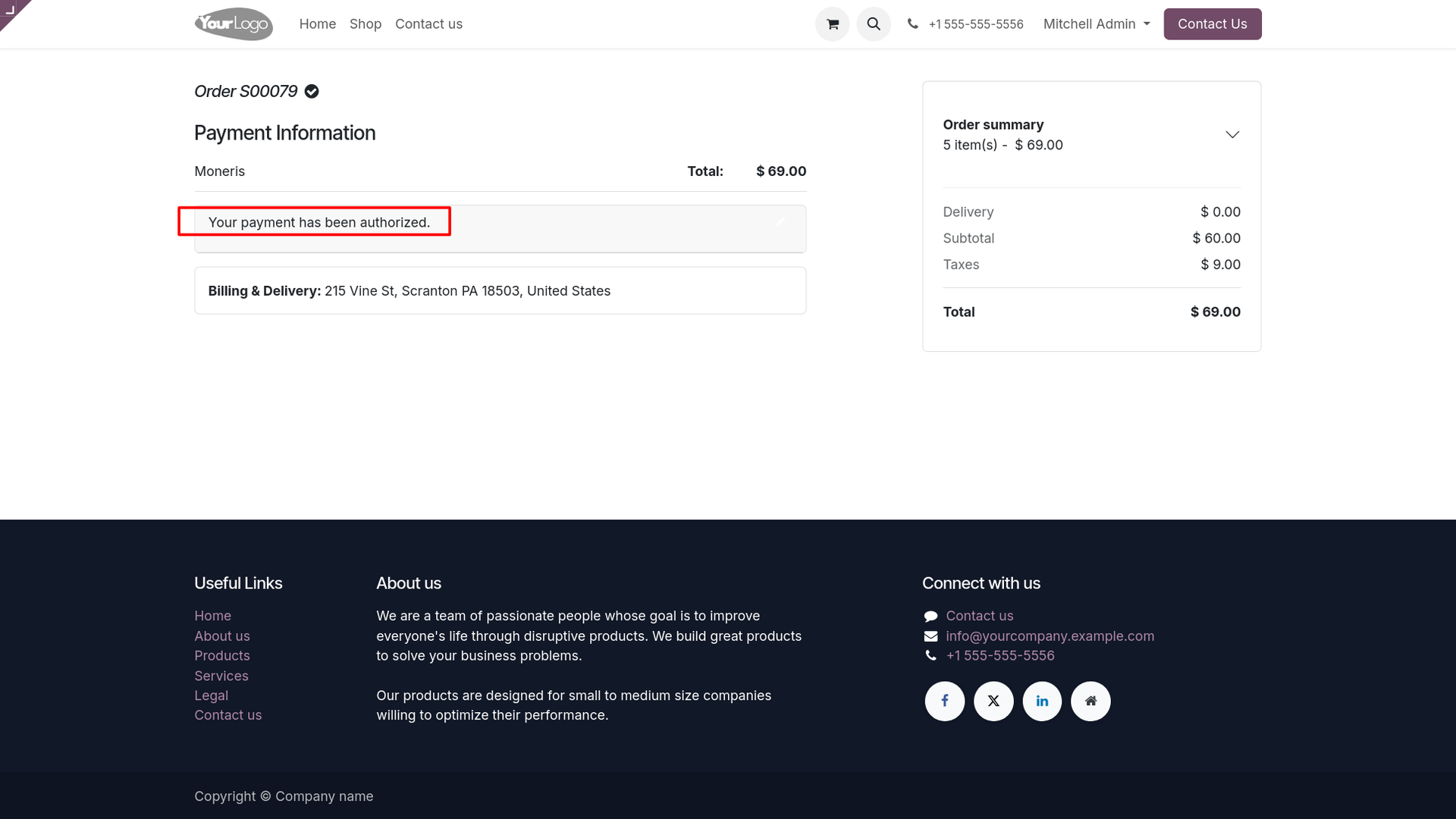
11. A "Your payment has been authorized" message confirms the transaction was successfully authorized.
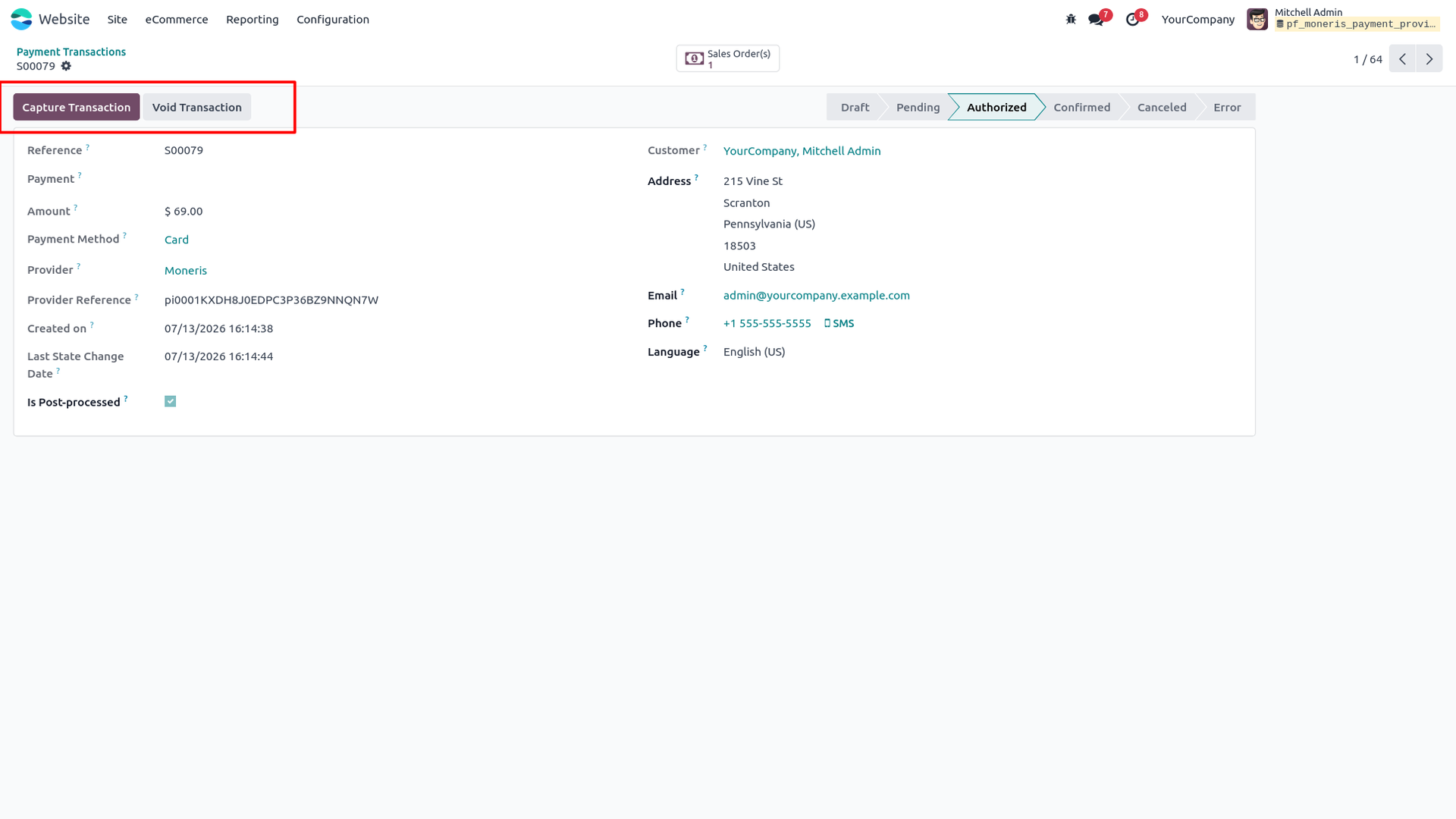
12. The transaction shows in "Authorized" state in Odoo, with "Capture Transaction" and "Void Transaction" buttons available.
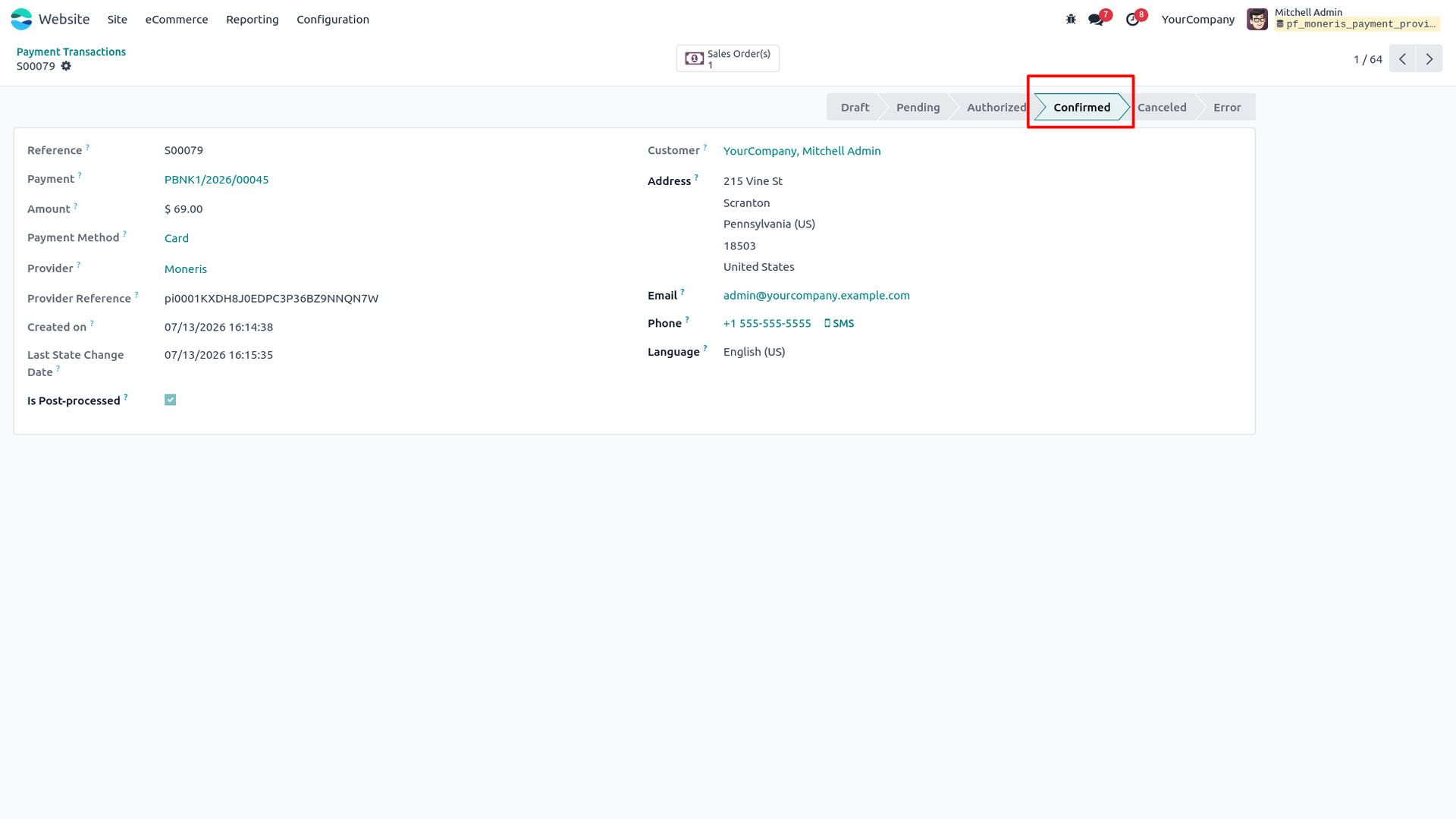
13. Clicking "Capture Transaction" completes the payment, updating the transaction to "Confirmed" state with the Provider Reference ID shown.
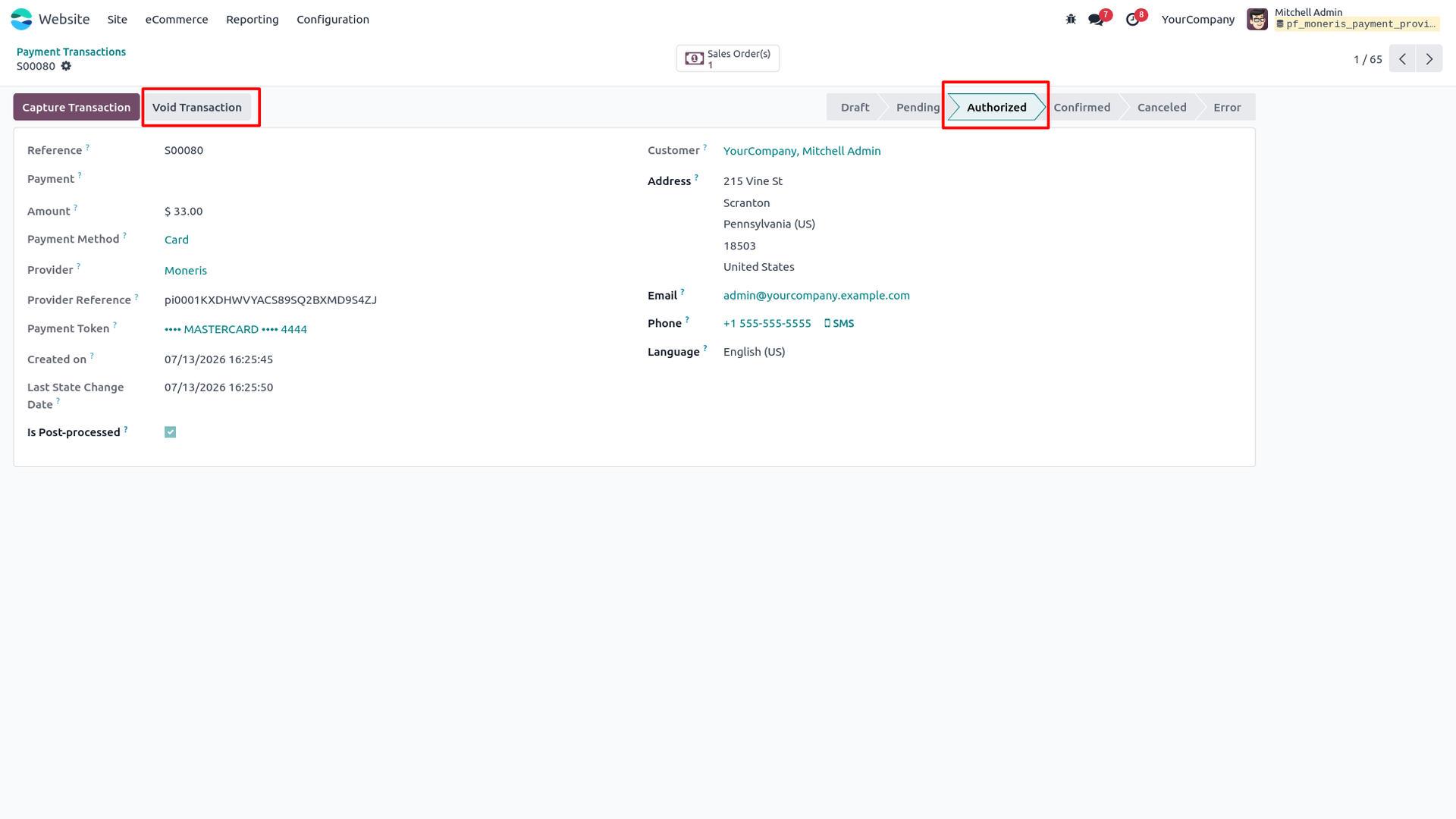
14. Alternatively, clicking "Void Transaction" on an authorized payment cancels the authorization instead of capturing it.
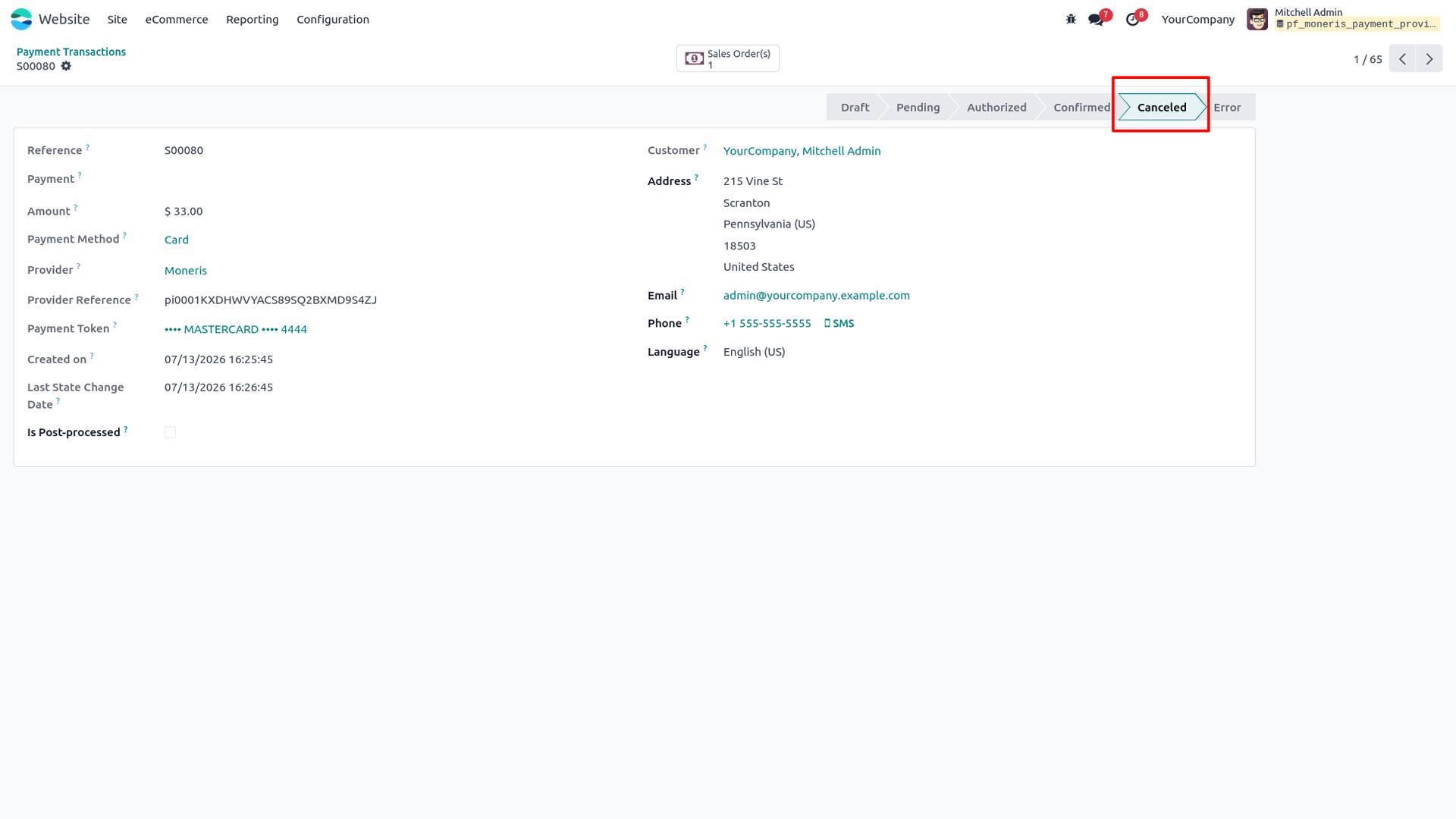
15. After voiding, the transaction updates to "Canceled" state in Odoo, confirming the authorization was successfully released.
Our solutions focus on your problems
- Odoo Implementation
- Odoo Customization
- ERP Development and Implementation
- Odoo Ipass Cloud
- AI for Odoo
- Odoo Apps
- Aws Marketplace Products
- Business Engines
Our Pricing includes User Manual, 90 Days Support (Monday-Friday 10am to 7pm IST) and One time Setup
• Works & tested on standard installations of Odoo with no third party apps,
• Free support only for odoo installations with no third party apps,
• Paid support available for Odoo installations with third party apps.

Prefortune is a Odoo Official Partner, Odoo Development company. Our philosophy is to use Open Source tools and technologies to provide cost effective and green solutions for our customers.
Prefortune Technologies LLP is working on web development, Mobile development, and Odoo ERP.
If you need any help or want more additional features, you may contact us through:
Alternative Products
These other products might interest you
Specifications
| Version | 19.0, 18.0, 17.0, 16.0, 15.0, 14.0 |