Watch Quick Video
Monday.com Integration with Odoo App
All-in-one
Monday.com Integration with Odoo
is a solution that enables users to integrate Monday.com with Odoo in an easy and simple way. Users
can create a secure connection, import data and synchronise project and CRM information between the two
platforms. The module provides a specific Monday Integration menu for users to register their Monday.com
account. Users can enter their account name and API token to establish the connection and define the
import options for Users, Boards, Groups and Items. Users can import Monday.com data into Odoo once
connected, with boards and groups available under the Monday Data menu and also able to be integrated with
Odoo Projects. The module contains project and task synchronisation. Users can create tasks stages and
tasks in Odoo and the changes in stages will be automatically updated in the corresponding Monday.com
workspace. Also, it has CRM integration features to create Lead Boards, manage CRM stages and configure
pipelines with the connected Monday account. Sync Entries is a separate section that keeps a tidy list of
sync activities, with the request date and time, operation type, import action, account, and sync status.
The module also provides an automated scheduled action to import the Monday.com data every hour reducing
the manual effort and ensuring constant data consistency. The users can also perform the synchronisation
manually whenever required.
Monday.com Integration with Odoo Features
- Link your Monday.com account to Odoo by entering the necessary account details and API token.
- Odoo allows you to import data from Monday.com like Users, Boards, Groups and Items.
- The module connects Monday.com projects and tasks with Odoo Projects and synchronises task stages and changes.
- CRM Leads and Stages can be integrated with Monday.com and pipelines can be attached to the selected account.
- The module provides the opportunity to monitor synchronisation with the help of Sync Entries. Users can track import operations and their status.
- The system auto-imports Monday.com data every hour, and also allows manual data sync.
Complete Workflow for Manage Monday.com Integration with Odoo
Go to Odoo → Monday Integration → Configuration → Registration to register the Monday.com account using the account name and API token. After entering the required details, click Establish Connection to connect the Monday.com account with Odoo successfully. Once the connection is established, open Monday Account to view the registered account and enable the required import options for Users, Boards, Groups, and Items. Click Import Data from the Monday Account to fetch the selected Monday.com data into Odoo. Go to Monday Data → Monday Board to view the imported Monday.com boards and open a board to review its details. The imported board is also available in Odoo Projects, where users can manage the project, groups, task stages, and tasks connected with Monday.com. Users can create or update task stages and tasks in Odoo, and the changes are automatically reflected in the corresponding Monday.com workspace. For CRM integration, users can create a Lead Board in Monday.com and import the required data into Odoo, where CRM stages and pipelines can be configured with the connected Monday Account. Users can open Sync Entries to review synchronization records, including request date and time, operation type, import action, account, performed action, and synchronization status. The system also provides an automatic scheduled action that imports Monday.com data every hour, while users can manually execute the synchronization whenever required.
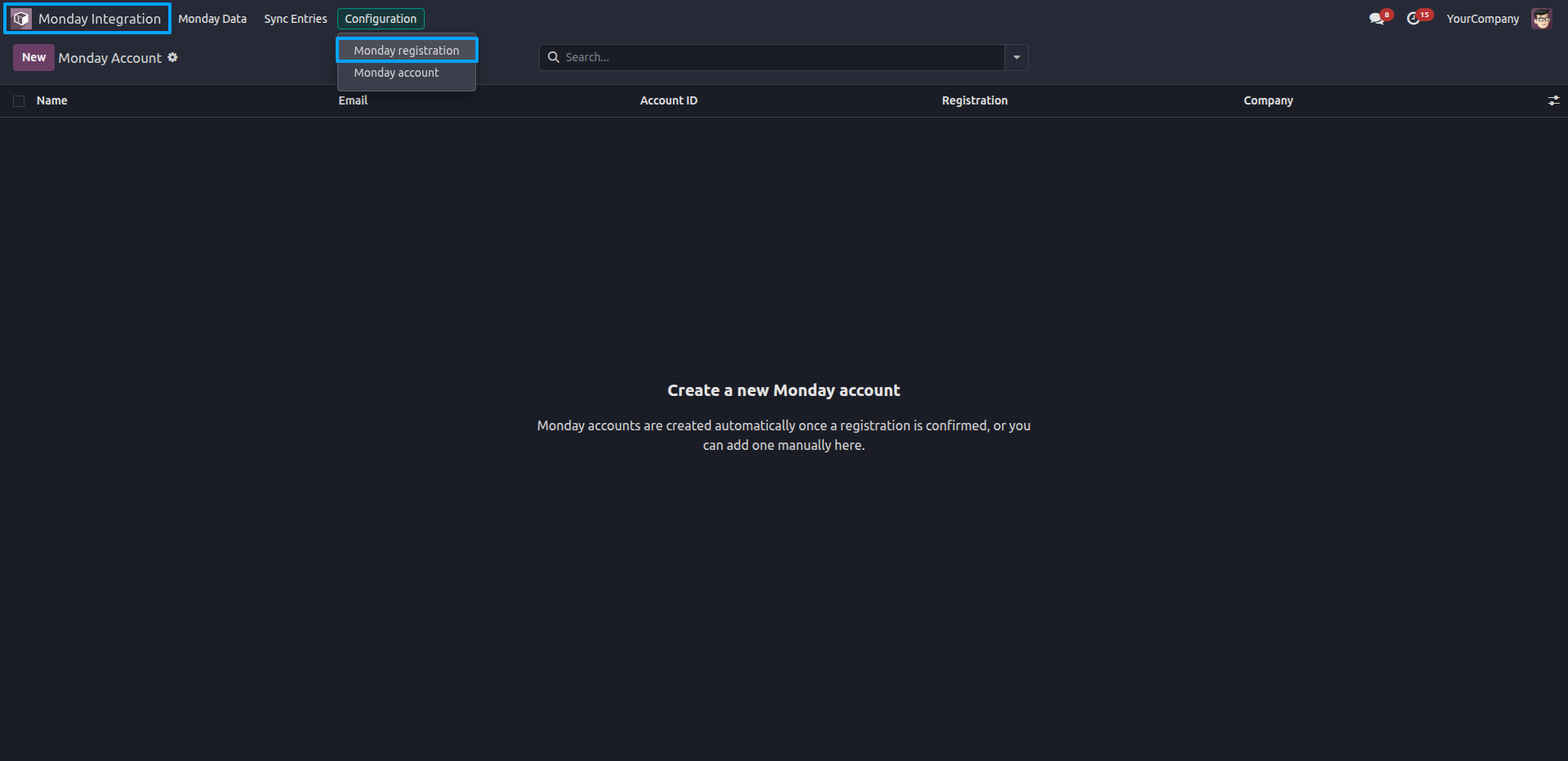
1.Go to Monday Integration → Configuration → Monday Registration to register a new Monday.com account.
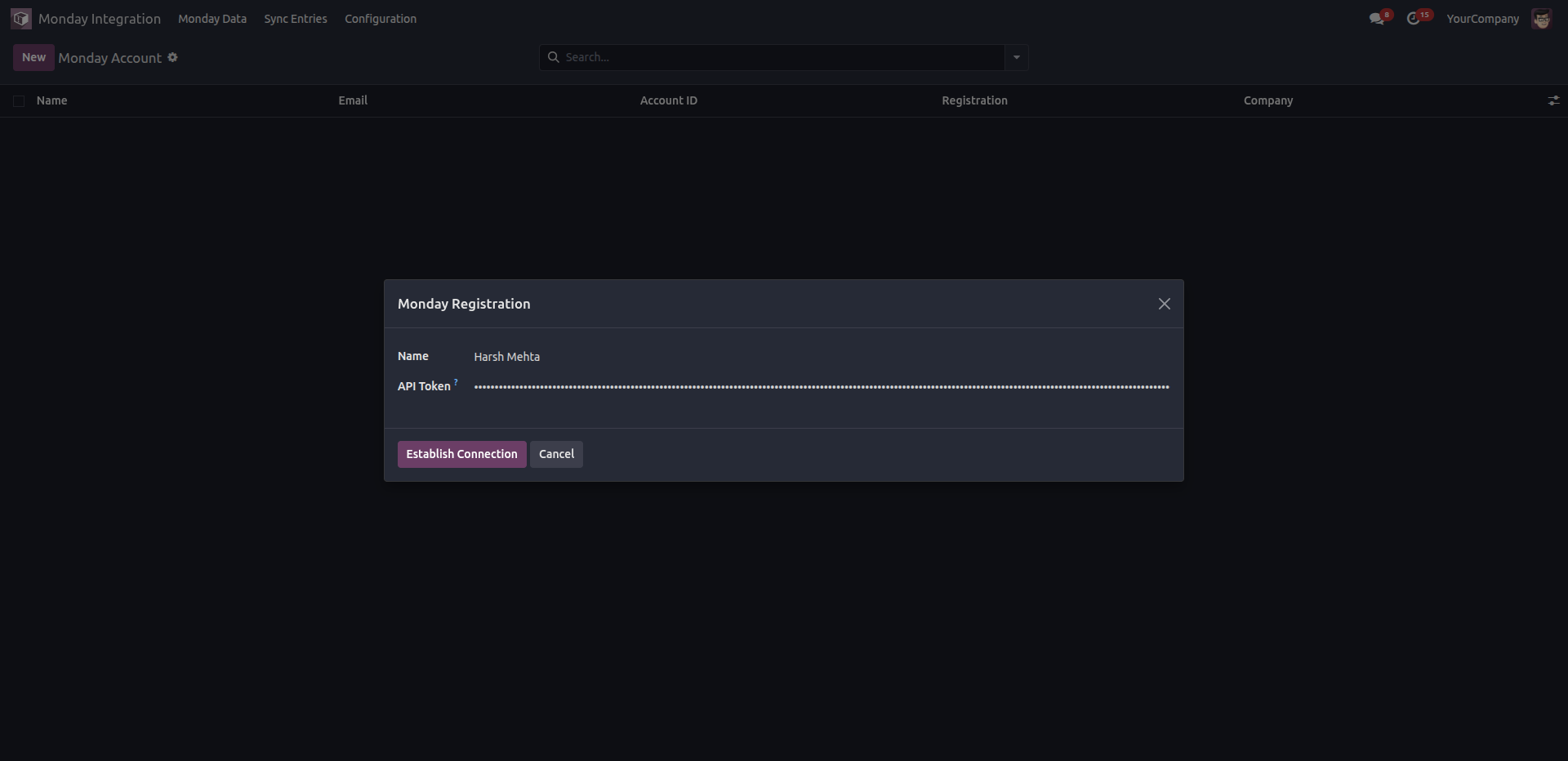
2.Enter your Name and API Token, then click Establish Connection to complete the registration.
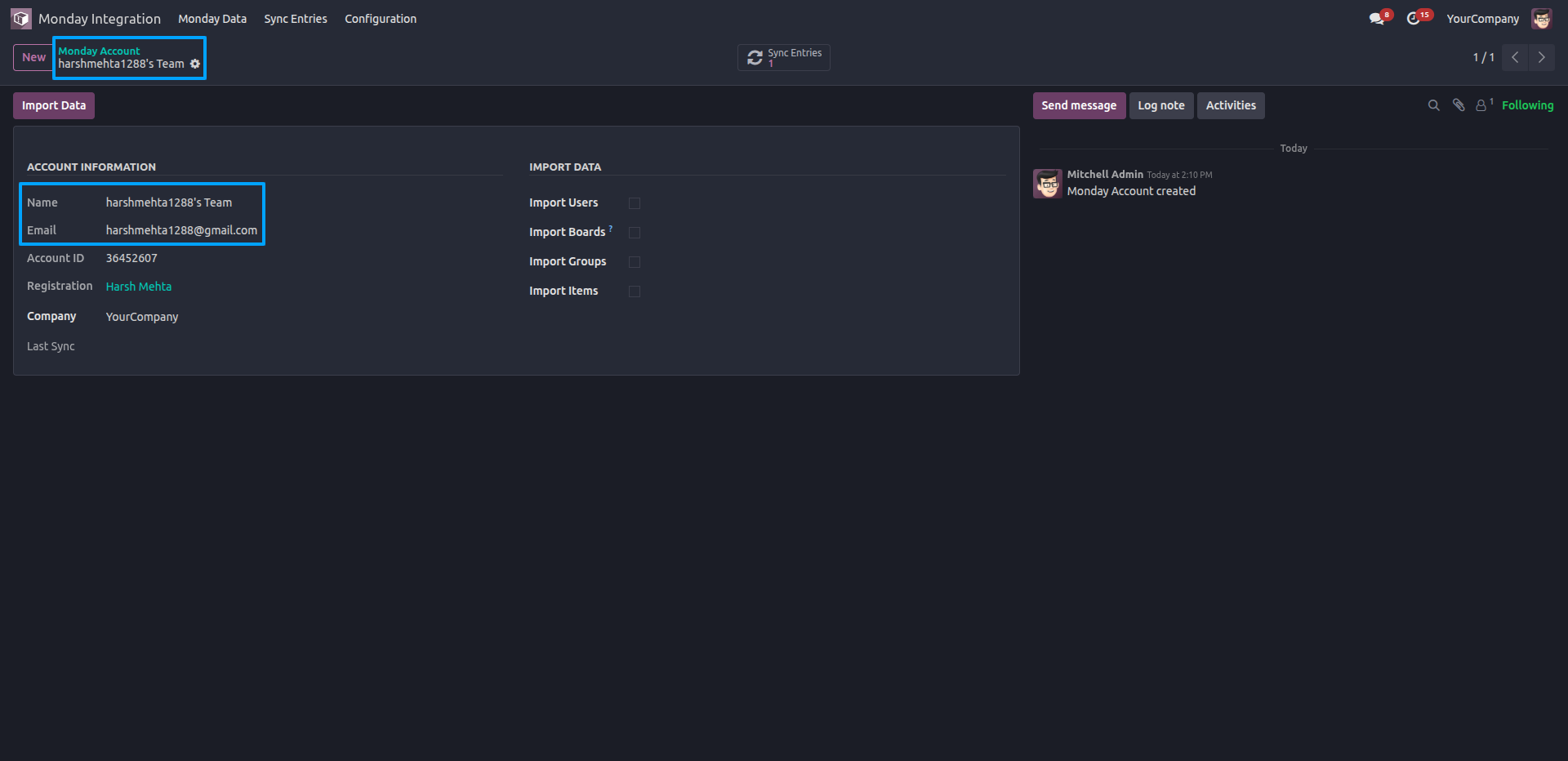
3.Once connected, the registered account appears under Monday Account with options to import Users, Boards, Groups, and Items.
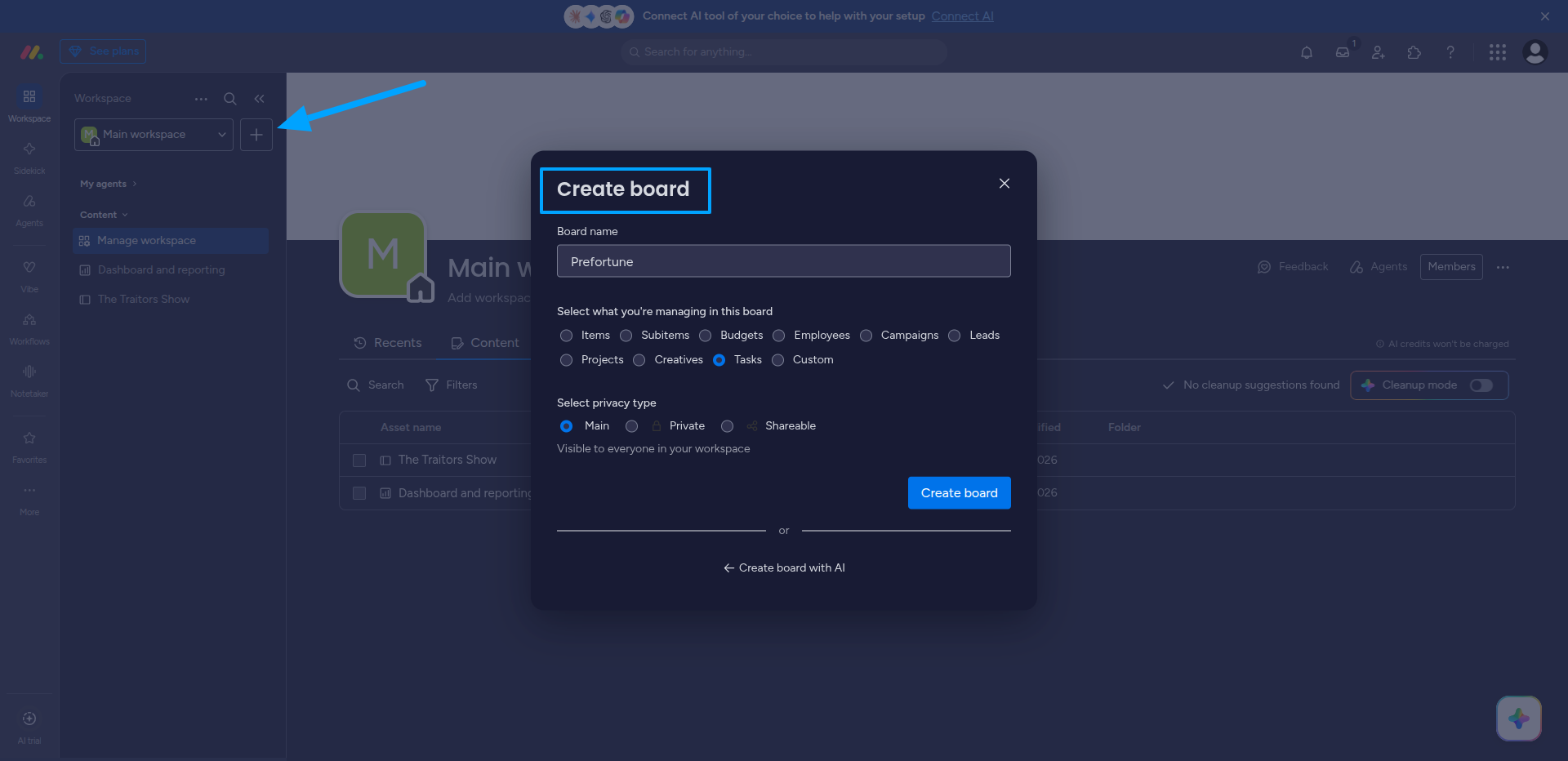
4.From the Monday.com Dashboard, create a new board within the Main Workspace to organize and manage your data.
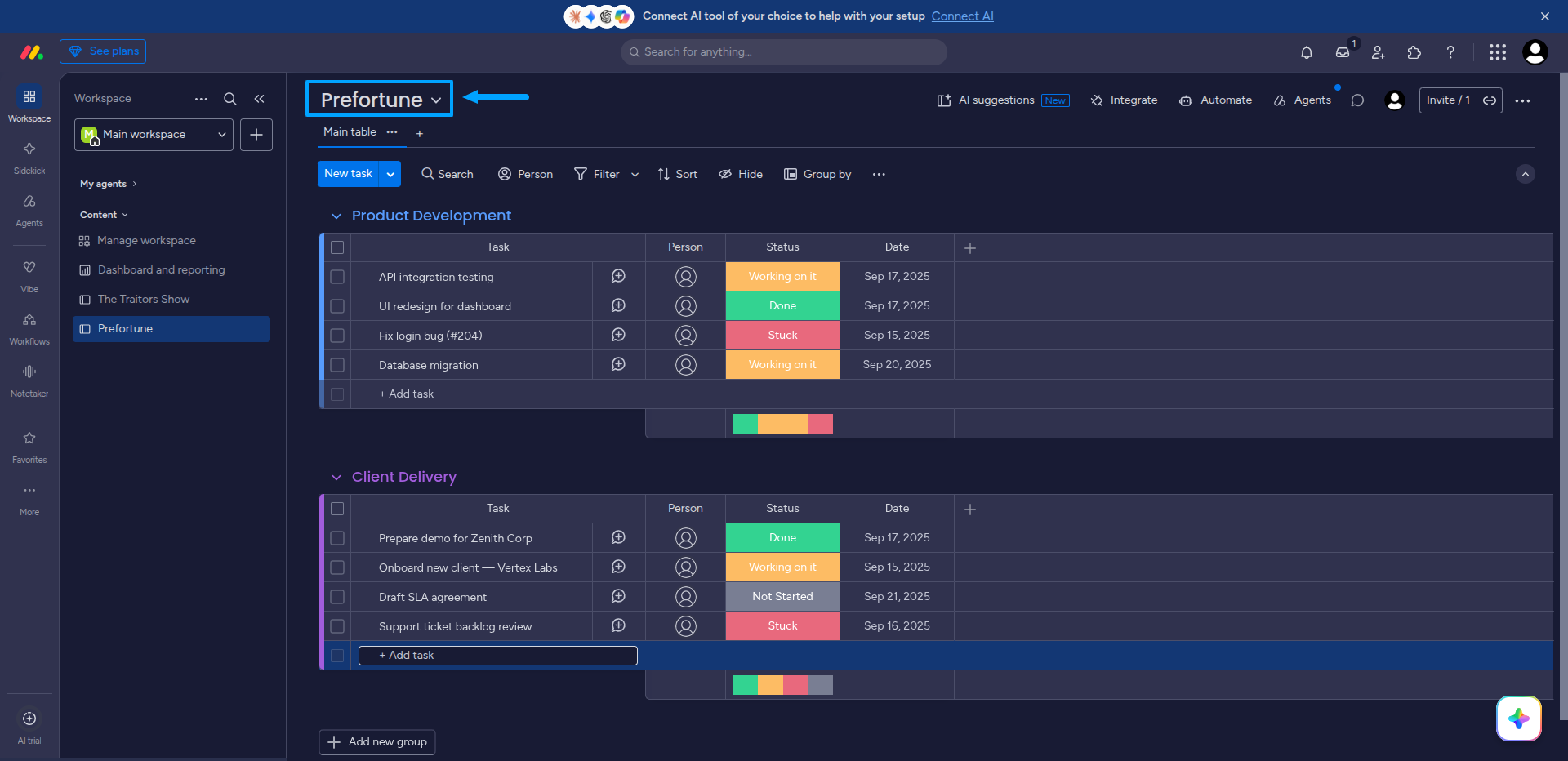
5.The newly created board displays organized groups with tasks, assigned persons, statuses, and dates for tracking progress.
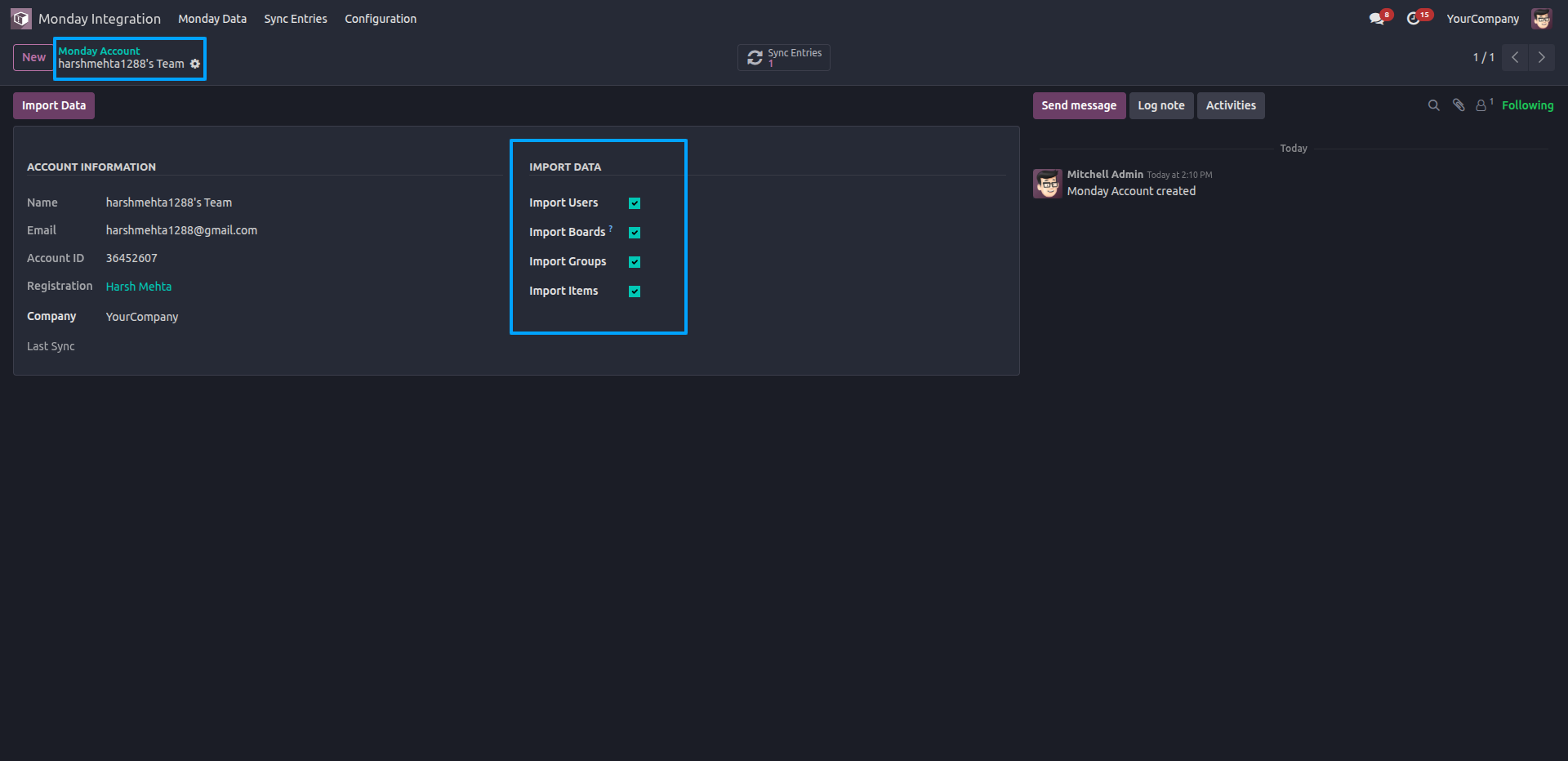
6.Enable the four import options, then click ‘Import Data’ to sync the selected data types.
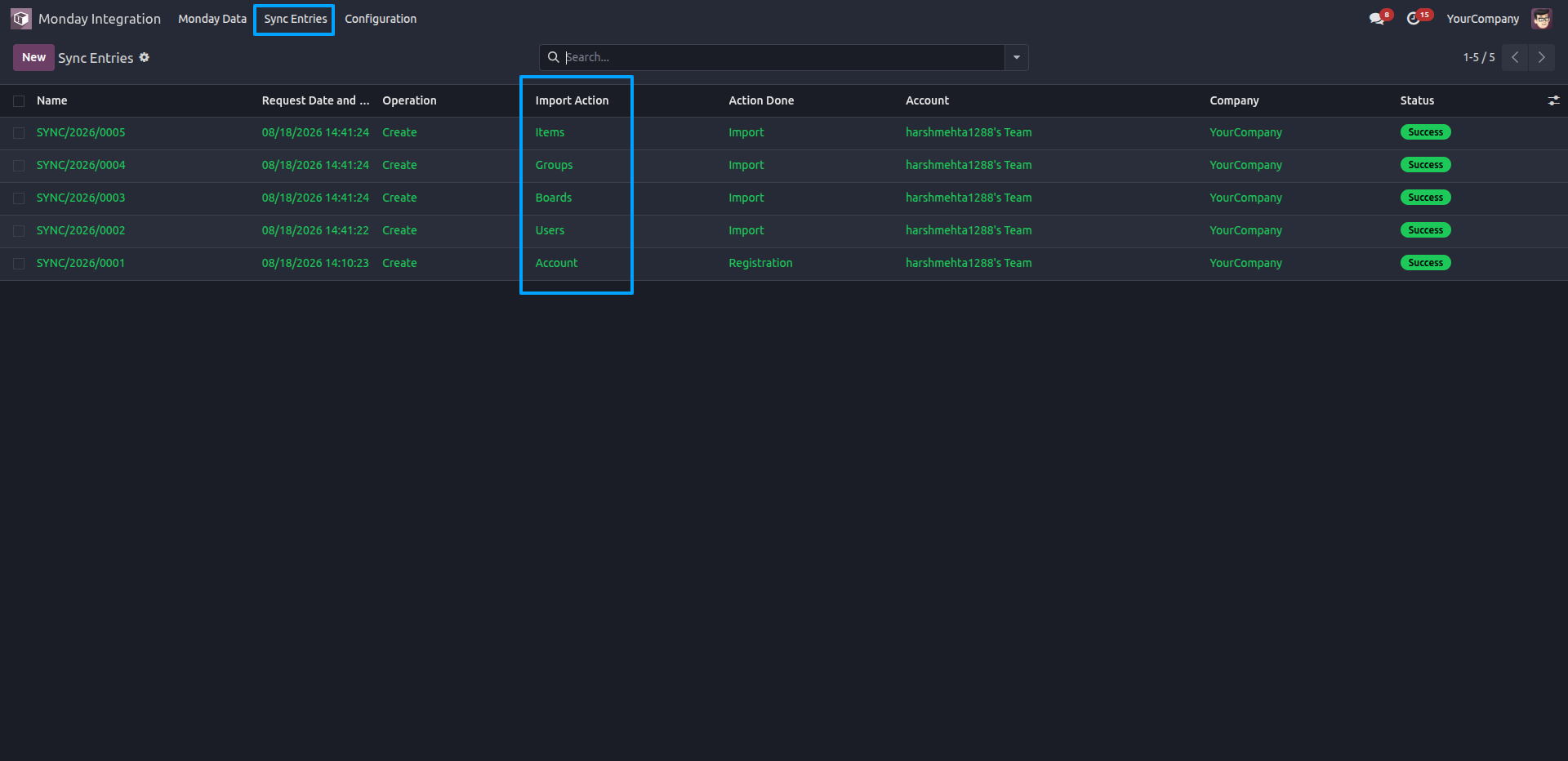
7.The Sync Entries menu displays a log of all import operations, listing each entry's request date and time, import action, action performed, account, and status.
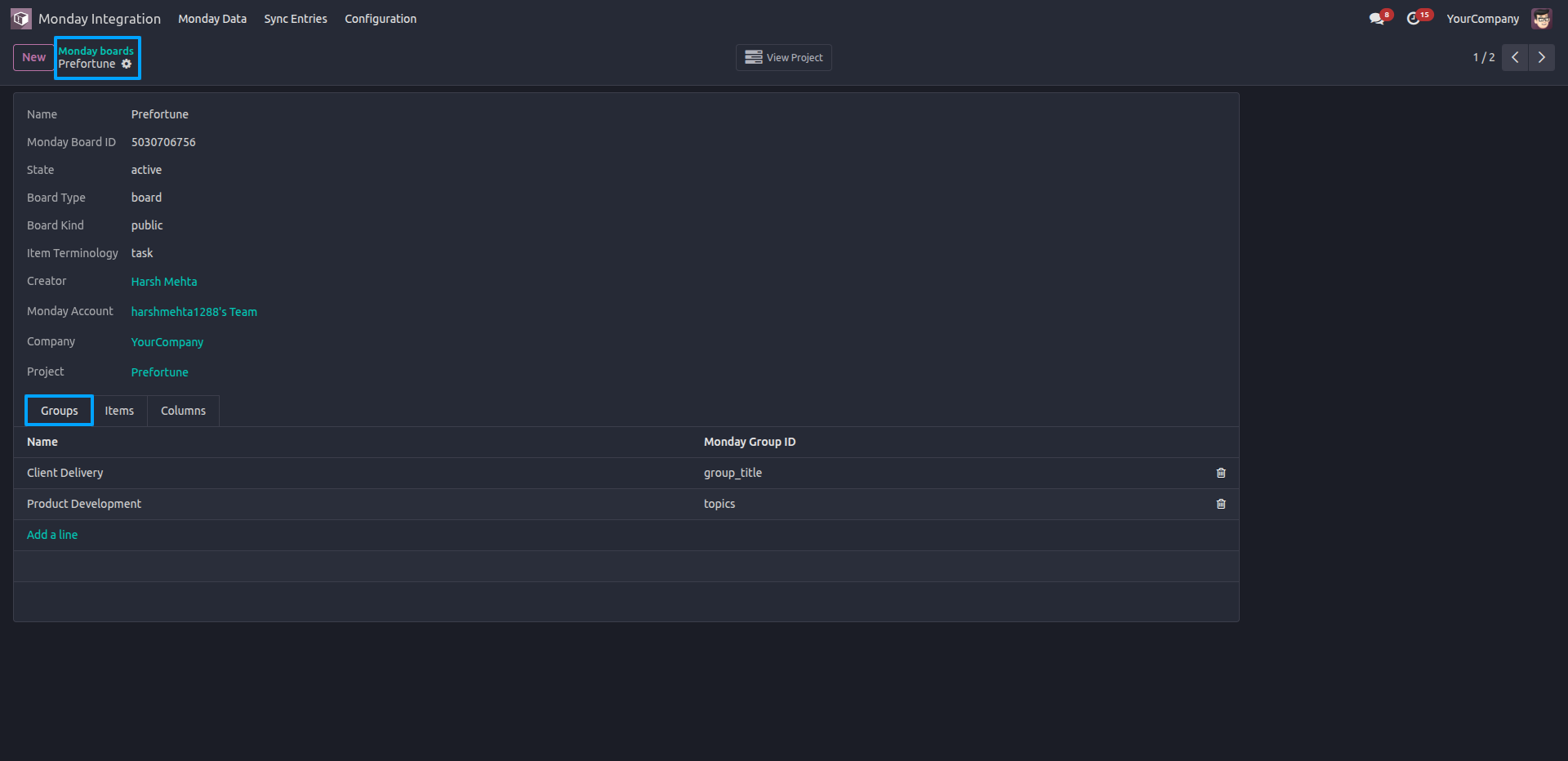
8.Opening a Monday board record shows its details along with the Groups tab, listing all groups synced from Monday.com with their respective Group IDs.
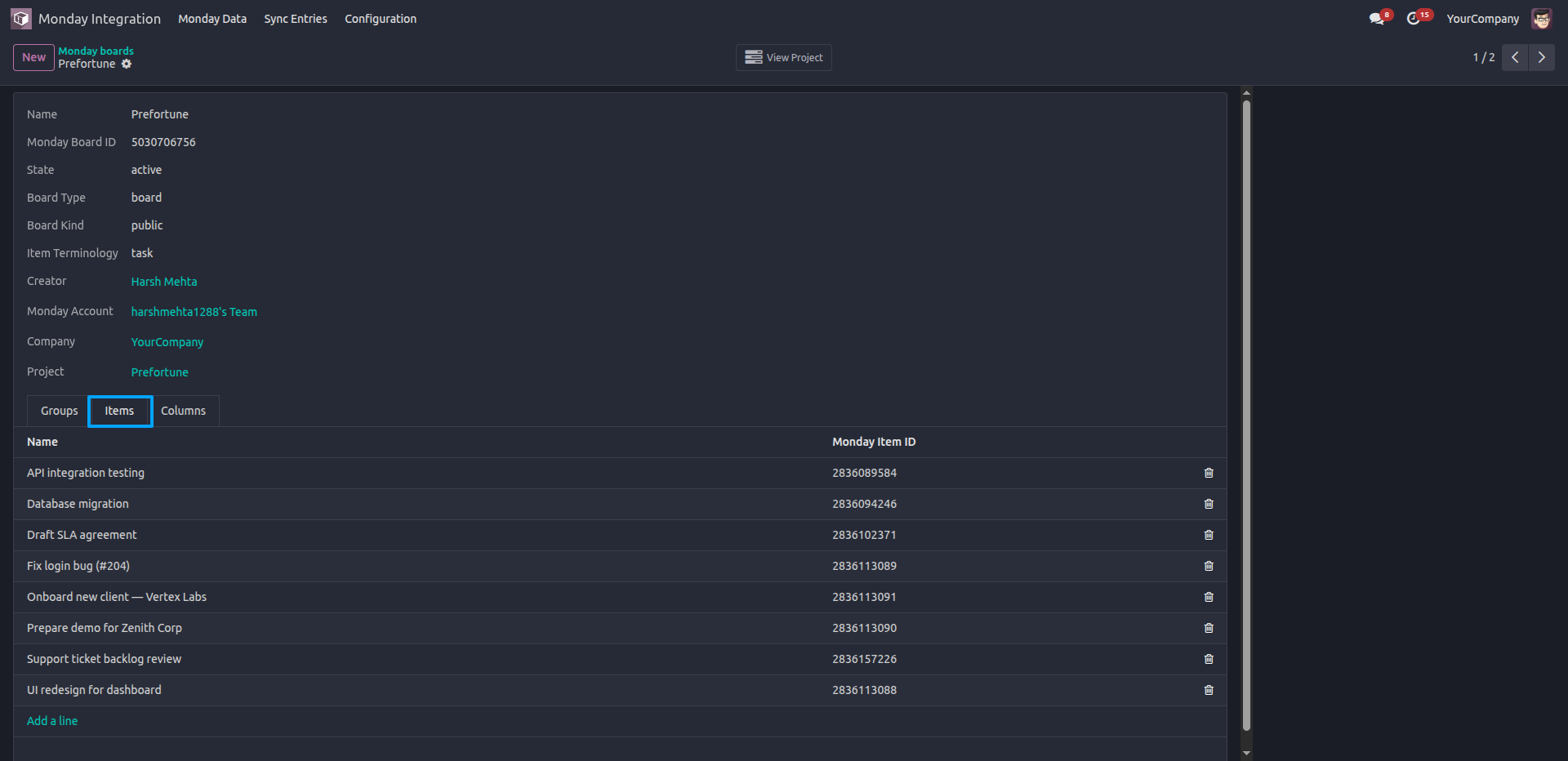
9.The Items tab within the board record displays all synced tasks along with their corresponding Monday Item IDs.
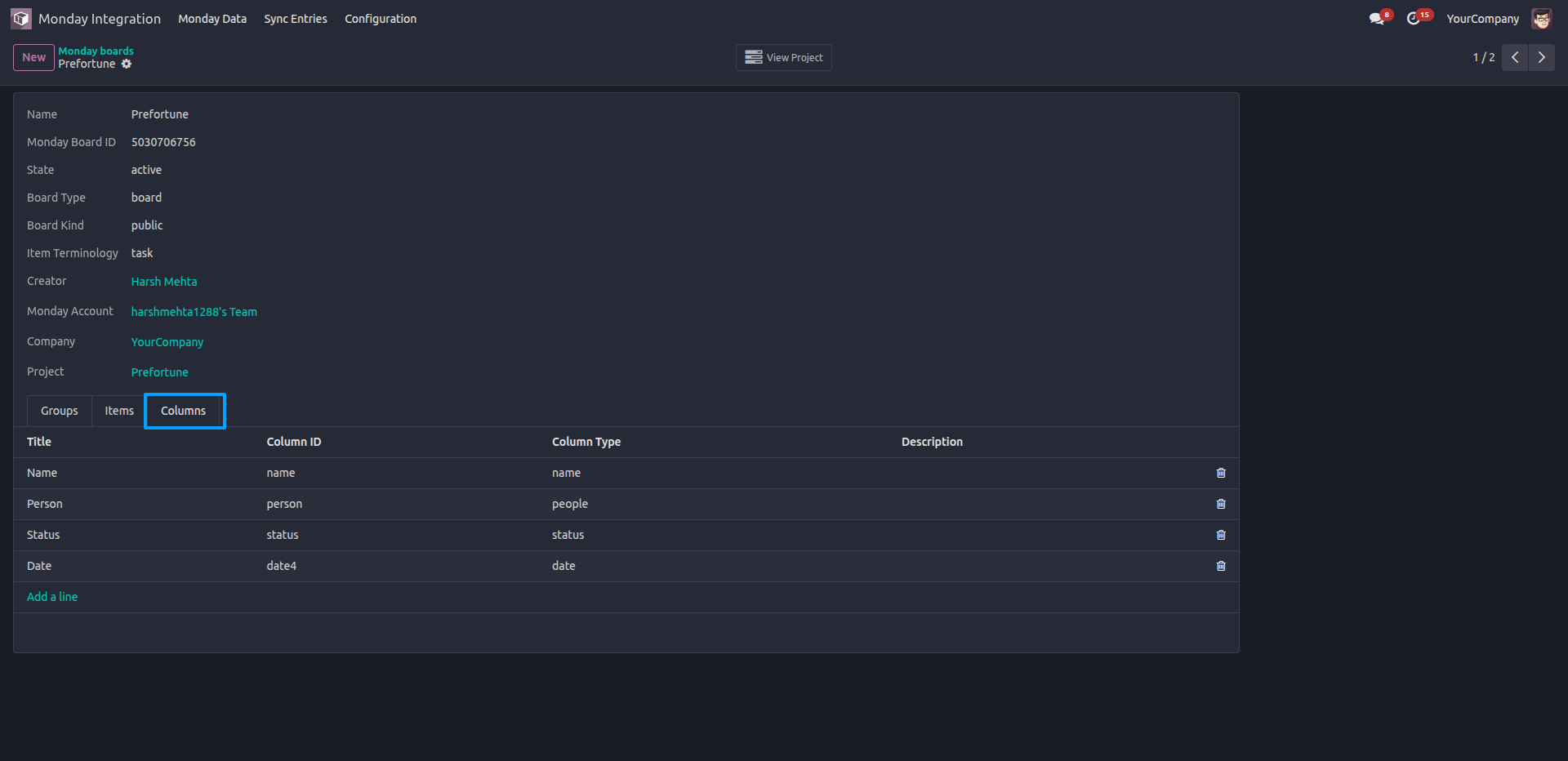
10.The Columns tab shows the board's column structure — Name, Person, Status, and Date — along with their Column IDs and Column Types as synced from Monday.com.
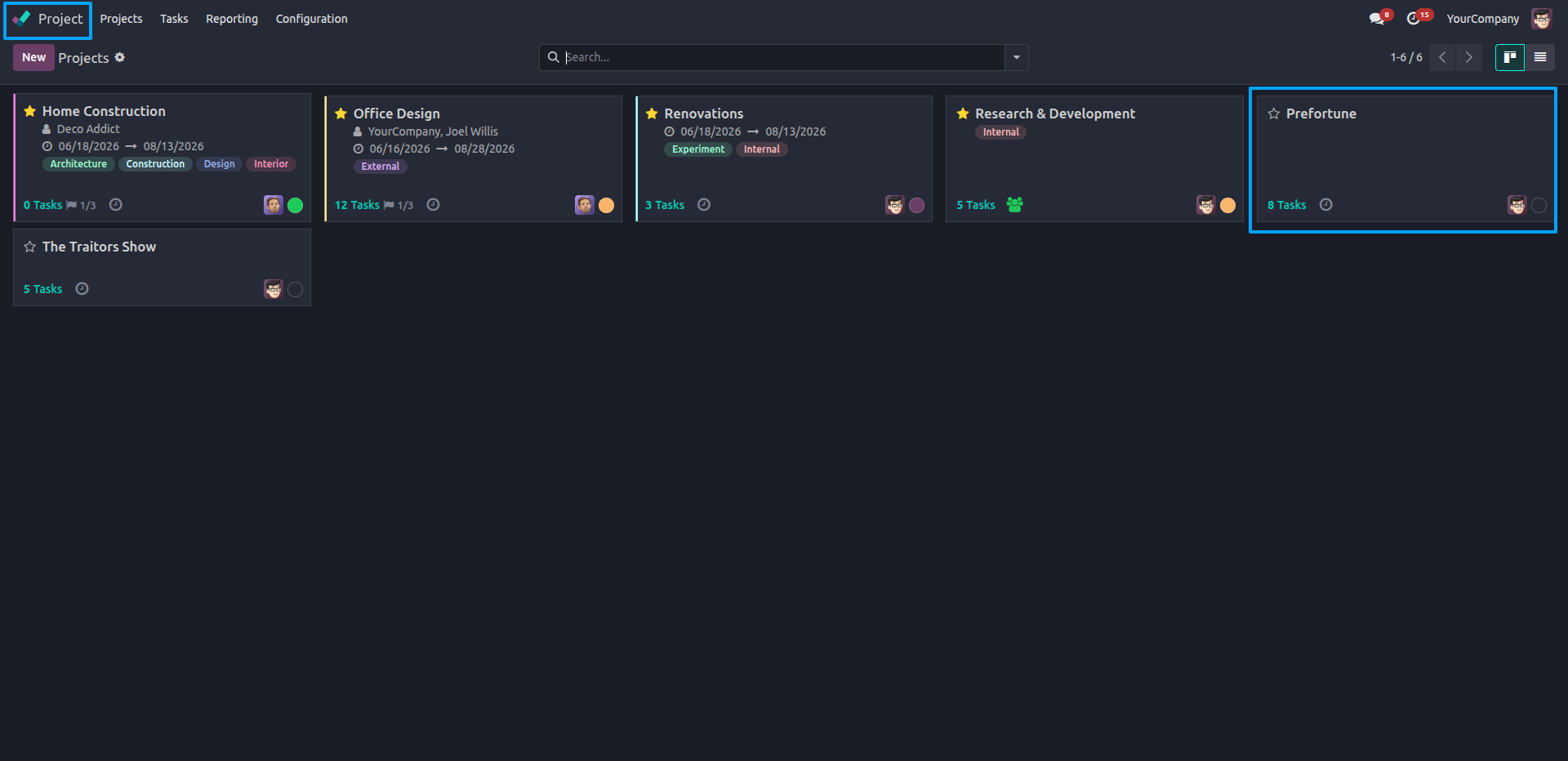
11.In the Project module, the imported board is also visible as a project ("Prefortune") under the Projects Kanban view, along with other existing projects.
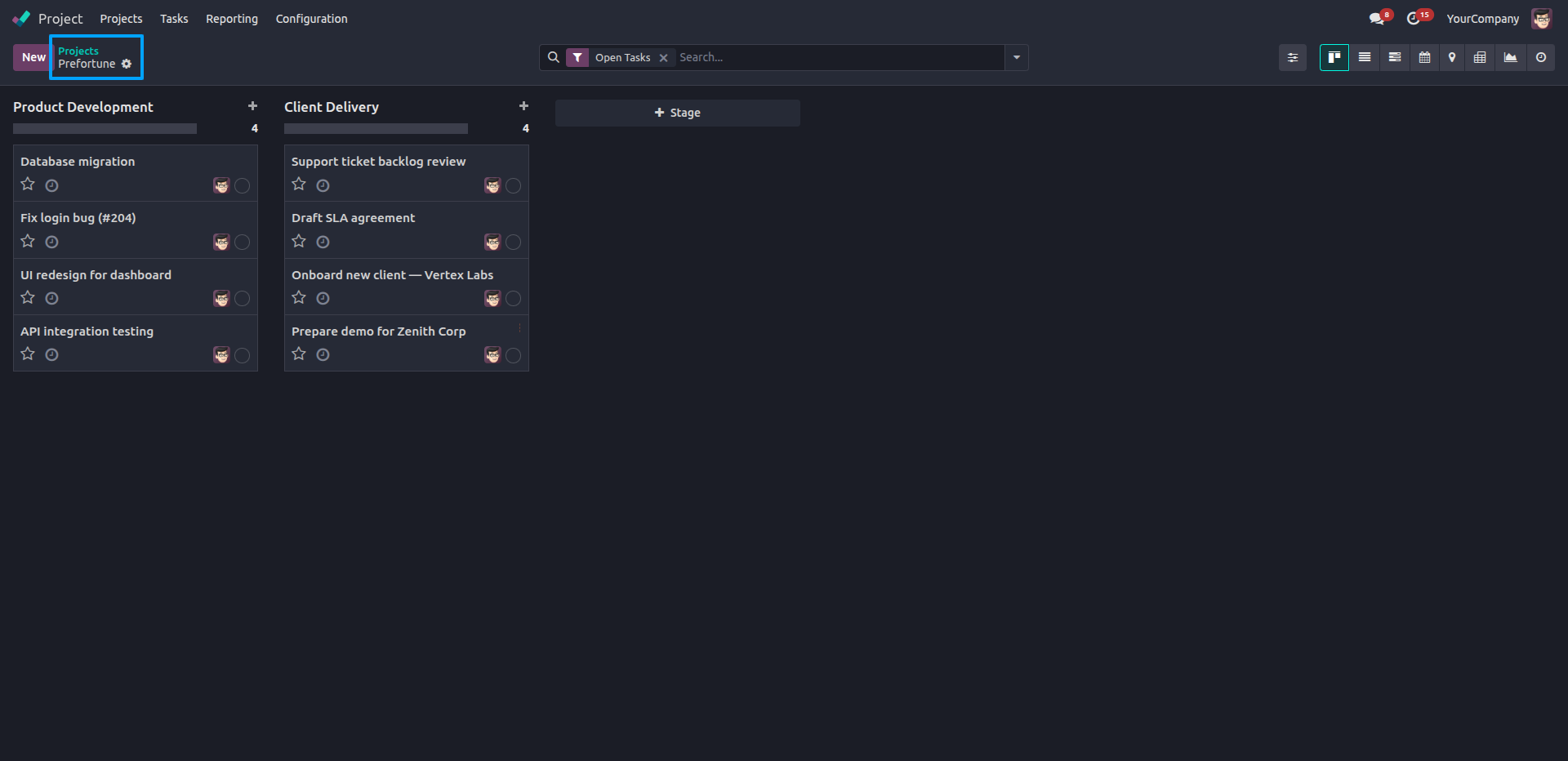
12.Opening the Prefortune project displays its stages — Product Development and Client Delivery — as columns, with tasks synced directly from the Monday.com board.
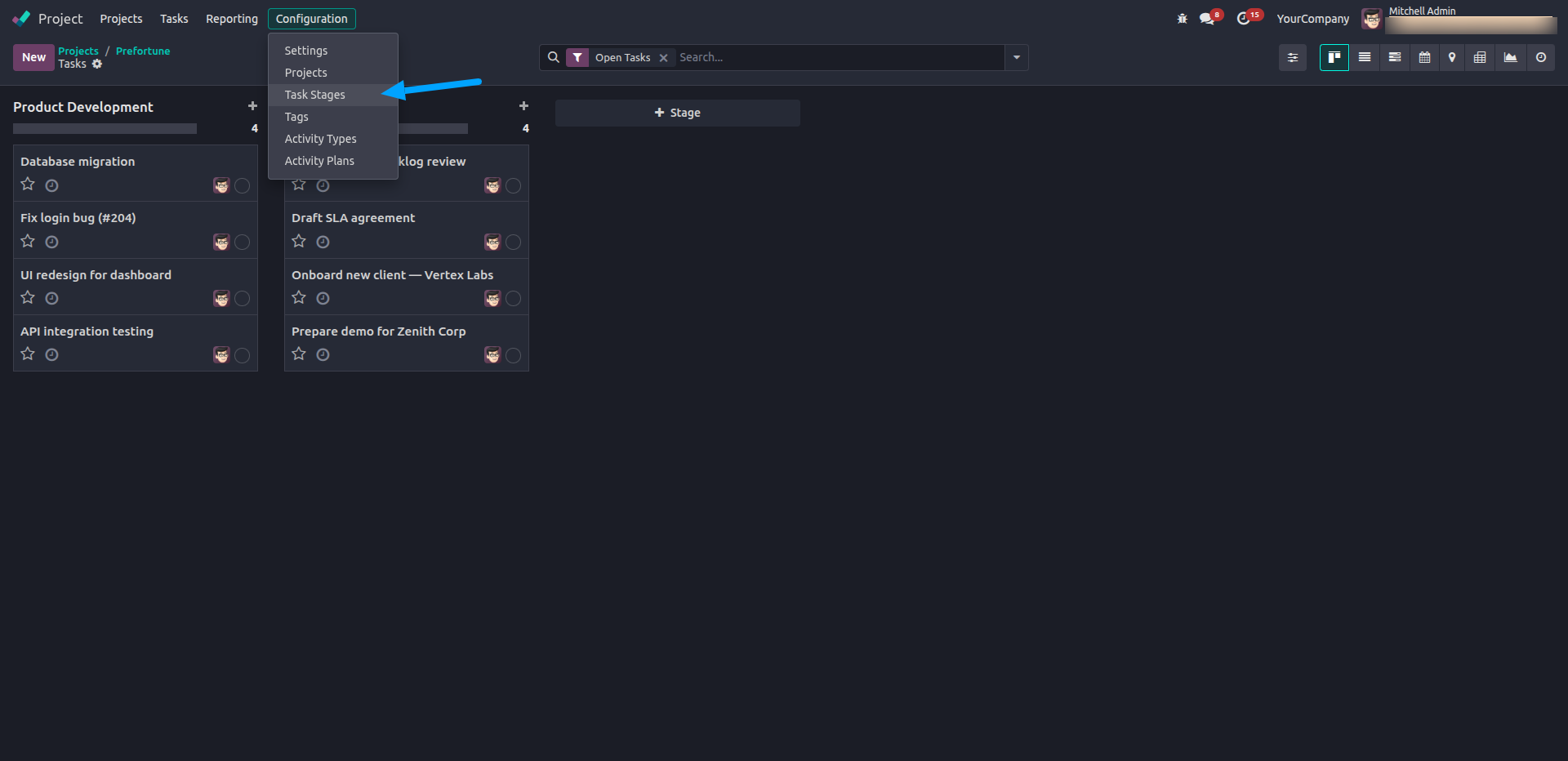
13.First, enable Developer Mode. Then navigate to Project → Configuration → Task Stages to view and manage all project stages.
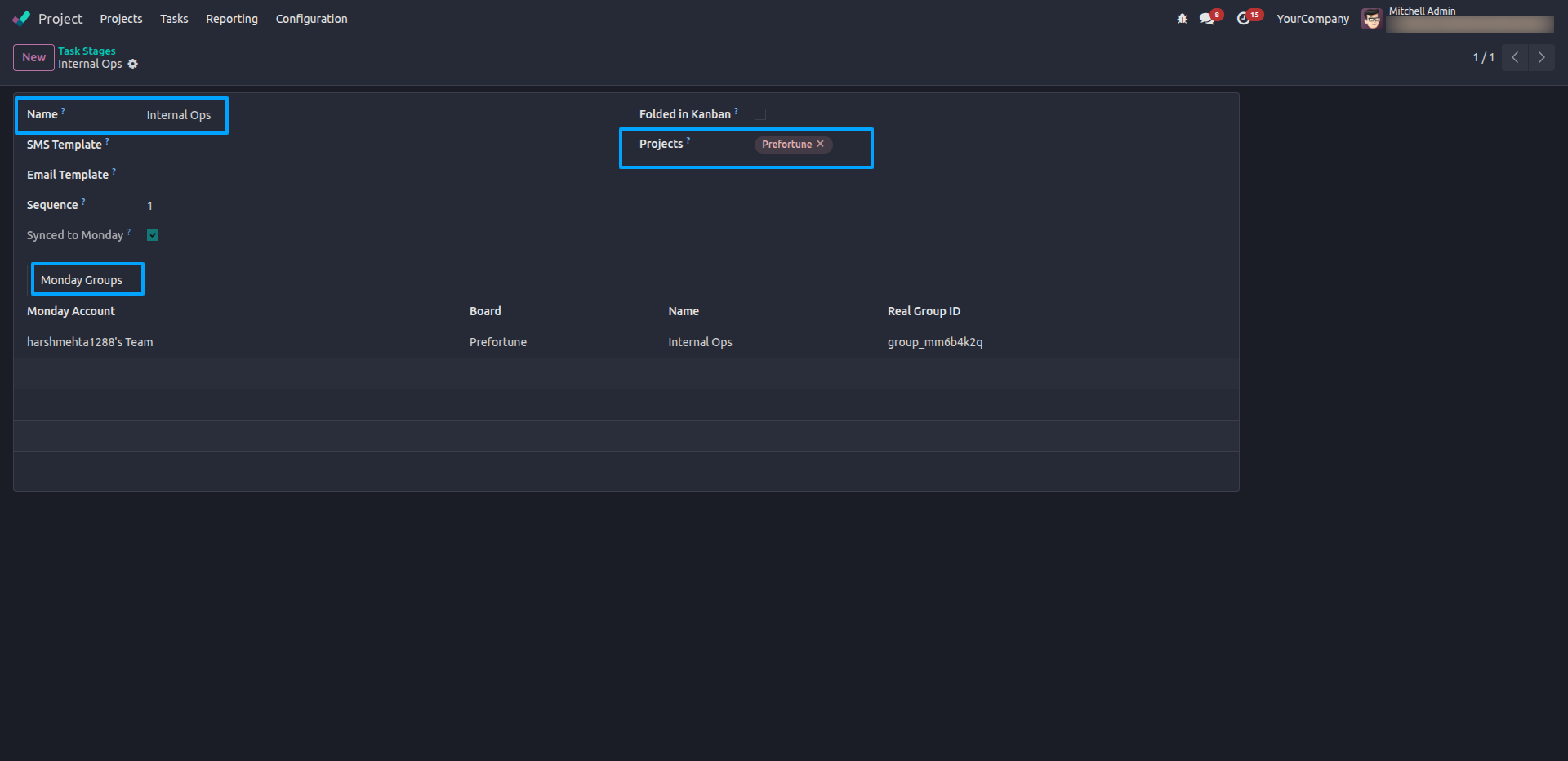
14.Creating a new stage named "Internal Ops" and linking it to the Prefortune project and it automatically generates a corresponding Monday Group with a Real Group ID under the Monday Groups section.
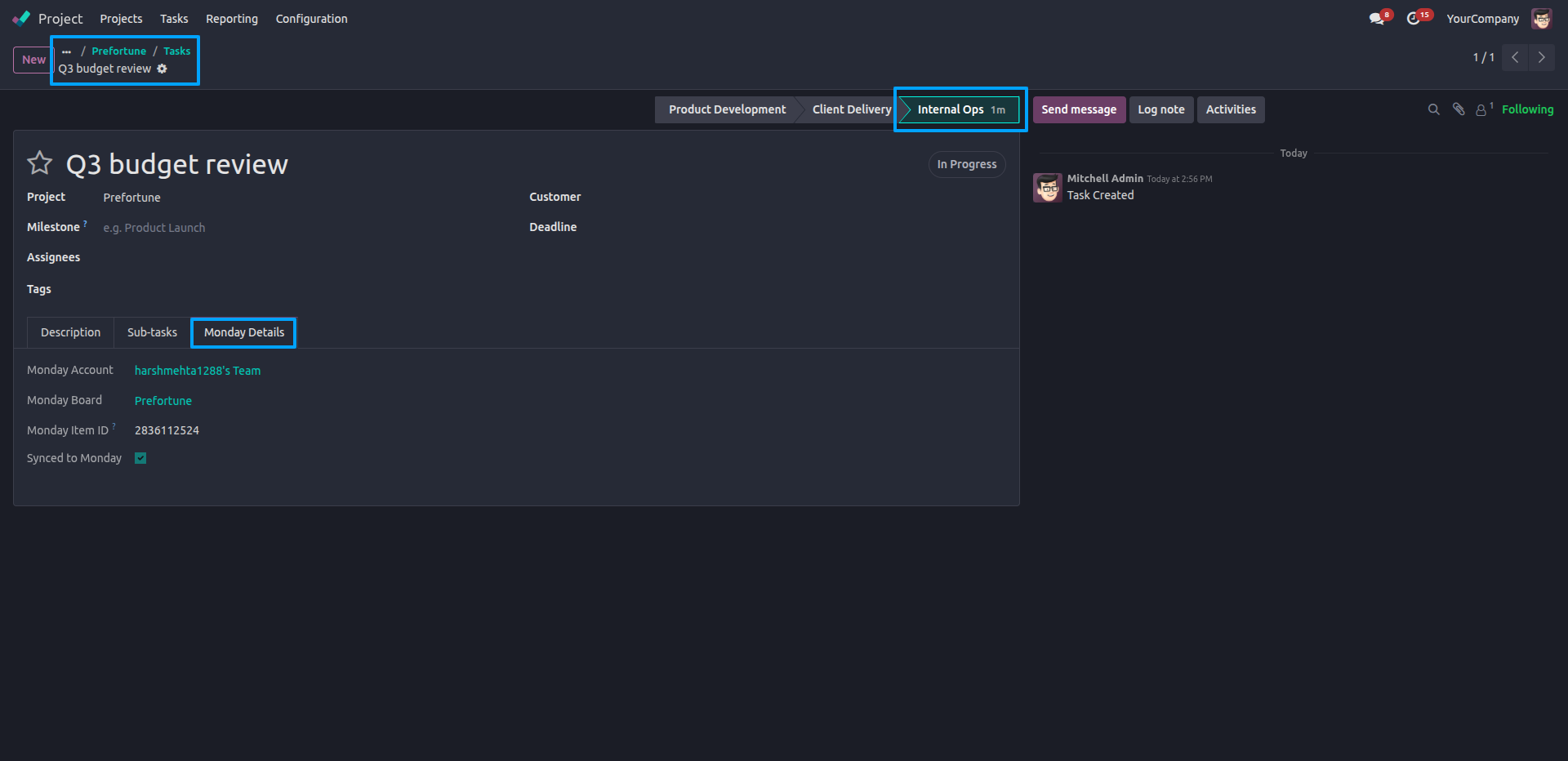
15.Create a task and open its Monday Details tab to view its linked Monday Account, Monday Board, Monday Item ID, and Sync Status, confirming that the task is synced with Monday.com.
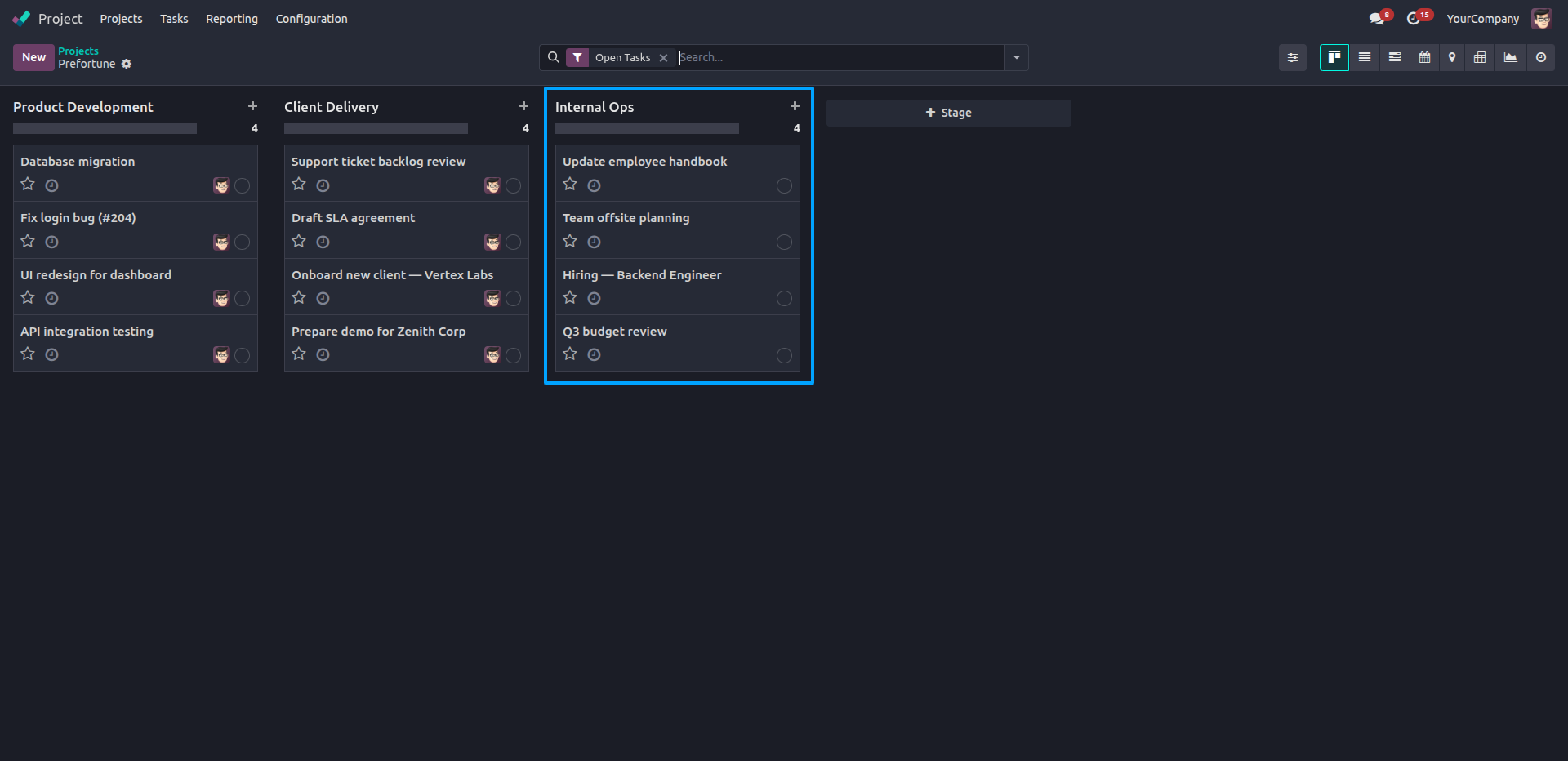
16.The Prefortune project's Kanban view now shows the Internal Ops stage with its tasks, confirming the stage and its items are fully synced from Monday.com.
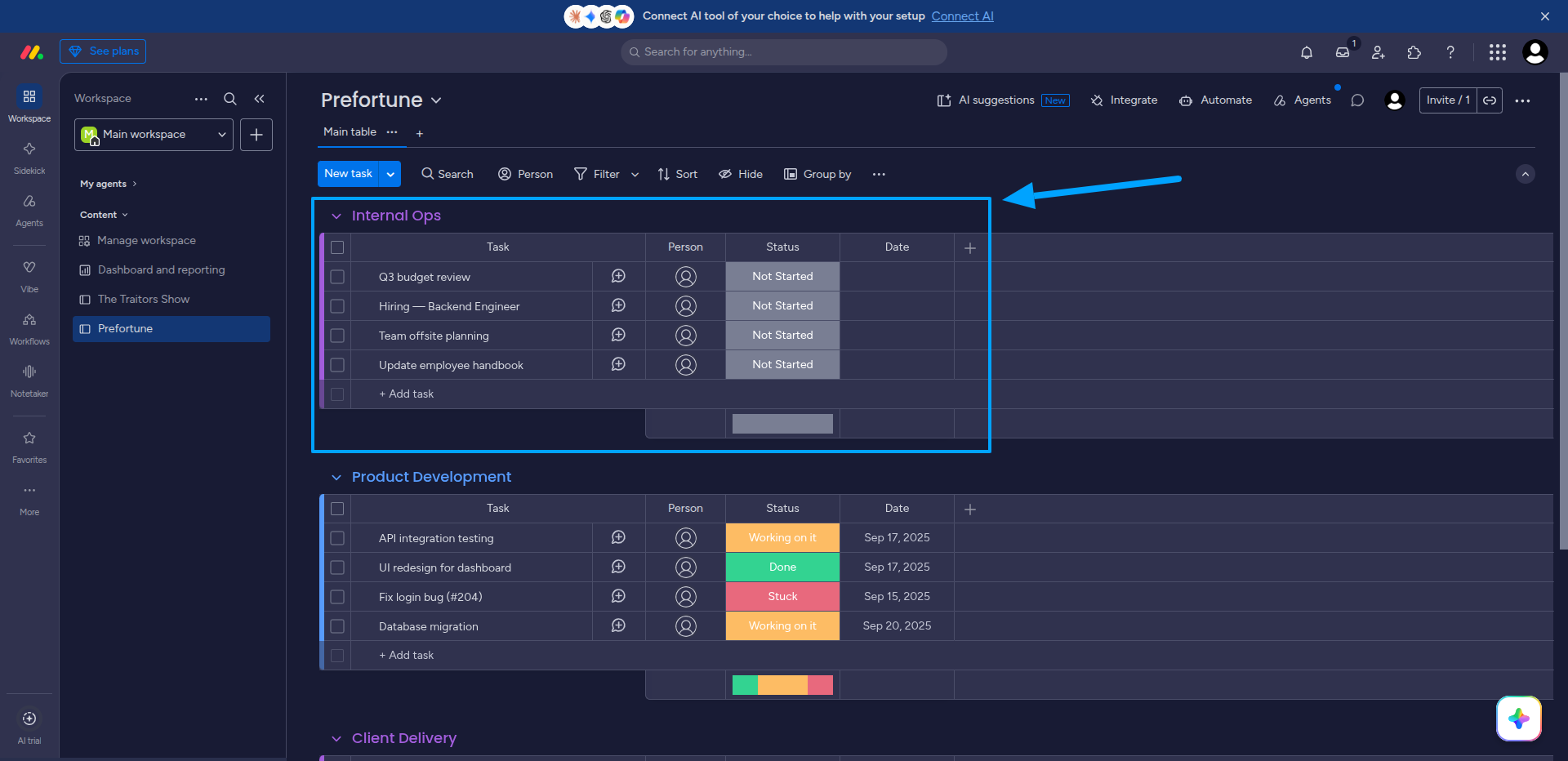
17.In the Monday.com application, the newly created Internal Ops group and its tasks appear at the top of the Prefortune board, matching the stage created in Odoo.
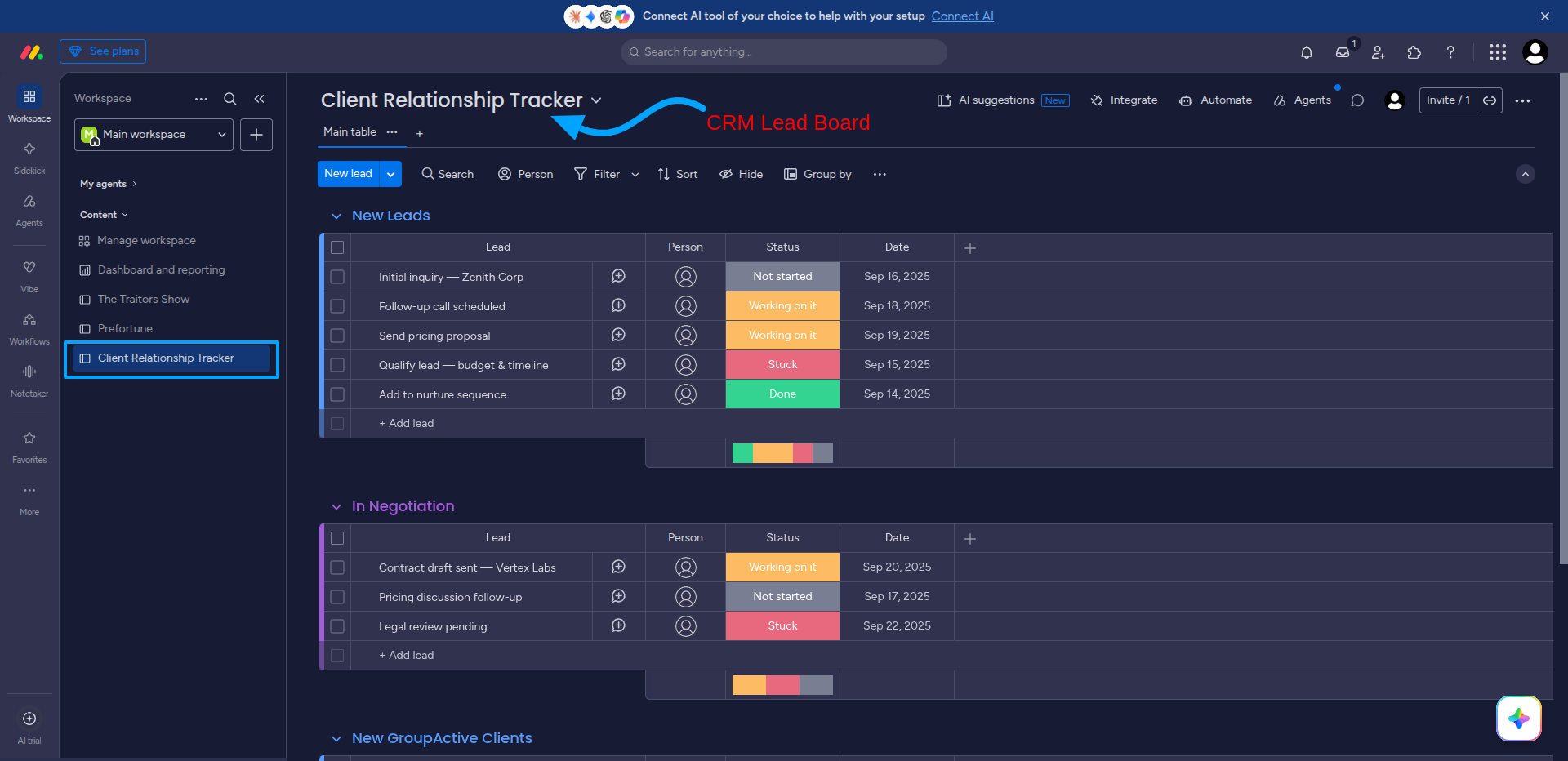
18.From the Monday.com application, the user creates a new CRM lead board named "Client Relationship Tracker" to manage sales leads and client relationships.
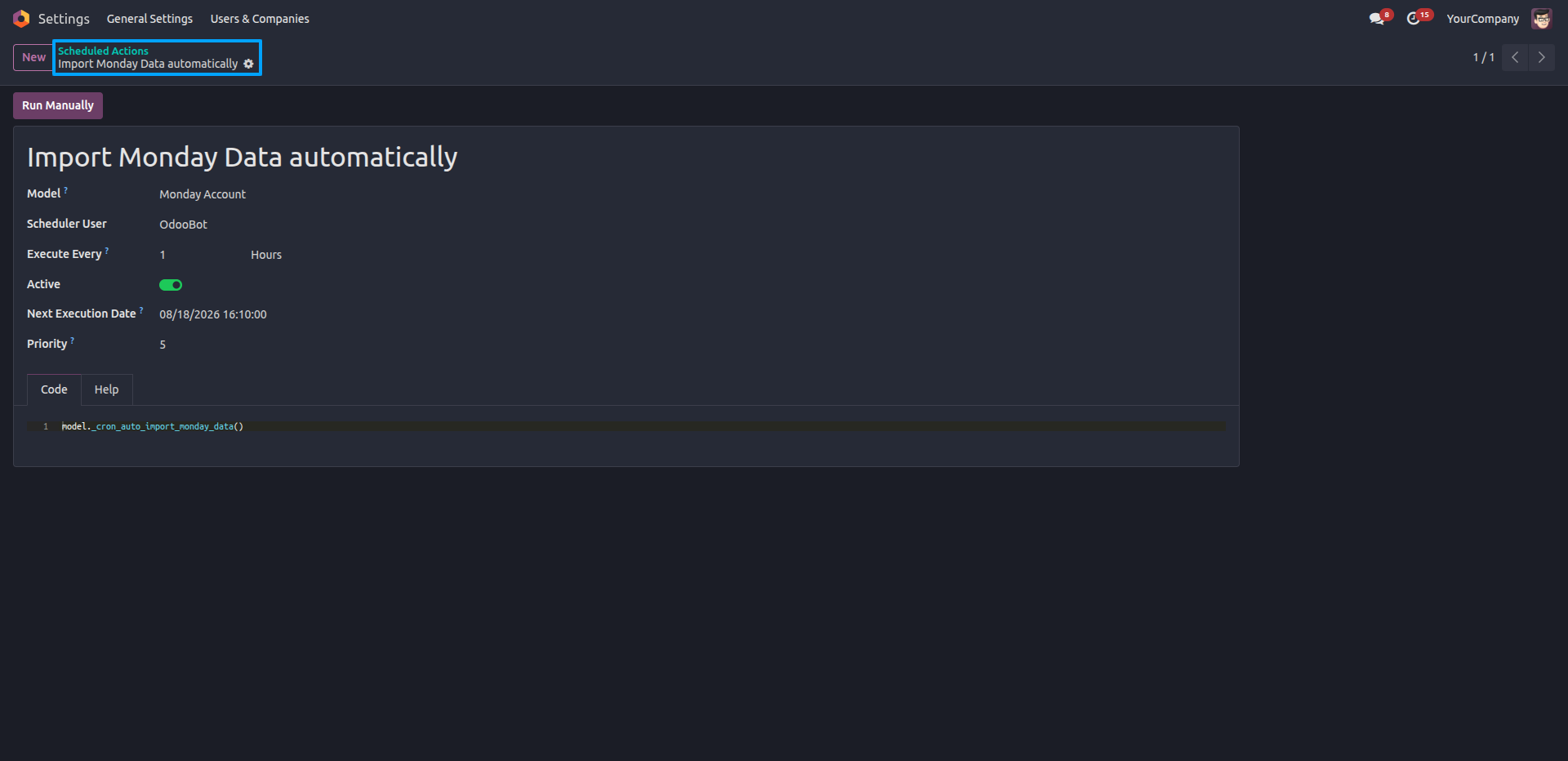
19.Under Settings → Technical → Scheduled Actions, the "Import Monday Data Automatically" cron job is configured to run hourly, with Active status enabled.
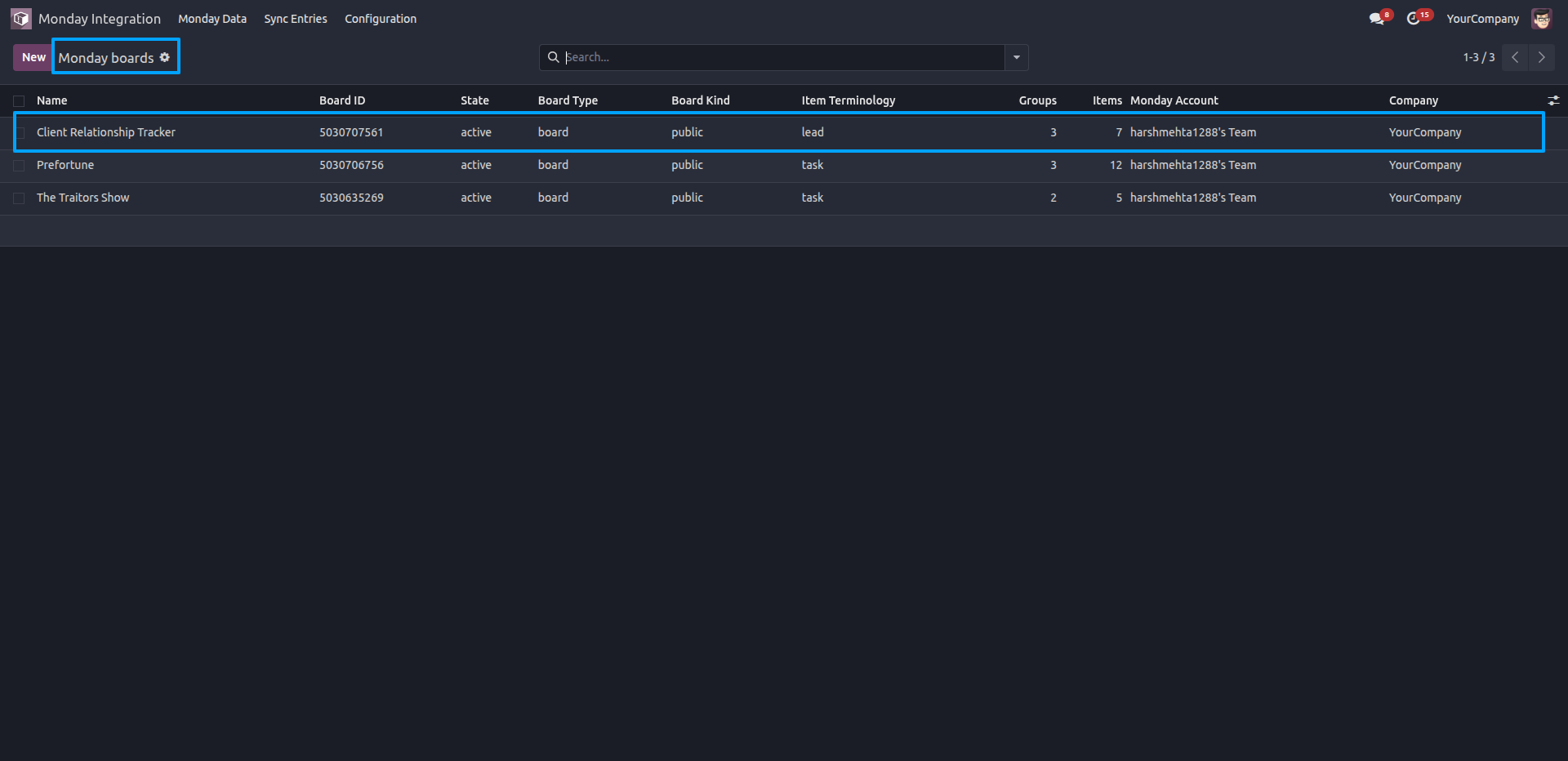
20.Under Monday Data → Boards, the Monday Boards list view now shows all three synced boards — Client Relationship Tracker, Prefortune, and The Traitors Show — along with their groups, items, and account details.
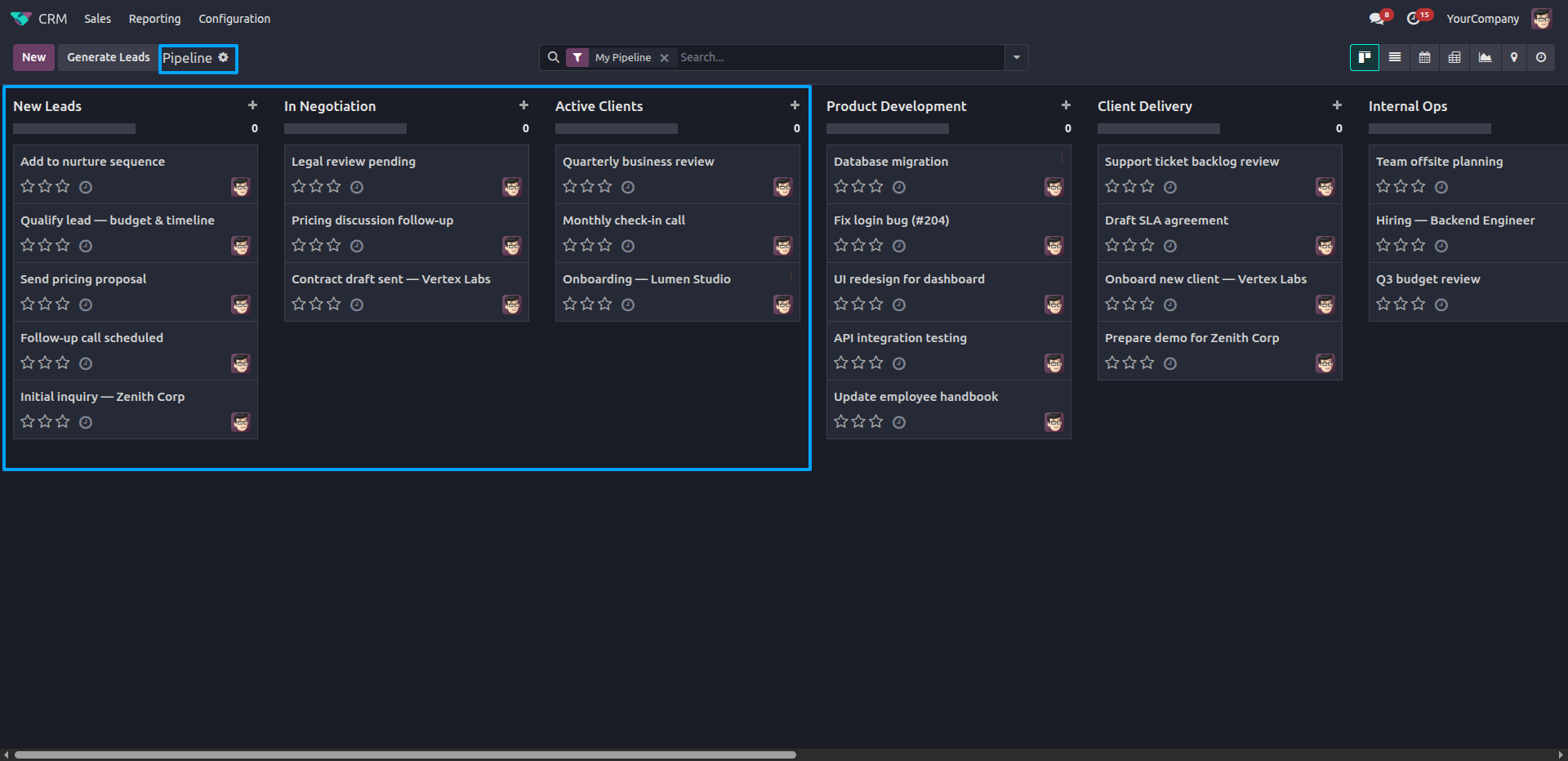
21.In the CRM module, the Pipeline Kanban view now displays all synced stages — New Leads, In Negotiation, Active Clients with their respective leads pulled in from Monday.com.
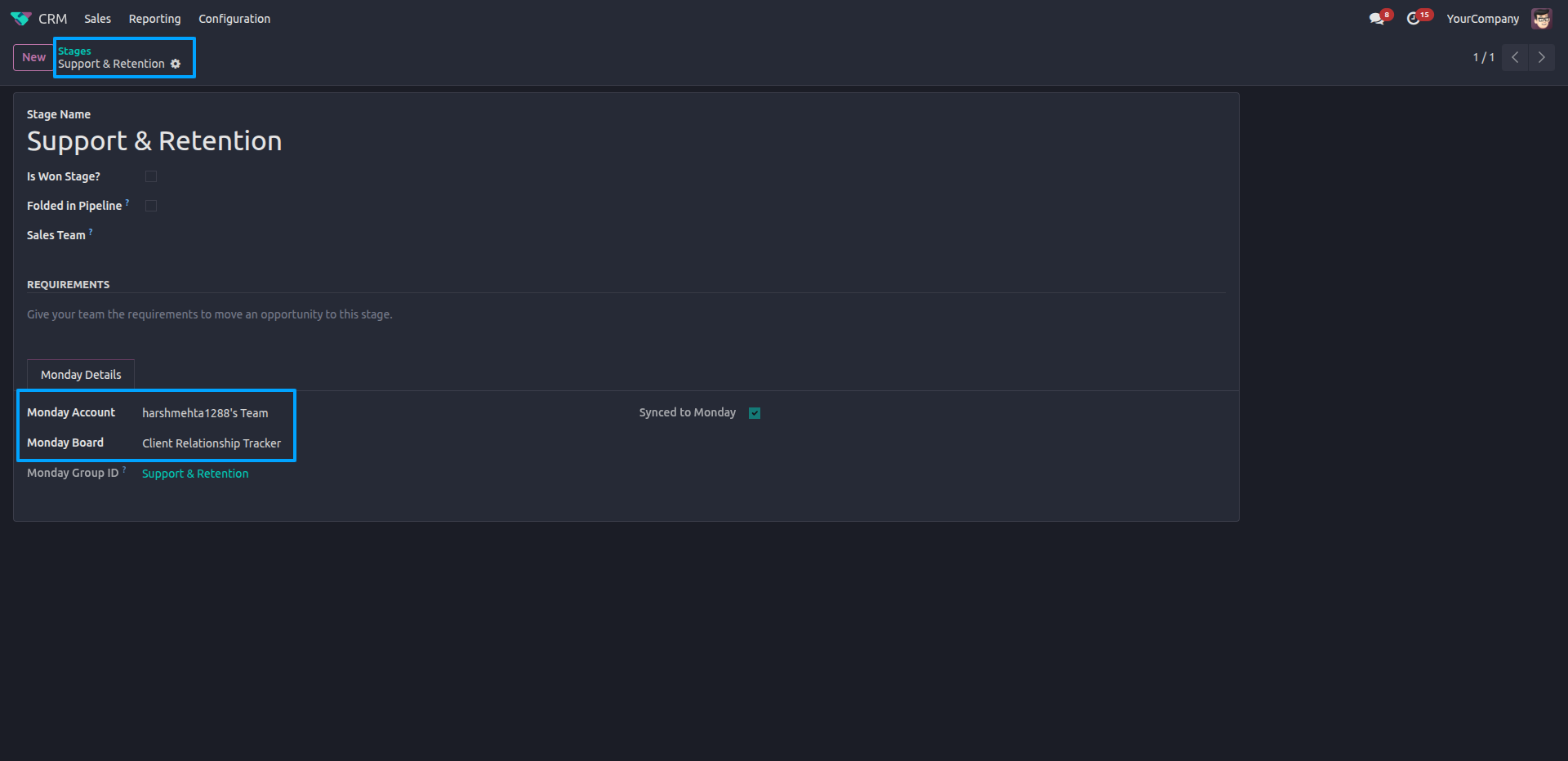
22.Creating a new stage named "Support & Retention" and linking it to a Monday Account and Board (Client Relationship Tracker) so it automatically generates a corresponding Monday Group ID for the stage.
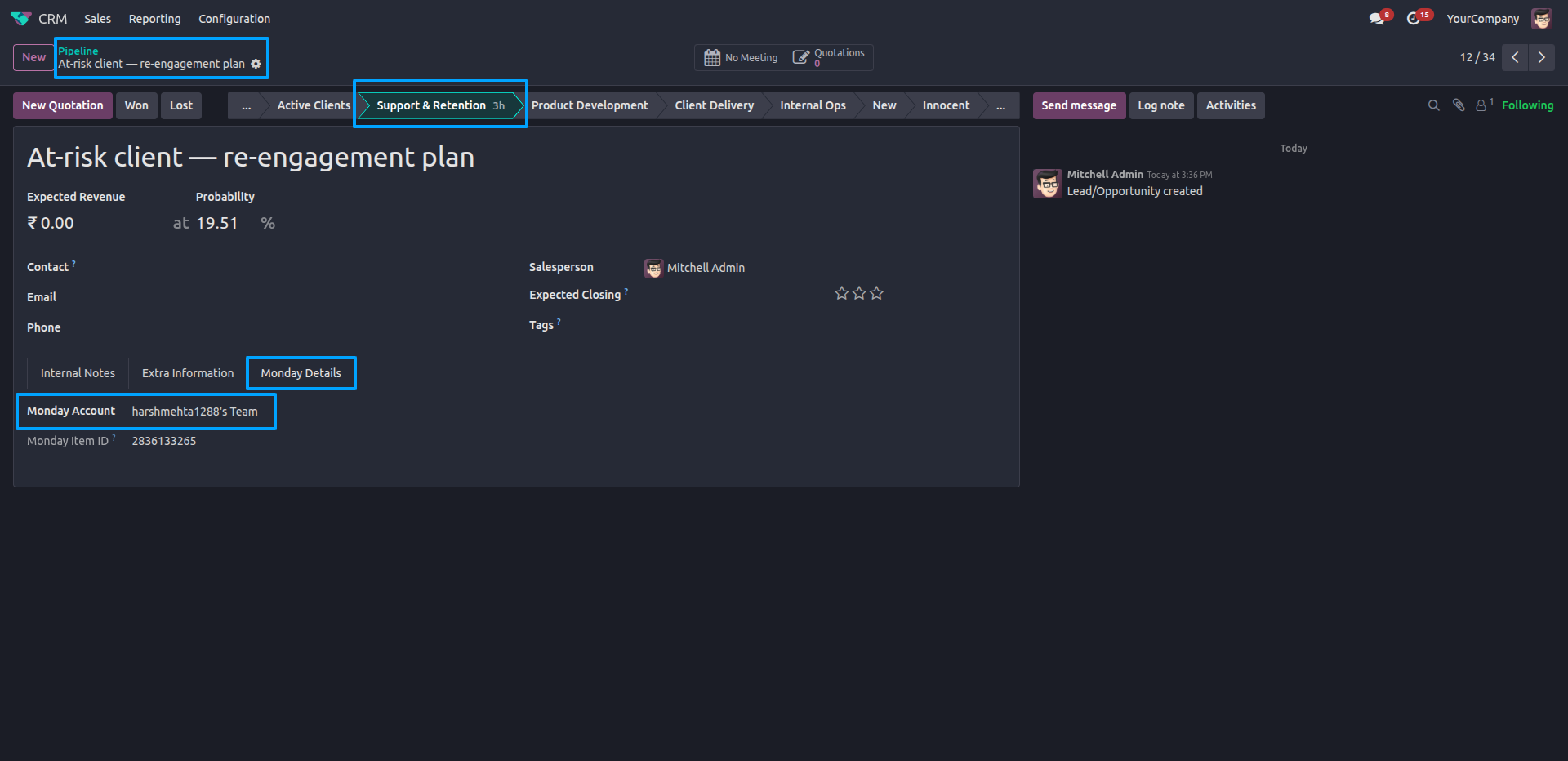
23.Create a lead and open its Monday Details tab to view its linked Monday Account and Monday Item ID, confirming that the opportunity ("At-risk client — re-engagement plan") is synced under the Support & Retention stage.
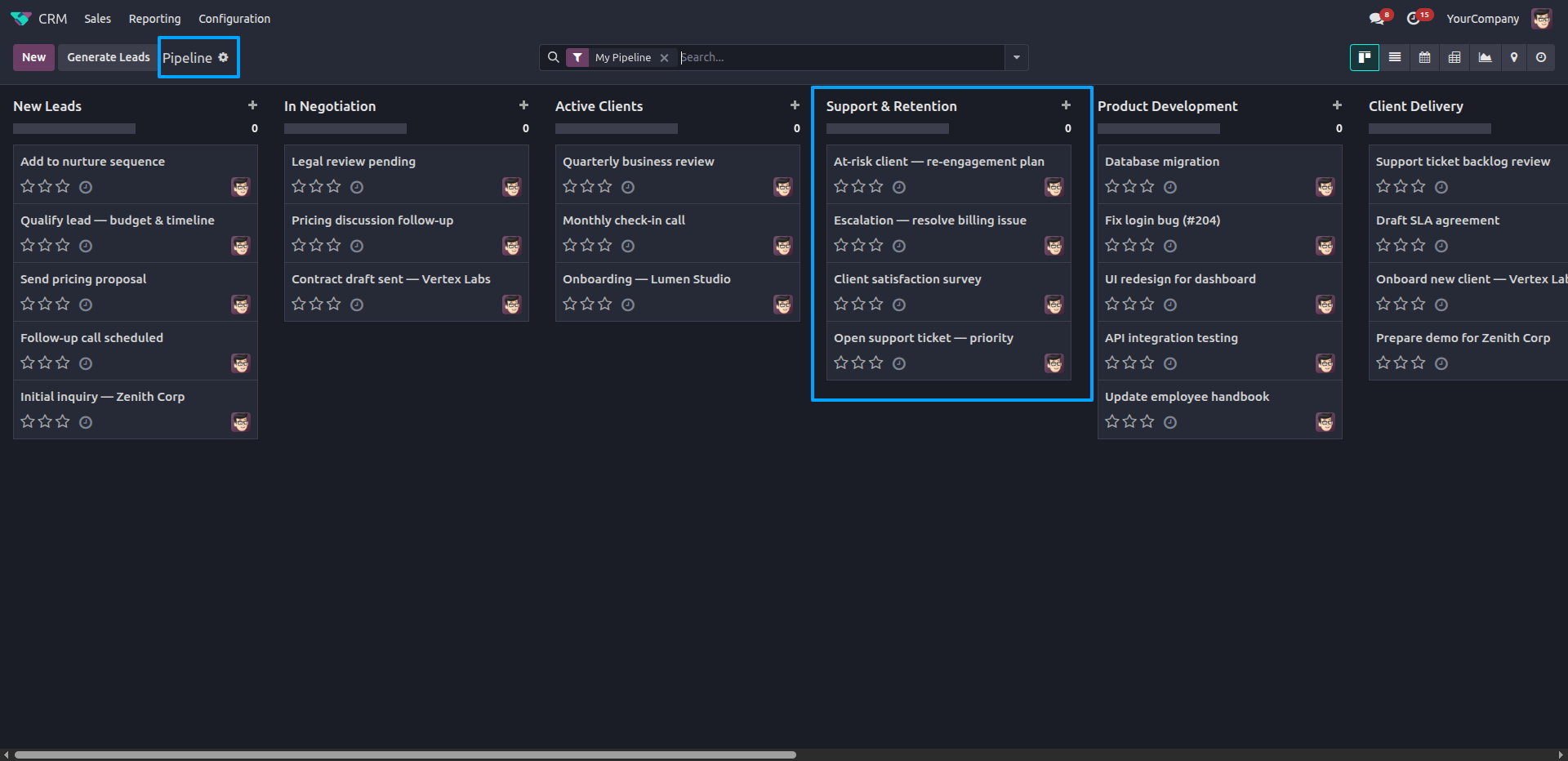
24.The Pipeline Kanban view now reflects the new "Support & Retention" stage populated with its associated leads, alongside the other synced pipeline stages.
Our solutions focus on your problems
- Odoo Implementation
- Odoo Customization
- ERP Development and Implementation
- Odoo Ipass Cloud
- AI for Odoo
- Odoo Apps
- Aws Marketplace Products
- Business Engines
Our Pricing includes User Manual, 90 Days Support (Monday-Friday 10am to 7pm IST) and One time Setup
• Works & tested on standard installations of Odoo with no third party apps,
• Free support only for odoo installations with no third party apps,
• Paid support available for Odoo installations with third party apps.

Prefortune is a Odoo Official Partner, Odoo Development company. Our philosophy is to use Open Source tools and technologies to provide cost effective and green solutions for our customers.
Prefortune Technologies LLP is working on web development, Mobile development, and Odoo ERP.
If you need any help or want more additional features, you may contact us through:
Alternative Products
These other products might interest you
Specifications
| Version | 19.0, 18.0, 17.0, 16.0, 15.0 |