Watch Quick Video
Manage Ecommerce Categories In Multi Website In Odoo App
Our all-inclusive
Odoo – Manage Ecommerce Categories In Multi Website In Odoo App This module allows for granular control over product categories in a multi-website Odoo environment. Through the eCommerce Categories menu, administrators can assign specific categories to one or multiple websites using a dedicated Multi Websites selection field. The system also features a Disable Category toggle, enabling users to instantly hide entire category trees from the shop’s sidebar without deleting data. Changes are reflected in real-time, as seen when a category like "Desks" is disabled and subsequently vanishes from the frontend navigation. Finally, the list view provides a clear administrative overview of which categories are active and where they are published across the global site network.
Manage Ecommerce Categories In Multi Website In Odoo App
- Multi-Website Category Management.
- Website-Specific Category Visibility.
- Disable Categories per Website.
- Website-Based Shop Page Filtering.
- Centralized Category List View.
Complete Workflow for Manage Manage Ecommerce Categories In Multi Website In Odoo App
First we need to activate Manage Ecommerce Categories In Multi Website In Odoo App In the Odoo Website module, administrators can assign product categories to specific platforms using the Multi Websites field and use the Disable Category toggle to instantly hide them from frontend navigation. This workflow ensures seamless, site-specific category management and real-time visibility control across a multi-website environment from a single dashboard.
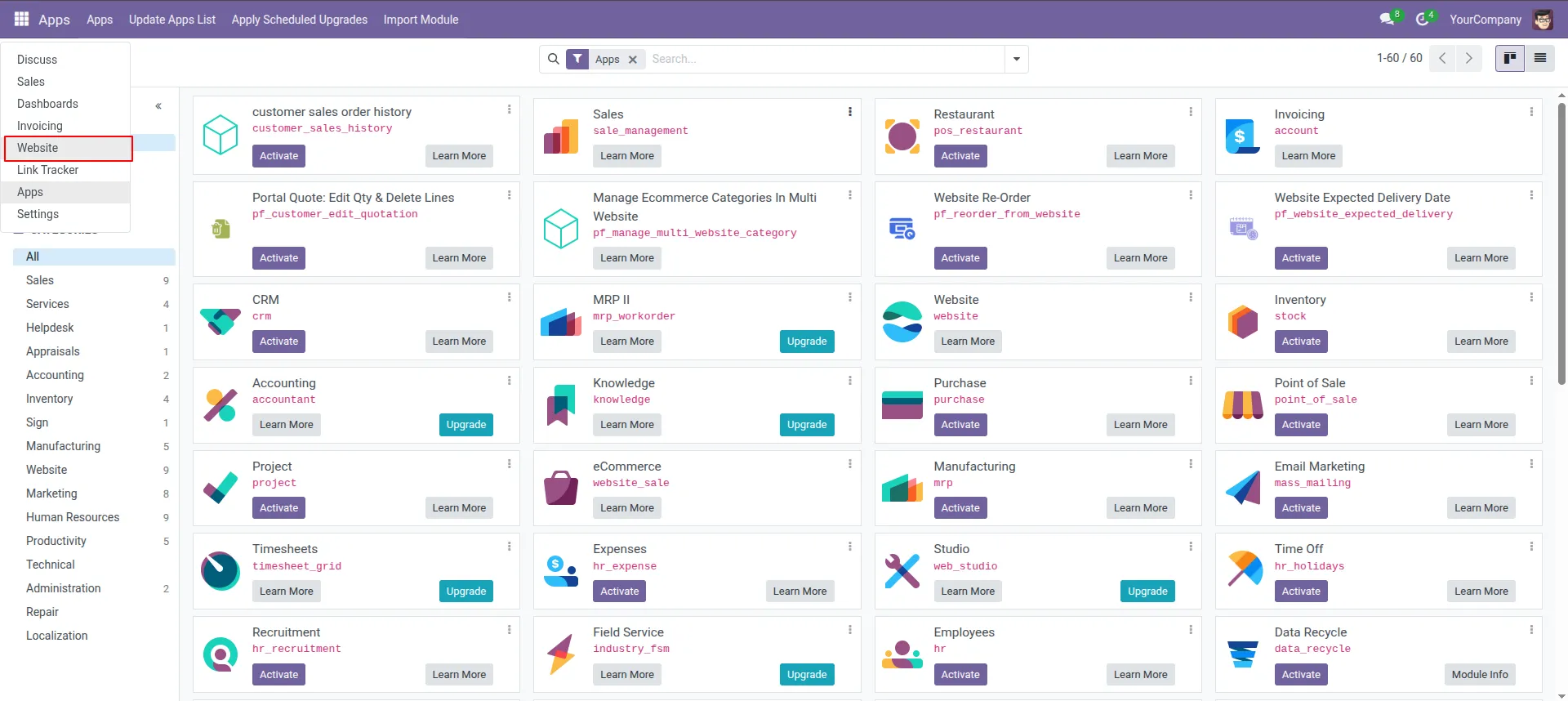
1.Access Apps: Go to the main dashboard and select the Website module from the app switcher.
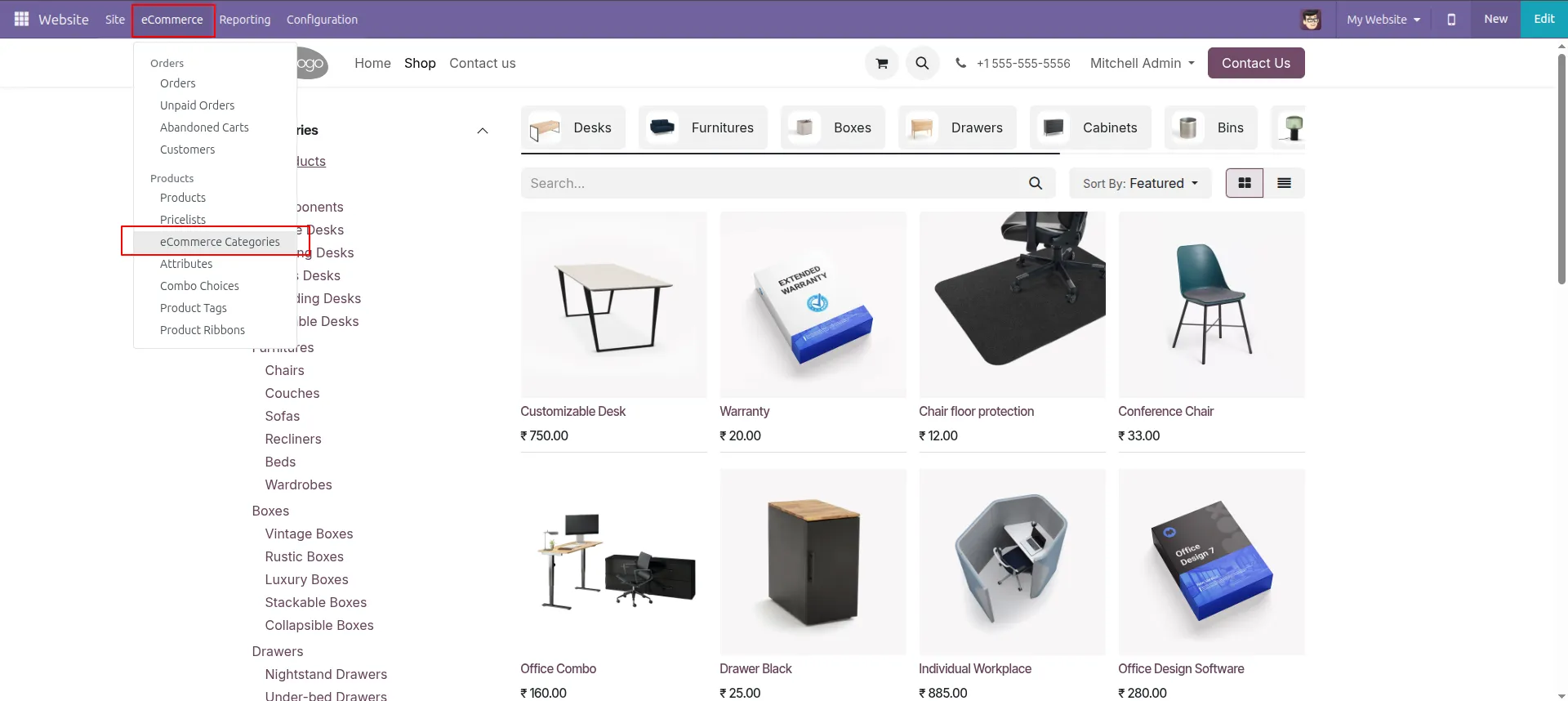
2.Navigate to Categories: Click on the eCommerce menu and select eCommerce Categories from the dropdown.
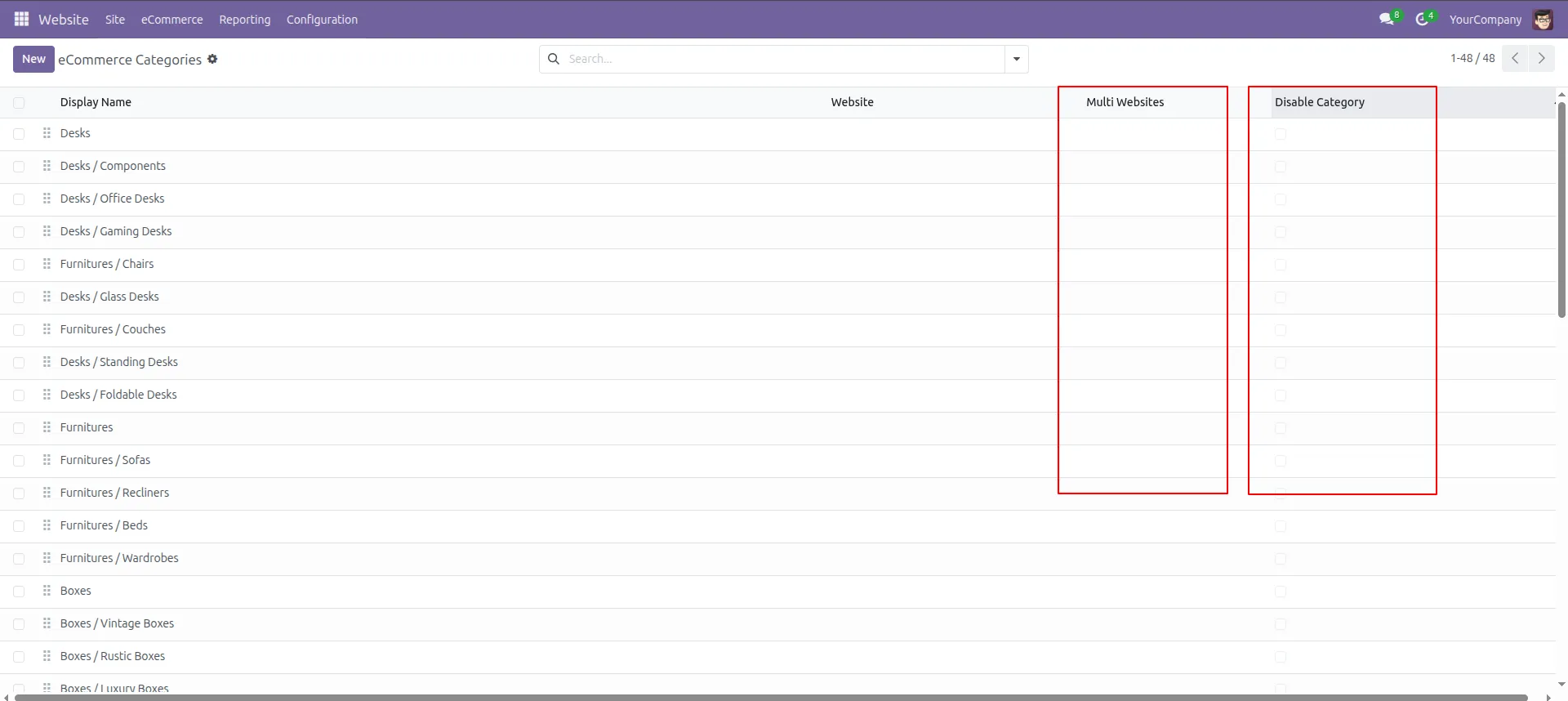
3.View Category List: Observe the category list view, which includes columns for Multi Websites and Disable Category.
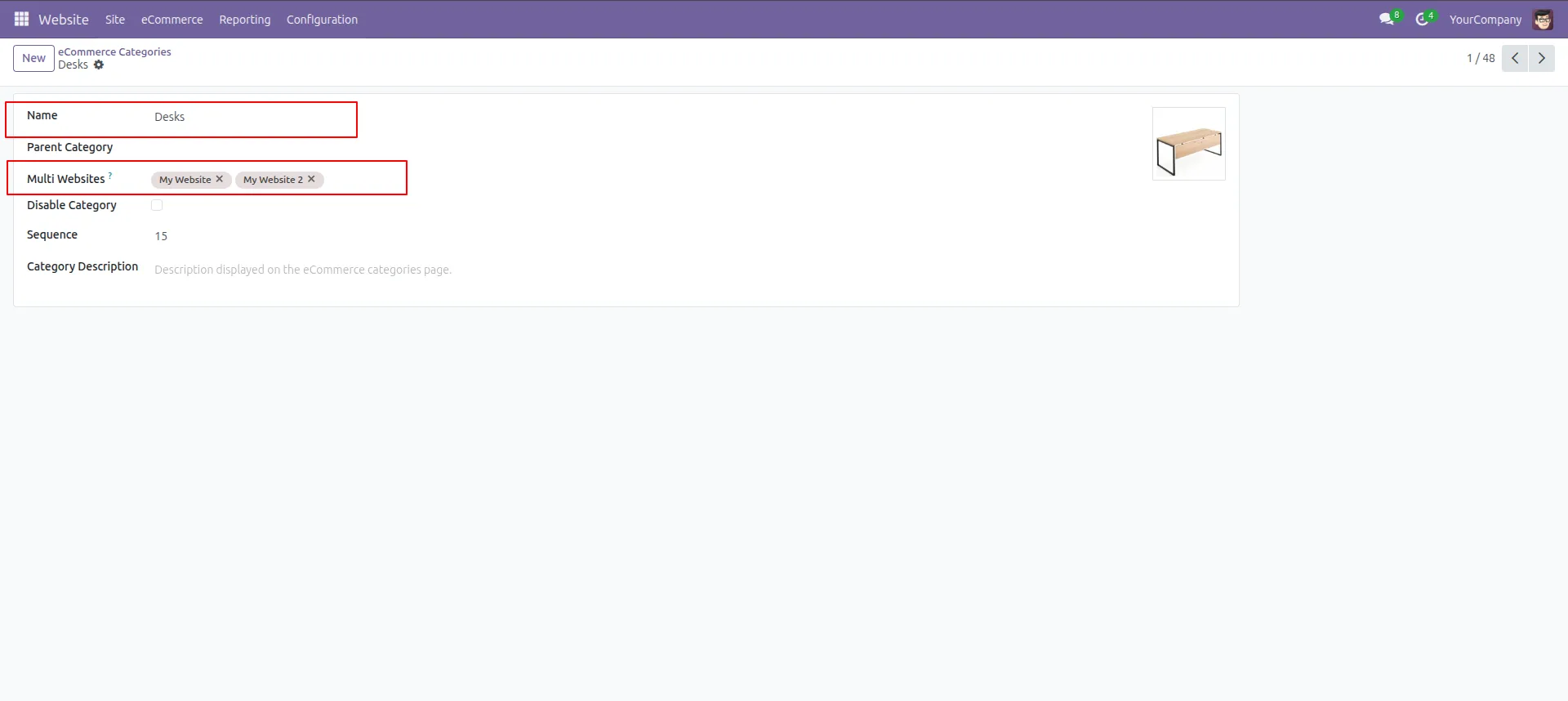
4.Edit Category Details: Click on a specific category (e.g., "Desks") to open the form and locate the Multi Websites field.
5.Assign Websites: Select the specific websites (e.g., "My Website", "My Website 2") where you want this category to appear.
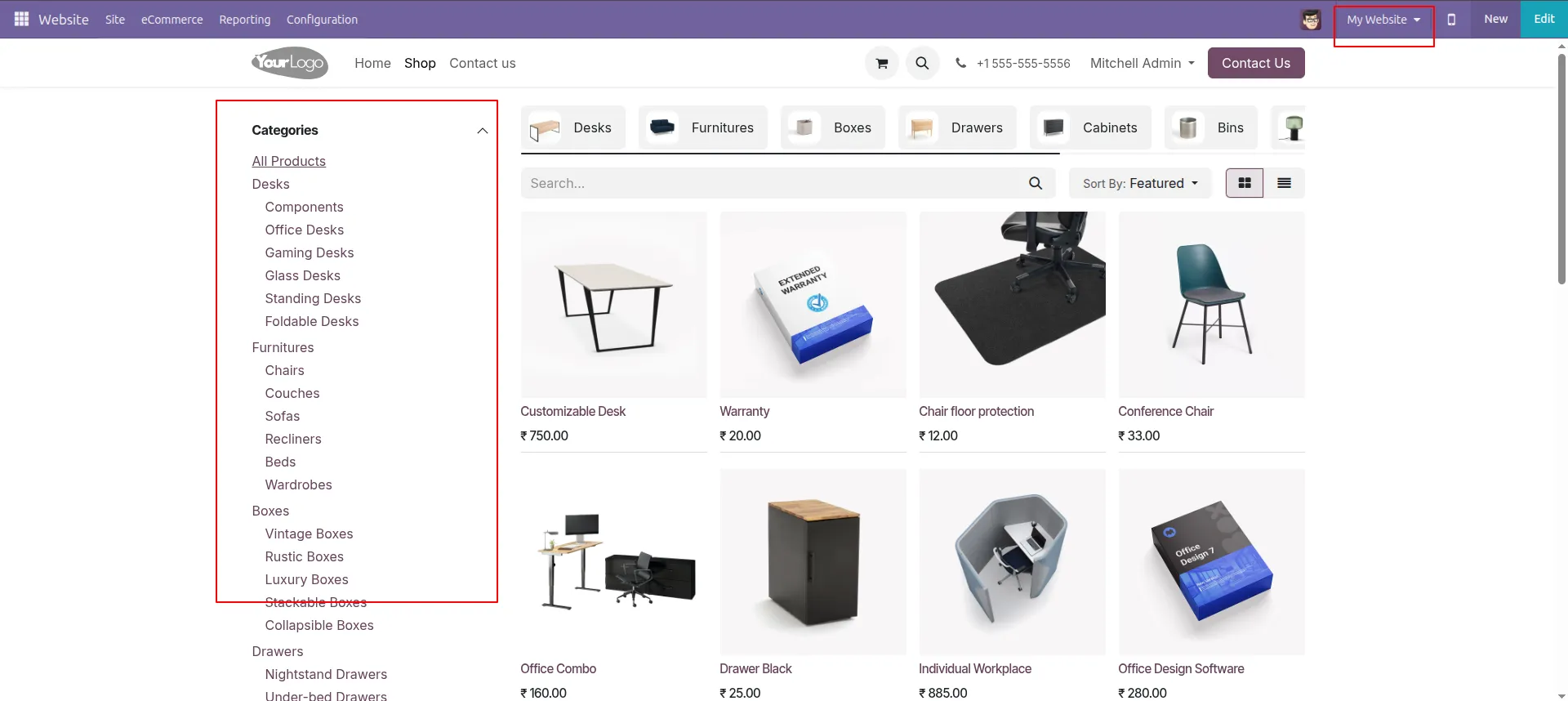
6.Verify Frontend Visibility: Check the website shop page to ensure the category and its sub-categories are visible in the sidebar.
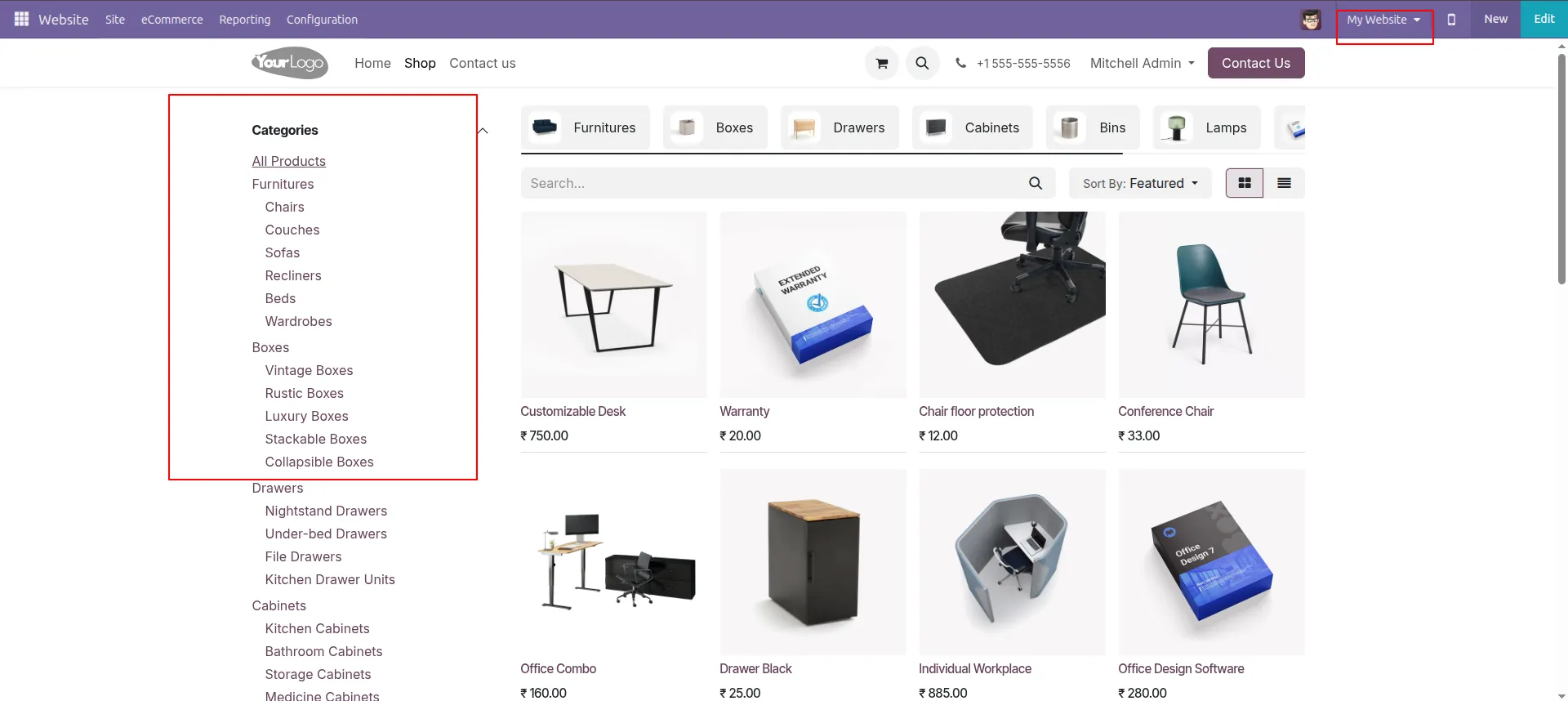
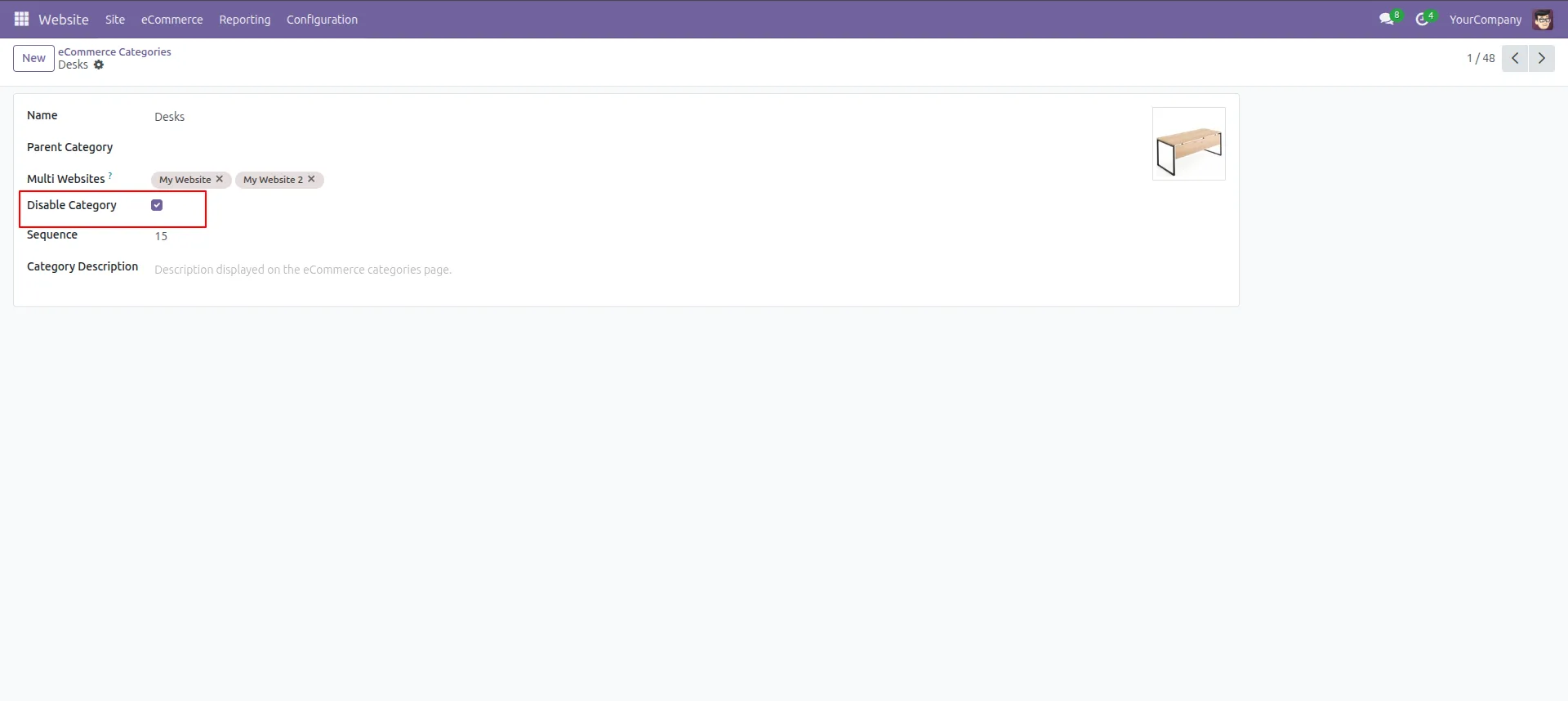
7.Disable a Category: In the category form, check the Disable Category box to hide it from the frontend without deleting it.
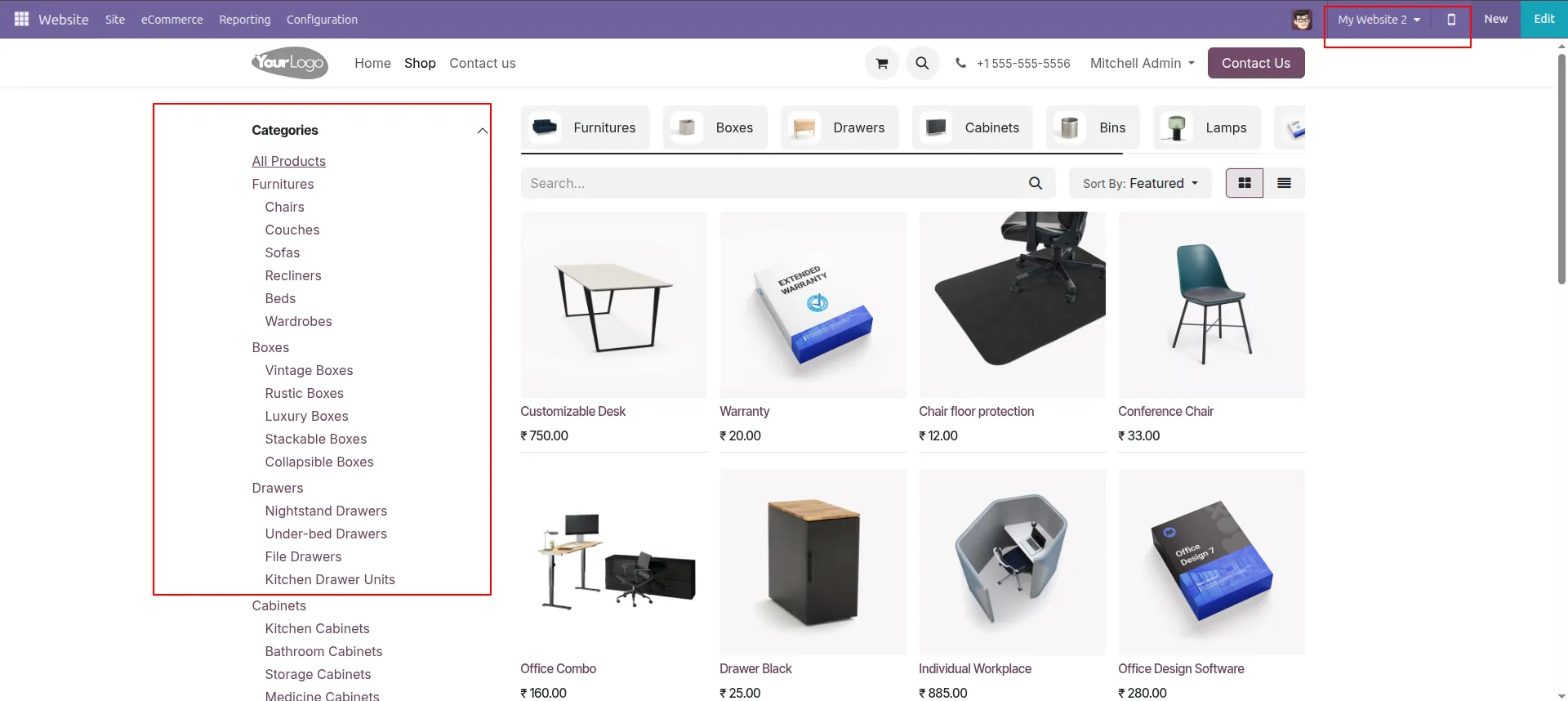
8.Confirm Hidden Status: Refresh the website shop page to verify that the disabled category (e.g., "Desks") is no longer visible in the menu.
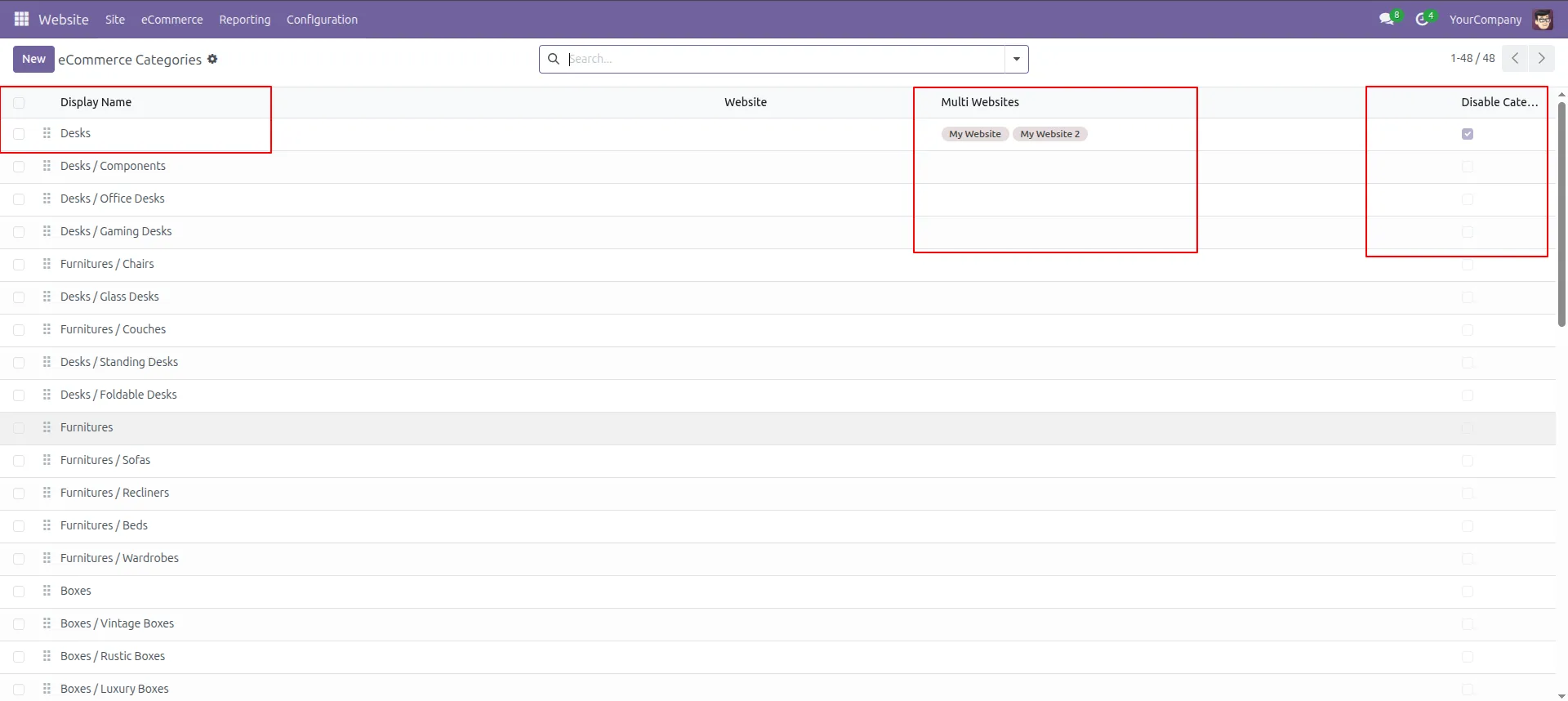
9.Review Changes in List: Return to the category list view to see the updated Multi Websites tags and Disable Category checkboxes.
Our solutions focus on your problems
- Odoo Implementation
- Odoo Customization
- ERP Development and Implementation
- Odoo Ipass Cloud
- AI for Odoo
- Odoo Apps
- Aws Marketplace Products
- Business Engines
Our Pricing includes User Manual, 90 Days Support (Monday-Friday 10am to 7pm IST) and One time Setup
• Works & tested on standard installations of Odoo with no third party apps,
• Free support only for odoo installations with no third party apps,
• Paid support available for Odoo installations with third party apps.

Prefortune is a Odoo Official Partner, Odoo Development company. Our philosophy is to use Open Source tools and technologies to provide cost effective and green solutions for our customers.
Prefortune Technologies LLP is working on web development, Mobile development, and Odoo ERP.
If you need any help or want more additional features, you may contact us through:
Alternative Products
These other products might interest you
Specifications
| Version | 19.0, 18.0, 17.0, 16.0, 15.0, 14.0 |