Watch Quick Video
Ingredient POS Product Bundle with BOM in Odoo
Our all-inclusive
Odoo – Ingredient POS Product Bundle with BOM in Odoo Managing inventory for recipe-based or bundled products can be challenging, but the Ingredient POS Product Bundle with BOM simplifies this entire workflow. Users can easily configure any item by enabling "Is POS BoM Product?" directly from the product settings and defining its exact Unit of Measure. Through a dedicated menu, managers can structure recipes by selecting the BoM product, adding specific component products, and setting their required quantities. During regular operations, cashiers simply add the configured BoM product to the POS cart and proceed with the standard checkout flow. Behind the scenes, the system generates accurate stock moves for the individual components. Administrators can verify these deductions by clicking the Picking Button on the POS order to see the consumed items. Finally, users can view the newly updated on-hand quantities in the stock dashboard to ensure accurate inventory tracking.
Ingredient POS Product Bundle with BOM in Odoo
- You can easily designate a specific item as a bundle by enabling the "Is POS BoM Product?" option.
- Adding specific component products and defining their exact quantities to build the recipe.
- Adding the configured BoM product to the cart and proceeding through the standard POS checkout flow.
- The system automatically updating and reducing the quantity of components in stock after a sale.
- The ability to audit component stock moves and view real-time on-hand quantities.
Complete Workflow for Manage Ingredient POS Product Bundle with BOM in Odoo
First we need to activate Ingredient POS Product Bundle with BOM in Odoo First, enable the BoM setting on a main product and define its component ingredients and quantities in the POS Product BoM menu. Next, open the POS, add the configured product to the cart, and proceed with the regular checkout flow. Finally, the system automatically deducts the components from your inventory, which can be verified by checking the stock moves and updated component quantities in stock.
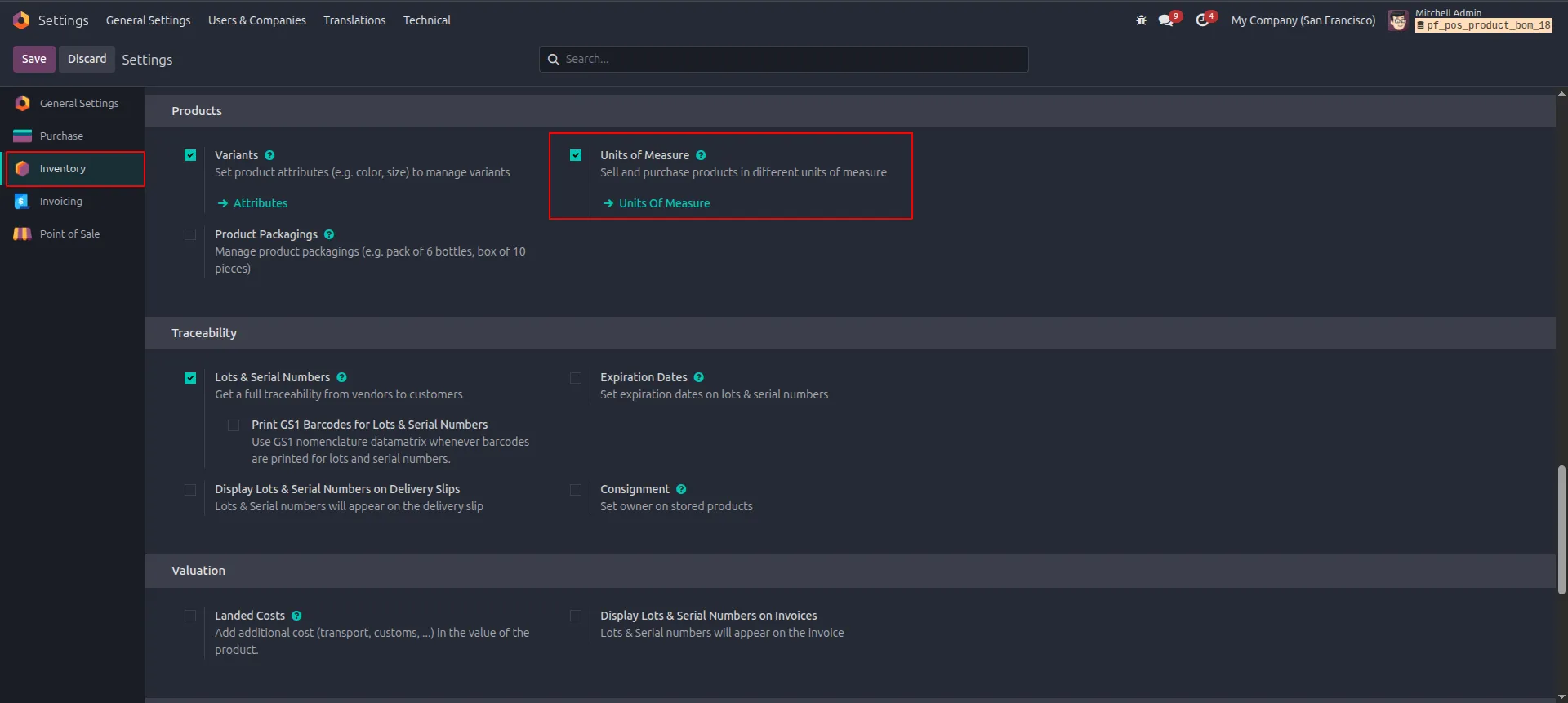
1.Go to Inventory > Settings and enable Units of Measure under the Products section.
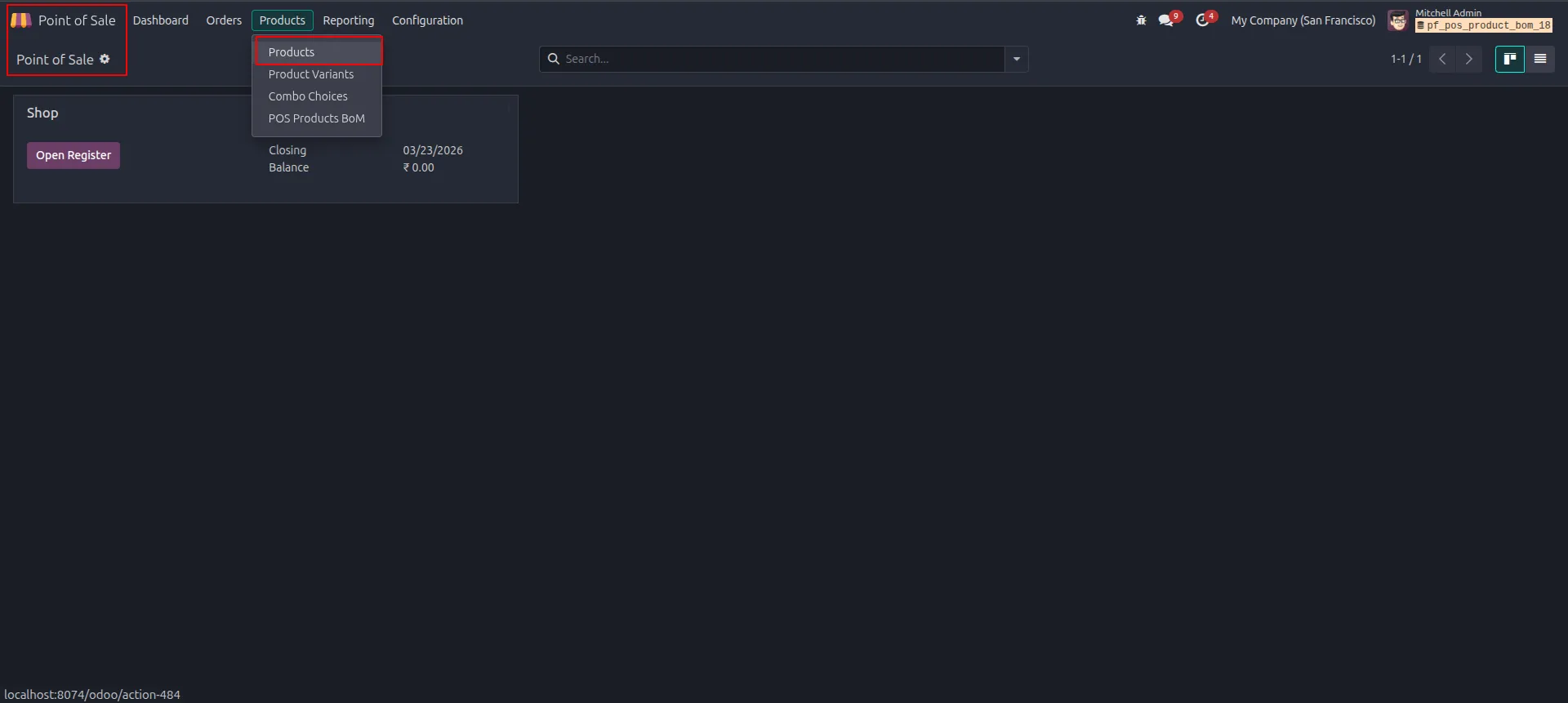
2.Navigate to the Point of Sale module. Under Products in the top menu, you will find the sub-menu item: Products.
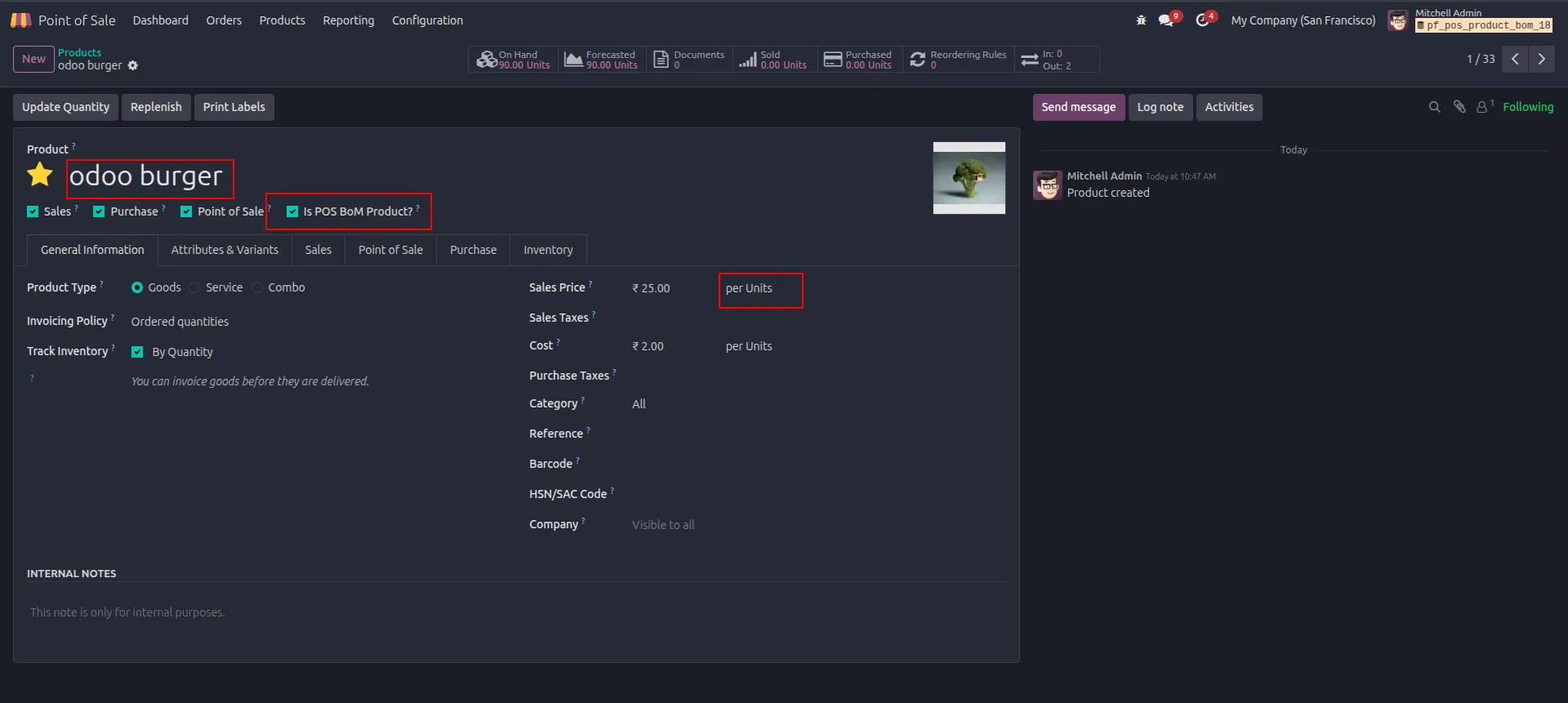
3.Open or create the product (e.g. odoo burger). Enable "Is POS BoM Product?" checkbox and set price on the product form..
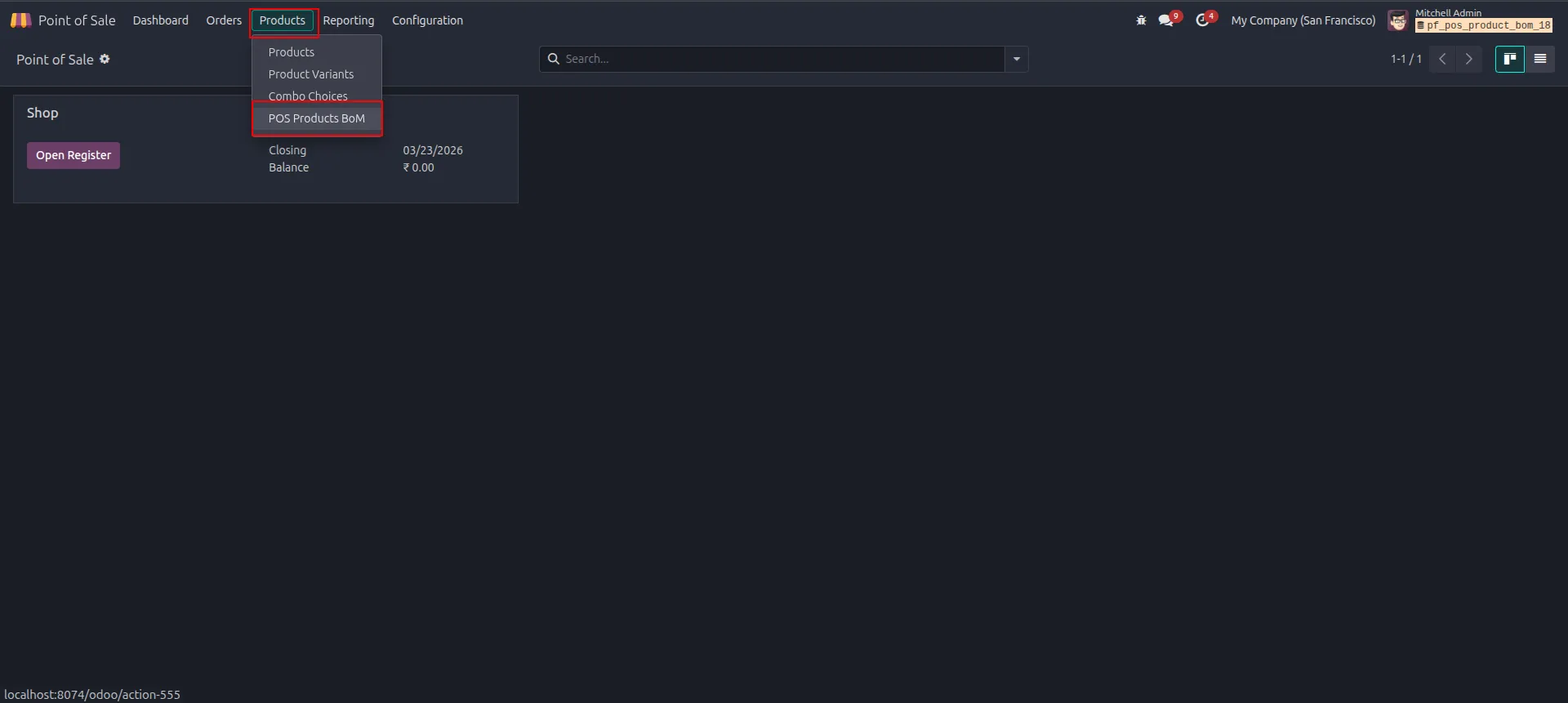
4.Click POS Products BoM from the Products dropdown. This opens the BoM list view.
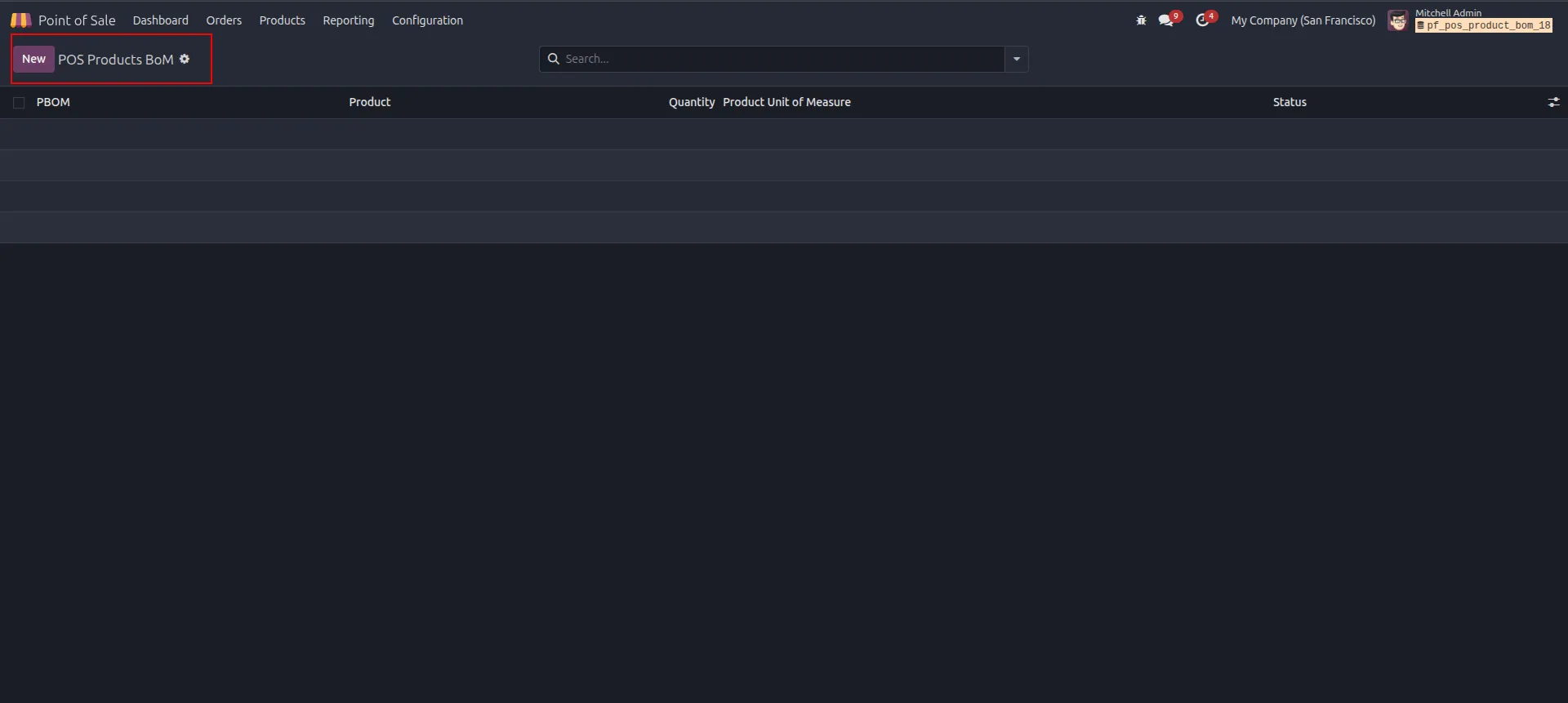
5.Click the New button (top left) to start creating a new BoM entry for your product.
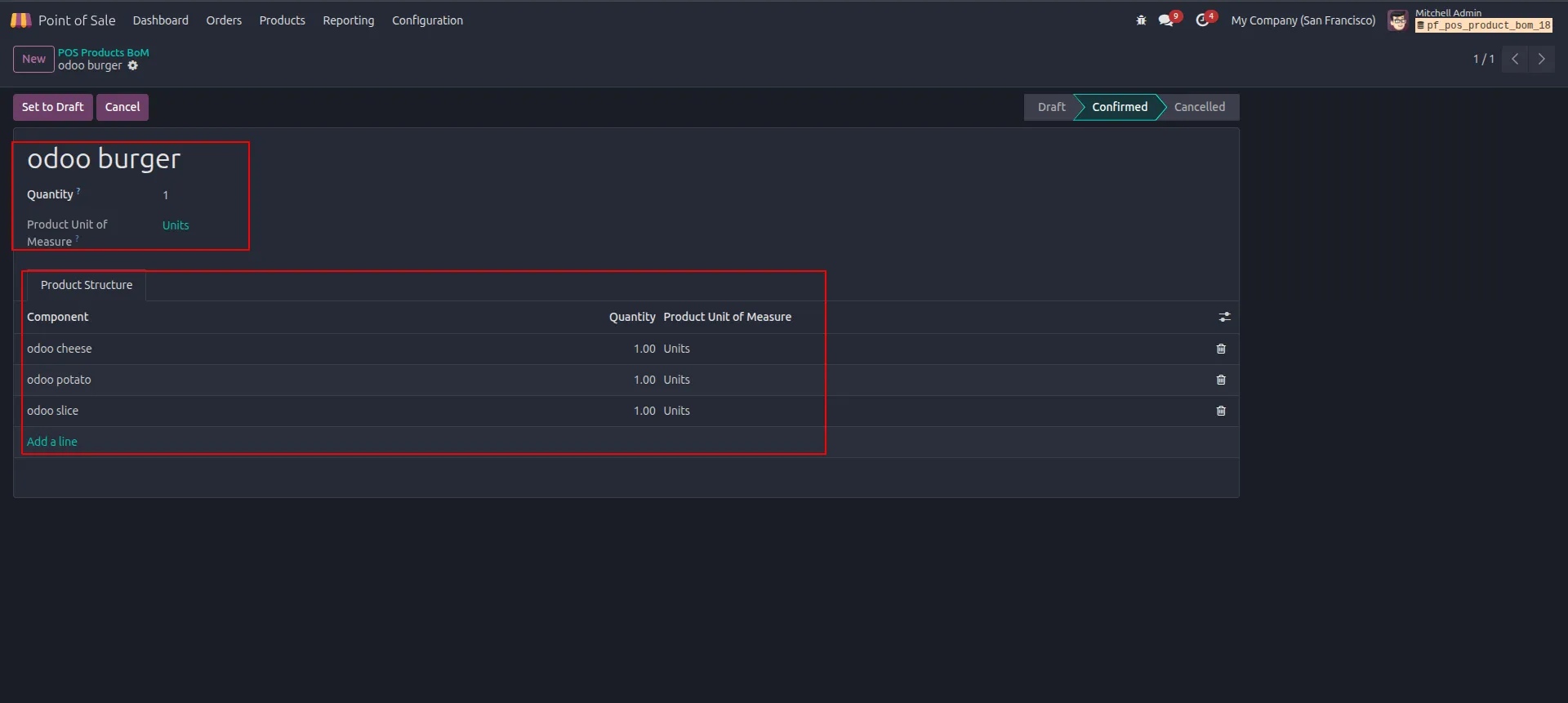
6.Add component products with quantities and confirm the BoM.
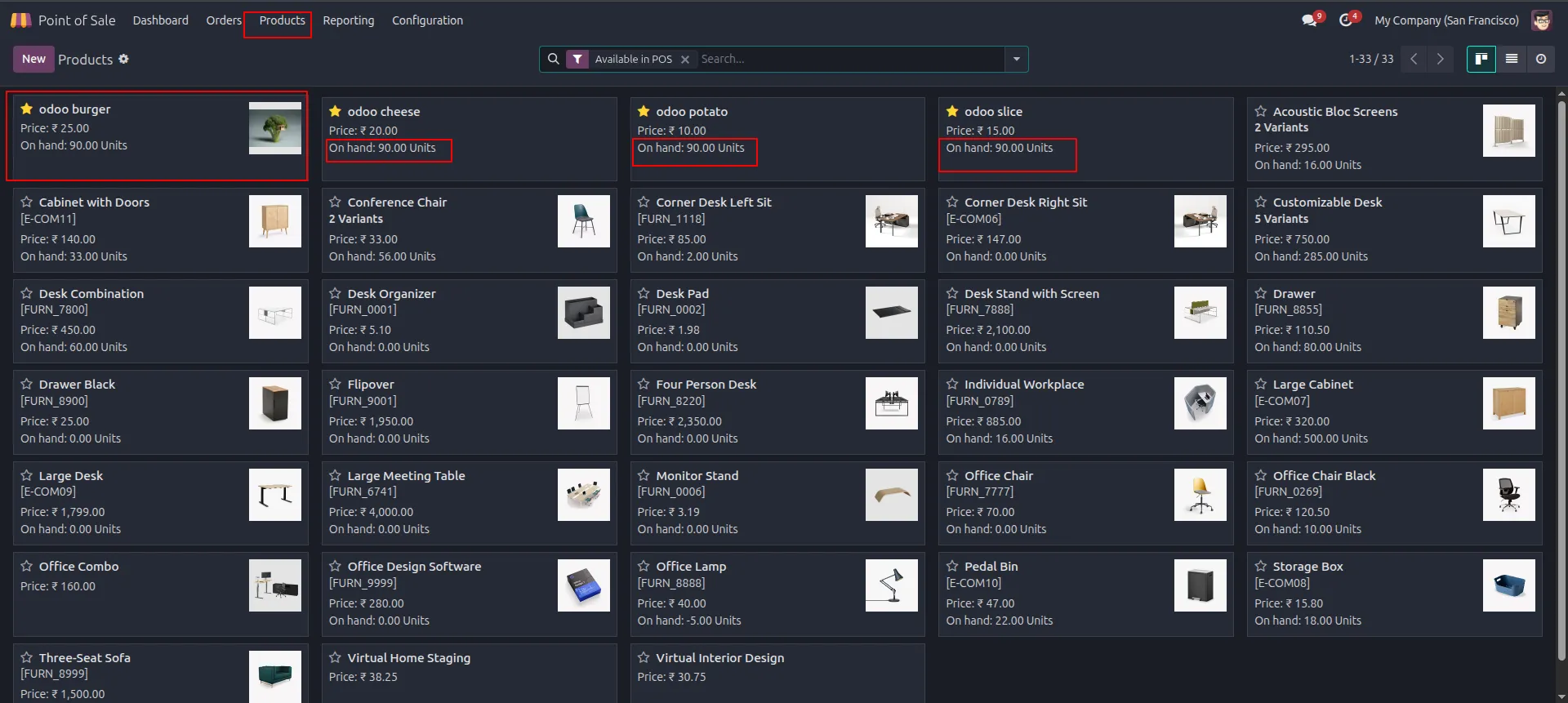
7.Check all products are available in POS with sufficient on-hand quantity.
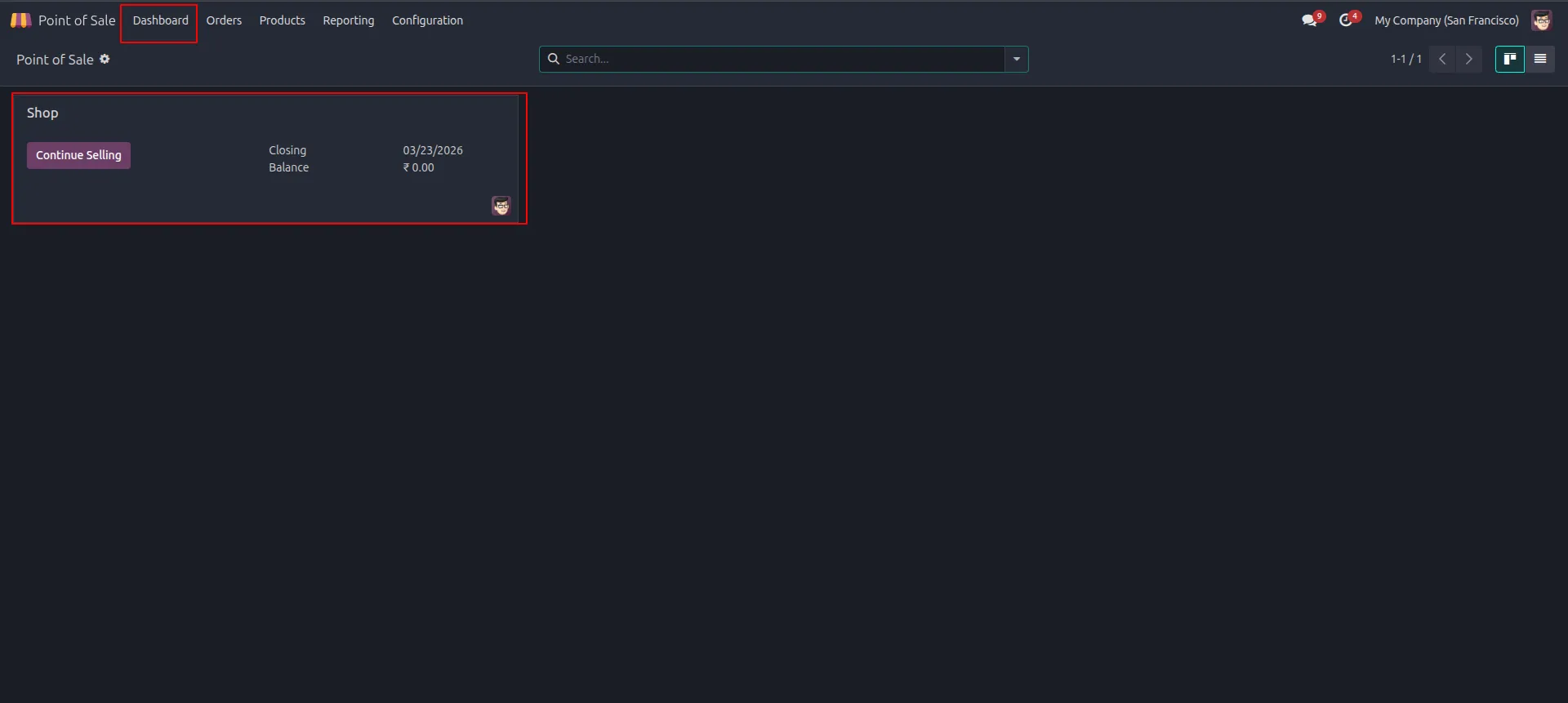
8.Click Continue Selling on the Dashboard to enter the POS interface.
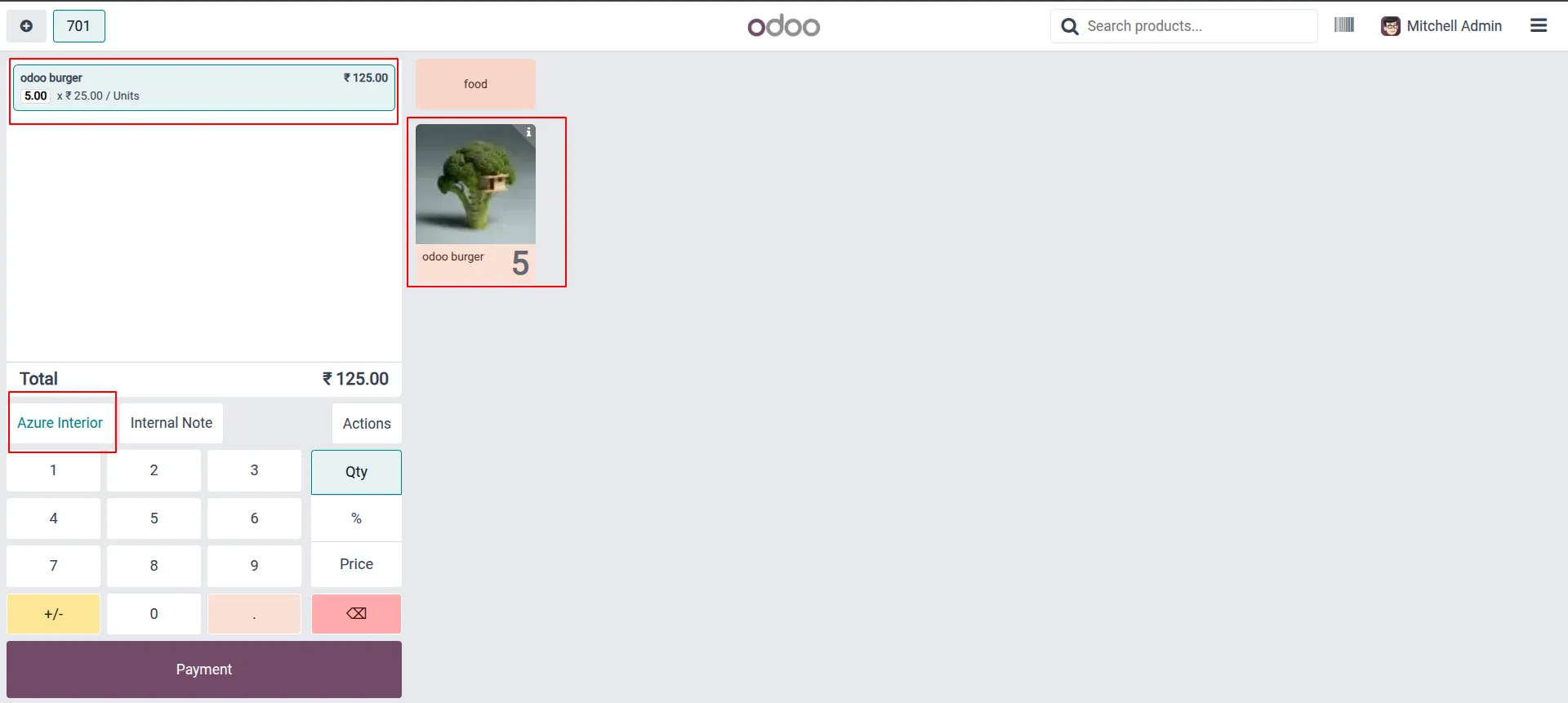
9.Select the product, set quantity, assign a customer, and proceed to payment.
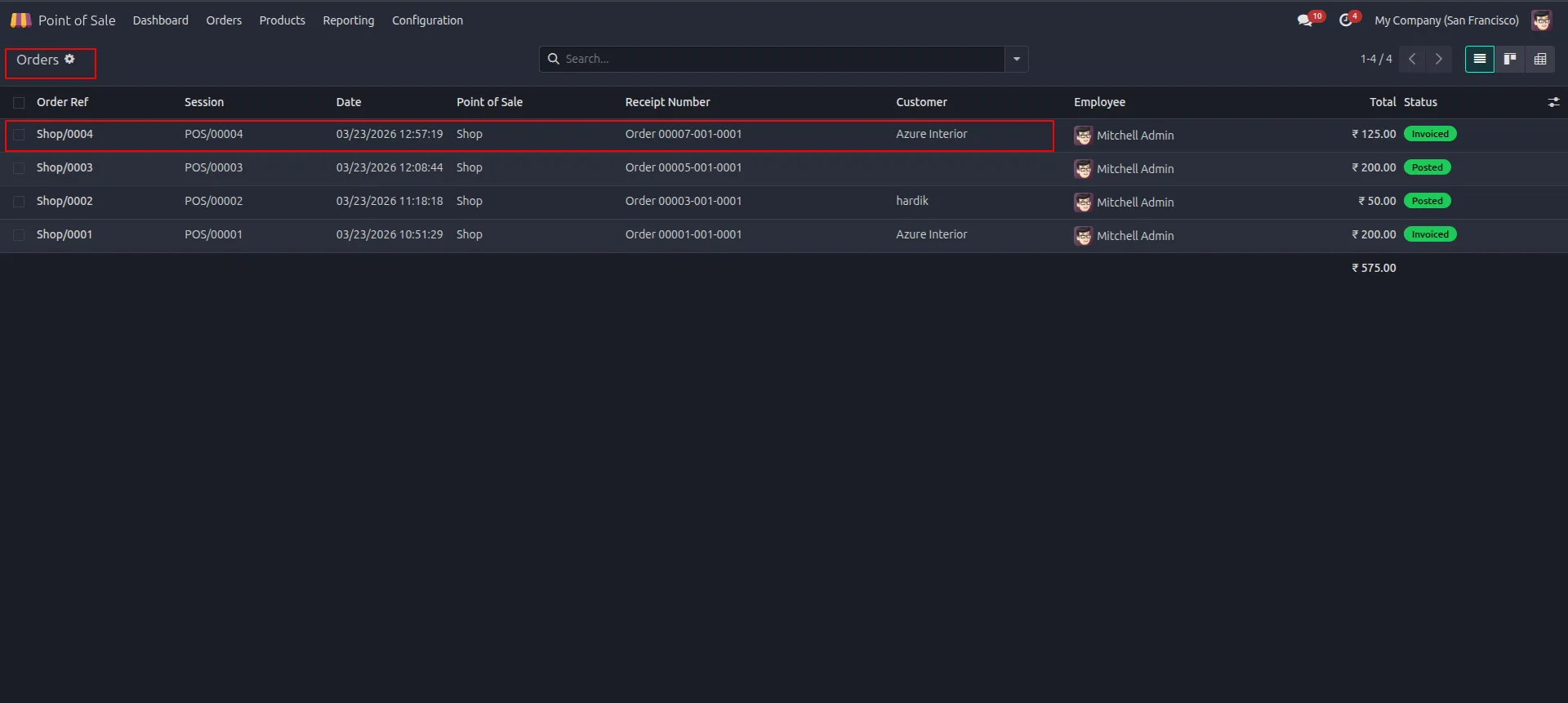
10. Check the Orders list to confirm the order is Invoiced with correct total.
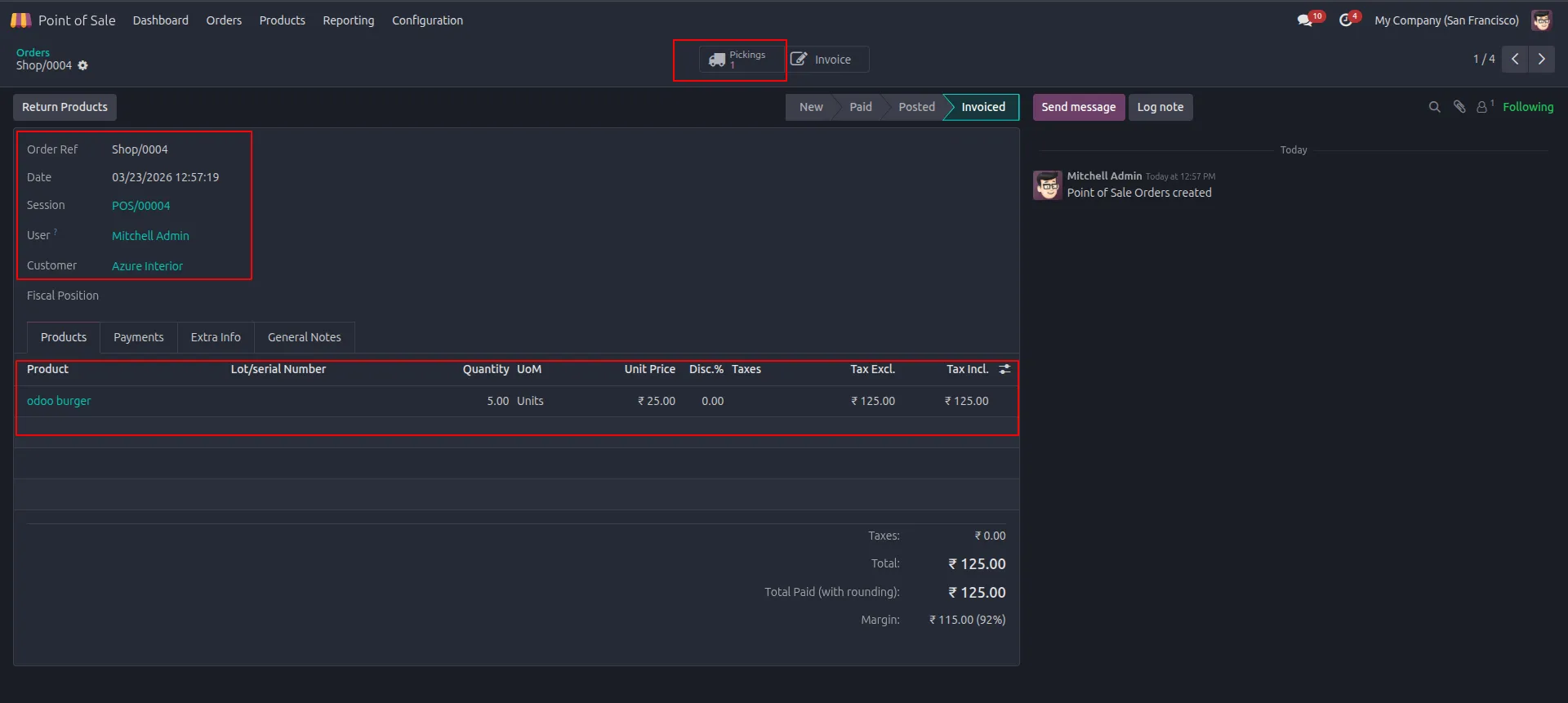
11.Open the order details and click the Pickings button to view stock movement.
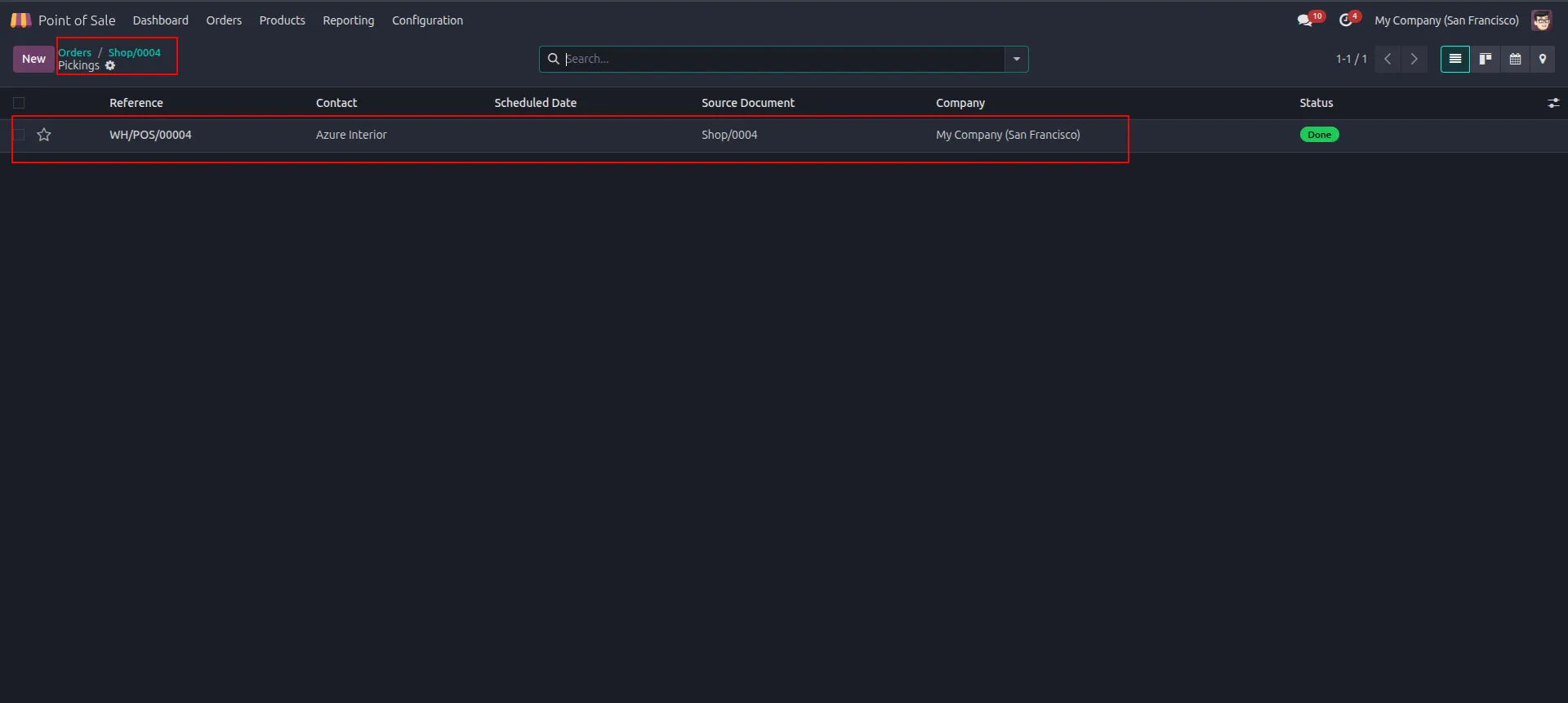
12.Confirm the picking reference is created with status Done.
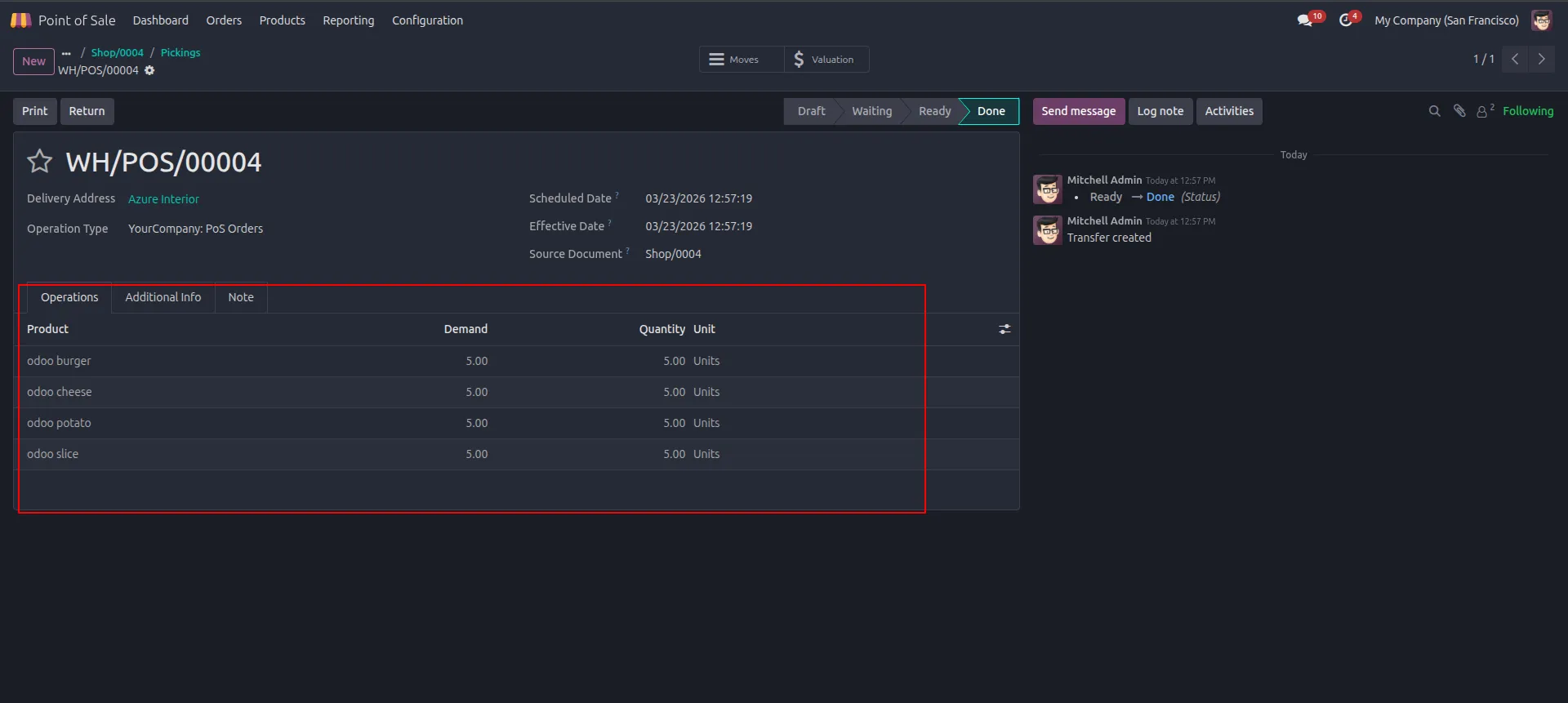
13.Verify all BoM components appear in the picking with correct quantities moved.
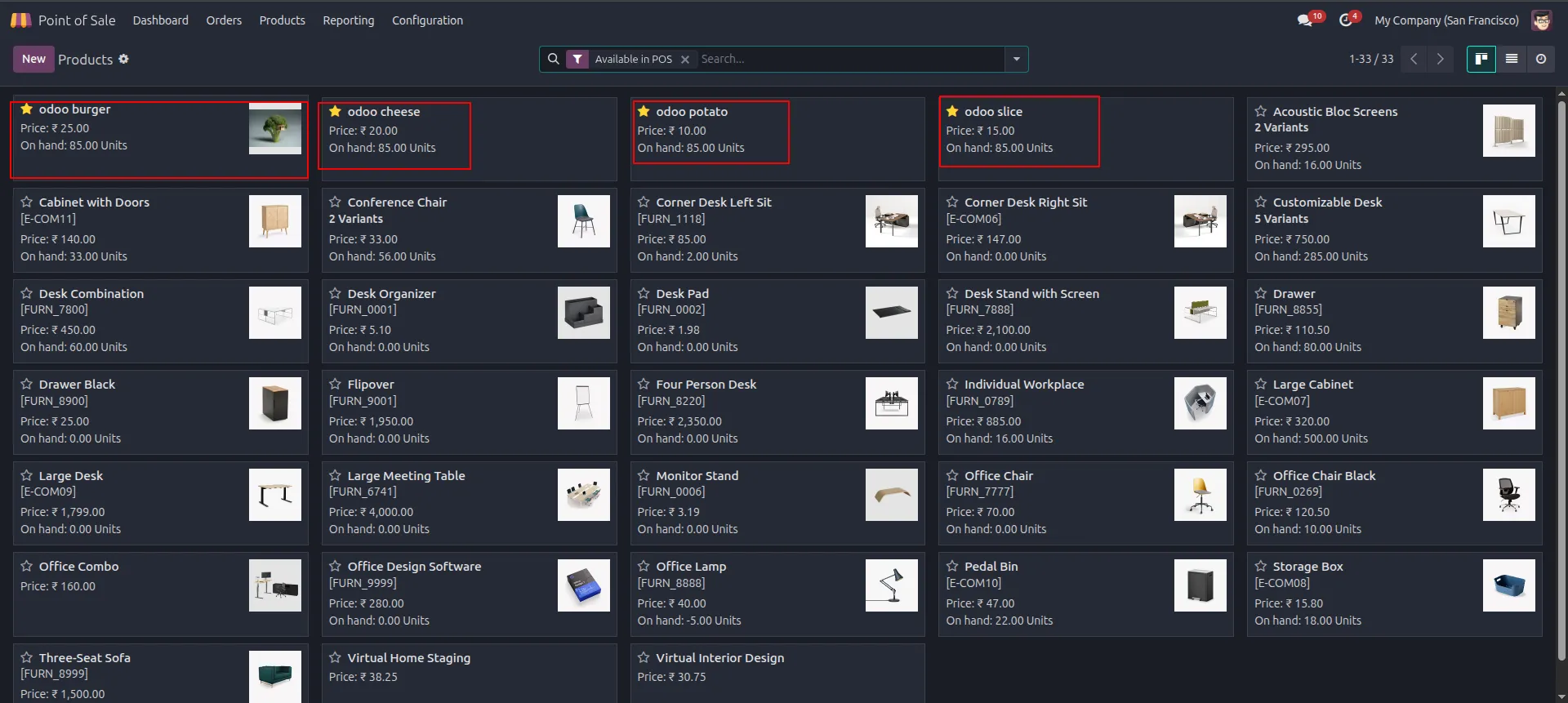
14.Confirm on-hand quantity decreased for all products after the sale.
Our solutions focus on your problems
- Odoo Implementation
- Odoo Customization
- ERP Development and Implementation
- Odoo Ipass Cloud
- AI for Odoo
- Odoo Apps
- Aws Marketplace Products
- Business Engines
Our Pricing includes User Manual, 90 Days Support (Monday-Friday 10am to 7pm IST) and One time Setup
• Works & tested on standard installations of Odoo with no third party apps,
• Free support only for odoo installations with no third party apps,
• Paid support available for Odoo installations with third party apps.

Prefortune is a Odoo Official Partner, Odoo Development company. Our philosophy is to use Open Source tools and technologies to provide cost effective and green solutions for our customers.
Prefortune Technologies LLP is working on web development, Mobile development, and Odoo ERP.
If you need any help or want more additional features, you may contact us through:
Alternative Products
These other products might interest you
Specifications
| Version | 19.0, 18.0, 17.0, 16.0, 15.0, 14.0 |