Watch Quick Video

Website Dynamic Stock Message Rule
Our all-inclusive
Dynamic Inventory Message on Website
Dynamic Inventory Message on Website is a complete solution that simplifies an eCommerce website's
inventory interaction by allowing users to create quantity-based stock message rules and display dynamic
inventory messages to customers. Companies can define their own stock ranges and customize messages like
“Limited Stock Available”, “Only a Few Items Left” or “In Stock” to indicate various inventory levels.
Assign stock message rules to products and the correct message will automatically display on shop &
product pages based on the current stock quantity. This helps customers to make a knowledgeable choice to
purchase and creates a sense of urgency for products with low stock. The module is simple and easy to use,
with configurable options, allowing you to manage stock messages without any technical complexity. It
drives greater customer loyalty, improves transparency and provides more control over the visibility of
the website inventory by automated message updates and allocating rules based on product-specific
information.
Dynamic Inventory Message on Website
- Create and manage flexible stock message rules based on product quantity ranges to display relevant inventory information.
- Automatically show custom stock messages when product quantities fall within predefined inventory thresholds.
- Assign stock message rules directly to individual products for precise and product-specific inventory communication.
- Display dynamic stock availability messages on shop and product pages to keep customers informed in real time.
- Configure multiple inventory messages such as low stock, limited stock, or in-stock notices without any technical setup.
Complete Workflow for Manage Dynamic Inventory Message on Website
Go to Sales → Products → Stock Message Rules and create stock message rules by defining quantity ranges and the corresponding stock messages to be displayed. Configure the From Quantity, To Quantity, and custom stock message for each rule, then save the configuration. Open the necessary product and go to Stock Message Rule Configuration to set the required stock message rule. Select the needed stock rule from the list and save the product setup. Go to the Website → Shop page or open a product page and observe the stock message displayed automatically, based on current inventory quantity of the product and the specified stock message rule.
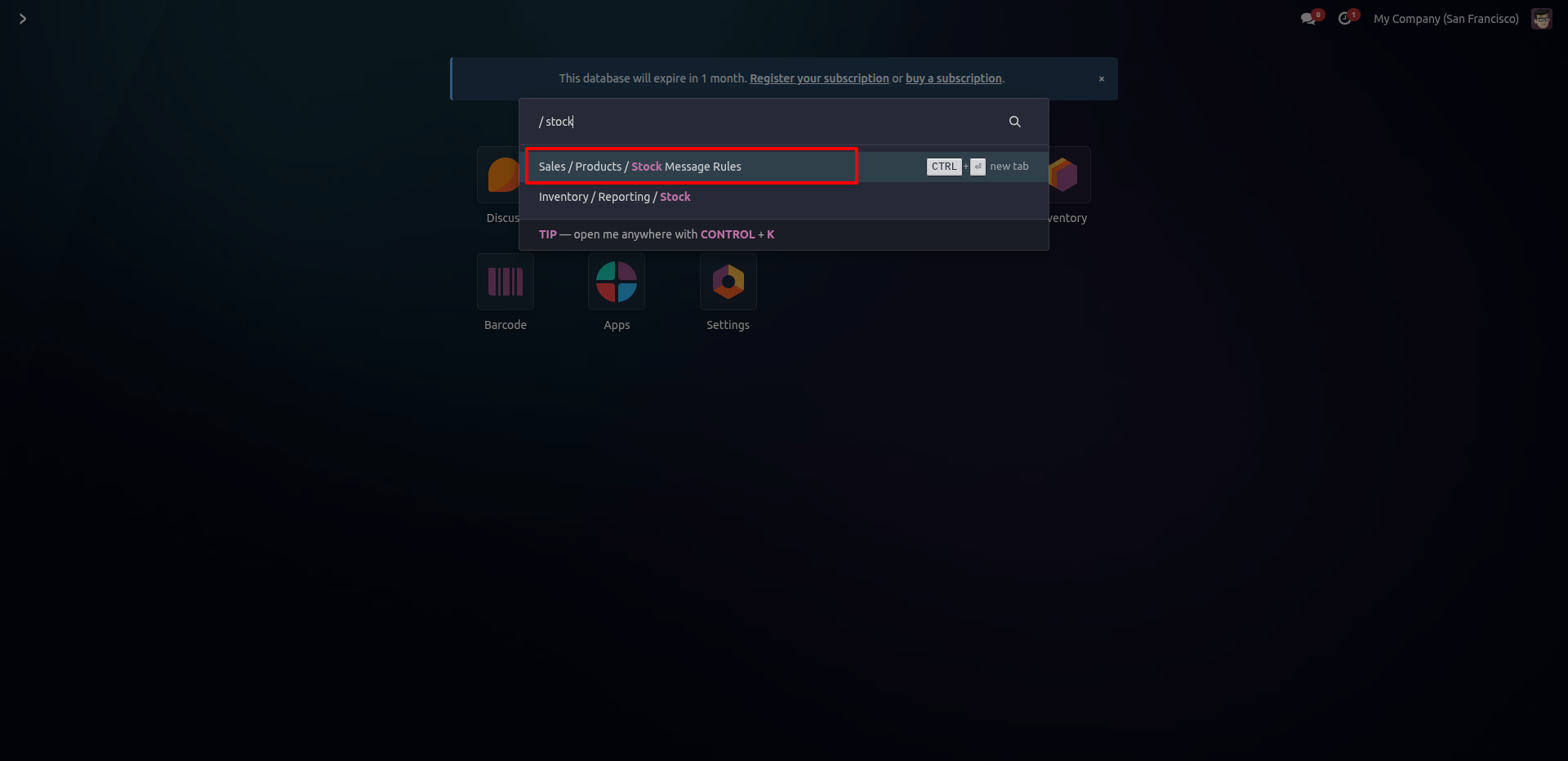
1.Go to Sales / Products / Stock Message Rules.
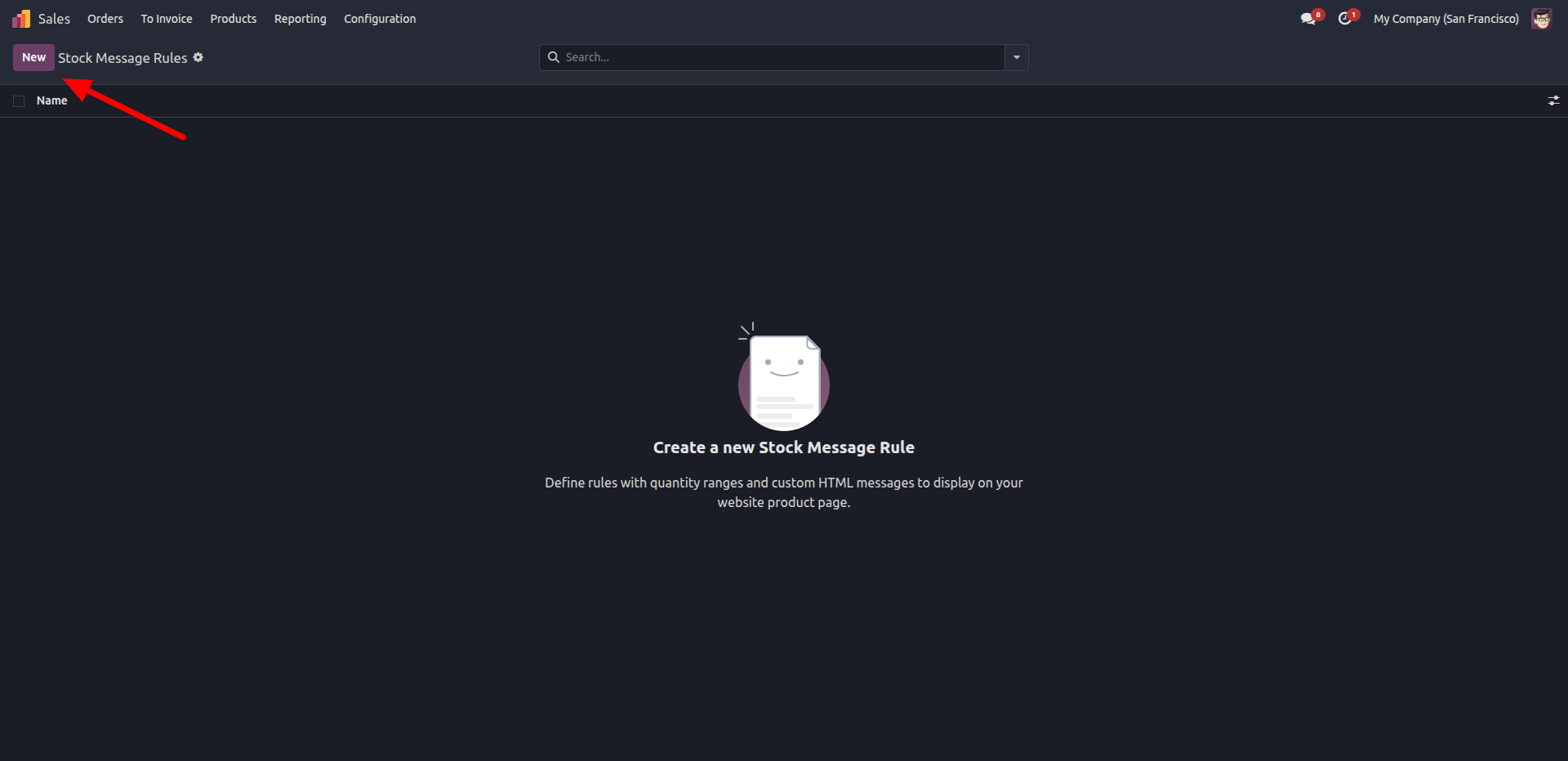
2.Click New to Create a Rule.
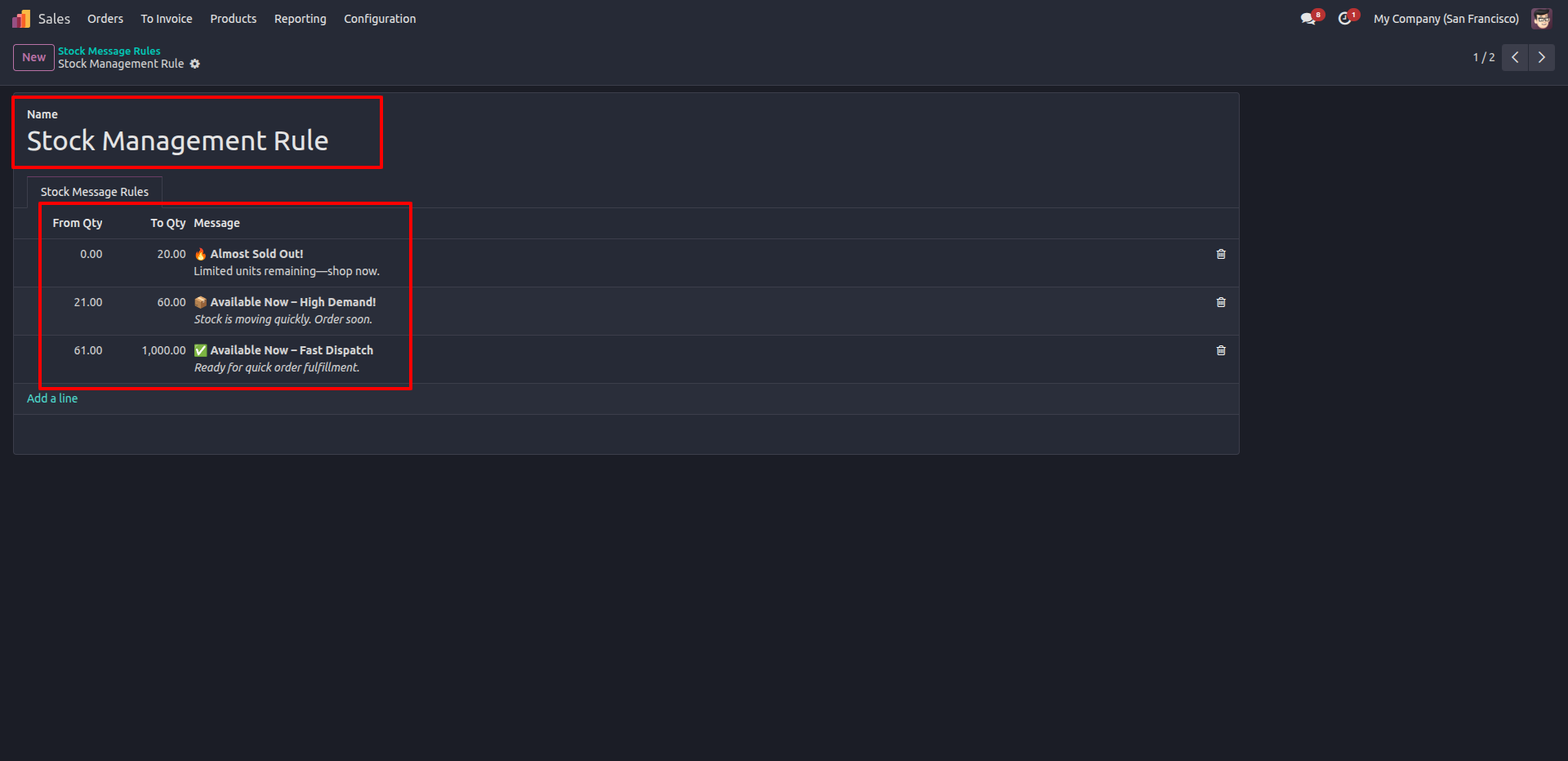
3.Add Rule name and define Quantity ranges with messages.
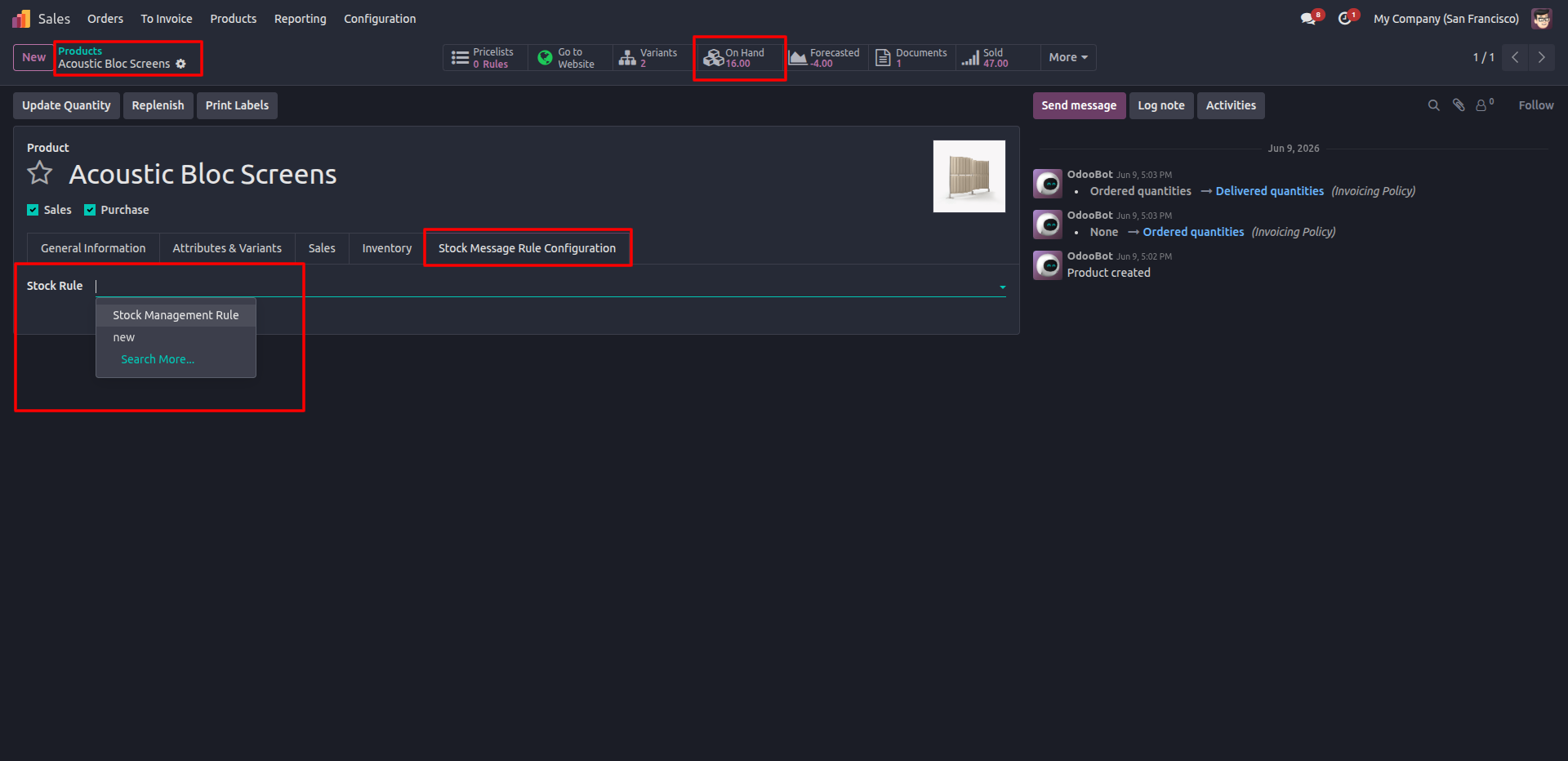
4.Open Product → Go to Stock Message Rule Configuration tab & Assign the rule to Product & On Hand Quantity is 16.

5.Website shows 🔥 Almost Sold Out (Quantity 16 is in 0-20 range).
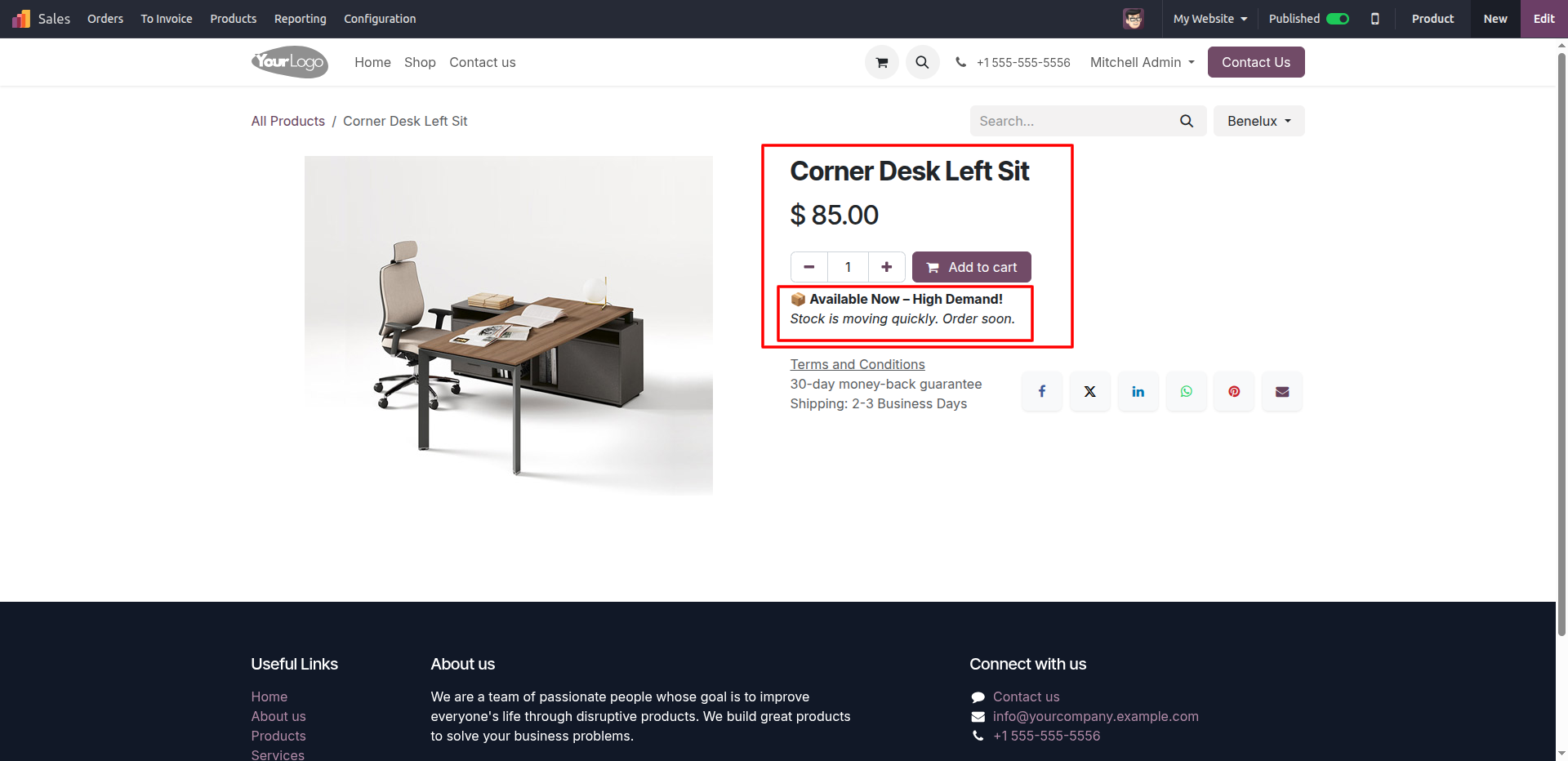
6.Another Product shows 📦 High Demand (Quantity in 21-60 range).
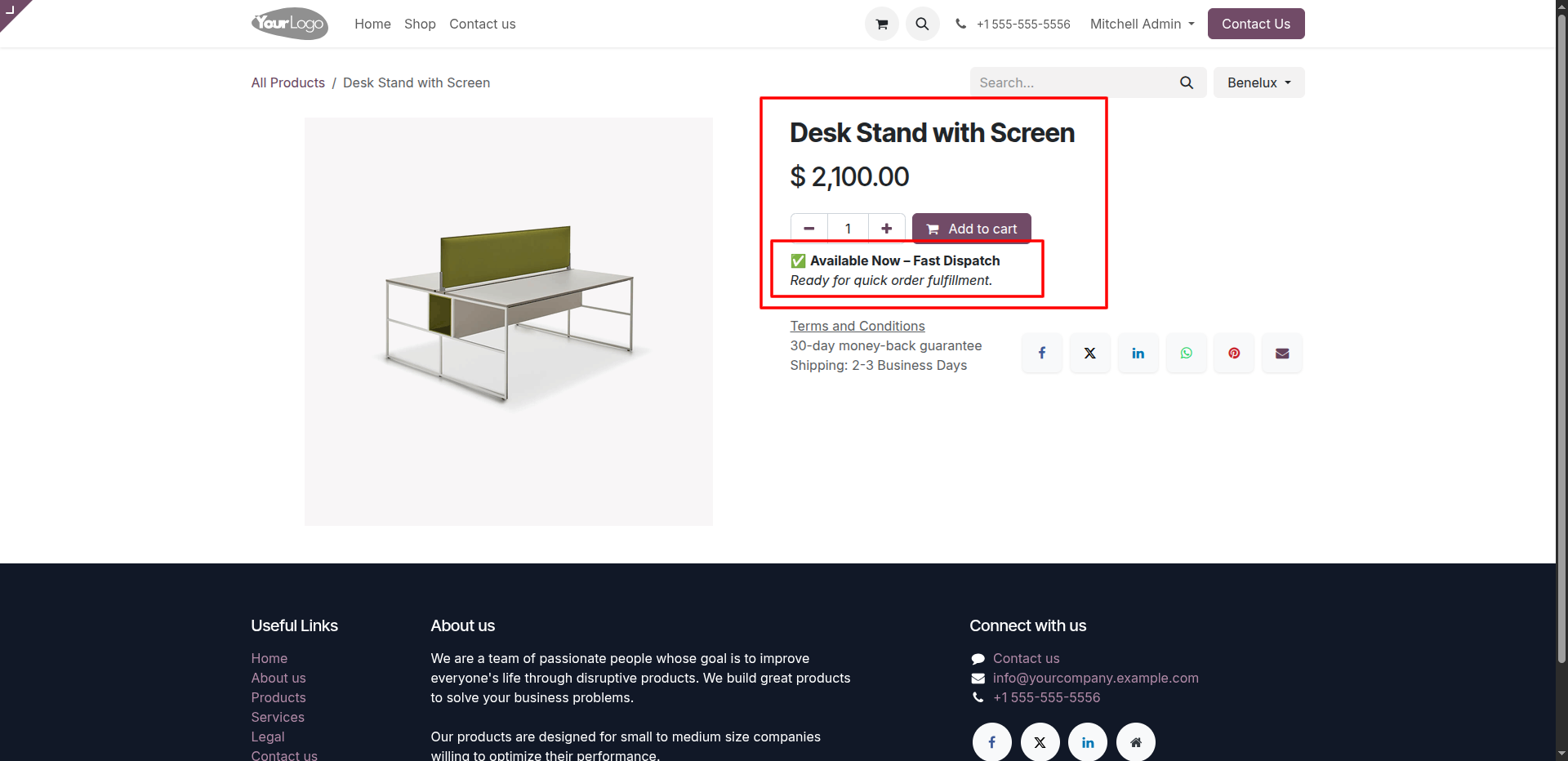
7.Another Product shows ✅ Fast Dispatch (Quantity in 61-1000 range).
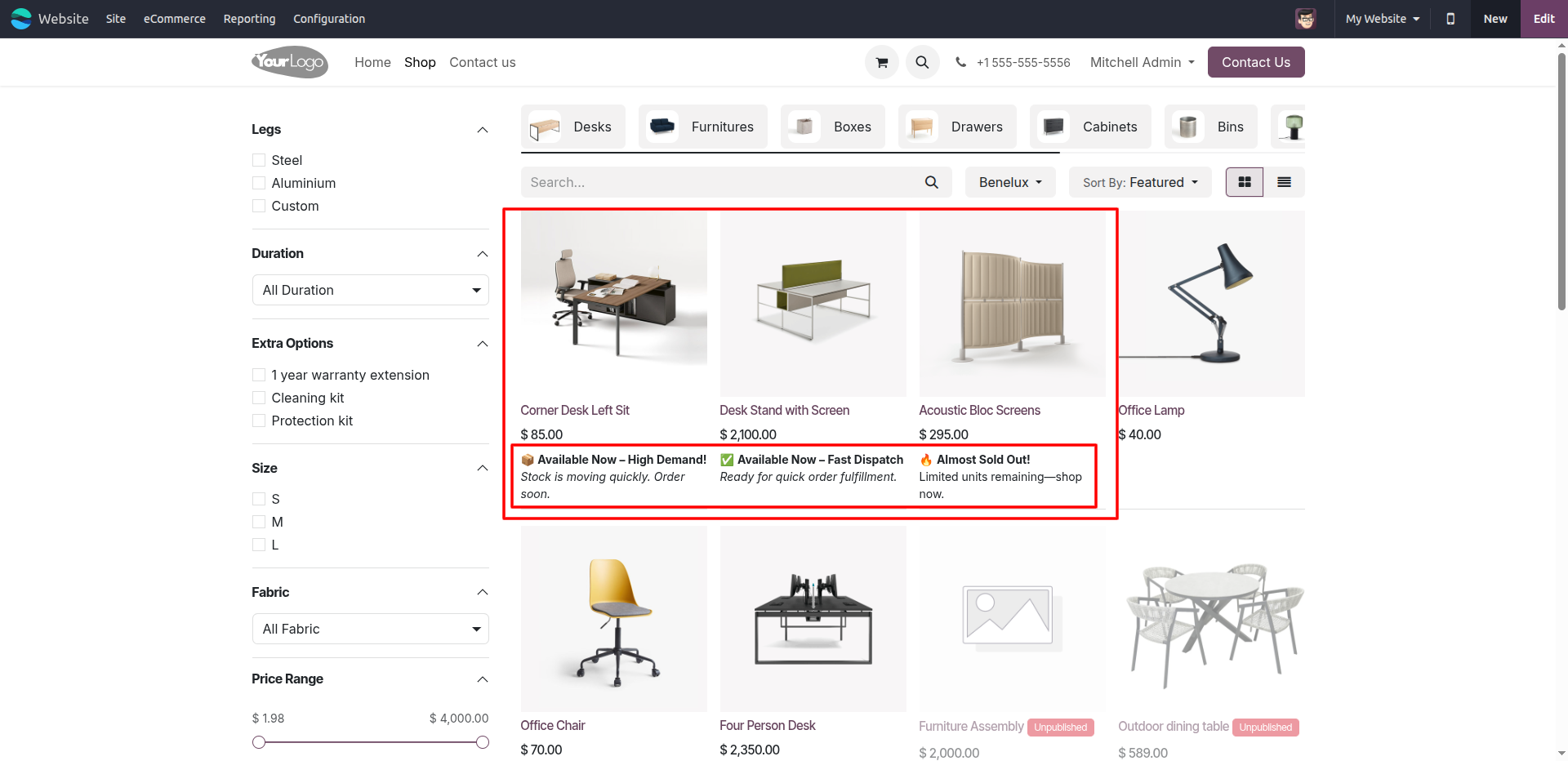
8.Shop page shows all Products with their correct messages.
Our solutions focus on your problems
- Odoo Implementation
- Odoo Customization
- ERP Development and Implementation
- Odoo Ipass Cloud
- AI for Odoo
- Odoo Apps
- Aws Marketplace Products
- Business Engines
Our Pricing includes User Manual, 90 Days Support (Monday-Friday 10am to 7pm IST) and One time Setup
• Works & tested on standard installations of Odoo with no third party apps,
• Free support only for odoo installations with no third party apps,
• Paid support available for Odoo installations with third party apps.

Prefortune is a Odoo Official Partner, Odoo Development company. Our philosophy is to use Open Source tools and technologies to provide cost effective and green solutions for our customers.
Prefortune Technologies LLP is working on web development, Mobile development, and Odoo ERP.
If you need any help or want more additional features, you may contact us through:
Alternative Products
These other products might interest you
Specifications
| Version | 19.0, 18.0, 17.0, 16.0, 15.0, 14.0 |