Watch Quick Video
Create Invoice From Helpdesk APP Odoo App
Our all-inclusive
Odoo – Create Invoice From Helpdesk APP Odoo App
enhances the Odoo Helpdesk system by enabling seamless integration between helpdesk tickets and
invoicing. This module allows users to generate customer invoices directly from helpdesk
tickets, reducing manual effort and improving billing efficiency.
This module provides the ability to select products within helpdesk tickets and create invoices
instantly using a dedicated “Create Invoice” button. A user-friendly wizard helps users choose
customers, add products, and configure invoice details before finalizing the invoice, ensuring a
smooth and efficient process.
The system maintains a strong connection between helpdesk tickets and invoices through smart
buttons, allowing users to easily navigate between them. It also supports creating helpdesk
tickets directly from invoices, improving workflow flexibility and operational efficiency.
Additionally, the module includes validation to ensure that invoices cannot be created without
selecting products, maintaining data accuracy. It also offers reporting features such as
printable helpdesk ticket reports with product details and advanced filtering options for better
management.
By integrating helpdesk and invoicing processes, this module improves user productivity,
enhances data consistency, and provides better control over support and billing operations.
Create Invoice From Helpdesk APP Odoo App
- Easily generate customer invoices from tickets without manual entry.
- Select and manage products within tickets for accurate billing.
- Automatically connect invoices with related helpdesk tickets for better tracking.
- Quickly access related invoices from tickets through smart buttons.
- Generate helpdesk tickets directly from invoices for seamless workflow.
Create Invoice From Helpdesk APP Odoo App
First, enable the Invoice Helpdesk Ticket option from the system settings and activate Manage Products in the Helpdesk configuration. Once enabled, users will be able to manage products directly within helpdesk tickets and generate invoices seamlessly. When working on a helpdesk ticket, users can select the required products and click on the “Create Invoice” button. A wizard will appear where users can choose the customer, review selected products, and fill in necessary invoice details before confirming the invoice. The system ensures proper validation by preventing invoice creation if no product is selected, helping maintain accurate data. Once the invoice is created, it is automatically linked to the helpdesk ticket, allowing users to access it easily using the Invoices smart button. Additionally, users can create helpdesk tickets directly from invoices using the “Create Ticket” option. The module also provides seamless navigation between tickets and invoices through smart buttons, along with reporting and filtering features for better management. This functionality improves workflow efficiency, reduces manual effort, and ensures better coordination between support and accounting processes.
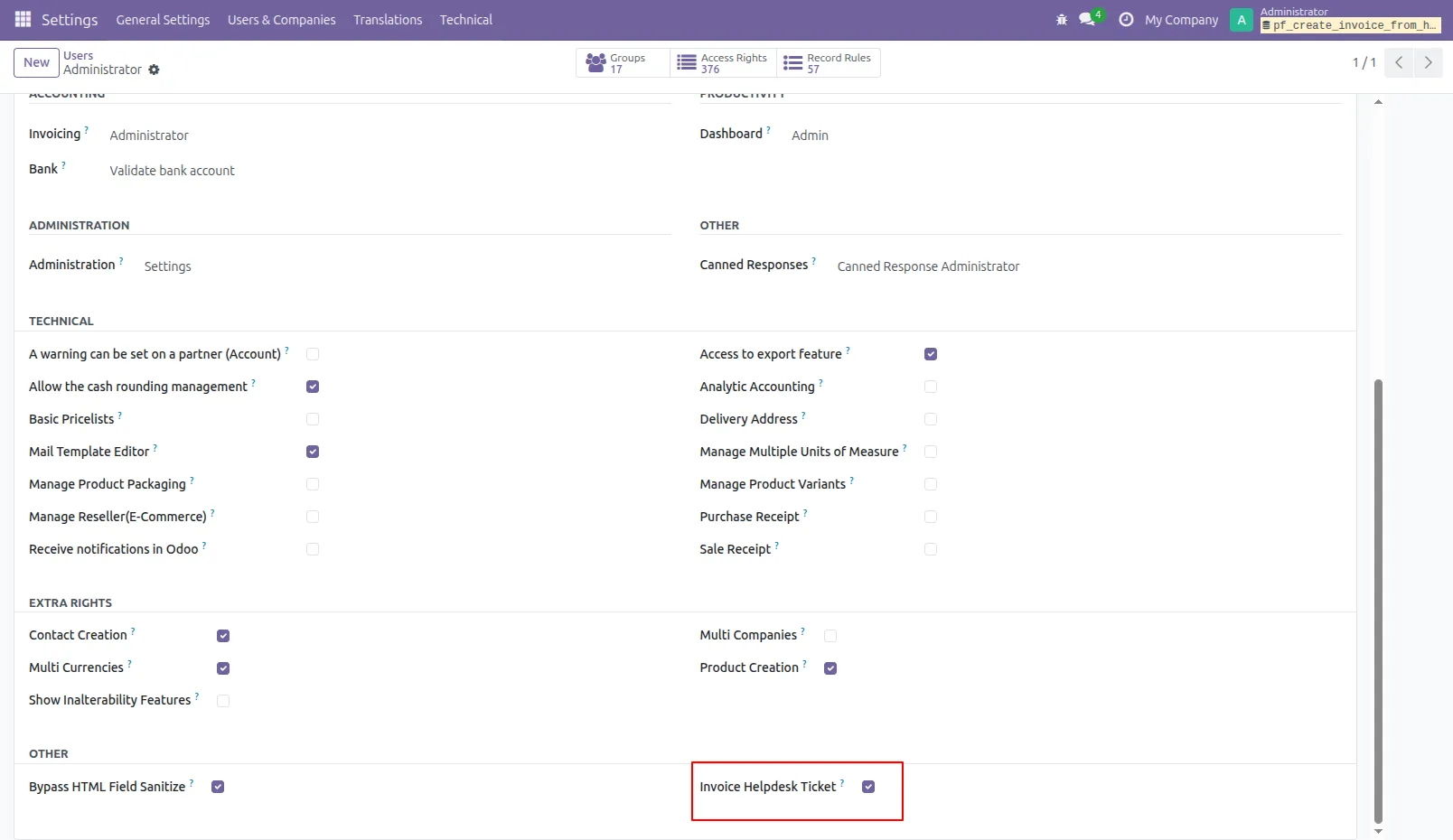
1.Tick security group 'Invoice Helpdesk Ticket' to generate invoice directly from the helpdesk ticket as well generate a helpdesk ticket from the invoice.
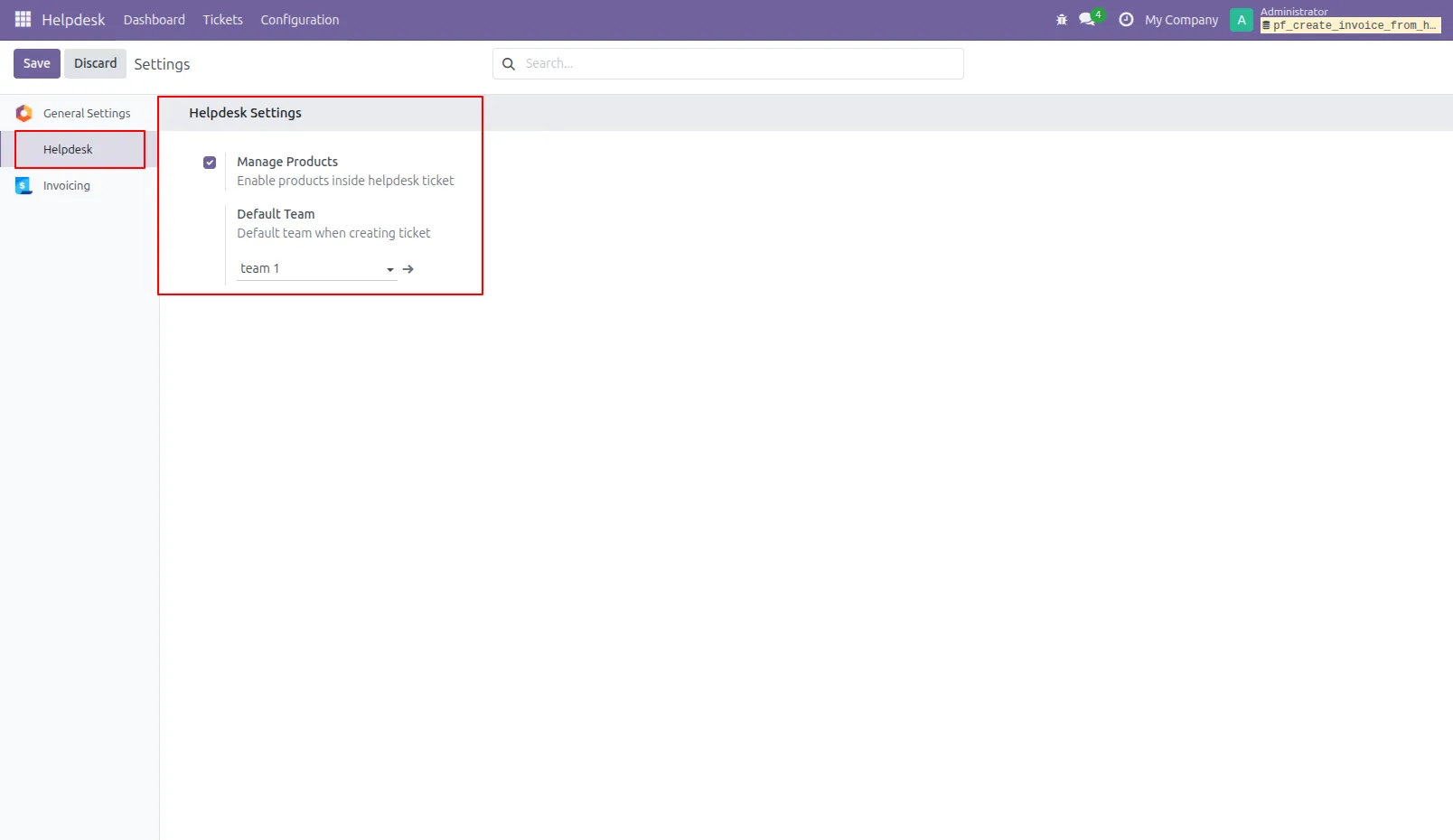
2.Go to the helpdesk settings and tick 'Manage Products'.
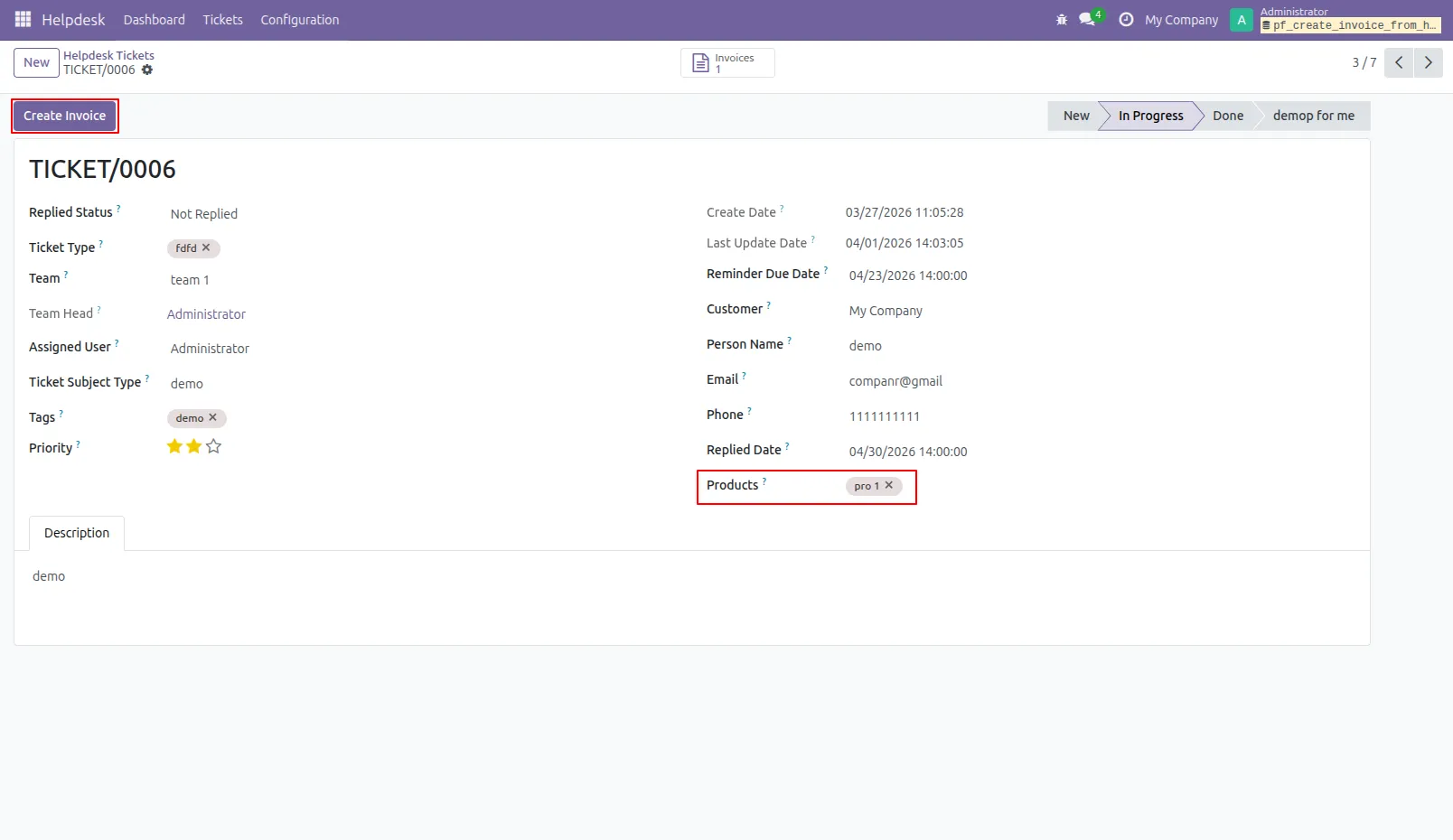
3.'Helpdesk Ticket' form view, press the "Create Invoice" button to create invoice directly from the helpdesk ticket.
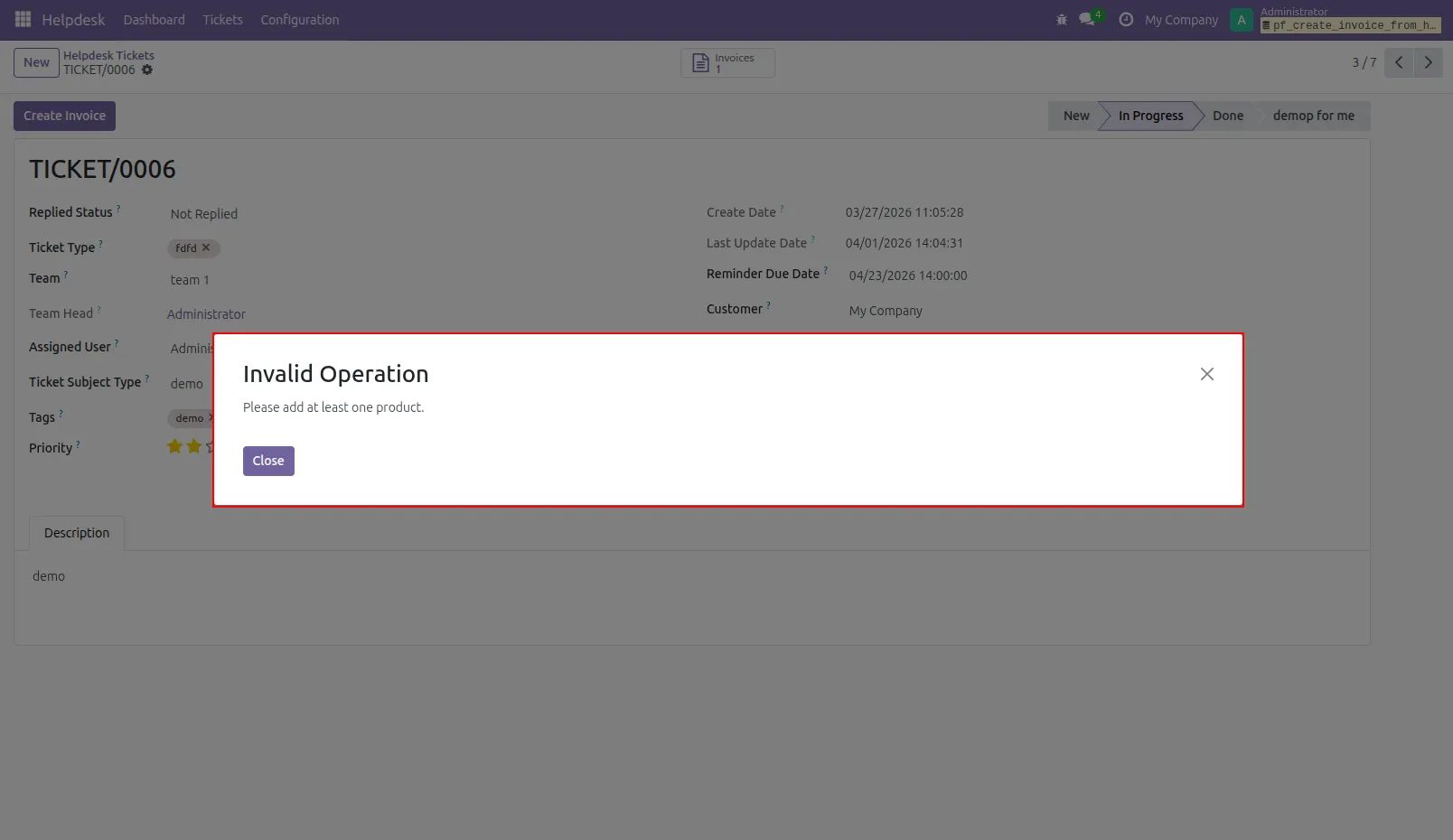
4.If you you try to create a invoice without selecting a product then this error will appears.
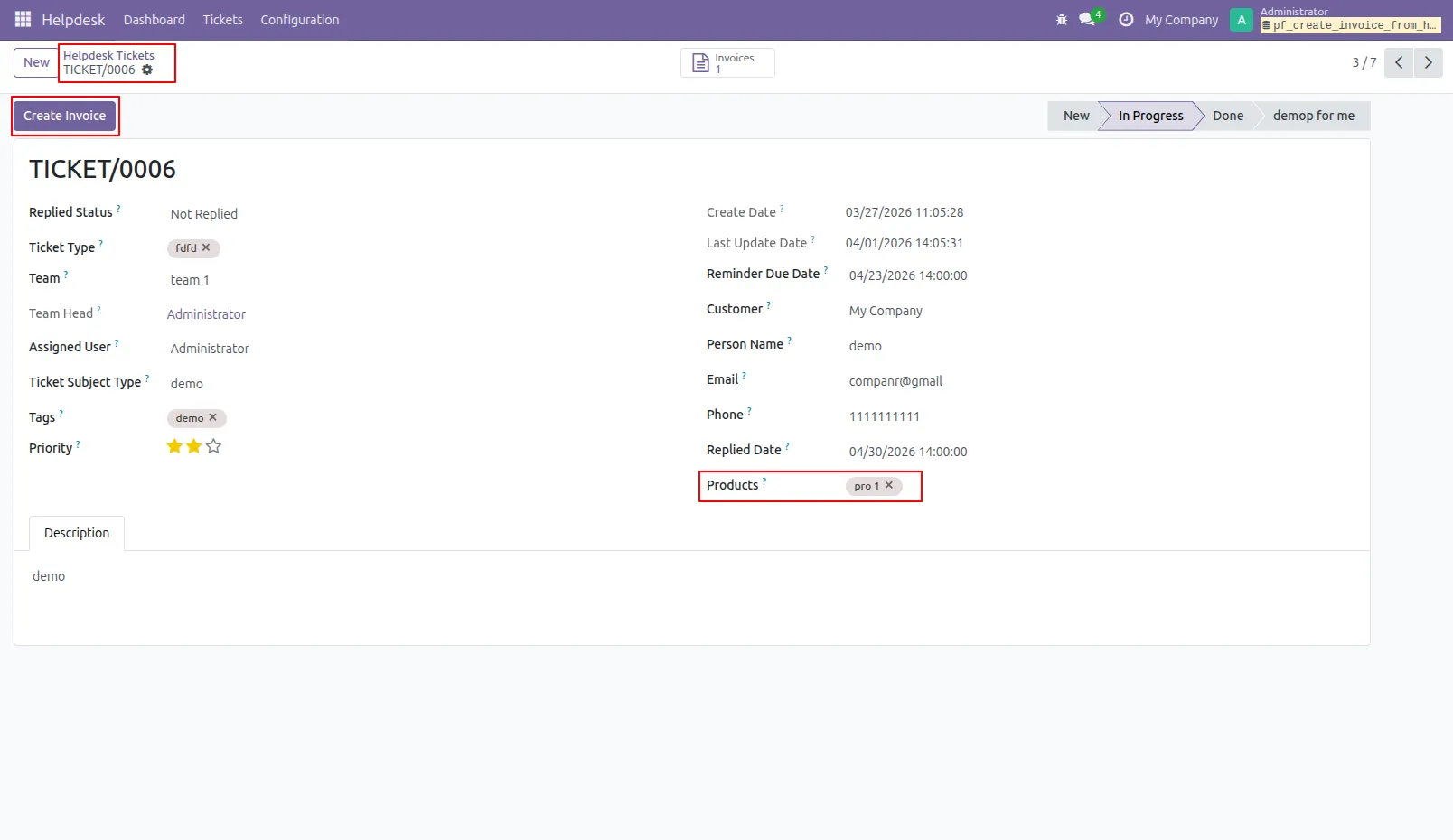
5.Select products and click on the 'Create Invoice' button.
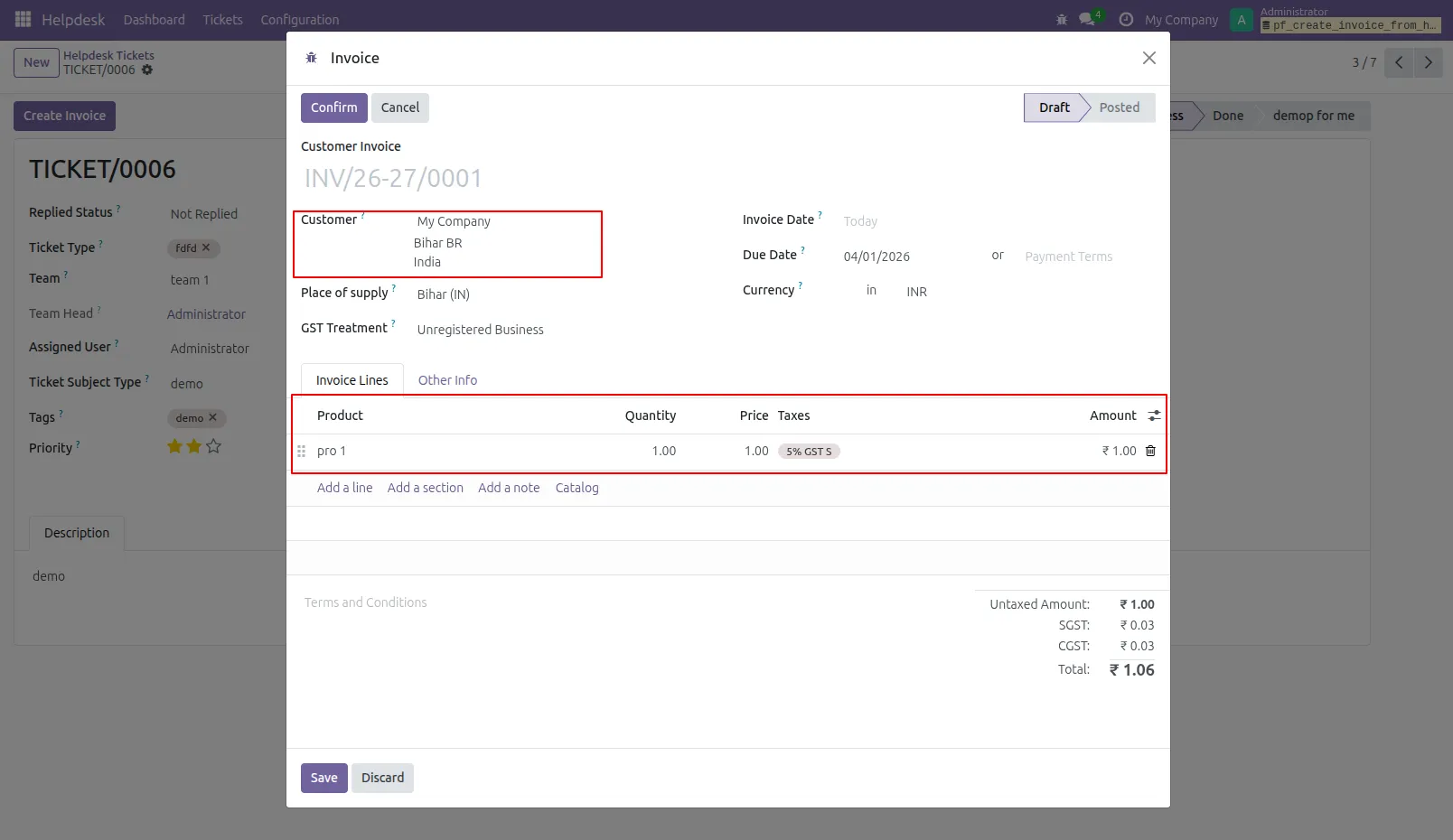
6.After that one wizard opens, select customer, products, and fill other details then press the 'Save' button.
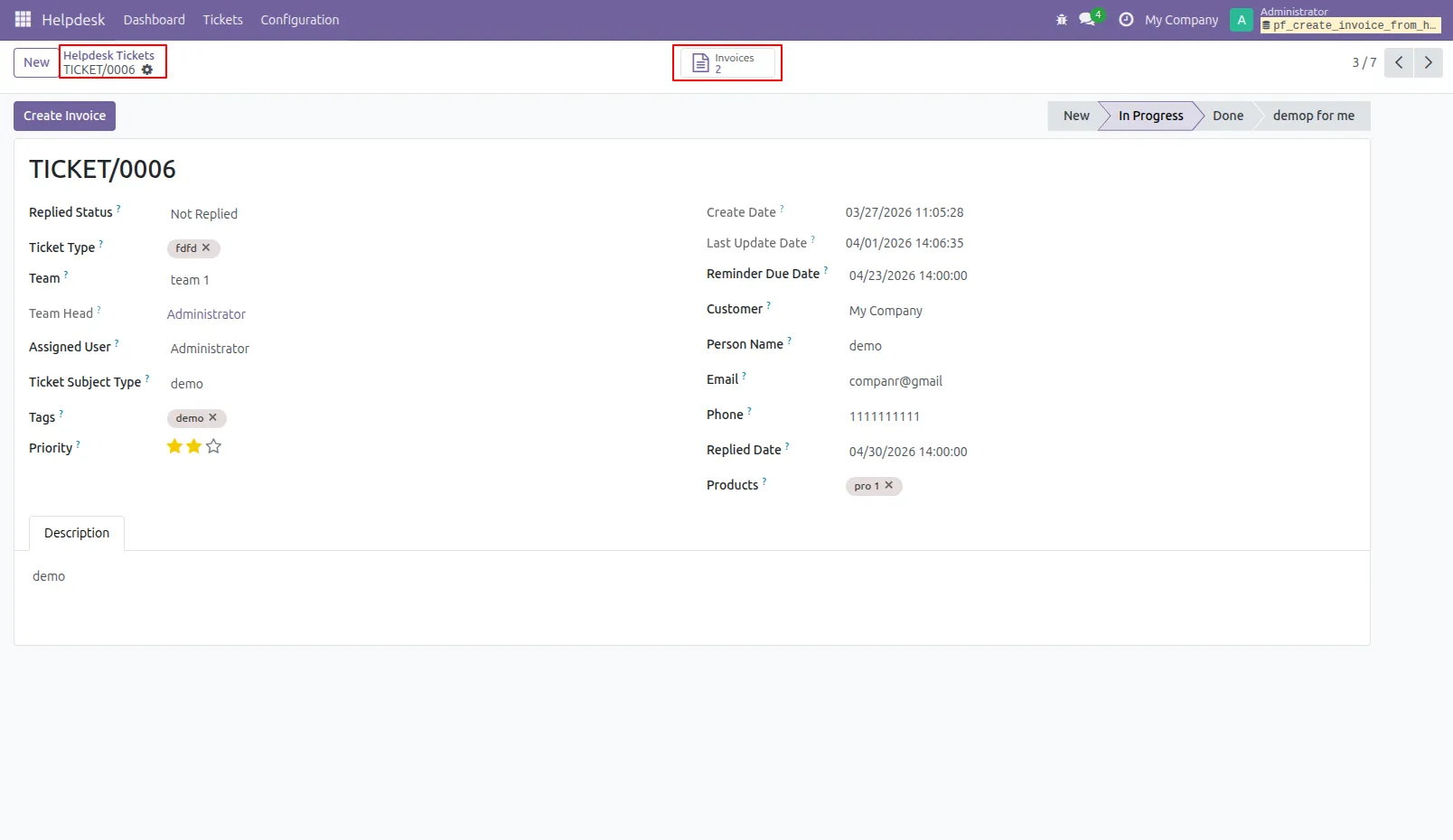
7.Now, from the ticket, you can see generated invoices of that ticket using the 'Invoices' smart button.
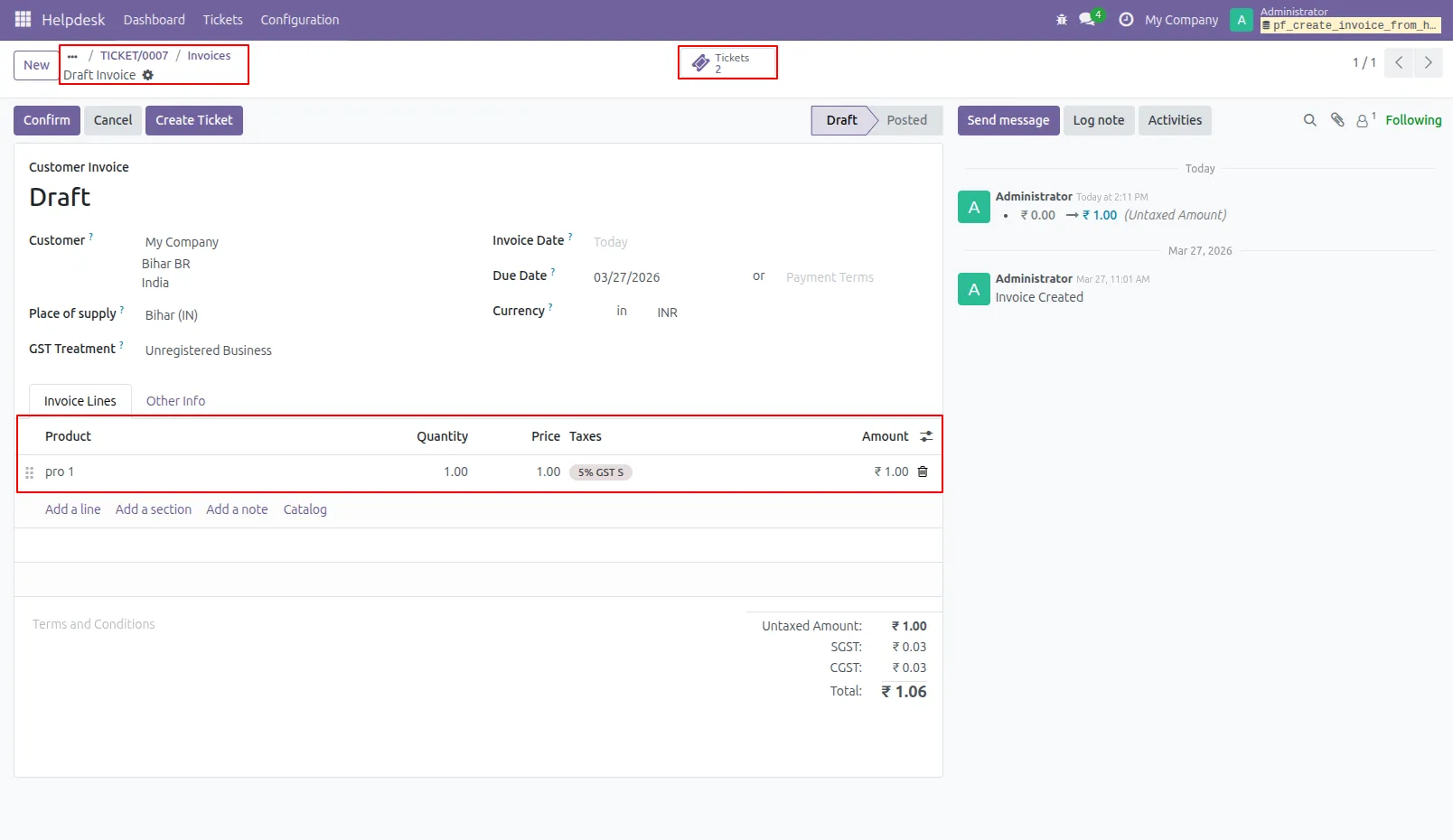
8.So, from that invoice, you can see tickets of that invoice using the 'Tickets' smart button.
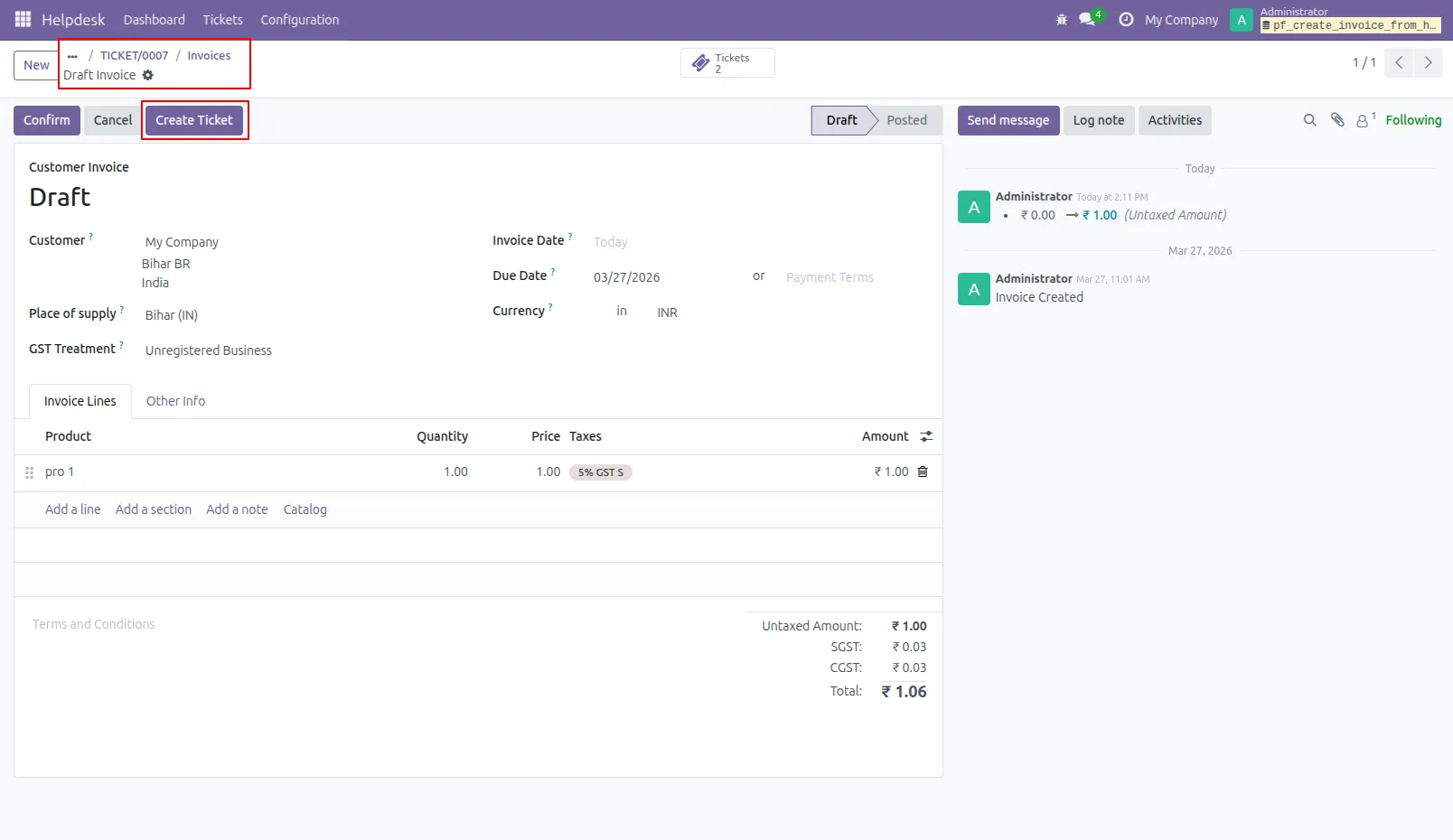
9.You can create a helpdesk ticket from the invoice using the 'Create Ticket' button.
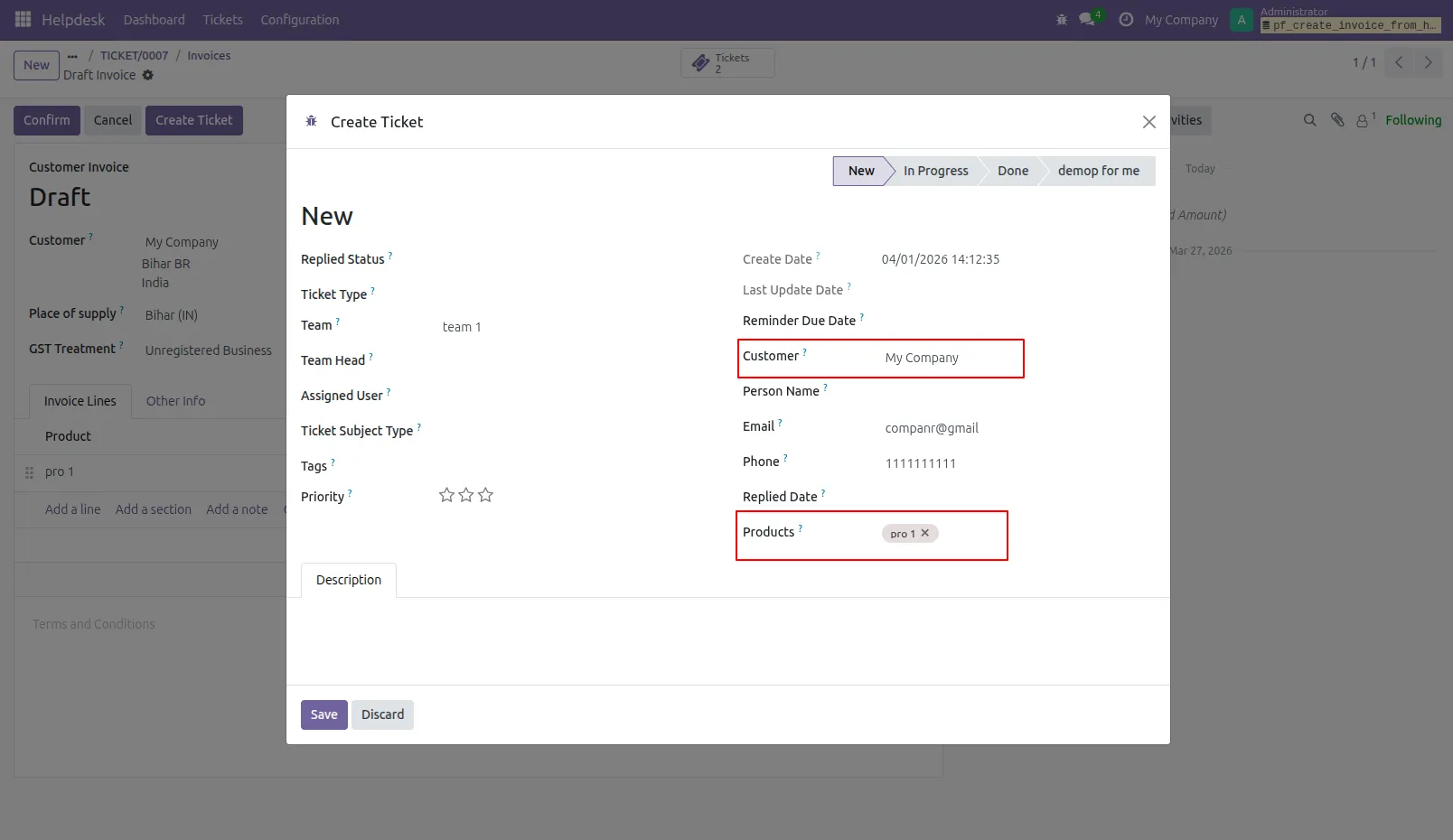
10.After that one wizard opens, fill the details and save it.
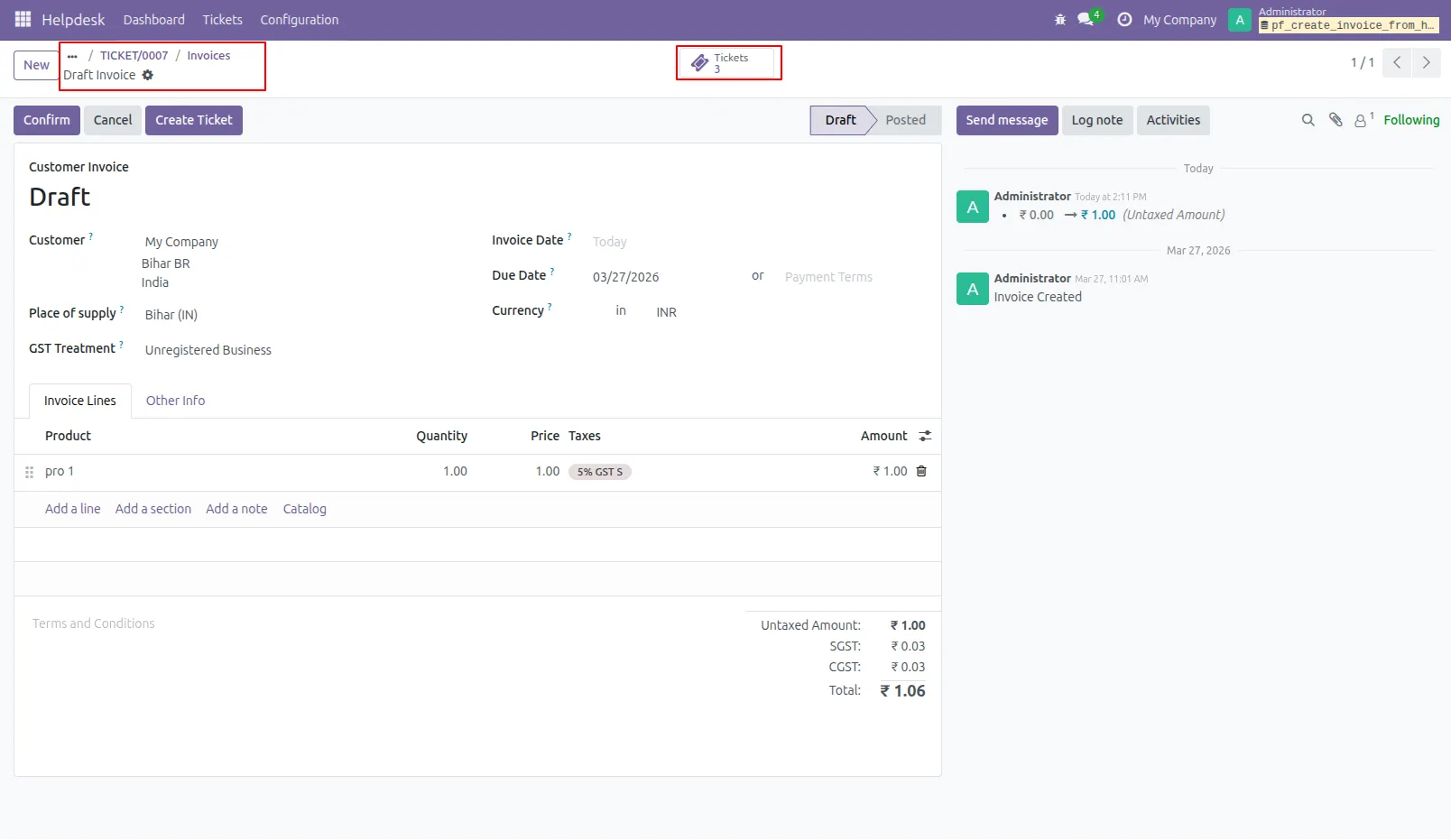
11.You can see tickets of that invoice using the 'Ticket' smart button.
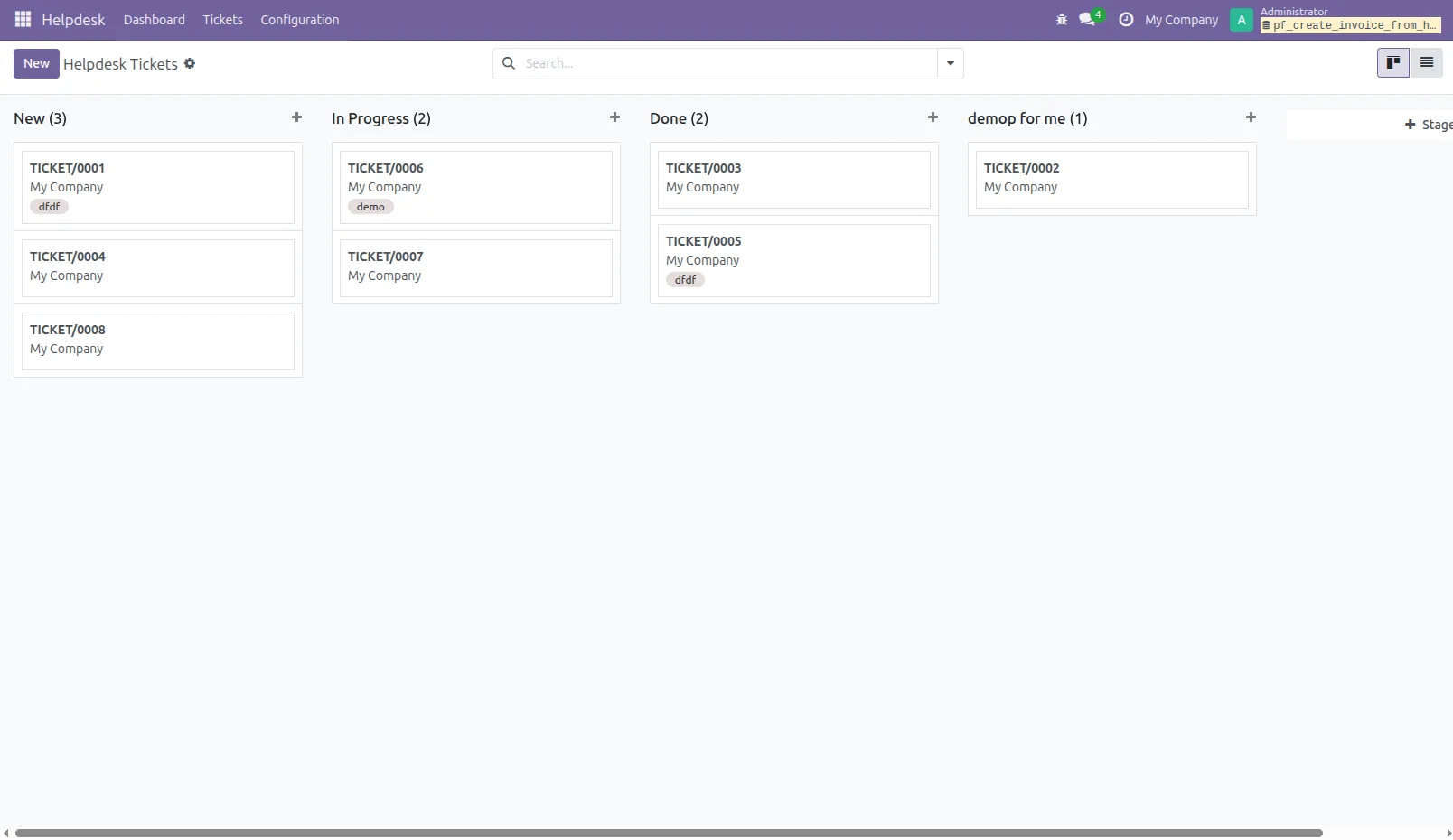
12.It opens tickets Kanban view.
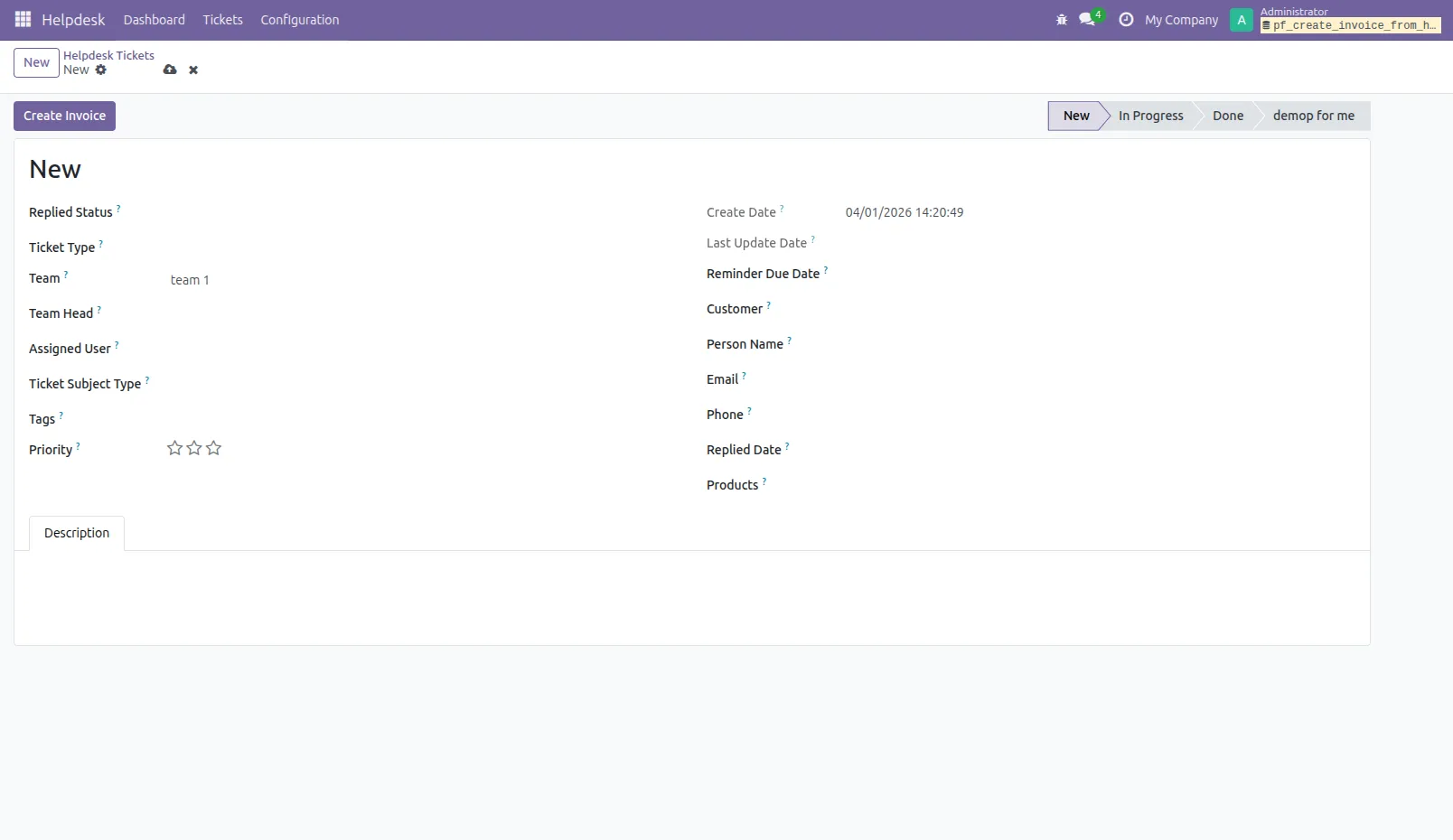
13.Created ticket form view looks like this.
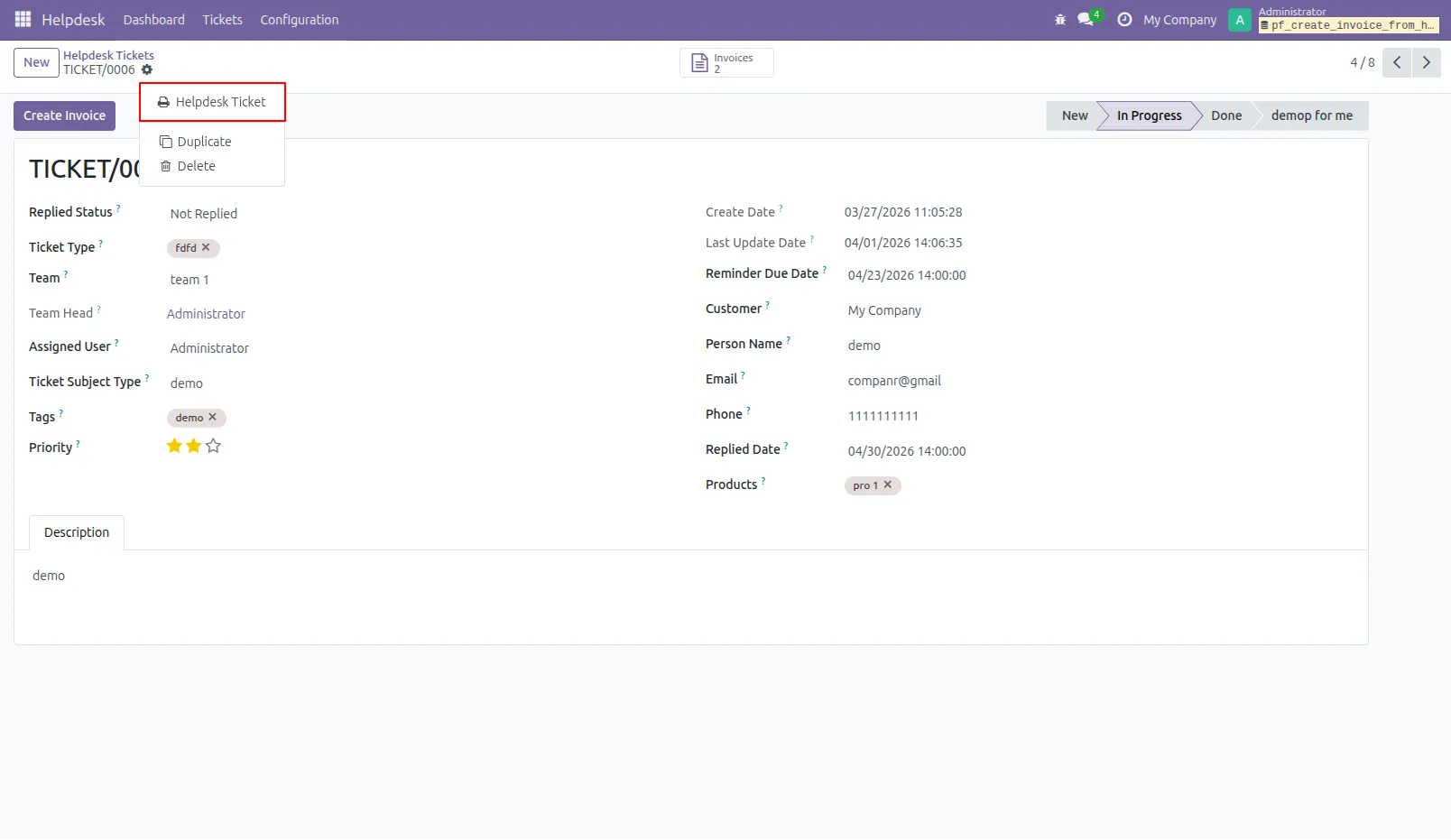
14.Form view of the helpdesk ticket, Click on the print 'Helpdesk ticket' from the action buton.
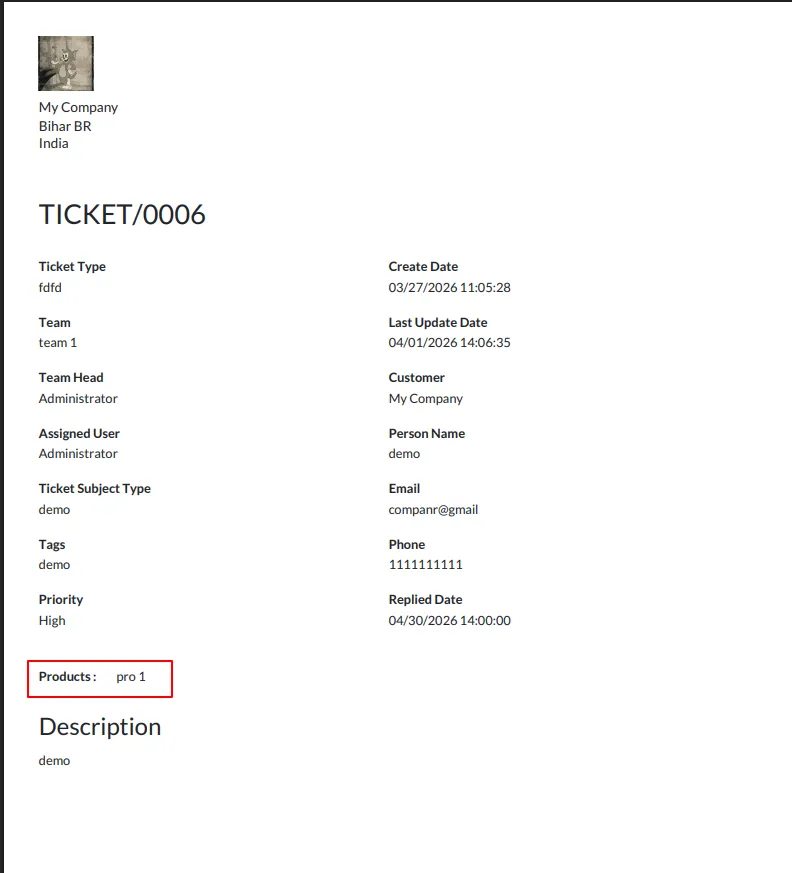
15.Ticket PDF report with the products.
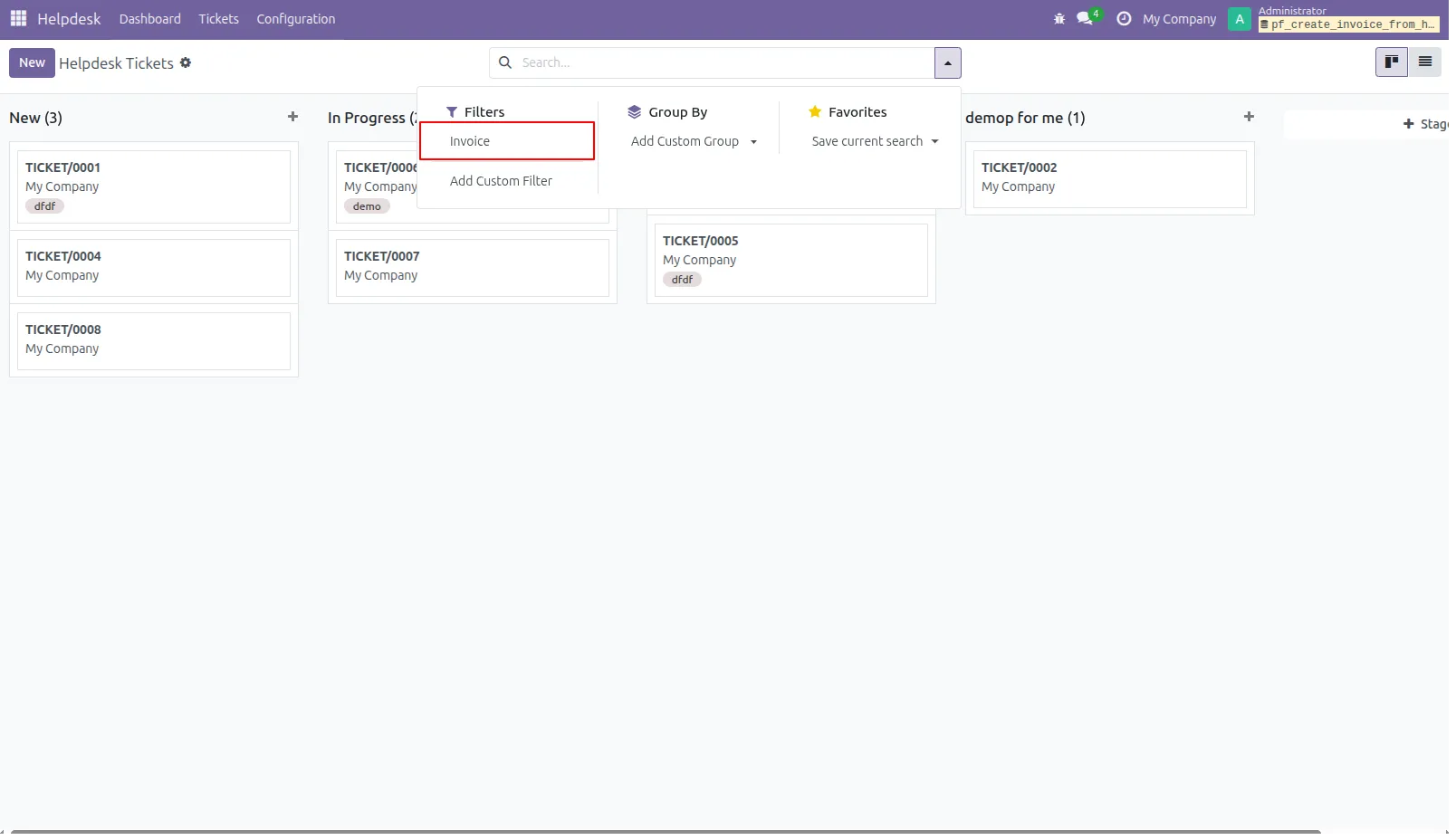
16.You can filter tickets purchase order wise.
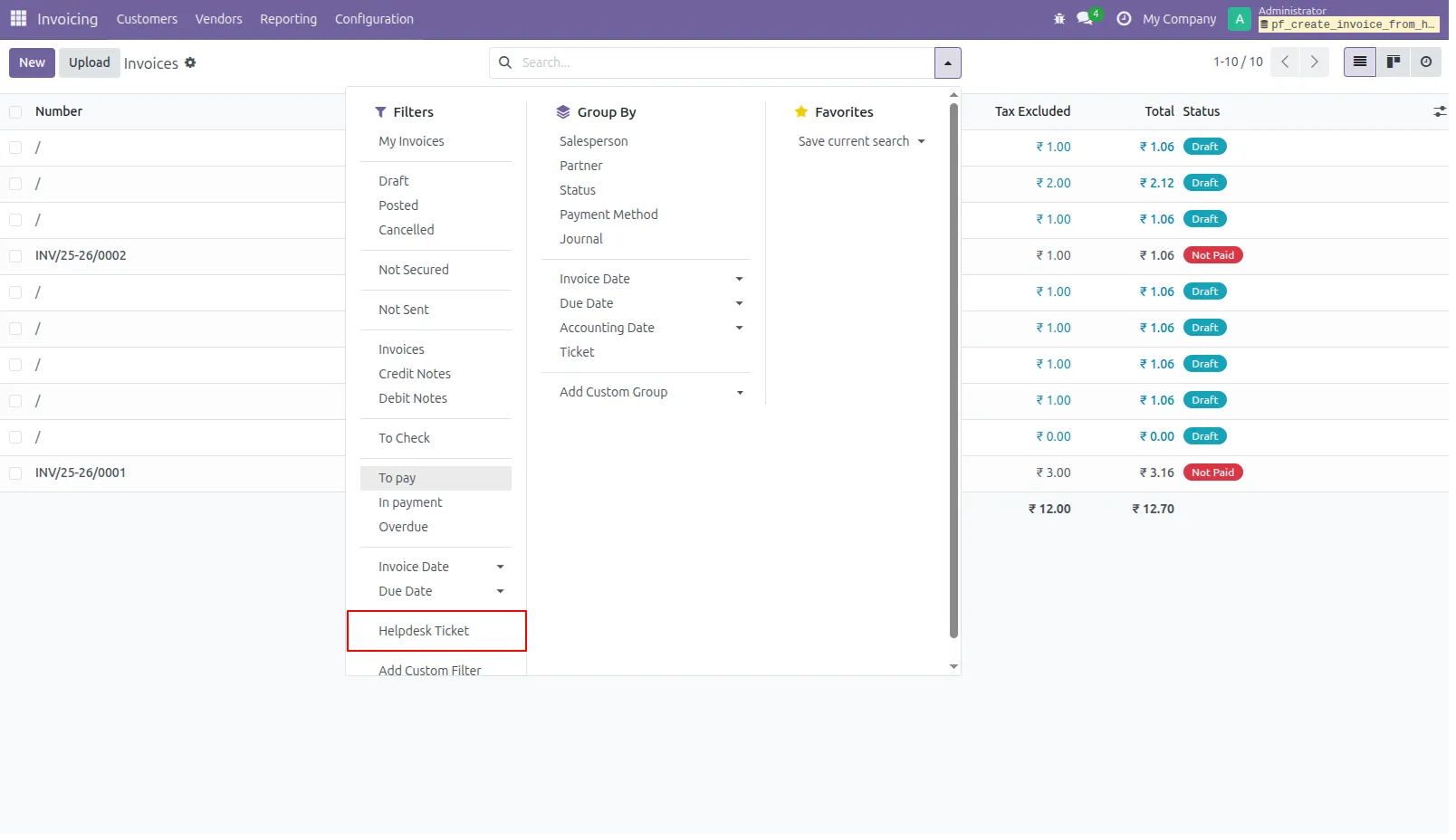
17.You can filter invoice ticket wise.
Our solutions focus on your problems
- Odoo Implementation
- Odoo Customization
- ERP Development and Implementation
- Odoo Ipass Cloud
- AI for Odoo
- Odoo Apps
- Aws Marketplace Products
- Business Engines
Our Pricing includes User Manual, 90 Days Support (Monday-Friday 10am to 7pm IST) and One time Setup
• Works & tested on standard installations of Odoo with no third party apps,
• Free support only for odoo installations with no third party apps,
• Paid support available for Odoo installations with third party apps.

Prefortune is a Odoo Official Partner, Odoo Development company. Our philosophy is to use Open Source tools and technologies to provide cost effective and green solutions for our customers.
Prefortune Technologies LLP is working on web development, Mobile development, and Odoo ERP.
If you need any help or want more additional features, you may contact us through:
Alternative Products
These other products might interest you
Specifications
| Version | 19.0, 18.0, 17.0, 16.0, 15.0, 14.0 |