Watch Quick Video
Automatic Lot/Serial Number Generator App for Odoo
Our all-in-one
Automatic Lot/Serial Number Generator App for Odoo
for Odoo automates the manufacturing process by automatically generating and assigning Lot and Serial Numbers to finished products. It supports numbering in Global, Product Sequence and Product Category wise and thus businesses can set flexible numbering strategies as per their needs. Confirming a Manufacturing Order will either assign the first Lot / Serial Number automatically or you can create sequential numbers using the Produce All batch production wizard. The module supports both Serial-tracked and Lot-tracked products, which reduces manual effort, increases production efficiency and ensures accurate product traceability. Provides a consistent and organized Lot/Serial Numbering system for each Manufacturing Order with configurable prefixes, digit lengths and sequences for each category.
Automatic Lot/Serial Number Generator App for Odoo
- Create and assign Lot/Serial Numbers for Manufacturing Orders automatically with flexible and configurable number strategies.
- Support for Global, Product & Product Category based sequences to allow flexible & organized Lot/Serial number assignment on Manufacturing Orders.
- Automate creation of Lot / Serial Numbers in all the steps of manufacturing process to avoid manual data entry and reduce human error.
- Establish individual sequences for each product category to more effectively manage and organize Lot/Serial Numbers.
- Automatically assign consistent Lot/Serial numbers across Manufacturing Orders to improve product traceability and production efficiency.
Complete Workflow for Automatic Lot/Serial Number Generator App for Odoo
Install the module Automatic Lot/Serial Number Generator App for Odoo and navigate to Manufacturing → Configuration → Settings to configure the Lot/Serial Numbering options. Choose the preferred Serial Number Selection Method, such as Product Sequence (Default), Global, or Product Category Wise, then configure the required sequence, prefix, digits, and Lot/Serial Generation Trigger. Create and confirm a Manufacturing Order, and the module automatically generates or assigns Lot/Serial Numbers based on the selected configuration. It supports both Serial-tracked and Lot-tracked products, including manual generation, automatic assignment on confirmation, and batch production through the Produce All wizard. Product Category-wise sequences allow separate numbering for different product groups, while automatic backorder handling continues the configured sequence without interruption, ensuring accurate product traceability and a streamlined manufacturing workflow.
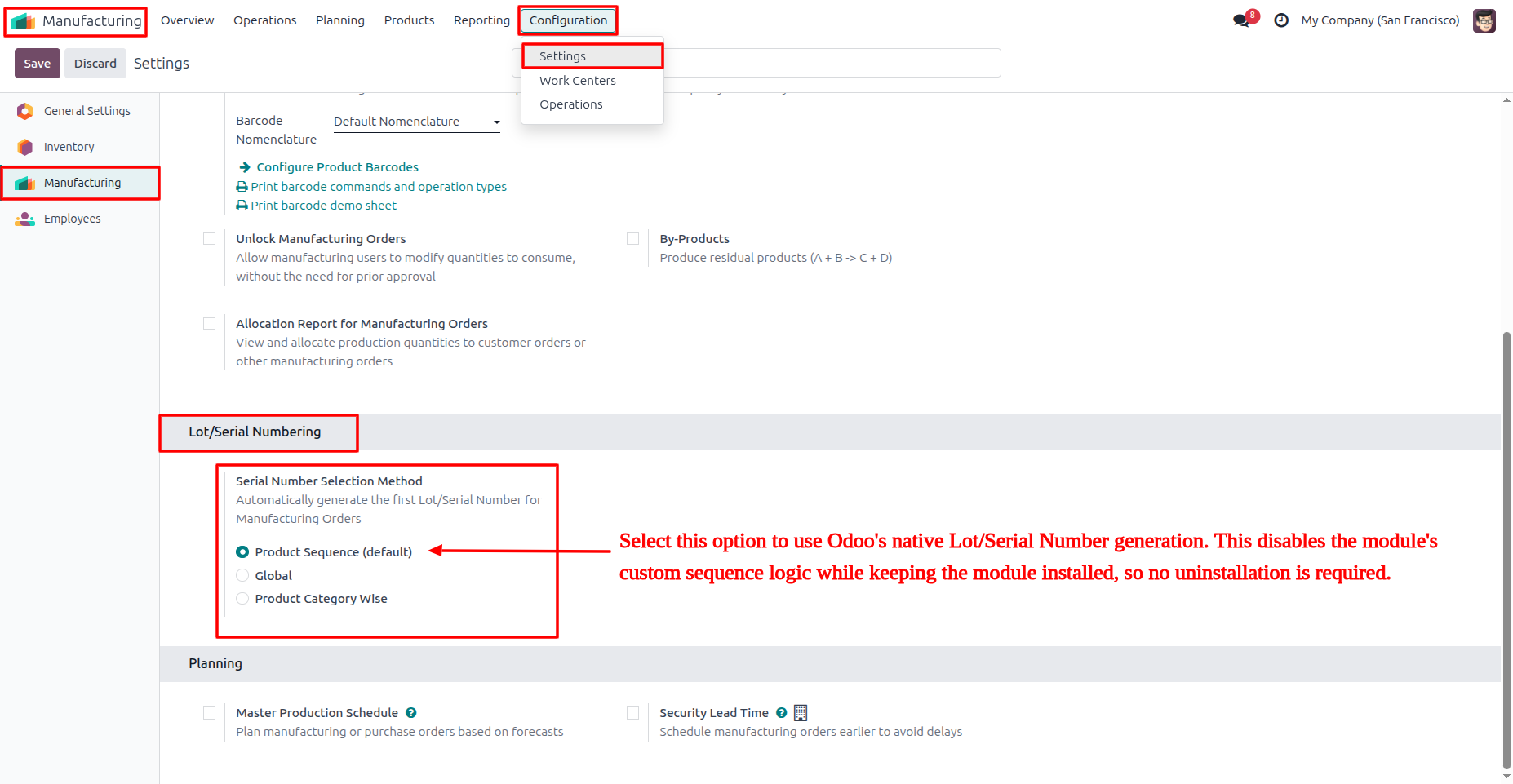
1. Navigate to Manufacturing → Configuration → Settings. Under the Lot/Serial Numbering section, select Product Sequence (Default) to use Odoo's native Lot/Serial Number generation. This disables the module's custom sequence logic while keeping the module installed, so no uninstallation is required.
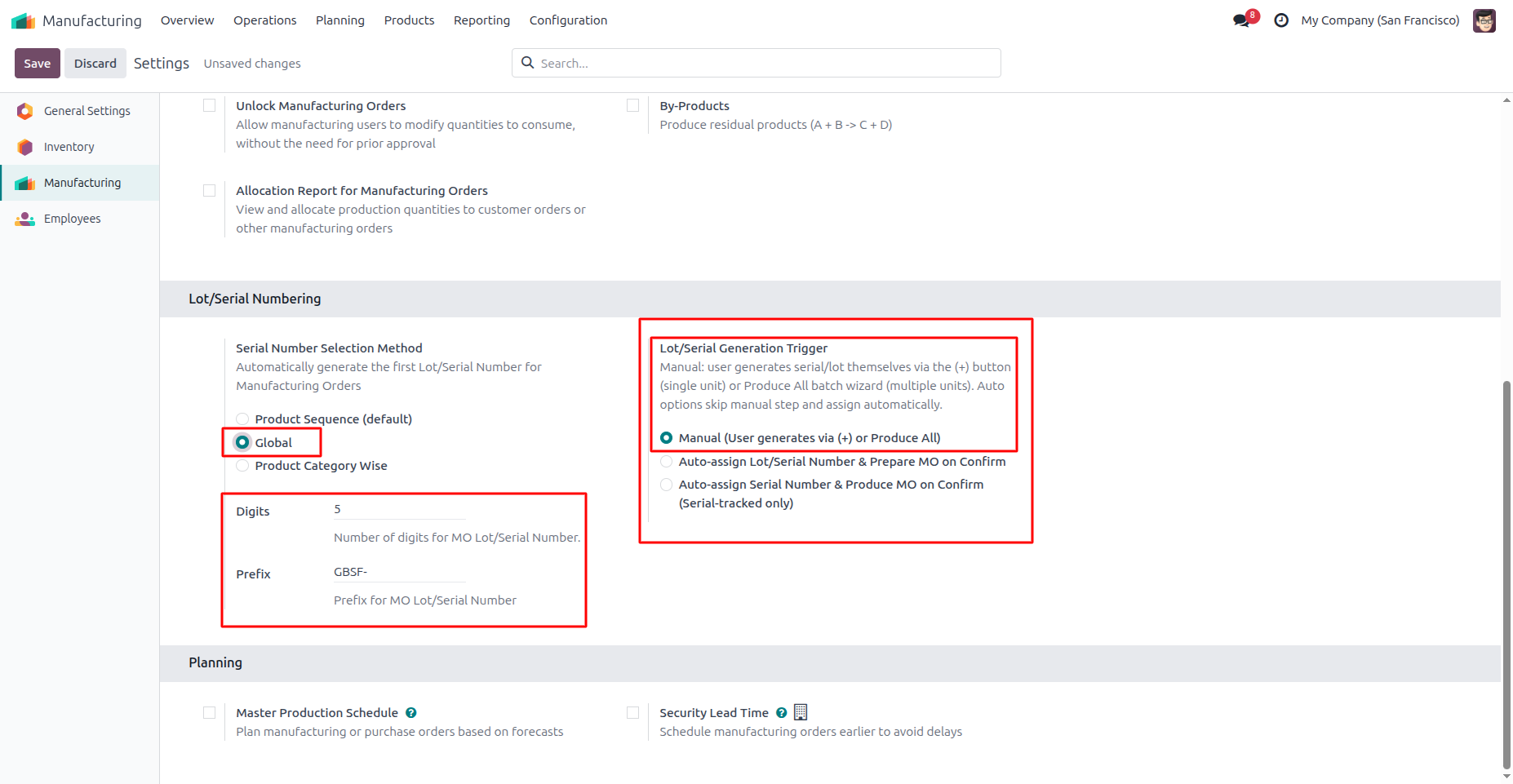
2. Select Global as the Serial Number Selection Method, then configure the Digits, Prefix, and Lot/Serial Generation Trigger according to your requirements before saving.
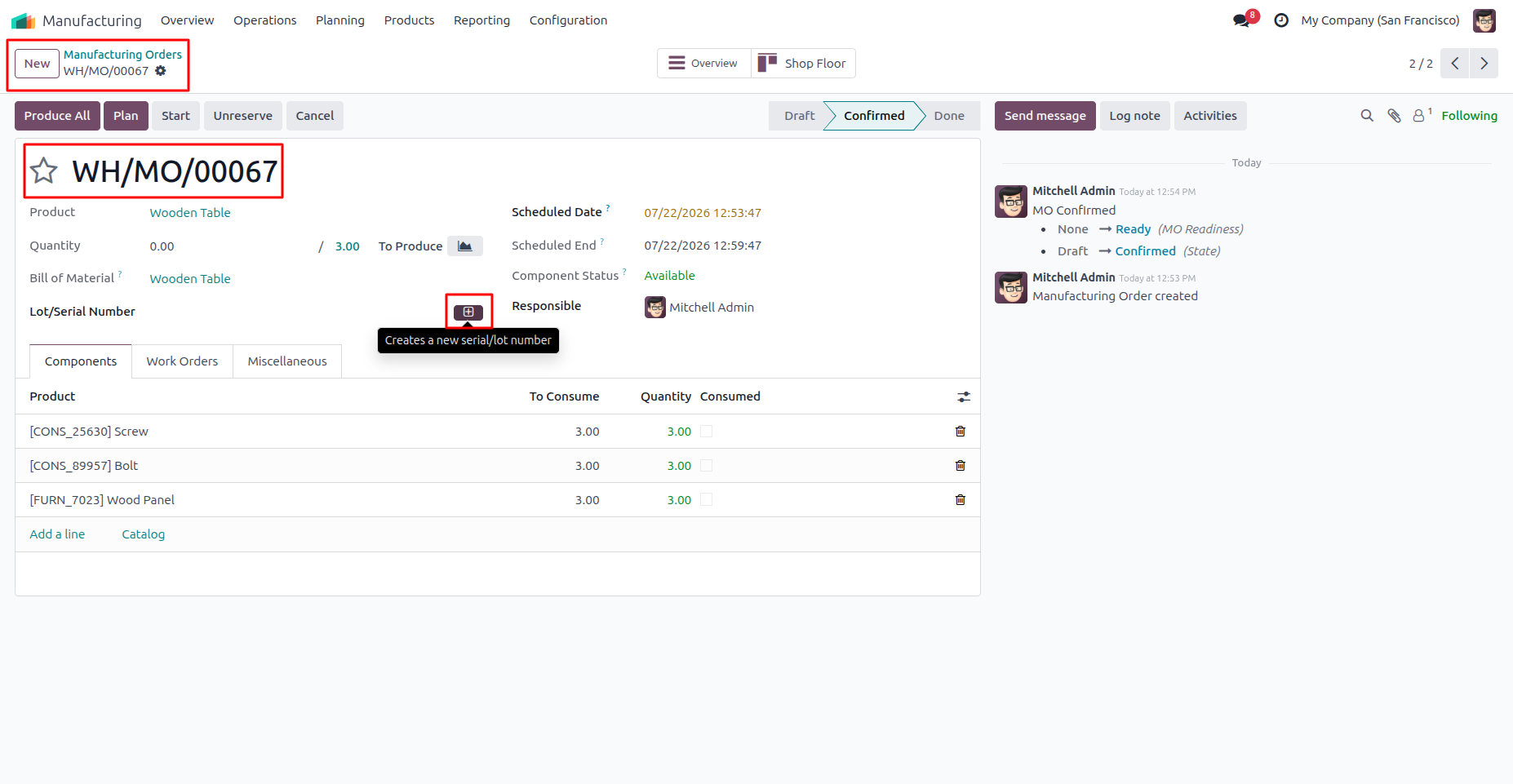
3. Create and confirm a Manufacturing Order. If Manual is selected as the Lot/Serial Generation Trigger, click the (+) button to generate a Lot/Serial Number.
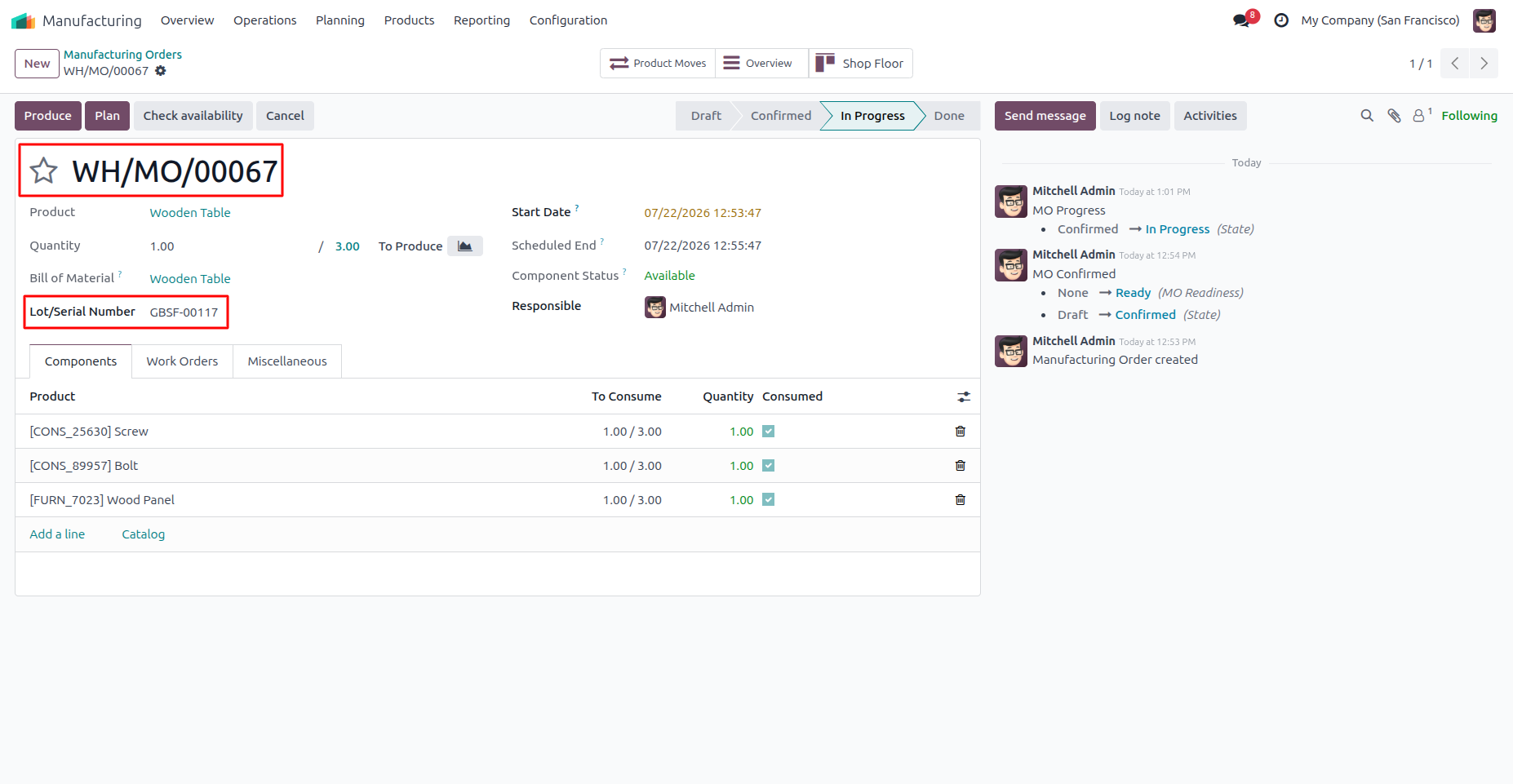
4. After clicking the (+) button, the Lot/Serial Number is automatically generated based on the configured Global sequence.
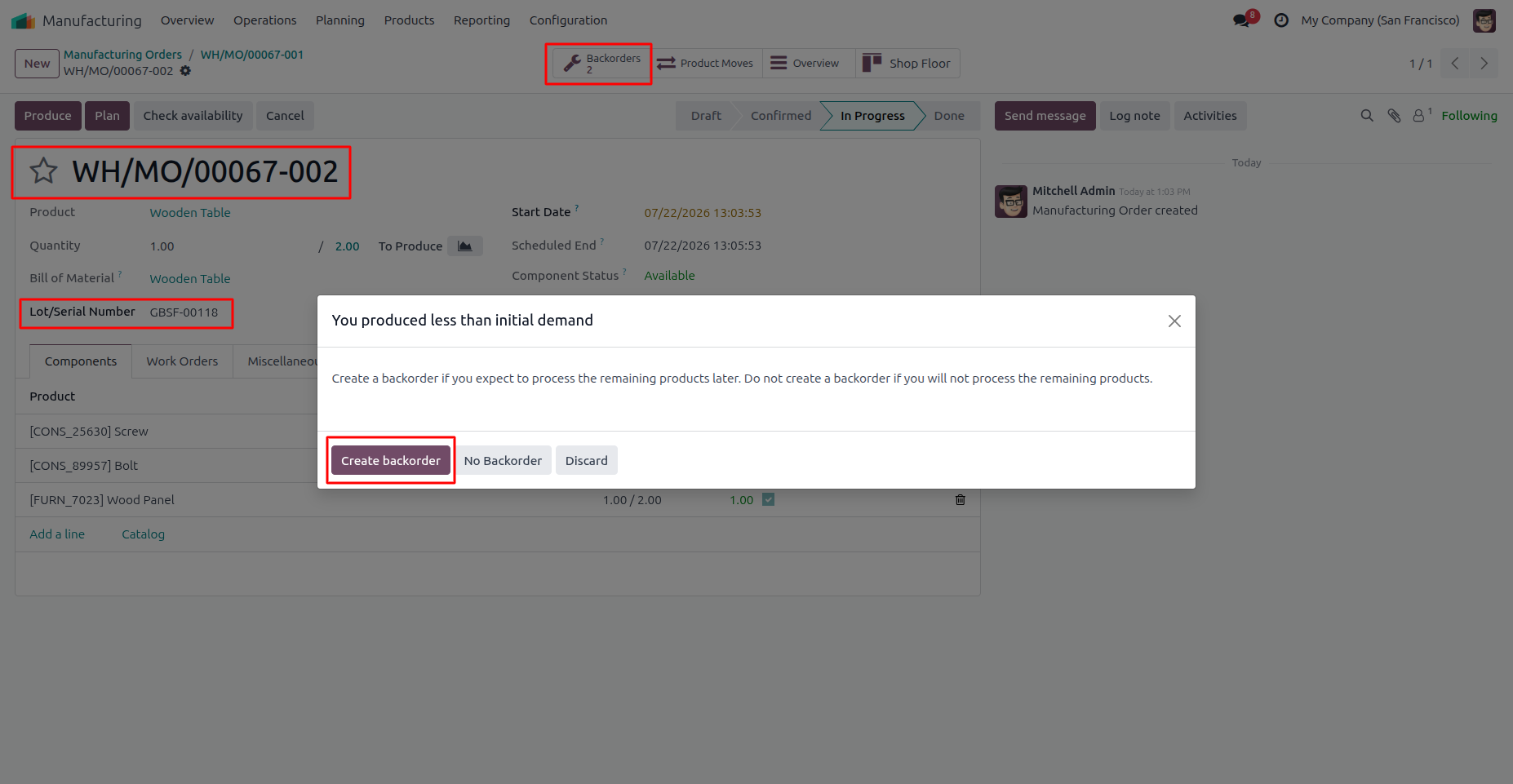
5. Create a Backorder to produce the remaining quantity. The new Manufacturing Order receives the next Lot/Serial Number automatically.
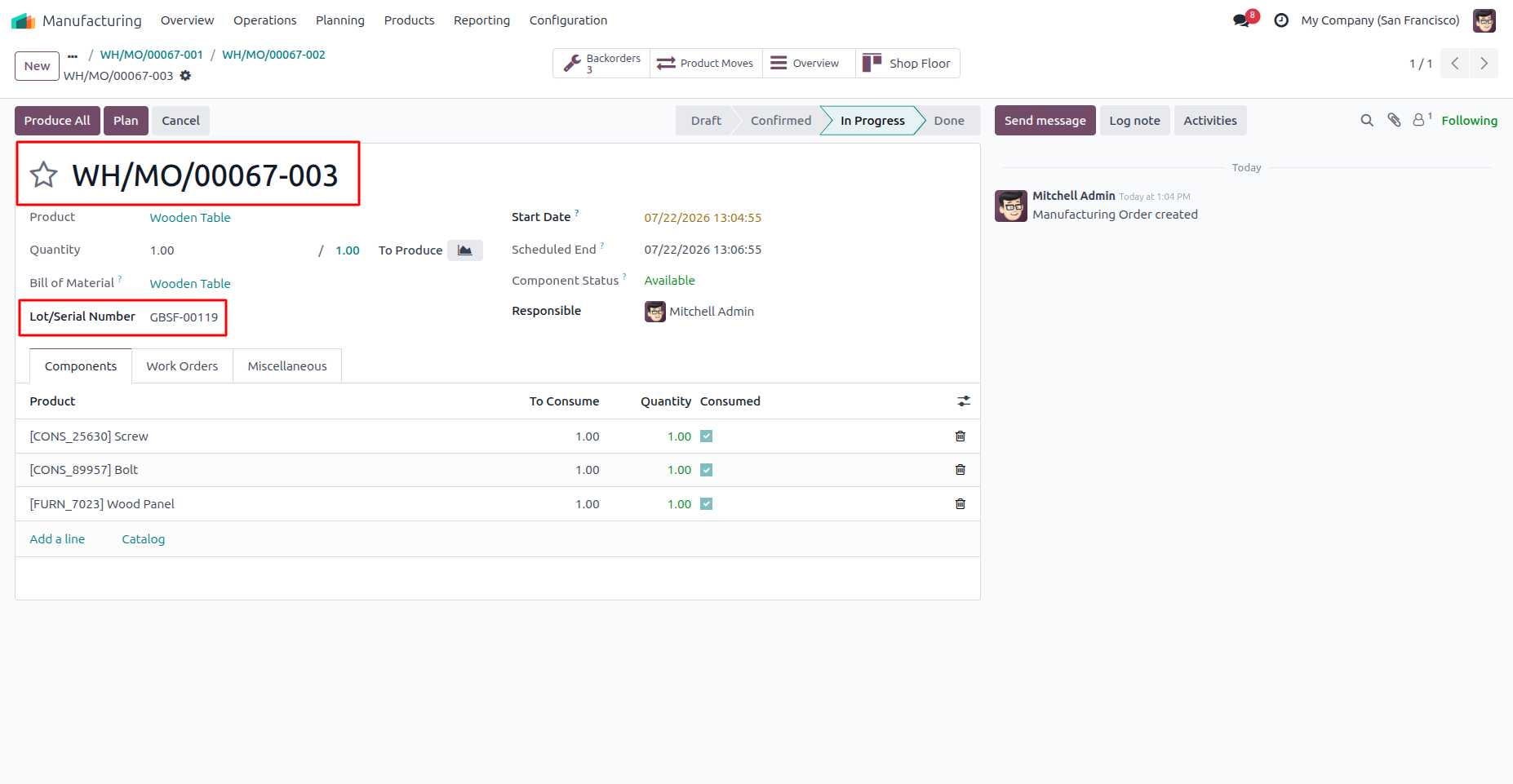
6. Each new backorder automatically receives the next Lot/Serial Number in the configured Global sequence.
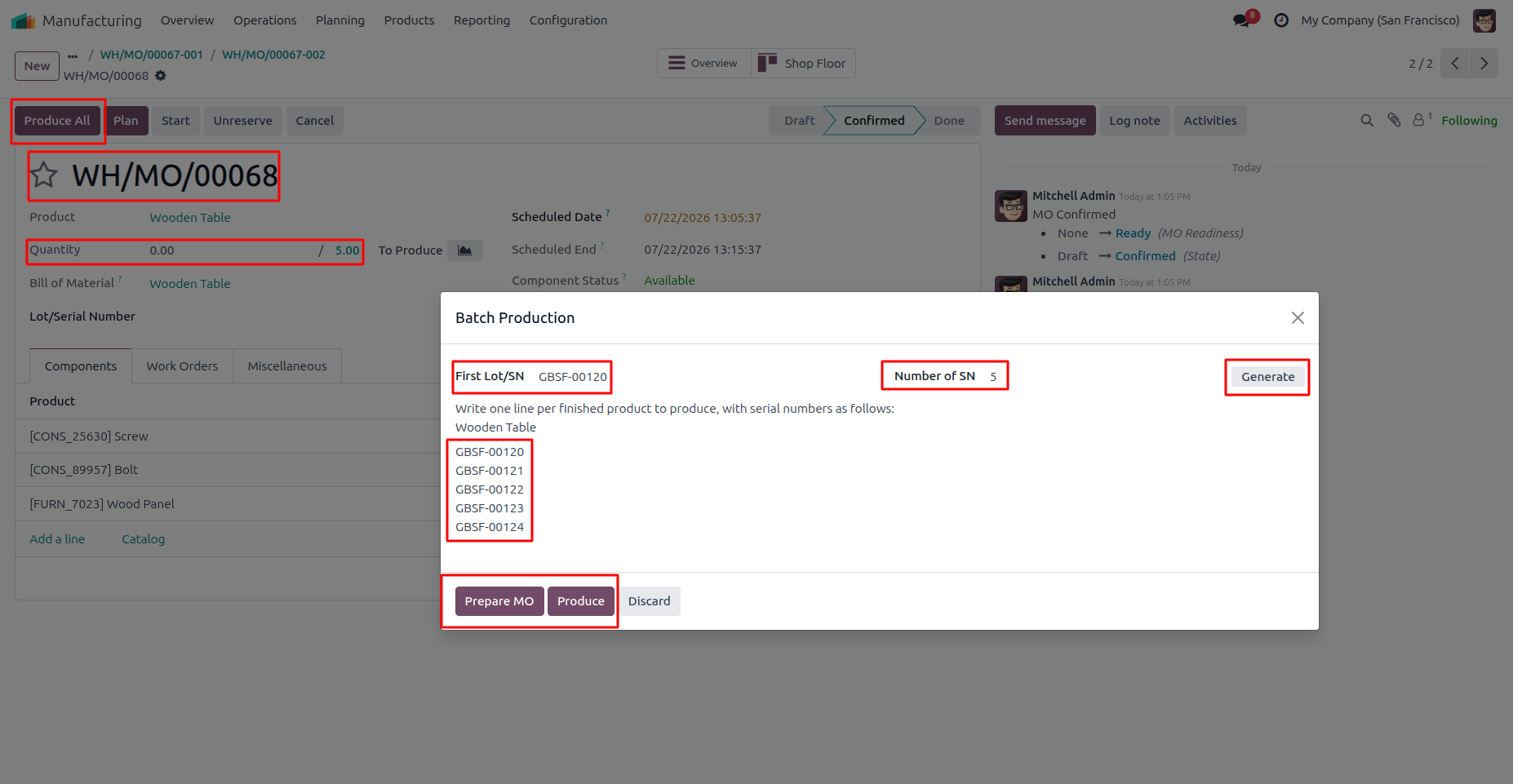
7. Click Produce All to open the Batch Production wizard. The First Lot/Serial Number is automatically filled with the current sequence number. Click Generate to create the remaining sequential Lot/Serial Numbers.
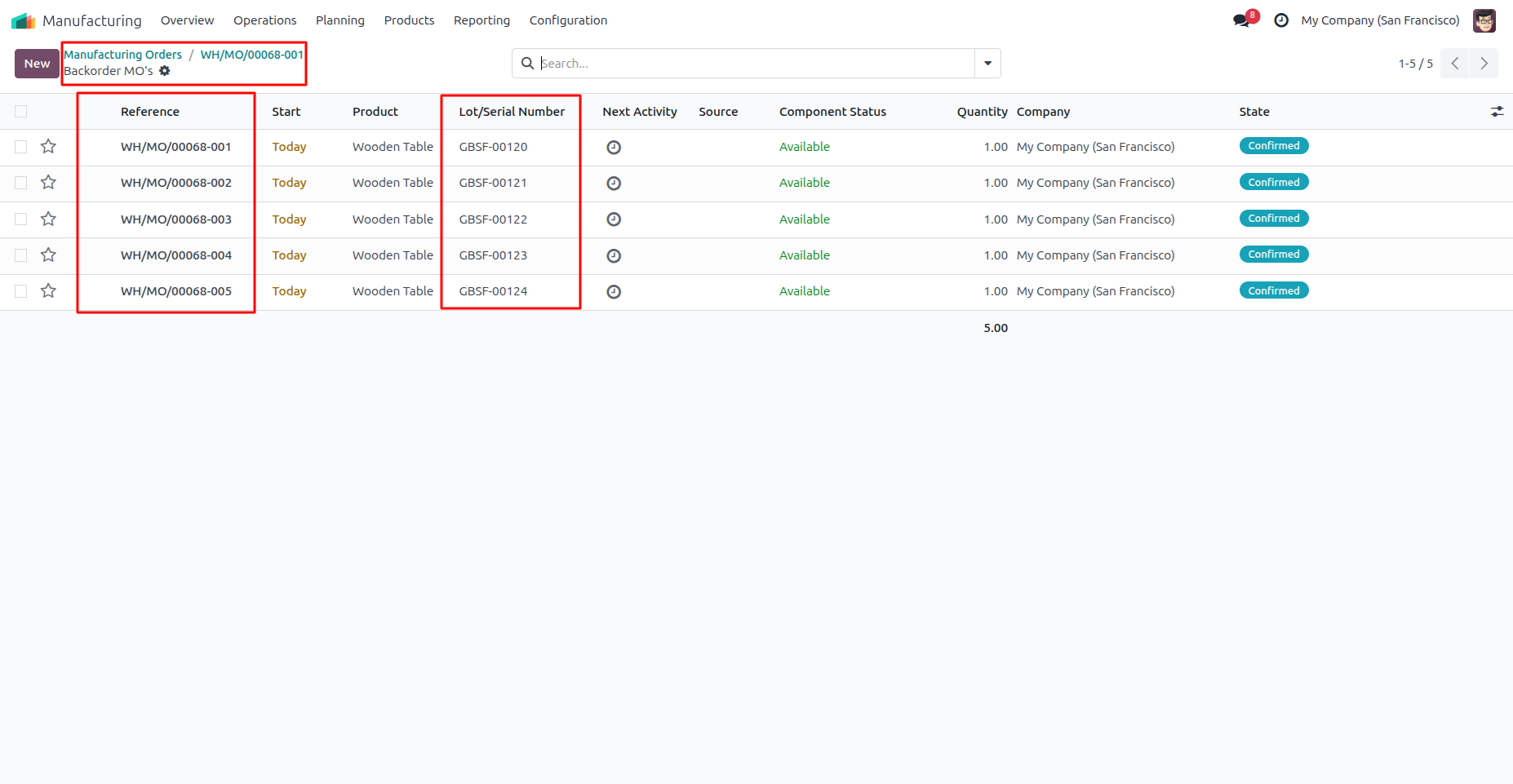
8. Separate Manufacturing Orders are generated automatically, each with its own sequential Lot/Serial Number from the configured sequence.
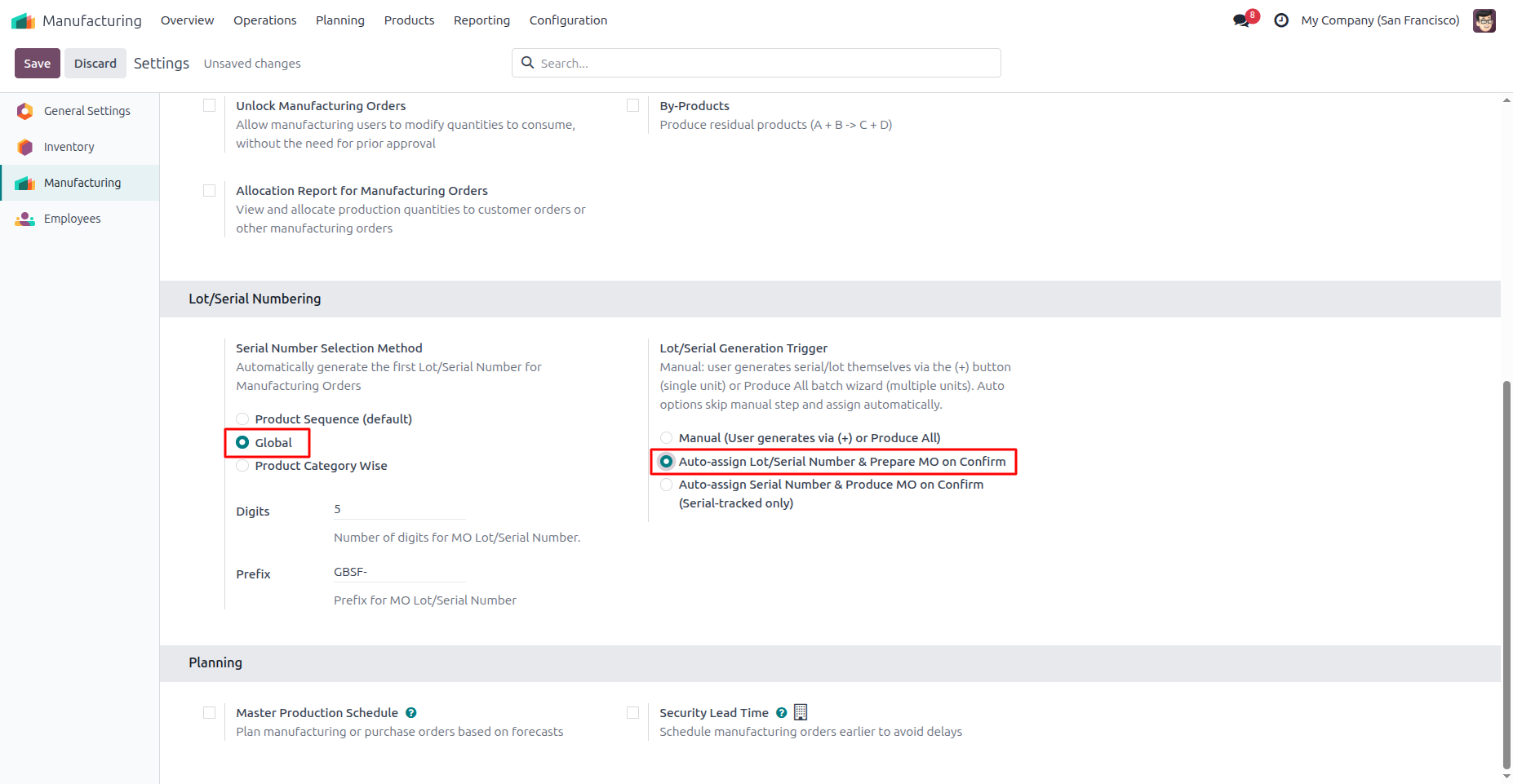
9. Select Global as the Serial Number Selection Method, then choose Auto-assign Lot/Serial Number & Prepare MO on Confirm. The Lot/Serial Number is assigned automatically when the Manufacturing Order is confirmed.
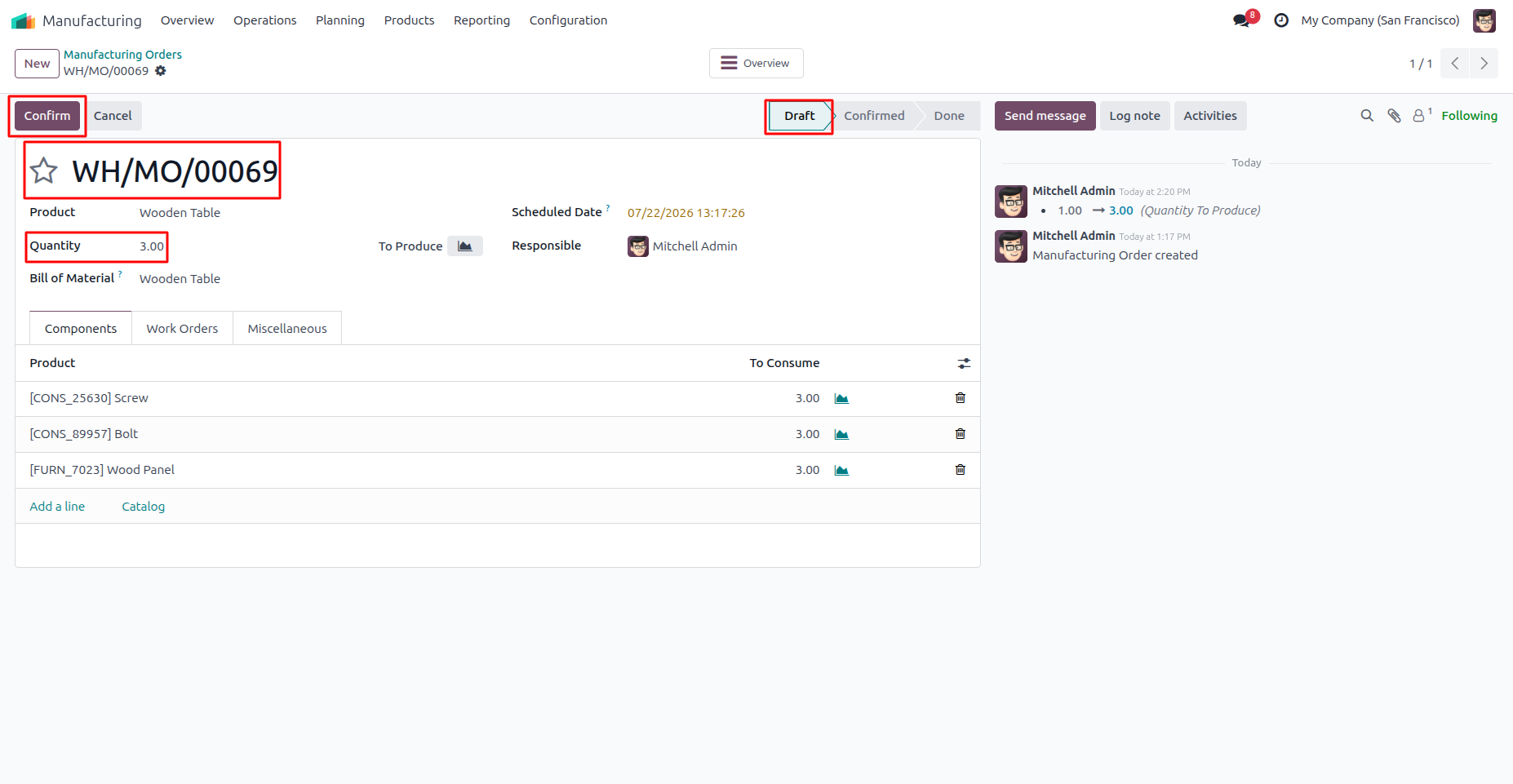
10. Create a Manufacturing Order and click Confirm. The module automatically prepares the Manufacturing Order and assigns the Lot/Serial Number based on the configured sequence.
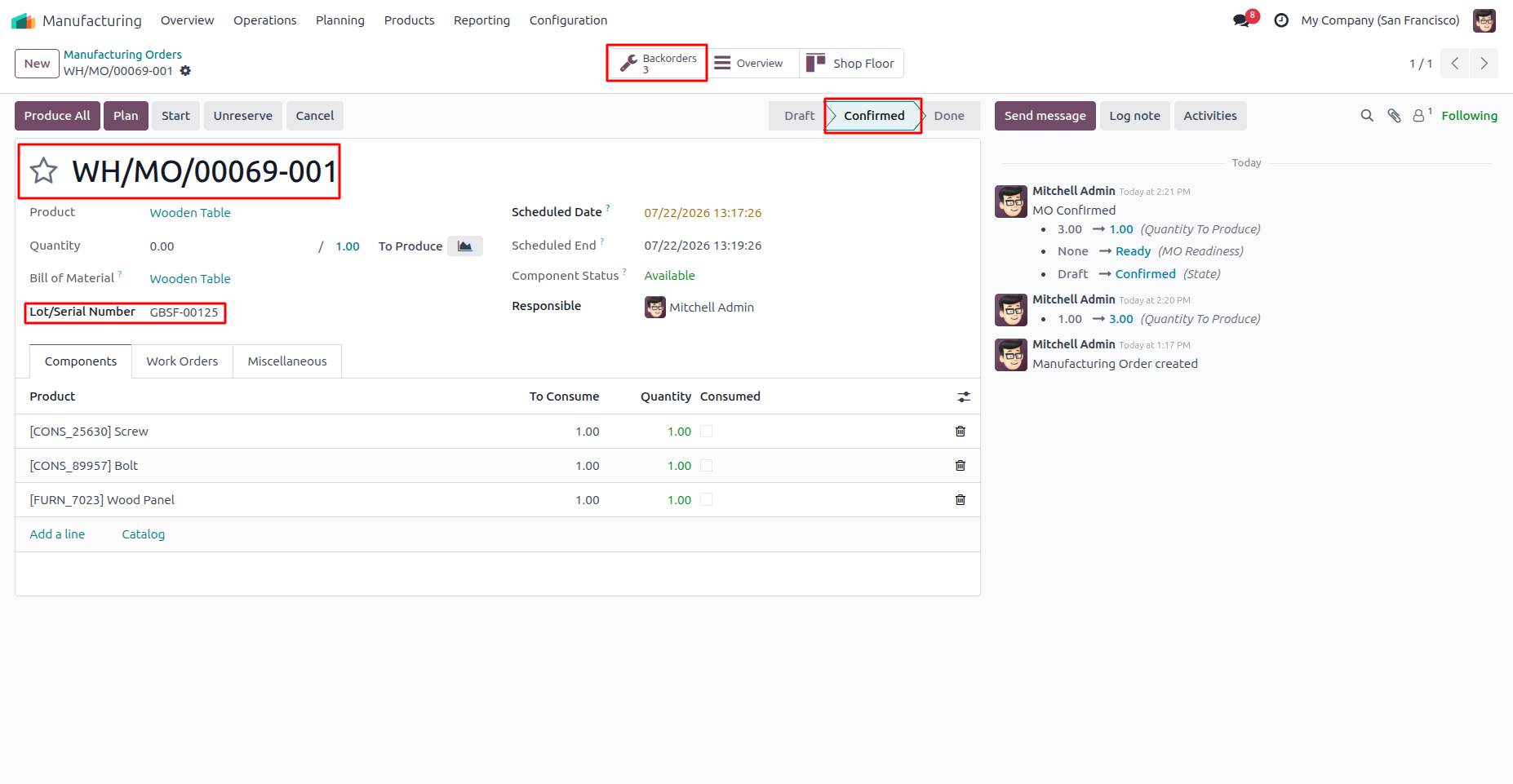
11. The confirmed Manufacturing Order is automatically assigned the next Lot/Serial Number from the configured sequence.
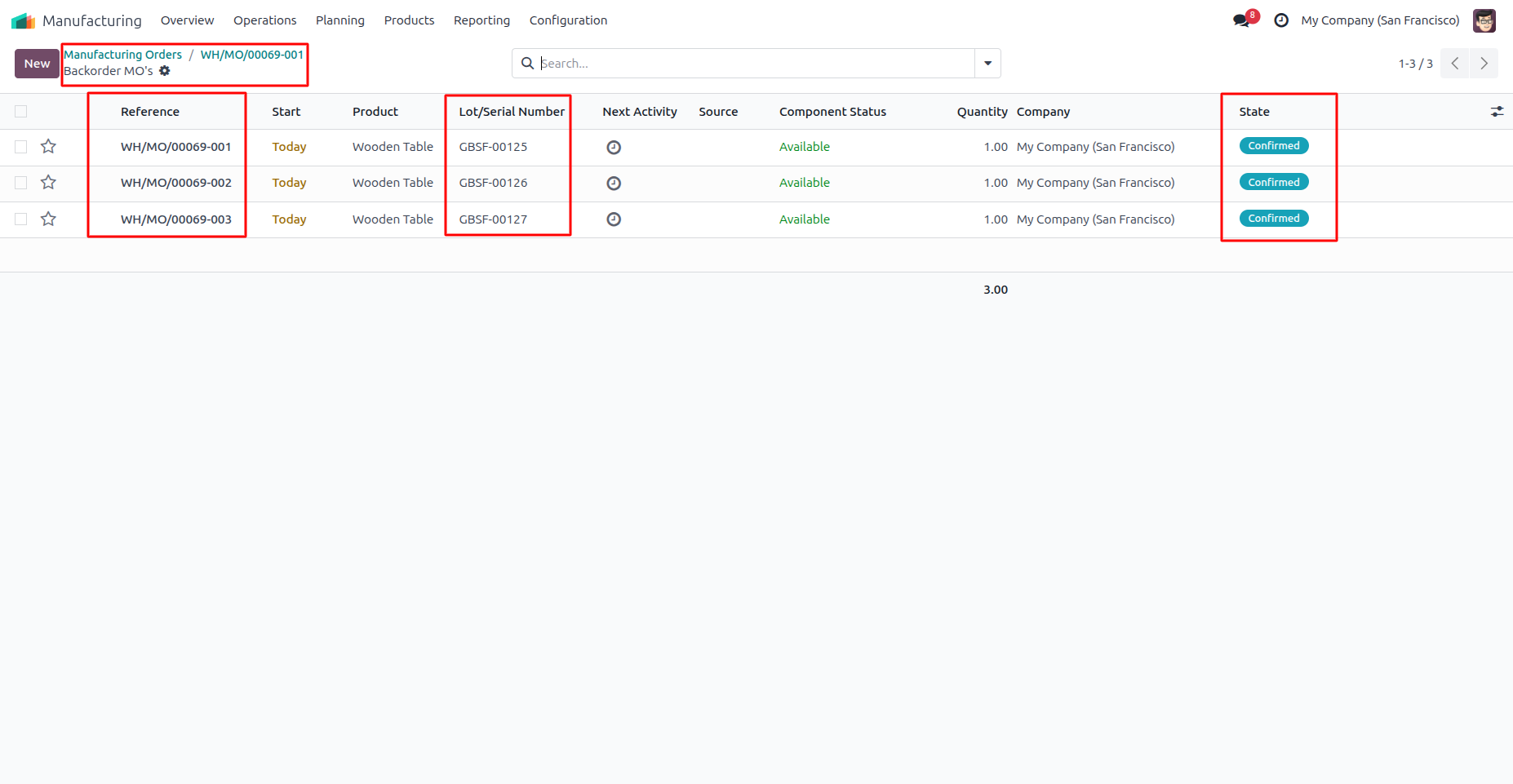
12. Separate confirmed Manufacturing Orders are created automatically, each with a unique sequential Lot/Serial Number.
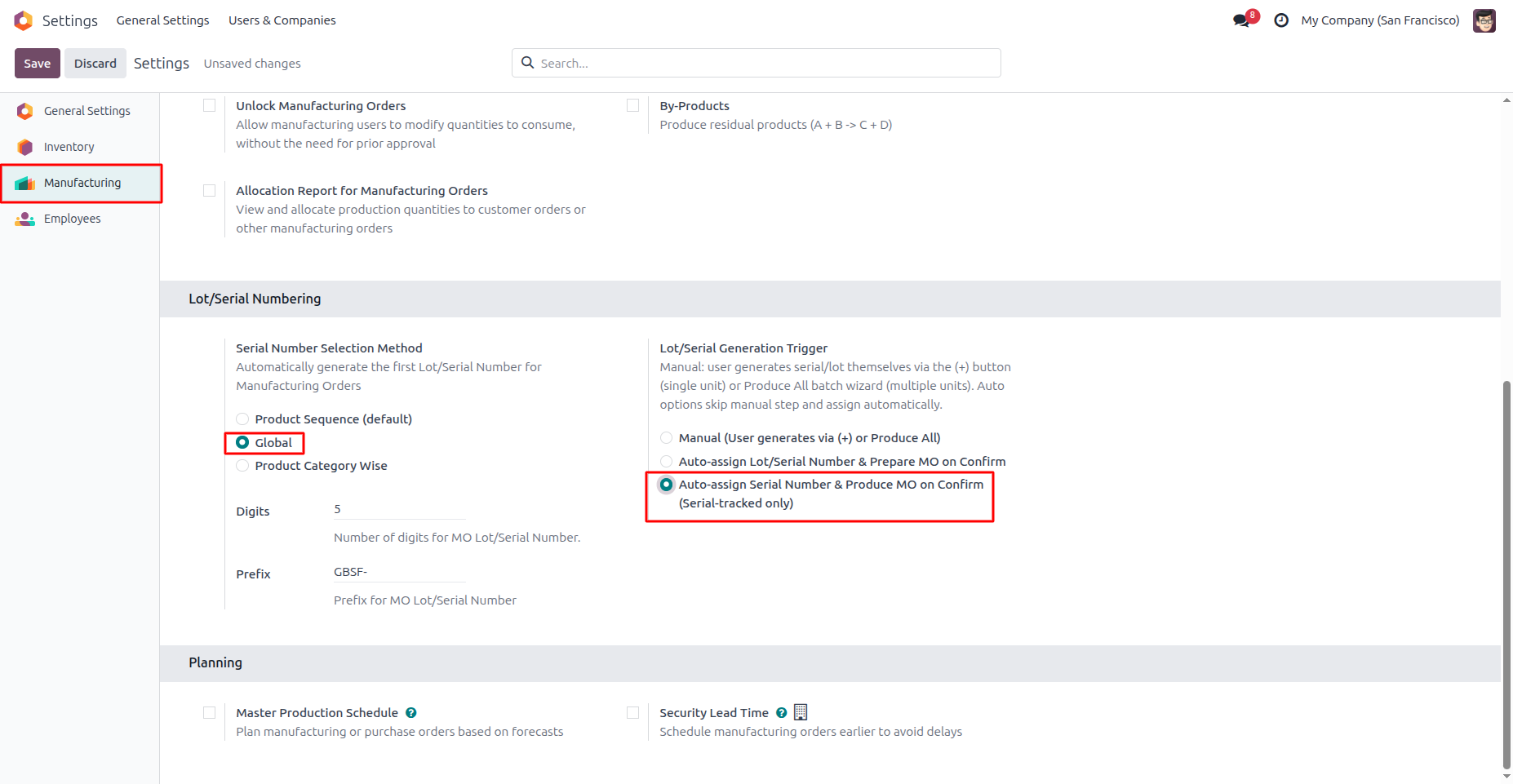
13. Select Auto-assign Serial Number & Produce MO on Confirm to automatically assign serial numbers and produce the Manufacturing Order on confirmation for "serial-tracked products only".
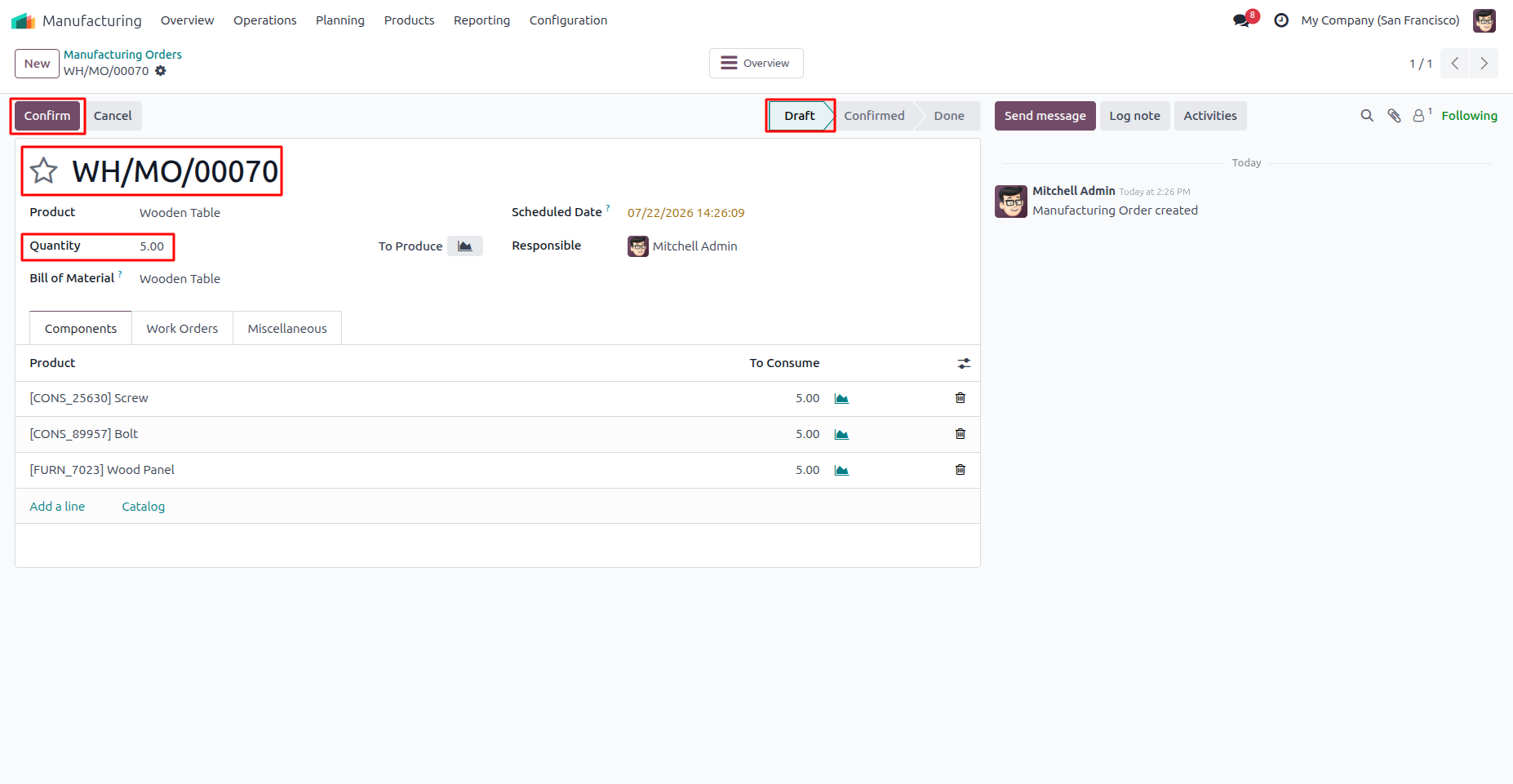
14. Create a Manufacturing Order for a serial-tracked product and click Confirm. The Manufacturing Order is automatically produced, with a unique serial number assigned to each finished product.
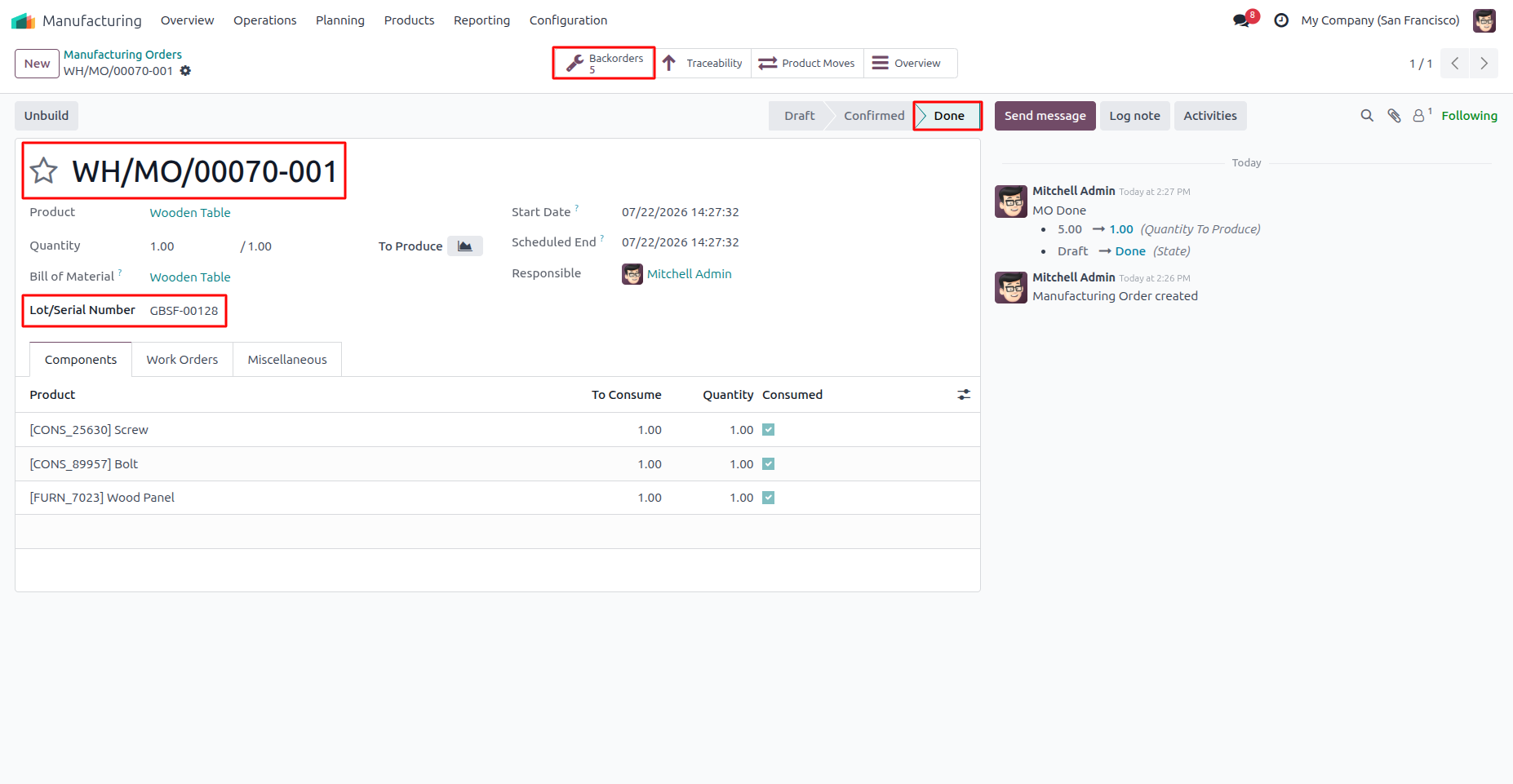
15. The Manufacturing Order is automatically marked as Done, with a unique Serial Number assigned from the configured sequence for the finished product.
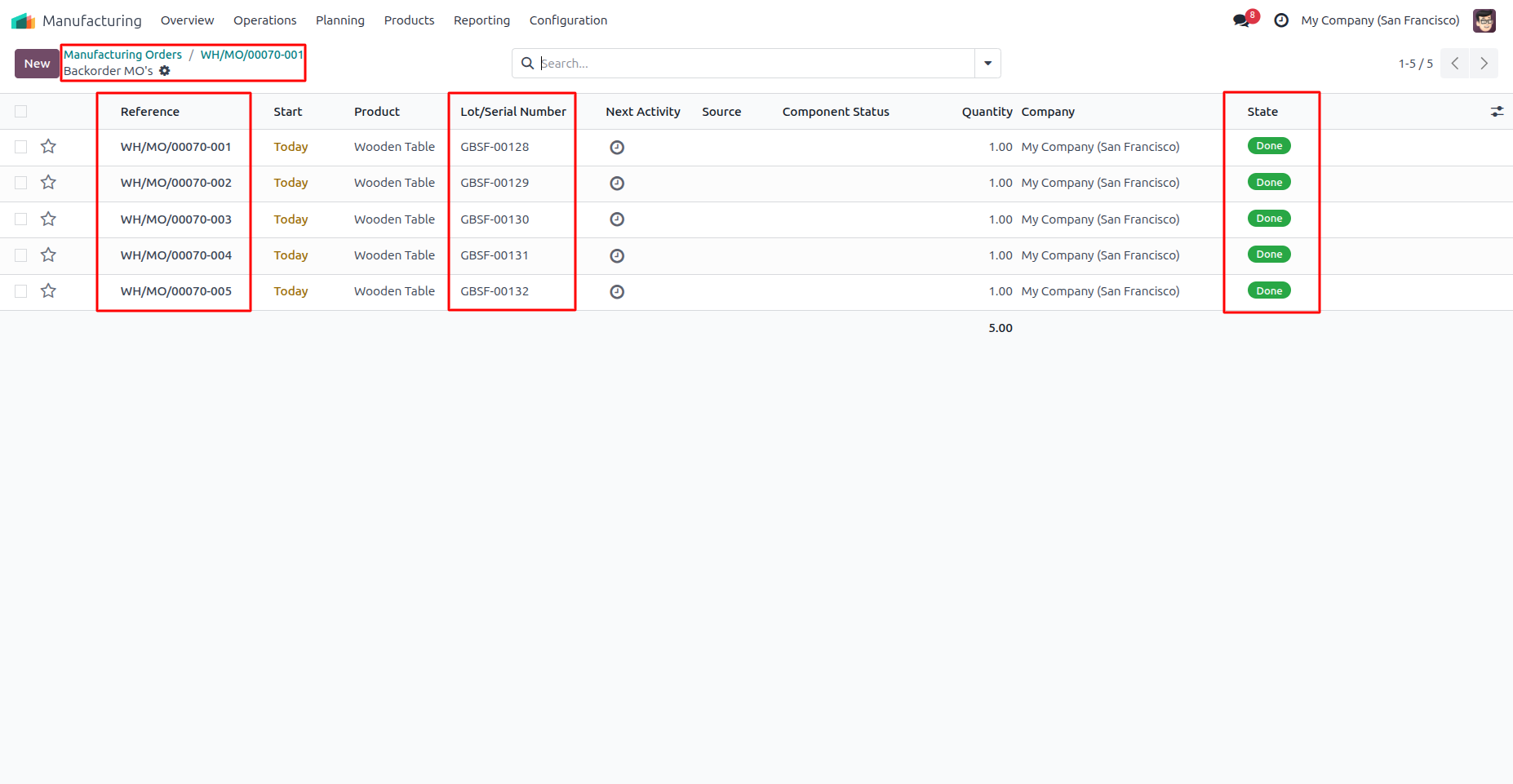
16. Separate Manufacturing Orders are automatically created in the Done state, each assigned the next sequential Serial Number from the configured sequence.
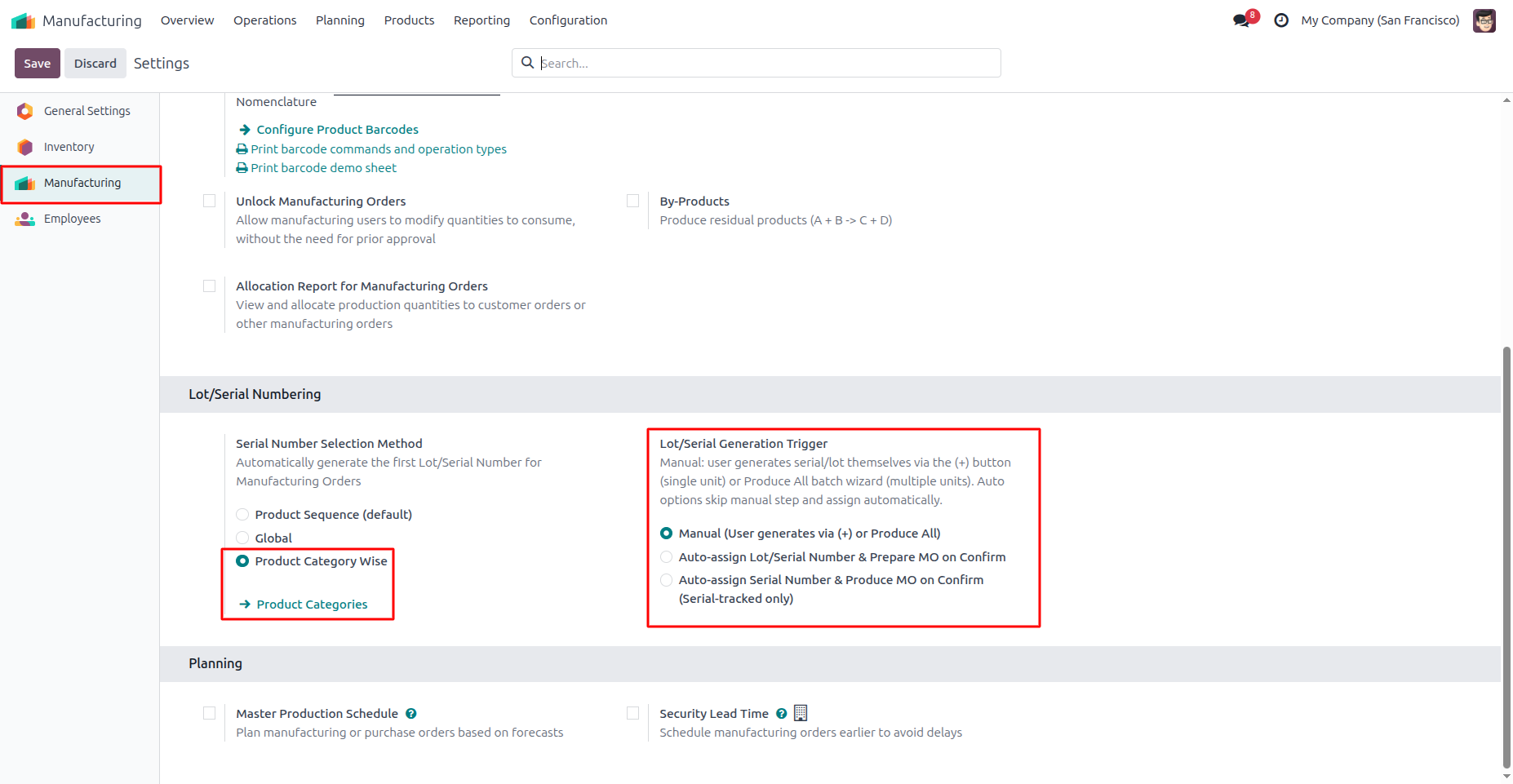
17. Select Product Category Wise, choose the Lot/Serial Generation Trigger, and configure the sequence for each product category.
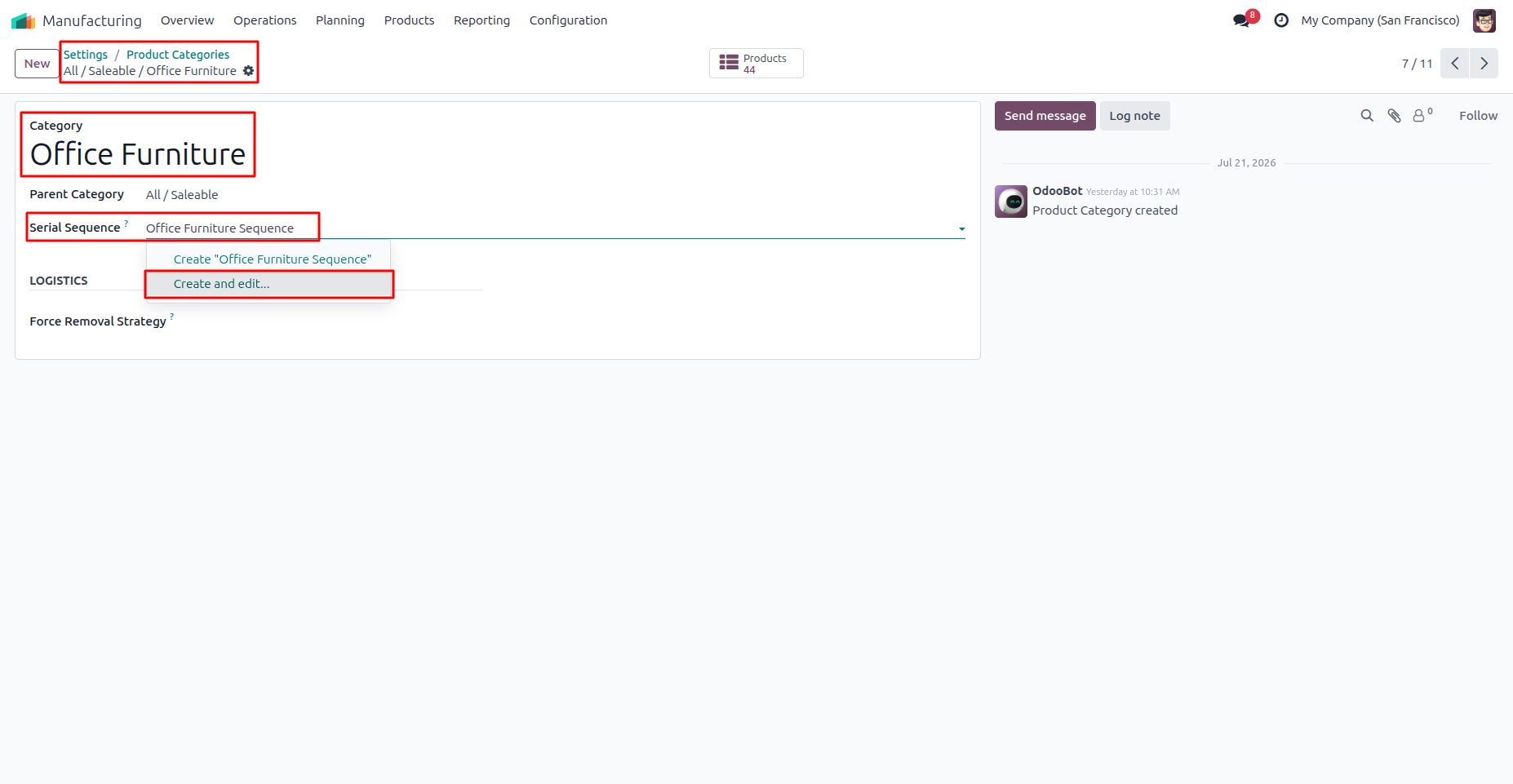
18. Open the Product Category and create or select a Serial Sequence for category-wise Lot/Serial Number generation.
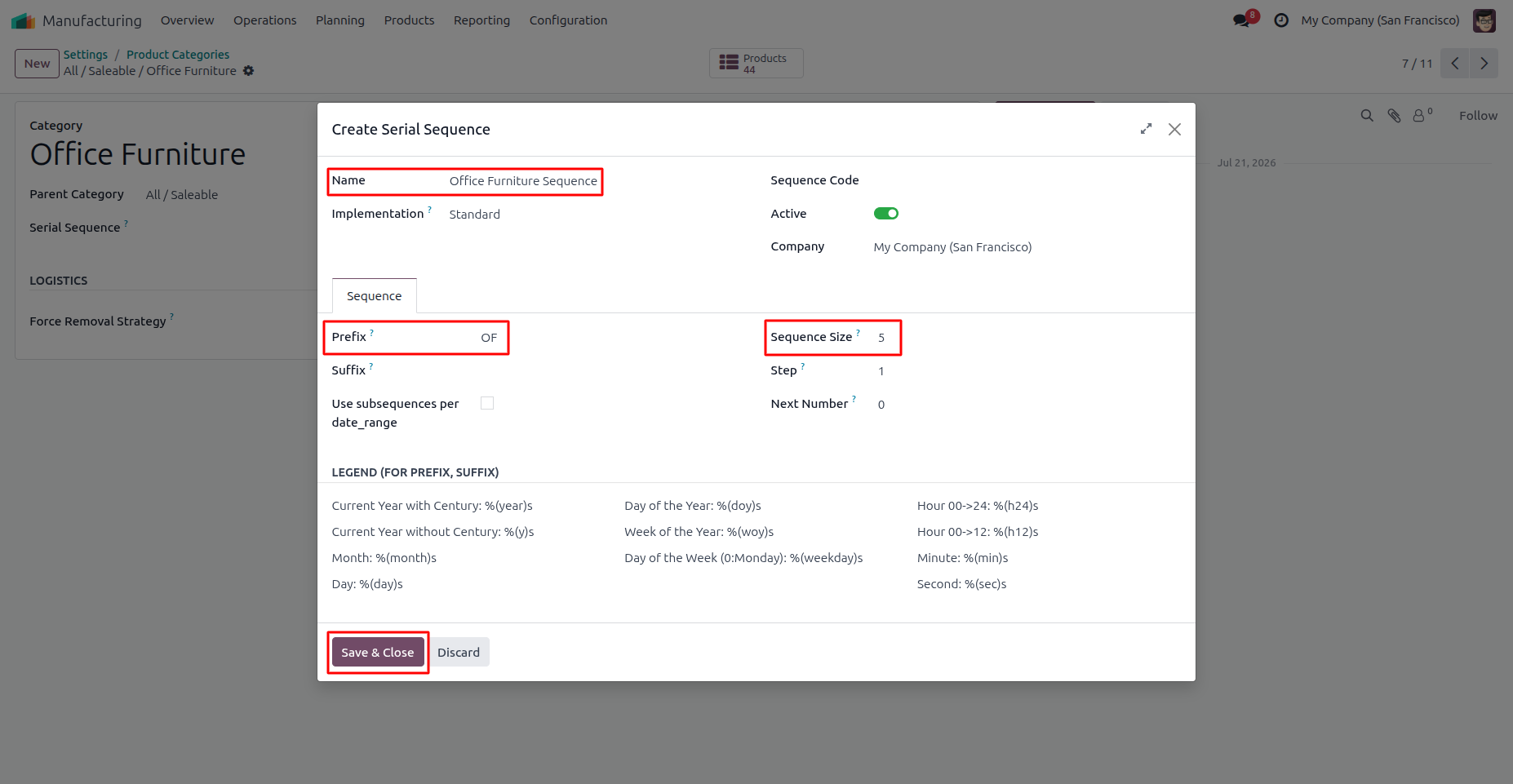
19. Enter the Sequence Name, configure the Prefix and Sequence Size, then click Save & Close to create the category-specific serial sequence.
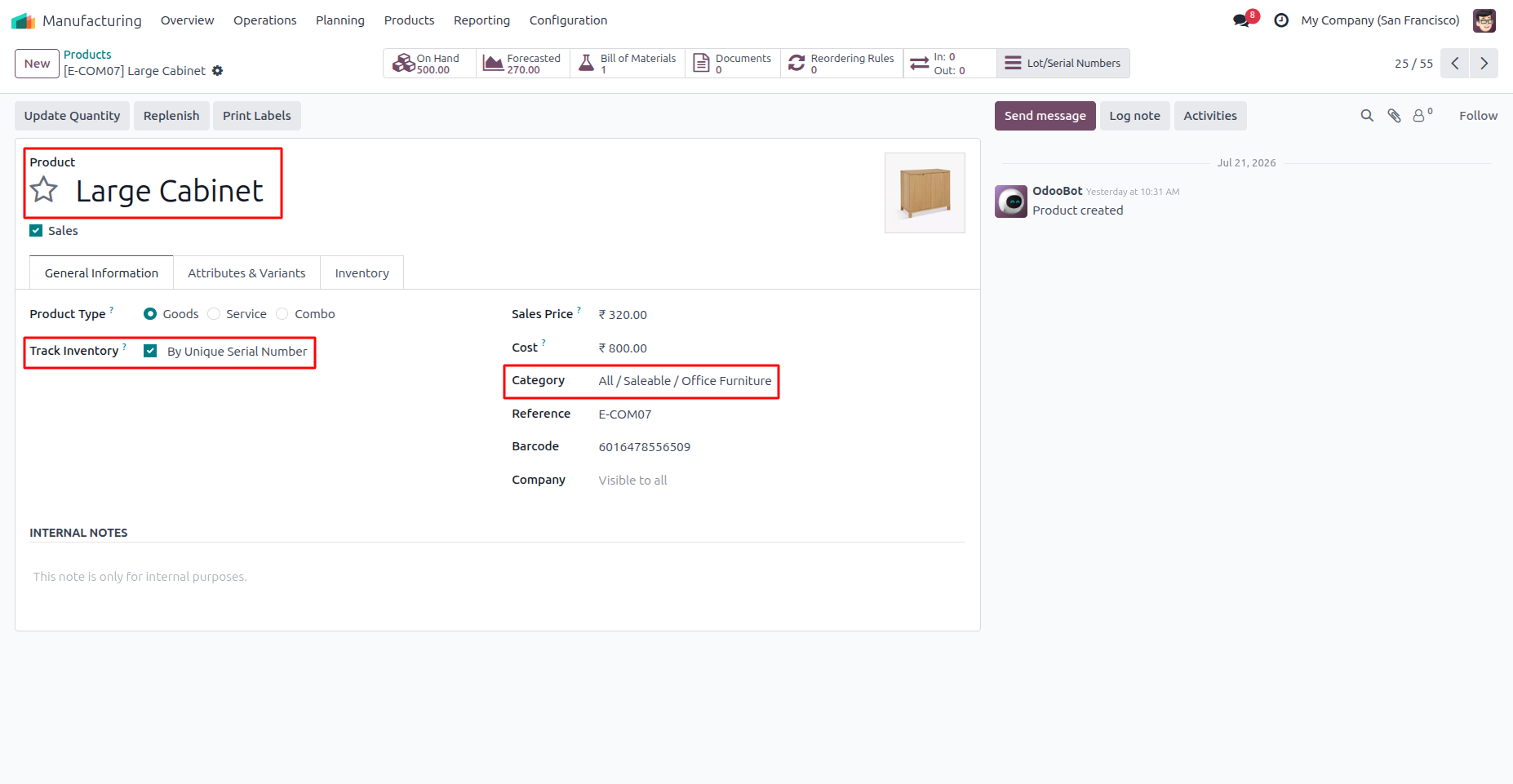
20. Ensure the product is configured as By Unique Serial Number and assigned to the product category with the configured Serial Sequence.
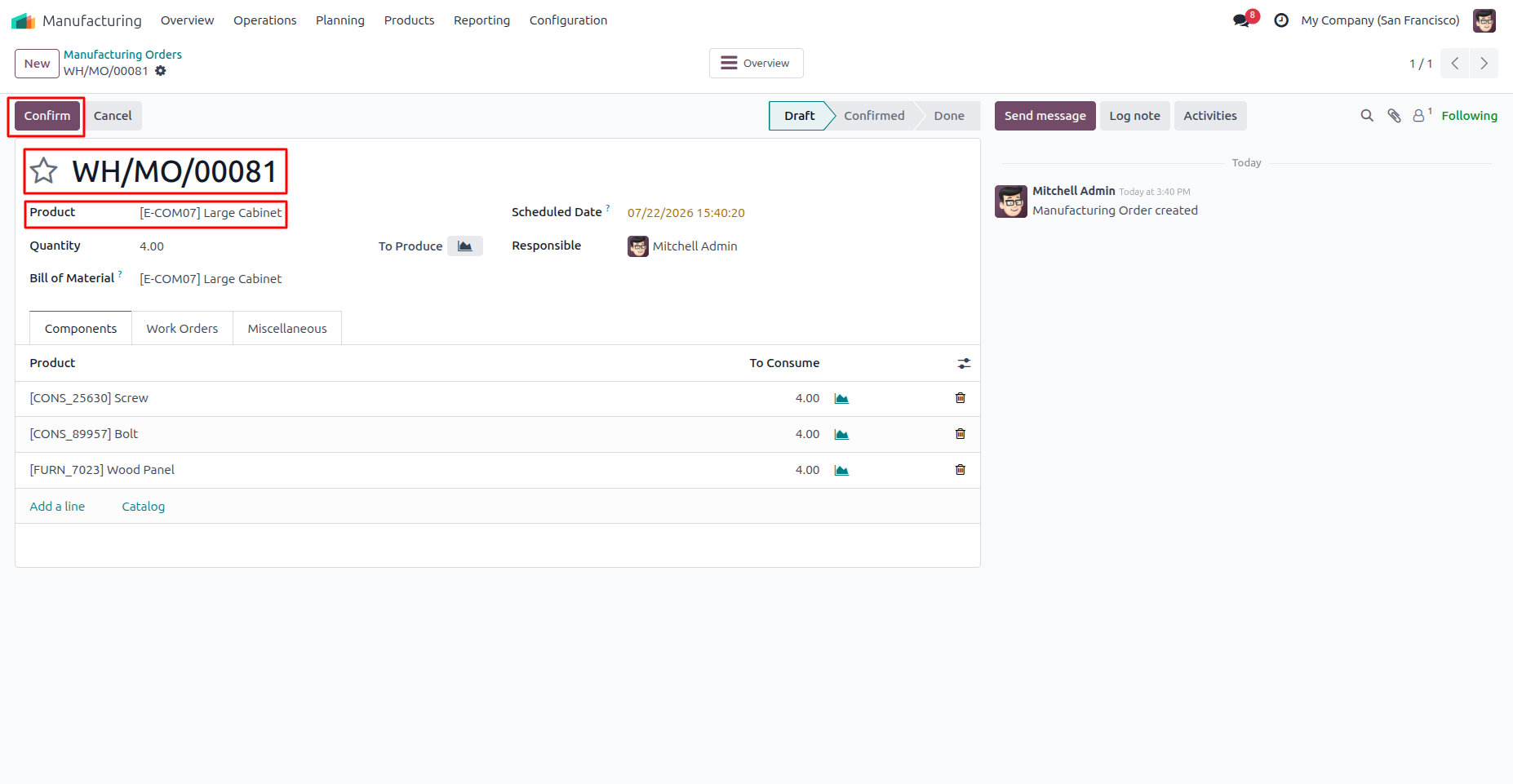
21. Create a Manufacturing Order for a product assigned to a category with a configured Serial Sequence, then click Confirm.
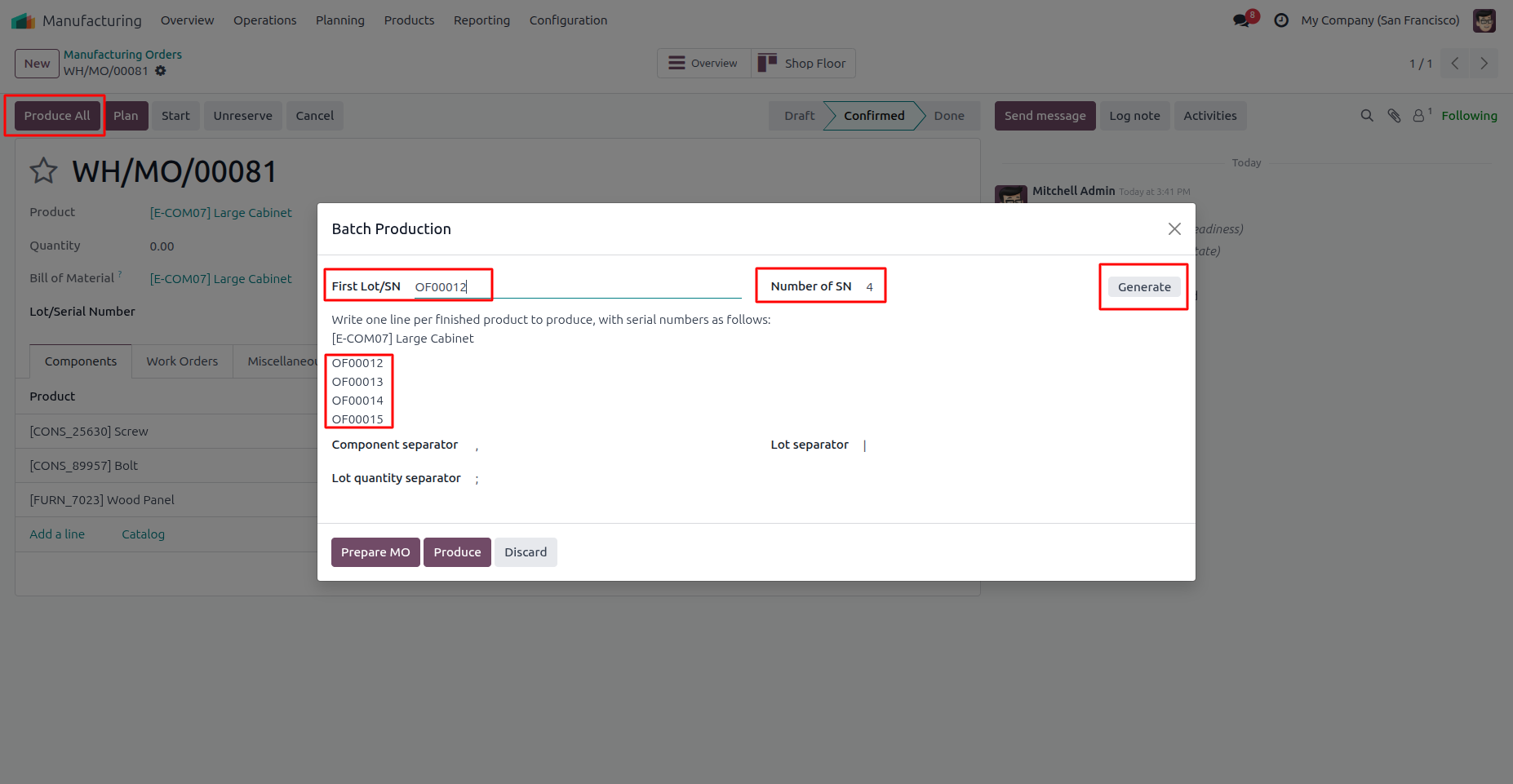
22. Click Produce All to open the Batch Production wizard. The First Lot/SN is automatically generated from the configured Product Category sequence. Click Generate to create the remaining sequential serial numbers.
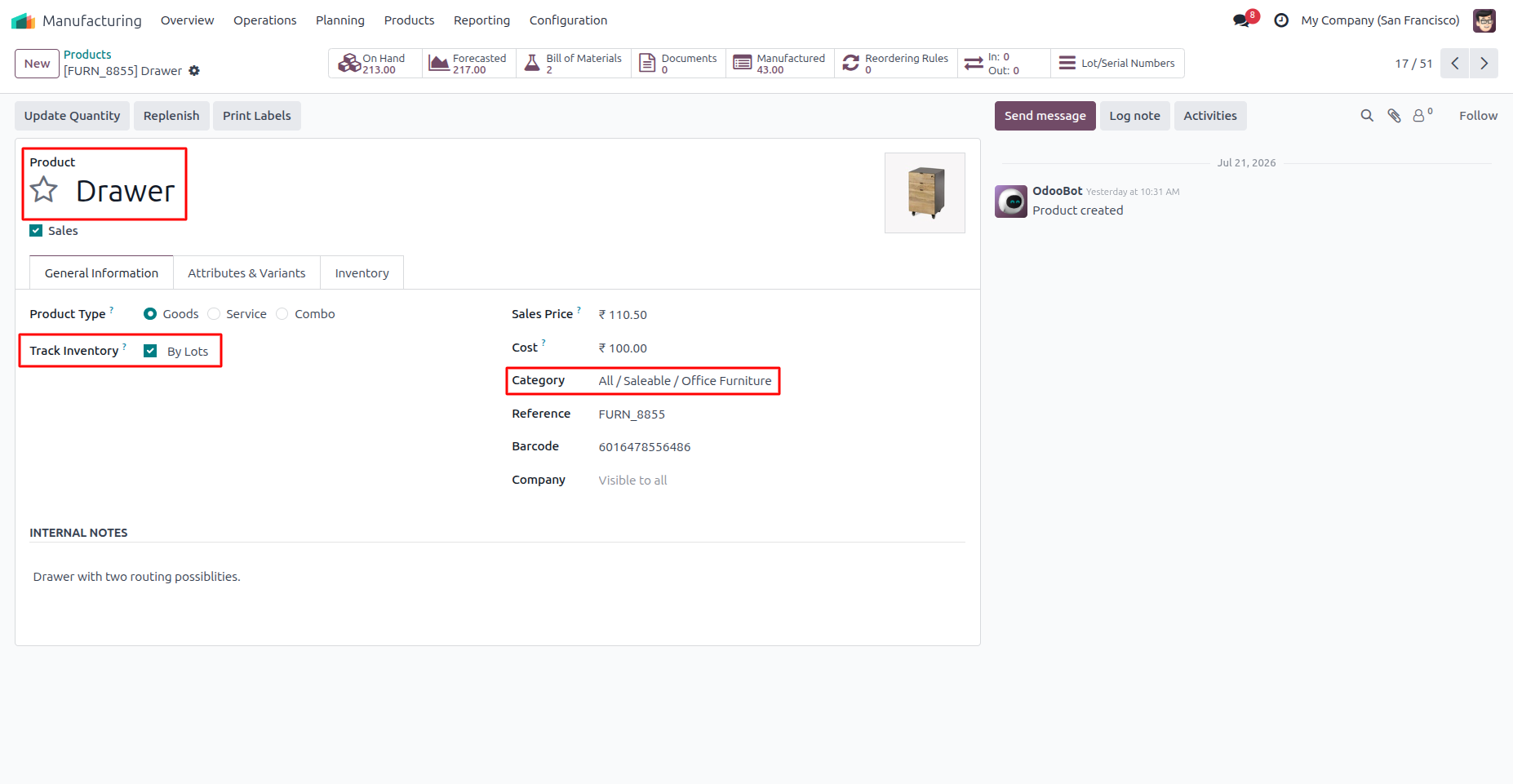
23. Configure the product to use By Lots tracking and assign it to the product category with the configured Lot Sequence. The remaining workflow is the same as for Serial Number tracking.
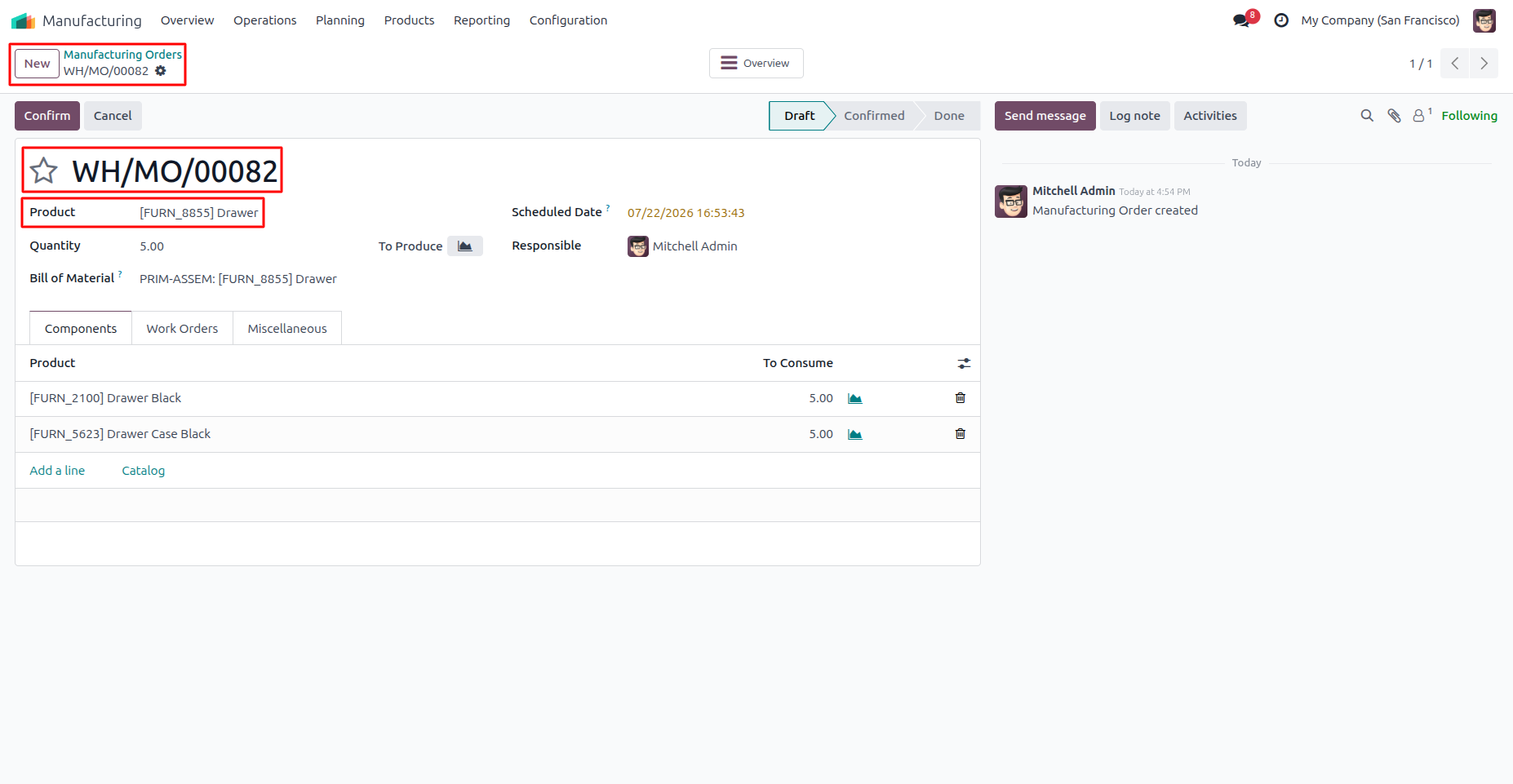
24. Create a Manufacturing Order for the Lot-tracked product and click Confirm to start the category-wise Lot Number generation process.
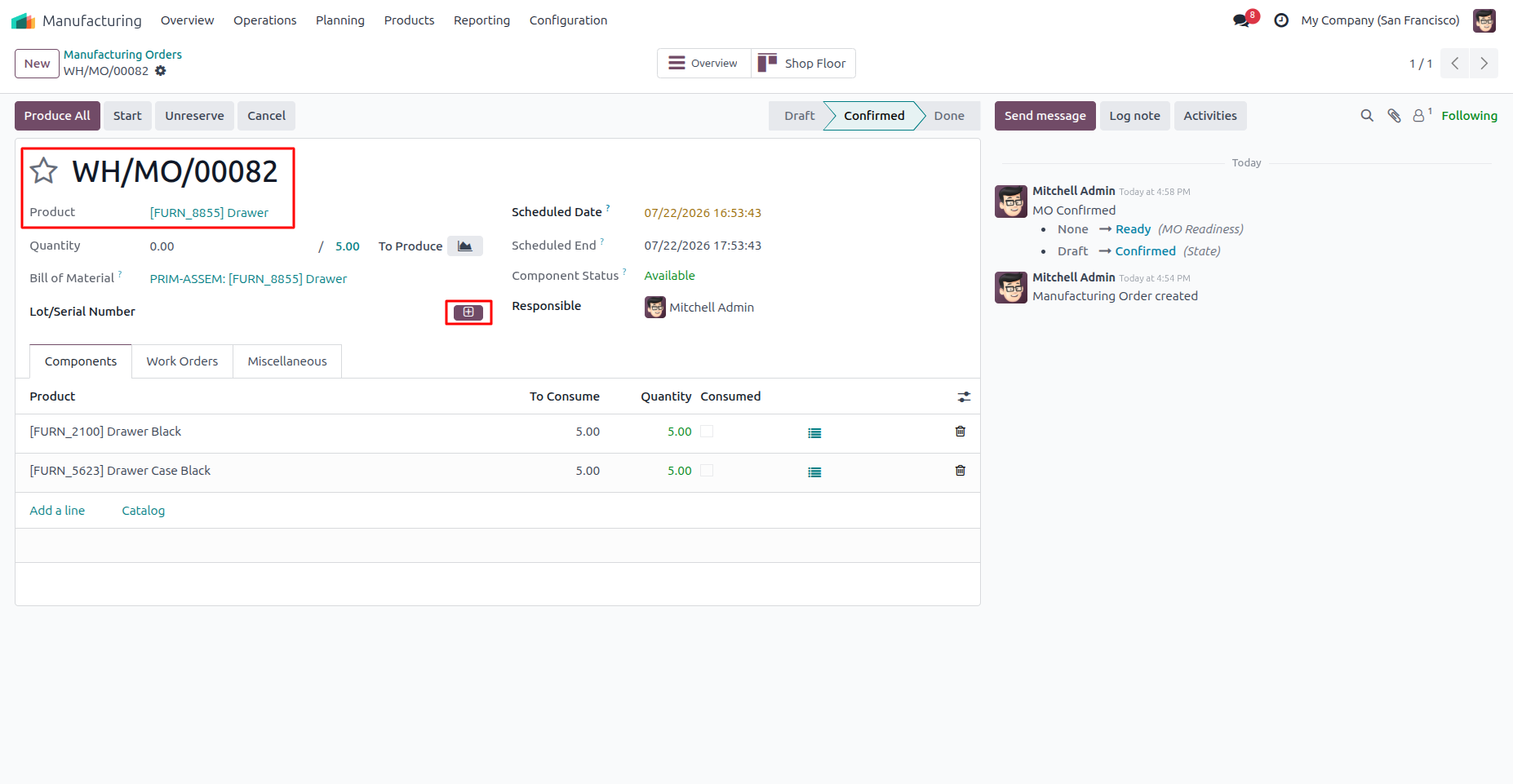
25. After confirming the Manufacturing Order, click the ➕ button to automatically assign the first Lot Number from the configured Product Category sequence.
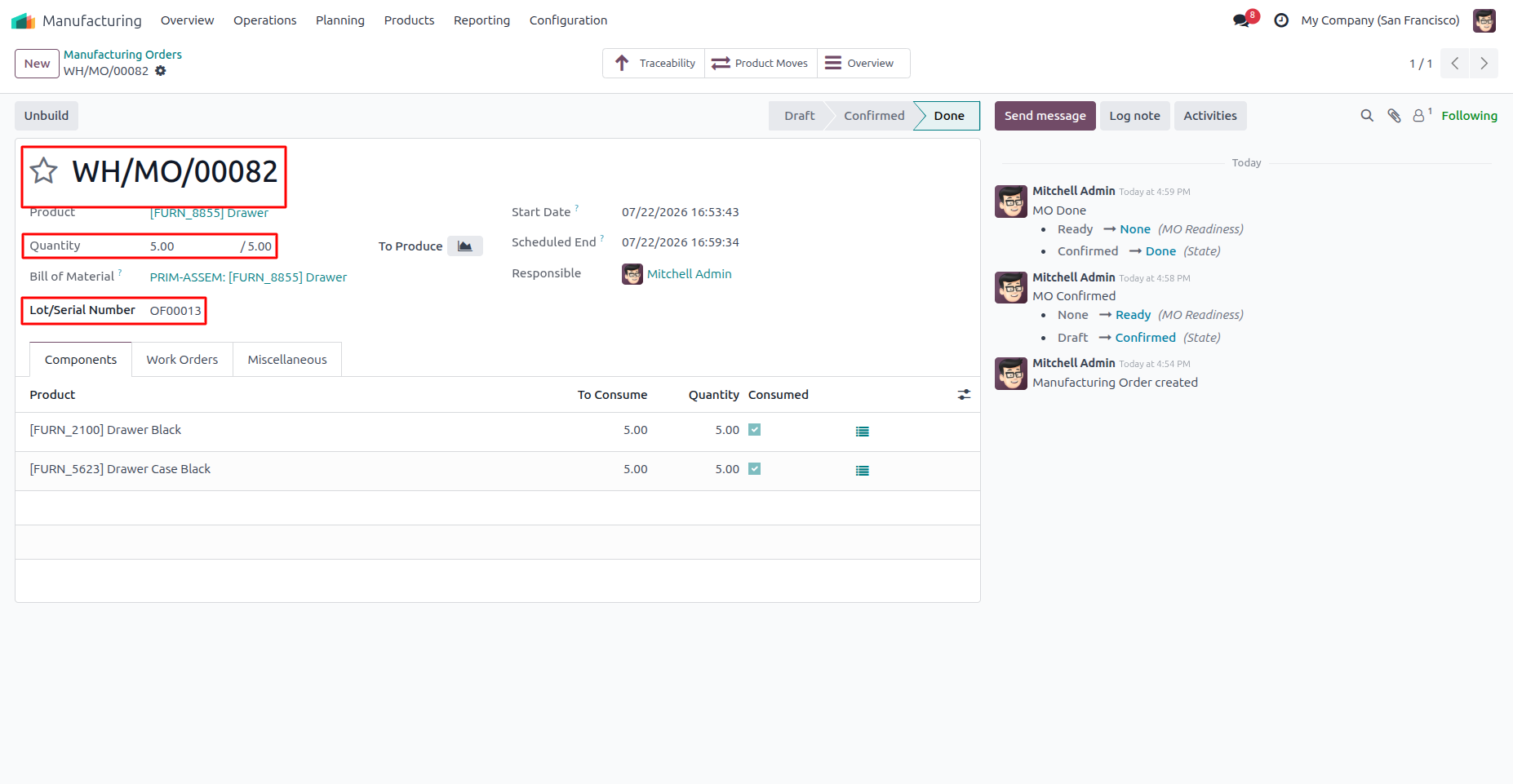
26. Click Produce to complete the Manufacturing Order. The product is manufactured successfully, and the generated Lot Number is automatically assigned to the finished product. The Manufacturing Order is marked as Done.
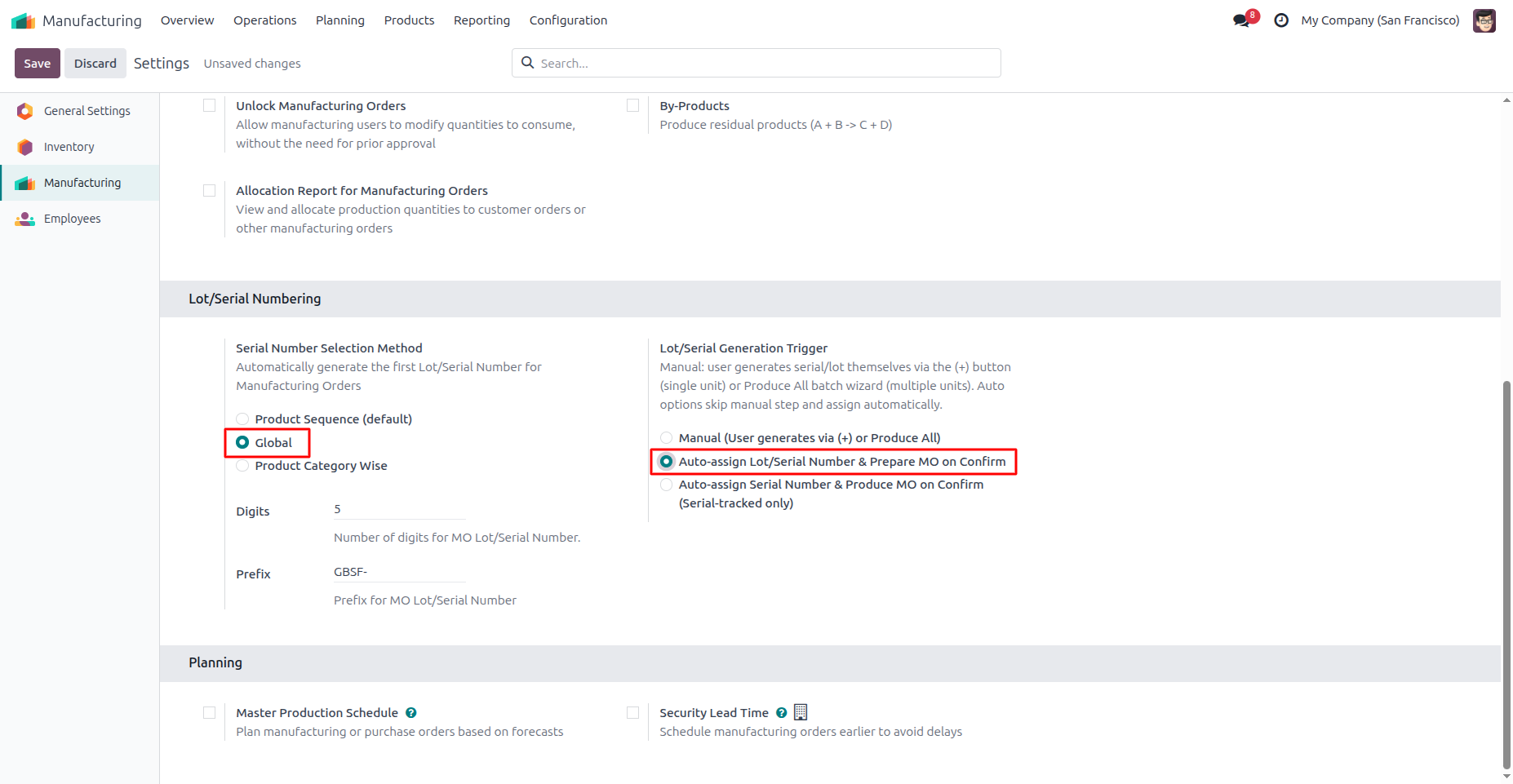
27. Enable Auto-assign Lot/Serial Number & Prepare MO on Confirm to automatically assign the first Lot/Serial Number when a Manufacturing Order is confirmed. This feature supports both Serial-tracked and Lot-tracked products.
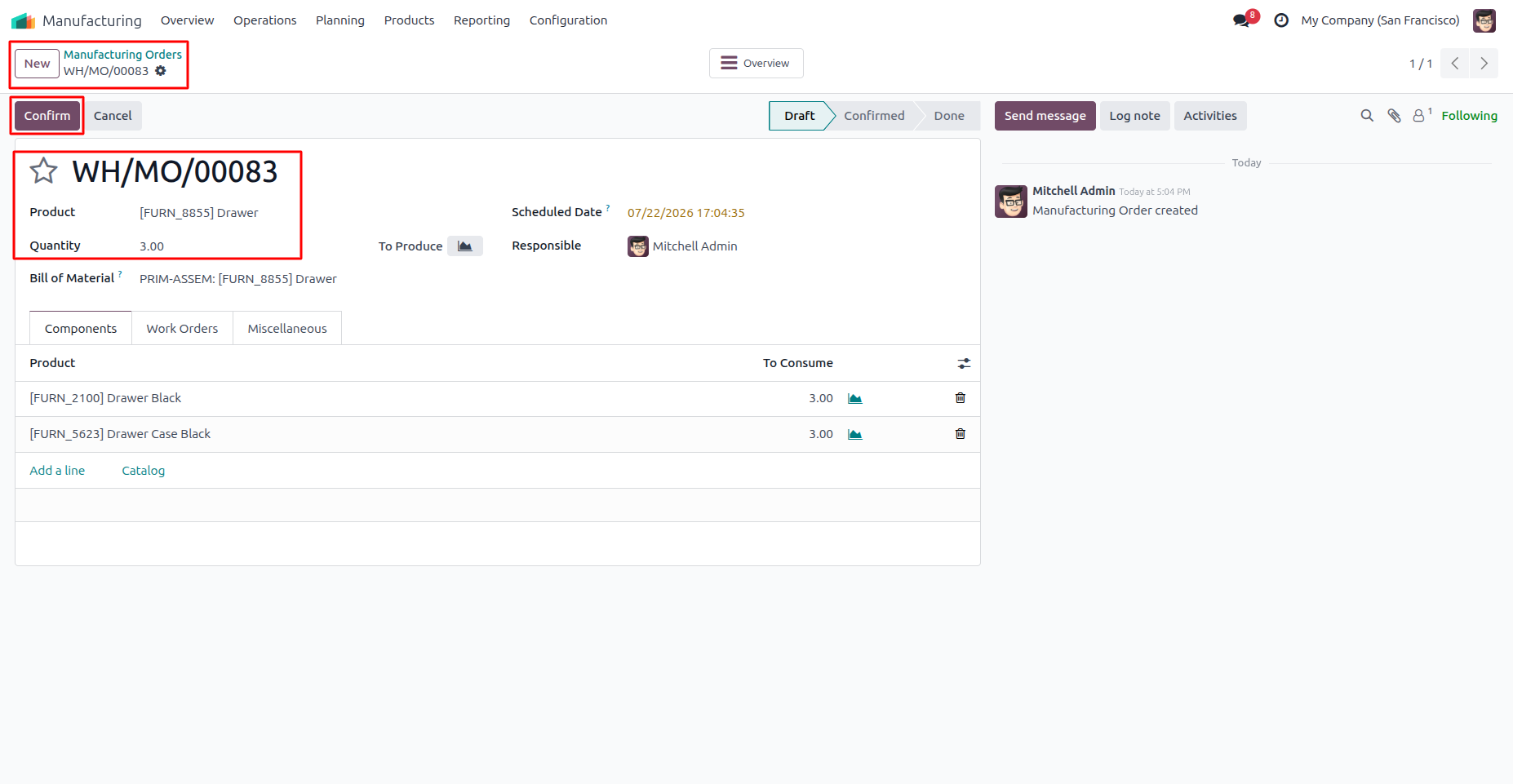
28. Create a Manufacturing Order for a Lot-tracked product and click Confirm. The Manufacturing Order is confirmed and prepared for production, ready to generate and assign a Lot Number.
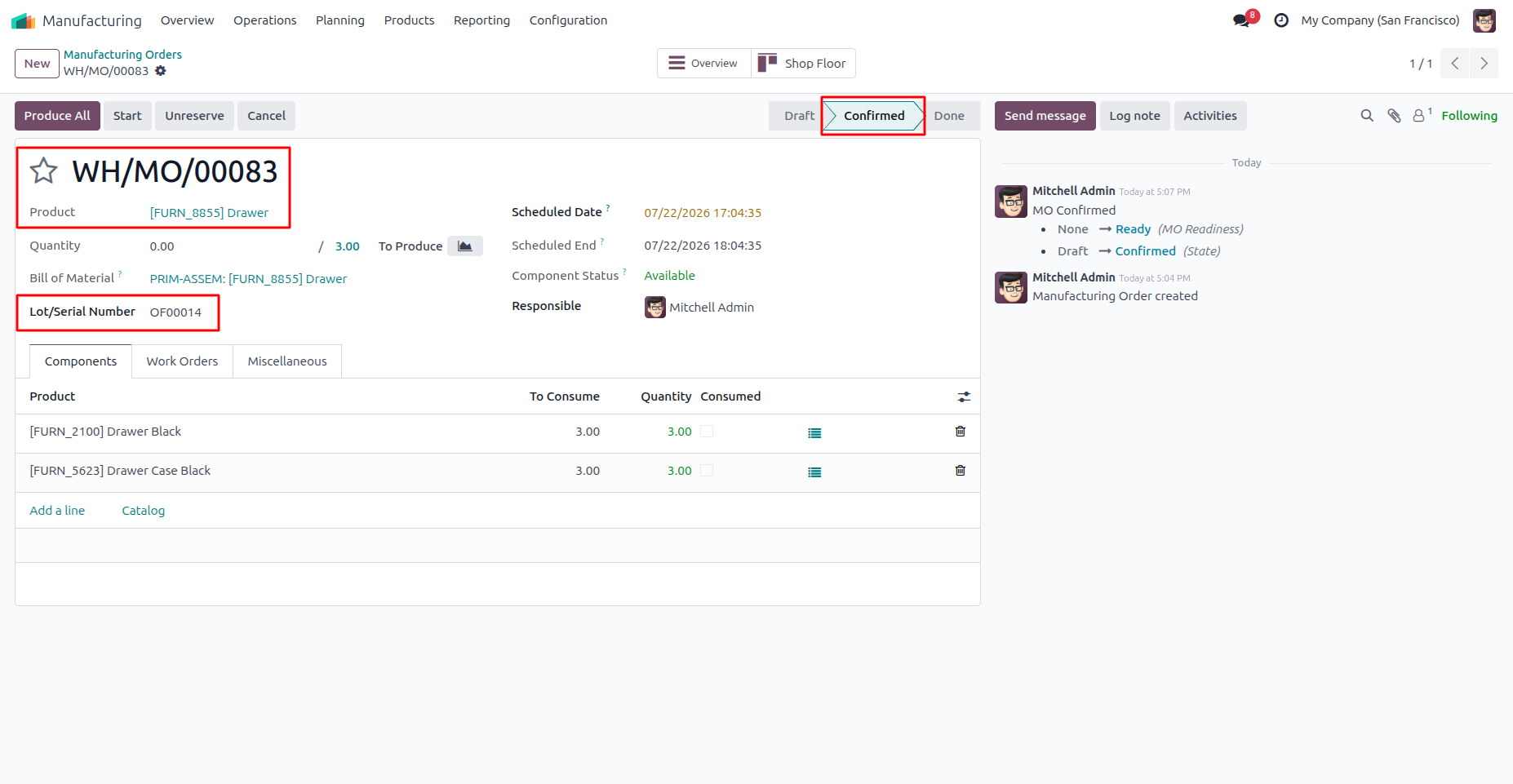
29. Click Confirm to confirm the Manufacturing Order. The first Lot Number is automatically assigned from the configured Product Category sequence, so there is no need to click the (+) button to generate it manually.
Our solutions focus on your problems
- Odoo Implementation
- Odoo Customization
- ERP Development and Implementation
- Odoo Ipass Cloud
- AI for Odoo
- Odoo Apps
- Aws Marketplace Products
- Business Engines
Our Pricing includes User Manual, 90 Days Support (Monday-Friday 10am to 7pm IST) and One time Setup
• Works & tested on standard installations of Odoo with no third party apps,
• Free support only for odoo installations with no third party apps,
• Paid support available for Odoo installations with third party apps.

Prefortune is a Odoo Official Partner, Odoo Development company. Our philosophy is to use Open Source tools and technologies to provide cost effective and green solutions for our customers.
Prefortune Technologies LLP is working on web development, Mobile development, and Odoo ERP.
If you need any help or want more additional features, you may contact us through:
Alternative Products
These other products might interest you
Specifications
| Version | 19.0, 18.0, 17.0, 16.0, 15.0, 14.0 |